What's inside
- Where to buy
- Key Takeaways
- Quick Picks
- How did we choose laptops for complete beginners?
- Why does simplicity matter more than power for a first computer?
- The six machines, one by one
- Which size and shape fits which kind of day?
- How do the six compare at a glance?
- How should a helper set the laptop up before handing it over?
- What mistakes do families make with a first laptop?
- Final Recommendation
- Frequently Asked Questions
- Related Guides
As an Amazon Associate I earn from qualifying purchases. This post may contain affiliate links at no extra cost to you.
gizmoverdict.com is reader-supported. When you buy through links on our site, we may earn an affiliate commission.
Where to buy
Each of the six laptops in this guide links to its verified Amazon listing, once in the quick picks table and once at the top of its detailed section, so a family member helping with the purchase can check the exact model before ordering. If you are choosing among the best laptops for seniors without computer experience, though, the shopping is honestly the easy part. The harder part — and the part this guide spends most of its words on — is matching a first-time user with a machine that will still feel friendly six months after the box is opened, when the novelty has faded and the laptop has become a daily tool for video calls, photographs, letters, and the ordinary business of life.
Here is the conclusion first, because everything else in this article explains it. For someone who has never used a computer, the simplest and most forgiving laptop is usually a Chromebook. A Chromebook runs ChromeOS, a system built around the web browser: it starts quickly, updates itself quietly in the background, needs no antivirus software, and offers very little that a nervous beginner can accidentally break. There are no mysterious system folders to wander into, no maintenance rituals to learn, and signing in is a single Google account password. Five of our six picks are Chromebooks, and that imbalance is deliberate honesty rather than laziness. The sixth pick runs Windows 11, and it is here for one specific situation: when a program the person genuinely needs exists only on Windows. Outside that situation, simplicity wins.
Notice what this guide does not judge. There are no benchmark contests here, no processor league tables, no arguments about graphics. A first computer succeeds or fails on entirely different grounds: can the owner read the screen comfortably at arm’s length on a kitchen table? Are the keys large, distinct, and forgiving of a slow, deliberate typing style? Does the machine feel light enough to move from table to lap to sideboard without dread? Does the battery survive being forgotten about, because a beginner will forget? And when something confusing happens — as it will — how much can go wrong before a phone call to a patient relative becomes necessary? Screen readability, keyboard kindness, weight, battery behaviour, and freedom from maintenance: those are the five measures that matter, and every pick below is weighed on them.
A word to the adult children, grandchildren, and kind neighbours who are likely reading this on someone else’s behalf. The best gift is not the most powerful laptop; it is the laptop that gets used. A modest machine that its owner opens confidently every morning beats an impressive one that sits in a drawer because its owner fears touching the wrong thing. Buy for confidence, set it up with love before you hand it over — the how-to section later in this article walks through that setup step by step — and choose the machine whose daily manners suit the person, not the machine whose specification would impress you.
Key Takeaways
- Chromebooks are the honest default for a complete beginner: automatic updates, no antivirus chores, and a browser-based world that is very hard to break by accident.
- Screen size is a readability decision before it is anything else — the 15.6-inch picks suit table-based use, while the smaller machines reward anyone who will carry the laptop around the house.
- The single Windows pick earns its place only when a specific Windows-only program is truly required; otherwise its extra complexity is a cost, not a feature.
- Setup done by a helper before handover — Google account, recovery email, enlarged text, a home screen with only the needed shortcuts — matters more than any hardware choice on this page.
- Battery figures in listing titles are seller claims, so this guide talks about battery behaviour in class terms: Chromebooks as a family sip power and forgive forgotten chargers.
- Every pick here stores modest amounts locally, which suits a beginner’s life of email, calls, photos, and documents kept safely in cloud accounts rather than in folders they must manage.
Quick Picks
| Pick | Badge | Why it earns its place |
|---|---|---|
| HP Chromebook 14 N4120 | Best balanced starter | A fourteen-inch screen in a thin, light shell, with the straightforward manners that make HP’s Chromebook a calm first computer. |
| Acer Chromebook 315 | Best big-screen table companion | The largest display in the roundup for readers who will work mostly in one comfortable place and want everything bigger. |
| Samsung Chromebook 4 | Best featherweight for carrying | An 11.6-inch machine light enough to move room to room without thought, for short sessions and small hands. |
| ASUS Chromebook CM15 | Best sharp big screen | A 15.6-inch Full HD panel — the clearest text in this guide — for eyes that appreciate crisp letters on a roomy canvas. |
| Samsung Galaxy Chromebook Go | Best fourteen-inch traveller | A slim fourteen-incher built in Samsung’s student line tradition, easy to carry and easy to live with. |
| HP Everyday Laptop Windows 11 | Best when Windows is required | The one Windows machine here, for the household where a particular program leaves no real choice. |
How did we choose laptops for complete beginners?
We started by asking what a first computer is actually for, in the lives of the people who will receive these machines. The answers repeat across families: video calls with children and grandchildren, email, looking at photographs, reading the news, online shopping and banking, watching programmes, writing the occasional letter, and perhaps a community group or place of worship that now organises itself online — readers in that last situation may also know our guide to the best laptops for church, written for organisers rather than beginners. Every one of those tasks happens in a web browser. None of them needs a powerful processor, a graphics card, or a vast hard drive. All of them benefit from a machine that starts fast, forgives mistakes, and never asks its owner to perform maintenance.
That reasoning led us to Chromebooks first, and we make no apology for it. A Chromebook’s storage is deliberately small because its world lives in the owner’s Google account: mail in Gmail, photos in Google Photos, documents in Drive. Lose the laptop, and almost nothing is lost; sign into a replacement and the person’s digital life reappears. For a beginner, that safety net is worth more than any specification. We then spread the Chromebook picks across the size range — small and light, medium, large, and large with a sharper screen — because the right size depends on where and how the person will sit, which is a question about furniture and eyesight, not technology.
The Windows pick was held to a stricter test. It had to justify the extra complexity Windows brings: more settings, more updates that announce themselves, more security decisions landing on a person who never asked to make them. It justifies itself only in the specific case the pool assigns it — a needed program that exists solely on Windows — and its section below says so plainly, along with the extra setup care a helper should give it. If that case does not apply to your family, choose any of the five Chromebooks with a clear conscience.
Why does simplicity matter more than power for a first computer?
Every experienced computer user forgets how frightening a blank, complicated screen is to someone meeting one for the first time. A beginner does not see possibilities; they see a hundred ways to do something wrong. Will this button delete something? Is this message real or a trick? The machine asked to restart — did I break it? Confidence, not capability, is the scarce resource, and a simple operating system protects confidence the way a handrail protects a staircase. ChromeOS shows a clean shelf of familiar app shapes, a browser that behaves the same way every day, and settings that stay where they were left. There is almost nothing a beginner can press that cannot be undone by closing a tab.
Security belongs in this conversation too, and it favours the simple machine in ways families rarely consider. The scams that target older people — fake virus warnings, alarming pop-ups demanding a phone call, emails impersonating banks — lean heavily on the complexity of traditional computers. A Chromebook’s sealed, self-updating design shrugs off most of that theatre: there is no antivirus subscription to fake, no system utility to imitate convincingly, and updates arrive without asking the owner to judge whether they are genuine. No computer makes anyone scam-proof, and the safety conversation in our FAQ still matters, but starting from a platform with fewer doors is plain common sense. Families comparing the wider budget field might look at our roundup of the best inexpensive lightweight laptops afterwards, though most of those machines trade this simplicity away for Windows flexibility a beginner does not need.
Finally, simplicity is what makes help possible at a distance. When a Chromebook confuses its owner, a relative on the phone can picture the screen almost exactly, because every Chromebook presents the same calm layout. Advice becomes short and accurate — tap the circle in the corner, tap the camera picture — instead of a twenty-minute expedition through differing menus. That difference decides whether a small confusion becomes a solved moment or a reason to close the lid and not open it again for a week.
The six machines, one by one
Each section below judges its machine on the beginner’s measures: the screen, the keyboard, the weight in real hands, the battery’s forgiving nature, and how little looking-after it demands. Specifications appear because they describe size and storage, not because a first-time user should ever have to think about them again after choosing.
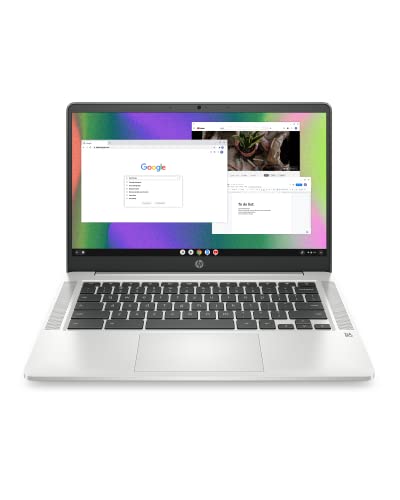
HP Chromebook 14 N4120 — Best balanced starter
If a family asked us to name one machine and stop deliberating, this HP would be the name. Its listing describes a fourteen-inch HD display, an Intel Celeron N4120 processor, four gigabytes of memory, sixty-four gigabytes of eMMC storage, and a thin design in Mineral Silver, running ChromeOS. Fourteen inches is the size that splits the difference in a beginner’s life: large enough that web pages and video calls feel generous rather than cramped, small enough that the laptop can live on a lap, a tray table, or the corner of a kitchen counter without dominating it. The thin shell keeps the weight in the class a person can carry one-handed from room to room, which sounds trivial until you picture the actual journeys a home laptop makes — to the good light by the window, to the quiet bedroom for a call, back to the table for the evening news.
The ownership experience is where this machine quietly shines. It wakes quickly, asks for one password, and presents the same tidy desktop every time. Video calls — the task most of these laptops are truly bought for — run in the browser without installing anything, and the webcam and microphone simply work when a grandchild’s face appears. The keyboard follows HP’s sensible Chromebook layout, with a search key where other laptops put Caps Lock, a detail a helper can explain in one sentence. Battery behaviour is classic Chromebook: modest demands, long stretches between charges, and no harm done when the owner forgets the cable for a day. For a first computer that must succeed at everything ordinary and excel at nothing exotic, balance is not a compromise. It is the whole virtue.
- Display: 14-inch HD screen, per the listing title
- Processor: Intel Celeron N4120
- Memory and storage: 4GB RAM with 64GB eMMC
- System: ChromeOS, with automatic updates handled by the system itself
- Design: thin body in Mineral Silver, model 14a-na0226nr
- Graphics note in title: described as 4K graphics capable, a spec-sheet phrase no beginner needs to act on
Strengths
- The fourteen-inch size threads portability and readability better than any other in this roundup.
- ChromeOS manners — fast starts, silent updates, nothing to maintain — suit a nervous first owner perfectly.
- HP’s wide service and accessory presence means a lost charger or a question at a local shop is easily resolved.
Trade-offs
- The HD resolution is adequate rather than crisp; readers who strain at small text may prefer the Full HD ASUS below.
- Sixty-four gigabytes of local storage fills if the family loads it with downloaded films instead of streaming them.
- Four gigabytes of memory is fine for a handful of tabs, less happy when a helper opens twenty during a support session.
Best for: the majority of first-time users, whose life will happen at several spots around the house. Not suited for: a reader with weak eyesight who will work mainly at one table, where a larger, sharper screen serves better.

Acer Chromebook 315 — Best big-screen table companion
The Acer Chromebook 315 is built around one generous decision: a 15.6-inch display, the largest in this guide, in a machine that otherwise keeps the Chromebook recipe of an Intel Celeron N4020 processor, four gigabytes of memory, and sixty-four gigabytes of eMMC storage. For the person who will use their laptop the way their parents used a newspaper — at one favourite table, in one favourite chair, at predictable times of day — that big screen is the kindest feature money can buy here. Web pages can be enlarged without becoming cramped, video calls show faces at a size that feels like conversation rather than surveillance footage, and the wider body makes room for a more spread-out keyboard that deliberate, two-finger typists tend to prefer.
Size cuts both ways, and this section will not pretend otherwise. A 15.6-inch laptop is a table resident, not a lap companion; it travels between rooms as an event rather than an impulse, and its owner will likely give it a permanent home with the charger nearby. For the right person, that permanence is a feature disguised as a limitation. A laptop that lives in one place is a laptop that is never lost in the house, never left uncharged in a bedroom, and always part of the morning routine — kettle, radio, laptop, news. Acer’s listing mentions a long battery figure, as listings do; we treat such numbers as seller claims and note only that the Chromebook class sips power gently enough that a table-based owner who plugs in most evenings will never think about the battery at all.
There is a social dimension to the big screen too. Photographs from family holidays, a grandchild’s school play streamed by the school, a video call with three relatives in three time zones — all of these are shared moments, often with a spouse pulling up a second chair. A 15.6-inch display shares gracefully; an 11.6-inch one makes a ceremony of crowding. If this laptop is destined for a couple as much as an individual, the Acer’s canvas argues for itself, and our guide to the best acer chromebook laptops places it among its Acer siblings for anyone comparing within the brand.
- Display: 15.6-inch HD screen, the largest panel in this roundup
- Processor: Intel Celeron N4020, described in its title as reaching up to 2.8GHz
- Memory and storage: 4GB RAM with 64GB eMMC
- System: ChromeOS, self-updating in the background
- Connectivity: Wi-Fi and Bluetooth both named in the title
- Battery: a long-life figure is claimed by the seller; treat it as a claim and judge by the class instead
Strengths
- The big display is the easiest on ageing eyes and the best for shared viewing with a second chair pulled alongside.
- A roomier chassis means a more spacious keyboard deck for unhurried typing.
- It encourages a settled routine — one home, one charger, no hunting for the laptop each morning.
Trade-offs
- HD resolution spread across 15.6 inches looks softer than the same resolution on a smaller screen.
- It is the least lap-friendly machine here, and the one its owner will carry least often.
- Like its siblings, local storage is modest and assumes a cloud-centred life.
Best for: table-based users, couples sharing one machine, and anyone whose eyesight asks for size first. Not suited for: a restless user who reads in bed, calls from the sofa, and emails from the garden in a single afternoon.
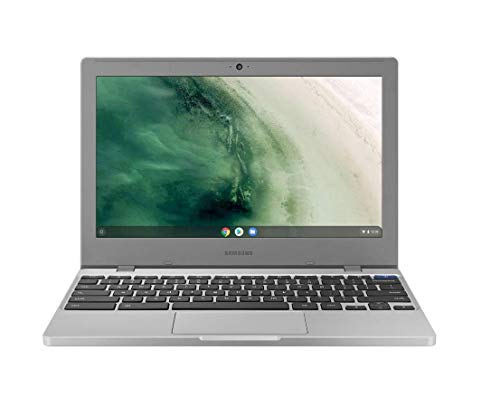
Samsung Chromebook 4 — Best featherweight for carrying
The Samsung Chromebook 4 makes the opposite bet from the Acer: an 11.6-inch HD display, an Intel Celeron N4000 processor, four gigabytes of memory, and thirty-two gigabytes of eMMC storage, in the smallest and lightest class of machine in this article. Everything about it is scaled for movement. It slips into a tote bag, rests on a lap without announcing its weight, and can be lifted, opened, and closed with the easy one-handed confidence that larger machines deny to hands with arthritis or reduced grip. For short sessions — checking email over breakfast, a photograph sent by a daughter, the weather before a walk, a chapter of the news — small and instantly available beats large and parked in another room.
The compromises deserve plain speech. Thirty-two gigabytes is the least local storage here, which is fine for a cloud-centred life and limiting for anyone who downloads media to keep. The small screen asks more of the eyes, and a beginner who will read long articles daily should try the text-enlargement settings described later in this article before committing, or step up to a fourteen-inch pick. The keyboard is necessarily compact; broad hands and hunt-and-peck typing can coexist with it, but not luxuriously. None of these are flaws in the machine’s own terms. They are the price of the one quality it maximises, which is being there — on the arm of the sofa, in the bag taken to a sister’s house, in the hands of someone for whom every extra hundred grams is a reason to leave a laptop behind.
Samsung’s listing highlights gigabit Wi-Fi, a genuinely useful trait in houses where the router lives far from the favourite chair, since a strong wireless connection forgives distance better than a weak one. The Chromebook 4 also has the virtue of maturity: it is a well-established model with a long tail of cases, chargers, and family familiarity around it. A helper who has set one up before will find nothing surprising, and unsurprising is the highest praise in this category.
- Display: 11.6-inch HD screen, the smallest in this guide
- Processor: Intel Celeron N4000
- Memory and storage: 4GB RAM with 32GB eMMC
- System: ChromeOS in Samsung’s XE310XBA-K01US configuration
- Connectivity: gigabit Wi-Fi highlighted in the title
- Design intent: the carry-everywhere member of this roundup, light in hand and bag alike
Strengths
- Featherweight manners make it the machine most likely to actually be carried to where life happens.
- Quick, simple, and established — a model helpers may already know from other family members.
- Strong Wi-Fi specification helps in houses where the router and the favourite chair are far apart.
Trade-offs
- The small screen is the hardest here on weak eyesight, even with text enlarged.
- Thirty-two gigabytes of storage is the tightest in the roundup and leans fully on cloud accounts.
- The compact keyboard crowds larger hands and slow, deliberate typing styles.
Best for: mobile users taking short sessions around the house and out of it, especially where grip strength matters. Not suited for: long daily reading, table-based routines, or anyone who found phone screens too small and said so.

ASUS Chromebook CM15 — Best sharp big screen
The ASUS Chromebook CM15 answers the Acer 315 directly, and the difference between them is the most instructive comparison in this article. Both offer a 15.6-inch display; the Acer spreads an HD picture across it, while the ASUS fits a Full HD panel — more pixels in the same space, which means letters with cleaner edges, photographs with finer detail, and text that stays legible even before the enlargement settings are touched. Its listing pairs that screen with a MediaTek Kompanio 540 processor, four gigabytes of memory, and sixty-four gigabytes of storage, in a Pure Grey finish. For a reader whose eyes tire quickly, or who reads for long stretches — newspapers, library books, long emails from travelling friends — that crispness is not a luxury specification. It is the difference between a screen that cooperates with ageing eyes and one that negotiates with them.
The processor badge deserves a reassuring explanation, because MediaTek names are unfamiliar to many families. Chromebooks do not need the processor brands that gaming laptops advertise; they need enough steadiness to open pages, run video calls, and play programmes smoothly, and the Kompanio line exists precisely for this class of machine. In daily beginner life the CM15 will feel indistinguishable from its Intel-powered siblings, starting quickly and asking nothing of its owner. What its owner will notice is the screen, every day, and the calm ChromeOS behaviour behind it.
Like the Acer, this is a table-anchored machine, and it shares that lifestyle honestly: a settled place, a nearby charger, two chairs pulled up for shared viewing. Where it parts company is in who should pay its typically slightly higher ask. Choose the Acer if size alone solves the problem and the budget is firm. Choose this ASUS if the reader’s eyes are the household’s recurring complaint, if spectacles are forever being fetched, or if the laptop will double as the family photograph album — because photographs, of all things, deserve the sharper panel. The enlarged-text guidance in our how-to section still applies, but the CM15 starts that conversation from a position of strength.
- Display: 15.6-inch Full HD screen, the sharpest panel in this roundup
- Processor: MediaTek Kompanio 540, a chip family built for Chromebooks
- Memory and storage: 4GB RAM with 64GB storage
- System: ChromeOS, quietly self-maintaining as the platform promises
- Finish: Pure Grey, model family CM1505
- Role in the lineup: the big-screen choice where clarity, not merely size, is the priority
Strengths
- Full HD resolution makes text edges cleaner at exactly the size where HD begins to look soft.
- The roomy screen shares photographs and video calls comfortably between two viewers.
- Chromebook simplicity is fully intact despite the more ambitious display.
Trade-offs
- It shares the big-machine lifestyle: a home base rather than a lap or travel companion.
- The unfamiliar processor name can worry family buyers, even though daily use gives them no reason to think about it again.
- Four gigabytes of memory keeps it a one-task-at-a-time machine, which suits beginners but not the helper demonstrating ten things at once.
Best for: readers with tired eyes, long reading sessions, and a settled table where the laptop will live. Not suited for: anyone who wants to carry the machine daily, or a household where the Acer’s size already solves the vision question for less.

Samsung Galaxy Chromebook Go — Best fourteen-inch traveller
The Galaxy Chromebook Go occupies the thoughtful middle of this lineup: a fourteen-inch screen like the HP’s, an Intel Celeron N4500 processor, four gigabytes of memory, and sixty-four gigabytes of storage, in a slim silver body from Samsung’s student laptop line. That student heritage is worth translating for this audience. Machines designed for students are designed for people who carry them all day, open them a dozen times, and treat them without ceremony — which is to say, they are designed for exactly the knocks, journeys, and constant small uses of an active older person’s life. The Go is the pick for the beginner who is not housebound in the slightest: the laptop goes to the community centre, to a friend’s kitchen table for a shared call with family abroad, into the car for a holiday cottage where the evenings are long.
Against the HP Chromebook 14, its closest rival here, the Go argues from design rather than specification, since the two machines’ listed figures are near-twins. Samsung’s hardware tends toward the slim and tidy, and the Go’s appeal is how little presence it has until it is opened: no bulk in the bag, no fuss on the table, a screen size that still shows a video call generously. The HP counters with its own service network and an equally calm manner. A family choosing between them is choosing between two good answers, and the honest tiebreakers are which one a local shop stocks, which keyboard the recipient’s hands prefer in a brief tryout, and which is available in the configuration listed here when the order is placed.
One habit matters more with a travelling machine than a parked one: signing out and keeping the Google account password somewhere safe at home. The Go’s portability means it will occasionally be left in cafés and community halls in its owner’s imagination long before it ever is in fact, and the Chromebook safety net — everything living in the account, nothing precious stored only on the device — is the reassurance that lets its owner relax. The setup section below covers the recovery email that makes that safety net real, and it applies to this pick most of all.
- Display: 14-inch screen, the balanced size shared with the HP pick
- Processor: Intel Celeron N4500
- Memory and storage: 4GB RAM with 64GB storage
- System: ChromeOS, model XE340XDA-KA2US
- Design: slim silver body from a student line, built to be carried daily
- Role in the lineup: the fourteen-incher for a life lived partly outside the house
Strengths
- Student-line toughness and slimness suit a beginner whose laptop genuinely travels.
- The fourteen-inch screen keeps calls and reading generous without table-machine bulk.
- Storage doubles the smaller Samsung’s, easing the cloud-only discipline a little.
Trade-offs
- It overlaps the HP so closely that some families will find the choice harder, not easier.
- Fourteen inches still asks weak eyes to use the text enlargement settings for long reading.
- A travelling laptop needs the account recovery setup done properly, which asks an extra half hour of the helper.
Best for: active beginners whose laptop will visit community halls, relatives, and holiday cottages. Not suited for: a purely table-based reader, who gains more from the 15.6-inch screens for similar money.

HP Everyday Laptop Windows 11 — Best when Windows is required
This is the article’s deliberate exception, and it should be bought deliberately. The HP Everyday Laptop runs Windows 11 rather than ChromeOS; its listing describes an Intel processor, one hundred twenty-eight gigabytes of storage, Copilot AI features, an Office 365 connection with a terabyte of cloud storage, fast charging, Wi-Fi 6, and a lightweight portable build in Pale Rose Gold. None of that makes it a better beginner laptop in general — Windows asks more of its owner than ChromeOS does, in updates that present choices, in security software considerations, in a busier screen full of possibilities and distractions. It makes it the right laptop in one circumstance: when something in the person’s life genuinely requires Windows. A particular family-history program bought years ago. Software tied to a hobby, a charity role, or a part-time job. A course that assumes it. When that circumstance is real, fighting it with a Chromebook helps nobody, and this HP is the pool’s answer.
If this is your pick, the helper’s setup duties grow, and the how-to section’s Windows notes deserve a careful read. The machine should arrive at its owner with updates already applied, a single sign-in method agreed and practised, the needed program installed and pinned where it can be found, and everything else — the promotional tiles, the extra assistants, the noise — tidied away as far as Windows allows. The terabyte of cloud storage in the listing is genuinely useful for photographs, provided a family member sets up the sync once and confirms it is working; left unconfigured, cloud storage is a promise rather than a service.
Set against the Chromebooks, the honest summary is this: the HP asks for a more involved family. Someone must be willing to be its occasional mechanic, in a way no Chromebook here requires. Many families happily accept that bargain because the Windows-only program matters — a genealogy archive representing years of work is not a trivial thing. But a family choosing Windows out of vague familiarity, because Windows is what computers have always run, should reread the Chromebook sections above. Familiarity belongs to the helper’s generation. The beginner has no habits to protect, and the simpler machine will become familiar faster than the complicated one ever will. Households weighing this fork may also find our guide to the best laptops for kids surprisingly relevant, since the simplicity argument that protects a seven-year-old protects a seventy-year-old beginner in almost the same words.
- Display: size not stated in the listing title — confirm the exact panel on the listing page before ordering
- Processor: Intel CPU, generation not named in the title
- Storage: 128GB on the device, with 1TB of cloud storage and Office 365 named in the title
- System: Windows 11, with Copilot AI features advertised
- Connectivity and charging: Wi-Fi 6 and fast charge both claimed in the title
- Finish: Pale Rose Gold, in a lightweight portable build
Strengths
- It runs the Windows-only programs that no Chromebook in this guide can touch.
- Local storage doubles the Chromebooks’, and the bundled cloud allowance suits big photo collections once configured.
- Wi-Fi 6 and fast charging are modern conveniences its Chromebook siblings do not all claim.
Trade-offs
- Windows brings updates, choices, and security questions that land on a beginner who never asked for them.
- It needs a family mechanic — a helper willing to maintain it in a way the Chromebooks never demand.
- The listing title leaves the screen size unstated, so the listing page must be checked before this pick can be judged for readability.
Best for: the household with a specific, named Windows program that the person truly uses. Not suited for: everyone else — and everyone else is most people, which is why five Chromebooks surround it.
Which size and shape fits which kind of day?
Families often treat screen size as a specification to maximise, when it is really a question about furniture. Walk through the person’s ordinary day and mark where a laptop would naturally be opened. If the answer is one place — the kitchen table after breakfast, the desk in the spare room — then weight stops mattering almost entirely, and the largest screen the budget allows becomes the kindest purchase, because a parked laptop is judged purely by what it shows. If the answer is three or four places, the calculus inverts: every journey is a small negotiation with gravity, and the machine that wins is the one light enough that the negotiation never happens. There is no universally correct size in this roundup, only a correct match between a screen and a routine, and the routine is knowable before a single listing is opened.
Eyesight refines the match further. Enlarged text is a wonderful tool, but it has a geometry: the bigger the words, the fewer of them fit, and on a small screen a heavily enlarged page becomes an endless scroll that can disorient a new reader. This is why the 15.6-inch machines tolerate enlargement so gracefully — they can show large letters and still show enough of the page around them to preserve the sense of place. A beginner with strong glasses and short reading sessions may never feel this. A beginner who reads a newspaper end to end every morning will feel it within a week, and will bless whoever chose the bigger panel. When eyesight is the family’s chief worry, treat the ASUS CM15’s sharper screen as the starting point and argue backwards from there.
Hands deserve the same respect as eyes. A trackpad asks for a light, sliding touch and a steady finger, and some beginners — particularly those whose working lives were spent with tools, keyboards of the musical kind, or simply decades of manual confidence — find a separate mouse far more intelligible, because the hand’s movement and the pointer’s movement visibly correspond. Budget for a simple wireless mouse with any pick in this article and practise with it during setup; it costs little and removes a daily grain of friction. Keyboards matter too in a quieter way: the larger machines spread their keys wider, which suits a deliberate typist who watches their fingers, while compact keyboards reward the already-confident. Nobody should be asked to learn typing and a new operating system as one combined subject.
Sound is the sense families most often forget to plan for. Video calls and programmes are heard as much as seen, and laptop speakers — in this class of machine especially — are modest. A person with hearing loss may find a call perfectly visible and barely audible, and conclude wrongly that the technology is not for them. The remedies are humble: sit nearer the router so the call does not break up, raise the system volume during setup and mark where it lives on the paper sheet, and consider ordinary wired earbuds or a simple headset for calls, which place voices close to the ear and give the microphone a shorter path to the mouth. None of the listings in this pool makes speaker promises worth repeating, so judge this in the home, with the person’s own ears, in the first week — while an accessory can still be added calmly rather than after a disappointing call.
Finally, think about where the machine sleeps. A laptop with a settled home — one table corner, one socket, one cable that lives there permanently — develops the reliability of a household appliance, and appliances get used. A laptop that migrates between drawers and bags acquires the fate of all unhomed objects. Choose the home during setup, together, and let it be near the person’s favourite seat rather than near the helper’s idea of a tidy house. The best laptop for a senior without computer experience is, in the end, the one that is simply there each morning: charged, familiar, enlarged, and waiting with the family’s faces one tap away.
How do the six compare at a glance?
| Pick | Screen | System | Character in one line |
|---|---|---|---|
| HP Chromebook 14 N4120 | 14-inch HD | ChromeOS | The balanced default that most families should start from. |
| Acer Chromebook 315 | 15.6-inch HD | ChromeOS | Big, settled, and kind to eyes that mainly need size. |
| Samsung Chromebook 4 | 11.6-inch HD | ChromeOS | The featherweight that goes everywhere its owner does. |
| ASUS Chromebook CM15 | 15.6-inch Full HD | ChromeOS | The big screen with the sharp letters long readers deserve. |
| Samsung Galaxy Chromebook Go | 14-inch | ChromeOS | The traveller’s fourteen-incher from a student-tough line. |
| HP Everyday Laptop Windows 11 | Confirm on listing page | Windows 11 | The exception, bought only when a Windows program demands it. |
Choose from the table by sitting habits first. A person with one chair and one table should be looking at the two 15.6-inch rows, and choosing between them by eyesight: size alone, or size with sharpness. A person whose day moves around the house should be looking at the fourteen-inch rows, and a person whose day moves around the town at the Samsung pair. The Windows row is not a rival to the others; it is a different door, opened by a specific program’s name. Everything else in this article — the setup ritual, the safety habits, the enlargement settings — applies whichever row you land on, because those kindnesses belong to the handover, not the hardware.
How should a helper set the laptop up before handing it over?
Setup is where this purchase is truly made, and it belongs to the helper, not the beginner. Begin with the Google account, because on a Chromebook the account is the computer’s memory of its owner. Create it together if possible, choose a password the person can actually retain — a phrase meaningful to them beats a tangle of symbols — and write it down in a notebook kept at home, without embarrassment; a password in a kitchen drawer is a sensible system for a machine that never leaves the house. Then set the recovery email to a trusted family member’s address. That single step is the difference between a forgotten password being a five-minute phone fix and a locked-out catastrophe, and it is the step most often skipped.
Next, make the screen kind. ChromeOS display settings let you enlarge everything — text, icons, the browser’s own lettering — and a beginner’s machine should start life enlarged beyond what the helper’s younger eyes need. Raise the browser’s default zoom as well, pin the text size, and then sit the owner down and adjust together while they read a real page aloud. Add the handful of destinations that matter as bookmarks with plain names: Family Photos, Email, News, Video Calls. Remove or ignore everything else. A home screen with five honest doors teaches confidence; a home screen with fifty teaches avoidance.
Practise the three rituals before you leave. First, a video call, end to end: opening it, answering it, ending it, with the helper calling from another room so the experience is real rather than described. Second, sending and replying to an email with a photograph attached, because photographs are the currency of family life. Third, shutting down and starting up, including what the sign-in screen looks like after an update, so its first appearance alone does not frighten. Write these rituals down in large handwriting, in the owner’s own words where possible, and leave the sheet beside the laptop’s home. Paper instructions do not run out of battery, do not update themselves into a new layout, and do not judge anyone for being consulted daily.
For the Windows pick, add three duties. Apply every pending update before handover, so the machine’s first weeks are quiet. Install and pin the one program that justified Windows, and confirm it opens. Finally, walk through the difference between a genuine update prompt and a frightening web page pretending to be one, because Windows owners meet that trick more often — the rule is simple and worth writing on the paper sheet: real updates never ask you to telephone anyone. Families who have also kitted out a spare room for visiting grandchildren sometimes ask about our guide to the best homeschooling laptops; the setup philosophy there — few doors, clearly labelled — is the same one at work here.
What mistakes do families make with a first laptop?
The tenderest mistake is buying the helper’s laptop instead of the beginner’s: the powerful Windows machine the adult child would enjoy, handed to a parent who needed a Chromebook’s calm. It is always well meant and it quietly fails, because every extra capability arrives with an extra way to become confused. The second mistake is the opposite cruelty — handing over a sealed box as a surprise, unwrapped at a birthday lunch, with setup promised for later. Later becomes next month. The machine meanwhile sits as a monument to good intentions, and the beginner’s first association with it is guilt. Set it up first, wrap it second, if wrapping is needed at all.
A third mistake is teaching too much in one visit. Ten features demonstrated in an afternoon become zero features remembered by evening. The beginner needs three rituals, practised until boring, and permission to learn the fourth thing next month. Families that drip-feed skills — calls this visit, photographs next visit, online shopping with supervision the visit after — build users who are still happily learning a year later. Families that front-load everything build users who apologise for the machine.
One more quiet mistake deserves naming: relatives sometimes set themselves up as the only lifeline, reachable for every hiccup, and then feel quietly burdened by the role within a year. A healthier pattern shares the load from the start. The paper instruction sheet handles the daily rituals, a named second family member shares the recovery email duty, and the beginner is encouraged — kindly, repeatedly — to try the obvious remedy first: close the thing, open it again. Most confusions on machines this simple dissolve under that single gesture, and each small self-rescue builds the confidence the whole purchase exists to create. The goal was never a laptop that phones home for help at every turn. The goal is an owner who, by the second month, phones the family for the pleasure of the call itself, on the very machine that once seemed so daunting.
The last mistake is neglecting the unglamorous accessories of confidence. A proper computer mouse often suits hands that find a trackpad slippery and mysterious, because a mouse moves the pointer in a way the hand can see itself doing. A short, large-print note of the Wi-Fi password lives beside the router. The charger gets a home and stays there. None of these cost much, and each removes a small daily friction that, multiplied across months, decides whether the laptop is loved or merely owned. Readers setting up a whole household’s worth of machines might browse our guide to the best accessible laptops next, where several of these same kindnesses are examined as formal features.
Final Recommendation
Start from the HP Chromebook 14 unless a specific fact about the person points elsewhere — to the big Acer for a settled table, to the sharper ASUS for tired eyes, to either Samsung for a life in motion, or to the Windows HP only when a named program insists. Then invest the real effort where it pays: an account with a recovery email, a screen enlarged without apology, three rituals practised in person, and a sheet of paper in large handwriting waiting beside the machine. Do that, and the laptop stops being a test the beginner fears failing; it becomes the window on the kitchen table through which the family’s faces arrive, bright and on time, every Sunday.
Frequently Asked Questions
Does a beginner really not need antivirus software?
On the five Chromebooks, correct — there is nothing to install, because ChromeOS is designed to protect and update itself, and that absence is one of its greatest kindnesses to a first-time user. On the Windows pick, the system’s built-in protection should be confirmed as active during setup, and the beginner taught one rule: no genuine protection will ever appear as a frightening web page demanding a phone call. When in doubt, close the page and ring a family member.
What happens if they forget their password?
This is why the recovery email matters. With a family member’s address set as the recovery route, a forgotten Google password becomes a guided reset over the phone, and the Chromebook then signs in as if nothing happened — files and photographs untouched, because they live in the account rather than on the machine. Without that setup, the same forgetfulness can mean a painful lockout. Spend the ten minutes; it is the cheapest insurance in this entire article.
Can these laptops make video calls to phones and tablets?
Yes, and this is the task they will perform most. Browser-based calling services work on every pick here without installing anything complicated, and the webcams and microphones in these machines are built for exactly that job. Practise one complete call during setup, with the helper in another room, and leave the steps on the paper sheet. Within a fortnight, answering a call will feel as ordinary as answering the telephone always did.
How much storage does a beginner need?
Far less than marketing suggests, because a beginner’s treasures live in accounts, not folders: photographs in the photo service, letters in email, documents in the cloud drive. The thirty-two gigabytes in the smallest Samsung is workable, the sixty-four in most picks is comfortable, and the Windows machine’s larger drive plus cloud allowance suits the one case where local programs and files genuinely accumulate. Running out of space is a problem these owners are unlikely to meet in their first years.
Should the laptop have a touchscreen?
None of the picks in this verified pool is sold on its touchscreen, and we would not pay extra chasing one for a beginner. A mouse or trackpad, once practised, gives steadier control than a reaching finger, and screens stay cleaner. If the person already uses a tablet confidently, that habit is a point in favour of larger, clearer displays rather than touch itself. Choose by eyes and hands, in that order.
What if the person wants to write letters and print them?
Every Chromebook here writes letters happily in the browser’s document tools, and modern home printers generally accept jobs from ChromeOS over Wi-Fi — a helper should pair the printer during setup and print one real letter together, so the path from words to paper is a memory rather than a mystery. The Windows pick handles older printers with the least fuss of all, which occasionally becomes the specific, named reason a family chooses it, and that is a legitimate reason.
Related Guides
Families still weighing the wider field can continue with our guide to the best laptops with upgradeable ram — the opposite philosophy, for the household’s tinkerers — or our roundup of the best laptops matte screen if glare in a bright kitchen turns out to be the next problem to solve.


