What's inside
- Key Takeaways
- Quick Picks
- How Do You Judge Value in a Laptop You Will Carry Every Day?
- How Do the Six Lightweights Stack Up When Weight Meets Specification?
- Should You Choose Snapdragon or Intel in a Lightweight Laptop?
- What Do Buyers Get Wrong When Shopping by Weight and Price?
- How Long Will an Inexpensive Lightweight Stay Pleasant?
- What Does a Week of Carrying Each Weight Class Actually Feel Like?
- How Do You Read a Lightweight Laptop Listing Like an Engineer?
- What Happens When a Lightweight Laptop Comes Home to a Desk?
- How Do the OLED Questions — Brightness and Burn-In — Play Out in Real Ownership?
- What Should the First Evening With a New Lightweight Laptop Include?
- How Do the Four Intel Machines in This Guide Divide Among Themselves?
- What Does Inexpensive Mean Across Four Years of Ownership?
- Which of These Six Is the Right Second Laptop?
- What Does the Warranty and Support Picture Look Like at This Tier?
- How Should You Time the Purchase in a Market That Discounts Constantly?
- How Do You Decide Between the Two Vivobook S 14 Models?
- How Do These Machines Handle Video Calls, Media and Light Creative Work?
- One More Honest Comparison: the Lightweight Against the Tablet-and-Keyboard
- Final Recommendation
- Frequently Asked Questions
- Related Guides
As an Amazon Associate I earn from qualifying purchases. This post may contain affiliate links at no extra cost to you.
gizmoverdict.com is reader-supported. When you buy through links on our site, we may earn an affiliate commission.
Where to buy: Lightweight laptops are sold by the gram and configured by the tier, so treat each pick’s link as the specification sheet that counts: confirm the memory and storage of the exact build on the listing before ordering, since several models below exist in cheaper configurations that are not the ones reviewed.
The best inexpensive lightweight laptops used to require an apology. A generation ago, the affordable thin machine was slow by spring, its screen was a grey suggestion of a display, and its battery treated a morning as a full shift. That era is over, and this guide is the evidence: five of the six laptops below run current Intel Core Ultra or Snapdragon X silicon, four carry OLED screens, and all six are machines you can carry in one hand and work on all day. The inexpensive end of the lightweight market is now where the interesting engineering lives, because efficiency chips made thin-and-fast cheap at the same moment.
Two definitions before the picks, because this category is gamed by both words. Lightweight here means a laptop that disappears into a daily bag — the fourteen-inch class and below, with one pick, ASUS’s Zenbook A14, pushing under the one-kilogram line that used to belong to exotic flagships. Inexpensive means the value tiers of the market rather than the premium shelf: prices in this segment move constantly with sales and configurations, so this guide argues in tiers and trade-offs instead of printing figures that would be stale by the weekend. Check the listing for the day’s number; judge by the hardware story below whether the number is fair.
The field divides by philosophy. Acer’s Aspire 14 AI and Swift Go 14 are the pragmatic all-rounders, Intel-powered and sensibly priced. ASUS sends three machines with three different arguments — OLED brilliance in the Vivobook S 14, OLED value in its Q423 sibling, and sheer featherweight in the Snapdragon Zenbook A14. And MSI’s Modern 14 closes the list as the cheapest route in, carrying an honest caveat its review will not hide: its processor is several generations old, and that fact shapes who should buy it.
Key Takeaways
- The Acer Aspire 14 AI is the centre of this market: current Core Ultra silicon, sixteen gigabytes of memory and a full terabyte of storage at a value tier.
- OLED has reached the inexpensive shelf — three ASUS picks carry it, and the Vivobook S 14 Q423 is the budget route to that screen quality.
- The Zenbook A14 is the weight champion, a Snapdragon machine under a kilogram, priced as the premium of this set rather than a bargain.
- Snapdragon and Intel now split the category: ARM brings endurance and silence, Intel brings universal software compatibility — choose by your programs, not by fashion.
- The MSI Modern 14 is the cheapest way in and says so with an older-generation processor; it suits light duties, not a five-year plan.
- Sixteen gigabytes of memory is the floor for a machine expected to last — every pick except the MSI meets it.
Quick Picks
| Pick | Badge | Why it is here |
|---|---|---|
| Acer Aspire 14 AI | Best overall value | Core Ultra 5 efficiency, a WUXGA touchscreen and a terabyte of storage — the specification most buyers actually need, at the tier they want to pay. |
| ASUS Vivobook S 14 OLED | Best display | An OLED panel, thirty-two gigabytes of memory and twin Thunderbolt 4 ports in an ultra-slim body that embarrasses pricier machines. |
| Acer Swift Go 14 | Best Intel value | A Core Ultra 7 with a touchscreen, fingerprint sign-in and Thunderbolt 4 — the step-up Acer for heavier multitaskers. |
| ASUS Vivobook S 14 (Q423) | Best budget OLED | The OLED screen and Copilot+ platform at the friendliest tier here, with a port expander in the bundle. |
| ASUS Zenbook A14 | Lightest step-up | Under a kilogram with a WUXGA OLED and Snapdragon endurance — the premium of this set, bought by the gram. |
| MSI Modern 14 | Cheapest route in | The lowest tier of entry, with an older-generation processor stated plainly and light-duty manners to match. |
How Do You Judge Value in a Laptop You Will Carry Every Day?
Weight first, because it is the specification you feel hourly. The difference between a 1.6-kilogram laptop and a 1.2-kilogram one is invisible in a showroom and unmistakable by the third month of commuting. Every pick here sits in the genuinely portable class, but the spread still matters, and the reviews note where each machine falls on the carry scale. Second, judge the screen, because it is the part you look at for the laptop’s entire life: the arrival of OLED at this tier is the segment’s biggest recent gift, trading the washed-out panels of old budget machines for contrast and colour that flatter everything from spreadsheets to films.
Third, the platform. Intel’s Core Ultra line and Qualcomm’s Snapdragon X family both deliver the efficiency modern thin laptops are built on, but they differ in software reach: Intel runs everything Windows has ever run, while Snapdragon’s ARM architecture occasionally meets an older program, printer driver or niche tool that has not made the journey. Neither is a defect — they are different wagers, and the buying-guide section below takes the compatibility question seriously. Fourth, memory and storage floors: sixteen gigabytes and 512GB are the figures that keep a laptop pleasant in year four, and configurations below them should be bought knowingly, as short-horizon machines.
Finally, price — handled the way this guide handles it throughout, as a moving tier rather than a printed figure. Sales in this segment are frequent and deep, configurations multiply, and a number printed today misleads next month. What does not move is the hardware argument: which screen, which silicon, how much memory, how many grams. Decide the pick on those, then let the listing’s current figure confirm the tier.

Acer Aspire 14 AI — Best overall value
The Aspire line spent years as the answer nobody got excited about, which makes this generation’s Aspire 14 AI a genuine surprise: it is the pick we would hand to most people asking this guide’s question. The Intel Core Ultra 5 226V is from the efficiency-first branch of Intel’s range, built for exactly the thin chassis it sits in, and its integrated Arc graphics handle everyday visual work — photo sorting, light editing, casual games, external displays — without strain. A Copilot+ badge rides along, with the neural processing unit the listing rates at up to forty TOPS for the on-device AI features Windows keeps adding.
The configuration is the argument. Sixteen gigabytes of LPDDR5X memory is the correct floor, and a full terabyte of Gen 4 SSD storage is more than this tier usually offers — enough that the delete-old-files ritual can be postponed for years. The 14-inch WUXGA touchscreen gives documents the taller shape and gives the owner touch when a signature, a sketch or a quick scroll makes it the natural input. Wi-Fi 6E keeps networking current. Nothing in the specification reaches for a headline; everything in it is the right answer, which is a rarer achievement than one spectacular part surrounded by compromises.
As a daily carry it behaves the way the category promises: light enough to forget in a bag, quiet in a library, quick to wake. Acer’s Aspire design language is sober rather than sleek, and buyers choosing with their eyes may wander toward the ASUS machines below. Choose with your workload instead. For the student, the home-office worker and the small-business owner who need one honest laptop that does everything competently for years, this is the value centre of the lightweight market right now.
- Processor: Intel Core Ultra 5 226V
- Display: 14-inch WUXGA touchscreen
- Memory and storage: 16GB LPDDR5X, 1TB Gen 4 SSD
- Platform: Copilot+ PC, Intel Arc 130V integrated graphics
- Connectivity: Wi-Fi 6E
Strengths
- Terabyte storage at a tier that usually halves it
- Efficiency-first silicon suits the thin chassis perfectly
- Every specification is the sensible choice — no weak paragraph
Trade-offs
- Sober styling next to the OLED ASUS machines
- Touchscreen panel is LCD, not OLED
- Core Ultra 5 is the balanced tier, not the performance tier
Best for: the one-laptop household or student who needs everything done well for years.
Not suited for: screen connoisseurs — the Vivobook OLED below exists for them.
ASUS Vivobook S 14 OLED — Best display
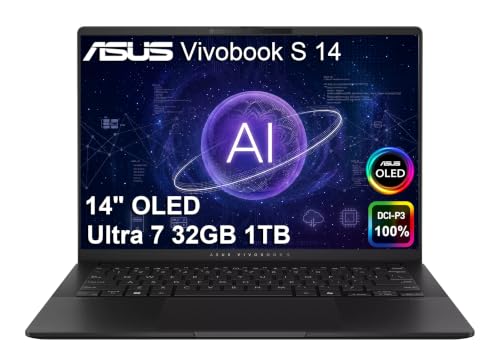
Open the Vivobook S 14 in a dim room and the argument makes itself. Its OLED panel produces the true blacks and saturated colour that LCD laptops at any price approximate and never reach, and ASUS wrapped that screen in an ultra-slim body with a specification list that reads like a machine from the shelf above: an Intel Core Ultra 7 258V, thirty-two gigabytes of memory, a terabyte of SSD storage, twin Thunderbolt 4 ports and Wi-Fi 7. This is the pick for the buyer whose inexpensive laptop must still feel like a treat every time the lid opens.
The memory figure deserves emphasis. Thirty-two gigabytes is double the comfortable floor and the single best future-proofing a laptop can carry, because memory is what year-four multitasking actually consumes. Combined with the Ultra 7’s headroom, this Vivobook is the lightweight here most likely to feel fast at the end of a long ownership — the one for the researcher with forty tabs, the amateur photographer culling a shoot, the analyst whose spreadsheets have grown ambitions. The facial-recognition webcam sign-in adds the daily convenience that fingerprint readers give rival machines.
OLED ownership carries its usual footnotes: brightness discipline stretches battery life, and static screen elements left blazing for years are not the panel’s friend, though modern ASUS software mitigates both. Neither footnote outweighs the daily pleasure of the display. If the screen is the part of a laptop you live with most — and it is — the Vivobook S 14 OLED is where this guide’s money goes when the budget stretches one tier up.
- Processor: Intel Core Ultra 7 258V
- Display: 14-inch OLED, FHD+
- Memory and storage: 32GB, 1TB SSD
- Ports: Two Thunderbolt 4, Wi-Fi 7
- Sign-in: Facial-recognition webcam
Strengths
- OLED screen transforms films, photos and dark interfaces
- Thirty-two gigabytes is the best longevity buy in this guide
- Twin Thunderbolt 4 docks a full desk from one cable
Trade-offs
- A tier above the Aspire’s pricing
- OLED asks for brightness discipline on battery days
- Ultra-slim body leaves ports to the Thunderbolt pair and essentials
Best for: visual workers and long-keepers who feel screen quality daily.
Not suited for: strict-budget shoppers — its own Q423 sibling is the thriftier OLED.

Acer Swift Go 14 — Best Intel value
The Swift Go 14 is Acer’s other answer in this guide, and the two Acers divide the audience cleanly: the Aspire is the efficiency play, the Swift Go is the horsepower play. Its Intel Core Ultra 7 155H comes from the performance branch of the Core Ultra family, with more cores and higher clocks for the multitasker who keeps a video call, a browser forest and a couple of heavy applications alive simultaneously. The 14-inch touchscreen, backlit keyboard and fingerprint reader cover the daily courtesies, and Thunderbolt 4 plus Wi-Fi 6E keep the connectivity modern.
Sixteen gigabytes of LPDDR5 memory and a 512GB NVMe SSD are the honest mainstream configuration — the floor this guide recommends, met exactly. The performance-oriented processor trades a little of the Aspire’s frugality for its extra muscle, so the Swift Go’s unplugged manners are good rather than class-leading; in exchange, it will feel responsive under loads that make efficiency chips pause. Acer’s Swift design is a notch sleeker than the Aspire’s, with the slimmer profile the Swift name has always promised, and the whole machine carries the air of a laptop bought for work first.
Choose it over the Aspire if your days are genuinely heavy — many applications, big files, constant switching — or if the current listing prices the two closely enough that the stronger processor is nearly free. Choose the Aspire for the terabyte and the quieter efficiency. Either way, Acer’s pair bracket the Intel value market between them, and the Swift Go is the half with the muscle.
- Processor: Intel Core Ultra 7 155H
- Display: 14-inch touchscreen, Intel Arc graphics
- Memory and storage: 16GB LPDDR5, 512GB NVMe SSD
- Ports: Thunderbolt 4, Wi-Fi 6E
- Sign-in: Fingerprint reader, backlit keyboard
Strengths
- Performance-branch processor for heavy multitasking
- Complete connectivity and sign-in package
- Sleeker profile than its Aspire sibling
Trade-offs
- 512GB storage is the floor, not a luxury
- Performance silicon sips less frugally than the 226V machines
- LCD panel in a guide where OLED is stealing the show
Best for: multitaskers whose working day keeps a dozen demanding applications open.
Not suited for: media collectors who will fill half a terabyte by Christmas.

ASUS Vivobook S 14 (Q423) — Best budget OLED
The Q423 configuration of the Vivobook S 14 is the budget route to the screen that defines this guide’s upper half. Its OLED panel runs at FHD+ resolution with the same true blacks and rich colour as its dearer sibling, and the platform beneath it is no consolation prize: Intel’s Core Ultra 5 226V, the efficiency-first chip from the Aspire, with the Copilot+ feature set riding along. Sixteen gigabytes of LPDDR5X memory and a 512GB PCIe SSD meet this guide’s recommended floors exactly, and the port selection — twin Thunderbolt 4 and Wi-Fi 7 — is a generation ahead of what budget OLED used to mean.
ASUS sells this build as a bundle with a USB port expander included, a practical addition for a slim laptop whose native ports lean on Thunderbolt; confirm the bundle contents on the listing, as bundle compositions are the part of any listing most likely to change between printings of this guide. The machine itself is the same ultra-slim Vivobook design language as the 258V model above, which means the budget route sacrifices specification headroom — half the memory, half the storage, one processor tier — rather than build or screen.
That is the right set of sacrifices for its buyer. The student or home worker whose workload is documents, browsing, streaming and light creative play will experience this laptop, day to day, as nearly identical to its expensive sibling: same screen pleasure, same slim carry, same silent efficiency. The difference appears only under the heaviest multitasking, years from now. Budget OLED used to be a contradiction; the Q423 is the proof it no longer is.
- Processor: Intel Core Ultra 5 226V
- Display: 14-inch OLED, FHD+
- Memory and storage: 16GB LPDDR5X, 512GB PCIe SSD
- Ports: Two Thunderbolt 4, Wi-Fi 7
- Bundle note: Sold with a USB port expander — confirm contents on the listing
Strengths
- OLED quality at the friendliest tier in this guide
- Efficiency platform keeps it quiet and cool in a bag-friendly body
- Modern ports shame older budget machines
Trade-offs
- Half the memory and storage of the 258V sibling
- Bundle contents can change — verify before ordering
- No facial sign-in mentioned in this configuration
Best for: screen lovers on a budget who multitask moderately.
Not suited for: forty-tab researchers planning a five-year keep.

ASUS Zenbook A14 — Lightest step-up
The Zenbook A14 is in this guide for one number: its weight, which dips under a kilogram and makes it one of the lightest full laptops money can buy. That figure rewires daily life in ways specifications cannot convey — a bag that never makes the shoulder ache, a laptop you carry to the café on the chance of working rather than because you committed to it, a machine that treats a day of meetings across a city as a walk rather than a haul. ASUS pairs the featherweight frame with a 14-inch WUXGA OLED rated at full DCI-P3 colour coverage, so the lightest laptop here is also one of the prettiest to look at.
The platform is Qualcomm’s Snapdragon X Plus, an eight-core ARM processor with a 45-TOPS neural unit, and that choice is the review’s main discussion. Snapdragon brings the class’s best endurance manners and fanless-feeling calm to everyday work, instant wake, and cool running. It also brings the ARM caveat: Windows on Snapdragon runs the mainstream — browsers, Office, streaming, the major creative apps in native or emulated form — very well, but an older specialist program, an elderly printer driver or a niche peripheral can still refuse the journey. Sixteen gigabytes of memory and 512GB of storage meet the recommended floors, and Windows 11 Pro is a small professional bonus at this tier.
Price it honestly: this is the premium of the set, the step-up you buy by the gram, not the bargain. For the traveller, the field worker and the commuter whose laptop is a constant companion, the grams are the feature and the premium is rational. For a desk-bound buyer, the same money buys more conventional power elsewhere in this guide.
- Processor: Qualcomm Snapdragon X Plus, 8 cores, 45 TOPS NPU
- Display: 14-inch WUXGA OLED, full DCI-P3 coverage per listing
- Memory and storage: 16GB RAM, 512GB SSD
- Weight: Under one kilogram — the lightest full laptop in this guide
- System: Windows 11 Pro
Strengths
- Sub-kilogram carry changes how often the laptop leaves home
- OLED screen with creator-grade colour claims
- Snapdragon endurance and silence for travel days
Trade-offs
- Premium pricing within a value guide
- ARM compatibility must be checked against specialist software
- Not the choice for legacy peripherals and elderly drivers
Best for: constant travellers who count grams the way others count gigabytes.
Not suited for: offices running elderly specialist software or peripherals.

MSI Modern 14 — Cheapest route in
The Modern 14 closes this guide as the cheapest way into a lightweight fourteen-inch laptop, and its review begins with the caveat the whole entry hangs on: the configuration in this listing is an older-generation build. Its Intel Core i7-1195G7 is an 11th-generation processor — several generations behind the Core Ultra machines above — paired with Iris Xe integrated graphics, eight gigabytes of DDR4 memory and a 512GB NVMe SSD. The i7 badge sounds grander than the reality; in modern terms this is yesterday’s silicon, and buyers should choose it with that understood rather than discover it later.
Understood, it has a real case. Chrome-class browsing, documents, email, streaming and video calls are workloads that yesterday’s i7 still handles without complaint, and the Modern 14’s chassis game is respectable: a slim black body, a hinge that lays flat to 180 degrees for sharing a screen across a table, USB-C connectivity and a microSD reader that photographers and drone hobbyists genuinely use. Windows 11 Pro is an unexpected professional touch at the tier. For a household’s second laptop, a child’s first real machine, a spare for guests and travel, or a writing laptop for someone whose work is words, the specification is sufficient and the saving is real.
What it is not is a five-year main machine. Eight gigabytes of memory is below this guide’s recommended floor, the DDR4 platform and older processor will age out of demanding software sooner, and battery expectations should be set to the standards of its generation rather than the Snapdragon and Core Ultra machines above it. Buy it as the honest budget tool it is, and it will not disappoint; buy it expecting the modern experience at the old price, and it will.
- Processor: Intel Core i7-1195G7 (11th generation — older platform, see review)
- Display: 14-inch, 180-degree lay-flat hinge
- Memory and storage: 8GB DDR4, 512GB NVMe SSD
- Graphics: Intel Iris Xe integrated
- Details: USB-C, microSD card reader, Windows 11 Pro
Strengths
- Lowest tier of entry into the fourteen-inch lightweight class
- Lay-flat hinge and microSD reader are genuinely useful touches
- Yesterday’s i7 still handles everyday workloads cleanly
Trade-offs
- Older-generation processor and DDR4 platform
- Eight gigabytes falls below the longevity floor
- Battery manners belong to an earlier era
Best for: second laptops, first laptops and word-shaped workloads on the tightest budget.
Not suited for: a five-year main machine for a demanding professional.
How Do the Six Lightweights Stack Up When Weight Meets Specification?
| Pick | Platform | Screen | Memory / storage | Carry character |
|---|---|---|---|---|
| Aspire 14 AI | Core Ultra 5 226V | 14″ WUXGA touch LCD | 16GB / 1TB | Light, quiet, terabyte in tow |
| Vivobook S 14 OLED | Core Ultra 7 258V | 14″ OLED FHD+ | 32GB / 1TB | Ultra-slim with flagship memory |
| Swift Go 14 | Core Ultra 7 155H | 14″ touch LCD | 16GB / 512GB | The muscle Acer, still bag-friendly |
| Vivobook S 14 Q423 | Core Ultra 5 226V | 14″ OLED FHD+ | 16GB / 512GB | OLED pleasure, slim frame |
| Zenbook A14 | Snapdragon X Plus | 14″ WUXGA OLED | 16GB / 512GB | Under a kilogram — the outlier |
| MSI Modern 14 | Core i7-1195G7 (older gen) | 14″ LCD, lay-flat | 8GB / 512GB | Light and cheap, yesterday’s silicon |
Should You Choose Snapdragon or Intel in a Lightweight Laptop?
The honest answer is an inventory question. List the programs and peripherals your life actually depends on. If the list is browsers, Microsoft Office, streaming, mainstream creative tools and modern accessories, the Snapdragon Zenbook A14 will run it beautifully and reward you with the quietest, longest-legged behaviour in this guide. If the list includes an elderly label printer, a specialist engineering or accounting package from a decade ago, a hardware dongle, or games with anti-cheat systems that lag on ARM, Intel’s universal compatibility is worth more than the Snapdragon’s grace notes.
Emulation has narrowed the gap enormously — most ordinary Windows programs simply run — but the remaining exceptions cluster exactly where frustration lives: drivers and low-level tools. The pragmatic middle path many buyers take is Intel for the main machine and Snapdragon when it is a travel companion alongside a desktop that covers the legacy duties. Neither platform in this guide is a mistake; a mismatch between platform and software inventory is the only mistake available.
What Do Buyers Get Wrong When Shopping by Weight and Price?
The first error is treating the cheapest configuration of a famous model as the model. Listings for this category often lead with a low-memory, small-storage build; the reviews here are written against the configurations named in each pick’s specification box, and the discipline of confirming the exact build on the listing is the difference between the laptop reviewed and a lesser namesake. The second error is ignoring memory because the processor badge looks impressive — the MSI Modern 14’s i7 badge on an older platform with eight gigabytes is the standing example in this guide, and the reverse also holds: a modest processor with sixteen gigabytes feels faster in year three than a proud one starved of RAM.
The third error is buying screen size by desk logic for a bag life. Fourteen inches is the carry sweet spot for a reason; buyers tempted by larger panels should weigh the daily-carry cost honestly. And the fourth is forgetting the charger: a lightweight laptop paired with a heavy brick is a system weight, not a laptop weight, and USB-C charging — supported across much of this field — lets one small charger serve laptop, phone and tablet on the road.
How Long Will an Inexpensive Lightweight Stay Pleasant?
Longer than the category’s reputation suggests, if the floors are respected. A Core Ultra or Snapdragon machine with sixteen gigabytes of memory and 512GB or more of storage has no obvious expiry date for mainstream work; operating systems and browsers grow slowly enough that this hardware class should feel willing for many years. The machines that age early are the ones bought below the floors — eight gigabytes and yesterday’s platform, like the MSI, which is why this guide sells it as a light-duty tool rather than a long keep. Batteries are the other clock: expect gradual capacity fade over years of daily charging, mitigated by the charge-limit settings most of these manufacturers now include, and treat the battery as a consumable in an otherwise durable machine.
What Does a Week of Carrying Each Weight Class Actually Feel Like?
Specifications list grams; shoulders keep diaries. At the Zenbook A14’s sub-kilogram extreme, the laptop stops being a decision — it comes along on the chance of usefulness, rides in bags that would reject a heavier machine, and never once makes its owner rehearse the leave-it-home calculation. In the broad middle of this guide, where the Acers and Vivobooks live, the carry is a solved problem for anyone using a real backpack: present, occasionally noticeable on the longest walks, never resented. The difference between the middle and the extreme is not comfort on a single journey; it is the accumulation of a thousand small decisions across years, and frequent travellers feel it while desk-anchored owners never will.
The system weight matters as much as the chassis. Add the charger honestly: a compact USB-C brick adds a fraction of what the bundled bricks of older generations did, and several machines here can share one charger with a phone and tablet, collapsing three devices’ power supplies into one small cube. Judge the bag you will actually carry at the end of a shopping day — laptop, charger, bottle, book — and the lightweight category’s promise either survives contact with your real life or it does not. Every pick in this guide was chosen to survive it.
How Do You Read a Lightweight Laptop Listing Like an Engineer?
Four checks, in order, take ninety seconds and prevent nearly every disappointment this category produces. First, the exact processor: model families share names across silicon generations, and the difference between a Core Ultra 5 226V and an older chip wearing a similar badge is the difference between this guide’s reviews and a different machine entirely. Second, the memory figure and type — sixteen gigabytes of LPDDR5X is a different ownership experience from eight of DDR4, whatever the processor badge says, and the MSI in this guide is the standing illustration of why the check matters.
Third, storage, with the same suspicion: capacity and the configuration actually in the box, because listings aggregate multiple builds under one page and the default selection is not always the reviewed one. Fourth, the screen’s full description — panel type, resolution and touch — since OLED and LCD versions of near-identical models circulate simultaneously in this segment. Run those four checks against the specification boxes in this guide’s reviews and the machine that arrives will be the machine described; skip them and you are shopping by photograph.
What Happens When a Lightweight Laptop Comes Home to a Desk?
It becomes half of a workstation, and the picks here are equipped for the transformation. The Thunderbolt 4 ports on the Vivobooks and the Swift Go drive a dock or a USB-C monitor with power, display and peripherals on one cable; the Aspire and Zenbook join the same one-cable life through their USB-C ports. At a desk, the fourteen-inch portability constraint disappears — a twenty-seven-inch monitor, a full keyboard and a mouse you chose turn the travel machine into the home office, and the laptop’s own screen becomes the second display for calls, references or chat.
The desk half of the life also reframes two earlier questions. Battery charge limits matter here, because a laptop that lives docked at full charge ages its cell on the desk schedule; enable the manufacturer’s limiter and the battery stays young for the travel days. And storage pressure eases, because the desk is where an external drive or the home network lives. Owners who plan both halves — bag and desk — when they buy get a machine that is honestly two computers, which is the quiet economic argument underneath this entire category.
How Do the OLED Questions — Brightness and Burn-In — Play Out in Real Ownership?
They are the two questions every OLED pick in this guide provokes, and both have matured into manageable habits rather than risks. Brightness first: OLED draws power in proportion to what it displays, so the owner who runs a bright white spreadsheet at maximum brightness on battery is spending the cell on the screen, while the same owner at moderate brightness with dark themes enabled watches the endurance stretch. The panels in these ASUS machines are bright enough that indoor work rarely needs the top of the range — the headroom is for sunlight and for films, and using it situationally rather than permanently is the whole discipline.
Burn-in, the retention of static images, is the older fear. Modern OLED laptops carry layered defences — pixel shifting, panel refresh routines, taskbar and brightness management in the manufacturer’s software — and the realistic ownership pattern of mixed content, sleeping screens and varied applications makes permanent retention a rarity rather than an expectation. The owners who should think hardest are those running one static application at full brightness for eight hours daily for years; even they are served by the built-in care features, provided those features are left enabled. Treat OLED as a technology with habits, not hazards, and its daily superiority in contrast and colour is simply enjoyed.
What Should the First Evening With a New Lightweight Laptop Include?
An hour, spent once, in a deliberate order. Updates first — operating system, drivers and the manufacturer’s utility — while the machine is plugged in and the connection is fast, because a laptop updated on day one behaves predictably for months. Then the accounts and the browser, the password manager before any other application, and the cloud folders set as the default save locations so the backup habit exists before the first important file does.
Then the platform decisions this guide has threaded through every review. Intel owners: confirm the power profile that will govern unplugged days and enable the battery charge limit if the desk is home. Snapdragon owners: install the one legacy program your life depends on tonight, not in a panic later, and confirm the printer behaves. Everyone: set the screen’s sleep timer short, the sign-in to the fingerprint or face the machine offers, and the display scaling to the size your eyes prefer rather than the default the factory chose. Close the evening by carrying the laptop around the house in its case — a small, unserious ritual that tells you more about the next four years than any benchmark — and put the second charger where it will live.
How Do the Four Intel Machines in This Guide Divide Among Themselves?
Four picks share Intel badges and nothing else, and mapping them prevents the commonest confusion in this segment. The Aspire 14 AI and the Vivobook S 14 Q423 share the same efficiency-first Core Ultra 5 226V and diverge on the screen: Acer gives you a terabyte and a touchscreen LCD, ASUS gives you OLED and half the storage, and the choice between them is the cleanest statement in this guide of whether your eyes or your archive matter more. The Swift Go 14 steps to the performance branch with its Ultra 7 155H, buying multitasking muscle with a little frugality. The Vivobook S 14 OLED takes the efficiency branch’s stronger sibling, the Ultra 7 258V, and surrounds it with the guide’s richest configuration — thirty-two gigabytes, a terabyte, the OLED — making it less a budget machine than a flagship that wandered into the wrong price aisle.
And the MSI stands apart from the family portrait entirely: an older-generation i7 that predates the Core Ultra naming, included as the category’s honest floor. Read across the five and the segment’s structure appears — the modern Intel lightweight market is a set of deliberate trades between screen, storage, memory and silicon tier, all inside bodies within a few hundred grams of each other. There is no defective choice among the Core Ultra four; there is only the trade whose terms match your week.
What Does Inexpensive Mean Across Four Years of Ownership?
Do the arithmetic the way an owner lives it. The purchase is the first cost, not the total: add the case, the second charger, the hub if the desk demands one, and the warranty extension if your risk tolerance buys it. Then divide by the years the machine will genuinely serve — which is where this guide’s floors stop being specifications and become economics. A machine bought at sixteen gigabytes that serves four comfortable years costs less per year than a cheaper machine at eight gigabytes replaced in year two, even before counting the misery discount of the replacement term. The MSI’s honesty in this guide is precisely that it is priced and framed as the shorter-horizon tool; the Aspire’s terabyte and the Vivobook’s thirty-two gigabytes are four-year instruments wearing value clothing.
Resale and hand-me-down value complete the ledger. Current-platform machines with generous configurations remain useful — to a sibling, a parent, a second-desk role — long after their first owner’s needs move on, while below-floor machines retire absolutely. Inexpensive, properly understood, is a cost per year of willing service. By that measure the centre of this guide is cheaper than its floor, and the floor is cheaper than it looks only for owners whose horizon truly is short.
Which of These Six Is the Right Second Laptop?
Not every lightweight is a main machine, and the second-laptop brief — travel companion to a desktop, couch machine, the laptop that goes where the expensive one should not — reshuffles this guide’s order. The Zenbook A14 is the connoisseur’s second laptop: sub-kilogram, silent, enduring, the machine that makes a desktop owner’s travel kit feel designed. The TUF-priced end of the Intel field answers differently — the Q423 Vivobook brings an OLED screen to the sofa and the train at a tier that does not demand insurance anxiety. And the MSI Modern 14, framed throughout as a light-duty tool, is in second-laptop terms a rational purchase outright: browsing, documents, streaming and travel writing are exactly its brief, and its price tier forgives the risks of the road.
The main-machine picks invert the logic: the Aspire and the 32GB Vivobook are specified to be someone’s only computer, and buying them as a spare wastes their longevity on a drawer. Match the machine to the role’s real horizon — that sentence has now appeared in this guide in several costumes, because in the inexpensive lightweight market it is the whole of the law.
What Does the Warranty and Support Picture Look Like at This Tier?
Inexpensive used to mean unsupported, and the modern lightweight market has quietly repealed that too. Acer and ASUS both run national service networks behind these lines, publish drivers and manuals for years, and sell these same platforms to businesses that demand supportability — the Aspire and Vivobook names appear in offices as well as dorm rooms, and the individual buyer inherits the infrastructure. The practical disciplines are the owner’s: register the machine in week one, keep the proof of purchase with the cloud documents rather than in a drawer, and learn where the battery-health report lives so the cell’s story is data rather than surprise.
The honest differences are of degree. Premium lines buy faster lanes and longer standard terms; the value lines here offer the standard year with extensions purchasable, and the extension is worth pricing for owners planning the four-year keep this guide keeps describing. A lightweight laptop’s failures, when they come, are usually the battery and the hinge — both serviceable, both cheaper than a replacement machine — and a buyer who treats support as part of the purchase rather than an afterthought will find this tier far sturdier than its reputation.
How Should You Time the Purchase in a Market That Discounts Constantly?
This segment’s prices breathe — sales events, configuration clearances and new-generation arrivals move tiers monthly — and the buyer’s advantage is patience with a deadline. The discipline is to decide the pick on hardware first, the way this guide argues, and then let the calendar work: watch the chosen configuration through one sale cycle if time allows, and treat a discount as a reason to buy the machine already chosen, never as a reason to switch to a different machine whose only virtue is being cheaper this week. The wrong laptop at a discount is the most expensive purchase in this category.
Two moments deserve specific respect. The arrival of a new processor generation discounts the outgoing one, and the outgoing Core Ultra builds of this guide’s class are precisely the machines whose value spikes at that moment — yesterday’s flagship silicon at value tiers, with years of support ahead. And the academic calendar runs its own sales rhythm for students, worth a fresher’s attention in the summer before term. Decide the machine, then hunt its price; the order of operations is the whole strategy.
How Do You Decide Between the Two Vivobook S 14 Models?
The guide contains the same laptop twice, deliberately, because the pair is the segment’s cleanest lesson in what money buys. The Q423 and the 258V Vivobook share a design, a screen technology and a name; they differ in processor tier, in memory doubled, in storage doubled. Day one, side by side, they feel like the same machine — the same OLED pleasure, the same slim carry, the same silence. The difference is distributed across the years: it appears in the fourth year, when the heavier multitasker’s thirty-two gigabytes still feel like headroom, and in the archive that never needed triage because the terabyte absorbed it.
So the decision is a forecast about yourself. Buy the Q423 if your workload is honestly moderate — documents, browsing, streaming, light creative work — and let the saving fund the case, the hub and the second charger that complete the system. Buy the 258V model if your history says your workloads grow, your tabs multiply and your machines are kept long, because its premium is concentrated exactly where ageing happens. Neither buyer is wrong; each is betting on a different biography, and the spec sheet cannot make that bet for you. The guide’s role ends where it should — with the trade stated in its true currency, which is years.
How Do These Machines Handle Video Calls, Media and Light Creative Work?
The everyday trio deserves a direct audit, because it is what the machines will actually do for most owners most days. Video calls: every platform here — Core Ultra, Snapdragon, even the MSI’s older i7 — handles mainstream calling comfortably, with the modern chips adding the background effects and framing features that the Copilot+ era standardised. Media: the OLED trio transforms film and series into the best viewing in the house short of a television, the LCD machines serve honourably, and every pick streams everything. Light creative work — photo culling and editing, social video, design in the browser — runs well across the Core Ultra and Snapdragon field, with the 32GB Vivobook holding the largest working sets and the MSI content at the casual end.
The boundary is equally clear. Sustained professional video rendering, heavy 3D work and large-scale compiling belong to machines with discrete graphics and performance cooling, which this category deliberately trades away for grams. Naming that boundary is not a criticism of these six — it is the definition of the segment they lead. Owners whose work lives inside the trio above will never meet the boundary in ordinary use; owners whose work leans on it should shop the gaming shelf in the related guides, where the same portability argument is made with different hardware.
One More Honest Comparison: the Lightweight Against the Tablet-and-Keyboard
Every lightweight buyer eventually cross-shops the tablet with a keyboard cover, and the comparison deserves a paragraph rather than a dismissal. The tablet wins on entertainment posture, on pen-first note-taking and on the couch; the laptop wins on everything with a deadline — file management, multitasking windows, the full browser, the peripheral world, the software catalogue of an entire working life. The machines in this guide are what the tablet aspires to become when the work gets serious, and their prices have fallen to where the aspiration costs little more than the tablet it replaces.
The owners who genuinely thrive on the tablet route are the ones whose computing is consumption-shaped with light creation at the edges. Everyone else — students with essays, workers with spreadsheets, households with administration — discovers the laptop’s completeness the first time a task spans three windows and a downloaded file. Buy the lightweight for the work; let the tablet, if it enters the house at all, arrive later as the luxury it honestly is.
Final Recommendation
Hand most buyers the Acer Aspire 14 AI and the conversation ends happily: current silicon, the right memory, a terabyte of storage and a touchscreen, at the tier this category exists to serve. Step up to the Vivobook S 14 OLED for the screen and the thirty-two gigabytes if the budget breathes, or sideways to the Q423 build for the same OLED pleasure with thriftier innards. The Swift Go 14 is the multitasker’s Acer, the Zenbook A14 the traveller’s splurge by the gram, and the MSI Modern 14 the honest floor — bought knowingly, for light duties, it earns its place.
The lightweight laptop used to be the expensive one; now it is simply the sensible one, and the only remaining task is matching the machine to the bag, the software list and the years you expect from it.
Frequently Asked Questions
How light does a laptop need to be to count as lightweight?
There is no official line, but daily-carry experience draws one: machines around or below roughly 1.3 kilograms disappear into a bag, while anything approaching 1.6 kilograms announces itself by evening. Every pick here sits in the portable class, and the Zenbook A14’s sub-kilogram figure is the extreme of the field.
Is sixteen gigabytes of memory enough for years of use?
For mainstream work — browsing, documents, streaming, light creative tasks — yes, it is the floor this guide recommends for a long keep. Thirty-two gigabytes, as in the Vivobook S 14 OLED, buys extra years of heavy multitasking. Eight gigabytes, as in the MSI Modern 14, suits light duties and shorter horizons.
Will a Snapdragon laptop run my programs?
The mainstream, almost certainly: browsers, Office, streaming services and the major creative applications all run natively or through fast emulation. The risk zone is drivers for older peripherals and specialist legacy software. Check your one indispensable program and your oldest printer before choosing the ARM route.
Why are there no prices in this guide?
Because prices in this segment move with sales and configurations faster than any article can track, and a stale figure misleads worse than none. The guide argues by tier — which machines sit at the value end, which are the step-ups — and the listing will give you the day’s exact number for the configuration reviewed.
Is OLED worth it on an inexpensive laptop?
If you watch films, edit photos or simply spend long hours looking at the screen, the three OLED picks here make a persuasive case: contrast and colour of a kind LCD cannot match at this tier. The costs are brightness discipline on battery days and a small premium over LCD siblings — both manageable, and for many buyers the screen is the upgrade they feel most.
Should I buy the MSI Modern 14 because it has an i7?
Only with the full picture in view: its i7 is an 11th-generation chip, several generations behind the Core Ultra processors elsewhere in this guide, and it is paired with eight gigabytes of memory. For browsing, documents and streaming it remains a capable, inexpensive machine — but the badge alone is not a reason, and buyers planning a long keep should step up to the Aspire.
Related Guides
More shelves worth browsing: our guide to the best chromebook laptops for students covers the even lighter operating-system route, the best gaming laptops with long battery life follows portable machines with discrete graphics, and our ASUS touchscreen laptop roundup explores the folding, flipping branch of portable design.
Related guides
- Best 3rd Party MacBook Chargers: 96W-Class Alternatives, the 100W Cable Rule, and the Apple Benchmark
- Best Printers for Dental Practices
- Best 25–35 Inch Monitors With Lowest Display Lag: An Honest Ranking Without Invented Numbers
- Best 1440p 165Hz Monitors: One Native 165Hz Pick, Three 180Hz Upgrades, an Overclock Headline and a 160Hz Ultrawide


