What's inside
- Where to buy
- Key Takeaways
- Quick Picks
- How did we choose the best accessible laptops?
- What makes a laptop screen genuinely easy to read?
- How do the best accessible laptops compare side by side?
- Which accessibility settings should you turn on first?
- How can your desk setup make any laptop easier to use?
- What mistakes do people make when buying an accessible laptop?
- How do you set up Windows accessibility features step by step?
- How do Apple’s accessibility settings differ in practice?
- What should you look for in ports, charging, and connections?
- How much do keyboard and trackpad design really matter?
- Which size and weight should you choose for your situation?
- How long should the battery last, and why does it matter here?
- Are you buying this laptop for someone else?
- What about warranties, returns, and trying before you commit?
- Can a laptop you already own be made more accessible instead?
- Final Recommendation
- Frequently Asked Questions
- Related Guides
As an Amazon Associate I earn from qualifying purchases. This post may contain affiliate links at no extra cost to you.
gizmoverdict.com is reader-supported. When you buy through links on our site, we may earn an affiliate commission.
Where to buy
Each laptop name below links to its Amazon listing, where you can check the exact configuration on offer before ordering, because several of these models are sold in more than one memory and storage combination. Shoppers hunting for the best accessible laptops usually are not chasing raw speed at all. They want a screen that stays readable at the end of a long day, a keyboard that forgives imprecise keystrokes, a trackpad that does not demand pinpoint finger control, and software that can read the screen aloud, magnify small text, or hold a key down on their behalf. Those needs are about comfort and independence, and this guide treats them that way: as practical buying criteria, not as medical questions, and with no claims that any machine will treat or fix anything.
That framing matters because accessibility means different things to different people. One reader may have low vision and care most about scaling, contrast, and a matte panel that does not reflect the window behind them. Another may have limited hand mobility and care most about light key travel, a large trackpad, and a lid that opens without a fight. A third may simply be buying for a parent whose eyesight and patience are not what they were, and who needs a machine that is forgiving from the first boot. The six laptops below were chosen to cover those different situations rather than to crown a single winner for everyone.
A word about operating systems, because here the software matters as much as the hardware. Windows ships with Narrator for screen reading, Magnifier for zooming, Sticky Keys for one-finger shortcuts, and extensive voice access tools. macOS answers with VoiceOver, Zoom, and a deep set of keyboard and pointer adjustments that many users consider the most polished in the business. ChromeOS offers ChromeVox and excellent magnification with a simpler, less cluttered interface overall. Every pick in this guide runs one of those platforms well enough to use its built-in tools without stutter, which is the real baseline for this category.
Key Takeaways
- The LG gram 14 is the easiest laptop here to carry, open, and reposition on a desk, which counts for more than benchmark scores when lifting and gripping are the hard parts of using a computer.
- Apple’s MacBook Air M2 pairs the most mature built-in screen reader in this group, VoiceOver, with a bright, sharp display and completely silent fanless operation.
- The Microsoft Surface Laptop 5 offers the best touchscreen in the roundup, letting you tap, drag, and scroll directly instead of steering a pointer for every action.
- Lenovo’s ThinkPad T14 brings the most forgiving keyboard and a physical pointing stick that gives an alternative to trackpad gestures entirely.
- Screen size is an accessibility feature in its own right: the 15.6-inch and 16-inch picks let you run large text scaling without squeezing windows into unusable slivers.
- Whichever machine you choose, spend the first hour setting up its accessibility menu properly; the features are already paid for and already installed.
Quick Picks
| Pick | Badge | Why it earns its place |
|---|---|---|
| LG gram 14 | Lightest to handle | Featherweight chassis, a bright 16:10 screen, and a keyboard with generous spacing make daily handling noticeably easier. |
| Apple MacBook Air M2 | Best built-in screen reader | VoiceOver, Zoom, and display accommodations are deeply integrated, and the fanless body stays silent and cool on a lap. |
| Microsoft Surface Laptop 5 | Best touchscreen option | The responsive PixelSense touch display plus a large, smooth trackpad gives two genuinely different ways to control the machine. |
| Lenovo ThinkPad T14 Gen 4 | Most forgiving keyboard | Sculpted keys, clear legends, and the TrackPoint nub offer precise input without relying on trackpad gestures at all. |
| Lenovo IdeaPad Slim 3 | Big screen, modest cost class | A 15.6-inch touchscreen and full-size layout deliver large, tappable targets without flagship pricing territory. |
| ASUS Vivobook 16 | Largest canvas | The 16-inch 16:10 panel leaves room to magnify text heavily while still seeing a whole document page at once. |
How did we choose the best accessible laptops?
We started from the tasks that decide whether a laptop is genuinely usable day after day. Can you read the screen at arm’s length with scaling turned up? Can you open the lid, plug in a charger, and hit the right keys without a struggle? Can the machine run its own accessibility software — a screen reader speaking while a browser and a document are open — without slowing to a crawl? Models that failed any of those tests, however impressive their specifications looked on paper, did not make this list.
Weight and physical handling carried unusual weight in our scoring, because a laptop that lives on one desk is a different purchase from one that moves between rooms. We favoured machines under roughly three pounds for the portable picks, lids that can be lifted with modest force, and ports placed where they can be found by touch. USB-C charging scored well because the connector is reversible and identical on both sides, removing the fiddly orientation problem of older plugs.
Displays were judged on brightness, sharpness, and aspect ratio rather than size alone. A taller 16:10 panel shows more lines of magnified text than a squat 16:9 panel of the same width, which is why so many picks here use that shape. Touchscreens earned credit as a genuine alternative input method, not a gimmick: tapping a large on-screen button is simply easier for many people than guiding a cursor onto it.
Finally, we checked the software story on each platform. All six machines run current operating systems with free, built-in accessibility suites, so nobody needs to buy extra software to read the screen aloud or magnify it. Where a listing describes a renewed machine, we treated condition neutrally: what matters is that the specific unit’s screen, keyboard, and battery are sound, and the listing’s own description is the place to confirm that before buying.
What makes a laptop screen genuinely easy to read?
Readability starts with brightness headroom. A panel that can push well beyond the level you normally use lets you raise brightness to punch through daylight from a window instead of squinting into reflections. Matte and anti-glare finishes help for the same reason, scattering reflections instead of mirroring them back at you. Every pick here either uses a low-glare finish or a bright enough panel to cope with a lit room, and most do both.
Scaling is the second half of the equation. Modern Windows, macOS, and ChromeOS all let you enlarge text and interface elements system-wide, and the sharper the panel, the cleaner that enlarged text looks. A 1920×1200 screen scaled to 150 percent still shows a comfortable amount of content; an old 1366×768 panel at the same scaling becomes a porthole. That is why no low-resolution screens appear in this guide, even among the budget-friendly picks.
Contrast settings deserve a mention too. All three major platforms offer high-contrast themes, text bolding, and options to reduce transparency effects that place frosted, low-contrast panels behind menus. Pair those settings with a good panel and the difference is not subtle: menus stop shimmering, window borders become findable, and the mouse pointer can be enlarged and given a high-visibility colour so it stops vanishing against white pages.

LG gram 14 — Lightest to handle
The gram 14 earns the top spot in this particular guide for a reason that has nothing to do with processors: it weighs barely more than a hardback book. For anyone whose hands, wrists, or shoulders make lifting and carrying the hardest part of owning a laptop, that single fact changes how the machine gets used. It can be moved from desk to sofa one-handed, slid into a bag without bracing, and repositioned on a table with a nudge rather than a heave. Portability, in this category, is an accessibility feature in the fullest sense.
The screen supports that story. The 14-inch 16:10 panel is bright, sharp, and finished to keep glare down, so enlarged text stays crisp and readable under room lighting. The keyboard uses wide, clearly lettered keys with sensible spacing, and the trackpad is broad and accurate, tracking slow, deliberate movements without jitter. Windows on this machine gives you Magnifier’s full-screen and lens modes, Narrator, Sticky Keys, and voice typing, all running smoothly on the modern Intel hardware inside. Battery life is long enough that the charger can stay in one place, which quietly removes a daily bending-and-reaching chore.
Day-to-day details reinforce the gram’s case. The lid opens smoothly without the base skidding across the desk, the charger is light enough to forget in a bag, and the keyboard deck stays cool and quiet during long reading sessions. Owners who move between a bedroom desk and a kitchen table — a common pattern for people pacing their energy across a day — will feel the benefit every single time they relocate. It is also worth saying plainly what the gram is not trying to be: it is not a ruggedised machine, and its thin shell asks to be treated with ordinary care rather than thrown into a crowded backpack.
- Size and weight: 14-inch 16:10 display; among the lightest laptops in its class
- Processor and memory: Intel Core Ultra 5 (Series 2), 16GB RAM, 512GB SSD
- Input: backlit keyboard, large precision trackpad
- Charging: USB-C, reversible connector
Strengths
- Exceptionally light body that is easy to lift, carry, and open
- Bright, tall screen that keeps magnified text sharp and legible
- Long battery life reduces how often you must fetch the charger
Trade-offs
- The slim chassis flexes more than a chunkier business laptop
- No touchscreen, so direct tapping is not an option here
- Speakers are adequate for speech but thin for music
Best for: anyone for whom lifting and carrying weight is the main barrier to using a laptop comfortably. Not suited for: buyers who specifically want touch input or a numeric keypad.

Apple MacBook Air M2 — Best built-in screen reader
If the accessibility features themselves are the reason you are shopping, the MacBook Air M2 makes the strongest software case in this group. VoiceOver, Apple’s built-in screen reader, is mature, thoroughly documented, and woven into every corner of macOS, and it starts with a spoken welcome the first time you turn the machine on. Zoom magnification follows the pointer or the keyboard focus intelligently, display settings can bold text, increase contrast, and strip out transparency, and all of it is controlled from one well-organised Accessibility settings pane.
The hardware plays along. The Air has no fan, so it runs in complete silence — a real consideration if fan noise competes with a screen reader’s voice or with hearing aids. The Liquid Retina display is bright and renders enlarged text with smooth edges, the keyboard has a clear, consistent feel with a Touch ID button that replaces password typing with a fingerprint, and the trackpad is the largest and most forgiving in this roundup, with adjustable click pressure for hands that press lightly. MagSafe charging snaps on magnetically and releases safely if the cable is tugged, which is a small kindness that matters daily. Note that listings for this model may describe renewed units; check the listing’s condition notes for the specific machine.
One underappreciated strength is how gracefully macOS handles a mixed workflow of listening and looking. A user with partial sight can run Zoom magnification for menus, let VoiceOver announce notifications and dialog boxes, and use Dictation for long replies, all at once, without the layers tripping over each other. The Air’s battery endurance supports that style of use across a full day away from the charger, and its instant wake means the machine is ready the moment the lid opens — no waiting screen to interpret, no fan spinning up to muddy the first spoken words.
- Display: 13.6-inch Liquid Retina, bright with wide colour
- Chip and memory: Apple M2, 8GB RAM, 256GB SSD in the listed configuration
- Input: backlit keyboard with Touch ID, very large Force Touch trackpad
- Charging: MagSafe magnetic connector plus USB-C
Strengths
- VoiceOver and Zoom are the most polished built-in tools here
- Silent, fanless design never competes with spoken output
- Magnetic charger connects by feel and detaches safely
Trade-offs
- No touchscreen, and macOS does not support touch input
- Base configuration’s memory and storage are modest
- Only two USB-C ports, so a dock may be needed for many peripherals
Best for: buyers who expect to rely on a screen reader or heavy magnification every day. Not suited for: committed Windows users or anyone who needs lots of built-in ports.

Microsoft Surface Laptop 5 — Best touchscreen option
The Surface Laptop 5 makes its case with a simple idea: the easiest pointer to control is often your own finger. Its 13.5-inch PixelSense touchscreen is responsive and accurate, so instead of steering a cursor onto a small button, you can reach out and tap the button itself, pinch to enlarge a photo or a map, and scroll documents with a natural dragging motion. For users whose fine motor control makes trackpads frustrating, that alternative is not a novelty; it is the difference between a machine that cooperates and one that resists.
When you do use the trackpad, it is a good one — large, glass-smooth, and consistent in its clicks. The keyboard has a soft, quiet action with clear legends, the 3:2 aspect ratio display shows more vertical content than widescreen rivals, and Windows Hello facial sign-in removes password typing from the start of every session, which many people quietly rank among their favourite conveniences. Windows’ full accessibility suite is on board, and the Intel hardware in this configuration, with 16GB of memory in the listed unit, keeps Narrator and Magnifier responsive alongside everyday apps. Some listings for this model describe renewed stock, so read the condition description attached to the unit you are considering.
There is also a social dimension to the Surface worth noting. Because the screen accepts touch, a family member or support worker sitting beside you can point at, tap, and rearrange things directly on the display while helping you learn, instead of describing locations in words. Anyone who has tried to guide someone to an on-screen button over the phone will recognise how much easier that is in person with a touchscreen. The aluminium body feels reassuringly solid while all this tapping goes on, and the hinge holds the screen steady rather than wobbling away from each touch.
- Display: 13.5-inch PixelSense touchscreen, tall 3:2 shape
- Processor and memory: 12th-generation Intel Core i5, 16GB RAM, 512GB SSD as listed
- Sign-in: Windows Hello face recognition plus fingerprint-free start
- Input: backlit keyboard, large glass trackpad, direct touch
Strengths
- Touch input offers a genuine alternative to cursor control
- Face sign-in removes repeated password typing
- Tall screen shows more of a magnified page at once
Trade-offs
- Glossy screen reflects more light than matte rivals
- Port selection is minimal, centred on USB-C
- Touch is less useful when the laptop sits on a raised stand
Best for: users who find direct touch easier than guiding a pointer. Not suited for: anyone who works under strong overhead lighting all day.

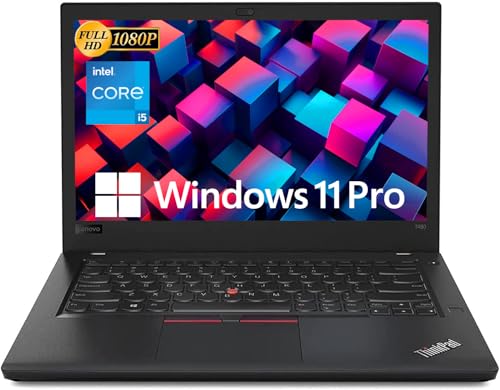
Lenovo ThinkPad T14 Gen 4 — Most forgiving keyboard
ThinkPads have been the default recommendation for demanding typists for decades, and the T14 Gen 4 shows why that reputation transfers so well to this guide. Its keys are sculpted to centre your fingertips, the legends are large and high-contrast, and the travel is deep enough that you can feel a keypress register rather than guessing at it. For anyone who types by touch, types slowly and deliberately, or types with reduced sensation in their fingers, that tactile certainty is worth more than a thinner design.
The T14 also offers an escape route from the trackpad altogether: the red TrackPoint nub in the middle of the keyboard steers the pointer with a fingertip resting in place, no sliding or lifting required, with physical buttons below the space bar to click. Combined with Sticky Keys and Windows’ pointer settings, it gives precise control to hands that find broad trackpad gestures tiring. The 14-inch 1920×1200 screen is matte and easy on reflections, the build shrugs off daily knocks, and the port selection — including full-size USB and HDMI — means fewer adapters to fumble with. This listing describes a renewed machine, so judge the specific unit by its listing details.
Durability is part of accessibility too, even if it rarely gets labelled that way. A laptop that survives being knocked off a coffee table, or that can be repaired and upgraded instead of replaced, spares its owner the enormous hidden cost of relearning a new machine. The T14 is built to business standards, with a keyboard that resists spills and memory and storage that a technician can service. For a buyer whose setup has been carefully tuned — key repeat rates, pointer speeds, custom shortcuts — that longevity protects a real investment of effort.
- Display: 14-inch 1920×1200 matte panel
- Processor and memory: Intel Core i5-1345U, 16GB RAM, 512GB SSD as listed
- Input: backlit sculpted keyboard, TrackPoint, physical click buttons
- Ports: USB-C, USB-A, HDMI, Ethernet via adapter class connections
Strengths
- Keyboard gives clear tactile feedback on every keystroke
- TrackPoint offers pointer control without trackpad gestures
- Matte screen and sturdy build suit bright, busy rooms
Trade-offs
- Heavier and plainer than the consumer picks here
- TrackPoint has a learning curve for first-time users
- Speakers are tuned for calls, not entertainment
Best for: touch typists and anyone who wants pointer control without moving a hand across a trackpad. Not suited for: buyers prioritising the lightest possible bag weight.
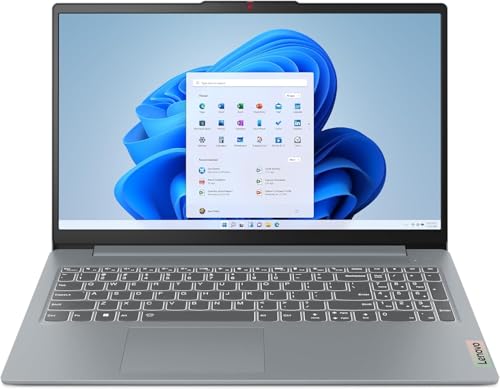
Lenovo IdeaPad Slim 3 — Big screen, modest cost class
The IdeaPad Slim 3 takes a different route to the same destination: size. Its 15.6-inch Full HD touchscreen spreads the Windows interface across a physically larger area, so at comfortable scaling levels, buttons, icons, and text are simply bigger targets than on a compact machine. The touch layer means those big targets can also be tapped directly. For a buyer setting up a parent or returning to computing after a long break, that combination of scale and simplicity is persuasive, and it arrives without flagship pricing territory.
Performance is comfortably ahead of the minimum this category needs. The Ryzen 7 processor and 16GB of memory in the listed configuration keep Magnifier gliding smoothly while a browser, email, and a video call run together, and the 512GB SSD means startup and wake-from-sleep are quick rather than confusing. The keyboard spans the full width with a numeric keypad, useful for anyone who enters figures, and the camera and microphones handle family video calls without extra hardware. It is a bigger, heavier machine than the gram or the Air, so treat it as a mostly stationary laptop that occasionally travels, rather than a daily commuter.
Consider who this machine typically serves: someone returning to email, photos, video calls with grandchildren, online banking, and light documents after years away from computers, or with eyesight that has changed since they last owned one. For that reader, the IdeaPad’s virtues compound. Text at generous scaling remains sharp, the touch targets are hard to miss, the webcam needs no setup, and the whole experience feels closer to a large tablet with a proper keyboard than to a intimidating piece of office equipment. Lenovo’s hinge opens to a comfortable angle and the base stays planted when you tap the screen.
- Display: 15.6-inch Full HD touchscreen
- Processor and memory: AMD Ryzen 7 5825U, 16GB RAM, 512GB SSD
- Keyboard: full-size layout with numeric keypad
- Use pattern: desk-first machine with occasional trips
Strengths
- Large screen makes scaled-up text and targets physically bigger
- Touch input included at an approachable tier
- Strong memory and storage for the class
Trade-offs
- Noticeably heavier than the 14-inch picks
- Panel brightness is fine indoors, less so in sunlit rooms
- Build feels more plastic than the business models here
Best for: a home user who wants the biggest, clearest view without premium pricing. Not suited for: frequent travellers who carry a laptop all day.

ASUS Vivobook 16 — Largest canvas
Every step up in screen size buys you room to magnify, and the Vivobook 16 takes that logic furthest in this roundup. Its 16-inch WUXGA display runs a 16:10 aspect ratio, so a document at heavy zoom still shows a satisfying stretch of the page instead of a keyhole view of three lines. If your preferred way of working is text set large and a whole letter or spreadsheet visible at once, this is the machine shaped around that preference.
The Snapdragon X processor inside is built for efficiency, which shows up as cool, quiet running and long stretches between charges — the laptop rarely announces itself with fan noise while a screen reader or magnifier is in use. The keyboard includes a numeric keypad and well-spaced keys, and Windows on ARM now runs the full built-in accessibility suite natively, including Narrator and Magnifier. One honest caution: some older, specialised Windows programs and printer drivers still assume Intel or AMD hardware, so if you depend on a particular legacy application or peripheral, confirm its ARM compatibility before choosing this model over an Intel-based pick.
The Vivobook also suits a particular rhythm of work: long, seated sessions with reference material spread across the screen. A writer keeping a manuscript and its notes side by side, both at large text sizes, will use every inch of this panel. The machine’s quiet character helps concentration, and because it sips power, the charger can live in a drawer rather than trailing across the floor as a trip hazard — a mundane detail that matters more in real homes than in specification tables. ASUS includes a fingerprint reader in the power button on this class of Vivobook, trimming one more password from the day.
- Display: 16-inch WUXGA 16:10 panel
- Processor and memory: Qualcomm Snapdragon X, 16GB RAM, 512GB SSD
- Keyboard: full-size with numeric keypad
- Character: cool, quiet, efficiency-first design
Strengths
- Biggest screen here keeps heavy magnification practical
- Quiet running with long battery endurance
- Full-width keyboard with a proper number pad
Trade-offs
- Some legacy Windows software and drivers lack ARM support
- Size makes it a desk machine more than a travel companion
- No touchscreen on this configuration
Best for: readers who run large text scaling all day and want the page to still feel spacious. Not suited for: anyone tied to older specialist Windows software.
How do the best accessible laptops compare side by side?
| Model | Screen | Standout accessibility strength | Input highlight |
|---|---|---|---|
| LG gram 14 | 14-inch 16:10 | Featherweight handling | Wide-spaced backlit keys |
| Apple MacBook Air M2 | 13.6-inch Retina | VoiceOver screen reader | Largest trackpad, Touch ID |
| Microsoft Surface Laptop 5 | 13.5-inch touch, 3:2 | Direct touch control | Touchscreen plus glass trackpad |
| Lenovo ThinkPad T14 Gen 4 | 14-inch matte | Tactile keyboard certainty | TrackPoint and physical buttons |
| Lenovo IdeaPad Slim 3 | 15.6-inch touch | Physically larger targets | Touch plus numeric keypad |
| ASUS Vivobook 16 | 16-inch 16:10 | Roomiest magnified view | Full-width keyboard, numpad |
Read the table by need rather than by rank. If carrying the machine is the struggle, the gram’s weight advantage outweighs everything else on the page. If spoken output is how you will use the computer, the Air’s software polish leads. If reaching and tapping feels natural while cursor control does not, the Surface and the IdeaPad put touch at the centre. The ThinkPad serves hands that trust keyboards, and the Vivobook serves eyes that want the largest possible canvas. There is no wrong answer here, only mismatches between a person and a machine.
Which accessibility settings should you turn on first?
Whichever laptop you buy, the first session should be a setup session, not a work session. Start with display scaling: raise it in steps until body text in an email is comfortable at your normal sitting distance, then live with that setting for a day before judging it. Add text bolding and increased contrast next, enlarge the mouse pointer and give it a distinct colour, and turn on the setting that briefly highlights the pointer’s location when you press a key — a small feature that ends the daily hunt for a lost cursor.
Keyboard settings come second. Sticky Keys lets you press shortcuts one key at a time instead of holding combinations, which transforms copy, paste, and save from chord shapes into simple sequences. Filter Keys ignores brief or repeated keystrokes, forgiving for hands that rest heavily or tremble slightly. On macOS, the equivalents live under Keyboard and Pointer Control in Accessibility settings, and Slow Keys adds an adjustable delay before a press registers. None of these settings cost anything, and all of them can be reversed in seconds, so experiment freely.
Then set up your backup input method before you need it. Configure voice typing in Windows or Dictation on a Mac and practise on a low-stakes document. If vision is your main concern, learn the handful of Narrator or VoiceOver commands for reading a page start to finish, even if you expect to use magnification most days. Skills learned calmly, in advance, are the ones available to you on the tired evening when your eyes or hands are having their worst day.
How can your desk setup make any laptop easier to use?
The laptop is only half the equation. A stand that raises the screen to eye level removes the hunched posture that makes long sessions miserable, and it pairs naturally with a separate full-size keyboard and mouse placed exactly where your hands want them. External keyboards can be chosen purely for feel — deep travel, large legends, high contrast keycaps — without worrying about the laptop’s own deck at all. For a machine that rarely leaves one room, that combination often beats upgrading the laptop itself.
Lighting deserves the same attention. Position the screen so windows are to the side rather than behind you or behind the display, and add a desk lamp that lights your papers without shining into the panel. If you use a screen reader or speech output for long stretches, ordinary wired headphones keep the voice clear and private, and they spare everyone the competition between spoken text and room noise. Small changes, but they compound across every hour you spend at the machine.
Sound is part of that environment too. Screen readers, magnification announcements, and dictation all depend on audio you can hear clearly and a microphone that hears you accurately. Every laptop here handles video calls and spoken output competently through its built-in speakers and microphones, but a simple headset removes echo, adds privacy, and puts the computer’s voice close to your ear at whatever volume suits you. If you dictate long documents, a basic external USB microphone on a small stand will outperform any built-in array, because it sits near your mouth instead of across the desk — and USB microphones are among the easiest peripherals to connect, needing no settings beyond selecting them once.
What mistakes do people make when buying an accessible laptop?
The most common error is shopping by processor speed when the real obstacles are physical. A faster chip does nothing about a glossy screen under a skylight, a lid that needs two hands and real force, or keys with legends printed in low-contrast grey. Judge the machine with your hands and eyes first; any modern processor in this guide handles everyday software and its own accessibility tools without strain.
A second mistake is skipping the setup hour. Accessibility features that are never switched on might as well not exist, and buyers who judge a laptop in its factory state often conclude wrongly that it is hard to use. Related to that: do not pay for third-party magnification or reading software before exhausting the built-in tools, which are free, updated with the operating system, and — on the platforms covered here — genuinely capable.
Finally, think twice before buying the smallest, lightest machine for someone who will never carry it anywhere. Compact laptops shrink keys, ports, and screens along with weight. If the laptop will live on a kitchen table or a desk, the larger IdeaPad or Vivobook in this guide will likely serve its owner better than a travel-optimised model, simply because everything on it is bigger and easier to find.
How do you set up Windows accessibility features step by step?
On the Windows picks in this guide — the gram, the Surface, the ThinkPad, the IdeaPad, and the Vivobook — everything lives in one place: Settings, then Accessibility. Work through it in a deliberate order. Begin in the Vision section with Text size, which enlarges words across the system without shrinking how much fits on screen as aggressively as full display scaling does. Many people find text size alone, raised a few notches, solves most of their difficulty, leaving icons and windows at familiar proportions.
Next, open Magnifier and learn its three views before you need them: full screen for general work, lens for examining a small region, and docked for reading lines in sequence. Set the zoom increments small so a single keypress nudges rather than lurches. Then visit Mouse pointer and touch to enlarge the pointer and enable the touch feedback circles that show where a tap registered. In the Keyboard section, switch on Sticky Keys, Filter Keys, and the on-screen keyboard shortcut, and in Interaction, explore Voice access, which in current Windows versions can control the pointer on a numbered grid — a genuinely useful fallback when hands are tired.
Finish with Narrator. You do not have to become a screen-reader expert, but learn three things: how to start and stop it, how to have it read a window from the top, and how to turn it off quickly when it starts unexpectedly. Practise once on a familiar web page. That small rehearsal converts Narrator from an intimidating unknown into a tool you own, ready for the day a migraine, an eye procedure, or simple exhaustion makes reading the screen yourself a bad idea.
One last setup habit pays off for every reader of this guide: create a restore point or backup before you begin experimenting, and write down each change you make as you make it. Knowing you can undo a setting removes the fear of touching the accessibility menu at all, and that freedom to experiment is how people discover the exact combination — a little more scaling, a slower double-click, a bolder pointer — that fits their own hands and eyes rather than a reviewer’s.
How do Apple’s accessibility settings differ in practice?
macOS organises the same ideas under Accessibility in System Settings, and the philosophy differs subtly: Apple assumes these features will be combined. VoiceOver’s rotor lets experienced users sweep through a page by headings, links, or form fields, which turns long web pages from a scroll into an index. Zoom can follow keyboard focus automatically, so as you tab through a form, the magnified view travels with you — a detail Windows users often have to arrange manually.
The Display section offers Reduce transparency and Differentiate without colour, both of which make the interface plainer and clearer at a stroke. Pointer Control lets you slow the trackpad’s tracking and enlarge the pointer with a shake-to-locate flourish that is genuinely delightful the first time you use it. And because the MacBook Air is silent, spoken output and dictation work in a quiet room without the machine adding its own voice to the conversation. If you are switching from Windows, give yourself a fortnight: the gestures and commands differ, but the underlying concepts transfer directly.
What should you look for in ports, charging, and connections?
Connection design is an overlooked accessibility topic. USB-C earns its praise in this guide because the plug works either way up and seats with a light push; older rectangular USB-A plugs demand orientation and force. Magnetic charging, as on the MacBook Air, goes further, connecting by feel alone. When comparing any two laptops, count how many of your daily connections — charger, mouse receiver, printer, backup drive — can be made permanent through a single dock cable, so that one easy connection at your desk replaces four fiddly ones.
Full-size HDMI matters for a similar reason: it lets any of these laptops drive a television or a large desktop monitor without adapters, which is the cheapest dramatic upgrade to readability available. A 24-inch external screen showing your laptop’s output at large scaling can transform a cramped setup, and every pick here can drive one. If your hands make small plugs difficult, ask a family member or a local shop to set the dock and monitor up once; the daily experience afterwards is a single cable and a big, calm picture.
How much do keyboard and trackpad design really matter?
More than any specification on the box. Your hands meet the keyboard and trackpad thousands of times a day, and small frictions multiply accordingly. Judge a keyboard on four things: the size of the keys themselves, the gap between them, the contrast of the printed legends, and how clearly a press registers. Backlighting helps in dim rooms, but legend contrast helps everywhere, which is one reason the business-styled ThinkPad, with its bold white-on-black legends, scores so well for low-vision typists. If you can, type the same sentence on several machines in a shop; the right keyboard announces itself within a paragraph.
Trackpads deserve the same scrutiny. A good one tracks slow movements without stuttering, clicks with a consistent, modest force anywhere on its surface, and is large enough that you are not constantly lifting and re-placing your finger. Windows and macOS both let you reduce pointer speed and enable tap-to-click, which removes the physical press entirely for those who find it painful. Remember too that a trackpad is optional equipment in daily life: every pick here works happily with an external mouse, a trackball, or a vertical mouse chosen purely for your grip, and for many users that external device, not the laptop, is where comfort is won.
Which size and weight should you choose for your situation?
Work backwards from where the laptop will spend its life. If it will genuinely travel — to appointments, classes, family visits — keep the total burden in mind, charger included, and the gram 14 and MacBook Air exist precisely for that pattern. Their small screens are the price of that lightness, and it is a fair trade only if the machine actually leaves the house. A laptop that commutes between two rooms of one home can afford the IdeaPad’s extra heft, and repays it with a calmer, larger view every hour it is used.
Screen size and resolution interact with scaling in a way worth understanding before you buy. At 150 percent scaling, a 14-inch 1920×1200 screen shows roughly the same amount of content as an old 1280×800 display — but rendered far more sharply. The 16-inch Vivobook at the same scaling shows noticeably more, which is why heavy magnifiers gravitate to it. If you plan to run scaling at 175 or 200 percent permanently, prioritise the largest, sharpest panel your budget and your desk allow, and treat processor speed as a secondary concern.
How long should the battery last, and why does it matter here?
Battery life is a convenience specification for most buyers; in this category it is also an independence specification. Every hour of untethered use is an hour in which nobody has to crouch by a socket, trail a cable across a walkway, or ask for help moving a charger. All six picks comfortably cover a day of intermittent use — email, browsing, documents, calls — and the efficiency-led models, the gram, the Air, and the Vivobook, stretch furthest. To protect that endurance, keep the charger in one fixed place rather than moving it room to room, and let the laptop live plugged in at its main desk without worry; modern battery management handles that pattern gracefully.
Are you buying this laptop for someone else?
A large share of accessible laptops are bought by adult children, spouses, and carers, and that changes how to shop. The most important rule is to involve the person who will use the machine as early as pride allows. A laptop chosen entirely by proxy often optimises for the buyer’s assumptions — usually speed and price — instead of the user’s reality of stiff fingers, tired eyes, or a deep attachment to how their old machine worked. If a surprise is planned, at least learn which operating system the person already knows, because familiarity is the strongest accessibility feature of all.
Budget time, not just money, for the handover. The kindest version of this gift includes an afternoon of setup: scaling adjusted together, the three or four programs they actually use pinned where they can be found, passwords replaced by a fingerprint or face sign-in where the machine supports it, and a short printed card — large type, plain words — listing how to make text bigger, how to turn the magnifier on, and who to call when stuck. Every pick in this guide supports that kind of gentle configuration, and the afternoon you spend on it will be repaid every day the machine is used confidently instead of avoided.
What about warranties, returns, and trying before you commit?
Because fit is so personal in this category, the return policy is part of the product. Buy from a listing whose return terms you have actually read, keep the packaging until the end of the return window, and test the machine against the real tasks of an ordinary week — not a five-minute unboxing impression. Read a long article. Type a full page. Make a video call. Carry it to the room where it will be used most. Difficulties that are invisible on day one announce themselves by day four, and a machine that is merely tolerable in week one rarely becomes loved in month six.
For renewed machines, including some listings referenced in this guide, weigh the seller’s grading description and warranty length as carefully as the model name. A well-graded renewed ThinkPad or Surface with a clear returns path is a rational purchase; the same model with vague condition notes is a gamble. Either way, the accessibility verdicts in this guide describe the model — its screen, keyboard, weight, and software — and those qualities hold regardless of which individual unit arrives at your door.
Can a laptop you already own be made more accessible instead?
Sometimes the honest answer to this entire guide is that you do not need a new machine yet. If your current laptop runs a supported operating system and its screen, keyboard, and battery remain sound, the settings tour described above — scaling, contrast, Sticky Keys, pointer size, a rehearsed screen reader — can transform it in an afternoon for free. Add a raised stand, a full-size external keyboard chosen for feel, and a larger monitor if your desk allows, and an ageing machine often gains years of comfortable service.
Replacement becomes the right call when the hardware itself is the obstacle: a dim or low-resolution screen that no setting can sharpen, a keyboard with worn legends, a battery that chains you to one socket, or a body too heavy to move where you want to work. Those are exactly the weaknesses this roundup screened for. If two or more of them describe your current laptop, the picks above are not luxuries; they are the difference between a tool that welcomes you and one you quietly stop using.
Final Recommendation
For most people reading this guide, the LG gram 14 is where we would start: it removes the physical effort from carrying, opening, and positioning a laptop, while its bright tall screen and full Windows accessibility suite cover the software side completely. If spoken output is central to how you will compute, step instead to the MacBook Air M2 and its deeply integrated VoiceOver. If touch is your most natural way of controlling a screen, the Surface Laptop 5 builds the whole machine around it, and the two larger Lenovo and ASUS models prove that a big, calm display is sometimes the only feature that really matters. Choose for the hands and eyes that will actually use the machine, set it up patiently on day one, and the right laptop stops feeling like equipment and starts feeling like a door held open.
Frequently Asked Questions
Do I need special software, or is what comes built in enough?
For the great majority of users, the built-in tools are enough. Narrator and VoiceOver are full screen readers, Magnifier and Zoom handle magnification smoothly, and voice typing is integrated into both Windows and macOS. Specialist third-party software still exists for particular professional needs, but start with what is installed — it is free, supported, and already matched to your machine.
Is a touchscreen actually easier than a trackpad?
For many people, yes. Tapping a button directly removes the translation step of moving a cursor with one hand while watching it with your eyes. Touch works best for tapping, scrolling, and simple gestures; precise text selection and detailed work still favour a keyboard, trackpad, or TrackPoint. Machines that offer both, like the Surface Laptop 5 and IdeaPad Slim 3, let you switch moment by moment.
How much memory does a laptop need to run accessibility tools smoothly?
A screen reader or magnifier is not heavy software by itself, but it runs alongside everything else you do. Sixteen gigabytes, as fitted to most picks here, keeps speech output responsive while a browser, documents, and a video call are open together. The MacBook Air manages well on its listed configuration because Apple’s chips use memory efficiently, though heavy multitaskers should still prefer more where a choice exists.
Can these laptops connect to hearing aids or other assistive devices?
Generally, yes, through standard Bluetooth and USB connections, and both Windows and macOS include settings for routing audio and supporting assistive input devices. Compatibility lives in the details of the specific device, though, so check your device maker’s support pages against the operating system you are choosing. This guide deliberately sticks to comfort and usability; for anything medical, your own clinician or device supplier is the right source.
Should I choose Windows or macOS for accessibility?
Choose the platform whose tools you will actually learn. VoiceOver has a devoted following and deep integration on the Mac; Windows counters with the widest hardware choice, touchscreens, and Narrator’s steady improvement. ChromeOS is the simplest of the three but none of this batch’s picks depend on it. Familiarity beats theoretical superiority: a system you already half-know is the most accessible one on day one.
What should I check on a renewed listing before buying?
Read the condition description for the specific unit, confirm the exact memory and storage configuration, and check the stated battery and cosmetic grading. The model-level advice in this guide applies to any unit of that model; the listing tells you about the individual machine you will receive. Also confirm the return terms in writing before you order, keep the invoice and the listing description saved somewhere you can find them again, and photograph the unit when it arrives, so an unsuitable machine can go back without a fight.
Related Guides
Keep exploring with our guides to the best laptops for seniors, the best large-screen laptops for home use, and the best lightweight laptops for everyday carry.
Related guides
- Best Acer Chromebook Laptops: 6 Picks for School, Work and Home
- Best 8th Generation Laptops: Renewed Business Machines That Still Earn Their Desk Space
- Best Acer Laptops: Aspire, Swift and Chromebook Picks for Work, Study and Travel
- Best Academic Laptops for Researchers, Lecturers and Graduate Students