What's inside
- Where to Buy, and Why a CS Degree Punishes the Wrong Laptop
- Key Takeaways
- Quick Picks
- How Did We Choose These Six Machines?
- What Does Coursework Actually Demand From the Hardware?
- Should a CS Major Choose Windows, macOS or Linux?
- Which Courses Will Push Your Laptop Hardest, Year by Year?
- How Should You Divide a Budget Between the Laptop and Everything Around It?
- How Much Should Battery Life and Weight Shape the Decision?
- What About Warranty, Repairs and the Four-Year View?
- What Should a CS Student Verify During the First Week With a New Laptop?
- How Do a CS Major’s Six Finalists Stack Up on Paper?
- What Mistakes Do CS Students Make When Buying?
- How Should You Set Up a New Laptop for a CS Degree?
- Final Recommendation
- Frequently Asked Questions
- Related Guides
As an Amazon Associate I earn from qualifying purchases. This post may contain affiliate links at no extra cost to you.
gizmoverdict.com is reader-supported. When you buy through links on our site, we may earn an affiliate commission.
Where to Buy, and Why a CS Degree Punishes the Wrong Laptop
The best laptops for a computer science major are not chosen in the first week of September; they are chosen for the third year, when a databases course, a machine-learning elective and a half-finished capstone all land on the same machine in the same month. A first-year student mostly writes short programs in a browser-based IDE and takes notes. A junior compiles large codebases, runs Docker containers for a systems class, keeps a local database alive for a web project, and discovers that the laptop bought for essays now spends its afternoons with the fan at full speed and the memory pressure graph pinned in the red.
All six machines below are sold through Amazon and mainstream campus retailers, and every linked listing here was checked against its full product title before it earned a place. The shortlist deliberately mixes three philosophies: repairable business laptops that a university IT desk will happily service, consumer machines with generous screens and memory for the money, and one Apple laptop for students whose coursework or ambitions lean toward iOS and macOS development. None of them is a gaming rig in disguise, because a CS degree rewards memory, keyboard quality and battery discipline far more than it rewards a graphics card.
One warning before the picks themselves: the single most common regret among CS students is buying 8GB of memory to save money in year one. Integrated development environments, browser-based documentation, a chat client, a container runtime and a compiler do not negotiate with each other; they simply consume what is there and then start swapping to disk. Every machine in this guide starts at 16GB, and two of them carry 32GB, because that headroom is the difference between a laptop that lasts the degree and one that gets replaced halfway through it.
Key Takeaways
- The ThinkPad E14 Gen 7 is the default pick for most CS majors: a Ryzen 7 processor, a fingerprint reader, Thunderbolt 4 and the keyboard students will type their first ten thousand lines of code on.
- The Vivobook S16 is the power option, with 32GB of memory and a 16-inch OLED screen that makes side-by-side code and documentation genuinely comfortable.
- The MacBook Air 15 is the only route here to Xcode, so students aiming at iOS development should start their shortlist with it rather than end with it.
- The Dell 14 quietly offers the largest storage in this group at 1TB, which matters once virtual machines and datasets begin to accumulate.
- The HP Pavilion’s touchscreen and 15.6-inch panel suit students who annotate lecture slides and read papers on the same machine they code on.
- The Acer Swift Go 14 is the commuter’s choice: Intel Evo certification, a touch display and a chassis built to live in a backpack.
Quick Picks
| Laptop | Award | The case for it |
|---|---|---|
| Lenovo ThinkPad E14 Gen 7 | Best Overall | A business-grade Ryzen 7 machine with Thunderbolt 4, a fingerprint reader and the durability a four-year degree demands. |
| HP Pavilion 15.6-inch | Best Big-Screen Value | A 15.6-inch touchscreen, a ten-core Intel processor and an 11-hour battery claim aimed squarely at long library days. |
| Dell 14 Laptop | Best Storage Headroom | A full 1TB of SSD space for virtual machines, datasets and a Steam library that pretends it is coursework. |
| ASUS Vivobook S16 (2026) | Best Display and Memory | A 16-inch OLED panel and 32GB of RAM for students who keep code, docs and a local model open at once. |
| Apple MacBook Air 15-inch (M4) | Best for macOS and iOS Development | The M4 chip, 24GB of unified memory and silent fanless running for students headed toward Xcode and Swift. |
| Acer Swift Go 14 | Best for Commuters | An Intel Evo thin-and-light with a touch display and Core Ultra 7 power in a bag-friendly 14-inch frame. |
How Did We Choose These Six Machines?
We weighted the criteria the way a syllabus does. First came memory and storage, because those are the two specifications a student cannot upgrade their way out of on most modern laptops, and because coursework only grows heavier. A machine that feels quick with a hello-world program can feel very different when it is running a Postgres container, an Android emulator and a Jupyter notebook simultaneously, so every pick here was judged against that third-year workload rather than the first-week one.
Second came the keyboard and the screen, the two components a CS student touches for six or more hours a day. Key travel, layout sanity — a misplaced power button or a half-size arrow cluster will be cursed thousands of times — and a display tall enough to show a meaningful stretch of code without constant scrolling all counted heavily. The 16:10 panels on several of these machines earn their place on exactly that point: those extra vertical pixels are extra lines of code visible at once.
Third, we considered the ecosystem question honestly. Some universities teach in Windows labs, some in Linux, some assume macOS. A Windows machine can run Linux through WSL2 with very little friction in 2026, and that flexibility is why five of the six picks are Windows laptops. The MacBook Air is here because one important door — native iOS development with Xcode — only opens on Apple hardware, and students who might walk through it should know that before they spend, not after.
Finally, we looked at ownership over four years: warranty culture, the availability of replacement chargers, whether the machine charges over USB-C so a borrowed cable can rescue a dead battery before a deadline. Those unglamorous details decide whether a laptop is a tool or a recurring emergency.
What Does Coursework Actually Demand From the Hardware?
Introductory programming is deceptively light. Python scripts, small Java assignments and web exercises in a browser will run on almost anything, which is why so many students are misled by a smooth first semester. The load curve steepens sharply: data structures courses introduce larger datasets, operating systems courses introduce virtual machines, and electives in machine learning or graphics introduce workloads that care about core counts and, occasionally, about having a discrete GPU — though for undergraduate ML, cloud notebooks handle the heavy training and the laptop mostly orchestrates.
The practical floor that emerges from that curve is a modern multi-core processor, 16GB of memory as a minimum with 32GB as the comfortable target, and at least 512GB of storage, with 1TB preferred once virtual machine images — each easily the size of a small game install — start multiplying. Screens matter more than spec sheets suggest: a student reading documentation beside an editor for hours benefits enormously from a 16:10 or larger panel, and an OLED’s contrast genuinely reduces eye strain during late sessions, even if no benchmark will ever record that.
Ports deserve a paragraph of their own. University life means presentation HDMI ports in seminar rooms, USB drives handed over by lab partners, and the occasional wired Ethernet connection in a dorm where the Wi-Fi collapses every evening at nine. Thunderbolt 4 or USB-C with display output, at least one full-size USB-A port or a willingness to carry a small hub, and HDMI — native or via a dongle you actually remember to pack — will each save a deadline at some point in four years.
Should a CS Major Choose Windows, macOS or Linux?
The honest answer is that the degree can be completed on any of the three, and the better question is which friction you would rather manage. Windows with WSL2 gives a genuine Linux environment inside a machine that also runs every piece of university-licensed software without argument; for most students at most universities, that is the path of least resistance, and it is why the Windows picks dominate this guide. A native Linux installation is entirely viable and many students dual-boot by their second year, but it asks more of the owner when a proctored exam tool or a niche lab application assumes Windows.
macOS earns its place through Unix foundations that feel native rather than layered, a terminal that behaves the way most server documentation expects, and exclusive access to Xcode. Its costs are real: no internal upgrades after purchase, a premium for memory and storage at configuration time, and occasional awkwardness with university software written Windows-first. Students should also check their own syllabus before choosing — a handful of engineering-adjacent CS programs still teach tools that are Windows-only, and discovering that in week three is an expensive education in itself.
Whichever platform you choose, buy the memory at purchase time. On the MacBook Air and the Acer here, memory is soldered and final. On the Windows business machines, upgrading may be possible but should never be the plan; the plan is to open the box in September already equipped for the hardest semester of the degree.

Lenovo ThinkPad E14 Gen 7 — Best Overall
The ThinkPad E14 Gen 7 is the laptop we would hand to a CS major who asked for one recommendation and no follow-up questions. Its Ryzen 7 250 processor brings eight cores to the compile-and-test loop that defines daily student development, and it does so inside the ThinkPad E-series formula: a sober, sturdy 14-inch chassis, a keyboard with the travel and sculpted keycaps that make long coding sessions measurably less tiring, and a port selection that assumes the owner works in the real world rather than in a product photograph. The listing specifies a 5M RGB webcam, a fingerprint reader, a backlit keyboard and Thunderbolt 4 — a combination that covers video calls with teaching assistants, one-touch sign-in between lectures and single-cable docking at a dorm desk.
The second thing to understand about the E14 is what its business lineage buys a student over four years. ThinkPads are serviced everywhere, parts and chargers are commodity items, and the design tolerates the backpack years — the dropped bag, the crowded lecture-hall row, the coffee incident — better than most consumer machines at this level. Windows 11 Pro matters here too: it unlocks the full virtualization feature set that systems courses lean on, and it plays well with university device-management requirements that some departments now impose for exam software. For a student who will run Linux, the ThinkPad family’s long history of Linux-friendly hardware is a quiet but genuine advantage when the time comes to dual-boot or run a distribution inside WSL2.
A semester-shaped example shows why this configuration works. Picture a Tuesday in the second year: a data structures lecture in the morning with the IDE open for live coding exercises, a databases lab after lunch where a local server and a query tool run side by side, and an evening group-project session over a video call with the repository building in the background. The E14’s eight cores absorb that stack without the interface hitching, the fingerprint reader turns the constant lock-and-unlock rhythm of shared spaces into a thumbprint rather than a password typed under time pressure, and the battery brief — a business machine tuned for working days rather than benchmark sprints — fits the lecture-to-library arc. It is not the most exciting machine in this guide, and that is precisely the recommendation: excitement is a property students should get from their projects, not from wondering whether their laptop will cooperate today.
- Processor: AMD Ryzen 7 250
- Memory: 16GB RAM
- Storage: 512GB SSD
- Display: 14-inch FHD+
- Notable features: Thunderbolt 4, fingerprint reader, 5M RGB webcam, backlit keyboard
- Operating system: Windows 11 Pro
Strengths
- The keyboard is the best long-session typing surface in this group, and coding is typing.
- Thunderbolt 4 plus a business port layout means one cable drives a dorm monitor setup.
- Windows 11 Pro and the fingerprint reader fit university IT and exam-software requirements cleanly.
Trade-offs
- 16GB of memory is the sensible floor, not a luxury; heavy container work will use all of it.
- The 14-inch screen asks for an external monitor for truly comfortable split-view coding at a desk.
- The design is deliberately plain; students shopping for flair will look elsewhere first.
Best for: the majority of CS majors, especially those who type constantly, may run Linux alongside Windows, and want a machine a campus IT desk knows by heart. Not suited for: students who need 32GB of memory from day one for ML coursework — the Vivobook below is the better-configured answer — or anyone committed to macOS development.

HP Pavilion 15.6-inch Core i5 — Best Big-Screen Value
The Pavilion takes the opposite approach to the ThinkPad: instead of business armour, it offers screen and convenience. The 15.6-inch Full HD touchscreen is the largest panel among the Windows picks here apart from the 16-inch machines, and for a student whose day mixes coding with annotated lecture slides, PDF problem sets and the occasional design elective, touch input on a big canvas is a real workflow feature rather than a gimmick. The ten-core Intel Core i5-1334U underneath is a modern efficiency-minded chip with enough cores to keep an IDE, a browser full of documentation and a local development server all responsive at once.
HP quotes an 11-hour battery figure in the listing, and while real coursework days will land below any vendor’s best-case number, the underlying point stands: this is a machine designed to be carried between lectures without its charger as a constant companion. Fast Wi-Fi 6 keeps it current with campus networks, and Windows 11 Pro — still unusual at the Pavilion’s level — gives it the same virtualization and management credentials as the business machines, which matters for students whose departments standardize on Pro features. The webcam and general fit and finish are mainstream rather than premium, and that honesty about its tier is part of its appeal: the money went to the screen, the processor and the memory.
Consider how the Pavilion fits a particular kind of student week. Not every CS major lives in a terminal: many spend as long inside slide decks, annotated PDFs and collaborative documents as inside an editor, especially in programs with heavy mathematics or theory components where problem sets arrive as scanned handwriting and leave as typed solutions. On the Pavilion, that reading-and-annotating half of the degree happens on the same large, touchable surface as the coding half, without the constant context switch to a tablet. The ten-core processor also future-proofs the machine against the slow creep of coursework demands — each academic year seems to add one more always-on tool, from reference managers to AI assistants running in the browser, and cores are the currency those tools spend.
- Processor: Intel Core i5-1334U, 10 cores
- Memory: 16GB RAM
- Storage: 512GB SSD
- Display: 15.6-inch FHD touchscreen
- Notable features: Wi-Fi 6, webcam, battery life quoted at 11 hours in the listing
- Operating system: Windows 11 Pro
Strengths
- The big touchscreen genuinely helps with annotated readings and whiteboard-style problem work.
- Ten processor cores keep the typical IDE-plus-browser-plus-server stack feeling unhurried.
- Windows 11 Pro at a Pavilion price point is a quietly valuable inclusion for coursework.
Trade-offs
- A 15.6-inch chassis is a bigger backpack commitment than the 14-inch picks here.
- The build is consumer-grade plastic rather than business-laptop armour; a padded sleeve is wise.
- No Thunderbolt in the listing’s headline features, so docking runs through standard USB-C or a hub.
Best for: students who read and annotate as much as they code, and who want the largest comfortable screen their budget tier allows. Not suited for: daily bike commuters counting every gram, or students who plan to dock with a single Thunderbolt cable.

Dell 14 Laptop Core 7 150U — Best Storage Headroom
The Dell 14’s headline act is storage: 1TB of SSD in a slim 14-inch machine, double the capacity of most of this group, and for a CS student that difference compounds quietly across a degree. Virtual machine images for an operating systems course, a local copy of a large dataset for a data science elective, container images that seem to breed overnight, plus the ordinary accumulation of projects you are afraid to delete because a future course might build on them — storage pressure is the slow, boring failure mode of student laptops, and this machine postpones it further than any other 14-inch pick here.
The rest of the specification is sensibly matched to that mission. The Intel Core 7 150U and 16GB of DDR5 memory handle mainstream coursework without drama, and the 1920×1200 anti-glare display — rated at 300 nits in the listing — is the right kind of screen for shared study spaces and bright library floors, where glossy panels turn into mirrors. A backlit keyboard, Wi-Fi 6 and Bluetooth round out a specification that reads like it was assembled by someone who has actually sat through a semester. It runs Windows 11 Home rather than Pro, which is the one line item a buyer should consciously accept: most undergraduates will never miss Pro’s extras, but students whose departments require domain features or specific exam tooling should check before choosing it.
There is a subtler virtue in the Dell’s specification that only becomes visible in group work. Student projects live and die on reproducibility — the teammate whose machine cannot run the project because a container image will not fit, or because the test dataset had to be deleted to make room for an exam week’s materials, becomes the bottleneck for four other people. A 1TB drive quietly removes that entire category of friction. It also changes backup behaviour for the better: with room to spare, students actually keep local snapshots of working project states before risky refactors, which is the habit that separates a recoverable bad afternoon from a lost weekend of reconstruction.
- Processor: Intel Core 7 150U
- Memory: 16GB DDR5 RAM
- Storage: 1TB SSD
- Display: 14-inch FHD+ 1920×1200, anti-glare, 300 nits
- Notable features: Backlit keyboard, Wi-Fi 6, Bluetooth, Intel Graphics
- Operating system: Windows 11 Home
Strengths
- The 1TB drive removes storage anxiety for VMs, containers and datasets across the whole degree.
- The anti-glare 1200p screen is well judged for libraries and shared study spaces.
- DDR5 memory and a current-generation Core 7 keep everyday development work brisk.
Trade-offs
- Windows 11 Home rather than Pro; verify departmental software requirements first.
- Integrated graphics only, so GPU-heavy electives will lean on cloud resources.
- 300 nits is fine indoors but unremarkable under direct sunlight on a campus lawn.
Best for: students whose coursework leans on virtual machines and local datasets, and who would rather pay for storage once than manage it forever. Not suited for: students whose university mandates Windows 11 Pro features, or anyone planning local GPU computing.
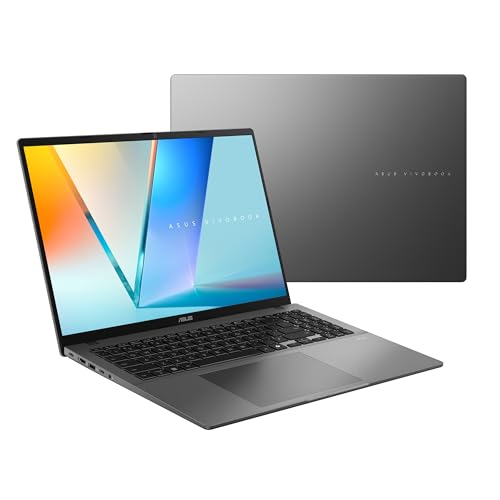
ASUS Vivobook S16 (2026) — Best Display and Memory
If the degree’s hardest semesters are the design target, the Vivobook S16 is the machine in this group already dressed for them. Its 32GB of memory is double the floor elsewhere here, and that single specification changes daily life for a student running memory-hungry stacks: an IDE indexing a large project, a browser with forty documentation tabs, a container or two, and a local language model experiment can coexist without the machine quietly paging to disk. The AMD Ryzen AI 7 445 processor is a current Copilot+ class chip, and the 1TB SSD matches the Dell’s storage headroom, so neither of the two classic bottlenecks should bite before graduation.
The 16-inch OLED display is the other half of the argument. A 16:10 WUXGA panel this size lets an editor and a terminal — or code and its documentation — sit side by side at readable sizes, which is how experienced developers actually arrange their screens, and OLED contrast makes long evening sessions easier on the eyes. It is worth stating the counterweight plainly: a 16-inch laptop is a desk-and-tote machine rather than a forget-it’s-there commuter, and OLED owners should adopt basic habits like auto-hiding taskbars to be kind to the panel over years of static IDE chrome. For the student whose laptop is their primary workstation rather than a satellite of a desktop, those are trades worth making.
The Vivobook also answers a question students often ask too late: what happens when an elective turns into a direction? A student who discovers data science in year two, or who joins a research group running local model experiments, does not want to discover that their laptop’s memory ceiling was set by a first-year budget decision. With 32GB installed and a current-generation AI-class processor, the S16 leaves those doors open; the on-device AI acceleration is increasingly used by development tools themselves, from code assistants to local documentation search, so the specification is not merely about coursework but about the tooling layer that now sits on top of it. Pair the big OLED with a window manager habit — editor left, output right, documentation in a third space — and the machine starts to feel less like a laptop and more like the dual-monitor desks students envy in the postgraduate labs.
- Processor: AMD Ryzen AI 7 445
- Memory: 32GB RAM
- Storage: 1TB SSD
- Display: 16-inch 16:10 WUXGA OLED
- Notable features: Copilot+ PC, AMD Radeon graphics, Wi-Fi 6
- Operating system: Windows 11 Home
Strengths
- 32GB of memory is the specification that will still feel generous in the final year.
- The 16-inch OLED makes genuine side-by-side development work possible without a monitor.
- 1TB of storage matches the spec to the memory — neither bottlenecks the other.
Trade-offs
- The 16-inch footprint is the least backpack-friendly in this group alongside the Pavilion.
- Windows 11 Home, again worth checking against departmental requirements.
- OLED care habits — varying static content, sensible brightness — are part of ownership.
Best for: students treating the laptop as their one and only workstation, particularly those headed toward data-heavy or ML-flavoured electives. Not suited for: students who prioritise the lightest possible daily carry, or who need Windows Pro out of the box.

Apple MacBook Air 15-inch (M4) — Best for macOS and iOS Development
The MacBook Air’s case begins with a door only it can open: Xcode. A CS major with any serious interest in iOS or macOS development, Swift, or the Apple ecosystem as a career direction needs a Mac, and the 15-inch Air with the M4 chip is the sensible way to buy one for a degree. This configuration’s 24GB of unified memory is the detail to notice — Apple charges firmly for memory and it cannot be added later, so a listing that already carries 24GB rather than the base tier is correctly specified for development work, giving simulators, IDEs and browsers room to share. The 512GB SSD is adequate for coursework provided large datasets live on external or cloud storage.
Daily life with the Air has its own distinct texture. It is fanless, so it compiles in complete silence in a library carrel; the 15.3-inch Liquid Retina display is bright and colour-accurate in a way that makes design-adjacent coursework pleasant; Touch ID and the 12MP Center Stage camera polish the video-call-heavy parts of student life. Battery endurance remains the Air’s signature advantage — it is the machine most likely in this group to survive a full day of lectures, labs and library time without a charger. The cautions are equally characteristic: two ports and dongle life, no after-purchase upgrades of any kind, and occasional friction with Windows-first university software, which should be checked against your own syllabus before committing.
It is worth being concrete about the development experience the Air delivers, because benchmark charts undersell it. Compiling a mid-sized Swift or C++ project happens quickly and silently; running two iOS simulators beside Xcode and a browser is exactly the workload the 24GB configuration was chosen for; and the machine wakes from sleep, authenticates with a fingerprint and is ready before a lecturer finishes their first sentence — a small mercy repeated a dozen times a day. Students coming from Windows sometimes worry about the transition, but the terminal-first workflow of most CS teaching transfers almost intact, and the students who struggle are rarely struggling with macOS itself; they are struggling with a specific Windows-only tool their department assumed, which is a syllabus question, not an operating system verdict.
- Processor: Apple M4 chip
- Memory: 24GB unified memory
- Storage: 512GB SSD
- Display: 15.3-inch Liquid Retina
- Notable features: Touch ID, 12MP Center Stage camera, fanless design, built for Apple Intelligence
- Operating system: macOS
Strengths
- The only pick here that runs Xcode — decisive for iOS ambitions.
- Silent, fanless operation and the group’s strongest battery endurance.
- 24GB of unified memory is the right configuration for simulators and IDEs.
Trade-offs
- Memory and storage are fixed forever at purchase; there is no upgrade path.
- Some university software assumes Windows; check your syllabus before committing.
- Port selection is minimal, so a USB-C hub becomes a permanent backpack resident.
Best for: students aiming at Apple-platform development, or those whose departments teach in a Unix-first style and who value silence and battery above all. Not suited for: students whose required coursework tools are Windows-only, or anyone who expects to upgrade components mid-degree.

Acer Swift Go 14 — Best for Commuters
The Swift Go 14 is the pick for the student whose campus is a city: lectures across town, study sessions in cafés, a train ride each way. Acer builds it to Intel’s Evo standard, which is a promise about the unglamorous things — waking instantly, charging quickly, lasting through a real day — and pairs that brief with a Core Ultra 7 155H processor that is considerably stronger than the thin-and-light stereotype suggests, with Intel Arc graphics that handle light creative work and casual gaming between classes. The 14-inch 1920×1200 touchscreen adds the annotation-friendly input the Pavilion offers, in a machine far easier to carry.
Its memory configuration deserves a clear-eyed note: 16GB of LPDDR5X is fast and entirely sufficient for mainstream coursework, but it is soldered, so this is a buy-it-right-once machine like the MacBook. The 512GB SSD is the group’s standard size. Where the Swift Go earns its place against the ThinkPad is in its balance of polish and portability — it feels like a modern consumer ultrabook, starts work instantly, and asks very little of its owner — while the ThinkPad counters with serviceability and that keyboard. A commuter who values the former will be happy; a student planning to self-service upgrades should look at the Lenovo again.
The Swift Go’s daily rhythm is its real specification. Evo machines are validated for the pattern of short, frequent sessions that student life actually consists of — twenty minutes of problem-set work in a café, a lecture’s worth of notes and live examples, a library hour with everything open — rather than the single long benchmark run. Instant wake and fast charging mean the battery is managed in opportunities: fifteen minutes plugged in beside a seminar room restores a meaningful slice of the day. For a student whose timetable is fragmented across a city campus, that opportunistic pattern is worth more than a larger battery in a heavier machine that stays in a dorm room because carrying it felt like a commitment.
- Processor: Intel Core Ultra 7 155H
- Memory: 16GB LPDDR5X RAM
- Storage: 512GB SSD
- Display: 14-inch 1920×1200 touch display
- Notable features: Intel Evo certified, Intel Arc graphics
- Operating system: Windows 11 (edition as listed)
Strengths
- Evo certification backs the instant-wake, fast-charge, all-day brief commuters actually need.
- The Core Ultra 7 155H is properly quick, not a thin-and-light compromise chip.
- A touchscreen at 14 inches suits annotation and reading in transit.
Trade-offs
- Soldered memory means the 16GB configuration is permanent.
- 512GB of storage will want external help once VM images accumulate.
- Ownership polish beats serviceability here; repairs are a service-centre affair.
Best for: commuting students who open and close their laptop a dozen times a day and want it ready instantly each time. Not suited for: students planning component upgrades, or those who need maximum memory for container-heavy coursework.
Which Courses Will Push Your Laptop Hardest, Year by Year?
Mapping the degree’s demands onto the calendar helps explain why the shortlist is specified the way it is. The first year is forgiving almost everywhere: introductory programming in Python or Java, discrete mathematics, and essay-based modules run happily on any machine here, which is exactly why first impressions mislead. The pressure begins in the second year, when data structures and algorithms courses introduce larger inputs and profiling exercises, databases courses ask for a locally running server, and group software-engineering projects introduce the full professional stack — version control, issue trackers, build pipelines and a development server that someone has to host, and that someone is whoever owns the most capable laptop.
The third year is where specifications are truly audited. Operating systems and networks courses lean on virtual machines, sometimes two at once; compilers courses involve long build cycles; and the popular electives diverge by appetite — machine learning wants memory and patience, graphics wants a capable GPU pipeline, security wants disposable virtual environments you can snapshot and roll back. The final year concentrates everything into the capstone or dissertation project, a months-long build that turns the laptop into a small business’s entire infrastructure. A machine bought with the third and fourth years in mind — memory headroom, storage headroom, a keyboard that still feels good after two million keystrokes — sails through the first two years without noticing them. The reverse has never once been true, and no student has ever regretted the extra memory in October of the final year.
How Should You Divide a Budget Between the Laptop and Everything Around It?
The laptop is the largest line item in a CS student’s equipment budget, but it should not be the only one, and reserving a sensible slice for the surrounding kit prevents the classic error of a powerful machine undermined by a miserable setup. The highest-value companion purchase is an external monitor for the desk at home: even an modest panel transforms long coding sessions, and every machine in this guide can drive one, several over a single Thunderbolt cable. Next comes backup — an external drive or a cloud tier sized for your project folders — because the cost is trivial against the value of a final-year codebase. A comfortable external keyboard and mouse for desk work, a padded sleeve for the daily carry, and a compact USB-C hub to civilise the port situation complete a setup that will serve the entire degree.
Within the laptop purchase itself, the spending order that experience supports is memory first, storage second, screen third and processor tier last. That ordering surprises students raised on benchmark headlines, but it reflects where daily friction actually lives: a machine with abundant memory and a mid-tier chip feels fast in development work for years, while a flagship chip strangled by limited memory feels old within eighteen months. The picks in this guide were assembled with that hierarchy in mind — notice how often the differentiator between them is memory, storage or display rather than raw processor branding — and a student who applies the same hierarchy to any configuration choice they face will rarely go wrong.
How Much Should Battery Life and Weight Shape the Decision?
Students consistently overrate processor speed and underrate the two specifications that govern whether the laptop is physically present when work happens: battery endurance and carrying weight. A laptop left in a dorm room because it is heavy, or tethered to a library wall socket because its battery fades by early afternoon, delivers none of its theoretical performance. The pattern of a CS degree — lectures in one building, labs in another, group meetings in a third, library sessions in between — rewards machines that can be carried thoughtlessly and used untethered for the teaching day, with charging treated as an overnight or opportunistic activity rather than a scheduling constraint.
That is the lens through which to read this group’s differences. The MacBook Air is the endurance benchmark and the machine least likely to make its owner think about power at all. The Evo-certified Acer is engineered around the same opportunistic pattern on the Windows side, with fast charging as its compensating trick. The business machines — the ThinkPad and, in spirit, the Dell — assume a working day with access to sockets and repay that assumption with ports and serviceability. The two larger machines, the Pavilion and the Vivobook, trade some mobility for screens that reduce the need for an external monitor; for a student whose life happens within a short walk of their desk, that trade is often the right one. None of these is a wrong answer in the abstract — the error is choosing a mobility profile that does not match your actual timetable.
What About Warranty, Repairs and the Four-Year View?
A degree is longer than most laptops’ honeymoon period, and the ownership questions deserve the same seriousness as the specification questions. Batteries wear; a machine that ends year three with seventy percent of its original endurance is normal, and the practical question is whether a replacement battery is obtainable and fittable — an area where the business-line machines, designed for fleet servicing, hold a structural advantage over sealed consumer designs. Keyboards wear too, and on a laptop used for millions of keystrokes of code, a worn or failed keyboard is not a cosmetic issue; ask how a replacement would be handled before you need one.
Warranty strategy matters for students in a way it does not for office buyers. Accidental damage coverage is worth pricing honestly against your own history with dropped hardware, because a cracked screen in exam week is both a repair bill and an academic emergency. University IT desks often service or broker repairs for mainstream business models, another quiet argument for the ThinkPad class of machine. Whatever you buy, register the warranty, photograph the serial number, and set up cloud backup of coursework in the first week — the four-year view is mostly a series of small acts of foresight performed early, while everything still works.
What Should a CS Student Verify During the First Week With a New Laptop?
The first week with a new laptop sets patterns that persist for the degree, and a short commissioning ritual pays for itself many times over. Begin with the unglamorous essentials: run every system update, register the warranty in your own name, record the serial number somewhere that is not the laptop itself, and confirm the machine charges from every USB-C port that is supposed to accept power. Then build the development environment deliberately — one afternoon spent installing the IDE, the version control tooling, the language runtimes your first modules name, and a package manager, rather than assembling them in a panic the night before the first lab. Create the folder structure for coursework now, by year and module, and point your backup at it before there is anything precious inside; backups configured after the first scare are a tradition best left to other students.
Use the same week to learn the machine’s physical habits. Discover how the function keys behave when you need them for debugging shortcuts, whether the keyboard backlight helps or distracts in a darkened lecture hall, and how the trackpad gestures map onto your editor’s navigation. Test the webcam and microphone on the platform your university actually uses for remote sessions, because a driver quirk discovered five minutes before a project viva is a rite of passage you can simply decline. Finally, run one honest stress rehearsal: open the heaviest stack you currently know — IDE, browser, a local server — and watch memory behaviour, so that the machine’s limits are familiar facts rather than exam-week surprises. Students who commission their laptops this way tend to describe them, four years later, the way craftspeople describe a first good tool: without drama, and with respect.
How Do a CS Major’s Six Finalists Stack Up on Paper?
| Laptop | Processor | Memory / Storage | Display | Defining trait |
|---|---|---|---|---|
| Lenovo ThinkPad E14 Gen 7 | Ryzen 7 250 | 16GB / 512GB | 14-inch FHD+ | Keyboard, Thunderbolt 4, serviceability |
| HP Pavilion 15.6-inch | Core i5-1334U | 16GB / 512GB | 15.6-inch FHD touch | Big touchscreen, 11-hour battery claim |
| Dell 14 | Core 7 150U | 16GB / 1TB | 14-inch FHD+ anti-glare | Double storage in a slim frame |
| ASUS Vivobook S16 | Ryzen AI 7 445 | 32GB / 1TB | 16-inch OLED | Memory and screen for heavy stacks |
| MacBook Air 15 (M4) | Apple M4 | 24GB / 512GB | 15.3-inch Liquid Retina | Xcode access, silence, battery |
| Acer Swift Go 14 | Core Ultra 7 155H | 16GB / 512GB | 14-inch 1200p touch | Evo portability with real power |
Read the table as a map of priorities rather than a league table. The Vivobook leads on raw specification, the MacBook on ecosystem and endurance, the ThinkPad on the four-year ownership experience. The right choice is the row whose defining trait matches the semester you are most worried about.
Notice, too, what the table does not contain: a single machine below 16GB of memory or below 512GB of storage, and not one display smaller than 14 inches or lower than Full HD. Those absences are the real editorial work of this guide. The six-way contest above is among machines that all clear the degree’s genuine thresholds, which is why the final decision can safely be made on the human factors — keyboard feel, carrying weight, operating system allegiance — rather than on fear of a specification that will not survive the syllabus.
What Mistakes Do CS Students Make When Buying?
The first mistake is buying for the first semester: a machine that glides through introductory Python can be overwhelmed by third-year systems work, and replacing a laptop mid-degree costs more than specifying it properly once. The second is chasing a gaming GPU at the expense of memory and screen quality; undergraduate coursework rarely needs discrete graphics, while every single day needs RAM and a display that does not punish long reading. Students with genuine GPU-computing ambitions are usually better served by their university’s cloud or lab resources for training workloads.
The third mistake is ignoring the syllabus. A ten-minute read of your department’s software requirements — exam proctoring tools, specific IDEs, any Windows-only engineering crossover modules — can invalidate an otherwise perfect purchase, and it is free to check. The fourth is forgetting the accessories budget: a sleeve, a small USB-C hub, a backup of coursework to external or cloud storage, and eventually a second monitor for the dorm desk will all matter more to your grades than a processor tier upgrade would have.
How Should You Set Up a New Laptop for a CS Degree?
Start with the development environment before the first lecture, not the night before the first assignment. Install your IDE, set up Git with your university account, configure WSL2 on a Windows machine or Homebrew on a Mac, and verify you can clone a repository, compile something trivial and push it back. Then set up backups — cloud sync for coursework folders at minimum — because the only unforgivable laptop failure in a degree is the one that takes un-backed-up project work with it. Finally, learn your machine’s keyboard shortcuts and your editor’s, in that order; the compounding return on those two skills across four years dwarfs any hardware difference in this guide.
Two further habits separate students whose laptops feel organised from those whose desktops become archaeological sites. The first is version control for everything, not just group projects: your own coursework, configuration files and notes all belong in repositories, so that a broken machine in third year is an inconvenience measured in hours rather than a catastrophe measured in modules. The second is a weekly fifteen-minute maintenance rhythm — clear the downloads folder into the module structure, let updates install, glance at storage and memory headroom — which prevents the slow accumulation of clutter that makes a two-year-old laptop feel five years old. Neither habit costs money, and together they are worth more than the difference between any two processors in this guide. Treat the laptop as laboratory equipment from the first week, and it will still be behaving like laboratory equipment when the capstone is due.
Final Recommendation
For most computer science majors, the ThinkPad E14 Gen 7 is the recommendation we would defend in a department corridor: it types beautifully, docks cleanly, runs Windows 11 Pro, and will still feel appropriate in a final-year project meeting. Choose the Vivobook S16 if your ambitions run toward data and machine learning and you want the memory and screen to grow into; choose the MacBook Air 15 if Apple’s ecosystem is where you intend to build your career. The Dell, HP and Acer each own a clear niche — storage, big-screen value and commuting — and none of the six will embarrass you in a lab. Buy the memory, check the syllabus, and then stop shopping: the degree rewards the student who starts configuring their environment early, on a machine chosen for the hardest semester rather than the easiest one.
One last perspective for the undecided: in four years you will forget most of the benchmark arguments that feel urgent today, but you will remember precisely how your laptop behaved on the worst deadline night of the degree — whether it compiled without complaint, whether the battery held through the library’s closing hour, whether the keyboard still felt like an ally at 3 a.m. Every pick above was chosen with that night in mind. A computer science degree is, among other things, a long apprenticeship in trusting your tools; start it on a machine that deserves the trust, and spend the saved worry on the problems your professors set instead.
Frequently Asked Questions
How much RAM does a computer science major really need?
Sixteen gigabytes is the working minimum for a modern IDE, browser documentation and a container or two; 32GB, as on the Vivobook S16 here, is the comfortable choice for students heading toward data science, machine learning electives or heavy virtualization. Below 16GB, multitasking during development becomes a daily frustration by the second year.
Do I need a dedicated graphics card for a CS degree?
For the core curriculum, no. Programming, databases, operating systems and web development are CPU and memory workloads. Machine learning electives typically run serious training on university cloud or lab GPU resources, with the laptop orchestrating. A discrete GPU becomes relevant mainly for game development specialisations or personal gaming.
Is a Mac or a Windows laptop better for computer science?
Both complete the degree comfortably. Windows with WSL2 offers the broadest compatibility with university software plus a genuine Linux environment. A Mac is mandatory only for iOS development with Xcode, and is otherwise a preference for its Unix environment, battery life and silence. Check your own department’s required software list before deciding.
Should I buy a 14-inch or a larger laptop for coding?
A 14-inch machine is the portability sweet spot for lectures and labs, ideally paired with an inexpensive monitor at your desk. A 15- or 16-inch screen, like the Pavilion’s or the Vivobook’s, makes split-view coding comfortable anywhere, at the cost of backpack weight. Decide based on where you will actually do your long sessions.
Can I upgrade my laptop later instead of buying more now?
Sometimes — business Windows laptops are the most accommodating — but several machines here, including the MacBook Air and the Swift Go, have soldered memory that can never be changed. The safe rule is to buy the memory and storage the final year needs, not the first, regardless of upgrade promises.
Is a touchscreen useful for computer science?
It is a secondary feature for coding itself, but genuinely useful for the rest of the degree: annotating lecture slides, working through problem sets with a pen or finger, and reviewing papers. Two picks here — the HP Pavilion and the Acer Swift Go — include touch displays. Treat it as a quality-of-life bonus layered on top of the fundamentals, never as a substitute for memory or processor headroom.
When is the best time to buy a laptop for a CS degree?
Buy early enough to set the machine up calmly before term starts — installing development tools, configuring backups and learning the keyboard all take an unhurried afternoon — but not so early that you miss the configuration your department recommends. Many universities publish guidance over the summer; read it, then buy the machine that satisfies it with the most memory your budget tier allows.
Related Guides
Students weighing neighbouring workloads may also find our guides to the best laptops for a physician useful for a look at clinical-grade portability, the best laptops for ArcGIS and image processing for genuinely GPU-hungry coursework, and the best laptops for astronomy for machines that pair processing power with dark-sky field work.


