What's inside
- Key Takeaways
- Quick Picks
- How Did We Choose the Best Homeschooling Laptops for Real Family Life?
- Why Do Chromebooks Fit Managed Home Learning So Naturally?
- Six School Days, Six Machines
- Armour, Screens and Storage: the Family Table Compared
- What Do Homeschooling Families Most Often Get Wrong?
- How Should You Set Up a School Chromebook on the First Evening?
- Final Recommendation
- Frequently Asked Questions
- How Does a Homeschool Day Actually Unfold on One of These Machines?
- What About Printing, Projects and the Physical Side of Home Learning?
- How Should Families Handle Safety, Supervision and Screen Time?
- What Does the Total Cost of a Homeschool Laptop Really Include?
- How Do These Machines Serve Different Ages, Stage by Stage?
- What If Your Internet Is Slow, Shared or Unreliable?
- How Do Chromebooks Handle Coding, Creativity and Older Students’ Ambitions?
- What Should Happen When the Machine Breaks, Gets Lost or Is Outgrown Mid-Year?
- How Do Co-ops, Tutors and Shared Classes Fit the Picture?
- A Word About the Word “Enough”
- How Should You Choose Between the Two Rugged Machines and the Two Big Screens?
- What Does a Sensible First Month With the New Machine Look Like?
- Why Does This Guide Keep Mentioning the Update Horizon?
- A Closing Note for the Parent Reading This at Midnight
- Related Guides
As an Amazon Associate I earn from qualifying purchases. This post may contain affiliate links at no extra cost to you.
gizmoverdict.com is reader-supported. When you buy through links on our site, we may earn an affiliate commission.
Where to buy: All six picks below link to verified listings, and the check-price button on each shows the current figure for that exact school-grade model. Before the reviews begin, this guide owes families one honest disclosure, stated here and repeated where it matters: every verified listing in this class turned out to be a school-grade Chromebook. That is not a limitation we are apologising for — the sections below explain why Chromebooks suit managed home learning so well — but families who already know they need Windows software should read the note at the end of the introduction and choose a different guide.
Choosing the best homeschooling laptops is unlike choosing any other laptop in this series, because the buyer and the user are different people. A parent is purchasing not a specification but a school day: the machine must survive a seven-year-old’s enthusiasm and a teenager’s workload, run the platforms the curriculum actually uses, stay managed enough that school time stays school time, and keep working through years of being opened, carried, dropped, spilled on and forgotten in precisely the rooms where learning happens.
That is the context in which the Chromebook sweep of this category makes sense. Schools adopted these machines for reasons that translate directly to the kitchen table: they boot in seconds, they update themselves quietly, every child can sign in with their own account and find their own work, a parent or supervising adult can apply controls and content rules centrally, the batteries are built for a school day rather than a coffee shop, and the education-grade models are physically hardened against the exact accidents homeschooling guarantees. Google Classroom and the browser-based curricula most home programmes use run natively in this world, because this world was built for them.
The honest boundary deserves equal prominence. If your programme depends on Windows-only software — particular exam tools, some coding environments, desktop publishing or specialised accessibility applications — a Chromebook is the wrong purchase no matter how rugged it is, and the Windows machines in our nursing-student guide are the neighbouring shelf to browse. For the large majority of home learning that lives in a browser, read on: six machines, from HP’s 14-inch all-rounder through Lenovo’s armoured 100e to Samsung’s budget veteran, each judged as a school day rather than a spec sheet.
Key Takeaways
- Every verified pick in this class is a school-grade Chromebook, and this guide says so plainly rather than dressing the fact up.
- That sweep suits managed home learning: fast sign-in per child, central parent controls, self-updating software and school-day batteries.
- Ruggedness is a curriculum feature at home — spill-resistant keyboards and education-grade builds appear across these picks for a reason.
- Screen size divides the line-up by age: 11.6-inch machines for younger children, 14-inch models for older students writing at length.
- Families needing Windows-only software should not buy from this list at all; the honest alternative is a Windows guide, not a compromise pick.
- Storage and memory figures are modest across the class because the work lives in the cloud — judge these machines as access devices, not archives.
Quick Picks
| Pick | Badge | Why it is here |
|---|---|---|
| HP Chromebook 14 (N100) | Best overall | The balanced family machine: 14-inch screen, 8GB of memory and 128GB of storage in HP’s school-friendly design. |
| Lenovo 100e Chromebook Gen 4 | Most rugged | The education line built to be dropped, carried and survived by younger students. |
| ASUS Chromebook CR11 | Best for younger kids | A ruggedised 11.6-inch machine with a spill-resistant keyboard and antimicrobial guard. |
| Acer Chromebook 314 | Best screen | A 14-inch WUXGA display that gives older children’s reading and writing genuine room. |
| Lenovo IdeaPad Slim 3 Chromebook | Best for older students | A lighter 14-inch design with better speakers for lessons, calls and media work. |
| Samsung Chromebook 4 | Budget pick | The long-running entry point for a first school machine or a shared family spare. |
How Did We Choose the Best Homeschooling Laptops for Real Family Life?
We judged these machines as parents deploy them, not as reviewers benchmark them. The first test was the morning test: from closed lid to a signed-in child looking at today’s work, how long and how much adult help? Chromebooks as a class excel here, and the differences between these six are in size, toughness and comfort rather than in that fundamental readiness. The second test was the accident test — keyboards that resist spills, hinges and corners built for bags and floors, finishes that forgive the realities of learning at a kitchen table.
Management formed the third test, because homeschooling parents are also their school’s IT department. Per-child accounts, supervised profiles, content controls and the ability to keep school hours distinct from leisure hours matter more to this audience than any processor figure, and ChromeOS’s family tooling is the quiet reason this category belongs to it. Battery behaviour came fourth: a machine that dies at 2 p.m. reorganises the school day around a socket, and none of these picks should.
Finally we weighed value across years and siblings. A homeschool laptop is rarely bought once; it is bought per child, replaced on a rhythm, and handed down. Modest prices, durable builds and a platform whose software stays current without effort are therefore features, and this guide scores them as such — while stating, one final time in this section, the platform boundary: browser-based learning in, Windows-dependent learning elsewhere.
Why Do Chromebooks Fit Managed Home Learning So Naturally?
Because they were designed for institutions that manage hundreds of children, and a homeschool is that institution at family scale. The supervising adult can set the rules once — which sites, which apps, what hours — and the machine enforces them without a daily negotiation. Each child signs into their own account and finds their own documents, bookmarks and progress, which means one well-chosen machine can serve siblings in sequence across a day, each stepping into a workspace that is theirs.
The maintenance story is the second half of the fit. Updates arrive and apply themselves in the background; there is no antivirus menagerie to curate; a machine that misbehaves can be reset to factory freshness in minutes and signed back into the child’s account with nothing lost, because the work lives in the account rather than on the device. For a parent who is simultaneously teacher, administrator and IT support, that self-maintaining character is not a convenience — it is the difference between technology that serves the school day and technology that consumes it.
Six School Days, Six Machines

HP Chromebook 14 (N100) — Best overall
HP’s Chromebook 14 is the family default done properly: an Intel N100 processor, 8GB of memory, 128GB of UFS storage and a 14-inch HD display in the Chalkboard Gray chassis of HP’s education-friendly line. Those figures lead this class where it matters for longevity — double the memory and storage of the 11.6-inch machines below — which makes this the pick most likely to follow a child from late primary years into secondary work without the family re-entering this guide.
The 14-inch screen is the other half of the recommendation. Older children write essays, read long texts and split attention between a lesson and their notes; the larger panel makes that a posture rather than a squint, and the keyboard deck gains the room younger siblings will grow into. As the household’s main school machine — the one on the desk, signed into the curriculum, charged every night in the same place — it has no serious rival in this line-up.
Its limits are the class’s limits in milder form: an HD rather than sharper panel, ChromeOS’s browser-centred world, and a size that younger children will find less wieldy than the 11.6-inch machines. Families buying for a single child aged ten or above, or for the shared family school desk, should start here and only move down the list for a specific reason.
- Display: 14-inch HD
- Processor: Intel N100
- Memory: 8GB
- Storage: 128GB UFS
- Graphics: Intel UHD Graphics
- System: ChromeOS; Chalkboard Gray
Strengths
- The class-leading memory and storage give it the longest useful childhood.
- A 14-inch screen suits the writing years rather than only the early ones.
- HP’s education design keeps the machine sensible, sturdy and unfussy.
Trade-offs
- The HD panel is clear rather than sharp beside the Acer’s WUXGA screen.
- Younger children may find the size less manageable than the 11.6-inch picks.
- ChromeOS boundaries apply: browser-based curricula only.
Best for: the main family school machine for children roughly ten and older. Not suited for: very young children’s first carry-everywhere device.

Lenovo 100e Chromebook Gen 4 — Most rugged
The 100e is the machine school districts buy by the thousand, and its design brief is legible at a glance: an 11.6-inch HD Chromebook in Graphite Gray, built around an octa-core MediaTek processor with 4GB of memory and 32GB of flash storage, in a chassis whose corners, ports and keyboard assume a life of drops, bags and hurried small hands. Lenovo’s education line exists to survive childhood at scale, and the Gen 4 carries that inheritance into the homeschool market unchanged.
For a younger child’s first real school laptop, that toughness outranks every specification in this guide. The machine will be carried by one corner, opened on floors, used with snack-adjacent hands and left in improbable places; the 100e treats all of it as normal service. The modest memory and storage fit its actual job — browser lessons, reading platforms, video calls with tutors, documents in the cloud — because at this age the work is streamed and stored in accounts, not hoarded locally.
Buy it with its lifespan understood: it is a primary-years instrument, and an older student writing long work will outgrow its screen and memory. Within that span it may be the most cost-effective education purchase a family makes, precisely because its replacement will be scheduled by growth rather than forced by breakage.
- Display: 11.6-inch HD
- Processor: MediaTek octa-core (Cortex A76 + A55)
- Memory: 4GB
- Storage: 32GB flash
- Keyboard: English keyboard, education design
- System: ChromeOS; Graphite Gray
Strengths
- Education-grade toughness is the genuine headline feature.
- The size and weight suit small hands and school bags.
- District-proven design means accessories and parts are everywhere.
Trade-offs
- Four gigabytes and 32GB suit early years, not secondary workloads.
- The small HD screen crowds as writing grows longer.
- It will be outgrown; plan the hand-down, not the decade.
Best for: younger children’s first school laptop, bought to be survived. Not suited for: teenagers or as a family’s only long-term machine.

ASUS Chromebook CR11 — Best for younger kids
ASUS’s CR11 is the other ruggedised answer, differentiated by hygiene and spill defence: an 11.6-inch display, an Intel N100 processor, 4GB of memory and 64GB of eMMC storage, wrapped in a Mineral Grey education chassis with an antimicrobial guard and a spill-resistant keyboard. In a homeschool, where the classroom is also the kitchen, those two features stop being specifications and become Tuesday: drinks are near this machine, hands arrive from everywhere, and the CR11 is designed around both facts.
The N100 processor gives it a small edge in responsiveness over the MediaTek machines for the browser multitasking of a modern curriculum — lesson video, worksheet, reading platform, dictionary — while the doubled storage against the 100e gives downloaded materials and offline work more room. ASUS’s ruggedised line also pays attention to repairability and modular parts in its education designs, a quiet virtue in a machine expected to serve siblings in sequence.
Choose between this and the Lenovo by the accident you fear most: drops argue Lenovo’s way, spills and shared-surface hygiene argue ASUS’s. Either way, this is the guide’s recommendation for the youngest learners whose school day needs armour more than it needs screen.
- Display: 11.6-inch
- Processor: Intel N100
- Memory: 4GB
- Storage: 64GB eMMC
- Protection: antimicrobial guard, spill-resistant keyboard, ruggedised chassis
- System: ChromeOS; Mineral Grey
Strengths
- Spill resistance and antimicrobial surfaces fit kitchen-table schooling uniquely well.
- The N100 keeps busy browser curricula responsive.
- Sixty-four gigabytes doubles the younger machines’ usual storage.
Trade-offs
- Four gigabytes remains the early-years ceiling.
- The small screen is a starting size, not a finishing one.
- Rugged features add a little bulk over sleeker 11.6-inch designs.
Best for: the youngest homeschoolers in spill-prone, shared-space learning. Not suited for: older students or writing-heavy secondary work.

Acer Chromebook 314 — Best screen
The Chromebook 314 earns its badge on a single specification that matters daily: a 14-inch WUXGA display, sharper than the HD panels elsewhere in this class, driven by a MediaTek Kompanio 540 octa-core processor with 4GB of memory, 64GB of eMMC storage and Wi-Fi 6E. Text is the curriculum’s main medium — reading platforms, documents, research pages, code for older children — and text rewards resolution every minute of the school day.
That makes the Acer the reading-and-writing specialist among the 14-inch picks, the machine for the child whose day is books, essays and browser research rather than video and apps. The Pure Silver chassis keeps the family-desk manners of Acer’s 314 line, and Wi-Fi 6E is a small future-proofing grace in homes whose routers support it.
The counterweight is memory: 4GB in a 14-inch machine aimed at older students asks for tab discipline that the HP above does not. Families choosing between them are choosing between the HP’s headroom and the Acer’s screen, and the honest tiebreaker is the child — a reader and writer will feel the panel daily, a tab-hoarding researcher will feel the memory. Either is defensible; choose with the actual school day open in front of you.
- Display: 14-inch WUXGA
- Processor: MediaTek Kompanio 540 octa-core
- Memory: 4GB
- Storage: 64GB eMMC
- Connectivity: Wi-Fi 6E
- System: ChromeOS; Pure Silver
Strengths
- The sharpest screen in the class serves reading-heavy days.
- A full 14-inch workspace suits older children’s documents.
- Wi-Fi 6E keeps busy home networks breathing.
Trade-offs
- Four gigabytes asks older students for tab discipline.
- Less armoured than the education-rugged picks.
- Storage is mid-class rather than generous.
Best for: older children whose school day is dominated by reading and writing. Not suited for: heavy multitaskers or accident-prone younger users.

Lenovo IdeaPad Slim 3 Chromebook — Best for older students
The IdeaPad Slim 3 Chromebook is the 2024 consumer-facing sibling in this line-up: a lightweight 14-inch HD machine with a MediaTek Kompanio 520 processor, 4GB of memory, 64GB of storage, a 720p camera and Waves MaxxAudio speakers, in Abyss Blue. Where the 100e is institutional armour, the Slim 3 is a personal laptop — the design a teenager will not be embarrassed by, with speakers that respect the reality that lessons, tutor calls and the occasional documentary all arrive through them.
Audio is its differentiator and it is not trivial. Homeschool days are full of voices — recorded lessons, live tutoring, language work, read-aloud tools — and the tinny speakers of education-armour machines tax exactly the listening comprehension the day is built on. The Slim 3’s tuned speakers and lighter build make it the pick for the older student who carries the machine between desk, sofa and co-op sessions and lives on calls.
Its trade-offs mirror the Acer’s: 4GB of memory, an HD rather than sharper panel, and a consumer chassis that asks for a sleeve and some care. For the student who supplies the care, it is the most grown-up machine in this guide at its position — a bridge between the school Chromebook world and the personal laptop that follows it.
- Display: 14-inch HD
- Processor: MediaTek Kompanio 520
- Memory: 4GB
- Storage: 64GB
- Audio and camera: Waves MaxxAudio speakers, 720p camera
- System: ChromeOS; Abyss Blue, lightweight design
Strengths
- Tuned speakers serve lesson- and call-heavy days best in class.
- The light, personal design suits teenagers’ real habits.
- A full-size screen in a carry-friendly chassis.
Trade-offs
- Consumer build needs more care than the rugged picks.
- Four gigabytes remains the class’s familiar ceiling.
- The HD panel trails the Acer’s sharper display.
Best for: older students with tutor calls and media-rich lessons. Not suited for: young children or rough daily transport.
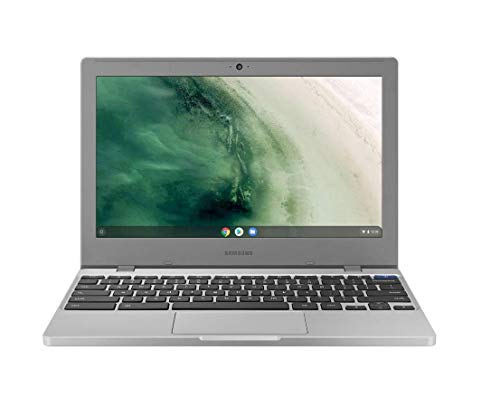
Samsung Chromebook 4 — Budget pick
The Samsung Chromebook 4 is the veteran of this line-up: an 11.6-inch HD machine with an Intel Celeron N4000 processor, 4GB of memory, 32GB of eMMC storage and gigabit Wi-Fi, sold for years as the entry point to the whole category. Age is its defining fact and cuts both ways — the design is proven, understood and inexpensive, while its processor generation and ChromeOS update horizon are the oldest in this guide, and families should weigh that horizon honestly, because a Chromebook’s usefulness ends when its updates do.
Within that understanding, its roles are real: a first machine for a young child whose needs are a browser and supervision, a shared spare that absorbs the day a main machine is forgotten or broken, a dedicated single-purpose device for one platform or one child’s reading programme. At its position, expectations set correctly are met completely.
What it should not be is the family’s main long-term school machine bought on price alone. The HP above costs more commitment and returns years more service; the Samsung is the tactical purchase — deliberate, bounded, and honest about being the oldest design here.
- Display: 11.6-inch HD
- Processor: Intel Celeron N4000
- Memory: 4GB
- Storage: 32GB eMMC
- Connectivity: gigabit Wi-Fi
- System: ChromeOS; long-running model — check update horizon
Strengths
- The most accessible entry point in the guide.
- A proven, simple design for browser-based basics.
- Ideal as a first machine or household spare.
Trade-offs
- The oldest platform here, with the shortest remaining update horizon.
- Performance headroom is the thinnest in the class.
- Not a long-term main machine for growing students.
Best for: first machines, spares and single-purpose learning devices. Not suited for: a family’s primary multi-year school laptop.
Armour, Screens and Storage: the Family Table Compared
| Pick | Size | Memory / storage | Defining trait | Best age band |
|---|---|---|---|---|
| HP Chromebook 14 (N100) | 14″ HD | 8GB / 128GB | Class-leading headroom | Older primary to secondary |
| Lenovo 100e Gen 4 | 11.6″ HD | 4GB / 32GB | District-grade toughness | Young primary |
| ASUS Chromebook CR11 | 11.6″ | 4GB / 64GB | Spill and hygiene defence | Youngest learners |
| Acer Chromebook 314 | 14″ WUXGA | 4GB / 64GB | Sharpest text | Reading-heavy older children |
| Lenovo IdeaPad Slim 3 | 14″ HD | 4GB / 64GB | Speakers and lightness | Older students |
| Samsung Chromebook 4 | 11.6″ HD | 4GB / 32GB | Budget veteran | First machine or spare |
Read the table by the child’s next two years rather than by the headline figures. Memory and storage decide how long a machine stays comfortable, armour decides whether it stays alive, and screen size decides which school day it fits — the three questions are independent, and each pick here is the right answer to a different combination of them.
What Do Homeschooling Families Most Often Get Wrong?
The expensive mistake is buying a fragile, powerful laptop for a young child because the specifications looked future-proof. Childhood is not a benchmark; the machine that survives is the one still working in year two, and the rugged education designs exist because schools learned this at scale. The second mistake is the opposite for teenagers: an underpowered small machine that turns every writing task into a squint and every research session into a tab-closing exercise, purchased because it was cheap in the September sales.
Third is ignoring the update horizon, this platform’s unique trap: a Chromebook’s service life is set by its maker’s update commitment, so a bargain on an old model can be a short lease disguised as a purchase — the Samsung pick carries that warning in its review for exactly this reason. Fourth is skipping the management setup: an unsupervised machine with a child’s unrestricted account will find the internet’s distractions by the second day, and the controls exist precisely so that the parent sets the boundaries once, kindly and in advance.
How Should You Set Up a School Chromebook on the First Evening?
Begin with accounts, not apps. Create the child’s supervised account, sign the parent in as the manager, and set the content and hour rules while the machine is still a novelty rather than a territory. Add the curriculum’s platforms together — bookmark the lesson portal, sign into the reading and maths services, test the tutor-call camera and microphone — so the first school morning begins with learning rather than logistics.
Then set the physical rituals: a charging place that is not a bedroom floor, a sleeve or designated bag spot, and the household rule for where the machine sleeps. Download the week’s offline materials if your programme offers them, check the machine works with the home printer if worksheets are printed, and write the parent’s recovery details somewhere outside the laptop. An hour of this on the first evening buys a school year of mornings that start on time.
Final Recommendation
Most families should begin with the HP Chromebook 14, whose memory, storage and screen size give it the longest childhood in this guide. Families with young children should choose armour instead — the Lenovo 100e against drops, the ASUS CR11 against spills — while reading-heavy older children belong on the Acer’s sharper screen and call-heavy teenagers on the Slim 3’s speakers. The Samsung serves deliberately as a first machine or spare. And families whose curriculum needs Windows should close this guide with our blessing and shop the Windows shelves instead — because the right laptop for a homeschool is the one still working, still managed and still open on the table when the lesson begins, long after the September excitement has faded into the ordinary miracle of a Tuesday.
Frequently Asked Questions
Are Chromebooks really enough for homeschooling?
For the browser-based curricula most home programmes use — Classroom-style platforms, reading and maths services, video lessons, documents — yes, completely, with management and durability advantages over general laptops. For programmes built on Windows-only software, no, and this guide says so rather than selling around it.
How much memory and storage does a school Chromebook need?
Four gigabytes and 32–64GB serve the early years and streamed curricula comfortably. Older students and longer ownership argue for the HP’s 8GB and 128GB, because browser multitasking grows with the child.
What is a Chromebook’s update horizon, and why does it matter?
Each model receives ChromeOS updates until a maker-set end date; after it, the machine stops receiving security and feature updates and should be retired from a child’s daily use. Newer models carry longer horizons, which is why the veteran Samsung is framed as a bounded, tactical purchase.
Can siblings share one machine?
Yes, and Chromebooks are unusually good at it: each child signs into their own account with their own work, settings and supervision rules. Sequential sharing across a school day is a designed strength of the platform, though simultaneous demand still argues for a second, cheaper machine.
Can these machines work offline?
Partly. Documents and many education apps offer offline modes, and downloaded materials work without a connection, but the platform’s centre of gravity is online. Families with unreliable internet should test their specific curriculum’s offline behaviour before committing.
What should we do when a child outgrows a machine?
Hand it down if its update horizon allows, reset it to factory freshness for the next child’s account, and let the older student step up to the 14-inch class. The platform makes this relay simple, which is one of its genuine family economies.
How Does a Homeschool Day Actually Unfold on One of These Machines?
It begins with the sign-in, and the sign-in is the philosophy: the child opens the lid, chooses their own picture, and is looking at their own desktop, their own half-finished story, their own reading level, within seconds and without a parent performing IT rituals over a kettle. The morning’s platforms load in the browser they live in. A recorded lesson plays while notes are taken in a document in the next tab — the first moment the 4GB machines ask for a little discipline and the HP’s 8GB simply proceeds.
Midday brings the variety that tests a school machine: a video call with a tutor where camera and microphone quality stop being specifications, a maths platform with its cheerful animations, a research task for an older child that sprawls across sources. The afternoon often leaves the desk entirely — the machine on a sofa for reading, in a garden for a nature journal, in a car for the co-op run — which is where battery honesty and a chassis that forgives handling earn their keep. The day ends with the lid closed wherever it ends; the work is in the account, the updates happen overnight, and tomorrow’s sign-in will find everything exactly where the child left it. That continuity, repeated across a school year, is what these six machines are actually selling.
What About Printing, Projects and the Physical Side of Home Learning?
Homeschooling is stubbornly physical: worksheets, timelines on the wall, science fair boards, the printed story with the proud illustration. Most modern home printers accept jobs from Chromebooks over Wi-Fi without ceremony, but families should test their specific printer in the first week, during calm, rather than on the morning a project is due. Photographs for projects arrive from phones and are edited in browser tools that these machines handle easily; the larger screens of the 14-inch picks make layout work noticeably less fiddly for older children.
Presentations and performances matter too. A child presenting to a co-op group or over a call benefits from the Slim 3’s speakers and camera positioning, and from rehearsing the screen-share once at home. None of this requires power; all of it requires the reliability and predictability that are this category’s real curriculum. The machine’s job is to disappear so completely that the learning — printed, presented, occasionally glued — is the only thing anyone remembers.
How Should Families Handle Safety, Supervision and Screen Time?
With the platform’s tools, set deliberately and reviewed as children grow. Supervised accounts let the parent approve sites, block categories, set device hours and see activity, and the art is calibration rather than maximal restriction: a seven-year-old’s walled garden should not be a fourteen-year-old’s, and controls that never relax teach evasion rather than judgement. Revisit the settings at each birthday and each new school year, with the child present for the conversation as they get older — the goal is a young person who manages their own attention, gradually handed the controls of a machine that began by managing it for them.
Physical safety deserves the same calm planning: chargers and cables routed away from toddler territory, the machine’s home base in a shared room rather than a bedroom for younger children, and a family agreement about where school devices sleep at night. These habits, like the software controls, are part of why a managed platform suits this life: the boundaries are set once, kindly, and the school day proceeds inside them without a daily renegotiation that exhausts everyone.
What Does the Total Cost of a Homeschool Laptop Really Include?
The machine, a sleeve or case proportionate to its travels, and — for the non-rugged picks — perhaps a keyboard cover’s worth of prudence. Beyond that, the Chromebook pattern keeps the ledger short: no antivirus subscriptions, no office-suite licences for the common curriculum tools, repairs that education models were designed to make cheap, and a hand-down path that spreads one purchase across siblings. The honest extras are time and connectivity: a home internet connection that carries simultaneous lessons, and a parent’s first-evening setup hour, which this guide has already spent on your behalf in instructions.
Compare that with the false economy of the under-bought machine — replaced in eighteen months, its cost doubled and its school days interrupted — and the HP’s position at the top of this guide explains itself. Families buy education in years, and the cheapest laptop is the one bought once per childhood stage, on purpose, with its replacement scheduled by growth rather than by failure.
How Do These Machines Serve Different Ages, Stage by Stage?
Ages five to seven need armour, simplicity and forgiveness: the CR11 and 100e exist for these years, when the curriculum is short sessions, big icons, read-aloud platforms and a machine that must survive being carried by its screen at least once. Ages eight to eleven add stamina and the first real writing; either rugged machine still serves, though a careful child can step to a 14-inch pick and gain years of headroom. Ages twelve and up are a different country — essays, research, multiple platforms, calls with tutors, the first long projects — and belong on the HP, the Acer or the Slim 3, chosen by whether memory, screen or sound leads that particular child’s day.
The hand-down relay binds the stages into an economy: the teenager’s new 14-inch machine releases nothing, but the middle child’s graduation to it releases a rugged 11.6-inch survivor to the youngest, factory-reset in minutes, its account wiped and its story begun again. Families who plan the relay at the first purchase — buying the top of the chain with the longest horizon — find the whole fleet costs less than a series of unplanned emergencies.
What If Your Internet Is Slow, Shared or Unreliable?
Then the buying weights shift, honestly. Downloaded and offline-capable materials matter more, which argues for the larger storage of the HP or the 64GB machines over the 32GB pair. Simultaneous lessons for siblings argue for staggering video-heavy sessions and for the household router mattering as much as any laptop in this guide. A family in a rural connection’s reality should test their curriculum’s offline modes during the return window with the router unplugged — a five-minute experiment that predicts a year of Mondays.
What poor internet does not change is the platform argument: the management, durability and account-based continuity of these machines work identically offline, and the work syncs when the connection returns. It changes the peripherals, perhaps — a downloaded library, a printer that behaves — more than it changes the pick.
How Do Chromebooks Handle Coding, Creativity and Older Students’ Ambitions?
Better than their reputation, within the browser’s borders. Block coding and the major learn-to-code platforms are web-native; browser-based development environments carry older students surprisingly far into real programming; photo editing, music making and video storytelling all have capable web homes that run on these machines, with the 14-inch screens giving creative work room to breathe. The boundary arrives with desktop-class tools — installed development environments, specialised design or engineering software, exam-specific applications — and families approaching it will see it coming a year in advance, in a syllabus, which is when the Windows conversation in this guide’s introduction becomes the right one.
Treat the Chromebook years as the foundation they are: typing fluency, research habits, document craft, online collaboration and self-management. Those skills transfer to every platform the student will ever meet, and they are learned better on a machine that never once made the lesson wait for an update.
What Should Happen When the Machine Breaks, Gets Lost or Is Outgrown Mid-Year?
The platform’s answer is the calmest in computing: almost nothing is on the machine, so almost nothing is lost. A replacement Chromebook — even the household spare Samsung — signs into the child’s account and restores their world in minutes: documents, bookmarks, progress, settings. Families should still rehearse the moment before it matters: confirm the parent’s account recovery details work, keep the curriculum logins recorded in the family’s password system, and know which machine in the house is the designated understudy.
Breakage planning is mostly purchase planning. The rugged picks reduce the probability; the modest prices across this class reduce the consequence; and a school year with a spare, however humble, is a school year without an emergency purchase made in panic at whatever the nearest shop happens to stock. That is why this guide keeps a budget veteran in its six rather than apologising for it.
How Do Co-ops, Tutors and Shared Classes Fit the Picture?
Homeschooling is more social than its name suggests, and the machine travels to prove it: co-op classes in borrowed halls, tutor sessions in libraries, group projects across kitchen tables in three postcodes. Portability and battery honesty govern those days, and the lighter picks — the Slim 3 among the big screens, the 11.6-inch pair among the small — earn their place in the bag. Compatibility is the quiet blessing of the platform: the tutor’s links, the co-op’s shared documents and the class platform all live in the same browser the school down the road uses, because it is, in the relevant respects, the same machine the school down the road bought.
Parents coordinating with tutors should share the machine’s boundaries as readily as its strengths — the platform a tutor plans to use should be confirmed as browser-based before the term begins, not discovered as an installation file in week three. One email in August prevents the only compatibility surprise this category can still produce.
A Word About the Word “Enough”
Every specification in this guide is, by the standards of the other guides in this series, small — and every one of them is enough, which is the educational point. Children do not learn faster on faster machines; they learn on machines that are present, working, managed and theirs. The surplus that a flagship laptop would have added to this purchase buys, in a homeschool, the things that demonstrably matter: books, subscriptions to the good platforms, a printer that behaves, a museum membership, a parent’s unhurried time. Buy the Chromebook that fits the child and the curriculum, keep the difference for the education itself, and let the machine’s modesty be the most instructive specification in the house.
How Should You Choose Between the Two Rugged Machines and the Two Big Screens?
By naming the accident and the ambition honestly. Between the Lenovo 100e and the ASUS CR11, the difference is the household’s physics: a home of drops, stairs and school bags argues for Lenovo’s district armour; a home of kitchen tables, juice and shared surfaces argues for ASUS’s spill-resistant keyboard and antimicrobial finish. Both will be outgrown; neither will likely be outlived by its first owner’s childhood, which is the entire design intention.
Between the HP and the field of 14-inch alternatives, the difference is the child’s day. Memory and storage — the HP’s 8GB and 128GB — serve the multitasking researcher and the long ownership. The Acer’s WUXGA panel serves the reader. The Slim 3’s speakers and lightness serve the traveller and the call-heavy student. There is no wrong door among the three, only a wrong reason: choosing by the headline discount rather than by the school day described in the timetables already pinned to your fridge.
What Does a Sensible First Month With the New Machine Look Like?
Week one is logistics disguised as novelty: accounts, platforms, printer, charging home, the rules agreed while the machine is still exciting rather than contested. Week two is the first real timetable, watched kindly for friction — the tab that overwhelms a 4GB machine, the lesson platform that wants a bigger screen, the call where the speakers are judged. Week three is when the hand-downs, spares and sibling sign-ins get tested in anger, calmly, before a deadline makes the test real. Week four is review: the supervision settings revisited with the evidence of actual use, the offline downloads refreshed, the parent’s own confidence quietly higher.
Families who run that month deliberately rarely think about the laptop again until growth or the update horizon raises the subject — which is, in the end, the highest praise available to a school machine, and the standard against which all six picks in this guide were chosen.
Why Does This Guide Keep Mentioning the Update Horizon?
Because it is the one specification in this category that can end a machine’s usefulness on a date printed in advance, and the one least visible in a listing’s headline. A Chromebook that stops receiving updates should stop being a child’s daily machine — the browser is the curriculum’s front door, and its security is not optional. When comparing any two picks here, the newer platform is buying not speed but years: the current education models carry long horizons, while the veteran Samsung’s is the shortest in the guide, which is precisely why it is framed as a spare and a starter rather than a main machine. Check the horizon the way you would check a passport’s expiry before booking the holiday — calmly, in advance, and as part of the price.
A Closing Note for the Parent Reading This at Midnight
This guide knows when it is being read: after the children are asleep, at the table where the lessons happen, by the person who is simultaneously choosing a laptop and being the school. The reassurance it can honestly offer is that this category is forgiving. Any of the six machines above, matched to the child’s age and the curriculum’s platform, will do the job; the management tools will hold the boundaries you set; the work will live safely in accounts rather than on a fragile device; and the mornings will start, day after day, with a lid opening on a lesson rather than on a problem. Choose the armour or the screen or the headroom your household actually needs, set it up on one unhurried evening, and then let the laptop become the least interesting part of an education that deserves your attention far more.
One more practical promise can be made on behalf of all six machines: whichever arrives, the first school morning will not require a manual. Open the box in the evening, charge it where it will live, create the accounts at the table with the child watching their name appear, and let the machine spend its first night updating itself into readiness. Homeschooling asks enough of parents without asking them to become systems administrators, and the deepest reason this category belongs to Chromebooks is that, alone among laptop platforms, it seems to have been designed by people who understood exactly that.
And if the decision still feels heavy, shrink it to the two questions this guide has asked from its first page: how old is the child, and does the curriculum live in a browser? The first answer picks the size and the armour; the second confirms the platform. Everything else — brand, colour, the small print of processors — is refinement, and any refinement chosen from the six above will serve a school year faithfully. Buy it, set it up once, and get back to the teaching, which was the point of the machine all along.
Keep the box and the receipt with the family’s school records, note the update horizon’s year in the same file, and the machine’s whole lifecycle — purchase, hand-down, retirement — becomes as organised as the education it serves. Small paperwork, done once, is the difference between a fleet of family laptops that feels managed and a drawer of mysteries that feels like archaeology, and homeschooling families, who are their own archivists, tend to appreciate the distinction by the second child.
Finally, let the child carry it in, set it down and open it on the first morning without ceremony or warning speeches — the machines in this guide were built by companies that supply entire school districts, and they have survived worse than your kitchen. Trust the armour, trust the accounts, and save your vigilance for the curriculum, the conversation and the work itself, which is where a homeschool’s attention has always belonged.
The school year will supply its own verdicts soon enough — a platform loved, a keyboard survived, a story written on the Acer’s sharp screen or a call carried clearly on the Slim 3’s speakers — and those verdicts, recorded in the family’s memory rather than in any benchmark, are the reviews that matter. This guide’s six machines have each earned their place in some family’s version of that story; choose the one whose strengths rhyme with your child’s ordinary day, and the story will write itself.
One last encouragement, from the evidence of every school that adopted these machines before any family did: the technology fades fastest when it is chosen plainly and managed kindly. Set the accounts, set the hours, charge it in its place, and then forget the laptop exists — because the lessons, the arguments, the stories and the slow arithmetic of a child learning are the entire point, and a good school machine’s highest achievement is to be forgotten by everyone except the person who set it up, once, on a quiet evening before term began.
And when the year ends and the machine is wiped for a sibling or a summer, take the small ceremony seriously: export the year’s best work, print the story that deserves paper, and let the child see their learning gathered rather than vanished. The laptop was only ever the shelf; the work on it was the education, and it leaves with the account, ready for whatever screen — bigger, sharper, more grown-up — comes next in a learning life that these six humble machines will have started properly.
Choose tonight, then, with confidence in the category and in your own knowledge of the child — no reviewer, however careful, has watched your school day the way you have. The machine that fits it is in the six above; the setup evening is short; the year ahead is long, ordinary and full of learning, which is exactly what a homeschool is supposed to be.
The guides below are for the next stages of the same family’s journey — the older student’s own laptop, the parent’s evening machine — and they were written in the same spirit as this one: honest about platforms, specific about children and students as they actually are, and loyal to the idea that the best technology in an education is the kind nobody has to think about twice.
Read them when the time comes, in the same midnight quiet in which this one was probably read, and know that the standard they will hold your next purchase to is the standard this guide set: working on the first morning, managed without a struggle, and still standing — scuffed, updated and entirely unbothered — at the end of the school year.
That is all a school laptop has ever needed to be — and, chosen from the six above with your child’s age in one hand and your curriculum in the other, it is exactly what will arrive. Order it, charge it, create the accounts, and let the first lesson begin on time — the smallest and most complete victory a school purchase can offer a family. Everything after that first morning is education rather than equipment, which is precisely as it should be, and precisely what these six machines were chosen to make possible, for one child or for a whole relay of siblings, across every ordinary and extraordinary school day of the years ahead, starting with the very first lesson of term. Buy the machine that fits your child, set it up with care on one quiet evening, and then step back and let the school year do what school years do — fill the days with work, questions, stories and progress that no laptop, however well chosen, could ever take credit for, nor should it ever.
Related Guides
When the homeschooler becomes a student heading further, compare the laptops we recommend for nursing students balancing study and placements; for the parent’s own evening work, see which backlit keyboards suit writing after the school day ends; and for a family media machine, read our dual-screen laptop guide for shared and portable workspaces.
Related guides
- Best Direct Thermal Printers: Shipping-Label Machines and Professional Label Systems
- Best 4K UHD HDR HDMI Extenders: 4K60, Long-Run and 4K120 Kits Compared
- Best Color Product Label Printers: Six Desktop Machines for Short-Run Product Labels
- Best 25–35 Inch Monitors With Lowest Display Lag: An Honest Ranking Without Invented Numbers



[…] a second screen to match the night desk, see how dual-screen laptops change evening workflows; for study-focused buying, compare the laptops we recommend for homeschooling families; and for […]