What's inside
- Where to buy
- Key Takeaways
- Quick Picks
- How did we choose the best laptops for kids?
- Which laptop fits your child’s school day?
- How do the six picks compare side by side?
- How much should a family spend on a child’s laptop, and where should the money go?
- What setup should parents do on the first evening?
- How do schools manage these machines, and what does that mean at home?
- How long will a child’s Chromebook serve, and when is it time to replace it?
- How do you move a child from a shared family computer to their own laptop?
- What mistakes do families make when buying a child’s laptop?
- What accessories does a child’s laptop actually need?
- How should families handle the laptop across school holidays?
- What should you ask the school before you buy anything?
- How do you teach a child to look after the machine?
- What changes when the child moves from primary to secondary school?
- Why does this guide keep returning to the school account?
- Final Recommendation
- Frequently Asked Questions
- Related Guides
As an Amazon Associate I earn from qualifying purchases. This post may contain affiliate links at no extra cost to you.
gizmoverdict.com is reader-supported. When you buy through links on our site, we may earn an affiliate commission.
Where to buy
Where to buy: four of the six picks below link to verified Amazon US listings from our pool. The other two — the education Chromebooks schools actually buy in fleets — are covered in prose only, for a reason explained immediately below, and no honest guide to this category should pretend otherwise.
Start with the fact that shapes this whole category. The best laptops for kids, for most families with school-age children, are Chromebooks — and the specific education models that schools themselves deploy, Dell’s Chromebook 3100 and Lenovo’s 100E chief among them, reach Amazon’s US store almost entirely as Renewed fleet returns: ex-school machines, refurbished and resold, with listing titles that say so. We checked those listings and excluded every one of them from linking, because a guide that quietly routes you to a refurbished ex-fleet machine as if it were a normal retail purchase is not doing its job. Those two models appear below as prose-only picks — genuinely recommended, with the buying route explained honestly — while the four linked picks are the Chromebooks with clean retail listings.
Why Chromebooks at all? Because the ecosystem fits the user. A child’s school life increasingly runs through a school-issued account and a browser: assignments, documents, classroom platforms, video calls with teachers. ChromeOS signs into that world natively, updates itself quietly, resists most of the malware mischief that finds its way onto family Windows machines, and — decisive for parents — can be supervised through family account tools and, where the school manages the device, through the school’s own admin console. The operating system is not a compromise for children; for the homework years it is the considered default, which is why all six picks here run it.
A boundary needs drawing at the other end of the search results. The toy mini-netbooks and novelty Android laptops marketed at children — tiny keyboards, cartoon shells, app stores full of games — are not school laptops. They cannot run the classroom platforms properly, their keyboards teach typing habits a teacher then has to unteach, and they break on a school-year timescale. They are excluded from this guide, and the exclusion is the advice: if a device looks like a toy, the school will treat it as one too.
One more piece of honesty before the picks. No laptop in this guide, and no laptop anywhere, can promise to keep a child safe online. Parental controls are real and worth using — several picks support them well — but they are a setup task and an ongoing family conversation, not a feature that ships in the box and absolves anyone. This guide describes the control tools neutrally, as tools, and leaves the parenting to parents, where it belongs.
Key Takeaways
- The education Chromebooks schools deploy reach Amazon US mostly as Renewed fleet returns, so the Dell 3100 and Lenovo 100E are prose-only picks here.
- ChromeOS is the sensible default for school-age children: school accounts, quiet updates and supervision tools built around family use.
- Four linked picks carry clean retail listings, from a budget HP to a Gorilla Glass touchscreen convertible.
- Toy Android mini-netbooks are not school laptops and are excluded from this guide on purpose.
- No laptop makes a child safe by itself; controls are a setup task for parents, described plainly in the guide sections.
Quick Picks
| Pick | Badge | Why it earns its place |
|---|---|---|
| HP Chromebook 14 | School-day default | A clean retail Chromebook that disappears into the homework routine. |
| Acer Chromebook Spin 314 | Long-life convertible | Gorilla Glass touch, eight gigabytes and an i3 for several school years. |
| Lenovo 14-Inch Flagship Chromebook | Full-HD touchscreen | The crispest budget screen here, with touch for younger classes’ apps. |
| HP 14-Inch HD Chromebook | Battery champion | Advertised fourteen-hour endurance for days without a socket. |
| Dell Chromebook 3100 | Fleet favourite (prose) | The school-issued classic — recommended, with its Renewed reality explained. |
| Lenovo 100E Chromebook | Fleet workhorse (prose) | Lenovo’s classroom staple, covered in prose for the same listing reason. |
How did we choose the best laptops for kids?
Selection began with the school day rather than the spec sheet. A child’s laptop must survive a backpack, open fast between classes, last the day without its charger becoming a second homework assignment, and run the platforms the school actually uses. We checked every candidate against that day: keyboard quality for a child learning to type properly, screen size against the reality of split-screen homework, and whether the listing was a clean retail offer or a refurbished return wearing retail clothing.
Listings were read with a parent’s suspicion. Renewed markers anywhere in a title removed the machine from linking, however good the model — the Dell and Lenovo education fleets failed that test through no fault of their hardware, and they are recommended in prose with the refurbished reality explained. Toy netbooks failed a simpler test: they are not laptops for school. What remains is a short, honest list — four machines you can buy new through the links, and two fleet favourites you should buy knowingly, through the channels the prose sections describe.
Which laptop fits your child’s school day?
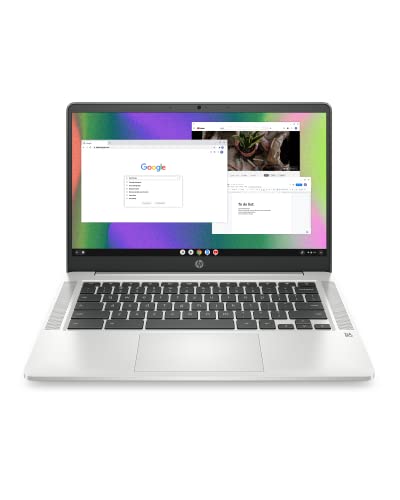
HP Chromebook 14 — Straightforward school-day default
The HP Chromebook 14 is the uncomplicated answer most families are actually looking for: an Intel Celeron N4120 processor, four gigabytes of RAM, sixty-four gigabytes of eMMC storage, a fourteen-inch HD display and ChromeOS in a thin ash-grey chassis. Nothing in that specification reaches for excitement, and for a primary or middle-school child, excitement is not the brief. The brief is a machine that opens to the classroom platform quickly, types homework on a proper full-size keyboard, and comes home in the backpack without drama.
Four gigabytes of memory deserves a parent’s realistic expectation. For the browser-based school workload — documents, classroom apps, research tabs, a video call — it is adequate, and ChromeOS is frugal enough to keep it feeling willing. Ask it to hold thirty tabs of research plus a video edit and it will slow down, which is a fair moment to teach the household’s first lesson in closing tabs. The sixty-four gigabytes of local storage similarly suits a cloud-centred school life; the child’s work lives in their school account, not on the drive, which turns out to be a blessing the first time any laptop meets a spilled drink.
Buy this for the child whose school runs on Google accounts and whose homework is documents, reading and research. It is the pick that disappears into the school routine, and for a first real laptop, disappearing is the highest compliment available.
At a glance:
- 14-inch HD display
- Intel Celeron N4120 processor
- 4GB RAM and 64GB eMMC storage
- ChromeOS with school account sign-in
- Thin, light chassis in ash grey
Strengths
- Clean retail listing for a proper school Chromebook
- Full-size keyboard for learning to type well
- ChromeOS updates and supervision suit family use
Trade-offs
- Four gigabytes is adequate, not generous, for heavy tab habits
- HD resolution is softer than the FHD picks below
- eMMC storage assumes a cloud-centred school life
By the second term, the HP’s plainness becomes its personality. It is the laptop that is simply charged, cased and working, while cleverer purchases are still being configured. Children develop a relationship with reliability at this age that adults underestimate: the machine that never eats a homework file or misses a class call becomes trusted, and trusted tools get looked after. Parents report the same arc with most sensible school purchases — the absence of stories is the story — and this HP is engineered, at the specification level, to produce exactly that absence across a school year.
Best for: A first school laptop for document-and-browser homework.
Not suited for: Older students juggling many tabs, media projects or coding.

Acer Chromebook Spin 314 — Convertible with a Gorilla Glass touchscreen
The Spin 314 is the pick for the child whose schoolwork has outgrown the basics. Its listing specifies an Intel Core i3-N305 processor — a genuine step above the Celeron tier — eight gigabytes of LPDDR5 memory and a fourteen-inch WUXGA IPS touchscreen protected by Corning Gorilla Glass, in a convertible chassis that folds from laptop to tent to tablet. The taller WUXGA resolution shows more of a document at once, the IPS panel keeps colours honest for art and science work, and the glass is the detail parents of younger children will appreciate most by half-term.
The convertible hinge earns its place in specific, unglamorous ways. Tent mode turns the machine into a stable little screen for watching a teacher’s recorded lesson at the kitchen table without the keyboard in the way. Tablet mode suits reading and the touch-based apps younger classes use. And laptop mode — still the mode that matters most — offers a keyboard deck that does not apologise for itself. The i3 processor and doubled memory give this machine a longer useful childhood than the entry picks: it will still feel willing when the homework graduates to bigger documents, more tabs and the first real projects.
Choose the Spin for the older primary or middle-school child you expect to keep the same machine for several school years, or for any child whose school leans on touch and tablet-style apps alongside typing. It costs more than the basics, and the case for it is longevity rather than luxury.
At a glance:
- 14-inch WUXGA IPS touchscreen with Gorilla Glass
- Intel Core i3-N305 processor
- 8GB LPDDR5 memory
- Convertible 360-degree hinge
- ChromeOS in a sturdier-feeling build
Strengths
- Strongest processor and memory among the linked picks
- Touchscreen and tablet modes suit mixed school apps
- Gorilla Glass shrugs off classroom knocks better
Trade-offs
- Costs more than a basic homework machine
- Convertible hinge is one more moving part to treat kindly
- Heavier than the simplest clamshells here
The Spin’s hinge turns out to be a social feature as much as a mechanical one. Homework at the kitchen table becomes a shared screen in tent mode, a recorded lesson becomes a small television, and a reluctant reader meets their e-book on something that feels like a tablet rather than a test. Parents should still set the ground rule early — the keyboard mode is the homework mode — because the same flexibility that helps at the table can turn a writing assignment into a video session if the household lets it. Managed lightly, the convertibility is the rare feature children and teachers both find uses for.
Best for: Children who will keep one machine across several school years.
Not suited for: A first laptop where the basics are genuinely all that is needed.

Lenovo 14-Inch Flagship Chromebook — Touchscreen value with Wi-Fi 6
Lenovo’s fourteen-inch Chromebook — the listing calls it the Flagship model — pairs an eight-core MediaTek Kompanio 520 processor with four gigabytes of RAM, sixty-four gigabytes of eMMC storage, Wi-Fi 6 and a fourteen-inch full-HD touchscreen in a slim, light shell. The full-HD panel is its calling card at this level: text in documents and e-books renders noticeably crisper than on the HD screens of the budget picks, which matters for a child reading on screen for hours a week, and the touchscreen serves the tap-and-drag world of younger classes’ apps.
The Kompanio processor comes from the tablet side of the family tree, and its character shows in the right ways for this job — cool, quiet, efficient running that suits a machine used on laps and sofas as much as desks. Wi-Fi 6 is the quietly future-proof detail, keeping the machine friendly with the newer routers appearing in homes and schools. Four gigabytes of memory sets the same expectation as the HP above: perfectly serviceable for the school platform stack, happier when tabs are kept to a civilised number.
Pick this Lenovo when the screen is the priority — a child who reads a lot, a school that issues e-books, a family that will also use the machine for films on a train. It splits the difference between the budget default and the convertible flagship, and for many households that middle is exactly where the sensible money sits.
At a glance:
- 14-inch FHD touchscreen
- MediaTek Kompanio 520 eight-core processor
- 4GB RAM and 64GB eMMC storage
- Wi-Fi 6 connectivity
- Slim, light design for backpacks and sofas
Strengths
- Full-HD screen is the crispest of the budget tier
- Touch input suits younger classes’ apps
- Wi-Fi 6 keeps it current with newer networks
Trade-offs
- Four gigabytes caps heavy multitasking
- MediaTek platform feels different from Intel machines
- Touchscreen invites fingerprints — keep a cloth handy
Families who choose the Lenovo for its screen tend to validate the decision in an unexpected place: reading homework. The full-HD panel makes long on-screen texts — the chapter, the article, the e-book the school issued — visibly less tiring than the softer HD panels, and children who read willingly read more. Its touchscreen gets its heaviest use in the first school years and then gracefully retires into occasional duty, which is the natural life of touch in a student’s kit. Keep expectations set there, and the machine’s balance of screen, price and weight makes complete sense.
Best for: Reading-heavy schoolwork and families prioritising the display.
Not suited for: Students whose workload already strains four gigabytes.

HP 14-Inch HD Chromebook — Long-battery homework companion
The second HP in this guide is a different configuration from the first, and its headline is endurance: the listing advertises battery life of up to fourteen hours, wrapped around an Intel quad-core N4120-family processor, four gigabytes of RAM, sixty-four gigabytes of eMMC, Wi-Fi, a webcam, HDMI and both USB-A and USB-C ports on a fourteen-inch HD screen. For a school child, battery is not a convenience specification. It is the difference between a laptop that is a tool all day and a laptop that is a tool until lunch, followed by an afternoon of negotiating for the classroom’s one free socket.
The port mix deserves a parent’s nod. USB-A takes the memory sticks and mice children actually own; USB-C takes the modern charger and accessories; HDMI lets the machine present a project on the family television or a classroom display without an adapter hunt. The webcam covers the video-call homework club and the occasional remote school day. It is a specification written by someone who has watched a child try to do homework, and it shows.
Choose this HP when the school day is long, the charging opportunities are few, or the child is simply not yet reliable about plugging things in — which is to say, for a great many children. Between this and the first HP pick, the decision is battery and ports against the slimmest possible simplicity, and households will know instantly which side of that line their child lives on.
At a glance:
- 14-inch HD display
- Intel quad-core N4120-family processor
- 4GB RAM and 64GB eMMC storage
- Battery life advertised up to 14 hours
- HDMI, USB-A and USB-C ports, webcam
Strengths
- Endurance that survives a full school day unplugged
- Port mix matches children’s real accessories
- Webcam and HDMI cover calls and presenting
Trade-offs
- HD screen is less crisp than the FHD Lenovo
- Four gigabytes is the familiar ceiling here
- Battery claims are best-case; real days vary
The long-battery HP teaches a household a useful truth: the best specification is the one matched to the child’s actual habits, not their aspirational ones. A child who reliably charges nightly gains little here; a child for whom charging is still an emerging life skill gains a laptop that forgives. Schools notice the difference too — the pupil whose machine is always alive is the pupil whose homework is always reachable. If your household recognises itself in the second description, this is not the compromise pick. It is the correct one, and its fourteen-hour headline is really a headline about forgiveness.
Best for: Long school days and children still learning charging habits.
Not suited for: Families wanting the sharpest screen in this class.
Dell Chromebook 3100 — The school-fleet favourite — read before buying
Ask a school IT technician which Chromebook children actually use and the Dell 3100 is the answer you will hear most. It was designed for education fleets: a compact, deliberately tough little machine built to be issued by the hundred, survive the school bag ecosystem, and be repaired and reimaged by a technician with a queue. As a recommendation, it is wholehearted. As a purchase on Amazon US, it comes with the condition this guide flagged at the top — the listings are overwhelmingly Renewed units, refurbished ex-fleet machines, and so this pick carries no link and a clear label instead.
That is not a reason to dismiss it; it is a reason to buy it knowingly. A refurbished 3100 bought from a reputable refurbisher, with its condition and battery health stated and a warranty attached, can be an entirely sensible way to give a child the exact machine their school uses — same keyboard, same quirks, zero learning curve between classroom and kitchen table. What families should not do is pay a new-machine price for a fleet return, or assume a listing is new because the photographs are tidy. Read the full title, read the condition notes, and check who is selling it.
If your child’s school issues the 3100, the strongest version of this purchase is a matching second machine for home, bought with eyes open about its refurbished nature. If the school issues something else, match that instead. The fleet machines earn their reputation in the hardest testing environment in computing — a thousand children — and that reputation is real. It simply travels, on this marketplace, with a label that honest guides must not hide.
At a glance:
- Compact education-fleet design
- Built for school durability and serviceability
- ChromeOS matching school-issued machines
- Widely used by schools in fleet deployments
- Available mainly as Renewed units on Amazon US
Strengths
- The machine many schools actually issue — zero learning curve
- Fleet-tough design brief suits children genuinely
- Refurbished examples can be excellent value knowingly bought
Trade-offs
- Amazon US listings are predominantly Renewed, not new
- Battery health varies by unit on refurbished stock
- Specifications vary across fleet configurations
The 3100’s afterlife as a refurbished purchase has a certain circular honesty to it. These machines were built to be maintained — batteries replaceable, parts stocked, cases designed to open — and the refurbishment market is that design philosophy working as intended. Families who buy one well join a sensible economy: the school’s technician can service it, the child already knows it, and its second life costs a fraction of its first. The discipline is in the buying — reputable seller, stated grade, warranty in writing — and families who apply that discipline rarely regret joining the circle.
Best for: Families whose school issues the 3100 and want a matching home machine.
Not suited for: Anyone who wants a guaranteed-new retail purchase — use the linked picks.
Lenovo 100E Chromebook — Lenovo’s education workhorse — prose only, same reason
The Lenovo 100E is the other half of the education-fleet story: Lenovo’s purpose-built school Chromebook, designed for classroom deployment with the same philosophy as the Dell — durability first, serviceability always, specifications chosen for the school platform rather than the showroom. Teachers know it, technicians stock parts for it, and children across a great many districts do their daily work on it. It belongs in any honest guide to laptops for kids, and it belongs here without a link, for the identical reason as the Dell: its Amazon US presence is dominated by Renewed fleet returns.
Everything said about buying the 3100 knowingly applies here in parallel. A 100E from a reputable refurbisher, honestly graded, can be the smartest-value school laptop a family buys — the hardware was engineered for exactly the knocks a child delivers, and its modest specifications are matched to the browser-based workload schools actually set. The traps are the same too: listings that bury the Renewed label, prices that drift toward new-machine territory, and battery condition that varies from unit to unit. Buy the seller’s reputation as much as the machine.
Between the two fleet picks, the divider is simply your school’s fleet. Match the machine the classroom uses and the child’s two computing worlds become one — same sign-in, same layout, same everything — which for a young child is a bigger educational feature than any specification either machine carries. If your school is a Lenovo school, this is your prose pick; if it is a Dell school, the previous one is. The guide’s linked Chromebooks remain the route for families who want new, and there is no wrong door among the three — only doors that should be walked through with the labels read.
At a glance:
- Education-fleet Chromebook design
- Built for classroom durability and repair
- ChromeOS matching Lenovo school deployments
- Deployed widely across school districts
- Available mainly as Renewed units on Amazon US
Strengths
- Engineered for the knocks of real school life
- Matching your school’s fleet removes all friction
- Knowingly bought refurbished units are strong value
Trade-offs
- Renewed listings dominate — new retail stock is scarce
- Unit condition and battery vary on refurbished examples
- Modest specifications by design, not by accident
The 100E’s story mirrors its Dell counterpart with a Lenovo accent: fleets of them run quietly in classrooms where the technology is expected to be invisible, and their refurbished examples carry that invisibility to home desks at fleet prices. The model’s long presence in education means accessories, chargers and advice are everywhere, which matters when a charger is left at school in another town’s sports hall. Buy it as deliberately as you would buy the Dell — label read, seller vetted, battery questioned — and it will do for your child exactly what it does for a classroom of thirty: work, daily, without asking to be thought about.
Best for: Families whose school issues Lenovo Chromebooks.
Not suited for: Buyers who need a new machine with a standard retail warranty.
How do the six picks compare side by side?
| Pick | Screen | Memory and storage | Touchscreen |
|---|---|---|---|
| HP Chromebook 14 | 14-inch HD | 4GB / 64GB eMMC | No |
| Acer Spin 314 | 14-inch WUXGA touch | 8GB / convertible storage | No |
| Lenovo Flagship Chromebook | 14-inch FHD touch | 4GB / 64GB eMMC | No |
| HP 14 HD Chromebook | 14-inch HD | 4GB / 64GB eMMC | No |
| Dell Chromebook 3100 | Compact education size | Fleet configurations vary | Prose only |
| Lenovo 100E Chromebook | Compact education size | Fleet configurations vary | Prose only |
How much should a family spend on a child’s laptop, and where should the money go?
The honest answer is that the school workload sets a modest ceiling on useful spending. Documents, classroom platforms, research and video calls do not tax even the entry processors in this guide, so money spent chasing performance buys little a child can feel. Money spent on the screen, the keyboard and the build buys something every school day: a full-HD panel is kinder to a young reader’s eyes, a proper keyboard teaches typing that transfers to every computer the child will ever meet, and a chassis that survives the backpack protects the whole investment at once. That is why this guide’s linked picks cluster where they do, and why the convertible Acer — the most expensive linked pick — justifies itself through glass, memory and longevity rather than speed.
The other place money quietly matters is time. A machine with eight gigabytes of memory and a stronger processor stays willing for more school years than the minimum specification, and replacing a laptop every two years is more expensive — in money, setup and a child’s disrupted routines — than buying the longer-lived machine once. Set against that, children grow and schools change platforms; a five-year plan for a seven-year-old’s laptop is a plan written in pencil. The middle course most families land on, and this guide endorses, is a solid mid-tier machine expected to serve three to four school years, in a protective case, with the school account doing the heavy lifting.
What setup should parents do on the first evening?
The first evening decides whether the laptop becomes a supervised tool or a small unlocked door. Sign the child in with the family account arrangement your household uses, enable the supervision and content settings the platform offers, and set the device to require approval for new apps. Add the school account as the school directs — many schools manage this themselves — and install nothing else that first night beyond what homework requires. Set a charging spot that is not the child’s bedroom if your household rules run that way, and agree the simple physical rules while the laptop is still exciting: closed at meals, charged overnight in the kitchen, carried in its case.
Then do the unglamorous resilience work. Confirm the child’s work saves to their school or family cloud account rather than only to the device, so a lost or broken laptop is an inconvenience instead of a lost term’s projects. Write the household’s name and a contact number on a label inside the case. Photograph the serial number. None of this is about distrusting the child; it is about the statistical certainty that children, bags and gravity interact, and that preparation is what separates a mishap from a disaster. The controls conversation itself — what the settings do and why the family uses them — is worth having openly, in age-appropriate terms, rather than as a secret; children who understand the guardrails are likelier to mention it when something online feels wrong.
How do schools manage these machines, and what does that mean at home?
Many school Chromebooks are managed devices: the school’s admin console decides which apps can be installed, which sites the school account can reach during school hours, and what happens if the machine is reported lost. When a family buys the same class of machine for home, the management picture depends on how it is set up. A personally owned Chromebook signed in with a family-supervised account answers to the family’s settings; a machine signed in primarily with the school account may carry some of the school’s rules with it, which surprises parents who find a home laptop behaving like a classroom one at weekends.
The practical move is to ask the school one question — ‘what account should our child use on a home machine?’ — and follow the answer. Schools have thought about this; their guidance aligns the home machine with classroom expectations and avoids the tangle of a child doing homework inside an account the school cannot see or support. This is also why matching the fleet model, the Dell and Lenovo prose picks, can be quietly brilliant: the school’s technicians know the machine, the child knows the machine, and the only new variable is the room it is used in.
How long will a child’s Chromebook serve, and when is it time to replace it?
ChromeOS devices carry a defined update lifetime, and for a child’s laptop that date matters more than any other specification. A machine that stops receiving updates eventually stops being suitable for school platforms, however willing its hardware remains, so the buying rule is simple: prefer current models with long support roads ahead — the linked picks here are chosen with that in mind — and treat suspiciously cheap older stock as the false economy it usually is. Beyond updates, the realistic service life is set by the child: three to four years covers the span in which size, workload and the child’s own care habits all change at once.
Replacement signals are practical rather than dramatic. The battery that no longer crosses a school day, the hinge loosened by a thousand bag journeys, the workload — bigger projects, more tabs, a first coding class — that has outgrown four gigabytes of memory: each is a fair reason, and together they usually arrive as a chorus rather than a solo. Hand the retired machine down to a younger sibling for reading and light homework, where its remaining strengths still serve, and the family’s laptops cascade through the children the way the fleet machines cascade through a school.
How do you move a child from a shared family computer to their own laptop?
Make the handover an event with rules attached, in the friendliest sense. Unbox together, set up the accounts together, and let the child choose the wallpaper while you choose the supervision settings — the division of authority is the lesson, delivered kindly. Walk through the three places work can live — the school account, the family cloud, the device itself — and practise saving a document to the school account and finding it again from the family computer, because that small miracle is what makes the laptop safe to lose.
Agree the carrying system before the first school day: the padded case, the bag pocket it lives in, the rule that the laptop never travels loose among the sports kit and the lunchbox. Practise the morning routine once — charged, cased, in the bag by the door — and the evening one of homework, close, charge. Children rise to owning a real tool when the ownership is real, and most families find the laptop becomes a small lesson in responsibility that pays out far beyond the homework it was bought for.
Finally, schedule the first check-in a fortnight later: look together at how the machine is being used, adjust one setting that is not working, and praise the habits that are. The laptop will outlast any single rule you set on day one; what lasts is the pattern of the family treating the device as shared territory with norms, rather than as either a surveillance problem or an unsupervised frontier.
What mistakes do families make when buying a child’s laptop?
The costliest mistake is buying the toy. The cartoon netbook delights for a week, fails the school’s platform by the second, and teaches the child that their laptop is the one that cannot do what the class is doing. Buy the boring school machine; boring is what classrooms run on. The second mistake is the mirror image: buying an expensive general laptop ‘to grow into’, which hands a child a fragile, over-powered machine whose capabilities — full app stores, unrestricted accounts — are precisely what the family then spends years fencing off. ChromeOS’s limits are, for this age, features.
Third, families skip the refurbished label in both directions: some pay new prices for Renewed fleet machines because the title’s key word hid at the end, while others dismiss refurbished fleet machines entirely and overspend, when a knowingly bought, well-graded ex-school machine from a reputable refurbisher might have been the smartest purchase in this whole guide. The label is information; read it, price it, and decide with it in view.
Fourth, the setup gets postponed. The laptop arrives, the child signs in with an unrestricted account ‘temporarily’, and temporary becomes permanent by half-term. The first-evening setup in this guide takes less time than the unboxing programme the child will happily watch while you do it. Do it then.
And the quietest mistake: no case, because the laptop looked sturdy. It probably is. The bag it travels in, however, contains a water bottle, a sports kit and the physics of a dropped rucksack. A modest padded case is the cheapest insurance in this entire category, and the fleet machines’ toughness is a reason to respect their designers, not a reason to test them daily.
What accessories does a child’s laptop actually need?
The list is short and mostly cheap. A padded case or sleeve sized to the machine is the one non-negotiable, because the backpack is the most hostile environment the laptop will ever know. A second charger — one for the desk, one for the bag — ends the commonest morning emergency in households with school laptops. A basic mouse helps younger children with precise work until trackpad skills mature, and inexpensive wired earbuds with a microphone serve video calls and classroom audio without the pairing adventures of wireless sets. Everything beyond that list should justify itself against an actual school requirement before it is bought.
Notice what is not on the list: extended warranties sold at the till, software bundles, and the decorative skins that peel by October. The school’s platforms are browser-based, the supervision tools are built into the ecosystem, and the machine’s own toughness — especially in the fleet models — was designed for this life. Spend the accessory budget on the case and the spare charger, keep the receipt photograph with the serial number from setup night, and the child’s laptop is as prepared as any in the class.
How should families handle the laptop across school holidays?
Holidays change the laptop’s job from school tool to household object, and a small amount of choreography keeps that healthy. Agree which of the school rules relax — most families keep the charging spot and the closed-at-meals rule and loosen the entertainment ones — and confirm the school account’s expectations, since some schools lock managed devices or set holiday policies of their own. The break is also the natural maintenance window: run the updates that accumulated, clear the downloads folder of a term’s debris together, check the case for wear, and back up any local files that crept onto the device instead of the cloud.
Used well, the holiday laptop earns its keep — the library’s e-books, the coding club’s holiday project, the video call with grandparents where the child drives the machine with new confidence. The families who navigate this best treat the device as the child’s tool on loan from their education: respected in term time, enjoyed in the holidays, and always one conversation away from the rules being revisited as the child grows into them.
What should you ask the school before you buy anything?
One short conversation with the school prevents nearly every bad purchase in this category, and it consists of four questions. Which platform do classes use — because the answer chooses the operating system for you. Which account should the child sign in with at home — because the wrong account creates support problems nobody needs. Are there specific requirements for older students, such as particular software for design, music or computing courses — because those change the machine entirely. And does the school run a device scheme of its own, with the same machine available through the school at fleet pricing — because sometimes the best purchase is not a purchase from a shop at all.
Schools answer these questions constantly and usually have them written down; asking puts your family in the large group of parents whose children arrive with machines that simply work with the classroom. The families who skip the conversation are the ones discovering in September that the beautiful laptop from the summer sale cannot join the class platform, or that the school’s scheme would have supplied the fleet machine — support included — for less than the retail one cost. Five minutes, four questions, and the rest of this guide becomes a shortlist instead of a gamble.
How do you teach a child to look after the machine?
Care is a curriculum, and the laptop is a forgiving teacher if the lessons start early. Liquids live away from the desk the laptop is on — not beside it, not behind it, away — because the spilled drink is the leading cause of death in this entire category. The screen is opened from the middle of the lid, never a corner, because corners twist. The charger cable is unplugged by its connector, not by a tug from across the room. And the machine is carried in its case with two hands out of the bag, a rule that sounds fussy until the first time it saves a term’s work from a playground’s concrete.
Pair the physical rules with the digital ones and teach them as the same subject: work saves to the school account, passwords are never shared even with best friends, and anything on screen that feels wrong gets shown to an adult without fear of the laptop being confiscated as a punishment — that last assurance matters, because children hide problems they expect to be blamed for, and hidden problems grow. The goal across a school career is a young person who treats a computer as a maintained tool and the internet as a place with norms. The laptop is where both lessons happen to live.
What changes when the child moves from primary to secondary school?
The move up is the natural audit point for the whole setup. The workload changes character — longer documents, research across many sources, subject software in places, group projects coordinated online — and the child changes faster than the workload, arriving with opinions about their machine and the social world it connects to. A laptop bought generously in the primary years, the eight-gigabyte convertible pattern, often crosses the boundary without fuss; a minimum-specification machine usually announces the transition by struggling, which is information the original purchase priced in.
The supervision conversation crosses a boundary too, from settings the parent simply applies to arrangements the young person has a voice in. Families who have treated the controls as an explained, adjustable system since the first evening find this negotiation easy, because the principle — the dial moves as trust is demonstrated — was established when the stakes were small. Use the transition to revisit the account structure, the charging and carrying habits that a bigger school with a longer day will test, and the question of whether the machine still matches the school’s fleet. A half-hour audit at the boundary saves a year of friction on the other side of it.
Why does this guide keep returning to the school account?
Because the account, not the hardware, is where a child’s school life actually resides. The documents, the classroom memberships, the teacher’s feedback and the portfolio of work all live in the account, reachable from any machine the child signs into — which is why a broken laptop, in a well-set-up household, is a logistics problem rather than an educational one. It is also why the cheapest machine in this guide can serve a child perfectly while a powerful one, set up with work stranded on its local drive, serves them worse. When you evaluate any laptop for a child, you are really evaluating how gracefully it hosts the account: how fast it signs in, how reliably it syncs, how clearly it separates the school identity from the family one. Judge the six picks here by that standard and their order explains itself — the hardware differences are real, but the account experience is the ground they all stand on.
Keep one proportion in mind when the shopping gets complicated: the child will remember almost nothing about this laptop’s specifications in five years, and almost everything about whether it let them do their work without embarrassment in front of the class. Buy for that memory — reliable, matched to the school, honestly sourced — and the specifications will have done their job.
And if the budget forces a choice between a newer basic machine and an older fancier one, take the newer: update lifetime, battery freshness and warranty all favour the current model, and a child’s workload will never expose the performance difference the older flagship once charged for.
Schools, for their part, quietly prefer the family that bought the standard machine: their help, their chargers, their spare parts and their advice all assume it, and a child whose laptop matches the fleet is a child whose bad day gets fixed in minutes rather than diagnosed over a weekend.
Final Recommendation
Match the machine to the school, and the purchase mostly makes itself. If your child’s school runs Google accounts — most do — the linked Chromebooks cover the honest range: the HP defaults for straightforward homework, the Lenovo for its full-HD touchscreen, the long-battery HP for the child whose day outlasts a charge, and the Acer convertible for the family buying once for several years. If the school issues a Dell 3100 or a Lenovo 100E, the prose picks explain how to buy its twin knowingly, Renewed label and all, rather than pretending the marketplace offers what it does not.
A child’s first real laptop is a small rite of passage disguised as a purchase. Choose the machine that treats them like a student rather than a consumer, set it up together on the first evening, and it will carry far more than homework — it will carry the habits of care, saving and signing in that every later computer in their life will quietly inherit.
Frequently Asked Questions
Is a Chromebook really enough, or does my child need Windows?
For the great majority of school-age children, yes, a Chromebook is enough, because schoolwork itself has moved into the browser and the school’s chosen platforms. The exceptions are specific and knowable: a school that mandates particular Windows software, an older student starting programming environments or media courses with desktop requirements, or a family machine that must also run a parent’s work applications. Ask the school what its platforms require — one email settles it — and buy for that answer rather than for a hypothetical future laptop need.
What does Renewed actually mean on the fleet listings?
It means the machine is not new. Renewed units are typically ex-fleet or returned devices that have been inspected, cleaned, tested and resold, often by third-party refurbishers, with condition varying by seller and grade. That can represent fair value — the education models were built to be serviced — but it must be bought knowingly: read the full listing title, the condition description and the seller’s warranty, and weigh battery health especially, since a school-day battery is the component a child feels most. This guide links none of them for exactly that reason.
How much memory does a child’s Chromebook need?
Four gigabytes handles the standard school stack — classroom platform, documents, research tabs, a call — and describes most of the linked picks. Eight gigabytes, as in the Acer convertible, buys headroom and years: more tabs held open, heavier projects tolerated, a machine that still feels willing when the child is older and the homework is bigger. If the laptop is expected to serve three or more school years, the eight-gigabyte route repays its premium in patience on both sides of the keyboard.
Can I set time limits and content controls on these machines?
Yes. ChromeOS supports family supervision arrangements that let parents approve apps, set content boundaries and apply time limits, and school-managed accounts carry the school’s own rules for school activity. Set them up on the first evening, explain them to the child in terms appropriate to their age, and revisit them as the child grows — the settings are a dial to be adjusted across childhood, not a lock to be fitted once and forgotten. This guide describes the tools neutrally because the right settings are a family decision, not a product feature.
Should the laptop be touch-screen for a young child?
Touch helps where the teaching uses it. Younger classes often work through tap-and-drag apps where a touchscreen removes the trackpad as a barrier, and two picks here — the Lenovo and the convertible Acer — provide it. For older children whose work is typing and reading, touch becomes an occasional convenience rather than a learning tool. Match the screen to the classroom’s actual apps: if the teacher’s platform is touch-first, buy touch; if it is document-first, the standard screens serve perfectly well.
Related Guides
Parents usually ask the next questions in the same breath, and the guides below answer them: the best laptops for accountants · the best laptops for church · the best laptops for truck drivers · the best laptops with ethernet port · the best laptops for linux use.


