What's inside
- Where to buy
- Key Takeaways
- Quick Picks
- How did we choose these thunderbolt laptops?
- What can one Thunderbolt port actually run at a desk?
- How do the seven thunderbolt picks compare side by side?
- How do you buy a dock that deserves your laptop?
- What mistakes do thunderbolt shoppers keep making?
- Final Recommendation
- Frequently Asked Questions
- How does Thunderbolt change the way a laptop travels?
- What should storage buyers know about Thunderbolt drives?
- How do you test a new Thunderbolt setup during the first week?
- How do you read a port specification like an engineer?
- Which Thunderbolt generation should your next five years buy?
- What about the ports a Thunderbolt laptop still needs besides Thunderbolt?
- Should a small business standardise on one Thunderbolt tier?
- Related Guides
As an Amazon Associate I earn from qualifying purchases. This post may contain affiliate links at no extra cost to you.
gizmoverdict.com is reader-supported. When you buy through links on our site, we may earn an affiliate commission.
Where to buy
The five linked machines in this guide are Amazon listings, checked one by one before we wrote about them. The last two picks are prose only, because their verified listings are renewed units; we describe the route honestly instead of linking a grade of machine we cannot see. If you are shopping the best laptops with thunderbolt, you are really shopping for a promise: that one small oval port will carry your monitors, your storage, your network, and your power, all at speeds that make the cable disappear from your thinking. This guide exists because that promise comes in versions, and the versions are not interchangeable — and because the port’s shape, which every modern laptop shares, guarantees precisely nothing about which promise a given machine keeps.
Here is the ladder, stated once and then used consistently through every pick below. Thunderbolt 4 is the universal tier: forty gigabits per second of bandwidth, support for driving external displays through the port, power delivery for charging, and compatibility with the vast ecosystem of docks and drives built since its arrival — if a laptop’s port is Thunderbolt 4, the modern desk simply works. Thunderbolt 5 is the new tier, doubling that bandwidth to eighty gigabits per second, aimed at the heaviest display chains and the fastest external storage; in this guide it lives on exactly two picks, the MacBook Pro and the Razer Blade 16, and we never lend its numbers to the Thunderbolt 4 machines. Plain USB-C is the trap tier: the same connector with no Thunderbolt behind it, sometimes fast, sometimes barely awake, and identifiable only by reading specifications — never by looking at the hole.
Why does the version matter enough to build a guide on? Because the port is where a laptop’s working life is decided for the next five years. The dock on your desk, the external drive holding your project archive, the pair of monitors you will buy next spring, the external graphics ambitions you may never act on — all of them arrive through this connector, and all of them ask which Thunderbolt, if any, stands behind it. Buy the port generation deliberately and the laptop ages into your desk; buy the shape alone and you will spend years discovering, peripheral by peripheral, what your machine actually purchased.
Key Takeaways
- Thunderbolt 4 means forty gigabits per second, universal docking, display support, and charging through one port — the tier every Windows pick in the main list delivers.
- Thunderbolt 5 doubles the bandwidth to eighty gigabits per second and lives here only on the MacBook Pro and the Razer Blade 16; no Thunderbolt 4 pick should ever be described with its numbers.
- A USB-C-shaped port guarantees nothing: without Thunderbolt behind it, a port may carry no display signal and a fraction of the speed, so the specification — not the socket — is the product.
- The two ThinkPad picks split by size and audience: the sixteen-inch E16 Gen 3 for desk-first workers, the fourteen-inch T14 Gen 6 for travellers who dock at both ends of the journey.
- The renewed EliteBook 850 G8 and Latitude 5420 are the budget door into genuine Thunderbolt 4 docking, sold through the refurb channel and covered in prose with the checks that channel demands.
- Judge a Thunderbolt laptop by its ports as a system — how many, which generation, and what your dock, displays, and drives will ask of them — not by the presence of one oval socket.
Quick Picks
| Pick | Badge | Why it earns its place |
|---|---|---|
| Lenovo ThinkPad E16 Gen 3 TB4 | Desk-first Thunderbolt value | A sixteen-inch touchscreen business machine with Thunderbolt 4 and configuration headroom for memory and storage. |
| Lenovo ThinkPad T14 Gen 6 Touch TB4 | Traveller’s twin-port pick | Two Thunderbolt 4 ports and thirty-two gigabytes of memory in the fourteen-inch flagship travel format. |
| ASUS Vivobook S 14 OLED TB4 | The display-lover’s slim pick | An OLED screen and twin Thunderbolt 4 ports in an ultra-slim machine for people who dock at a beautiful desk. |
| Apple MacBook Pro 14-inch M5 Pro | Thunderbolt 5, creative tier | Apple’s professional fourteen-incher, in the Thunderbolt 5 generation, with the memory and storage creatives actually use. |
| Razer Blade 16 RTX 5080 TB5 | Thunderbolt 5, gaming tier | A sixteen-inch OLED gaming flagship whose Thunderbolt 5 port matches its no-compromise internal specification. |
| HP EliteBook 850 G8 | Renewed TB4 route, large | A fifteen-inch business machine with Thunderbolt 4, circulating renewed for dock-driven desks on a budget. |
| Dell Latitude 5420 | Renewed TB4 route, compact | A fourteen-inch fleet machine whose renewed listings carry generous memory and storage behind its Thunderbolt 4 ports. |
How did we choose these thunderbolt laptops?
Every candidate had to prove its ports, not merely possess their shape: Thunderbolt stated in the listing or the maker’s specification, with the generation identified, because a guide that cannot tell you which Thunderbolt a machine carries has failed at its only job. We then split the field the way buyers actually split it — by generation first, since Thunderbolt 5 is a genuine tier change, and by working life second: the desk-first sixteen-inchers, the travelling fourteens, the slim OLED machine for display-led work, and the renewed business pair for buyers whose dock cost more than their laptop budget wants to. Gaming and creative flagships were judged on whether the port keeps up with the machine around it; a graphics powerhouse behind a weak port is a bottleneck with good marketing.
We also refused two common guide-writing cheats. The first is bandwidth laundering: quoting a category’s best figure beside a machine that does not deliver it, which is why this article repeats, to the point of stubbornness, which picks are Thunderbolt 5 and which are Thunderbolt 4. The second is dock fantasy — promising specific monitor counts and drive speeds for combinations nobody tested. Docking, display chains, and external graphics are discussed in class terms throughout: what the generation supports in principle, what to verify in a specific dock’s documentation, and where the honest limits sit. Your desk deserves engineering, not horoscopes.
What can one Thunderbolt port actually run at a desk?
Picture the standard modern desk the port was designed for. A dock sits under or behind the monitors; one cable runs from it to the laptop. Through that cable, in one direction, flows power to charge the machine; in both directions flow everything else — the video for two external displays, the wired network connection, the keyboard and mouse, the headset, the card reader, and the external drive where the project archive lives. The worker arrives, plugs one cable, and the desk assembles itself; the worker leaves, unplugs it, and the laptop is a laptop again. This is not a luxury arrangement anymore. It is how hybrid work is physically done, and Thunderbolt — in either generation in this guide — is the standard that makes the single cable honest.
The limits are worth knowing in class terms. A dock divides the port’s bandwidth among everything attached, so a desk that asks for multiple high-resolution displays and fast external storage simultaneously is spending from the same account — Thunderbolt 5’s larger account is precisely why it exists. Display support depends on the whole chain: the laptop’s port, the dock’s design, and the monitors themselves must agree, which is why specific combinations belong in the dock maker’s compatibility documentation rather than in a guide’s promises. External graphics enclosures, the classic Thunderbolt party trick, follow the same rule: the class of device is real and supported by the standard, while any individual enclosure-and-laptop pairing deserves a documentation check before money moves. Readers assembling the monitor half of such a desk will find the candidates in best monitors for macbook pro and pc — a title that names both ecosystems because a good dock-era monitor serves either.
Charging deserves its own sentence, because it is the benefit users feel first: a Thunderbolt desk charges the laptop through the same cable that runs everything else, so the machine’s own power brick can live in the travel bag permanently. Anyone who has ever unpacked a charger at a desk, daily, for years, understands that this small mercy alone justifies the port’s existence — and anyone buying a dock should confirm its power delivery suits their machine, since docks vary and a hungry flagship behind a weak dock charges like it is thinking about it.
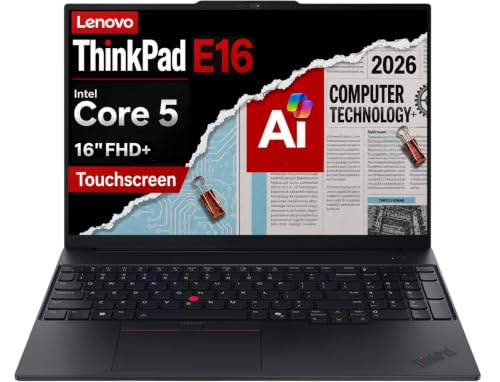
Lenovo ThinkPad E16 Gen 3 TB4 — Desk-first Thunderbolt value
The E16 Gen 3 is the pick for the worker whose laptop has a home: a desk, a dock, and a chair it returns to. Its sixteen-inch full-HD-plus touchscreen gives touch a place in a business machine — useful for the quick scroll, the signature, the presentation nudge — while Thunderbolt 4 handles the serious business of the desk: one cable to the dock, monitors and network and storage beyond it, power flowing back. The listing describes a customised configuration family with memory options climbing well beyond the base and storage to match, sold around Intel’s Core 5 210H; read the exact configuration on the listing at purchase, because customised listings are where careful buyers earn their discount and careless ones buy a surprise.
Against the guide’s other ThinkPad, the division of labour is size and temperament. This machine’s screen invites staying: documents at full width, spreadsheets with their totals visible, a video call that does not shrink the work to a postage stamp. Its numeric keypad serves the figures-first professions. When it travels, it travels like furniture — possible, occasionally necessary, never the point. If your working life is a desk with a dock and a bag that moves twice a week, this is the Thunderbolt machine priced and shaped for you; if your life is airports, keep reading down the page.
- Panel: 16-inch FHD+ touchscreen
- Ports: Thunderbolt 4, per the listing title
- Processor: Intel Core 5 210H
- Memory and storage: customised configurations — verify the exact RAM and SSD figures on the listing
- Input: backlit keyboard with numeric keypad, fingerprint reader
- Operating system: Windows 11 Pro
Strengths
- Thunderbolt 4 on a sixteen-inch business canvas is the desk-first combination most hybrid workers actually need.
- Configuration headroom in the listing family lets memory and storage be sized to the job rather than the tier.
- The touchscreen adds genuine convenience in presentation and document work without changing the machine’s business character.
Trade-offs
- Customised listings demand careful reading; the configuration in the basket is the one that arrives.
- Sixteen inches is a desk size, and daily travellers will feel it in the bag and on the tray table.
- It is a Thunderbolt 4 machine: buyers chasing the new generation’s bandwidth should look at the TB5 pair below.
Best for: desk-anchored hybrid workers building a one-cable dock setup around a big touchscreen. Not suited for: frequent flyers, or anyone whose external storage and display ambitions already point at Thunderbolt 5.

Lenovo ThinkPad T14 Gen 6 Touch TB4 — Traveller’s twin-port pick
Two Thunderbolt 4 ports change a travel laptop’s manners, and this T14 Gen 6 is built around that fact: dock on one port at the destination desk while the other takes the fast drive or the second cable a strange hotel room demands, without the dongle shuffle that single-port machines impose. The rest of the specification respects the same traveller: an Intel Core Ultra 5 225U, thirty-two gigabytes of DDR5 memory, a terabyte of storage, a fourteen-inch full-HD-plus touchscreen, an infrared webcam for face sign-in, and a fingerprint reader — the full apparatus of a person whose office is a calendar of other people’s buildings.
Set it beside the matte guide’s T14 and the family resemblance is the point: Lenovo’s T series is one design philosophy — flagship build, honest ports, serviceability — tuned per listing. Here the tuning is connectivity and touch. Thirty-two gigabytes of memory is the figure frequent travellers should linger on, because a machine that must run the presentation, the model viewer, the video call, and forty tabs in a client’s boardroom has no patience for memory pressure, and neither does its owner at nine in the morning in a strange city. If your Thunderbolt life is lived at both ends of journeys, this is the guide’s answer.
- Panel: 14-inch FHD+ touchscreen
- Ports: 2x Thunderbolt 4, per the listing title
- Processor: Intel Core Ultra 5 225U
- Memory and storage: 32GB DDR5 RAM, 1TB SSD
- Extras: fingerprint reader, IR webcam, fast charge
- Operating system: Windows 11 Pro
Strengths
- Twin Thunderbolt 4 ports end the one-cable compromise that single-port travellers live with.
- Thirty-two gigabytes and a terabyte is a no-excuses travel specification for real workloads.
- Touch, IR sign-in, and fingerprint cover the small frictions that multiply across a travelling week.
Trade-offs
- Flagship T-series pricing applies; the E16 above delivers the port for less if size is negotiable.
- Fourteen inches asks desk workers to lean on their dock’s monitors, which is the plan — but it is a plan.
- Thunderbolt 4, not 5: the bandwidth ceiling is the universal tier’s, however good the machine is.
Best for: travelling professionals who dock at both ends and want two full Thunderbolt 4 ports with flagship memory. Not suited for: desk-bound buyers who would rather have sixteen inches, or bandwidth maximalists saving for the TB5 tier. It pairs naturally with the finish-first thinking in best laptops matte screen, since the same T-series documentation answers both guides’ verification questions.

ASUS Vivobook S 14 OLED TB4 — The display-lover’s slim pick
Every other pick in this guide treats the screen as a workspace; the Vivobook S 14 treats it as a picture. Its fourteen-inch OLED panel is the visual event of the page — the deep blacks and colour confidence that make photo work, film, and design review feel different in kind, not degree — carried in an ultra-slim, light chassis with two Thunderbolt 4 ports for the desk it returns to. The specification beneath the screen is current and serious: an Intel Core Ultra 7 258V, thirty-two gigabytes of memory, a terabyte of storage, Wi-Fi 7, and a facial-recognition webcam under Windows 11 Home.
Its Thunderbolt story is the slim machine’s classic bargain, kept honestly. Two full TB4 ports on a chassis this thin mean the one-cable desk works exactly as it does for the ThinkPads — dock, displays, storage, charging — while the machine itself remains the one you would carry to a café for the pleasure of the screen. The cautions are the class’s own: an OLED’s care habits around static imagery deserve a thought from buyers who park the same spreadsheet on screen all day, and Windows Home rather than Pro suits the individual creator better than the managed fleet. For the person whose laptop is both instrument and gallery, no other pick here speaks their language.
- Panel: 14-inch FHD+ OLED
- Ports: 2x Thunderbolt 4, per the listing title
- Processor: Intel Core Ultra 7 258V
- Memory and storage: 32GB RAM, 1TB SSD
- Extras: Intel Arc graphics, Wi-Fi 7, facial-recognition webcam
- Operating system: Windows 11 Home
Strengths
- The OLED panel is in a different visual class from every other screen in this guide.
- Twin Thunderbolt 4 ports give the slim chassis a full one-cable desk life.
- Thirty-two gigabytes and Wi-Fi 7 keep the specification as current as the screen.
Trade-offs
- Windows 11 Home lacks the management tooling fleets want from the Pro edition.
- OLED care around static content is a real, if manageable, consideration for all-day spreadsheet work.
- Ultra-slim design leaves port variety to the dock; the desk must be planned, not improvised.
Best for: creators and display-led professionals who want a beautiful screen that still docks like a business machine. Not suited for: fleet buyers needing Windows Pro management, or anyone who prefers a sixteen-inch canvas.

Apple MacBook Pro 14-inch M5 Pro — Thunderbolt 5, creative tier
The MacBook Pro is where Thunderbolt began — the standard was built with Apple’s machines as its first home — and this fourteen-inch M5 Pro model carries the family into the Thunderbolt 5 generation: the doubled-bandwidth tier that the heaviest display chains and fastest external drives have been waiting for. Around the ports sits Apple’s professional formula at full strength: the M5 Pro chip, twenty-four gigabytes of unified memory, a terabyte of storage, the Liquid Retina XDR display that remains the screen other laptop screens are compared against in editing suites, and Wi-Fi 7, in the Space Black finish. For video editors, developers, and photographers whose external drives and monitors are professional tools, this is the ecosystem’s centre of gravity.
Judge its Thunderbolt claim the way this guide judges all of them: by tier, not by shape. The TB5 generation matters to this machine’s buyers in specific ways — more display ambition through a dock, external storage that stops being the slow part of a workflow, a desk that assembles through one cable with headroom to spare. Unified memory changes the other half of the calculation: the twenty-four gigabytes here are shared between the processor and graphics in Apple’s architecture and are not expandable later, so buyers should size the configuration to the work’s future, not its present. That is the MacBook bargain in one sentence — extraordinary integration, decided entirely at purchase — and the buyers who thrive with it are the ones who spec honestly at the till.
- Panel: 14.2-inch Liquid Retina XDR display
- Ports: Thunderbolt 5 generation, per this model’s port specification
- Processor: Apple M5 Pro, 15-core CPU and 16-core GPU per the listing title
- Memory and storage: 24GB unified memory, 1TB SSD
- Connectivity: Wi-Fi 7
- Finish: Space Black, per the listing title
Strengths
- Thunderbolt 5 puts it a generation ahead of every Windows pick here for dock and drive bandwidth.
- The XDR display is the creative industry’s reference laptop screen for colour-critical work.
- Apple silicon’s performance-per-watt makes it the traveller’s flagship that does not hunt for sockets.
Trade-offs
- Memory and storage are fixed at purchase in Apple’s architecture; underspeccing is permanent.
- It belongs to Apple’s ecosystem, and Windows-only professional software does not follow it home.
- The price sits at the guide’s summit, as flagship creative hardware tends to.
Best for: creative professionals and developers in Apple’s ecosystem whose docks and drives justify the TB5 generation. Not suited for: Windows-dependent workflows, buyers who upgrade memory later, or anyone whose port needs stop at a simple dock — Thunderbolt 4 serves that desk for less.

Razer Blade 16 RTX 5080 TB5 — Thunderbolt 5, gaming tier
The Blade 16 is the guide’s maximalist: a sixteen-inch QHD-plus OLED screen running at a 240Hz refresh rate, an RTX 5080 graphics processor, an Intel Core Ultra 9 386H, sixty-four gigabytes of DDR5 memory, and a terabyte of storage — and, crucially for this keyword, Thunderbolt 5 stated in its listing, so the port is not the weak citizen of an otherwise extreme specification. A gaming flagship generates the heaviest desk in computing: high-refresh external displays, capture gear, fast storage for a library of enormous installs, and a headset ecosystem, all of which arrive through the dock the TB5 port feeds.
Why should a gaming laptop care about a productivity port? Because the modern gaming desk and the modern work desk have merged into one piece of furniture with two shifts. The same machine that drives a tournament-grade screen at night drives the stream, the edit, and the day job in the morning, and the port is the hinge between the laptop and all of it. Razer’s thin chassis for this performance class is the other half of the appeal: it travels between desks like a professional machine and performs at the destination like a desktop that resents the comparison. Buyers should simply know the class’s eternal truth — sustained flagship performance and a slim body negotiate with physics over fan noise and heat, and the negotiation is loudest exactly when the machine is earning its price.
- Panel: 16-inch QHD+ OLED, 240Hz, per the listing title
- Ports: Thunderbolt 5, stated in the listing title (TB5)
- Processor: Intel Core Ultra 9 386H
- Graphics: NVIDIA GeForce RTX 5080
- Memory and storage: 64GB DDR5 RAM, 1TB SSD
- Connectivity: Wi-Fi 7
- Operating system: Windows 11
Strengths
- Thunderbolt 5 matches the machine’s extreme internal specification, so the desk never bottlenecks the laptop.
- Sixty-four gigabytes of memory and the RTX 5080 cover gaming, streaming, and creation in one chassis.
- The 240Hz OLED is the guide’s most ambitious screen for motion and colour alike.
Trade-offs
- It is the guide’s most expensive Windows machine by a distance that needs no figures to feel.
- Slim flagship gaming hardware runs warm and audible under sustained load; that is physics, not defect.
- Most buyers’ desks will never tax TB5; the port is headroom, bought for the years, not the month.
Best for: gamers and creators who want one extreme machine whose port generation matches its ambition. Not suited for: quiet-office sensitivities, modest budgets, or anyone whose gaming happens entirely away from a desk ecosystem.
HP EliteBook 850 G8 — Renewed TB4 route, large (prose only)
This pick is renewed. The EliteBook 850 G8’s verified listing sells it as a renewed machine, so it is covered here in prose with no link — and for the Thunderbolt shopper it may be the cleverest money on the page. In its fleet life this fifteen-point-six-inch HP carried Thunderbolt 4 as standard business equipment: an i7-1185G7, sixteen gigabytes of memory, a half-terabyte NVMe drive, and the ports to run the one-cable desk this guide describes, at a time when that desk was an executive privilege. Renewed, it delivers the same docking manners to a home office or a small business for refurb money — the dock does not know the laptop is on its second career, and neither will your monitors.
The renewed checks, applied with a Thunderbolt accent: battery health stated in writing, because a desk machine that also travels needs its battery honest; the Thunderbolt ports themselves tested with a dock or at least a USB-C display before the return window closes, since the ports are the purchase; and the refurbisher’s warranty in plain terms. A graded 850 G8 behind a good dock is the budget form of the entire Thunderbolt idea — yesterday’s executive desk, complete and working, at a price that leaves room in the budget for the monitors it deserves.
- Panel: 15.6-inch 1080p Full HD
- Ports: Thunderbolt 4, per the renewed listing title
- Processor: Intel Core i7-1185G7
- Memory and storage: 16GB DDR4 RAM, 512GB NVMe SSD
- Condition: renewed — verify battery health, test the Thunderbolt ports with a dock or display, confirm refurbisher warranty
- Operating system: Windows 11 Pro
Strengths
- Genuine Thunderbolt 4 docking at renewed prices is the cheapest honest entry into the one-cable desk.
- EliteBook build and serviceability suit a long second career behind a home-office dock.
- The fifteen-inch screen remains useful undocked, which pure dock-dependents are not.
Trade-offs
- Renewed means unit-level verification: battery, ports, and panel all earn individual checks.
- The processor generation trails the new picks, felt in heavy multitasking rather than in docking.
- No link is given here by design; the refurb channel and its grading are the buyer’s to navigate.
Best for: home offices and small businesses building a Thunderbolt desk on a disciplined budget. Not suited for: buyers who need a factory warranty, or performance for demanding creative workloads.
Dell Latitude 5420 — Renewed TB4 route, compact (prose only)
This pick is renewed. Dell’s Latitude 5420 reaches the market today as renewed stock, and its prose-only section here makes the compact case for the refurb Thunderbolt route: a fourteen-inch fleet machine whose listing pairs an i5-1145G7 with vPro, thirty-two gigabytes of memory, and a terabyte of PCIe storage behind Thunderbolt 4 ports and Wi-Fi 6. Read that specification again slowly, because it inverts the usual refurb compromise — the memory and storage are not the compromise at all; they exceed what many new budget laptops offer, and the compromise is confined to the processor’s generation and the machine’s previous life.
For a Thunderbolt buyer, the 5420’s shape of value suits a particular desk: the hybrid worker’s second station, the spare machine that docks at the home office while the flagship travels, the small team’s standardised hot-desk laptop. The checks mirror its sibling’s with the emphasis on the ports and the battery: dock it during the return window and run the full desk — displays, network, storage, charging — because a renewed port that fails under load is exactly the fault casual inspection misses; ask the battery question in writing; read the grading as the product description it actually is. Judged by those lights, a good 5420 is the compact half of the smartest budget in this guide.
- Panel: 14-inch FHD
- Ports: Thunderbolt 4, per the renewed listing title
- Processor: Intel Core i5-1145G7 vPro
- Memory and storage: 32GB RAM, 1TB PCIe SSD, per the renewed listing title
- Connectivity: Wi-Fi 6
- Condition: renewed — verify battery health, load-test the Thunderbolt ports through a dock, confirm refurbisher warranty
Strengths
- Thirty-two gigabytes and a terabyte behind Thunderbolt 4 is a specification new budget machines rarely assemble.
- Fourteen inches keeps the renewed route portable for hybrid and hot-desk patterns.
- Latitude fleet support — docks, parts, documentation — remains deep for this model.
Trade-offs
- Renewed condition is the buyer’s homework: ports under load and battery health above all.
- The eleventh-generation processor is a docking citizen, not a performance pick.
- Listings differ by refurbisher, so the exact unit’s specification must be re-read at purchase.
Best for: a second station, hot-desk, or budget hybrid setup that lives on a Thunderbolt dock. Not suited for: a primary high-performance machine, or buyers unwilling to test a renewed unit inside its return window. Buyers speccing the memory side of such a desk may also browse best 32gb ram laptops non gaming for the new-machine alternatives at that capacity.
How do the seven thunderbolt picks compare side by side?
| Pick | Port generation | Size and character | Route to buy |
|---|---|---|---|
| Lenovo ThinkPad E16 Gen 3 TB4 | Thunderbolt 4 | 16-inch touchscreen, desk-first | New, linked |
| Lenovo ThinkPad T14 Gen 6 Touch TB4 | 2x Thunderbolt 4 | 14-inch touchscreen, traveller | New, linked |
| ASUS Vivobook S 14 OLED TB4 | 2x Thunderbolt 4 | 14-inch OLED, ultra-slim | New, linked |
| Apple MacBook Pro 14-inch M5 Pro | Thunderbolt 5 | 14.2-inch XDR, creative flagship | New, linked |
| Razer Blade 16 RTX 5080 TB5 | Thunderbolt 5 | 16-inch OLED 240Hz, gaming flagship | New, linked |
| HP EliteBook 850 G8 | Thunderbolt 4 | 15.6-inch business, renewed | Renewed, prose only |
| Dell Latitude 5420 | Thunderbolt 4 | 14-inch business, renewed | Renewed, prose only |
The table’s first column is the guide in miniature: five machines speak Thunderbolt 4, the universal language of the modern desk, and two speak Thunderbolt 5, its faster successor, and no honest sentence in this article has ever confused the two groups. Choose the generation by your peripherals’ ambitions — today’s ordinary dock belongs to TB4; tomorrow’s heavy display chain and fastest storage argue for TB5 — then choose the size and character by your working life, then, if the budget asks, let the renewed pair show you how much of the Thunderbolt idea survives at refurb prices. (Answer: nearly all of it, behind a dock, with the checks done.)
How do you buy a dock that deserves your laptop?
The dock is the port’s other half, and it deserves the same generation discipline. Match the dock’s Thunderbolt generation to the laptop’s, or knowingly accept the lower common tier; a Thunderbolt 5 laptop behind a basic USB-C dock is a flagship drinking through a straw. Count the desk’s real demands before shopping: the displays and their resolutions, the wired network, the number of USB devices, the card reader, and the charging appetite of the laptop itself, since a dock that under-delivers power turns the one-cable dream into a slow battery apology. Prefer docks whose makers publish compatibility lists, and treat a bargain dock with no documentation the way this guide treats a listing with no port specification — as a question, not an answer.
Cables are the dock system’s silent saboteurs. Thunderbolt cables are rated, and length matters: the short cable in the box is not an aesthetic choice but an engineering one, and the long bargain cable from a market stall can quietly demote a fast desk to a slow one with every symptom blamed on the laptop. Buy cables that state their Thunderbolt rating, keep the dock run short, and when a desk misbehaves, suspect the cable first — it is the cheapest component and the most common culprit, a hierarchy of suspicion that experienced desk builders learn once and use forever.
What mistakes do thunderbolt shoppers keep making?
The founding mistake is buying the shape: a laptop with USB-C ports and no Thunderbolt, discovered months later when the dock’s monitors stay dark. The second is generation confusion in both directions — paying TB5 prices for a desk that will never use the bandwidth, or strangling a TB5 machine with an elderly dock. Third, buyers forget that bandwidth is shared: five demanding devices on one port divide its capacity, and the fix is a second port or a calmer desk, not disappointment. Fourth, they buy the cable last and cheapest, then debug the laptop for a week. Fifth, renewed buyers skip the load test, checking that a port charges while never asking it to run a desk. Every one of these is a reading or testing failure, which means every one is avoidable from the chair you are sitting in now.
Final Recommendation
For the great majority of desks, Thunderbolt 4 is the correct purchase and the ThinkPads divide it cleanly: the E16 Gen 3 if your life is desk-first and you want the big touchscreen, the T14 Gen 6 if you travel and dock at both ends and want two ports with flagship memory. Choose the Vivobook when the screen itself is the joy of the machine and the desk is a creator’s. Step up to Thunderbolt 5 only when your peripherals argue for it — the MacBook Pro if your creative life lives in Apple’s ecosystem, the Blade 16 if it lives at a gaming desk — and buy the renewed EliteBook or Latitude, dock-tested and battery-checked, when the budget is the argument and the desk is the destination. Whichever tier you choose, choose it by the specification, match the dock and cables to it, and never again let an oval hole make you a promise it cannot keep.
A Thunderbolt port is a five-year promise about every desk you will ever sit at — so read the promise, in its generation and its fine print, before you let the laptop make it.
Frequently Asked Questions
What is the difference between Thunderbolt 4 and Thunderbolt 5?
Bandwidth and headroom. Thunderbolt 4 carries forty gigabits per second and standardised the modern one-cable desk: displays, storage, network, and charging through a single port. Thunderbolt 5 doubles the headline bandwidth to eighty gigabits per second, serving heavier display chains and faster external storage. Both use the same connector; the generation is a specification, not a shape, which is why this guide names the tier beside every pick.
Will my Thunderbolt 4 dock work with a Thunderbolt 5 laptop?
The ecosystem is built for cross-generation working: a TB5 laptop can use a TB4 dock at TB4’s capabilities, and the desk will function — it simply will not deliver the newer generation’s headroom. The sensible sequence is to buy the laptop generation your future desk wants and upgrade the dock when the peripherals actually demand it.
Can I tell whether a port is Thunderbolt just by looking at it?
No, and that is the trap this keyword is built on. The connector is shared with plain USB-C, and laptops vary in how clearly they mark the port. The specification — in the listing, as with the picks here, or in the maker’s documentation — is the only reliable witness. A port that carries no display signal and slow transfers is usually a USB-C port that was never Thunderbolt at all.
Is an external graphics enclosure a good reason to buy Thunderbolt?
It is a real class of Thunderbolt use: an enclosure lets a laptop drive a desktop-class graphics card at a desk. Treat it as a specialist purchase — verify the specific enclosure, card, and laptop combination in the makers’ documentation — rather than as a general promise, and note that machines like the Blade 16 in this guide exist precisely for buyers who would rather carry the graphics inside.
Do the renewed picks really dock like new machines?
Yes — a Thunderbolt 4 port does not know its laptop is renewed, and the EliteBook and Latitude here were fleet docking machines in their first careers. The renewed discipline is about the unit, not the standard: test the ports under a full dock load inside the return window, confirm battery health in writing, and the desk that results is the genuine article.
How many Thunderbolt ports should I look for?
One is enough for a fixed desk with a good dock. Two — as on the T14 and Vivobook here — transform travel and improvisation, because the dock and the fast drive stop competing for the same socket. Beyond two, you are shopping flagships for other reasons and receiving ports as a bonus.
How does Thunderbolt change the way a laptop travels?
The port’s second life begins when the laptop leaves its own desk. A Thunderbolt traveller carries a radically smaller bag: the machine, one compact charger that speaks the same standard as every modern device they own, and perhaps a pocket hub for the strange rooms — the client boardroom with one display cable, the hotel desk with none. Because the standard carries power, data, and video in one specification, a single good cable in the bag covers most improvisations the road invents, and the multi-charger tangle that defined laptop travel a decade ago has quietly retired. This is the unglamorous reason twin-port machines like the T14 Gen 6 earn their keep with frequent flyers: the second port is not a specification trophy, it is the difference between charging while presenting and choosing.
At the destination, the port turns other people’s infrastructure into your desk. A Thunderbolt display in a hot-desking office is a whole workstation in a screen — plug in, and the monitor, its attached peripherals, and its power are yours for the day. Conference rooms wired for the standard let a presenter drive the room’s screen from the same cable that charges the machine, ending the adapter archaeology that used to open every meeting. None of this requires the newest generation; it is Thunderbolt 4’s universal tier doing exactly the job it standardised, which is worth remembering when a traveller is tempted to overbuy bandwidth and underbuy the second port.
What should storage buyers know about Thunderbolt drives?
External storage is where the generations stop being abstract. A fast external SSD behind Thunderbolt turns the port into an extension of the machine’s own storage: project libraries, photo catalogues, and video media live on the drive and work at speeds that make their external address irrelevant to the software using them. Behind plain USB-C, the same drive can be a fraction as quick, which is why storage-led buyers must read port specifications with the same suspicion this guide applies to laptops — the enclosure’s connector shape, like the laptop’s, promises nothing by itself.
The buying discipline mirrors the dock discipline. Match the drive’s interface generation to the port it will live on, or knowingly accept the slower tier; treat headline transfer figures as the ceiling of a chain whose other links are the drive’s own internals and your cable; and size the drive for the library’s future, because external storage fills at the speed of the work it holds. Video editors feel this first, but photographers, developers with many virtual machines, and anyone whose archive outgrew the internal drive all arrive at the same desk eventually. Thunderbolt 5’s constituency lives here more than anywhere: when the external drive is the workspace, doubling the road it travels on is not a luxury figure.
One caution completes the picture: a fast external drive is still a single object. The archive that lives on it deserves the same two-homes rule as any important data — the port makes the drive quick, not immortal — and the traveller’s elegant one-drive workflow should end, each week, in a sync to somewhere else. Speed is a reason to love the standard; it is not a backup strategy wearing a cable.
How do you test a new Thunderbolt setup during the first week?
Assemble the whole desk, not the convenient half of it. Connect every display at its intended resolution, the network, the storage, the peripherals, and the audio, then run an ordinary demanding day: the video call on the external camera, the large file copied to the external drive while the call runs, the laptop charging throughout. A healthy Thunderbolt desk absorbs that day without flickering displays, dropped devices, or a battery that slides backwards under load. Faults in this class of setup are almost always chain faults — one cable, one dock port, one tired hub — so change one element at a time and keep notes like an engineer, because the combination that flickers is data, and the retailer or dock maker will ask for exactly it.
Then test the departures, because a dock setup lives at its transitions. Sleep the laptop and wake it: the desk should reassemble itself in seconds, displays in their places. Unplug mid-task and replug: the machine should shrug, not sulk. Travel with the laptop for a day and return: one cable should restore the entire arrangement, which is the promise you actually bought. Renewed buyers should run this whole liturgy inside the return window with particular devotion, since a port that fails under load is precisely the fault this week exists to catch, while new-machine buyers are simply learning the manners of a desk they will use for years. Keep the cable that came with the dock in service for these tests — introducing a bargain cable mid-diagnosis adds a suspect while pretending to remove one.
How do you read a port specification like an engineer?
Start by translating every port claim into three separate questions, because a specification that answers only one is hiding the other two. First: what data standard stands behind the connector — Thunderbolt 4, Thunderbolt 5, or a flavour of USB — and at what bandwidth? Second: does the port carry a display signal, and as part of the standard or by a side arrangement? Third: does it deliver power in, out, or both, and enough of it to charge this machine under load? The picks in this guide answer all three cleanly because Thunderbolt, in either generation, standardises the answers. Machines outside the standard answer them one by one, in footnotes, and the footnotes are where desks go to die.
Then read the whole machine’s port map as a budget rather than a list. Ports share controllers and bandwidth inside the laptop just as devices share it outside, so a machine covered in fast-looking sockets may still divide one fast road among them. For most buyers this never bites — the dock pattern concentrates demand into one port by design — but creators running two fast drives and a capture device simultaneously should read the maker’s documentation for how the ports are provisioned, and should prefer the twin-Thunderbolt machines in this guide, whose two full ports exist for exactly that arithmetic. Specification literacy sounds dry until the first desk fails to assemble; afterwards it sounds like the cheapest insurance in computing.
Which Thunderbolt generation should your next five years buy?
Frame the choice as a peripherals forecast, not a status decision. List the desk of three years from now as honestly as you can: the displays you plausibly own, the storage your work accumulates, the dock you will buy when the current one retires. If that list is the standard hybrid desk — two displays, network, a drive, a headset — Thunderbolt 4 serves it completely, and the money saved against the TB5 tier buys the better monitor or the larger internal drive, which you will notice daily. If the list includes very high-resolution or high-refresh external displays in multiples, external storage as a primary workspace, or creative pipelines whose files are measured in hundreds of gigabytes, the forecast itself is arguing for Thunderbolt 5, and the two flagship picks exist to answer it.
There is also an ecosystem clock to respect. Docks, drives, and displays are bought more often than laptops, and each new peripheral generation will speak the newer standard more fluently; a TB5 laptop bought today meets that future at full speed, while a TB4 laptop meets it at TB4 speed — gracefully, compatibly, and at half the road width. Neither choice is a mistake in the present tense, where both tiers run the modern desk well. The discipline this guide asks for is simply that the choice be made on purpose, with the generation named and the forecast written down, rather than discovered later from a dock that would not light a third screen. Ports are the longest-lived decision in a laptop purchase; treat them with the respect their lifespan earns.
What about the ports a Thunderbolt laptop still needs besides Thunderbolt?
It would be a poor guide that worshipped one connector into forgetting the others. A working laptop still meets the world through ordinary sockets: a USB-A port for the decade of peripherals that speak nothing else, an HDMI socket for the projector that has never heard of your standard, a card reader for the camera that professionals still feed by hand, a headphone jack for the call that must not depend on a battery. The business picks in this guide keep generous port selections because their makers serve people who meet other people’s infrastructure daily; the slim and gaming flagships lean harder on the dock, which is a legitimate philosophy provided the buyer adopts it knowingly and owns the hub before the trip, not after the embarrassment.
The mature way to judge a port layout is by your own week’s evidence. Count the times you reached for each socket in the last month, honestly, and let the census — not the catalogue photograph — decide how much the missing port will cost you in adapters carried and moments fumbled. Thunderbolt’s triumph is that it makes the census shorter every year: one standard absorbing the dock, the display, the drive, and the charger leaves only the stubborn exceptions to plan for. Plan for exactly those, carry exactly those adapters, and the bag gets lighter while the desk gets faster, which is the whole promise of the keyword kept in practical terms.
Should a small business standardise on one Thunderbolt tier?
Yes, and the tier matters less than the standardising. A small team that buys every laptop to the same generation — all Thunderbolt 4, say, across the new ThinkPads and the renewed pair alike — gains a desk infrastructure where any machine docks at any desk, docks and cables are interchangeable spares rather than personal property, and the new starter’s first morning is a cable, not a ticket. Mixed generations still interoperate, gracefully and at the lower tier’s speed, so the standard can evolve machine by machine without a flag day. What a small business should not do is buy on connector shape alone across a fleet, because the support cost of five almost-identical desks that behave five different ways will exceed, within a year, every saving the vagueness appeared to offer at purchase. Write the chosen tier into the purchasing habit itself — a single line in the order checklist naming the generation, the minimum port count, and the dock standard — and the fleet’s desks will stay boring for years, which in business computing is the highest compliment a port can earn and the surest sign the original decision was made properly. Boring, in this context, means a new employee productive by nine-fifteen, a broken dock replaced from a shelf of identical spares, and a visiting laptop from another office that simply works at the spare desk — three small miracles that a fleet enjoys only when somebody, once, insisted on reading the port specification instead of admiring the port’s shape. That insistence, repeated by individual buyers at kitchen tables as faithfully as by fleet managers in tenders, is the entire editorial policy of this guide compressed into one habit.
Related Guides
Round out the desk with best laptops for remote work for the working pattern these ports serve, and with best laptops with upgradeable ram if your five-year plan for the machine includes growing its memory rather than replacing it.
Ports matter on site too, and best laptops for construction projects judges rugged machines by what survives the yard.
The port story has an older sibling: best laptops with a cd dvd drive covers the machines that still spin discs.
Related guides
- Best 4K UHD HDR HDMI Extenders: 4K60, Long-Run and 4K120 Kits Compared
- Best 25–35 Inch Monitors With Lowest Display Lag: An Honest Ranking Without Invented Numbers
- Best Enterprise SATA SSDs: Endurance Classes, Power-Loss Protection and Fleet Sense
- Best Color Product Label Printers: Six Desktop Machines for Short-Run Product Labels


