What's inside
- Where to buy
- Key Takeaways
- Quick Picks
- How did we judge two different kinds of drive in one guide?
- The picks in detail: best 4 tb hard drives reviewed
- Comparison table
- How do you choose your branch, then your drive?
- How do you install and settle in a 4TB drive?
- What are the classic 4TB buying mistakes?
- RAID, explained the way it matters at 4TB
- Is 4TB the games-library answer?
- What happens to the old drives when you consolidate?
- What does each branch really cost, all-in?
- How will you know when a 4TB drive is getting tired?
- Final Recommendation
- Frequently Asked Questions
- Related Guides
As an Amazon Associate I earn from qualifying purchases. This post may contain affiliate links at no extra cost to you.
gizmoverdict.com is reader-supported. When you buy through links on our site, we may earn an affiliate commission.
Where to buy
You can buy the four linked models through Amazon in the US; each listing was checked by us while this guide was being assembled. The two remaining picks are internal drives covered in prose only, because their listings rotate between sellers and packaging variants often enough that we would rather explain them honestly than link a moving target.
Four terabytes is the capacity where the phrase “hard drive” stops meaning one thing. Search for the best 4 tb hard drives and the shelf splits in two before your eyes: slim portable drives that hang off a laptop’s USB port, and bare internal drives that screw into a desktop bay or a NAS enclosure and expect you to know what a SATA cable is. They share a capacity and almost nothing else — not the buyer, not the job, not the way they fail or the way you rescue them. So this guide is organised around the fork. Three of our picks live on the portable branch, three on the internal branch, and the most useful thing we can do is help you choose your branch with confidence before you choose a model, because a brilliant drive from the wrong branch is simply a wrong purchase with good reviews.
The portable branch, first. At 4TB the pocket drives grow up: the enclosures are noticeably thicker than their 2TB siblings because the mechanism inside carries more platters, and the capacity stops being “laptop backup” and becomes “the whole library” — a photographer’s archive, a household’s media collection, a game library that no longer fits anywhere else. The three portable picks here divide by philosophy exactly as the class always does: WD’s Elements for the bare-volume buyer, WD’s My Passport for the buyer who wants encryption and backup automation, and Toshiba’s Canvio Basics for the buyer who wants the essentials at the keenest price. The internal branch answers different questions: a NAS drive built to spin around the clock in a RAID set, and two desktop drives — one cheap because of how it records data, one quiet and steady — that we discuss in prose because that is where their listings currently leave them.
Key Takeaways
- Choose the branch before the brand: portable drives serve laptops and bags, internal drives serve desktops and NAS boxes, and no model crosses over well, however tempting a discount on the wrong shape may look this week.
- The WD My Passport 4TB is the portable pick for sensitive archives, with hardware encryption and backup software guarding the only copy many households will ever make.
- WD’s Elements Portable 4TB is the plain, capacious vessel — the library drive and backup target for buyers whose routine already exists.
- Toshiba’s Canvio Basics 4TB undercuts the big names on the portable shelf while keeping the same plug-and-play essentials.
- Seagate’s IronWolf 4TB is the internal specialist: a CMR NAS drive engineered for multi-bay enclosures and round-the-clock duty, not a desktop drive in disguise.
- The prose-only BarraCuda 4TB and WD Blue 4TB show the desktop branch’s bargain mechanics — SMR recording and 5400 RPM calm respectively — and why each suits some jobs and not others, however similar their shelf labels look.
Quick Picks
| Pick | Badge | Why it is here |
|---|---|---|
| WD 4TB Elements Portable | Best Portable Library | Four terabytes of plain, bus-powered storage for the whole photo or media library, with nothing to configure. |
| WD 4TB My Passport | Best Protected Portable | The 4TB Passport adds hardware encryption and scheduled backup to the big-library role. |
| Toshiba Canvio Basics 4TB | Best Portable Value | The essentials-only portable from the third big maker, typically the gentlest on the wallet. |
| Seagate IronWolf 4TB NAS | Best for NAS | A CMR internal drive built for RAID enclosures, 24/7 schedules and vibration-filled multi-bay life. |
| Seagate BarraCuda 4TB (internal) | Desktop Bargain — Prose | The low-cost desktop branch explained: SMR recording makes it cheap and shapes where it should and should not work. |
| WD Blue 4TB (internal) | Quiet Desktop Storage — Prose | The 5400 RPM desktop veteran for bulk storage bays where silence and steadiness beat urgency. |
How did we judge two different kinds of drive in one guide?
By refusing to judge them against each other. A portable drive and a NAS drive can share a capacity figure and still have no meaningful specification in common, so each branch was assessed on its own terms. The portables were weighed on the portable questions: whether the enclosure survives bag life, whether the feature set protects a drive that can be lost, whether the price respects the fact that its buyer may need two. The internals were weighed on the internal questions: recording technology, rotational behaviour, workload rating, and whether the drive’s firmware expects the solitude of a desktop bay or the company of a RAID set. Where a drive’s design intent and a buyer’s likely intent diverged — a NAS drive is a poor desktop bargain, a desktop SMR drive is a poor NAS citizen — the guide says so in the pick itself rather than in a footnote.
There was also a deliberate absence from the judging: no cross-branch speed contest, because the comparison would be meaningless theatre. A portable’s pace is set by its mechanism and its USB link; an internal’s by its mechanism and its SATA link; a NAS volume’s by the array and the network together. Each can be described honestly in its own terms — all of them are mechanical, none of them is quick by solid-state standards, and within their roles all of them are adequate. A guide that ranked a pocket drive against a RAID set on a stopwatch would be entertaining and useless in equal measure.
One test applied across both branches: honesty of role. Every drive here is a mechanical device with a mechanical ceiling on speed, and none was credited with performance language borrowed from the SSD world. A 4TB drive of any shape is a capacity purchase. Buyers who need responsiveness need a different technology for the working set, with a drive from this guide holding the bulk behind it — an arrangement this guide recommends repeatedly because it is how these drives make people happy.
The picks in detail: best 4 tb hard drives reviewed
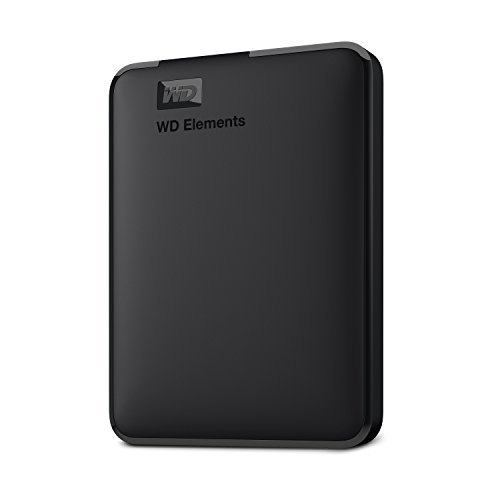
WD 4TB Elements Portable — Best Portable Library
At four terabytes the Elements Portable changes character. The 2TB version is a backup accessory; this one is a library — the drive that swallows a decade of RAW photos, the family video archive and the overflow of two laptops, and still has room to breathe. The enclosure grows thicker to house the extra platters, and while it remains genuinely portable, it feels more like a paperback than a phone: a deliberate object you place in the bag rather than a gadget you forget is there. As ever with this line, there is no software, no encryption and no setup — the drive is a volume, and its emptiness is its honesty.
That emptiness suits the library role precisely. A library drive is written in sessions — the evening’s card dump, the monthly backup, the seasonal migration of finished projects — and read in browsing, neither of which asks anything of software. What it asks is reliability across years and a price that leaves room in the budget for the second copy every library needs, and the Elements’ plainness serves both. Treat it as furniture for data: give it a name that describes the collection, keep it somewhere it will not be knocked off a desk edge mid-copy, and remember that a 4TB portable is now valuable enough — in contents, not cost — to deserve the padded sleeve and the careful eject, every time.
- Capacity: 4TB, 2.5-inch portable mechanism, bus-powered
- Connection: USB 3.2 Gen 1 / USB 3.0, cable included
- Software: none — bring your own backup routine
- Form: thicker enclosure than the 2TB Elements; still pocketable in a bag
- Compatibility: Windows ready; reformat for Mac use
Strengths
- True library capacity in a bus-powered box — no adapter, no desk required.
- The software-free design cannot nag, expire or break; it mounts and works, years on.
- Its price leaves budget for the second copy a 4TB library genuinely needs.
Trade-offs
- No encryption: a lost library drive is a readable library drive.
- The thicker shell is less forgettably portable than the slim 2TB class.
- Backup discipline is entirely yours to supply and maintain.
Best for: photographers, media collectors and households consolidating scattered drives into one library. Not suited for: carrying confidential work through the world, or buyers who need the drive to run their backups for them.
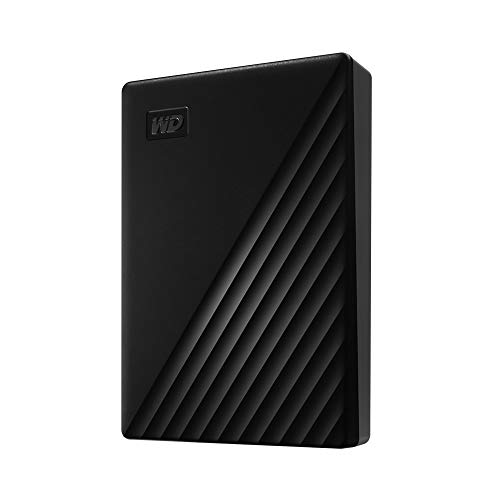
WD 4TB My Passport — Best Protected Portable
The My Passport at 4TB is the same protection story as its smaller siblings, scaled to the size where the story matters most. Four terabytes is enough room for the material people actually grieve when it leaks or vanishes — the family archive, the business’s records, the creative life’s work — and this drive wraps that capacity in password protection with 256-bit AES hardware encryption, plus WD’s backup software, which maintains the copies on a schedule of its own and watches them for the tampering that ransomware attempts on attached storage. The pairing is the point: capacity invites you to consolidate everything into one box, and consolidation is only wisdom if the box guards what it gathers.
In the hand it is the familiar Passport — slim for its capacity class, finished a step above the Elements, quick to wake and quiet in operation. The ownership contract is equally familiar and worth restating at this size: the password is final. There is no recovery route, by design, so the password goes into a password manager the day the drive is set up, and the setup itself should not be postponed until the drive is full and the ceremony feels risky. For the consultant whose entire practice backs up to one drive, the parent whose family archive lives on one drive, or the student carrying a thesis and four years of research, this is the portable pick that treats the realistic disasters — loss, theft, tampering — as design requirements.
- Capacity: 4TB, 2.5-inch portable mechanism, bus-powered
- Connection: USB 3.1 / USB 3.0 compatible, cable included
- Security: password protection with 256-bit AES hardware encryption
- Software: WD backup software with ransomware-defence features
- Compatibility: set up for Windows first; Mac households reformat
Strengths
- Hardware encryption scales with the stakes: the bigger the archive, the more the protection is worth.
- Scheduled backups with tamper-aware features guard the copy, not just the original.
- Passport polish — finish, manners, wake behaviour — suits a drive handled daily for years.
Trade-offs
- A forgotten password means a cryptographically sealed archive; the safety feature has no mercy built in.
- You pay a premium over the Elements for software you must actually configure to benefit from.
- Mac households get a less native experience after the necessary reformat.
Best for: anyone whose 4TB will hold the only copy of sensitive or irreplaceable material. Not suited for: media-library duty where encryption guards nothing and the premium buys no peace of mind.
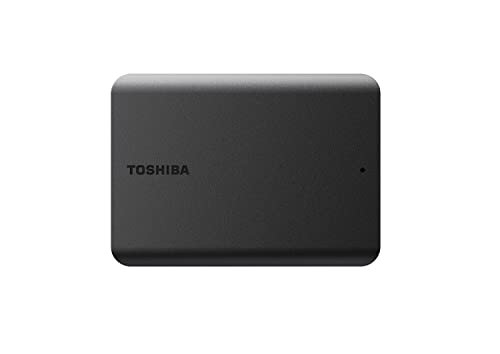
Toshiba Canvio Basics 4TB — Best Portable Value
Toshiba’s Canvio Basics at 4TB is the value argument of the portable branch, and it makes that argument the same way the smaller Basics does: by declining every feature that costs money and keeping every behaviour that matters. The drive mounts instantly, runs from the port, holds four terabytes in a matte shell that hides wear, and asks nothing of you but a backup habit of your own. Buyers comparing spec sheets will find the Essentials identical to the Elements Portable’s — which is exactly why the Basics exists in this guide, as the standing reminder that at the plain end of the market, the badge matters less than the price on the day and the maker’s record behind it.
Where the Basics earns affection is in the unglamorous roles: the console library drive, the second drive in a backup rotation, the household media pool that lives beside a television. Four terabytes at a Basics price changes what is affordable — a two-drive rotation, one at home and one at a relative’s house, stops being a counsel of perfection and becomes a checkout decision. The compromises are the class compromises, stated plainly in its own trade-offs rather than discovered later: no encryption, no software, an ecosystem quieter than WD’s. For the roles named above, none of those bite.
- Capacity: 4TB, 2.5-inch portable mechanism, bus-powered
- Connection: USB 3.0, cable included
- Software: none — plug and play
- Form: matte black enclosure, thicker 4TB profile
- Compatibility: Windows ready; reformat for Mac use
Strengths
- The keenest route to 4TB of portable storage from a major maker.
- Enables the two-drive rotation that turns a backup habit into a backup system.
- Matte finish and simple design suit utility roles — consoles, media shelves, drawers.
Trade-offs
- No protection for the contents if the drive is lost; custody is the whole security model.
- Toshiba’s consumer software ecosystem is minimal — there is nothing to grow into.
- As with all 4TB portables, the thicker shell is a bag item, not a pocket item.
Best for: value-first buyers, console libraries and backup rotations. Not suited for: confidential archives or buyers who want a maker’s suite to manage their storage life.
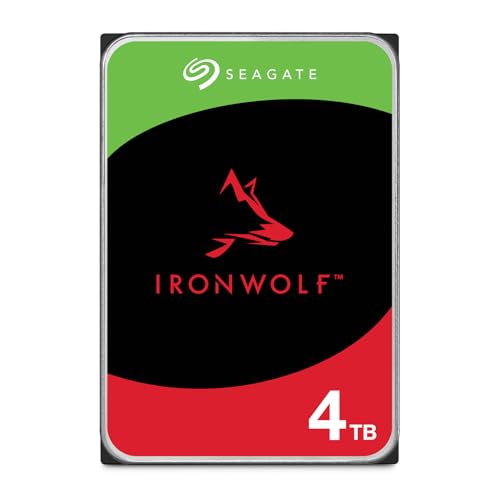
Seagate IronWolf 4TB NAS — Best for NAS
The IronWolf is the guide’s internal anchor, and it must be read as a different species from the three portables above. This is a bare 3.5-inch drive, built to be screwed into a network-attached storage enclosure alongside one or more siblings, formatted into a RAID set, and left spinning around the clock for years. Its design brief shows in every particular: it records data with CMR technology, the conventional method whose write behaviour stays predictable under the constant, mixed workloads a NAS generates; its firmware is tuned for multi-drive life, including the vibration that neighbouring drives create; and it carries Seagate’s health-management cooperation with the major NAS makers, so the enclosure can report the drive’s condition in plain language. Rescue services ride along on this listing, which suits a drive whose failure would be an event, not an inconvenience.
Two clarifications keep buyers out of trouble. First, the IronWolf’s 5400 RPM-class spin is a deliberate NAS choice — quieter, cooler, kinder to neighbouring drives — and in a RAID set the array’s combined behaviour, not one drive’s spin, decides how the volume feels; do not dismiss it as “slow” by desktop reflexes, and do not buy it as a desktop drive expecting a bargain, because its talents are priced for enclosure duty. Second, a single IronWolf in a single-bay enclosure is a fine network drive, but the design comes into its own in pairs, where RAID mirroring turns one drive’s death into an email alert rather than a loss. Buy it as the citizen of an array it was engineered to be.
- Capacity: 4TB, 3.5-inch internal drive, SATA 6 Gb/s
- Recording: CMR — predictable writes under NAS workloads
- Spin class: 5400 RPM, tuned for quiet multi-bay operation
- Cache: 64MB; rated for 24/7 NAS duty in small enclosures
- Extras: Rescue data recovery services on this listing; NAS health-management support
Strengths
- CMR recording keeps RAID rebuilds and constant mixed writes behaving predictably.
- Engineered for the vibration and heat of multi-bay enclosures running around the clock.
- Health reporting through the NAS gives early warning in plain language.
Trade-offs
- It is a bare internal drive — no enclosure, no cables, no use at all until installed in a NAS or PC.
- Its price reflects NAS engineering; as a plain desktop drive it is poor value.
- A single drive gains no redundancy — the RAID partner is a second purchase, not an accessory.
Best for: home and small-office NAS owners building or refreshing a mirrored array. Not suited for: laptop users, travellers, or desktop builders shopping purely on price per terabyte.
Seagate BarraCuda 4TB (Internal) — Desktop Bargain, Explained (Prose Only)
The BarraCuda 4TB is the desktop branch’s best-known bargain, and its price has a technical explanation every buyer should understand before enjoying it. The drive records data using SMR — shingled magnetic recording — in which tracks overlap like roof shingles to squeeze more capacity from the same platters. The dividend is real: more terabytes for less money. The cost appears in one specific behaviour: rewriting data in the overlapped zones requires the drive to pause and reorganise, so long, sustained writes of already-full areas can slow dramatically, even though everyday desktop use — loading games, storing media, holding a document archive — rarely provokes it. A BarraCuda used as a desktop’s bulk drive lives a perfectly happy life; the same drive dropped into a NAS RAID set becomes the member that makes rebuilds crawl, which is why this guide’s NAS pick is a CMR drive and this one is not.
We discuss it in prose because its listings shift between packaging variants and sellers frequently enough that the specific offer matters — check the model number, the condition and the seller rather than trusting a headline. Judged as what it is, the BarraCuda 4TB remains the sensible desktop bulk buy for a machine whose fast SSD handles the operating system and applications while the big spinning drive holds the library. The buyers who regret it are almost never the ones who understood SMR; they are the ones who bought a recording technology by accident and assigned it a job it never applied for.
- Capacity: 4TB, 3.5-inch internal drive, SATA 6 Gb/s
- Recording: SMR — high capacity per platter, slower sustained rewrites
- Role: desktop bulk storage beside a fast system SSD
- Spin class: 5400 RPM-class operation, quiet desktop manners
- Status in this guide: prose-only; verify model and seller when buying
Strengths
- Among the lowest costs per terabyte of any internal drive from a major maker.
- Perfectly behaved in the desktop bulk role it was designed for.
- Quiet, cool running suits living-room and bedroom PCs.
Trade-offs
- SMR write behaviour makes it a poor choice for NAS arrays and write-heavy duty.
- Sustained copying onto a nearly full drive can slow in ways that surprise the unprepared.
- Listings vary; the bargain requires a moment’s verification of model and condition.
Best for: desktop builders adding a big, cheap library drive beside an SSD. Not suited for: NAS owners, RAID builders, or anyone whose workload writes heavily and constantly.
WD Blue 4TB (Internal) — Quiet Desktop Storage (Prose Only)
The WD Blue line is the desktop storage establishment: the drive a mainstream PC ships with when it ships with a hard drive at all. The 4TB version spins at 5400 RPM, a choice that trades a little responsiveness for quiet, cool operation, and positions the drive squarely as bulk storage — the second drive in a desktop, holding the game library, the media collection and the document archive while an SSD handles the system. Within that role its virtues are longevity and predictability: this is a mature line with an enormous installed base, firmware that has met every odd workload a household can invent, and behaviour that surprises nobody.
Its prose placement follows the same listing logic as the BarraCuda’s — desktop drive listings churn through packaging and seller variants — and its honest limitations deserve the same clarity. A 5400 RPM desktop drive used as a computer’s only storage, running the operating system itself, makes a modern machine feel sedated; the Blue’s happiness depends on the SSD partnership. Nor is it a NAS drive by design, whatever its price tempts you to improvise: round-the-clock array duty belongs to the IronWolf’s class, with firmware and ratings to match. As the quiet second drive in a desktop, though, the Blue 4TB is the sort of purchase owners forget about for six years, which is the highest compliment bulk storage can earn.
- Capacity: 4TB, 3.5-inch internal drive, SATA 6 Gb/s
- Spin: 5400 RPM — quiet, cool bulk-storage tuning
- Role: second drive in a desktop, behind an SSD system drive
- Character: mature mainstream line, enormous installed base
- Status in this guide: prose-only; check packaging variant and seller
Strengths
- Quiet and cool enough for bedrooms, studies and living-room PCs.
- A deeply proven line — few drives on earth have been troubleshot as thoroughly.
- Ideal bulk partner to an SSD in the classic two-drive desktop layout.
Trade-offs
- As a sole system drive it makes a modern PC feel slow; it needs the SSD partnership.
- Not engineered or rated for NAS enclosures or 24/7 array duty.
- Its steadiness is its whole story — performance seekers will find nothing to excite them.
Best for: desktop owners adding a quiet library drive beside an SSD. Not suited for: NAS builds, or any machine where this would be the only storage.
Comparison table
| Drive | Branch | Recording / type | Needs | Protection | Choose it when |
|---|---|---|---|---|---|
| WD Elements Portable 4TB | Portable | 2.5-inch HDD | A USB port only | None | The library must travel and you run your own backups |
| WD My Passport 4TB | Portable | 2.5-inch HDD | A USB port only | Hardware encryption + backup suite | The portable archive holds sensitive, only-copy material |
| Toshiba Canvio Basics 4TB | Portable | 2.5-inch HDD | A USB port only | None | Value decides — rotations, consoles, media duty |
| Seagate IronWolf 4TB | Internal (NAS) | CMR, 3.5-inch | A NAS bay, SATA | RAID (with a partner drive) | Your enclosure needs a 24/7 array citizen |
| Seagate BarraCuda 4TB | Internal (desktop) | SMR, 3.5-inch | A desktop bay, SATA | Your own backup plan | Desktop bulk storage at the lowest cost per terabyte |
| WD Blue 4TB | Internal (desktop) | 5400 RPM, 3.5-inch | A desktop bay, SATA | Your own backup plan | A quiet second drive behind an SSD |
How do you choose your branch, then your drive?
Where will the four terabytes physically live?
Answer with your hands, not your hopes. If the honest picture is a drive in a laptop bag, on a desk beside a notebook, moving between home and office — you are on the portable branch, and the choice narrows to features and price among the Elements, My Passport and Canvio Basics. If the picture is a drive disappearing into a machine — the tower under the desk, the NAS box on the shelf — you are internal, and the questions become bays, cables and recording technology. The most expensive mistake in this category is buying for the life you imagine: the NAS drive bought for a NAS you will assemble “someday” serves nobody in a drawer, and the portable bought for a desktop that never moves pays the portable premium for thinner, slower hardware than the internal branch offers at the same capacity.
What do CMR and SMR actually mean for you?
They are the two ways modern drives write data, and at 4TB both are common enough that the distinction decides purchases. CMR writes tracks side by side without overlap, so any write — fresh or rewriting — proceeds at the drive’s natural pace; it is the conservative technology, and the one arrays and heavy writers need. SMR overlaps the tracks to store more, and pays for the density when data in the overlap must be rewritten: the drive shuffles its shingles, and a long rewrite-heavy session can slow to a fraction of its fresh pace. The practical translation: a desktop bulk drive that mostly accumulates finished files will never make you notice SMR, while a NAS drive rebuilding an array, a backup target overwritten nightly in full, or a drive recording security footage around the clock will. Match the technology to the writing pattern, not to the headline capacity, and both technologies serve happily in their proper homes.
Why does the portable branch stop being slim at 4TB?
Capacity in a 2.5-inch drive comes from platters, and platters have thickness. A 4TB portable mechanism stacks more of them than a 2TB one, so the enclosure grows — not dramatically, but enough that the drive graduates from coat pocket to bag, from forgotten accessory to deliberate carry. Plan for the reality: it still needs no power brick and still runs happily off a laptop on a train table, but if your mental image was the wafer-thin 1TB drive of a few years ago, recalibrate. The internal branch has no such tax — a 3.5-inch bay drive is the same size at 4TB as at 1TB — which is one more reason stationary buyers should stay on their own branch.
What if the honest answer is both branches?
Then you are describing the arrangement this guide quietly considers the grown-up one, and it is worth stating plainly. The internal branch — a desktop’s second drive or a mirrored NAS pair — becomes the home library: always present, always available, holding the canonical collection. The portable branch becomes its insurance: plugged in on a schedule, brought current, then stored somewhere the home library’s risks cannot reach. Each branch covers the other’s characteristic weakness, the internal’s immobility and the portable’s exposure, and the total cost is lower than most people fear because the portable half can be the value pick without apology. If your 4TB purchase is really about protecting a collection rather than merely holding one, budget for the pair from the start instead of discovering the second half after the first scare.
What else does an internal drive need that the box does not include?
A bare internal drive is a component, and components assume an ecosystem: a free drive bay, a SATA data cable, a SATA power lead from the power supply, screws, and in a NAS, the enclosure itself with its own processor and software. Desktop cases usually provide most of this, but “usually” has stranded many builders mid-upgrade on a Sunday evening. Before ordering an internal pick, open the machine or read its manual, count the free bays and power leads, and order the humble cable at the same time if one is missing. Portable buyers skip this entire paragraph — which is, of course, part of what their premium buys.
How do you install and settle in a 4TB drive?
For a portable: name it, format it, schedule it. Connect the drive, rename the volume for its role — Library, Backup-4TB — and format it for the operating system it will serve, so that system backups can treat it as a native. If it is a My Passport, complete the password and backup setup in the same sitting, while the intention is warm. Then run one full first copy and open files from the beginning, middle and end of it before trusting the drive with its second month.
For a desktop internal: power down, mount, initialise. With the machine fully off and unplugged, mount the drive in its bay with screws on both sides where the case allows, connect SATA power and data, and close up. On first boot the drive appears as unallocated space; initialise it with a modern partition scheme — essential at this capacity, since older schemes cannot address the full four terabytes — format it, and assign it the library or games role you planned. A drive that shows dramatically less capacity than expected is almost always a partitioning artefact, not a defective unit.
For a NAS: match the set, then let the array build. NAS drives work in sets, so install drives of the same model and capacity where an array is mirrored, follow the enclosure maker’s initialisation routine, and let the initial build or rebuild finish before judging performance — an array mid-build is an array doing two jobs at once. Enable the enclosure’s health reporting and email alerts while you are in the settings; the IronWolf’s early-warning value only exists if someone receives the warning.
For every branch: verify, then verify later. Whatever you installed, confirm a week later that the backup ran, the array stayed healthy, the library opens. Drives of all shapes fail silently in their first weeks more often than at any other time, and the buyer’s only defence is attention during the honeymoon — after that, a few checks a year keep the arrangement honest.
What are the classic 4TB buying mistakes?
Buying a NAS drive for a desktop, or the reverse. The IronWolf’s price buys engineering a desktop cannot use, and a desktop drive in a NAS imports write behaviour and firmware assumptions the array will punish. The branches exist because the jobs differ; respect the signage.
Judging a portable by its slimmest photograph. A 4TB portable is thicker than its smaller siblings, full stop. Buyers who expect the 2TB silhouette feel misled by physics. Check the enclosure’s actual depth if pocketability is a deciding factor for you.
Putting an SMR drive on rewrite duty. Nightly full-image backups, array rebuilds and constant-overwrite recording are the workloads that expose SMR’s shuffle. The technology is a bargain in its place and a frustration outside it, and its place is accumulating storage, not churn.
Forgetting that internal drives arrive bare. No cable, no screws, no enclosure — the low price of an internal drive assumes your machine supplies the rest. Discovering a missing SATA lead after the case is open is a rite of passage you are allowed to skip.
Assuming four terabytes will feel like four terabytes. The displayed capacity will be roughly 3.6 in the operating system’s units, and the first big library always grows faster than its owner predicted. Buyers who plan to the displayed figure, with headroom, never meet the problem; buyers who plan to the number on the box meet it in the middle of a migration.
Consolidating everything onto one 4TB drive and calling it organised. Consolidation is genuinely satisfying and genuinely dangerous when the scattered copies it replaced were, however accidentally, backups. Merge the libraries, by all means — then make the second copy the merged library now deserves.
RAID, explained the way it matters at 4TB
Since one of this guide’s branches ends in a NAS, the word RAID deserves a plain explanation rather than a mystical one. In the home and small-office enclosures this guide concerns itself with, RAID almost always means mirroring: two drives holding identical data, so that when one dies — and the operative word is when, across a long enough ownership — the survivor carries the library while you slot in a replacement and the pair quietly rebuilds its twinship. The costs are obvious: you pay for two 4TB drives and receive 4TB of usable space, the second drive functioning as a full-time understudy. The benefit is equally concrete: a dead drive becomes a maintenance task instead of a bereavement.
Two warnings keep the concept honest. First, RAID is not a backup. The mirror faithfully duplicates your deletions, your corruptions and your ransomware’s encryption, in real time, onto both drives; it protects against exactly one failure mode, the mechanical death of a single disk, and against nothing else. The NAS itself still needs a backup — which is why so many NAS owners also own a large portable from this guide’s other branch, plugged in weekly and stored away from the enclosure between runs. Second, mirroring only works if the drives are watched: enable the enclosure’s alerts, and when a drive is flagged, replace it promptly, because a mirror running on one drive is just a drive, and it will choose the rebuild week to have opinions of its own. Set up with those understandings, a pair of IronWolf 4TB drives is the most resilient storage most households will ever own.
Is 4TB the games-library answer?
For a great many players, yes — and the branch logic of this guide applies to them with unusual clarity. On a desktop PC, the internal branch wins without a fight: a BarraCuda or WD Blue in a bay costs less than any portable, never occupies a desk port, and holds a library of large modern titles with room for the household’s media besides, while the SSD keeps the operating system and the current favourite responsive. On consoles, the portable branch is the only branch, since the machine offers USB and nothing else; a Canvio Basics or Elements Portable becomes the vault where finished and someday-again games wait, with the console’s internal storage reserved for what is actually being played, given current-generation restrictions on running the newest titles from external mechanical drives.
The mistake to avoid is the hybrid nobody planned: a portable drive bought for a desktop because it was on offer, dangling off the tower for three years, slower and dearer than the internal drive that belonged in the bay. Games are also the workload most forgiving of mechanical storage in bulk — loading is a read, and reads are where spinning drives behave best — which is why the cheap end of both branches serves players so well. Buy the branch your machine’s shape dictates, put the money saved toward the games themselves, and let the library grow into the four terabytes at its leisure.
What happens to the old drives when you consolidate?
Almost everyone who buys a 4TB drive is retiring a small herd: a 500GB portable here, a 1TB desktop drive there, a memory of which one holds the 2019 photos and which holds the tax records. Consolidation done well is a small project with a satisfying end — one library, one naming scheme, one place to look — and done badly it is how the only copy of something gets deleted by the person trying to protect it. The safe order of operations is dull and absolute: copy everything onto the new drive first, verify by opening material from each source, and only then decide the old drives’ fates. Never move when you can copy; a move interrupted is a corruption with good intentions.
Afterwards, the old drives are assets, not e-waste. A wiped 1TB portable becomes the off-site copy of the irreplaceable folders, living at a relative’s house or in an office drawer. Another becomes the console’s overflow or the television’s media drive. Any that leave your possession get a full overwrite wipe first — these drives held your life in pieces, and formatting alone does not unwrite it. And keep one honest note, somewhere you will find it, of what the new 4TB drive contains and when each old drive was wiped or reassigned; the librarian’s habit of writing things down is what separates an archive from a pile.
What does each branch really cost, all-in?
The shelf price is the beginning of the arithmetic, not the end. On the portable branch, the drive is the whole purchase — cable in the box, power from the port, nothing else required — unless you count the padded sleeve it deserves and, in any sane backup arrangement, the second drive that turns it into a system. Portables therefore scale predictably: one drive for a library, two for a rotation, and the cost conversation is really about how many copies of your data you intend to own. On the internal desktop branch, the drive is the cheapest line item in its own story if the machine is ready — bay, cables and power lead present — and a mildly annoying shopping list if it is not. None of the extras is expensive; all of them are capable of delaying the project by a week if discovered late.
The NAS branch deserves its own honesty, because its sticker is the most misleading. A pair of IronWolf 4TB drives is not the purchase; it is the filling of a purchase. The enclosure itself costs as much as a drive or more, draws power every hour of every day, and asks for an occasional evening of updates and attention. In exchange the household gets shared, redundant, always-on storage that every device can reach — a genuinely different product from anything else in this guide, priced accordingly. Buyers who price only the drives and discover the enclosure later feel deceived by arithmetic they performed themselves. Total the whole system for the branch you are actually entering, compare totals rather than stickers, and the right branch usually announces itself.
How will you know when a 4TB drive is getting tired?
Mechanical drives rarely die in silence. The early vocabulary of failure is consistent across both branches: new clicking or buzzing from a drive that used to hum, copies that error out or take strangely long, a volume that occasionally fails to appear until it is reconnected, a NAS reporting degrading health in its dashboard, a desktop’s event log filling with disk warnings. Any one of these is a starting pistol, not a curiosity — the correct sequence is to copy the irreplaceable material off first, in priority order, and only then run diagnostics, because diagnostics stress a drive that may be spending its last hours, and those hours belong to your data.
The quieter discipline is checking before symptoms. A few times a year, confirm that backups completed and open files from across the drive’s history; in a NAS, glance at the health page you enabled during setup; in a desktop, run the maker’s diagnostic utility annually. And keep the replacement question pre-answered: a drive bought as part of a system should be replaceable like-for-like without research, so keep a note of the model and its purchase date with the household documents. Storage fails on its own schedule; the households that shrug it off are the ones that treated replacement as a planned event rather than an emergency purchase.
Final Recommendation
Start at the fork and the rest of this guide falls into place. Portable buyers who carry anything sensitive should take the My Passport 4TB and set its password before its first journey; portable buyers building a library or a rotation should take the Elements Portable or the Canvio Basics on the day’s price, since at the plain end of this market the two are separated by pennies and preference rather than substance. Internal buyers with a NAS should buy the IronWolf in the matched pairs its design assumes, and desktop builders should let the prose picks guide them — the BarraCuda where budget rules and writes are gentle, the WD Blue where quiet steadiness is the whole brief. Four terabytes is enough capacity to hold a life’s digital accumulation, in whichever branch it lives, so spend less time choosing between near-identical badges and more time on the arrangement that keeps a second copy of it somewhere else. The buyers who end up happy with a drive this size are rarely the ones who found the perfect model; they are the ones who matched branch to life, technology to workload, and then built the dull, reliable routine that lets any good drive do its work unnoticed for years.
Frequently Asked Questions
Can I use a 4TB portable drive as my only backup?
You can use it as your backup drive, but not as your only copy — a backup, by definition, is a second copy of data that lives somewhere else. If the 4TB portable holds the sole version of your library, it is not a backup; it is the library, with a single point of failure. Keep the originals on the computer, or a subset in the cloud, and let the portable be the copy that saves you when the original fails.
Will a 4TB internal drive work in an older desktop?
Generally yes, with two checks. The machine needs a SATA port and a free bay, which desktops of the last fifteen years almost universally have. And the drive must be initialised with a modern partition table to expose its full capacity — older partitioning schemes cap out below 4TB and are the usual culprit when a new drive appears to have shrunk. Update the partitioning, not the drive.
Is the IronWolf worth it for a single-bay NAS?
Partly. You gain CMR behaviour, 24/7 engineering and health reporting, all of which suit a network drive that never sleeps. What you cannot gain in one bay is redundancy, so the IronWolf’s array virtues wait for a second bay and a twin. For a single-bay box holding copies of data that lives elsewhere, it is a sound, slightly premium choice; for a single-bay box holding originals, spend the difference on a backup for the NAS instead.
Why is my new 4TB drive showing about 3.6TB?
The familiar labelling difference: manufacturers count terabytes in trillions of bytes, operating systems divide by the larger binary unit, and your drive’s displayed figure — around 3.63 in the system’s units — is the full capacity it promised, measured with a different ruler. Every 4TB drive from every maker in this guide displays the same number. Budget against the displayed figure and the discrepancy stops mattering.
Can a 4TB portable run from a phone or a tablet?
Sometimes, with caveats that grow with capacity. A 4TB mechanism draws more power than slimmer drives, and many phones will not supply enough through their port for it to spin up reliably; tablets with USB-C fare better but vary by model. Filesystem compatibility is the second gate. If mobile access is central to your plan, test with your exact devices — and recognise that this use case is where a smaller drive, or an SSD, is the natural tool.
How long does a first backup onto 4TB take?
Long enough to plan around: filling most of a 4TB mechanical drive is an overnight occupation, not a coffee break, whichever branch you chose. The good news is that it happens once. Every backup after the first moves only what changed, and those complete in minutes. Schedule the maiden copy for a night when the machine can sit undisturbed, and resist interrupting it to check whether it is nearly done.
Can I move a drive between the branches — portable today, internal tomorrow?
Not in any way this guide recommends. Portable enclosures are sealed units whose internal drive uses a USB interface directly; they are not trays holding a standard SATA drive you can transplant, and prising one open voids warranties to reach a component that may not fit the destination anyway. Buy the drive for the branch it will serve. If your life genuinely changes — the laptop household becomes a NAS household — the portable retires into the backup role for the new system, which is a promotion, not a waste.
Should a desktop’s 4TB drive be partitioned into smaller volumes?
Rarely, and only for a named reason: a separate volume for a system image, or one formatted for a specific device’s requirements. Partitioning from tidiness alone produces the classic outcome — the games partition bursting while the documents partition idles — and forfeits the main benefit of a big drive, which is one pool of space everything can grow into. Folders organise data more flexibly than partitions ever will, and they can be rearranged on a whim rather than with a partitioning tool and a prayer.
Do 4TB drives need any special care that smaller ones do not?
Only in proportion. The mechanics are the same as any hard drive’s — no drops while spinning, clean ejects, sane temperatures — but the consequences scale with what a single box now holds, so the habits deserve to be habits rather than aspirations. The other difference is time: filling, backing up, rebuilding or wiping four terabytes all take hours, and plans that ignore that — the migration scheduled for a lunch break, the backup started before a deadline — are how big drives acquire bad reputations they did not earn.
Related Guides
Staying portable but sizing differently? See the best 4tb portable hard drives for a portable-only field at this capacity, the best 2 tb portable hard drives for the slimmer tier below, and the best 5 terabyte hard drives for the largest pocketable size of all. For the boot drive that sits beside a big archive disk, the best 1tb internal hard drives cover the internal options.


