What's inside
- Key Takeaways
- Quick Picks
- How Did We Choose Routers for a Bufferbloat Guide Without an SQM Listing?
- Which Routers Keep Latency Down When the Line Gets Busy?
- What Actually Reduces Bufferbloat: Speed, Queues and the Settings That Matter?
- How Do You Set Up QoS for Lower Latency, Step by Step?
- What Do Loaded-Latency Tests Actually Show, and Which Numbers Matter?
- Does Your Internet Tier Change Which Pick Makes Sense?
- How Do the Six Compare on Queue Credentials and Headroom?
- What Mistakes Keep Bufferbloat Alive After a Router Upgrade?
- Final Recommendation
- Frequently Asked Questions
- Related Guides
As an Amazon Associate I earn from qualifying purchases. This post may contain affiliate links at no extra cost to you.
gizmoverdict.com is reader-supported. When you buy through links on our site, we may earn an affiliate commission.
Where to buy: All six routers below link to listings checked against this site’s verified product pool, so the model on the page you open is the model described here. Costs and star scores are deliberately left off these pages — both drift too fast to trust in print — and the guide starts with a confession most roundups skip: not one listing title in this pool mentions SQM, fq_codel or CAKE, so no pick below is credited with smart queue management it does not claim on its own listing.
The best routers for minimal bufferbloat begin with an honest definition. Bufferbloat is the delay that appears when a connection is busy: a big upload, a cloud backup or a game download fills the queues inside your modem and router, and every other packet — a voice call syllable, a video frame, a game update — waits in line behind bulk traffic that is in no hurry at all. Your speed test can look superb while a video call stutters, because speed tests measure capacity and bufferbloat is about what happens to latency while that capacity is being used.
That distinction shapes this entire guide. The classic cure is smart queue management, algorithms such as fq_codel and CAKE that schedule packets fairly and keep queues short, usually applied on a router sitting at the exact point where traffic leaves the house. Dedicated SQM appliances exist — the IQrouter line built its name on exactly this — but no such specialist listing appears in this site’s verified pool, and this guide will not pretend otherwise. What the pool does contain is a set of capable routers whose listing titles advertise adaptive or gaming-grade quality of service, plus the raw bandwidth headroom that makes queue discipline easier to apply. Used properly, with QoS switched on and bandwidth limits set honestly, those tools attack the same problem from a practical angle.
So read the six picks below as bufferbloat fighters of a specific kind: routers with traffic-shaping controls named in their titles, wired ports for the machines that matter, and enough processing headroom that enabling QoS does not itself become the bottleneck. Every spec box repeats the same plain line about SQM, because the listings repeat the same silence. The buying guide then explains the settings work — measuring your real line rate, capping QoS a few percent below it, wiring the latency-sensitive machines — that decides whether any of these routers actually flattens your ping under load. None of the six asks you to believe in magic; each asks for an evening of configuration, and repays it every working day afterwards.
Key Takeaways
- Bufferbloat is latency under load, not low speed; a fast line can still produce miserable video calls when its queues fill.
- No listing title in this pool mentions SQM, fq_codel or CAKE, so every pick is marked not-stated for smart queue management.
- The practical cure available here is QoS with honest bandwidth caps, set a little below the speed your line actually sustains.
- Gaming routers earn their place through traffic prioritisation controls, not through the word gaming on the carton.
- Wiring a console or work computer removes it from Wi-Fi contention entirely, which no radio upgrade can match.
- Test before and after with a latency-under-load measurement, or you are tuning blind.
- The upload direction decides call quality in most homes, so measure it separately and cap it first.
Quick Picks
| Pick | Badge | Why it is here |
|---|---|---|
| NETGEAR Nighthawk Pro Gaming XR500 | Gaming QoS pick | A gaming platform built around traffic control, with four Ethernet ports for wiring the machines that hate waiting. |
| ASUS RT-AC86U | Proven gaming all-rounder | The AC2900 gaming router whose firmware generation made per-device prioritisation a mainstream living-room feature. |
| ASUS RT-AX3000 | Mainstream WiFi 6 step | A dual-band gigabit WiFi 6 router for households moving up from an ageing ISP box without going flagship. |
| ASUS RT-AX88U | Adaptive QoS flagship | Adaptive QoS is printed in its own title, alongside eight ports and AX6000 WiFi 6 capacity. |
| ASUS RT-BE86U | WiFi 7 headroom | A 10G WAN port and 6.8 Gbps WiFi 7 platform for fast fibre lines where the router must never be the ceiling. |
| Netgear Nighthawk AX3600 | Five-stream alternative | A dual-band WiFi 6 Nighthawk rated up to 3.45 Gbps for a smaller home that still wants queue discipline. |
How Did We Choose Routers for a Bufferbloat Guide Without an SQM Listing?
We started from the constraint rather than hiding it. The verified pool for this keyword contains no router whose title claims SQM, fq_codel or CAKE, and inventing that claim for a familiar model would be exactly the kind of quiet fabrication that makes buying guides useless. So the selection rule became: the listing title must show some genuine traffic-management or capacity credential — adaptive QoS named outright, a gaming platform built around prioritisation, a multi-gigabit WAN port, an unusually deep bank of wired ports — and the router must be a plausible single-box answer for a home connection in the speed range where bufferbloat bites hardest, roughly the cable and fibre tiers below a gigabit and the gigabit tier itself.
Within that rule we spread the six across generations and roles. Two are Wi-Fi 5 gaming routers whose reputations rest on their software. Three are ASUS WiFi 6 and WiFi 7 machines at ascending levels of headroom. One is a Netgear WiFi 6 model for smaller spaces. Every pick is a conventional standalone router rather than a mesh kit, because queue discipline belongs at the single point where the house meets the modem, and a standalone box keeps that point obvious. Where a title is silent about a feature this keyword cares about, the spec box says so in plain words; where the title does speak — eight ports, 10G WAN, adaptive QoS — the analysis leans on it.
A word about what we excluded and why it matters. The pool contained no mesh systems for this keyword and no routers advertising open-source firmware paths, two categories that bufferbloat discussions often reach for. Rather than importing picks from outside the verified pool — which would break the rule that every linked product is checked — we treated the pool’s shape as information: the mainstream market answers this keyword with gaming QoS and adaptive classification, not with queue algorithms named on the box. Readers whose research has convinced them that only a documented fq_codel or CAKE implementation will do should treat this guide as the honest map of the alternative territory, and should note that the settings discipline in the second half — caps, classes, scheduling — transfers wholesale to whatever edge device they eventually choose. The queue does not care which badge is on the box that manages it.
Which Routers Keep Latency Down When the Line Gets Busy?
The detailed reviews below follow the order of the Quick Picks table. Each one separates what the listing title actually establishes from what the platform is generally understood to offer, and each one repeats the not-stated line for SQM, because pretending one of these boxes is a documented fq_codel appliance would mislead the very readers this guide exists to help.
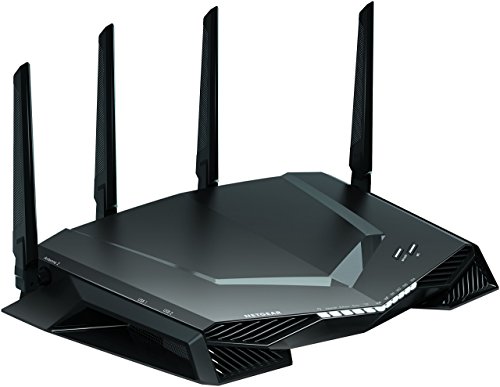
NETGEAR Nighthawk Pro Gaming XR500 — Gaming QoS pick
The XR500 was designed around a single complaint: games losing to other traffic inside the same house. Its listing title calls it a pro gaming router with four Ethernet ports, and the platform behind that title is DumaOS, Netgear’s gaming operating system, whose entire interface is organised around controlling congestion — a congestion-control slider that reserves a share of bandwidth so bulk transfers never consume the whole pipe, per-device prioritisation, and a geo-filter that keeps game servers geographically close. For bufferbloat purposes the congestion slider is the interesting tool. It is not SQM, and this guide will not relabel it as such, but deliberately holding back a slice of your line’s capacity is the same underlying manoeuvre as the bandwidth cap an SQM setup applies: queues stay short because the router, not the modem, becomes the deliberate bottleneck.
In practice the XR500 suits a house where the latency-sensitive traffic is identifiable and wired. Four gigabit Ethernet ports cover a console, a gaming PC, a work laptop dock and a streaming box, and everything cabled stops competing for airtime with phones and tablets on the wireless side. The honest limits are generational. This is a Wi-Fi 5 design in a WiFi 6 and 7 world, so its wireless ceiling and efficiency with many simultaneous clients trail the newer picks below, and its traffic tools reward an owner willing to spend twenty minutes in the dashboard setting the congestion controls rather than leaving everything automatic. Treat it as a latency instrument first and a wireless upgrade second.
One more practical note belongs to this pick: the XR500’s approach rewards measurement. Because its congestion control works by reserving a percentage of capacity, the correct percentage depends on your line’s real behaviour at your busiest hour, and the gamers this platform was built for tend to test at exactly that hour — mid-evening, when the street’s cable segment is loaded and the house is full. Set the reservation on a quiet Sunday morning and you will under-reserve for Tuesday night. The dashboard makes re-testing painless, showing per-device consumption so the machine actually flooding the uplink can be named rather than guessed at. In many houses the culprit turns out to be a console downloading a title-sized update or a phone backing up a camera roll, and once identified, a wired connection plus a priority rule ends the argument permanently.
- Model: NETGEAR Nighthawk Pro Gaming XR500
- Ethernet ports: 4 (from the listing title)
- Platform focus: gaming traffic management (DumaOS)
- SQM (fq_codel/CAKE): Not stated in the listing title — verify with NETGEAR documentation
- Wireless generation: Wi-Fi 5 era design
Strengths
- Congestion controls are the centre of the platform rather than a buried menu, which suits hands-on tuning.
- Four wired ports let the latency-critical machines bypass Wi-Fi contention completely.
- Per-device prioritisation maps neatly onto the real problem: one game or call versus everything else.
Trade-offs
- Wi-Fi 5 radios trail the newer picks for crowded, device-heavy homes.
- The benefit depends on configuring the QoS tools; left idle, it is an ordinary router.
- No SQM claim appears in the listing title, so queue management here is QoS-style shaping only.
Best for: a gaming household seeking deliberate, dashboard-level control over which traffic waits. Not suited for: a large home needing modern WiFi 6 or 7 coverage as the first priority.

ASUS RT-AC86U — Proven gaming all-rounder
The RT-AC86U, sold as the ASUS AC2900 WiFi gaming router, belongs to the generation that taught mainstream buyers to expect QoS inside a home router rather than an enterprise box. Its ASUSWRT firmware carries an adaptive QoS page with categories for gaming, streaming and work traffic, and the router earned a long afterlife in enthusiast hands partly because that software kept being updated. Against bufferbloat, the workflow is the familiar one: tell the router your real upload and download figures, set them slightly conservatively, and let the prioritisation rules stop a cloud sync from standing in front of a voice call. The title promises a gaming router, and gaming routers of this era were sold on precisely that queue discipline, even though — to repeat the guide’s standing honesty — the words SQM, fq_codel and CAKE appear nowhere in the listing.
What the AC86U asks in return is acceptance of its age. AC2900 is a Wi-Fi 5 rating, formed from dual-band capacity that modern WiFi 6 clients cannot fully exploit, and households with dozens of chatty smart devices will feel the difference in airtime efficiency before they feel it in raw speed. As a deliberate purchase for a smaller home, a flat, or a gaming corner where the important machines sit within one room and preferably on cables, it remains coherent: strong single-router coverage of its era, mature firmware, and QoS controls that do the one job this keyword is about. As the centrepiece of a sprawling multi-storey network, it is outclassed by the mesh-era picks in our other guides and by the WiFi 7 model further down this page.
There is also a community dimension worth knowing. Few consumer routers have been documented as thoroughly by their owners: years of forum threads cover QoS settings for particular games, consoles and call platforms, which shortens the tuning process this keyword demands. When a specific title misbehaves, the odds are good that an AC86U owner has already published the queue settings that fixed it. That accumulated knowledge is a genuine feature of an older platform, balancing the dated radios. It also means second-hand units circulate widely; if you buy used, factory-reset the unit, update the firmware before configuring anything, and enter your QoS figures fresh rather than inheriting a stranger’s line speeds.
- Model: ASUS RT-AC86U (AC2900)
- Class: dual-band WiFi gaming router (from the listing title)
- Firmware family: ASUSWRT with adaptive QoS categories
- SQM (fq_codel/CAKE): Not stated in the listing title — verify with ASUS documentation
- Wireless generation: Wi-Fi 5
Strengths
- Mature, long-supported firmware with QoS categories a non-specialist can configure in minutes.
- Strong single-box coverage for its generation, adequate for flats and smaller houses.
- A sensible price-of-entry shape for the QoS experiment before committing to flagship hardware.
Trade-offs
- Wi-Fi 5 airtime handling lags WiFi 6 in homes crowded with simultaneous clients.
- No multi-gigabit port, so it caps out as the router for faster-than-gigabit services.
- Its queue tools are category QoS, not documented smart queue management.
Best for: a smaller home seeking proven ASUS QoS controls on a mature platform. Not suited for: a device-dense household needing WiFi 6 efficiency across many rooms.

ASUS RT-AX3000 — Mainstream WiFi 6 step
The RT-AX3000 is the plain-spoken pick of this six: an ultra-fast dual-band gigabit wireless router, in its title’s own words, from the first ASUS WiFi 6 wave. Its relevance to bufferbloat is indirect but real. WiFi 6’s OFDMA scheduling divides a channel into sub-channels so several small packets — exactly the shape of voice, gaming and remote-desktop traffic — can travel in one transmission instead of queuing behind a single large frame. That reduces latency added by the wireless hop itself, which is a different problem from bufferbloat at the internet edge but feels identical from the chair: the call still stutters if either queue misbehaves. A household replacing a tired ISP router often discovers that half its supposed bufferbloat was actually an exhausted old radio, and this is the class of machine that fixes that half.
The other half still needs the settings work described later in this guide, because the RT-AX3000’s title makes no queue-management promise beyond its gigabit ports and WiFi 6 badge. ASUS firmware gives you QoS pages to work with, and the dual-band platform is quick enough that enabling them costs nothing measurable. Where this pick runs out of road is scale and speed of service: AX3000 capacity is a mainstream figure for a mainstream home, there is no multi-gigabit WAN for faster fibre tiers, and a big house will want the coverage conversation from our mesh guides instead. Within its lane — an apartment or modest house on a sub-gigabit plan, tired of an ISP box — it is the sensible modern baseline.
Consider the household this router fits most precisely: two adults working hybrid schedules, a couple of school-age streamers, a console, and a shelf of smart bulbs and plugs. The working day is a relay of video calls; the evening is streaming plus a game. On the ISP router, the relay dropped batons whenever a laptop decided to sync a drive folder. On a platform of this class, with QoS figures entered and the two work laptops given priority, the same sync becomes background noise. Nothing exotic was required — no enthusiast firmware, no command line — which is precisely the point of the mainstream pick. It converts bufferbloat from a mystery affliction into a solved configuration task for the most common household shape on the internet.
- Model: ASUS RT-AX3000
- Class: dual-band gigabit wireless router (from the listing title)
- Wireless generation: WiFi 6 (AX3000)
- SQM (fq_codel/CAKE): Not stated in the listing title — verify with ASUS documentation
- WAN: gigabit class
Strengths
- WiFi 6 scheduling trims wireless-hop latency for the small packets calls and games send.
- Gigabit wired ports keep consoles and desktops off the air entirely.
- A straightforward upgrade path from an ISP router, with no gaming styling to explain away.
Trade-offs
- No queue-management feature is claimed in the listing title.
- AX3000 capacity suits mainstream homes, not device fleets.
- Single-box coverage will not stretch across a large or masonry-heavy house.
Best for: a mainstream household seeking a WiFi 6 baseline plus manual QoS setup. Not suited for: a faster-than-gigabit fibre line or a very large floor plan.

ASUS RT-AX88U — Adaptive QoS flagship
The RT-AX88U holds the strongest title-level credential in this guide: the words Adaptive QoS sit inside its listing name, as part of “AX6000 Dual Band WiFi 6 Gaming Router, 8 Ports, Lifetime Security, Adaptive…” — the adaptive quality of service is not a reviewer embellishment but the maker’s own headline. Adaptive QoS on ASUS firmware classifies traffic by activity and lets you rank the classes, so a game or a work call is served ahead of a bulk download without you hand-writing rules per device. Applied with honest bandwidth figures, that classification is a legitimate bufferbloat countermeasure: the queue still forms at your router, where the shaping lives, instead of inside the modem where nothing can reorder it.
The eight Ethernet ports deserve equal billing, because the cheapest latency is the hop you delete. Eight wired sockets swallow a console, two PCs, a TV, a network drive, a work dock and a printer with room to spare, and every machine on a cable is a machine whose packets never wait for airtime. Add AX6000 dual-band capacity and this is the pick for the busy, wired, gaming-and-working house that wants one serious box rather than a platform change. Its caveats are size, cost class and generation: it is a large flagship of the WiFi 6 era, its security bundle wording (“Lifetime Security”) reflects its launch period, and the title still — the refrain of this guide — says nothing about SQM. Buy it for adaptive QoS and ports, not for a queue algorithm nobody claimed.
The AX88U also illustrates a truth about queue management at home: the upload direction is where households live or die, and wired ports serve it best. A network drive backing up to the cloud, a creator uploading footage, a teenager streaming gameplay — each can saturate an uplink for an hour. On this router those machines can be cabled, classified and capped as bulk traffic with hard ceilings, while the wireless side keeps its AX6000 capacity for the devices that genuinely move around. Few single boxes let you referee that many simultaneous claims on the line. If your evenings involve three or more heavy talkers competing for one uplink, the eight-port flagship stops being an indulgence and starts being the proportionate tool.
- Model: ASUS RT-AX88U (AX6000)
- Ethernet ports: 8 (from the listing title)
- Headline feature: Adaptive QoS (from the listing title)
- SQM (fq_codel/CAKE): Not stated in the listing title — verify with ASUS documentation
- Wireless generation: WiFi 6
Strengths
- Adaptive QoS is a title-level feature here, the clearest queue credential in this pool.
- Eight gigabit ports wire the whole latency-sensitive fleet at once.
- AX6000 capacity keeps the wireless side from becoming the next bottleneck.
Trade-offs
- A big, premium-class box whose size and price bracket exceed casual needs.
- WiFi 6, not 7: no access to the newest band behaviour and multi-link tricks.
- Classification QoS still needs your real line speeds entered to work properly.
Best for: a wired, busy household seeking title-confirmed adaptive QoS and ports to spare. Not suited for: a minimalist setup where a compact mainstream router would do.

ASUS RT-BE86U — WiFi 7 headroom
The RT-BE86U approaches bufferbloat from the capacity side. Its title lists a WiFi 7 gaming platform at 6.8 Gbps with a 10G WAN port and mesh VPN compatibility. A 10-gigabit WAN matters to this keyword for a subtle reason: bufferbloat pain scales with how hard you drive a link relative to its ceiling, and a router whose WAN and radios sit far above the service tier leaves processing and airtime headroom everywhere. On a gigabit fibre line, this box is loafing; queues that form are short because nothing in the path is straining. WiFi 7’s wider channels and multi-link operation also cut the wireless hop’s contribution to delay for clients that support it, shrinking the part of the latency budget the radio consumes.
Headroom, though, is a complement to queue discipline and not a substitute for it. A determined cloud backup will fill a gigabit uplink through any router ever built, and when it does, only shaping at the edge decides whose packets wait. The BE86U’s title advertises gaming and VPN credentials rather than a queue algorithm, and — final repetition of the guide’s rule — names no SQM. So the correct mental model is: this is the future-proof chassis, the router you buy when the line is fast, the house is full of new clients, and you intend to apply QoS settings on top of abundant capacity. Owners of slow DSL or modest cable tiers will gain far less; their bottleneck is the line itself, and money spent on headroom they cannot feed is money not spent on the settings evening that actually fixes their calls.
Its mesh compatibility, noted in the title, deserves a bufferbloat footnote. Extending coverage with mesh nodes moves the wireless hop further from the client, and each wireless relay can add its own small queue. The disciplined layout keeps the BE86U as the single edge device facing the modem, with any mesh partners behind it purely as coverage, and keeps the heaviest talkers wired to the main unit where the 10G-capable platform and the QoS settings both live. Configured that way, the WiFi 7 investment buys years of relevance: as clients renew into WiFi 7 phones and laptops, their latency behaviour improves without another router purchase, and the edge discipline you set up on day one carries forward untouched.
- Model: ASUS RT-BE86U
- WAN: 10G (from the listing title)
- Wireless: WiFi 7, 6.8 Gbps class (from the listing title)
- SQM (fq_codel/CAKE): Not stated in the listing title — verify with ASUS documentation
- Extras in title: mesh and VPN compatibility
Strengths
- 10G WAN removes the router as the ceiling for multi-gigabit fibre services.
- WiFi 7 radios minimise the wireless contribution to latency for modern clients.
- Capacity headroom makes every other queue measure easier to apply.
Trade-offs
- Headroom alone does not stop a saturating upload; shaping settings still required.
- Premium platform whose advantages shrink on slow internet tiers.
- Mesh expansion is a compatibility note in the title, not a kit in the box.
Best for: a fast-fibre household seeking a long-lived WiFi 7 chassis for QoS work. Not suited for: a slow line where the connection, not the router, is the constraint.

Netgear Nighthawk AX3600 — Five-stream alternative
The second Netgear in this six takes the opposite brief from the XR500: instead of a gaming platform, a general-purpose WiFi 6 router — five streams, dual band, AX3600 class, up to 3.45 Gbps in the title’s phrasing. Its place in a bufferbloat guide rests on the same logic as the RT-AX3000’s. Much of what households experience as bloat is a tired router collapsing under modern device counts, and a five-stream WiFi 6 platform with a modern processor restores the basics: packets forwarded promptly, small latency-sensitive frames scheduled efficiently, and enough wired sockets for the desk machines. Netgear’s firmware provides QoS controls to prioritise a work laptop or a console once the platform basics are sound.
Set expectations by the title and they will be met; exceed them and disappointment follows. This is a router for a smaller home on a mainstream plan, not a wired fleet command centre, and its title claims no adaptive queue system and, like every pick here, no SQM. Its dual-band design also lacks the dedicated extra band that tri-band systems use to keep mesh or high-throughput traffic apart, though as a standalone box in a flat or small house that absence barely registers. Consider it the Netgear-flavoured baseline: buy it when the XR500’s gaming apparatus is more than the household wants, keep the QoS page configured, and wire the one machine whose calls pay the rent.
A final scenario clarifies its ceiling. Put this Nighthawk in a two-bedroom flat on a mid-tier cable plan: a work laptop, a TV, a console, two phones, a tablet, some bulbs. It will run that household for years without complaint, and its QoS page, once given honest numbers, will keep the work calls clean through a partner’s evening download. Now move the same box into a five-bedroom house with three teenagers, a NAS and a gigabit plan, and the requests exceed the design: more wired mouths than ports, more simultaneous streams than a dual-band AX3600 layout enjoys feeding. Neither judgement is a criticism. Routers, like kettles, are sized to households, and this one is honestly sized — the title’s 3.45 Gbps ceiling and five-stream layout tell you the household it had in mind.
- Model: Netgear Nighthawk AX3600 (5-stream)
- Wireless: dual-band WiFi 6, up to 3.45 Gbps (from the listing title)
- Class: standalone home router
- SQM (fq_codel/CAKE): Not stated in the listing title — verify with NETGEAR documentation
- Wired ports: gigabit class
Strengths
- Modern WiFi 6 platform steadies the basics that ageing routers fumble.
- Five-stream design suits a smaller home’s worth of simultaneous clients.
- Netgear QoS controls cover the essential prioritisation once configured.
Trade-offs
- No adaptive queue system is claimed in the listing title.
- Dual-band only, so no third band for separation of heavy traffic.
- Coverage and port count are sized for modest homes, not fleets.
Best for: a smaller home seeking a mainstream Netgear platform plus configured QoS. Not suited for: a large wired household or a multi-gigabit service tier.
What Actually Reduces Bufferbloat: Speed, Queues and the Settings That Matter?
Start by measuring the right thing. Run a speed test on an idle line and note the download and upload figures; then run a latency test while a large download and upload are in progress, or use one of the dedicated bufferbloat graders that report loaded latency directly. The gap between idle ping and loaded ping is your problem statement, expressed in milliseconds. Anything under roughly thirty added milliseconds under load is healthy; beyond a hundred, calls and games will feel it. This measurement discipline matters because every fix below is a trade: you are spending a little raw throughput to buy back responsiveness, and without before-and-after numbers you cannot tell whether the trade happened.
The core technique, whatever the router, is to move the bottleneck into your own equipment. If your router forwards at full line rate, queues build inside the modem or the provider’s equipment, beyond your control. Set your router’s QoS bandwidth figures to about ninety to ninety-five percent of the measured line rate and the queue relocates to the router, where prioritisation rules can decide that the voice call jumps the backup job. Upload deserves the most care: home connections are asymmetric, the uplink is the narrow direction, and it is the uplink queue that wrecks calls when a photo library syncs. If your platform offers per-activity classes, rank interactive traffic first and bulk transfers last; if it offers a congestion slider, begin near a quarter of capacity reserved and adjust by testing, not by vibes.
Hardware choices then support the settings. Wire everything stationary, because a cable deletes both Wi-Fi contention and one retransmission-prone hop. Prefer the router’s 5 GHz or newer bands for laptops that roam near the router, leaving 2.4 GHz to the plugs and bulbs. Retire double NAT where you find it: two routers queueing in series, perhaps an ISP gateway in router mode feeding your own box, can each add their own unmanaged queue. Put the upstream device into bridge or modem mode when the provider allows it, so exactly one device — yours, configured — owns the edge. Finally, remember the modem itself: an elderly DOCSIS modem on a cable line can contribute queueing and errors that no router setting fully masks, and providers will often replace failing units when loaded-latency evidence is presented politely.
It is worth understanding why the ninety-something percent figure works, because the intuition protects you from undoing it later. Your internet line is a pipe of fixed width at the provider’s equipment. If your router is willing to send faster than that width, packets pile up at the narrow point, in buffers sized by the provider — buffers that are often enormous, because big buffers make speed tests look smooth. Deliberately sending slightly slower moves the pile-up into your router, whose buffers you control and whose scheduler you configure. The small throughput sacrifice is not waste; it is the purchase price of owning the queue. Every technique in this guide — classes, sliders, priorities — only functions once that relocation has happened, which is why the bandwidth figures are the first setting to enter and the last one to blame.
How Do You Set Up QoS for Lower Latency, Step by Step?
First, cable a laptop directly to the router and measure the idle line, download and upload, three times at a quiet hour; take the median of each direction as your working line rate. Second, open the router’s QoS or traffic-control page — on the ASUS picks it lives under the adaptive QoS or traditional QoS menus, on the XR500 it is the DumaOS congestion control, on the Netgear AX3600 it is the QoS setup screen — and enter ninety to ninety-five percent of those measured figures as the bandwidth limits. Third, choose the prioritisation scheme: activity classes if offered, ranking calls, work and gaming above streaming, and streaming above bulk downloads and backups; or explicit device priority for the two or three machines whose latency pays for the household.
Fourth, test under load. Start a large download and a cloud upload simultaneously, then join a video call or run a loaded-latency test and compare against your baseline. If loaded latency is still ugly, trim the caps by another few percent — the queue may be forming somewhere upstream of where you think — and if throughput feels needlessly strangled while latency is pristine, relax them slightly. Fifth, schedule the bulk offenders: most backup and sync tools can be told to run overnight, which removes the fight entirely rather than merely refereeing it. Sixth, revisit after any plan change, modem swap or firmware reset, because QoS figures entered for an old tier silently become wrong numbers on a new one. Write the settings on a note taped inside a cupboard door; future-you, mid-call, will be grateful.
What Do Loaded-Latency Tests Actually Show, and Which Numbers Matter?
A loaded-latency test sends small probe packets while the connection is deliberately saturated, then reports how long those probes took. The result is usually shown as separate figures for the download-loaded and upload-loaded directions, and the asymmetry is diagnostic. If download-loaded latency explodes while upload-loaded stays calm, your downlink queue is the swamp — common when several streams and downloads coincide. If upload-loaded latency is the disaster, the narrow uplink is filling, which matches the classic symptom of a household whose calls break up whenever photos sync. Knowing which direction misbehaves tells you where to set the tighter cap, and it stops you strangling the healthy direction out of superstition.
Context keeps the numbers honest. Some added latency under load is unavoidable physics: a full-size packet ahead of yours takes time to transmit, and on slow connections that serialisation delay is significant — one reason bufferbloat feels worst on DSL and slow cable tiers, where a single large packet can occupy the line for many milliseconds. This is also why the same router settings produce dramatic improvements on a 30 Mbps uplink and subtler ones on gigabit fibre: there is simply less queue to drain when each packet clears the line a hundred times faster. Judge your results against your tier. A gigabit household chasing the last five milliseconds is polishing; a DSL household cutting loaded latency from four hundred milliseconds to sixty has changed what its connection is for.
Games and calls also experience jitter — variation between packets — which a single average hides. A connection averaging 40 milliseconds under load but swinging between 10 and 200 will feel worse than one pinned at a steady 70. Good queue discipline improves jitter as a side effect, because a short, fairly-served queue delivers packets at even intervals. When you test, prefer tools that show a distribution or at least a worst-case figure alongside the average, and test from the machine and connection type you actually use: a wired test proving the edge is healthy, followed by a poor wireless result, tells you the remaining problem lives in the air, not the queue.
Does Your Internet Tier Change Which Pick Makes Sense?
Profoundly. On DSL and slow cable tiers — anything with an uplink under roughly 40 Mbps — bufferbloat is at its most vicious, because queues drain slowly and a single backup can hold the line hostage for minutes. Here the router’s queue controls do nearly all the work, raw wireless speed is almost irrelevant, and the XR500 or the RT-AC86U, tuned carefully, will transform the connection for a fraction of a flagship’s cost. Spending on WiFi 7 for such a line is buying a motorway on-ramp for a country lane: pleasant, future-proof, and entirely unrelated to the pain you feel today. Spend the evening on settings instead; the tier rewards it more than any hardware swap.
Mid-tier cable and fibre, roughly 200 to 600 Mbps down with a healthier uplink, is the contested middle where both halves matter. The line is fast enough that modern device counts strain an old router’s processor and radios, yet slow enough that saturation still happens daily. This is the natural home of the RT-AX3000, the Nighthawk AX3600 and, for wired fleets, the RT-AX88U: fresh platforms, credible QoS, no money wasted feeding capacity the plan cannot supply. On gigabit fibre, saturation becomes rarer and shorter; queue discipline still matters during backups and game downloads, but platform headroom and coverage dominate the decision, which is the RT-BE86U’s argument. The through-line of this guide is that bufferbloat is a behaviour of a system — line, modem, router, settings — and the right pick is the one whose strengths land on your system’s weakest component.
One more tier deserves a sentence: the household that does not know its tier. Plan names advertise download figures and bury the upload, yet the upload is the number that decides call quality under load. Before choosing any pick here, run the wired speed test described earlier and write down both directions. That single measurement will sort you into one of the three bands above more reliably than the brand name on your bill, and it takes four minutes.
How Do the Six Compare on Queue Credentials and Headroom?
| Pick | Queue credential in title | Wireless | Standout figure |
|---|---|---|---|
| NETGEAR XR500 | Gaming platform (DumaOS); SQM not stated | Wi-Fi 5 | 4 Ethernet ports |
| ASUS RT-AC86U | Gaming router; SQM not stated | Wi-Fi 5, AC2900 | Mature ASUSWRT firmware |
| ASUS RT-AX3000 | None claimed; SQM not stated | WiFi 6, AX3000 | Dual-band gigabit platform |
| ASUS RT-AX88U | Adaptive QoS named in title; SQM not stated | WiFi 6, AX6000 | 8 Ethernet ports |
| ASUS RT-BE86U | Gaming platform; SQM not stated | WiFi 7, 6.8 Gbps | 10G WAN port |
| Netgear Nighthawk AX3600 | None claimed; SQM not stated | WiFi 6, up to 3.45 Gbps | 5-stream dual band |
What Mistakes Keep Bufferbloat Alive After a Router Upgrade?
The commonest failure is buying the router and never opening the QoS page. Every pick in this guide ships with its traffic controls dormant or set to automatic guesses; the hardware purchase is the smaller half of the fix. Second comes entering the wrong bandwidth numbers — the advertised plan speed rather than the measured one, or figures copied from a speed test taken over Wi-Fi through two walls. Caps set above the real line rate do nothing at all, because the queue simply forms upstream again. Third is testing wrongly: running a fresh speed test, seeing a big number, and declaring victory, when the metric that matters is latency while the line is busy.
Placement and topology mistakes follow. Leaving the ISP gateway in full router mode in front of your new router creates double NAT and a second, unmanaged queue. Hiding the router in a metal cabinet or behind the television punishes the wireless hop until retransmissions mimic bloat. Chasing the problem with range extenders adds store-and-forward hops. And the subtlest error is expecting any router to fix a line fault: damaged coax, a failing optical terminal or a congested neighbourhood node all produce loaded-latency symptoms, and the correct instrument there is a call to the provider with your test results in hand, not another box.
Two quieter mistakes deserve naming. The first is prioritising everything: a QoS scheme in which the console, both laptops, the TV and the phones are all marked high priority is a queue with no discipline at all, because priority only exists relative to traffic ranked below it. Keep the protected class small and genuinely interactive. The second is forgetting the overnight bulk jobs entirely — scheduling a backup for 3 a.m. is a queue intervention more powerful than any algorithm, yet owners routinely tune shaping for a fight they could simply have moved to an empty hour. Use both levers: schedule what can be scheduled, shape what cannot.
Final Recommendation
Match the pick to the shape of your problem. Where a gaming household wants deliberate control, the XR500’s congestion tooling is the most purpose-built here. Where the title itself must carry the queue credential, the RT-AX88U’s adaptive QoS and eight ports make it the strongest single-box answer, while the RT-BE86U is the chassis for fast fibre and a long service life. The RT-AX3000 and the Nighthawk AX3600 are the honest baselines for mainstream homes replacing tired ISP hardware, and the RT-AC86U remains the mature, smaller-home option. Whichever arrives, spend the first evening in its settings pages with a speed test and a loaded-latency check, because the router only holds the tools — the flattening of that evening video call, with a backup thundering away unnoticed behind it, happens when you switch them on and tune them to your real line.
Keep the receipt of that evening: the before-and-after test figures, jotted down or screenshotted. They are your evidence if symptoms return — proof of what the connection once achieved, and a baseline that separates a new fault from an old configuration quietly reset by a firmware update. Networks drift; documented networks drift back faster.
Frequently Asked Questions
Does any router in this guide run SQM with fq_codel or CAKE?
No listing title in the verified pool claims SQM, fq_codel or CAKE for any of these six, so this guide credits none of them with it. Each spec box records that plainly. The picks instead offer QoS prioritisation, gaming congestion controls, or plain capacity headroom, and the setup section explains how bandwidth-capped QoS reproduces much of SQM’s practical effect: moving the queue into your router and deciding there whose packets go first.
Why is my speed test fast while my calls still stutter?
Because the two measurements describe different things. A speed test reports capacity on an otherwise idle line; a call exposes latency while the line is busy. When uploads or downloads saturate the connection, packets queue, and interactive traffic waits behind bulk data. That waiting is bufferbloat, and it is diagnosed with a latency test run under load, not with another speed test.
How much speed do I give up when I cap bandwidth for QoS?
Typically five to ten percent of peak throughput, exchanged for a dramatic cut in loaded latency. Most households never notice the missing slice because few activities genuinely sustain the full line rate, while every call and game notices the queue disappearing. If your tests show latency already healthy at a gentler cap, keep the gentler cap; the goal is responsiveness, not sacrifice for its own sake.
Is a gaming router automatically better for bufferbloat?
Not automatically, but the category exists because games are latency-sensitive, so gaming platforms tend to expose the most developed traffic controls. The XR500’s congestion slider and the ASUS gaming models’ QoS pages are examples. A non-gaming router with well-configured QoS will outperform a gaming router left on defaults, which is why this guide spends as many words on settings as on hardware.
Should I replace my modem as part of fixing bufferbloat?
Only with evidence. Test with a wired connection, your router configured, at a quiet hour; if loaded latency remains wild, or the modem is an elderly model the provider no longer supports, a replacement — often free from the provider when faults are documented — becomes a rational step. Replacing it speculatively, before the router settings are right, spends money on the least likely culprit.
How long does proper QoS setup take on these routers?
Budget one unhurried hour: fifteen minutes of wired speed tests, fifteen minutes entering caps and classes, and thirty minutes of loaded testing and adjustment. The consoles and dashboards on these six are all graphical, and none of the steps in this guide’s setup section requires a command line. The hour is mostly spent waiting for tests and thinking about which three machines genuinely deserve priority — a household policy decision disguised as a network task. After that first evening, maintenance is a five-minute revisit whenever your plan, modem or household changes shape.
Will a mesh system make bufferbloat worse?
It can, if the mesh nodes relay traffic wirelessly and add their own queues, or if the main node is not the device running your QoS. A mesh whose base unit sits at the modem, runs the traffic controls, and uses wired backhaul where possible adds negligible delay. The picks in this guide are standalone routers partly for that reason: one obvious edge device, one place where the queue is managed. If your home needs mesh coverage, choose the edge discipline first and the coverage second.
Can WiFi 6 or WiFi 7 alone fix bufferbloat?
They fix the wireless hop’s share of delay: better scheduling, wider channels and, in WiFi 7’s case, multi-link operation all reduce airtime waiting. Bufferbloat proper lives at the internet edge, in the queue where your house meets the provider, and no radio standard reaches that queue. Newer radios plus configured QoS is the complete answer; either alone is half of one.
Related Guides
For the neighbouring questions, see our guide to gaming routers with strong traffic controls, our walkthrough of mesh WiFi systems for large homes, and our explainer on setting up a home network that stays fast under load. Those guides take up the coverage and equipment questions this one deliberately set aside, and together they cover the whole path from the street cabinet to the far bedroom — the path your packets travel, queue by queue, every evening.