What's inside
- Key Takeaways
- Quick Picks
- What Did We Demand of the Best Hard Drives for Mac Backups?
- How Does Time Machine Actually Use a Backup Drive?
- How Do the Six Mac Backup Drives Compare?
- How Should You Set Up a Mac Backup Drive Properly?
- What Mistakes Do Mac Owners Make With Backup Drives?
- Why Do Backups Fail at Home? Usually the Plug, Not the Drive
- How Does the Rotation Work in Practice, Week to Week?
- What Happens to the Backup When You Replace the Mac?
- Is a Cloud Backup Enough on Its Own?
- Final Recommendation
- Frequently Asked Questions
- Related Guides
As an Amazon Associate I earn from qualifying purchases. This post may contain affiliate links at no extra cost to you.
gizmoverdict.com is reader-supported. When you buy through links on our site, we may earn an affiliate commission.
Shopping guidance for this category starts with a confession few listings make: for Time Machine duty, the drive’s speed is nearly irrelevant and its capacity and trustworthiness are everything. A backup drive spends its life writing in the background and is judged on one day — the day the Mac’s internal drive fails, is stolen or is replaced — when everything the household owns comes back across that cable, or does not. Buy for that day.
The best hard drives for mac backups are, with one deliberate exception, spinning drives, and that is not this guide being old-fashioned. Backup is the workload where a hard drive’s economics are unbeatable: terabytes of capacity at a fraction of flash’s cost, in a device that sits on a desk or in a drawer, never asked to survive a journey or win a benchmark. The exception — the Glyph Blackbox PRO at the end of the list — is a desktop drive with a stated transfer speed and enterprise positioning, for Macs whose “backup” is also a working archive of photo and video projects too large for the internal disk.
The six picks divide by life situation. Two WD My Passport models are made-for-Mac portables at 5TB, one leaning on backup software and password protection, the other adding ransomware defence and USB-C. The SanDisk Professional ArmorATD is the rugged 5TB for desks that are really workshops in disguise. The LaCie Mobile Drive is the slim 2TB design object for smaller Macs and tidier desks. The Seagate One Touch is an 8TB desktop unit for households whose backup target is a whole family’s machines. Each pick appears at exactly the capacity its pool listing carries — this guide does not invent other sizes of the same model — and each is judged on the only backup question that matters: will it be plugged in, capacious and alive on the day it is needed?
Key Takeaways
- Time Machine wants capacity and constancy, not speed: every pick here is a spinning drive, chosen deliberately for its terabytes per cost, its desk manners and its willingness to sit plugged in for years.
- Buy at least twice your Mac’s internal storage — two and a half to three times is the comfortable figure — because Time Machine keeps a versioned history of everything, not just a single snapshot of today.
- Two picks are WD’s made-for-Mac portables at 5TB each; the Ultra adds ransomware defence and a native USB-C connection to the standard model’s software-and-password formula.
- The Seagate One Touch is the household answer at a full 8TB, a desktop drive whose listing states compatibility with most Windows and macOS machines and Rescue Recovery.
- The Glyph Blackbox PRO is the professional outlier of the six: 280 MB/s and Thunderbolt 3 compatibility stated in its listing, for a backup that doubles as a working project archive.
- Each model appears at one capacity only in this guide, exactly as its listing carries it; no other sizes of the same model are assumed, implied or worth planning a backup around.
Quick Picks
| Pick | Badge | Why it is here |
|---|---|---|
| WD My Passport for Mac 5TB | The made-for-Mac default | Backup software and password protection in a portable 5TB drive sold specifically for Mac. |
| WD My Passport Ultra for Mac 5TB | The defended portable | Adds defence against ransomware and USB-C to the My Passport formula, in silver. |
| SanDisk Professional G-Drive ArmorATD 5TB | The rugged desk drive | A rugged, durable 5TB portable from SanDisk’s professional line, on USB-C and USB 3.2 Gen 1. |
| LaCie Mobile Drive 2TB | The slim design pick | Two terabytes in LaCie’s slim Moon Silver enclosure, USB-C 3.2, with post-consumer recycled materials. |
| Seagate One Touch 8TB Desktop | The household vault | Eight terabytes of desktop capacity, USB-C, stated macOS compatibility and Rescue Recovery. |
| Glyph Blackbox PRO 4TB | The production-grade archive | 280 MB/s, USB-C with Thunderbolt 3 compatibility, enterprise-class desktop build for photo and video work. |
What Did We Demand of the Best Hard Drives for Mac Backups?
The first criterion was backup fitness as the listings state it: made-for-Mac positioning, bundled backup software where offered, password protection where offered, and the interface a modern Mac actually has — USB-C in most of these listings, with the standard My Passport for Mac the exception on USB 3.1 and 3.0 language. A backup drive that needs an adapter chain to reach the Mac is a backup drive that will, one tired evening, not be plugged in; and an unplugged backup is a rumour, not a backup.
The second criterion was capacity honesty. This guide lists each model at the single capacity its pool entry carries, because backup sizing is arithmetic a buyer must be able to trust: a 5TB pick is a 5TB pick. Where a listing’s language gestures at a wider family, the guide says so rather than silently upgrading the pick. The third criterion was the failure story — password protection against loss, ransomware defence against the modern failure mode, Seagate’s stated Rescue Recovery, Glyph’s production-grade positioning — because a backup drive is a promise, and promises are graded by what stands behind them.
Finally, every pick was asked the drawer question: what is this drive’s life between backups? Portables that live in a laptop bag get knocked; desktop units get dusty and hot; the rugged pick exists for the workshop desk, the slim pick for the studio flat. Backup drives fail from neglect more often than from workload, and the right pick is the one whose physical life matches the desk it will actually live on.
How Does Time Machine Actually Use a Backup Drive?
Time Machine’s design explains every buying rule in this guide. Its first backup copies everything; thereafter it adds hourly backups for a day, daily backups for a month, and weekly backups until the drive fills, thinning the oldest as space demands. Two consequences follow. First, capacity is history: a drive barely larger than the Mac’s internal disk fills quickly and keeps only a shallow past, while a drive two to three times larger holds months of versions — the deleted chapter of a manuscript, the photo library before an over-enthusiastic cull, the project as it stood last spring. Second, the drive’s busiest moment is its first: the initial full backup is the one long, sustained write of its life, and every backup after is a small increment that any drive here handles without waking up.
The restore is the mirror image: a full read, at whatever pace the drive and the connection allow, conducted on the worst day of the Mac’s life. This is why the guide tolerates spinning drives happily — an overnight initial backup and a restore measured in an hour or two are acceptable terms — and why it takes the interface seriously: a USB-C connection to a modern Mac removes the adapter lottery from both the backup and the recovery. It is also why the Glyph, with its stated 280 MB/s, exists in this list: for a professional whose backup drive doubles as the project archive they work from daily, the restore-and-work pace is a working specification, not a luxury.
One practice deserves stating plainly because Apple’s own design invites it: Time Machine can rotate between multiple drives, and a Mac kept honest by two backup drives in two places — one on the desk, one at an office or a relative’s home — has a backup story that survives fire and theft, which no single drive at any capacity can claim. Several picks in this guide are inexpensive enough, per terabyte, to make that two-drive rotation a realistic household decision rather than a professional’s ritual.

WD My Passport for Mac 5TB — The made-for-Mac default
WD’s listing is a small essay in removing excuses: a 5TB portable external hard drive for Mac, in navy, with backup software and password protection, USB 3.1 and USB 3.0 compatible, model WDBA2F0050BBL-WESN. The “for Mac” in the name is the feature a first-time buyer most undervalues — a drive positioned and formatted for the Mac ecosystem from the box, so that the first backup is a plug and a prompt rather than a research project. Backup procrastination is the leading cause of backup absence, and everything about this pick is aimed at the procrastinator.
Five terabytes against a modern Mac’s internal storage is the comfortable ratio this guide recommends: a 1TB MacBook gets a deep history, a 2TB machine gets a workable one, and the drive still has room for the second job these portables so often take on — the overflow archive of photos and finished projects that no longer fit internally. The bundled backup software gives Windows-side households a use for it too, but its heart is Time Machine duty: plugged in at the desk, quietly accumulating versions, forgotten until the day it is the most important object in the house.
The listing’s USB language — 3.1 and 3.0 — marks this as the generation before USB-C became the line’s standard, and owners of current MacBooks should expect the cable-and-adapter question to be settled at setup, once, rather than nightly. Password protection is stated and should be used: a portable backup is by definition a complete copy of a life, and it will travel in bags. What the listing does not state — any ruggedness rating, any transfer speed — the spec box records as not stated; this is a desk-and-drawer drive, and it should be lived with as one.
- Capacity: 5TB, per the listing title
- Positioning: Made for Mac, portable external hard drive, per the listing title
- Security: Password protection, per the listing title
- Software: Backup software included, per the listing title
- Interface: USB 3.1 / USB 3.0 compatible, per the listing title
- Model: WDBA2F0050BBL-WESN, per the listing title
- Transfer speed: The title prints no figure — WD’s own pages carry it
Strengths
- Mac positioning that removes the setup research between a new owner and a first backup.
- Five terabytes is the deep-history size for the MacBooks most households own.
- Password protection stated — essential for a portable that holds a whole machine’s contents.
Trade-offs
- USB 3.1/3.0-era connection in a USB-C world; settle the cable question at setup.
- No ruggedness or speed figure is printed; it is a desk drive and dresses like one.
- Its ransomware story is the Ultra sibling’s headline, not this model’s.
Best for: a MacBook owner buying a first Time Machine drive, who wants the made-for-Mac path with no homework. Not suited for: a field photographer whose backup drive rides in a kit bag daily, where the ArmorATD’s rugged brief is the honest match.
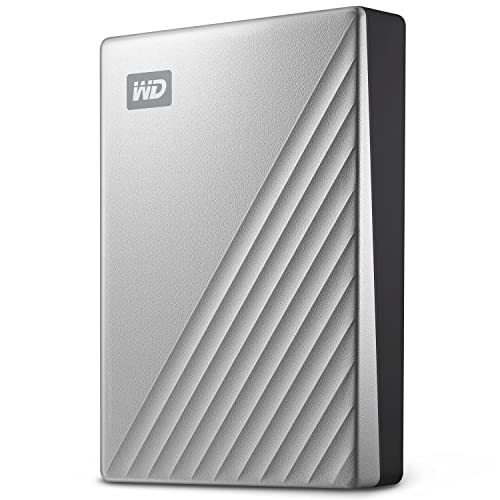
WD My Passport Ultra for Mac 5TB — The defended portable
The Ultra takes the standard model’s formula and hardens it in two stated directions: backup software with defence against ransomware, and a USB-C and USB 3.1 connection, in a silver 5TB portable, model WDBPMV0050BSL-WESN. The USB-C point is practical before it is fashionable — a current MacBook and this drive meet with one cable, no adapter, which removes the nightly friction that quietly kills backup habits. The ransomware point is the modern one, and it deserves its paragraph.
A backup drive’s nightmare is not only its own death; it is being faithfully attached to a Mac on the day that Mac is compromised, and having its history encrypted along with the originals. Defence against ransomware, as WD positions the feature in this listing, is the backup software watching for the pattern of mass file change and refusing to mirror a catastrophe. Combined with the discipline of unplugging the drive between backups — a portable invites exactly that discipline — the Ultra builds the strongest failure story of the two WD picks: protected against loss by its password, against compromise by its software, against neglect by its one-cable convenience.
Capacity and role match its sibling: 5TB, desk-and-drawer duty, deep Time Machine history for a typical MacBook and overflow room besides. The choice between the two WDs is therefore unusually clean. If your Mac is USB-C-native and your threat model includes the compromised-machine day, the Ultra is the pick; if your setup is older and the standard model is what the budget reaches, its backup will still be there on the day — and a present backup outranks a perfect one that was never bought.
- Capacity: 5TB, per the listing title
- Positioning: Made for Mac, portable external hard drive, silver, per the listing title
- Software: Backup software with defence against ransomware, per the listing title
- Security: Password protection, per the listing title
- Interface: USB-C and USB 3.1, per the listing title
- Model: WDBPMV0050BSL-WESN, per the listing title
- Drop rating: Not stated in the listing title — treat as an unarmoured portable
Strengths
- One-cable USB-C life with a current MacBook — the convenience that keeps backups happening.
- Ransomware defence stated in the listing, aimed at the backup’s modern failure mode.
- The full 5TB deep-history capacity of its sibling, with the harder shell of software around it.
Trade-offs
- No physical ruggedness is claimed; its armour is software, not shell.
- The defence features reward being set up properly at home, not improvised later.
- Owners of older USB-A Macs step back toward the standard model’s world of adapters.
Best for: a USB-C MacBook owner who keeps the backup plugged in at a desk and wants it defended against a compromised machine. Not suited for: a workshop desk where drives get knocked off benches, which is the ArmorATD’s stated territory.

SanDisk Professional G-Drive ArmorATD 5TB — The rugged desk drive
SanDisk’s professional line speaks a different dialect from WD’s consumer polish: a 5TB G-Drive ArmorATD, rugged and durable, a portable external HDD on USB-C and USB 3.2 Gen 1, model SDPH81G-005T-GBA1D. The ArmorATD is the backup drive for desks that are not really desks — the photographer’s studio bench, the site engineer’s cabin table, the home office that shares space with a workshop — where a backup drive’s enemies include being swept to the floor by a cable, rained on through a leaking roof, or buried under the week’s equipment and excavated by its cable.
Ruggedness in a backup drive buys something subtler than survival: it buys continuity of habit. A drive that can be tossed in the kit bag for a shoot, plugged in at the hotel to take the laptop’s nightly Time Machine, and tossed back without ceremony is a drive whose backups actually span the owner’s whole life, travel included. The ArmorATD’s brief — professional, rugged, portable — is precisely that continuity, and its 5TB capacity holds both the Mac’s history and, on the road, the trip’s working archive besides.
No specific drop height, crush figure or IP rating is printed in this listing’s title, and this guide records that absence rather than decorating the drive with numbers from elsewhere in SanDisk’s literature. “Rugged, durable” is the stated claim; a buyer whose work is genuinely extreme should confirm the exact ratings in SanDisk Professional’s documentation. For the broad middle of rough desks and travelling professionals, the stated claim plus the line’s professional positioning is a coherent case — and the honest one this guide is willing to make.
- Capacity: 5TB, per the listing title
- Build: Rugged, durable portable external HDD, per the listing title
- Interface: USB-C, USB 3.2 Gen 1, per the listing title
- Line: SanDisk Professional G-Drive, per the listing title
- Model: SDPH81G-005T-GBA1D, per the listing title
- Specific drop/IP rating: Not stated in the listing title — verify exact ratings in SanDisk Professional’s documentation
- Transfer speed: Not stated in the listing title — see the maker’s documentation
Strengths
- The backup habit survives travel and rough desks because the drive is built to be handled without ceremony.
- Professional-line positioning and USB-C connection suit current Macs directly.
- Capacity for the Mac’s history and a trip’s working files in the same shell.
Trade-offs
- Exact ruggedness figures are not printed in the title; extreme users must verify them.
- No backup software or ransomware feature is headlined in this listing.
- Its talents are wasted on a drive that will live its whole life in one safe drawer.
Best for: a photographer or field professional whose Time Machine drive travels with the laptop and works on benches, not desks. Not suited for: a tidy home office where the premium buys armour against accidents that room will never offer.

LaCie Mobile Drive 2TB — The slim design pick
LaCie’s Mobile Drive is the aesthete’s answer to the backup problem: a 2TB external portable in Moon Silver, USB-C 3.2, for PC and Mac, made with post-consumer recycled materials, bundled in its listing with an Adobe All Apps Plan offer, model STLP2000400. Its slim aluminium presence on a desk is not vanity; it is a backup strategy. The drive that looks like it belongs beside a MacBook is the drive that stays beside the MacBook, plugged in, accumulating history — while the ugly drive migrates to a drawer and takes the backup habit with it.
Two terabytes must be read honestly against the sizing rule. For a MacBook with 256GB or 512GB of internal storage — still the commonest configurations — 2TB is the deep-history ratio this guide recommends, with room for years of versions. For a 1TB machine it is adequate rather than generous, and for a 2TB machine it is the wrong pick; those owners belong at the 5TB tier above. The Mobile Drive’s audience is the smaller-Mac majority, and for them its capacity is not a compromise but a match.
There is a second, quieter audience for this pick that the guide should name: the Mac mini and iMac owners whose machines never travel at all. For a desktop Mac, the backup drive’s life is pure desk life, and the contest is entirely about presence and capacity — a slim drive that can live permanently behind or beneath the machine, connected by a short USB-C lead, forgotten in the correct way. The Mobile Drive’s design serves that life as faithfully as it serves the MacBook’s, and its 2TB suits the smaller internal drives those machines often carry. Backup elegance is not a contradiction; on a fixed desk it is an uptime strategy.
The Adobe bundle mention in the listing will interest the creative households this drive courts, though the terms of such offers live and change on the maker’s pages and this guide treats the bundle as a listing note, not a promise to plan around. The recycled-materials construction is stated and welcome. What the listing does not state — backup software, password protection, any ruggedness figure — is recorded in the spec box; Time Machine itself needs none of those from the drive, but a buyer who wants an encrypted portable should set up the Mac’s own encryption on it deliberately, as the guide’s setup section describes.
- Capacity: 2TB, per the listing title
- Design: Slim portable, Moon Silver, per the listing title
- Interface: USB-C 3.2, per the listing title
- Compatibility: PC and Mac, per the listing title
- Construction: Post-consumer recycled materials, per the listing title
- Model: STLP2000400, per the listing title
- Password protection: Not stated in the listing title — use the Mac’s own encryption if you need it
Strengths
- The drive most likely to live plugged in on a tidy desk, which is where backups are born.
- Correctly sized for the 256GB and 512GB MacBooks most people actually own.
- USB-C 3.2 connection with no adapter theatre for current Macs.
Trade-offs
- Undersized for 1TB-and-larger Macs by the sizing rule; those buyers need the 5TB tier.
- No stated software, password or ruggedness features in the listing.
- The Adobe offer’s terms live outside the listing and should not anchor the decision.
Best for: a 512GB MacBook Air on a minimalist desk, where the drive’s looks keep it plugged in and its capacity keeps years of history. Not suited for: a 2TB MacBook Pro whose backup would fill this drive’s history window within its first seasons.

Seagate One Touch 8TB Desktop — The household vault
The One Touch changes the scale of the conversation: an 8TB external desktop HDD, USB-C, stated as compatible with most Windows and macOS machines, with Rescue Recovery, model STNB8000400. A desktop drive — mains-powered, book-sized, going nowhere — is the right shape for a household’s central backup: one vault into which a family’s several Macs (and the odd Windows machine, which the listing’s compatibility explicitly welcomes) can pour their Time Machine histories, with room left for the shared photo archive that every household accumulates and no single laptop can hold.
Eight terabytes reframes the sizing arithmetic. Instead of one Mac’s two-to-three-times ratio, the question becomes the household’s: two MacBooks, a desktop Mac, a decade of family photos — the One Touch absorbs the sum with headroom, and headroom is what turns a backup from a snapshot into a history for every machine at once. Rescue Recovery, stated in the listing, stands behind the vault with Seagate’s recovery service; for a device holding a family’s entire digital past, that stated commitment is a rational thing to weigh.
The desktop form carries its honest costs. It needs its power supply and a permanent home; it does not travel; and a single vault, however capacious, is still a single location — the household that backs everything up to this drive should still keep the irreplaceable subset somewhere else, as this guide’s rotation advice insists. Within its role, though, the One Touch is the pick that ends the per-Mac drive shuffle: one purchase, one plug, every machine in the house covered.
- Capacity: 8TB, per the listing title
- Form: Desktop external HDD, per the listing title
- Interface: USB-C, per the listing title
- Compatibility: Most Windows and macOS machines, per the listing title
- Recovery: Rescue Recovery, per the listing title
- Model: STNB8000400, per the listing title
- Power: Desktop drives require mains power — the listing positions it as a desktop unit; confirm the supply arrangement in Seagate’s documentation
Strengths
- One vault for a whole household’s Macs, with the headroom that turns backups into histories.
- Stated cross-platform compatibility — the mixed Mac-and-Windows house is explicitly served.
- Rescue Recovery named in the listing, standing behind the family’s archive.
Trade-offs
- A fixture, not a traveller: mains power and a permanent desk home are part of the deal.
- Concentrating every machine’s backup in one location raises the stakes of the offsite copy.
- More drive than a single small MacBook will ever use.
Best for: a house with three Macs and a photo archive older than its youngest laptop, backed up to one USB-C vault. Not suited for: a student whose backup must fit in a backpack and run off the laptop’s own power between libraries.

Glyph Blackbox PRO 4TB — The production-grade archive
Glyph’s listing is the only one here that leads with a speed: a Blackbox PRO 4TB at 280 MB/s, USB-C, an enterprise-class desktop hard drive, USB 3.0 and Thunderbolt 3 compatible, with rugged production-grade reliability for photo and video editing and backup. That combination redraws the pick’s job description. This is not merely where a Mac’s Time Machine goes; it is where a photographer’s or editor’s working archive lives — the drive that holds the project library, serves it at a stated pace the other picks do not claim, and takes the backup role as one duty among several.
The Thunderbolt 3 compatibility matters to the Macs this drive courts: the professional Macs of the Thunderbolt era can speak to it over the connection those machines were built around, and 280 MB/s is fast spinning-disk territory — enough that working from the archive, culling a shoot or assembling a project, does not feel like visiting a vault. Glyph’s production-grade positioning, and its reputation among media professionals for standing behind its drives, complete a listing aimed at people whose files are their livelihood.
There is a workflow this drive enables that deserves spelling out, because it reorganises a professional Mac’s storage entirely. With the working archive on the Blackbox PRO — current projects, the photo library’s recent years, the video bins — the Mac’s internal drive can be kept lean for applications and the active project alone, and Time Machine can back up both the internal drive and, by deliberate inclusion, treat the Glyph’s contents as part of the protected estate with a second target elsewhere. The point is that at 280 MB/s the archive stops behaving like cold storage: scrubbing footage, searching a decade of shoots and assembling a portfolio all happen at working pace, which changes what a photographer bothers to keep organised.
Four terabytes is the honest constraint: smaller than the WD portables and the Seagate vault in this guide. The professional reading is that this drive is the working tier of a larger system — the current projects and the Mac’s backup — with colder storage elsewhere; the household reading is that pure backup buyers get more terabytes for their money from every other pick here. Choose the Blackbox PRO when the archive must be worked from daily, and let the others carry the set-and-forget duty they were shaped for.
- Capacity: 4TB, per the listing title
- Speed: 280 MB/s, per the listing title
- Interface: USB-C; USB 3.0 and Thunderbolt 3 compatible, per the listing title
- Class: Enterprise-class desktop hard drive, per the listing title
- Build: Rugged, production-grade reliability positioning, per the listing title
- Intended work: Photo/video editing and backup, per the listing title
- Bundled backup software: Not stated in the listing title — Time Machine itself is the intended tool for Mac backup duty
Strengths
- The only stated transfer speed in this guide, fast enough to work from the archive daily.
- Thunderbolt 3 compatibility for the professional Macs it is aimed at.
- Production-grade positioning from a maker whose name is a byword in media circles.
Trade-offs
- Four terabytes is the smallest capacity among the desktop-scale picks here.
- Its talents — and price class — exceed what a pure Time Machine target needs.
- A desktop fixture; the travelling half of a backup rotation needs a portable partner.
Best for: a photographer whose Mac backup and working project archive are the same drive, culled and edited from daily. Not suited for: a household that simply needs the most Time Machine terabytes per purchase, which is the One Touch’s argument.
How Do the Six Mac Backup Drives Compare?
| Pick | Capacity | Form | Interface (as listed) | Stated extras |
|---|---|---|---|---|
| WD My Passport for Mac | 5TB | Portable | USB 3.1 / 3.0 | Backup software; password protection |
| WD My Passport Ultra for Mac | 5TB | Portable | USB-C and USB 3.1 | Ransomware defence; password protection |
| SanDisk Professional ArmorATD | 5TB | Portable, rugged | USB-C, USB 3.2 Gen 1 | Rugged, durable build |
| LaCie Mobile Drive | 2TB | Portable, slim | USB-C 3.2 | Recycled materials; Adobe plan offer noted |
| Seagate One Touch | 8TB | Desktop | USB-C | Rescue Recovery; Windows and macOS |
| Glyph Blackbox PRO | 4TB | Desktop | USB-C; Thunderbolt 3 compatible | 280 MB/s; enterprise class |
Notice also what the table does not contain: a solid-state pick. That absence is a considered editorial act, not an oversight of the pool. A Time Machine target writes incrementally, reads rarely, and is valued in terabytes; flash would multiply the cost of every row while improving only the initial backup’s duration and the restore’s pace. Owners who find even those two waits intolerable — the professional restoring a workstation against a deadline — are served within this guide by the Glyph’s stated pace, achieved with spinning disks and a serious interface. For everyone else, the backup budget buys more safety as capacity than as speed, and the table spends it accordingly.
The table’s pattern is that every pick trades a different currency. The WDs trade in software and security features; the ArmorATD in physical survival; the LaCie in desk presence and right-sizing; the Seagate in household scale; the Glyph in working pace. The correct first question is therefore not “which is best” but “which failure am I actually defending against” — loss, compromise, accident, clutter, growth or downtime — and the table’s rows answer in that order.
How Should You Set Up a Mac Backup Drive Properly?
Start with encryption, before the first backup, because retrofitting it later means starting the backup over. When Time Machine first offers to use the drive, take the encrypted-backup option and store the password in your password manager and on paper somewhere safe; an encrypted backup whose password is lost is a sculpture of your data, admirable and unreadable. This matters most for the portables — a stolen backup drive should be a paperweight to its thief, not a copy of your life — and the two WD picks’ stated password protection serves the same end by their own route.
Then verify the system is real, because a backup that has never been tested is a hypothesis. Choose the test file cruelly, while you are at it: not a trivial text file but something whose loss would genuinely sting — a photo from last summer, the document you were editing when you decided to buy the drive — because a restore that returns the file you care about proves the chain in a way a hundred successful status messages never quite do.
After the first backup completes, open Time Machine and restore one file — an old document, a single photo — to confirm the chain works end to end. Repeat the test after any major macOS upgrade. Set a calendar rhythm for glancing at the last-backup timestamp; Time Machine is designed to be invisible, which means its failures can be invisible too, and the household that checks monthly discovers a silent failure in weeks rather than on the day of the funeral.
Finally, decide the rotation. One drive on the desk is the minimum viable backup; the grown-up version is two drives alternating, with one stored away from the house, so that the events that take the Mac and the desk together — fire, flood, burglary — still leave a history somewhere. The portable picks here make the rotating half easy to carry; the desktop picks anchor the home half. Whichever you start with, write the drive’s purchase date on its label: backup drives are consumables on a long fuse, and knowing a drive’s age is the beginning of replacing it before it asks you to.
What Mistakes Do Mac Owners Make With Backup Drives?
The first is sizing to the Mac they have today at a one-to-one ratio, then watching Time Machine’s history thin to weeks as the drive fills — the two-to-three-times rule exists because the history is the product. The second is buying a drive that needs an adapter dongle chain to reach a USB-C Mac, and slowly, tiredly, stopping plugging it in. The third is treating the backup drive as overflow storage as well, parking the only copy of a video project on the same disk that holds the backups, and thereby making one device the single point of failure for both the originals and their safety net.
The quieter mistakes are about verification and mortality. Owners who never test a restore own a hope, not a backup. Owners who keep one backup in the same bag as the laptop have insured against drive failure but not against the bag’s loss, which is the more cinematic and equally common event. And owners who let a backup drive age indefinitely — five, seven, ten years of faithful service — eventually meet the statistic that all spinning drives carry. Replace backup drives on a planned cycle of a few years, migrate the history or start a fresh one on the new drive, and retire the old drive to the offsite rotation while it still spins happily.
Why Do Backups Fail at Home? Usually the Plug, Not the Drive
Survey a room of Mac owners whose backups turned out to be three months stale and the drives will almost all be innocent. The failure is choreography: a laptop that lives on the sofa, a drive that lives in a drawer in another room, and a human who intends, sincerely and nightly, to bring them together tomorrow. Backup systems that depend on a daily act of virtue decay; systems built into the furniture do not. This is why this guide keeps returning to placement and cables as if they were specifications — for a backup drive, they are the specifications that decide whether the terabytes ever get used.
The fixes are environmental. Put the backup drive where the laptop charges: if the MacBook sleeps on a desk dock or a bedside table, the drive belongs there permanently, plugged into the same dock or hub, so that connecting the laptop to power connects it to its backup in the same gesture. Owners whose laptops dock at a monitor have the easiest version of this — the drive hangs off the dock and every work session is a backup session. Owners without a dock should buy the cable length that lets the drive live at the charging spot rather than beside the computer’s occasional desk, and should treat a second charging location — the office, the studio — as a candidate for the rotation’s second drive.
Laptops that genuinely never sit still need the honest alternative: a backup ritual tied to an existing anchor rather than to willpower. Sunday-evening plug-in while the week’s photos import; the drive kept in the same bag as the charger so travel charging implies travel backup. The ArmorATD and the WD portables are shaped for that bag. What does not work, and has never worked, is the resolution to “back up more often” unaccompanied by a change in where the drive physically lives.
How Does the Rotation Work in Practice, Week to Week?
The two-drive rotation sounds like a professional’s ceremony and is, in practice, a five-minute monthly habit. Time Machine alternates between drives it knows, backing up to whichever is connected, so the routine is simply: drive A lives on the desk; drive B lives somewhere else — an office drawer, a relative’s house, a safe deposit of the digital kind. Once a month, or after any large body of new work, swap them. The drive that comes home takes over desk duty; the drive that leaves carries a history at most a month stale, which is the worst case the household ever faces from fire, flood or theft.
Choose the rotation’s members by role. The desk drive can be a desktop unit like the One Touch or the Glyph, living permanently with the household’s machines. The travelling member should be a portable — a My Passport, the ArmorATD — because its job includes being carried, and because its password protection or encryption matters precisely when it is outside the house. Label both drives plainly with their role and the date they entered service; a rotation whose members cannot be told apart at a glance is a rotation that will eventually be performed wrong, with the stale drive coming home and the fresh one leaving.
Households that add a cloud tier for the truly irreplaceable subset — documents, the photo library’s best, the manuscript folder — complete the classic arrangement: one copy live, one copy on the desk drive, one copy offsite. The drives in this guide carry the two local legs of that triangle at capacities the cloud cannot match for the price, which is why, in a Mac backup conversation that increasingly starts with subscriptions, a spinning disk in a drawer remains the load-bearing answer.
What Happens to the Backup When You Replace the Mac?
Migration day is the backup drive’s second moment of glory, and it goes better when it has been rehearsed by the restore test this guide keeps prescribing. A new Mac can inherit its predecessor’s world from the Time Machine drive during setup — applications, files, settings, the desktop arranged as it was — and the speed of that inheritance is set by the drive and its connection, which is one more reason the interface and, in the Glyph’s case, the stated transfer pace matter beyond backup duty. Owners moving from an old machine should let the migration complete before judging the new Mac; a half-migrated machine judged too early has ended more than one upgrade day in unnecessary returns.
Two decisions follow the migration. The new Mac can continue the old backup history — preserving the deep past, at the cost of inheriting its size — or start a fresh history, keeping the old drive as a frozen archive of the previous machine’s era. For most households the frozen-archive path is cleaner: the old drive goes into the drawer or the offsite rotation as a time capsule, and a fresh drive, sized two to three times the new machine’s larger storage, begins the new history. This is also the natural moment to enact the replacement cycle: yesterday’s backup drive becomes the archive, today’s purchase becomes the backup, and no drive is asked to serve past its honest years.
And a word for the old Mac itself: once migration is proven — a week of the new machine working, files opening, the restore test passed — wipe and repurpose or recycle the old machine deliberately. The household’s data story should always be tellable in one sentence: what is live, what is backed up where, and what has been retired. The backup drives in this guide are how that sentence stays simple.
Is a Cloud Backup Enough on Its Own?
Cloud services are genuinely good at one leg of the triangle: they are offsite by nature, automatic by design and immune to the house’s disasters. Their limits are the mirror of a local drive’s strengths. A full Mac restore from the cloud is a download of everything you own across a home connection — measured in days for a large library, at the mercy of the connection’s mood — while the drive on the desk restores across a cable overnight. Cloud tiers also charge rent forever for capacities a spinning drive sells once, and the arithmetic diverges sharply at the sizes this guide discusses: five to eight terabytes of local capacity is a single purchase; the same in subscription storage is a standing order.
The subtler limit is what cloud sync is not. Synchronisation faithfully propagates deletions and corruption as efficiently as it propagates files — a folder deleted in error, or encrypted by ransomware, is promptly deleted or encrypted everywhere the sync reaches. A Time Machine drive’s versioned history is the specific antidote: it remembers the folder as it was last month, which is a thing sync, by design, refuses to do. This is why the defensible household arrangement is not cloud versus drive but cloud for the irreplaceable subset and a drive for the whole machine — each covering the failure the other cannot.
None of this diminishes the convenience that makes cloud backup the one people actually keep current. The guide’s position is simply that the local drive remains the foundation: the complete, versioned, restorable-tonight copy, owned outright, sitting in a drawer. Build that first, from any pick in this guide, and let the cloud be the second story rather than the ground floor.
Final Recommendation
For a single MacBook and a first backup, the WD My Passport for Mac is the default this guide defends, and the Ultra is its better-defended sibling for USB-C machines whose owners keep the drive attached — choose between them on the ransomware feature and the cable, not on capacity, which is the same honest 5TB. For the travelling professional, the ArmorATD is the backup that survives the life it will actually lead. For the smaller Mac on the tidy desk, the LaCie Mobile Drive is sized and styled to stay plugged in. For the household, the Seagate One Touch ends the argument at 8TB. And for the Mac that earns its living in photo and video, the Glyph Blackbox PRO is the archive you can work from, not merely restore to.
Whichever pick lands on your desk, encrypt it on day one, test a restore in week one, and put its replacement date in the calendar before you forget the purchase entirely. Then do the least technical and most valuable thing in this entire guide: tell someone else in the household where the backup drive lives and what it is for, because a backup known to one person is a backup with a single point of human failure, and the drive’s whole purpose is to be findable on the worst day, by whoever is standing there when it arrives. A Mac backup is not a product but a promise renewed quietly every hour the drive is plugged in — keep it plugged in, keep it capacious, and the worst day in your Mac’s life becomes an anecdote about the evening everything came back.
Frequently Asked Questions
How big should a Time Machine drive be?
At least twice the Mac’s internal storage; two and a half to three times is comfortable. Time Machine keeps versioned history until the drive fills, so capacity is quite literally how much of your past the backup retains. A 512GB MacBook is well served by the 2TB LaCie; a 1TB machine belongs at the 5TB tier; a household belongs at the 8TB vault.
Can one drive back up several Macs?
Yes — Time Machine keeps each machine’s backups in its own folder on a shared drive, which is exactly the Seagate One Touch’s household proposition. Mind the aggregate arithmetic: the drive should be two to three times the combined internal storage of the machines it serves, or histories will thin for everyone at once.
Should a backup drive be encrypted?
If it ever leaves the house — and every portable eventually does — yes, without exception. A backup is a complete copy of the machine; unencrypted, a lost portable is a lost identity. Use Time Machine’s encrypted backup option or the drive’s stated password protection, and keep the password somewhere that survives the Mac.
Can I also store ordinary files on the Time Machine drive?
You can, and on the desktop picks with capacity to spare it is common — but never store the only copy of anything there. The backup drive is the safety net; parking originals on it saws through the net’s other end. Overflow archives belong on the backup drive only when their originals live somewhere else too.
How often should a backup drive be replaced?
Plan on a few years of service and replace on evidence and age together: a drive approaching the end of a multi-year cycle, or showing errors in the Mac’s disk checks at any age, should be retired to light duty and replaced while migration is still a calm copy rather than a rescue. Label the purchase date on the drive the day it arrives.
My backup drive is full of old backups. Should I delete some?
Almost never by hand. Time Machine manages its own history, thinning older backups as space requires, and manual deletion through the Finder can corrupt the structure it maintains. If the drive is full and the history feels too shallow, the correct diagnosis is capacity, not clutter: the drive has become too small for the Mac it serves, and the remedy is the next size up — with the full drive retired, intact, as the frozen archive of its era.
What should I do with a backup drive when it starts clicking or disappearing?
Replace it that week, and treat its remaining good hours as a migration window rather than a reprieve. Copy or restart the backup history onto its successor while the old drive still mounts reliably, keep the Mac’s most precious folders additionally copied somewhere else in the meantime, and then retire the failing drive from all duties — a backup device that has announced its decline has given you the warning that most owners never get, and it should be believed the first time.
Does a Mac backup drive need to be Mac-specific?
No — any of these drives can be formatted for a Mac, and several picks here are cross-platform. The made-for-Mac models earn their naming by removing the formatting step and matching the ecosystem’s ports and software from the box. What is not optional is the format decision itself: let Time Machine set the drive up, and do not plan to share the same volume casually with Windows machines.
Related Guides
Backup is one room in a larger house of storage questions: our best hard drives for photographers when traveling guide follows several of these families onto the road, the best hard drives for home media servers roundup houses the library this backup protects, and the best hard drives for recording games guide serves readers whose other archive is a growing mountain of captured footage.


