What's inside
- Where to buy
- Key Takeaways
- Quick Picks
- How did we narrow down the best 21 24 inch monitors?
- What does each screen actually give you, one at a time?
- How do the six stack up in one view?
- Why does the same resolution feel sharper on the smaller screens?
- How do you set up a compact monitor for all-day comfort?
- What goes wrong most often when people buy in this size class?
- Final Recommendation
- What should you check about ports and docks before ordering?
- How does a screen from this class behave as a second monitor?
- How long will a monitor in this class stay useful?
- Which of these fits your particular job?
- What do the eye-care features on these screens actually do?
- Why has this modest size class outlived every prediction of its death?
- Should you consider a refurbished or older model instead?
- One larger screen or two smaller ones — how should a compact desk decide?
- What should you do during the first week with a new screen?
- Frequently Asked Questions
- Related Guides
As an Amazon Associate I earn from qualifying purchases. This post may contain affiliate links at no extra cost to you.
gizmoverdict.com is reader-supported. When you buy through links on our site, we may earn an affiliate commission.
Where to buy
All six screens below are current Amazon US listings, checked against the sellers’ own product data before inclusion. This corner of the monitor market is a favourite haunt of stale stock and quietly renamed models, so confirm the exact model code on the listing matches the one named in each review before paying — a single letter’s difference in a Dell or Samsung code can mean a different panel, stand or port selection than the one described here.
The best 21 24 inch monitors live in the most practical territory in the whole display market: big enough to work on all day, small enough to fit the desks that real homes and offices actually contain. Every pick in this guide renders the same 1920 by 1080 picture, yet the experience of that picture changes noticeably across the class, because spreading identical pixels over 21.5 inches instead of 23.8 concentrates them. Do the simple arithmetic and the small end of the range lands near 102 pixels per inch while the large end sits around 93 — roughly a tenth more density, visible every day in text edges, spreadsheet rules and the fine strokes of interface elements. Neither is wrong. They are different tools wearing similar price tags, and this guide’s main job is matching each size to the work it suits.
Panel technology draws the second dividing line. Two picks use VA panels, whose deep native contrast — both are rated at 3000:1 — gives blacks a solidity that IPS cannot match, at the cost of some colour shift when viewed from wide angles. The rest use IPS or IPS-family panels with steadier off-axis colour and, in the larger Dell’s case, a 144Hz refresh rate that wanders well outside office territory. Refresh rates across the six run from a fleet-standard 100Hz up to that 144Hz outlier, with a Philips at 120Hz sitting between the camps. All of them are flat screens; nothing here curves, because at these sizes a curve buys nothing and costs viewing geometry.
Who shops here? Students in dorm rooms, analysts on compact home desks, reception and point-of-sale counters, second-screen seekers adding a companion to a laptop, and anyone whose workspace is a kitchen table corner rather than a dedicated study. If that sounds like your situation, the differences below — stand adjustment, port selection, warranty length, eye-care features — will matter more to your next three years than any headline specification.
Key Takeaways
- Same resolution, different sharpness: 1080p at 21.5 inches works out near 102 PPI, while at 23.8 inches it relaxes to about 93 PPI, and text-focused workers feel that gap daily.
- VA and IPS split the class cleanly — the two VA picks trade a little off-axis colour stability for 3000:1 contrast, while the IPS picks hold colour from the sides of a shared desk.
- Dell’s SE2426H is the deliberate odd one out: a 23.8-inch IPS screen running 144Hz in a range otherwise built for documents, and it suits hybrid work-and-play desks.
- One hundred hertz has quietly become the office standard here, smoothing scrolling and cursor movement in a way 60Hz panels never did.
- Stand design separates the grown-ups from the bargains: several picks tilt only, so budget a VESA arm if your posture needs height adjustment.
- Philips backs its 22-inch entry with a four-year advance replacement warranty, the strongest support promise among these six.
Quick Picks
| Pick | Badge | Why it earns its place |
|---|---|---|
| Dell SE2225HM | Contrast pick for small desks | A 21.5-inch VA panel with 3000:1 contrast and the fullest port spread in the group, including legacy VGA. |
| Samsung S40GD (22-inch) | Shared-desk IPS choice | Borderless IPS at 100Hz with an ergonomic stand brief, made for desks where a second person often views the screen. |
| Dell SE2426H | The 144Hz exception | A 23.8-inch IPS panel running 144Hz with FreeSync — office dimensions, gaming heartbeat. |
| Acer KB220Q H2bi | Colour-coverage value pick | 21.5 inches, 100Hz and 99% sRGB coverage with VESA mounting for arm-based setups. |
| Philips 22E2N1100 | Warranty champion | A 22-inch IPS screen overclocked to 120Hz, covered by a four-year advance replacement warranty. |
| Samsung Essential S3 S33GF (24-inch) | Biggest screen, deepest blacks | At 23.8 inches with 3000:1 contrast, it is the movie-friendly end of this compact class. |
How did we narrow down the best 21 24 inch monitors?
The size gate came first and was enforced literally: viewable diagonals from 21.5 to 23.8 inches, the sizes manufacturers actually sell under the 21-to-24-inch banner. Screens advertised with rounded-up class numbers but measuring outside that band were excluded. Resolution was held at Full HD across the board, not because higher resolutions are unwelcome, but because at these diagonals and prices 1080p is the honest market reality, and mixing in a stray QHD model would have distorted every comparison that followed.
Verification came second. Each linked model was confirmed through the site’s product data feed, matching model codes, panel claims and refresh rates against the listing text, because this segment suffers badly from marketplace listings that borrow specifications from a sibling model. Where a listing left a detail unstated — panel family on one Acer, for instance — the review below says what the listing does claim and declines to invent the rest.
Judgement criteria then followed the way these screens are actually used. Text clarity per inch, stand ergonomics, port selection for mixed old-and-new setups, eye-care provisions for long shifts, and the quality of the warranty behind the panel all weighed more than gaming specifications, with one deliberate exception allowed: a single high-refresh pick was kept in the six because so many compact desks double as gaming stations after hours, and pretending otherwise would misserve the reader. The result is a set that spans VA and IPS, 21.5 through 23.8 inches, and 100 through 144Hz, with each pick holding at least one clear reason to exist.
What does each screen actually give you, one at a time?

Dell SE2225HM — Contrast pick for small desks
Dell’s SE2225HM is the traditionalist of this group, and proudly so. Its 21.5-inch VA panel is flat, runs at 100Hz with a 5ms response figure, and delivers the 3000:1 native contrast that defines VA ownership: black text backgrounds that are genuinely black, dark video scenes with depth, and none of the greyish wash that IPS panels show in a dim room. At this diagonal the 1080p grid resolves to the sharpest picture in the guide, which makes the SE2225HM a natural terminal for reading-heavy work — documents, code, ledgers — where characters are small and hours are long.
The port selection is the other half of its appeal, and it reads like a checklist for mixed-generation offices: HDMI for current machines, DisplayPort for docks and desktops, and VGA for the elderly but still-employed hardware that small businesses and schools refuse to retire. Few rivals at any size still cover all three. The compromises are the familiar VA ones. Viewed from well off to the side, colours and contrast soften, so it prefers a single user seated squarely in front; and its stand ambitions are modest, leaving height adjustment to a VESA arm if your chair and desk heights demand it. As a one-person, text-first desk monitor, it is the most complete package here.
- Size and panel: 21.5-inch VA, flat
- Resolution and rate: 1920 by 1080 at 100Hz, 5ms response
- Contrast: 3000:1 native
- Ports: HDMI, DisplayPort and VGA
- Sharpness: about 102 pixels per inch at this size
Strengths
- Deepest blacks in the group alongside its Samsung VA cousin, flattering video and dark interfaces alike.
- Three-input spread connects modern laptops and legacy desktops without adapter archaeology.
- Pixel density at 21.5 inches keeps small fonts crisp through long reading sessions.
Trade-offs
- VA viewing angles narrow the useful seats to one, centred — a poor fit for shared viewing.
- Stand movement is basic, so ergonomic fine-tuning means adding a VESA mount or arm.
- Five-millisecond response and 100Hz cap its ambitions for fast competitive gaming.
Best for: solo workers reading and writing all day on a compact desk, especially with mixed-age computers to connect. Not suited for: shared screens, colour-critical work viewed from angles, or players chasing high-refresh play.

Samsung S40GD (22-inch) — Shared-desk IPS choice
Samsung’s S40GD approaches the same desk from the opposite direction. Its 22-inch IPS panel is flat and borderless on three sides, running 100Hz, and its design brief is the modern business desk: thin bezels for tidy multi-monitor rows, an ergonomic stand concept, Eye Saver Mode for long shifts, and even a Game Picture Mode for after-hours diversion. Where the Dell VA concentrates its virtues on the person directly in front, the IPS panel here keeps colour and brightness consistent across a wide arc, so a colleague pulling up a chair sees the same chart you do.
That viewing-angle generosity is the practical core of the pick. Training desks, reception areas, family homework stations and any screen that gets shown to a second person all benefit, and the borderless styling means two of them side by side form a nearly continuous workspace. The trade space is equally clear: IPS contrast sits well below the VA picks, so black levels in a darkened room look more charcoal than ink, and the 22-inch diagonal, while a touch larger than 21.5, still renders 1080p at about 100 pixels per inch — sharp enough that the difference from the smallest picks is academic. Buyers choosing between this and the Dell are really choosing a seating arrangement, not a specification.
- Size and panel: 22-inch IPS, flat, borderless design
- Resolution and rate: 1920 by 1080 at 100Hz
- Features: Eye Saver Mode, Game Picture Mode, ergonomic design
- Model code: LS22D402GANXGO
- Sharpness: about 100 pixels per inch at this size
Strengths
- IPS angles keep colours honest for a second viewer seated beside the main user.
- Borderless frame suits paired-monitor desks and looks tidy in customer-facing spaces.
- Eye-comfort mode and flicker-conscious design support full-shift use without strain theatrics.
Trade-offs
- Black depth cannot match the VA picks when the room lights go down.
- One hundred hertz is smooth for work but unremarkable for keen gamers.
- Business styling prioritises neatness over extras like built-in speakers or USB hubs.
Best for: shared desks, training and reception setups, and paired-monitor workstations. Not suited for: movie lovers chasing deep blacks, or solo users who would rather have contrast than angles.
Dell SE2426H — The 144Hz exception
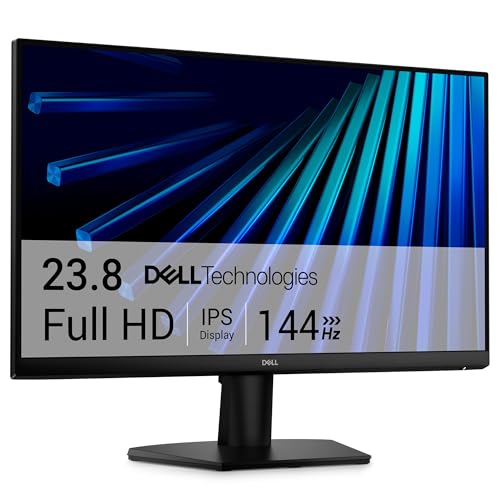
Every buying guide in this class needs one rule-breaker, and Dell’s SE2426H breaks the refresh rule with intent. Behind the same sober SE-series styling as its smaller sibling sits a 23.8-inch IPS panel running at 144Hz with a 1ms response claim and AMD FreeSync support — figures transplanted from gaming monitors into an office-sized chassis. The result is a screen that spends the working day as a spacious document display and the evening as a genuinely capable esports-adjacent panel, without the aggressive styling or curved glass that gaming lines usually impose on a desk.
Size interacts with that brief in two ways. At 23.8 inches the 1080p picture relaxes to roughly 93 pixels per inch, so text is a little softer than on the 21.5-inch picks — most users stop noticing within a day, but proofreaders and spreadsheet auditors working at small font sizes should weigh it. In games, though, the larger canvas plus 144Hz fluidity is all gain, and the IPS panel keeps colours stable when you slump, lean or share the screen. Dual HDMI inputs make the work-laptop-plus-console arrangement painless. TÜV 3-star eye comfort certification rounds out a pick that is, frankly, the one most buyers eyeing this whole category for a mixed-use desk should examine first.
- Size and panel: 23.8-inch IPS, flat
- Resolution and rate: 1920 by 1080 at 144Hz, 1ms response
- Sync: AMD FreeSync supported
- Ports: two HDMI inputs
- Sharpness: about 93 pixels per inch at this size
Strengths
- Refresh rate and response figures no other pick here approaches, in an office-appropriate design.
- Largest workspace in the group for timelines, side-by-side documents and game worlds alike.
- Two HDMI ports simplify a laptop-and-console desk without switch boxes.
Trade-offs
- Lowest pixel density of the six, a real consideration for fine-text specialists.
- Tilt-oriented stand ergonomics trail what the screen’s ambitions deserve.
- Gaming hardware inside means paying for speed that pure office users will never touch.
Best for: mixed-use desks where spreadsheets by day meet fast games by night. Not suited for: buyers who prize the crispest possible text, or offices where the gaming capability is wasted spend.

Acer KB220Q H2bi — Colour-coverage value pick
Acer’s KB220Q H2bi makes its case with a number most office monitors never print: 99% sRGB coverage. On a 21.5-inch 100Hz screen with a 1ms response claim, AdaptiveSync support and both HDMI and VGA inputs, that colour figure lifts the pick from generic desk filler to a legitimate budget option for light creative work — social graphics, product photos for a small shop, school art projects — where staying inside the standard web colour space matters more than exotic gamut width. Acer also fits a VESA mount, an unglamorous detail that decides whether a cheap monitor can grow into an arm-mounted, posture-friendly setup later.
The eye-care column is fully populated too: blue-light filtering and flickerless backlight behaviour for the long-session crowd. What the listing does not trumpet is equally instructive — panel family goes unemphasised in the headline data, and the stand is a tilt affair, so the KB220Q should be bought for its screen and its mount rather than its furniture. Positioned carefully, it is the value engine of this roundup: the sharpest size class, modern refresh, honest colour, legacy port included, and a upgrade path via VESA that several pricier rivals inexplicably skip.
- Size: 21.5-inch, flat
- Resolution and rate: 1920 by 1080 at 100Hz, 1ms response
- Colour: 99% sRGB coverage
- Ports and mount: HDMI, VGA, VESA mountable
- Eye care: blue-light filter and flickerless technology
Strengths
- Published sRGB coverage gives budget creative work a firmer footing than rivals offer.
- VESA compatibility keeps the arm-mounted future open at the lowest commitment level.
- AdaptiveSync support smooths casual gaming without a gaming-monitor price posture.
Trade-offs
- Stand adjustment is minimal out of the box; the mount is the ergonomic story, not the foot.
- Headline listing data is quieter about panel specifics than specification hunters prefer.
- Design and materials aim at value, so it feels workmanlike beside the Samsungs.
Best for: budget-conscious buyers doing light creative work, and anyone planning a VESA arm setup. Not suited for: shoppers who want every panel parameter published, or users needing height adjustment on day one without accessories.
Philips 22E2N1100 — Warranty champion
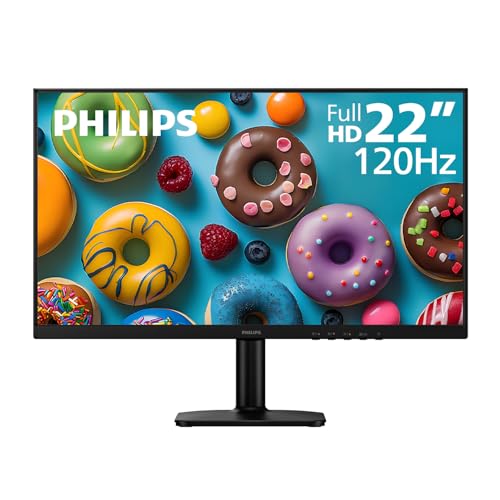
Philips sells the 22E2N1100 with a promise most monitor brands will not match in writing: a four-year advance replacement warranty, under which a faulty unit is replaced without the usual ship-yours-and-wait choreography. For a small business equipping several desks, or a home worker whose income runs through one screen, that support structure can outweigh every other line in this review. The screen earning that backing is a 22-inch IPS panel, flat, at 1080p, specified at 120Hz in overclocked terms with a 1ms MPRT figure and Adaptive Sync, plus HDMI and VGA connectivity.
The overclock wording deserves a plain explanation. The panel’s comfortable native territory sits below that headline figure, and 120Hz is reached by enabling the overclock — a normal, supported practice, but one to verify in the on-screen menu after setup rather than assume. In daily terms the Philips splits the difference between the 100Hz office pack and Dell’s 144Hz outlier: scrolling and casual gaming feel a notch slicker than the standard bearers, colours hold from wide angles as IPS promises, and flicker-free, low-blue-light engineering keeps long days civilised. It is the risk-averse pick in the best sense — modern panel, sensible speed, and a warranty that treats your downtime as the manufacturer’s problem.
- Size and panel: 22-inch IPS, flat
- Resolution and rate: 1920 by 1080, up to 120Hz overclocked, 1ms MPRT
- Sync: Adaptive Sync supported
- Ports: HDMI 1.4 and VGA
- Warranty: four-year advance replacement
Strengths
- Advance replacement cover for four years is the strongest ownership safety net here.
- Refresh headroom above the 100Hz pack gives scrolling and light gaming extra polish.
- IPS consistency plus flicker-free design suits shared, long-hour environments.
Trade-offs
- The 120Hz figure is an overclock setting to engage deliberately, not the out-of-box state.
- MPRT response figures are measured differently from GtG and flatter the panel on paper.
- Port count is adequate rather than generous — no DisplayPort for dock-heavy desks.
Best for: small businesses and home professionals who value uptime and support above spec-sheet drama. Not suited for: buyers needing DisplayPort, or gamers who want native high refresh without an overclock step.

Samsung Essential S3 S33GF (24-inch) — Biggest screen, deepest blacks
Samsung’s Essential S3 in 24-inch form closes the set at the large, cinematic end of compact. The viewable picture is 23.8 inches of flat 1080p at 100Hz, with a 3000:1 contrast ratio signalling the high-contrast panel family behind it — blacks with real weight for film and streaming, and dark-mode interfaces that look designed rather than washed out. Eye Saver Mode and a wide viewing angle round out a specification aimed squarely at the generalist: work in the morning, video in the evening, one screen for both without apology.
Position it against its 22-inch Samsung sibling and the family logic clarifies. The S40GD spends its budget on IPS angle stability and business ergonomics; this S33GF spends its own on size and contrast, accepting the density trade that 23.8 inches at 1080p always carries — around 93 pixels per inch, identical arithmetic to the big Dell. Users who sit a little further back, enlarge interface scaling, or prioritise video will never feel that trade; users hunched close over fine print will. As the largest screen here with the joint-deepest contrast, it is the natural pick for a bedroom desk, a student room, or any single display asked to be television as often as tool.
- Size: 23.8-inch (sold as 24-inch class), flat
- Resolution and rate: 1920 by 1080 at 100Hz
- Contrast: 3000:1
- Features: Eye Saver Mode, wide viewing angle design
- Sharpness: about 93 pixels per inch at this size
Strengths
- Largest canvas in the guide paired with top-tier contrast for film and dark interfaces.
- One-hundred-hertz smoothness keeps everyday navigation feeling modern.
- Samsung’s eye-care tuning suits the screen’s double life as evening entertainment.
Trade-offs
- Text density is the joint-lowest here; close-up document specialists should look smaller.
- Essential-series stands keep adjustments simple rather than comprehensive.
- Contrast advantage fades in bright rooms, where the IPS picks hold their own more evenly.
Best for: generalists wanting one compact screen for work and video, seated at a relaxed distance. Not suited for: fine-print professionals at close range, or buyers needing full ergonomic stands.
How do the six stack up in one view?
| Monitor | Size (actual) | Panel | Rate | Standout figure |
|---|---|---|---|---|
| Dell SE2225HM | 21.5-inch | VA, flat | 100Hz | 3000:1 contrast, three input types |
| Samsung S40GD | 22-inch | IPS, flat | 100Hz | Borderless business design |
| Dell SE2426H | 23.8-inch | IPS, flat | 144Hz | 1ms response with FreeSync |
| Acer KB220Q H2bi | 21.5-inch | Flat, 99% sRGB | 100Hz | VESA mount at value level |
| Philips 22E2N1100 | 22-inch | IPS, flat | 120Hz OC | Four-year advance replacement |
| Samsung S33GF | 23.8-inch | High-contrast, flat | 100Hz | 3000:1 contrast at the largest size |
The table compresses; it cannot capture that the two 21.5-inch screens render visibly finer text than the two 23.8-inch ones despite identical resolution, or that warranty and stand quality — invisible in a spec grid — dominate years two and three of ownership. Use it to shortlist, then read the full review of your finalist.
Why does the same resolution feel sharper on the smaller screens?
Because sharpness is density, not totals. A 1920 by 1080 grid contains about two million pixels wherever it lives, but stretch that grid across 23.8 inches and each pixel grows; compress it into 21.5 and each shrinks. The eye reads the result as edge fineness: at typical desk distance, the roughly 102 PPI of the small picks keeps diagonal lines and small serif type cleaner, while the 93 PPI of the large picks trades that fineness for bigger, more legible elements at default scaling. Neither is a defect — they are the same budget of pixels spent on fineness or on size.
Operating-system scaling mediates the choice. On the larger screens, many users settle at 100% scaling and enjoy the extra workspace; on the smaller ones, some enlarge text to 125%, surrendering workspace to regain the size their eyes prefer, which quietly erases the density advantage. The honest way to decide is to match the screen to your unscaled habits: if you already run small fonts comfortably, the 21.5-inch picks reward you; if you routinely zoom documents, the 23.8-inch picks give you that room natively. Gamers can ignore most of this — rendered scenes hide pixel structure far better than text does, which is one more reason the 144Hz Dell wears its lower density comfortably.
Viewing distance completes the triangle. Density differences that glare at fifty centimetres dissolve at eighty, so a wall-mounted or deep-desk arrangement flatters the big screens, while a shallow dorm desk flatters the small ones. Measure your actual eye-to-screen distance before ordering; it is the cheapest specification you will ever collect, and it discriminates between these six better than any review paragraph can.
How do you set up a compact monitor for all-day comfort?
Begin with geometry. The top of the screen should sit at or slightly below eye level, the panel roughly an arm’s length away, tilted back a few degrees. On the tilt-only stands common in this class, a sturdy book or a purpose-built riser under the foot achieves the height honestly; a VESA arm, where the mount exists, does it elegantly and reclaims the desk beneath. Feet flat, elbows near ninety degrees, and the keyboard directly in front of the screen’s centre — the monitor is one element of a posture system, not a standalone purchase.
Then tune the picture for the room rather than the showroom. Lower brightness until white backgrounds match the ambient light instead of outshining it; most office panels ship far brighter than a home room needs, and excess brightness is a leading, invisible cause of end-of-day eye fatigue. Enable the eye-care or low-blue-light mode for evening hours if your model offers it, set the refresh rate explicitly in your operating system’s display settings — panels in this class are not always running at their full 100Hz or beyond until told — and confirm the cable in the box supports that rate on your port.
Finish with the software layer. Increase text scaling one notch rather than leaning closer, use your system’s night-light schedule after dark, and take the unfashionable advice of looking at something distant every twenty minutes or so. None of the six screens here can compensate for eight unbroken hours of staring; all of them become genuinely comfortable once the setup respects the human attached to them.
What goes wrong most often when people buy in this size class?
Assuming the class number is the measurement ranks first: a “24-inch” monitor is 23.8 inches of picture, a “22-inch” may be 21.5, and buyers who planned a dual-screen pairing around the rounded numbers end up with mismatched heights. Second comes the resolution reflex — expecting 1080p to look identical at every size, then blaming a 23.8-inch panel for softness that is really density arithmetic. Third, shoppers overlook the stand until the neck ache arrives, discovering that tilt-only was a specification they skipped. Fourth, refresh rates go unclaimed because the display cable or the OS setting never enabled them. And fifth, legacy ports get forgotten until the day an old desktop or a presentation laptop needs VGA and the sleek new screen cannot accept it — an error the Dell SE2225HM’s old-fashioned port spread quietly prevents.
Final Recommendation
One last practical note before the verdict: whichever screen you choose, register the purchase, keep the invoice somewhere searchable, and photograph the model and serial label on the back before the desk swallows it. Warranty claims, including the Philips advance-replacement route praised above, move at the speed of that paperwork, and the two minutes spent capturing it are the cheapest insurance in this entire guide.
Match the screen to the seat. One person, text-heavy work, compact desk: the Dell SE2225HM’s dense VA picture or Acer’s colour-honest value cover that brief from two directions. A screen that gets shared or paired: Samsung’s S40GD. A desk that works and plays in equal measure: the SE2426H’s 144Hz makes it the class’s genuine all-rounder, with the Philips as the uptime-first alternative and Samsung’s big S33GF as the film-friendly closer. In a class this mature, there are no bad panels here — only mismatches between a screen’s character and the chair in front of it, and those are entirely avoidable with ten minutes of honest measuring beforehand.
What should you check about ports and docks before ordering?
Port lists look interchangeable until a docking station enters the story. A modern USB-C dock typically offers DisplayPort and HDMI outputs, which flatters the Dell SE2225HM’s three-input spread and the SE2426H’s dual HDMI, while older docks and elderly desktops still lean on VGA — a connector the Dell, Acer and Philips here keep alive and the Samsungs increasingly treat as history. Inventory your actual sources before choosing: work laptop, personal desktop, a console, perhaps a streaming stick. Count them, note their outputs, and only then read the tables in this guide, because the right monitor is the one your existing cables already fit.
There is a second, quieter port question: what happens when two sources share one screen. Dual-HDMI designs like the big Dell make source-switching a button press, which suits a desk where a laptop works all day and a console waits for evening. Single-input value models force cable swapping or an external switch, a small friction that compounds daily. None of these six offers a USB-C display input with power delivery — that feature lives a price class up — so laptop users should expect a separate charger cable on the desk regardless of pick, and anyone for whom a one-cable desk is the dream should budget accordingly rather than discover the gap on delivery day.
Cable quality closes the topic. High refresh rates at 1080p are not demanding by modern standards, but bargain-bin leads of excessive length still cause flicker and dropped signals that get blamed on panels. Keep runs short, use the in-box cable where provided, and treat a display that misbehaves on one computer but not another as a cable-or-port investigation before it becomes a return.
How does a screen from this class behave as a second monitor?
Adding one of these beside a laptop is the most common real-world deployment in the category, and it rewards a little planning. Match heights first: a laptop on a stand beside a 21.5-inch screen aligns more naturally than beside a 23.8-inch one, whose top edge will tower. The borderless Samsung S40GD was practically drawn for this role, and pairing two of them remains the tidiest dual-screen route in the guide. Where sizes must differ, align the bottom edges or the centres — pick one, because a pair aligned at neither produces a cursor that jumps at the border crossing.
Brightness and colour matching come next. Two different panel families side by side — a laptop’s glossy IPS next to a matte VA Dell, say — will never match perfectly, and chasing perfection with calibration settings wastes an afternoon. Get brightness equal at your working level, choose the same colour temperature preset on both, and then assign roles: documents and communication on the companion, colour-sensitive work on whichever screen does it better. Refresh differences are similarly survivable; a 100Hz companion beside a 60Hz laptop panel feels fine once the cursor speeds are set independently.
Finally, give the second screen a job description. The setups that disappoint are the ones where the extra display becomes a permanent home for chat windows and half-watched video while the real work stays cramped on the laptop. Email and reference material on the companion, the document being written on the main screen — that division, boring as it sounds, is where the productivity people report actually comes from, and any of these six is large enough to hold up its half of the bargain.
How long will a monitor in this class stay useful?
Longer than almost anything else on the desk. Panel technology at 1080p is mature and stable, backlights in current LED designs dim slowly over many years, and the interfaces here — HDMI above all — are not facing obsolescence. A screen bought for a compact desk today will plausibly serve through two computer replacements, then retire honourably as a second display, a child’s homework screen or a spare for a home server. That longevity reframes the small price differences inside this class: the cost of the better stand, the longer warranty or the extra port divides across a decade, while the annoyance of the wrong choice compounds across the same period.
It also argues for the Philips warranty being read as a value feature rather than fine print, and for VESA compatibility as future insurance — a screen that can mount on an arm can adapt to desks, rooms and postures its original stand never imagined. Care is minimal but real: dust the panel with a dry microfibre cloth, avoid pressing on the surface, keep brightness below maximum for routine work to spare the backlight, and power the screen from a surge-protected strip alongside the computer it serves. Do those few things and the limiting factor on any of these six will be your ambitions outgrowing 1080p, not the hardware giving up.
Which of these fits your particular job?
Writers, editors and researchers should start at the small, dense end. Your screen life is paragraphs, and the 21.5-inch picks render those paragraphs at the class’s finest pitch while leaving desk room for notebooks and reference books. Between them, the Dell SE2225HM’s contrast flatters long reading in dim rooms and its VGA port forgives ancient office hardware, while the Acer’s colour coverage and VESA mount suit writers who also prepare images for publication. Either will disappear beneath the work, which is the highest compliment a writing tool can earn.
Spreadsheet and data workers face a different tension: columns want width, but cells want density. The 23.8-inch screens show more columns at default scaling, and for many analysts that settles it — Dell’s SE2426H if the desk also games, Samsung’s S33GF if evening video shares the screen. Those who work at small font sizes without complaint, though, often find the 21.5-inch Dell shows nearly as much data, rendered finer, provided the chair sits close. There is no substitute for knowing your own scaling habits; check what percentage your current screen runs at before ordering anything.
Customer-facing and collaborative roles — reception desks, training rooms, retail back offices, family kitchens — should weight the IPS picks. The S40GD’s borderless neatness presents well to the public, its angles serve the colleague or customer beside you, and Samsung’s eye-care tuning respects the reality that these screens glow for entire shifts. The Philips joins it on any shortlist where uptime matters, its advance-replacement warranty converting a hardware failure from a week’s disruption into a delivery.
Students deserve a direct word, because this class is effectively the student monitor class. Dorm desks are shallow, budgets are shared with textbooks, and the screen must handle essays, lectures, films and games in rotation. The honest all-round answers are the SE2426H for those who game seriously and the S33GF for those who stream seriously, with the Acer as the budget route that sacrifices nothing essential. Buy one good screen rather than a larger, older, dimmer cast-off: your eyes are doing a degree’s worth of reading on it.
What do the eye-care features on these screens actually do?
Three distinct technologies hide under the eye-care umbrella, and they are worth separating because marketing blends them. Flicker-free design addresses the backlight: cheaper panels dim by pulsing the light rapidly, and sensitive users perceive the result as strain or headache over hours. The flickerless implementations advertised on picks like the Acer remove that pulsing at ordinary brightness levels. Low-blue-light modes address spectrum instead, shifting the image warmer to reduce the blue component associated with evening alertness and discomfort; Samsung’s Eye Saver Mode and its equivalents across this guide are of this kind, and the trade is a yellowing of whites that colour workers should disable for critical tasks and enable for evening reading.
The third factor is not a feature at all but a setting: brightness matched to the room. A screen glowing at full output in a lamplit study forces your eyes to mediate between two worlds for hours, and no certification fixes that. This is why the Dell SE2426H’s TÜV eye-comfort rating should be read as a floor of good engineering rather than a guarantee — the guarantee only arrives when the user sets brightness sensibly, sits at a sane distance, and takes breaks. Certifications from bodies like TÜV at least confirm the panel’s flicker and blue-light behaviour were measured by someone other than the marketing department, which distinguishes them from unadorned claims elsewhere in the market.
Practically, then: enable the low-blue mode for text and evening use, leave colour work in the standard preset, run brightness as low as remains comfortable, and let the panel’s flicker-free backlight do its silent work underneath. Users who still end days with strained eyes after those steps should look beyond the monitor — to room lighting that does not reflect in the screen, to prescription glasses matched to desk distance, and to the break discipline no manufacturer can sell.
Why has this modest size class outlived every prediction of its death?
Forecasters have buried the small desktop monitor repeatedly — laptops would absorb it, then tablets, then giant ultrawides — yet the 21-to-24-inch class keeps shipping in enormous volume, and the reasons are structural. It is the largest screen that fits the world’s shallow desks, dorm rooms, retail counters and cubicle farms. It is the size at which 1080p tooling is cheapest and most refined, so value concentrates here. And it matches the ergonomics of a single user at arm’s length, which describes the majority of screen work ever done. The six picks in this guide are not leftovers from a grander era; they are the current, considered answer to a permanent set of constraints.
The class has also quietly modernised. A decade ago these were 60Hz TN panels with washed-out angles and VGA-only value models at the bottom. Today’s floor — visible across all six picks — is 100Hz refresh, IPS or quality VA glass, flicker-free backlights, slim bezels and at least a nod to eye health, with outliers like the SE2426H borrowing genuine gaming speed. Buyers returning to the category after years away routinely underestimate how far the baseline has travelled, and end up overspending on size to get quality that this class now includes by default.
Where the class honestly ends is equally clear. It will not give you the immersive wrap of a large curved screen, the pixel density of a small 4K panel, or the one-cable elegance of USB-C docking displays. Those are different products at different prices, solving problems this class was never sized for. Within its remit — one user, one desk, all day — it remains the segment where money converts to daily comfort with the least waste.
Should you consider a refurbished or older model instead?
The second-hand market in this size is deep, because offices refresh fleets of exactly these screens, and a used business monitor can be a rational buy for a spare desk or a child’s room. Go in with checks rather than hope. Ask for a photograph of a plain white screen and a plain black one: the white reveals yellowing and backlight unevenness, the black exposes stuck bright pixels and corner bleed. Confirm the stand and power supply are included — fleet screens are often sold bare — and verify the input you need exists, since older stock may predate HDMI entirely. Price any used screen against the new Acer and Dell picks in this guide, because the gap is frequently small enough that a warranty and a fresh backlight are worth more than the saving.
One category deserves special care: listings for superseded models wearing current model names, or current names with quietly downgraded panels. This segment renames products constantly, which is why this guide verified each model code through product data before writing a word. Apply the same suspicion yourself — search the exact code, including suffixes, and read the manufacturer’s own page for that code before trusting a marketplace summary. Ten minutes of that diligence is the difference between the screen reviewed here and a stranger wearing its name.
One larger screen or two smaller ones — how should a compact desk decide?
Two 22-inch screens deliver more total workspace than one 23.8-inch screen and enforce a tidier mental model: this display for the document, that one for everything supporting it. The bezel between them, once a genuine grievance, has thinned to a few millimetres on designs like the S40GD, and window managers on both major operating systems now snap and remember layouts well enough that the seam rarely intrudes. For writers with reference material, traders with watchlists, support agents with a ticket queue beside a knowledge base — anyone whose work naturally splits into a main stage and a side stage — the pair is the stronger tool, and this class’s pricing makes the pair cheaper than many single larger screens.
The single larger screen wins a different set of arguments. Video, games and anything presented to another person all prefer an unbroken canvas. Desks under a metre wide may physically refuse two stands, though a dual arm changes that calculation where VESA mounts allow. And there is a simplicity dividend: one power lead, one input to configure, one panel to colour-match with itself. Buyers torn between the two arrangements should interrogate their most common hour of work, not their most glamorous one — the layout that serves the ordinary Tuesday is the layout to buy.
A hybrid deserves mention because this class enables it cheaply: keep a laptop as the side stage on a stand, and let one good 23.8-inch monitor be the main stage. That is the arrangement most of these picks will actually live in, and it is why their laptop-companion manners — matching heights, sane brightness range, an HDMI port free — were weighted in the reviews above. Whichever geometry you choose, decide it before ordering stands and arms, because mounting hardware is where compact-desk budgets quietly double back for a second helping.
What should you do during the first week with a new screen?
Treat the first days as an audition with a deadline, because return windows are the buyer’s real warranty against a panel that disappoints. On day one, run the plain-colour checks: full white, full black, full grey. Note any stuck pixels, uneven corners or backlight patches while the exchange process is still painless. Photograph anything questionable with your phone; timestamps help if a support conversation follows, and on a pick like the Philips, the advance-replacement machinery exists precisely so this conversation is short.
Across the week, deliberately vary the workload. Read a long document at your normal font size and notice whether you lean in by evening — leaning is data about density and height, not a personal failing. Watch a dark film scene to judge the VA picks’ contrast or the IPS picks’ glow in your actual room light, not a showroom’s. Play one fast game if you bought with gaming in mind, and confirm the refresh rate the operating system reports matches the number on the box; mismatches are almost always a cable or a setting, and both are fixable inside the window. Share the screen with whoever shares your desk, and ask the only question that matters for the IPS-versus-VA decision in practice: can they read it from where they sit?
By day seven, decide with the evidence in hand. A screen that passed your documents, your film, your game and your neighbour has earned the desk; one that failed a check you care about goes back while going back is easy. This unglamorous routine is worth more than any extended warranty debate, and it converts the anxiety of buying a monitor unseen into a process with a known end.
Frequently Asked Questions
Is 21.5 inches too small for full-time work?
For one document at a time, no — the high pixel density keeps text excellent, and window management habits matter more than the missing inches. It becomes limiting when two full documents must sit side by side at readable size; that workload is the natural territory of the 23.8-inch picks, or of two small screens paired.
Why do all six use 1080p rather than 1440p?
Because at these diagonals and prices, 1440p panels are rare and usually cost enough to change category entirely. The density maths also softens the need: 1080p at 21.5 inches already exceeds 100 PPI, a sharpness level many larger 1440p screens do not reach. If QHD is non-negotiable, shop the 27-inch class instead.
Does 100Hz matter if I never play games?
Yes, modestly but perceptibly. Scrolling documents, dragging windows and simply moving the cursor all render more smoothly, and most people who work a week at 100Hz find 60Hz screens feel sluggish afterwards. It is a quality-of-life feature rather than a productivity multiplier, but at this class’s prices it is effectively standard.
VA or IPS — which should a first-time buyer choose?
Choose IPS if the screen will be viewed from the side, shared, or used for colour-sensitive hobbies; choose VA if you sit centred, watch video in dim rooms, or live in dark-mode interfaces. The two VA picks and the IPS picks in this guide are all competent — the seating pattern, not the spec sheet, should arbitrate.
Can I mount any of these on a monitor arm?
Several explicitly support VESA mounting — the Acer advertises it directly — and most business-class models in this segment include the pattern, but confirm the exact VESA dimension on the listing for your chosen model before ordering an arm. It is a thirty-second check that prevents a very annoying delivery day.
Do these monitors have built-in speakers?
Most business-class screens in this size treat speakers as optional or omit them entirely, and the listings here follow that pattern — check your chosen model’s page if sound from the monitor itself matters to you. In practice, laptop speakers, a small desktop pair or headphones outperform the token speakers fitted to slim office panels, so treat any included audio as a convenience for calls and system sounds rather than a listening solution. Buyers equipping a meeting corner or a child’s desk, where one less device is a genuine virtue, are the exception who should weight the point.
How do I clean and care for the panel?
Power the screen off, let it cool, and wipe with a dry microfibre cloth using light, straight strokes; for stubborn marks, barely dampen the cloth with water and never spray liquid onto the panel itself. Household glass cleaners and paper towels are both banned from this routine — the first can attack anti-glare coatings, the second can scratch them. A minute of this care every few weeks keeps the matte surface doing its anti-reflection work, and it is the whole of the maintenance any of these six will ask of you across years of service.
What cable do I need to get the full refresh rate?
Use the cable supplied in the box first; manufacturers generally include one rated for the panel’s headline rate. If you substitute your own, prefer DisplayPort where available or a certified high-speed HDMI lead, then verify the achieved rate in your operating system’s advanced display settings rather than trusting the connection to negotiate it silently.
Related Guides
Narrowing the search further? The dedicated roundup of best 21 inch monitors zooms into the smallest size alone, while players on compact desks should compare notes with best 22 inch gaming monitors before deciding how much refresh rate they truly need. Audio for a compact desk is shortlisted in the best 100 watt studio monitors, sized for rooms like these. The lag figures behind panels like these are dissected in the best 25 35 inch monitors with lowest display lag.
Related guides
- Best 1440p 165Hz Monitors: One Native 165Hz Pick, Three 180Hz Upgrades, an Overclock Headline and a 160Hz Ultrawide
- Best 13×19 Professional Printers
- Best 3rd Party MacBook Chargers: 96W-Class Alternatives, the 100W Cable Rule, and the Apple Benchmark
- Best Built PC: Six Prebuilt Gaming PCs Judged on Parts, Power and Upgrades



[…] mapping the rest of your desk? Readers comparing screen sizes alongside speakers often start with best 21 24 inch monitors for compact display options, while gamers building a combined setup should look at best 27 gaming […]
[…] spending, it is worth seeing the wider compact field in best 21 24 inch monitors, and anyone tempted by a bigger canvas on a gaming budget should weigh best 27 gaming monitors […]