What's inside
- Key Takeaways
- Quick Picks: 15.6 Inch Touch Screen Laptops at a Glance
- How Were These Picks Chosen?
- HD Touch Versus FHD Touch: The Difference Your Eyes Will Report
- What Touch Can and Cannot Do on a Laptop Hinge
- The Six Touch Screen Laptops, Reviewed in Detail
- How Do the Picks Compare Side by Side?
- Why Are the Spectre x360 and Yoga Discussed Without Links?
- Does Touch Affect Battery Life or Durability in Practice?
- Can You Disable the Touchscreen If You Stop Using It?
- Which Resolution Should a Student Choose for Coursework?
- How Do You Actually Use Touch Across a Normal Day?
- What Should Parents Know About Touch for Younger Users?
- How Does Touch Change Presenting and Teaching?
- What About Pens and Handwriting on These Machines?
- How Do You Clean and Protect a Touchscreen Properly?
- How Should Offices Choose Between the Two Dells and the FHD Pavilion?
- What Does the HD Pair Teach About Reading Listings?
- How Long Will the Touch Layer Stay Relevant to Its Owner?
- What Accessories Make Sense Beside a Touch Laptop?
- How Do Shared Households Negotiate One Touchscreen?
- What Should You Verify in the Delivery Box?
- How Does This Category Sit Beside the Convertible Guides?
- What Is the Second Life of a Touch Laptop?
- Why Does This Guide Refuse to Rank the HD Pair Last by Default?
- Common Mistakes Buyers Make in This Class
- Owning a Touch Screen Laptop Without Illusions
- Final Recommendation
- Frequently Asked Questions
- Related Guides
As an Amazon Associate I earn from qualifying purchases. This post may contain affiliate links at no extra cost to you.
gizmoverdict.com is reader-supported. When you buy through links on our site, we may earn an affiliate commission.
Where to buy: every linked laptop below opens its Amazon listing, where you can read whether its touchscreen is HD or Full HD in the seller’s own title, confirm the memory configuration being sold, and check price on Amazon with the panel’s resolution verified by your own eyes.
The best 15.6 inch touch screen laptops share a feature that sounds simple and behaves complicated, because a touchscreen is not one specification but two: the touch layer itself, and the resolution of the panel underneath it. This guide reviews six Windows laptops at 15.6 inches with touch, and it performs one act of labelling with complete consistency: two of the six wear HD touchscreens at the lower resolution that name implies, while four wear Full HD touchscreens, and every review states which is which in plain language.
That distinction is the guide’s reason to exist. A shopper skimming titles sees the word touchscreen repeated six times and reasonably assumes six equivalent screens, when in fact the HD pair show noticeably less detail, fit fewer rows of a spreadsheet, and belong to a different value conversation than their FHD siblings. Neither pair is fraudulent; both are labelled in their listings for anyone who reads. The reviews below read them for you and then judge each machine inside its own resolution class fairly.
The second honesty concerns what touch means on machines shaped like these. All six are conventional laptops whose hinges stop at laptop angles, so their touch layers serve scrolling, tapping, zooming and signing rather than tablet postures or pen drawing sessions. Buyers who want a screen that folds flat belong in the convertible guides, and two prose-only names, a former HP flagship line and a Lenovo Yoga, mark that neighbouring territory at the end of the rankings.
Key Takeaways
- Two of these six touchscreens are HD rather than Full HD: the HP laptop built on a Ryzen 5 7520U and the HP 2025 Pavilion with a Core i3, and their reviews say so without euphemism.
- The other four picks pair touch with Full HD panels, including both Dell Inspiron models and the stronger HP Pavilion configuration.
- Touch on a conventional laptop hinge is for quick gestures, scrolling and signing, not for tablet mode, and none of these six folds flat.
- Sixteen gigabytes of memory appears across most of the guide, making the HD models’ screens, not their memory, the compromise to weigh.
- One HP configuration includes a year of Office 365 and a storage arrangement split between an internal drive and external capacity, which needs careful reading.
Quick Picks: 15.6 Inch Touch Screen Laptops at a Glance
| Pick | Badge | Why it made the cut |
|---|---|---|
| HP Pavilion 15.6 Inch Touchscreen Laptop with Office 365 1-Year, 16GB RAM, 640GB Storage (512GB External and 128GB SSD), 11Hours Battery Life, Intel C | Bundled starter package | Sixteen gigabytes of memory, a year of Office 365 and a split storage arrangement aimed at buyers who want everything in one box. |
| HP Pavilion 15.6" FHD Touchscreen Laptop Computer, 10-Core Intel Core i5-1334U, 16GB RAM, 512GB SSD, Webcam, Fast Wi-Fi 6, 11 Hours Long Battery Life, | FHD touch family standard | The complete Pavilion formula with a Full HD touchscreen: ten-core i5, sixteen gigabytes and a half-terabyte drive. |
| HP 15.6 inch Laptop, HD Touchscreen Display, AMD Ryzen 5 7520U, 8 GB RAM, 512 GB SSD, AMD Radeon Graphics, Windows 11 Home, Natural Silver, 15-fc0499n | HD touch — capable heart, softer screen | An HD touchscreen over a Ryzen 5 7520U with a half-terabyte drive: the guide’s clearest test of what you value. |
| Dell Inspiron 15 15.6" FHD Touchscreen Laptop, AMD Ryzen 5 7530U Processor (6-Core, up to 4.5GHz), 16GB RAM, 512GB SSD, AMD Radeon Graphics, Lightweig | FHD touch AMD choice | A six-core Ryzen 5 7530U behind a Full HD touchscreen with the full sixteen-gigabyte foundation, in a lightweight-leaning Inspiron. |
| Dell Inspiron 15 Laptop, 15.6" Touchscreen, Intel Core i5-1334U, 16GB/512GB | Inspiron 3000 3530, FHD LED Anti-Glare, for Business & Home, Numeric Key | FHD touch business-home Dell | The Intel Inspiron 3530 formula with FHD anti-glare touch, sixteen gigabytes and a numeric keypad for business and home. |
| HP 2025 Pavilion 15 inch Touchscreen Laptop | 15.6" HD Computer| 16GB RAM | 512GB SSD & 128GB Portable SSD| Intel Core i3-1215U| Wi-Fi 6E| Copilot Rea | HD touch — memory-rich variant | An HD touchscreen with sixteen gigabytes, a Core i3 and a portable SSD companion: generous everywhere except the grid. |
How Were These Picks Chosen?
Eligibility required the touchscreen to be stated in the listing title itself, because touch is exactly the sort of feature that product families apply inconsistently across variants. Each candidate’s panel resolution was then recorded from the same title, producing the guide’s defining split: four Full HD machines and two HD machines, all touch, all 15.6 inches, and none of them interchangeable with the others merely because they share a feature word.
The six were arranged to make the comparison useful rather than to hide the HD pair at the bottom in shame. One HD model carries a capable Ryzen 5 and generous storage, the other carries sixteen gigabytes and a Core i3 with a bundled storage companion, and both will suit buyers whose work is video, browsing and documents at ordinary sizes. The FHD four divide between HP and Dell and between Intel and AMD, giving the sharper-screen shopper a genuine choice rather than a coronation.
The prose-only entries mark the ceiling and the neighbouring category. The HP Spectre x360 15 represents an older premium convertible generation whose name still carries weight in this market, and the Lenovo Yoga 7i at this size represents the fold-flat branch that touch shoppers frequently actually want. Both are discussed so the reader can locate them, and neither is linked or ranked here.
HD Touch Versus FHD Touch: The Difference Your Eyes Will Report
An HD laptop panel at this size means 1366 by 768, the grid this batch’s 1080p guide warned about in its own context, while Full HD means 1920 by 1080. On a 15.6 inch screen the gap is not subtle: text on the HD panel is larger and softer, a spreadsheet surrenders rows and columns, and two windows side by side each get a cramped share. For video, the difference narrows, because films are watched rather than read, and many streams are consumed at sizes where the eye forgives the grid.
The fair conclusion is contextual rather than absolute. An HD touchscreen bought knowingly, for a household whose work is browsing, classes, video and documents at comfortable sizes, can serve happily for years, especially when its memory and storage are generous. An HD touchscreen bought unknowingly, by a reader who pictured Full HD sharpness, becomes a daily small disappointment. The entire purpose of this guide’s labelling is to ensure every buyer here is the first kind.
What Touch Can and Cannot Do on a Laptop Hinge
A conventional laptop hinge opens to a working angle and stops, which defines the touch layer’s honest job description. It excels at the gestures that interrupt keyboard work for a second: scrolling a long page with a thumb, tapping a notification away, pinching a map larger, signing a document, advancing slides during a presentation while standing. These micro-interactions accumulate into a genuine preference, and owners who adopt them rarely return willingly to touchless machines.
What it cannot do is become a tablet. The keyboard remains attached and upright, the screen does not fold flat against it, and extended drawing or note-taking with a pen belongs to the convertible category where the Yoga name in this guide’s prose section lives. Buyers who conflate the two categories end up with a laptop they poke at and a posture they resent, so decide which animal you are actually shopping for before the feature lists blur them together.
The Six Touch Screen Laptops, Reviewed in Detail

HP Pavilion 15.6 Inch Touchscreen Laptop (Office bundle) — Bundled starter package
This Pavilion package is best understood as a starter kit wearing a laptop’s clothes. The listing bundles a year of Office 365 with the machine, provides sixteen gigabytes of memory, and describes its 640 gigabytes of storage as a composition: a 128 gigabyte internal SSD joined by 512 gigabytes of external storage. Read that composition carefully, because a machine whose bulk storage lives outside its chassis asks its owner to keep the external drive connected or carried, a habit some households will love and others will quietly abandon.
The processor sits at the entry end of Intel’s range, as the truncated title indicates, and the honest expectation follows: browsing, documents, school platforms, video and the Office applications bundled with it, handled pleasantly one or two at a time. Sixteen gigabytes of memory is a genuinely generous companion to such a processor, removing the multitasking squeeze that usually accompanies entry silicon, and the touchscreen makes the machine welcoming to the returning or younger users such bundles usually serve.
Its panel should be verified on the listing with the same care as its storage, since this configuration’s selling points are the bundle and the memory rather than display leadership. For the right buyer, a grandparent, a student with set coursework, a household wanting one box that contains the office suite and the machine to run it, the package logic is coherent. Buyers who want their storage internal and their processor muscular should walk further into the guide, where both wishes are granted.
Strengths
- Sixteen gigabytes of memory is generous beside an entry processor
- Bundled year of Office 365 suits students and home offices immediately
- Touchscreen makes the package welcoming for returning users
Trade-offs
- Most of the storage is external, so it must be carried and connected
- Entry Intel processor sets a modest performance ceiling
- Panel and storage details both demand careful listing reading
Key specs
- Display: 15.6 inch Touchscreen — confirm resolution on listing
- Memory: 16GB RAM
- Storage: 640GB as described, 128GB SSD plus 512GB external
- Software named in listing: Office 365, 1-Year
- Processor: entry Intel, see listing title for exact chip
Best for: students and returning users who want the office suite and the machine in one purchase.
Not suited for: buyers who want all storage internal or who need a muscular processor.

HP Pavilion 15.6″ FHD Touchscreen Laptop (Core i5) — FHD touch family standard
This Pavilion is the guide’s reference point for what an FHD touch machine should contain, and its specification leaves nothing to apologise for. A ten-core Core i5-1334U, sixteen gigabytes of memory and a 512 gigabyte SSD stand behind a Full HD touchscreen, with a webcam and Wi-Fi 6 covering the modern essentials. A buyer who stopped reading the guide here and bought this machine would have made a defensible decision, which is the highest compliment a reference point can earn.
The touchscreen on a Full HD panel is the combination the category’s advertising usually implies and its cheaper listings often quietly avoid, so its presence here deserves explicit credit. Text stays sharp under your fingertip, spreadsheets show their full working area, and the gestures this guide described, scrolling, tapping, signing, happen on a screen that does not ask your eyes to subsidise them. This is the machine against which the HD pair below should be measured, and the measurement is not cruel, merely clear.
Its rivals inside the guide are the two Dells, which match its memory and storage while offering their own processor accents, one of them AMD. The Pavilion’s case rests on the completeness of its formula and the familiarity of its line to households that have owned HP machines before. Battery life is promoted in its listing as a strength, and its efficiency-class processor supports that direction qualitatively: this is a machine designed to be used around a home or campus all day, charger visits treated as errands rather than emergencies.
Strengths
- Full HD touchscreen is the category’s complete formula
- Ten-core i5 and sixteen gigabytes cover mainstream work fully
- Webcam and Wi-Fi 6 keep the modern essentials in place
Trade-offs
- Integrated graphics set the usual ceiling for creative acceleration
- Touch glass reflects more than a matte panel in bright rooms
- Mainstream chassis prioritises value over slim elegance
Key specs
- Display: 15.6 inch FHD Touchscreen
- Processor: Intel Core i5-1334U, 10-Core
- Memory: 16GB RAM
- Storage: 512GB SSD
- Connectivity named in listing: Wi-Fi 6, webcam
Best for: families and mainstream buyers who want the FHD touch formula without conditions.
Not suited for: gamers or creators who need dedicated graphics rather than a complete all-rounder.

HP 15.6 inch Laptop (HD Touch, Ryzen 5 7520U) — HD touch — capable heart, softer screen
Here is the guide’s labelling duty in its purest form: this HP’s touchscreen is an HD panel, not a Full HD one, and everything else in this review is written inside that fact. The machine beneath the glass is respectable, a Ryzen 5 7520U with Radeon graphics, eight gigabytes of memory and a 512 gigabyte SSD in a Natural Silver chassis running Windows 11 Home. Nothing about that specification is a toy. The question it poses is purely whether its screen’s resolution matches the life you intend to live on it.
For a video-first household, the answer can genuinely be yes. Films, classes, video calls and browsing at comfortable sizes look fine on an HD panel, the larger text can even suit readers who prefer it, and the half-terabyte drive is more generous than several sharper machines manage. A buyer purchasing for a parent, a younger student or a shared living-room laptop may rationally choose this machine’s storage and price position over a rival’s pixels.
For a text-first worker, the answer tilts the other way, because documents, spreadsheets and code are exactly the content that exposes a lower grid across an eight-hour day. That buyer should climb to the FHD Pavilion above or the Dells below and treat the difference as an eye-comfort purchase. Neither verdict insults this HP; both honour it by judging it as what it is, an HD touch machine with a capable heart, bought best by someone who has read this paragraph.
Strengths
- Ryzen 5 7520U and Radeon graphics are capable mainstream hardware
- 512GB SSD is generous storage for its position in the guide
- Larger HD text can suit readers who prefer bigger interface elements
Trade-offs
- HD panel shows visibly less detail than the FHD picks here
- Eight gigabytes of memory is the smaller allowance in this guide
- Spreadsheets and documents fit fewer rows and columns on screen
Key specs
- Display: 15.6 inch HD Touchscreen — not Full HD
- Processor: AMD Ryzen 5 7520U
- Graphics: AMD Radeon Graphics
- Memory: 8GB RAM
- Storage: 512GB SSD
Best for: video-first households and readers who prefer large text over maximum detail.
Not suited for: text-heavy workers who read, code or spreadsheet at length every day.
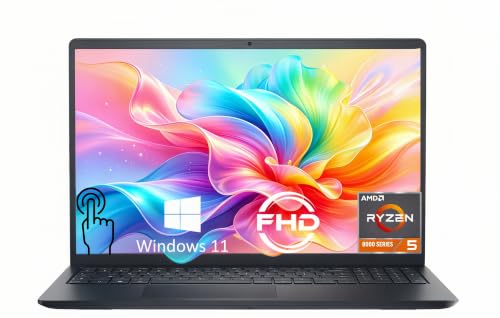
Dell Inspiron 15 (FHD Touch, Ryzen 5 7530U) — FHD touch AMD choice
Dell’s AMD-flavoured Inspiron is the FHD touch machine for buyers who prefer their silicon from the other maker, and it is specified without asterisks: a Ryzen 5 7530U six-core processor, sixteen gigabytes of memory, a 512 gigabyte drive and Radeon graphics behind a Full HD touchscreen. The listing’s emphasis on light weight matters at this size, because a 15.6 inch machine that travels between rooms and buildings daily earns gratitude for every gram its designers saved.
The 7530U’s character suits the machine’s brief well. It is a proven efficiency-minded processor that handles the mainstream mixture, calls, documents, browsing, light creative work, with sustained calm rather than brief fireworks, and its pairing with generous memory means the multitasking ceiling sits where it should: beyond the ordinary day. The touchscreen completes a specification that reads as though Dell simply refused to cut any corner its mainstream buyers would notice.
Against the guide’s other Dell, which runs a Core i5, the choice is the familiar maker preference plus whatever the day’s configurations offer; against the FHD Pavilion, it is a contest of brand ecosystems and small details. What is not contested is this machine’s membership in the guide’s sharper half, a fact worth repeating in a category where a careless shopper can so easily land in the other one. AMD loyalists, your FHD touch pick is here and it needs no apology.
Strengths
- Full HD touchscreen over a complete mainstream specification
- Six-core Ryzen 5 delivers calm, sustained everyday performance
- Lightweight emphasis suits a machine carried between rooms and sites
Trade-offs
- Radeon integrated graphics remain the ceiling for demanding work
- No feature here dramatically separates it from its Intel Dell sibling
- Touch glass needs the usual care against reflections and prints
Key specs
- Display: 15.6 inch FHD Touchscreen
- Processor: AMD Ryzen 5 7530U, 6-Core
- Graphics: AMD Radeon Graphics
- Memory: 16GB RAM
- Storage: 512GB SSD
Best for: AMD-preferring buyers who want FHD touch with no specification asterisks.
Not suited for: buyers seeking a dramatic distinguishing feature rather than complete competence.

Dell Inspiron 15 Laptop (FHD Touch, Core i5) — FHD touch business-home Dell
The second Dell in this guide is the Inspiron 3000 3530 in its business-and-home dress, and its title contains a pairing worth pausing on: an FHD touchscreen described as anti-glare. Touch panels are usually glossy by nature, so a listing that claims glare resistance alongside touch is speaking directly to the office buyer who works under ceiling lights and beside windows. Confirm the finish on the listing when you order, and value it if your rooms are bright, because legibility under real lighting is a daily quality that resolution figures cannot capture.
The rest of the configuration mirrors the guide’s FHD standard: a Core i5-1334U, sixteen gigabytes, a 512 gigabyte drive and the numeric keypad that the listing names, a detail spreadsheet users will register immediately. As the 3530 family also appears elsewhere in this batch in other configurations, the by-now familiar discipline applies: this review describes this listing, with touch and FHD stated, and the title at checkout should say the same before money moves.
Choose this Dell over its AMD sibling when Intel familiarity, the anti-glare claim or the keypad arrangement decides it, and over the Pavilion when Dell’s service ecosystem or styling is your household’s incumbent. It is the office-minded member of the FHD four, the one most clearly imagining a desk, a spreadsheet and a presentation in rotation, and its specification supports that imagination without excess.
Strengths
- FHD touchscreen with anti-glare positioning for bright offices
- Numeric keypad serves spreadsheet and figures work daily
- Sixteen gigabytes and 512GB match the guide’s FHD standard
Trade-offs
- Anti-glare touch finish should be confirmed on the listing at order
- Integrated graphics cap gaming and heavy creative ambitions
- Business-home styling is sober beside consumer designs
Key specs
- Display: 15.6 inch Touchscreen, FHD LED Anti-Glare
- Processor: Intel Core i5-1334U
- Memory: 16GB
- Storage: 512GB
- Features named in listing: numeric keypad, business and home positioning
Best for: office and home-office buyers in bright rooms who live in spreadsheets.
Not suited for: gamers, or buyers in dim rooms indifferent to glare and keypads.

HP 2025 Pavilion 15 inch Touchscreen Laptop (HD) — HD touch — memory-rich variant
The second HD machine in this guide makes the labelling duty interesting, because almost everything except its panel argues upward. Sixteen gigabytes of memory is the guide’s full allowance, the Core i3-1215U is a capable mainstream processor, Wi-Fi 6E is the newest wireless standard named anywhere in this six, and the storage pairs a 512 gigabyte SSD with a 128 gigabyte portable SSD companion. Then the title says HD, and the review must say it too, in the same breath and without flinching.
The portable SSD deserves the same careful reading as the bundled HP’s external storage earlier. Capacity that travels separately is genuinely useful, as a backup vessel, a media shuttle between machines, a project drive handed to a collaborator, provided the owner builds the habit of using it as such. A buyer who imagines 640 gigabytes of seamless internal room will be disappointed by the logistics; a buyer who wanted a portable drive anyway receives two products in one decision.
So the verdict mirrors its HD sibling with different weights. Video-first and browsing-first households get a memory-rich, well-connected machine whose screen will not trouble them; text-first workers should note that the FHD machines above offer the same memory with the sharper grid this one foregoes. The Copilot language in its title is the era’s branding rather than a hardware distinction, and the machine is best judged, as this review has judged it, on the honest trio of its processor, its memory and its plainly labelled HD touch panel.
Strengths
- Sixteen gigabytes of memory matches the guide’s best allowance
- Wi-Fi 6E is the newest wireless standard named in this six
- Portable SSD companion adds flexible backup and shuttle capacity
Trade-offs
- HD touchscreen is visibly softer than the FHD picks for text
- Part of the storage is portable rather than internal
- Core i3 sits below the i5 machines for demanding multitasking
Key specs
- Display: 15.6 inch HD Touchscreen — not Full HD
- Processor: Intel Core i3-1215U
- Memory: 16GB RAM
- Storage: 512GB SSD plus 128GB Portable SSD
- Connectivity named in listing: Wi-Fi 6E
Best for: connected households that value memory and flexible storage over panel sharpness.
Not suited for: text-heavy professionals who should choose an FHD panel at the same memory level.
How Do the Picks Compare Side by Side?
| Model | Display | Processor | Memory and storage | Character |
|---|---|---|---|---|
| HP Pavilion bundle (B0HDLL8RC6) | 15.6 inch Touchscreen, verify grid | Entry Intel | 16GB / 128GB SSD + 512GB external | Office-bundled starter package |
| HP Pavilion FHD Touch (B0FD1TGSQL) | 15.6 inch FHD Touchscreen | Intel Core i5-1334U | 16GB / 512GB | Complete FHD family standard |
| HP 15.6 HD Touch (B0DWPKQ3LH) | 15.6 inch HD Touchscreen | AMD Ryzen 5 7520U | 8GB / 512GB | HD screen, capable heart |
| Dell Inspiron 15 AMD (B0HB46GQ9Y) | 15.6 inch FHD Touchscreen | AMD Ryzen 5 7530U | 16GB / 512GB | FHD touch AMD choice |
| Dell Inspiron 15 Intel (B0G4D8FWZC) | 15.6 inch FHD Touch, anti-glare | Intel Core i5-1334U | 16GB / 512GB | Office-minded FHD Dell |
| HP 2025 Pavilion HD (B0F294C2VT) | 15.6 inch HD Touchscreen | Intel Core i3-1215U | 16GB / 512GB + 128GB portable | HD screen, memory-rich |
Why Are the Spectre x360 and Yoga Discussed Without Links?
Because they answer the question behind this category rather than the category itself. The HP Spectre x360 at this size belongs to an older premium convertible generation, admired and largely historical, while the Lenovo Yoga line at fifteen inches represents the fold-flat branch that many touch shoppers are picturing when they search. Neither has a clean listing in this guide’s pool, so both are signposted in prose, honestly, instead of being attached to links they did not earn.
Their presence clarifies the six ranked machines by contrast. If reading about the Yoga’s folding hinge produces a pang of recognition, your true category is the convertible one and the neighbouring guides await. If the ranked six look like exactly the tool you imagined, a laptop you occasionally poke, then the signposts have done their work and you can choose among the FHD four and the HD pair with confidence.
Does Touch Affect Battery Life or Durability in Practice?
The touch layer draws a small amount of power and adds a glass surface that collects fingerprints, and both effects are real without being decisive in this class. Owners notice the wiping more than the watts. Durability follows the same pattern: a touchscreen is not fragile by category, but it rewards a sleeve in the bag and a household rule against stacking books on a closed lid, courtesies that any laptop appreciates.
The more meaningful battery variable is the workload itself, and here the HD pair hold a small structural advantage, because fewer pixels ask less of the graphics hardware during video and browsing. It does not rescue them in a text worker’s eyes, but it belongs in a fair account: the softer screens sip slightly less while showing slightly less, which is the sort of trade this entire category is built from.
Can You Disable the Touchscreen If You Stop Using It?
Yes, Windows allows the touch layer to be switched off in its settings, which makes the feature unusually forgiving as purchases go. A buyer uncertain about touch can choose one of these machines, live with the gestures for a month, and retire the layer without penalty if it never becomes a habit, keeping the panel, processor and storage they actually paid the serious money for.
In practice, few owners disable it entirely. The common pattern is selective adoption: scrolling and zooming by finger, typing and precision work by keyboard and mouse, with each input used where it is strongest. That hybrid fluency is the real product being sold in this category, and it explains why touch has spread across the mainstream even though no single gesture justifies it alone.
Which Resolution Should a Student Choose for Coursework?
Coursework is text wearing many costumes: readings, slides, documents, research tabs and the occasional video lecture. That mixture argues for Full HD for most students, because the reading hours dominate and the sharper grid shows more of every document at comfortable sizes. The FHD Pavilion and the two Dells are the guide’s student-shaped answers, with the memory to survive a browser full of sources during essay week.
The HD pair enter the student conversation only when the budget is firm and the course is video-led or the student reads mostly printed and presented material. Even then, the decision should be made with the panel’s identity spoken aloud, HD, not Full HD, so that the first seminar’s spreadsheet does not deliver the news. An informed compromise is a strategy; an uninformed one is a surprise.
How Do You Actually Use Touch Across a Normal Day?
Morning begins at the kitchen counter, where the machine is opened one-handed and the news is scrolled with a thumb while coffee occupies the other hand, and this small scene is where touch earns its keep most honestly. No dramatic transformation occurs; a dozen tiny frictions simply fail to happen. The touchpad remains better for precision, the keyboard for text, and the finger for everything that is basically turning a page.
By the working afternoon the pattern has sorted itself by application. Documents are read and annotated by touch during review, then edited by keyboard during revision; presentations are advanced by fingertip while standing; maps and photographs are pinched and swiped because direct manipulation is how humans prefer to handle pictures. Owners rarely describe themselves as touch users. They describe a laptop that stopped interrupting them, which is the feature’s mature form.
What Should Parents Know About Touch for Younger Users?
Children treat every screen as touchable because the screens of their lives mostly are, and a touch laptop ends the small daily friction of a child poking a display that cannot respond. For homework platforms, reading applications and creative play, the layer is not a luxury but the expected grammar of interaction. The HD pair’s larger interface elements can even suit younger eyes and less precise fingers during those years.
The parental counterweights are hygiene and hardware. Shared touchscreens collect the evidence of every snack, so a microfibre cloth should live where the laptop lives, and household rules about clean hands before homework are easier to enforce at the start than to retrofit. None of this is a reason to avoid the category; it is the operating manual for a feature that families, once accustomed, tend to defend fiercely.
How Does Touch Change Presenting and Teaching?
A teacher or presenter standing beside a 15.6 inch touchscreen occupies a different relationship with the material than one tethered to a touchpad. Advancing a slide, circling a figure, zooming into a map’s detail all happen at the screen itself, facing the audience, in the posture of someone discussing a poster rather than operating a machine. For classrooms, training sessions and market stalls, that posture is worth real money in attention.
The FHD machines serve this role best, because presented text and figures stay legible to viewers standing a few feet away, while the HD pair remain serviceable for video-led material. Buyers whose living involves showing things to other people should rank the touchscreen not as a personal convenience but as professional equipment, and choose the panel accordingly.
What About Pens and Handwriting on These Machines?
Honesty requires a short paragraph here, because touch invites the assumption of pen support, and a finger-touch panel is not automatically a pen instrument. These conventional laptops are designed around fingertip gestures, and any stylus use they tolerate is the capacitive, finger-substitute kind rather than the pressure-sensitive drawing experience of a true convertible with an active pen. Artists and devoted handwritten note-takers should shop the convertible and drawing categories, where that technology is the headline rather than a hope.
What these machines do offer the handwriting-minded is the on-screen keyboard and simple annotation: signing forms, marking up a screenshot, circling a paragraph during review. Those tasks are common, genuinely useful and fully supported by the touch layers reviewed here. The category error to avoid is buying a signature tool and expecting a sketchbook, which is a disappointment of expectation rather than of engineering.
How Do You Clean and Protect a Touchscreen Properly?
A touchscreen is cleaned more often than any other laptop surface, so the method matters: a soft microfibre cloth, dry for fingerprints or barely dampened for stubborn marks, with sprays applied to the cloth rather than the panel and household glass cleaners left under the sink where they belong. Ninety seconds a week keeps the glass optically honest and the gestures reliable, because a filmed screen reads touches less crisply.
Protection is mostly about pressure and company. A sleeve separates the lid from chargers and keys in a bag, a desk habit keeps mugs and stacked books off the closed machine, and younger users learn that the screen is tapped, never poked with whatever they are holding. These courtesies are cheap, and across a class of machines whose defining feature is a surface, they are the difference between a screen that ages gracefully and one that tells stories.
How Should Offices Choose Between the Two Dells and the FHD Pavilion?
Offices buy ecosystems as much as machines, and the honest arbiters are incumbent chargers, docks, service relationships and the staff’s existing habits. Between the two Dells, the AMD model suits buyers content with complete competence, while the Intel 3530’s anti-glare positioning and numeric keypad speak to figures-heavy rooms under bright lights. The Pavilion counters with the guide’s most familiar family formula and a specification with no conditions attached.
A small fleet trial settles what paper cannot: one of each on real desks for a week, loaded with the office’s actual documents and calls. The machines are close enough in capability that ergonomics and preference legitimately decide, and an office that runs the trial will also discover its own touch adoption rate, which informs whether the feature deserves its place in the next order as well.
What Does the HD Pair Teach About Reading Listings?
These two HP machines are the batch’s standing lesson in specification literacy, because everything about their listings is honest and everything depends on the reader. HD is written plainly; so are the generous memory, the capable processors and the storage arrangements that make both machines tempting. A shopper trained to read only for good news will misread them as FHD bargains, while a shopper who reads the whole title gets exactly the machine described.
The transferable habit is to read a title as a contract with two columns, gifts and terms, and to refuse to sign until both columns have been read aloud. Apply that habit beyond this guide and it will protect purchases in categories this site has not covered yet. The HD pair, fairly judged, are not traps; they are examinations, and the reader now knows how to pass them.
How Long Will the Touch Layer Stay Relevant to Its Owner?
Touch adoption follows a curve that owners rarely predict. The first week brings novelty poking, the first month brings selective habits, and by the first season the gestures that survived have become invisible infrastructure, missed only when a borrowed touchless machine refuses them. The layer’s relevance therefore tends to grow into ownership rather than fade from it, which distinguishes it from many headline features whose value peaks at unboxing.
The panel beneath the layer follows the opposite rule: its resolution is felt at full force on the first day and at the same force on the thousandth, which is why this guide weighs the grid more heavily than the gesture. Choose the touch for the habits you will build; choose the resolution for the eyes you already have. A buyer who makes both choices deliberately has understood the category completely.
What Accessories Make Sense Beside a Touch Laptop?
The worthwhile list is short and mostly protective: a sleeve sized for the machine, a microfibre cloth in every room the laptop frequents, and a stand for desk hours that raises the screen to an honest height. A capacitive stylus can serve for signatures and coarse annotation if your work involves them, bought with the modest expectations the pen paragraph above described.
What does not make sense is spending convertible money around a conventional machine, cases and pens and docks purchased to approximate a folding laptop, when the honest route was to buy the folding laptop. Accessories should complete the machine you chose, not apologise for it, and the six here need little completing beyond protection and a clean cloth.
How Do Shared Households Negotiate One Touchscreen?
A shared touchscreen accumulates fingerprints and preferences in equal measure, and the households that thrive with one treat both as manageable. Separate accounts keep desktops and documents civil, a cloth by the machine keeps the glass honest, and the touchscreen itself reduces conflict by making the laptop approachable to the family member least inclined to learn a touchpad’s subtleties.
The HD pair have a particular shared-household case, because their larger interface elements and video-friendly panels suit the living-room duties that shared machines actually perform, while the FHD four serve the household whose shared machine also carries someone’s serious work. The distinction is not status but assignment, and households that assign honestly rarely regret the machine they chose.
What Should You Verify in the Delivery Box?
Unbox with the listing open beside you. Confirm the touchscreen responds across the panel, check the resolution in display settings and compare it against the title you ordered, FHD or HD as the case may be, and inventory any bundled companions, the external or portable drives and the office subscription details, while the return window is at its widest.
Then set the machine up as its category deserves: accounts created, updates run, backup arranged, and a cloth placed where the laptop will live. Ten minutes of verification and an hour of setup convert a purchase into an appliance, and the touchscreen you chose will start accumulating the small daily gratitudes that this guide has been describing since its first page.
How Does This Category Sit Beside the Convertible Guides?
The convertible category, represented in this batch by guides to fourteen-inch convertibles and two-in-one machines generally, sells the hinge as the headline: screens that rotate, fold and accept pens as primary instruments. This category sells the hinge’s opposite, a fixed laptop posture with a responsive surface, and for many buyers that restraint is the virtue, because convertibles charge for their flexibility in money, weight and complexity.
Neither category is the other’s failure. They are answers to two postures of work, the desk-and-sofa posture and the tablet-and-desk posture, and a buyer’s body usually knows which one it lives in before the specifications are consulted. Let the posture choose the category and the panel choose the machine, and the touchscreen market becomes refreshingly easy to navigate.
What Is the Second Life of a Touch Laptop?
Retired touch laptops make unusually good second-career machines, because the layer that served gestures at a desk serves them even better in a kitchen, a workshop or a child’s homework corner, where a mouse is impractical and a recipe, a tutorial or a video call needs a fingertip’s directness. A machine bought with generous memory, as most of this six is, carries enough capability into that second career to be genuinely useful rather than ceremonially kept.
That longevity belongs in the first purchase’s arithmetic. The FHD four in particular have the panel, memory and storage to remain welcome for years beyond their first assignment, while the HD pair’s second lives lean naturally toward video and browsing stations. Buy the machine whose retirement you can already picture, and you have bought two machines for the price of one decision.
Why Does This Guide Refuse to Rank the HD Pair Last by Default?
Because ranking is a claim about value, and value in this category is workload-shaped. An HD touchscreen over a Ryzen 5 with a half-terabyte drive is the right machine for a real and numerous class of households, and burying it beneath an FHD machine with a starved drive or memory would teach the wrong lesson. The guide instead labels relentlessly and lets each reader’s work promote the machine that fits it.
That editorial choice is also a defence of the reader. Rankings that hide their assumptions manufacture regret, while labelling that exposes them manufactures judgement. If this guide leaves you unable to buy the wrong touchscreen by accident, yet entirely free to buy an HD one on purpose, it has done the whole of its job.
Common Mistakes Buyers Make in This Class
Reading touchscreen as a resolution. Touch describes an input layer, not a pixel count, and this guide contains HD and FHD panels wearing the same feature word. Check the grid separately, every time, in the title’s own numbers or letters.
Expecting a laptop hinge to behave like a convertible. None of these six folds flat or detaches, so pen drawing marathons and tablet postures belong to another category. Buy the hinge that matches the posture you actually want.
Counting external or portable storage as internal room. Two configurations here split their capacity between the chassis and a companion drive. That can be useful, but only for owners who will actually carry and connect the companion.
Letting a bundle distract from the panel. An included office suite year is valuable, and it is also temporary, while the screen is permanent. Weigh the lasting components first and let bundles break ties rather than make decisions.
Assuming all touchscreens feel the same. Gloss, glare treatment and panel quality vary across this six, and the anti-glare Dell exists because bright rooms expose those differences daily. Match the finish to your lighting, not just the feature to your list.
Owning a Touch Screen Laptop Without Illusions
There is a moment, a few weeks into owning a touchscreen laptop, when you sit at somebody else’s ordinary machine and tap its unresponsive screen in front of witnesses. The embarrassment is the feature’s certificate of adoption: the gesture has become reflex, and reflexes are the truest reviews any interface ever receives. Every machine in this guide is capable of earning that reflex; the only question the reviews had to answer was what your eyes receive while your finger learns.
Keep the resolution labelling habit this guide practised, because it generalises to every specification that shares a word across unequal things. Batteries, webcams, keyboards and wireless standards all hide similar spreads behind similar names, and the reader who learned to ask which touchscreen, HD or FHD, has learned to ask the only question that matters in a specification: which one, exactly, is in this box?
For the buyer still torn between the two camps, a tiebreaker borrowed from opticians may help: you will look at the panel for effectively every minute of the machine’s life, while you will touch it for a small fraction of them. Fund the sense that never rests. That arithmetic promotes the FHD four for most readers, while leaving the HD pair honourably available to the households whose minutes are mostly video.
And when the machine is chosen, spend its first evening the way its category invites: on the sofa, lid open, scrolling something long and interesting with a thumb, while the keyboard waits for tomorrow’s serious work. A touchscreen laptop is a small reconciliation between the phone’s directness and the computer’s capability, and the six here, labelled honestly and chosen deliberately, deliver that reconciliation at two resolutions and several temperaments.
Consider, when the choice narrows to two machines, which mistake you would rather risk: a screen slightly softer than your ambitions, discovered daily, or a budget stretched slightly further than planned, discovered once. Most owners answer that question the same way once it is phrased honestly, and the phrasing, rather than any specification, is what a guide like this one is really for.
There is also the matter of the room the laptop will live in, which no listing can see. Bright kitchens forgive nothing on a glossy panel, dim studies forgive everything, and shared sofas forgive fingerprints least of all. Walk the machine’s future rooms in your mind before ordering, and the finish and resolution choices will often make themselves.
One final courtesy belongs to the next person who uses your machine, because a touchscreen is a shared surface in a literal sense. Wipe it before you hand it over, the way you would clear a desk, and the small ritual will say more about your ownership than any specification you chose. Machines remember how they were treated, and touchscreens, uniquely, show it.
Final Recommendation
Choose the grid before the gesture. The FHD four, HP’s complete Pavilion and Dell’s AMD and Intel Inspirons, serve text, spreadsheets and long reading days with touch as a genuine convenience, while the HD pair serve video-first households honestly at their own resolution, one with a capable Ryzen heart and one with memory and connectivity in abundance. The bundled HP package stands apart as a starter kit whose external storage and office year suit a defined buyer precisely.
Buy a touchscreen the way this guide labelled them, with the resolution spoken aloud and the hinge’s limits understood, and the layer will become what it should be: not a headline you paid for once, but a reflex you use daily without thinking, on a screen your eyes never had to forgive.
Frequently Asked Questions
Are all six of these touchscreens Full HD?
No, and the guide labels the split in every review. Four are Full HD: the stronger HP Pavilion and both Dell Inspiron models among them. Two are HD: the HP built on the Ryzen 5 7520U and the HP 2025 Pavilion with the Core i3, both capable machines whose panels show less detail by design.
Can I draw or take handwritten notes on these laptops?
Only in the limited sense of fingertip gestures and simple annotation or signatures. These are conventional laptops, not convertibles with active pen systems, so serious drawing and handwriting belong to the two-in-one category, where the Yoga-style machines discussed in prose in this guide live.
Does a touchscreen make a laptop more fragile?
Not by category, though the glass surface rewards ordinary courtesies: a sleeve in the bag, no weight stacked on the closed lid, and cleaning with a microfibre cloth rather than household sprays. Treated that way, a touch panel ages no worse than any other part of the machine.
Which pick is best for a student who reads all day?
An FHD model, because coursework is mostly text and the sharper grid shows more of it at comfortable sizes. The FHD Pavilion is the guide’s most complete student answer, with the two Dells close behind for buyers who prefer their ecosystems or, in one case, an anti-glare finish for bright libraries.
Why do two configurations include storage outside the laptop?
One HP bundle pairs a modest internal SSD with larger external storage and an office subscription, and the 2025 Pavilion adds a portable SSD companion. Both arrangements can be useful for backups and shuttling files, provided the buyer understands that the capacity travels separately rather than living inside the chassis.
Is touch useful if I mostly work at a desk with a mouse?
Less so, and this guide says so plainly. Desk-bound mouse users may rarely touch the glass, though most still adopt scrolling and zooming gestures during reading. If your machine will never leave one desk, a non-touch model from the general 15.6 inch guide may serve you equally and simpler.
Related Guides
Touch is one axis among several, so test it against the neighbouring guides before you commit, especially if your budget or your screen-size thinking is still in motion, beginning with the best 15.6 inch laptops, the best 2 and 1 laptops and the best 14 inch convertible laptops. The resolution floor beneath this class is compared in the best 1080p laptops.
Related guides
- Best 4K UHD HDR HDMI Extenders: 4K60, Long-Run and 4K120 Kits Compared
- Best 25–35 Inch Monitors With Lowest Display Lag: An Honest Ranking Without Invented Numbers
- Best Enterprise SATA SSDs: Endurance Classes, Power-Loss Protection and Fleet Sense
- Best Color Product Label Printers: Six Desktop Machines for Short-Run Product Labels


