What's inside
- Key Takeaways
- Quick Picks: 1080p Laptops at a Glance
- How Were These Picks Chosen?
- Why Does 1920 by 1080 Still Make Sense in a World of Sharper Screens?
- Touch or No Touch at the Same Resolution?
- The Six 1080p Laptops, Reviewed in Detail
- How Do the Picks Compare Side by Side?
- Is 8GB of Memory Enough on a 1080p Laptop in 2026?
- Why Do Chromebooks and MacBooks Get Only a Mention Here?
- How Can You Verify a Listing Is Truly 1080p Before Ordering?
- Does a Touchscreen Change Battery Behaviour or Screen Care?
- How Do Keyboards, Touchpads and Webcams Differ at This Level?
- What About Ports and Working With an External Monitor?
- How Should Families Share One of These Machines?
- What Does Ownership Cost Beyond the Purchase Itself?
- What Battery Behaviour Should You Realistically Expect?
- Which Buyers Should Walk Past This Whole Class?
- How Do Colour and Brightness Vary Between These Panels?
- How Does a 1080p Laptop Handle Photo and Video Hobby Work?
- What Should Students in Particular Take From This Guide?
- How Do You Keep a Mainstream Laptop Feeling Fast for Years?
- Common Mistakes Buyers Make in This Class
- What Does a Week of Mixed Work Feel Like on a 1080p Panel?
- Final Recommendation
- Frequently Asked Questions
- Related Guides
As an Amazon Associate I earn from qualifying purchases. This post may contain affiliate links at no extra cost to you.
gizmoverdict.com is reader-supported. When you buy through links on our site, we may earn an affiliate commission.
Where to buy: every laptop below with a link leads to its Amazon listing, where you can confirm the panel resolution in the product title, check which memory configuration is actually being sold that week, and check price on Amazon before you commit to anything.
The best 1080p laptops are not the flashiest machines in any catalogue, and that is precisely their appeal: a 1920 by 1080 screen asks modest things of a battery, pairs comfortably with integrated graphics, and leaves budget room for the memory and storage that decide how a computer feels in its third year. This guide gathers six Windows laptops whose listings state that Full HD resolution outright, because the single most expensive misunderstanding in this corner of the market is a shopper reading the word HD on a box and picturing a sharpness the panel never had.
That trap deserves naming early. Plain HD on a laptop screen almost always means 1366 by 768, a resolution carried over from an era of smaller displays, and on a 15.6 inch panel it spreads each pixel across enough glass that text edges look soft and spreadsheets surrender rows you expected to see. Every machine reviewed here is a genuine 1920 by 1080 design according to its own listing title, so the comparison that follows is about processors, memory, touch support and build priorities rather than about rescuing you from a resolution bait and switch.
Within those six, the personalities differ more than the shared resolution suggests. Two machines carry touchscreens layered over the same pixel count, two chase value with newer entry-level Intel silicon, one leans into a larger solid-state drive for people whose photo libraries travel with them, and one Acer pairs a Core i7 with Iris Xe graphics for buyers who want the strongest integrated setup in the group without leaving the class. Reading the reviews with your own dominant workload in mind will sort them faster than any ranking could.
Key Takeaways
- A screen advertised simply as HD is usually 1366 by 768, which is a different and visibly coarser thing than the 1920 by 1080 panels specified for all six picks here.
- Touch support is the dividing line inside this group: the Acer Aspire 5 and the Dell Inspiron 15 3530 offer it, while their near relatives in other guides may not, so verify the exact variant.
- Sixteen gigabytes of memory appears on four of these six machines and is the configuration worth favouring for anyone who keeps dozens of browser tabs alive.
- Integrated graphics handle documents, streaming and light photo work comfortably at this resolution, but none of these laptops pretends to be a gaming rig.
- Storage separates the patient from the frustrated within a year, which is why the one-terabyte Dell deserves attention from media hoarders.
Quick Picks: 1080p Laptops at a Glance
How Were These Picks Chosen?
Selection began with a hard filter rather than a brand shortlist: the listing title itself had to state Full HD, 1920 by 1080, or FHD in a way that unambiguously described the panel, and anything whose resolution could only be inferred from a series name was set aside. That rule sounds fussy until you remember how many product families sell the same chassis with two different screens, and how rarely the cheaper panel is the one photographed.
From the survivors, the six were balanced across the ways people actually buy in this class: a touch option and a non-touch option from the big mainstream lines, a large-storage configuration, a current-generation entry model, and a compact-budget Acer built around a newer low-power chip with modest flash storage. Prices were deliberately ignored as a ranking signal, since they drift weekly; the ordering below follows fitness for distinct jobs instead of a snapshot of discounts.
Two familiar names were intentionally left as prose context rather than picks. Chromebooks with 1080p screens form their own ecosystem conversation, with different software assumptions and different longevity questions, and mixing them into a Windows comparison would blur both. MacBooks sit outside the definition altogether, because their Retina panels run well above 1080p and their buyers are choosing an operating system first and a resolution second.
Why Does 1920 by 1080 Still Make Sense in a World of Sharper Screens?
Higher-resolution panels earn their keep on large external monitors and on machines built for pixel-level creative work, yet a laptop screen viewed at arm’s length tells a gentler story. At 15.6 inches, 1080p already places pixels close enough together that ordinary documents, web pages and video look clean, while the graphics hardware renders each frame with far less effort than a 2.5K or 4K panel would demand. That efficiency shows up as cooler operation during long writing sessions and as battery endurance that survives a working day away from the charger more gracefully.
There is also a software honesty to this resolution. Older Windows applications, remote-desktop sessions and many workplace tools still scale most predictably at 1080p, where interface elements land at sizes their designers intended. Owners of very high-resolution laptops often end up running scaling workarounds or squinting at a legacy accounting package; owners of these six machines mostly just get on with the task in front of them.
Touch or No Touch at the Same Resolution?
Two of the six picks add a touch layer to the same Full HD grid, and the honest value of that layer depends on habits rather than specifications. Touch earns its place when you scroll long documents with a thumb while the machine rests on a kitchen counter, tap through presentation slides without reaching for a mouse, or sign and annotate forms directly. It adds little for a desk-bound typist whose hands never leave the keyboard, and it usually brings a glossier panel surface that shows reflections under bright ceiling lights.
Notice, too, that a touchscreen on a conventional folding laptop is not a convertible in disguise. The hinge still stops at laptop angles, so the touch layer serves quick gestures rather than tablet postures. Buyers who imagine themselves sketching with the screen folded flat should be shopping in a different category entirely, while buyers who simply like poking a play button will find the feature quietly addictive within a week.
The Six 1080p Laptops, Reviewed in Detail
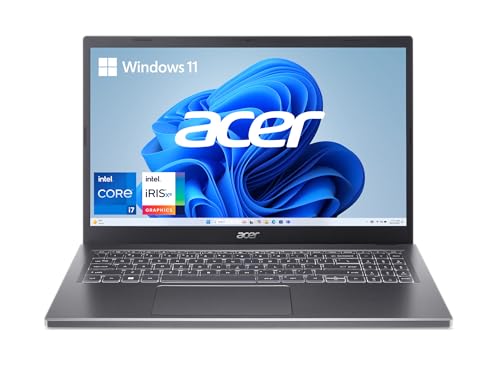
acer Aspire 5 15 Slim Laptop — Strongest all-round specification
This Aspire 5 configuration is the one to study first if your instinct is to buy the fullest specification and stop thinking about laptops for several years. The Core i7-1355U brings generous headroom for the bursty pattern of real office life, where a video call, a heavy spreadsheet and a cloud sync all collide at once, and Iris Xe graphics are the most capable integrated option in this particular six, giving photo editors and casual creators a smoother ride than basic UHD graphics manage.
The touchscreen is the detail that separates this exact listing from a similarly named Aspire in the general 15.6 inch guide elsewhere in this batch, where the Acer appears without touch. That distinction matters at checkout, because Aspire model families reuse names across panel variants with cheerful indifference. Here, the title promises FHD IPS Touch at 1920 by 1080, and the sensible habit is to confirm those words on the listing before paying, especially if you arrived via a search result that mixed variants together.
Sixteen gigabytes of LPDDR5 and a Gen 4 solid-state drive round out a machine that should still feel composed when your habits grow heavier. The trade is that soldered-style memory in slim designs like this generally means choosing correctly now rather than upgrading later, so the generous factory configuration is doing real work in the value argument. For a buyer torn between this and cheaper siblings, the question is whether three extra years of composure are worth more than the money saved this month.
Strengths
- Core i7-1355U offers the most processor headroom in this group of six
- Iris Xe graphics handle photo editing and light creative work more smoothly
- Touchscreen IPS panel adds flexibility that desk-only rivals here lack
Trade-offs
- Slim Aspire designs rarely invite later memory upgrades, so configuration choice is final
- Touch glass reflects more ambient light than matte non-touch panels
- Integrated graphics still set a firm ceiling for demanding games
Key specs
- Display: 15.6 inch FHD IPS Touch, 1920 x 1080
- Processor: Intel Core i7-1355U
- Graphics: Intel Iris Xe Graphics
- Memory: 16GB LPDDR5
- Storage: 512GB Gen 4 SSD
Best for: buyers who want one mainstream laptop with the strongest integrated specification and a touchscreen for everyday versatility.
Not suited for: shoppers who prefer a matte screen for bright rooms or who plan to upgrade memory themselves later.

ASUS Vivobook 15 (Core 3 100U) — Straightforward value pick
The Vivobook 15 in this Core 3 100U configuration is the guide’s exercise in buying exactly what a light workload needs and nothing it does not. Students drafting essays, families running a household budget, and anyone whose computing life happens inside a browser will find the machine’s manners perfectly civilised, because the panel is a proper Full HD unit and the processor is a modern low-power design rather than an ageing leftover wearing a new badge.
Its compromises are printed plainly in the title, which is almost refreshing. Eight gigabytes of memory is adequate for a disciplined set of open applications and becomes a juggling act when a video call, a music stream and twenty research tabs coincide. The 256 gigabyte drive fills faster than new owners expect once Windows, a photo library and a couple of large applications settle in, so cloud storage or an external drive belongs in the ownership plan from day one.
What redeems those limits is focus. Money not spent on surplus memory has clearly gone toward the things a light user touches constantly: a respectable screen, a slim Cool Silver chassis that travels without complaint, and Windows 11 Home ready for mainstream software. Treat it as a well-judged appliance for defined tasks rather than a foundation for ambitions you have not yet formed, and it will not disappoint you.
Strengths
- Proper Full HD display rather than a cut-price HD panel
- Modern Core 3 silicon keeps light workloads feeling responsive
- Slim Vivobook chassis suits students and shared household use
Trade-offs
- Eight gigabytes of memory limits heavy multitasking sessions
- A 256GB drive demands early help from cloud or external storage
- No touchscreen for buyers who like direct panel interaction
Key specs
- Display: 15.6 inch FHD
- Processor: Intel Core 3 100U
- Memory: 8GB RAM
- Storage: 256GB SSD
- Operating system: Windows 11 Home
Best for: students, writers and household users whose work lives in documents, email and the browser.
Not suited for: multitaskers who routinely juggle calls, large spreadsheets and dozens of tabs at once.

DELL Inspiron 15 3530 (i7, 1TB) — Storage champion
Dell’s Inspiron 15 3530 in this business-flavoured configuration answers the complaint that eventually finds every laptop owner: the drive is full. A terabyte of solid-state storage swallows years of family photographs, a working archive of documents and a respectable offline media library without the constant deletion rituals that smaller drives impose. Paired with the same Core i7-1355U found in the Acer, it delivers that space without asking you to accept a sluggish processor in exchange.
The FHD touchscreen and the inclusion of HDMI in the title speak to a machine expected to live several lives: desk work with an external monitor in the morning, direct touch interaction for a presentation in the afternoon, and a webcam call with relatives in the evening. Wi-Fi 6 support keeps it current with the routers most households now run. It is a specification written by someone imagining an actual week rather than a benchmark chart.
Set against the Aspire 5, the Dell trades a little graphical finesse for that doubled storage, and the right choice depends on whether your bottleneck is pixels or files. Creators leaning on integrated graphics for photo work may prefer the Acer’s Iris Xe, while archivists, small-business owners and anyone digitising a family history will feel the terabyte working for them every single month. Neither answer is wrong; they are answers to different questions.
Strengths
- One terabyte SSD removes storage anxiety for media-heavy owners
- Core i7 processor matches the strongest chip elsewhere in this guide
- Touchscreen plus HDMI suits mixed desk, presentation and home roles
Trade-offs
- Graphics are a step behind the Iris Xe configuration in the Acer
- Business styling is plainer than the slimmest consumer designs here
- Larger storage tempts owners to postpone any backup discipline
Key specs
- Display: 15.6 inch FHD Touchscreen
- Processor: Intel Core i7-1355U
- Memory: 16GB RAM
- Storage: 1TB SSD
- Connectivity named in listing: HDMI, Wi-Fi 6, webcam
Best for: small-business users and family archivists who need generous local storage with mainstream speed.
Not suited for: photo-first buyers who would rather have the strongest integrated graphics than extra drive space.

Dell 15.6 Laptop (Core 3 100U) — Anti-glare office pick
This Dell takes a different route through the same budget territory as the Vivobook above: it keeps memory at eight gigabytes but doubles the storage to 512 gigabytes and spends its panel budget on a 300-nit anti-glare WVA screen. For anyone who works under unforgiving office lighting or beside a bright window, that matte finish is not a footnote. It is the difference between reading your document and reading your own reflection superimposed over it.
The Core 3 100U and Intel UHD Graphics pairing is tuned for the productivity mainstream, and the DDR5 memory specification shows Dell keeping the platform current even at this level. Video calls, office suites, web applications and streaming all run in the machine’s comfort zone. Where it will not follow you is into heavy creative suites or large multitasking sprawls, and pretending otherwise would set up an unfair disappointment with an otherwise well-aimed product.
Think of this as the sensible colleague in the roundup: less glamorous than the touch models, less capacious than its terabyte sibling, but unusually honest about the desk-bound day it was built for. Buyers furnishing a home office on a controlled budget, especially one plagued by glare, should give its panel specification a longer look than the raw processor comparison might suggest.
Strengths
- Anti-glare 300-nit panel suits bright offices and window seats
- 512GB storage doubles the room offered by the cheapest pick here
- DDR5 memory keeps the entry platform reasonably current
Trade-offs
- Eight gigabytes of RAM caps comfortable multitasking headroom
- UHD Graphics are for productivity, not creative acceleration
- No touch input for buyers who enjoy direct screen gestures
Key specs
- Display: 15.6 inch FHD, 300 nits Anti-Glare WVA
- Processor: Intel Core 3 100U
- Graphics: Intel UHD Graphics
- Memory: 8GB RAM, DDR5
- Storage: 512GB SSD
Best for: desk-based workers in bright rooms who value a glare-free screen and fair storage.
Not suited for: heavy multitaskers or anyone planning photo and video projects beyond casual edits.
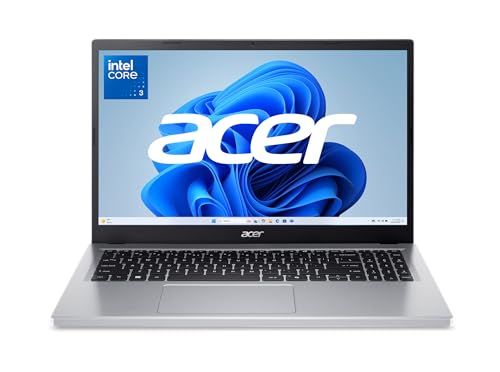
Acer Aspire Go 15 (Core 3 N355) — Lowest-fuss starter laptop
The Aspire Go 15 exists for the buyer whose alternative was a machine with a miserable screen, and on that comparison it wins immediately: the listing promises a Full HD IPS panel, which means accurate viewing angles for shared viewing and none of the washed-out shifting that cheap panels inflict when two people watch a video together. For a first laptop, a spare family machine or a dedicated writing device, that display decision carries the whole product.
Everything else about the configuration counsels modest expectations, and the review will not dress that up. The Core 3 N355 is an efficiency-first processor for light duties, eight gigabytes of DDR5 covers browsing and documents, and the 128 gigabyte UFS storage is the tightest in this guide by a wide margin. UFS behaves more like the storage in a phone than a conventional SSD, which is fine for launching everyday applications and limiting for anyone shuffling large files around.
The sensible ownership pattern is cloud-first: documents in synced folders, photographs backed up automatically, and local storage treated as a waiting room rather than a warehouse. Households buying for a younger student, or adults wanting an inexpensive machine that respects their eyes, can accept those terms happily. Anyone expecting to install a shelf of large programs locally should step up to a 512 gigabyte sibling instead.
Strengths
- Full HD IPS panel is a genuine luxury at this end of the market
- Efficient processor suits quiet, light everyday duties well
- DDR5 memory is a welcome modern touch in a starter machine
Trade-offs
- 128GB UFS storage fills quickly without a cloud-first routine
- Entry processor leaves little reserve for demanding software
- Not intended for local libraries of games or large media files
Key specs
- Display: 15.6 inch FHD IPS, 1920 x 1080
- Processor: Intel Core 3 Processor N355
- Graphics: Intel Graphics
- Memory: 8GB DDR5
- Storage: 128GB UFS
Best for: first-laptop buyers, younger students and households wanting a respectful screen on a starter budget.
Not suited for: anyone who stores large programs or media collections locally on the machine itself.
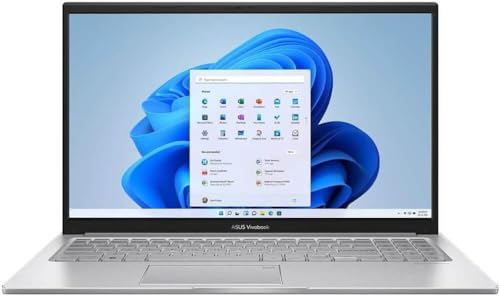
ASUS Vivobook 15 (Core 5 120U) — Balanced mainstream choice
If the Core 3 Vivobook is the guide’s exercise in restraint, this Core 5 120U configuration is the same idea with the restraints loosened exactly where experience says it matters. Sixteen gigabytes of memory transforms the multitasking ceiling, the 512 gigabyte drive removes the early storage squeeze, and the processor steps up to a part that handles heavier office work and light content creation without the hesitant pauses entry chips sometimes show under a crowded desktop.
What it does not add is touch, and for a certain buyer that omission is a feature rather than a gap. A conventional non-touch panel avoids the reflective gloss of touch glass, keeps the lid simpler, and suits people whose interaction style is entirely keyboard, touchpad and mouse. Silver Vivobook styling keeps the machine anonymous in a meeting room, which many owners quietly prefer to a design that announces itself.
Placed against the terabyte Dell, this ASUS offers half the storage but a similarly complete everyday proposition; placed against the Acer Aspire 5, it lacks touch and Iris Xe yet counters with the same memory and storage foundation. It is the pick for the buyer who reads specifications in order of daily consequence: enough memory, enough drive, a proper Full HD screen, and a processor that will not be the reason a three-year-old laptop feels old.
Strengths
- Sixteen gigabytes of memory gives real multitasking breathing room
- Core 5 120U steps performance up from the entry tier cleanly
- 512GB SSD covers mainstream libraries without immediate help
Trade-offs
- No touchscreen, for buyers who value direct interaction
- Integrated graphics remain the ceiling for creative acceleration
- Silver mainstream styling will not excite design-led shoppers
Key specs
- Display: 15.6 inch Full HD
- Processor: Intel Core 5 120U
- Memory: 16GB RAM
- Storage: 512GB SSD
- Connectivity named in listing: Wi-Fi 6
Best for: mainstream buyers wanting the balanced configuration they can keep for several years.
Not suited for: touch enthusiasts or graphics-led creators who need stronger integrated performance.
How Do the Picks Compare Side by Side?
| Model | Display | Processor | Memory and storage | Character |
|---|---|---|---|---|
| acer Aspire 5 15 Slim (B0DFDN558V) | 15.6 inch FHD IPS Touch | Intel Core i7-1355U | 16GB / 512GB | Touch flagship of the six |
| ASUS Vivobook 15 (B0GWFP7F8W) | 15.6 inch FHD | Intel Core 3 100U | 8GB / 256GB | Lean value configuration |
| DELL Inspiron 15 3530 (B0CB6XKK9Y) | 15.6 inch FHD Touchscreen | Intel Core i7-1355U | 16GB / 1TB | Storage-first business build |
| Dell 15.6 Laptop (B0H5X2GC1Y) | 15.6 inch FHD anti-glare | Intel Core 3 100U | 8GB / 512GB | Glare-conscious desk pick |
| Acer Aspire Go 15 (B0GTFH1DNL) | 15.6 inch FHD IPS | Intel Core 3 N355 | 8GB / 128GB | Cloud-first starter machine |
| ASUS Vivobook 15 (B0FTZYNPKQ) | 15.6 inch Full HD | Intel Core 5 120U | 16GB / 512GB | Balanced long-keeper |
Is 8GB of Memory Enough on a 1080p Laptop in 2026?
For a single-focus user, yes, with conditions that deserve honesty. Eight gigabytes runs an office suite, a browser with a sensible number of tabs, email and a music stream without drama, and both entry picks in this guide are built around exactly that life. The ceiling appears when habits stack: a video call sharing your screen, a large spreadsheet recalculating, and twenty tabs of research will push an 8GB machine into slowdowns that a 16GB machine absorbs without comment.
The practical test is your worst ordinary hour rather than your average one. If that hour regularly involves three demanding things at once, the sixteen-gigabyte configurations reviewed above are not an indulgence; they are the difference between a laptop that ages gracefully and one that feels tired by its second year. Occasional users can save the money with a clear conscience and spend it on storage or a better chair.
Why Do Chromebooks and MacBooks Get Only a Mention Here?
Because both answer a different question first. A 1080p Chromebook can be a delightful, secure machine for browser-centred work, and several wear Full HD panels proudly, but its software world is ChromeOS, with Android and Linux corners, rather than the Windows environment this guide compares. Folding it into the same ranking would force false equivalences about applications, offline behaviour and lifespan expectations.
MacBooks, meanwhile, exceed the resolution definition entirely with their Retina displays and ask buyers to choose an ecosystem before a specification sheet. Mentioning them acknowledges that cross-shoppers exist; excluding them from the ranked six keeps the comparison honest for the Windows buyer who is the actual audience. If your real decision is operating system first, make that decision in a guide built for it.
How Can You Verify a Listing Is Truly 1080p Before Ordering?
Read the title and the specification table for the explicit pair of numbers, 1920 by 1080, rather than trusting adjectives. Retail language leans heavily on the letters HD, which legally describe several resolutions, and product families often share photography across panel variants. The six listings in this guide state their Full HD credentials in their titles, which is why they were eligible for inclusion in the first place.
When the package arrives, confirm the purchase inside Windows display settings, where the recommended resolution should read 1920 by 1080. Checking during the return window takes ninety seconds and converts a vague worry into a documented fact. It is a dull habit, and it has saved more buyers from quiet disappointment than any benchmark ever published.
Does a Touchscreen Change Battery Behaviour or Screen Care?
A touch layer adds a digitiser that sips a small amount of power and a glass surface that collects fingerprints with enthusiasm, and both effects are real without being decisive. Expect to wipe the panel more often, expect reflections to feature more in bright rooms, and expect the battery difference to be measured in minutes rather than hours during ordinary mixed use. The two touch picks here justify those costs when their owners actually touch them.
Care is simple: a dry microfibre cloth for routine smudges, no household sprays applied directly to the panel, and a sleeve in the bag so keys and chargers do not press against the glass. Owners who treat the screen like the precision surface it is will still be enjoying it when the machine is otherwise showing its age.
How Do Keyboards, Touchpads and Webcams Differ at This Level?
Specifications flatten the parts of a laptop you physically touch, yet those parts decide daily affection. All six machines here serve the mainstream, so expect full-width keyboards, often with numeric pads that spreadsheet users prize and touch typists tolerate, plus touchpads sized for gesture navigation. The differences that matter are subtler: key travel that feels decisive rather than mushy, a touchpad surface that tracks a slow diagonal without jitter, and a webcam that holds a face together under evening lamplight during family calls.
Because listings rarely quantify these qualities, the practical approach is to weight them by use. A writer producing thousands of words daily should favour the machine whose keyboard reviews consistently praise, a presenter living on video calls should care about the webcam and microphone story, and everyone should budget for a mouse if the laptop will sit at one desk for months. The panel and processor get a machine bought; the keyboard and touchpad decide whether it gets loved.
What About Ports and Working With an External Monitor?
A 1080p laptop frequently becomes the engine of a small desk setup, driving an external monitor while its own screen handles chat, notes or a reference document. The Dell Inspiron in this guide names HDMI in its title, which removes one uncertainty for that arrangement, while the other picks should be checked on their listings for the exact port mix before you assume a cable you own will fit. USB-C ports vary in what they carry, and a port’s shape alone never guarantees video output.
The two-screen arrangement is where this class quietly shines for home workers. The laptop panel’s modest resolution stops mattering when a larger external display takes the main role, and the machine’s memory and processor become the real specification again. Buyers planning that future should read the reviews above with ports and memory in the foreground and treat the built-in screen as the travel display it will effectively become.
How Should Families Share One of These Machines?
Shared laptops fail socially before they fail technically: one account accumulates everyone’s downloads, the desktop becomes an archaeological dig, and the battery is always empty when somebody else needs the machine. Separate Windows accounts for each regular user, a house rule that the charger returns to one place, and a shared cloud folder for family documents prevent most of that friction regardless of which pick you buy.
For households, the touchscreen Acer and Dell earn extra credit because shared machines attract shared gestures, and younger users in particular treat every screen as touchable until proven otherwise. The 128 gigabyte Acer Go, by contrast, demands the strictest sharing discipline, since three people’s offline habits will not fit inside its waiting-room storage. Matching the machine to the household’s actual tidiness is more useful than any synthetic benchmark.
What Does Ownership Cost Beyond the Purchase Itself?
The honest budget for any of these laptops includes a sleeve or padded bag, perhaps a mouse, and eventually a battery that holds less than it once did. None of those costs is unique to this class, but the low purchase prices here make the accessories proportionally larger, and pretending the ticket price is the whole story sets buyers up for small resentments. A machine carried daily without protection ages in dog years compared with a desk-bound twin.
Software costs deserve the same clear-eyed treatment. The office suite, storage plan or creative subscription you rely on will likely out-cost the difference between the cheapest and dearest pick in this guide within a couple of years. Choosing the configuration that runs your actual software comfortably, rather than the one with the smallest number at checkout, is the genuinely frugal strategy.
What Battery Behaviour Should You Realistically Expect?
Manufacturers measure endurance under conditions gentler than a working day, so translate every claim downward in your head and judge this class by pattern rather than by promise. A 1080p panel helps, because the screen is usually the hungriest component in light use, and these six avoid the worst excesses of high-refresh or ultra-bright displays. Mixed office work, calls and browsing should carry most of them through a long stretch away from the charger, while video editing exports and bright-screen outdoor sessions will shorten that considerably.
Your own settings matter as much as the cell inside the chassis. Dropping brightness to a comfortable indoor level, closing the dozen tabs you forgot were open, and letting the machine sleep during lunch routinely buys more usable time than the difference between two rival models. Buyers whose work genuinely happens in fields, vehicles and site cabins should still treat a wall outlet as part of the plan, because no laptop in this price territory is a two-day expedition machine.
Which Buyers Should Walk Past This Whole Class?
Honesty requires naming the shoppers this guide cannot serve. Competitive players need dedicated graphics and high-refresh panels that none of these six provides. Video professionals cutting high-resolution timelines will find integrated graphics and 1080p screens limiting in ways that compound daily. Software developers running multiple virtual machines will exhaust eight and even sixteen gigabytes faster than they expect, and should be shopping with memory as the headline rather than the footnote.
There is also the buyer who simply wants an object of desire: machined metal, a spectacular display, a keyboard that feels like a musical instrument. These six are tools specified by reason, and they will satisfy a reasonable owner for years, but they will not quicken a pulse at unboxing. Knowing which kind of purchase you are making is the real first step of the whole decision.
How Do Colour and Brightness Vary Between These Panels?
Resolution is the number everyone compares, yet brightness and colour behaviour shape the screen you actually experience. The Dell in this guide states 300 nits with an anti-glare finish, a combination aimed at legibility under real lighting. The IPS panels in the Acer machines promise steadier colours at oblique angles, which matters when a screen is shared across a sofa or a meeting table. Listings that say only FHD are telling you the grid, not the quality of light passing through it.
For documents, browsing and video, every panel here clears the bar of comfortable use, and differences will register as preference rather than defect. Photographers grading images for print should calibrate expectations or plan on an external monitor for final judgement, because mainstream laptop panels prioritise pleasant viewing over reference accuracy. That is not a failure of the class; it is the class knowing its audience.
How Does a 1080p Laptop Handle Photo and Video Hobby Work?
Amateur photography is the creative pursuit most likely to wander into this class, and the news is mostly good. Sorting a holiday’s worth of images, applying exposure and colour corrections, and exporting for sharing all run comfortably on the sixteen-gigabyte machines, with the Iris Xe Acer feeling the most relaxed of the six. The 1080p panel shows you the whole frame honestly, even if pixel-level retouchers will eventually crave a sharper screen for fine masking work.
Video sits one rung higher in demand. Cutting short clips from a phone for family or social sharing is realistic on the stronger configurations, particularly when the footage itself is 1080p and the timeline stays simple. Long high-resolution projects with layered effects belong on hardware with dedicated graphics, and buyers whose hobby is drifting that way should treat this purchase as a stepping stone rather than a destination.
What Should Students in Particular Take From This Guide?
A student’s laptop is a lecture companion, a library desk, an essay factory and an entertainment screen in rotation, and its worst enemy is not slowness but absence: the forgotten charger, the full drive during coursework upload week, the cracked screen in an overstuffed bag. The balanced Vivobook and the touchscreen Acer suit that life best here, because their memory and storage remove the two failures most likely to arrive at deadline time.
Budget discipline still matters, and the leaner picks have a real case when the course is reading and writing rather than rendering and compiling. A student who banks the difference toward a good bag, a spare charger left in the department, and a backup drive has probably spent more wisely than one who bought surplus processor speed. The machine is one part of a system for getting work submitted.
How Do You Keep a Mainstream Laptop Feeling Fast for Years?
Longevity is mostly housekeeping. Keep a fifth of the drive empty so the system and its updates have room to breathe, uninstall the trial software that arrived uninvited, and review what launches at startup twice a year. Dust the vents gently, keep the machine off soft bedding that smothers its intakes while it works, and treat the battery kindly by avoiding permanent storage at a full, hot charge.
Software habits compound quietly in the same direction. A browser with forty forgotten tabs is a memory tax on every other task, and cloud folders set to download everything can strangle a small drive without a single warning. Owners who spend ten minutes a month on this unglamorous maintenance routinely get an extra year or two of grace from hardware in exactly this class.
Common Mistakes Buyers Make in This Class
Trusting the letters HD. Shoppers see HD on a box and assume sharpness, then discover a 1366 by 768 panel after the return window closes. Insist on seeing 1920 by 1080 written out before any money moves.
Buying storage for today’s files only. Photo libraries and application sizes grow in one direction. A drive that feels roomy in the first month can become a monthly deletion chore by the second year.
Assuming every unit in a model family shares a screen. The Aspire name appears in this batch with touch in one guide and without it in another, because manufacturers vary panels under one badge. Check the exact listing, not the family reputation.
Paying for processor bragging rights while starving memory. A fast chip paired with eight gigabytes will feel older sooner than a modest chip with sixteen, once real multitasking begins. Balance outlasts bragging in daily use.
Ignoring glare until the desk is chosen. A glossy panel beside a south-facing window punishes its owner daily. The anti-glare Dell exists precisely because lighting conditions belong in the buying decision.
What Does a Week of Mixed Work Feel Like on a 1080p Panel?
A realistic weekday for these machines begins with a dozen browser tabs, a document or two, and a call before lunch, and it is in that unglamorous mixture that the sixteen-gigabyte picks quietly separate themselves. Nothing crashes on the smaller configurations, but everything breathes more easily when the operating system is not constantly deciding which background application to evict from memory. By afternoon, when a spreadsheet grows teeth and a presentation needs exporting, that breathing room is the difference between flow and friction.
Evenings change the emphasis from memory to panel and speakers, because a 1080p screen is the native resolution of an enormous share of streamed and downloaded video. Content arrives without the scaling compromises that higher-resolution panels sometimes impose on older material, and the IPS and WVA panels in this group hold their colours when the laptop sits on a lap rather than a desk. Nobody buys a mainstream laptop as a cinema, yet everybody ends up using it as one several nights a week.
Weekends tend to expose storage habits. The terabyte Dell swallows a phone backup, a camera dump and a season of downloaded shows without comment, while the 128 gigabyte Acer asks its owner to curate as they go. Neither rhythm is morally superior, but they suit different temperaments, and choosing the wrong rhythm is how a perfectly functional laptop becomes a source of low-grade irritation. The machine should match the owner’s habits, not reform them by force.
Across a whole week, the 1080p decision itself fades into the background, which is the strongest evidence that it was the right call for this class. Text stays legible, video looks native, the battery is not feeding a panel the workload never needed, and the money saved against sharper screens has gone into memory, storage or simply back into the household budget. Resolution is a means to comfortable work, and for these six machines it performs that service without demanding applause.
One more weekly pattern deserves a mention: updates and maintenance. Windows will periodically want a restart at an inconvenient moment regardless of which pick you choose, and a machine with storage headroom handles those updates without the failed-installation spiral that nearly full drives can trigger. Keeping a fifth of the drive free is unglamorous advice that quietly prevents a whole category of support headaches.
Travel exposes another side of the class. A 15.6 inch 1080p machine is large enough to work on in a hotel room without a monitor, light enough in these slim designs to cross an airport without resentment, and undemanding enough to sip from a seat-back outlet or a modest power bank through USB-C where supported. The screen’s modest appetite becomes a travel feature even though no brochure will ever phrase it that way.
Noise is the specification nobody lists and everybody hears. Slim mainstream laptops stay quiet through documents and browsing, then reveal their cooling character when a call, an export and a system update coincide. In a shared room or a quiet office, that behaviour matters more than a few seconds saved on a benchmark, and it is one reason the efficiency-first chips in the entry picks have a genuine, if unglamorous, virtue.
Finally, consider the second life of whichever machine you choose. A retired 1080p laptop makes an excellent kitchen display, a homework station for a younger student, a dedicated machine for accounts and paperwork, or a donation that genuinely helps its next owner. Buying a configuration with enough memory and storage extends that second life by years, which belongs in the value calculation even if it never appears in a comparison table.
Security habits round out the ownership picture. Enable the built-in encryption, keep sign-in tied to an account you can recover, and let the machine install its updates promptly rather than deferring them into a crisis. These six laptops all run current Windows, so the protective tools are present from the first boot; the owner’s routine, not the hardware, is the variable that decides whether they are used.
Think, too, about where the machine will actually live. A laptop that spends its life on one desk can be the largest and plainest of the six without penalty, while one that migrates between kitchen table, sofa and office needs the slimmer chassis and the tolerance for fingerprints that touch models bring. The right answer changes with the floor plan of your home, and no reviewer who has not seen your rooms can make that call for you.
There is a quiet environmental argument for this whole class worth acknowledging. A modest laptop that serves five years, then serves somebody else for three more, is a better outcome than a flagship replaced in two because its fashion faded. Choosing enough memory and storage to stay useful is, among its other virtues, the sustainable choice, and it costs less than the alternative in every currency that matters.
One last weekly ritual separates contented owners from frustrated ones: a backup that actually happens. Whether it is a cloud folder syncing quietly or a drive plugged in on Sunday evenings, the habit protects the photographs and documents that give any of these machines their real value, and it takes less effort than one panicked recovery attempt.
And if you are buying for somebody else, a parent returning to computing or a teenager starting secondary school, weight the setup experience heavily. Sit with them for the first hour, create the accounts, pin the applications they will actually open, and write the password recovery details somewhere safe. The best 1080p laptop for a gift is the one its owner is not afraid to use, and that is decided at the kitchen table, not in the specification table.
A word about warranties and support is worthwhile in a class where buyers often purchase from whichever listing is cheapest that week. Keep the invoice, register the machine if the maker asks, and learn where the support page for your exact model lives before you need it. When something does go wrong in year two, the difference between a calm resolution and a miserable one is usually paperwork, not engineering.
Final Recommendation
Start with the resolution rule and the rest resolves itself: insist on 1920 by 1080 in writing, then choose by the bottleneck you actually live with. The Acer Aspire 5 with touch and Iris Xe is the fullest specification, the terabyte Dell is the archivist’s answer, the Core 5 Vivobook is the balanced long-keeper, and the three leaner machines serve defined light duties at gentler cost. None of them asks you to pretend that HD means something it does not.
If a single recommendation must be carried out of this guide, take the configuration whose memory and storage match your worst ordinary week rather than your best one, because laptops are judged in their crowded hours. A true 1080p panel bought with open eyes will still be earning its desk space long after sharper, fussier screens have become somebody else’s expensive lesson.
Frequently Asked Questions
What exactly does 1080p mean on a laptop screen?
It means the panel holds 1920 pixels across and 1080 pixels down, a grid also labelled Full HD or FHD. That is substantially more detail than the 1366 by 768 grid behind plain HD branding, and the difference is obvious in text clarity and in how many spreadsheet rows fit on screen at once.
Can these laptops play games at all?
Casual titles, older releases and cloud streaming behave respectably, especially on the Iris Xe Acer, but this class is built around integrated graphics rather than dedicated gaming hardware. Players with serious libraries should look at machines with discrete graphics instead of asking these six to be something they are not.
Is a touchscreen worth choosing on a normal laptop?
It is worth it when your hands already reach for screens out of habit, when you annotate or present, or when the machine doubles as a shared family device on a counter. Desk-bound mouse users gain little, and they also inherit a glossier panel, so the honest answer follows your habits rather than the feature list.
How long should a laptop in this class realistically last?
With sixteen gigabytes of memory and a half-terabyte drive, four to six years of mainstream service is a fair expectation, helped by battery care and storage housekeeping. The leaner eight-gigabyte configurations suit lighter duties and may feel their limits sooner if your workload grows into them.
Should I choose the Acer Aspire 5 here or the one in the 15.6 inch guide?
Choose by touch: the listing reviewed in this guide includes a touchscreen, while the Aspire configuration in the general 15.6 inch guide does not. The names are nearly identical because the family is shared, so let the panel line in the title make the final decision for you.
What should I check in the first ten minutes after delivery?
Open display settings and confirm 1920 by 1080, verify the memory and storage figures against your order, run the manufacturer updates, and test every port with something you own. Catching a variant mix-up in the first ten minutes is painless; catching it in the second month is a negotiation.
Related Guides
If your shortlist is still wider than six machines, keep reading across the neighbouring size and resolution guides, because the panel decision and the chassis decision are easier when each is made on its own evidence, starting with the best 1440p laptops, the best 15.6 inch laptops and the best laptops with long battery life.


