What's inside
- Key Takeaways
- Quick Picks
- How Did We Choose Routers for Brick-Walled Homes?
- Why Does Brick Defeat Wi-Fi So Completely?
- What Strategy Actually Covers a Brick House?
- What About Extenders, Powerline and the Other Workarounds?
- What Changes for Renters in Brick Buildings?
- How Do the Six Picks Compare for a Masonry House?
- How Do You Place Mesh Nodes in a Brick House?
- What Mistakes Do Brick-House Buyers Keep Making?
- Final Recommendation
- Frequently Asked Questions
- Related Guides
As an Amazon Associate I earn from qualifying purchases. This post may contain affiliate links at no extra cost to you.
gizmoverdict.com is reader-supported. When you buy through links on our site, we may earn an affiliate commission.
Where to buy: The six systems below link to their Amazon listings from the Quick Picks table and from each detailed review. Mesh systems are sold in different pack sizes under one listing, so confirm the node count on the listing before ordering — the right number of nodes matters more in a brick house than any other specification.
Anyone searching for the best routers dr brick walls has usually already learned the lesson this guide is built on: the problem is not the router they own, it is the wall. Brick is dense, often double-skinned in older houses, frequently backed by foil insulation or metal lath in newer work, and it absorbs and scatters Wi-Fi energy far more aggressively than the timber and plasterboard of modern construction. A signal that crosses a stud wall with strength to spare can arrive through two brick walls too weak to hold a video call, and no change of router brand alters that physics.
Here is the honest part, stated before any product is named: no router in this guide — and no router legally sold — punches through brick by brute force. Transmit power is capped by regulation in both the US and Europe, and every manufacturer designs to the same ceiling. What actually solves a brick house is geometry. Mesh systems place several radios around the home so that no signal has to cross more masonry than necessary; each node only needs a decent path to its neighbour, and the network routes around the worst walls the way traffic routes around a closed road. Five of the six picks below are mesh systems for exactly that reason. The sixth is a strong single router, included because some brick homes are small enough — or open enough around a central hall — for one well-placed unit, and its review states plainly where that stops being true.
Frequency choice is the other lever. The 2.4GHz band travels through masonry noticeably better than 5GHz, and 6GHz is the most fragile of all, so a brick house lives on a compromise: slower bands for reach, faster bands for the rooms near a node. Good mesh systems manage that compromise automatically, steering each device to the band and node that serve it best. The reviews below judge each system on how honestly it fits that reality — node flexibility, band selection, wired backhaul options — rather than on the coverage numbers printed on cartons, which are measured in conditions no brick house has ever provided.
Our Top Picks
 TP-Link Deco XE75 AXE5400 Tri-Band WiFi 6E System3 Pack4.13 x 4.13 x 6.65 inches3.5 poundsCheck on Amazon
Key Takeaways
- Brick defeats signal strength, not router quality; placement and node count decide real coverage.
- Transmit power is legally capped, so no single router can blast through masonry — mesh geometry is the real fix.
- Five of the six picks are mesh systems that route around walls instead of fighting them.
- The 2.4GHz band crosses brick best; 5GHz and 6GHz serve the rooms close to each node.
- Wired backhaul between nodes, where cabling exists, removes the wireless hop through the wall entirely.
- Coverage areas printed on cartons assume open construction and should never be trusted in a masonry house.
Quick Picks
| Pick | Badge | Why it earns its place |
|---|---|---|
| Amazon eero 6 | Simple mesh starter | A mesh router that begins the node-by-node approach with the least setup friction in the pool. |
| Amazon eero 6+ | Step-up mesh system | The broader eero mesh system for houses needing more nodes and more capacity per node. |
| Google Nest Wifi | Assistant-friendly mesh | Google’s mesh entry for homes already living in its smart-home ecosystem. |
| TP-Link Deco XE75 | Tri-band 6E mesh, 3-pack | An AXE5400 tri-band Wi-Fi 6E system whose title confirms three units for spreading around masonry. |
| ASUS ZenWiFi BD4 | Wi-Fi 7 mesh option | A Wi-Fi 7 mesh router from ASUS for readers after the newest standard in a multi-node layout. |
| TP-Link Archer AX73 | Single-router alternative | An AX5400 Wi-Fi 6 standalone for small brick homes where one central unit can see most rooms. |
How Did We Choose Routers for Brick-Walled Homes?
The selection began with a refusal: any buying guide for brick houses that ranks single routers by claimed range is answering the wrong question, so mesh capability dominated the judging. A pick earned its place by letting the owner add radios where the walls demand them — near the stairs, in the extension, beside the thick chimney breast that splits the house in two. Systems that expand node by node scored ahead of fixed designs, because brick houses reveal their dead spots only after the first units are placed, and the correct response to a dead spot is another node, not a stronger shout from the hallway.
Band structure came next. In masonry, the bands have different jobs: 2.4GHz is the lifeline that seeps through to distant rooms, 5GHz is the workhorse for rooms sharing airspace with a node, and 6GHz — on the Wi-Fi 6E and Wi-Fi 7 picks — is a luxury for the room the node sits in and a backhaul candidate between nodes with line of sight. A system was judged on whether its design respects that division or pretends all bands behave alike.
Finally, we looked for honesty-enabling features: support for wired backhaul, so a node in a far room can be fed by Ethernet instead of by a wireless hop through two walls; placement flexibility, meaning nodes that work on a shelf or a sideboard rather than demanding ceiling mounts; and app guidance that shows link quality between nodes, because in a brick house the difference between a good shelf and a bad one is often forty centimetres. Listing titles in this pool are sparing with detail — several state little beyond the product name — so where a title is silent, the spec boxes say so rather than importing figures from a different pack size or a sibling model.
Why Does Brick Defeat Wi-Fi So Completely?
Wi-Fi is radio, and radio loses energy in every material it crosses. Air costs almost nothing; plasterboard costs a little; brick costs a great deal, and the bill rises with frequency. A 2.4GHz wave is long enough to bend and push through masonry with survivable losses. At 5GHz the same wall takes a much larger share, and at 6GHz the signal behaves almost like light, thriving in the open and dying at the first serious obstruction. This is why the phone that streams happily in the router’s room buffers in the kitchen two walls away, and why the effect is worst in exactly the houses with the most character: Victorian terraces, farmhouses, converted industrial buildings, and any home with a brick chimney breast the size of a wardrobe.
Construction details make some brick homes harder than others. A single skin of brick between rooms is a moderate obstacle. Double brick, brick with a cavity filled with foil-faced insulation, or brick hiding steel mesh from an old plaster system can each multiply the loss. Bathrooms and kitchens add tile, mirrors and water-filled pipework. None of this appears on a router box, and all of it decides the result — which is why two neighbours with identical routers and similar floor plans can have opposite experiences, and why this guide treats every manufacturer’s coverage figure as a laboratory number rather than a prediction about your house.
The legal ceiling on transmit power closes the last escape route. Regulators cap how loudly a router may shout, for good reasons of shared spectrum, and every brand in this pool designs under the same cap. Antenna design and receiver sensitivity differ at the margins — a better radio hears a faint reply more clearly — but the margins are small next to the wall’s effect. Marketing that promises a router able to blast through brick is selling confidence, not physics. The genuine variables a buyer controls are the number of radios, where they stand, and what connects them.
Floors deserve a mention alongside walls, because in many brick houses the vertical journey is harder than the horizontal one. A router downstairs serving a bedroom directly above it sounds like the shortest trip in the house, yet that path crosses the ceiling’s joists, floorboards, and — in bathrooms and kitchens — tile, screed and sometimes underfloor heating elements, which together can tax a 5GHz signal as heavily as a wall does. This is why the upstairs node so often belongs on the landing rather than in the room beneath the router: the landing route lets the signal travel up the open stairwell, the one vertical shaft in the house made of air, and then spread along the upper floor through doorways. Owners who think of the stairwell as the house’s waveguide place their nodes better than owners who think in floor-plan distances, and the difference shows up every evening in the bedrooms.
What Strategy Actually Covers a Brick House?
The working strategy is to shorten every journey. Place the main unit where the internet enters, then position satellite nodes so that each one has, at worst, one serious wall between itself and its neighbour — ideally a doorway, a stairwell or a hall doing the connecting, since signals travel along open spaces far better than through them. A node on the landing often serves three bedrooms through their doorways better than a stronger node in any single bedroom could. Extensions, which in brick houses are usually attached through what was once an outside wall — the thickest wall in the building — almost always deserve a node of their own on the extension side of that wall.
Wired backhaul is the strategy’s premium tier. If the house has Ethernet cabling, or a route where a cable can be run along skirting or through a loft, feeding a far node by wire removes the weakest hop entirely: the node stops relaying a wounded signal and starts broadcasting a fresh one. Houses without cabling still have options — powerline links are unreliable through old wiring, but a single long Ethernet run to the worst room often transforms the whole network’s reputation. Where neither is possible, node placement becomes an experiment worth doing slowly: set the system up, live with it for two evenings, move the weakest node a metre, and test again.
Expectations should be set room by room. The goal in a brick house is not maximum speed everywhere; it is a strong, stable connection in every room where people actually use one, with the fastest bands available near nodes and the dependable 2.4GHz band filling the gaps. Households judging success by a speed test in the far bathroom will always be disappointed. A household judging by whether calls hold, streams play and laptops work in every lived-in room will find mesh geometry delivers exactly that.
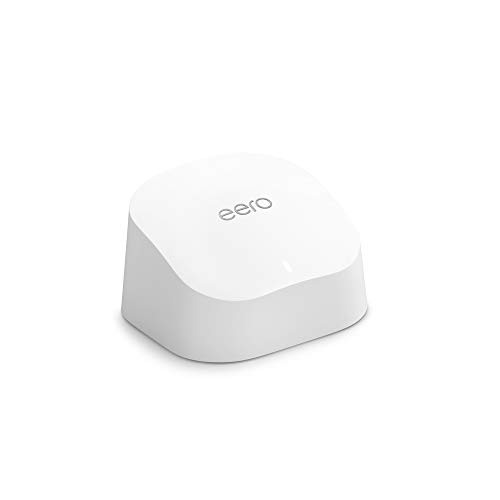
Amazon eero 6 — Simple mesh starter
The eero 6 is where the mesh answer begins for most brick houses: a mesh Wi-Fi router from Amazon’s eero line, designed to be placed, paired with additional units as the house demands, and then administered from a phone by someone who has no interest in networking as a hobby. Its listing title says “mesh wifi router” and very little else, and that spareness suits the product’s philosophy — eero’s long-standing pitch is that the system should make the placement and band decisions so the owner does not have to.
For a brick house, the eero way of working has a specific virtue: expansion is painless, and expansion is the whole strategy. A household can begin with the router and one satellite, discover that the back bedroom behind the chimney breast is still starved, and add another unit without replacing anything. Each addition shortens the longest signal journey in the house. The automatic side of eero — channel selection, band steering, updates applied without ceremony — removes the settings that owners of more manual systems routinely leave wrong for years.
The trade is control and information. Eero’s app-led management shows less of the network’s inner life than enthusiast systems do, and in a difficult house the inner life is sometimes what you need: which node a device insists on clinging to, how strong the link between two units really is. The listing title also leaves the household’s practical questions unanswered — pack contents, band details and coverage claims all sit outside it — so the spec box below records those as not stated, and the buyer should confirm which bundle the listing is actually selling before comparing its price against multi-node packs elsewhere in this guide.
Judged for masonry specifically, the eero 6 is the low-friction route to the correct architecture. It will not out-shout a wall, and it does not claim to; it makes adding the node that walks around the wall as easy as this category gets. Small to medium brick homes, especially those whose owners want the network to be an appliance, are its natural territory.
A word about how the eero approach feels over months rather than minutes. Because the system manages itself, the household’s relationship with it becomes purely experiential: the network is either present in a room or it is not, and the remedy offered is always the same — another unit, placed a little further along the house’s spine. Owners who came from traditional routers sometimes miss the dashboards for a week and then stop missing them, because the questions dashboards answer are mostly questions a self-managing system has already handled. In a brick house, where the real variables are furniture-level decisions about node placement, that division of labour is well judged: the human does the geometry, the system does the radio management, and neither interferes with the other’s half of the problem.
- Type: mesh Wi-Fi router, expandable with additional eero units
- Wi-Fi generation, band layout, pack contents and coverage area: Not stated in the listing title — verify with Amazon documentation
- Management: app-led, automatic optimisation
Strengths
- Mesh expansion matches the brick-house strategy of adding nodes where walls demand them.
- Automatic management suits owners who want coverage without a networking hobby.
- Additional units integrate without replacing the original router.
Trade-offs
- Less diagnostic detail than enthusiast systems when a placement problem needs hunting.
- The listing title omits pack contents and band details, so bundle-checking is essential.
- Full features in the eero ecosystem have historically involved optional subscriptions; check current terms.
Best for: a small or medium brick home whose owners want mesh coverage with the least possible administration. Not suited for: a large masonry house needing many nodes from day one, where a multi-pack system below starts closer to the finished network.

Amazon eero 6+ — Step-up mesh system
The eero 6+ is the same idea at a larger stride: the listing calls it a mesh wifi system rather than a single mesh router, and that wording reflects its role. Where the eero 6 begins a network, the 6+ is bought to be more of one — more capable nodes, more capacity shared among the household’s devices, and a head start on the node count a brick house tends to end up needing once its dead spots have been mapped by experience.
In a masonry home the practical difference shows up in the busy rooms. The kitchen-diner where three people stream, call and scroll simultaneously asks more of its nearest node than a quiet study does, and a stronger node answers with steadier performance under load rather than with greater reach — reach, again, is the wall’s department, not the radio’s. Owners stepping up within the eero family keep the same app, the same automatic behaviour and the same expansion path, which makes the 6+ the natural choice for households already won over by eero’s way of working, in a bigger or busier house.
The cautions mirror its sibling’s. The title publishes neither the band specification nor the pack configuration, and eero systems are sold in several bundle sizes, so the documentation check in the spec box is where an informed purchase starts. Subscription-gated extras have been part of the eero proposition in the past, and a buyer comparing total cost over three years should confirm which features the current terms include rather than assuming the box price is the whole story.
For brick construction specifically, the 6+ earns its place by reducing the number of compromises in the rooms that matter most. It does not change the geometry rule — a node still belongs on the far side of the worst wall — but it raises the quality of service each correctly placed node delivers, which in a busy family house is often the difference between a network that is merely present and one that is never discussed at dinner.
- Type: mesh Wi-Fi system, expandable within the eero family
- Wi-Fi generation, band layout and pack size: Not stated in the listing title — verify with Amazon documentation
- Management: app-led with automatic channel and band decisions
- Backhaul: wireless mesh between nodes; wired options to confirm in documentation
Strengths
- More capacity per node for the busy rooms of a family house.
- Same painless expansion path as the smaller eero, with a head start on node count.
- Automatic administration keeps a multi-node layout manageable for non-specialists.
Trade-offs
- Bundle sizes vary under the listing; confirming the exact pack is the buyer’s job.
- Extra capacity does not extend reach through masonry — placement still rules.
- Ecosystem extras may sit behind a subscription, which affects long-term cost.
Best for: a busy brick-built family home that wants eero simplicity with stronger nodes. Not suited for: a purchase decision requiring published band and pack specifications in the listing itself, where the Deco below states far more up front.

Google Nest Wifi — Assistant-friendly mesh
Google Nest Wifi is the mesh pick for households already furnished with Google’s idea of the smart home. Its listing title is the barest in this guide — a name and nothing more — so this review separates what the name reasonably implies from what it does not. Nest Wifi is Google’s mesh system, sold as a router with satellite points, designed to be run from Google’s home app, and historically intertwined with the company’s assistant ecosystem, with some points in the range doubling as smart speakers. Which configuration a given listing sells is exactly the sort of detail the title withholds.
In a brick house, Nest Wifi’s contribution is the same geometric one as every mesh pick here: points placed in the rooms beyond the worst walls, each serving its own area on the faster band and relaying through the least-bad path. Google’s software presents this in the friendliest terms in the category, with plain-language guidance and a setup flow that renters and first-time mesh buyers routinely complete without support. For a household whose technical confidence is the binding constraint — where the alternative to friendly software is no mesh at all — that friendliness is a genuine technical feature, because a well-placed simple system beats a sophisticated one left in its box.
The reservations are about information and longevity. The title states no Wi-Fi generation, no band layout and no pack contents, and Nest Wifi hardware belongs to an older generation than the Wi-Fi 6E and Wi-Fi 7 picks elsewhere in this guide, so a buyer should verify exactly what the listing offers against current documentation before assuming parity with newer systems. Google’s history of reshaping its smart-home app and product lines also makes the documentation check a question about the future as well as the present: confirm the management app and support position for this hardware before building a house-wide network on it.
Placement guidance is where Google’s friendliness shows its practical worth. The app expresses link quality in words a first-time buyer understands, and in a brick house that feedback loop — place, check, nudge, check again — is the difference between a mesh that performs and a mesh that merely exists. A point glowing with a weak connection warning on the landing can be walked two metres toward the router and retested in under a minute, and the household learns its own walls’ map in the process. That education transfers: owners who have placed one mesh system well will place every future one well, because the principles — short hops, open positions, doorways over walls — outlast any brand.
None of that disqualifies it for its audience. A modest brick cottage whose owners already run their lights, speakers and thermostat through Google’s ecosystem gains a mesh that speaks the same language and asks little of them. The wall physics are identical to every other pick; the difference is how much company the owner gets while arranging nodes around them.
- Type: mesh Wi-Fi system from Google’s Nest line
- Wi-Fi generation, band layout and pack contents: Not stated in the listing title — verify with Google documentation
- Management: Google Home app, plain-language setup
- Ecosystem: designed to sit alongside Google smart-home devices
Strengths
- The friendliest setup and administration in this pool for non-technical owners.
- Mesh points apply the correct brick-house strategy of serving rooms locally.
- Fits households already standardised on Google’s smart-home ecosystem.
Trade-offs
- An older hardware generation than the Wi-Fi 6E and 7 systems in this guide.
- The listing title withholds every specification a buyer would compare.
- App and product-line changes at Google make future support worth confirming.
Best for: a Google-centred household in a modest brick home that values guided setup over specifications. Not suited for: long-term future-proofing of a large masonry house, where the newer-standard systems below offer the longer runway.
TP-Link Deco XE75 — Tri-band 6E mesh, 3-pack
The Deco XE75 has the most informative listing title in this guide, and in a brick house the details it chooses to publish are the right ones: AXE5400 class, tri-band, Wi-Fi 6E, and a three-pack. Three units is the configuration masonry usually demands — one at the entry point, one past the internal wall that splits the house, one in the extension or upstairs — and buying them as a matched system means every node speaks the same backhaul language from the first evening.
The tri-band structure is the technical heart of the pick. In a mesh, nodes must talk to each other as well as to devices, and on a dual-band system that node-to-node conversation steals capacity from the same bands the household is using. A third band gives the mesh a dedicated lane for its own traffic. In a brick house the backhaul is also the most wall-crossing link in the network, so giving it a lane of its own — and the system’s freedom to choose paths — is worth more here than in an open-plan flat where every node can see every other. The 6GHz band enters the picture as part of Wi-Fi 6E: glorious for devices in the node’s own room, fragile through brick, and best understood as a local luxury rather than a wall-crossing tool.
TP-Link’s Deco administration sits between eero’s minimalism and enthusiast systems: an app-led setup with more visible structure, and a family that spans many price points if the house later needs a fourth node. The honest limits are the familiar ones. Three nodes is a starting geometry, not a guarantee — a long Victorian terrace may still want a fourth — and no band arrangement repeals the placement rules in the strategy section above. The AXE5400 figure, as always, is a sum of theoretical band maxima, not a speed any device will measure.
For the buyer who wants the specifications on the table before purchase and a system sized for a real masonry floor plan, the XE75 is this guide’s most straightforward recommendation. It states its standard, its band count and its node count in its own title, and those three facts are the skeleton of a correct brick-house network.
The three-pack also changes the psychology of setup day in a way worth naming. Buyers of single routers place the box, test, and discover failure as a verdict on the purchase. Buyers of a three-node system expect an afternoon of arrangement — the second node tried in two positions, the third migrated from the study to the landing — and experience that iteration as the product working as designed. In masonry houses that expectation is simply accurate, and a system sold in the configuration the house needs sets it honestly. If a fourth node joins later, it joins a network whose map the owner already understands, which is why starting with the full skeleton matters more than starting with the newest standard.
- Type: mesh Wi-Fi system, 3-pack stated in the listing title
- Standard: Wi-Fi 6E, tri-band, AXE5400 class, per the listing title
- 6GHz role: high-speed local band and backhaul option; weakest band through brick
- Coverage area: Not stated in the listing title — verify with TP-Link documentation
- Management: Deco app, with a wider Deco family for expansion
Strengths
- Three matched nodes match the geometry most brick houses end up needing.
- A third band gives node-to-node backhaul its own lane through a difficult floor plan.
- The title publishes its standard, bands and pack size — the facts that matter here.
Trade-offs
- The 6GHz band contributes little through masonry; its value is local to each node.
- Long or thick-walled houses may still need a fourth node beyond the pack.
- Headline class figures sum theoretical maxima and say nothing about a specific room.
Best for: a medium or large brick house wanting a complete, specified mesh system in one purchase. Not suited for: a small flat with one internal brick wall, where a two-node start would cover the home for less.

ASUS ZenWiFi BD4 — Wi-Fi 7 mesh option
The ZenWiFi BD4 brings the newest wireless standard in this pool to the oldest building material in it. Its title states Wi-Fi 7 and mesh, and those two words frame the buying question precisely: is it worth choosing the latest standard for a house whose walls will throttle the fastest bands anyway? The answer depends on time horizon. A mesh system is a five-to-eight-year purchase, and the devices arriving over that span — phones, laptops, headsets — will increasingly speak Wi-Fi 7, gaining its efficiency improvements in the rooms where nodes stand even if the walls keep their veto over distance.
ASUS brings a different ownership flavour from the app-minimalist picks. The ZenWiFi line sits inside a broader ASUS networking world with web-based administration for owners who want to see and set things, alongside app setup for those who do not. In a difficult house, that visibility has practical value: checking which band a node is using for backhaul, or nudging a stubborn device toward a nearer node, are masonry-house tasks, and a system that exposes the relevant information shortens the troubleshooting loop when a room misbehaves.
The title withholds the pack configuration and band detail beyond the standard itself, so the spec box flags those for verification — ZenWiFi models are sold in varying bundles, and the node count is the single most important number in a brick purchase. Wi-Fi 7’s headline capabilities also deserve the usual translation: its widest channels and highest speeds are same-room phenomena, and through two brick walls this system, like every other here, will be serving the far room on its lower bands at modest rates. The standard buys longevity and local performance, not penetration.
Weighed for a brick house, the BD4 is the forward-looking pick: choose it when the network being built is meant to serve the household’s next two generations of devices, and when the owner is comfortable confirming bundle details and doing a little placement experimentation. The walls remain undefeated; the BD4 simply ensures everything on the near side of them is as modern as it can be.
- Type: mesh router system in ASUS’s ZenWiFi family
- Standard: Wi-Fi 7 stated in the listing title
- Pack size, band layout and coverage area: Not stated in the listing title — verify with ASUS documentation
- Management: app setup with ASUS web administration available in the family
Strengths
- Wi-Fi 7 gives the longest device-compatibility runway in this pool.
- ASUS administration exposes the detail that difficult placements sometimes require.
- Mesh architecture applies the correct around-the-wall strategy.
Trade-offs
- Wi-Fi 7’s fastest features are same-room benefits; brick still caps distant rooms.
- Bundle configuration must be confirmed, since node count drives the result.
- Newer-standard hardware serves little purpose for households with only old devices.
Best for: a brick-house network being built for the long term, with new devices arriving over its life. Not suited for: a device fleet several years old, where Wi-Fi 7’s advantages would sit unused behind the walls.

TP-Link Archer AX73 — Single-router alternative
The Archer AX73 is this guide’s deliberate exception: a single AX5400 Wi-Fi 6 router, included so the case for one box gets a fair hearing. There are brick homes where it is the right answer — the compact cottage where the router can sit in a central hall and every room is one wall away, the flat in a converted building where the masonry is all external and the internal partitions are studwork, the household that rents and cannot scatter nodes or run cable. In those floor plans, a strong standalone placed well beats a mesh system placed badly.
Its title states the essentials: AX5400 class, Wi-Fi 6, a router rather than a system. As a single unit it concentrates its capability in one location, which simplifies everything except distance. Near the router, performance will be the best in this guide for the money class; each brick wall between the router and a device then takes its toll in the usual currency, and by the second wall the far room is living on the 2.4GHz band’s charity. No antenna arrangement on a single chassis escapes that arithmetic, and this review will not pretend the AX73’s six-antenna silhouette changes it.
The honest way to buy this pick is as a measured experiment with a known fallback. Place it centrally and high, test the rooms that matter at the times they are used, and accept the result only if the far rooms hold calls and streams acceptably. If they do not, the fallback is not a different single router — the physics will be waiting for that one too — but the mesh systems above. TP-Link’s own ecosystem makes that migration less painful than most, since the household’s settings habits and app familiarity carry over.
What the AX73 offers, then, is simplicity and concentrated local performance at the price of a hard geographic limit. For the right floor plan that trade is not a compromise at all. For the wrong one, it is the purchase this entire guide exists to talk buyers out of repeating — many readers arrived here because a router exactly like this one is already failing behind their brick walls.
- Type: single standalone router, not a mesh system
- Standard: Wi-Fi 6, AX5400 class, per the listing title
- Coverage area: Not stated in the listing title — verify with TP-Link documentation
- Expansion: no mesh nodes of its own in this listing; a later mesh purchase replaces its role
- Placement: demands a central position to give its single radio the shortest wall paths
Strengths
- Strong performance in the rooms near it, with the simplest possible setup.
- One box to buy, place and administer — nothing to pair or position elsewhere.
- Suits rentals and small brick homes where nodes and cabling are impractical.
Trade-offs
- Every brick wall between router and device taxes the signal, with no node to relay.
- Far rooms fall back to slow 2.4GHz service or drop out entirely.
- Buying it for a large masonry house repeats the mistake this guide warns against.
Best for: a small brick home or flat where one central position is a single wall from every room. Not suited for: a house with rooms two or more brick walls from any possible router position, where only mesh geometry will reach them.
What About Extenders, Powerline and the Other Workarounds?
Every brick-house owner meets the cheaper workarounds before the mesh answer, and each deserves a fair verdict. The plug-in range extender is the most common: it listens for the router’s weakened signal and repeats it. Its flaw in masonry is positional — it must sit where the signal is already decent, which is rarely the room that needs help, and it typically halves the throughput of everything passing through it while creating a second network name for devices to cling to at the wrong moments. In a small flat with one internal brick wall an extender can be a rational patch. In a house whose problem is two or three walls, it treats the mildest part of the disease.
Powerline adapters, which send networking over the mains wiring, sound tailor-made for brick: the signal travels in copper, not air, and walls become irrelevant. The catch is the wiring itself. Older houses — the same houses with the brick problem — often have ring circuits, extensions and consumer units that powerline signals cross badly or not at all, and speeds vary by socket in ways no specification predicts. Where it works, a powerline link feeding one mesh node or one access point in the far wing is a legitimate trick, and some owners in this guide’s audience will use exactly that hybrid. Where it does not work, it fails expensively and opaquely, which is why it is a tactic to test with one pair of adapters, not a foundation to build the whole network on.
The remaining workaround is the directional fantasy: bigger antennas, aftermarket boosters, reflectors folded from kitchen foil. Antenna quality genuinely differs between routers, and a well-designed radio hears faint replies better — worth a few percent, occasionally the difference between a held call and a dropped one at the margin. But none of it repeals the absorption arithmetic of brick, and money spent chasing it is money not spent on the node that would have solved the room outright. The workarounds have their niches; the architecture in the picks above is what the niches point toward.
What Changes for Renters in Brick Buildings?
Renters face the brick problem with both hands tied: no cabling runs, no moving the entry point, sometimes no permission even for a nail. The mesh strategy survives those constraints better than any alternative, because nodes need only a power socket and a shelf. A renter’s version of the plan is deliberately portable — two or three nodes arranged along the flat’s spine, placed on furniture rather than fixed, and taken to the next address when the lease ends. The single-router pick in this guide also earns a second look in rented rooms and small flats, where the floor plan is compact and the tenancy is short.
Two renter-specific checks matter. First, the entry point in older conversions often sits in a hallway cupboard by the front door, the worst seat in the house; a long flat Ethernet cable run along skirting to bring the main node into the living room is usually within a tenant’s rights and transforms the layout. Second, thick-walled buildings full of neighbours mean crowded spectrum, so a system with current standards and competent automatic channel selection — several picks here qualify — will hold up better at evening peak than older hardware fighting forty visible networks with yesterday’s rules.
How Do the Six Picks Compare for a Masonry House?
| Pick | Architecture | Standard in title | Brick-house role |
|---|---|---|---|
| Amazon eero 6 | Mesh, expandable | Not stated | Gentle start; add nodes as dead spots reveal themselves |
| Amazon eero 6+ | Mesh system | Not stated | Stronger nodes for busier rooms |
| Google Nest Wifi | Mesh system | Not stated | Friendly setup inside Google’s ecosystem |
| TP-Link Deco XE75 | Mesh, 3-pack | Wi-Fi 6E tri-band | Complete specified system for a full floor plan |
| ASUS ZenWiFi BD4 | Mesh | Wi-Fi 7 | Newest standard for a long-lived installation |
| TP-Link Archer AX73 | Single router | Wi-Fi 6 | One-box answer for small, centrally served homes |
The table’s real message is in its first column: architecture outranks standard in a brick house. A Wi-Fi 6 mesh with nodes in the right rooms will serve a far bedroom better than a Wi-Fi 7 single router shouting from the hall, every evening of the year. Choose the architecture first — mesh, unless the floor plan is genuinely small — then choose the standard and ecosystem that suit the household’s devices and patience.
How Do You Place Mesh Nodes in a Brick House?
Start with the entry point. The main unit goes where the internet arrives, and if that is a corner cupboard behind two walls from the living space, consider having the entry point moved or running one Ethernet cable to a better home for the main unit — every later decision improves when the first node starts in the open. Then walk the house with a phone, noting where the existing signal dies; those death points mark the walls that matter, and nodes belong just on the living side of them, in the rooms people use, at shelf height, in the open rather than inside cupboards or behind televisions.
Space nodes by path quality, not by metres. Two nodes separated by fifteen metres of hallway may link beautifully; two nodes six metres apart through a chimney breast may barely speak. Most mesh apps report the link quality of each node — use it, and treat a node reporting a weak link as misplaced even if its room coverage looks fine, because that weak link is the ceiling on everything the node serves. Move it toward its neighbour until the link strengthens, even if that means the node sits in the corridor rather than the room it serves; a node in the hall with a strong backhaul serves the bedroom through the doorway better than a node in the bedroom relaying a wounded signal.
Keep a simple record as you work: which node stands where, and what its reported link quality was in that spot. It sounds like paperwork, but a brick house will be rearranged — furniture moves, a node gets unplugged for a decorator, a child relocates one to charge something else — and the household that can restore its proven layout in five minutes keeps its network, while the household working from memory re-runs the whole experiment. A photograph of each node’s position, saved with the record, has rescued more mesh installations than any firmware update.
Finish with the worst room, deliberately. The far bedroom, the garden office, the converted attic: give the problem room an evening of testing at real usage times, when neighbours’ networks are also awake. If it still struggles, the answers in order are: nudge the nearest node, add a node, or wire the node. What never fixes it is a firmware setting promising extended range — the wall has already voted.
What Mistakes Do Brick-House Buyers Keep Making?
The founding mistake is buying a more powerful single router to replace a failing single router, then being surprised by the same dead rooms — the legal power ceiling means the replacement shouts no louder, however dramatic its antennas. The second mistake is trusting carton coverage figures, which are measured against open construction and function, in a masonry house, as fiction. The third is placing mesh nodes in the dead spots themselves: a node marooned where no signal reaches cannot relay what it never receives, and must instead sit at the edge of good coverage, facing the problem room.
Subtler errors follow. Hiding nodes inside cabinets or behind the television’s metal back panel taxes the very links the system depends on. Judging the installation by a midday speed test in the hall, rather than by evening behaviour in the far rooms, certifies the wrong thing. And scattering nodes without checking their inter-node links — more units, badly chained, each relaying a weaker signal than the last — can make a three-node system perform worse than a thoughtful two. Brick rewards patience and punishes assumptions; the households that iterate placement over a weekend are the ones whose networks disappear into the background of life, which is where a network belongs.
Final Recommendation
For most brick houses the Deco XE75 is the complete answer in one box: three matched tri-band nodes, a published specification, and geometry that respects the walls. Households that prize simplicity over specification should take the eero route — the 6 to start, the 6+ for busier rooms — and Google households can stay in their ecosystem with Nest Wifi, eyes open about its generation. The ZenWiFi BD4 is the long-term build. And the Archer AX73 stands as the honest exception for small homes with a truly central spot. Whichever you choose, choose placement over power: in a brick house, the network is won by the map, not by the shout.
One last encouragement for readers standing in a dead-spot kitchen wondering whether their house is simply impossible: it is not. Brick houses were covered badly for years because the only tool sold for the job was a louder single box, and the tool was mismatched to the problem. The mesh systems in this guide represent the problem finally being answered in its own terms — many modest radios, short journeys, open air wherever the house offers it. Set the system up on a quiet afternoon, place the nodes by the stairwell-and-doorway logic above, test the far rooms in the evening, and the house that defeated three routers in a row usually turns out to have been waiting for a different idea rather than a stronger signal.
Frequently Asked Questions
Can any router really penetrate brick walls?
No — not in the way marketing implies. Transmit power is legally capped, and brick absorbs Wi-Fi energy heavily, especially at 5GHz and 6GHz. Better radios gain small margins; the large gains come from mesh nodes that shorten the path each signal must travel through masonry.
Is mesh or a single powerful router better for brick?
Mesh, in almost every masonry house larger than a small flat. Multiple nodes route around walls instead of through them. A single router is a reasonable choice only when every room is within one wall of a central position.
Does Wi-Fi 7 help through brick?
Only indirectly. Wi-Fi 7 improves speed and efficiency where the signal is already decent — near a node — and adds longevity as new devices arrive. Through brick, its higher bands fade as fast as any other, and distant rooms still depend on node placement and the lower bands.
Where should the first mesh node go in a terraced house?
Where the internet enters, ideally opened up rather than cupboard-bound, then subsequent nodes along the house’s spine — hall, landing, the room beyond the thickest internal wall — so each hop crosses the least masonry possible. The landing is often the hardest-working position in a terraced house.
Will wired backhaul make a big difference?
It is the single largest upgrade available to a struggling mesh in a brick house. A node fed by Ethernet broadcasts a full-strength fresh signal instead of relaying a weakened one, so one cable run to the far end of the house can transform the rooms beyond the worst wall.
My router is in a cupboard under the stairs. Does that matter?
Enormously, in a brick house. The under-stairs cupboard is usually central, which sounds ideal, but its door, the stored clutter and the surrounding walls tax the signal before it begins its journey, and the stair structure itself often hides metal and dense timber. Moving the main unit into the open — even to the hall outside the cupboard, on a short cable — is the cheapest coverage upgrade available and should precede any new purchase.
How many nodes does a brick house need?
Count serious walls, not square metres. A compact house may settle at two nodes; a typical three-bedroom masonry home often lands at three; long terraces and houses with extensions may need four. Start with a sensible pack, live with it, and add a node for any room that still fails — mesh systems are built to grow that way.
Related Guides
For neighbouring problems, see our guides to the best mesh Wi-Fi systems for large homes, the best Wi-Fi extenders and when they fall short and the best routers for fibre broadband.