What's inside
- Key Takeaways
- Quick Picks
- How Did We Choose Third-Party Routers for a Gigabit Fios Line?
- How Does Swapping a Fios Gateway Actually Work?
- What Changes When the Router Is Yours?
- How Much Router Does a Gigabit Tier Actually Need?
- What Does the Rental-versus-Buying Sum Look Like Over Five Years?
- How Do the Six Picks Compare on a Gigabit Fios Line?
- What Should Fios TV Households Do Differently?
- What Mistakes Do Gateway-Swappers Make?
- Final Recommendation
- Frequently Asked Questions
- Related Guides
As an Amazon Associate I earn from qualifying purchases. This post may contain affiliate links at no extra cost to you.
gizmoverdict.com is reader-supported. When you buy through links on our site, we may earn an affiliate commission.
Where to buy: Each router below links to its Amazon listing from the Quick Picks table and from its detailed review. Several of these models are sold in multiple hardware revisions under one name, so check the revision on the listing against the review before ordering.
The best third party routers for Verizon 1Gb start from a liberating fact about how Fios works: the fibre terminates at an optical network terminal — the ONT, usually a box on the wall where the line enters — and from that box onward, the network is ordinary Ethernet. A household subscribing to Fios internet only, on the gigabit tier, can connect a router of its own choosing to the ONT and retire the rented gateway entirely. No modem is involved, no special Fios-only router exists, and the six mainstream routers in this guide are all legitimate candidates for the job.
Two honest boundaries belong at the front of the article rather than buried in it. The first is the tier’s real shape: Verizon’s gigabit Fios is sold as up to roughly a gigabit down and slightly less up, delivered over a gigabit Ethernet handoff, so the router’s wired side needs honest gigabit ports and nothing more exotic — the contest between the picks below is about wireless quality, capacity and features, not about which one can accept the line. The second boundary is services beyond internet. Fios TV and phone arrangements have historically leaned on Verizon’s own gateway for guide data, on-screen features and coax networking, and this guide will not promise that any third-party router replaces those functions; internet-only households get the clean swap described here, while TV households should read the section on keeping the gateway in a supporting role.
There is also a practical step that surprises new owners: many older Fios installations hand off from the ONT over coaxial cable rather than Ethernet, because the original install fed a TV-centric setup. A third-party router needs the Ethernet handoff, which Verizon can switch remotely or with a visit — a phone call, not a construction project, but a call that must happen before the new router’s first evening. With that arranged, the swap itself is the work of minutes, and the six routers below divide by the familiar questions: house size, device count, wireless generation, and whether one box or a mesh arrangement fits the floor plan.
Our Top Picks
 TP-Link AXE5400 Tri-Band WiFi 6E RouterWiFi 6E, Tri-Band AXE540012.91 x 10.43 x 4.72 inches1.5 poundsCheck on Amazon
Key Takeaways
- Fios internet reaches the home through an ONT with an Ethernet handoff — any good gigabit router can take over from there.
- Internet-only customers can replace the Verizon gateway outright; TV and phone features are the part that may still need it.
- Older installs may hand off over coax; ask Verizon to enable the ONT’s Ethernet port before swapping routers.
- The gigabit tier needs gigabit WAN and LAN ports — all six picks are judged against that wired baseline first.
- Wireless class decides the experience away from the router; the line itself is the same speed for every pick.
- One pick is a mesh router for homes where a single box cannot cover the floor plan from the ONT’s corner.
Quick Picks
| Pick | Badge | Why it earns its place |
|---|---|---|
| NETGEAR Nighthawk R6700AX | Coverage-led Wi-Fi 6 pick | A Wi-Fi 6 router whose title states coverage up to 1,500 sq ft and 1.8 Gbps class. |
| TP-Link Archer AX21 | Straightforward value swap | An AX1800 Wi-Fi 6 router that replaces a rented gateway for the least fuss and money in the pool. |
| Amazon eero 6+ | Mesh route for awkward homes | A mesh router that can grow node by node when the ONT sits in the wrong corner. |
| TP-Link BE400 | Wi-Fi 7 step-up | A BE6500 dual-band Wi-Fi 7 router for households buying the longer runway. |
| TP-Link Archer AXE75 | Tri-band 6E all-rounder | An AXE5400 tri-band Wi-Fi 6E router with a 2025 PCMag Editors’ Choice in its title. |
| NETGEAR Nighthawk RAX70 | 8-stream capacity pick | An 8-stream Wi-Fi 6 Nighthawk for device-heavy homes that crowd a single router. |
How Did We Choose Third-Party Routers for a Gigabit Fios Line?
The first test was the wired handshake, because it is the one the keyword actually specifies. A router for a gigabit tier must accept the line on a gigabit-or-better WAN port and distribute it on gigabit LAN ports, so that a wired computer, console or switch sees the service the household pays for. Any router whose ports capped below the tier was excluded regardless of its wireless claims — a fast radio behind a slow socket is a sports car with a garden gate for a driveway. All six picks present themselves as gigabit-class machines, though buyers should still confirm port speeds on the exact hardware revision they order, since revisions under one model name occasionally differ.
Wireless judging came second and was kept in its place. No Wi-Fi link in a real house delivers the full gigabit tier to a single device across a floor plan, and this guide does not grade the picks as if it could. Instead they were weighed on how a gigabit household actually lives: several devices active at once, video calls competing with streams and downloads, a work laptop that deserves the cleanest air the router can offer. Band count, stream count and generation all feed that judgement, and each review states which household shape its pick serves best.
The third lens was ownership inside Verizon’s world specifically. Replacing a gateway means the household now owns jobs the rental quietly did: firmware updates, settings backups, and the first round of troubleshooting when something breaks — with the knowledge that Verizon’s support responsibility ends at the ONT once its gateway is gone. Routers with clear administration, sane defaults and deep documentation therefore scored ahead of exotic hardware, because the support call that used to end with a replacement gateway now ends with the owner and a dashboard.
How Does Swapping a Fios Gateway Actually Work?
The physical swap is the easy part, and describing it plainly removes most of the fear around this purchase. Confirm the ONT’s Ethernet port is active — the call to Verizon described earlier — then unplug the old gateway’s WAN cable and connect the new router’s WAN port to the same ONT socket. Power the new router, run its setup, and the connection should stand up with the household’s chosen network name and password; setting those to match the old gateway’s values lets every device in the house rejoin without being touched, a trick worth the two minutes it takes.
One technical wrinkle from the provider side deserves warning, because it accounts for most failed first evenings. The ONT hands the connection to one device at a time under a lease, and a router swapped in carelessly can find the line apparently dead until the previous lease is released or expires. The tidy sequence avoids the drama: release the connection from the old gateway’s settings before unplugging it where that option exists, or simply power the ONT down briefly during the swap, or — the patient method — connect the new router and give the lease time to turn over while the kettle boils. Households that know this in advance experience it as a pause; households that do not experience it as a defective router, and more than a few perfectly good routers have been returned over a lease timer.
One wrinkle from the coax era deserves its paragraph. If the existing gateway is fed from the ONT by coaxial cable, the installation may also use that coax for the home’s TV networking, and simply unplugging things can orphan set-top boxes even when the internet itself moves happily to Ethernet. Internet-only households have nothing to untangle. Households with Fios TV should plan the arrangement deliberately — many keep the Verizon gateway connected in a reduced role for the TV equipment while the new router runs the internet — and should treat any guide promising a one-box replacement for the full TV feature set with suspicion unless it names the exact features preserved.
After the swap, verify like an engineer rather than a hopeful owner. Run a wired speed test from a computer plugged into the new router and compare it with the tier’s expectation; test again over Wi-Fi in the rooms that matter; check that the work call, the television’s internet apps and the household’s least forgiving device all behave. Keep the old gateway, unplugged, for a fortnight before returning it — the rental clock makes procrastination expensive, but a week of certainty is worth more than a hasty return followed by a weekend of doubt.
What Changes When the Router Is Yours?
The obvious change is financial: the monthly equipment rental ends, and the router becomes an asset the household keeps across provider changes, house moves and tier upgrades. But the operational changes run deeper. Settings stop resetting at a provider’s whim. The network name, the guest arrangements, the parental controls and the port rules for the games console are configured once, in one place, by the person who lives with them. Firmware arrives on the manufacturer’s schedule rather than the provider’s, and the household chooses when to apply it.
Responsibility moves with the control. When the connection falters, the first questions are now domestic: is the ONT lit, does a wired device work, did the router’s last update change something? Verizon will verify its line up to the ONT and no further, which is fair — the territory beyond belongs to the owner now. Households that relish that arrangement gain a better network for less money. Households that preferred a single number to call for every problem should price the gateway rental as what it partly is: not just hardware hire, but a support boundary they were renting too.
There is one more quiet benefit to owning the router on a gigabit tier specifically. The gateway a provider supplies is specced to be adequate for the average subscriber at the lowest defensible cost; a household working, gaming and streaming at the tier’s ceiling is not the average subscriber. Owning the router lets that household buy for its own peak rather than the provider’s average — more streams, another band, a mesh node in the extension — and that, more than the rental saving, is why the six picks below exist.

NETGEAR Nighthawk R6700AX — Coverage-led Wi-Fi 6 pick
The R6700AX leads this guide because its title speaks directly to the two questions a Fios household asks first: how much house will it cover, and how fast is it? NETGEAR’s answers, printed in the listing itself, are coverage up to 1,500 square feet and a 1.8 Gbps class on Wi-Fi 6. Both numbers need the usual translation — coverage is a manufacturer’s figure under friendly conditions, and the speed class sums theoretical band maxima rather than promising any device that rate — but a maker willing to state its expectations in the title gives the buyer something concrete to test against after installation, which is more than most listings offer.
As a gateway replacement, the Nighthawk’s shape is the classic one: a single standalone router placed where the ONT’s cable reaches, serving a modest floor plan from one position. For the apartment and the compact house — the majority of gigabit Fios homes — that shape is correct, and the router’s job is to make the tier feel present in the rooms people use rather than merely at the ONT’s wall. NETGEAR’s administration will be familiar territory to readers who have run a home router in the last decade, and the Nighthawk name carries the documentation and owner-community depth that gateway-replacers need when Verizon’s support boundary stops at the fibre box.
The honest limits are architectural rather than technical. One box means one position, and 1,500 square feet of claimed coverage assumes the box stands somewhere sensible; an ONT marooned in a basement corner will tax any single router, this one included, and the household with a sprawling or masonry floor plan should be reading the eero review below instead. Wi-Fi 6 is also a step behind the pool’s Wi-Fi 7 pick for buyers counting device generations, though on a gigabit tier — where the line, not the radio standard, is the ceiling — that gap is narrower in daily life than the marketing of either generation suggests.
For the straightforward swap in a straightforward home, this is the guide’s first recommendation: stated coverage, stated class, a mainstream platform, and no mesh complexity bought before it is needed.
A note on living with the swap, since this pick will often be a household’s first owned router: the first month teaches the new division of labour. When a stream buffers, the question is now asked of the dashboard rather than of a support line, and NETGEAR’s interface — traffic visibility, attached-device lists, a guest network that takes seconds to raise — answers most of those questions at the kitchen table. Owners consistently report that the feared part of gateway replacement, being abandoned with a blinking box, does not materialise with a mainstream platform; the community has met every error message before, in public, with the fix attached.
- Type: standalone Wi-Fi 6 router
- Coverage: up to 1,500 sq ft stated in the listing title (manufacturer’s figure)
- Class: 1.8 Gbps stated in the listing title (aggregate theoretical class)
- WAN and LAN port speeds: confirm gigabit ports on the exact revision — verify with NETGEAR documentation
- Fios TV features: Not stated in the listing title — verify with NETGEAR documentation; internet-only use is this guide’s assumption
Strengths
- Coverage and class are stated in the title, giving the buyer testable expectations.
- Single-box simplicity suits apartments and compact houses perfectly.
- NETGEAR’s documentation depth supports owners beyond Verizon’s support boundary.
Trade-offs
- One position must serve the whole home; awkward ONT locations expose that.
- Wi-Fi 6 rather than 7, for buyers counting future device generations.
- Coverage figures are laboratory kindness, not a promise about a specific floor plan.
Best for: an apartment or compact house replacing a rented gateway with one well-placed box. Not suited for: a sprawling or thick-walled home where the ONT sits in a corner, where a single position cannot serve the floor plan.

TP-Link Archer AX21 — Straightforward value swap
The Archer AX21 is the pick for the household whose reasoning begins with the rental line on the bill. An AX1800 Wi-Fi 6 router with gigabit ports and Easy Mesh support in its title’s orbit, it covers the gateway-replacement job at the gentlest price in this pool — and the arithmetic of that is compelling, because a rented gateway’s fees accumulate month after month while the AX21 is bought once. Owners routinely find the router has paid for itself inside the first year of avoided rental, after which the network is simply free of the charge.
Performance expectations should be set by the tier’s reality rather than the class number’s modesty. AX1800 describes the sum of its bands’ theoretical maxima; what matters on a gigabit Fios line is that the wired ports pass the full tier to the devices that are plugged in, and that the wireless side serves a typical household’s mixture of calls, streams and browsing without contention drama. For a couple, a small family, or a single professional in an apartment, the AX21’s capacity and the line’s speed meet in a way that leaves nothing on the table the household will notice.
The Easy Mesh mention in this model’s listing history deserves its sentence, because it changes the pick’s ceiling: if the household later moves somewhere larger, compatible mesh expansion offers a growth path short of total replacement — confirm the exact revision’s support in TP-Link’s documentation, since the AX21 name spans versions. Administration is TP-Link’s mainstream dashboard and app arrangement, which gateway-replacers consistently describe as the least intimidating part of the swap.
There is also a psychological dividend to starting here that the specification table cannot show. A household new to owning its router often imagines the swap as a cliff edge; the AX21 makes it a step. Once the step is taken — the gateway returned, the bill smaller, the network unchanged to the children’s devices — the household’s relationship with its own infrastructure changes permanently, and any later upgrade to a tri-band or mesh system is made from experience rather than from hope. Many of the confident multi-node networks in this guide’s readership began as exactly this modest box, bought to stop a rental, and stayed longer than anyone planned because nothing about the household’s life required more.
Buy the AX21 when the goal is liberation from the rental with the least possible ceremony. It will not win a specification contest against the tri-band and Wi-Fi 7 picks below, and it does not need to: it needs to accept the ONT’s Ethernet, serve a modest home well, and make the returned gateway feel like the easiest money the household ever saved.
- Type: standalone Wi-Fi 6 router
- Class: AX1800, per the model name and listing
- Mesh expansion: Easy Mesh support to confirm on the exact revision — verify with TP-Link documentation
- Port speeds: gigabit class expected for this tier; confirm on the revision ordered — verify with TP-Link documentation
- TV feature support: Not stated in the listing title — verify with TP-Link documentation
Strengths
- The pool’s gentlest price makes the rental-replacement arithmetic immediate.
- Mainstream TP-Link administration keeps the swap unintimidating.
- Possible mesh growth path softens the single-box ceiling.
Trade-offs
- AX1800 capacity is the pool’s most modest; busy large households will feel it.
- Model spans hardware revisions, so feature checks must match the unit ordered.
- Single-box coverage limits apply as with every standalone pick.
Best for: an apartment or small household whose first goal is ending the gateway rental simply. Not suited for: a device-dense family home streaming and gaming in parallel all evening, where the tri-band picks hold up better.

Amazon eero 6+ — Mesh route for awkward homes
The eero 6+ enters this guide as the answer to a geographic problem the other picks cannot solve: the ONT is where the fibre arrives, and fibre often arrives in the wrong room. A standalone router must live at the end of the ONT’s cable, but a mesh system can put its gateway unit there and its working radios where the household actually lives — the landing, the kitchen, the room above the garage. For Fios homes whose floor plans defeat single boxes, that separation between where the internet enters and where it is broadcast is the entire ballgame.
Note, before anything else, that this listing is the eero 6+ as a mesh router unit — its own listing in this pool, distinct from multi-unit system bundles — so the buyer should confirm exactly what the listing includes and plan node additions accordingly. Eero’s way of working suits the gateway-replacement mission in one specific way: the system manages channels, bands and node relationships automatically, which matters for owners who have just volunteered to be their own support department by returning Verizon’s box. The less the replacement system asks of them weekly, the better the swap ages.
The trade-offs are the eero family’s familiar ones. The app-led administration shows less of the network’s inner workings than enthusiast dashboards do, and owners who enjoy port-level tinkering will feel the fence. Any subscription-gated extras in the ecosystem should be checked against current terms when comparing total cost. And a mesh system’s first unit still needs that Ethernet handoff from the ONT — eero does not repeal the coax-to-Ethernet phone call for older installs, it just makes the result worth the call.
Choose the eero route when the house, not the line, is the problem: long floor plans, multiple storeys, an ONT in the garage. On a gigabit tier the mesh’s job is distribution, and distribution is the thing mesh was invented to do.
One Fios-specific mesh detail is worth planning for: the gateway unit must sit at the ONT, and in many homes that spot — a utility corner, a basement wall — is also where a wired backhaul run to the rest of the house would begin. If the home has any Ethernet cabling from that corner, feeding the far nodes by wire turns the mesh from a relay race into a set of fresh starts, and the gigabit tier arrives at each node intact rather than diminished by wireless hops. Even a single cable, run to the most distant node, is worth more than a model tier’s difference anywhere else in this guide.
- Type: mesh Wi-Fi router, expandable with additional eero units
- Listing contents: confirm whether the listing is a single unit or a bundle — verify with Amazon documentation
- Wi-Fi generation and band layout: Not stated in the listing title — verify with Amazon documentation
- Management: app-led, automatic optimisation
- Support for Fios TV features: Not stated in the listing title — verify with Amazon documentation
Strengths
- Mesh geometry solves the badly placed ONT that defeats standalone routers.
- Automatic management suits owners who just replaced their support department.
- Expansion by single nodes lets the system grow with the house’s demands.
Trade-offs
- Confirm the listing’s contents; a single unit is a beginning, not a system.
- Less configuration visibility than enthusiast dashboards offer.
- Ecosystem extras may involve subscriptions, affecting long-term cost.
Best for: a multi-storey or sprawling Fios home whose ONT sits far from the living space. Not suited for: a compact flat where one standalone router covers everything, making mesh an unnecessary expense.

TP-Link BE400 — Wi-Fi 7 step-up
The BE400 is this pool’s window into the current generation: a BE6500 dual-band Wi-Fi 7 router, per its title, positioned for the household that replaces a gateway once and intends the replacement to serve for a long while. On a gigabit Fios tier, Wi-Fi 7’s value is not a higher ceiling against the line — the line remains the ceiling — but efficiency within it: better handling of crowded air, lower-latency behaviour under load, and a radio standard that the household’s next several years of phones and laptops will increasingly speak natively.
Dual-band is the design decision to weigh. The BE400 concentrates its Wi-Fi 7 capability into the two workhorse bands rather than adding a third, which keeps the design simpler and the price below tri-band flagships, at the cost of the extra lane that busy households use to separate their traffic classes. In a moderately busy home the difference is academic; in a house where the evening means two streams, two calls and a games console negotiating simultaneously, the tri-band AXE75 below holds a structural advantage that no firmware can fully imitate.
As a gateway replacement the BE400 otherwise follows the pool’s pattern: gigabit-class wired duties at the ONT, TP-Link’s mainstream administration, and a support trail proportionate to the brand’s volume. The title publishes no Fios-specific claims — no third-party router in this guide does, because the compatibility story is the ONT’s Ethernet standard rather than any router’s special sauce — and the spec box records the TV-feature position as not stated, as it does for every pick.
Buy the BE400 for time rather than for tonight: it is the pick whose wireless standard will still look current when the household’s devices have turned over twice, bought at a tier where the line itself will not punish the choice. Households that replace routers every couple of years anyway gain less from that longevity and may prefer the value picks above.
There is a scenario where the BE400’s argument becomes decisive rather than merely sensible: the household signing a multi-year gigabit contract in a home it expects to keep, while planning device purchases — laptops, phones, a new television — across the same span. Each of those devices will arrive speaking the newest standard it can, and a router bought on Wi-Fi 7 meets them all at their best from the first evening. The alternative pattern, buying a generation behind and replacing the router mid-contract when the devices outgrow it, costs the swap’s labour twice. Longevity is a discount that only patient households collect, but it is a real one.
- Type: standalone Wi-Fi 7 router, dual-band
- Class: BE6500, per the listing title
- Port speeds: confirm gigabit-or-better WAN on the unit ordered — verify with TP-Link documentation
- Whether it supports Fios TV features: Not stated in the listing title — verify with TP-Link documentation
- Role in this guide: longest wireless runway in the pool
Strengths
- Wi-Fi 7 gives the replacement the longest device-compatibility horizon.
- Efficiency under load suits the gigabit tier’s real bottleneck — crowded air.
- Dual-band design keeps the step-up simpler than tri-band flagships.
Trade-offs
- No third band to separate traffic classes in a very busy household.
- Longevity is wasted on owners who replace routers frequently anyway.
- The line, not the radio, remains the speed ceiling — Wi-Fi 7 cannot change that.
Best for: a household buying a gateway replacement meant to serve through several device generations. Not suited for: a very busy multi-user home needing a third band’s traffic separation tonight, where the AXE75’s structure fits better.
TP-Link Archer AXE75 — Tri-band 6E all-rounder
The Archer AXE75 carries the pool’s most decorated title: an AXE5400 tri-band Wi-Fi 6E router with a 2025 PCMag Editors’ Choice attached to its name. Awards are not specifications, but the specification underneath this one is the most balanced in the guide for a busy gigabit household — three bands, including the 6GHz band that Wi-Fi 6E introduced, giving the router a fast lane that remains uncrowded precisely because fewer devices and fewer neighbours can use it yet. On a Fios gigabit line, that lane is where the work laptop or the gaming rig belongs, close to the router, while the household’s long tail of devices spreads across the lower bands.
The tri-band logic deserves its plain statement, since it is this pick’s whole argument. Every device on a band shares that band’s airtime. A dual-band router divides the household between two conversations; a tri-band router opens a third, and the 6GHz conversation is conducted in a room most neighbours have not entered. The effect is not a faster line — the gigabit tier sees to that — but a calmer one at peak hour, which is what a household actually experiences as quality. Buyers should note the 6GHz band’s short range: it rewards devices in the router’s half of the home and fades through walls like light, so its lane serves the near rooms best.
Against the BE400, the AXE75 trades the newer standard for the extra band — the pool’s neatest illustration that generation and structure are different axes. A household whose devices are largely Wi-Fi 6E-capable today may rationally prefer the band; a household buying for devices not yet owned may prefer the standard. TP-Link’s administration and support depth apply equally to both, and the gateway-replacement mechanics are identical: Ethernet from the ONT, settings matched to the old network’s name, and a wired speed test to prove the tier survived the swap.
For the busy mainstream Fios home — several workers, streamers and gamers under one roof — the AXE75 is the most defensible single-box answer in this guide, and its decorated title is, for once, pointing at a real structural reason.
A word about placing it, because tri-band routers reward placement more than their dual-band rivals do. The 6GHz lane that justifies the purchase only reaches the rooms near the router, so the AXE75 belongs in the household’s centre of gravity — the room where the serious devices live — rather than exiled to the ONT’s corner with a long cable trailing from the fibre box. If the ONT’s position and the living space’s centre cannot be reconciled by a cable run, that is the floor plan telling you the mesh pick was the right answer after all. Readers who settle the placement question before choosing between this and the eero will rarely regret either purchase.
- Type: standalone Wi-Fi 6E router, tri-band
- Class: AXE5400, per the listing title
- 6GHz band: high-speed, short-range lane for near-room devices
- Port speeds: confirm gigabit-or-better ports on the unit ordered — verify with TP-Link documentation
- Fios TV compatibility claims: Not stated in the listing title — verify with TP-Link documentation
Strengths
- A third band calms peak-hour contention in busy households.
- The 6GHz lane gives near-room devices an uncrowded fast path.
- An award-recognised, high-volume platform with deep support resources.
Trade-offs
- Wi-Fi 6E rather than 7 — the runway is shorter than the BE400’s.
- 6GHz fades quickly through walls, limiting its lane to nearer rooms.
- Single-box placement limits remain, as with every standalone pick.
Best for: a busy multi-device household wanting the calmest air on a gigabit line tonight. Not suited for: a purchase prioritising the newest wireless standard for devices arriving over the next five years, where the BE400’s Wi-Fi 7 is the deliberate choice.
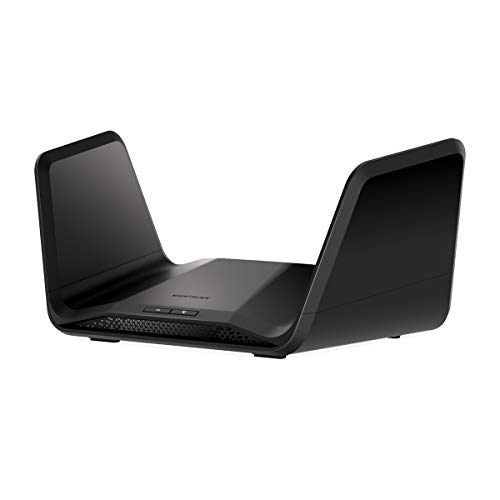
NETGEAR Nighthawk RAX70 — 8-stream capacity pick
The RAX70 closes the pool with a capacity argument: an 8-stream Wi-Fi 6 router in NETGEAR’s Nighthawk line. Streams, in the title’s shorthand, describe how many simultaneous data conversations the radio can conduct — and while no single device uses eight, a household is not a single device. The smart-home long tail of plugs, speakers, cameras and bulbs, layered under the family’s phones, laptops, televisions and consoles, is exactly the load that stream-rich designs were built to keep orderly. On a gigabit Fios line feeding a device-dense home, that orderliness is a form of speed.
NETGEAR positions the RAX70 as a tri-band design in its wider line, and buyers should confirm the band layout and port specification on the exact unit through NETGEAR’s documentation, since the listing title here states the stream count and the Wi-Fi 6 standard and leaves the rest to the spec sheet. That check matters for placement planning too: a capacity router earns its keep in the middle of the device crowd, and a household whose ONT strands it in a far corner should either run a longer Ethernet lead to a better position or concede the floor plan to the mesh pick.
The generational note is the same one applied fairly across this pool: Wi-Fi 6 is a mature, well-understood standard rather than the newest, and the RAX70’s case is that maturity plus capacity beats novelty for a device-heavy home today. Its Nighthawk administration and NETGEAR’s support resources suit the gateway-replacement mission, where the owner has inherited the support role and benefits from a platform many others have already troubleshooted in public.
Choose the RAX70 when the household’s problem is population rather than geography or generation: dozens of devices, all awake, all expecting the gigabit line to feel gigabit. It is the pool’s crowd manager, and crowds are the gigabit era’s normal condition.
The crowd, it is worth adding, is mostly silent. The devices that strain a router in a smart home are rarely the ones anyone watches; they are the background census — sensors reporting, cameras idling, speakers listening, plugs awaiting instruction — each trivial alone and collectively a constant administrative weather the router must handle without letting it reach the foreground traffic. Stream-rich hardware is engineered for exactly that weather. A household counting its devices and finding the total faintly embarrassing is not an edge case for the RAX70; it is the design brief, and on a gigabit line with a fast-growing census it is the pick whose headroom is measured in the right unit.
- Type: standalone Wi-Fi 6 router, 8-stream
- Stream count: 8-stream stated in the listing title
- Band layout, port speeds, coverage area and Fios TV feature support: Not stated in the listing title — verify with NETGEAR documentation
Strengths
- Eight streams keep a device-dense household’s traffic orderly.
- Nighthawk platform brings mature administration and support depth.
- Capacity-focused design suits the gigabit tier’s many-device reality.
Trade-offs
- The title leaves band layout and ports to the documentation — homework required.
- Wi-Fi 6 in a pool that includes Wi-Fi 7 for future-facing buyers.
- Capacity cannot fix a bad position; the ONT’s corner still rules placement.
Best for: a device-dense Fios home whose many gadgets compete for one router’s attention. Not suited for: a small household with a handful of devices, where its stream capacity would never be exercised.
How Much Router Does a Gigabit Tier Actually Need?
Less than the marketing suggests, and more than the rental provided — that is the honest calibration. The wired requirement is absolute but modest: gigabit ports, honestly implemented, and a processor that can route, translate and firewall at line rate without warming to the task. Every pick in this guide clears that bar by design, which is why none of the reviews above pretends the line itself will feel different between them at a wired desk. The differences live in the air and in the administration, and buyers should spend their attention there rather than on ever-larger class numbers.
In the air, need scales with the household’s census and habits. A useful way to think about it: count the devices that are active in the busiest hour, not the devices that exist. A home with forty gadgets of which six are awake needs a very different router from a home where six people run calls, streams and games simultaneously on a dozen screens. The first home is a coverage problem; the second is a capacity problem; the picks divide accordingly, with the mesh and coverage-led models answering the first and the tri-band and stream-rich models answering the second. Misdiagnosing which problem you have is the commonest way to overspend in this category — or to underspend and blame the tier.
And in administration, need scales with the owner’s appetite. The gateway era trained households to expect the network to be somebody else’s department. Owning the router returns that department in-house, and the picks that document themselves best — in manuals, in owner communities, in the plain accumulated record of other people’s solved problems — repay their owners every time a setting needs finding at an inconvenient hour. That is a genuine specification, as real as a band count, and on a twenty-year relationship with a fibre line it may matter more.
What Does the Rental-versus-Buying Sum Look Like Over Five Years?
The arithmetic is the least subtle part of this decision, and it is worth doing with the household’s actual bill in hand. A rented gateway’s charge recurs monthly and rises quietly over the years; multiplied across a five-year stay in the same home, it commonly totals several times the purchase price of any router in this guide — including the pool’s most expensive picks. Against that, the owned router’s costs are front-loaded and mostly finished on delivery day: the box itself, perhaps a longer Ethernet cable, perhaps a mesh node added in year two when a home office moves to the far bedroom. Households that move frequently should run the sum over their realistic horizon rather than five years, but even a two-year horizon clears the value picks in this pool comfortably.
The less countable side of the ledger deserves its sentences too. Renting buys a support boundary and a replacement promise: when the gateway dies, another appears. Owning buys control, performance chosen for the household’s own peak, and an asset that survives a change of provider — every pick here would serve a cable or rival fibre line exactly as it serves Fios. Households differ in which currency they value, and this guide’s position is only that the decision should be made with both columns visible. The one indefensible outcome is the default one: paying the rental for a decade because the swap sounded complicated, when the swap, as the section above describes it, is a phone call and a cable.
A final practical sum: keep the receipt and the old settings. The router’s warranty, the household’s configuration backup and a note of the ONT’s Ethernet-handoff call together form the ownership file that makes year three as calm as week one. Owners who keep that file rarely think about their network at all, which — as this guide has said in other contexts — is the state a home network is for.
How Do the Six Picks Compare on a Gigabit Fios Line?
| Pick | Architecture | Standard | Household it fits |
|---|---|---|---|
| NETGEAR R6700AX | Standalone | Wi-Fi 6 | Apartment or compact house, stated coverage |
| TP-Link Archer AX21 | Standalone | Wi-Fi 6 | Small household ending the rental cheaply |
| Amazon eero 6+ | Mesh | Not stated in title | Sprawling home, badly placed ONT |
| TP-Link BE400 | Standalone | Wi-Fi 7 | Long-term replacement, moderate load |
| TP-Link Archer AXE75 | Standalone, tri-band | Wi-Fi 6E | Busy household needing a third band |
| NETGEAR RAX70 | Standalone, 8-stream | Wi-Fi 6 | Device-dense smart home |
Every row accepts the same line at the same speed; the table is therefore a map of households, not of the tier. Match the row to the home’s shape — its size, its device census, its evening load — and the gigabit service will feel identical at the wall socket and appropriately different in the air.
What Should Fios TV Households Do Differently?
Proceed in stages, and keep the gateway until the picture is clear. The internet side of the swap is identical — Ethernet from the ONT to the new router — but TV equipment in many Fios homes receives guide data and on-screen services through the provider’s gateway and the home’s coax network. A household removing the gateway outright may find the internet superb and the television diminished: guides that stop updating, features that quietly vanish. The common resolution is a supporting role for the old gateway — left connected for the TV equipment’s sake while the new router runs the home’s internet — arranged deliberately rather than discovered accidentally.
Because no listing title in this pool claims Fios TV compatibility, this guide makes no pick-by-pick promises in that direction, and readers should distrust any source that does without naming the exact features preserved. The safe sequence is: confirm the Ethernet handoff, install the new router for internet, verify the TV service’s behaviour over a week with the gateway still in its supporting role, and only then decide what can be returned. Phone service through Fios follows a similar caution — it is delivered through the ONT and provider arrangements rather than the router in most installs, but any household relying on it should confirm its independence from the gateway before the gateway leaves the house.
What Mistakes Do Gateway-Swappers Make?
The classic mistake is unplugging everything on delivery day before confirming the ONT’s Ethernet handoff is live — leaving the household with a new router, an inactive socket and a support call that could have preceded the parcel. Second comes forgetting the old network’s name and password, then spending the evening rejoining every device in the house by hand when a two-minute settings match would have made the swap invisible. Third is returning the gateway the same afternoon, before a week of evenings has proven the new arrangement under real load.
Two quieter errors deserve mention. Testing only over Wi-Fi and concluding the tier shrank, when a wired test would have shown the line intact and the air merely crowded; and blaming the new router for a coax-era TV feature that the gateway was secretly providing. Both are cured by the same habit: change one thing at a time, measure at the wire first, and keep the old equipment until the new arrangement has survived a full week of the household’s real life.
Final Recommendation
For the typical gigabit Fios home, the Archer AXE75 is the balanced answer — tri-band calm at peak hour on a decorated, well-supported platform — with the BE400 as the choice where Wi-Fi 7’s longer runway matters more than the third band. The R6700AX serves the compact home that wants its coverage stated up front, the AX21 liberates the small household from rental fees for the least money, the RAX70 manages the device-dense smart home, and the eero 6+ solves the floor plans where the ONT’s corner defeats every standalone box. Whichever you choose, make the Ethernet-handoff call first and keep the old gateway for a week: on Fios, freedom from the rental is real, and it rewards the households that swap methodically rather than eagerly.
It is worth ending on what the swap represents, because readers sometimes arrive at this guide apologising for wanting to bother. A gigabit fibre line is among the best pieces of infrastructure a modern home can have, and the gateway rental model means many households experience it through the least capable hardware in their entire setup. Replacing that hardware is not tinkering for its own sake; it is the household taking possession of a connection it already pays a premium for, and matching the equipment to the life actually lived on it — the calls, the matches, the films, the small hours of work. The six routers above are six sizes of that possession. Take the one that fits, and let the fibre finally meet a router that was chosen.
Frequently Asked Questions
Do I need a special router for Verizon Fios?
No. Fios delivers internet through the ONT’s Ethernet port, and any router with gigabit ports can take over from there. There is no modem in the chain and no Fios-specific router requirement for internet-only service — the six picks in this guide are ordinary mainstream routers, which is precisely the point.
Will I lose Fios TV features with a third-party router?
You may lose some gateway-dependent features — guide data and certain on-screen services have historically relied on Verizon’s box and the coax network. Internet-only households lose nothing. TV households should keep the gateway in a supporting role for the TV equipment and verify behaviour before returning anything.
Why is my ONT connected by coax instead of Ethernet?
Many older installs were built TV-first, with the gateway fed over coax. Verizon can enable the ONT’s Ethernet port — usually by phone — and a third-party router needs that Ethernet handoff. Make the call before the new router arrives.
Can any of these routers deliver the full gigabit over Wi-Fi?
Not to a single device across a real floor plan, and none should be bought on that expectation. Wi-Fi class figures are aggregate theoretical maxima. What the picks deliver is the full tier over wired ports and a well-shared wireless experience; a device near the router on a fast band will see the highest wireless speeds.
Will Verizon still help me if something breaks?
Verizon supports its service up to the ONT. Beyond it, the router is yours — which is why this guide weighs documentation and owner-community depth so heavily. In practice, most faults after a swap are domestic settings, and the wired test at the ONT cleanly separates the provider’s territory from yours.
What if the new router gets no connection at all?
Work the chain in order. Confirm the ONT has power and its status lights are normal; confirm the cable runs from the ONT’s Ethernet port — not a coax terminal — to the new router’s WAN socket; then suspect the address lease, and power the ONT down for a minute before trying again. If a wired connection still refuses to stand up, call Verizon and ask them to verify the Ethernet handoff is enabled on the ONT — that single setting accounts for most swap failures that are not the router’s fault.
Can I use one of these routers if I move to a different provider?
Yes. Nothing in any pick is Fios-specific; each is a standard Ethernet router that will serve a cable, fibre or fixed-wireless service with an Ethernet handoff just as it serves the ONT. That portability is part of the owned-router argument — the asset follows the household, while a rented gateway’s value ends at the contract.
Should I match my old network name and password?
Yes — it is the swap’s best trick. Setting the new router’s network name and password identical to the old gateway’s lets every phone, laptop, television and smart bulb rejoin automatically. Change them later, deliberately, if you want a fresh start; do not let the swap force a household-wide rejoining ceremony.
Related Guides
Neighbouring questions are covered in our guides to the best routers for gigabit fibre broadband, the best mesh Wi-Fi systems for multi-storey homes and the best Wi-Fi 7 routers worth upgrading to.