What's inside
- Key Takeaways
- Quick Picks
- How Did We Compare the Best Laptops Backlit Keyboard Models Actually Offer?
- What Kinds of Keyboard Backlight Are There, and Which Suits You?
- Six Keyboards After Dark
- Glow Compared: How the Six Boards Behave After Dark
- Which Keyboard Mistakes Do Buyers Keep Making at Checkout?
- How Should You Set Up a Backlit Keyboard in the First Evening?
- Final Recommendation
- Frequently Asked Questions
- How Does Backlight Behaviour Differ Between These Six Models?
- What Should Night Workers, Students and Travellers Each Prioritise?
- How Do You Care for a Backlit Keyboard Across Years of Use?
- What Is the History of the Glowing Keyboard, and Why Did It Win?
- What About External Keyboards, and When Do They Beat the Built-In Board?
- How Bright Is Bright Enough? A Practical Guide to Steps and Rooms
- Do Backlit Keyboards Help Touch-Typists, or Only Hunt-and-Peck Typists?
- How Should You Test a Keyboard During the Return Window?
- What Do Gamers’ RGB Keyboards Teach the Rest of Us?
- Why Does This Guide Insist on Naming the M5 Air So Carefully?
- What Is It Like to Live With Each of These Boards for a Year?
- A Note on Accessibility: When the Glow Is Not a Luxury
- How Does the Keyboard Interact With Everything Else at Night?
- Should You Pay More for the Keyboard, or for the Laptop Around It?
- One More Scenario: The Shared House at Midnight
- Related Guides
As an Amazon Associate I earn from qualifying purchases. This post may contain affiliate links at no extra cost to you.
gizmoverdict.com is reader-supported. When you buy through links on our site, we may earn an affiliate commission.
Where to buy: Each pick below links to its verified listing, where the check-price button shows today’s figure for the named configuration. One clarification belongs at the front of this particular guide: the Apple pick is the current MacBook Air built on the M5 chip. Older M3 Air listings circulate widely — many of them renewed units — and this guide does not recommend them here, so check the chip name on any listing before assuming you have found the machine we mean.
Searching for the best laptops backlit keyboard shoppers can buy sounds like shopping for a lamp, but the keyboard is the one component a laptop owner touches for every single word of the machine’s life. Backlighting decides whether that touch stays accurate in a dim study, a night flight, a darkened lecture hall or the blue hour of an early start. Yet backlights are not one feature but a family of them: single-zone white light that simply appears, multi-zone RGB that performs, per-key systems that can be tuned key by key, and automatic sensors that raise and lower the glow with the room.
The differences that matter are behavioural. How evenly does the light spread, or do the corners of the board glow brighter than the centre? Does light leak from beneath the keycaps and distract in the dark, or is it contained to the legends? How many brightness steps exist, and does the keyboard remember your setting or reset it at every wake? Does it dim itself when you stop typing — courteous to battery and bed partners alike — and return the instant a key is touched? This guide assessed the six machines below as instruments for working in the dark, not merely as laptops that happen to glow.
The line-up deliberately spans the philosophies: a business flagship whose backlight is engineered like its chassis, Dell’s compact premium design, Apple’s current M5 Air with its famously disciplined keyboard light, a large HP convertible, an ASUS OLED machine whose backlit board anchors a value-rich specification, and Acer’s thin-and-light value pick. Every one of them lights its keys; they differ in how thoughtfully, and in everything else a laptop must also be.
Key Takeaways
- Backlight quality is behaviour — evenness, leak control, brightness steps and auto-dimming — not the mere presence of light under keys.
- The MacBook Air in this guide is the current M5 model; do not confuse it with the renewed M3 listings that dominate older search results.
- Business machines such as the ThinkPad treat the keyboard as the product, and their backlights are correspondingly disciplined.
- Zoned RGB, as on the Legion-class machines elsewhere in the catalogue, is a gaming dialect of the same idea; these six picks speak the productivity dialect.
- Auto-dimming behaviour differs per model and is worth learning in the first week, because it decides both battery drain and night-time courtesy.
- A great backlight cannot rescue poor key feel, so every pick here was also judged on travel, spacing and layout.
Quick Picks
| Pick | Badge | Why it is here |
|---|---|---|
| Lenovo ThinkPad X1 Carbon Gen 13 | Best overall | The Aura Edition flagship whose keyboard and backlight remain the business benchmark. |
| Dell XPS 13 | Best compact | A 13.4-inch 2.5K touch machine whose backlit board suits small desks and smaller bags. |
| Apple MacBook Air 13″ M5 | Best for Mac users | The current M5 Air: silent, light, and with keyboard backlighting tuned by ambient light. |
| HP Spectre x360 16 | Best 2-in-1 | A 16-inch convertible whose backlit keyboard survives the fold into tablet and tent modes. |
| ASUS Zenbook 14 OLED | Best display | An OLED screen and a backlit board in a specification that includes 32GB of memory. |
| Acer Swift Go 14 | Best value | The thin-and-light route to a backlit keyboard and a touch display without premium pricing pressure. |
How Did We Compare the Best Laptops Backlit Keyboard Models Actually Offer?
We worked in the dark, literally and methodically. Each keyboard was typed on in a lit office, a dim room and full darkness, because backlights reveal their character across that range: a board that is tasteful at noon can glare at midnight, and a board tuned only for darkness can vanish under office light while still draining its settings menu with claims. We assessed legend clarity, the evenness of illumination across the full width, light leaking from keycap edges, and the granularity of brightness control.
Behaviour under automation mattered equally. Sensors that judge the room, timers that dim the light when typing pauses, and the machine’s memory for the owner’s preference separate engineered backlights from fitted ones. Because no keyboard exists alone, we also weighed the qualities daylight reveals — key travel, stability, spacing, the size of the modifiers, the presence of a fingerprint reader for dark-room sign-ins — and the laptop around the board: screen, processor, memory, ports and the honesty of each listing.
One rule governed inclusion: the backlight had to be a designed feature of a good laptop, not a glow attached to a mediocre one. Every pick below earns its place as a complete machine that also happens to treat night work seriously.
What Kinds of Keyboard Backlight Are There, and Which Suits You?
The commonest kind is the single-zone white backlight: the whole board lights as one, in one colour, at a few brightness levels. It is the productivity standard for good reason — legible, calm, cheap to run, and present in most picks here. Its refinement lies in execution: even spread, contained leak and sensible steps matter more than any feature list, and they are exactly what separate the ThinkPad and MacBook executions from budget imitations.
Zoned and per-key RGB systems divide the board into regions or individual keys, each colour-addressable. Born in gaming, they have a genuine productivity dialect — colour-code the layers, highlight the shortcuts of the application in front of you, dim everything except the keys a task needs — but most office users set a single colour once and never return, which is why this guide’s picks favour disciplined white systems. Ambient-linked backlighting, Apple’s speciality, is the third philosophy: the room decides, the keyboard obeys, and the owner stops thinking about the feature entirely, which may be the highest compliment a backlight can earn.
Six Keyboards After Dark
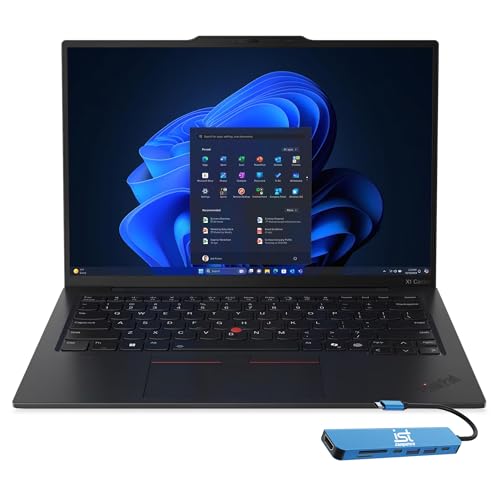
Lenovo ThinkPad X1 Carbon Gen 13 — Best overall
The X1 Carbon’s keyboard is the reason this guide exists in its current shape: for decades the ThinkPad board has been the reference other laptop keyboards are measured against, and the Gen 13 Aura Edition continues the line with an Intel Ultra 7 258V processor, 32GB of memory, a 1TB drive and a 14-inch 2.8K OLED screen. Its backlight is engineered in the same spirit as the keys themselves — even, white, contained, with brightness steps that acknowledge real rooms rather than showroom extremes, and behaviour that dims politely when the typing stops.
Daylight reveals the rest of the argument. The key travel and sculpted caps suit long documents, the layout keeps its modifiers honest sizes, and the fingerprint reader ends the dark-room ritual of mistyping a password by glow alone. As a complete laptop the Aura Edition is a Copilot+ class business flagship: Intel Arc 140V graphics, 47 TOPS of AI acceleration in its listing, a 1080p infrared webcam and Wi-Fi 7, in a chassis light enough that the keyboard’s excellence travels.
The compromises are the flagship’s usual ones: a premium position in the range, soldered memory that makes the purchase configuration permanent, and a specification whose talents exceed what pure word-processing needs. Buyers whose work is writing, analysis and presentation — in offices, in transit, in the dark — will find this the most complete answer in the guide.
- Display: 14-inch 2.8K OLED
- Processor: Intel Core Ultra 7 258V
- Graphics: Intel Arc 140V
- Memory: 32GB
- Storage: 1TB SSD
- Keyboard and extras: backlit keyboard, fingerprint reader, 1080p IR webcam, Wi-Fi 7, Windows 11 Pro
Strengths
- The backlight’s evenness and restraint set the standard the others are judged by.
- Key feel serves marathon writing in any light.
- A complete flagship specification surrounds the keyboard rather than compensating for it.
Trade-offs
- Memory is fixed at purchase, permanently.
- Its price position reflects the whole flagship, not merely the keyboard.
- White-only lighting will disappoint buyers wanting RGB expression.
Best for: professionals whose laptop is primarily a writing instrument used everywhere. Not suited for: buyers seeking per-key RGB or upgradeable memory.

Dell XPS 13 — Best compact
Dell’s XPS 13 in this 2026 listing pairs a 13.4-inch 2.5K touchscreen at 120Hz with 16GB of LPDDR5 memory, a 1TB drive and a backlit keyboard in the line’s minimalist chassis. The listing’s processor wording — an Intel quad-core designated 5 320 — is unusually plain for the XPS range, so buyers should read the configuration on the listing itself with care; the machine’s appeal, however, is the familiar XPS formula of screen quality, compactness and a keyboard deck designed as a single serene surface.
That design philosophy divides opinion and should be understood before buying. The XPS deck pursues minimalism — a clean, edge-to-edge presentation in which the backlit legends carry much of the visual information in dim light, making the backlight not an accessory but the interface itself after dark. Users who adapt tend to love the calm; users who hunt for keys by touch should test the layout’s feel deliberately, ideally in the return window, because compact decks forgive less.
As a travelling instrument the package coheres: Wi-Fi 7, Windows 11 Pro, a sharp high-refresh touch panel, and a footprint that treats tray tables and small desks as home ground. It is the pick for buyers whose dark working happens in transit — red-eyes, dawn trains, hotel desks — where the XPS’s size is the feature and its backlight the enabler.
- Display: 13.4-inch 2.5K touch, 120Hz
- Processor: Intel quad-core (per listing wording — verify configuration)
- Memory: 16GB LPDDR5
- Storage: 1TB SSD
- Keyboard: backlit keyboard
- System: Windows 11 Pro; Wi-Fi 7
Strengths
- The most compact complete package in this guide.
- A sharp 120Hz touch panel matches the keyboard’s after-dark polish.
- The minimalist deck looks and feels deliberate in dim environments.
Trade-offs
- The listing’s processor description is vague and must be verified before ordering.
- Sixteen gigabytes caps heavy multitasking ambitions.
- The minimalist layout asks touch-typists for an adaptation period.
Best for: frequent travellers who work in transit and prize compactness. Not suited for: buyers wanting a conventional, spacious keyboard deck.

Apple MacBook Air 13″ M5 — Best for Mac users
Repeat the identification once more, because this category’s search results are polluted with its ancestors: this is the 2026 MacBook Air with the M5 chip, 16GB of unified memory and a 512GB drive in the Midnight finish — not an M3, and not a renewed unit. The distinction matters because the Air’s keyboard backlight is one of its quiet masterpieces, linked to an ambient light sensor that raises and lowers the glow with the room so smoothly that most owners never learn the manual controls exist.
That automation is the philosophy: the backlight as climate rather than lighting. In a bright room it rests; as evening takes the desk it rises just enough; in full darkness it stays legible without the faintest glare toward a sleeping partner or a darkened cabin. The keys themselves are the Air’s familiar low-travel, stable design — less sculpted than the ThinkPad’s, more consistent than almost anything else — and Touch ID in the corner ends password typing in the dark altogether.
The surrounding machine needs little introduction and one honest caveat. Fanless silence, the 13.6-inch Liquid Retina display, a 12MP Center Stage camera and Wi-Fi 7 make it the default portable for macOS users; the caveat is permanence — memory and storage are the purchase-day decision forever, so buyers who keep machines for many years should size both generously at the till.
- Display: 13.6-inch Liquid Retina
- Chip: Apple M5
- Memory: 16GB unified memory
- Storage: 512GB SSD
- Keyboard and extras: backlit keyboard with ambient-light behaviour, Touch ID, 12MP Center Stage camera
- System: macOS; Wi-Fi 7; Midnight finish
Strengths
- Ambient-linked backlighting removes the feature from conscious management entirely.
- Fanless silence suits bedrooms, libraries and recording-adjacent work.
- Touch ID makes dark sign-ins a fingerprint rather than a password hunt.
Trade-offs
- Nothing inside can be upgraded after purchase.
- Low-travel keys divide writers who love deep, sculpted boards.
- macOS-only, obviously, for households standardised on Windows.
Best for: macOS users who work across every lighting condition a day contains. Not suited for: buyers needing Windows or post-purchase upgrades.

HP Spectre x360 16 — Best 2-in-1
The Spectre x360 scales the question up: a 16-inch convertible whose backlit keyboard must serve in laptop mode and then gracefully absent itself through tent, presentation and tablet postures. Its listing specifies an Intel Evo Ultra 7 155H processor, 16GB of LPDDR5 memory, a 1TB drive, a 120Hz WQXGA IPS touch panel, Thunderbolt 4, a fingerprint reader and a 9MP infrared camera — a large, premium specification in HP’s most design-conscious line.
Size is the keyboard argument here. Sixteen inches buys a spacious deck with room for full-size keys and a comfortable palm rest, and in dim rooms the Spectre’s backlight has the easiest job in this guide — space to spread evenly — and does it with the line’s customary polish. The convertible hinge earns its keep after dark in a specific way: tent mode turns the machine into a media and reference screen on a nightstand or kitchen counter, keyboard folded away, content forward.
The costs are the convertible’s eternal pair: weight that discourages daily carrying compared with the Air or XPS, and a specification — 16GB, an earlier Ultra generation — that positions it as a premium all-rounder rather than a performance flagship. Buyers who will genuinely fold it weekly get their money’s worth; buyers who will not should let the Zenbook below argue its case.
- Display: 16-inch WQXGA IPS touch, 120Hz
- Processor: Intel Core Ultra 7 155H, Evo platform
- Memory: 16GB LPDDR5
- Storage: 1TB SSD
- Keyboard and extras: backlit keyboard, fingerprint reader, 9MP IR camera, Thunderbolt 4
- System: Windows 11 Pro; Wi-Fi 6E
Strengths
- The spacious deck gives the backlight room to be genuinely even.
- Convertible postures suit evening media and reference use.
- Premium cameras and sign-in hardware flatter professional calls.
Trade-offs
- Sixteen-inch convertible weight is a daily-carry commitment.
- Sixteen gigabytes and an earlier processor generation cap its flagship claims.
- Buyers who never fold it pay for a hinge they do not use.
Best for: users who split time between typing and presenting or viewing. Not suited for: minimalists and daily long-distance commuters.

ASUS Zenbook 14 OLED — Best display
ASUS’s Zenbook 14 OLED is the specification overachiever of this guide: a Ryzen AI 7 445 processor, 32GB of LPDDR5X memory, a 1TB drive and a 14-inch WUXGA OLED panel in a Copilot+ chassis with a backlit keyboard, a 180-degree lay-flat hinge, and a listing that bundles a mouse and a 6-in-1 hub. The backlight itself is a well-executed single-zone white system — even, calm, and matched to a keyboard whose feel sits comfortably in the modern thin-and-light class.
The OLED panel is the after-dark synergy worth naming. OLED’s true blacks mean the screen stops glowing at the room the way LCD panels do, so in a dark space the Zenbook’s lit keyboard and its display reach a balance the LCD picks cannot quite copy: information without ambience. Writers working at night, partners asleep nearby, red-eye cabins — the pairing flatters them all, and the lay-flat hinge adds a collaboration posture for daylight hours.
Value completeness is the theme: the bundled hub answers the port question, the bundled mouse answers the pointing question, and 32GB answers the longevity question that the Air and XPS leave open at this size. Wi-Fi 6E rather than 7 is the one dated note in an otherwise current specification, and it will matter to almost nobody reading this guide.
- Display: 14-inch WUXGA OLED
- Processor: AMD Ryzen AI 7 445
- Memory: 32GB LPDDR5X
- Storage: 1TB SSD
- Keyboard and extras: backlit keyboard, 180-degree lay-flat hinge, mouse and 6-in-1 hub bundled
- System: Windows 11 Pro; Wi-Fi 6E
Strengths
- OLED blacks and a calm backlight make the best dark-room pairing here.
- Thirty-two gigabytes leads this guide’s 14-inch class for longevity.
- Bundled hub and mouse complete the desk kit in the box.
Trade-offs
- Wi-Fi 6E is a step behind the newest standard.
- Single-zone white lighting offers no per-key customisation.
- ASUS’s keyboard feel, while good, sits a tier below the ThinkPad reference.
Best for: night workers wanting a complete, long-lived 14-inch package. Not suited for: RGB customisers or Wi-Fi 7 completists.

Acer Swift Go 14 — Best value
The Swift Go 14 closes the guide at the value end without apologising for it: an Intel Core Ultra 7 155H processor, 16GB of LPDDR5X memory, a 512GB drive and a 14-inch 1920×1200 touch display in Acer’s thin-and-light Swift chassis, with Intel Arc graphics and Evo certification in its listing. The backlit keyboard is a straightforward single-zone white arrangement — the honest kind, evenly lit and entirely sufficient — and its presence at this position in the range is itself the recommendation: night typing should not require a flagship budget.
Judged as a whole laptop, the Swift Go covers the modern checklist with unusual completeness for its class: a touch display, current-generation processing, fast memory and enough storage for a documents-and-cloud working life. The keyboard’s feel is the mainstream thin-and-light standard — shorter travel than the ThinkPad, perfectly serviceable across long sessions — and the machine’s manners are quiet, cool and portable.
The limits are the expected ones: 512GB fills under media-heavy habits, 16GB is the contemporary floor rather than a luxury, and the backlight offers no zones, colours or ceremony. For students, home workers and anyone whose dark-room typing is occasional but real, it is the guide’s most efficient purchase; for writers who live on the keyboard, the X1 Carbon remains the argument at the top.
- Display: 14-inch 1920×1200 touch
- Processor: Intel Core Ultra 7 155H
- Graphics: Intel Arc
- Memory: 16GB LPDDR5X
- Storage: 512GB SSD
- Platform: Intel Evo thin-and-light
Strengths
- A proper backlit keyboard at the guide’s most accessible position.
- Touch display and current processing complete a modern specification.
- Thin-and-light manners suit students and home workers alike.
Trade-offs
- Storage and memory are adequate rather than generous.
- The backlight is single-zone with no customisation.
- Key feel is mainstream rather than reference-class.
Best for: value-conscious buyers who type after dark regularly but not professionally. Not suited for: marathon writers or heavy multitaskers.
Glow Compared: How the Six Boards Behave After Dark
| Pick | Backlight character | Sign-in help | Screen | Night-work personality |
|---|---|---|---|---|
| ThinkPad X1 Carbon Gen 13 | Even white, disciplined steps | Fingerprint reader | 14″ 2.8K OLED | The professional reference |
| Dell XPS 13 | Minimalist deck, legend-led | — | 13.4″ 2.5K touch 120Hz | The traveller’s calm |
| MacBook Air 13″ M5 | Ambient-sensor automatic | Touch ID | 13.6″ Liquid Retina | The set-and-forget board |
| HP Spectre x360 16 | Spacious, even spread | Fingerprint reader | 16″ WQXGA touch 120Hz | The evening all-rounder |
| ASUS Zenbook 14 OLED | Calm single-zone white | — | 14″ WUXGA OLED | The dark-room pairing |
| Acer Swift Go 14 | Honest single-zone white | — | 14″ 1200p touch | The value essential |
The table’s lesson is that execution, not features, separates these boards. Every pick lights its keys; the ThinkPad and MacBook disappear into the work, the Zenbook pairs its glow with an OLED’s darkness, and the value picks deliver the essential behaviour without ceremony. Choose by the room you type in most.
Which Keyboard Mistakes Do Buyers Keep Making at Checkout?
The first is treating backlight as a binary. Listings say yes or no; ownership is about evenness, steps, leak and automation, none of which a checkbox conveys — which is why hands-on testing inside a return window matters more for keyboards than for almost any other component. The second mistake is ignoring the daylight keyboard while shopping for the dark one: travel, spacing and layout decide eight hours of comfort for every hour the backlight performs.
Third is confusing RGB with quality. Colour systems are a dialect of self-expression and gaming utility; for text work, a disciplined white backlight at the right brightness beats a rainbow at the wrong one every night of the week. Fourth is forgetting sign-in: in genuinely dark rooms, a fingerprint reader or Touch ID is a backlight feature in disguise, because it removes the one password typed blind at every wake.
How Should You Set Up a Backlit Keyboard in the First Evening?
Work through the brightness steps in your real rooms and learn where your comfort sits — usually a step below the instinctive choice, because eyes adapt and glare accumulates. Set the auto-dim or timeout behaviour deliberately: short enough to spare battery and bed partners, long enough not to abandon you mid-thought. On the MacBook, spend a day trusting the ambient sensor before overriding it; automation judged too early is automation wasted.
Then type something long, in the dark, at your real desk: a page of prose, a real email, code with symbols that hunt the keyboard’s corners. Note where your hands hesitate — the small Enter, the displaced function row, the arrow cluster — and decide with that evidence whether the board fits your hands. Keyboards are the most personal component in computing; the first evening’s honesty is worth a year of adaptation you never chose.
Final Recommendation
The ThinkPad X1 Carbon Gen 13 is this guide’s north star: the keyboard and backlight by which the category is judged, inside a complete flagship. The MacBook Air M5 is the automatic answer for macOS and for anyone who wants the feature to manage itself, the Zenbook 14 OLED the night worker’s value-complete package, the Spectre the spacious convertible, the XPS 13 the traveller’s compact, and the Swift Go 14 proof that a proper backlit keyboard need not wait for a flagship budget. Whichever board you choose, test it in a genuinely dark room during the return window — because a keyboard reveals its true character only after the lights go out, and so, usually, does the writer using it.
Frequently Asked Questions
Is a backlit keyboard worth prioritising when buying a laptop?
If any of your typing happens in dim rooms, travel cabins or shared evening spaces, yes — it is the feature you will use every day, unlike many specifications used monthly. If your work is entirely in bright offices, treat it as a welcome standard rather than a deciding factor.
What is the difference between single-zone, zoned and per-key backlighting?
Single-zone lights the whole board as one, zoned lighting divides it into regions, and per-key systems address each key individually. For text work the practical differences are customisation and show; evenness and brightness control matter more than the zone count.
Is the MacBook Air pick in this guide really the M5 model?
Yes. The recommended listing is the 2026 Air with the M5 chip. Older M3 Airs are widely listed, frequently as renewed units, and are not the pick here — always confirm the chip on the listing page.
Do backlit keyboards drain the battery significantly?
Modestly, and good behaviour minimises it: lower steps, auto-dimming when typing pauses, and ambient-linked systems all keep the cost small. A backlight left at maximum overnight is wasteful; a managed one is a rounding error in a day’s use.
Can a backlit keyboard be added to a laptop later?
Not practically. Backlighting is integrated into the keyboard assembly and the machine’s power and control design, so it is a purchase-day decision — one more reason to test the actual board inside the return window.
Which pick suits a writer best?
The ThinkPad X1 Carbon, for the combination of key feel, backlight discipline and sign-in convenience across long sessions. The MacBook Air M5 is the close alternative for writers inside the Apple ecosystem.
How Does Backlight Behaviour Differ Between These Six Models?
Behaviour is where the boards separate into personalities. The MacBook Air delegates: its ambient sensor reads the room and the keyboard follows, so the owner’s experience is of a board that is simply always right. The ThinkPad obeys: manual steps are predictable, the setting persists, and the light dims on a timer with the discipline of a machine designed by people who present in darkened boardrooms. The XPS integrates its glow into a minimalist deck where the legends themselves carry the design, which makes its backlight feel less like illumination and more like the interface waking up.
The Spectre’s spacious board spreads light with the ease of size, and its convertible nature adds a behaviour the others lack: knowing when to switch off entirely as the hinge folds past laptop posture. The Zenbook pairs its calm white zone with an OLED screen’s darkness, a combination whose courtesy in shared rooms has to be experienced to be believed. The Swift Go performs the essential behaviour — on, even, adjustable, off — without automation theatre, and for many owners that plain competence, remembered setting and all, is precisely enough. None of these behaviours is a specification; all of them are the product, after dark.
What Should Night Workers, Students and Travellers Each Prioritise?
Night workers — the nurses on break, the writers on deadline, the analysts in other time zones — should prioritise dimming granularity and sign-in speed: the lowest brightness step matters more than the highest, and a fingerprint reader is a quality-of-life feature disguised as security. The ThinkPad and the Zenbook serve this reader best, the first for discipline, the second for its OLED partnership.
Students live between bright libraries and dark dorm rooms, often with a partner asleep three metres away. For them the MacBook’s automation and the Swift Go’s value frame the choice: silence matters too, which quietly eliminates fan-forward machines from dormitory contention regardless of their keyboards. Travellers should prioritise the board’s behaviour in cabins and the machine’s size together — the XPS 13’s compact deck and the Air’s lightness were designed in that exact light, at those exact altitudes, and it shows at 2 a.m. over an ocean.
How Do You Care for a Backlit Keyboard Across Years of Use?
Gently, and mostly by prevention. Crumbs and dust are the enemies of both key feel and light evenness, because debris under a cap shadows its legend; a soft brush and occasional compressed air, used with the machine off, keep the board’s glow uniform. Liquids are the catastrophe every backlit board shares — the light show of a spill is memorable for the wrong reasons — so the desk habit of drinks behind the screen is worth more than any spill-resistance claim in this category.
Settings care matters too. A backlight run at maximum for years ages its LEDs unevenly; living one step below maximum, with auto-dim enabled, extends the board’s even years noticeably. And learn the keyboard shortcut for your machine’s brightness before you need it in the dark — the small comedy of hunting for the backlight key by the light of a backlight that is off has happened to every owner in this category exactly once.
What Is the History of the Glowing Keyboard, and Why Did It Win?
Laptop backlights began as business-class luxuries, justified by red-eye flights and darkened conference rooms, and were for years a reliable upsell: the same machine, plus light, plus money. Three forces made them universal at the serious end of the market. LED costs collapsed. Thin-and-light design made the keyboard a designed surface rather than a component tray, and light became part of the design language. And work itself moved into the dark — homes, cabins, cafés at closing time — until a board that vanished at dusk felt less like a saving and more like a defect.
The six machines here represent the idea’s maturity: nobody in this guide advertises the glow as the headline, because it has become what serious laptops simply do, like webcams and backlit logos before it. What remains to compete on is behaviour — the automation, evenness and courtesy this guide has spent its length describing — and that is a healthier competition, because it is measured in owners’ evenings rather than in showroom impressions.
What About External Keyboards, and When Do They Beat the Built-In Board?
At a fixed desk, often — and saying so costs this guide nothing. A full-size external board with your preferred switches, a separate number pad and a desk’s ergonomic geometry will out-type any laptop keyboard across an eight-hour day, and docking turns every pick here into a desktop that happens to travel. The built-in backlit board earns its priority in the hours the external one cannot attend: the train, the kitchen table, the hotel, the library carrel, the sofa during the programme someone else chose. Judge the laptop’s keyboard by those hours, because they are the ones it was built for.
The hybrid pattern most professionals settle into deserves naming: external board at the desk, built-in board everywhere else, and the laptop’s backlight quality deciding whether everywhere else feels like real work or like making do. That is the standard this guide applied, and it is why a value pick with an honest glow can satisfy a traveller completely while disappointing a desk-bound writer who never docks.
How Bright Is Bright Enough? A Practical Guide to Steps and Rooms
In a lit office the backlight is nearly irrelevant — legends read by room light — and its only job is not to waste battery, which auto-dim handles. In a dim room, the middle steps of every board here suffice, and the evenness of spread matters more than output. In true darkness, the counterintuitive truth arrives: the lowest step is usually the right one, because the eye adapts within minutes and a bright board becomes a light source competing with the screen, tiring the eyes and announcing the typist to the room.
Learn your machine’s steps by room rather than by number, in the first-evening ritual this guide recommends, and distrust any board whose lowest setting still glares — that single flaw, invisible in a showroom, is the one owners curse nightly. All six picks pass that test credibly, with the MacBook’s sensor automating the judgement and the ThinkPad’s steps giving the manual user the finest control.
Do Backlit Keyboards Help Touch-Typists, or Only Hunt-and-Peck Typists?
Both, differently. Hunt-and-peck typists depend on the legends outright, and for them the backlight is the keyboard. Touch-typists use it at the margins that decide accuracy: the first keystroke after a pause, the symbol rows, the function layer, the unfamiliar shortcut in an unfamiliar application at an unfamiliar hour. Even elite typists glance — at passwords, at one-handed reaches while the other hand holds a phone or a child — and the glow serves those glances without demanding attention the rest of the time.
There is also the matter of the room’s other occupants. A backlit board lets a touch-typist work without the desk lamp, which lets a household sleep, a cabin stay dark and a library carrel remain a private pool of screen-light. The feature’s real beneficiary is often not the typist at all, and any honest accounting of its value should include the people it allows to remain in darkness undisturbed.
How Should You Test a Keyboard During the Return Window?
With a ritual, on the first evening, in genuine darkness. Type a thousand honest words — not a test passage but your real work — and score the board on the errors you did not make as much as the ones you did. Hunt the corners: the function row in the dark, the arrow cluster one-handed, the shortcut chords of your main application. Wake the machine from sleep and watch whether the board remembers your brightness or greets you at maximum like an interrogation lamp. Stop typing and time the dimming; resume and feel whether the light returns before your thought does.
Then repeat in the morning’s bright kitchen, because a board can win the night and lose the day — shallow travel and cramped spacing collect their tax in daylight hours. If both sittings satisfy, keep the machine with confidence. If either fails, the return window is doing its job, and the XPS’s minimalist deck in particular deserves this honest trial, since its admirers and its critics are separated precisely by hands rather than by specifications.
What Do Gamers’ RGB Keyboards Teach the Rest of Us?
More than office snobbery admits. Gaming boards normalised per-key control, software profiles and lighting that reacts to the work — a key that pulses when its cooldown ends is, in another dialect, a shortcut that glows when its application opens. The Legion-class machines elsewhere in the wider catalogue carry zoned RGB into professional chassis, and some analysts and editors genuinely use colour-coding: layers, macros and application-specific keys tinted into groups the eye learns faster than the memory does.
The lesson this guide takes is selective. Colour for information is legitimate; colour for its own sake is a taste nobody should be taxed for at the office end of the market. The six picks here spend their keyboard budgets on feel, evenness and behaviour rather than spectra — a defensible editorial line, openly drawn, with the RGB route acknowledged for the buyers whose work or pleasure genuinely speaks that language.
Why Does This Guide Insist on Naming the M5 Air So Carefully?
Because this category’s listings are a museum of previous generations wearing similar silhouettes. The Air’s design changes slowly, its old models remain on sale for years, and renewed units — honestly labelled in their full titles, invisible in a glance — fill the search results for every recent chip. A reader who orders an M3 believing it to be the machine reviewed here has been failed by somebody, and this guide declines to be that somebody: the pick is the M5, the listing is linked exactly, and the same chip-checking habit is recommended for the XPS, whose own listing describes its processor in unusually vague terms.
Generalise the habit beyond Apple. In a market where last year’s flagship is this year’s bargain and the silhouettes refuse to change, the configuration — chip, memory, storage — is the product, and the photograph is merely its portrait. Read listings the way this guide reads them: for the words, in full, before the admiration.
What Is It Like to Live With Each of These Boards for a Year?
The ThinkPad becomes invisible, which for a business tool is glory: the light is where you left it, the keys wear their legends honestly, and the board’s discipline matches the owner’s routines until neither is noticeable. The MacBook becomes atmospheric — owners stop describing its keyboard light at all and describe evenings instead, which is automation’s signature. The XPS remains a small daily pleasure of design, its deck’s calm still capable of pleasing its owner at month twelve, provided the hands voted yes in week one.
The Spectre’s year is measured in postures: the laptop months, the tent-mode evenings, the presentations where the hinge earned its engineering. The Zenbook’s year is measured in dark rooms made comfortable — the OLED and the glow in their long partnership — and the Swift Go’s year is measured in the absence of regret, the value pick that simply kept up. None of these machines will be remembered for a specification; all of them, chosen well, will be remembered for evenings of work that felt unimpeded, which is the only memorial a keyboard should ever want.
A Note on Accessibility: When the Glow Is Not a Luxury
For low-vision users, backlighting is not ambience but access, and its quality — contrast of legend against cap, evenness, a maximum bright enough for a dim room’s remaining sight — can decide whether a laptop is usable independently at all. The strong, even boards here, the ThinkPad and Spectre foremost, serve that need best among these six, especially paired with the operating systems’ magnification and contrast tools. Buyers shopping for accessibility should test with the actual user, in the actual rooms, and treat the return window as part of the assistive technology itself.
The same courtesy extends to ageing eyes generally, which is most eyes eventually. A generation of workers who typed happily on unlit boards at twenty-five finds, at fifty, that the glow has quietly become the difference between working anywhere and working only under lamps. Categories like this one are sometimes dismissed as cosmetic; the demography of real laptop owners disagrees, one evening at a time.
How Does the Keyboard Interact With Everything Else at Night?
A laptop after dark is a system of lights negotiating with a pair of eyes: screen brightness, keyboard glow, the webcam’s indicator, the room’s last lamp. The picks that manage the system as a whole — the MacBook’s linked ambience, the Zenbook’s OLED darkness beneath a calm board — feel restful in a way no single component explains. The practical settings ritual takes two minutes: screen to a fixed moderate level, keyboard one step above legibility, notifications silenced, and the room’s overhead light off rather than dimmed, because mixed lighting is what tires eyes across a long session.
Video calls invert the arrangement: the face needs light the keyboard cannot give, and a small lamp behind the screen serves better than any board’s glow. None of this is in the listings, and all of it decides whether the machine you bought for its backlight becomes the evening instrument you hoped for — hardware proposes, habits dispose, in this category more faithfully than in most.
Should You Pay More for the Keyboard, or for the Laptop Around It?
The honest answer is that at the serious end of the market they arrive together, which is this guide’s quiet thesis. The ThinkPad’s board is inseparable from its chassis, service and screen; the Air’s glow is inseparable from its sensor, silence and operating system. Where budgets force a choice, fund the complete machine at the tier your work requires and accept its keyboard as the tier’s standard — every tier represented here lights its keys competently — rather than stretching for a keyboard badge on a machine whose memory or storage will frustrate you daily. The glow is used nightly; the frustrations would be hourly, and arithmetic like that should win arguments.
One More Scenario: The Shared House at Midnight
Picture the actual use that sells this category: a kitchen table at midnight, a household asleep, a deadline or an idea that will not wait for morning. The screen is low, the board glows at its gentlest step, the machine — if it is the Air — makes no sound at all, and the work proceeds at full quality in a pool of light six feet wide. Every pick in this guide can host that scene; the differences are in its texture, the evenness of the glow on the page of keys, the absence of fan or glare, the password taken by a fingertip instead of typed into the dark. Buyers who recognise the scene as their own life should weight this guide’s judgements heavily. Buyers who do not should save their money for the specifications their own scenes actually use — and that honesty, applied to oneself, is the beginning of every good laptop purchase.
A final housekeeping note for whichever board wins: photograph your preferred settings, learn the brightness shortcut by touch, and keep a microfibre cloth in the bag rather than the desk drawer, because keyboards are cleaned where they are used or not at all. The glow will do the rest — evenly, quietly, and at exactly the brightness your evenings require — for as many years as the machine serves, which is all any component can honestly promise.
And spare a thought, when the new machine arrives, for the old one’s keyboard — the board that carried your previous years of evenings. Wipe it down, photograph the configuration record you kept, and pass the machine on honestly described, chip and all, in the spirit this guide has asked of every listing it read. Somewhere a student is shopping for exactly that glow on exactly that budget, and the clarity you wished for at checkout is now yours to give.
One more distinction is worth carrying into the shops: a keyboard can be backlit and still be wrong for you, in travel, in spacing, in the sound it makes in a quiet room at midnight when every keystroke is a small announcement. Specifications will never capture that sound. Your hands and your household will, within one evening — which is why this guide ends where it began, with the return window open, the lights low, and a thousand honest words waiting to be typed.
Choose, then, not the brightest board or the most colourful one, but the one whose light behaves the way your evenings behave — rising when the room dims, resting when you pause, remembering what you taught it. That behaviour, repeated across a thousand nights, is the difference between a feature on a listing and an instrument in a life, and it is available at every level of this guide, from the Swift Go’s honest glow to the ThinkPad’s reference discipline, for the simple price of testing before you commit. Test in darkness, test at dawn, test with the household asleep and the deadline awake, and let the board that disappears into the work — leaving only the words, appearing one after another in the quiet — be the board you keep. Everything else in this guide — the processors, the panels, the ports — will be renegotiated by the market within a year, but the keyboard you choose this season will be under your fingers for every word of the machine’s life, in every light the day can offer, and that is why it deserved a guide of its own. Read the listings by their chips, test the boards by your hands, set the glow by your rooms — and the machine you keep will light your work, gently and exactly, for years. That is the modest, durable promise at the centre of this odd little category — not a brighter laptop, but a longer day, taken at your own pace, in your own light, wherever the work happens to find you. Choose the board that fits your hands and your rooms, and the finding will go well — tonight, tomorrow night, and on the long succession of evenings that make up a working life with a laptop. It is a small thing, a light under a set of keys, and like most small things faithfully engineered, it turns out to matter every single day. Buy it well, set it gently, and let the words come in whatever light the day has left you — the board, at least, will be ready. And when the first evening with the new machine comes — lamp off, house quiet, page waiting — you will know within a paragraph whether the choice was right, because the right keyboard makes the darkness feel less like a limitation and more like a room of one’s own. That feeling — private, lit, unhurried — is what the best of these six machines are really selling, and it is worth every moment of the testing this guide has prescribed to find the one that sells it to you, honestly, quietly and well, night after working night, for the whole long and useful life of the machine you chose so very carefully indeed.
Related Guides
For a second screen to match the night desk, see how dual-screen laptops change evening workflows; for study-focused buying, compare the laptops we recommend for homeschooling families; and for clinical placements, read our nursing-student laptop guide on keyboards, battery and portability.



[…] the second screen is for a creative desk, compare these machines with the creator laptops we recommend for video editing work; if it is for numbers, see how the data-science picks handle wide analytical workspaces; and if […]