What's inside
- Key Takeaways
- Quick Picks
- How Did We Select the Best Laptops and Notebooks for Nursing Students?
- What Does a Nursing Degree Actually Ask of a Laptop?
- Six Machines for Lectures, Libraries and Lockers
- Placements, Papers and Processors: the Six Compared for a Nursing Week
- A Short, Honest Note on Paper Notebooks for Clinical Pockets
- What Mistakes Do Nursing Students Make When Buying a Laptop?
- How Should You Prepare the Laptop Before the First Placement?
- Final Recommendation
- Frequently Asked Questions
- How Does a Nursing Week Actually Run on These Machines?
- What About Statistics, Research and the Degree’s Later Years?
- How Should Students Handle Backup, Security and the Portfolio?
- What Accessories Actually Earn Their Place in a Nursing Student’s Bag?
- How Do Mature Students, Career-Changers and Part-Time Students Fit This Guide?
- What Happens at Graduation? Choosing a Machine That Becomes a Professional Tool
- How Should You Decide Between the MacBook Air and the Windows Picks?
- What Does Examination Season Ask of a Laptop, Specifically?
- A Note on Wellbeing: the Laptop as the Degree’s Quiet Companion
- How Should the Purchase Be Timed and Budgeted Across a Degree?
- What Should You Do in the First Week With the New Machine?
- Related Guides
As an Amazon Associate I earn from qualifying purchases. This post may contain affiliate links at no extra cost to you.
gizmoverdict.com is reader-supported. When you buy through links on our site, we may earn an affiliate commission.
Where to buy: Every laptop below links to its verified listing, where the check-price button shows the current figure for the named configuration. Two notes before the reviews: the word “notebooks” in this guide’s title means notebook computers, though a short honest passage on paper notebooks for clinical pockets appears later, because every nursing student ends up needing both; and the Acer at the end of the list is an older 11th-generation configuration, recommended openly as a budget holdout rather than disguised as a current model.
The best laptops and notebooks for nursing students must survive a very specific double life. Half the week is academic: lectures, pharmacology references, care-plan documents, research databases, group projects and the learning platforms through which modern nursing programmes deliver almost everything. The other half is clinical: early mornings, long shifts, charting practice, skills labs and placements where the laptop waits in a locker or a bag while its owner does the physical, human work the degree is actually about. A machine for this life needs stamina, portability and reliability more than it needs spectacle.
Certain requirements recur in programme after programme. The laptop must run the institution’s exam and proctoring software, which for most students means a current Windows or macOS machine rather than a Chromebook — students should confirm their own programme’s technical requirements before buying anything, because a small number of testing platforms exclude particular systems. It must last a library day without hunting for sockets, wake instantly between lectures, carry a webcam and microphone good enough for remote seminars and telehealth simulations, and type comfortably at the speed of a lecture hall.
The six machines below were chosen against that double life: Apple’s 15-inch M5 Air as the portable flagship, Dell’s Premium 16 as the Windows powerhouse, HP’s Pavilion 15 as the value touchscreen, Lenovo’s IdeaPad Slim 3 as the mid-range all-rounder, Dell’s Inspiron 15 as the coursework load-carrier, and the Acer Aspire 5 as the honest budget holdout. A short section on paper notebooks follows the reviews, because clinical pockets have their own information technology and it is made of card and ink.
Key Takeaways
- Confirm your programme’s exam-software requirements before buying; most nursing programmes expect a current Windows or macOS laptop.
- Battery life and weight outrank raw power for a degree split between lectures, libraries and clinical placements.
- The MacBook Air pick is the 15-inch M5 model — current silicon, a large screen for care plans, and silent, light portability.
- Every Windows pick here carries 16GB of memory except the budget holdout, whose 8GB is framed honestly as its compromise.
- The Acer Aspire 5 is an 11th-generation design recommended only as a budget holdout for the degree’s lighter computing years.
- Paper notebooks still belong in clinical pockets; a short section after the laptop reviews covers choosing them.
Quick Picks
| Pick | Badge | Why it is here |
|---|---|---|
| Apple MacBook Air 15″ M5 | Best overall | A large, silent, light machine with the battery stamina a placement-heavy week demands. |
| Dell Premium 16 | Best Windows premium | A 4K OLED touchscreen flagship with 32GB of memory for students who want one machine for the whole degree and beyond. |
| HP Pavilion 15 | Best value touchscreen | Sixteen gigabytes, a touchscreen and an 11-hour battery claim in the range’s sensible centre. |
| Lenovo IdeaPad Slim 3 | Best mid-range | A Ryzen 7 touchscreen machine that balances coursework power and placement portability. |
| Dell Inspiron 15 3530 | Best for coursework loads | An i7 with 16GB and a 1TB drive for students juggling many courses, files and group projects. |
| Acer Aspire 5 A515-56 | Budget holdout | The 11th-generation survivor: honest, inexpensive, and sufficient for the degree’s lighter demands. |
How Did We Select the Best Laptops and Notebooks for Nursing Students?
We started from the programme, not the product. Each candidate had to satisfy the common technical floor of nursing education: a current operating system compatible with mainstream exam and proctoring platforms, a webcam and microphone fit for remote seminars, enough memory for the reality of a browser carrying the learning platform, a drug reference, lecture slides and a care-plan document at once, and storage that survives four years of accumulated coursework without a deletion ritual each semester.
Portability and stamina were weighted as heavily as specifications, because the degree’s geography is lectures, libraries, skills labs, placement commutes and home desks in rotation. A machine that is magnificent and left at home fails the degree; a machine that is merely good and always present passes it. Keyboards were judged for lecture-speed typing and long documentation sessions, screens for hours of reading dense clinical text, and build quality for a life spent in bags between sites.
Finally, honesty about tiers: a first-year student whose computing is documents and platforms does not need the Dell Premium’s 32GB, and a student running statistics, research tools and a side job might genuinely use it. This guide assigns each pick to the student it fits rather than pretending one machine is the degree’s universal answer.
What Does a Nursing Degree Actually Ask of a Laptop?
Less peak power and more constancy than students expect. The daily load is breadth, not depth: many tabs, several documents, a video lecture, a reference database, a group chat, a citation manager — a workload that rewards memory and battery while barely troubling a modern processor. Peaks arrive at assessment time, when exam software, timed conditions and a machine that must simply not fail converge; reliability, updates installed in advance and a battery that can be trusted are the real examination specifications.
The clinical half asks different things: nothing at the bedside, everything around it. Pre-shift reading, post-shift reflection journals, care-plan drafts, evidence searches for assignments grounded in the day’s cases. The laptop lives in lockers, bags and library carrels, woken for twenty intense minutes at a time — a pattern that rewards instant wake, a comfortable keyboard and a screen that can be read under any light a hospital corridor or a night bus provides.
Six Machines for Lectures, Libraries and Lockers

Apple MacBook Air 15″ M5 — Best overall
The 15-inch MacBook Air with the M5 chip is the machine this degree would design for itself if it could: a 15.3-inch Liquid Retina display large enough for care plans and anatomy diagrams side by side, 16GB of unified memory, a 512GB drive, a 12MP Center Stage camera for remote seminars, Touch ID for the constant sign-ins of student platforms, and Wi-Fi 7 — all in a fanless, light chassis in the Midnight finish of this listing that treats a placement commute as a non-event.
Its virtues map onto the nursing week with unusual precision. Silence suits libraries and shared study rooms. Instant wake suits the twenty-minute windows between everything. The battery suits the day that begins in a 9 a.m. lecture, continues in a skills lab, and ends with evening revision in a kitchen rather than near a socket. The large screen suits the degree’s dense reading — pharmacology tables, care pathways, research papers — without the weight penalty that historically came with 15-inch machines.
The conditions are Apple’s usual ones, plus one programme check. Memory and storage are fixed forever at purchase, so size them for the whole degree. And because a minority of exam platforms have historically favoured Windows, confirm your institution’s requirements before choosing macOS — most students will find it fully supported, but the confirmation is a five-minute email that protects a four-year purchase.
- Display: 15.3-inch Liquid Retina
- Chip: Apple M5
- Memory: 16GB unified memory
- Storage: 512GB SSD
- Camera and sign-in: 12MP Center Stage camera, Touch ID
- System: macOS; Wi-Fi 7; Midnight finish
Strengths
- The large screen and light chassis resolve the degree’s central portability tension.
- Fanless silence and long battery life suit libraries, placements and shared rooms.
- The camera and Touch ID flatter remote seminars and constant platform sign-ins.
Trade-offs
- Configuration is permanent; buy memory and storage for year four, not year one.
- Programme exam-software requirements must be confirmed for macOS.
- No touchscreen for students who annotate slides by hand on screen.
Best for: nursing students who want one light, lasting machine for the whole degree. Not suited for: programmes mandating Windows-only examination software.

Dell Premium 16 — Best Windows premium
Dell’s Premium 16 — the line previously sold as the XPS 16, as its listing notes — is the Windows flagship of this guide: a 16.3-inch 4K OLED touchscreen, an Intel Ultra 7 255H processor, 32GB of LPDDR5X memory, a 1TB drive and GeForce RTX 5050 graphics, with a fingerprint reader, a backlit keyboard and Windows 11 Pro. For a nursing student it is, frankly, more machine than the degree requires — and that is its honest pitch: one purchase that covers the degree, the research ambitions, the side projects and the first professional years without ever being the bottleneck.
The specifications translate into specific comforts. Thirty-two gigabytes swallows the multitasking sprawl of finals season without a stutter. The OLED touchscreen renders anatomy atlases and imaging examples with a fidelity that serves study rather than vanity, and touch annotation suits students who mark up slides directly. Windows 11 Pro and the fingerprint reader satisfy institutional requirements and daily convenience alike.
The costs are weight, presence and price position: a 16-inch flagship is a desk-and-library machine that travels between bases rather than accompanying every corridor, and its talents are wasted on a student whose degree is documents alone. Buy it as a four-to-six-year instrument, and its economics argue themselves; buy it for a single light year, and the Pavilion below is the wiser door.
- Display: 16.3-inch 4K OLED touch
- Processor: Intel Core Ultra 7 255H
- Graphics: NVIDIA GeForce RTX 5050
- Memory: 32GB LPDDR5X
- Storage: 1TB SSD
- Extras: fingerprint reader, backlit keyboard, Windows 11 Pro
Strengths
- Flagship memory and screen make finals-season multitasking effortless.
- The touchscreen suits direct slide annotation and diagram work.
- A degree-and-beyond lifespan justifies the premium position.
Trade-offs
- Sixteen-inch flagship weight discourages carrying it everywhere.
- Its power exceeds what coursework alone will ever request.
- OLED care habits apply during long static document sessions.
Best for: students wanting a single premium Windows machine through graduation and into practice. Not suited for: minimalists or the lightest placement-heavy timetables.

HP Pavilion 15 — Best value touchscreen
The Pavilion 15 is the sensible centre of this guide, and its listing reads like a checklist written by a student union: a 15.6-inch FHD touchscreen, a 10-core Intel Core i5-1334U processor, 16GB of memory, a 512GB drive, Wi-Fi 6, a webcam, and a battery its listing describes as offering up to 11 hours — a figure to treat as a best-case guide rather than a promise, as with all such claims, while noting that even a discounted version of it covers a library day.
For nursing coursework this is the complete pattern: enough memory for the platform sprawl, a touchscreen for annotating and for the casual navigation students actually use, a full-size screen for reading, and Windows 11 Pro with AI Copilot features in this configuration for institutional compatibility. Nothing here is exotic, and that is the recommendation — the Pavilion is the machine a student can buy without a spreadsheet, a debate or a regret.
Its compromises are refinement rather than capability: the chassis and keyboard are mainstream rather than premium, the screen is FHD rather than the Dell’s OLED, and heavy creative work is outside its brief. For the degree’s actual demands — documents, platforms, references, calls, exams — it may be the most rational purchase in this entire list.
- Display: 15.6-inch FHD touch
- Processor: Intel Core i5-1334U, 10 cores
- Memory: 16GB
- Storage: 512GB SSD
- Battery: up to 11 hours per listing (best-case figure)
- System: Windows 11 Pro; Wi-Fi 6; webcam
Strengths
- The complete coursework specification at the range’s sensible centre.
- A touchscreen at a value position suits annotation habits.
- Sixteen gigabytes meets the degree’s multitasking reality properly.
Trade-offs
- Mainstream build and keyboard rather than premium instruments.
- Battery claims are best-case; plan on less in examination weeks.
- FHD resolution is clear, not luxurious, for dense diagrams.
Best for: most nursing students, most of the time — the default Windows recommendation. Not suited for: buyers wanting flagship screens or maximum longevity headroom.
Lenovo IdeaPad Slim 3 — Best mid-range
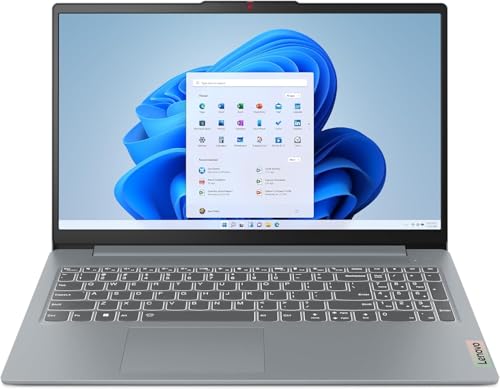
Lenovo’s IdeaPad Slim 3 in its 2025 form pairs an AMD Ryzen 7 5825U processor — an eight-core part — with 16GB of DDR4 memory, a 512GB drive and a 15.6-inch FHD touchscreen, with Wi-Fi 6 and a 720p camera. It occupies the guide’s middle with a particular strength: balanced, proven components in a slim chassis, the kind of specification that handles the degree’s breadth without any single feature shouting for attention.
The Ryzen processor’s efficiency suits the placement-and-library pattern, the touchscreen serves the annotation and navigation habits of coursework, and 16GB of memory keeps the platform sprawl civilised. As a machine to be carried daily between home, campus and clinical sites, its slim profile and mainstream weight make it the Windows pick least likely to be left behind — which, as this guide keeps insisting, is the most important specification of all.
Age shows in the details rather than the whole: DDR4 rather than the newest memory standard, a 720p camera in a world of sharper ones, and a processor generation behind the flagships. None of these touches the degree’s core demands, and the price position they enable is the point. Students choosing between this and the Pavilion are choosing between near-identical promises from two makers; let the keyboard feel and the day’s discount decide.
- Display: 15.6-inch FHD touch, 1920×1080
- Processor: AMD Ryzen 7 5825U, 8 cores
- Graphics: AMD Radeon integrated
- Memory: 16GB DDR4
- Storage: 512GB SSD
- Connectivity: Wi-Fi 6, Bluetooth 5.2; 720p camera; Windows 11 Home
Strengths
- Balanced, proven components in a genuinely portable chassis.
- Sixteen gigabytes and a touchscreen cover the coursework pattern fully.
- Ryzen efficiency suits long days away from sockets.
Trade-offs
- The 720p camera is the weakest for remote seminars here.
- DDR4 and an older processor generation date the specification.
- Windows 11 Home rather than Pro in this configuration.
Best for: students wanting a balanced, carry-everywhere Windows machine. Not suited for: buyers prioritising camera quality or Pro-edition Windows.

Dell Inspiron 15 3530 — Best for coursework loads
The Inspiron 15 3530 is the load-carrier: a 15.6-inch FHD touchscreen, an Intel Core i7-1355U processor, 16GB of memory and a full 1TB drive, with Windows 11 Pro in a business-capable configuration. Its badge names its talent — coursework loads — because the nursing degree accumulates: semesters of slides, recorded lectures kept for revision, group-project files, portfolio evidence, reference libraries. A terabyte postpones the storage reckoning to a point comfortably beyond graduation for most students.
The i7 processor and 16GB of memory give group-project season and statistics coursework their headroom, while the touchscreen and Pro edition of Windows keep it compatible with both student habits and institutional requirements. Dell’s Inspiron line is the mainstream made durable, and for a student whose fear is not portability but accumulation — too many files, too many courses, too many simultaneous obligations — this is the reassuring answer.
It is not the lightest companion for a placement-heavy final year, nor the most refined keyboard in the guide, and its talents are wasted on a student who keeps everything in the cloud and travels light. Match it to the hoarder’s workflow it was built for and it will not be outgrown by coursework; it will be outlasted only by the degree itself.
- Display: 15.6-inch FHD touch
- Processor: Intel Core i7-1355U
- Memory: 16GB
- Storage: 1TB SSD
- Ports and extras: webcam, HDMI, Wi-Fi 6
- System: Windows 11 Pro; black finish
Strengths
- A terabyte of storage absorbs four years of accumulated coursework.
- The i7 and 16GB pairing handles group-project and statistics loads.
- Windows 11 Pro satisfies institutional and placement requirements.
Trade-offs
- Mainstream weight for daily placement commuting.
- Refinement trails the premium picks in keyboard and chassis.
- Cloud-native students will never use its storage advantage.
Best for: students with heavy file loads, group projects and long retention habits. Not suited for: ultralight travellers who keep everything online.
Acer Aspire 5 A515-56 — Budget holdout
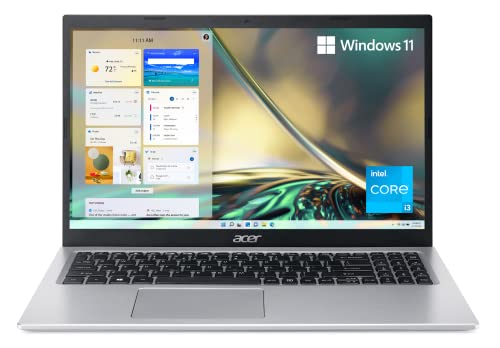
Now the honesty this guide promised at the start. The Aspire 5 A515-56 is an older configuration built around an 11th-generation Intel Core i3-1115G4 dual-core processor, with 8GB of DDR4 memory, a 128GB NVMe drive, a 15.6-inch Full HD IPS display, Wi-Fi 6 and Windows 11 Home in S Mode, in silver. By the standards of the five machines above, every figure is a generation or a tier behind, and this guide recommends it only under a clear label: the budget holdout, for students whose funds are genuinely constrained and whose immediate computing is documents, platforms and lectures.
Within that brief, it works. The screen is a proper Full HD IPS panel — better than the degree’s minimum — the keyboard deck is full-size, and the platform handles the browser-based centre of nursing coursework. A student can begin a degree on this machine, and many have finished degrees on less. The S Mode detail deserves attention: it restricts installations to the store by default and can be switched out of, a step students should understand before examination software needs installing.
The limits are structural and must be bought knowingly: 8GB of memory will feel the platform sprawl, 128GB of storage will demand cloud discipline from the first semester, and an 11th-generation dual-core processor sets a ceiling on the degree’s later, heavier years. Treat it as the first machine of a constrained budget — possibly replaced or supplemented later — and it is an honourable purchase. Treat it as a four-year flagship and it will correct the misunderstanding by year two.
- Display: 15.6-inch Full HD IPS
- Processor: Intel Core i3-1115G4, 11th generation, dual-core
- Memory: 8GB DDR4
- Storage: 128GB NVMe SSD
- Connectivity: Wi-Fi 6; Amazon Alexa built in
- System: Windows 11 Home in S Mode; silver
Strengths
- The most accessible route into the degree’s computing requirements.
- A genuine Full HD IPS screen exceeds the budget class’s usual standard.
- Full-size deck and proven Aspire design for daily coursework.
Trade-offs
- An 11th-generation dual-core processor is the guide’s clear performance floor.
- Eight gigabytes and 128GB demand discipline from the first semester.
- S Mode must be understood before installing examination software.
Best for: budget-constrained students beginning the degree’s lighter computing years. Not suited for: a four-year, no-compromise single purchase.
Placements, Papers and Processors: the Six Compared for a Nursing Week
| Pick | Memory / storage | Screen | Portability character | Student it fits |
|---|---|---|---|---|
| MacBook Air 15″ M5 | 16GB / 512GB | 15.3″ Liquid Retina | Lightest large-screen option | The whole-degree minimalist |
| Dell Premium 16 | 32GB / 1TB | 16.3″ 4K OLED touch | Base-to-base flagship | The long-term investor |
| HP Pavilion 15 | 16GB / 512GB | 15.6″ FHD touch | Mainstream all-rounder | The sensible default |
| Lenovo IdeaPad Slim 3 | 16GB / 512GB | 15.6″ FHD touch | Slim daily carrier | The balanced commuter |
| Dell Inspiron 15 3530 | 16GB / 1TB | 15.6″ FHD touch | Load-carrying mainstream | The coursework hoarder |
| Acer Aspire 5 | 8GB / 128GB | 15.6″ FHD IPS | Budget holdout | The constrained starter |
Read the table against your timetable rather than your ambitions. A placement-heavy final year rewards the Air’s weight and battery; a research-heavy year rewards the Dell Premium’s memory; a file-heavy degree rewards the Inspiron’s terabyte. The Aspire’s row is deliberately the plainest — it is the floor of the guide, stated as such, and for the right budget it is enough.
A Short, Honest Note on Paper Notebooks for Clinical Pockets
The keyword that titles this guide contains an ambiguity worth honouring, because on placement the most important notebook is paper. Pocket-sized, spiral or stitched notebooks — small enough for a uniform pocket, cheap enough to be replaced without grief — remain the working tool for the numbers, names-to-check and observations that cannot wait for a locker trip to the laptop. Choose a size that fits the pocket it will actually live in, a binding that lies flat during one-handed use, and paper that tolerates a pen used quickly.
Two disciplines govern their use, and both outrank any product choice. Patient-identifiable information belongs in the clinical record systems provided, handled under your institution’s policy — the pocket notebook is for your own learning notes, timings and reminders, kept and disposed of according to placement rules. And the evening transfer matters: the day’s scribbles become the reflection journal and the assignment evidence only when they are typed up while memory is fresh, which is where the paper notebook hands over to the six machines above, in the partnership that actually runs a nursing degree.
What Mistakes Do Nursing Students Make When Buying a Laptop?
The first is skipping the programme check: buying a machine — however excellent — before confirming the institution’s operating-system and examination-software requirements, then discovering an exclusion in the week of the first proctored test. Five minutes with the programme handbook prevents the most expensive mistake in this guide. The second is buying for the brochure instead of the timetable: flagship power for a documents degree, or a featherweight for a file-hoarding one.
Third is starving the unglamorous specifications — choosing 8GB where the platform sprawl needs 16GB, or 128GB where four years of coursework must live — because the processor’s badge shone brighter in the listing. Fourth is ignoring the bag test: a machine that is burdensome on the placement commute will be left behind, and a left-behind laptop has no specifications at all. Finally, students forget the ecosystem: a sleeve, a second charger for the placement bag, and a backup habit for the portfolio that the degree’s assessment literally depends on.
How Should You Prepare the Laptop Before the First Placement?
Complete the institutional setup in a calm week, not the night before: enrol the machine in the university’s systems, install the examination software and run its practice test, confirm the VPN or portal access from home, and update everything while no deadline is watching. Create the folder structure the degree will fill — modules, placements, portfolio, references — and set the backup that will protect the portfolio, because that collection of evidence is the one file set that cannot be recreated if the machine is lost.
Then rehearse the clinical rhythm: pack the bag as it will be packed at 5 a.m., charger in its place, machine charged the night before as a ritual rather than a hope. Test the wake-from-sleep, the sign-ins, the offline copies of the references you will want in a corridor. A placement day is demanding enough in its human content; the laptop’s contribution should be the profound boringness of everything working.
Final Recommendation
Most nursing students should choose between the MacBook Air 15″ M5 — if the programme’s software rules allow macOS — and the HP Pavilion 15 as the Windows default, with the IdeaPad Slim 3 as its balanced alternative and the Inspiron 15 for students whose coursework accumulates in terabytes of good intentions. The Dell Premium 16 is the degree-and-beyond investment, and the Acer Aspire 5 the honest starting point for a constrained budget, bought knowing its ceiling. Whichever name you choose, confirm the programme requirements first, charge it the night before, and keep the paper notebook in the pocket where it belongs — because the best laptop for a nursing student is ultimately the one that is present, working and forgotten, while its owner learns to care for people.
Frequently Asked Questions
Do nursing programmes require Windows, or can I use a Mac?
Most programmes support current Windows and macOS machines, but examination and proctoring platforms vary, and a minority have platform restrictions. Check your own programme’s published technical requirements before buying — the check takes minutes and protects the whole degree.
How much RAM and storage does a nursing student need?
Sixteen gigabytes is the comfortable figure for the platform-and-documents multitasking of the degree, and 512GB covers most students’ four years. The Inspiron’s 1TB suits heavy accumulators; the Acer’s 8GB and 128GB are workable only with deliberate cloud discipline.
Is a touchscreen useful for nursing coursework?
For many students, yes — annotating slides and diagrams directly, navigating platforms casually, and signing or marking documents all suit touch. It is a preference, not a requirement, and the MacBook Air’s excellence without one proves the point in both directions.
Can I start the degree on the budget Acer Aspire 5?
Yes, with its limits understood: it is an 11th-generation machine with 8GB of memory and 128GB of storage, adequate for documents, platforms and lectures, and likely to need supplementing or replacing before the degree’s heaviest years end. Bought knowingly, it is a legitimate starting point.
What size laptop suits clinical placements best?
The machine itself rarely enters clinical areas; it waits in lockers and bags. Portability therefore means commute-friendly weight and a battery that survives the library sessions around the shift — the qualities that make the 15-inch Air and the slim Windows picks the placement-friendly choices.
Should I buy a separate paper notebook as well?
Almost certainly, a small pocket one for placement notes and timings, used under your institution’s information-handling rules and typed up into your reflections regularly. It is the cheapest item in this entire guide and, on placement days, possibly the most used.
How Does a Nursing Week Actually Run on These Machines?
Monday is lectures: the machine wakes in the hall, takes notes at speaking speed, holds the slides beside the student’s own annotations, and lasts — on the Air and the better Windows picks — through the afternoon seminar without a socket negotiation. Tuesday is the library: references, databases and the long care-plan document, the day the 16GB machines justify themselves in tab after uncomplaining tab, and the day the Acer asks its owner for a little tidiness in return for its price. Wednesday and Thursday are placement: the laptop rides in the bag, works the early train’s reading, waits through the shift, and takes the reflection journal in the evening while the day is still honest in the student’s memory.
Friday is the group project and the week’s administration: shared documents, a video call where camera quality stops being a specification, the portfolio updated while evidence is fresh. The weekend is revision, in shorter bursts, in stranger places — a kitchen table, a night bus, a quiet ward-side room during a break in a weekend shift. No single specification serves that week; the pattern of wakefulness, stamina, keyboard comfort and sheer presence serves it, and it is the pattern this guide bought for, pick by pick.
What About Statistics, Research and the Degree’s Later Years?
The degree deepens as it proceeds, and the laptop should be bought for the deepening. Later years bring research methods and statistics coursework, where spreadsheet and statistics packages join the platform sprawl; a dissertation or capstone that turns the machine into an archive of literature, data and drafts; and elective or honours work that can involve heavier tools still. The 16GB machines absorb that growth without drama, the Dell Premium treats it as a warm-up, and the Acer — bought knowingly as a holdout — may hand over to a successor at exactly the point its owner can specify, from experience, what the successor needs.
Elective ambitions deserve a sentence of their own: students eyeing informatics, research or advanced practice roles will lean harder on their machines than the core degree demands, and for them the premium picks are not indulgence but trajectory. The honest method is the one this guide has used throughout — project your actual final year, not your first, and buy the machine that is still comfortable there.
How Should Students Handle Backup, Security and the Portfolio?
The nursing portfolio is the degree’s crown jewels: evidence, reflections, sign-offs and assessments accumulated across years, some of it effectively irreplaceable. It deserves the boring trinity — a cloud copy synced automatically, a local copy on the machine, and a periodic copy somewhere else — set up in the first month and never thought about again until the day it saves the degree. Every pick here can run that arrangement; none can substitute for the habit.
Security is a professional competency in this field, not an IT preference. Screen locks that engage quickly, encryption left on, patient information kept inside the systems provided and never in personal notes or personal cloud folders, passwords that are not shared between the drug-reference account and everything else — assessors notice these habits, employers assume them, and the laptop is where they are practised for the first time. A student who treats data carefully on a Pavilion will treat it carefully on a ward system; the machine is the rehearsal.
What Accessories Actually Earn Their Place in a Nursing Student’s Bag?
A second charger, first, because the 5 a.m. placement start forgives nothing and the charger left at home is the degree’s most preventable emergency. A sleeve that fits the bag actually carried, second, because placement commutes are hard on corners. A compact mouse for the long documentation sessions at home, where trackpad-only working extracts a tax in the shoulders by the third hour. Headphones with a microphone that renders the student’s voice clearly in seminars and group calls — a professional courtesy disguised as an accessory.
Beyond those, restraint: the bag is carried further than most, up more stairs, through more weather. A power bank that can meaningfully charge a laptop is the one luxury worth its weight on placement-heavy weeks, and the paper notebook from the earlier section is the other — two grams of card that no battery has ever improved upon for a number that must be written down now.
How Do Mature Students, Career-Changers and Part-Time Students Fit This Guide?
Nursing cohorts are gloriously mixed, and the mixed cohort’s needs differ in emphasis rather than kind. Mature students returning to study after years away should weight the setup experience: the MacBook’s and Pavilion’s freedom from fuss, a keyboard that forgives relearning, and a screen generous to eyes that have read charts under ward lighting for a decade. Career-changers arriving from technical fields may find the Dell Premium’s headroom genuinely usable for the informatics and data corners of the modern degree. Part-time and distance students, whose degree happens disproportionately on screens and calls, should weight the camera, the keyboard and the home-desk comfort above placement portability — the Inspiron’s load-carrying and the Pavilion’s completeness serve that pattern well.
What unites all three groups is time poverty, and time poverty is a specification: the machine that updates itself overnight, wakes instantly, and never becomes a second subject of study is worth more to them than any benchmark. Buy reliability first, and let the degree itself be the only difficult thing in the week.
What Happens at Graduation? Choosing a Machine That Becomes a Professional Tool
The degree ends; the machine’s life need not. Early professional years reuse the same habits — continuing education modules, portfolio maintenance for revalidation, job applications, the first postgraduate course — and a laptop bought with a four-to-six-year horizon walks straight into them. The Dell Premium and the MacBook Air were specified in this guide with that walk in mind; the mid-range picks will serve the early years honourably; the Acer will likely retire to household duty, a fate it will perform cheerfully for years.
Plan the transition as deliberately as the purchase: the portfolio exported and archived under your own control before institutional accounts close, personal copies of the work you are entitled to keep, and the machine wiped of placement-era clutter into its professional second act. Students who handle that handover in graduation month, calmly, start their careers with their evidence intact — a small administrative grace that future revalidation will thank them for.
How Should You Decide Between the MacBook Air and the Windows Picks?
By requirements first and temperament second. Requirements: the programme’s examination platforms, any mandated software, and the systems used by placement providers whose portals you will inhabit. If all are platform-neutral — the common case — temperament decides: the student who values silence, lightness and a machine that manages itself will thrive on the Air; the student who wants a touchscreen, a Pro edition of Windows, or the widest peripheral and software compatibility will thrive on the Pavilion, IdeaPad or Inspiron. Both populations graduate equally well, and alumni loyalty in this argument says more about the owners than about the machines.
One practical tiebreaker deserves mention: the household and the support network. A student whose family, friends or programme cohort standardise on one platform gains free, fluent technical support at midnight before an exam — a resource no specification provides and no student should undervalue in September.
What Does Examination Season Ask of a Laptop, Specifically?
Obedience, mostly. Proctored and timed examinations convert the laptop into a controlled environment: the software locks the machine down, watches through the webcam, and demands a stable connection, a charged battery and an operating system it recognises. Preparation is therefore a ritual rather than a purchase — the practice test run in advance, updates completed the week before rather than the morning of, the charger in the room, notifications silenced, and a backup plan agreed with the institution for the day technology misbehaves, as one day it will for somebody.
Open-book and coursework assessments ask the opposite virtue: sprawling, fast access to everything the student has ever filed, which is where the Inspiron’s storage, the Dell Premium’s memory and every student’s folder discipline are examined alongside their knowledge. Both kinds of assessment reward the same underlying quality — a machine whose owner has rehearsed with it — and punish the same neglect, which is why this guide’s setup section deserves rereading in the week before the first real test.
A Note on Wellbeing: the Laptop as the Degree’s Quiet Companion
Nursing degrees are demanding in ways that have nothing to do with technology, and the laptop sits inside that demand as either a friction or a relief. The relief version is specific: a machine light enough not to add its own ache to a placement day, a screen and keyboard comfortable enough that evening revision feels like study rather than endurance, a backlight — the subject of a companion guide in this series — that permits working in a shared room without declaring war on a sleeping housemate. None of these appears in a programme handbook, and all of them are felt weekly for years.
Students should also grant themselves the boundary the machine makes easy to break: work that lives in the cloud is available everywhere, including the places it should not follow. Close the lid on placement stories at the door where policy and kindness both require it, keep the reflection journal honest and bounded, and let the laptop be the degree’s servant rather than its supervisor. The best machine in this guide is the one that helps its owner become a nurse and then, at the end of the day, shuts.
How Should the Purchase Be Timed and Budgeted Across a Degree?
Buy before the term begins, with the programme handbook open, and let the return window overlap the first fortnight of real use — lectures, library, one placement — because that fortnight is the only honest test. Budget the whole instrument, not the headline: the machine, the sleeve, the second charger, perhaps the mouse, and the small subscription or storage tier the portfolio’s backup requires. Students who price the system once, in August, do not meet its costs again in the panic pricing of examination week.
For constrained budgets, the order of sacrifice matters: protect memory and the programme requirements, accept an older processor, let the screen be FHD rather than OLED, and let the Acer’s honest ceiling be the floor you refuse to go below rather than a no-name gamble beneath it. A degree is long; a laptop bought one tier too low is paid for twice, while a laptop bought one tier too high is merely enjoyed — but only the student reading their own timetable can say which tier is which, and this guide has tried to give that student the vocabulary to decide.
What Should You Do in the First Week With the New Machine?
Rehearse the degree before the degree begins. Install the platforms, run the examination practice test, join a call and listen to your own microphone’s honesty, type a full lecture’s worth of notes from a recorded talk, and carry the packed bag on a real journey to feel its weight at the end rather than the beginning. Set the backup, name the folders, charge the machine in the place it will live, and put the paper notebook in the placement pocket of the bag where it will be found by muscle memory in a corridor at dawn.
Students who spend that week deliberately meet their first placement with a machine that is already a habit. Students who do not meet it with a machine that is still a puzzle — and placements supply quite enough puzzles of the human kind, which are the ones the degree is actually for.
A closing word to the student reading this the night before term, bag half-packed, wondering whether the machine in it is the right one: if it came from the six above and matches your programme’s requirements, it is. The degree ahead will ask for your attention, your stamina and your kindness in quantities no laptop can supply, and it will ask the laptop only to be there — charged, current, and quietly competent — every time you open it. Choose it, set it up once, and then forget it in favour of the patients, who will not remember your computer at all, and will remember everything else about you.
Keep the receipt with the programme documents, note the warranty route before you need it, and photograph the configuration you bought while the listing is still in your history. A nursing student’s paperwork is a rehearsal for a professional’s record-keeping, and the habit of documenting the tools — like the habit of documenting everything else in this field — is worth more than the paper it is kept on.
And when the machine finally arrives, resist christening it with the first assignment. Spend one unhurried session making it yours — accounts signed in, platforms bookmarked in the order the week uses them, the desktop cleared to the calm you will want at 6 a.m. — because a nursing student’s laptop is less a purchase than a piece of clinical equipment for the mind, and equipment, as every placement will teach, is checked before it is needed and trusted because it was.
The guides below follow the same student backwards and forwards — to the family learning that precedes the degree, to the late-night revision that accompanies it — and they hold to the standard this one set: honest tiers, programme requirements before preferences, and machines judged by the weeks they will actually live through rather than by the afternoons they spend in a showroom.
Read them with the same handbook-first discipline, and the next purchase — whenever the degree or the career demands it — will be made the way this one was: calmly, specifically, and in service of the work rather than of the specification sheet, which is the closest thing to a professional standard that laptop buying has ever produced.
That standard, applied once, tends to become a habit for a career: check the requirements, weigh the real week, buy the honest tier, set it up before it is needed, and keep the records. It is, not coincidentally, a fair description of good nursing practice itself — which may be why this guide has felt less like shopping and more like an early lesson in the profession it serves.
So choose the machine, charge it tonight, and put the handbook’s requirements page — checked, satisfied, filed — at the front of the folder the degree will fill. Everything after that is learning, and the learning, in this profession above all others, is the entire and sufficient point.
The first placement morning will come sooner than it feels tonight, and it will find the prepared student standing in a corridor with a charged machine in the bag, a paper notebook in the pocket, and nothing left to worry about except the work itself — which is where a nurse’s worry belongs, and where this guide is content to leave it.
Everything in this guide has been an argument for that morning: the requirements checked in August, the honest tier chosen without shame or excess, the backup set before the portfolio existed, the charger living in the bag. Preparation of that kind is invisible when it works, which is the fate of most good preparation in nursing and in laptops alike — noticed only in its absence, and therefore worth every quiet minute it took.
Buy the laptop this week, then, and spend the remaining weeks before term on the things that cannot be bought: the reading done in advance, the bag packed and repacked until it is a habit, the confidence that comes from knowing your tools are ready. The degree will supply its own challenges in abundance; the machine, chosen from the six above, will not be one of them.
That is the promise each of these six machines makes in its own dialect — flagship, workhorse, holdout — and it is a promise the right student, matched to the right tier, can hold every one of them to, from the first lecture of the first year to the last reflection of the last placement.
Choose with the handbook in one hand and your timetable in the other, and the choice will still look right in the final year, when the machine — scuffed, updated, entirely familiar — opens on the last care plan of the degree with the same readiness it had on the first.
That readiness — unglamorous, repeatable, entirely dependable — is the only specification that has ever mattered on a ward, in an examination hall or in a library at midnight, and it is available at every level of this guide to the student who buys deliberately and prepares once, properly, at the start.
So let the last word belong to the degree itself: it will teach you to assess before you act, to prepare before you are needed, and to document what you did so the next person can trust it — and a laptop bought by exactly those rules, from the six honest machines above, is the first piece of clinical judgement most nursing students ever get to practise.
Practise it well, then — and let the machine take its proper place in the story of your training: present at every step, essential at many, and remembered, in the end, for how completely it let you forget it.
The guides that follow are for the student you were before this degree and the professional you will be after it — read them when those moments come, with the same calm, requirements-first attention you have just given this one.
And give this guide’s last practical instruction the same weight as its first: charge the machine tonight, every night, as faithfully as you will one day check the equipment at the start of a shift — because readiness, in laptops and in nursing alike, is a habit long before it is an outcome.
Begin the habit tonight, with the purchase itself: deliberate, documented, and made in the calm before term — the first clinical decision of your training, taken well and on the evidence — which is all that this guide, and the profession waiting for you, has ever asked.
Related Guides
Students still at school will recognise the earlier stage in our homeschooling laptop guide for families learning at home; those revising after dark should see which backlit keyboards suit late-night study sessions; and anyone building a study desk for two screens can compare the dual-screen designs that fold a second display into the laptop.
Related guides
- Best 4K UHD HDR HDMI Extenders: 4K60, Long-Run and 4K120 Kits Compared
- Best 25–35 Inch Monitors With Lowest Display Lag: An Honest Ranking Without Invented Numbers
- Best Color Product Label Printers: Six Desktop Machines for Short-Run Product Labels
- Best Enterprise SATA SSDs: Endurance Classes, Power-Loss Protection and Fleet Sense



[…] the homeschooler becomes a student heading further, compare the laptops we recommend for nursing students balancing study and placements; for the parent’s own evening work, see which backlit keyboards suit writing after the school […]