What's inside
- Key Takeaways
- Quick Picks
- What Makes the Best Hard Drives for Home Media Servers Worth Their Bays?
- Why Does CMR Matter So Much in a NAS?
- How Do the Six NAS Drives Compare?
- How Should You Arrange Drives in a Home Media Server?
- What Mistakes Do Media Server Owners Make?
- How Do You Set Up a New Media Server’s Drives, Step by Step?
- Where Should a Media Server Live, and Why Does the Room Matter?
- Do Multiple Streams and Transcoding Punish the Drives?
- How Do You Migrate When the Library Outgrows Its Drives?
- Final Recommendation
- Frequently Asked Questions
- Related Guides
As an Amazon Associate I earn from qualifying purchases. This post may contain affiliate links at no extra cost to you.
gizmoverdict.com is reader-supported. When you buy through links on our site, we may earn an affiliate commission.
A word of shopping honesty first, because home media servers seduce buyers into the wrong specification: the drive your library needs is almost never the fastest drive, and it is rarely the biggest one either. It is the drive whose recording technology, workload rating and manners suit a box that sits in a cupboard serving films for a decade. Buy for that decade, not for this weekend’s rip of your disc collection.
The best hard drives for home media servers are NAS drives, and the distinction from ordinary desktop drives is the whole guide. A media server — a Plex, Jellyfin or Emby box, a NAS enclosure, a small always-on PC — asks its drives to spin around the clock, to sit shoulder to shoulder with vibrating neighbours in a multi-bay case, to serve several streams at once on a Saturday night, and to survive in a RAID array where the firmware’s behaviour during an error can decide whether the array rebuilds or collapses. Desktop drives are built for none of that. NAS drives are built for all of it, and every pick below states the evidence in its listing: CMR recording, NAS positioning, and in most cases the rotational speed and cache to plan around.
The six picks come from the three families that own this category — WD’s Red Plus, Seagate’s IronWolf and IronWolf Pro, and Toshiba’s N300 — and they span 4TB to 12TB, 5400 RPM quiet-running designs to 7200 RPM performance models. Arranged as a ladder, they let a first NAS and a growing eight-bay library both find their rung. What none of them is: a surveillance drive moonlighting, a desktop drive on sale, or an SMR model whose recording technology will ambush a RAID rebuild at the worst possible moment. The sections below explain each of those exclusions as carefully as the picks themselves.
Key Takeaways
- Every pick in this guide states CMR recording in its listing — the technology a RAID array wants above all, especially during a long rebuild onto a replacement drive.
- The ladder runs from 4TB to 12TB: two WD Red Plus models, three Seagate IronWolf variants and a 12TB Toshiba N300 at the top.
- Spin speed divides the range: the 5400 RPM picks run cooler and quieter for living-room NAS boxes beside the television; the 7200 RPM picks serve bigger arrays and busier servers in rooms of their own.
- The Seagate IronWolf 8TB is the only listing that prints a workload figure — 180TB/year — plus RV sensors and a 3-year warranty with 3-year Rescue.
- Cache sizes are stated on most picks, ranging from 64MB on the 4TB IronWolf to 512 MB on the two largest drives.
- A media library’s real protection is a backup outside the NAS itself; RAID keeps the films playing through a drive failure, it does not keep them safe from theft, fire, flood, surges or everything else that can befall one box in one room.
Quick Picks
| Pick | Badge | Why it is here |
|---|---|---|
| WD Red Plus 4TB NAS | The quiet first-NAS drive | A 5400 RPM CMR drive with 256 MB cache — the calm starting point for a two-bay media server. |
| WD Red Plus 10TB NAS | Big library, same family | Ten terabytes of Red Plus at 7200 RPM with a 512 MB cache, for libraries that outgrew the small tier. |
| Seagate IronWolf 4TB NAS | Rescue-backed starter | A 5400 RPM CMR IronWolf whose listing names Rescue Services for RAID network storage. |
| Seagate IronWolf 8TB NAS | The fully specified all-rounder | AgileArray, all-CMR, RV sensors, 180TB/year and 3-year warranty plus Rescue — the most complete listing here. |
| Seagate IronWolf Pro 8TB NAS | Enterprise tier for busy servers | A 7,200 RPM Pro model with 256 MB cache, aimed at multi-bay arrays that work for a living. |
| Toshiba N300 12TB NAS | The capacity ceiling | Twelve terabytes of CMR at 7200 RPM with 512 MB cache — the largest single drive in this guide. |
What Makes the Best Hard Drives for Home Media Servers Worth Their Bays?
The first test was recording technology, because it is the specification that bites hardest and is marketed softest. NAS drives come in two recording flavours: CMR, the conventional method, and SMR, which overlaps tracks to gain capacity and pays for it with sharply slower sustained writes in exactly the situation a RAID rebuild creates. Every pick in this guide states CMR — or “All-CMR” in Seagate’s phrasing — in its listing title. That was a hard filter, not a preference: a media server’s worst day is the day a drive fails and the array rebuilds onto its replacement under load, and that is the day SMR’s weakness stops being a benchmark footnote and becomes a weekend of vulnerability.
The second test was stated fitness for the environment: NAS positioning in the listing, multi-bay awareness where the maker claims it — Seagate prints RV sensors and AgileArray on the 8TB IronWolf — and workload figures where printed. Only one listing here prints a TB-per-year number, and this guide does not borrow it for the others; where a workload rating is not in the title, the spec box says so, and the buyer who needs that figure for a big array should take it from the maker’s documentation for the exact model.
The third test was ladder logic. A useful guide to this category is not six rivals but a set of rungs: a quiet 4TB start, an 8TB middle with the fullest feature statement, a Pro tier for servers that transcode and share beyond the household, and a 12TB ceiling for the collector whose library is measured in thousands of films. Each pick below is assigned to the server it suits, and the verdicts say plainly which servers should walk past it.
Why Does CMR Matter So Much in a NAS?
Picture how the two technologies write. CMR lays each track beside the last like lines on a page; rewriting any line touches only that line. SMR overlaps the tracks like roof shingles to fit more of them on the platter; rewriting one shingle disturbs the ones beneath it, which must then be rewritten too. For light, bursty writing the difference hides. For the sustained, hours-long writing of a RAID rebuild — or a weekend spent ripping a disc collection onto the array — SMR drives can slow dramatically as their rewrite debt comes due, and some have historically fallen out of arrays entirely when the controller tired of waiting for them.
A media server spends most of its life reading, which is why an SMR drive can seem fine for months: films stream off it beautifully. The trap is that the moments that define a NAS’s reliability — the rebuild, the big ingest, the array expansion — are all writing marathons. Choosing CMR, as every pick here states, is choosing a drive whose worst day behaves like its ordinary days. It is the single most consequential line in each listing in this guide, and it is printed in every one of them.
It is worth being precise about what CMR does not do, lest it become a talisman. CMR does not make a drive faster at streaming, quieter in the room or longer-lived on the shelf; a CMR desktop drive is still a desktop drive, with a desktop drive’s vibration tolerance and error-recovery manners. The technology is one line of the specification — the line that decides rebuild behaviour — and it earns its prominence in this guide because the rebuild is the media server’s defining stress. Read it together with the NAS positioning, the workload figures where printed and the firmware story, and you have the whole animal; read it alone and you have a slogan.
There is a buyer’s corollary: because CMR is the desirable technology, it is worth confirming in the listing for the exact capacity you buy, since a model family’s technology can vary by size and by generation. In this guide the confirmation is done for you — the titles state it — but the habit will serve you on every future drive purchase, in a category where the same product name has, in the industry’s past, covered both technologies at different capacities.

WD Red Plus 4TB NAS — The quiet first-NAS drive
The smallest Red Plus states its case in a single line: 5400 RPM, SATA 6 Gb/s, CMR, 256 MB cache, 3.5-inch, model WD40EFPX. For the first media server — a two-bay NAS in a living room or a study, holding a household’s films, photos and music — that combination is close to a definition of the correct drive. The slower spin speed is a feature in this room: 5400 RPM drives run cooler and quieter than their 7200 RPM siblings, and a NAS that hums beside the television it feeds will be forgiven many things except being audible during a quiet scene.
Four terabytes, mirrored in a two-bay box, holds a serious household library: hundreds of films at typical rip sizes, a family’s photo archive, and room to grow into the habit. Streaming duty is gentle work for a drive — even several simultaneous streams ask little of a modern disk — so the Red Plus 4TB’s modest spin is never the bottleneck a Saturday night will find. Its limits appear elsewhere: in the hours a full array rebuild takes, and in the capacity ceiling a growing collector eventually meets. Both limits are honest ones, met by stepping up this guide’s ladder rather than by regretting the start.
No workload rating in TB per year appears in this listing, and the spec box below records that plainly. WD publishes the Red Plus family’s figures in its documentation; a buyer planning a many-bay array should read them there. For the two-bay living-room server this pick is aimed at, the stated facts — CMR, NAS design, generous cache for its class — are the decision, and they are all present.
- Capacity: 4TB, per the listing title
- Spin speed: 5400 RPM, per the listing title
- Recording: CMR, per the listing title
- Cache: 256 MB, per the listing title
- Interface: SATA 6 Gb/s, per the listing title
- Model: WD40EFPX, per the listing title
- Workload rating: Not stated in the listing title — the Red Plus datasheet publishes the family figure
Strengths
- Cool, quiet manners sized for a NAS that lives in the same room as its audience.
- CMR stated outright, with a cache larger than its Seagate counterpart at this capacity.
- The natural first rung of the Red Plus ladder, with a clear upgrade path in the same family.
Trade-offs
- Rebuilds and big ingests take 5400 RPM time; patience is part of the specification.
- No workload figure or recovery service is printed in the listing.
- Four terabytes mirrored is a household library, not a collector’s archive.
Best for: a two-bay NAS on the TV stand, serving a family’s films and photos without being heard from the sofa. Not suited for: an eight-bay array in a rack that rebuilds under load, where this drive’s pace and unstated workload figure are the wrong foundation.

WD Red Plus 10TB NAS — The big library in the same family
The 10TB Red Plus changes two numbers from its smaller sibling and both matter: capacity rises to ten terabytes, and spin speed rises to 7200 RPM, with the cache doubling to 512 MB. Model WD100EFGX. This is the Red Plus for the library that stopped being a hobby — thousands of films, lossless music, the household’s entire photo and video history, served to several rooms. The faster spin suits the bigger job in two ways: multi-stream evenings draw on it more heavily, and when a drive in a large array fails, the rebuild onto a 10TB replacement is a long operation that a 7200 RPM drive finishes meaningfully sooner.
There is a noise honesty to record: a 7200 RPM drive, and especially several of them in one enclosure, is more audible than the 5400 RPM tier. In a cupboard, a utility room or a rack, that is no argument at all. In a living room, it is the argument that decides between this pick and a mirrored pair of the quieter tier at lower total capacity. The guide’s position is that big libraries usually live with big enclosures in rooms of their own, and in those rooms the 10TB’s pace is worth its hum.
There is also a consolidation argument for this size that small-library owners underestimate: fewer, larger drives mean fewer devices spinning, fewer fans’ worth of heat, and an enclosure that can be smaller and quieter than the eight-bay tower the same library would otherwise demand. A household that values a compact server in a lived-in room may rationally choose two 10TB drives mirrored over four smaller ones in parity, accepting the lower usable share in exchange for a box that fits the furniture. Capacity per bay is a design freedom, not merely a specification.
As with the 4TB, the listing prints no workload rating and no recovery service; the planning figures live in WD’s documentation. What the listing does give — capacity, speed, CMR, cache, model — is enough to place the drive precisely on the ladder: this is the step where a media server stops being an appliance and starts being infrastructure, and it should be bought with the same deliberateness, ideally in matched sets for the array rather than one at a time across different years and batches.
- Capacity: 10TB, per the listing title
- Spin speed: 7200 RPM, per the listing title
- Recording: CMR, per the listing title
- Cache: 512 MB, per the listing title
- Interface: SATA 6 GB/s, per the listing title
- Model: WD100EFGX, per the listing title
- Workload rating: Not stated in the listing title — verify in WD’s documentation before speccing a large array
Strengths
- Five-figure gigabytes in a single bay, with the spin speed to rebuild and serve at scale.
- The largest cache in this guide, shared only with the 12TB Toshiba.
- Same family and manners as the 4TB pick, so a growing server’s upgrade stays familiar.
Trade-offs
- 7200 RPM noise is real in a quiet room; placement becomes part of the purchase.
- Workload and recovery details require the documentation trip the listing declines to make.
- Big drives make big rebuild windows; the array’s redundancy plan matters more, not less.
Best for: a four-to-eight-bay server in a cupboard or rack holding a multi-thousand-film library for the whole house. Not suited for: a silent two-bay box under the television, where its spin would be the loudest thing in a quiet scene.
Seagate IronWolf 4TB NAS — The rescue-backed starter
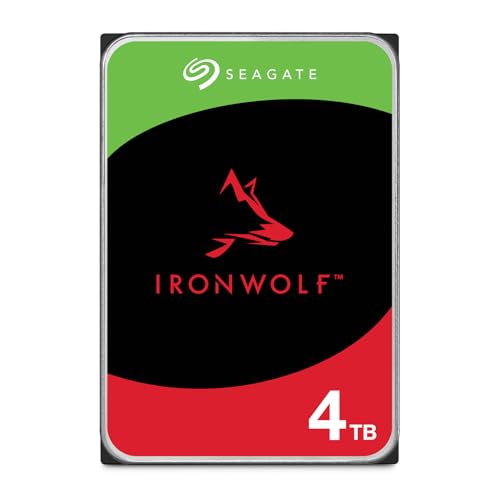
Seagate’s 4TB IronWolf matches the small Red Plus on the fundamentals — CMR, 5400 RPM, 3.5-inch SATA 6Gb/s — and then adds the word that distinguishes Seagate’s listings across this whole batch: Rescue. The listing describes a NAS drive for RAID network attached storage with Rescue Services, model ST4000VNZ06/006, and a 64MB cache. The cache is a quarter of the WD’s at this capacity, printed plainly; in streaming duty it is a difference benchmarks can find and film nights cannot, while the Rescue commitment is a difference that matters on exactly one day — the day the drive dies with the only copy of something on it.
That framing decides the 4TB fork in this guide. The Red Plus offers the bigger buffer and WD’s family tenure; the IronWolf offers a maker’s recovery service standing behind the drive. A media library, honestly assessed, is replaceable — discs can be re-ripped, downloads re-downloaded — but the same NAS usually also holds the irreplaceable: family photos, home videos, the scanned archive. Buyers whose NAS carries that second, precious cargo have a rational reason to value a recovery path; buyers running a pure film jukebox may fairly take the WD’s cache and never look back.
The listing does not state a workload figure for this model — Seagate prints 180TB/year on the 8TB IronWolf below, and this guide will not lend that number across models. Nor does the title mention the RV sensors the larger sibling advertises; in a two-bay enclosure vibration is a modest force, and the omission matches the tier. What is stated is complete for the decision at this size: CMR, NAS-and-RAID positioning, and Rescue.
- Capacity: 4TB, per the listing title
- Spin speed: 5400 RPM, per the listing title
- Recording: CMR, per the listing title
- Cache: 64MB, per the listing title
- Interface: SATA 6Gb/s, per the listing title
- Recovery: Rescue Services, per the listing title
- Model: ST4000VNZ06/006, per the listing title
Strengths
- A stated recovery service at the starter tier, where the same NAS often holds the family archive too.
- Quiet-tier spin speed with CMR confirmed in the listing.
- RAID network storage positioning stated outright, not implied.
Trade-offs
- The 64MB cache is the joint-smallest here, even if streaming rarely exposes it.
- No workload figure or RV sensor claim is printed for this model.
- Rescue is a recovery attempt, not a backup; the photos still deserve a second home.
Best for: a first NAS that will hold home videos and the photo archive alongside the films, where a recovery path earns its keep. Not suited for: a pure disc-rip jukebox owner who values the larger cache and has nothing irreplaceable aboard.

Seagate IronWolf 8TB NAS — The fully specified all-rounder
This listing is the most forthcoming in the guide, and it deserves to be read in full: a Seagate 8TB IronWolf, SATA 6 Gb/s, a 24/7 NAS-optimised HDD with AgileArray, all-CMR recording, RV sensors for multi-bay enclosures, a 180TB/year workload figure, and a 3-year warranty with 3-year Rescue. Nearly every question this guide teaches buyers to ask is answered in that one title. It is the only pick that prints its workload rating, and the only one that names rotational-vibration sensors — the hardware that lets a drive keep its composure when seven neighbours are spinning beside it in a full enclosure.
AgileArray, Seagate’s name for its NAS firmware suite, is the invisible half of the proposition: error recovery tuned so a struggling sector does not stall the drive long enough for a RAID controller to eject it, power management arranged for always-on duty, and behaviour validated for multi-bay life. In a media server these are not abstractions. The ejected-drive failure — a healthy-enough disk dropped from an array by an impatient controller during a long error retry — is one of the classic ways a NAS turns a small problem into a rebuild, and NAS-tuned firmware exists precisely to prevent it.
Eight terabytes is the guide’s centre of gravity: in a mirrored pair it is a large household library with years of headroom; in a four-bay array with single-disk redundancy it is a small archive. The listing does not state this model’s spin speed or cache in its title, and the spec box records that honestly rather than borrowing figures from siblings. Even with those two blanks, no listing here gives a planner more to work with, and for a buyer speccing a multi-bay server on paper, that completeness is itself the feature.
- Capacity: 8TB, per the listing title
- Interface: SATA 6 Gb/s, per the listing title
- Recording: All-CMR, per the listing title
- Duty: 24/7 NAS-optimised, per the listing title
- Vibration: RV sensors for multi-bay use, per the listing title
- Workload rating: 180TB/year, as printed in the listing title
- Warranty/recovery: 3-year warranty + 3-year Rescue, per the listing title
- Spin speed and cache: Not stated in the listing title — Seagate’s datasheet holds both if your design needs them
Strengths
- The most complete listing in the guide: workload, vibration hardware, warranty and rescue all printed.
- Firmware tuned for RAID manners, aimed at the ejected-drive failure that haunts arrays.
- The capacity centre of the range, equally at home mirrored in two bays or striped across eight.
Trade-offs
- Spin speed and cache are left unstated in the title — a curious gap in so forthcoming a listing.
- Its multi-bay virtues are wasted on a single-bay box, which will never test them.
- Buyers wanting the Pro tier’s positioning for heavier shared workloads should compare the next pick.
Best for: a four-to-eight-bay family server specified on paper first, where printed workload and RV figures close the argument. Not suited for: a single-bay enclosure streaming to one television, which pays for multi-bay engineering it cannot use.

Seagate IronWolf Pro 8TB NAS — The enterprise tier
The Pro listing is terse where its sibling was expansive: Seagate IronWolf Pro, 8 TB, enterprise NAS internal HDD, CMR, 3.5-inch, SATA 6 Gb/s, 7,200 RPM, 256 MB cache, for RAID network attached storage, model ST8000NT001. The word doing the work is “enterprise.” The Pro tier is Seagate’s positioning for servers whose workload is a business’s workload — more users, more simultaneous demand, a higher expected write volume — and for home media servers, it translates to the pick for the household that behaves like a small studio: a Plex server shared with extended family, a NAS that also records the house’s cameras, runs backups for every laptop, and transcodes for the road.
At the same 8TB as the standard IronWolf, the Pro’s case rests on tier rather than capacity: the faster 7,200 RPM spin is stated outright here, the cache is a stated 256 MB, and the enterprise positioning implies the heavier workload envelope — whose exact figure, this guide notes with its usual discipline, is not printed in the title and should be taken from Seagate’s documentation by anyone speccing near a limit. For the media server specifically, the Pro’s pace shows in the unglamorous operations: faster rebuilds, faster library scans, faster copies when the month’s rips land on the array at once.
One more audience should be named for the Pro, because it is larger than it looks: the home server that has quietly become a small business’s server. The studio’s project archive, the shop’s shared drive, the photographer’s client library with a media front end — these wear the clothes of a home media server while carrying a business’s consequences for downtime. When the films are actually client work, the enterprise tier stops being an indulgence and becomes the honest specification, and the Pro’s positioning is written for exactly that double life.
Is it overkill for films? For a two-bay box serving one household’s evenings, honestly yes — the standard IronWolf was designed for exactly that life, and its listing states more of its case. The Pro earns its premium where the server has a second and third job, where downtime is a family incident rather than an inconvenience, and where the array is big enough that rebuild time is measured in days of exposure. Buy the tier your server’s job description writes, not the tier your anxiety writes.
- Capacity: 8TB, per the listing title
- Spin speed: 7,200 RPM, per the listing title
- Recording: CMR, per the listing title
- Cache: 256 MB, per the listing title
- Interface: SATA 6 Gb/s, per the listing title
- Tier: Enterprise NAS, per the listing title
- Model: ST8000NT001, per the listing title
- Workload rating: Not stated in the listing title — take the Pro figure from Seagate’s documentation
Strengths
- Stated 7,200 RPM pace and full cache at the capacity most big home servers choose.
- Enterprise positioning for servers carrying backups, cameras and sharing duties too.
- Rebuilds and library scans finish sooner — the operations where hours genuinely matter.
Trade-offs
- The tier premium buys little for a films-only two-bay box.
- Its workload figure, the number that would clinch a formal spec, is not in the title.
- Faster spin means the usual 7200 RPM noise and heat considerations in small enclosures.
Best for: a hard-working household server that streams, backs up every laptop and records the cameras from one array. Not suited for: a quiet two-bay film box for one couple, where the standard IronWolf’s stated case fits the job precisely.

Toshiba N300 12TB NAS — The capacity ceiling
The N300 closes the ladder at twelve terabytes: a Toshiba NAS drive, CMR, SATA 6 Gb/s, 7200 RPM, 512 MB cache, 3.5-inch, model HDWG51CXZSTA. Every stated figure is at the guide’s ceiling or shares it — capacity outright, cache tied with the big Red Plus, spin at the fast tier. For the collector whose library is counted in thousands of titles, or the household archiving years of 4K home video alongside its films, a 12TB drive changes the enclosure arithmetic: a four-bay box of these, with one drive of redundancy, is a library measured in decades of ordinary collecting.
Capacity at this scale deserves its cautionary paragraph, and it is the same caution the surveillance guide in this batch teaches in another accent: the bigger the drive, the longer the rebuild when one fails, and the longer the array runs exposed during that rebuild. A 12TB mirrored pair or a well-planned array with a hot spare is a considered system; a single 12TB drive holding a library alone is a single point of failure holding twelve terabytes of regret. The N300’s figures make it a superb component. Components still need architecture.
Toshiba’s listing, like WD’s, prints no workload rating and names no recovery service, so the planning figures require the documentation trip. What it states is the complete physical case — capacity, technology, speed, cache, model — and for many buyers that is the case that matters, particularly those standardising a large array on one model bought in a matched set. In a guide where Seagate wins the paperwork contest, the N300 wins the simpler contest of how much library fits in a bay.
- Capacity: 12TB, per the listing title
- Spin speed: 7200 RPM, per the listing title
- Recording: CMR, per the listing title
- Cache: 512 MB, per the listing title
- Interface: SATA 6 Gb/s, per the listing title
- Model: HDWG51CXZSTA, per the listing title
- Workload rating: Not stated in the listing title — consult Toshiba’s documentation for the N300 figure
Strengths
- The largest capacity here, with the fast spin and the joint-largest cache to serve it.
- Lets a compact enclosure hold a library that would otherwise need twice the bays.
- A clean, complete physical specification in the listing — no decoding required.
Trade-offs
- Rebuild exposure grows with capacity; redundancy planning is not optional at this size.
- No workload or rescue information is printed in the listing.
- Cost per drive concentrates the array’s value; matched-set buying is a considered purchase.
Best for: a serious collector’s four-bay array, where one bay must hold what used to take two. Not suited for: a first NAS bought on capacity enthusiasm alone, with no redundancy plan for the library it will hold.
How Do the Six NAS Drives Compare?
| Pick | Capacity | Spin | Cache | Stated extras |
|---|---|---|---|---|
| WD Red Plus | 4TB | 5400 RPM | 256 MB | CMR |
| WD Red Plus | 10TB | 7200 RPM | 512 MB | CMR |
| Seagate IronWolf | 4TB | 5400 RPM | 64MB | CMR; Rescue Services |
| Seagate IronWolf | 8TB | Not stated in title | Not stated in title | All-CMR; RV sensors; 180TB/year; 3-yr warranty + Rescue |
| Seagate IronWolf Pro | 8TB | 7,200 RPM | 256 MB | CMR; enterprise NAS tier |
| Toshiba N300 | 12TB | 7200 RPM | 512 MB | CMR |
Two philosophies divide the table. WD and Toshiba state the physical specification completely and leave workload figures to documentation; Seagate’s standard IronWolf states the operational figures — workload, warranty, vibration hardware — and leaves two physical ones blank. Neither philosophy is wrong; they suit different buyers. The home user choosing by room and noise reads the left half of the table; the planner speccing an array reads the right half, and should finish the homework for whichever row they choose.
How Should You Arrange Drives in a Home Media Server?
Start with the sentence every NAS owner should be able to say without hesitating: RAID is not a backup. RAID’s gift is continuity — a drive fails on Friday and the films still play on Friday night while the replacement ships. What RAID cannot do is protect against the NAS itself being stolen, flooded, struck by a power surge, or instructed by ransomware or a tired human to delete the library. The irreplaceable cargo — photos, home videos, documents — needs a copy outside the box: an external drive rotated offsite, a cloud tier, a second NAS at a relative’s house. Films can be re-ripped; a child’s first steps cannot.
Within the box, the common arrangements trade capacity against calm. Mirroring two drives is the small server’s classic: half the raw capacity, total indifference to one drive’s death. Parity arrays across three or more drives return more usable capacity while still surviving one failure, at the price of slower writes and longer, more stressful rebuilds — the moments CMR earns its keep. For a media server, whose writes are mostly the occasional rip and whose reads are the nightly show, parity across four bays of the 8TB tier is the arrangement this guide’s centre of gravity points to, with the Pro or the 12TB Toshiba entering when the library or the workload outgrows it.
Buy array drives as a matched set where you can, and keep one cold spare on the shelf if the library matters. A rebuild that starts the hour a drive fails is a short exposure; a rebuild that starts after a delivery is a long weekend of hoping the surviving drives stay healthy. The spare costs a drive’s price and buys back the calm the array was purchased to provide.
What Mistakes Do Media Server Owners Make?
The canonical mistake is the desktop drive substitution: a cheap desktop disk in a NAS saves a little money and imports the wrong firmware manners, the wrong vibration tolerance and, in the worst cases, SMR recording into an array that will find every one of those weaknesses during its first rebuild. The second mistake is mixing capacities and models casually as the array grows, until the enclosure holds a museum of drive generations whose rebuild behaviour nobody can predict. The third is filling drives to the brim; a NAS volume kept above roughly nine-tenths full fragments, slows, and leaves the system no room to manoeuvre during maintenance. Libraries should be expanded before they are full, not after.
A further mistake hides in the purchase itself: buying drives one at a time, months apart, from different sellers at different prices, and calling the result a set. Beyond the batch-diversity argument — which cuts both ways and which the mirroring-across-families strategy uses deliberately — staggered buying usually means staggered ages, and an array whose members age at different rates is actually easier to maintain than a same-day set, provided the ages are recorded. The mistake is not the staggering; it is the amnesia. A simple spreadsheet of serials, dates and bays converts an accidental collection into a managed fleet, and it takes less time to keep than one rebuild takes to run.
The human mistakes complete the set. Owners who never look at the NAS’s health reports learn about dying drives from the array’s alarm, which is to say late. Owners who treat the NAS as the backup for the household’s laptops and the library’s only home have built a single basket and put every egg they own in it. And owners who buy capacity for the library they have, rather than the one their habits are visibly building, repeat the purchase at the awkward sizes. Count your current library, be honest about its yearly growth, and buy the rung of the ladder that covers three years of it.
How Do You Set Up a New Media Server’s Drives, Step by Step?
Begin before the enclosure is opened: decide the arrangement first — mirror or parity, how many drives now, how many later — because the software will happily start you in a shape that is painful to change. Install the drives with the power off, seat every connector fully, and note which physical bay holds which drive’s serial number; the day a health alert names a failing disk by serial, that note is the difference between a five-minute swap and an afternoon of pulling drives to read labels. Photograph the bay layout. Future you, standing in front of a beeping enclosure at midnight, will be grateful.
On first boot, let the NAS initialise and choose its file system deliberately if it offers a choice — the snapshot-capable options are worth having for the day a library folder is accidentally deleted, because a snapshot turns that deletion into an errand rather than a loss. Create the volume, then immediately enable the unglamorous trio: SMART scheduled tests, email or app alerts for drive health and array status, and a scrub schedule — the periodic read-through that finds failing sectors while the array still has the redundancy to repair them. A scrub nobody scheduled is a benefit nobody receives.
Then load the library in the order that protects it: irreplaceable files first, with their offsite copy arranged the same week, and the re-rippable films after. Set the media server’s library folders, let the first scan and metadata pass run overnight, and check the result with fresh eyes — mismatched titles and missing artwork are easiest to fix at hundreds of files, not thousands. Finally, write down the system’s facts where a household member who is not you could find them: what the array is, what to do if it beeps, which drive is the shelf spare. A media server is household infrastructure, and infrastructure that only one person understands is a single point of failure wearing a disguise.
Where Should a Media Server Live, and Why Does the Room Matter?
A NAS drive’s environment is written into its lifespan as surely as its firmware. Heat is the first term: an enclosure in a closed cupboard with a router, an amplifier and a games console for company bakes its drives in recycled air, and every drive in this guide will live a shorter, error-richer life there than the same drive on an open shelf. The 5400 RPM picks generate less heat and forgive the warmer rooms; the 7200 RPM tier, and especially a full enclosure of them, asks for moving air as part of its purchase price. If the only available home is a cupboard, a quiet exhaust fan for the cupboard is a storage accessory, not a luxury.
Noise is the second term, and it is a placement negotiation rather than a specification. A single 5400 RPM drive is close to silent across a room; a four-bay array of 7200 RPM drives seeking at once is a presence, and its hum transmits through furniture that touches it. Rubber feet, a solid shelf and a door between the server and the listening room solve what no drive choice can. This is why this guide’s ladder splits by spin speed so deliberately: the quiet tier exists for the server that must live with its audience, and the fast tier assumes a cupboard, a rack or a room of its own.
Power is the third term and the cheapest insurance in the whole system. A small UPS between the wall and the NAS converts the neighbourhood’s flickers and cuts from array-threatening events into non-events, and gives the enclosure the clean shutdown that file systems and RAID arrays prefer. Media servers are bought to be forgotten; the room, the air and the power are what make forgetting them safe.
Do Multiple Streams and Transcoding Punish the Drives?
Less than newcomers fear, and in a different place than they expect. Streaming itself is sequential reading at modest rates — even a demanding high-bitrate film is a gentle ask of a modern hard drive, and a household’s Saturday night of three or four simultaneous streams remains well inside any pick in this guide. The drives are not the bottleneck of a home media server; the network and the transcoding processor reach their limits long before the platters do.
Transcoding — the server converting a film on the fly for a phone, a hotel television or a slow connection — is a processor’s burden, not a drive’s, with one exception: the temporary files and the read pattern of a file being scanned, converted and streamed at once are still trivial next to the operations that genuinely load a disk. Those operations are the library scan, where the server reads across thousands of files to build its catalogue; the metadata and thumbnail passes that follow a big ingest; and above all the rebuild, the one sustained full-surface read-and-write marathon in a NAS’s life. This is why the guide weighs rebuild behaviour — CMR, NAS firmware manners, spin speed — so heavily in drives whose daily work is otherwise light: a media server’s drives coast for months and then run one marathon that decides whether the array survives its worst week.
The practical conclusion is liberating: choose the drive for the rebuild and the room, not for the streams. Any pick here streams a household’s films without breaking stride. The differences that matter are how it behaves in a full, warm enclosure, how its firmware treats a RAID controller during an error, and how it writes for thirty straight hours when its neighbour has died. Judge those, and the films take care of themselves.
How Do You Migrate When the Library Outgrows Its Drives?
Every media server meets this day, and it goes well or badly according to whether it was planned. The graceful path, in a parity array with a spare bay, is to add the larger drive, let the array absorb it, and repeat bay by bay; the volume grows as the smallest member allows, which is why the matched-set advice matters — an array of mixed sizes is an array whose capacity is set by its smallest resident. In a two-bay mirror, migration means replacing one drive, letting the mirror rebuild, then replacing the other, and living through two rebuild windows; schedule them for quiet weeks, keep the offsite copy current before each, and never begin a migration with a health warning already lit on any drive.
The old drives have honourable second lives, and planning them is part of the migration’s economics. A retired NAS drive that still tests healthy makes an excellent offsite backup disk — the copy that lives at a relative’s house, updated on visits — which converts the migration’s leftovers into the backup tier the library needed anyway. Drives that report declining health in testing should be wiped and recycled instead; a backup written to a dying drive is a story you tell yourself, not a copy.
Keep the migration’s paperwork: which serials went in, when, from which purchase batch. Arrays whose drives share a batch sometimes share a fate, and owners who know their drives’ birthdays can stagger replacements deliberately rather than discovering, some future year, that four drives of the same age intend to retire in the same season. The ladder in this guide is built for exactly this long game — a household can climb it over a decade, rung by rung, without ever changing families or relearning a drive’s manners.
Final Recommendation
For a first media server, choose between the two 4TB picks by cargo: the WD Red Plus for its larger cache and quiet manners in a films-first box, the Seagate IronWolf 4TB when the same box will hold the family’s irreplaceable archive and a stated recovery service earns its place. For the growing multi-bay server, the IronWolf 8TB is the guide’s most completely specified drive and its natural centre. Step to the IronWolf Pro when the server takes on backups, sharing and camera duties beyond the evening’s films, and to the Toshiba N300 or the 10TB Red Plus when the library’s size, rather than its workload, is what has outgrown the middle rungs.
Whichever rung you choose, buy CMR, buy matched, keep the array below nine-tenths full, ventilate the enclosure like you mean it, and put the irreplaceable files somewhere the NAS is not — a shelf across town, a drive in a relative’s drawer, a cloud folder, anywhere that does not share the same roof, the same wiring or the same fate as the server itself. A media server built that way disappears into the household’s life the way good infrastructure should — the films simply play, year after year, and the drives that make that unremarkable miracle possible are replaced on evidence and on schedule, never in a panic.
Frequently Asked Questions
Can I start with one drive and add more later?
Yes, and most home servers begin exactly that way. Start with a single drive or a mirrored pair, and choose a NAS whose software can migrate you to a parity array when you add bays’ worth of drives. Buy the same model as the array grows where possible — the ladder in this guide is arranged so a family can be stayed with from 4TB to the top.
Is 5400 RPM fast enough for streaming films?
Comfortably. Even several high-bitrate streams at once ask a fraction of what any drive here can read sequentially. Spin speed shows itself in rebuilds, library scans and big copies, not in playback — which is why the quiet tier is a rational choice for a living-room server rather than a compromise.
Why not use an SSD for the media library?
Capacity economics. A film library grows into terabytes that spinning disks hold at a fraction of flash’s cost per terabyte, and streaming does not need flash’s speed. Many servers do pair a small SSD for the operating system, apps and transcode cache with hard drives for the library itself — each technology doing the job it is priced for.
How long do NAS drives last?
Plan on years of continuous service and replace on the health reporting’s evidence, as with every always-on category. Enable the NAS’s SMART monitoring and email alerts from the first day, keep the enclosure’s airflow honest, and treat a drive that reports growing errors as a drive asking to be replaced this month, not eventually.
Does the NAS enclosure matter as much as the drive?
They are halves of one system. The enclosure decides airflow, vibration isolation, the controller’s patience during error recovery and the software’s migration paths. A good drive in a stifling, rattling box lives a shorter, stranger life than its specification promises — give the picks here a home with moving air and firm mounts.
Can I mix these drives with other models in one array?
You can, and growing systems often do, but go in understanding the terms: the array’s capacity per position is set by its smallest drive, its rebuild behaviour becomes the least predictable member’s behaviour, and mixed spin speeds make the faster drives wait on the slower. A deliberate mix — say a mirrored pair from two different families so one model’s bad batch cannot take both copies — is a strategy. An accidental mix accumulated over years of whatever was on sale is a lottery. If you inherit the second, migrate toward the first at the next replacement.
How do I know a drive in the array is starting to fail?
The NAS will tell you if you let it: SMART attributes trending the wrong way, read errors appearing in scrub reports, a drive that runs hotter or louder than its siblings, or rebuild and scan times that stretch without explanation. Any one of these is the drive asking, politely and in advance, to be replaced while its contents can still be copied calmly. The owners who lose libraries are rarely the ones whose drives gave no warning; they are the ones whose warnings arrived in an inbox nobody read.
What capacity should a first media server buy?
Measure the library you have, multiply by your honest three-year growth, and buy the rung that covers it mirrored or with parity. For most households that arithmetic lands on the 4TB pair to start or the 8TB tier if a disc collection is about to be ripped wholesale. Buying one size up is cheaper than migrating one size early.
Related Guides
A server room rarely stops at one kind of storage: our best hard drives for security camera systems guide covers drives that write all day for recorders, the best hard drives for mac backups roundup looks after the library’s offsite half, and the best ssds for sql server guide is for households whose NAS shares its shelf with a database.


