What's inside
- Key Takeaways
- Quick Picks
- How Did We Choose the Best Hard Drives for Photographers When Traveling?
- SSD or Spinning Disk: Which Belongs in a Camera Bag?
- How Do the Six Travel Drives Compare Side by Side?
- What Mistakes Do Photographers Make With Travel Storage?
- How Should You Run the Nightly Backup Ritual?
- What Else Belongs in the Bag Besides the Drive Itself?
- How Do You Size Storage for a Trip That Keeps Extending?
- What Should You Do on the Day a Drive Fails Mid-Trip?
- How Do You Keep a Stolen Bag From Becoming a Stolen Archive?
- Final Recommendation
- Frequently Asked Questions
- Related Guides
As an Amazon Associate I earn from qualifying purchases. This post may contain affiliate links at no extra cost to you.
gizmoverdict.com is reader-supported. When you buy through links on our site, we may earn an affiliate commission.
A note on how to shop this category before the picks: buy the drive for the trip you take, not the expedition you daydream about. A wedding photographer crossing two time zones with a laptop and a card wallet needs something different from a landscape shooter in a tent beside a trailhead, and the six drives divide along that line — pocket solid-state speed at one end, spinning capacity with armour at the other.
The best hard drives for photographers when traveling solve a problem that only exists away from home: at your desk, a failed card or a lost evening of editing is an annoyance, but on the road the day’s shoot may be unrepeatable. A ceremony will not restage itself because a memory card corrupted. A dawn over a mountain lake will not return tomorrow with the same light. Travel storage is therefore not really about terabytes; it is about making each day’s images exist in more than one place before you sleep, in a bag that gets rained on, dropped on platforms and squeezed into overhead lockers.
That reality shapes everything in this guide. The picks split into two families. Portable SSDs — the SanDisk Extreme, the Samsung T9 and the Crucial X10 Pro — copy a card in minutes, shrug off knocks that would kill a spinning disk, and disappear into a jacket pocket. Portable hard drives — the LaCie Rugged, the WD My Passport and the Silicon Power Armor A60 — cost far less per terabyte and carry their own forms of armour, at the price of slower copies and moving parts that deserve gentler handling. Neither family is the correct answer on its own; the strongest travel kits in this guide pair one of each, and the sections below explain how to build that pairing around your own shooting.
Key Takeaways
- Travel backup is a nightly ritual, not a purchase: the drive only helps if every card is copied before bed, every day of the trip.
- Three of the six picks are portable SSDs with transfer speeds around 2,000 MB/s in their listings; the other three are spinning drives that trade speed for capacity per cost.
- The SanDisk Extreme states an IP65 water and dust rating and drop protection up to 3 metres in its listing — the fullest armour claim among these six picks.
- The LaCie Rugged and Silicon Power Armor A60 are hard drives in armoured shells: tougher than a bare portable HDD, still spinning disks inside.
- The WD My Passport is the only pick whose listing leads with backup software and password protection rather than speed or armour.
- Carry two copies on two different drives, in two different bags, before you format a single card.
Quick Picks
| Pick | Badge | Why it is here |
|---|---|---|
| SanDisk Extreme Portable SSD 1TB | Armoured speed for the road | Up to 2000MB/s in its listing, with IP65 sealing and drop protection up to 3 metres stated outright. |
| Samsung T9 Portable SSD 2TB | Fastest bus in the bag | A USB 3.2 Gen 2×2 drive rated up to 2,000 MB/s, for laptops whose ports can actually feed that interface. |
| LaCie Rugged USB-C 2TB | The photographer’s classic, armoured | A spinning drive in a drop- and crush-resistant shell with AES encryption, built for location work. |
| Crucial X10 Pro 1TB | Creator-grade pocket SSD | Up to 2100MB/s read and 2000MB/s write in the listing, aimed squarely at professional creators. |
| WD My Passport 2TB | Software-led safety net | Backup software, ransomware defence and password protection headline a plain, affordable 2TB drive. |
| Silicon Power Armor A60 2TB | Shockproof capacity on a budget | A shockproof-shelled 2TB hard drive that also speaks to games consoles, for mixed photo-and-play trips. |
How Did We Choose the Best Hard Drives for Photographers When Traveling?
The first filter was honesty about what travel does to storage. Drives in this guide were judged on how they behave in a camera bag, not on a benchmark desk: how quickly a full card empties at midnight in a hotel room, whether the shell forgives the drop from a café table, whether the connector is the USB-C a modern laptop and camera ecosystem has standardised on, and whether the listing itself states the protections it claims. Where a maker printed a rating in the listing title — an IP code, a drop height, an encryption standard — this guide repeats it as the maker’s stated figure. Where the listing is silent, the spec boxes below say so, because a photographer planning around an unstated rating is planning around a rumour.
The second filter was workflow fit. A drive that copies fast but holds one day of shooting fails a week-long assignment; a drive that holds a month of images but takes an hour to ingest a card fails the nightly ritual that keeps those images safe. So the six picks deliberately span capacities and speeds, and the guide treats them as components of a kit rather than rivals for a single crown. Read the verdicts as assignments: each pick is the right drive for a named kind of trip, and the wrong drive for another kind, stated plainly.
Finally, every pick had to earn its place with a listing a buyer can verify. Speeds, interfaces and protections quoted in these pages come from the listings themselves; anything beyond them — sustained-write behaviour over a very long copy, shock standards expressed in military test language — is either described as general knowledge about how these drive families behave, or marked as not stated. Travel is the worst place to discover that a specification was invented by a reviewer rather than printed by a maker.
SSD or Spinning Disk: Which Belongs in a Camera Bag?
The mechanical difference drives every other difference. A portable SSD stores images on flash memory with no moving parts, so a knock that interrupts a spinning hard drive’s delicate read head is, to an SSD, mostly a question of whether the shell and connector survived. That is why the three SSD picks here can credibly carry drop and sealing claims in their listings, and why they copy cards at speeds that turn the nightly backup from a chore into a coffee break. Their weakness is arithmetic: per terabyte, flash still costs meaningfully more than a spinning platter, so the SSD that holds a whole expedition is a deliberate purchase, not a casual one.
A portable hard drive inverts the bargain. Two terabytes of spinning storage is inexpensive enough to buy in pairs, which matters because the oldest rule in travel photography is that one copy is no copy. The LaCie and the Silicon Power wrap their platters in shells designed to absorb the insults of location work, and the WD leans on software instead of armour. What none of them can do is match an SSD’s copy speed or its indifference to being jolted mid-write — a hard drive that is bumped hard while its heads are flying over the platter can lose the very backup it was writing. The practical synthesis, repeated throughout this guide because working photographers repeat it in the field, is an SSD as the working drive that ingests cards nightly and an HDD as the archive drive that receives a second copy and then stays in a different bag.
One more distinction hides inside the SSD family itself: the interface generation decides whether a fast drive can show its speed. The SanDisk and Crucial speak USB 3.2 Gen 2, the Samsung speaks Gen 2×2, and a laptop port that only offers the older generation will cap all three at the same ceiling. This is not a defect in any of the drives; it is the arithmetic of a chain whose every link must agree. Photographers choosing between the SSD picks should therefore check the ports on the laptop that actually travels, not the desktop that stays home, because the travelling machine is the one whose ports will be negotiating with the drive every night of the trip.
Capacity planning deserves the same realism. Raw files from modern high-resolution bodies run to tens of megabytes each, and a heavy day — a wedding, a wildlife morning, a festival — can produce well over a hundred gigabytes before video enters the conversation. Multiply your honest worst day by the length of the trip, then double it, because the drive must hold both the working copy and the archive copy’s growth if one device fails. Photographers who shoot JPEG alongside raw, or who cull ruthlessly each night, can travel lighter; photographers who shoot bracketed panoramas and 4K clips cannot. The capacities in this guide — 1TB and 2TB units — suit trips measured in days to a few weeks for most stills shooters; month-long expeditions should treat a pair of 2TB drives as the floor, not the ceiling.

SanDisk Extreme Portable SSD 1TB — The armoured all-rounder
The Extreme’s listing reads like a checklist written by someone who has watched a drive die on location: transfer speeds up to 2000MB/s, IP65 water and dust resistance, drop protection up to 3 metres, 256-bit AES encryption, on USB-C 3.2 Gen 2. Each of those claims addresses a distinct travel failure. The speed empties a card before dinner goes cold. The sealing answers the rain shower between the viewpoint and the car. The drop figure answers the fumbled handoff on a station platform. The encryption answers the worst day of all, the one where the bag itself does not come home.
In the nightly ritual this drive becomes the working copy: cards ingest to it first because it is fast, it rides in the camera bag because it is small, and its stated armour means the bag can be set down on wet grass or knocked off a bench without the small panic a bare drive would cause. One terabyte is the honest limit of the format here — a stills photographer on a two-week trip will fill it if the archive drive is not also along, which is why this guide pairs it in spirit with one of the 2TB spinning picks below rather than presenting it as a complete solution.
The silences in this listing matter too. It gives a headline transfer speed, not a guaranteed sustained write across a 200-gigabyte copy, and real-world ingests will run below the printed peak once caches fill and cables and ports have their say. That is not a criticism of this drive — it is true of every pick in this guide — but a photographer whose entire evening plan depends on a ten-minute copy should test the ritual at home, with their own cards and their own laptop, before the trip depends on it.
- Capacity: 1TB, per the listing title
- Top speed: Up to 2000MB/s transfer, per the listing title
- Interface: USB-C 3.2 Gen 2, per the listing title
- Sealing: IP65 water and dust resistant, per the listing title
- Drop protection: Up to 3 metres, per the listing title
- Encryption: 256-bit AES, per the listing title
- Sustained write speed: Not stated in the listing title — check the maker’s documentation before planning around long copies
Strengths
- Every protection a travelling photographer asks about is stated in the listing itself, not buried in a PDF.
- Fast enough that the nightly card copy stops being the bottleneck of the evening.
- Hardware encryption covers the scenario nobody wants to rehearse: the drive leaving without you.
Trade-offs
- One terabyte fills quickly on raw-heavy trips longer than a week or so.
- The Gen 2 interface caps its peak below the Gen 2×2 picks when the host port allows more.
- Its price per terabyte is the SSD tax in full; the archive copy still needs a second drive.
Best for: a two-week assignment carried in one camera bag, where cards must empty fast and the drive must survive weather. Not suited for: a six-week expedition shooting raw daily, where 1TB becomes a rationing exercise by the second week.
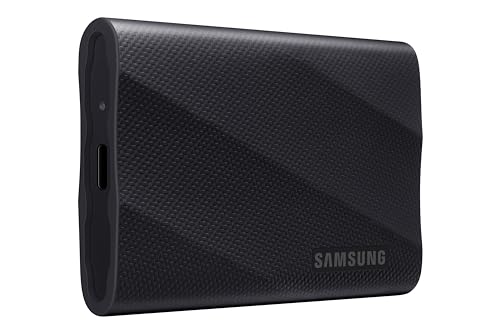
Samsung T9 Portable SSD 2TB — The fast bus for the right laptop
The T9’s listing leads with its interface, and the interface is the story: USB 3.2 Gen 2×2, up to 2,000 MB/s, in a 2TB portable SSD Samsung aims at gaming, students and professionals. Gen 2×2 doubles the theoretical ceiling of the Gen 2 connection the SanDisk and Crucial use, by running two lanes at once — but only hosts with a Gen 2×2 port can open that second lane. Many laptops, including every Mac, do not offer one, and on those machines the T9 performs as an excellent Gen 2 drive rather than a record-breaker. The pick is superb; the port decides how superb.
For the photographer whose Windows workstation or desktop does carry the right port, the T9 turns the travel workflow inside out: it is fast enough to edit directly from, culling and rating the day’s shoot on the drive itself without an intermediate copy to the laptop’s internal disk. Two terabytes at that speed covers a serious trip’s working set, and the drive’s compactness keeps it in the bag rather than the suitcase, which is where the working copy belongs — separated, at every overnight stop, from the archive copy riding elsewhere.
The listing is comparatively quiet about armour. It states speed, interface and capacity, and the model code MU-PG2T0B/AM, and it does not print an IP rating or a drop height in its title. A photographer who needs those numbers certified should treat their absence as the answer and choose the SanDisk; a photographer whose travel is hotels, trains and conference venues rather than trailheads may fairly decide that the T9’s speed and capacity matter more than sealing, and protect it with a padded pouch and ordinary care.
- Capacity: 2TB, per the listing title
- Top speed: Up to 2,000 MB/s, per the listing title
- Interface: USB 3.2 Gen 2×2, per the listing title
- Model code: MU-PG2T0B/AM, per the listing title
- Drop rating: Not stated in the listing title — confirm in Samsung’s documentation if your trips are rough
- Water/dust rating: Not stated in the listing title — confirm in Samsung’s documentation
- Encryption: Not stated in the listing title — confirm in Samsung’s documentation
Strengths
- The highest interface ceiling in this guide, for hosts equipped to use it.
- Two terabytes of working space that can double as the edit drive, not just the vault.
- Samsung’s listing is precise about what the drive is, which makes planning around it easy.
Trade-offs
- Macs and many laptops cannot feed Gen 2×2, so the headline speed goes partly unused there.
- No sealing or drop figure is printed in the listing title to plan rough trips around.
- At 2TB of fast flash, it is the considered purchase of this guide, not the impulse one.
Best for: a photographer editing on the road from a Gen 2×2-equipped Windows laptop, culling each night on the drive itself. Not suited for: a Mac-only shooter expecting the full printed speed, who will pay for a second lane their ports cannot open.

LaCie Rugged USB-C 2TB — The location photographer’s classic
The orange bumper is the most recognised silhouette in location photography, and this listing is the current USB-C form of it: a 2TB hard drive with AES encryption and a shell the listing describes as drop- and crush-resistant, on USB 3.2 Gen 2 with compatibility across USB4 and Thunderbolt 3, 4 and 5. The breadth of that interface list is itself a travel feature — a drive that speaks to every laptop a working photographer might borrow, rent or be handed on a job is a drive that never becomes the reason a backup did not happen.
Inside the bumper, honesty is required: this is a spinning hard drive. It copies cards at hard-drive pace, it dislikes being moved while writing, and no shell changes the physics of a read head flying over a platter. What the shell changes is the statistics of survival — the knocked table, the bag dropped from a car seat, the drive sat on in a crowded press room. For the archive role, where the drive writes a second copy in the evening and then sits still in a hotel safe or a suitcase’s padded core, those statistics are exactly the ones that matter.
The listing’s mention of up to 5TB of portable storage describes the family this model belongs to; the pick itself is the 2TB unit, and buyers comparing capacities should hold that distinction firmly, because the Rugged line’s shared listing language has confused more than one purchaser mid-checkout. Two terabytes of archive space, encrypted, in a shell built for the road, at hard-drive cost per terabyte — that is the proposition, and for the second-copy role it remains the proposition most location photographers reach for first.
- Capacity: 2TB (the listing’s “up to 5TB” describes the wider family), per the listing title
- Drive type: HDD, per the listing title
- Shell: Drop- and crush-resistant, per the listing title
- Encryption: AES encryption, per the listing title
- Interface: USB-C, USB 3.2 Gen 2; compatible with USB4 and Thunderbolt 3/4/5, per the listing title
- Exact drop height: Not stated in the listing title — verify the figure in LaCie’s documentation
- Transfer speed: Not stated in the listing title — verify in LaCie’s documentation
Strengths
- The widest host compatibility in this guide; it will talk to practically any laptop on a job.
- Armour designed for the archive role’s real accidents, at spinning-disk cost per terabyte.
- Encryption included, which an archive of a client’s wedding deserves as a matter of course.
Trade-offs
- Spinning internals: slower copies, and it must sit still and un-bumped while writing.
- The family’s shared listing language makes capacity-checking at checkout essential.
- Bigger and heavier than the SSD picks; it rides in luggage, not a jacket pocket.
Best for: the archive half of a two-drive travel kit, holding the encrypted second copy in a suitcase or hotel safe. Not suited for: a run-and-gun shooter ingesting cards on a moving train, where a spinning disk writing while jolted is the wrong tool.
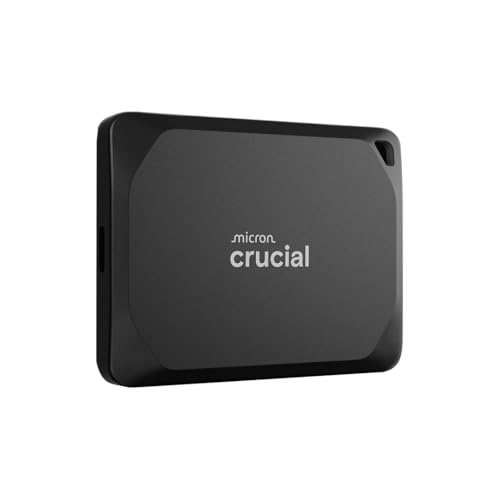
Crucial X10 Pro 1TB — The creator’s pocket rocket
Crucial’s listing is the most precisely worded of the SSD picks: up to 2100MB/s read and 2000MB/s write, stated separately, on USB-C 3.2, pitched at professional creators. That separation matters to photographers more than to most users, because the travel workflow is asymmetric — the nightly copy is nearly all writing, and the edit session the next morning is nearly all reading. A maker who prints both numbers is a maker who understands the difference, and the X10 Pro’s write figure equals the best headline numbers elsewhere in this guide.
In practice the X10 Pro competes head-on with the SanDisk Extreme for the working-drive role, and the choice between them is a choice of emphasis. The Crucial prints the sharper speed figures; the SanDisk prints the fuller armour figures. A studio photographer travelling between hotels, venues and a laptop on a desk may take the Crucial’s numbers and never miss a sealing rating. A photographer whose locations are beaches, building sites and boat decks should weigh the IP code more heavily than a hundred megabytes per second they will rarely see outside a benchmark.
One terabyte, again, is the format’s honest boundary in this guide, and the X10 Pro suits trips planned around it: a week of stills, a long weekend of heavy shooting, or the working tier of a kit whose archive lives on a larger spinning drive. Crucial’s creator framing also hints at its second travel use — as the drive that carries the portfolio, the selects and the in-progress edits between home studio and client, where its read speed makes presenting work from the drive itself feel like working from an internal disk.
- Capacity: 1TB, per the listing title
- Read speed: Up to 2100MB/s, per the listing title
- Write speed: Up to 2000MB/s, per the listing title
- Interface: USB-C, 3.2 generation, per the listing title
- Model code: CT1000X10PROSSD902, per the listing title
- Drop rating: Not stated in the listing title — check Crucial’s documentation before relying on one
- Water/dust rating: Not stated in the listing title — check Crucial’s documentation
Strengths
- Read and write speeds printed separately — the write figure is the one the nightly copy lives on.
- Creator-focused positioning that matches the actual travel-edit workflow.
- Pocketable working drive that doubles as a presentation drive for selects and portfolios.
Trade-offs
- The listing title prints no sealing or drop figure, so rough-location buyers plan blind or look elsewhere.
- One terabyte is a working tier, not an expedition archive.
- Its speed advantage over the SanDisk narrows to nothing on hosts or cables that bottleneck below both.
Best for: a hotel-and-venue photographer whose trips run a week of stills and who edits selects from the drive each morning. Not suited for: a beach-and-boat location shooter who needs a printed water and dust rating before the drive goes in the bag.

WD My Passport 2TB — The software-led safety net
Every other pick in this guide sells hardware; the My Passport’s listing sells a routine. Its headline features are backup software with defence against ransomware and password protection, on a 2TB portable hard drive over USB 3.1 and 3.0. For a certain kind of travelling photographer — the one whose real risk is not a dropped drive but a forgotten backup — software that automates the copy and watches for the signs of ransomware encrypting the archive is worth more than armour, because it defends against the failure that actually happens: human inconsistency at the end of a long shooting day.
The ransomware point deserves its sentence of explanation. A backup drive that is permanently connected and silently writable can be encrypted by the same malware that takes the laptop; backup software with anomaly detection, plus a drive that spends most of the trip unplugged in a suitcase, breaks that chain. The My Passport’s proposition is that discipline, productised: plug in, let the software mirror the folders that matter, unplug, store separately. Password protection covers the drive’s loss; the software covers the photographer’s fatigue.
As hardware it is deliberately unremarkable — a slim spinning drive with no armour claims in its listing and no speed claims worth printing. That is the correct set of priorities for its role and its cost, but it does fix its place in the kit: this is the archive and safety-net drive, the second or third copy, not the drive you ingest cards to at midnight when an SSD would finish before the kettle. Photographers who travel with one drive only and choose this one should do so knowing the ritual will be slower and the drive must be treated gently while it works.
- Capacity: 2TB, per the listing title
- Drive type: Portable external hard drive, per the listing title
- Software: Backup software with defence against ransomware, per the listing title
- Security: Password protection, per the listing title
- Interface: USB 3.1 / USB 3.0 compatible, per the listing title
- Drop or shock rating: Not stated in the listing title — treat it as an unarmoured drive
- Transfer speed: Not stated in the listing title — see WD’s documentation for figures
Strengths
- Automation aimed at the real travel risk: the backup that does not happen because the day ran long.
- Ransomware-aware backup is a genuinely modern feature in a plain, affordable drive.
- Slim and light enough to be the copy that lives in a completely different bag.
Trade-offs
- No armour and no speed story; it is the kit’s careful member, not its athlete.
- The software-led approach rewards setting it up at home, before the trip, not in the field.
- Spinning internals carry the usual rule: still and un-bumped while it writes.
Best for: a photographer whose laptop folders mirror automatically each night and whose second copy must live in a separate bag. Not suited for: a shooter who wants one drive to ingest cards fast at midnight and survive being tossed into a daypack.
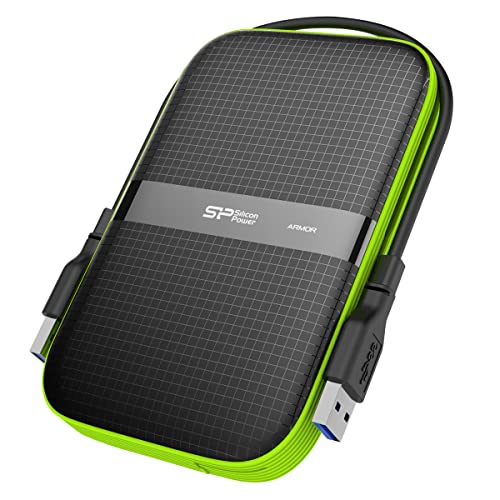
Silicon Power Armor A60 2TB — Shockproof capacity for mixed trips
The Armor A60’s listing makes a simpler promise than the LaCie’s and keeps it plainly: a 2TB rugged portable hard drive, shockproof, on USB 3.1 Gen 1, for PC, Mac, Xbox and PS4. That console compatibility is not a footnote for this guide’s reader — a great deal of travel photography happens on trips that are not photographic assignments: family holidays, road trips with friends, a camera riding along on a journey whose evenings involve a console in a rental apartment. A drive that archives the day’s photographs and also carries a game library earns its luggage space twice.
As a photographic tool it occupies the value end of the armoured-HDD tier. The shell addresses drops and knocks; the interface is the older, slower USB generation, so card copies take hard-drive time and then some; and the listing prints neither an encryption feature nor a sealing rating. None of that disqualifies it from the archive role — the second copy does not need to be fast, it needs to exist, survive the journey and be separable from the working drive — and its cost per terabyte makes buying the archive copy an easy decision rather than a postponed one, which is precisely how archives fail to exist.
The honest boundary is expectations. This is not the drive for a professional’s only copy of a paid assignment, and its shockproof shell should not be read as permission to treat a spinning disk carelessly while it writes. It is the drive that makes a two-copy habit affordable for the enthusiast, the student and the holiday shooter, and in travel photography the habit matters more than the hardware tier that supports it.
- Capacity: 2TB, per the listing title
- Drive type: Rugged portable external hard drive, per the listing title
- Shell: Shockproof, per the listing title
- Interface: USB 3.1 Gen 1, per the listing title
- Compatibility: PC, Mac, Xbox and PS4, per the listing title
- Encryption: Not stated in the listing title — see the maker’s documentation if client work requires it
- Water/dust rating: Not stated in the listing title — see the maker’s documentation
Strengths
- Armoured capacity at the cost that makes a second copy an easy yes.
- Console compatibility doubles its usefulness on trips that are not assignments.
- A straightforward listing that promises shock protection and nothing it cannot cash.
Trade-offs
- The older USB generation makes it the slowest copy in this guide.
- No encryption is stated, which matters for paid client archives.
- Shockproof is not sealed: rain and dust still call for a pouch and common sense.
Best for: a holiday shooter archiving each day’s photographs to a tough, affordable drive that also carries the trip’s games. Not suited for: a working professional’s sole archive of a paid commission, where stated encryption and a faster interface belong in the kit.
How Do the Six Travel Drives Compare Side by Side?
| Pick | Type | Capacity | Listing headline | Travel role |
|---|---|---|---|---|
| SanDisk Extreme Portable SSD | SSD | 1TB | Up to 2000MB/s; IP65; drop protection up to 3M | Working drive, camera bag |
| Samsung T9 | SSD | 2TB | Up to 2,000 MB/s on USB 3.2 Gen 2×2 | Working and edit drive |
| LaCie Rugged USB-C | HDD | 2TB | Drop/crush-resistant shell; AES encryption | Archive drive, luggage |
| Crucial X10 Pro | SSD | 1TB | Up to 2100MB/s read, 2000MB/s write | Working drive, studio trips |
| WD My Passport | HDD | 2TB | Backup software; ransomware defence; password protection | Automated safety net |
| Silicon Power Armor A60 | HDD | 2TB | Shockproof shell; USB 3.1 Gen 1 | Budget archive, mixed trips |
Notice what the table cannot show: how each drive feels at the end of a long day. The SSDs finish their copies while you are still writing captions; the spinning drives ask for a surface, a cable laid out of harm’s way and a few unhurried minutes. Neither demand is unreasonable, but they suit different evenings — the photographer who collapses into bed and copies in the morning has different needs from the one who processes the day over dinner, and the table’s roles assume the copy happens nightly, whichever tier you choose.
Read the table as a kit list rather than a league table. The working tier — SanDisk, Samsung or Crucial — is chosen by the armour-versus-speed emphasis of your locations and by whether your laptop can feed a Gen 2×2 port. The archive tier — LaCie, WD or Silicon Power — is chosen by whether you value crush resistance, backup automation or sheer affordability. A kit with one drive from each tier, carried in different bags, is stronger than any single row of this table bought twice.
What Mistakes Do Photographers Make With Travel Storage?
The classic mistake is formatting cards in the field on the strength of one copy. A card should not be formatted until its contents exist in two places that do not share a bag, a room or a fate — and ideally not until the trip ends. The second mistake is the single enormous drive: capacity concentrated in one device is risk concentrated in one device, and two mid-size drives in separate bags beat one flagship in a pocket every night of the trip. The third is testing nothing at home. Cables, adapters and the laptop’s own ports are part of the storage system; the time to discover that a hub throttles the copy or a cable is charge-only is the week before departure, not the first night of the assignment.
Two quieter mistakes deserve naming. Photographers encrypt nothing and then lose a bag containing a client’s wedding — the SanDisk and LaCie print encryption in their listings precisely because this scenario is common enough to design against. And photographers buy on the headline speed alone, then discover their laptop’s ports cap every drive in the guide at the same real rate. The interface is a chain — card reader, cable, port, drive — and its slowest link, not the box’s biggest number, sets the length of the nightly ritual.
How Should You Run the Nightly Backup Ritual?
Keep it boring and keep it identical every night. Cards out of the camera and into the reader; copy to the working SSD; verify the copy by opening a spread of files, including the largest raw files and any video; then copy from the SSD to the archive drive, which returns to its separate bag or the room safe. Only then do batteries go on charge and the day ends. Photographers who shoot for clients add one refinement: the archive drive and the camera bag never travel in the same vehicle compartment on the journey home, because the ritual’s whole purpose is that no single event — theft, fire, a bag left on a train — can take every copy at once.
On longer trips, add a weekly audit: pick three random days and confirm the folders open, the file counts match the cards’ original counts as recorded in a notebook or phone note, and the archive drive’s free space still covers the days remaining at the rate the trip is actually consuming. Trips that cross into a second month deserve a mid-trip consolidation day as well — an hour in a café, both drives checked, the index updated, the cards’ contents reconciled against the notebook — because errors compound quietly and a month is long enough for a small discrepancy to become an unrecoverable one. Trips consume storage faster than plans predict — a festival day, an unexpected detour to a wildlife reserve — and discovering a full archive in the final week is a self-inflicted emergency that the audit exists to prevent.
What Else Belongs in the Bag Besides the Drive Itself?
A travel storage kit fails at its edges more often than at its centre, and the edges are cables, readers and power. The cable deserves suspicion first: the lead bundled with a drive is known-good, while the cable borrowed from a phone charger may be a charge-only design that either refuses data entirely or throttles the copy to a fraction of the drive’s rate. Photographers who pack one spare data cable, tested at home against the actual drive, have removed the single most common cause of the midnight copy that crawls. Label it. In a dark hotel room at the end of a fourteen-hour day, the right cable should be identifiable by touch and by a band of tape, not by a process of elimination conducted on three identical black leads.
The card reader is the second edge. Reading cards through the camera itself, over a cable, is slow and ties up the body you may want charging or cleaning; a dedicated USB-C reader matched to your card formats is small, cheap insurance for the ritual’s pace. Photographers shooting two card formats — a body on CFexpress and a backup body on SD, say — should confirm the reader covers both, because the evening a second format appears is not the evening to discover the kit cannot read it. The third edge is power: a laptop running a long copy on battery in a room with one socket, shared between camera batteries, phone and drive bus power, is a system under negotiation. A compact multi-port charger that lets everything charge at once, while the copy runs, turns the ritual from a rota into a routine.
Finally, the unglamorous layer: a notebook or a notes app entry per day, recording card numbers, file counts and which drive received which copy. Memory is the component that degrades fastest on a long trip, and the audit described earlier — confirming that three random days open correctly — is only possible if someone wrote down what should be there. The photographers whose archives survive decades are rarely the ones with the most expensive drives; they are the ones whose records let them prove, years later, that a given day’s shoot is complete in the folder that claims to hold it.
How Do You Size Storage for a Trip That Keeps Extending?
Trips grow. A ten-day assignment becomes twelve when a client adds a location; a holiday detours to a festival nobody planned for; the wildlife morning that was supposed to produce fifty frames produces nine hundred because the light did something unrepeatable. Sizing storage for the planned trip is therefore sizing it wrong, and the working rule among photographers who travel for a living is to plan capacity for the trip at one and a half times its scheduled length, with the archive tier able to absorb the whole of that figure on its own. The picks in this guide make that arithmetic concrete: a 1TB working SSD paired with a 2TB archive drive covers a stills trip of several weeks for most shooters, because the archive, not the working drive, is where the trip accumulates.
Video is the variable that breaks tidy plans. A photographer who adds even modest 4K clips to a stills workflow can double the daily intake, and a dedicated video day can outproduce a week of stills. If your trip includes deliberate filming — interviews, a documentary thread, a client’s social cuts — count those days separately at their own rate and add the total to the archive requirement before choosing capacities. Cloud upload is the other variable travellers overestimate: hotel connections in the places worth photographing are rarely the connections that make nightly multi-gigabyte uploads realistic, and a workflow that depends on them is a workflow with a single point of failure located in someone else’s router. Treat any successful upload as a bonus third copy, never as a leg of the plan.
There is also a discipline of subtraction. Culling on the road — deleting the obvious failures each night, the blinked portraits and the accidental frames of the lens cap — can return a fifth of a trip’s volume, and it makes the eventual edit at home faster. The counterargument is equally real: storage is cheaper than regret, and a frame that looks like a failure at midnight in a hotel room occasionally looks like honesty at a desk a month later. The compromise most working photographers settle on is to cull only the technically dead — misfires, blanks, hopeless blur — and to let every deliberate frame survive until the home edit, with the archive sized generously enough that this generosity costs nothing.
What Should You Do on the Day a Drive Fails Mid-Trip?
It happens on a long enough career: a drive that mounted happily at breakfast refuses to appear at midnight, or a copy that slows, stutters and reports errors no cable swap will cure. The first rule is to stop. A failing drive that is repeatedly power-cycled, re-plugged and coaxed through copy after copy is a drive being given opportunities to get worse, and data-recovery professionals will tell you that the hours after the first symptom are when recoverable archives are most often talked into unrecoverable ones by well-meaning persistence. Set the drive aside, note exactly what it did and when, and let it rest unpowered in a padded pouch for the remainder of the trip unless a specialist advises otherwise.
The second rule is why this guide exists: the failure should be an inconvenience, not a catastrophe, because every day’s shoot already lives somewhere else. The working SSD’s contents are mirrored on the archive drive; the archive’s contents are mirrored in reverse; the cards, unformatted, hold the most recent days in original form. A photographer running the two-tier kit loses, at worst, the convenience of one device and gains a shopping errand — a replacement drive in the next large town, onto which the surviving copy is duplicated at the first opportunity, restoring the two-copy rule before the next day’s shooting. That errand, and not heroic recovery attempts in a hotel room, is the correct response to a mid-trip failure.
The third rule concerns the journey home. A suspect drive travels in hand luggage, padded, unpowered and clearly labelled as the patient, never in checked baggage where temperatures and impacts are outside your control. At home it goes to a recovery specialist before it goes anywhere near a utility program, if its contents are unique — and if the two-copy discipline held, its contents are not unique, and the calm decision about whether recovery is worth its cost can be made at leisure. Photographers describe the difference between a failed drive and a failed trip as exactly this: the presence, decided months earlier at a desk, of a second copy in a second bag.
How Do You Keep a Stolen Bag From Becoming a Stolen Archive?
Backup discipline protects images from hardware; encryption protects them from people. A drive full of a client’s wedding, a family’s holiday or a journalist’s unpublished work is not merely storage — carried unencrypted through airports, cafés and shared vehicles, it is a copy of other people’s private moments travelling without a lock. Two picks in this guide print encryption in their listings: the SanDisk Extreme with 256-bit AES and the LaCie Rugged with AES encryption. For paid work, that printed feature should be treated as a requirement rather than a bonus, and it should be switched on at home, with the passphrase stored somewhere that is not the same bag — a password manager reachable from your phone is the usual answer.
For the picks whose listings do not state encryption, the honest options are the operating system’s own tools — full-disk encryption applied to the drive before the trip — or a conscious decision that the material is not sensitive. What is not an option, professionally, is assuming a drive is encrypted because it feels modern. Set it up, test it by plugging the drive into a second computer and confirming it asks for credentials, and only then let it carry client work. The five minutes that test takes is the cheapest professional insurance in this entire guide.
Final Recommendation
Build the kit in two tiers. For the working drive, choose the SanDisk Extreme if your locations are rough and its stated IP65 sealing and 3-metre drop protection match your days; choose the Crucial X10 Pro if your trips run between hotels and venues and its separately stated read and write speeds serve the nightly copy and the morning edit; choose the Samsung T9 if your laptop genuinely carries a Gen 2×2 port and you want 2TB of working space fast enough to edit from directly. For the archive, the LaCie Rugged is the location classic with encryption, the WD My Passport is the automated safety net for the photographer whose discipline wavers when tired, and the Silicon Power Armor A60 makes the second copy affordable enough that skipping it becomes indefensible.
If the budget stretches to only one drive this trip, buy the SanDisk Extreme and a fistful of extra memory cards, and do not format a card until you are home — the cards themselves become the second copy. Whatever you choose, rehearse the ritual once at home with your own cards, cables and laptop, because the drive that saves a trip is never the fastest one on the spec sheet; it is the one whose copy finished, in a different bag from the cards, on the night everything else went wrong.
Frequently Asked Questions
Is 1TB enough for a two-week photography trip?
It depends on your worst day, not your average one. A stills photographer shooting a few hundred raw files a day will find 1TB roomy as a working drive, especially with an archive drive alongside. A shooter producing thousands of frames daily, or adding 4K video, should treat 2TB as the working minimum and plan the archive tier at the same size or larger.
Should the backup drive stay in the hotel or travel with me?
The archive copy should be wherever the camera bag is not. If the bag goes out for the day, the archive stays in the room, ideally in the safe. If you change hotels, the archive rides in a different bag from the cards and the working drive. Separation, not location, is the principle.
Can I edit directly from a portable SSD while traveling?
Yes, and the faster picks here are chosen partly for that. The Samsung T9 on a Gen 2×2 host and the Crucial X10 Pro both state speeds that make culling and editing from the drive practical. Keep the archive copy current before you edit, so the drive you are working from is never the only place the images exist.
Does an armoured hard drive survive being dropped while it is copying?
No shell should be asked to. A spinning drive’s heads fly micrometres above the platter while writing, and a hard knock mid-copy can damage both the drive and the data being written. Copy with the drive on a stable surface, let it finish, then let the armour do its work during transport, which is the phase it is designed for.
Why do the listings quote speeds I never quite see?
Headline speeds are peaks measured under ideal conditions with the fastest host interface. Your chain — card reader, cable, laptop port, file sizes — sets the real rate, and small files copy slower than large ones. Judge a drive by whether the nightly ritual finishes comfortably, not by whether it touches the printed number.
Should I carry the drives in hand luggage or checked baggage?
Hand luggage, always. Checked baggage is exposed to impacts, temperature swings and the possibility of arriving a day after you do, and lithium-powered electronics aside, the archive’s whole purpose is to be where you are when you need to verify it. Keep the working drive in the camera bag and the archive in a separate cabin bag, so that even a single bag’s loss or theft at the airport leaves one complete copy in your hands.
When is it safe to format a memory card on a trip?
When the card’s contents exist on two drives stored separately, and you have opened a sample of the copied files to confirm they are intact. Many photographers go further and never format on the road at all, carrying enough cards for the whole trip; cards are cheap, and an unformatted card is the most reliable backup medium of all.
Related Guides
Storage questions continue after the trip: our best hard drives for home media servers guide covers the drives that hold a finished library at home, the best hard drives for mac backups roundup handles the desk-side backup half of a Mac workflow, and the best hard drives for recording games guide looks at sustained recording from the capture side of the desk.
Related guides
- Best 3rd Party MacBook Chargers: 96W-Class Alternatives, the 100W Cable Rule, and the Apple Benchmark
- Best Built PC: Six Prebuilt Gaming PCs Judged on Parts, Power and Upgrades
- Best Affordable Wireless Printers
- Best Hard Drives for Mac Backups: Time Machine Drives From a Slim 2TB to an 8TB Household Vault


