What's inside
- Key Takeaways
- Quick Picks
- How Did We Judge the Best Hard Drives for Security Camera Systems?
- Why Can’t a Recorder Just Use an Ordinary Desktop Drive?
- How Do the Six Surveillance Drives Compare?
- How Many Days of Footage Will a Drive Actually Hold?
- What Mistakes Do Buyers Make With Recorder Drives?
- How Do You Install and Initialise a Drive in a Recorder?
- One Drive, Two Drives, or a Mirror: How Should a Recorder Be Arranged?
- How Does Heat Decide How Long a Recorder Drive Lives?
- What Happens to a Recorder’s Drives When the Power Fails?
- Final Recommendation
- Frequently Asked Questions
- Related Guides
As an Amazon Associate I earn from qualifying purchases. This post may contain affiliate links at no extra cost to you.
gizmoverdict.com is reader-supported. When you buy through links on our site, we may earn an affiliate commission.
Before the picks, one piece of shopping discipline that saves more grief than any brand choice: work out your retention target first — how many cameras, at what quality, for how many days — and let that arithmetic choose the capacity. A surveillance drive bought by guesswork is either full by the second week or twice the size the recorder can use, and neither mistake announces itself until the day you need footage.
The best hard drives for security camera systems exist as a separate category for a reason that surprises people who try to save money with a desktop drive: a camera system never stops writing. A desktop drive expects a working day of mixed reading and writing followed by rest; a recorder’s drive receives several video streams at once, writes them continuously, day and night, in heat that builds inside an unventilated DVR cabinet, and is expected to do this for years. Surveillance drives are built and firmware-tuned for exactly that punishment — sustained sequential writing from many streams, constant operation, and error handling that prioritises keeping the recording going over pausing to retry a doubtful sector.
The six picks below are all 3.5-inch internal SATA drives made for DVR and NVR systems, from the two families that dominate the category — WD’s Purple line and Seagate’s SkyHawk line — plus Toshiba’s S300, which prints the most explicit workload figures of any listing here. They divide by scale: single-recorder homes and small shops at one end, multi-camera installations with AI analytics at the other. What they share is the design brief that matters: write constantly, survive the cabinet, and be able to prove their health before they fail, because the footage a security system loses is usually the footage it existed to capture.
Key Takeaways
- Surveillance drives are built for continuous multi-stream writing around the clock; a desktop drive in a recorder is a failure scheduled, not a saving made.
- Retention is arithmetic: cameras multiplied by bitrate multiplied by days of recording. Do that sum before choosing between the 4TB, 6TB and 8TB picks here.
- The Toshiba S300 is the only listing here that prints a workload figure — 180TB per year — and a camera count, up to 64 HD cameras.
- Seagate’s listings lead with in-house Rescue Services on four of the six picks; WD’s Purple listings are comparatively terse, stating interface, cache and capacity.
- The two Pro and AI tier picks — WD Purple Pro and Seagate SkyHawk AI — are aimed at larger camera counts and analytics workloads, not at a four-camera house.
- Where a workload rating, spin speed or stream count is not printed in a listing title, this guide marks it as not stated rather than borrowing the figure from elsewhere.
Quick Picks
| Pick | Badge | Why it is here |
|---|---|---|
| WD Purple 4TB Surveillance | The small-system standard | A 4TB Purple with 256 MB cache on SATA 6 Gb/s — the straightforward heart of a home or small-shop recorder. |
| WD Purple Pro 8TB Surveillance | Pro tier, double capacity | An 8TB Purple Pro for recorders whose camera counts and retention targets outgrow the standard line. |
| Seagate SkyHawk 6TB | Mid-size with a rescue net | Six terabytes with 256MB cache and Seagate’s in-house Rescue Services named in the listing. |
| Seagate SkyHawk AI 8TB | Built for analytics recorders | The AI tier of the SkyHawk family at 8TB, for NVRs running detection and analytics alongside recording. |
| Toshiba S300 4TB Surveillance | The explicit workload pick | States support for up to 64 HD cameras and a 180TB/year workload in its listing — numbers a planner can use. |
| Seagate SkyHawk 4TB | Health monitoring on a budget | A 4TB SkyHawk whose listing names Drive Health Management alongside the family’s Rescue Services. |
How Did We Judge the Best Hard Drives for Security Camera Systems?
The first criterion was purpose-built design, verifiable from the listing itself: every pick here is sold explicitly as a surveillance drive for DVR or NVR security camera systems, not as a general-purpose drive a seller hopes will do. That distinction is the category. Surveillance firmware writes video streams with different priorities from office documents — it tolerates a dropped frame’s worth of imperfection in one stream rather than stalling all of them, and it is validated by its maker for the always-on duty cycle that recorders impose.
The second criterion was planning value. A buyer building a camera system needs to match drive to recorder, camera count and retention target, and the listings here vary widely in how much they help: Toshiba prints a workload rate and a camera ceiling, Seagate prints its health and rescue features, WD prints the electrical essentials and relies on the Purple name’s reputation. This guide quotes each listing for exactly what it states and flags the rest as not stated, because a system designed around an assumed workload figure is a system designed around a hope.
The third criterion was the failure story. Surveillance drives do not get to fail quietly: they hold evidence. Picks were weighed on what their listings say about health monitoring and data recovery support — Seagate’s Drive Health Management and in-house Rescue Services are stated features, not reviewer embellishments — and on the tier structure that lets a buyer match the drive’s intended scale to the installation’s actual scale, rather than overbuying a Pro drive for four cameras or underbuying a standard drive for thirty.
Why Can’t a Recorder Just Use an Ordinary Desktop Drive?
Because the workload is inverted. A desktop drive spends its life reading — loading programs, opening files — with writing in bursts, and it sleeps or idles for much of the day. A recorder’s drive writes almost exclusively, from every camera at once, in a continuous sequential stream that never idles, while sitting in a warm enclosure that may also hold a second drive and a power supply. Desktop firmware, asked to handle a doubtful patch of disk, will pause and retry earnestly to recover the data; multiplied across a dozen simultaneous streams, those pauses become dropped footage. Surveillance firmware is tuned to keep writing and let the recorder’s own redundancy worry about perfection.
Heat and vibration write the rest of the story. A drive that runs constantly runs warm constantly, and in multi-bay recorders each drive also lives with its neighbours’ vibration. Surveillance lines are validated for that environment in a way desktop lines are not, and their makers rate them for round-the-clock operation as a headline condition rather than an abuse case. The practical evidence is familiar to every installer: desktop drives pressed into recorder duty tend to die young and die suddenly, usually discovered on the day the footage is needed. The price gap between a desktop drive and its surveillance equivalent at the same capacity is small; the gap in what they are promised to survive is the entire point of this guide.
There is a subtler point about how video is written. A recorder does not write one large file calmly; it interleaves segments from every camera, so the drive’s heads serve many streams in rotation. Surveillance firmware and cache sizes — 256 MB on most picks here, 64 MB on the smaller SkyHawk — are arranged around that interleaving. It is also why capacity, not speed, is the specification that dominates surveillance buying: every drive in this guide is far faster than the combined bitrate of the cameras it will serve, and the contest is entirely about how many days of that combined stream the platters can hold.

WD Purple 4TB Surveillance — The small-system standard
WD’s listing for the 4TB Purple is the tersest in this guide: a surveillance internal hard drive, SATA 6 Gb/s, 256 MB cache, 3.5-inch, model WD43PURZ. There is a kind of confidence in that brevity — the Purple name has been the default answer to “which drive for my recorder” for so long that the listing spends its words on the connection facts an installer checks and nothing else. For a home system of four to eight cameras or a small shop’s single DVR, this is the drive the category was invented around: purpose-built, correctly interfaced, and sized to hold weeks of footage at typical camera settings.
Four terabytes is the capacity where retention arithmetic gets comfortable for small systems. A handful of cameras at common recording settings consume on the order of a terabyte every week or two; a 4TB drive therefore holds a month-scale buffer, which covers the realistic discovery window for most incidents — the dent noticed in the car park, the delivery disputed, the neighbour’s account of an evening checked against the record. Owners who record only on motion detection stretch that buffer far longer, at the cost of trusting the detection; owners who record continuously trade buffer length for certainty, and 4TB is where that trade stops hurting for a small camera count.
Installation familiarity is this pick’s quiet advantage. Because the Purple line is the drive so many recorders ship with or recommend in their own manuals, the odds are high that your DVR’s firmware, health screens and capacity tables were all validated against exactly this family; the drive the recorder expects is a small but real form of compatibility, visible in the way health figures are reported sensibly and capacities are recognised in full. A first-time system builder, choosing a first drive for a first recorder, is rationally drawn to the combination least likely to surprise them at midnight during setup.
Read the listing’s silences as instructions rather than omissions: no workload rating in terabytes per year, no camera-count ceiling, no spin speed is printed in the title. Those figures exist in WD’s documentation for the model, and a buyer designing a larger system should consult them there rather than assume the Purple’s numbers match the Toshiba’s printed ones. For the small system this pick is aimed at, the stated facts suffice — surveillance design, the right interface, a generous cache — and the drive’s long presence in installers’ vans does the rest of the talking.
- Capacity: 4TB, per the listing title
- Interface: SATA 6 Gb/s, per the listing title
- Cache: 256 MB, per the listing title
- Form factor: 3.5-inch internal, per the listing title
- Model: WD43PURZ, per the listing title
- Workload rating: Not stated in the listing title — consult WD’s documentation for the TB/year figure
- Supported camera count: Not stated in the listing title — consult WD’s documentation
Strengths
- The category’s default choice for a single home or small-shop recorder, with the cache size of the larger picks.
- A listing that states the install facts plainly and lets the line’s reputation carry the rest.
- Capacity that turns retention from a weekly worry into a monthly one for small camera counts.
Trade-offs
- No workload or camera-count figure is printed in the title, so larger designs must verify elsewhere.
- No recovery service is named in the listing, unlike the Seagate picks.
- One drive in one recorder is still one copy; see the redundancy section below.
Best for: a house with a driveway, a door and a garden to watch — four to eight cameras on one DVR, recording around the clock. Not suited for: a thirty-camera warehouse design, where an unstated workload figure in the listing is not a foundation to build on.

WD Purple Pro 8TB Surveillance — The Pro tier at double capacity
The Purple Pro listing mirrors its sibling’s brevity at twice the size: 8TB, SATA 6 Gb/s, 256 MB cache, 3.5-inch, model WD8002PURP. The Pro suffix is WD’s tier language for the heavier end of surveillance — recorders serving many cameras, systems where the drive’s workload is measured against a larger design envelope — and the capacity doubles the standard pick’s retention at any given camera count. In a multi-bay NVR, two of these are a serious archive; in a single-bay recorder, one is the largest simple answer this guide offers from WD.
Who actually needs the Pro tier? The honest dividing line is workload ambition. A recorder that merely records can live on the standard line; a recorder that records many streams while also serving playback to guards, exporting evidence and running the recorder’s own analytics is asking its drives for a second job on top of the first. Buyers in that position — a retail site with a staffed monitor wall, a small hotel, a school — are the Pro’s audience, and they should confirm the tier’s exact workload rating in WD’s documentation, because the listing title, again, does not print it.
The 8TB capacity also changes the maintenance rhythm of a system. Retention measured in months rather than weeks means the drive overwrites its oldest footage less often, and the system’s owner checks health on a calmer schedule. It does not change the fundamental rule that a recorder’s drive is a consumable on a multi-year horizon: budget to replace surveillance drives on a planned cycle, and let health checks — the recorder’s own SMART reporting — set the exact date, rather than waiting for the silence that announces a drive has already gone.
- Capacity: 8TB, per the listing title
- Interface: SATA 6 Gb/s, per the listing title
- Cache: 256 MB, per the listing title
- Form factor: 3.5-inch internal, per the listing title
- Model: WD8002PURP, per the listing title
- Workload rating: Not stated in the listing title — verify the Pro tier’s figure in WD’s documentation
- Spin speed: Not stated in the listing title — verify in WD’s documentation
Strengths
- Double the standard pick’s capacity in the same bay, for long retention without a second recorder.
- Pro tier positioning for recorders that ask their drives to serve playback and analytics too.
- Same interface and cache facts as the rest of the Purple family — an easy upgrade path.
Trade-offs
- The listing prints no workload number, so the Pro premium is bought on tier reputation plus documentation homework.
- Over-specified for a four-camera house, where the standard 4TB already holds a month.
- A single 8TB drive concentrates a system’s whole archive in one device; multi-bay redundancy matters more as capacity grows.
Best for: a small hotel or retail site whose NVR records a dozen-plus cameras and serves a monitor wall through the day. Not suited for: a four-camera cottage system, where this drive’s capacity would sit mostly empty until its warranty aged out.
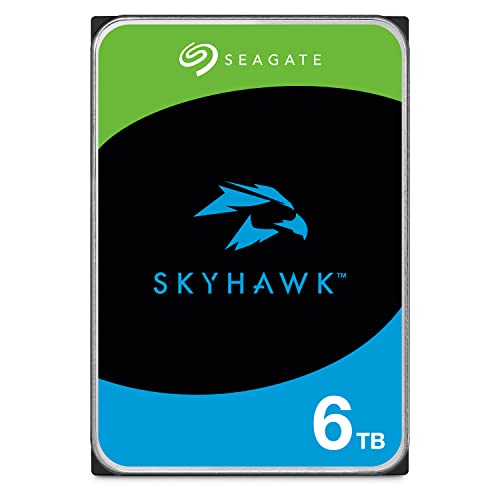
Seagate SkyHawk 6TB — Mid-size capacity with a rescue net
Seagate’s 6TB SkyHawk listing adds a phrase WD’s never mentions: in-house Rescue Services. That phrase is the pick’s personality. The drive itself states the expected facts — 3.5-inch, SATA 6Gb/s, 256MB cache, for DVR and NVR security camera systems, model ST6000VXZ09/009 — and then promises that if the drive fails with footage on it, Seagate’s own recovery service is part of the proposition. For footage that may become evidence, that promise changes the failure conversation from “the archive is gone” to “the archive is with the maker,” and some buyers will choose this drive on that sentence alone.
Six terabytes is the deliberate middle of this guide: half again the small-system picks, short of the 8TB tier. It suits the recorder that grew — the shop that started with six cameras and now runs ten, the house whose system expanded to cover a workshop and an annex. Retention at that scale lands in the comfortable weeks, and the 256MB cache matches the larger picks, so multi-stream writing has the same headroom as the Pro and AI tiers offer.
A workload rating and a camera ceiling are both absent from this listing, and this guide will not invent them; Seagate publishes the SkyHawk family’s figures in its documentation, and a designer working near the family’s limits should read them there. What the listing does establish — purpose, interface, cache, capacity and the rescue commitment — is a complete buying case for the mid-size system that values a recovery path. Owners should still register and keep the drive’s details recorded, because a rescue service can only help a drive whose owner can identify it and follow its process.
- Capacity: 6TB, per the listing title
- Interface: SATA 6Gb/s, per the listing title
- Cache: 256MB, per the listing title
- Form factor: 3.5-inch internal, per the listing title
- Recovery: In-house Rescue Services, per the listing title
- Model: ST6000VXZ09/009, per the listing title
- Workload rating: Not stated in the listing title — check Seagate’s documentation for the family figure
Strengths
- A stated in-house recovery service — the strongest failure story in this guide.
- Mid capacity with the full-size cache, for systems that outgrew 4TB.
- Purpose and compatibility are spelled out for DVR and NVR systems in the listing itself.
Trade-offs
- Workload and camera figures are left to documentation, as with the WD picks.
- Rescue is a recovery path, not a backup; it does not replace redundancy for critical footage.
- Buyers wanting analytics-tier positioning should step to the SkyHawk AI pick instead.
Best for: a growing shop system of around ten cameras whose owner wants a maker’s recovery service standing behind the archive. Not suited for: a formally specified installation, where the workload figure must appear on the purchase paperwork itself.

Seagate SkyHawk AI 8TB — For recorders that analyse as well as record
The AI in this listing’s name marks a workload shift that defines modern high-end recording: the NVR is no longer just writing video, it is reading it back continuously to run detection — distinguishing a person from a swaying branch, a vehicle from a shadow — while the cameras keep writing. That simultaneous read-while-writing pattern is a different burden from pure recording, and the SkyHawk AI tier exists to carry it. The listing states 8TB, 3.5-inch, SATA 6Gb/s, 256MB cache, in-house Rescue Services, model ST8000VEZ01.
For a system whose recorder runs analytics on many channels, this is the pick designed around the actual physics of the job: streams arriving, analysis reading, alerts and metadata being written alongside the footage. Eight terabytes at that duty holds a substantial rolling archive, and the Rescue commitment applies with the same force as on the 6TB pick — analytics footage, often the footage a business case or an insurance claim turns on, deserves a recovery path.
There is a planning consequence to the analytics pattern that buyers should price in from the start: an NVR that analyses as it records generates metadata, event clips and flagged segments alongside the raw footage, and systems that keep those extras keep them on the same drives. Retention forecasts made from camera bitrates alone will overstate how long an analytics system actually holds its footage, because the analysis layer is also writing its diary to the platter. Eight terabytes absorbs that surprise better than four, which is part of why the AI tier and the joint-largest capacity in this guide arrive in the same product.
The discipline of this guide applies here too: the listing does not print how many streams or what workload rate the AI tier is specified for, and a designer building a large analytics installation should take those figures from Seagate’s documentation rather than from the letters AI. What can be said from the listing is that Seagate maintains a distinct tier for this duty and this is it, at the joint-largest capacity in the guide. A buyer whose recorder does no analytics gains nothing from the tier and should let the standard SkyHawk or Purple picks carry the system for less.
- Capacity: 8TB, per the listing title
- Interface: SATA 6Gb/s, per the listing title
- Cache: 256MB, per the listing title
- Form factor: 3.5-inch internal, per the listing title
- Recovery: In-house Rescue Services, per the listing title
- Model: ST8000VEZ01, per the listing title
- Stream/workload rating: Not stated in the listing title — take the AI tier’s figures from Seagate’s documentation
Strengths
- A tier built for the read-while-writing pattern of analytics recorders, at full 8TB capacity.
- Rescue Services included in the listing, as with the other SkyHawk picks.
- The natural ceiling of this guide for a single-bay analytics NVR.
Trade-offs
- Analytics systems that never arrive make this an expensive way to hold ordinary footage.
- The listing leaves the tier’s exact stream and workload figures to documentation.
- Its benefits assume the recorder itself supports the analytics workload; the drive cannot add that.
Best for: an NVR running person-and-vehicle detection across a yard, a car park and a loading bay, recording and analysing at once. Not suited for: a plain record-only DVR in a hallway cupboard, which would never ask this drive to do the job it was tiered for.

Toshiba S300 4TB Surveillance — The listing that prints its numbers
Toshiba’s S300 listing does something none of the others attempt: it quantifies itself. “Supports up to 64 HD Cameras at a 180TB/Year workload” is printed in the title, alongside 4TB, 3.5-inch SATA, model HDWT840UZSVA. For a buyer comparing surveillance drives with a spreadsheet open — an installer speccing a system for a client, a facilities manager who must justify the purchase — those two numbers are the language of the decision, and Toshiba is the only maker here speaking it at the point of sale.
The figures also calibrate expectations usefully. Sixty-four HD cameras is a ceiling far above a home system, which tells the small buyer this drive is comfortably within its design at eight cameras; 180TB a year translates to roughly half a terabyte of writing a day, every day, which is the scale of punishment a multi-camera recorder actually delivers. A buyer can hold their own system’s arithmetic against those numbers directly — the only pick in this guide that permits the comparison without a trip to a documentation PDF.
The S300’s capacity, 4TB, ties it with the WD Purple as the small-system tier, and the choice between them is a genuine fork: WD offers the longer category reputation and the larger printed cache; Toshiba offers the explicit workload promise and the camera ceiling. Neither listing names a recovery service. For a formally specified installation, Toshiba’s printed figures will usually win the paperwork; for an installer’s own van stock, the Purple’s familiarity often wins the morning. Both instincts are respectable, and this guide’s verdicts simply assign each drive to the buyer it serves best.
- Capacity: 4TB, per the listing title
- Interface: SATA, per the listing title
- Form factor: 3.5-inch internal, per the listing title
- Camera support: Up to 64 HD cameras, per the listing title
- Workload rating: 180TB/year, per the listing title
- Model: HDWT840UZSVA, per the listing title
- Cache size: Not stated in the listing title — confirm in Toshiba’s documentation if it matters to your design
Strengths
- The only listing here that prints a workload rate and a camera ceiling — planning without homework.
- Its stated ceiling towers over small-system needs, which is the comfortable direction for a margin.
- A clean alternative lineage for buyers standardising on stated figures.
Trade-offs
- No recovery service is named in the listing.
- Cache size is not printed in the title, a small gap in an otherwise forthcoming listing.
- Capacity tops out at this guide’s small tier; larger Toshiba designs are outside this pool.
Best for: an installer writing a specification for a client’s twenty-camera system, who needs the workload figure on the purchase paperwork. Not suited for: an owner set on a maker’s rescue service as part of the deal, which is Seagate’s side of this guide.

Seagate SkyHawk 4TB — Health monitoring at the small end
The second 4TB SkyHawk differentiates itself from its 6TB sibling by a feature the smaller listing bothers to name: Drive Health Management, alongside the family’s in-house Rescue Services. The drive states 3.5-inch, SATA 6Gb/s and a 64MB cache — a quarter of the cache of the larger picks, a fact printed plainly and worth reading correctly. At 4TB serving a small camera count, cache is rarely the binding constraint; the combined bitrate of a home’s cameras is modest next to any of these drives’ abilities, and Seagate has sized this model’s buffer to its tier rather than to a spec-sheet contest.
Drive Health Management is the feature with a long fuse: working with compatible recorders, it surfaces the drive’s condition so that replacement becomes a scheduled errand instead of a discovery made while looking for footage that no longer exists. In a category where drives are consumables on a multi-year cycle, a stated health feature is a maintenance plan printed in the listing. Paired with the Rescue commitment, this pick carries the most complete failure story at the small end of the guide — warning before, recovery after.
Choose it over the WD Purple 4TB when the recorder supports Seagate’s health reporting and when the rescue path matters; choose the Purple when its larger cache and your installer’s familiarity argue the other way; choose the Toshiba when the paperwork needs printed workload numbers. That three-way fork at 4TB is this guide in miniature — same capacity, same duty, three different ideas about what a buyer most needs stated.
- Capacity: 4TB, per the listing title
- Interface: SATA 6Gb/s, per the listing title
- Cache: 64MB, per the listing title
- Form factor: 3.5-inch internal, per the listing title
- Health: Drive Health Management, per the listing title
- Recovery: In-house Rescue Services, per the listing title
- Model: ST4000VXZ16/016, per the listing title
Strengths
- Health management named in the listing — replacement becomes scheduled, not discovered.
- The Rescue commitment at the guide’s small-capacity tier.
- Honestly specified for its class, cache included.
Trade-offs
- The 64MB cache is the smallest here, even if small systems rarely feel it.
- Health features depend on recorder compatibility to be visible at all.
- No printed workload figure, unlike the Toshiba at the same capacity.
Best for: a homeowner whose recorder supports drive health reporting and who wants warning before a failure, not after. Not suited for: a specifier whose tender documents require a printed TB/year figure on the drive listing itself.
How Do the Six Surveillance Drives Compare?
| Pick | Capacity | Cache | Stated extras in listing | System scale |
|---|---|---|---|---|
| WD Purple | 4TB | 256 MB | Surveillance design, SATA 6 Gb/s | Home and small shop |
| WD Purple Pro | 8TB | 256 MB | Pro tier positioning | Multi-camera sites |
| Seagate SkyHawk | 6TB | 256MB | In-house Rescue Services | Growing mid-size systems |
| Seagate SkyHawk AI | 8TB | 256MB | AI tier; in-house Rescue Services | Analytics NVRs |
| Toshiba S300 | 4TB | Not stated in title | Up to 64 HD cameras; 180TB/year workload | Specified installations |
| Seagate SkyHawk | 4TB | 64MB | Drive Health Management; Rescue Services | Small systems, monitored |
The table’s lesson is that capacity is the least interesting difference here. At each size, the real choice is which promise you want printed: Seagate’s recovery and health features, Toshiba’s quantified workload, or WD’s tier structure and category tenure. Match that promise to the way your system will actually be maintained — by an installer on a contract, by an owner with a calendar reminder, or by nobody until something breaks — and the right row usually selects itself.
How Many Days of Footage Will a Drive Actually Hold?
Do the arithmetic with your own cameras, because every system’s appetite differs. A camera’s bitrate — set by its resolution, frame rate, compression and how busy its scene is — multiplied by the number of cameras gives the system’s daily consumption; divide the drive’s capacity by that figure and you have retention in days. A quiet suburban view with little motion compresses kindly; a camera watching a busy street with trees moving in wind works its encoder far harder and eats its share of the drive at a multiple of the quiet camera’s rate. This is why two owners with identical 4TB drives and identical camera counts report wildly different retention, and why the honest answer to “how long will it keep” is always “it depends on what your cameras watch.”
Three levers change the answer without buying a bigger drive. Recording on motion detection rather than continuously can multiply retention several times over, at the price of trusting the detection to catch what matters. Dropping frame rates on overview cameras — the wide shot of a yard rarely needs the fluidity the till camera does — trims bitrate where it costs least. And scheduling matters: a shop may record its interior at full quality only outside opening hours. Use the levers deliberately, though, because each one trades away a piece of the certainty the system was bought for, and the trade should be a decision, not a default nobody remembers making.
One more retention truth belongs in every plan: the drive’s rolling window is not an archive for the incidents you already know about. When something happens — a break-in, an accident, a dispute — export that footage immediately to separate storage and keep the export, because the recorder will faithfully overwrite the evidence on schedule while the paperwork is still being drafted. Several of the saddest stories in this category end with an owner discovering that the system worked perfectly and the footage existed, right up until the retention window closed over it. The drive holds the recent past on rotation; anything older that matters has to be deliberately rescued from the rotation, by you, while it is still there.
What Mistakes Do Buyers Make With Recorder Drives?
The expensive mistake is the desktop drive substitution already discussed — a small saving that converts the system’s most stressed component into its least suitable one. The second mistake is buying capacity by camera count alone, without the bitrate arithmetic, and discovering that eight high-resolution cameras eat a drive sized for eight low-resolution ones in a quarter of the expected days. The third is ignoring the recorder’s own limits: many DVRs and NVRs cap the capacity they can address per bay, and an 8TB pick in a recorder that recognises 6TB is a partial drive at a full drive’s price. Check the recorder’s stated maximum before choosing from the top of this guide.
The quiet mistake is treating one drive as a system. A single drive in a single recorder is a single point of failure for footage that may matter legally or sentimentally; recorders with two bays offer mirroring or extended capacity, and critical installations should mirror. And the maintenance mistake completes the set: never checking drive health until playback stutters. Whether the warning comes from Seagate’s stated health management or the recorder’s own SMART screen, look at it on a schedule — a surveillance drive’s job is to be replaced before it fails, and it can only be replaced in time if somebody reads the gauges.
How Do You Install and Initialise a Drive in a Recorder?
The physical job is simpler than most owners fear, and it rewards slowness. Power the recorder fully down — not standby, down — and let a drive that has been running come to a complete stop before touching it; a spinning platter and a screwdriver are poor company. Recorders typically present the drive bay behind a removable panel, with standard SATA power and data connectors. Seat the new drive, connect both cables until they are plainly home, and close the case before powering up: running a recorder open on a shelf invites dust into exactly the warm enclosure the drive least wants to share with it.
On first boot, the recorder will usually announce a new, uninitialised drive and offer to format it. Accept, and understand what the format means: the recorder prepares the drive for its own filing system, and any previous contents are gone — one more reason a drive destined for a recorder should never be a drive that still holds something precious. After initialisation, walk the recorder’s menus deliberately. Confirm the drive’s reported capacity matches the pick you bought; a mismatch is the earliest warning of a recorder capacity cap or a counterfeit drive. Set the overwrite behaviour — nearly every owner wants the oldest footage overwritten automatically when the drive fills, rather than recording stopping at full. And set the health reporting or SMART checks the recorder offers to visible, scheduled, and, where the recorder supports it, emailed or app-notified, because a health warning that appears only on a screen nobody opens is a warning that did not happen.
Then test the system as a system, not as a parts list. Let it record for a day, then play back footage from the oldest hour and the newest, from several cameras, including a night segment where infrared recording raises the bitrate. Confirm the timestamps are correct — footage with the wrong clock is footage a dispute will discount. Only after that day of proof should the old drive, if there was one, be retired; and a retired surveillance drive that still spins makes an honest offline archive of the system’s final weeks, stored labelled with its dates.
One Drive, Two Drives, or a Mirror: How Should a Recorder Be Arranged?
Multi-bay recorders offer three honest arrangements, and the choice among them is a choice about what failure you fear. A single drive is the simplest and the most fragile: everything rides on one device, acceptable where footage is a convenience — a deterrent’s backup, a convenience record of deliveries — and hard to defend where footage is the point. Spanning two drives treats them as one large volume, doubling capacity and retention; it also means one drive’s failure can take the whole volume’s readability with it, so spanning buys days at the price of doubling the blast radius.
Mirroring — the recorder writing the same footage to two drives at once — inverts that bargain: capacity is halved, and a single drive’s failure costs nothing but a replacement errand. For a business whose footage underwrites insurance claims, safeguarding or legal evidence, mirroring is the arrangement professionals default to, and it is the reason this guide’s picks pair naturally: a Purple mirrored with a SkyHawk, or two of the same model from different purchase dates, so that neither a single failure nor a single bad batch can silence the record. The recorder’s manual decides which arrangements it supports; read that page before buying the second drive, not after.
There is a fourth, quieter arrangement worth naming for the most serious home systems: the recorder writes to its internal drives, and the truly critical camera — the till, the door, the safe — also records to its own local storage or a second small recorder elsewhere in the building. A stolen recorder is the failure no drive arrangement inside it can survive, and separating one camera’s record from the main box is the only answer to it. Most homes will never need that thought; the homes that do usually know exactly why.
How Does Heat Decide How Long a Recorder Drive Lives?
Ask installers what kills surveillance drives and heat competes with workload at the top of the answer. A recorder is often installed where it is out of sight — a cupboard, a loft, the top of a wardrobe, a comms cabinet with the network switch and the amplifier for company — and each of those is a warm box in summer. A drive writing constantly generates its own heat; sealed in stagnant air with a power supply and a second drive, its operating temperature climbs to levels that shorten component life and raise error rates, quietly, for months, before the failure that gets blamed on the drive itself.
The countermeasures are unglamorous and effective. Give the recorder air: a ventilated shelf rather than a sealed cupboard, clearance around its vents, and never a stack of other warm equipment directly on top of it. In a loft installation — the classic worst case, roasting in summer and freezing in winter — consider whether the recorder can live in a conditioned room instead, with camera cables run to it; the drives will vote for the spare bedroom every time. Where the recorder reports drive temperature, add it to the health-check routine described earlier; a drive running notably hotter than its twin in the next bay is telling you about a blocked vent or a failing fan long before it tells you about bad sectors.
None of this requires buying anything in this guide differently — all six picks live under the same physics. It requires installing whichever pick you choose as though its environment were part of the purchase, because it is: the same drive can serve five calm years in a ventilated rack or two hard ones above a boiler, and the difference will be recorded, misleadingly, as the drive’s reliability. Buyers who control the environment get to find out how reliable these drives actually are.
What Happens to a Recorder’s Drives When the Power Fails?
Power cuts are a surveillance system’s defining emergency, because the events worth recording so often arrive with one — the storm, the tripped breaker, the intruder who cuts the supply first. A drive that loses power mid-write can corrupt the segment it was writing; recorders are built to recover from that indignity and resume, and the surveillance drives in this guide are built to be the partners in that recovery. But the deeper problem is simpler: while the power is out, nothing records at all, and no drive at any tier can store footage the cameras never sent.
The answer is a small uninterruptible power supply sized for the recorder and its cameras, and it belongs in any serious reading of this category even though it is not a drive. A modest UPS carries a home system through the minutes-long cuts that make up most outages, and through the first, most eventful minutes of a long one; for a business, it also gives the recorder the clean shutdown that drives prefer over a sudden stop. When the UPS is chosen, its runtime should be calculated on the recorder plus the camera power supply together — a recorder alive with dead cameras is a diary with no witnesses.
After any outage, add one habit: check the footage across the gap. Confirm recording resumed by itself, confirm the clock is right — a recorder whose clock reset in the cut will file new footage under the wrong hour, findable by nobody — and confirm the drive health screen shows no new complaints from the hard stop. Systems that survive outages gracefully are not lucky; they are checked, once, by an owner who treats the recovery as part of the event.
Final Recommendation
For most homes and small shops, start with the 4TB tier and choose by the promise you value: the WD Purple for the category’s default drive with a full-size cache, the Toshiba S300 when you want the workload and camera figures printed on the listing itself, or the Seagate SkyHawk 4TB when health monitoring and a rescue path matter most. Step to the SkyHawk 6TB when the camera count has grown past the small tier and retention needs the headroom. Reserve the 8TB tier for genuine scale: the WD Purple Pro for multi-camera recorders that also serve playback all day, and the SkyHawk AI for NVRs that analyse footage as they record it.
Whichever pick you install, do the retention arithmetic before the box is opened, confirm the recorder accepts the capacity, and put a health check on the calendar the day the system goes live. Label the drive with its installation date while the case is open — a thirty-second act that turns every future health check, warranty question and replacement decision from archaeology into reading. And keep the recorder’s own paperwork with the drive’s model and serial recorded, because the day a drive needs its maker’s support or its rescue service is the wrong day to be unscrewing the case to read a label. A camera system is a promise that the past will be available when it is needed; the drive is where that promise is kept, and it is kept by buyers who treat a surveillance disk not as a component to fill but as a witness to maintain.
Frequently Asked Questions
Can I mix drive brands in a two-bay recorder?
Generally yes — a recorder addresses standard SATA drives, and mirroring or spanning works across brands of equal capacity. Many installers deliberately mirror two different models so a single model’s bad batch cannot take both copies. Keep capacities matched, since a mirror runs at the smaller drive’s size.
How long should a surveillance drive last?
Plan on a multi-year service life and replace on health evidence rather than on a fixed birthday. These drives are built for continuous duty, but continuous duty is still wear; use the recorder’s health reporting — or Seagate’s stated Drive Health Management on the 4TB SkyHawk — and replace a drive that reports decline while it is still copying happily. Budget the replacement as a recurring cost of owning the system, like the cameras’ cleaning or the recorder’s own eventual successor, and the day a health warning appears becomes an ordering errand rather than a financial surprise.
Is a bigger cache worth paying for in a recorder?
Rarely the deciding factor. The 256 MB caches on most picks here give multi-stream writing generous headroom, and the 64 MB on the smaller SkyHawk is sized to its tier. Camera bitrates are modest next to any of these drives’ throughput; capacity and purpose-built firmware matter far more than cache in this category.
Should I record continuously or on motion detection?
Continuously, where retention allows, because detection systems miss what they are not tuned for and the missed event is definitionally the one you wanted. Motion recording is a legitimate lever when capacity forces a choice — but make it a choice, camera by camera, keeping continuous recording on the views that matter most.
What does a rescue service actually do?
On the Seagate picks, the listing names in-house Rescue Services: if the drive fails, Seagate’s own recovery operation attempts to retrieve the data from the failed drive. It is a recovery attempt with no guarantee, not a backup — which is why this guide still recommends mirrored drives for footage that cannot be lost.
Can I pull a drive from the recorder and read the footage on a PC?
Usually not directly. Recorders format drives in their own filing systems and often store video in proprietary layouts, so a PC may see an unreadable disk even though the footage is intact. The supported route is the recorder’s own export — playing back and saving clips to USB or over the network — and that is by design: it keeps the chain of custody for footage that might be used as evidence. Never let a PC “initialise” or “repair” a recorder drive you care about; that prompt is the sound of your archive being offered a funeral.
Does adding more cameras wear a drive out faster?
More cameras mean more written per day, and written volume is the currency surveillance workloads are measured in — it is why Toshiba can print a figure like 180TB per year in its listing. A drive’s life is best understood against that budget: double the cameras and you roughly double the rate at which the workload allowance is spent. That is the practical reason the Pro and AI tiers exist, and why growing systems should re-run the arithmetic when they grow, rather than assuming the drive bought for six cameras signed up for sixteen.
Do these drives work in a computer as ordinary storage?
They will mount and store files like any SATA drive, but their firmware is tuned for surveillance writing, and their makers position them for recorders. A desktop or a NAS deserves a drive tuned for its own workload — the NAS picks in this batch’s neighbouring guide are built for that different pattern of work.
Should the recorder’s drive be replaced before it fails?
Yes — that is the entire maintenance philosophy of this category. A surveillance drive is a consumable with a long life, not a permanent fixture, and the correct moment to replace it is when its health reporting first shows decline, while it is still copying its contents faithfully to its successor. Owners who replace on evidence get an orderly migration; owners who wait for failure get a recovery project.
Related Guides
If your recorder’s drives raise the wider always-on question, our best hard drives for home media servers guide covers disks that never sleep for entertainment’s sake, the best ssds for sql server roundup serves readers whose continuous workload is a database, and the best hard drives for photographers when traveling guide handles storage built for a journey rather than a cabinet.


