What's inside
- Key Takeaways
- Quick Picks: The Best Hard Drives for Editing 4K H.264 Footage at a Glance
- How Did We Choose These Picks?
- What Should You Check Before Trusting a Drive With Timeline Media?
- How Do These Six Editing Drives Differ When You Compare Their Specs Directly?
- How Does Drive Behaviour Change Across a Long Editing Day?
- Where Does a Second Drive Fit in an Editing Setup?
- How Do You Set Up a Hard Drive for a 4K Editing Project?
- What Errors Do Video Editors Make Most Often When Picking Drives for 4K H.264 Footage?
- How Does H.264 Bitrate Change What a Drive Must Do?
- What Does a Sensible Editor’s Storage Layout Look Like?
- When Should an Editor Replace a Working Drive?
- How Should Editors Handle Proxies Alongside These Drives?
- What Role Does Free Space Play in Timeline Performance?
- How Do You Verify Footage Copies Like a Professional?
- What Should an Editor Do the Day a New Drive Arrives?
- How Does Audio Work Change Storage Demands?
- Why Do Editors Keep a Spare Empty Drive?
- How Should Finished Projects Leave the Editing Drive?
- What Is the Simplest Backup Rhythm for a One-Person Studio?
- How Do You Keep a Shared Suite Drive From Becoming Chaos?
- What Changes When a Suite Moves From HD to 4K Entirely?
- Should an Editor Keep One Drive Model Across the Whole Suite?
- Final Recommendation
- Frequently Asked Questions
- Related Guides
As an Amazon Associate I earn from qualifying purchases. This post may contain affiliate links at no extra cost to you.
gizmoverdict.com is reader-supported. When you buy through links on our site, we may earn an affiliate commission.
Where to buy: video retailers, camera stores and the manufacturers’ own shops all stock these drives, and each link in this guide leads to a listing that was matched against the genuine product page at the time the research was carried out. Match the model name and capacity carefully at checkout, because editing drives often sit beside near-identical variants aimed at general backup.
Scrubbing a multicam 4K H.264 timeline exposes a slow drive faster than almost any other desktop task, because the editing application keeps pulling small chunks from several clips at once while also writing cache files, previews and autosaves to the same volume. Finding the best hard drives for editing 4k h 264 footage therefore means thinking about sustained transfers, random access behaviour and sheer room for project media, not just the capacity figure printed on the box.
H.264 is a compressed codec, so a single stream asks little of storage, yet real projects stack angles, add adjustment layers, nest sequences and reference audio, graphics and exports that all live somewhere. A drive that feels fine holding finished masters can stutter badly once it becomes the active media volume, especially when the operating system and the editing cache compete for the same spinning platters during a long render.
The six drives below split into two camps that editors genuinely use: rugged portable drives that travel between set and suite, and larger desktop units that sit beside the workstation swallowing card dumps and finished projects. Each pick earned its place for a different editing situation, and the detailed sections explain where each one helps a timeline and where it starts to hold the work back.
Key Takeaways
- H.264 timelines reward steady sequential throughput more than headline burst figures, because playback pulls long continuous stretches from each clip.
- Keep the editing cache and the media on separate volumes whenever the setup allows it, and timeline stutter often disappears without any other change.
- Portable rugged drives suit location work and shuttle duty, while big desktop drives suit the fixed suite where projects accumulate for months.
- A 4TB portable fills surprisingly fast once a few multicam shoots land on it, so plan capacity around projects per month rather than per shoot.
- Thunderbolt desktop drives give the smoothest single-drive editing experience among spinning disks, though a busy timeline still benefits from an SSD scratch volume alongside.
Quick Picks: The Best Hard Drives for Editing 4K H.264 Footage at a Glance
| Drive | Badge | Why it earns a place |
|---|---|---|
| SanDisk Professional 4TB G-Drive ArmorATD | Rugged Field Pick | Armoured shell shrugs off location work while streaming timelines reliably. |
| SanDisk Professional 4TB G-Drive PRO, Enterprise-Class Desktop Drive, Thunderbolt 3 (20Gbp | Fastest Desktop Here | Thunderbolt connection and fast spindle give busy suites real headroom. |
| LaCie Rugged USB-C, 4TB, Portable External Hard Drive, Drop, Shock, Dust, Rain Resistant, | Travel-Ready Classic | The long-running rugged design editors already trust in the field. |
| Seagate 8TB Expansion Desktop Hard Drive | Suite Archive Value | Eight terabytes of calm desktop room for active projects. |
| WD 16TB Elements Desktop External Hard Drive, USB 3.0 for plug-and-play storage | Biggest Project Vault | Sixteen terabytes swallow a season of shoots without rotation. |
| WD 6TB Elements Portable External Hard Drive for Windows, USB 3.2 Gen 1/USB 3.0 for PC & M | Slim Shuttle Drive | Bus-powered portability for shuttling projects between suites. |
How Did We Choose These Picks?
Selection started with the way editing software actually reads media: long sequential pulls during playback, scattered small reads when the playhead jumps, and heavy writes whenever previews render or a project exports. Drives were favoured when their interface, rotational design and capacity matched one of those jobs clearly rather than claiming to do everything equally well.
Portable candidates needed a shell that tolerates being carried in a camera bag and a connection that stays stable during a full card offload. Desktop candidates needed enough capacity to hold a season of projects and a connection fast enough that copying a day of footage does not become an overnight ritual. Every drive here uses conventional spinning storage, so expectations about noise, warmth and spin-up behaviour are discussed honestly in each review.
What Should You Check Before Trusting a Drive With Timeline Media?
Interface choice shapes the whole editing experience. USB connections serve most single-stream and modest multicam timelines comfortably, while Thunderbolt desktop units give extra headroom when several 4K angles play together and the application also writes rendered previews. Whichever connection a drive uses, plug it into the fastest matching port on the workstation rather than a slow hub shared with card readers and peripherals.
Capacity planning deserves arithmetic rather than optimism. An hour of 4K H.264 camera media can occupy tens of gigabytes depending on bitrate, and a finished project folder usually holds the original media, conformed audio, preview files, graphics and several export versions. Editors who keep client work for a year should size the archive drive for the whole year, then treat the working drive as a rotating space that empties as projects close.
Rotational speed and cache influence how a drive feels when the playhead jumps around a timeline. Faster-spinning desktop drives answer those scattered requests a little more eagerly, while slower portable drives feel calmer and quieter but ask for patience during renders. None of these spinning drives replaces a solid-state scratch disk for cache files, yet a well-chosen hard drive remains the economical place to keep the media itself.
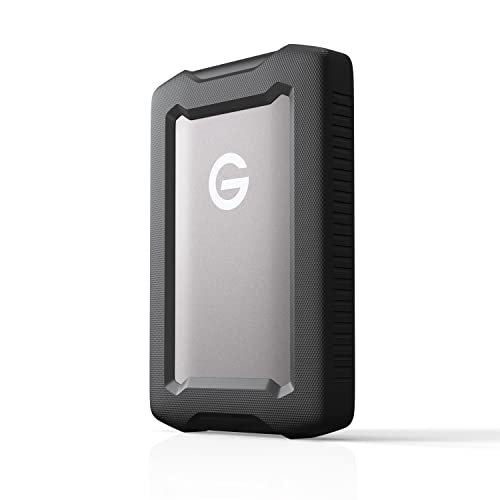
SanDisk Professional 4TB G-Drive ArmorATD — Rugged Field Pick
In the field this drive earns its keep before the edit even starts, because the armoured enclosure tolerates the knocks of a kit bag while camera cards offload through its USB-C connection at the end of a shoot day.
Back in the suite it settles into timeline duty happily for single-camera work, streaming H.264 clips steadily while the cache lives on faster storage elsewhere in the machine.
On a location recce the ArmorATD also doubles as the day’s safety copy, sitting in a padded pocket while the laptop renders proxies. Editors who work that way tend to format a fresh folder per shoot day on it, which keeps the shuttle habit tidy and makes the evening backup at base a single, verifiable copy rather than a reconstruction from memory.
- Capacity: 4TB portable
- Connection: USB-C, USB 3.2 Gen 1
- Design: rugged armoured enclosure
- Power: bus powered
- Role: location and shuttle editing
Working from a vehicle or a borrowed desk is where this SanDisk shows its temperament. The enclosure shrugs off the grit that collects in camera bags, the cable connection feels positive rather than delicate, and the drive mounts quickly enough that offloading cards becomes part of the wrap routine instead of a separate chore. Editors who shoot and cut on the same day lean on exactly that reliability, because a drive that hesitates at ingest makes the whole evening feel longer.
Its limits appear in the edit suite rather than the field. Stack four angles of 4K H.264, add a title sequence and a music bed, and the portable interface becomes the ceiling while the internal cache disk waits for data. The sensible pattern is to cut single-camera work and assemblies directly from it, then move a project to faster desk storage when the timeline grows teeth. Used that way, it is not a compromise at all; it is the right tool wearing the right job.
Consider the ArmorATD across a full wedding season rather than a single shoot. It will be thrown into bags hundreds of times, connected to laptops in kitchens, cars and venue offices, and asked to hold the only travelling copy of unrepeatable footage for a few hours at a time. Drives that survive that life without a single mount failure earn a kind of trust no benchmark can confer, and this one’s armoured brief is aimed squarely at accumulating that trust. The editor who standardises on it for every location job also gains a workflow benefit: one cable, one mounting behaviour, one folder routine, repeated until the process disappears into muscle memory and the creative part of the day gets the attention instead.
One more pattern suits the ArmorATD particularly well: the two-drive location rotation. Buy it alongside any larger desk volume in this list, keep the portable as the travelling ingest disk and the desk unit as base storage, and the footage always exists in the right place at the right time — on the rugged drive while the world is unpredictable, and on the big calm volume once the project reaches home. That division of labour plays to the design of both drives instead of asking either to be something it is not.
Strengths
- Armoured shell tolerates daily travel abuse
- Bus power keeps location setups simple
- Steady streaming for single-camera timelines
Trade-offs
- Modest interface speed caps busy multicam work
- Four terabytes fill quickly on large shoots
- Rugged casing adds bulk beside a laptop
Best for: location editors and single-camera projects cut on the move.
Not suited for: heavy multicam suites wanting one drive to do everything.
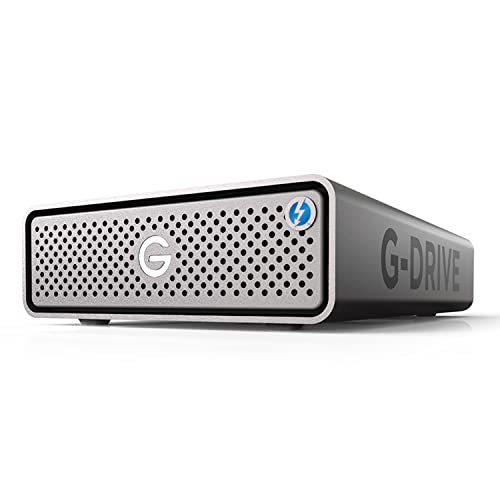
SanDisk Professional 4TB G-Drive PRO, Enterprise-Class Desktop Drive, Thunderbolt 3 (20Gbp — Fastest Desktop Here
This desktop unit is the keen editor’s single-drive answer, pairing a fast-spinning enterprise mechanism inside with a Thunderbolt connection that keeps several 4K angles playing together.
Its mains-powered design and upright desk footprint suit a permanent place beside the workstation, where it can also absorb rendered previews without choking the timeline.
Heat is the quiet variable with this desktop unit during summer render sessions, so give its vents room and avoid stacking it against a monitor stand. Treated that way it holds its pace through long exports, and the editor who pairs it with an SSD cache volume gets the closest thing to an all-purpose editing disk in this entire list.
- Capacity: 4TB desktop
- Connection: Thunderbolt 3 and USB-C
- Mechanism: 7200RPM enterprise-class inside
- Power: mains adapter
- Role: single-drive suite editing
The G-Drive PRO changes the emotional texture of a busy edit day. Timelines that stuttered on lesser storage settle down, renders write without the application pausing to breathe, and the playhead stops feeling like it is negotiating with the disk. That calm comes from the pairing of a fast enterprise mechanism with a connection that refuses to be the bottleneck, and editors notice it most during the unglamorous middle hours of a long project.
It also asks the suite to treat it as furniture rather than luggage. It wants its power supply, its shelf position and a cable run that nobody trips over, and in return it behaves like part of the workstation. Studios that standardise on one fast desk volume per edit bay often land on this class of drive, because the alternative — several small portables per bay — creates a labelling and backup burden that grows with every project.
The G-Drive PRO also changes how a suite handles client attendance. When a director sits behind the editor, dropped frames and stuttering playback are not just technical events; they undermine confidence in the room. A desk drive with this much headroom keeps the session smooth while three people call changes in real time, and that social smoothness is worth money to a working suite. It pairs naturally with a second, larger archive volume, so the fast disk holds current productions while finished work migrates to cheaper capacity, and the editor never has to choose between deleting a client’s last project and starting the next one.
Editors cutting long-form work will also appreciate how this drive treats a timeline measured in hours rather than minutes. Scrubbing across a feature-length assembly generates a scattered reading pattern that exposes hesitant storage, and the fast mechanism here keeps that navigation feeling direct. For a suite whose reputation rests on long-form delivery, that responsiveness during the least glamorous phase of the work — the endless review pass — is where the investment quietly repays itself.
Noise deserves a sentence in any suite discussion, because a desktop drive lives within earshot of the person making a thousand small creative decisions a day. This unit’s enterprise mechanism is audible during heavy seeks in a silent room, a character trait rather than a defect, and most suites solve it with placement — under the desk, on a mat, behind the monitor line — rather than by choosing lesser storage. Mention it to a client-attended suite before purchase, position it thoughtfully on arrival, and the subject never needs to arise again.
Strengths
- Thunderbolt headroom for layered timelines
- Fast mechanism answers playhead jumps eagerly
- Enterprise mechanism inside a desktop shell
Trade-offs
- Needs mains power and desk space
- Overkill for simple single-stream jobs
- Spinning storage still trails SSD cache speed
Best for: multicam editors wanting the strongest single spinning drive.
Not suited for: travellers who need a pocketable volume.

LaCie Rugged USB-C, 4TB, Portable External Hard Drive, Drop, Shock, Dust, Rain Resistant, — Travel-Ready Classic
Few portable drives have spent as many years in camera bags as this rugged design, and its appeal for editing work is the calm predictability of a drive that simply mounts and streams wherever it lands.
It asks for patience during very large renders, yet for cutting on location, in a hotel room or at a client’s office it remains a reassuringly tough companion.
There is a social side to this LaCie: clients and producers recognise it, which subtly reassures a room when the only copy of the morning’s footage is travelling inside it. Beyond the theatre, its sealed-feeling shell shrugs off the dust of workshops and the drizzle of loading bays that would send lesser portables into early retirement.
- Capacity: 4TB portable
- Connection: USB-C
- Design: drop, shock, dust and rain resistant
- Power: bus powered
- Role: field-proven travel drive
There is a reason this LaCie design has become visual shorthand for location media: the orange bumper signals that the drive inside has survived other people’s shoots. For H.264 work its performance is unremarkable in the best sense, delivering the steady stream a compressed timeline needs without heat, noise or ceremony, whether the laptop sits in a studio or on a train table.
Where it earns loyalty is the bad day. A drive knocked off a tailgate, rained on during a load-out or buried under lighting cases is a drive whose contents an editor stops trusting, and this one’s resistance to those insults preserves trust. It will not win a throughput contest against the Thunderbolt desk unit in this list, yet many editors would still choose it as the drive that physically carries the footage home.
Think of the Rugged USB-C as the drive that mediates between two worlds: the field, where footage is fragile and conditions are hostile, and the suite, where the same footage becomes a product. Its long production history means replacement cables, cases and docks are easy to source in most cities, a mundane advantage that matters when a shoot is travelling and something small goes missing. For documentary editors who may spend weeks away from base, that ecosystem of familiarity can outweigh a rival’s paper specifications, because the best drive on a remote shoot is the one every problem with which has a known, boring solution.
The Rugged also earns a place in disaster kits: the drive an editor grabs when a production must move fast and light. Paired with a laptop it forms a complete cutting station that fits in a backpack, and its resistance to the elements means the kit works in a tent, a site office or a press room with equal indifference. Few drives in any category can claim that breadth of working environments with a straight face.
One practical detail seals this drive’s field role: it survives being the backup destination in places where a desk, a chair and clean power are all negotiable. Editors working from festival offices, sports venues and rural locations describe the same pattern — the rugged drive is the one piece of the kit nobody worries about, and in a workflow full of fragile things, that absence of worry has genuine production value.
Strengths
- Proven rugged design with years of field trust
- Resistant to dust, rain and drops on set
- Works anywhere a USB-C port exists
Trade-offs
- Aging platform lacks the newest interfaces
- Not the fastest choice for renders
- Capacity ceiling suits projects, not archives
Best for: location cutting and dependable shuttle duty.
Not suited for: editors chasing maximum desktop throughput.
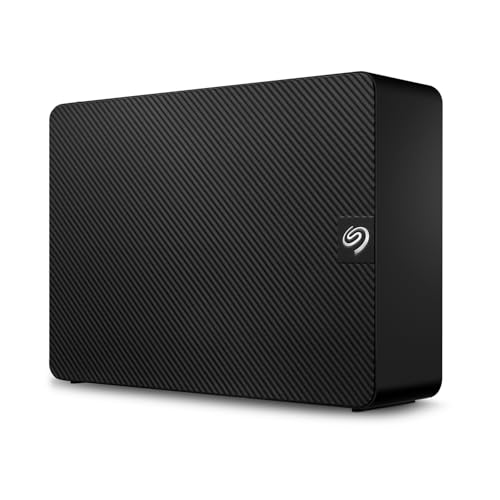
Seagate 8TB Expansion Desktop Hard Drive — Suite Archive Value
As a suite-side volume this large desktop drive focuses on room and steadiness, holding active projects and their media in one place while editors work through them.
Its USB connection serves single-stream and modest multicam timelines well, and its quiet manner suits a small edit room where the drive sits within earshot all day.
The Expansion suits a particular rhythm: ingest everything to it, cut from it, then archive the finished project folders in place until the drive approaches three quarters full. At that point disciplined editors clone it to a fresh volume and shelve the original as the project vault, turning a simple desktop drive into a rolling archive system.
- Capacity: 8TB desktop
- Connection: USB 3.0
- Design: upright desktop enclosure
- Power: mains adapter
- Role: active project volume
The Seagate Expansion plays a quieter role: the dependable volume that receives everything. Ingest the cards to it, build the project on it, and let it accumulate the season’s work in one browsable place. Its USB connection never pretends to be exotic, and for the single-stream H.264 timelines that make up most real editing, exotic is unnecessary; steadiness is the entire requirement.
Its weakness is the flip side of its simplicity. There is no redundancy inside the enclosure and no speed reserve for a timeline that grows into heavy multicam, so the drive works best inside a routine where a second copy exists somewhere and the current flagship project may graduate to faster storage. As the archive-and-workhorse layer of a small suite, though, it covers an enormous amount of ground for a single box.
The Expansion’s honest simplicity also makes it the drive many editors hand to an assistant without a briefing. There is nothing to configure, no mode to misunderstand and no software demanding an account before the copy begins, so the ingest station workflow stays identical whoever runs it. Over a season that operational plainness prevents the small errors — a project copied to the wrong volume, a folder nested inside another folder — that quietly consume editing hours later. Its eight terabytes give that simple workflow room to run for months before anyone must think about rotation, which is exactly the mental bargain a small suite wants from its workhorse volume.
For teaching environments and small production companies, the Expansion offers another virtue: it is cheap enough in spirit to be bought per project. A production can assign one drive to a series, fill it with that series’ media and archive it whole when the series wraps, giving each production a self-contained physical archive. That per-project pattern simplifies rights management and client handover, because the entire job leaves on the same disk it arrived on.
Strengths
- Eight terabytes of uncomplicated desk room
- Quiet running for small edit suites
- Simple setup with no software ceremony
Trade-offs
- USB connection limits peak headroom
- Single drive means no internal redundancy
- Upright shell needs a stable shelf
Best for: suite editors holding several active projects.
Not suited for: anyone needing a travel drive.

WD 16TB Elements Desktop External Hard Drive, USB 3.0 for plug-and-play storage — Biggest Project Vault
Capacity is the headline here in the most useful sense: a whole season of projects, media, graphics and exports can live on one volume without the weekly shuffle of older work onto other disks.
That scale suits studios archiving finished jobs alongside current ones, though the drive’s size and mains power keep it firmly on the desk rather than in a bag.
Owning sixteen terabytes in one enclosure changes backup maths, because cloning the whole volume needs another very large destination. Studios choosing it should budget the mirror at the same time, or accept a cloud tier for the most valuable projects, since a vault this size concentrates a great deal of finished work in one mechanism.
- Capacity: 16TB desktop
- Connection: USB 3.0
- Design: upright desktop enclosure
- Power: mains adapter
- Role: season-long project vault
Sixteen terabytes reframes project management. Instead of asking which finished jobs must move off the working volume this month, an editor can keep the current production, last season’s clients and the stock library on one drive and still leave working room. For H.264 archives that convenience is real, because relinking an old project becomes opening a folder rather than hunting across a drawer of small disks.
The responsibility scales with the capacity. A drive holding this much finished work deserves a mirror, a clone schedule or at least a cloud copy of the project files and masters, and its sheer size means a full clone is an overnight job to plan rather than a coffee-break task. Suites that accept that discipline gain a vault that quietly removes capacity from the list of things to think about.
A sixteen-terabyte Elements also suits the growing practice of keeping camera originals online indefinitely. Clients return after two years asking for a re-cut, a vertical version or a single missing shot, and the editor who can open the original project immediately sounds more professional than the one quoting a retrieval delay. Keeping that history spinning on one volume does demand the backup discipline described earlier, yet the commercial value of instant access to old work is real, and this drive is the cheapest seat at that particular table in this list.
There is also a consolidation argument for the sixteen-terabyte Elements in a mature suite. Years of small drives, each holding a fragment of the back catalogue, create a retrieval tax every time an old project reopens. Gathering that history onto one large, backed-up volume ends the archaeology, and the drawer of retired portables can finally be labelled, verified once and stored as the cold copies they have effectively become.
Power cuts are the other unglamorous test of a big desk volume. A sixteen-terabyte drive takes time to check itself after an unclean shutdown, and a suite running one should pair it with a small uninterruptible supply so the volume always closes its files gracefully. That modest pairing protects the largest concentration of finished work in the building, which is precisely where protection spending earns its highest return.
Strengths
- Sixteen terabytes end capacity juggling
- Holds current and finished work together
- Calm sequential behaviour for big copies
Trade-offs
- Large and firmly desk-bound
- Filling it makes backups a serious job
- Single mechanism carries the whole vault
Best for: studios archiving a season on one volume.
Not suited for: editors who rotate small drives per client.
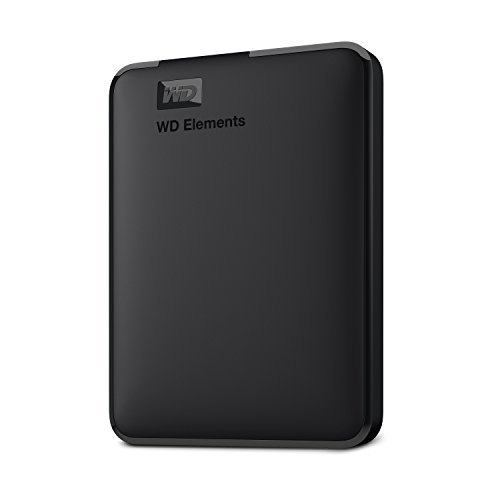
WD 6TB Elements Portable External Hard Drive for Windows, USB 3.2 Gen 1/USB 3.0 for PC & M — Slim Shuttle Drive
This slim portable trades a little of the rugged theatre for a cleaner, lighter shuttle drive that slips into a laptop sleeve and draws its power from the cable.
Six terabytes still covers many projects at once, making it a sensible travelling companion for editors who cut in two places and sync by carrying the library with them.
The Elements Portable rewards a labelling habit: a strip of tape with the project name on its spine saves real minutes when three similar drives live in one drawer. Its slim shell also runs happily from a laptop port in a café edit session, which is precisely the unplanned working pattern it was bought for.
- Capacity: 6TB portable
- Connection: USB 3.2 Gen 1 / USB 3.0
- Design: slim portable enclosure
- Power: bus powered
- Role: two-suite shuttle drive
The slim Elements Portable suits the editor whose office is wherever the laptop opens: a second desk at home, a client’s meeting room, a co-working bench. Six terabytes is enough to carry several active projects with their media, and because it draws power from the cable, the whole editing kit remains a laptop, a drive and a pair of headphones.
Its ceiling is thermal and mechanical rather than conceptual. Long renders in a warm room ask a compact portable to work hard in a small shell, and a timeline with many angles will feel the portable spindle’s pace. Editors who respect those boundaries — assemblies and single-camera cuts on the road, heavy finishing at the desk — find it a companion that rarely gives them a reason to think about storage at all.
The six-terabyte Elements Portable has an underappreciated virtue for editors who teach, consult or collaborate: it makes a project genuinely hand-over-able. The whole job — media, project file, graphics, exports — fits on one slim drive that can be posted to a colourist or carried to a collaborator’s studio, with no accounts, uploads or bandwidth negotiations. In a profession increasingly built on distributed teamwork, a drive that turns a project into a physical, postable object fills a niche that cloud links still handle awkwardly for very large media.
Finally, consider the Elements Portable as the drive of the second machine: the laptop that renders overnight, the spare workstation a freelancer lends to an assistant, the travel kit that must mirror the main library. Six terabytes copied once and refreshed weekly keeps that second station genuinely useful, and because the drive is bus powered, the second station can be assembled anywhere with a power outlet for the laptop alone.
Label it, date it, lend it freely to colleagues, and let this portable become the most borrowed and least resented object in the whole building, by a very comfortable margin.
Strengths
- Slim shape suits a laptop sleeve
- Six terabytes cover many travelling projects
- No power brick to pack or lose
Trade-offs
- Less armour than the rugged rivals
- Portable spindle pace during big renders
- Easy to misplace without a labelling habit
Best for: editors splitting time between two desks.
Not suited for: rough location work in harsh conditions.
How Do These Six Editing Drives Differ When You Compare Their Specs Directly?
| Drive | Capacity and format | Badge |
|---|---|---|
| SanDisk Professional 4TB G-Drive ArmorATD | 4TB portable | Rugged Field Pick |
| SanDisk Professional 4TB G-Drive PRO, Enterprise-Class Desktop Drive, Thunderbolt 3 (20Gbp | 4TB desktop | Fastest Desktop Here |
| LaCie Rugged USB-C, 4TB, Portable External Hard Drive, Drop, Shock, Dust, Rain Resistant, | 4TB portable | Travel-Ready Classic |
| Seagate 8TB Expansion Desktop Hard Drive | 8TB desktop | Suite Archive Value |
| WD 16TB Elements Desktop External Hard Drive, USB 3.0 for plug-and-play storage | 16TB desktop | Biggest Project Vault |
| WD 6TB Elements Portable External Hard Drive for Windows, USB 3.2 Gen 1/USB 3.0 for PC & M | 6TB portable | Slim Shuttle Drive |
How Does Drive Behaviour Change Across a Long Editing Day?
Morning ingest is a sequential flood, midday cutting is a scatter of small reads as the playhead hunts, and the evening export is a long write that punishes any drive already warm and nearly full. A drive chosen for editing should survive all three moods without the editor reorganising the day around storage, and that is why this guide weighs sustained behaviour over a single impressive transfer figure quoted in isolation.
Where Does a Second Drive Fit in an Editing Setup?
Many editors pair one of these hard drives with a smaller solid-state volume, keeping the current project’s cache and previews on the fast disk while the hard drive holds the media library and finished exports. That partnership costs less than an all-solid-state library and keeps the spinning drive doing the work it performs best, streaming long files in order while the smaller disk absorbs the frantic small writes.
How Do You Set Up a Hard Drive for a 4K Editing Project?
Start by formatting the drive with the file system the whole production uses, then create a folder structure that mirrors every project: media, audio, graphics, exports and archive. Copy camera cards with verification enabled in the offload tool, keep the card untouched until two copies exist, and only then let the editing application index the media from the drive.
Point the editing application at the new volume deliberately. Set the project file and media to live on the hard drive, but direct previews, waveforms and cache files to the fastest storage available, ideally a separate internal SSD. That split lets the spinning drive do the one job it does well, streaming long media files, instead of juggling thousands of tiny cache writes at the same time.
Before a deadline session, close other applications that index or sync the volume, disable cloud backup scanning of the media folders during the edit, and leave a healthy slice of the drive empty. Spinning drives slow down as they fill toward the final portion of their platters, so a timeline that played smoothly on a half-empty drive can hesitate once the disk is nearly full.
What Errors Do Video Editors Make Most Often When Picking Drives for 4K H.264 Footage?
The most common mistake is editing directly from the only copy of the footage. A drive used as the working volume should hold a copy, never the sole copy, because a dropped portable or a failed desktop unit would take the project with it. Keep the card backups or a second drive until the project is delivered and archived.
Another frequent error is filling a drive to the brim mid-project and then wondering why playback degraded. Editors also trip over daisy-chained hubs that throttle a fast drive down to the speed of the slowest device on the chain, and over mixing operating systems on one volume without checking file system compatibility before a shoot day arrives.
How Does H.264 Bitrate Change What a Drive Must Do?
Not all 4K H.264 asks the same of storage. A talking-head recording at a modest bitrate is a gentle stream, while action footage from a camera writing at its highest quality setting can demand several times the data rate, and a multicam timeline multiplies whatever figure a single angle needs. Editors who know their cameras’ recording rates can predict their storage needs honestly, instead of discovering during the first group edit that four angles together exceed what a portable drive enjoys delivering.
Effects change the equation again. Noise reduction, stabilisation and layered colour work force the application to read the same frames repeatedly and write rendered previews, which is why a timeline can play cleanly in a rough cut and then hesitate once the finishing passes begin. Planning storage for the finishing stage, not the assembly stage, is the habit that separates calm deadlines from frantic ones.
What Does a Sensible Editor’s Storage Layout Look Like?
A layout that serves most editors has three layers. The fastest available volume holds the application cache, previews and the current project’s working files. A hard drive from this list holds the media library and active projects, streaming the long files it is good at streaming. A third destination, which can be another drive from this list or a cloud tier, holds the backup that makes the first two layers safe to use aggressively.
The layers matter more than the brands. An editor with a modest portable drive in a disciplined three-layer system will finish more calmly than an editor with the fastest desk drive in this guide and everything — media, cache, only copy — piled onto it. When money is limited, spend it on completing the system before upgrading any single layer of it.
When Should an Editor Replace a Working Drive?
Retire an editing drive on evidence, not age alone. Copies that fail verification, a volume that occasionally vanishes from the desktop, new clicking or vibration, and health tools reporting a growing list of problem sectors are all messages to migrate the projects while migration is still easy. A drive that carries client work should never be allowed to progress from warning signs to silence.
The graceful path is to clone the volume to its replacement during a quiet week, verify the clone, and then demote the old drive to non-critical duty or recycle it. Editors who build that replacement cost into their annual planning treat storage as the consumable it honestly is, rather than as a permanent fixture whose failure becomes an emergency.
How Should Editors Handle Proxies Alongside These Drives?
Proxy workflows change what a hard drive must do, because the timeline plays lightweight stand-ins while the full-resolution media waits for the finishing stage. An editor using proxies can cut happily from almost any drive in this list, including the portables, since the data rate of proxy media is a fraction of the original. The hard drive then matters most at ingest, at the relink to full-resolution files and at export, which are sequential jobs spinning disks handle gracefully.
The trap is organisational rather than technical. Proxies must live in a predictable relationship to the originals, or the relink before delivery becomes an evening of detective work. Keep the proxy folder inside the project folder on the same volume, let the editing application manage the attachment, and the hard drive’s job stays simple: one project, one place, everything accounted for when the deadline arrives.
What Role Does Free Space Play in Timeline Performance?
Spinning drives read fastest from their outer tracks and slow as the heads travel inward, so a volume that is nearly full is literally a slower volume than the same drive half empty. Editors feel this as a timeline that was fine in month one and hesitant in month four, and often blame the application or the computer when the true cause is a disk with no room left to breathe. Keeping a fifth of the drive empty is cheap insurance.
Free space also protects renders and exports, which need temporary room beyond the final file size. An export that fails at ninety percent because the volume filled is a special kind of deadline pain, and it is entirely preventable with the unglamorous habit of watching the capacity meter the way a driver watches a fuel gauge on a long road.
How Do You Verify Footage Copies Like a Professional?
Checksum verification is the difference between believing a copy worked and knowing it did. Ingest tools can compare every byte of the card against the copy on the hard drive and report discrepancies immediately, while the card is still in the reader and the shoot can still be rescued. That five-minute discipline, applied on the day, prevents the worst discovery in editing: finding a corrupt clip three weeks later, after the card has been formatted and reused.
Keep the verification habit attached to the drive routine rather than to willpower. The same drive, the same ingest tool, the same report saved into the project folder — repetition turns a professional safeguard into an automatic gesture, and the archive that results can be trusted years later when a client asks for the original footage again.
What Should an Editor Do the Day a New Drive Arrives?
Resist the urge to fill a new editing drive immediately. Format it for the suite’s operating system, run a full surface write-and-read check with a diagnostic tool, and copy one real project to it as a rehearsal. That first day of testing catches the rare unit that was damaged in shipping while returns are painless, and it establishes the folder structure and naming habits before deadline pressure can make them sloppy.
Label the drive physically on the same day, with its role and purchase date, and record it in whatever inventory the suite keeps. Six months later, when three identical enclosures sit in a row, that label is the difference between confidence and a morning of mounting drives to see which is which.
How Does Audio Work Change Storage Demands?
Editors focused on picture sometimes forget that a finished programme carries dozens of audio tracks: dialogue, music, effects, stems and mix versions, all referencing files that live somewhere. Multitrack audio is not heavy per stream, yet a disorganised audio folder can make a project feel fragile, because one missing stem breaks the final export. Keeping every audio element inside the project folder on the editing drive, rather than scattered across a music library elsewhere, protects the delivery.
Archiving the audio separately also deserves a thought. A project’s picture may be re-versioned years later while its mix remains final, or the reverse, so an archive layout that keeps picture and sound in clearly named neighbouring folders ages far better than one that interleaves them by date alone.
Why Do Editors Keep a Spare Empty Drive?
Experienced suites keep one empty drive on the shelf the way a kitchen keeps a spare gas bottle. When a working volume fills mid-project, when a client’s drive must be cloned before it is returned, or when a failing disk needs an emergency destination at midnight, the spare converts a crisis into a copy job. Any model in this list can play that role; the important decision is simply that the role is filled before it is needed.
The spare should be rotated occasionally so it does not sit untouched for years, and its capacity should match the largest working volume it might rescue. Reviewed once a year alongside the rest of the storage plan, it is among the cheapest forms of professional insurance an editor can hold.
How Should Finished Projects Leave the Editing Drive?
A project should leave the working volume as a complete, self-contained folder: media, project file, graphics, audio, exports and the verification reports from ingest. Test-open the archived copy once before deleting the working version, confirm the timeline plays from the archive location, and only then reclaim the space. That single rehearsal prevents the classic archive failure where a project file references one clip that lived somewhere else all along.
Record the departure in a simple log — project name, archive destination, date — and future retrieval becomes a lookup rather than an excavation. Suites that keep that log find their old work becomes an asset they can sell from, while suites that skip it find the same work becomes a rumour.
What Is the Simplest Backup Rhythm for a One-Person Studio?
For a solo editor the workable rhythm is nightly and boring: the working drive clones to a second volume automatically, the week’s finished projects join a monthly archive, and one copy of that archive lives away from the studio. Automation matters because a one-person studio has no colleague to notice a skipped backup, and the schedule must survive busy weeks, tired evenings and holidays without relying on memory.
Review the system quarterly by restoring one old project completely. A backup that has never been restored is a hypothesis, and the quarterly rehearsal is what turns it into a fact the editor can rely on when a client, a deadline and a failed drive all arrive in the same week.
How Do You Keep a Shared Suite Drive From Becoming Chaos?
When several editors share one large volume, governance matters more than hardware. Agree a folder naming pattern, reserve a clearly marked area for ingest that is emptied weekly, and make one person responsible for archiving finished work. Without those agreements a shared drive decays into nested duplicates and mystery folders within a single busy season, and the time lost to archaeology soon exceeds the cost of the drive itself.
A monthly fifteen-minute tidy, scheduled like any other maintenance, keeps the shared volume honest. Delete nothing in anger, archive with the log open, and let the drive remain what it was bought to be: the calm centre of the suite’s working life, where any editor can find any project without asking who touched it last.
What Changes When a Suite Moves From HD to 4K Entirely?
The move multiplies everything storage touches: ingest takes longer, archives grow faster, backups occupy more of the night and a drive that felt generous under HD suddenly feels provisional. Editors planning the transition should size the new volumes for the 4K reality from day one, because retrofitting capacity mid-season means migrating live projects, which is the one storage job nobody enjoys performing under deadline pressure.
Should an Editor Keep One Drive Model Across the Whole Suite?
Standardising has quiet advantages: one cable type in every drawer, one mounting behaviour for assistants to learn, one spare that can rescue any bay and one set of quirks the whole team already understands. Variety has its own argument — different jobs genuinely suit different drives, as this guide shows — yet a suite that mixes models should do so by role, with the role written on the label, rather than by accident of whatever was on offer the week each drive was bought.
Final Recommendation
Editors who mostly shuttle footage and cut single-camera projects will get the most daily value from the rugged portable options, which survive the journey between locations and still stream H.264 timelines without drama once the cache lives elsewhere.
Suite-based editors handling multicam work should anchor the setup on the Thunderbolt desktop drive or one of the large USB desktop units, reserving portable drives for ingest and transport. Whichever route you take, the discipline around backups and free space will influence your deadlines more than any single specification, because a calm, half-empty, well-organised volume edits faster than a crammed one ever will.
Frequently Asked Questions
Can a spinning hard drive really play back 4K H.264 smoothly?
Yes, for typical single-stream and light multicam timelines a healthy hard drive streams H.264 comfortably, because the codec is compressed and each stream asks for a modest, steady data rate. Trouble appears when many angles, effects previews and cache writes compete at once, which is why separating cache from media matters more than chasing a faster single drive.
Should previews and cache files live on the same drive as the media?
Keeping them apart works better in practice. Preview renders and cache databases involve constant small writes that interrupt the long sequential reads a timeline needs, so placing them on a separate fast volume lets the hard drive stream media without interruption and the whole suite feels more responsive.
How much capacity does a freelance editor actually need?
Count active projects rather than hours of footage. A working drive that holds three or four current projects, plus a desktop archive sized for a full year of finished work, covers most freelance patterns. When the working drive passes roughly three quarters full, move closed projects to the archive instead of letting performance slide.
Is Thunderbolt worth choosing over USB for a desktop editing drive?
For a single editor playing several 4K angles while renders write to the same volume, the extra headroom is noticeable and reduces dropped frames during busy passages. For straightforward single-camera work delivered from one stream at a time, a USB desktop drive performs the same job without fuss.
What is the safest way to move a project between two computers?
Copy the entire project folder, including media, project file and graphics, rather than relinking piecemeal on the second machine. A rugged portable drive suits that shuttle role well, and relinking becomes a quick confirmation instead of a hunt for missing clips scattered across folders.
Related Guides
Readers building out a full editing desk will also find our best external drives for video editors best portable drives for location shoots best desktop drives for project archives coverage useful, particularly the parts dealing with how storage choices ripple through the rest of a video workflow.


