What's inside
- Key Takeaways
- Quick Picks: The Best Hard Drives for Synology DiskStation at a Glance
- How Did We Choose These Picks?
- Why Does CMR Matter So Much Inside a DiskStation?
- How Do These Six NAS Drives for Synology Compare on Capacity and Endurance?
- How Does DSM Treat a Mixed-Size Storage Pool?
- What Ongoing Care Does a DiskStation Array Need?
- How Do You Install and Initialise New Drives in a DiskStation?
- Which Mistakes Do Synology DiskStation Owners Regret Most After Filling Their NAS Bays?
- How Does RAID Choice Change the Drives You Should Buy?
- What Does a Healthy DiskStation Routine Look Like Each Month?
- How Should You Expand a DiskStation Without Rebuilding Everything?
- Why Does the DiskStation’s Location Matter to Its Drives?
- What Should You Do When DSM Reports a Drive Warning?
- How Do Snapshots Change What a DiskStation Protects Against?
- How Should a Family Share One DiskStation Without Chaos?
- What Happens to a DiskStation Pool as Drives Age Together?
- Why Keep the Removed Drives After an Upgrade?
- How Does a DiskStation Fit Into a Wider Backup Plan?
- What Should a First-Time DiskStation Owner Do in the First Week?
- How Quiet Is Quiet Enough for a Home NAS?
- When Is a Second DiskStation the Right Answer?
- What Does Data Scrubbing Actually Do for an Array?
- Should a DiskStation Ever Be Switched Off at Night?
- Final Recommendation
- Frequently Asked Questions
- Related Guides
As an Amazon Associate I earn from qualifying purchases. This post may contain affiliate links at no extra cost to you.
gizmoverdict.com is reader-supported. When you buy through links on our site, we may earn an affiliate commission.
Where to buy: NAS specialists, general computer retailers and the drive makers’ own stores carry every model below, and the links here lead to the exact listings checked while this guide was prepared. Confirm the full model code before ordering, since NAS families reuse similar names across very different capacities.
A Synology DiskStation asks its drives to work a completely different shift from a desktop PC: the enclosure stays powered around the clock, several drives vibrate together in neighbouring bays, and a RAID array expects every member to answer requests predictably even while a rebuild is running. Choosing the best hard drives for synology disk station use therefore starts with NAS-rated, CMR designs rather than whatever desktop drive happens to be on sale.
All six picks here are internal 3.5-inch NAS drives built for that environment, with rotational vibration handling, firmware tuned for RAID controllers and workloads rated for continuous operation. They differ in capacity, spindle speed and intended bay count, which matters because a two-bay home DiskStation and an eight-bay small-office unit punish drives in noticeably different ways.
This guide walks through matching drive families to enclosure size, explains why CMR recording matters inside an array, and shows how to plan capacity so a volume can grow by swapping drives later instead of forcing a rebuild of the whole storage pool on day one.
Key Takeaways
- Every pick here uses CMR recording, which keeps RAID rebuilds predictable and avoids the long, uneven rebuild behaviour associated with shingled designs.
- Fill a DiskStation with matched drives from the same family and capacity where possible, because mixed spindle speeds make an array behave like its slowest member.
- Smaller IronWolf and Red Plus drives suit two-bay and four-bay enclosures, while the Pro and larger models target crowded multi-bay units with heavier vibration.
- Synology Hybrid RAID lets different capacities coexist, yet usable space follows the smallest drive until that drive is replaced with a larger one.
- Check the Synology compatibility list for your exact DiskStation model before ordering, since firmware support for specific drive models changes over time.
Quick Picks: The Best Hard Drives for Synology DiskStation at a Glance
| Drive | Badge | Why it earns a place |
|---|---|---|
| Seagate IronWolf 4TB NAS Internal Hard Drive CMR 3.5 Inch SATA 6Gb/s 5400 RPM 64MB Cache f | Quiet Two-Bay Starter | Gentle speed and small footprint suit a first mirrored pair. |
| Seagate 8TB IronWolf Internal NAS Hard Drive | Balanced Four-Bay Choice | The middleweight choice for four-bay homes and small offices. |
| Seagate IronWolf Pro, 16 TB, Enterprise NAS Internal HDD –CMR 3.5 Inch, SATA 6 Gb/s, 7,200 | Heavy-Duty Pro Capacity | Sixteen terabytes per bay for enclosures that must grow for years. |
| Western Digital 4TB WD Red Plus NAS Internal Hard Drive HDD | Cool-Running Mirror Pick | Cool, quiet running beside the television or under a desk. |
| Western Digital 12TB WD Red Plus NAS Internal Hard Drive HDD | Large-Volume Red Plus | Twelve terabytes that turn a four-bay box into a serious library. |
| Toshiba N300 10TB NAS 3.5-Inch Internal Hard Drive | Third-Family Contender | A genuine alternative family with strong multi-bay manners. |
How Did We Choose These Picks?
The shortlist was built around three filters that matter inside a DiskStation. First, the drive must use conventional magnetic recording, because arrays depend on consistent write behaviour during rebuilds. Second, it must carry a NAS workload rating and vibration compensation appropriate to the bay counts it will serve. Third, its capacity steps must let owners expand sensibly, starting with a mirrored pair and growing toward larger volumes without replacing every drive at once.
Spindle speed was treated as a situational choice rather than a ranking. Slower drives run cooler and quieter in a living-room enclosure that serves media and backups, while faster drives answer the many small requests of a busy office share more eagerly. Both behaviours are represented below, and each review states plainly which enclosure personality the drive suits.
Why Does CMR Matter So Much Inside a DiskStation?
A RAID rebuild reads every surviving drive end to end while writing the replacement drive at the same time, and that sustained, unforgiving workload is where recording technology shows its character. CMR drives write tracks without overlapping them, so write speed stays steady for hours. Shingled drives must rewrite bands of tracks, which can turn a rebuild into a multi-day event during which the array has no redundancy left to spare.
Bay count drives the vibration question. Each spinning drive adds a small amount of rotational vibration, and in a packed enclosure those forces combine and can nudge neighbouring heads off track, hurting performance and longevity. NAS families address this with sensors and firmware corrections, and the Pro-tier models add stronger compensation intended for enclosures holding many drives at once.
Capacity planning inside Synology DSM revolves around storage pools and the smallest member rule. In a mirrored pair, usable space equals one drive. In larger parity arrays, each drive contributes space equal to the smallest member, so one undersized leftover drive quietly caps the whole array. Buying matched capacities from the start, or planning to replace the smallest drive first during an upgrade, keeps the arithmetic in your favour.
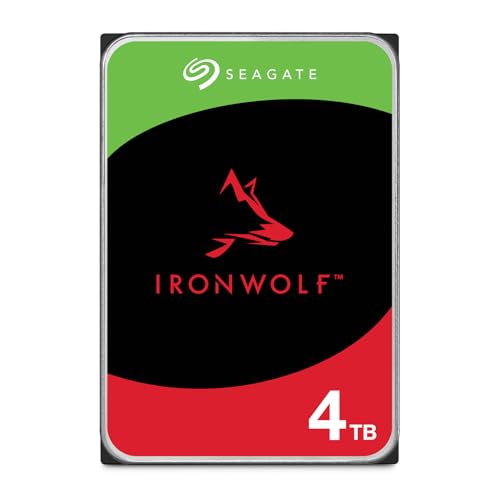
Seagate IronWolf 4TB NAS Internal Hard Drive CMR 3.5 Inch SATA 6Gb/s 5400 RPM 64MB Cache f — Quiet Two-Bay Starter
In a two-bay DiskStation this drive behaves like a considerate housemate, spinning at the gentler speed that keeps a living-room enclosure quiet while its CMR recording keeps a mirrored pair honest.
Rescue services bundled with the family add a safety net, and the modest capacity makes a first NAS or a backup-target DiskStation feel appropriately sized.
In a DS220-class two-bay unit this drive’s manners shine brightest, because the enclosure sits close to people and its gentle operation never becomes the background noise of a room. Owners often pair it with scheduled scrubbing in DSM, and the combination of CMR recording and modest heat keeps that maintenance uneventful month after month.
- Capacity: 4TB, 3.5-inch internal
- Interface: SATA 6Gb/s
- Recording: CMR
- Speed: 5400 RPM, 64MB cache
- Role: small DiskStation arrays
There is one more household pattern this drive serves well: the hand-me-down DiskStation. When an owner upgrades to a larger enclosure, the old two-bay unit with a pair of these inside becomes a backup NAS for a relative or a second location, and its modest drives are perfectly sized for that retirement role. Planning purchases with that cascade in mind softens the cost of every upgrade.
In daily service this four-terabyte IronWolf disappears into the background of a home, which is the highest achievement available to a NAS drive. It holds the family backup target, the photo share and the document folder without warmth or noise becoming a topic of conversation, and DSM’s scheduled health checks report on it in the same bored tone month after month. For a first DiskStation, that boredom is the entire point: the owner learns the NAS habit on forgiving hardware.
Its ceiling is ambition. A household that discovers media collecting, home video archives and whole-machine backups for several computers will fill a mirrored pair of these faster than expected, and the upgrade path means replacing both members to grow. Owners who suspect that future should start one size up; owners certain their data grows slowly will find this drive’s calm manners and modest appetite exactly matched to a quiet life in a small enclosure.
Backup-target duty deserves a specific mention, because many DiskStations spend their lives receiving other machines’ backups rather than serving files directly. That workload is a nightly flood of writes followed by long idle days, and this drive’s gentle specification handles it without the enclosure heating the room or the drives ageing before their time. Pair it with DSM’s snapshot features on the receiving share and a small two-bay unit becomes a quietly serious backup appliance.
Energy use is the last quiet argument for this size. A two-bay DiskStation built on gentle drives can run for years on less electricity than the router beside it, which matters for an appliance that never sleeps and increasingly matters to households watching standby consumption. Small drives in a small enclosure, matched to small and honest needs, remain a complete answer rather than a compromise.
Strengths
- Gentle acoustics for home enclosures
- CMR recording keeps mirrors predictable
- Right-sized for a first DiskStation
Trade-offs
- Four terabytes cap ambitious libraries
- Slower spindle for busy shared folders
- Small arrays outgrow it sooner
Best for: a first two-bay DiskStation in a quiet home.
Not suited for: large multi-bay enclosures serving teams.

Seagate 8TB IronWolf Internal NAS Hard Drive — Balanced Four-Bay Choice
The eight-terabyte member is where the standard IronWolf line feels most at home, filling four-bay enclosures with a balance of capacity, manners and multi-bay vibration handling.
Its all-CMR design and rotational sensors suit an array that serves family media, Time Machine targets and shared folders without demanding attention.
This is the drive around which many four-bay family servers are built: photos, documents, device backups and a media library sharing one pool. Its rotational vibration sensors earn their keep when all four bays spin up together after a power cut, and DSM health reports on this family tend to stay boring, which is the goal.
- Capacity: 8TB, 3.5-inch internal
- Interface: SATA 6Gb/s
- Recording: CMR across the family
- Features: RV sensors, AgileArray
- Role: multi-bay home and office NAS
For Plex and similar media duties in a family home, this is the size where the library stops needing curation by deletion. Whole series, the children’s films and the household’s own video archive coexist, and the drive’s steady sequential delivery keeps streams smooth while backups write quietly in the background of the same pool.
The eight-terabyte IronWolf is the drive that turns a DiskStation from an experiment into infrastructure. At this size a four-bay unit holds a serious media library alongside every backup the household produces, and the array stops needing weekly attention to capacity. Its vibration handling matters in that company, because four drives waking together after a power interruption is precisely the moment lesser designs start reporting errors that were really physics.
It also sits at a sweet spot for rebuild behaviour. A failed member at this capacity rebuilds in a timeframe a home or small office can tolerate, especially with CMR consistency keeping the pace honest, and the surviving drives are not asked to endure a multi-day marathon. Owners building a general-purpose DiskStation without a strong reason to go bigger or smaller usually end up here, and the design’s long presence in Synology enclosures means community knowledge about it runs deep.
Consider this IronWolf in a DiskStation that also runs the household’s surveillance recording. Camera streams write constantly in small sequential chunks while the family simultaneously streams films and backs up laptops, a mixed load that exposes drives with weak multi-stream manners. The eight-terabyte member’s NAS tuning was designed for exactly that overlap, and its capacity absorbs weeks of footage without the owner pruning recordings in a panic.
Owners who run virtual machines or Docker services on a larger DiskStation will feel this drive’s balance most. Containers generate a chatter of small reads and writes all day, and the eight-terabyte IronWolf absorbs that chatter alongside its media duties without the pool feeling busy. It is the generalist’s drive in the truest sense: nothing about it is extreme, and everything about it is appropriate.
One last pattern flatters this drive: the DiskStation as the extended family’s backup destination, where relatives’ laptops quietly send their copies over the network to an array with room for everyone. The eight-terabyte member makes that generosity practical, and its manners keep the arrangement invisible until the day a relative’s laptop dies and the array becomes, briefly, the most appreciated appliance anyone owns.
Strengths
- Balanced capacity for four-bay systems
- Vibration handling for neighbouring bays
- Steady CMR behaviour during rebuilds
Trade-offs
- Not the Pro tier for extreme bay counts
- Mid-pack speed under heavy concurrency
- Eight terabytes per bay may cap media hoarders
Best for: home and small-office DiskStations with mixed duties.
Not suited for: very large enclosures chasing maximum density.

Seagate IronWolf Pro, 16 TB, Enterprise NAS Internal HDD –CMR 3.5 Inch, SATA 6 Gb/s, 7,200 — Heavy-Duty Pro Capacity
This Pro model is built for the crowded end of the DiskStation range, where many drives spin together and the array serves several people or a small creative team at once.
Sixteen terabytes per bay changes expansion maths entirely, and the stronger vibration compensation and workload rating justify themselves every time a rebuild runs through the night.
Choosing the Pro at sixteen terabytes is really a decision about rebuild philosophy, because a member this large keeps an array degraded for a long stretch when it is replaced. Owners who accept that usually pair it with dual parity in DSM, trading one more drive of capacity for the calm of surviving a second failure mid-rebuild.
- Capacity: 16TB, 3.5-inch internal
- Interface: SATA 6Gb/s
- Recording: CMR
- Speed: 7200 RPM, 256MB cache
- Role: large multi-bay enclosures
Small creative studios should note how this Pro behaves as the shared project volume: several editors pulling large files from one array is the workload its workload rating was written for. Paired with a fast network connection, it lets a DiskStation punch far above the weight its price suggests, provided the studio’s backup discipline matches its ambition.
The IronWolf Pro at sixteen terabytes is a statement about time: the owner is buying years before the next expansion conversation. In a large enclosure it lets a creative team keep every project online, serves as the backup destination for a small office’s workstations and still leaves room for the archive nobody wants to delete. The Pro firmware’s behaviour under many simultaneous users is noticeably more composed than the standard line’s, which matters when the array is a workplace rather than a cupboard appliance.
Respect its rebuild implications before ordering. A member this large keeps a single-parity array exposed for a long time during replacement, so sensible owners pair it with dual parity or accept the exposure consciously with excellent backups elsewhere. Heat and sound also rise with its faster spindle, making it a better resident for a ventilated cupboard or office than for the corner of a bedroom.
There is a financial shape to the Pro worth understanding: fewer, larger drives can cost less per usable terabyte than filling every bay with mid-size members, while leaving empty bays as future expansion. A studio that buys four of these for an eight-bay enclosure today owns a growth path that needs no migration later — just additional members, added one at a time as the pool demands.
Warranty and support posture complete the Pro’s case for business use. When a drive carries a team’s project archive, the quality of the replacement process matters almost as much as the failure rate, and the Pro line’s positioning reflects that. A small studio should still keep a shelf spare — no warranty ships faster than a drawer opens — yet the Pro’s service tier shortens the anxious part of any failure.
One more Pro pattern deserves mention: the enclosure as the office’s only server. When email archives, accounting data and project files all live on one DiskStation, the drives inside stop being a component choice and become a business continuity decision. That is the moment the Pro tier’s ratings, cache and vibration engineering stop looking like specifications and start looking like insurance the firm can actually price.
Strengths
- Sixteen terabytes transform expansion plans
- Pro-grade vibration compensation
- High workload rating for shared teams
Trade-offs
- Premium positioning in the range
- Faster spindle adds warmth and sound
- Capacity tempts single-parity risk
Best for: crowded enclosures and creative teams.
Not suited for: a quiet two-bay box under the television.

Western Digital 4TB WD Red Plus NAS Internal Hard Drive HDD — Cool-Running Mirror Pick
Western Digital’s Plus line answers with a cool-running four-terabyte drive whose manner suits mirrored pairs in compact enclosures placed in quiet rooms.
Its 256MB cache and CMR design keep DSM volumes responsive for documents, photos and backups, and the family reputation for gentle acoustics is well earned in home installations.
The Red Plus four-terabyte drive has a particular talent for set-and-forget service in a DS923-class box used purely for backups. It sips power compared with faster rivals, which matters for an enclosure that never sleeps, and its cache size flatters the small-file pattern of incremental backup verification.
- Capacity: 4TB, 3.5-inch internal
- Interface: SATA 6Gb/s
- Recording: CMR
- Speed: 5400 RPM, 256MB cache
- Role: quiet mirrored pairs
Apartment living makes this drive’s case most strongly. When the DiskStation shares a room with sleep, study and conversation, the quietest competent drive is the correct drive, and this Red Plus has built its reputation on exactly that competence without conversation.
The four-terabyte Red Plus has a devoted following among owners whose DiskStation lives in the same room as people. Its gentle spindle speed keeps the enclosure’s voice down during the night-time backup window, and its power draw suits an appliance that never switches off. Inside DSM it behaves with the predictability Western Digital’s NAS line is known for, answering the steady small requests of document sync and photo browsing without drama.
Choose it with clear eyes about scale. This is a drive for a defined job — a mirrored pair guarding a family’s documents and photographs, or a backup target for a handful of machines — rather than a foundation for an ever-expanding media empire. Within that defined job it is arguably the most pleasant drive in this list to live with, and many owners buy it twice, once for the NAS and once as its future replacement.
This Red Plus also makes a thoughtful choice for a DiskStation dedicated to a home business’s documents, where the data is small but the consequences of noise and fuss are not. Accountants, designers and writers working from a spare room need the NAS to be invisible infrastructure, and a mirrored pair of these delivers that invisibility while still carrying proper NAS firmware and CMR recording underneath.
There is a case for buying this drive as part of a deliberate two-enclosure strategy: a quiet Red Plus pair in the living space for daily files, and a larger, louder array elsewhere for bulk media. The small unit’s manners make the strategy work, because the enclosure people actually live beside never becomes the enclosure people complain about.
It is also the drive most likely to be recommended by the friend who has run a home server for a decade, because its whole design philosophy — cool, quiet, patient, honest about its limits — matches what long experience teaches about equipment that must simply never become a hobby in itself, demanding neither attention, nor apology, nor a single weekend of anyone’s precious life, ever, under any circumstances at all, in any household, anywhere, at any time.
Strengths
- Cool and quiet in living spaces
- Trusted NAS firmware behaviour in DSM
- Sensible mirrored-pair sizing
Trade-offs
- Modest capacity for growing collections
- Gentler spindle under many users
- Not aimed at dense rack enclosures
Best for: home DiskStation owners valuing quiet.
Not suited for: offices needing large per-bay capacity.

Western Digital 12TB WD Red Plus NAS Internal Hard Drive HDD — Large-Volume Red Plus
Stepping to twelve terabytes in the Red Plus family turns a modest enclosure into a long-term library, with a faster spindle answering busier shared folders more eagerly.
This member suits owners who watched a smaller array fill up and want the next upgrade to last, while keeping the same firmware family the DiskStation already knows.
Twelve terabytes per bay quietly changes what a home DiskStation is for: the whole family photo history, a serious film library and years of documents stop competing for room. Owners stepping up to it often retire an older, smaller array entirely, consolidating two enclosures of data onto one calmer pool.
- Capacity: 12TB, 3.5-inch internal
- Interface: SATA 6Gb/s
- Recording: CMR
- Speed: 7200 RPM, 512MB cache
- Role: growing family libraries
Owners of larger Synology units sometimes run this twelve-terabyte member beside smaller drives using Hybrid RAID, accepting some inefficiency for a painless growth path. The arrangement works because the family behaviour is consistent; when the smaller members are eventually replaced, the pool simply grows into the space this drive already offers.
Stepping up to the twelve-terabyte Red Plus changes the character of the same family: the spindle spins faster, the cache grows and the drive answers a busy household’s overlapping demands with more urgency. In a four-bay DiskStation it creates a library-class volume, the kind that holds a decade of family video and still shrugs at a new season of backups. Owners upgrading from smaller Red Plus members will find the manners familiar and the headroom transformative.
It asks for slightly more care in placement, since its faster mechanism is easier to hear in a silent room and its warmth prefers an enclosure with honest airflow. Neither trait is a flaw; they are the physics of capacity and speed. Placed in a hall cupboard or office, this drive gives a DiskStation the kind of room that postpones the next hardware decision for years.
Photographers running a DiskStation as their primary library should look closely at this size. Twelve terabytes mirrored is a decade of RAW files for many working shooters, and the drive’s faster spindle keeps catalogue browsing responsive when the enclosure also handles the household’s backups. It is the point in the Red Plus range where a NAS stops being a backup accessory and becomes the archive itself.
Growth arithmetic favours this member in one more way: in a parity array of four, moving from eight-terabyte to twelve-terabyte members adds a third again to usable space without changing anything else in the system. Owners who feel their current pool tightening should price that simple swap before pricing a new enclosure, because the drives are so often the cheaper expansion.
For a household replacing an ageing four-terabyte array, this twelve-terabyte member also simplifies the story told to the rest of the family: the new NAS simply holds everything, including the things the old one made them delete. Storage that ends arguments about what to keep has a domestic value that never appears on a specification sheet.
Strengths
- Twelve terabytes postpone the next upgrade
- Faster spindle for busier shares
- Same family manners as smaller members
Trade-offs
- Livelier acoustics than the 5400 models
- Bigger members lengthen rebuild windows
- Price of capacity is paid per bay
Best for: growing libraries in four-bay systems.
Not suited for: silent-running bedroom installations.

Toshiba N300 10TB NAS 3.5-Inch Internal Hard Drive — Third-Family Contender
Toshiba’s N300 gives DiskStation owners a third genuine NAS family, with a fast spindle, generous cache and multi-bay intent at this ten-terabyte size.
It suits owners who prefer not to fill every bay from one manufacturer, or who find its particular balance of speed and capacity matches a growing media and backup pool.
The N300 rewards owners who read DSM’s drive database notes and keep firmware current, because Toshiba’s NAS line is younger in the Synology ecosystem than its two rivals here. In return it offers a distinct supply chain and a specification sheet that matches the established families point for point at this capacity.
- Capacity: 10TB, 3.5-inch internal
- Interface: SATA 6Gb/s
- Recording: CMR
- Speed: 7200 RPM, 512MB cache
- Role: alternative NAS family
The N300 also deserves consideration in a mixed-vendor enclosure built deliberately: two bays from one family, two from Toshiba, so a model-specific issue can never take the whole pool’s redundancy in one night. It is an administrator’s strategy rather than a beginner’s, and this drive’s specifications make it a credible half of such a design.
The Toshiba N300 at ten terabytes offers something strategically useful: independence. An array built from a different family hedges against a bad production batch or a firmware quirk affecting an entire pool from one maker, and some owners deliberately split their bays between families for exactly that reason. On specification it stands level with its rivals here — CMR recording, fast spindle, large cache, multi-bay intent — so the choice can be made on that strategic ground without sacrificing capability.
In service it suits the owner who enjoys a slightly more hands-on relationship with the DiskStation, keeping an eye on DSM’s compatibility notes and health reports as the younger ecosystem matures. Its capacity slots neatly between the eight and twelve terabyte rivals, which can make the arithmetic of a parity array land more gracefully for owners replacing a mixed set of older drives one bay at a time.
The N300’s ten-terabyte size has a pragmatic virtue in replacement scenarios: when one member of an ageing mixed array fails, this drive can step into almost any bay without shrinking the pool, since it sits above the capacity of most drives bought three or four years ago. Keeping one on the shelf as a universal spare is a defensible strategy for owners running several enclosures.
Finally, the N300 rewards the owner who documents the array. Because its ecosystem is younger, keeping notes on firmware versions and DSM behaviour after updates pays off more than it might with the older families. That small administrative habit turns an alternative choice into a well-understood one, which is what reliability actually consists of in practice.
Strengths
- A credible third NAS family
- Fast spindle and generous cache
- Multi-bay design intent
Trade-offs
- Fewer community reports than older rivals
- Availability varies by region
- Family mixing needs a deliberate plan
Best for: owners wanting a Toshiba-based array.
Not suited for: shoppers needing the widest retail choice.
How Do These Six NAS Drives for Synology Compare on Capacity and Endurance?
| Drive | Capacity and format | Badge |
|---|---|---|
| Seagate IronWolf 4TB NAS Internal Hard Drive CMR 3.5 Inch SATA 6Gb/s 5400 RPM 64MB Cache f | 4TB, 3.5-inch internal | Quiet Two-Bay Starter |
| Seagate 8TB IronWolf Internal NAS Hard Drive | 8TB, 3.5-inch internal | Balanced Four-Bay Choice |
| Seagate IronWolf Pro, 16 TB, Enterprise NAS Internal HDD –CMR 3.5 Inch, SATA 6 Gb/s, 7,200 | 16TB, 3.5-inch internal | Heavy-Duty Pro Capacity |
| Western Digital 4TB WD Red Plus NAS Internal Hard Drive HDD | 4TB, 3.5-inch internal | Cool-Running Mirror Pick |
| Western Digital 12TB WD Red Plus NAS Internal Hard Drive HDD | 12TB, 3.5-inch internal | Large-Volume Red Plus |
| Toshiba N300 10TB NAS 3.5-Inch Internal Hard Drive | 10TB, 3.5-inch internal | Third-Family Contender |
How Does DSM Treat a Mixed-Size Storage Pool?
Synology Hybrid RAID rearranges parity so mixed capacities waste less space than classic layouts, yet the protection level and expansion path still revolve around the smallest members. Owners planning to grow a pool should replace the smallest drive first, let the array rebuild and verify, then repeat, because each swap raises the ceiling for every remaining member of the pool.
What Ongoing Care Does a DiskStation Array Need?
Beyond choosing sound drives, the enclosure rewards a light routine: review DSM storage health monthly, confirm scheduled S.M.A.R.T. tests are completing, keep the unit’s vents clear of dust and protect it with an uninterruptible power supply so a mains cut never interrupts a write or a rebuild at the worst possible moment.
How Do You Install and Initialise New Drives in a DiskStation?
Power the enclosure down unless your model explicitly supports hot swapping, slide each drive into its tray with the connectors seated firmly, and label every tray with the bay number and installation date. On first boot, open Storage Manager in DSM, create the storage pool, and choose the RAID type that matches your redundancy goal before creating a volume on top of it.
Let the initial parity consistency check finish without loading the array with heavy transfers. The check reads and verifies the full surface relationship between drives, and interrupting it with a giant copy job only stretches the process out. Once DSM reports the pool as healthy, enable S.M.A.R.T. extended tests on a schedule and turn on email or push notifications so a degrading drive announces itself early.
Grow into the array gradually. Start regular shared folders, set up snapshot schedules where the model supports them, and run the DiskStation for a week before trusting it with the only copy of anything important. A NAS provides redundancy against a drive failure, not a backup against deletion, ransomware or a stolen enclosure, so keep a separate copy of irreplaceable data elsewhere.
Which Mistakes Do Synology DiskStation Owners Regret Most After Filling Their NAS Bays?
Installing desktop drives in a DiskStation is the classic false economy. Desktop firmware may drop a struggling drive from the array during a long error recovery, exactly when the RAID controller expects it to keep answering, and the enclosure can mark the whole volume degraded because of one confused member.
Owners also stumble by mixing one small leftover drive into a set of large new ones and then wondering where the capacity went, by ignoring DSM drive health warnings until a second drive fails during the rebuild, and by treating RAID itself as a backup strategy rather than protection against a single hardware failure.
How Does RAID Choice Change the Drives You Should Buy?
A mirrored pair forgives almost anything except small capacity, because every byte is written twice and rebuilds are a simple copy from the survivor. Owners choosing a mirror can happily use the gentler drives in this list. Parity arrays ask more: every write involves calculation across members, and a rebuild reads all survivors end to end, which is why the CMR designs and stronger vibration handling in this guide matter more as bay count and parity enter the picture.
Dual parity deserves special mention for large members. Once individual drives pass roughly eight terabytes, the hours a rebuild needs make a second failure during that window a realistic worry rather than a theoretical one, and giving up one more drive of capacity buys protection precisely during the array’s most vulnerable hours. The drive choice and the RAID choice are therefore one decision, not two.
What Does a Healthy DiskStation Routine Look Like Each Month?
Ten minutes a month keeps a DiskStation honest. Open Storage Manager and read the drive health page rather than glancing at the green light, confirm the data scrubbing schedule ran, check that the pool’s free space has not crept into the zone where performance and snapshot behaviour suffer, and glance at the notification log for warnings that arrived while nobody was watching. Most arrays that fail noisily first whispered in that log for months.
Once a quarter, test the thing the NAS exists for: restore a file from a snapshot, open a backup from one of the household machines and confirm the off-site or external copy of irreplaceable data is current. A DiskStation maintained at that rhythm rarely produces surprises, and its drives — whichever family in this list they come from — get to live the long, boring lives they were designed for.
How Should You Expand a DiskStation Without Rebuilding Everything?
DSM’s friendliest trick is the one-drive-at-a-time expansion: replace the smallest member, let the pool rebuild and repair, then repeat with the next. The array stays online throughout, redundancy is only briefly reduced during each repair, and capacity steps up as each new member joins. The discipline is patience — starting the next swap before the previous repair finishes turns a graceful process into a risky one.
Plan the order before touching a tray. The smallest drive goes first, because parity capacity follows it; the oldest or least healthy drive goes early too if the two differ. Photograph the bay order, label every new tray with its install date, and keep the removed drives untouched for a week after each step, as insurance against a mistake discovered late.
Why Does the DiskStation’s Location Matter to Its Drives?
An enclosure on a stable shelf in a cool room gives its drives an easy life; the same enclosure inside a sun-warmed cabinet or on top of a vibrating appliance ages them faster. Heat is the slow variable owners underestimate, because a DiskStation that feels merely warm to the touch may be running its drives at temperatures that shorten their comfortable service. Check DSM’s temperature readings after placement, not just at installation, since summer reveals what winter concealed.
Power quality belongs in the same conversation. A small uninterruptible supply lets the enclosure finish writes and shut down cleanly when the mains fail, protecting the array from the exact mid-write interruption that parity storage handles worst. For a device whose entire purpose is safeguarding data, that pairing is close to obligatory.
What Should You Do When DSM Reports a Drive Warning?
Treat the first warning as a scheduled task, not an emergency and never as background noise. Confirm the backups of anything irreplaceable are current, order the replacement drive the same day, and plan the swap for a calm hour when the rebuild can run undisturbed. The array still has its redundancy at that moment; the warning is the system spending that redundancy wisely by telling you early.
After the swap and successful repair, keep the removed drive labelled and untouched for a week before recycling it. Occasionally the new problem turns out to be a bay, a cable or a power issue rather than the drive itself, and having the original member available turns that diagnosis from guesswork into a simple comparison.
How Do Snapshots Change What a DiskStation Protects Against?
RAID protects against a drive dying; snapshots protect against everything else that happens to data — the deleted folder, the encrypted share, the file overwritten by its own owner. A DiskStation with snapshots enabled on its important shares can rewind those accidents in minutes, which is why the feature deserves enabling on day one rather than after the first incident teaches its value.
Snapshots consume pool space as files change, so capacity planning should leave room for them. Owners who size an array to the last terabyte often disable snapshots under pressure, trading away their best protection for space. The drives in this list, particularly the larger members, make it easier to keep both: room for the data and room for its history.
How Should a Family Share One DiskStation Without Chaos?
Give every person a private folder, create shared folders by purpose rather than by person, and let DSM’s quotas keep one member’s video hobby from consuming the whole pool. Permissions set once, calmly, prevent the slow drift into a single shared directory where nobody can find anything and everybody can delete everything. The drives underneath do not care about folder politics, yet the household’s experience of the NAS is entirely made of them.
Backups deserve the same structure. Each computer should back up to its own target share with its own retention, so one machine’s corrupted backup cannot crowd out the others, and the pool’s free space stays predictable enough that DSM’s warnings remain meaningful rather than constant.
What Happens to a DiskStation Pool as Drives Age Together?
Drives bought together often age together, which is why a pool installed in one afternoon deserves extra vigilance in its fourth and fifth years. Staggering replacements — swapping the weakest member proactively rather than waiting for failures — spreads the ages again and keeps the array out of the danger zone where two tired drives meet one stressful rebuild. The health reports in DSM provide the evidence; the owner’s calendar provides the discipline.
This is also the moment to reconsider capacity honestly. A pool that began with documents may now hold a decade of phone video, and the replacement cycle is the natural time to step members up a size, using the one-at-a-time expansion DSM makes so painless.
Why Keep the Removed Drives After an Upgrade?
A removed-but-working NAS drive is not e-waste yet; it is a cold copy waiting to happen. Placed in an inexpensive enclosure, labelled with the pool’s contents and stored away from the DiskStation, it becomes a point-in-time archive of the array as it was — imperfect, ageing, yet capable of rescuing a file deleted months ago and noticed only now. Many owners have been saved by exactly such a retired drive.
Retire it properly a generation later, once its replacement’s replacement is in service, and wipe it before recycling. The chain of custody stays clear, the data stays accounted for, and nothing leaves the house carrying the family’s entire digital history by accident.
How Does a DiskStation Fit Into a Wider Backup Plan?
The healthiest way to see a DiskStation is as the centre of a backup plan rather than the whole of it. Computers back up to the NAS because it is always on and always available; the NAS, in turn, copies its irreplaceable shares to an external drive or a cloud tier because it is a single device in a single room. Each layer covers the failure the previous layer cannot: a dead laptop, a dead drive inside the array, a dead or stolen enclosure itself.
Owners who draw that picture once, on paper, stop asking whether RAID is a backup, because the diagram answers it. The drives chosen for the enclosure then take their proper place in the thinking — important, worth choosing carefully as this guide argues, and still only one layer of a system that keeps a family’s data alive.
What Should a First-Time DiskStation Owner Do in the First Week?
Resist filling the pool on day one. Spend the first days creating the folder structure, enabling snapshots and notifications, configuring each computer’s backup and running one restore rehearsal from each. Copy the photo library last, once the system around it has proven itself, because the library is the data least tolerant of a beginner’s reorganisation. A week of patience at the start prevents the classic outcome: a full NAS whose owner is afraid to touch any setting on it.
By the end of that week the enclosure should feel boring, and boring is the correct sensation. The drives spin, the backups land, the health page stays green, and the DiskStation begins its real career of being forgotten about for months at a time.
How Quiet Is Quiet Enough for a Home NAS?
Drive noise reaches people in two forms: the hum of spinning platters transmitted through furniture, and the chatter of heads seeking during busy work. Placement defeats both more cheaply than any specification — a solid shelf, a mat beneath the enclosure and a door between the NAS and the bedroom. Owners who solve placement first can choose drives on capacity and behaviour alone, which is how the decision should be made.
The gentler drives in this list still earn their place for enclosures that must live in the open: a studio flat, a home office that doubles as a guest room, a media cabinet. In those rooms the difference between a 5400-class member and a fast one is the difference between an appliance and a presence, and residents feel it every single night.
When Is a Second DiskStation the Right Answer?
When the first enclosure’s role has split in two — part media server, part backup vault — a second, smaller unit often serves better than one giant one. The second DiskStation can live in another room or another building, receive the first unit’s backups and be built from the modest drives in this guide without apology. Separation, not size, is what that purchase buys.
What Does Data Scrubbing Actually Do for an Array?
Scrubbing is the array reading itself, comparing data against parity and quietly repairing the small inconsistencies that accumulate when a sector weakens unnoticed. On a DiskStation it can be scheduled for the quiet hours, and on CMR drives like every pick in this guide it proceeds at a steady, predictable pace. Owners sometimes disable it to reclaim performance, then forget to restore it; the wiser pattern is to schedule it monthly and let the array audit its own health as a matter of routine.
A scrub that starts reporting corrections is not a failure — it is the system working — yet a rising count deserves attention, because it often names the drive that will need replacing soon. Read the report, note the bay, and let that evidence order the shelf spare before the warning becomes urgent.
Should a DiskStation Ever Be Switched Off at Night?
Owners ask this for honest reasons — noise, electricity, a vague sense that rest must help — yet a NAS array is generally happiest living the continuous life its drives were rated for. Spin-up and spin-down cycles are themselves a form of wear, and the enclosure’s useful work, from backups to scrubbing to snapshot housekeeping, is scheduled precisely for the quiet hours. DiskStation power schedules exist for households that insist, and the gentler drives in this list tolerate them gracefully, but the default answer for a healthy array is to let it run, keep it cool and let the monitoring do the worrying.
Final Recommendation
For a typical home or small-office DiskStation, a matched set of the standard IronWolf or Red Plus drives delivers the calmest balance of quiet running, sensible capacity steps and dependable array behaviour.
Crowded enclosures and heavier shared workloads justify stepping up to the Pro-class or larger models in this list, and the Toshiba option gives owners a genuine third family to consider. Pick the family that matches your bay count today, buy matched capacities, and let DSM health monitoring watch over the array, because steady, boring reliability is exactly what a DiskStation drive is hired to provide.
Frequently Asked Questions
Can I mix drive brands or capacities in one DiskStation pool?
DSM allows it, and Synology Hybrid RAID is designed to use mixed capacities more gracefully than classic RAID. The trade-offs remain real, though: the array performs like its slowest member, and usable capacity follows the smallest drive in classic RAID layouts, so matched sets stay the cleaner long-term choice.
How long does a RAID rebuild take after replacing a failed drive?
Rebuild time grows with drive capacity and array size, and large multi-terabyte members can take many hours or longer while the DiskStation keeps serving files more slowly than usual. CMR drives keep that process steady and predictable, which is one reason every pick in this guide uses conventional recording.
Do I need the Pro models for a home DiskStation?
A two-bay or four-bay home enclosure serving backups, photos and media is well matched by the standard NAS families here, which run cooler and quieter. Pro models earn their place in crowded enclosures, heavier multi-user workloads and situations where a longer rated workload and stronger vibration handling justify the step up.
Should I run S.M.A.R.T. tests on NAS drives?
Yes, scheduled quick tests monthly and an extended test a few times a year give early warning of surface problems. DSM can report results and alert you, and catching a drive during its warning phase lets you replace it while the array still has full redundancy.
What happens if two drives fail at once in a single-parity array?
The volume is lost, which is why single parity suits data that also exists elsewhere or can tolerate the risk window during rebuilds. Owners protecting irreplaceable material in larger enclosures should consider dual parity, accepting the extra drive of capacity it consumes.
Related Guides
Owners planning the rest of a home network can continue with our best nas drives compared best drives for home file servers best large capacity internal drives coverage, which approaches the same enclosures from the angles of capacity planning and everyday file sharing.


