What's inside
- Where to buy
- Key Takeaways
- Quick Picks
- How Did We Judge Pairs Meant for Banking Desks?
- The Best Banking Dual Monitors in Detail: Which Pair Belongs on Which Desk?
- Six Pairs, Three Sizes, Two Refresh Classes: The Banking Line-Up at a Glance
- How Should a Banking Desk Actually Be Set Up?
- How Do Dual Screens Change the Work Itself?
- Why Does Matched-Pair Buying Matter More Than Panel Specification?
- What About Accessibility and the Staff Who Struggle With Standard Setups?
- What Size Pair Fits Which Banking Job?
- What Should a Procurement Checklist for Monitor Pairs Include?
- How Do You Roll Out Monitor Pairs Across a Whole Branch Network?
- What Changes When Banking Staff Work From Home?
- How Should Windows and the Monitors Themselves Be Configured?
- What Are the Common Mistakes in Buying Dual Monitors for a Bank?
- Final Recommendation
- Frequently Asked Questions
- Related Guides
As an Amazon Associate I earn from qualifying purchases. This post may contain affiliate links at no extra cost to you.
gizmoverdict.com is reader-supported. When you buy through links on our site, we may earn an affiliate commission.
Where to buy
Dual-monitor packs are sold through Amazon’s US store, mostly by the bundle brands themselves, and the first thing to verify on any listing is the unit count: every pick in this guide is a two-monitor pack, but the wider category is salted with single monitors wearing “dual setup” language in their descriptions. That unit count is the first fact to fix when comparing the best banking dual monitors. Check that the box contains two panels, two stands or mounts as described, and the cables for both — and if you are buying for a branch or a back office rather than one desk, screenshot the exact listing title for your asset records, because these bundle brands revise pack contents between seasons.
The search for the best banking dual monitors is not really a search for exciting screens. It is a search for pairs: two identical panels that arrive together, match in colour and bezel, mount on the same arm, and then disappear into a teller’s or analyst’s working day for years. Banking work shapes the priorities in specific ways. A teller splits attention between a transaction system and a customer record. A loan officer keeps documents beside a workflow. A back-office analyst lives in spreadsheets wide enough to justify every pixel of a second screen. None of them needs a gaming panel’s drama; all of them need consistency, all-day eye comfort, VESA mounting for proper arms, and a purchase that a procurement-minded manager can repeat identically across forty desks, in four regions, over several budget years, without the product changing underneath the standard halfway through the programme.
One honesty note belongs at the front of a banking guide, because marketing loves to blur it: no monitor in this roundup — or any roundup — provides privacy. Screens do not keep customer data confidential; privacy filters, desk placement, sight-line management, and lock-screen discipline do that, and they are accessories and practices rather than panel features. What a well-chosen pair does provide is the ergonomic and visual foundation those practices sit on. This guide therefore judges the six verified packs on matched-pair quality, size and curve choices, refresh figures exactly as their titles state them, mounting, and the small features that matter across an eight-hour shift — and it keeps the three Kado packs carefully separate, because they are three different rungs of size, curve, and refresh, not one product with three names.
Key Takeaways
- Every pick is a matched two-panel pack; buying pairs, not singles, is what guarantees identical colour, bezels, and brightness across a desk.
- The three Kado packs are distinct rungs — 22-inch at a stated 120Hz, 27-inch curved at 75Hz, 27-inch flat at 75Hz, plus a fourth Kado, the flat 22-inch at 75Hz — and their specifications must not be merged.
- Privacy in banking comes from filters, placement, and policy, never from the monitor itself; buy screens for comfort and consistency, and handle confidentiality separately.
- VESA mounting appears across this guide because dual arms are how teller and analyst desks get their space and posture back.
- All six packs are 1080p, which suits banking software: core platforms and document work are built for Full HD, and text stays large and legible at these sizes.
Quick Picks
| Pick | Badge | Why it earns its place |
|---|---|---|
| Kado Dual Monitor 2-Pack 22-inch | Best compact teller pair | Two 22-inch 1080p panels at a stated 120Hz with DisplayPort and HDMI, 105% sRGB, and VESA mounting for tight counters. |
| Kado 2-Pack Dual 27-inch Curved | Best immersive analyst pair | A matched pair of 27-inch 1500R curved panels at 75Hz that wraps wide spreadsheets around the viewer instead of stretching them flat. |
| Kado 2-Pack Dual 27-inch Flat | Best flat 27-inch pair | The same 27-inch scale without the curve, for shared desks and users who prefer undistorted straight lines in documents and CAD-adjacent work. |
| Packard Bell airFrame Dual Monitor Workstation | Best legacy-friendly workstation | Two 21.5-inch slim-bezel panels with HDMI and VGA, so older branch hardware stays in service beside modern machines. |
| Okaysonic 2-Pack 24-inch | Best eye-comfort pair | 24-inch panels at a stated 120Hz with FreeSync, HDR, and low-blue-light positioning aimed at full-shift screen time. |
| Kado 2-Pack Dual 22-inch Flat (75Hz) | Best budget standard pair | The straightforward 22-inch flat pair at 75Hz with speakers and VESA — the repeatable fleet purchase for back-office rows. |
How Did We Judge Pairs Meant for Banking Desks?
Each pack in this guide comes from listings verified against Amazon’s catalogue data before writing, with links only where the verification returned an exact title match. Refresh figures, sizes, and curve radii are quoted strictly from those titles — a discipline that matters here because one brand, Kado, sells several packs whose names differ by a word and whose specifications differ by more. Where this guide says 120Hz, the title says 120Hz; where it says 75Hz, the title says 75Hz, and no figure migrates between siblings.
We also weighted something vendor brochures never mention: replaceability in year three. A pack from a line that keeps selling the same configuration lets a fleet absorb failures invisibly — one spare pair covers every desk of its role. That consideration quietly favoured the straightforward, high-volume packs in this guide over anything exotic, and it is why the guide’s recommendations read as standards to adopt rather than products to admire. Admiration is for the showroom; a branch network runs on sameness.
The judging criteria came from the work itself. Matched-pair integrity first: identical panels eliminate the colour and brightness mismatch that makes a two-screen desk feel broken. Mounting second, because VESA compatibility is what lets a facilities team standardise on one arm across a branch. Eye comfort third — low-blue-light positioning, sensible sizes, refresh headroom — because banking screens are stared at for entire shifts under fluorescent light. Inputs fourth, with VGA still earning its place in a sector where serviceable older hardware abounds. Raw spectacle counted for nothing. Readers outfitting a home trading desk rather than a branch will find the neighbouring territory of the best 24 trading monitors instructive, since trading and banking desks share the multi-screen logic even where their software differs.
The Best Banking Dual Monitors in Detail: Which Pair Belongs on Which Desk?
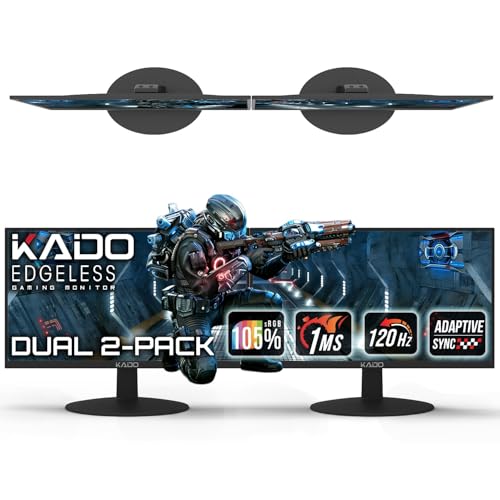
Kado Dual Monitor 2-Pack 22-inch — Best compact teller pair
This is the pack for the counter, where desk depth is measured in inches and every device competes with the document tray and the receipt printer. Two 22-inch panels at 1920×1080 keep text at a comfortable size without the physical sprawl of 27-inch glass, and the title’s stated 120Hz refresh — unusually brisk for an office pack — makes window dragging and scrolling through long transaction histories feel liquid rather than stepped. The 105% sRGB figure and quoted 1ms response in the title are gaming-flavoured garnishes on what is fundamentally a tidy office product, and there is no harm in that: a teller line does not need them, but a hybrid desk that hosts training videos and the occasional after-hours use will not complain.
There is also a queue-management dividend to the compact format that branch managers notice before IT does: a 22-inch pair leaves room on the counter for the customer-facing side of the job — the signature pad, the document pass-through, the conversation itself. Teller technology competes for inches with banking’s oldest interface, which is a person talking to another person across a counter, and the pairs that respect that competition get kept; the pairs that crowd it get quietly resented and eventually replaced. Small is a feature at the counter, not a compromise.
The connectivity is the grown-up part: DisplayPort and HDMI, per the title, which means these pairs join both modern mini-PCs and older desktops without adapter archaeology, and VESA mounting lets the pair float on a dual arm so the counter surface stays clear for paperwork. Built-in speakers handle training audio and video calls without another device on the desk. Position in the Kado family matters and this guide will keep repeating it: this 22-inch pack is the 120Hz one. Its flat 22-inch sibling further down runs at a stated 75Hz and costs its buyer accordingly. If your deployment is a row of identical teller stations, this pack’s combination of footprint, ports, and pace is the one to standardise on.
- Panels: two 22-inch, 1920×1080 FHD
- Refresh rate: 120Hz, as stated in the listing title — do not confuse with the 75Hz flat 22-inch pack
- Colour and response: 105% sRGB, 1ms fast response, as stated in the title
- Connections listed in the title: DisplayPort, HDMI
- Mounting and audio: VESA mount, built-in speakers
- Positioning per the title: office and gaming hybrid, panoramic multi-tasking
Strengths
- The compact footprint suits teller counters and small desks where 27-inch pairs physically do not fit.
- DisplayPort plus HDMI covers both generations of branch PCs without adapters.
- 120Hz scrolling makes long account histories and document reviews measurably smoother across a shift.
Trade-offs
- 22 inches is snug for side-by-side document comparison; analysts will want the 27-inch rungs.
- The gaming-flavoured specification means part of the price buys speed banking software rarely uses.
- Small panels on arms need careful height setting, or tellers end up looking down at their work all day.
Best for: teller stations, reception desks, and compact workstations deployed in matched rows. Not suited for: analysts whose daily work is wide spreadsheets and multi-document review.

Kado 2-Pack Dual 27-inch Curved — Best immersive analyst pair
Two 27-inch curved panels change the geometry of a desk in a way flat pairs cannot. The 1500R curve stated in the title wraps each screen’s edges toward the viewer, so a loan analyst working across a wide spreadsheet and a document viewer travels less distance with their eyes and reads the far columns at a more natural angle. As a matched pair, the curves mirror each other into a shallow cockpit that suits one seated user doing sustained, wide work — credit files, reconciliation sheets, application pipelines. The stated refresh is 75Hz, the honest office figure: enough to keep scrolling civilised, with no pretence of gaming pace.
A deployment detail specific to curved pairs: order the arms with the panels, not after them. A curved 27-inch screen on its included stand claims a wide, deep footprint, and on the narrow desks analysts are often given, the stand alone can push the keyboard into the user’s lap. The VESA pattern in the title is the escape hatch — a dual arm lifts both panels, returns the surface, and sets the curve’s centre at the seated eye position where its geometry actually works. Budget the arm as part of the pair’s price and the curved option stays honest.
HDMI input, VESA wall and arm mounting, and built-in speakers are all named in the title, covering the standard deployment kit. The curve’s caveats deserve the same clarity as its virtues. Curved panels are a one-viewer technology; two colleagues reviewing a screen together from the sides will see the far edge at an awkward angle, which is why shared and hot-desking positions usually stay flat. Straight lines — ruled forms, architectural attachments, tabular borders — can appear subtly bowed to curve-sensitive eyes, and a minority of users simply never stop noticing. For the solo analyst chair, though, this is the most enveloping pair in the guide, and the one most likely to make a wide workbook feel like a single continuous surface rather than two documents taped together.
- Panels: two 27-inch curved, 1500R radius, 1920×1080 FHD, as stated in the listing title
- Refresh rate: 75Hz, as stated in the listing title
- Connections listed in the title: HDMI
- Mounting and audio: VESA wall mount and arm mount, built-in speakers
- Positioning per the title: dual monitor setup for office and gaming hybrid use
- Curve note: designed for one centred viewer
Strengths
- The matched 1500R curves keep wide spreadsheets at a consistent viewing distance from centre to edge.
- 27-inch scale gives documents and data room to breathe side by side.
- Arm mounting reclaims the desk surface that two large stands would otherwise consume.
Trade-offs
- Off-axis viewing for a second person is poor, ruling it out for shared customer-facing desks.
- HDMI is the only named input, so DisplayPort-only docks need an adapter conversation first.
- Some users perceive geometric distortion in ruled documents and never fully adapt.
Best for: solo analysts, underwriters, and back-office specialists working in wide documents all day. Not suited for: shared desks, customer-facing positions, or anyone who reviews screens with a colleague beside them.
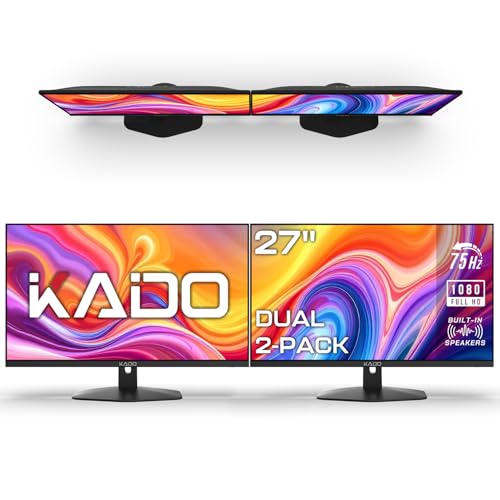
Kado 2-Pack Dual 27-inch Flat — Best flat 27-inch pair
The flat 27-inch Kado pack is the curved pair’s straight-laced twin: same two-panel format, same 1920×1080 resolution, same stated 75Hz, same HDMI input and VESA mounting and built-in speakers — with the curve removed. That removal is a feature for the desks banking actually has in greatest number. Flat panels present documents exactly as printed, behave identically from any viewing position, and suit the shared, supervised, hot-desking reality of branch back offices where the person at the screen changes by the hour and a manager may review work over a shoulder. A flat pair is also the safer fleet standard: nobody has to be asked whether they are curve-sensitive before a desk is assigned.
At 27 inches and 1080p, pixel density is modest — text is large and legible rather than fine — and for banking software that trade runs in the buyer’s favour, since core banking platforms, scanned documents, and forms all present comfortably at this scale. Staff who split time between screens and paper will appreciate that nothing on these panels demands squinting. There is a training argument too: new staff learning the platform on the fleet’s standard screen learn it at the size and layout they will meet everywhere, and the flat 27 is the size most likely to be that standard in document-heavy departments. Consistency compounds — the hundredth desk configured identically is cheaper to support than the first, because every answer is already written down. The pack’s limits are the family’s limits: HDMI is the named input, the refresh is a workmanlike 75Hz, and there is no USB-C single-cable story for modern laptops. None of that prevents it from being the most deployable pair in this guide. If a facilities manager asked which single pack to order thirty of, this is the answer the guide would defend.
- Panels: two 27-inch flat, 1920×1080 FHD
- Refresh rate: 75Hz, as stated in the listing title
- Connections listed in the title: HDMI
- Mounting and audio: VESA wall mount and arm mount, built-in speakers
- Positioning per the title: office and gaming hybrid desk setup
- Fleet note: identical flat panels suit hot-desking and supervised positions
Strengths
- Flat geometry keeps documents true and lets supervisors and colleagues view accurately from the side.
- The 27-inch scale at 1080p keeps banking software text large, which suits mixed-age workforces.
- As a matched pair it standardises cleanly across a whole branch or operations floor.
Trade-offs
- Pixel density is coarse for anyone accustomed to sharper displays; fine detail work feels soft.
- HDMI-only input narrows dock and PC compatibility compared with the DisplayPort-equipped 22-inch pack.
- No curve means wide spreadsheets demand more head-turning than the curved pair asks for.
Best for: branch back offices, operations floors, and any fleet purchase where one standard pair must suit everyone. Not suited for: solo analysts who want immersion, or buyers needing DisplayPort from the box.

Packard Bell airFrame Dual Monitor Workstation — Best legacy-friendly workstation
The airFrame pack sells a complete idea rather than a pair of panels: a “dual monitor workstation” of two 21.5-inch Full HD screens with slim bezels, tilt-adjustable stands, VESA mounting, and — the detail that earns its place in a banking guide — both HDMI and VGA inputs. VGA is a museum connector in consumer computing and a living one in banking, where serviceable older PCs, thin clients, and specialist peripherals linger for a decade. A pack that speaks to both generations lets a branch refresh its screens without triggering a PC replacement programme, which is often the difference between a purchase that gets approved and one that gets deferred.
There is a nostalgia trap to avoid with this pack, and it is the brand. Packard Bell is a name with decades of history, and the airFrame is a modern bundle product wearing it; judge the pack on its stated specification — panels, inputs, mounts — rather than on memories of beige desktops. Judged that way it holds up well, which is the only judgement a procurement process should record.
The slim bezels matter to the dual-screen experience more than spec sheets suggest: the narrower the frame, the less the eye registers the seam when a spreadsheet or a workflow spans both panels, and 21.5 inches per side keeps the combined width manageable on the shallow desks branches actually have. The stated refresh is 75Hz, the stands tilt, and the title’s own positioning — home, office, productivity, light gaming — is a fair description of a generalist tool. A pool-stage note worth passing on: a renewed variant of this product was excluded when this guide’s pool was built, and the listing linked here is the clean one; if you encounter a renewed listing elsewhere, price the warranty difference honestly. For mixed-generation estates, this is the pragmatic pair.
- Panels: two 21.5-inch Full HD, 1920×1080, slim bezel, as stated in the listing title
- Refresh rate: 75Hz, as stated in the listing title
- Connections listed in the title: HDMI, VGA
- Mounting and stand: VESA mount, tilt adjustable
- Positioning per the title: workstation for home, office, productivity, and light gaming
- Listing note: the linked listing is the standard one; a renewed variant was excluded at pool stage
Strengths
- VGA beside HDMI bridges the two hardware generations that coexist in real branch estates.
- Slim bezels minimise the visual seam when work spans both screens.
- The workstation framing — matched pair, mounts, stands — makes it a one-line purchase for facilities teams.
Trade-offs
- 21.5 inches is the smallest canvas here, tight for document-heavy comparison work.
- Tilt-only stands mean height adjustment depends on adding arms.
- The heritage brand name fronts a modern bundle product; support expectations should be set accordingly.
Best for: branches and offices refreshing screens across a mixed-age PC estate. Not suited for: new-build offices standardising on modern docks, where VGA buys nothing.

Okaysonic 2-Pack 24-inch — Best eye-comfort pair
The Okaysonic pack aims at the shift worker’s eyes. Its title pairs a stated 120Hz refresh and FreeSync with HDR and — the phrase that matters most in this context — low blue light eye care positioning, on two 24-inch 1080p panels with HDMI input and VESA mounting. Twenty-four inches is the size long-shift users often prefer without knowing why: the whole screen sits inside comfortable eye movement, text at 1080p is generously sized, and the pair’s total width stays modest. The 120Hz figure, shared with the compact Kado, buys the same scrolling smoothness in long ledgers and queues; FreeSync, a gaming technology, does nothing for banking software directly but signals a modern panel generation underneath.
One more working detail separates this pack from the Kado fleet pairs: the absence of built-in speakers from its title’s feature list. Desks that rely on the monitor for training audio or call sound should confirm their audio path — headset, laptop speakers, or a small soundbar — before standardising on the Okaysonic, whereas the Kado packs name speakers explicitly. It is a small line item that becomes an annoying one when discovered after forty desks are installed.
Eye comfort deserves an honest paragraph rather than a marketing one. No panel feature substitutes for the twenty-minute habits — looking away, blinking, correct screen height — but low-blue-light modes and flicker-conscious backlights reduce one layer of strain, and a higher refresh removes the visible stepping that makes long scrolling sessions tiring. This pack assembles those comforts in the mid-size format, at the cost of the inputs list: HDMI is the named connection, with no DisplayPort or VGA for the estate’s extremes. For a back office of modern PCs whose staff spend eight hours in queues and cases, that is an acceptable exchange, and the pair’s comfort-first spec is the most coherent in this guide. Readers whose priority is eye health above all should also weigh the dedicated guidance in our best eye care monitors roundup alongside this pack.
- Panels: two 24-inch, FHD 1080p
- Refresh rate: 120Hz, as stated in the listing title, with FreeSync and HDR named
- Comfort positioning in the title: low blue light eye care
- Connections listed in the title: HDMI
- Mounting: VESA mountable, as stated in the title
- Role: home office and office desktop pair, per the title
Strengths
- The comfort specification — low blue light positioning plus 120Hz smoothness — targets full-shift fatigue directly.
- 24-inch panels hit the ergonomic middle: large text, modest total width, easy eye travel.
- VESA mounting keeps the arm-based ergonomic setup available despite the value positioning.
Trade-offs
- HDMI-only input leaves legacy VGA hardware and DisplayPort docks needing adapters.
- HDR on an office 1080p panel is a checkbox feature; banking work will never exercise it.
- A newer brand name means a shorter track record for fleet buyers who prize vendor longevity.
Best for: back-office teams on modern PCs who spend entire shifts reading queues, cases, and ledgers. Not suited for: mixed-generation estates needing VGA or DisplayPort from the box.

Kado 2-Pack Dual 22-inch Flat (75Hz) — Best budget standard pair
Every fleet needs a default, and this is Kado’s: two flat 22-inch panels at 1920×1080 and a stated 75Hz, with HDMI, VESA wall and arm mounting, and built-in speakers. Nothing in the specification reaches for a headline, and that is the design intent — this is the pair an operations manager orders by the dozen for processing desks, mail rooms, training rooms, and every position where the requirement is two honest screens that match, mount, and work. It must not be confused with its 22-inch sibling at the top of this guide: that pack states 120Hz and adds DisplayPort; this one states 75Hz and HDMI, and the price difference between them is precisely the price of those two facts.
Training rooms deserve a specific mention in this pick’s favour, because they are where fleets quietly succeed or fail. Trainees learn the bank’s systems on the standard pair, at the standard settings, and then sit down at any desk in the network already knowing the furniture. Every deviation between the training room and the floor is a small re-learning tax levied on every new hire. A cheap, identical, everywhere-the-same pair is therefore not merely a purchasing convenience; it is part of the curriculum.
In service, the flat 22-inch format is the branch workhorse. The screens are light enough for inexpensive dual arms, small enough for shallow desks, and large enough at 1080p for the forms-and-queue software that fills a processing role. Built-in speakers cover training and notification audio without a peripherals order. The compromises are the honest ones of any standard-issue kit: no DisplayPort, no curve, no refresh headroom, and a picture that serves documents rather than impressing anyone. Fleets do not fail because their standard monitor was ordinary; they fail because the standard was never set and every desk became a special case. This pack exists to be the standard.
- Panels: two 22-inch flat, 1920×1080 FHD
- Refresh rate: 75Hz, as stated in the listing title — distinct from the 120Hz 22-inch pack above
- Connections listed in the title: HDMI
- Mounting and audio: VESA wall mount and arm mount, built-in speakers
- Positioning per the title: dual monitor setup for office and gaming hybrid use
- Fleet role: the repeatable standard-issue pair
Strengths
- The simplest matched pair to standardise across many desks, with mounting and speakers included.
- Compact, light panels pair well with inexpensive dual arms for ergonomic setups.
- Flat screens suit shared and supervised positions where viewing angles vary.
Trade-offs
- 75Hz and HDMI-only is the plainest specification in this guide.
- No DisplayPort means modern dock-first desks may need adapters.
- Analyst-grade width is not on offer; wide-document roles should step up to the 27-inch packs.
Best for: operations floors, processing teams, and training rooms buying pairs in quantity. Not suited for: power users who will feel the 75Hz ceiling and the missing DisplayPort daily.
Six Pairs, Three Sizes, Two Refresh Classes: The Banking Line-Up at a Glance
| Pack | Size and shape | Refresh as titled | Inputs as titled | Natural home |
|---|---|---|---|---|
| Kado 2-Pack 22-inch | 22-inch flat pair | 120Hz | DisplayPort, HDMI | Teller counters and compact stations |
| Kado 2-Pack 27-inch Curved | 27-inch 1500R curved pair | 75Hz | HDMI | Solo analyst desks with wide workbooks |
| Kado 2-Pack 27-inch Flat | 27-inch flat pair | 75Hz | HDMI | Shared back-office and fleet standard |
| Packard Bell airFrame | 21.5-inch slim-bezel pair | 75Hz | HDMI, VGA | Mixed-generation branch estates |
| Okaysonic 2-Pack 24-inch | 24-inch flat pair | 120Hz | HDMI | Full-shift reading and queue work |
| Kado 2-Pack 22-inch Flat | 22-inch flat pair | 75Hz | HDMI | Processing floors buying in quantity |
The pattern to notice is that refresh and inputs, not size, separate the premium rungs from the standard ones. The two 120Hz packs — Kado’s compact pair and the Okaysonic — sell smoothness; the airFrame sells compatibility with the past; the 27-inch pair sells space, flat or curved. A buyer who knows which of those four currencies their desks actually spend can choose in one pass down this table, without a second meeting or a follow-up spreadsheet of their own.
How Should a Banking Desk Actually Be Set Up?
Hardware first: put the pair on a dual VESA arm wherever the desk allows it. Arms return the surface under the screens to paperwork, let each panel sit at the same height with the top third of the screen at or slightly below eye level, and make the inevitable cable tidy possible. Angle the panels in a shallow V toward the chair, with the primary screen — the one carrying the core banking platform — centred in front of the user and the secondary angled beside it, rather than centring the seam, which forces a day-long slight head turn in both directions. Keep both panels the same model at the same brightness and colour settings; a matched pair misconfigured is a mismatch you created yourself.
Then the layer that actually protects customers. Position desks so screens face away from public areas and queues; a teller pair readable from the waiting chairs is a confidentiality failure no purchase can fix. Fit privacy filters where sight lines cannot be controlled — filters are accessories bought per screen size, and they are the correct place for privacy money to go. Set short screen-lock timeouts in policy and teach the habit that goes with them. Finally, standardise the Windows display settings across the fleet — same scaling, same orientation order, same primary display — so staff moving between desks and branches find the same desk everywhere. Consistency is a security feature as much as a comfort one: people make fewer errors in environments that never surprise them. Home workers splitting attention across rooms might prefer the folding portability covered in our best dual screen monitors guide, but for fixed regulated desks, the packs above are the right shape.
How Do Dual Screens Change the Work Itself?
It is worth pausing on why banks, of all workplaces, standardised on two screens earlier than almost any other sector. The core banking interaction is a comparison: the customer in front of you against the record in the system, the document presented against the document on file, the transaction entered against the transaction authorised. On one screen, every comparison is a window-switch, and every switch is a small opportunity to lose your place, misread a figure, or keep a customer waiting while software repaints. On two screens, the comparison is a glance. Multiply that glance by hundreds of interactions a day across a branch network and the second panel stops being furniture and becomes throughput.
The second-order effect is error geometry. Staff verify numbers more reliably when the two figures being compared are simultaneously visible than when one must be held in memory across a window change; working memory is the least reliable component in any control process. Dual screens therefore belong in the same conversation as the sector’s other quiet controls — not because a monitor is a compliance device, but because the layout of a desk shapes the errors a process makes. When this guide insists on matched pairs, centred primaries, and standardised layouts, it is really insisting that the comparison at the heart of banking be made as easy to perform correctly as the furniture allows.
Why Does Matched-Pair Buying Matter More Than Panel Specification?
Because the most common dual-screen complaint in offices is not resolution or refresh — it is mismatch. Two different models, or the same model bought years apart from different production runs, will differ in white point, brightness, and bezel, and the user’s eye catches the difference at every glance across the seam, thousands of times a day. The result is a low-grade visual irritation that staff describe as “the screens feel wrong” and that no single-screen specification can predict. A matched pack, manufactured and boxed together, collapses that variance to nearly nothing. It also simplifies everything downstream: one driver profile, one settings sheet, one spare unit that can replace either side, one asset line per desk.
This is also why the fleet logic in this guide keeps returning to standardisation. A branch network that picks one pair for tellers, one for analysts, and one standard for processing has three support conversations forever. A network that lets every manager buy whatever was on offer that month has hundreds. The monitors in this guide are all, by gaming standards, unremarkable — and that is precisely their qualification. Banking technology succeeds by being boring at scale, and a matched pair of honest 1080p panels, mounted properly and left alone for five years, is what boring at scale looks like when it is done well.
What About Accessibility and the Staff Who Struggle With Standard Setups?
A fleet standard that ignores accessibility will be broken by exceptions within a month, so build the exceptions into the standard. The packs in this guide share two properties that make them unusually adaptable: 1080p at generous sizes keeps text large without scaling tricks, and universal VESA mounting means any panel can be raised, lowered, tilted, or swung to the position an individual’s neck, eyes, or wheelchair requires. For staff with low vision, the 27-inch flat pair at 100 percent scaling presents banking software at a size many specialist setups struggle to beat, and its flat geometry tolerates the close viewing distances those users prefer. For staff sensitive to flicker or glare, the comfort-positioned Okaysonic and a matte desk lamp aimed at the paperwork, not the screen, solve most of the problem.
The deeper point is procedural: record accessibility adjustments as part of the desk’s configuration, not as favours. A pair set to a documented individual height and scaling travels with the employee between branches, gets restored after any desk move, and never depends on a colleague remembering how it was. Banking is good at this kind of record-keeping in its products; the same instinct applied to its own desks turns a monitor fleet from a source of daily friction into the invisible infrastructure it was bought to be.
What Size Pair Fits Which Banking Job?
Teller and service desks live at 22 inches and below in this guide, and for good reasons: counters are shallow, customers stand on the other side of them, and the work is transaction-shaped — one system, one record, short bursts of reading. The two compact Kado packs and the airFrame serve this world, differentiated by refresh and by the airFrame’s VGA bridge to older hardware. Analysis and operations work lives at 24 and 27 inches, where the job is document-shaped: comparisons, wide tables, case files open beside the workflow that processes them. The Okaysonic’s 24-inch comfort pair suits the reading-heavy middle; the two 27-inch Kados suit the width-hungry end, split by the curve question.
Facilities teams should also measure the desk, not the brochure: a 27-inch pair spans roughly four feet of width on stands, and older branch furniture with modesty panels and cable grommets in fixed positions can refuse a layout that looked obvious on paper. The pilot-desk discipline from the rollout section exists precisely to catch that refusal while it is still one desk’s problem.
The curve question itself resolves by audience. One person, one chair, wide content: curved earns its place. Multiple people, rotating staff, supervisory viewing, customer adjacency: flat, every time. If a role is genuinely mixed, default to flat — the curved panel’s disadvantages appear exactly in the shared moments, while the flat panel’s disadvantages are merely a little more head movement for the solo user. And whatever the size, remember the pair is the unit: do not mix a 27-inch with a 22-inch on one desk to use up a spare, because the height and pixel mismatch will tax the user daily for the price of one panel saved.
What Should a Procurement Checklist for Monitor Pairs Include?
A good checklist fits on one page and prevents a year of small regrets. First line: the exact pack name and its stated refresh and inputs, written out in full — “Kado 2-Pack 22-inch, 120Hz, DisplayPort and HDMI” rather than “Kado 22 dual” — because the family’s siblings differ precisely in the details a shorthand drops. Second: the arm, specified by VESA pattern and weight rating, ordered in the same quantity as the pairs. Third: cables, in the lengths the pilot desks measured, plus ten percent spares. Fourth: privacy filters, sized per panel, for every position the sight-line audit flagged — and the audit itself, signed, because “we meant to check” is not a control.
Fifth: the settings sheet, attached to the order so the installing technician configures rather than improvises. Sixth: spares, at a ratio the failure history of your last fleet justifies — one pair per role per region is a sane starting point. Seventh: the disposal and data line, which for monitors is mercifully simple — no storage, no data — but the asset register update belongs on the checklist anyway, since a pair that leaves the building unrecorded becomes next year’s audit finding. A checklist like this reads as bureaucracy to anyone who has not lived through a forty-desk rollout where the arms fit a different VESA pattern than the panels, the cables came up a foot short on every desk, and the filters were ordered for the size that was almost chosen. To anyone who has lived through exactly that week, twice, it reads as mercy.
How Do You Roll Out Monitor Pairs Across a Whole Branch Network?
Start with a pilot that is small enough to fail cheaply and representative enough to mean something: one teller line, one analyst pod, one processing desk, running the chosen pairs for a full month that includes a month-end peak. Watch for the unglamorous findings — a stand that wobbles on the counter’s actual surface, a cable that falls a foot short of the PC’s real position, a brightness setting that fights the branch’s lighting at 4 p.m. Those findings are the rollout plan; everything else is purchasing. Photograph the finished pilot desks from the chair and from standing height, because those photographs become the installation standard every other branch copies, down to which screen carries which application.
Then buy in waves matched to the standard, not in one heroic order. Each wave should include the arms, the cables in the lengths the pilot proved, privacy filters for the positions the sight-line audit flagged, and a spare pair per role per region. Label assets by desk role rather than by person, so a pair that moves from a departed analyst to a new one carries its history with it. Keep the settings sheet from the pilot — brightness, colour mode, Windows scaling, primary-display side — taped inside the IT cabinet, because the second year of a fleet’s life is when well-meaning local adjustments quietly unstandardise it. A rollout run this way is dull to describe and wonderful to inherit, which is the highest praise available in operations.
What Changes When Banking Staff Work From Home?
The hybrid desk breaks the fleet logic in one specific way: it must be identical in behaviour to the office desk while fitting into a spare room. That argues for issuing the same standard pair — most naturally the flat 22-inch Kado or the Okaysonic 24-inch, whose footprints tolerate domestic desks — rather than letting staff buy consumer singles with an allowance, because a teller who learns one layout at the branch and a different one at home pays the switching cost daily. The home pair also has to survive domestic realities: children, windows, shared tables. Flat panels viewable from any angle and small enough to pack away score well; the curved pair, glorious for a dedicated study, is the wrong issue for a kitchen-table rotation.
Security travels differently, too. At home there is no branch layout to control sight lines, so the privacy filter stops being an accessory for flagged desks and becomes standard issue with every home pair, and the screen-lock conversation matters more, not less. None of this changes which panels to buy — the packs in this guide are the same honest pairs in either setting — but it changes what ships in the box beside them. IT teams that treat the home desk as a branch of one, with the same standard, the same settings sheet, and the same filter, get office-grade consistency; teams that treat it as a perk get a support queue.
How Should Windows and the Monitors Themselves Be Configured?
Configuration is where a matched pair becomes a matched experience. Set both panels to the same brightness and the same colour preset, then resist all further individual tuning; if a user finds the result dim, the answer is the room’s lighting, not one panel brighter than its twin. In Windows, arrange the displays to match the physical layout — left screen on the left in the settings diagram — so the cursor crosses the seam where the eye expects it to, and set the core banking platform’s screen as the main display so dialogues and login prompts appear in the centred, primary position rather than surprising staff on the angled secondary.
Scaling deserves a fleet decision, made once: at these sizes and this resolution, 100 percent scaling keeps banking software at its designed proportions, and any departure should be an accessibility adjustment for an individual, recorded as such. Turn on the operating system’s night-light schedule cautiously — it shifts colour, which is harmless for forms and queues but unwelcome anywhere colour carries meaning, such as document-verification images. Finally, teach the two keyboard habits that make dual screens feel like one desk: the shortcut that moves a window between displays, and the one that snaps a window to a half or quarter. Five minutes of that teaching, repeated once at the first team meeting after installation, returns more productivity than any specification in this guide.
What Are the Common Mistakes in Buying Dual Monitors for a Bank?
- Expecting the monitor to provide privacy. It cannot. Filters, desk orientation, and lock policies protect customer data; screens only display it.
- Mixing singles instead of buying pairs. Two separately bought panels invite colour and bezel mismatch that staff will notice every day for years.
- Merging the Kado packs in a purchase order. The 22-inch pack at 120Hz with DisplayPort and the flat 22-inch pack at 75Hz with HDMI are different products; a vague order line invites the wrong delivery.
- Centring the seam. Placing the join directly in front of the chair guarantees neck strain; the primary screen goes in the centre, the secondary beside it.
- Ignoring the estate’s actual ports. A branch full of VGA-era machines needs the airFrame’s bridge; a dock-based office needs DisplayPort. Count ports before counting pixels.
- Skipping arms to save money. The stands consume the desk and fix the height; VESA arms are where the ergonomic value of a dual setup is actually realised.
Final Recommendation
Before the verdict, one sentence of budget honesty that applies to every pack here: the monitors are the smaller half of a dual-desk’s true cost. Arms, cables, filters, installation time, and the settings discipline that keeps forty desks identical will together rival the panels’ price, and skimping on that half is how good packs end up in bad setups. Budget the desk, not the screen, and every recommendation below holds for its full service life instead of its first month.
Standardise by role and stop shopping desk by desk. Teller lines should take the compact Kado 120Hz pair for its footprint and ports, or the airFrame where older hardware must be carried along. Analysts working alone in wide documents deserve the curved 27-inch Kado; everyone shared, supervised, or rotating should get the flat 27-inch pair. Reading-heavy back offices will thank you for the Okaysonic’s comfort-first specification, and processing floors should simply adopt the flat 22-inch Kado as the house standard and order it without further debate. Do that, mount them on arms, aim the screens away from the public, and the technology will do the finest thing banking technology can do: vanish into the working day so completely that the only screens anyone in the branch ever discusses are the ones in the customers’ hands.
Frequently Asked Questions
Are 1080p monitors really enough for banking work?
Yes, and for most banking software they are the native fit. Core platforms, document imaging, and forms are designed around Full HD, and at 22–27 inches the resolution keeps text large and legible for a mixed-age workforce. Higher resolutions shrink interface text unless scaling is managed carefully across the fleet, which is an IT project disguised as a monitor upgrade. If a specific team — fraud analytics, say — genuinely outgrows Full HD, upgrade that team’s standard as a deliberate exception rather than disturbing the fleet’s.
How do we keep customer information private on dual screens?
Not with the monitors themselves. Privacy comes from desk orientation away from public sight lines, add-on privacy filters sized to each panel, short automatic screen-lock timeouts, and staff habits. Budget for filters alongside the pairs wherever a screen can be seen by anyone who should not see it.
What is the difference between the two 22-inch Kado packs?
Refresh rate and inputs, exactly as their titles state. One pack runs at 120Hz with DisplayPort and HDMI; the flat pack runs at 75Hz with HDMI. They are different rungs at different prices, and a purchase order should name the refresh figure explicitly so the right pack arrives.
Curved or flat for an analyst desk?
Curved for a solo analyst in wide spreadsheets, where the wrap keeps edges at a natural distance. Flat the moment the screen is shared, supervised, or customer-adjacent, because curved panels view poorly from the side and can bow straight lines in ruled documents.
Do we need DisplayPort, or is HDMI enough?
HDMI is enough for the software itself. DisplayPort earns its place in dock-based setups and daisy-chain-friendly offices, and VGA earns its place wherever older machines remain in service. The right answer is an inventory of your own PCs, which is why this guide keeps one pack with each wiring philosophy. While you are counting ports, count cable lengths too: the distance from a desk-mounted PC to an arm-mounted pair is longer than new installers expect, and a cable ordered by optimism fails on installation day.
Should tellers and analysts get the same pair?
Generally no. Their work differs in shape — transactions versus documents — and their desks differ in depth and audience. Two or three role standards cover a whole network; one universal standard usually means the tellers’ counters are crowded by analyst-sized glass or the analysts are squinting at teller-sized panels. Standardise within roles, not across them.
How long should a banking monitor pair last?
Plan on a five-year service life with matched pairs bought together, budgeted as desk infrastructure rather than as peripherals, and reviewed at the fleet’s midpoint rather than desk by desk whenever a single unit fails or a single user complains loudly. Standardising on one pack per role means a single spare pair covers failures on any desk of that role, and replacing both panels together at end of life preserves the match that made the setup comfortable in the first place.
Related Guides
Adjacent reading for desk planners: the best 144hz dual monitors for faster pairs, the best eye care monitors for comfort-first singles, and the best 24 inch monitors for one-screen desks.
A teller line that signs in by fingerprint shortens every shift change, and our roundup of the best biometric laptops covers the laptops built around that habit.
The counter those pairs serve often ends at a touch terminal, and our roundup of the best capacitive touch screen monitors covers that last screen in the chain.
Teller desks and esports desks want opposite things from a panel, which is what makes our guide to the best 360hz monitors a useful mirror for this one.


