What's inside
- Where to buy
- Key Takeaways
- Quick Picks
- How did we judge monitors that have to please two operating systems?
- Which monitors dock a MacBook properly and still respect the PC?
- When does a bigger, simpler screen beat a calibrated one?
- How do the six dual-platform monitors compare?
- What about audio, webcams and the rest of the shared desk?
- How long will a dual-platform monitor stay relevant?
- How does macOS scaling really work on a 4K monitor?
- Which size serves a MacBook-and-PC desk better — 27 or 32 inches?
- Where does the Apple Studio Display fit in all this?
- How do you set up a two-computer desk that switches gracefully?
- What mistakes do dual-platform buyers make?
- What deserves a check during your first week with a dual-platform monitor?
- Is one shared monitor really better than a separate screen for each computer?
- Final Recommendation
- Frequently Asked Questions
- Related Guides
As an Amazon Associate I earn from qualifying purchases. This post may contain affiliate links at no extra cost to you.
gizmoverdict.com is reader-supported. When you buy through links on our site, we may earn an affiliate commission.
Where to buy
Each monitor below links to its Amazon listing, and dual-platform shoppers should read those listings with two checklists open at once: the Mac checklist (USB-C or Thunderbolt input, power delivery in watts, how the panel’s density interacts with macOS scaling) and the PC checklist (HDMI and DisplayPort inputs for the desktop or gaming machine, refresh behaviour, and whether the stand and ports suit a desk that hosts two computers). The best monitors for macbook pro and pc are the ones that pass both checklists without an adapter drawer mediating between them, and that is the standard this guide applied without mercy.
Two honest facts frame everything that follows. First, macOS and Windows want different things from the same glass. Your MacBook Pro drives an external display over USB-C or Thunderbolt and expects that cable to charge it back; your PC speaks HDMI and DisplayPort and cares nothing for charging. A true dual-platform monitor must therefore be fluent in both worlds — a genuine dock on the Mac side, a genuine display on the PC side. Second, macOS scaling is its own discipline: Apple designs its interface around Retina pixel densities, and a 4K panel at 27 inches lands at roughly 163 PPI — sharp, and handled well by macOS’s scaled modes, though not the pixel-perfect 218-plus PPI of Apple’s own 5K displays. This guide explains that trade plainly rather than letting you discover it, because at 27-inch 4K it is a trade most people happily make, and at lower densities it can become the whole story.
One famous name belongs in this introduction precisely because it is not a pick. Apple’s Studio Display is a superb partner for a MacBook Pro — and effectively a Mac-only device, with no practical input path for a Windows PC. It is discussed in prose later in this guide as the exception that defines the category: if your desk is Mac-only, it may be your answer; the moment a PC joins the desk, the six monitors below are the honest shortlist.
Key Takeaways
- Dual-platform means two fluencies at once: USB-C or Thunderbolt with real power delivery for the MacBook, and HDMI or DisplayPort waiting for the PC.
- Power delivery is measured in watts, and they differ here — 60W, 65W and 100W picks appear below, matched to different MacBook appetites.
- macOS looks best at high pixel density; 27-inch 4K (about 163 PPI) is the value sweet spot, while Apple’s own 5K Retina density remains the uncompromised — and Mac-only — summit.
- The Apple Studio Display is the category’s great exception: wonderful with a Mac, effectively no PC input, so it is discussed in prose and never presented as a dual-platform pick.
- Thunderbolt 4 on the ViewSonic VP2776T-2K brings 120Hz and 100W charging to a 1440p panel — the pick for MacBook users who value smoothness and docking over raw density.
- Factory-calibrated colour (BenQ, both ViewSonics) matters if the same desk does client-facing design work on either platform.
Quick Picks
| Pick | Badge | Why it earns its place |
|---|---|---|
| BenQ PD2725U 27-Inch 4K Thunderbolt | Best overall dual-platform | Thunderbolt 3 docking, factory-calibrated P3 colour and a Mac/Windows design brief written into its name — the complete two-computer monitor. |
| ViewSonic VP2756-4K 27-Inch ColorPro | Best colour pedigree | Pantone Validated 4K with USB-C and a full hub, for desks where the Mac does design work and the PC does everything else. |
| ViewSonic VP2776T-2K 27-Inch Thunderbolt 4 | Best docking and smoothness | Thunderbolt 4, 100W charging and a 120Hz 1440p panel — the MacBook-first desk that still welcomes a PC at full dignity. |
| LG 32UP83AK-W 32-Inch UltraFine 4K | Best big-screen value | Thirty-two inches of 4K with USB-C, HDMI and DisplayPort, for two-computer desks that want room more than they want calibration certificates. |
| Philips 32B1U3900 32-Inch 4K USB-C Dock | Best business dock | A built-in USB-C docking station, a 32-inch 4K VA panel and a four-year warranty pitched squarely at working desks. |
| Samsung 32-Inch M7 Smart Monitor | Best entertainment crossover | A 4K smart monitor with TV apps and a gaming hub that serves the MacBook, the PC and the sofa in one panel. |
How did we judge monitors that have to please two operating systems?
Each candidate is judged against the changeover moment, because that is where dual-platform desks succeed or fail: the MacBook closes, the PC wakes, and the monitor should simply follow — right input, right resolution, peripherals still attached. That moment demands auto-switching or painless input selection, a USB hub that stays with the monitor rather than belonging to one machine, and enough inputs that neither computer is ever unplugged to make room for the other. Every pick here clears that bar; the differences are in emphasis.
On the Mac side we weighed power delivery honestly, in watts, against the MacBook Pro’s appetite under load — a port that delivers too little turns the elegant one-cable desk into a slow discharge with a nice view. We weighed pixel density for macOS scaling, factory colour calibration for the creative work Macs disproportionately do, and Thunderbolt generation, since a Thunderbolt dock and a plain USB-C port are cousins, not twins. On the PC side we checked that HDMI and DisplayPort inputs exist in useful number and that nothing about the Mac-first design hobbles the Windows machine. A monitor that treats either platform as a second-class citizen did not survive the cut.
We also kept the category’s famous exception in its proper place. The Studio Display appears in this guide as context — the density benchmark and the Mac-only cautionary tale — and never as a recommendation for a two-platform desk, because recommending a monitor a PC cannot plug into would fail the brief in its title.
Which monitors dock a MacBook properly and still respect the PC?

BenQ PD2725U 27-Inch 4K Thunderbolt — Best overall dual-platform
BenQ sells this monitor with the dual-platform brief printed in its own listing title — “for Mac/Windows” — and the PD2725U is the rare product that fully earns that billing. The Thunderbolt 3 connection is the heart of it: one cable from a MacBook Pro carries the 4K picture, returns 65W of charging, and plugs the laptop into the monitor’s USB hub, so keyboard, mouse, drives and audio stay docked when the laptop leaves. Return, click one cable home, and the desk reassembles itself. Then the PC, connected over HDMI or DisplayPort, uses the same panel and the same peripherals through the hub — the changeover this category lives or dies by, handled as a non-event.
The panel itself is a designer’s instrument. Twenty-seven inches of 4K IPS with 100% sRGB and Rec.709 coverage, 95% P3 for the wider colour modern Apple devices speak natively, and factory calibration to Delta E ≤3 with the report to prove it. For a MacBook user, the P3 figure is the meaningful one: it is the colour space your laptop’s own screen uses, so work moved between the two displays stays consistent in a way sRGB-only panels cannot promise. BenQ’s Mac-oriented modes, including an M-book mode intended to harmonise the external panel with the laptop’s own display, show a manufacturer that has actually thought about which computer is attached.
On scaling, be clear-eyed: at roughly 163 PPI this is not a Retina-density panel, and macOS will run it in a scaled mode that looks sharp — genuinely, pleasingly sharp — without being the pixel-perfect 2x rendering of a 5K display. Text is crisp, interface elements are the size you expect, and the overwhelming majority of MacBook owners who make this trade report forgetting it within a week. What they do not forget is the desk the PD2725U gives them: one cable, calibrated P3 colour, and a PC welcomed as an equal. That is the complete dual-platform proposition, and it is why this monitor leads the guide.
There is a subtler BenQ virtue worth naming for households where the Mac is the creative machine and the PC is the family one: the PD line’s build and menus feel like office equipment rather than gaming gear, so the monitor sits calmly in a shared room and behaves identically for whoever sits down. Consistency is an underrated dual-platform feature. A screen that presents the same face to both computers — and both users — quietly reduces the support burden on the household’s most technical resident.
- Panel: 27-inch 4K IPS
- Connection: Thunderbolt 3 with 65W power delivery, USB hub
- Colour: 100% sRGB / Rec.709, 95% P3, Delta E ≤3 factory calibrated
- Also present: HDMI and DisplayPort for the PC
- Best suited role: the desk’s single shared display
Strengths
- Thunderbolt docking makes the MacBook changeover a one-cable ritual instead of a rebuild.
- 95% P3 coverage matches the MacBook’s own colour language for consistent creative work.
- Factory calibration with a stated Delta E suits client-facing design on both platforms.
Trade-offs
- 65W charging suits most MacBook Pro use but sits below the fastest charging the largest models can accept under full load.
- 163 PPI is sharp, not Retina-perfect; buyers chasing pixel-perfect macOS rendering are in 5K territory.
- Its talents are wasted on a Mac-only desk that never hosts a PC — the Studio Display conversation starts there.
Best for: MacBook Pro owners with a Windows PC sharing the desk and creative work flowing between them. Not suited for: Mac-only purists who want Apple’s own 5K density and will never plug in a PC.

ViewSonic VP2756-4K 27-Inch ColorPro — Best colour pedigree
ViewSonic’s ColorPro line exists for people whose screens must tell the truth, and the VP2756-4K brings that discipline to the dual-platform desk. The headline credentials are colour credentials: a 27-inch 4K panel with 100% sRGB coverage and Pantone Validation, which means the monitor has been tested against Pantone’s own colour library — a meaningful assurance if your Mac work involves brand colours, print preparation or any deliverable where “close enough” is a complaint waiting to happen. The PC across the desk inherits the same honest panel for its own design, photo or video work.
The dual-platform mechanics are complete if slightly less theatrical than the BenQ’s. USB-C carries picture and 60W of power to the MacBook — adequate for the majority of MacBook Pro workloads, with the honest caveat that the most power-hungry configurations under sustained full load may sip from their own adapter as well — while HDMI and DisplayPort serve the PC, and a USB hub keeps shared peripherals resident at the monitor. Nothing about the arrangement requires adapters, dongles or prayer, which is the entire requirement of this category stated as a compliment.
Choose this ViewSonic over the BenQ when colour process is the desk’s religion — Pantone work, agency deliverables, print — and choose the BenQ when Thunderbolt docking depth and P3 breadth matter more. Choose it over larger screens when 27-inch 4K density is your scaling comfort zone on macOS, which for many MacBook owners it precisely is: the same “looks like 2560×1440” scaled workspace, rendered from four times the pixels, with text that stays composed at the small sizes design tools demand.
Print-adjacent readers should understand what Pantone Validation does and does not promise. It verifies that the panel reproduces Pantone’s colour library accurately on screen — a proofing assurance — but screen-to-press fidelity still depends on your whole workflow: lighting, paper profiles, and the printer’s own calibration. Within that honest scope, the VP2756-4K is as trustworthy a proofing surface as this category offers, and it maintains that trustworthiness for whichever of your two computers is driving it.
- Panel: 27-inch 4K UHD
- USB-C: 60W power delivery, plus USB hub
- Colour: 100% sRGB, Pantone Validated
- Inputs: HDMI, DisplayPort, USB-C
- Best suited role: colour-managed shared desk
Strengths
- Pantone Validation gives brand and print work a colour assurance few monitors offer.
- Full dual-platform plumbing — USB-C for the Mac, HDMI and DisplayPort for the PC, hub for both.
- 27-inch 4K is macOS scaling’s comfort zone for design-tool interfaces.
Trade-offs
- 60W USB-C power is the modest end of MacBook Pro appetites under heavy sustained load.
- USB-C rather than full Thunderbolt docking; bandwidth-hungry hub setups should note the difference.
- Colour discipline is its premium; entertainment-first buyers pay for accuracy they may not use.
Best for: designers and brand-sensitive creatives splitting work between a MacBook Pro and a PC. Not suited for: buyers whose MacBook regularly runs flat-out for hours and needs the strongest single-cable charging.

ViewSonic VP2776T-2K 27-Inch Thunderbolt 4 — Best docking and smoothness
This ViewSonic makes a deliberate, interesting trade that this guide wants to explain rather than apologise for: it steps down to 1440p resolution in exchange for Thunderbolt 4 docking, 100W charging and a 120Hz refresh rate. Whether that trade delights you depends on how you use your MacBook. If your days are documents, code, calls, spreadsheets and motion — scrolling, window movement, video — the 120Hz smoothness is something you feel every minute, while the density difference against 4K is something you notice mainly in side-by-side comparisons. If your days are fine type and pixel-level design, the calculus reverses, and the two 4K ViewSonic and BenQ picks above are your monitors.
The docking story is the strongest in this guide. Thunderbolt 4 with 100W of power delivery charges any MacBook Pro at full appetite through the same cable that carries the picture, and Thunderbolt’s daisy-chaining and hub depth suit desks with drives, interfaces and a second display in the chain. The PC is not forgotten: the listing’s own framing is “for Mac and PC”, with factory-calibrated 100% sRGB colour and Pantone Validation carrying over from the ColorPro line, plus HDR400 support. A Windows machine on HDMI or DisplayPort gets the same calibrated, smooth panel.
The macOS scaling conversation is honest here: 1440p at 27 inches is roughly 109 PPI, which macOS renders at native 1x or with its quality scaling — text will not have the 4K panels’ crystalline edge, and this guide will not pretend otherwise. What you get instead is a native-resolution workspace with no scaling compromises in either operating system, full-throated charging, and motion fluidity neither 60Hz 4K pick can match. For the MacBook-centric desk whose PC is a gaming or family machine, that is a coherent and defensible flagship choice.
Frequent travellers between desks will feel this ViewSonic’s value most sharply. A MacBook that lives in a bag all week and docks on Friday wants exactly one gesture on arrival — one cable, full charge, full desk — and Thunderbolt 4 at 100W is the only arrangement in this guide that never makes the laptop’s battery a negotiation. If your MacBook is a desktop that occasionally travels, the 4K picks serve you better; if it is a traveller that occasionally desktops, this is your monitor wearing the other’s clothes convincingly.
- Panel: 27-inch 1440p IPS, 120Hz
- Connection: Thunderbolt 4, 100W charging
- Colour: factory calibrated 100% sRGB, Pantone Validated
- HDR: HDR400
- Best suited role: MacBook-first docking hub
Strengths
- 100W Thunderbolt 4 charging feeds any MacBook Pro at full appetite over one cable.
- 120Hz motion makes the everyday Mac interface feel noticeably more fluid.
- Native 1440p needs no scaling compromises in macOS or Windows.
Trade-offs
- Text density is a clear step below the 4K picks; fine-type workers will feel it.
- You pay Thunderbolt flagship money for a QHD panel — the value is in the dock, not the pixels.
- Gamers on the PC side get smoothness but not the 4K detail the desk’s other picks offer.
Best for: MacBook Pro owners who dock and undock daily and value charging strength and fluid motion. Not suited for: pixel-density devotees, who should stay with the 4K BenQ or ViewSonic above.
When does a bigger, simpler screen beat a calibrated one?
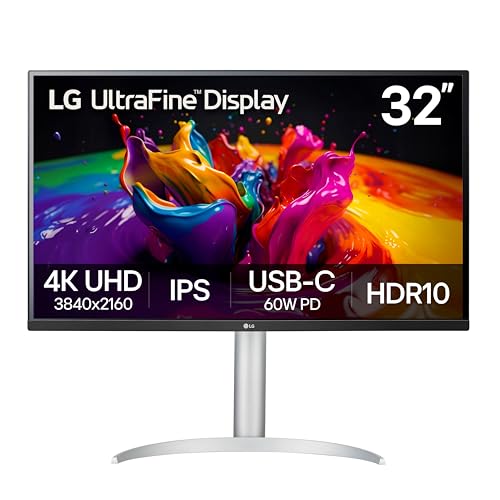
LG 32UP83AK-W 32-Inch UltraFine 4K — Best big-screen value
Sometimes the dual-platform brief is not about calibration certificates at all; it is about a large, sharp, welcoming screen that both computers can simply use, all day, for everything. The LG 32UP83AK-W is that monitor. Thirty-two inches of 4K IPS gives the MacBook a spacious scaled workspace — at this size macOS’s “looks like” modes feel generous rather than compromised — and gives the PC a big honest canvas for work, media and light gaming. USB-C connects the laptop, HDMI and DisplayPort connect the desktop, and nobody in the household needs a manual to operate any of it.
LG’s UltraFine name carries a specific resonance for Mac users, since the line grew up alongside Apple’s own machines, and the supporting features suit mixed duty: HDR10 for video, Reader Mode for long documents, built-in speakers for calls and casual media. The 60Hz refresh is the plain fact of this tier — fine for office work, development, strategy games and everything turn-based, and the honest limit for fast competitive play on the PC side. This guide places the LG where it belongs: not as a specialist instrument, but as the two-computer household’s big-hearted default.
Its value logic deserves stating in the qualitative terms this category deserves. Against the calibrated 27-inch picks, the LG trades colour certification for six extra inches of diagonal and a simpler soul, at a friendlier tier of the market. For desks whose work is code, documents, browsing and media rather than client colour, that trade is the correct allocation rather than a compromise, and the extra size will be appreciated every single day by both operating systems equally.
The LG also plays a role the others cannot: the diplomatic screen. In households where the Mac person and the PC person have genuinely different priorities — one wants a calm big workspace, the other wants a screen for films and football — a large, neutral, good-natured 4K panel ends arguments that calibration charts cannot. It will not win a colour argument or a refresh-rate argument, and it was never trying to; it wins the room, which in a shared home is frequently the argument that matters.
- Panel: 32-inch 4K UHD IPS, 60Hz
- Colour: HDR10 support, sRGB 99% (Typ.) class
- Inputs: USB-C, HDMI, DisplayPort
- Features: Reader Mode, built-in speakers
- Best suited role: shared household and office screen
Strengths
- Thirty-two inches of 4K makes both macOS and Windows workspaces feel generous.
- Complete input set — the MacBook, the PC and a spare HDMI source all plug in directly.
- Speakers and Reader Mode cover the everyday duties a shared screen actually performs.
Trade-offs
- 60Hz caps the PC’s gaming ambitions at the casual end.
- No factory-calibration pedigree for colour-critical client work.
- USB-C power delivery is the modest kind; heavy MacBook Pro loads may want the laptop’s own adapter too.
Best for: two-computer households and generalist desks that want size, sharpness and simplicity. Not suited for: colour professionals, or PC gamers chasing high refresh on the same screen.

Philips 32B1U3900 32-Inch 4K USB-C Dock — Best business dock
Philips pitches this monitor at the working desk without embarrassment: a 32-inch 4K panel with a built-in USB-C docking station, sold with a four-year warranty that tells you exactly which market it expects to serve. For a dual-platform desk in a home office that doubles as a workplace, that pitch has real substance. The dock turns the monitor into the desk’s fixed infrastructure — the MacBook docks for the creative and personal hours, the work PC or a work laptop connects for the employed ones, and the peripherals, network-minded accessories and drives stay put through every changeover.
The panel choice is the business-sensible one: VA rather than IPS, which trades a little viewing-angle perfection for strong contrast that flatters documents, dashboards and video calls, and keeps the big 4K canvas at a business tier of the market. Thirty-two inches at 4K is also the size where Windows scaling and macOS scaling both behave generously, so the same screen can run each operating system at the interface size its owner prefers without either feeling like a compromise guest.
The four-year warranty deserves its own sentence, because monitors in this guide are infrastructure purchases and infrastructure should be boring to own. A dual-platform desk concentrates risk in one panel — if it fails, two computers lose their screen — and a longer warranty is a rational thing to weigh alongside ports and pixels. Buyers building a desk meant to sit undisturbed for years of mixed Mac and PC service will find the Philips’ whole personality — dock, size, contrast, warranty — pointing their way.
Employers quietly love monitors like this Philips, and hybrid workers should understand why: a dock built into the display is one less box to asset-tag, one less power brick to lose, and a desk that can be reproduced identically in a hundred home offices. If your company is equipping your desk, this is the pick whose purchase order writes itself. If you are equipping your own, the same logic applies at household scale — permanence and warranty over novelty.
- Panel: 32-inch 4K UHD VA
- Dock: built-in USB-C docking station
- Warranty: four-year coverage (listing)
- Best suited role: permanent home-office infrastructure
- Platform note: sized to flatter both macOS and Windows scaling
Strengths
- The built-in dock makes the monitor the desk’s permanent hub for both machines.
- VA contrast suits documents, dashboards and calls across long workdays.
- A four-year warranty matches the infrastructure role this monitor is bought for.
Trade-offs
- VA viewing angles trail IPS when a second viewer sits off to the side.
- Business tuning means entertainment and gaming features are present but not the headline.
- Colour professionals should take a calibrated pick; this panel is calibrated for work, not for print.
Best for: home-office professionals building a permanent, dock-centred desk for a Mac and a PC. Not suited for: colour-critical creatives, or buyers who want their monitor to moonlight as a gaming display.

Samsung 32-Inch M7 Smart Monitor — Best entertainment crossover
The Samsung M7 asks a different question of the dual-platform desk: what if the shared screen also had to be the room’s television? Its answer is a 32-inch 4K panel with Samsung’s smart platform built in — streaming apps and Samsung’s Gaming Hub run on the monitor itself, with no computer attached — while USB-C, HDMI and USB-A ports handle the MacBook and the PC when work calls. For a studio flat, a spare room or a desk that faces a sofa, that triple identity is not a gimmick; it is the reason to buy this specific monitor.
For the MacBook half of the brief, the M7 covers the essentials: USB-C carries the picture and a working level of power, the 4K panel gives macOS a roomy scaled workspace, and Samsung’s Vision AI features and smart conveniences handle the media side with more polish than a bare monitor manages. The PC connects over HDMI as it would to any display. What the M7 does not offer is the calibrated colour or Thunderbolt docking depth of the BenQ and ViewSonic picks — it is a generalist with a streaming soul, and this guide recommends it exactly on those terms.
Consider it the pick for the desk that is honest about its evenings. If the screen’s second-biggest job after work is films, box sets and casual cloud gaming — and the PC attached to it is a family or media machine rather than a colour workstation — the M7 consolidates three devices into one panel and one remote. Buyers whose desks are pure workplaces should take the Philips or BenQ; buyers whose desks are also their living rooms have found their monitor.
Renters and students in compact spaces are the M7’s truest audience, and they should weigh one more consolidation it offers: the remote-controlled, computer-free evening. After a day of the MacBook and PC taking turns, the screen becomes a television without either machine waking, fans spinning or updates demanding attention. That separation of work machine and leisure screen — inside a single panel — is a genuinely modern piece of design, and for small-space living it may be the most livable idea in this entire guide.
- Panel: 32-inch 4K UHD
- Smart platform: TV apps, Gaming Hub, Vision AI features
- Inputs: USB-C, HDMI, USB-A
- Best suited role: desk-and-living-room shared screen
- Platform note: MacBook over USB-C, PC over HDMI
Strengths
- Streaming and cloud gaming live in the monitor, so the screen entertains with both computers off.
- USB-C and HDMI cover the MacBook and PC without adapters.
- One panel replaces a monitor and a small TV in space-pressed rooms.
Trade-offs
- No factory-calibrated colour pedigree for professional creative work.
- Smart features add menus and accounts that a pure work desk may never want.
- USB-C power is convenience-grade rather than a full docking replacement.
Best for: dual-platform desks in shared living spaces, where the screen must also be the television. Not suited for: colour-critical professionals or docking maximalists, who are served above.
How do the six dual-platform monitors compare?
| Monitor | Panel | Mac connection | Power delivery | Defining strength |
|---|---|---|---|---|
| BenQ PD2725U | 27-inch 4K IPS | Thunderbolt 3 | 65W | Calibrated P3 colour plus true docking |
| ViewSonic VP2756-4K | 27-inch 4K | USB-C | 60W | Pantone Validated colour |
| ViewSonic VP2776T-2K | 27-inch 1440p, 120Hz | Thunderbolt 4 | 100W | Strongest charging, smoothest motion |
| LG 32UP83AK-W | 32-inch 4K IPS | USB-C | Convenience class | Big-screen value for both systems |
| Philips 32B1U3900 | 32-inch 4K VA | USB-C dock | Docking class | Built-in dock and long warranty |
| Samsung M7 | 32-inch 4K smart | USB-C | Convenience class | Streaming and gaming built in |
What about audio, webcams and the rest of the shared desk?
A dual-platform monitor becomes the desk’s meeting point for more than pictures. Video calls alternate between the MacBook’s apps and the PC’s, and the screen in the middle should not care which machine is speaking. The LG and Samsung picks carry built-in speakers that cover call duty respectably; on the others, a single set of speakers fed from the monitor’s hub or audio output keeps one volume habit for both platforms. Webcams, mercifully, mostly live in the MacBook itself or on a USB camera in the hub — another argument for the monitor-as-dock arrangement, since the camera then serves whichever computer is active without being re-plugged.
Keyboard and mouse sharing deserves a sentence of planning. With peripherals in the monitor’s hub, they follow the hub’s host — which, on the docking picks here, is whichever computer the USB-C or Thunderbolt connection serves, while the PC may need the hub switched or its own wireless set. Some dual-platform veterans keep it deliberately simple: wireless peripherals paired to the Mac, a second inexpensive set for the PC, and no sharing magic at all. There is no single right answer, but there is a wrong time to design yours, and it is after the monitor arrives.
Storage follows the same logic. A desk drive plugged into the monitor’s hub belongs to whichever machine hosts the hub, which makes it a fine scratch disk for the primary computer and a poor place for the only copy of anything. Dual-platform veterans keep shared files on the network or in synced folders and let the hub drive be a convenience rather than an archive. The monitor can be the desk’s crossroads without being its vault — and crossroads, unlike vaults, are allowed to be unplugged.
How long will a dual-platform monitor stay relevant?
Longer than either computer attached to it, if you buy the inputs generously. MacBooks and PCs will cycle through this desk every few years; the monitor that survives those cycles is the one whose port list was not trimmed to a single season’s machines — Thunderbolt or USB-C for the laptop lineage, HDMI and DisplayPort for everything else, a hub with ports to spare. Every pick here was chosen partly on that survivability, and the Philips’ four-year warranty is the explicit version of the same bet.
Resolution ages more slowly than buyers fear. A 4K panel bought today will still be a sensible, sharp screen when today’s MacBook is a hand-me-down, because interface densities have stabilised around exactly the class these monitors occupy. What dates a monitor fastest is missing connectivity — the port the next machine assumes exists. Spend your foresight there, and the dual-platform desk becomes the calmest corner of a fast-changing equipment life.
The same logic argues for buying the panel one tier better than the minimum your current machines need. Computers get replaced on a schedule set by their batteries and their fans; monitors get replaced when they embarrass the desk. A screen bought with headroom in density, inputs and charging quietly absorbs the next two laptops and the next PC without ever becoming the bottleneck in the room.
How does macOS scaling really work on a 4K monitor?
macOS renders its interface for two classes of display: standard density, where one interface point equals one pixel, and Retina, where one point is drawn from four pixels in a 2×2 block. Apple’s own 5K displays sit near 218 PPI, so a “looks like 2560×1440” workspace is rendered from a full 5120×2880 framebuffer — every point perfectly doubled, text at maximum possible crispness. A 27-inch 4K panel at about 163 PPI cannot do perfect doubling at that workspace size, so macOS renders a larger framebuffer and scales it down. The result is not pixel-perfect in the mathematical sense, and purists can measure the difference; in lived experience it is sharp, stable and entirely pleasant, which is why 27-inch 4K became the Mac world’s value standard.
What you should avoid is the opposite end: low-density panels — 1080p at 27 inches, or 1440p stretched over very large diagonals — where macOS text loses its edge and no setting rescues it, because the pixels simply are not there. Every pick in this guide sits at or above the density where macOS looks composed, with the ViewSonic 1440p model as the deliberate exception whose trade (Thunderbolt 4, 100W, 120Hz) is argued openly in its review. Windows, for its part, scales fractionally with fewer opinions, so the PC half of your desk will be content everywhere in this list.
Practical advice: when a new monitor arrives, spend ten minutes in the macOS display settings trying each “looks like” resolution rather than accepting the default. Most owners of 27-inch 4K panels settle one step either side of the default depending on whether they prize space or size, and that single choice shapes every working hour that follows. It is the highest-value ten minutes in this entire category.
One myth deserves a quiet burial while we are here: the idea that a non-Apple display somehow hobbles a MacBook’s performance. The laptop drives these panels at their full resolution and refresh through standard connections, and macOS treats them as first-class displays with per-display scaling and colour profiles. What you give up versus Apple’s own screens is integration garnish — automatic brightness harmony, the very highest density — not capability. For a desk that must also host a PC, that garnish was never really on your menu anyway.
Which size serves a MacBook-and-PC desk better — 27 or 32 inches?
The answer hides in how the two operating systems treat the same pixels. At 27 inches, 4K’s density flatters macOS most: the scaled workspace feels like a Retina-adjacent 1440p, text is at its crispest in this guide, and design tools keep their palettes at comfortable sizes. At 32 inches, the same 4K resolution spreads thinner — about 140 PPI — which macOS still renders pleasantly and Windows arguably prefers, because interface elements land at a natural size with gentler scaling. Desks that lean creative and Mac-led tend to choose 27; desks that lean document-heavy, shared or media-flavoured tend to choose 32 and never look back.
Physical space casts the deciding vote more often than specifications do. A 32-inch panel on a shallow desk crowds the MacBook that must also live there — remember the laptop often stays open as a second screen in these setups, and it needs its own square of desk. Measure the whole arrangement, laptop included, before the diagonal seduces you. The best dual-platform monitor is the one that fits the desk both computers actually share, at the distance both owners actually sit.
Where does the Apple Studio Display fit in all this?
Honestly, and in prose only: the Studio Display is the density benchmark for Mac users — a 5K panel at true Retina density, beautifully built, with Apple’s colour and integration polish — and it is effectively a single-platform device. It connects over Thunderbolt to a Mac and gives a Windows PC no practical input path. For a Mac-only desk it can be the right purchase and this guide has no quarrel with it there. For the brief in this article’s title — a monitor for a MacBook Pro and a PC — it fails the second half of the sentence, and any roundup that lists it as a dual-platform pick without that caveat is selling you a beautiful problem.
Its real function in your decision is as a measuring stick. If, after reading the scaling section above, you conclude that only pixel-perfect 5K rendering will satisfy you, the honest conclusion is that your desk is becoming Mac-first in a way no monitor in this guide can change — and the PC may be better served by its own display. If, as most people find, 27-inch 4K’s rendering is comfortably past the threshold of caring, the six picks here give you something the Studio Display never will: both of your computers, one screen, no apologies.
There is also a household-politics dimension that spec comparisons never mention. A Studio Display on a shared desk announces whose computer the room belongs to, and the PC owner becomes a permanent guest at their own desk. The monitors in this guide are neutral territory — designed, several of them explicitly, for both platforms — and in a home where two people’s work matters, that neutrality is not a soft benefit. It is the brief.
How do you set up a two-computer desk that switches gracefully?
Make the monitor the fixed point and the computers the guests. Peripherals live in the monitor’s hub or a dock attached to it; each computer gets exactly one cable to that hub; and the changeover becomes an input switch rather than a rebuild. Label the cables — the five minutes with a label maker saves an hour under the desk someday — and set each operating system’s scaling and colour profile once, deliberately, on day one. On the Mac, choose your “looks like” resolution; on the PC, set scaling and refresh to the panel’s native best.
Then rehearse the failure modes while nothing is at stake: laptop asleep, PC wakes, which input wins? Monitor off, MacBook opens, does the picture return at the right resolution? These small behaviours differ by model and firmware, and discovering them during a quiet setup afternoon beats discovering them before a client call. Keep both computers’ own screens as the fallback they naturally are, and the dual-platform desk becomes what it should be — boring, in the way good infrastructure is boring.
Colour deserves one line in the setup ritual: if you own a calibration device, profile the monitor once and share the working habits — same picture mode for design work on both machines — rather than calibrating each platform’s mood separately. And keep the MacBook’s own display in the arrangement consciously: many owners run it as a dedicated communications screen below the main panel, which gives the dual-platform desk a third, small canvas for free and keeps chat out of the work’s way.
What mistakes do dual-platform buyers make?
The expensive classic is buying a beautiful Mac-first display — the Studio Display is the archetype — and only later discovering the PC has nowhere to plug in. Read the input list for the PC’s sake, not the Mac’s. Second: ignoring power delivery numbers, then wondering why the one-cable desk leaves a hard-working MacBook Pro slowly draining. Third: choosing density by the Windows half of the desk and forgetting macOS is the pickier tenant — a panel Windows loves can still render Mac text poorly if its density is low. Fourth: assuming USB-C and Thunderbolt are interchangeable words; they share a plug, not a capability set, and docking depth differs. Fifth: forgetting the hub question entirely, so the keyboard migrates between machines by hand twice a day. Each of these mistakes is a listing-reading failure, and each is avoidable in the ten minutes before purchase rather than the ten days after.
A sixth mistake is buying for the desk you describe at dinner parties rather than the one in the room: the imagined colour studio that justifies a calibrated flagship, while the actual desk runs email, documents and a family PC. The calibrated picks here are superb — for the desks that need them. Everyone else is better served by the LG’s size or the Philips’ permanence, and honesty about your own desk is the cheapest upgrade in this category.
What deserves a check during your first week with a dual-platform monitor?
Run the changeover drill daily until it bores you: MacBook in, MacBook out, PC awake, PC asleep, both racing for the screen at once. Confirm the input the monitor chooses is the one you would have chosen, set its auto-switching behaviour to match, and note which machine owns the hub in each state so the keyboard is never a surprise. Check the MacBook’s battery across one heavy day — if it ends lower than it began while “charging”, your power-delivery arithmetic needs the laptop’s own adapter in the arrangement, and it is far better to learn that in week one.
Then check the picture with fresh eyes in both systems: the same photograph, the same document, the same design file on each machine in turn. Small differences in default colour temperature or sharpness between inputs are normal and adjustable; what you are hunting for is anything that would irritate you in month six, while the remedy is still a menu or a return rather than a resignation. A dual-platform desk is a long marriage between three devices — the first week is when you make sure all three actually like each other.
Finish the week by writing down what you set: the Mac’s scaling choice, the PC’s refresh and scaling, the picture mode you calibrated around, which input belongs to which machine. It sounds like bureaucracy until the day a firmware update, a borrowed cable or a helpful relative resets something, and the note in the drawer restores your desk in two minutes instead of twenty. Infrastructure you can restore from a note is infrastructure you actually own.
Is one shared monitor really better than a separate screen for each computer?
For most desks, yes, and the reason is posture as much as price. One good monitor sits in the one good position — centred, at eye level, at the right distance — while a second screen for the second computer inevitably takes the worse seat, angled and off-axis, and whichever computer you use second gets the worse desk. A shared flagship also concentrates the budget: one excellent panel instead of two mediocre ones, one stand, one calibration habit, one set of cables to keep boring. The changeover cost is real but small, and the docking picks in this guide shrink it to a button press.
The honest exception is the desk where both computers run simultaneously all day — a PC rendering or serving while the Mac works, both needing eyes at once. That desk genuinely needs two screens, and this guide’s advice inverts gracefully: buy the best single-platform monitor for the machine you face, and let the second screen be any competent panel from this list’s lower-pressure picks, such as the LG. But if your two computers take turns, as most do, sharing one excellent screen is not a compromise. It is the design.
Final Recommendation
For the complete brief — a MacBook Pro and a PC sharing one screen with dignity — the BenQ PD2725U is this guide’s answer: Thunderbolt docking, calibrated P3 colour and an input list that treats both computers as citizens. Colour-process professionals should weigh the ViewSonic VP2756-4K’s Pantone pedigree; MacBook-first users who dock daily and prize charging strength and motion should take its Thunderbolt 4 sibling. The LG serves households that want size and simplicity, the Philips serves offices that want infrastructure, and the Samsung M7 serves rooms that want a television in the bargain. Decide which desk is yours, and the right monitor has already been chosen — just make sure a PC can actually plug into it before you fall for the pretty one.
Frequently Asked Questions
Will a 4K monitor look sharp with a MacBook Pro?
Yes. At 27 inches, 4K gives roughly 163 PPI, and macOS’s scaled modes render text and interface elements crisply at that density. It is not the pixel-perfect doubling of Apple’s 5K displays, and this guide says so openly, but in daily use the overwhelming majority of owners find it comfortably sharp.
How many watts of USB-C power does a MacBook Pro need from a monitor?
Enough to match its workload. Light and mixed use is well served by 60–65W; sustained heavy loads on the largest MacBook Pro models can draw more, which is where the 100W Thunderbolt 4 pick in this guide earns its place. If your monitor delivers less than your heaviest days demand, the laptop’s own adapter remains the simple supplement.
Can a Windows PC use a Thunderbolt monitor?
The PC does not need Thunderbolt — it uses the monitor’s HDMI or DisplayPort input, which every pick here provides. Thunderbolt matters for the MacBook side, where it carries picture, power and hub devices over one cable. Judge each input by which computer it serves.
Why is the Apple Studio Display not one of the picks?
Because it has no practical input for a Windows PC. It is an excellent Mac display and this guide discusses it as the category’s benchmark and exception, but a monitor that one of your two computers cannot connect to cannot be a dual-platform recommendation.
Is 1440p good enough for a MacBook Pro?
It depends on the trade attached. A 1440p panel renders macOS text less crisply than 4K at the same size. The Thunderbolt 4 ViewSonic in this guide exchanges that density for 100W charging and 120Hz smoothness — a trade some MacBook-centric users will love and fine-type workers should decline.
Should both computers use the same resolution and scaling?
They will rarely want to. Set each machine’s scaling independently to the size its owner reads comfortably — the monitor stores no opinion about it, and neither operating system is disturbed by the other’s choice. The panel simply presents whatever each computer sends, which is exactly the neutrality this category is bought for.
What cable do I need for the MacBook side?
A quality USB-C or Thunderbolt cable rated for video and the power your monitor delivers — the one in the monitor’s box is the right starting point. Cable quality genuinely matters at these bandwidths; if a setup misbehaves, the cable is the first suspect and the cheapest fix, so keep the supplied one even if a longer braided favourite tempts you.
Does the MacBook charge while connected to these monitors?
On the USB-C and Thunderbolt picks, yes — that is the point of their power-delivery figures, which range from 60W to 100W across this guide. The monitor becomes the charger while it is the display. Just match the wattage to your MacBook’s appetite, as the reviews describe, and keep the laptop’s own adapter for travel.
Can I use the MacBook’s screen as a second display alongside the monitor?
Yes, and many dual-platform owners do exactly that — the laptop stays open below or beside the main panel as a dedicated screen for chat, music or reference material. Every pick here supports that arrangement, since the MacBook treats the monitor as its primary external display while keeping its own panel active.
Do I need a separate dock if my monitor has USB-C?
Not necessarily. Monitors with a real hub — the BenQ, the ViewSonics, the Philips dock model — absorb the peripherals a dock would hold. A separate dock still helps if you need many high-bandwidth devices or wired networking at the desk; otherwise the monitor-as-dock arrangement in this guide is the cleaner desk.
Related Guides
Round out the desk with the rest of this cluster: the best monitors for fast trading for multi-window market desks, the best monitors for gaming and programming if the PC half of the desk games seriously, the best color calibrated monitors for deeper colour work, the best 32 inch 4k monitors for the big-screen field in full, and the best 49 inch monitors if one very wide canvas tempts you instead.


