What's inside
- Where to buy
- Key Takeaways
- Quick Picks
- How Did We Verify Touch Technology Without Guessing?
- The Best Capacitive Touch Screen Monitors in Detail: Which One Fits Your Counter?
- From Ten Inches to Seventeen: How the Touch Line-Up Divides
- Capacitive or Resistive: Which Touch Technology Does Your Work Need?
- What Does a Kiosk Installation Demand That a Counter Does Not?
- How Do You Set Up a POS Touchscreen So It Stays Accurate?
- Will a Touchscreen Work With Your Till Software and Operating System?
- How Does Touch Change the Way Staff Actually Work?
- How Long Does a Commercial Touchscreen Last, and What Kills It?
- What About Customer-Facing Touchscreens?
- What Should You Check Before Buying Touchscreens in Quantity?
- What Are the Common Mistakes When Buying Capacitive Touch Monitors?
- Final Recommendation
- Frequently Asked Questions
- Related Guides
As an Amazon Associate I earn from qualifying purchases. This post may contain affiliate links at no extra cost to you.
gizmoverdict.com is reader-supported. When you buy through links on our site, we may earn an affiliate commission.
Where to buy
Touch monitors for commercial use are sold through Amazon’s US store by a mix of point-of-sale specialists and general electronics brands, and the listings in this niche reward slow reading: the same product family often appears at several sizes with near-identical names, and the touch technology — the entire point of the purchase — is sometimes named in the title and sometimes not. That naming question runs through the best capacitive touch screen monitors. Every pick below links to the verified listing we checked, and where a title does not name its touch technology, this guide says so in plain words rather than guessing on the maker’s behalf.
Shoppers looking for the best capacitive touch screen monitors are usually outfitting something specific: a checkout counter, a restaurant till, a gym check-in desk, a warehouse station, a self-service kiosk. Capacitive touch — the projected-capacitive, or PCAP, technology in every phone — is the right default for those jobs because it registers light touches through a smooth glass front, supports multi-touch gestures, has no soft surface layer to wear out, and wipes clean like the glass it is. The older resistive alternative, which needs physical pressure and a flexible top layer, still exists for gloved industrial work, and this guide will name it honestly as the contrast class — but for customer-facing and staff-facing screens touched hundreds of times a day, capacitive is the technology that feels modern and survives the job.
A discipline note before the picks, because this category’s listings demand it: we claim capacitive or PCAP technology only where a verified listing title states it. The Elo states PCAP outright. The MUNBYN 12-inch states a capacitive screen. The two smaller ANGEL POS models state capacitive in their titles. The 17.3-inch ANGEL states ten-point touch without naming the technology, and the MUNBYN 17-inch describes a capacitive LED panel with multi-touch. Where a title is silent, the specification box in this guide prints “Not stated in the listing title” — a small honesty that will save somebody a return, because touch technology is the one specification in this category that cannot be upgraded later.
Key Takeaways
- Capacitive (PCAP) touch is the phone-style technology: light-touch, multi-touch, sealed behind true-flat glass that wipes clean — the right default for POS, retail, hospitality, and kiosks.
- Only claim the technology where the listing states it: Elo names PCAP, the MUNBYN 12-inch names a capacitive screen, and the 17.3-inch ANGEL names ten-point touch without naming the underlying technology.
- True-flat seamless fronts, named by both ANGEL POS and MUNBYN picks, matter commercially: no bezel lip means no crumb-and-grime trap and a one-wipe clean.
- Size is a workflow choice — 10 inches for compact counters and secondary displays, 15–17 inches for primary tills, 17.3-inch Full HD where the screen doubles as a detailed order display.
- Inputs in this class are still VGA and HDMI territory; only the Elo brings USB-C, which also carries its touch signal in the modern single-cable style.
Quick Picks
| Pick | Badge | Why it earns its place |
|---|---|---|
| ANGEL POS 15-inch Capacitive Touch Monitor | Best classic till screen | A 15-inch 4:3 capacitive multi-touch panel with a true-flat front and a metal POS stand — the traditional checkout format, done properly. |
| Angel POS 17-inch Capacitive Touch Monitor | Best larger counter screen | The same capacitive true-flat recipe at 17 inches for counters where staff read orders at a distance. |
| ANGEL POS 17.3-inch FHD Touchscreen POS Monitor | Best Full HD order display | A 1920×1080 panel with ten-point touch, HDMI and VGA, and a waterproof, dustproof front for kitchens and busy counters. |
| Elo 1002L 10-inch Touchscreen Monitor | Best compact commercial touch | Elo’s 10-inch PCAP screen with ten-touch and USB-C — the professional mini-format for kiosks, customer-facing displays, and tight counters. |
| MUNBYN 12-inch POS Touchscreen Monitor | Best small-business starter | A 12-inch capacitive screen with a foldable stand, HDMI and VGA, and no driver required — plug in and take payments. |
| MUNBYN 17-inch POS Touchscreen Monitor | Best bright 17-inch value | A 400-nit true-flat capacitive panel with multi-touch and driver-free setup, sized for primary tills in bright shops. |
How Did We Verify Touch Technology Without Guessing?
The pool for this guide was built by checking each candidate listing against Amazon’s catalogue data first, and links attach only where that check returned an exact title match. For this category we applied a second filter on top: the words “capacitive” and “PCAP” appear in this guide’s claims only where they appear in the verified titles themselves. That sounds pedantic until you have bought the wrong touch technology — a resistive screen where staff expected phone-like response, or a panel whose multi-touch existed only in a reviewer’s imagination. Touch is a physical interface; its specification is either stated or it is a gamble.
We also made a point of keeping the two brand families’ siblings distinct rather than reviewing “ANGEL POS” or “MUNBYN” once and waving at the rest. The 15-inch and 17-inch Angels differ in the job they fit; the two MUNBYNs differ in size, brightness role, and stand design; and the 17.3-inch ANGEL differs from both its siblings in resolution and in that unnamed touch technology. Commercial buyers standardise on families, but they deploy individuals, and a guide that blurs individuals into families fails exactly the readers it claims to serve.
Beyond the technology check, we sorted by the realities of commercial touch: front design (true-flat glass cleans in one wipe and gives spills nowhere to pool), stand or mounting options for counters of different depths, input sets that match the PCs and till systems actually in service, and physical size matched to the job’s reading distance. Screen quality in the desktop sense — colour gamut, refresh rate — barely entered into it, because a till screen succeeds by being touched accurately ten thousand times, not by rendering a film beautifully once. Buyers comparing against the broader touchscreen field should also read our best hd touchscreen monitors roundup, which covers the consumer and desktop side of touch displays.
The Best Capacitive Touch Screen Monitors in Detail: Which One Fits Your Counter?

ANGEL POS 15-inch Capacitive Touch Monitor — Best classic till screen
Fifteen inches at a 4:3 aspect ratio is the shape point-of-sale grew up with, and this ANGEL POS model is that shape executed with the modern technology: a capacitive LED-backlit multi-touch panel behind a true-flat seamless front, on a metal POS stand. The 4:3 format suits till software, which was largely designed in that era and still lays out its grids, keypads, and receipt previews most naturally on a squarer screen. The metal stand is not a cosmetic detail — a till screen is poked, prodded, and occasionally leaned on all day, and a stand that flexes turns every touch into a small negotiation. True-flat glass means the night’s cleaning is a single wipe with no bezel trench collecting the day.
Consider the gym on that list for a moment, because it stress-tests the format differently from a till: a check-in screen is touched by hundreds of different people a day, in short bursts, often with damp hands after a workout. Capacitive glass handles that public, high-turnover touching better than any pressure-based surface — no worn spot develops where the “check in” button lives, because there is no surface layer to wear. The same logic serves hotel desks, clinic check-ins, and warehouse stations where the users rotate constantly and nobody owns the screen enough to baby it.
The title aims the monitor at offices, POS, retail, restaurants, bars, gyms, and warehouses, and that breadth is credible precisely because the product is simple: a capacitive screen, a serious stand, a sealed front. What the title does not dwell on, buyers should still check on the listing: the exact input set for their till PC, and the resolution, which in this 4:3 class is a working resolution rather than a headline one. For a business replacing an ageing resistive till screen, this is the upgrade that makes staff ask why it took so long — touches register at phone-like lightness, multi-touch gestures work for the software that supports them, and the glass front ends the era of pressing harder to make the till believe you.
- Size and shape: 15-inch, 4:3 aspect ratio
- Touch: capacitive LED-backlit multi-touch, as stated in the listing title
- Front: true-flat seamless design, as stated in the title
- Stand: metal POS stand, as stated in the title
- Settings named in the title: office, POS, retail, restaurant, bar, gym, warehouse
- Resolution: not headlined in the title — confirm on the listing against your till software’s layout
Strengths
- The 4:3 format matches the layout assumptions of a generation of till and POS software.
- A metal stand survives counter life that plastic stands quietly fail.
- True-flat capacitive glass gives light-touch response and one-wipe cleaning in the same panel.
Trade-offs
- The squarer format is wrong for modern widescreen software and media-rich displays.
- Businesses standardising on USB-C will find this generation of POS hardware speaks older connections.
- Its resolution class is functional rather than fine; detailed documents are not its stage.
Best for: shops, restaurants, and bars replacing or adding a classic-format till screen. Not suited for: widescreen-first software or customer-facing media displays.
Angel POS 17-inch Capacitive Touch Monitor — Best larger counter screen
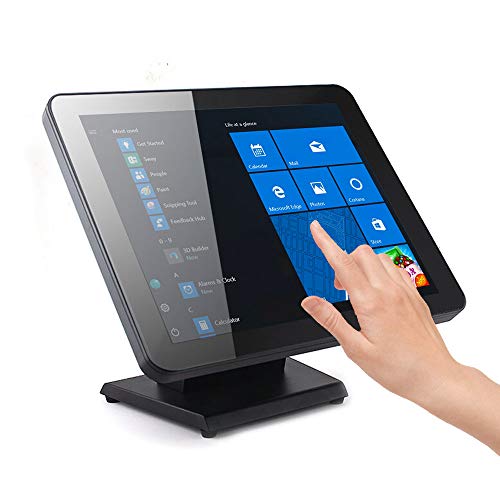
The 17-inch Angel POS applies the same formula as its 15-inch sibling — capacitive LED-backlit multi-touch, true-flat seamless front — at a size that changes who the screen can serve. It also illustrates a buying pattern worth copying: when a product family offers the same interface at two sizes, the business can pilot the smaller one at a quiet counter, learn the family’s quirks once, and then roll the larger size to the flagship site with the training already written. Interface consistency across sizes is a training asset that never appears on a spec sheet, and it is one reason families dominate commercial touch while one-off bargains dominate the returns shelf. Two inches of diagonal sounds minor and is not: at 17 inches, order text, table plans, and stock lists stay legible to staff standing a step back from the counter, which is where staff actually stand during a rush. This is the size for a restaurant expediting position, a retail service desk, or any counter where the screen is read by someone in motion rather than studied by someone seated.
The title names VGA as its connection, and that single word tells an experienced buyer a great deal: this monitor is built to join the enormous installed base of till PCs and back-office machines whose video output is VGA, and to keep doing so reliably. There is no shame in that — commercial hardware lives long, and a screen that matches the estate beats a screen that demands its replacement. The buying check is simply to confirm your machine’s outputs before ordering, and to plan an adapter if your till PC is HDMI-only. Within its brief — bigger counter, older connections, capacitive response, sealed flat front — this is the straightforward choice, and its sibling relationship to the 15-inch model lets a business standardise on one product family across differently sized counters.
- Size: 17-inch
- Touch: capacitive LED-backlit multi-touch, as stated in the listing title
- Front: true-flat seamless design, as stated in the title
- Input named in the title: VGA
- Resolution: not stated in the listing title — verify on the listing before ordering
- Family note: the larger sibling of the 15-inch ANGEL POS above, with the same touch approach
Strengths
- The 17-inch canvas keeps orders and lists readable at working distance during a rush.
- Capacitive multi-touch behind true-flat glass is the modern, cleanable combination.
- VGA connectivity matches the long-lived till hardware still running most small businesses.
Trade-offs
- VGA-only naming means HDMI-only machines need an adapter plan from day one.
- The title’s silence on resolution means detail-critical uses must be verified, not assumed.
- Its size is wasted on cramped counters where the 15-inch or the MUNBYN 12-inch fit better.
Best for: restaurants, service desks, and larger counters running VGA-era till PCs. Not suited for: compact counters or buyers whose machines offer only modern digital outputs.

ANGEL POS 17.3-inch FHD Touchscreen POS Monitor — Best Full HD order display
This is the ANGEL family’s widescreen flagship: a commercial-grade 17.3-inch panel at a full 1920×1080, with ten-point touch, HDMI and VGA inputs, and a front the title describes as waterproof and dustproof. The Full HD resolution changes what the screen can be. At 1080p, the same display that takes the order can show the order — itemised, legible, with modifiers and totals a customer or a kitchen can verify at a glance — and can double as a menu or queue display in quieter hours without looking like a spreadsheet’s poorer cousin. For fast-casual restaurants and busy retail counters, that dual life is the purchase argument.
The waterproof and dustproof front deserves its own practical translation. In a kitchen pass or a bakery counter, the screen’s enemies are steam, flour dust, and the wipe-down with a damp cloth at close — conditions that creep into a bezel seam and fog a lesser panel from the inside over a season. A sealed flat front refuses all three entry points at once. It does not make the monitor submersible, and nobody should hose one down; it makes the daily commercial environment survivable, which is the claim that matters and the one the title actually makes.
Now the discipline this guide promised: the title states ten-point touch, and ten-point touch is what we claim. It does not name the touch technology, so the specification box below says exactly that. Ten simultaneous touch points is the behaviour class associated with capacitive panels, and multi-touch software will treat the screen accordingly — but a buyer for whom the specific technology is a hard requirement should confirm it with the manufacturer rather than taking any guide’s inference, including this one’s. What is stated, and what matters daily, is the sealed front: waterproof and dustproof claims in a title aimed at kitchens and counters mean the screen expects splashes, flour, and steam as working conditions. Paired with HDMI for modern machines and VGA for the estate’s elders, this is the most versatile ANGEL in the guide.
- Size and resolution: 17.3-inch, 1920×1080 Full HD, as stated in the listing title
- Touch: 10-point touch, as stated in the title
- Touch technology: Not stated in the listing title — confirm with the manufacturer if the specific technology is a hard requirement
- Inputs per the title: HDMI, VGA
- Front: waterproof and dustproof screen, described as commercial grade in the title
- Settings named in the title: industrial, office, retail, gym, warehouse
Strengths
- Full HD resolution lets one screen run the till and display detailed orders or menus credibly.
- The sealed, waterproof-rated front suits kitchens and counters where splashes are routine.
- HDMI plus VGA covers both generations of till and back-office machines.
Trade-offs
- The touch technology is unnamed in the title, so technology-specific buyers must verify before committing.
- At 17.3 inches widescreen it needs a counter with genuine width and depth.
- Commercial-grade sealing and size put it above the budget picks in price class.
Best for: fast-casual restaurants, busy retail counters, and any till that doubles as a customer-visible order display. Not suited for: tiny counters, or buyers who need a named touch technology in writing before purchase.

Elo 1002L 10-inch Touchscreen Monitor — Best compact commercial touch
Elo invented much of the commercial touchscreen world, and the 1002L is what that heritage looks like at ten inches: a PCAP panel — the title states “PCAP 10 Touch” outright — with USB-C connectivity, aimed at POS, retail, and hospitality. Ten inches is a deliberate format. It is the customer-facing second screen that shows the total and asks for the tip, the kiosk panel in a housing, the check-in point on a narrow desk, the secondary display that a cashier turns toward a customer a hundred times a day and expects to survive every one of those turns. In those roles a big screen is not better; it is in the way. The 1002L’s job is to be exactly where a finger needs it and nowhere else.
There is a second, quieter Elo use case worth naming: the control surface. Small studios, workshops, and smart-home installers use compact PCAP panels as the touch front-end for systems that otherwise need a keyboard — lighting rigs, audio zones, access panels. In those installs the buying criteria of this guide still apply verbatim, because a control surface is just a till that sells nothing: it must register accurately, clean easily, and be reorderable in three years when the second room gets the same treatment.
USB-C is the modernising detail: one cable class that can carry the display signal and the touch data together, which simplifies kiosk builds and countertop retrofits where every extra cable is a future fault. Elo’s commercial positioning also carries an expectation the value brands cannot match — a product line built to be reordered identically for years, with the support structure of a company whose entire business is touchscreens for commerce. The trade-offs are scale and scope: ten inches cannot be a primary till for itemised work, and Elo pricing reflects its professional channel. Buy it as the compact, standardised touch point in a larger installation — or as the small screen in a small business that wants the real thing once — and it justifies itself every shift.
- Size: 10-inch touchscreen
- Touch: PCAP, 10-touch, as stated in the listing title
- Connection named in the title: USB-C
- Settings named in the title: POS, retail, hospitality
- Role: compact primary touch point or customer-facing secondary display
- Maker note: Elo is a specialist commercial touchscreen manufacturer
Strengths
- Named PCAP technology with ten-touch removes all guesswork about the interface.
- USB-C simplifies kiosk and counter builds with a modern single-cable-class connection.
- The 10-inch format fits customer-facing and space-starved roles no larger pick can serve.
Trade-offs
- Ten inches is too small for a primary till running itemised orders.
- Professional-channel pricing sits above the value brands at comparable sizes.
- Businesses with VGA-era till PCs will need to plan the connection carefully.
Best for: kiosks, customer-facing payment displays, check-in points, and compact counters. Not suited for: primary tills or any role where staff read detailed lists at distance.

MUNBYN 12-inch POS Touchscreen Monitor — Best small-business starter
The MUNBYN 12-inch is the screen for the business that is buying its first real POS display: a capacitive screen — the title says so directly — with HDMI and VGA inputs, a foldable stand, and the two most reassuring words in small-business technology, “no driver required”. Plug it into the till PC or laptop, let the operating system recognise the touch, and start trading. The foldable stand earns its mention because small counters are also storage-challenged counters; a screen that folds flatter at closing time, or angles low for a seated user, fits the physical life of a café or market stall better than a fixed monument.
MUNBYN’s title also carries a “2Y Protection” note, a small-business-friendly gesture worth checking on the listing for its exact terms. Twelve inches is the honest minimum for a primary till: item grids fit, totals read clearly, and the screen still leaves counter room for the card reader, the cash drawer, and the coffee. What you give up versus the ANGEL models is the heavyweight stand and the classic formats; what you give up versus the Elo is the named PCAP pedigree and USB-C. What you gain is the lowest-friction start in this guide — capacitive response, both common inputs, driver-free setup — sized for the counters that most small businesses actually have, and light enough that the whole till point can move from the shop counter to a weekend market pitch and back without a van or a second pair of hands. For market traders and pop-ups, the fold-and-go stand makes it the only pick here that travels as a routine rather than an event.
- Size: 12-inch POS touchscreen
- Touch: capacitive screen display, as stated in the listing title
- Inputs per the title: HDMI, VGA
- Stand: foldable stand, as stated in the title
- Setup: no driver required, as stated in the title
- Extras named in the title: 2Y protection — check the listing for its terms
Strengths
- Driver-free setup removes the scariest step for non-technical owners.
- The foldable stand suits small counters, stalls, and businesses that pack down daily.
- Capacitive touch with both HDMI and VGA covers new laptops and old till PCs alike.
Trade-offs
- Twelve inches is the floor for primary-till work; busy itemised menus will feel tight.
- The lightweight stand is less immovable than the ANGEL’s metal POS stand under heavy use.
- No USB-C, so modern single-cable setups are not on offer.
Best for: cafés, market stalls, pop-ups, and first-time POS buyers who need touch working today. Not suited for: high-volume tills where a larger, stand-mounted screen earns its space.

MUNBYN 17-inch POS Touchscreen Monitor — Best bright 17-inch value
The larger MUNBYN pairs the family’s driver-free simplicity with the specification that decides visibility in real shops: a stated 400 nits of brightness behind a true-flat seamless capacitive panel with multi-touch. Brightness is the unglamorous hero of commercial screens. A till under shop lighting, near a window, or in a bright café fights reflections and ambient light all day, and 400 nits is the class of figure that keeps a screen assertive in those conditions where dimmer panels go milky. Seventeen inches gives the primary till its working room, and the true-flat front keeps the cleaning ritual to a wipe.
The title names VGA and HDMI inputs and repeats the no-driver-required promise, which together make this the easiest large screen in the guide to deploy across a mixed estate: the same model joins the new PC by HDMI and the old one by VGA, with no software ceremony at either. That matters more than it sounds in a growing business, where the second shop’s till is bought in a hurry and installed by whoever is free. A screen whose setup is “plug in both cables” gets installed correctly by everyone; a screen with a driver ritual gets installed correctly by the one person who read the manual, and becomes a support call at every other site. Set against the Angel POS 17-inch, the comparison is close and honest — both are capacitive 17-inch counter screens; the MUNBYN states its brightness and leans on setup simplicity, while the Angel leans on its POS-specialist stand and family. Against the 17.3-inch ANGEL, this one is the simpler tool: no Full HD headline, no sealed-front claims in the title, just a bright, flat, capacitive 17 inches that installs in minutes. For a growing business standardising its second and third tills, that simplicity is the value.
- Size: 17-inch POS touchscreen
- Touch: multi-touch, true-flat seamless capacitive LED, as stated in the listing title
- Brightness: 400 nits, as stated in the listing title
- Inputs per the title: VGA, HDMI
- Setup: no driver required, as stated in the title
- Settings named in the title: office, POS, restaurant
Strengths
- 400-nit brightness keeps the till readable under shop lights and near windows.
- Driver-free setup across HDMI and VGA makes mixed-estate rollouts painless.
- True-flat capacitive glass combines multi-touch response with one-wipe cleaning.
Trade-offs
- No Full HD claim in the title, so it cedes the detailed-order-display role to the 17.3-inch ANGEL.
- No sealed waterproof front is claimed, a consideration for kitchen-adjacent counters.
- Stand and mounting specifics are not headlined; confirm them on the listing for your counter.
Best for: retail and restaurant primary tills in bright premises, and growing businesses adding tills quickly. Not suited for: splash-heavy kitchen stations or buyers needing a Full HD order display.
From Ten Inches to Seventeen: How the Touch Line-Up Divides
| Monitor | Size and shape | Touch, as titled | Inputs, as titled | Defining trait |
|---|---|---|---|---|
| ANGEL POS 15-inch | 15-inch, 4:3 | Capacitive multi-touch | See listing for the set | Metal POS stand and true-flat front in the classic till format |
| Angel POS 17-inch | 17-inch | Capacitive multi-touch | VGA | The larger counter screen for VGA-era till estates |
| ANGEL POS 17.3-inch | 17.3-inch, 1920×1080 | 10-point touch; technology not stated in the title | HDMI, VGA | Waterproof, dustproof front and Full HD order display |
| Elo 1002L | 10-inch | PCAP, 10-touch | USB-C | The professional compact for kiosks and customer-facing points |
| MUNBYN 12-inch | 12-inch | Capacitive screen | HDMI, VGA | Foldable stand and driver-free setup for small counters |
| MUNBYN 17-inch | 17-inch | Capacitive multi-touch, true-flat | VGA, HDMI | 400-nit brightness for bright shops, driver-free |
Notice also what the table does not contain: a single gaming-style specification. No refresh rates, no response times, no colour gamuts — because none of them decide whether a till screen succeeds. Commercial touch is a durability-and-interface purchase wearing a monitor’s clothing, and the buyers who internalise that choose better than the buyers who shop it like a television.
Two patterns organise the table. The first is that connectivity tells you the intended estate: VGA marks the screens built for the long-lived till PCs that run most small businesses, USB-C marks the Elo’s newer kiosk world, and HDMI appears wherever a maker expects modern machines too. The second is that every size step changes the job, not just the view — ten inches faces the customer, twelve runs a small till, fifteen is the classic counter, and seventeen-plus starts doing display duty as well as input duty.
Capacitive or Resistive: Which Touch Technology Does Your Work Need?
The honest contrast class for everything in this guide is the resistive touchscreen, and it deserves a fair hearing before dismissal. Resistive panels register pressure through a flexible layer, which means they work with any object — a gloved hand, a stylus, a credit card corner — and they shrug off water on the surface because the touch is mechanical. In gloved industrial environments, that is not a compromise; it is the requirement. Their costs are equally real: the flexible layer dulls the image, wears with use, supports only limited multi-touch, and needs a firmer press that slows a busy till and tires a busy cashier.
Capacitive inverts the trade. It needs a conductive touch — a bare finger, or a glove designed for capacitive screens — and in exchange delivers the light, precise, multi-touch response every phone user already knows, behind hard glass that resists wear and wipes clean. Wet-finger behaviour varies by implementation: a well-tuned PCAP panel tolerates damp fingers and light splashes, while pooled water can confuse lesser ones, which is why kitchen buyers should value the 17.3-inch ANGEL’s sealed-front claims and test with their real conditions, their real gloves, and their real busiest service before signing for a fleet. The decision rule is simple. If your users wear ordinary gloves all shift, look at resistive or glove-rated capacitive and test before fleet-buying. If your users are bare-handed staff and customers, capacitive is correct, and the only remaining questions are size, brightness, connections, and the stand that has to survive your busiest hour. Production environments that mix touch with viewing — a director’s touchscreen in a gallery, for instance — follow yet another logic, covered in our best 4k broadcast monitors guide.
What Does a Kiosk Installation Demand That a Counter Does Not?
A kiosk screen works unattended, and unattended changes the engineering. The panel will be touched by the public — curious children, frustrated adults, people who treat an unresponsive second as an invitation to poke harder — so the glass and its mounting must assume abuse a staffed counter never sees. This is the Elo’s home territory: a purpose-built commercial panel, PCAP behind hard glass, sized to disappear into an enclosure that protects its edges and hides its cables entirely. Cable concealment is not tidiness in a kiosk; it is security, because a reachable USB lead is a reachable computer. Enclosures also trap heat, so a kiosk build must leave the panel its ventilation and resist the temptation to seal it in a handsome wooden box with no airflow.
Software behaviour matters as much as hardware here. A kiosk that freezes on an error dialog showing a desktop has failed publicly; the touch layer must keep working when the application restarts, which standard driver-free touch generally does. Brightness must be set for the kiosk’s actual location — a lobby screen fighting window light all day wants the brightness class of the MUNBYN 17-inch more than it wants any other feature — and a sleep schedule should dim it through the empty hours rather than burning a static welcome image into its working life. Buyers planning a kiosk should therefore read this guide’s picks by environment first: enclosure-friendly compact for the Elo, bright and flat for lobby duty, and the sealed ANGEL 17.3-inch where the public’s drinks and the weather both get a vote.
How Do You Set Up a POS Touchscreen So It Stays Accurate?
Mount or stand the screen at the height and angle of the person who will touch it most, then test from that exact position: a till calibrated from the installer’s standing height will misread the seated cashier’s touches all day. On Windows-based tills, run the built-in touch calibration once after placement, with the actual user’s finger rather than a stylus, and repeat it if the screen is moved. Keep the video cable and the touch connection — USB on most of these systems — routed together and strain-relieved; the classic intermittent-touch fault in retail is a tugged USB lead, not a failing panel. Set the operating system’s touch feedback so a registered touch is visible, because staff who can see their touch land stop pressing harder, and pressing harder is how stands loosen and tempers fray.
Power deserves thirty seconds of the same discipline. Several of these screens run from external power bricks; coil and label the right brick with its screen at installation, because a box of identical-looking bricks in the stockroom is a future outage wearing a disguise. If the till position has a UPS — and a till that trades through flickers should — the screen belongs on it alongside the PC and the card reader, so a power blink never leaves a working computer talking to a dark display mid-transaction.
Then think about the front of the screen as a hygiene surface, because your customers already do. True-flat glass exists for this: a single wipe with a suitable cloth clears it, with no bezel trench harbouring the day. Build the wipe into the closing routine, keep spray bottles away from direct spraying on any screen — apply cleaner to the cloth — and check viewing brightness in the shop’s real midday light rather than at installation o’clock in the morning. A touchscreen is the most public-facing computer in most businesses; the five minutes of setup discipline above are the difference between one that feels like the business’s firm handshake and one that feels, to every customer who touches it, like its apology.
Will a Touchscreen Work With Your Till Software and Operating System?
Most modern POS software expects a standard touch interface, and most modern operating systems supply the driver for one automatically — that is the substance behind the “no driver required” claims in the MUNBYN titles. The compatibility questions that actually bite are older and more specific. Legacy till applications written for resistive screens sometimes assume a mouse-emulation model or a particular calibration utility; they usually still work with a capacitive panel, but the fortnight trial from the fleet section below is where you find out, not the morning of a rollout. Kiosk software that locks the machine into a single application needs the touch to survive the lockdown shell, which standard USB touch does. And browser-based POS — increasingly the default for small businesses — treats the screen as it treats a phone, which is precisely the interaction capacitive panels were born for.
There is also a settings layer worth five minutes: operating systems let you tune touch feedback, press-and-hold behaviour, and on-screen keyboards, and a till configured with press-and-hold enabled will interpret a cashier’s resting finger as a right-click at the worst possible moment. Disable what the workflow does not use, enlarge what it does — most POS grids let you scale buttons — and remember that the cheapest accessibility feature in this entire category is the software’s own font-size setting, which costs nothing and helps every staff member over forty. The screen is the visible half of the interface; the configuration is the other half, and it is free.
How Does Touch Change the Way Staff Actually Work?
It is easy to spec a touchscreen and forget that it reorganises a job. A keyboard-and-mouse till keeps the cashier’s eyes on the screen and their hands below it; a touch till merges the looking and the doing into one gesture, which is why experienced staff on a well-laid-out touch grid are visibly faster than the same staff on keys — the hand goes to the item it sees, with no cursor journey in between. The gain is real only when the software grid is designed for fingers: buttons sized for a fingertip rather than a pointer, the most-used items on the home grid rather than a submenu deep, and no function that requires a hover, because touch has no hover. Businesses evaluating a switch should trial their actual software on the actual screen size they intend to buy, since a grid that sings on a 17-inch panel can be a thumb-typo festival on a 12-inch one.
Touch also changes who can be trained, and how fast. New and seasonal staff learn a picture-based touch grid in an afternoon because it resembles the phone in their pocket; the same staff needed days to memorise a keyboard till’s function-key geography. For restaurants and retailers whose workforce turns over with the seasons, that training compression is worth more than any single specification in this guide, and it is the quiet reason capacitive screens — the phone-familiar kind — keep winning counter space from every alternative, season after season, in businesses that cannot afford a slow Saturday while a new hire learns the till. When you choose among the six picks here, you are partly choosing how your next ten hires will learn their job.
How Long Does a Commercial Touchscreen Last, and What Kills It?
A capacitive panel has no moving parts and no consumable surface layer, which is why the technology dominates commercial duty: the glass front that registers your touch on day one is physically the same surface in year five. What actually kills commercial touchscreens is rarely the touch layer. It is the stand loosening under a hundred thousand pokes until the screen wobbles and staff start holding it with one hand — the fate the ANGEL’s metal stand is built to postpone. It is the cable fatigued at the connector by a screen that gets swung toward customers and back, flexing the same centimetre of lead until the connection turns intermittent. And it is the backlight ageing in screens that burn at full brightness around the clock in a lit shop window.
Each of those deaths has a cheap prevention. Mount or stand the screen so its working position is its resting position, and route cables with a service loop that flexes generously instead of a taut line that flexes at the plug. Set brightness to the room rather than to maximum; the MUNBYN 17-inch’s 400 nits are headroom for bright hours, not a setting to live at. Let screens sleep when the business sleeps instead of displaying a static logo all night — a fixed image on a fixed schedule is how commercial panels earn uneven ageing. Do those three things and the realistic lifespan question stops being about the panel and becomes about the software estate around it, which will demand new connections — as the VGA-to-USB-C arc across this very guide shows — long before the glass gives out.
What About Customer-Facing Touchscreens?
A second, smaller screen facing the customer has quietly become standard in cafés and retail, and it runs on different rules from the staff screen. Its jobs are transparency and interaction: showing the itemised order as it builds, presenting the tip choice, collecting a signature or a loyalty number. For those jobs the Elo 1002L’s format is the template — compact, PCAP-accurate, presentable — and its ten inches are a virtue, because a customer-facing screen should be an offered surface, not a billboard looming over the card reader. Placement matters as much as the panel: angled up toward the customer’s hand, close enough to touch without leaning across the counter, far enough that the previous customer’s total is not the next customer’s reading.
Businesses adding a customer display to an existing single-screen till should check one unglamorous thing first: whether their POS software supports a second display with a customer view at all, and whether their till PC can drive two screens with the outputs available, at the same time, without an adapter chain held together by optimism. The monitor cannot fix a software limitation, and the prettiest customer display in this guide will show a mirrored staff screen — keypad, staff shortcuts and all — if the software only mirrors. Where the software supports it, though, the customer screen pays for itself in disputed-total conversations that simply stop happening, because the customer watched the order being built and corrected it in real time.
What Should You Check Before Buying Touchscreens in Quantity?
Buy one first, and abuse it honestly. Install the candidate at your busiest counter for two full weeks, through a weekend rush, a cleaning cycle, a staff rotation, and at least one spill. Note whether touches register at the far corners as reliably as at the centre, whether the stand creeps under repeated poking, whether the screen stays readable when the afternoon sun reaches it, and whether your till software’s smallest buttons are hittable by your least technical staff member. Fleet problems are all visible at single-unit scale if the fortnight is honest; fleet triumphs are just single-unit successes repeated thirty times with the paperwork to prove the sameness.
Then standardise ruthlessly. One model per counter role, bought from the same listing, with the settings — brightness, orientation, Windows touch settings — written down where the next installer can find them. Keep one spare screen per site if the till cannot trade without it, because a touchscreen is a single point of failure in a way a keyboard never was. The picks in this guide were chosen with that fleet logic in mind: families like the ANGEL and MUNBYN lines let a business match sizes to counters while keeping one supplier, one setup routine, and one support conversation across the whole estate.
What Are the Common Mistakes When Buying Capacitive Touch Monitors?
- Assuming the technology from the product category. “Touchscreen” in a title does not guarantee capacitive. The 17.3-inch ANGEL in this guide states ten-point touch without naming a technology — verify what your software and gloves require.
- Buying gloves-blind. Standard capacitive panels and ordinary work gloves do not mix. Kitchens and warehouses must test with the actual gloves before ordering for the fleet.
- Ignoring brightness until the first sunny day. A till that demos beautifully in a dim stockroom can wash out beside a window. The MUNBYN 17-inch’s stated 400 nits exists for exactly this failure.
- Choosing size by price instead of by role. A 10-inch screen cannot run an itemised till and a 17-inch screen cannot be a customer-facing tip prompt. Role first, diagonal second.
- Forgetting the touch connection. The video cable is only half the wiring; the touch data lead — usually USB — must reach too, and must survive being routed, tied, and occasionally tugged.
- Skipping the stand question. A screen touched five hundred times a day tests its stand five hundred times a day. Metal POS stands and VESA mounts exist because lightweight stands fail this exam slowly, then suddenly.
Final Recommendation
A last word on total cost, because touchscreen buying goes wrong there more than anywhere: the panel is roughly half the installed price of a working touch point. The stand or mount, the cables in correct lengths, the software configuration hour, and the spare unit that keeps a till alive during a failure make up the rest, and every one of them is cheaper bought deliberately than improvised during a Saturday rush. Judge each pick below as a touch point, not as a panel, and the prices in this category start making sense.
Match the screen to the counter’s job and the estate’s wiring, and this category becomes simple. Classic tills belong on the ANGEL POS 15-inch, larger VGA-era counters on its 17-inch sibling, and any counter whose screen must also present the order should take the 17.3-inch Full HD ANGEL — with its touch technology verified against your requirements, as its title leaves that one word unsaid. Kiosks and customer-facing points belong on the Elo 1002L, whose named PCAP and USB-C make it the professional’s compact. New and small businesses should start with the MUNBYN 12-inch and its fold-away, driver-free ease, while bright primary tills are the MUNBYN 17-inch’s home ground. Buy one, punish it for a fortnight at your busiest counter, and then standardise without mercy — because the best touch monitor for a business is the one its staff stop noticing by the second week, their fingers landing a thousand times a day on glass that simply agrees, every single time, all shift long, without being asked twice.
Frequently Asked Questions
What is the difference between capacitive and PCAP?
PCAP — projected capacitive — is the specific capacitive technology used in modern touchscreens, including phones and the Elo in this guide, whose title states “PCAP 10 Touch” outright. When a listing says capacitive, it is describing the same family of technology; when it says nothing, as with the ten-point ANGEL 17.3-inch, the careful buyer verifies before assuming.
Do capacitive touch monitors work with gloves?
Standard capacitive panels need a bare finger or a capacitive-rated glove; ordinary work gloves block the touch. Some implementations are tuned for gloved use, but that is a feature to confirm and test with your actual gloves, not a default. Glove-all-day environments are the one strong case for resistive panels instead. Food-service buyers should also test with the damp-finger reality of their work — a quick rinse-and-return touch is exactly the case where implementations differ most, and a fortnight’s trial will reveal it honestly.
Why do so many POS monitors still use VGA?
Because the till PCs they serve still use VGA. Commercial hardware lives for a decade or more, and a monitor that matches the installed estate saves a business from replacing working computers. Most picks here pair VGA with HDMI so the same model serves old and new machines. When the estate finally retires its last VGA machine, the same screens keep working over HDMI — which is precisely why dual-input models dominate this guide’s recommendations for mixed estates.
What size touchscreen does a small café need?
Twelve to fifteen inches covers most small-café tills: the MUNBYN 12-inch where counter space is tight or the setup packs down, the ANGEL 15-inch where a fixed counter and classic software layout rule. Step to 17 inches when staff read the screen from a step back, as at an expediting pass. Whatever the size, lay your actual order grid on it during the trial week — the right diagonal is the one where your busiest screen’s smallest button is comfortably hittable at speed.
Does “no driver required” really mean plug and play?
For the MUNBYN picks, that is the claim in their titles, and it reflects how modern operating systems handle standard USB touch: connect the video and the touch lead, and the system recognises the screen without a software hunt. You may still run a one-time calibration so touches land precisely, which takes a minute.
Can these monitors be wall- or arm-mounted?
Commercial touch monitors commonly support VESA mounting, but the titles in this guide headline stands — metal POS stands on the ANGEL 15-inch, a foldable stand on the MUNBYN 12-inch — so confirm the mounting pattern on the specific listing before planning an arm or wall installation around it. If you do mount one, leave the touch connection’s cable the same service loop you would give the video cable; a screen that can be pulled toward a customer will be, daily.
Related Guides
For neighbouring counter and desk decisions, see the best dual screen monitors for portable second screens, the best banking dual monitors for matched desk pairs, and the best hd touchscreen monitors for the consumer side of touch.
Lobby kiosks and sanctuary screens are bought by the same committees more often than either vendor expects, and our guide to the best church projectors over 4000 lumens covers the big-screen half of that order.
Related guides
- Best Enterprise SATA SSDs: Endurance Classes, Power-Loss Protection and Fleet Sense
- Best Color Product Label Printers: Six Desktop Machines for Short-Run Product Labels
- Best Printers for Dental Practices
- Best 1440p 165Hz Monitors: One Native 165Hz Pick, Three 180Hz Upgrades, an Overclock Headline and a 160Hz Ultrawide