Our Top Picks


What's inside
- What defines the 12TB class
- CMR and SMR at twelve terabytes
- Workload ratings and what the tiers commit the maker to
- Rotational vibration and multi-bay behaviour
- Speed classes, noise, and heat
- Firmware behaviour and error recovery timing
- How the four drive families divide at 12TB
- Rebuild mathematics at twelve terabytes
- Power, spin-up current, and staggered start
- Buying checks before and after the drive arrives
- The shucking question for external 12TB drives
- Formatting: 4Kn, 512e, and sector size
- Matching a model to a real use case
- Check prices on Amazon
- Living with the drives after installation
As an Amazon Associate I earn from qualifying purchases. This post may contain affiliate links at no extra cost to you.
Twelve terabytes on a single spinning drive changes the decisions around it. At smaller sizes a buyer could treat a hard drive as a near commodity, pick a familiar desktop line, and accept whatever firmware, recording method, and vibration tolerance came in the box. At 12TB that shortcut stops working. Desktop ranges largely end below this point, the drives that remain belong to network storage and enterprise families, and the differences between those families decide how a volume behaves during a rebuild, how loudly an enclosure runs in a quiet room, and how much written work the maker expects the drive to survive each year. This guide works through those differences from published specifications and vendor documentation, so the choice rests on verifiable numbers rather than on a badge colour or a familiar name.
The capacity itself deserves a clear definition first. Drive makers state capacity in decimal terabytes, so a 12TB drive holds twelve trillion bytes before formatting. An operating system that reports in binary units will show roughly 10.9 TiB for the same device, and a file system will reserve a further portion for its own structures. Nothing has gone missing when a new drive reports the smaller figure. Planning should start from the reported usable figure, then subtract parity overhead for the chosen RAID layout, then leave headroom for snapshots, version history, and the simple fact that a volume filled past ninety percent becomes awkward to defragment, rebalance, or expand. A buyer who needs twelve terabytes of usable protected space therefore needs more than one 12TB drive, and often more than two.
What defines the 12TB class
Nearly every current 12TB model is a helium-filled drive. Helium inside the sealed enclosure is far less dense than air, so the platters meet less turbulence as they spin and the heads can fly closer to the surface with less disturbance. That lower turbulence lets makers stack more platters in the same 3.5-inch shell, commonly eight or nine at this capacity, while keeping power draw and vibration lower than an air-filled design with the same platter count would manage. Helium also runs cooler for a given workload, which matters in a dense enclosure where the middle bays receive the warmest air. The trade is that the enclosure must stay hermetically sealed for the life of the drive, and helium models belong to product lines built around that sealed construction rather than to low-cost desktop ranges.
The category examples most buyers will meet are the NAS and enterprise families: the Western Digital Red Pro line, the Seagate IronWolf and IronWolf Pro lines, and the Seagate Exos enterprise range, with Toshiba N300 and X300 families appearing in the same conversation. Naming varies by region and generation, and a line name alone never proves a specification, yet the pattern holds across makers. At 12TB the catalogue shifts away from drives built for a single desktop bay that sleeps at night, toward drives built for enclosures that run around the clock, hold several drives side by side, and rewrite data in long sustained sessions. That shift explains why so many familiar desktop names disappear from the shelf at exactly this size.
Desktop lines stop here for commercial as much as technical reasons. A desktop drive is costed for intermittent use, a modest annual workload, short warranty cover, and firmware tuned to wait patiently for a difficult sector rather than report it quickly. Selling that design at 12TB would put a very large amount of data on a drive whose support assumptions were written for a far smaller pool. Makers instead reserve the largest capacities for lines where the buyer pays for longer cover, higher workload ratings, and rotational vibration compensation. The practical result is welcome once it is understood: at 12TB there is no true budget desktop tier to fall back on, so comparisons should happen between NAS, surveillance, and enterprise models on their documented merits, not between a proper NAS drive and a cheaper desktop drive that happens to share the capacity figure.
Form factor still matters even though almost all of these drives share the standard 3.5-inch footprint. Check the exact height and mounting hole positions against older enclosures, because some legacy carriers expect a specific screw pattern and some tool-less trays grip the sides in places where a helium drive has no threaded hole. Interface choice is simpler: SATA 6 Gb/s dominates the NAS segment, while enterprise catalogues also offer SAS 12 Gb/s variants of otherwise similar models. A SAS drive will not work in a SATA-only enclosure, and a SATA drive in a SAS backplane behaves differently again, so the interface suffix in the model number is not a detail to skim. For a home or small office NAS, SATA is almost always the correct and intended option.
CMR and SMR at twelve terabytes
Conventional magnetic recording, shortened to CMR, writes each track without overlapping the next. A CMR drive can rewrite any block at full speed without first moving neighbouring data, so write performance stays steady during long copies, parity calculations, and rebuilds. Shingled magnetic recording, shortened to SMR, overlaps tracks like roof shingles to squeeze more capacity from the same platters. Overlap makes rewriting expensive: to change one track the drive may need to read, hold, and rewrite a whole band of tracks, and it hides that work behind a cache until the cache fills. Once sustained writing outruns the cache, throughput can fall sharply and latency can spike for minutes at a time.
At small capacities an SMR drive in light desktop service might never reveal that behaviour. At 12TB the arithmetic changes. A rebuild writes terabytes in one unbroken run. A media ingest copies hundreds of gigabytes in an evening. A backup job rewrites large image files rather than small documents. Each of those jobs is exactly the sustained pattern that exhausts an SMR cache, and the larger the drive, the longer the job runs and the deeper the stall can become. NAS operating systems may interpret the stall as a failing drive, mark the member degraded, and drop it from the set, turning a slow write into a second rebuild. Vendor compatibility documents for major NAS platforms therefore distinguish CMR models explicitly, and several platforms warn against SMR members in RAID sets.
The safest position at this capacity is simple: choose a model whose datasheet states CMR plainly, and treat silence on the subject as a reason to keep looking rather than as reassurance. Most 12TB NAS and enterprise models are CMR, which is another benefit of the desktop tier falling away, but external enclosures and a few value lines complicate the picture, and model ranges have changed recording method mid-generation in the past at other capacities. The recording method belongs on the shortlist of facts to verify for the exact model suffix under consideration, alongside workload rating and cache size, before any order is placed. A drive that is CMR on paper for one suffix may have a sibling with a near identical name built differently.
Cache size is often misread as a speed guarantee. Caches of 256 MB or 512 MB are common here, and a larger cache smooths bursty writes, yet it cannot change the recording method or rescue a sustained transfer once the media itself becomes the limit. Judge speed from the sustained transfer rate on the datasheet.
Workload ratings and what the tiers commit the maker to
Every serious 12TB datasheet carries a workload rating in terabytes per year. The figure describes the amount of data the drive is designed to read and write annually while staying inside its reliability model. Three broad tiers recur across makers. Entry NAS models often sit near 180 TB per year. Mainstream NAS models commonly sit near 300 TB per year, sometimes stated as workload suited to small business enclosures. Enterprise models reach 550 TB per year. These are design commitments, not counters that stop the drive at a threshold, and exceeding one occasionally will not halt a volume. Sustained operation far above the rating, though, moves the drive outside the conditions behind its failure-rate figures and can become relevant in a warranty discussion if the maker can show chronic overuse.
Translating a tier into daily terms helps match it to a real enclosure. A rating of 180 TB per year allows roughly 490 GB of combined reading and writing per day, every day. A rating of 300 TB per year allows roughly 820 GB per day. A rating of 550 TB per year allows about 1.5 TB per day. A home media server that streams films and accepts a nightly backup of documents will sit far below even the lowest tier. A surveillance recorder writing eight camera streams around the clock, a virtualisation host with several busy machines on one pool, or a backup target that receives full images from many endpoints can climb toward the middle tier quickly. Counting actual use is possible: most NAS dashboards report bytes read and written per drive over a chosen period, and a month of that log multiplied up gives a fair annual estimate.
Workload rating travels with other durability figures that should be read together. Mean time between failures, printed as MTBF, rises from around one million hours on entry NAS models to 2.5 million hours on flagship enterprise models. Load and unload cycle counts, power-on hour assumptions, and the rated life in years complete the picture. None of these numbers predicts when an individual drive will fail. They describe populations under stated conditions. A drive with a higher MTBF inside a hotter, more violent enclosure can still die before a lower rated drive in a cool, quiet one. Treat the figures as a way to compare design intent between models, then control the conditions the enclosure actually provides: temperature, vibration, power quality, and clean shutdowns.
Warranty length maps closely onto these tiers and is one of the clearest signals of positioning. Entry NAS drives often carry three years of cover. Pro NAS and enterprise drives commonly carry five years. Some enterprise agreements add specific response terms for business buyers, while retail NAS warranties may require registration or proof of the enclosure type. Rescue and recovery services are bundled with certain lines for a limited period, which can matter for a sole copy of irreplaceable data, though no recovery service replaces a proper backup. When two models look equal on capacity and speed, the combination of workload tier and warranty years usually explains any price gap more honestly than marketing language does.
Rotational vibration and multi-bay behaviour
Hard drives disturb each other. Each spinning stack generates vibration, and each actuator movement adds a small impulse that travels through the carrier, the chassis, and into the neighbouring drives. A head trying to follow a track measured in nanometres must work harder when the whole drive is being shaken by seven neighbours, and the drive compensates by retrying seeks and re-reading sectors. The visible symptoms are lower throughput in a full enclosure than on a bench, wider latency spread under mixed load, and in severe cases repeated timeouts that look like media faults but vanish when the drive runs alone.
Rotational vibration sensors, usually shortened to RV sensors, measure that disturbance so the firmware can adjust head positioning in real time. Entry models may include basic compensation or none at all, mainstream NAS models add sensors rated for enclosures up to a stated bay count, and enterprise models assume dense chassis with sixteen, twenty-four, or more drives in close proximity. Datasheets express this as a supported bay count or an enclosure class rather than as a single vibration number, and NAS vendors repeat the guidance in their compatibility lists. A drive described as suitable for enclosures up to eight bays is not forbidden from a larger chassis, yet its compensation was validated for a lighter vibration environment.
The reverse case surprises people. A drive built for a large enclosure will usually behave very well in a two-bay desktop NAS, because the vibration it meets there is gentler than the environment it was designed for. There is no penalty beyond cost for that headroom, and no tuning is needed to calm it down. The risk runs one way: a lightly compensated drive placed in a crowded enclosure where every member works hard at once. Rebuilds are the worst moment, since all surviving drives read continuously while the new member writes continuously, so vibration peaks at exactly the moment the set can least afford retries. Readers planning an eight-bay enclosure from day one should weight RV specification as heavily as workload tier, and readers comparing smaller systems can use a mid-tier guide such as best 6tb nas hard drives to see how the same vibration logic applies at lower capacities.
Mounting quality can help or undo a good specification. Use every screw the carrier provides, or the full tool-less locking mechanism, rather than leaving a drive held by two points. Keep enclosures on a stable surface away from subwoofers, washing machines, and the edge of a desk that gets bumped. Do not stack a second enclosure directly on top of the first unless the maker approves it, because the combined vibration couples through the feet. Rubber isolation in some desktop enclosures softens high-frequency noise but can let a drive move more at low frequencies, so follow the enclosure manual rather than improvising mounts. A drive that reports growing seek error counts in SMART while its media attributes stay clean is often describing its mechanical environment, not its platters.
Speed classes, noise, and heat
Two rotational families dominate this capacity: 5400-class drives, which may actually spin at 5400 or a nearby figure such as 5640 revolutions per minute depending on the maker, and 7200-class drives that spin at a full 7200. The faster family delivers higher sustained transfer rates and lower rotational latency. Datasheet sequential figures for 12TB models commonly fall between about 180 MB/s and 270 MB/s, with 7200-class enterprise and Pro NAS models near the top of that band and quieter 5400-class models lower. Those peaks occur on the outer tracks; the inner tracks of any large drive deliver notably less, so a full-drive copy slows as it progresses regardless of class. Average figures across a whole volume are the honest planning number, not the outer-track maximum printed largest on the box.
For many NAS duties the slower class is entirely sufficient. A gigabit network link moves about 110 MB/s in practice, so a single 5400-class drive can saturate the connection for large sequential transfers, and a RAID set of them exceeds it comfortably. The 7200-class advantage appears with faster networking, many simultaneous users, virtual machine storage, database work, and rebuild time, where the drives rather than the network set the pace. Small random reads and writes remain slow on every spinning drive compared with solid state storage; rotational speed narrows that gap only slightly. Buyers whose workload is dominated by small files should budget for an SSD cache or a separate flash volume rather than expect a faster hard drive class to transform it.
Noise and heat are the price of rotational speed. A 7200-class drive typically draws more power, idles louder, and adds more heat to the enclosure than a 5400-class sibling, and datasheet acoustics reflect that: idle figures in the high twenties of decibels and seek figures in the low to mid thirties are common for faster models, with quieter models several decibels lower at idle. Decibels are logarithmic, so a small printed difference is audible in a quiet room, and enclosure design amplifies or muffles the result. In a living-room NAS that sits two metres from a sofa, a full set of 7200-class drives plus fan response to their heat can become the loudest object in the room during a scrub. In a rack, office cupboard, or ventilated closet, the same set is unremarkable and the speed is welcome.
Heat shortens life when it stays high. Most datasheets allow operating temperatures up to 60 or 65 degrees Celsius at the drive, yet continuous service near that ceiling is poor practice. Aim to keep drives in the thirties and low forties under sustained load by giving the enclosure clear intake and exhaust paths, cleaning dust filters, and avoiding sealed cupboards without ventilation. NAS dashboards report per-drive temperature, and a single drive running far hotter than its neighbours often points to a blocked airflow path, a failing fan, or a carrier seated badly. Address the cause rather than accept the outlier, because temperature spread inside one enclosure is diagnostic information that costs nothing to read.
Firmware behaviour and error recovery timing
When a hard drive meets a sector it cannot read, it does not give up instantly. It retries, repositions, adjusts its read channel, and tries again, because for a lone desktop drive a heroic recovery attempt is the right behaviour: the data may exist nowhere else, and the user would rather wait than lose the file. Desktop firmware can therefore spend thirty seconds or more on a single difficult sector. That patience becomes a fault inside a RAID set. The controller or NAS software expects an answer within a short window, often around seven or eight seconds. If the drive is still retrying silently when the window closes, the software concludes the drive has failed, drops it from the set, and starts a rebuild, even though the drive later returns with the sector read or remapped.
NAS and enterprise firmware solves this with limited error recovery, named TLER by one maker and ERC by another, with a third term, CCTL, used in enterprise catalogues. The drive caps its internal retry effort at a short, configurable period, then reports the error to the host promptly. The RAID layer can then reconstruct the missing block from parity, write it back, and keep every member in the set. A single bad sector stays a single bad sector instead of becoming a full multi-terabyte rebuild. This single firmware difference is one of the strongest technical reasons not to populate a RAID enclosure with desktop drives, and it costs nothing in normal operation because healthy sectors never trigger the timer.
Buyers can verify this behaviour in documentation rather than guess from a product name. NAS line datasheets describe limited error recovery as a feature, and many models expose the timer through standard tools so an administrator can read the current setting on arrival. A value in the region of seven seconds is typical for RAID service. A drive intended for direct desktop attachment may ship with recovery disabled or set far higher. Changing the setting, where the model supports it, must survive power cycles to be trustworthy, and some models reset it at each start, which is another reason to choose a drive that ships correctly configured for enclosure duty rather than plan to correct a desktop model every boot.
Related firmware features separate the lines further. NAS and enterprise drives handle command queuing depth, vibration reporting, and power state transitions in ways enclosure software expects. Some support configurable sector size emulation, some report detailed error logs that NAS dashboards can surface, and enterprise models may add instant secure erase or self-encrypting variants under distinct suffixes. None of these features appears in a simple capacity and speed comparison, yet together they explain why two drives with near identical transfer figures can behave very differently during the worst week of a volume’s life, which is the week that decides whether data survives.
How the four drive families divide at 12TB
NAS drives
NAS drives are the default answer for most readers of this guide. They assume continuous operation, several neighbours, RAID error recovery, and a workload between the entry and middle tiers described earlier, with Pro variants reaching higher. Warranty is three years at entry level and five years for Pro models. Firmware may include NAS-specific health reporting that certain enclosure platforms display directly. For a two-bay to eight-bay system holding media, documents, backups, and a handful of services, a mainstream NAS model at 300 TB per year is the balanced choice, and the Pro tier earns its premium when the enclosure is large, the network is fast, or the data supports a business.
Surveillance drives
Surveillance models are tuned for a different shape of work: many sequential write streams from cameras, sustained for months, with reading treated as the exception. Their firmware prioritises never dropping a write over returning a read quickly, and some product generations historically used recording methods or cache policies that suit that single purpose. Workload ratings can look respectable, and duty cycle is continuous, yet the optimisation target is a recorder appliance rather than a general file server. A surveillance drive can serve in a NAS, and makers list some models for light NAS use, but a general-purpose volume with mixed reads, scrubs, and rebuilds is better matched by a NAS model whose firmware was balanced for exactly that mix.
Enterprise drives
Enterprise models sit at the top on nearly every documented axis: 550 TB per year workload, MTBF up to 2.5 million hours, five-year warranty, the strongest vibration compensation, SAS options, and the highest sustained transfer rates. The costs are literal and practical. Prices per drive run higher, idle power and acoustics are usually worse than a quiet NAS model, and some enterprise features are irrelevant behind a home NAS controller. For a dense enclosure, a virtualisation host, or a backup target that rewrites heavily every night, the premium buys measurable headroom. For a two-bay media server on a gigabit link, the same money often serves better as a larger enclosure, an extra drive for a stronger RAID layout, or a proper external backup.
Desktop drives and the gap they leave
True desktop models at 12TB are rare, and where a desktop-branded large drive appears it is often inside an external enclosure rather than sold as a bare internal unit. The assumptions behind the class remain the reference point for what to avoid in a RAID build: eight-hour duty expectations in older generations, low workload ratings, short warranty, patient error recovery, and minimal vibration compensation. Understanding the desktop baseline clarifies the whole market. Every step up from it, to NAS, Pro NAS, and enterprise, purchases a specific documented change in one of those assumptions. A buyer who can name which assumption matters for their enclosure can stop paying for steps that do not.
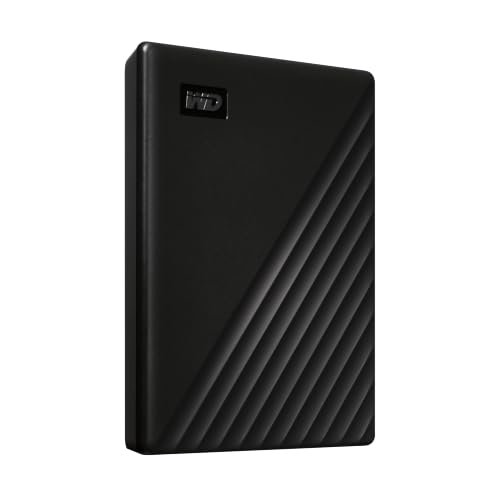
External drives deserve separate mention because many readers meet 12TB first as a boxed USB product rather than a bare drive. A desktop external unit can be excellent for backup duty exactly as sold, with its own enclosure, power supply, and warranty intact, and a comparison of ready-made options such as best 10tb external hard drives shows how that market is structured near this capacity. The bare-drive and external markets overlap but are not interchangeable, a distinction the section on removing drives from enclosures returns to in detail.
Rebuild mathematics at twelve terabytes
A rebuild is the defining stress event for a large drive, and its arithmetic should shape the RAID decision before any hardware is ordered. When a member fails, the set must read every remaining drive in full and write a complete replacement. At a sustained rebuild rate of 100 MB/s, writing 12TB takes roughly thirty-three hours. At 150 MB/s it takes about twenty-two hours. At 200 MB/s, close to the practical ceiling for many enclosures once parity work and ongoing user traffic share the drives, it still takes about seventeen hours. Real rebuilds often run slower than these tidy figures because the NAS throttles background work to protect foreground response, the surviving drives are older and slower on their inner tracks, and a scrub or backup may compete for the same heads. Planning for a full day of degraded operation is realistic; planning for two days is not pessimistic.
During that window the set is exposed. A RAID 5 group has no parity left while degraded, so a second drive failure ends the volume, and a subtler risk grows with capacity: the unrecoverable read error. Drive datasheets state an error rate such as one unrecoverable error per 10 to the power of 14 or 10 to the power of 15 bits read, with enterprise models generally claiming the stronger figure. Reading a full 12TB drive moves about 9.6 times 10 to the power of 13 bits. A multi-drive rebuild reads several such drives end to end, so the total bits read approaches or passes the stated error interval for the weaker specification. That does not make failure certain; the rate is a statistical bound, sectors may be correctable, and modern NAS software can sometimes repair a single bad block from file system checksums. It does mean the probability is no longer negligible in the way it was when drives held one terabyte and a rebuild finished over lunch.
The conclusion most storage engineers draw at this capacity is direct: single parity is a fragile default for 12TB members. RAID 6, or a vendor equivalent with double parity such as Synology SHR-2, keeps the volume protected through the rebuild itself, so one unreadable sector or one further drive failure during the window is survivable. The cost is an extra drive of capacity and slower write performance on small operations, both modest beside the value of the data a 12TB-class array usually holds. RAID 10 is another valid answer where the enclosure has bays to spare, trading half the raw capacity for simpler, faster rebuilds that copy one mirror rather than compute parity across the set. What deserves retirement is the habit of treating RAID 5 as the automatic choice because it was adequate at smaller sizes.
Several habits reduce rebuild risk whatever layout is chosen. Run scheduled scrubs so latent sector errors are found and repaired while full parity is still available, rather than discovered mid-rebuild. Replace a drive that begins accumulating reallocated or pending sectors instead of waiting for outright failure. Keep enclosure firmware and NAS software current, since rebuild and repair logic improves between releases. Maintain a backup outside the array, because RAID protects against drive failure, not against deletion, ransomware, fire, theft, or a controller fault that corrupts the whole set. Finally, rehearse the replacement procedure once while nothing is wrong: locate the spare, the screws, the carrier, and the menu that starts the rebuild, so the first attempt does not happen under pressure at midnight. Readers scaling up from smaller arrays will find the layout trade-offs at intermediate sizes covered in best 8tb external hard drives for external sets and in vendor manuals for internal ones, but the direction of travel is constant: as members grow, parity depth matters more.
Power, spin-up current, and staggered start
Spinning drives draw their highest current at the moment they start. A 12TB model may need close to two amperes on the 12-volt rail during spin-up, several times its running draw, before settling to an operating figure commonly between five and ten watts depending on class and activity. Idle draw is lower, often between three and six watts, and sleep states reduce it further at the cost of wake latency. Datasheets list these figures per model, and enclosure sizing depends on the total across every bay, not on the single-drive number that looks harmless in isolation. Eight drives starting together can demand a brief surge that trips an undersized supply or drops a rail long enough to reset the controller.
Staggered spin-up exists to prevent exactly that surge. The enclosure or controller starts drives in sequence, a few seconds apart, so only one or two motors accelerate at once. Enterprise backplanes and better NAS enclosures handle this automatically, and some drives expose a power-up-in-standby setting that waits for a host command before spinning. The feature matters when an enclosure returns from a power cut: without staggering, every drive demands peak current in the same instant, on a supply that may also be restarting fans and the main board. A small uninterruptible power supply softens the whole event by preventing many unplanned restarts and by giving the NAS time to shut down cleanly when an outage lasts.
Running power shapes electricity cost and heat in a way buyers underestimate at this scale. A difference of three watts per drive, across eight drives, running continuously, is twenty-four watts around the clock, roughly 210 kilowatt-hours over a year, plus the cooling needed to remove that heat from the room or cupboard. A 5400-class model with lower idle draw can therefore be the cheaper drive to own even at a similar shelf price, provided its performance class fits the workload. Conversely, aggressive spin-down saves power but adds start-stop cycles and long pauses when a share is opened after idle periods. Most NAS platforms let the owner set the idle timer; thirty to sixty minutes is a reasonable middle ground for home service, while business systems often keep drives spinning to protect response time and avoid repeated mechanical starts.
One power fault deserves a forward note: the 3.3-volt pin problem, covered in the shucking section below, can leave a healthy drive refusing to spin, so treat a silent drive as a diagnostic question before treating it as a dead one.
Buying checks before and after the drive arrives
Verify the exact model suffix
Hard drive model numbers encode the specification, and at 12TB two products can share a marketing name while differing in recording method, cache, interface, sector format, or encryption. Copy the full model string from the listing, then find that exact string on the maker’s datasheet or product support page. Confirm five facts from that primary document: CMR recording, workload rating, rotational speed, cache size, and warranty years. If a listing contradicts the datasheet, trust the datasheet and question the listing. Marketplaces mix generations under one page, and a review or question posted under a shared listing may describe a different suffix entirely. This verification step takes minutes and prevents the most expensive category of mistake, which is building an array on a specification the delivered drives never had.
Check serial and warranty status
When the drive arrives, photograph the label before installation and enter the serial number on the maker’s warranty portal. The portal should recognise the model, show the correct region, and display a warranty end date consistent with the stated term from a recent manufacture or sale date. Red flags include a serial the portal does not know, a warranty that began long before the sale, cover assigned to a different region, or a status describing the drive as an OEM component. OEM drives pulled from other equipment may carry no retail warranty from the drive maker at all, with support owed instead by the system builder. None of this proves a drive is faulty, but each flag changes what the buyer actually owns, and it is far easier to resolve with the seller in the first days than in year three.
Date codes on the label deserve the same glance. A drive manufactured several years before sale may carry older firmware and a shorter remaining runway before its rated service period ends. Record serial, model, firmware revision, and purchase source in a simple register for every bay, so a failure years later becomes a two-minute lookup rather than a search for receipts.
Read SMART on arrival and set a baseline
Before trusting a new drive with data, connect it, confirm the firmware revision, and read its SMART attributes in full. A healthy new drive should show zero reallocated sectors, zero pending sectors, zero offline uncorrectable errors, and a power-on hour count near zero, allowing for factory handling. Note the start-stop count, the load cycle count, the temperature history if present, and the raw read error figures, understanding that raw values for some attributes are vendor-encoded and look enormous while meaning nothing alarming. Save a screenshot or export as the baseline. Future readings gain meaning by comparison with that first record, because a single growing attribute matters more than its absolute value on any one day.
Many experienced builders then run a full surface read, or an extended self-test, before adding the drive to an array. A complete pass over 12TB takes many hours, so start it early and let it run overnight. The test reads every sector while the data on the drive is still worthless, which is the cheapest moment to discover infant mortality or shipping damage. Follow it with a write pass if the intended tool supports one safely on an empty drive, then re-read the SMART table and compare against the baseline. Only then introduce the drive to the set. Skipping this sequence does not doom a drive, but it forfeits the one window where a marginal unit can be exchanged with no data migration and no degraded array involved.
Packaging and handling for bare drives
Bare drives should arrive sealed in an anti-static bag, suspended or cushioned inside the carton, ideally in the maker’s multi-unit packaging or a proper drive shipper. A drive loose in a padded envelope, or rattling in an oversized box with paper as the only protection, has been handled in a way its shock specifications never assumed, and that is grounds to test with extra care or to return it unopened depending on the seller’s terms. Handle the drive by its edges, avoid pressing on the top cover, keep it in its bag until installation, and observe ordinary static precautions. Never stack bare drives on each other on a desk. These habits sound fussy until a single knocked drive is weighed against the price of the array it was meant to join.
The shucking question for external 12TB drives
Removing a drive from an external enclosure, widely called shucking, tempts buyers because boxed external units sometimes sell for less than the bare drive inside. At 12TB the units inside are frequently white-label models: mechanically related to NAS or enterprise lines, with labels that omit the retail family name and firmware tuned for enclosure service. Some perform very well in a NAS. Others report different cache behaviour, lack certain documented features, or carry warranty terms that end when the enclosure is opened. The honest summary is that the internal drive is a lottery with known categories of outcome, not a guaranteed equivalent of a retail model at a discount.
Two practical faults recur. The first is the 3.3-volt pin issue: certain desktop power supplies and backplanes deliver a reset signal on pin three of the SATA power connector, a use defined in a later revision of the specification, and drives harvested from external enclosures may interpret that signal as a permanent instruction to stay off. The drive appears dead in a desktop case yet works in its original enclosure or in a NAS whose backplane does not assert the signal. Remedies range from using a supply or adapter that does not connect that pin, to insulating the pin, each with its own risk and warranty implications, and each to be weighed carefully rather than applied by reflex. The second fault is simpler: some enclosures encrypt or format through the bridge board, so a removed drive may present data in a form a computer cannot read directly, which matters if the plan was to rescue data rather than start empty.
Decide the question on total risk rather than headline saving. Opening an enclosure usually ends the warranty on the whole product, the internal model is not guaranteed, and support for an unusual fault becomes the owner’s problem. For a backup drive that will live as a single unit, keeping the external product intact is almost always the better value. For an array, where matched documented drives protect a large pool, retail NAS models with known suffixes remain the defensible choice. Readers whose needs sit at the smaller end, where a single internal drive for a desktop is the actual goal, will find that scenario treated in best 2tb internal hard drives, and the contrast is instructive: at small sizes the desktop class is alive and well, while at 12TB the enclosure-first products ask for caution.
Formatting: 4Kn, 512e, and sector size
Modern large drives store data in physical sectors of 4096 bytes. What the host sees depends on the format variant. A 512e drive emulates 512-byte logical sectors while working in 4K physical sectors underneath, preserving compatibility with older systems at the cost of some efficiency when writes land misaligned. A 4Kn drive presents native 4K logical sectors, which modern operating systems and NAS platforms handle cleanly and which removes the emulation layer. Most 12TB SATA models sold for NAS use are 512e by default, some enterprise models are 4Kn, and a few enterprise families allow the format to be changed with vendor tools, a conversion that erases the drive and should never be attempted on a unit holding data.
Compatibility is the deciding question. Older enclosures, older RAID controllers, legacy boot environments, and some backup appliances assume 512-byte logical sectors and may refuse a 4Kn drive, report its capacity wrongly, or fail to boot from it. Current NAS platforms from the major vendors support both, and their compatibility lists state sector support per enclosure generation. Check the exact enclosure model, not just the brand, before choosing a 4Kn unit, and never mix assumptions during an expansion: an array built and formatted under one sector presentation should gain members the platform explicitly supports. File system choice sits above this layer. Btrfs, ext4, ZFS, and vendor file systems all align partitions to modern boundaries when created by current tools, so misalignment, once a common cause of slow writes, is now mostly a legacy concern when old images are cloned onto new drives.
One formatting decision does deserve active attention: partition alignment when a drive is prepared manually, and ashift or equivalent settings on systems that expose them. Accept the defaults of current tools unless a documented platform requirement says otherwise, then verify with the platform’s own reporting after creation. Also confirm that the NAS reports the expected usable capacity for the volume, because a mismatch at this stage is far easier to correct than after terabytes have been copied onto a wrongly built set. Formatting is the last cheap checkpoint before the expensive copying begins, and it should be treated with the same deliberation as the purchase itself.
Matching a model to a real use case
A two-bay enclosure holding family photographs, documents, and a media library has the gentlest requirements in this guide. A pair of mainstream NAS drives in a mirrored layout gives full protection against one drive failure, modest power draw, and quiet operation, and the 5400-class is a sensible pick when the unit lives in a room people occupy. Capacity planning should count the mirror honestly: two 12TB drives provide one drive worth of usable space, and that space should be budgeted with the headroom described at the start of this guide rather than treated as a full twelve terabytes waiting to be filled to the edge.
A four-bay or five-bay system for a home laboratory, a small creative studio, or a shared office benefits from the middle tier in nearly every respect. Double parity becomes practical, the 300 TB per year class covers a busy mix of editing, rendering output, and nightly backups, and 7200-class drives repay their noise and heat when several people work from the same pool over a fast network connection. Keep one cold spare of the same model on a shelf if the data supports income, because the fastest rebuild is the one that starts the hour a failure is noticed, not the one that waits for a delivery slot later in the week.
An eight-bay enclosure, a rack system, or any pool serving virtual machines should be specified from the top of the catalogue downward. Enterprise or Pro NAS drives bring the vibration compensation, workload headroom, and error behaviour that dense continuous service assumes. Pair them with double parity or mirrored pairs, a network connection fast enough to justify the drives, and a monitoring routine that a named person actually reads. At this scale the drive purchase is the smaller cost beside downtime, recovery effort, and the labour of rebuilding a pool that was specified too lightly at the start.
A single 12TB drive used alone, whether internal or external, is a backup device or a bulk media store, never a complete storage plan. Alone it has no parity, no mirror, and no warning system beyond its own SMART reporting, so anything irreplaceable on it must exist somewhere else as well. Used with that discipline, a single large drive is genuinely useful: it can hold a complete second copy of a NAS, travel off site in a rotation, or carry a media archive that can be rebuilt from originals. The failure mode to avoid is drift, where a temporary sole copy quietly becomes the only copy because the second location was borrowed for another job and never restored.
Check prices on Amazon
Live listings for the shortlist in this guide are pulled from Amazon below, so prices and availability are always current at the moment you look.

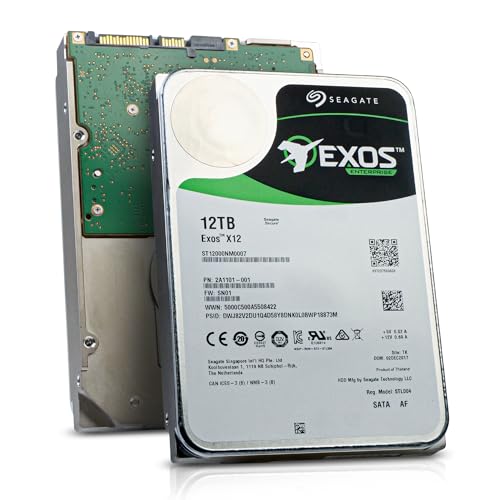
Seagate 12TB HDD Exos X14 SATA 6Gb/s 512e 7200RPM 3.5" Enterprise Hard Drive (Renewed)



Living with the drives after installation
Long service is mostly routine. Schedule a data scrub monthly or quarterly according to the platform guidance, read the SMART summary when the platform reports it, and act on early warnings while the array is still healthy. Keep firmware changes deliberate: read the release notes, update one drive or one enclosure at a time when the platform allows it, and never begin a firmware change during a rebuild or a storm season of unreliable power. Label each bay with the serial number of the drive inside it, on a sticker the next person to open the enclosure will actually see, so a warning about a specific serial leads straight to the correct carrier.
Expansion deserves the same care as the first build. Add drives of equal or larger capacity, confirm the new suffix matches the specification of the existing set, and expect a restripe or expansion to take as long as a rebuild, with the same exposure while it runs. Take a fresh backup before starting, because expansion is a whole-volume operation performed on live data. When a drive reaches the end of its warranty or begins to show wear attributes climbing, retire it in a planned replacement during a quiet period rather than in an emergency, and keep the retired unit, wiped or destroyed according to the sensitivity of its contents, out of the pool of spares so it cannot wander back into service by mistake.
Disclosure: links on this page may earn a commission from the retailer at no added cost to the reader, and that support helps keep guides like this one available. Recommendations here rest on published specifications, datasheets, and vendor documentation, and readers should confirm the exact model details on the maker’s own pages before ordering, since product ranges change between generations.
Chosen well, a 12TB drive is not an exciting purchase, and that is the point: the reward for careful specification is years of unremarkable service, quiet scrubs, and rebuilds that finish as routine maintenance instead of emergencies. Verify the suffix, respect the rebuild arithmetic, give the drives clean power and moving air, and let the array be the most boring object in the building, humming behind a closed door while every photograph, project, and backup entrusted to it simply stays where it was left.