Our Top Picks
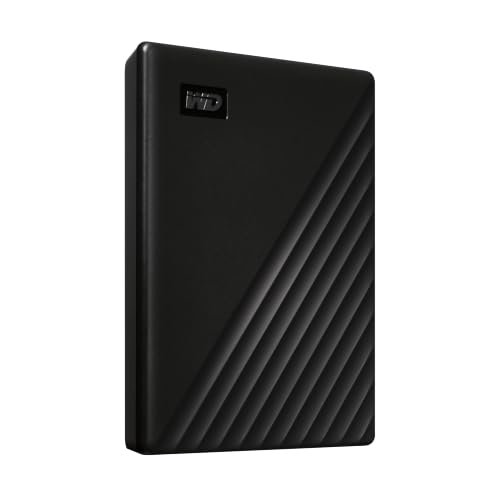
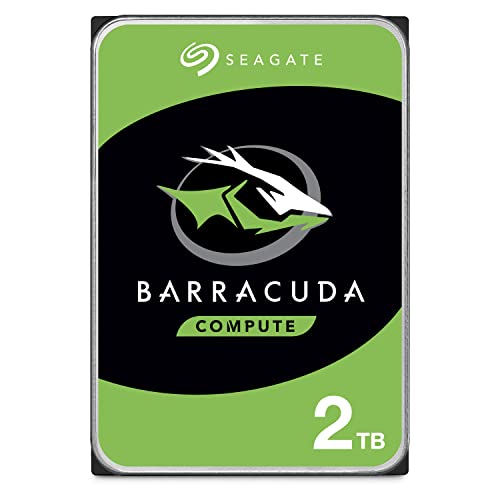
 Western Digital 320GB WD Black Performance Mobile Hard320GB3.9 x 2.8 x 0.4 inches0.3 poundsCheck on Amazon
 WD Black 320GB Performance Mobile Hard Disk Drive320GB3.94 x 2.75 x 0.4 inches0.27 poundsCheck on Amazon


What's inside
- Why 320GB still has buyers
- Form factor: 2.5-inch and 3.5-inch drives are different purchases
- SATA generations and backward compatibility
- Rotational speed, cache and real performance
- Sector format: the quiet compatibility trap
- New-old-stock, refurbished and pulled drives: reading the language
- Reading SMART data before trusting a drive
- Date codes, shelf ageing and the myth of the untouched drive
- Warranty differences that actually matter
- External 320GB drives and USB power
- When an SSD is the honest alternative, and when it is not
- Matching drive class to workload
- Check prices on Amazon
- A practical buying checklist
As an Amazon Associate I earn from qualifying purchases. This post may contain affiliate links at no extra cost to you.
Choosing a 320GB hard drive in a market dominated by multi-terabyte storage sounds, at first glance, like shopping for a capacity the industry left behind years ago. In practice the size survives because a long tail of machines was designed around it, certified with it, or simply works best when a replacement matches the original specification closely. A technician restoring a legacy laptop, a venue maintaining a fleet of older game consoles, a facilities manager keeping a surveillance recorder running, and an engineer supporting an industrial controller may all arrive at the same capacity for entirely different reasons. The buying problem is therefore not finding any 320GB drive. It is finding one whose age, condition, interface behaviour and physical dimensions suit a host that may be far less forgiving than a modern desktop.
Readers should know how this guide is supported before weighing any recommendation in it. If you buy through links in this article, a commission may be paid by the retailer at no extra cost to you, and that support helps keep detailed buying research like this available. The selections and cautions below rest on manufacturer specification sheets, interface standards and published drive documentation rather than on sales copy, and condition matters more here than headline brand loyalty.
This guide treats 320GB as a deliberate fit, not a bargain compromise. Capacity alone tells you almost nothing about whether a particular drive will mount correctly, be recognised by an ageing controller, survive continuous recording, or still be healthy after a decade on a warehouse shelf. The sections that follow work through form factor, interface generation, rotational speed, sector format, stock condition, diagnostic readings, date codes, warranty language and the honest comparison with solid-state storage. By the end, the goal is a short, verifiable checklist you can apply to any listing, including listings that use vague language about condition or omit the details that matter most.
Why 320GB still has buyers
Legacy laptops are the most familiar reason. Many business and consumer notebooks from the late 2000s and early 2010s shipped with 250GB or 320GB drives as standard, paired with recovery partitions and operating system images built for drives of exactly that class. Replacing a failed unit with a drive of the same nominal capacity keeps cloning straightforward, avoids partition resizing on tools that handle it poorly, and preserves the geometry assumptions baked into some older recovery media. Owners of these machines are often not chasing performance. They are keeping a system that runs a specific peripheral, a licensed application tied to old hardware, or a simple offline workload alive for a few more years at modest cost.
Game consoles form a second, distinct group. The PlayStation 3 accepted standard 2.5-inch drives and many of its later models shipped in configurations close to this capacity, while certain PlayStation 4 repair and replacement workflows also begin with modest drives when an owner only needs a working system drive for a small library or a media role. Console hosts impose their own constraints on thickness, power draw and initialisation behaviour, and they format the drive to their own file system on installation. For a console that will mostly stream, play discs, or hold a handful of titles, paying for far more capacity adds nothing except cost, whereas a healthy 320GB drive restores full function.
Digital video recorders and network video recorders create a third demand stream, and it is the least forgiving. A DVR built for a small shop or home camera system may have firmware that expects a single drive in a narrow capacity range, a drive bay with limited cooling, and a power supply sized for one spinning disk rather than a large modern unit. When the original drive fails after years of continuous writing, the practical repair is a compatible replacement that the recorder will format without complaint. Here the buying criteria shift away from burst speed entirely and toward sustained write tolerance, low heat, and predictable behaviour under a workload that never really pauses.
Industrial and embedded controllers extend the pattern further. Point-of-sale terminals, medical-adjacent equipment carts, ticketing machines, older CNC controllers and building automation panels often run embedded operating systems certified against a specific bill of materials. Changing the storage device can trigger revalidation work that dwarfs the cost of the drive itself, so maintenance teams prefer like-for-like replacements for as long as they can source them. In those settings a 320GB drive is not nostalgia. It is the documented part, and deviating from it creates paperwork, downtime risk, or both.
Retro and hobby builds add a smaller but steady audience. Enthusiasts restoring period-correct desktops, building a dedicated machine for older software, or maintaining a library of drive images for cloning projects value a capacity that matches the era of the host. Imaging and cloning work deserves special mention: a 320GB target drive is useful precisely because so many source images were captured from drives of this size. A target that is even slightly smaller than the source can break a sector-by-sector restore, so experienced technicians check the exact logical block count rather than trusting the rounded number printed on the label.
That last point generalises across every use case in this section. Two drives both sold as 320GB can differ by a small number of sectors because manufacturers define the marketed capacity in decimal terms while hosts and cloning tools work in binary addressing. For a fresh installation the difference is irrelevant. For a clone, a forensic-style image restore, or a RAID rebuild in an old enclosure, it can decide whether the job finishes or fails at the final percent. Serious buyers therefore record the model number, not just the capacity, and confirm the logical block address count in the manufacturer data sheet before ordering a drive intended as an image target.
Form factor: 2.5-inch and 3.5-inch drives are different purchases
The 2.5-inch drive is the default for almost every modern reason to buy this capacity. It fits laptops, consoles, many small recorders, external enclosures and compact industrial systems. Its standard dimensions are roughly 70 millimetres wide and 100 millimetres long, but thickness is the variable that catches buyers out. Drives at this capacity exist in 7-millimetre and 9.5-millimetre heights, and a slim laptop or console bay designed for the thinner profile may not close over the taller one. Conversely, a 7-millimetre drive in a bay built for 9.5 millimetres may need a spacer so the connector seats fully and the drive does not shift under movement.
Power is the other quiet advantage of the smaller format. A 2.5-inch drive typically runs from a single 5-volt supply, draws modest current during spin-up, and produces little heat in a confined bay. That is why recorders and embedded systems that could physically accept a larger drive often standardised on the laptop format anyway. When you replace a drive in a passively cooled enclosure, matching the original power profile matters as much as matching the screw holes, because a hotter or hungrier drive stresses a power supply and ventilation path that were never designed with headroom to spare.
The 3.5-inch 320GB drive belongs to an earlier desktop era and still appears in surplus and refurbished channels. It needs both 5-volt and 12-volt power, uses a separate power connector arrangement in desktop supplies, generates more heat, and offers no capacity benefit over its smaller sibling at this size. There are legitimate reasons to buy one: restoring a desktop of the period, matching a drive cage and rails in an old tower, or servicing an older recorder or server appliance built around the larger bay. Outside those specific hosts, however, a desktop drive is usually the wrong purchase, and listings do not always make the format obvious in the title, so the model number and dimension line deserve a careful read.
Mounting orientation and shock tolerance also differ in ways that matter for portable or vehicle-adjacent equipment. Manufacturer sheets publish operating and non-operating shock ratings, and laptop-class drives are generally engineered with transport in mind, including ramp load technology that parks the heads off the platter surface. A drive destined for a laptop bag, a mobile workstation cart, or a recorder that gets moved between sites benefits from those design choices. A drive that will sit untouched in a tower for years does not need them. Matching the mechanical design to the actual life the drive will lead is a more useful filter than chasing a brand name.
Connector placement sounds trivial until it is not. On 2.5-inch SATA drives the data and power connectors sit in a standard position, yet some very old hosts and caddies were built around drives with slightly different bezel or frame arrangements, and a replacement that is electrically perfect can still sit a millimetre off in a proprietary caddy. Owners of business laptops that use a caddy or interposer board should compare photographs of the original drive and frame against the replacement listing, and keep the original caddy screws and isolators, because surplus drives rarely include them.
If a project grows beyond a single legacy drive, it helps to compare capacities within the same mechanical family before committing, and our notes on best 1tb internal hard drives cover the point where a larger internal drive becomes the more sensible default for a general-purpose machine. For the hosts in this guide, though, the decision runs the other way: the smaller, documented capacity is often the feature, and extra space the host cannot use or certify has no value.
SATA generations and backward compatibility
Almost every 320GB drive you will encounter uses Serial ATA, and the good news is that the standard was designed for backward compatibility. A SATA III drive rated at 6 gigabits per second will negotiate down to 3 gigabits per second on a SATA II host and to 1.5 gigabits per second on an original SATA I host. For a mechanical drive, whose sustained transfer rate sits far below even the slowest of those link speeds, the interface generation is rarely a performance bottleneck. A typical drive at this capacity transfers sequential data at rates that a first-generation link can nearly satisfy, which is why an old host does not meaningfully penalise a newer drive on throughput grounds alone.
The complications are at the edges, and they are worth knowing before you blame a drive for a host problem. Some very early SATA I controllers, particularly certain VIA and Silicon Image chipsets found on motherboards of the mid-2000s, fail to negotiate correctly with later drives that attempt to start at the fastest link rate. Drive makers addressed this historically with a force-speed jumper on 3.5-inch models or with vendor configuration tools, and surplus listings occasionally include a photograph showing such a jumper fitted. If your host is genuinely of that era, search the exact controller model alongside the drive model before buying, because the fix is model-specific and cannot be assumed.
Cabling and power connectors follow the same standard across generations, which simplifies physical installation but can hide electrical problems. A worn SATA data cable with a cracked latch can produce intermittent link resets that look, in an operating system log, exactly like a failing drive. A power splitter that drops voltage during spin-up can cause a drive to disappear under load and reappear at idle. When a replacement drive behaves erratically in an old host, swapping a known-good data cable and connecting a direct power lead are cheap diagnostic steps that should come before returning the drive, and they protect you from cycling through several healthy drives while the fault stays in the harness.
IDE, also called PATA, is the older parallel interface you may still meet in truly legacy equipment. A small number of 320GB drives were produced in IDE form for the very end of that era, and adapters exist in both directions, but adapters introduce their own compatibility and clearance problems, especially in laptop bays with no spare millimetre. If your host is IDE-only, treat the drive and adapter as a system to be verified together, confirm the master and slave jumper requirements of the host, and accept that a native IDE drive in verified condition, though scarcer, is usually the more reliable route for a machine you depend on.
Hot-swap behaviour is another standard worth checking for recorder and appliance use. Not every drive firmware handles surprise removal or rapid power cycling gracefully, and hosts such as DVRs power-cycle drives in ways a desktop never does. Manufacturer documentation for surveillance-adjacent and video-class drives describes power management and error recovery behaviour tuned for those hosts. A general-purpose desktop drive placed in a recorder may pause for lengthy internal error recovery when it hits a marginal sector, and the recorder, expecting a quick response, can drop frames or mark the drive faulty. Matching the drive class to the host class matters more than any single speed figure.
Error recovery timing deserves its own emphasis because it explains many confusing field failures. Desktop drives are configured to spend a long time attempting to recover a difficult sector, which is the right behaviour when the drive holds the only copy of a file. In a recorder or a RAID-like appliance with its own timeout, that persistence becomes a fault. Purpose-labelled video and surveillance drives shorten that recovery window. When you shop surplus stock, the model family printed on the label tells you which behaviour you are getting, and a drive from a video family is a meaningfully better fit for a DVR even if its rotational speed and cache look identical on paper.
Rotational speed, cache and real performance
What 5,400 and 7,200 rpm actually change
Rotational speed governs how quickly the platter brings a requested sector under the heads, and therefore governs average latency. A 5,400 rpm drive has an average rotational latency of about 5.6 milliseconds, while a 7,200 rpm drive reduces that to roughly 4.2 milliseconds. In a legacy laptop used for documents, mail archives and light browsing on an older operating system, the difference is perceptible in application launches and boot behaviour but not transformative, because seek time and the host processor share the blame. In a desktop restoration where noise and heat are less constrained, the faster spindle gives a snappier result and matches what many performance-oriented machines of the period shipped with originally.
The costs of the faster spindle are heat, noise and power draw, all of which argue against it in confined or always-on roles. A 7,200 rpm 2.5-inch drive in a slim console or a fanless recorder raises the thermal load in exactly the enclosures least able to shed it. For continuous recording, rotational speed brings almost no benefit at all, since the workload is a sustained sequential write stream well within the capability of a 5,400 rpm mechanism. Choosing the slower, cooler drive for a recorder is not settling for less. It is matching the mechanism to a job whose bottleneck lies elsewhere.
Cache sizes of 8MB and 16MB in context
Drives at this capacity commonly carry 8 or 16 megabytes of cache, and the number features prominently in listings because it is easy to print. In practice the cache smooths short bursts, helps with small write acknowledgement, and makes a modest difference to repeated access of recently used data. It does not change sustained transfer rates, it does not compensate for a slow spindle on scattered reads, and it should never be the deciding factor between two drives when condition differs. A healthy 8-megabyte drive is a better purchase than a tired 16-megabyte drive in every workload covered by this guide, and the cache line is best used as a model-identification clue rather than a performance promise.
Seek performance and areal density explain the remaining variation between models of the same speed class. A 320GB drive built on a single platter or on later, denser platters can post higher sequential rates than an earlier multi-platter design of identical capacity and spindle speed, simply because more data passes under the heads per revolution. Data sheets publish sustained rates for the specific model, and those figures, read alongside the platter count, give a fairer picture than the capacity and rpm alone. For cloning and imaging work, where a full drive pass is a long sequential operation, that sustained figure predicts how long the job takes far better than any burst number.
Acoustic specifications are published too, usually as idle and seek sound power in bels, and they matter for drives destined for a bedroom media system, a quiet office, or a recorder kept in a living space. Seek noise, the clicking chatter during scattered access, is the component listeners notice, and it varies by model family and by the acoustic management settings some drives expose. A drive that is unremarkable on a spec table can be the right choice for a quiet room simply because its seek profile is softer, while the same drive would be a poor pick where every millisecond of latency counts.
When a workload outgrows what any drive at this size and speed can offer, the comparison usually moves to larger, faster internal models, and the analysis in best 2tb internal hard drives is a useful reference for how rotational speed and cache scale in current internal line-ups. Within the 320GB class itself, though, the hierarchy is stable: condition first, form factor second, spindle speed matched to the enclosure third, and cache a distant fourth.
Sector format: the quiet compatibility trap
Hard drives organise data into sectors, and the sector size a drive reports to its host affects whether older controllers and software can use it correctly. Drives of the 320GB era are overwhelmingly built on 512-byte sectors, either natively or through 512-byte emulation, commonly written as 512e. A native 512 drive presents exactly what legacy hosts expect. A 512e drive uses 4,096-byte physical sectors internally while presenting 512-byte logical sectors outward, which keeps compatibility but can cost performance when partitions are misaligned, particularly with operating systems and cloning tools from before the industry transition.
For most buyers the practical advice is simple: prefer a drive whose data sheet states 512-byte logical sectors, and if the drive is an emulation model, create partitions with a modern tool that aligns them to one-megabyte boundaries. Alignment matters because a misaligned partition forces the drive to read and rewrite two physical sectors for some write operations, a penalty that shows up as sluggish small-write performance on an already slow device. Fresh installations with current tools align automatically. The risk concentrates in cloned images restored from old media, where the original partition offsets travel with the image onto the new drive.
The deeper trap involves hosts that address storage through a BIOS or firmware layer with capacity and geometry assumptions from an earlier period. Some very old systems and embedded controllers handle drives through translation schemes that behave unpredictably with emulation models. If a controller predates the widespread adoption of Advanced Format drives, a native 512 model is the conservative choice, and the modest extra effort of sourcing one is justified by the cost of a failed deployment in equipment that may be difficult to access. Data sheets state the sector format plainly, so this is a check you can complete from documentation alone, without handling the drive.
File system choice interacts with sector format in smaller ways. Older file systems with small cluster sizes generate many small writes, which is precisely the pattern where emulation and misalignment cost the most. A legacy system that must stay on an older file system for application reasons benefits more from correct alignment than a system that can be rebuilt with a modern layout. Technicians planning a migration should therefore decide the file system and partition layout as part of the drive purchase, not as an afterthought once the hardware arrives, because the drive model and the layout plan constrain each other.
New-old-stock, refurbished and pulled drives: reading the language
No major manufacturer has produced mainstream 320GB drives in volume for years, so the stock on sale falls into three broad categories, and the words used for each deserve close translation. New-old-stock means a drive manufactured years ago, never sold or installed, and held in inventory since. It should arrive in a sealed antistatic bag or original packaging, with a date code consistent with old manufacture and no signs of mounting. The drive is genuinely unused, but it is not new in the sense a current model is new, and the distinction drives the warranty and shelf-age discussion later in this guide.
Refurbished covers a wide spectrum that listings often blur. At the rigorous end, a manufacturer or authorised refurbisher has run a drive through diagnostic screening, recertified it, zeroed its usage indicators where the programme permits, and backed it with a stated warranty. At the loose end, a reseller has wiped a used drive, confirmed it mounts, and applied the word as a synonym for cleaned. The two products share a label and little else. Before buying a refurbished drive, look for who performed the work, what screening is described, whether the seller states the drive’s health in measurable terms, and how long the backing warranty runs. Vague refurbishment with no named process should be priced and trusted as a used drive, because that is what the evidence supports.
Pulled drives, sometimes described as system pulls or harvested units, were removed from decommissioned laptops, consoles, recorders or business desktops. Honest sellers describe them as used and may publish the hours or health data for the specific unit. These drives can be excellent value for non-critical work, a workshop spare, or a cloning target that will itself be verified, provided the diagnostic picture is clean. They are a poor choice for the only copy of anything important, not because every pulled drive is near failure, but because their history is an unknown distribution and the price difference rarely compensates for a failure at the wrong moment.
Listing phrases reward literal reading. Factory sealed describes packaging, not health. Open box may mean a returned current product in other categories, but at this capacity it usually means old stock whose packaging was opened at some point. Seller refurbished is a platform category, not a certification. Grade A describes cosmetic condition on many marketplaces and says nothing about reallocations or hours. White-label and generic descriptions appear on drives recertified and relabelled by third parties, where the original manufacturer model can sometimes be identified from the label layout and firmware string after connection, but not reliably from the listing alone.
Photographs help when they are of the actual unit. A clear label photograph lets you read the model, part number, manufacture date, rated current and sector information, and cross-check every one of them against the manufacturer data sheet. Stock photographs reused across dozens of listings tell you the seller is shipping from a bin, which is not automatically disqualifying for a commodity spare, but it does mean the unit you receive will not be the unit pictured, and its individual health will be a draw from whatever distribution fills that bin. For a drive destined for a recorder or a client’s laptop, a seller who photographs and reports per-unit data is offering something measurably better.
Price expectations should follow condition evidence rather than capacity. A verified new-old-stock drive from the right model family, a recertified drive with a real warranty, and an untested pull are three different products that happen to share a label size, and their prices should spread accordingly. When all three are listed at nearly the same figure, the market is telling you that the descriptions are not carrying information, and the rational response is to buy from the seller whose evidence is strongest, or to buy the cheapest unit and verify it thoroughly before trusting it, with a return route agreed in advance.
Reading SMART data before trusting a drive
Self-Monitoring, Analysis and Reporting Technology, universally shortened to SMART, is the drive’s own health log, and learning to read a handful of its attributes turns a gamble into an assessment. Connect any candidate drive to a working system before deployment, use a reputable diagnostic utility that displays raw attribute values rather than only a summary verdict, and record the values before you write data you care about. A single overall health percentage is a starting point, not a conclusion, because different utilities weight attributes differently and a drive can show a reassuring summary while one critical counter is already moving.
Power-on hours tell you how much life the drive has actually lived. A new-old-stock drive should report hours near zero, allowing for factory handling. A pulled laptop drive with a few thousand hours and a clean bill on every other attribute is a reasonable used purchase. A drive reporting tens of thousands of hours has spent years spinning, and whatever its other readings say, its bearings and motor have consumed much of their design life. Pair the hours figure with the start-stop or power-cycle count: a drive with moderate hours but an enormous cycle count has lived a life of constant sleeping and waking, a pattern typical of aggressive power management in laptops, and that pattern stresses mechanics differently from steady running.
Reallocated sector count is the attribute that most deserves a zero. When a drive finds a sector it can no longer read or write reliably, it retires that sector and substitutes a spare, and the counter records how often this has happened. A small, stable count on an old drive is a warning rather than a death sentence, but a count that grows between checks means the surface is actively deteriorating, and such a drive should not be trusted with anything you cannot replace. Current pending sector count is its companion: sectors the drive suspects but has not yet resolved. Pending sectors often clear after the area is rewritten, yet their presence on a drive you have just bought is grounds to return it rather than to rehabilitate it.
Uncorrectable errors and reported uncorrectable sectors carry the strongest signal of all. Any non-zero value here means the drive has already failed to recover data at least once, which is precisely the event storage exists to prevent. Similarly, the UltraDMA CRC error count records communication errors on the cable interface; a high value usually indicts the cable or connector rather than the drive itself, and it is the one worrying number that a cable swap can legitimately explain. Temperature history, where the drive logs it, reveals whether a pulled unit spent its life cooking in a sealed enclosure, information that colours how much you should trust its remaining life even when every other attribute is clean.
Beyond the headline attributes, run the drive’s built-in self-assessment routines where the host permits. A short diagnostic completes in minutes and exercises electronics and a sample of the surface. A long or extended routine reads the entire surface and can take well over an hour at this capacity, but it is the closest thing to a full health audition a buyer can perform, and for a drive bought to hold a system image or serve in a recorder, that hour is well spent before installation rather than after a failure. Record the results alongside the attribute snapshot so that a later change can be recognised as change, not guessed at.
Verification continues after installation. A sensible routine for any drive from old or used stock is to write the full capacity once, read it back, and compare, using a utility designed for that purpose, before the drive enters service. That pass forces every sector to prove itself, flushes out pending sectors that idle inspection misses, and gives you a baseline transfer-rate picture across the surface. A sudden rate collapse in one region can indicate a zone the drive is struggling with even before it logs a formal error. None of this guarantees a lifespan, but together these steps replace hope with evidence, which is the most any buyer of discontinued hardware can reasonably demand.
Date codes, shelf ageing and the myth of the untouched drive
Every drive label carries a manufacture date, expressed directly on some brands and encoded in a date code on others, and decoding it should be a reflex for buyers of old stock. A drive manufactured twelve years ago and never powered has avoided mechanical wear, but time acts on stored drives through other paths. Lubricants in the spindle bearing can migrate or thicken. Rubber and plastic components age. The thin film of lubricant on the platter surface, engineered for heads that fly at microscopic height, is not immortal. None of this makes new-old-stock a bad buy; it makes it a buy that should be verified promptly on arrival rather than shelved again on the assumption that unused means pristine.
Storage conditions during those intervening years are invisible to the buyer, which is why seller quality matters. Stock held in a climate-controlled warehouse in sealed, cushioned packaging ages very differently from stock that spent years in a damp container or a hot loft. You cannot inspect that history, but you can inspect its traces: corrosion or tarnish on the connector contacts, a musty or heat-damaged outer carton, a label with sun fading, or mounting screws with witness marks that contradict the claim of never installed. Any of those observations resets the drive’s effective category from new-old-stock to unknown, and the price and trust you offer should follow.
Stiction, the tendency of heads parked on or near the platter to adhere after long stillness, is the classic failure of drives stored for very long periods, more common in older designs than in modern ramp-load mechanisms. Its symptom is a drive that receives power, may click or hum, and never reaches ready state. There is no buyer-side prevention beyond powering the drive soon after purchase and exercising your return rights if it fails to initialise, which is another reason to buy old stock from sellers with clear returns rather than from final-sale listings where the discount quietly transfers all ageing risk to you.
Shelf ageing also reframes the value of buying two drives for critical roles. For a recorder or controller whose failure means a site visit, purchasing a matched spare from the same verified batch at the same time is often cheaper than sourcing one urgently years later, when the remaining stock will be older still. Store the spare in its antistatic bag, in a cool, dry, stable environment, and power it once on arrival to confirm it works, since a spare that was dead on arrival is only discovered to be useless at the worst possible moment if it is never checked.
Warranty differences that actually matter
Original manufacturer warranties on drives of this era typically ran one to three years from manufacture or first retail sale, which means that for most new-old-stock, that warranty has expired on the shelf even though the drive has never spun. Buyers are sometimes surprised to enter a serial number into a manufacturer checker and find coverage long gone, but the checker is not malfunctioning. The clock it measures started years ago. The practical warranty on old stock is therefore whatever the seller offers, and comparing offers means reading the seller’s terms with the same care you give the drive label.
Seller warranties vary from a short return window to multi-year replacement promises from established recertifiers, and the details inside the promise matter more than its length. A replacement warranty is only as useful as the stock behind it: if the seller no longer has the same model when yours fails in year two, the remedy may become a substitute of their choosing or a refund of a by-then small amount. A warranty that covers return shipping is worth more than one that quietly makes a low-value drive uneconomical to send back. And a warranty conditioned on diagnostic codes you must produce with specified tools is reasonable, provided you know about the condition before you need it, not after.
Recertified drives from formal programmes occupy the strongest position available in this market, because the recertifier’s process and warranty are the product. Such drives may carry a new label, a reset usage presentation consistent with the programme’s rules, and coverage measured from your purchase date. The trade-off is traceability: a relabelled drive can be harder to match to original data sheets, so keep the recertifier’s documentation, and verify the drive’s reported model and capacity on connection. For a business buyer equipping several legacy machines, a fleet of identically recertified drives with uniform coverage is often easier to manage than a drawer of assorted surplus, even at a higher unit cost.
Whatever the source, treat the first days of ownership as the real warranty period. Verify the drive immediately, run the full surface routine, complete a write and read-back pass, and only then place it into service. Almost every seller’s remedy is straightforward while the transaction is fresh and becomes slower and more contested with time. The buyer’s discipline in that first week is worth more than any extended promise printed in a listing, and it costs nothing but attention.
External 320GB drives and USB power
A portion of this market is packaged as external storage: either factory-built portable drives from the era or bare drives fitted into enclosures by resellers. The enclosure adds a bridge board that translates between SATA and USB, and that board becomes part of what you are buying. A good bridge passes through enough information for diagnostic tools to read the drive’s health attributes, supports the transfer mode it advertises, and handles power cleanly. A poor one hides the drive behind a generic identity, blocks health checks entirely, and leaves you unable to apply any of the verification steps described earlier until you remove the drive from its case.
USB power draw is the defining constraint of the portable format. A 2.5-inch drive needs its rated 5-volt supply during spin-up, the moment of peak demand, and older USB ports, unpowered hubs and long thin cables can all fail to deliver it. Symptoms include a drive that clicks softly and never mounts, mounts and vanishes under load, or works on one machine and not another. Factory portables of the period sometimes shipped with a Y-cable drawing power from two ports for exactly this reason. When an external 320GB drive misbehaves, connect it directly to a rear port of a desktop or a powered hub before concluding the drive itself is faulty, because marginal power impersonates mechanical failure convincingly.
Bus-powered portables also inherit the shock and handling realities of a spinning disk in a moving bag. Ramp-load designs and rubberised cases mitigate but do not remove the risk, and an external drive of this age that has travelled extensively should be verified like any other used drive. For desk-bound duties such as holding a system image library or serving as a cloning target, an external unit that stays in one place ages gently and can be excellent value. For field use, treat its contents as a copy, never the sole instance, a rule that age makes more important rather than less.
Enclosure-based drives offer one advantage worth exploiting: the bare drive inside can usually be removed and connected directly when the bridge board fails, which is a common failure mode in old externals. Data that appears lost because an enclosure stopped responding often survives intact on the drive within, recoverable by anyone comfortable opening the case and attaching a SATA lead. Buyers choosing between a sealed portable and a cased bare drive for archival duties may reasonably prefer the arrangement they know they can open, and should confirm whether the internal drive uses a standard SATA connector rather than a board with the USB interface soldered directly to it, a cost-saving design found on some portables that removes the removal option entirely.
Larger external capacities follow different economics and suit different jobs, a contrast explored in best 10tb external hard drives, where a single modern unit replaces shelves of small drives for bulk backup. The small external still earns its place as a dedicated, clearly labelled carrier for one system image, one console library, or one recorder export, where its limited size is a feature that keeps its purpose unambiguous.
When an SSD is the honest alternative, and when it is not
Any honest guide to buying a small mechanical drive today must address the solid-state drive sitting beside it in every catalogue. For a legacy laptop in daily use, a modest SSD is usually the better purchase by a wide margin: it transforms boot and launch behaviour on old processors, draws little power, tolerates movement, and costs little at capacities around this size. Recommending a spinning drive for that job out of habit would be poor advice. Where the host supports it and the workload is interactive, choose solid-state storage and enjoy a machine that feels years younger.
The exceptions are specific and technical. Continuous recording is the strongest: a DVR overwriting its drive in an endless loop writes the full capacity repeatedly, month after month, a pattern that consumes the finite write endurance of consumer solid-state drives, whose terabytes-written ratings assume ordinary desktop behaviour. A mechanical drive has no equivalent wear ceiling for this pattern, which is one reason surveillance storage remained spinning long after laptops changed over. A budget SSD in a busy recorder can therefore be the expensive option once its shortened service life is priced in, quite apart from any firmware expectations the recorder holds.
Hosts without TRIM support form the second exception class. Modern operating systems tell an SSD which blocks are no longer in use through the TRIM command, allowing the drive to maintain its speed and wear distribution. Older operating systems and embedded hosts never issue that command, and while contemporary SSD controllers cope through internal garbage collection, sustained performance and longevity in a TRIM-less host are less predictable, especially on the cheapest drives. A mechanical drive asks nothing of its host in this respect. For an embedded controller expected to run untouched for years, that indifference can outweigh a speed advantage the workload never uses.
Compatibility edge cases supply the third exception. Some old hosts, cloning tools and console workflows behave predictably only with the drive class they were built around, and some very early SATA controllers have documented quirks with particular solid-state models. Capacity presentation differs too: an SSD sold at a nominal size in the same class may present slightly fewer logical blocks than the mechanical drive an image was captured from, reintroducing the cloning problem discussed earlier. None of these points argues against solid-state storage in general. Together they explain why a knowledgeable buyer, fully aware of the modern alternative, can still reach for a 320GB mechanical drive with clear eyes.
Cost per drive at small capacities, the need for a spare on a shelf, and the simplicity of verifying health through mature diagnostic attributes complete the picture. A spinning drive also fails, more often than not, with warning signs in its health log, whereas solid-state failures can be abrupt. For the archival and service roles in this guide, gradual and observable decline is a genuine operational virtue. The decision, stated plainly, is workload by workload: interactive and portable roles favour the SSD, continuous-write, TRIM-less and strict-compatibility roles can favour the disk, and pretending either answer covers every case would mislead the very readers this guide exists to help.
Matching drive class to workload
Manufacturers organised these drives into families whose names signal their intended duty, and surplus buyers benefit from learning the broad categories. Standard desktop and mobile drives assume an eight-hour day, intermittent access and a single user. Video and surveillance families assume continuous operation, multiple simultaneous write streams and controlled error recovery. Enterprise and nearline families, less common at this capacity, assume rack environments and high annualised workloads. The published annualised workload and power-on-hour design figures in each family’s data sheet state these assumptions numerically, and comparing them is more informative than comparing transfer rates.
Using a desktop-class drive in a recorder does not guarantee failure, and many such pairings run for years in light home systems with few cameras. The risk scales with stream count, resolution and retention demands. A four-camera system writing continuously is a materially harder job than a single door camera triggered by motion, and the drive class advice should scale with it. Similarly, a laptop drive in a desktop restoration is electrically and mechanically fine, merely slower and dearer per unit of performance than the desktop part it replaces. Class matching is about aligning design assumptions with reality, not about rigid prohibitions.
Network-attached roles deserve a mention because small drives of this era still surface in older two-bay and four-bay enclosures used for undemanding home duties. In that setting the relevant specification set shifts again, toward vibration tolerance in multi-drive chassis, error recovery behaviour coordinated with the enclosure’s redundancy logic, and workload ratings that assume the drive never sleeps. The dedicated families built for that world are surveyed in best 6tb nas hard drives, and their design logic applies in miniature to any small legacy drive asked to serve in a NAS enclosure today.
Check prices on Amazon
Live listings for the shortlist in this guide are pulled from Amazon below, so prices and availability are always current at the moment you look.


A practical buying checklist
Begin with the host, not the listing. Record the form factor and thickness your bay accepts, the interface it provides, any capacity or firmware expectations in its documentation, and whether the job is interactive use, continuous recording, cloning or embedded service. That short profile eliminates most of the market immediately and converts the remaining choice into a comparison of condition and evidence, which is where your attention earns its keep.
Next, identify the exact model behind any listing that survives the first filter, and read its manufacturer data sheet for sector format, sustained transfer rate, power figures, acoustic ratings and workload class. Cross-check the label photograph for model, date code and rated current. Decide which stock category you are actually being offered, new-old-stock, formally recertified or pulled, and judge the description by the evidence standards for that category rather than by the seller’s headline word.
Then agree the safety net before money moves: a return route you have read, a warranty whose remedy and conditions you understand, and a plan to verify the drive within days of arrival. On arrival, photograph the label, record the health attributes, run the short and long diagnostics, complete a full write and read-back pass, and file those results with the purchase record. A drive that passes enters service with a known baseline. A drive that fails goes back while the remedy is simple.
Finally, keep perspective on what this purchase is. A 320GB hard drive bought well is an inexpensive, well-understood component that keeps valuable equipment working on its own documented terms. Bought carelessly, it is a small saving attached to a disproportionate amount of downtime. The difference lies entirely in verification habits that take an afternoon at most. Choose the drive whose evidence you can check, check it without exception, and the oldest capacity class still on the market will repay that modest discipline with years of unremarkable, dependable service that lets the machine it serves stay the centre of attention instead of the storage inside it.
Related guides
- Best Hard Drives for Mac Backups: Time Machine Drives From a Slim 2TB to an 8TB Household Vault
- Best 2 TB Portable Hard Drives: Pocketable Backup and Storage Picks
- Best and Fastest Hard Drives: The Quickest Spinning Drives, Judged Honestly
- Best Hard Drives for Video Surveillance: SkyHawk and Purple Drives Matched to Your Recorder