What's inside
- Key Takeaways
- Quick Picks
- How Did We Rank Hard Drives by Speed Honestly?
- Why Does Rotational Speed Decide So Much?
- How Do You Install and Set Up an Internal Hard Drive?
- What Should You Check Before Buying an Internal Drive?
- Where Will You Actually Feel a Hard Drive’s Speed?
- How Long Will a Spinning Drive Stay Relevant in Your Machine?
- How Do the Six Drives Compare on Speed and Space?
- What Mistakes Do Hard-Drive Buyers Keep Making?
- Final Recommendation
- Frequently Asked Questions
- Related Guides
As an Amazon Associate I earn from qualifying purchases. This post may contain affiliate links at no extra cost to you.
gizmoverdict.com is reader-supported. When you buy through links on our site, we may earn an affiliate commission.
Where to buy: The six drives below are internal and desktop hard drives verified in this site’s product pool. Rotational speeds and cache sizes are stated as their listings state them; where a listing does not state a speed, this guide says so rather than guessing.
Anyone searching for the best and fastest hard drives deserves the truth in the first paragraph: no spinning hard drive is fast in the way a modern SSD is fast. An SSD answers a request in a fraction of a millisecond because nothing moves; a hard drive must swing a mechanical arm across a platter and wait for the right sector to rotate underneath it, and that physics costs milliseconds every single time. If your goal is a computer that boots instantly and launches programs the moment you click, the answer is solid-state, and this site’s SSD guides cover it properly.
So what does “fastest” honestly mean inside the hard-drive world? It means the quickest of the spinning drives for the jobs spinning drives still do best: holding very large libraries of games, video, photographs and backups at capacities where solid-state storage costs many times more. Within that world, speed is governed by a handful of knowable things — how fast the platters rotate, how much cache memory buffers the work, how densely data is packed, and how the drive records it. This guide ranks six drives by those measures, explains each one in plain language, and marks clearly where a hard drive’s speed is genuinely adequate and where it will frustrate you.
The six picks divide into two families. The internal 3.5-inch drives install inside a desktop case and serve as bulk storage beside a fast system SSD — the classic modern arrangement. The desktop external at the end of the list serves the same bulk role for machines that cannot open. Everything here is judged as bulk storage with the best speed its class allows, which is the only honest frame for the keyword.
Key Takeaways
- Hard drives are capacity devices; even the fastest here is far slower than any SSD at launching programs and booting systems.
- Within hard drives, 7,200rpm models respond quickest, and larger caches smooth out bursty work.
- The Seagate BarraCuda 2TB is the speed pick of this pool: 7,200rpm with a 256MB cache.
- High-capacity 5,400–5,640rpm drives trade responsiveness for terabytes, and suit libraries and backups well.
- Recording method matters for sustained writes; where a model line is known for SMR behaviour in some capacities, buy with your workload in mind and verify the exact model.
- Pair any of these with an SSD for the operating system and you get the speed where it is felt and the space where it is needed.
Quick Picks
| Pick | Badge | Why it earns its place |
|---|---|---|
| Seagate BarraCuda 2TB Internal | Fastest in this guide | The pool’s clear speed specification: 7,200rpm platters and a 256MB cache in a 3.5-inch desktop drive. |
| Seagate BarraCuda 8TB Internal | Most space in a BarraCuda | Eight terabytes of internal bulk for game and media libraries that have outgrown smaller drives. |
| WD Blue 8TB Internal | High-capacity WD option | WD’s mainstream desktop line at 8TB, spinning at 5,640rpm with a 256MB cache. |
| Seagate BarraCuda 4TB Internal | Mid-size library drive | Four terabytes at 5,400rpm for bulk storage where responsiveness matters less than room. |
| WD Blue 4TB Internal | Established 4TB workhorse | The long-running WD Blue formula: 5,400rpm, 64MB cache, and years of service in ordinary desktops. |
| Seagate Expansion Desktop 8TB | Biggest plug-in option | Eight terabytes in an external desktop enclosure with Rescue services, for machines that cannot take an internal drive. |
How Did We Rank Hard Drives by Speed Honestly?
The ranking starts from the specifications a buyer can verify: rotational speed from the listing, cache size from the listing, interface from the listing. A 7,200rpm drive completes each rotation sooner than a 5,400rpm drive, so its average wait for data is shorter and its sustained transfer rate, at the same data density, is higher. Cache absorbs bursts — a write that fits in cache feels instant, and a well-fed cache keeps a busy drive orderly. Data density, which rises with capacity in a model line, quietly helps the big drives stream large files faster than their rotation alone suggests.
What this guide refuses to do is publish invented benchmark numbers. Drive performance varies with the exact model, the firmware, how full the drive is and what it is asked to do, and a table of fabricated figures would be decoration, not information. Instead, each pick’s section explains where that drive sits in the real hierarchy — quick for a spinner, ordinary for a spinner, or deliberately slow-spinning in exchange for capacity — and which workloads will and will not notice the difference. That is the information a buyer can act on.
One more ranking principle shaped the order: the guide weighs the speed a buyer will perceive weekly above the speed measurable only in a benchmark. That is why cache and rotational class outrank interface labels — every drive here uses the same SATA 6Gb/s connection, whose ceiling none of them approaches — and why the external’s USB connection is not held against it, since USB 3.0 likewise carries a spinner’s output without strain. Specifications that cannot be felt were treated as specifications that cannot rank, and the order below reflects felt speed per role rather than the length of any feature list.
The pool also constrained the list in a way worth disclosing: it contains no 10,000rpm enthusiast drives and no enterprise nearline models, because those niches have largely been absorbed by SSDs at the fast end and by very large archive drives at the other. The fastest hard drive most people should buy in this era is exactly what leads this guide — a mainstream 7,200rpm desktop drive — and the picks descend from there by capacity logic rather than by pretence.
Why Does Rotational Speed Decide So Much?
A hard drive reads by positioning a head over a spinning platter and waiting for the wanted data to pass beneath it. The waiting — rotational latency — averages half a turn: at 7,200 revolutions per minute that average is a little over four milliseconds, and at 5,400rpm it is roughly five and a half. Those numbers sound tiny until they are multiplied by the thousands of small reads involved in opening a project, loading a game’s level files or scanning a photo library, at which point the slower drive’s extra milliseconds stack into visible pauses. This is also why hard drives feel respectable with large sequential files — a film copy involves few waits — and sluggish with scattered small ones.
Cache is the second lever. A drive’s cache is a small pool of fast memory that holds recently used data and stages outgoing writes. The 256MB caches on several drives here give them more room to organise work than the 64MB cache of the older WD Blue design, which shows up as smoother behaviour under mixed loads rather than as a higher headline speed. Neither lever changes the fundamental comparison with solid-state storage, whose latency is measured in microseconds; both levers are real within the spinning world, and this guide weighs them accordingly.
A fourth, quieter factor is fragmentation and fullness. A spinning drive reads fastest from its outer tracks and slows as data spreads and the drive fills; a library drive kept below roughly eighty percent full, with its large files written in calm sequential sessions rather than in a chaos of simultaneous downloads, preserves more of its new-drive pace than any specification choice the buyer made. This is the unglamorous truth about hard-drive speed: a meaningful share of it is housekeeping, and it is free. The buyer who wants the fastest hard drive should therefore also want the tidiest one, and should size the purchase so that tidiness stays possible as the library grows.
The third factor is how the drive writes. Some high-capacity consumer drives use shingled magnetic recording — SMR — in certain capacities, overlapping tracks to pack more data; the trade is that sustained rewriting of already-written areas can slow dramatically while the drive reorganises. Conventional recording — CMR — avoids that behaviour. Model lines vary by capacity and production period, so this guide does not pin a label on any specific pick here beyond what its listing states; the practical advice is to check the exact model’s documentation if your workload is sustained heavy writing, such as a surveillance system or a busy network share, and to treat brief everyday writes as unaffected either way.

Seagate BarraCuda 2TB Internal — Fastest in this guide
This is the one drive in the pool whose listing reads like a speed specification: 3.5-inch, SATA 6Gb/s, 7,200rpm, 256MB cache. That combination makes the 2TB BarraCuda the most responsive spinning drive in this guide by a clear margin, and the correct first choice for a desktop that needs bulk storage which still feels awake — a game library drive beside an SSD, a working drive for large media projects, or the single drive in an older machine being kept in service.
In practice its advantage shows in the small things: game levels that stream textures from disk load with fewer hitches, large folders open without the half-second of head-thrashing the slower drives allow themselves, and sustained copies run at the brisk end of what 3.5-inch drives manage. None of this converts it into an SSD — the operating system and your most-played games still belong on solid-state if the budget allows — but as the storage tier beneath that SSD, this is the drive that least often reminds you it is mechanical.
The capacity is the deliberate trade. Two terabytes is the smallest room in this guide, reflecting where the 7,200rpm specification sits in the BarraCuda line; buyers who need four or eight terabytes from Seagate step down in rotational speed to the models below. Decide which you actually lack — responsiveness or room — because this pick and its larger siblings are the two answers to that question wearing the same badge. For a gaming desktop whose library rotates through a handful of big titles, 2TB of the fast stuff beats 8TB of the slow, every evening of the week.
There is a gaming-specific pattern that flatters this drive: the rotation library. Keep the two or three titles in current rotation on the SSD, where loading speed is a nightly pleasure, and hold the wider library here, where a game can be moved back to the SSD in the time a large download would still be warming up. On any connection slower than fibre, copying a game from this drive beats re-downloading it outright, which quietly makes the “slow” drive the fastest way back into a game you already own. That is the honest sense in which a 7,200rpm drive earns the word fast in 2026: not against electronics, but against the alternatives for holding a library.
Installation is the standard internal ritual: a free 3.5-inch bay, a SATA data cable to the motherboard and a SATA power lead from the supply, then initialisation in the operating system’s disk tool. Leave the drive a little airflow rather than sandwiching it against another hot drive, and it will repay the courtesy with years of unremarkable service — the highest praise bulk storage can earn.
- Capacity: 2TB
- Rotational speed: 7,200rpm
- Cache: 256MB
- Interface: SATA 6Gb/s, 3.5-inch internal
- Model: ST2000DM008 / ST2000DMZ08
Strengths
- Fastest specification in the pool: 7,200rpm plus a large cache
- Responsive enough for game libraries and media work
- Straightforward install in any desktop with a 3.5-inch bay
Trade-offs
- Smallest capacity in this guide
- Still far slower than an SSD for booting and launching
- Spinning drives are audible in a quiet case
Best for: A desktop bulk drive where responsiveness matters — game libraries and active projects.
Not suited for: Anyone expecting SSD behaviour, or archiving many terabytes.

Seagate BarraCuda 8TB Internal — Most space in a BarraCuda
The 8TB BarraCuda answers the opposite need: a library that has become a landscape. Eight terabytes internally holds a household’s entire media history — the ripped disc collection, the camera archive, the game installs, the virtual machine images — with the calm that comes from not thinking about storage for years. Its listing presents it as desktop storage for everyday computing and gaming, with Seagate’s warranty and a Rescue services term attached, which suits a drive that will hold this much of a household’s life.
Speed expectations should be set by its class. Large-capacity consumer drives optimise for density and quiet operation rather than rotational pace, so this drive’s character is the streaming kind of quick: excellent at moving and serving large files in sequence, unhurried when a thousand small files demand attention at once. For its intended duties — media serving, library storage, backup target — that character is not a compromise at all. A film does not care about seek latency, and a backup window has all night.
Media-server duty deserves a specific mention, because it is where this drive will spend many of its working lives. A home server feeding films and music to televisions around the house asks for exactly this profile: vast room, steady sequential delivery, and the ability to sit in a cupboard machine for years without attention. Seek latency — the specification this drive class concedes — is irrelevant to a stream that reads ahead in a straight line. Buyers building that server can choose this drive with a clear conscience and spend the saved money on the backup copy, which is where this guide keeps insisting the second half of every storage budget belongs.
Two ownership notes belong with any drive of this size. First, an 8TB drive concentrates risk exactly as it concentrates data, so the backup conversation applies to it with full force; it is a wonderful place to hold the library and a terrible place for the library to exist only. Second, initial population takes time — moving several terabytes onto any spinning drive is an overnight project, planned once and then forgotten. Buyers who accept those two truths get the defining pleasure of this class: storage that stops being a topic.
The drive installs like its smaller sibling — 3.5-inch bay, SATA data and power — and pairs naturally with the modern layout in which an SSD runs the system and this drive holds everything else. In that layout its rotational modesty is almost never the bottleneck anyone feels, because the files it serves are the large, patient kind.
- Capacity: 8TB
- Interface: SATA 6Gb/s, 3.5-inch internal
- Model: ST8000DM004
- Extras in listing: 2-year warranty and 2-year Rescue services
- Role: High-capacity desktop bulk storage
Strengths
- Eight terabytes ends capacity anxiety for years
- Strong streaming behaviour for media libraries
- Warranty and Rescue term stated in the listing
Trade-offs
- Slower rotational class than the 2TB model
- Concentrates a lot of data in one device
- First population copy is a long job
Best for: Media and game libraries that have outgrown 4TB, inside a desktop with an SSD for the system.
Not suited for: A sole drive in a speed-sensitive machine, or as the only copy of the archive.

WD Blue 8TB Internal — High-capacity WD option
Western Digital’s Blue line is the company’s mainstream desktop range — the drives sold for ordinary PCs doing ordinary work — and this 8TB model carries a specification worth reading precisely: 5,640rpm and a 256MB cache. The rotational figure sits between the classic 5,400rpm class and the 7,200rpm performance class, a compromise WD uses in its high-capacity Blues to balance noise, power and pace, while the generous cache gives the drive room to organise mixed workloads smoothly.
That balance defines its best use. As the bulk drive in a family or office desktop — documents, photographs, a media folder, backup duty for the household’s laptops — it behaves with the steadiness the Blue name has traded on for years. It will not thrill a gamer loading texture-heavy levels directly from it, and it is not meant to; it is meant to hold eight terabytes dependably and serve them at a pace that never becomes the story of anyone’s day.
The 5,640rpm figure invites a question worth answering directly: why would a maker choose such an odd number? Because high-capacity drives balance three pressures — the platters must spin fast enough to serve data at a respectable rate, slowly enough to keep noise, heat and power modest in a case that may hold the drive for a decade, and at a speed the motor can sustain across a tall stack of platters. The in-between figure is engineering honesty rather than marketing: a stated, checkable specification, which this guide values more than a rounder number would be worth. Buyers comparing specifications across brands should reward exactly this kind of plainness.
The comparison shoppers actually face is this drive against the 8TB BarraCuda above. Both are high-capacity mainstream internals; the WD states its rotational speed and cache openly, the Seagate listing leans on its warranty and Rescue term. Brand experience, the exact terms in your region and the day’s pricing are all legitimate tie-breakers at this level of equivalence, and this guide sees no honest basis for inventing a larger gap between them than their listings support.
One Blue-specific note: WD uses the Blue badge across a wide range of capacities and generations, so confirm the exact model — WD80EAAZ for this one — when comparing listings, since specifications differ between capacities under the same colour. That habit, checking the model rather than the colour, is the single most useful skill in hard-drive shopping.
- Capacity: 8TB
- Rotational speed: 5,640rpm
- Cache: 256MB
- Interface: SATA 6Gb/s, 3.5-inch internal
- Model: WD80EAAZ
Strengths
- Large cache for its class smooths mixed workloads
- Eight terabytes of mainstream, well-understood storage
- Balanced noise and power behaviour for an always-on desktop
Trade-offs
- Rotational pace below the 7,200rpm class
- Blue specifications vary by capacity — check the model
- Not a gaming-load-times drive
Best for: Family and office desktops needing capacious, steady bulk storage.
Not suited for: Buyers chasing the fastest spinning response — that is the 2TB BarraCuda’s job.

Seagate BarraCuda 4TB Internal — Mid-size library drive
The 4TB BarraCuda occupies the middle of this guide in every sense: mid capacity, mid specification, and the mid-priced answer for a library that has outgrown 2TB without yet needing 8. Its listing states the honest essentials — 3.5-inch, SATA 6Gb/s, 5,400rpm, 256MB cache — and that combination describes a drive tuned for capacity value: slower-spinning platters that run cool and quiet, buffered by a cache as large as the fast model’s.
There is also a comfort argument for this drive in a shared room. A desktop that doubles as the household’s media centre spends its evenings a few metres from a sofa, and a slower-spinning drive’s near-silence during playback is a quality-of-life specification no benchmark prints. The 4TB BarraCuda’s combination — quiet platters, large cache to keep requests orderly, enough room for the family’s whole library — is tuned for exactly that machine. Speed purists will always choose the 2TB model; households choosing a drive to live with often choose correctly when they choose this one.
Where does the 5,400rpm pace actually show? In scattered work: a photo manager building thumbnails for ten thousand images, a game patching itself with thousands of small file operations, a folder tree being searched. In sequential work — copying a season of video, serving a film to the television, receiving a backup — the big cache and modern data density keep it entirely respectable. Knowing which of those two workloads dominates your week is the whole decision between this drive and its 7,200rpm sibling.
Four terabytes also happens to be the size at which many households’ archives plateau: a decade of photographs, a music collection, a modest game library and room to spare. Bought as the second drive in a desktop — SSD for the system, this for everything else — it delivers the classic modern arrangement at its most affordable point. Bought as a backup target, its pace is irrelevant and its capacity is the feature.
A note on model codes applies here as with the WD Blue: the listing references ST4000DMZ04/DM004 variants, and BarraCuda capacities have historically spanned different recording technologies across production runs. For ordinary library and backup duty the distinction is academic; for a drive destined for constant sustained rewriting, verify the exact model’s documentation before ordering, as the buying-guide section above explains.
- Capacity: 4TB
- Rotational speed: 5,400rpm
- Cache: 256MB
- Interface: SATA 6Gb/s, 3.5-inch internal
- Model: ST4000DMZ04 / DM004
Strengths
- Large cache for a 5,400rpm drive
- Cool, quiet running suits living-room and office PCs
- Capacity hits many households’ actual plateau
Trade-offs
- Scattered small-file work feels its rotational pace
- Recording technology varies across the line’s history — verify for heavy-write duty
- Half the room of the 8TB picks
Best for: A desktop’s everything-else drive, or a capacious backup target.
Not suited for: Latency-sensitive game loading or constant sustained rewriting without model checks.

WD Blue 4TB Internal — Established 4TB workhorse
Some drives earn their place through specifications; this one earns it through tenure. The WD Blue 4TB — model WD40EZRZ, 5,400rpm, 64MB cache — has been the default answer to “my desktop needs more room” for so many years that its behaviour is a known quantity in every repair shop and forum. That long production life means mature firmware, predictable behaviour, and a drive whose quirks, such as they are, were mapped long ago.
Repair technicians develop affection for drives like this one for a practical reason: when a ten-year-old desktop arrives with a failing original drive, the replacement that minimises surprise is a model whose power draw, heat and behaviour the technician already knows. The WD Blue 4TB is that replacement across a huge installed base of ordinary machines. There is a real, if unglamorous, economy in standardising on the understood — spare caddies fit, documentation exists, and every forum answer about the model was written years ago by someone with your exact problem.
Judged purely on paper it is the most modest specification in this guide: the slowest rotational class alongside the 4TB BarraCuda, and a quarter of that drive’s cache. Judged in service, the differences narrow for the duties these drives actually perform. A 4TB Blue holding a document archive, a photo library and a media folder delivers those files at the pace its class allows, draws little power, and runs quietly enough for a bedroom or study PC — virtues that compound over years of unremarkable operation.
The honest positioning is this: choose the 4TB BarraCuda if the larger cache and newer design appeal, choose this Blue if the model’s long track record and WD’s ecosystem are what you trust, and do not expect either to feel quick under scattered loads. Where this drive still shines is the straightforward upgrade — an ageing desktop whose original drive is full or failing, replaced like-for-like with a spacious, understood quantity that asks nothing new of its owner.
Buyers should also note what the long tenure implies: this is a mature design in a market that has moved its development energy to higher capacities, so its value case rests on price and familiarity rather than novelty. When it is keenly priced against the BarraCuda 4TB, it is a perfectly rational purchase; when it is not, the newer drive’s cache is the better spend. That is a pricing judgement, and this guide leaves it where it belongs — with the listings on the day.
- Capacity: 4TB
- Rotational speed: 5,400rpm
- Cache: 64MB
- Interface: SATA 6Gb/s, 3.5-inch internal
- Model: WD40EZRZ
Strengths
- Long production history and predictable behaviour
- Quiet, low-power running for home and study PCs
- Simple like-for-like upgrade for ageing desktops
Trade-offs
- Smallest cache in this guide
- Specification is a generation behind the newest rivals
- Rotational pace shows under scattered workloads
Best for: A dependable 4TB upgrade where familiarity and price lead the decision.
Not suited for: Buyers who want the newest design or the largest cache at this capacity.
Seagate Expansion Desktop 8TB — Biggest plug-in option
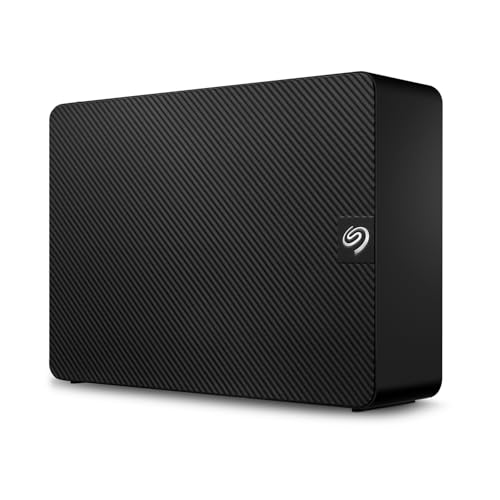
The final pick solves the problem the internals cannot: what if the machine cannot be opened, or should not be? The Expansion Desktop puts eight terabytes in an external enclosure that connects by USB 3.0 and draws mains power from its own adapter, and its listing describes the experience accurately — plug in, the computer detects it on Windows or Mac, and files move by drag and drop. Laptops, mini PCs, games consoles and all-in-one machines all gain a library-sized annex without a screwdriver being lifted.
As an external, its speed story has two chapters. The enclosure’s USB connection comfortably carries everything a spinning drive can produce for sequential work, so media serving and backup duty feel exactly as they should. The drive inside belongs to the high-capacity desktop class, with the same streaming strengths and small-file modesty as the internal 8TB models; the enclosure changes the connection, not the physics. Its listing’s inclusion of a year of Rescue services is a thoughtful match for a drive likely to hold a household’s consolidated archive.
Console owners form a quiet constituency for this drive. A current console’s internal storage fills with a handful of large games, and an eight-terabyte annex — subject to each platform’s rules about what may live and play from external storage — turns library management from a monthly eviction into a non-event. The same applies to the household media PC that cannot be opened because it is a sealed mini design. In both cases the buying question is not really about speed at all; it is about ending a recurring chore, and this drive ends it at the largest capacity in the guide.
Desktop externals live a different life from portables and should be placed accordingly: they want a permanent home on the desk, ventilation around the case, and a power socket of their own. They are not travel drives, and treating this one as furniture rather than luggage is what keeps it reliable. In return it offers the simplest capacity upgrade in computing — no compatibility checks beyond a USB port, no installation, and eight terabytes that a whole household’s devices can take turns filling.
For the buyer whose main machine is a laptop with a small internal SSD — an increasingly common reader — this drive plus a sensible folder discipline is the entire storage strategy: the laptop stays light and fast, the archive lives here, and a portable drive from this site’s backup guide holds the second copy. It is the least internal pick imaginable, and for many households the most practical one in the list.
- Capacity: 8TB
- Interface: USB 3.0 external, mains-powered desktop enclosure
- Model: STKP8000400
- Extras in listing: 1-year warranty and 1-year Rescue services
- Compatibility: Windows and Mac, auto-detected
Strengths
- Eight terabytes with no installation at all
- Works with any machine that has a USB port
- Rescue services included for a year
Trade-offs
- Needs its own power adapter and a permanent desk spot
- Not portable in any meaningful sense
- Small-file pace remains spinning-drive pace
Best for: Laptops, mini PCs and consoles needing a large permanent annex.
Not suited for: Travel, or anyone expecting internal-drive responsiveness for active projects.
How Do You Install and Set Up an Internal Hard Drive?
The mechanical part takes ten minutes. Power the machine off and unplug it, open the case, slide the drive into a free 3.5-inch bay and secure it, connect a SATA data cable between the drive and a motherboard port, and connect a SATA power lead from the power supply. Close up, boot, and open the operating system’s disk management tool: the new drive appears as unallocated space, where you initialise it, create a volume and format it. Only then does it receive a letter and become usable storage. Nothing in the process is delicate, but two habits protect the data later: route the cables so they do not press on the drive’s connectors, and leave the drive an air gap from its neighbours.
While the case is open, two small upgrades belong to the same job. Check the drive’s mounting: a drive screwed firmly into a metal bay dissipates heat and vibration better than one resting in a loose plastic sled, and vibration is a genuine if slow enemy of spinning drives in multi-drive cases. And confirm the power supply is not being asked to spin up more drives than its rating comfortably supports at boot, the one moment all drives draw heavily at once. Neither check appears on any box, and both distinguish an installation that lasts from one that develops mysteries in its second year.
Then comes the arrangement that decides how the machine feels. Keep the operating system and current projects on the SSD; move the libraries — games not currently in rotation, media, archives, downloads — to the hard drive, using each platform’s library settings rather than dragging program folders by hand. Games platforms, photo managers and media servers all support library locations on a second drive, and setting them properly once means the split maintains itself. The result is the defining storage layout of the era: speed where fingers feel it, space where libraries need it.
Finally, decide the drive’s backup status on day one. A bulk drive holding the only copy of a photo archive is a liability wearing a bargain’s clothes; the same drive paired with an external copy is a system. If the internal drive is itself the backup target for other machines, say so in its folder names and leave it alone otherwise — drives with one clear job age better than drives that accumulate everyone’s experiments.
What Should You Check Before Buying an Internal Drive?
Physical fit first: a free 3.5-inch bay, a spare SATA port on the motherboard, and a spare SATA power connector from the supply. Older cases may need a mounting rail or a 2.5-to-3.5 adapter in reverse situations, and very old power supplies occasionally lack modern connectors; all are cheap parts, but discovering their absence mid-install is the classic Saturday-ruining experience. Laptops, with rare exceptions, cannot take these drives at all — their owners should be looking at the external pick or at this site’s portable guides.
Second, match the drive to the workload using this guide’s one-question test: is the work mostly large files arriving in sequence, or many small files demanded at random? Sequence favours capacity — the 8TB and 4TB models. Random favours the 7,200rpm 2TB model, with the honest caveat that truly random-heavy work belongs on an SSD altogether. Third, check the exact model number on the listing against the manufacturer’s documentation if sustained heavy writing is planned, because recording technology is the one specification that marketing pages consistently understate.
There is a fifth check, specific to buyers replacing a failed drive: recover first, replace second. If the old drive still spins at all, its contents should be copied to safety — another drive, a portable, anywhere — before the new drive’s installation becomes the weekend’s main event, because installation day has a way of becoming the day the old drive chooses to stop. The new drive then arrives as an upgrade to a protected archive rather than as a lifeboat launched during the storm.
Fourth, consider noise and heat as real specifications in a home machine. Slower-spinning drives run cooler and quieter; a 7,200rpm drive in a case beside a television is audible during quiet scenes in a way its owner will notice nightly. None of the six is loud by historical standards, but the ranking in this guide trades on exactly these small differences, and a bedroom PC deserves the consideration.
Where Will You Actually Feel a Hard Drive’s Speed?
Grounding helps more than specifications here, so consider four ordinary tasks. Copying a 50GB game folder from one drive to another: the spinning drives in this guide complete it in minutes, paced by sequential throughput, with the 7,200rpm model ahead but the whole class in the same neighbourhood — an SSD does it dramatically faster, and also costs dramatically more per terabyte of destination. Loading a large game level: the SSD wins by a wide margin, the 7,200rpm drive trails respectably, and the big slow drives add noticeable pauses where textures stream in. Browsing a photo library of fifty thousand images: the first browse is slow on every spinner while thumbnails generate, and acceptable afterwards because the software caches its own previews. Serving a film to a television: every drive in this guide, without exception, is so far ahead of the stream’s needs that the question never arises.
The pattern across the four tasks is the guide’s whole thesis in miniature. Hard-drive speed matters at the scattered, interactive end of computing and evaporates at the sequential, patient end. Most bulk storage lives at the patient end. Buy the fast spinner if your library is interactive — games in rotation, projects in progress — and buy capacity without a qualm if your library is an archive, a media shelf or a backup target, because in those roles the extra money for rotation buys a difference nobody will ever perceive.
How Long Will a Spinning Drive Stay Relevant in Your Machine?
The obituaries for the hard drive have been published annually for a decade, and the hard drive has responded by quietly shipping in enormous capacities at prices solid-state storage still cannot approach for bulk. The realistic outlook for a drive bought from this guide: it will serve as a library and archive device for the life of the machine around it, and very possibly be carried, still working, into the next machine as the archive tier. The roles it has lost — system drive, program drive, anything latency-sensitive — were lost years ago and are not coming back; the roles it keeps are the ones measured in terabytes.
That longevity cuts the buying decision down to two durable questions. Is the capacity honest for your next several years, since outgrowing a drive is the commonest reason for replacing one that still works? And is the data on it protected by a second copy, since longevity statistics describe populations and your drive is an individual? Answer those two well — they are why this guide keeps pairing every capacity recommendation with a backup reminder — and the choice between the six picks becomes the low-stakes decision it ought to be.
How Do the Six Drives Compare on Speed and Space?
| Pick | Capacity | Speed specification | Form | Choose it when |
|---|---|---|---|---|
| Seagate BarraCuda 2TB | 2TB | 7,200rpm, 256MB cache | Internal 3.5-inch | Responsiveness matters most |
| Seagate BarraCuda 8TB | 8TB | High-capacity class | Internal 3.5-inch | The library is huge and internal |
| WD Blue 8TB | 8TB | 5,640rpm, 256MB cache | Internal 3.5-inch | You prefer WD’s mainstream line at 8TB |
| Seagate BarraCuda 4TB | 4TB | 5,400rpm, 256MB cache | Internal 3.5-inch | Mid-size room with a large cache |
| WD Blue 4TB | 4TB | 5,400rpm, 64MB cache | Internal 3.5-inch | Track record and price lead |
| Seagate Expansion Desktop 8TB | 8TB | Desktop external class | External USB | The machine cannot be opened |
Notice also what the table does not contain: a single benchmark figure. That absence is the guide’s methodology made visible. Between two drives of the same rotational class, real-world differences dissolve into firmware tuning and workload luck; between classes, the difference is consistent and describable in words. A buyer armed with the classes, the caches and the capacities can predict their experience accurately — which cannot be said of a buyer armed with a chart of numbers measured on someone else’s machine, with someone else’s files, on a drive at someone else’s level of fullness.
The table’s story is a trade drawn as a slope: as capacity climbs in this pool, rotational pace steps down, and the buyer slides along the slope to the point their library dictates. The single exception to the slope is the external, which buys its capacity with a power brick instead of an install. Nobody in this table is the wrong answer; each is the right answer to a differently sized problem.
What Mistakes Do Hard-Drive Buyers Keep Making?
The founding mistake is buying a hard drive to make a computer feel fast. It will not, and the disappointment is structural rather than fixable: the money for responsiveness belongs in an SSD, with the hard drive bought afterwards for space. The second mistake is the mirror image — buying a small SSD alone, then spending two years deleting games to make room for the next one, when a drive from this guide would have ended the juggling for good. The modern answer is both, in the roles each is good at.
A sixth mistake is subtler and increasingly common: assuming that because a drive is new, its health needs no watching. Every operating system can read a drive’s self-reported health indicators, and free tools summarise them into a plain verdict; a monthly glance catches the drive that has begun reallocating sectors while its contents can still be copied at leisure. Drives rarely fail without any warning at all — they fail without anyone looking at the warnings, which is a different and much more avoidable tragedy.
The third mistake is ignoring the recording-technology question on a drive destined for relentless writing — a network recorder or a busy shared volume — where the wrong choice reveals itself as mysterious slowdowns months later. The fourth is installing a bulk drive, filling it with the only copy of a decade’s photographs, and calling the job done; capacity is not backup, a point this site will keep making because households keep learning it the hard way. The fifth is forgetting the humble prerequisites — the bay, the port, the power lead — and meeting them for the first time with the case open.
Final Recommendation
The through-line of this guide deserves one restatement before the verdicts: “fastest” is a ranking inside a technology, not a promise across technologies. Every pick below is the fastest answer to a particular shape of problem.
If speed within the spinning world is the priority, buy the Seagate BarraCuda 2TB: its 7,200rpm platters and 256MB cache make it the most responsive drive here, and it is the right home for a working game library beside an SSD. If capacity is the priority, choose between the BarraCuda 8TB and the WD Blue 8TB by warranty terms, brand trust and the day’s pricing — both are honest bulk — and take the Seagate Expansion Desktop 8TB when the machine cannot be opened. At 4TB, the BarraCuda’s larger cache edges the long-serving WD Blue, unless the Blue’s price or track record speaks louder to you.
A final note for the reader who arrived here hoping a hard drive might still serve as a system drive in a budget build: it can, in the sense that the machine will work, and this guide’s 2TB BarraCuda would be the least painful way to do it. But the price gap to a modest SSD has narrowed to the point where the honest advice is to buy the small SSD now and add a drive from this list when the library demands it. Sequence the purchases that way and the machine feels fast from its first day, with the terabytes arriving exactly when they are needed rather than subsidising a slow start.
Whichever you choose, keep the hierarchy honest in your own machine: solid-state for the system and the software you touch, spinning for the libraries you keep. A hard drive bought with clear eyes about what “fastest” can mean is not a compromise at all — it is eight terabytes of calm, spinning quietly under the desk, holding everything the fast drive cannot.
Frequently Asked Questions
Can a hard drive ever be as fast as an SSD?
No, and the reason is mechanical rather than a matter of tuning. It is worth adding that this verdict is not a counsel of despair: the workloads where the gap is absolute — starting the machine, opening programs — are exactly the workloads a modest SSD handles for the whole computer, leaving the hard drive the workloads where the gap shrinks to a footnote. An SSD retrieves data electronically with no moving parts; a hard drive must move a head and wait for a rotating platter. For large sequential transfers the gap narrows to respectability; for the small, scattered reads that dominate booting and launching, the gap is enormous and permanent.
Is 7,200rpm worth it over 5,400rpm?
For a drive that will hold actively used games and projects, yes — the quicker rotation shortens every wait the drive imposes, and the difference is noticeable in load screens and library browsing. Put in time terms across a year of evenings, the faster drive returns hours of waiting to its owner; put in archive terms, it returns nothing at all, because the archive never asked it a hard question. The worth of the specification is entirely a property of the workload, which is why this guide keeps returning the decision to the work rather than to the numbers. For archives, media serving and backup targets, the slower drives’ quietness and capacity value matter more than the pace you will never feel.
What is cache on a hard drive, in plain terms?
A small pool of fast memory inside the drive that holds recently used data and stages writes before they reach the platters. Think of it as the drive’s short-term memory: anything the computer asks for twice in quick succession may come from cache rather than from a fresh trip across the platter, and anything being written can be acknowledged quickly while the drive arranges its journey to the surface. More cache lets the drive organise bursty work more gracefully; it smooths behaviour rather than transforming headline speed, which is why this guide treats it as the second specification, after rotation.
Should I worry about SMR versus CMR?
Only if your workload is sustained heavy rewriting — surveillance recording, a busy network share, constant large-file churn. The symptom that gives the problem away is a drive that starts a long write briskly and then slows to a crawl partway through, recovering when left idle; ordinary users copying libraries and backups in calm sessions will simply never meet it, which is why this guide raises the question as a workload check rather than as a warning against any particular pick. For libraries, backups and everyday storage, either technology serves without drama. If the heavy-write case is yours, verify the exact model’s recording technology in the manufacturer’s documentation before buying.
Can I put one of these internal drives in a laptop?
Almost certainly not — and the follow-up question is usually whether an external enclosure can convert one into a portable. It can, and for a drive retired from a desktop that is a sensible second life; but buying an internal drive plus an enclosure to imitate a portable usually costs more and travels worse than buying the portable, so treat conversion as a recycling strategy rather than a purchasing one. These are 3.5-inch desktop drives; laptops use 2.5-inch drives or SSDs, and most modern laptops have no drive bay at all. Laptop owners needing bulk space should use the external pick in this guide or a portable drive, keeping the internal upgrade path for an SSD.
How long do these drives last in ordinary service?
Years is the normal expectation for mainstream desktop drives in a ventilated case, with heat and power quality as the main variables. Drives that run hot, in cases where they are stacked against other drives without airflow, age faster than their specification suggests; drives given an air gap and a clean power supply routinely outlast the computer built around them. Longevity arguments should never replace backup: any drive can fail early, and the data matters more than the hardware, so the archive deserves a second home regardless of which pick holds the first.
Related Guides
Hard drives are one half of the modern storage layout, and these guides cover the other half and its neighbours: Best 2 TB SSDs: NVMe Flagships, Honest Value Picks and the SATA Drive That Still Matters and Best 2.5 SSDs: Six SATA Drives to Wake Up an Old Laptop or Desktop. If the drive is going into a new build rather than an upgrade, see also Best Affordable Gaming PC Cases.


