What's inside
- Where to Buy
- Key Takeaways
- Quick Picks
- How Did We Choose These Picks?
- What Separates the Four Kinds of 2TB Drive?
- Why Does This Capacity Still Exist When SSDs Keep Getting Cheaper?
- How Does SMR Actually Behave Day to Day?
- What Does 7200 Versus 5400 RPM Feel Like in Practice?
- How Do the Six Picks Compare Side by Side?
- How Does a 2TB Hard Drive Fit a Gaming PC in 2026?
- Which Mistakes Do 2TB Buyers Keep Making?
- What Should a First-Time NAS Buyer Know Before Choosing Drives?
- How Should You Install and Set Up a 2TB Drive for Its Intended Job?
- What About Noise, Vibration and Multi-Drive Manners?
- How Do Warranties and Workload Ratings Differ Across These Picks?
- How Should You Monitor a Drive After the First Month?
- Final Recommendation
- Frequently Asked Questions
- Related Guides
As an Amazon Associate I earn from qualifying purchases. This post may contain affiliate links at no extra cost to you.
gizmoverdict.com is reader-supported. When you buy through links on our site, we may earn an affiliate commission.
Where to Buy
The best 2tb internal hard drives sit at the capacity where spinning storage still argues its case most persuasively: large enough to hold a serious library, inexpensive enough that the SSD alternative costs multiples more, and varied enough that choosing well actually matters. Unlike the terabyte class below it, the 2TB shelf holds genuinely different kinds of drive — desktop performers, quiet mainstream spinners, a laptop drive wearing the same capacity as a disguise, and a NAS drive engineered for a life of continuous service — and the linked picks below span those kinds deliberately. Most large electronics shops that stock desktop storage carry these models as well, so you can compare sellers before you order. Shop this tier by workload first and brand second: the model names are honest, but they assume you know which job each suffix was built for, and a NAS drive in a gaming desktop or a laptop drive in a tower is a mismatch no discount can redeem.
One technical fork runs through the whole category and this guide will keep returning to it: CMR versus SMR recording. At 2TB, the mainstream desktop lines of some makers use SMR to reach their price, and SMR’s weakness — sustained writing speed that sags during long, heavy write sessions — lands exactly on the workloads a big storage drive is bought for. The picks below state each drive’s position plainly, including where a recommended drive is SMR and what that means for its owner. There is no scandal in it; there is only the difference between buying a trade-off knowingly and discovering it during your first full backup.
Key Takeaways
- 2TB is the capacity where the HDD still beats the SSD on value for bulk storage — and where the differences between drive types are largest.
- The BarraCuda 2TB 3.5″ is the mainstream default, but it is an SMR drive: fine for libraries and mixed use, slower under sustained marathon writes.
- WD Black is the performance answer — 7200 RPM, CMR behaviour and a longer warranty, for desktops that work their storage hard.
- The 2.5″ BarraCuda and the 3.5″ BarraCuda share a name and a capacity and nothing else; one is a laptop drive, the other a desktop drive.
- WD Red Plus is the NAS specialist: CMR, tuned for RAID and 24/7 duty, and wasted as a ordinary desktop drive.
- Toshiba’s P300 and Seagate’s SkyHawk are covered in prose — the first for availability reasons, the second because surveillance duty is a specialism, not a desktop default.
Quick Picks
| Pick | Badge | Why it is here |
|---|---|---|
| Seagate BarraCuda 2TB 3.5″ 7200 RPM | Best Mainstream Buy | The default desktop 2TB: fast-spinning, huge cache, keenly priced — with an SMR trade-off this guide states openly. |
| WD Black 2TB WD2003FZEX | Best Desktop Performance | Western Digital’s performance line: 7200 RPM, built for sustained work, and backed by the class’s longest warranty. |
| WD Red Plus 2TB WD20EFRX | Best for NAS | CMR recording, RAID-aware firmware and 24/7 engineering for network storage that never sleeps. |
| Seagate BarraCuda 2TB 2.5″ 5400 RPM | Best for Laptops | The slim 2.5-inch drive for laptops and consoles that need two terabytes in a small bay. |
| Toshiba P300 2TB | The Third Maker, in Prose | A credible CMR desktop alternative whose retail availability is too uneven to anchor a link. |
| Seagate SkyHawk 2TB | The Surveillance Specialist, in Prose | Engineered for DVR and NVR recording duty — the right drive for cameras, the wrong default for a desktop. |
How Did We Choose These Picks?
The method was to sort by job before brand, because at 2TB the jobs genuinely diverge. A desktop’s second drive, a NAS array member and a laptop’s only drive live different lives: different duty cycles, different write patterns, different failure consequences. We selected the strongest verifiable representative of each job — Seagate’s mainstream desktop drive for the default case, WD’s Black line for the performance desktop, WD’s Red Plus for network storage, and the 2.5-inch BarraCuda for portable machines — and checked every linked model against its manufacturer’s data before inclusion. Toshiba’s P300 and Seagate’s SkyHawk complete the honest map in prose: the P300 because its listing presence is too uneven to vouch for, the SkyHawk because its specialism deserves explanation rather than a misleading place in a desktop ranking.
Two judgements shaped the order. First, we refused to hide the SMR question: the mainstream BarraCuda’s recording technology is stated in its own section, weighed against its price and its very real virtues, and left for the reader to judge with the facts. Second, we ranked fitness for the stated job over benchmark bragging, because a NAS drive’s excellence is invisible in a desktop and a desktop drive’s speed is irrelevant in a camera recorder. Buyers who match the drive to the duty cycle first will find every pick here behaves as advertised; buyers who shop by capacity alone are the audience for the mistakes section.
What Separates the Four Kinds of 2TB Drive?
Start with the desktop mainstream: 3.5-inch, 7200 or 5400 RPM, tuned for a machine that sleeps at night and serves one user at a time. Its firmware assumes bursts — quick loads, long idles — and its price assumes competition. The performance desktop tier, represented by WD Black, keeps the same shape and duty but hardens everything: faster sustained behaviour, components specified for heavier workloads, and a warranty that prices the maker’s confidence. The NAS tier changes the assumptions entirely — the drive never sleeps, shares its enclosure with vibrating siblings, serves several users, and must behave inside a RAID array, where error-recovery timing can decide whether a rebuild succeeds. NAS firmware therefore limits how long the drive wrestles with a bad sector before reporting it, because the array has redundancy and the drive’s job is to fail fast and honestly rather than heroically and alone.
The fourth kind is the impostor in every capacity search: the 2.5-inch laptop drive, half the height, slower-spinning, sipping power, and utterly unsuited to desktop duty despite the identical “2TB internal hard drive” label. And standing apart from all four is the surveillance drive, tuned for the strangest workload in storage — writing video streams continuously, reading almost never, in a box that may bake in an attic. Keep those five silhouettes in mind and the product sections below become a matching exercise rather than a mystery.
Why Does This Capacity Still Exist When SSDs Keep Getting Cheaper?
Because the economics of bulk storage move at a different speed from the economics of fast storage. The price of a terabyte of solid-state capacity has fallen for a decade, and at small capacities it has effectively won; but the crossover at multi-terabyte scale — where a library, an archive or an array needs room more than it needs speed — keeps receding, because hard drive capacity remains several times cheaper and the workloads at that scale are the sequential, patient kind that never expose the gap. Video libraries do not shrink. Photo archives do not shrink. Game installs grow annually. The demand side of the 2TB class is therefore not nostalgia; it is arithmetic that re-presents itself every time a household’s data crosses another threshold.
The class also benefits from maturity in a way buyers underrate. These are settled designs from makers who have shipped them in the millions, with failure behaviour documented across enormous fleets and diagnostics that every technician knows. A newer, faster technology can be the right answer and still be the less known one. For the second drive in a desktop — the vault, not the engine — known is a feature, and 2TB is where known and cheap currently meet.
How Does SMR Actually Behave Day to Day?
Because the BarraCuda’s recording technology drives more questions than any other fact in this guide, it earns a section of its own. Picture the drive’s surface as a notebook whose pages overlap: writing a fresh page is quick, but editing a line means rewriting the pages beneath it. The drive manages this with a CMR cache area where writes land first at full speed, then reorganises data into the shingled zones during idle moments. That is why the slowdown has a signature shape — a large copy starts briskly, sags when the cache is exhausted and the reorganisation must happen live, and recovers if the drive is given pauses. A two-hundred-gigabyte game install may never notice. A full-drive image backup, written in one unbroken river, will meet the behaviour head-on.
The judgement call is therefore about your write profile, not about the technology’s morality. Libraries grow incrementally; media collections ingest in album- and shoot-sized pieces; documents and downloads arrive in bursts. All of that is cache-friendly. Backup targets, video ingest stations and torrent-adjacent workloads write in rivers. If your drive’s life is rivers, the CMR picks in this guide — Black for the desktop, Red Plus for the array — are not upsells; they are the correct engineering, and their premiums are the price of the behaviour you actually need.

Seagate BarraCuda 2TB 3.5″ 7200 RPM — Best Mainstream Buy
The BarraCuda is the drive most 2TB buyers should start with, and its specification explains the popularity: 3.5-inch desktop form, 7200 RPM, a generous 256MB cache, SATA 6 Gb/s, and pricing that habitually undercuts the field. In the daily texture of secondary storage — game libraries, media folders, working archives, the general mass of a digital life — it is brisk, quiet enough and entirely sufficient, and Seagate’s frustration-free packaging makes the physical purchase painless. For the mixed, bursty workload of an ordinary desktop, this is the sensible default, and its enormous installed base means every question about it has been asked and answered somewhere.
Now the trade-off, stated as plainly as the pool demands: this drive uses SMR recording. In ordinary use you will not meet it. You will meet it during sustained heavy writing — ingesting a huge photo shoot, writing a full-drive backup, copying hundreds of gigabytes in one session — when write speeds can sag noticeably as the drive manages its overlapping tracks, recovering when given idle moments to reorganise. For a library drive whose writes are incremental, that behaviour is a footnote. For a drive bought specifically as a backup target absorbing nightly full images, it is a chapter, and those buyers should read the WD Black and Red Plus sections with care. Seagate does not hide the technology; it is in the specifications for anyone who looks. This guide’s position is simply that you should look, and then decide with the price in one hand and the behaviour in the other.
Ownership texture matters at this tier, and the BarraCuda’s is smooth: it runs cool for a 7200 RPM drive, its acoustic signature is a soft presence rather than a whine, and Seagate’s diagnostic tools are mature and freely available. In a desktop that sits on the floor or in a cabinet, none of its behaviour will ever be the subject of a thought — which, combined with the price, is precisely the mainstream product’s job description. The SMR caveat is a workload question, not a quality question, and the guide’s insistence on stating it should not be read as a warning against a drive we recommend to most buyers.
- Model: Seagate BarraCuda ST2000DM008 / ST2000DMZ08
- Capacity: 2TB, 3.5-inch form factor
- Rotational speed: 7200 RPM
- Cache: 256MB
- Recording technology: SMR — see the trade-off discussion above
- Interface: SATA 6 Gb/s
Strengths
- The keenest mainstream pricing in the class, most weeks.
- 7200 RPM and a large cache keep everyday work feeling brisk.
- Frustration-free packaging and huge availability simplify buying.
Trade-offs
- SMR recording sags under sustained marathon writes.
- Standard warranty term, shorter than the performance and NAS picks.
- Mainstream tuning assumes a sleeping, single-user desktop.
Best for: the ordinary desktop’s second drive — libraries, media and general storage. Not suited for: nightly full-image backup duty or write-heavy workloads that never give it a breather.

WD Black 2TB WD2003FZEX — Best Desktop Performance
WD Black is what the desktop hard drive became when it refused to be a commodity. The WD2003FZEX spins at 7200 RPM with a 64MB cache and — the specification that decides its character — the performance line’s sustained-work tuning and a five-year warranty in a class where two or three is normal. It is built for desktops that treat storage as a working material: video editors parking active projects, photographers ingesting and culling large shoots, gamers whose libraries live on the spinner and who notice loading behaviour, and anyone whose backup routine writes hard and often enough to make an SMR drive confess its nature. Against those workloads the Black’s premium over the BarraCuda buys behaviour, not bragging rights.
The costs are the honest kind. It costs more per terabyte than the mainstream lines, it is marginally more audible than a 5400 RPM drive at idle, and its talents are wasted in a pure archive role where nothing ever asks it to hurry. There is also a generational note: the Black line’s fame was built partly in the era when it was a system drive, and no hard drive should be bought for that job now. As a working secondary drive — the role this guide keeps returning to because it is the role that justifies spinning storage — the 2TB Black is the desktop pick with the fewest apologies attached, and the warranty length tells you the maker knows it.
There is a lineage point worth understanding: the Black line descends from the era when a performance hard drive was a gaming component in its own right, and its engineering culture still reflects that — dual-stage actuators and vibration control that were flagship luxuries once are simply standard here. In a tower with several drives and fans all humming, that refinement shows up as steadier behaviour under the mixed loads a working machine generates. It is the least “storage appliance” and the most “component” of any drive in this guide, and its owners tend to be the ones who notice.
- Model: WD Black WD2003FZEX
- Capacity: 2TB, 3.5-inch form factor
- Rotational speed: 7200 RPM
- Cache: 64MB
- Interface: SATA 6 Gb/s
- Warranty class: five-year, the longest among the desktop picks
Strengths
- Sustained-write behaviour that marathon workloads cannot embarrass.
- Five-year warranty signals — and delivers — a heavier-duty build.
- The liveliest 2TB spinner here for interactive library work.
Trade-offs
- Premium pricing per terabyte over both mainstream lines.
- Over-specified for pure archive and media-shelf duty.
- Slightly more present acoustically than the 5400 RPM picks.
Best for: working desktops — editors, photographers, backup-heavy users. Not suited for: quiet archive builds, or budgets that measure only capacity.

WD Red Plus 2TB WD20EFRX — Best for NAS
The Red Plus is the specialist in the guide, and its specialism is a different life: always on, in company, under supervision. Its specification reads differently because its job is different — CMR recording for predictable RAID behaviour, 5400 RPM class rotation tuned for endurance over speed, firmware that reports errors promptly so the array can rebuild rather than waiting on a drive heroically retrying a dying sector, and an engineering brief that assumes 24/7 operation in a multi-bay enclosure with its siblings vibrating beside it. In a small NAS — the two- and four-bay boxes that run home and small-office storage — those traits are not features; they are the difference between an array that heals and one that cascades.
Placed in an ordinary desktop, the same traits make it a mediocre purchase: you would pay the NAS premium for error-handling behaviour a single drive cannot use, and accept a rotational speed chosen for endurance in a role that rewards pace. The guide includes it at full length because so many 2TB searches are secretly NAS searches — buyers typing “internal hard drive” while picturing the network box in the cupboard — and for those buyers this is the correct product wearing the correct label. Check your NAS maker’s compatibility list before ordering, as with any array drive, and buy array members from the same model line. Within its brief, the Red Plus is not one option among many; it is the template the brief was written around.
First-time NAS buyers should hear one reassurance plainly: the Red Plus’s unremarkable speed in a desktop benchmark is not a compromise in its real job. An array’s throughput is bounded by its network long before a healthy CMR drive becomes the limit, and the qualities that decide an array’s life — rebuild predictability, error manners, endurance — are exactly the ones this drive was specified around. Judged by its own brief, it is the most completely engineered product in this article.
- Model: WD Red Plus WD20EFRX
- Capacity: 2TB, 3.5-inch form factor
- Rotational speed: 5400 RPM class
- Recording technology: CMR
- Cache: 64MB
- Duty: 24/7 NAS, RAID environments
Strengths
- CMR recording gives RAID arrays predictable rebuild behaviour.
- Firmware error handling designed for arrays, not solo heroics.
- Engineered and rated for continuous 24/7 service.
Trade-offs
- NAS premium buys nothing a lone desktop drive can use.
- Endurance-first rotational speed is the slowest desktop fit here.
- Requires a NAS compatibility check before purchase.
Best for: home and small-office NAS arrays of one to eight bays. Not suited for: a gaming desktop’s library drive, where its virtues are invisible and its pace is not.
Seagate BarraCuda 2TB 2.5″ 5400 RPM — Best for Laptops
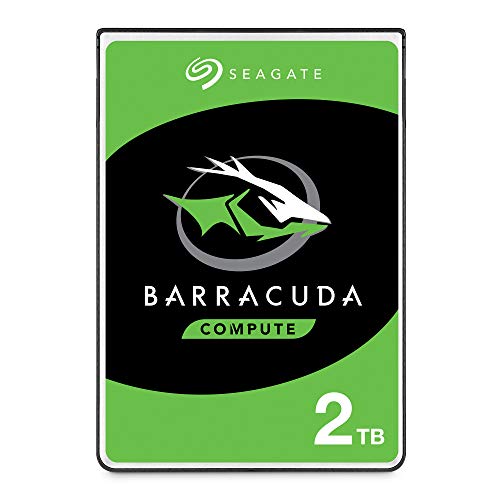
Same brand, same capacity, same product family name — and a completely different object. This BarraCuda is a 2.5-inch drive spinning at 5400 RPM with a 128MB cache, built for the slim bay of a laptop, the interior of a games console, or a portable enclosure. Its existence in this guide is a service to the buyers whose search was honest: they need two terabytes inside a machine with a 2.5-inch bay, and the desktop drives above cannot help them at any price. In that role the drive is a known quantity — capacious for its size, gentle on battery and heat, and quick enough for the media libraries and older game collections that are its natural cargo.
The warnings are the mirror of its virtues. It is the slowest drive in this guide by a wide margin, and in a desktop — where it physically fits with a bracket and tempts the capacity-only shopper — it would be a dismal purchase, slower than every 3.5-inch pick and built for a duty cycle a tower never asks. Thickness matters in its real homes: 2.5-inch drives come in more than one height, and laptop and console bays can be fussy about a millimetre, so measure or consult the machine’s documentation before ordering. Chosen for the bay it was designed for, it remains the practical way to give an older portable machine a genuinely large library without an SSD’s price at this capacity.
Console owners form a quiet majority of this drive’s buyers, and for them one practical note decides satisfaction: format the drive in the console’s own system after installation rather than pre-formatting on a PC, and expect the first session to include the console’s full setup and verification routine. The capacity then simply becomes the library’s new horizon — older consoles in particular were designed in an era of smaller drives, and two terabytes transforms how their owners relate to a back catalogue.
- Model: Seagate BarraCuda ST2000LM015 class
- Capacity: 2TB, 2.5-inch form factor
- Rotational speed: 5400 RPM
- Cache: 128MB
- Interface: SATA 6 Gb/s
- Natural homes: laptops, consoles, portable enclosures
Strengths
- Two full terabytes in the slim form laptops and consoles accept.
- Low power draw respects batteries and small power supplies.
- Proven design with a long record in portable machines.
Trade-offs
- The slowest pick here — do not let a desktop adopt it.
- Bay thickness must be verified; 2.5-inch is not one size.
- Modern laptops with SSD options should usually take them instead.
Best for: older laptops, console storage expansion and portable enclosures. Not suited for: any desktop role whatsoever, whatever the capacity match suggests.
Toshiba P300 2TB — The Third Maker, in Prose
Toshiba’s P300 at 2TB is the desktop alternative for buyers who want CMR behaviour without the WD Black’s premium. The P300 line’s desktop models have a solid builder reputation, and the 2TB sits in the mainstream tier against the BarraCuda — with the recording-technology point frequently in Toshiba’s favour, subject to verifying the exact variant, because the line spans revisions and the CMR-versus-SMR answer is a per-model fact on the manufacturer’s page rather than a family promise. Where it is stocked by a seller you trust, it is a genuinely competitive drive, and in several regions it is the easiest CMR desktop 2TB to actually buy.
It stands in prose for the same reason as in our 1TB guide: distribution. Toshiba’s retail presence in this capacity is uneven enough — strong in some markets, ghostly in others, with listing quality varying accordingly — that anchoring a universal link would serve some readers a page we cannot vouch for. The buying routine is by now familiar: confirm the variant’s specification on Toshiba’s own documentation, buy where the condition is stated plainly, and run the arrival checks. A verified P300 2TB is not a consolation prize; it is a first-choice drive that happens to travel through a patchier retail landscape.
Builders who standardise on the P300 often cite a reason this guide respects: predictability across purchases. A line whose behaviour is consistent from unit to unit makes multi-drive desktops and informal mirrors calmer to maintain, and Toshiba’s line has kept that character while rivals restructured theirs. Where the channel serves it cleanly, choosing the P300 is not settling — it is a preference with a track record.
- Product: Toshiba P300 2TB, 3.5-inch desktop
- Status in this guide: prose-only — uneven retail availability
- Class position: mainstream desktop, BarraCuda rival
- Specification to verify: recording technology of the exact variant
- Cache and interface: mainstream SATA class
- Buying rule: manufacturer spec first, condition second, price third
Strengths
- CMR variants give it the sustained-write edge in its tier.
- Honest mainstream specifications without premium pricing theatre.
- Strong availability in the regions Toshiba serves well.
Trade-offs
- Patchy listings make a universally safe link impossible.
- Variant verification is the buyer’s homework, every time.
- Thinner owner community than the two big makers.
Best for: buyers in Toshiba-strong regions who verify variants as a habit. Not suited for: one-click shoppers in markets where its listings are third-party roulette.
Seagate SkyHawk 2TB — The Surveillance Specialist, in Prose
The SkyHawk is here because 2TB searches constantly surface it, priced attractively, in front of buyers it was not built for. It is a surveillance drive: firmware tuned for the write-dominated workload of camera systems, rated for continuous operation and multiple simultaneous high-definition streams, with reading treated as the occasional exception. Inside a DVR or NVR, those are exactly the right priorities, and the SkyHawk line is a legitimate, widely deployed answer — if your search began with a camera system, this prose entry is your pick, and you should buy the surveillance drive over every desktop model in this guide.
Inside a desktop, the same tuning is a mismatch: the firmware’s assumptions about error handling and workload shape belong to a machine that records a car park, not one that loads your games. It would work, in the sense that any SATA drive works, and it would be the wrong tool in a way that only shows up in edge behaviour and longevity. The guide’s placement is therefore a signpost rather than a ranking: SkyHawk for cameras, BarraCuda or Black for desktops, Red Plus for arrays. Three Seagate-and-WD shelves, three different lives, one capacity label stretched across all of them — which is the entire lesson of the 2TB class.
Installers add a practical footnote worth passing on: in a recorder, label the drive with its installation date and the recorder’s identity, because surveillance systems accumulate drives across years and a labelled fleet is a maintainable one. The SkyHawk’s buyers are often maintaining other people’s systems as well as their own, and the drive’s wide deployment means any competent CCTV engineer can read its health at a glance — a network effect no desktop drive in this guide can match in its own world.
- Product: Seagate SkyHawk 2TB, 3.5-inch
- Status in this guide: prose-only — specialist product
- Workload: continuous multi-stream video recording
- Duty rating: 24/7 surveillance
- Natural homes: DVR and NVR systems
- Desktop verdict: functional but wrongly tuned — choose a desktop drive
Strengths
- Purpose-built for the harshest continuous-write duty in storage.
- Multi-stream firmware handles camera arrays as designed work.
- Widely deployed, well understood by CCTV installers.
Trade-offs
- Desktop behaviour is an accident of compatibility, not a design goal.
- Attractive sale pricing constantly lures the wrong buyers.
- Reading performance is nobody’s priority in its firmware.
Best for: DVR and NVR camera systems of any size. Not suited for: desktop storage, gaming libraries, or any role where reading matters.
What Does 7200 Versus 5400 RPM Feel Like in Practice?
The rotational gap is the oldest argument in hard drives, and at 2TB it has a settled answer: it depends entirely on whether a human is waiting. For sequential work — copying, streaming, backing up — the faster spindle delivers its advantage as a percentage on a progress bar, noticeable in a long transfer and irrelevant in a short one. For interactive work — loading a game level, browsing a photo catalogue, opening a project — the 7200 RPM drive’s lower latency and faster seeks compound into a machine that simply feels less hesitant, and across a working day that feeling is the product. The 5400 RPM drives answer with the two currencies the fast drives cannot pay: quiet and cool. In a NAS cupboard, a bedroom PC or a living-room box, the slower spin is not a compromise but a specification.
The picks in this guide embody the split deliberately. The desktop pair spins fast because desktops are waited on. The Red Plus spins slower because an array is not. The laptop drive spins slowest because its machine runs on a battery and a lap. When a buyer asks which speed is “better,” the honest counter-question is the one this whole article is built around: better at which job, in which room, at which hour of the day?
How Do the Six Picks Compare Side by Side?
| Drive | Form / Speed | Recording | Duty brief | Character in one line |
|---|---|---|---|---|
| Seagate BarraCuda 2TB | 3.5″ / 7200 RPM | SMR | Mainstream desktop | The default, with one declared trade-off |
| WD Black 2TB | 3.5″ / 7200 RPM | Performance CMR class | Working desktop | The drive for desktops that write hard |
| WD Red Plus 2TB | 3.5″ / 5400 RPM | CMR | 24/7 NAS and RAID | The array specialist |
| Seagate BarraCuda 2TB 2.5″ | 2.5″ / 5400 RPM | Laptop class | Portable machines | Same name, different animal |
| Toshiba P300 2TB | 3.5″ / desktop class | CMR variants — verify | Mainstream desktop | The third maker, where stocked |
| Seagate SkyHawk 2TB | 3.5″ / surveillance class | Surveillance-tuned | 24/7 DVR/NVR | The camera specialist, not a desktop drive |
Read the duty column first and the brand column last. At 2TB the capacity is the only thing these drives truly share, and the buyer who matches duty to drive has effectively made the whole decision before the prices are even compared.
How Does a 2TB Hard Drive Fit a Gaming PC in 2026?
The modern gaming PC’s storage architecture has settled into a two-tier pattern, and the 2TB spinner is its second tier by design. The SSD holds the operating system and the current rotation of demanding titles — the ones whose engines stream assets at solid-state speed and say so in their requirements. The hard drive holds everything else: the wider library, the captures and clips, the mods archive, the games from the era when hard drives were the assumption and their loading behaviour was designed accordingly. Store clients make the split painless, moving titles between drives in the background, so the library can live on the spinner while the present tense lives on the SSD.
Judged inside that architecture, the 2TB drive’s virtues are exactly the ones this guide ranks: capacity per money that lets the library be installed rather than re-downloaded, sustained behaviour matched to how the drive will actually be written, and — for the working gamer who edits video — a home for footage that would devour an SSD’s budget. The buyer who expects the spinner to run this year’s flagship at full glory will be disappointed; the buyer who hires it as the library will wonder why anyone pays solid-state prices to store a back catalogue.
Which Mistakes Do 2TB Buyers Keep Making?
The signature mistake of this capacity is the form-factor swap: ordering the 2.5-inch BarraCuda for a desktop, or expecting a 3.5-inch drive to fit a laptop, because the listings share a name and a number. Second is duty blindness — a desktop drive in a NAS that rebuilds badly, a NAS drive in a desktop that performs dully, a surveillance drive in a gaming rig that behaves oddly at the edges. Third is SMR surprise, which this guide has laboured to make impossible: the buyer who discovers sustained-write sag during their first full backup feels deceived by a fact that was printed in the specifications all along. Fourth is single-drive trust — installing the only copy of a family archive on any single drive of any brand, as if the logo were a backup strategy. It is not, at 2TB or any other size.
Fifth, and specific to this tier’s value appeal: filling the drive to the brim immediately. A 2TB drive bought for a growing library should be bought ahead of the growth, and run with headroom; spinning drives write their slowest tracks last, and a disk kept near full is a disk performing at its floor while offering no room for the temporary files real work creates. Buy the capacity the library becomes in two years, not the one it is today — at HDD prices, the foresight is cheap.
What Should a First-Time NAS Buyer Know Before Choosing Drives?
Three facts govern the array world and none of them appear on a drive’s box. First, RAID is not a backup: it protects against a drive’s death, not against deletion, theft, fire or ransomware, and the household that treats its NAS as its only copy has built a single point of failure with extra steps. Second, arrays prefer matched drives — same model, same firmware behaviour — because mixed populations rebuild unevenly and diagnose confusingly; buy the array’s members together, from the same line, and keep a note of their installation date. Third, the rebuild is the moment of truth: when a member fails, the array runs degraded and stressed while it reconstructs onto the replacement, and that is precisely when CMR recording and NAS error handling earn their premiums, because a drive that dawdles or a recording technology that sags can stretch the vulnerable window from hours into days.
None of that should frighten a beginner — a two-bay mirror of Red Plus drives is one of the most forgiving storage systems a household can own — but it explains why this guide refuses to treat the NAS drive as an interchangeable 2TB. In an array, a drive is a citizen, not a container, and citizenship is what the Red Plus’s price buys.
How Should You Install and Set Up a 2TB Drive for Its Intended Job?
The physical ritual is shared with every internal drive — four screws, SATA data and power, a bay with airflow, firmware-tight mounting to keep vibration honest — and the commissioning is where the job-specific work happens. Initialise as GPT and format fully rather than quickly if the schedule allows, because the full pass maps the surface while returns are still easy. Run the manufacturer’s long diagnostic once, record the SMART baseline, and only then move data. For a desktop library drive, structure the folders by the job on day one and point your store clients and media apps at it deliberately rather than letting it become the default dumping ground. For a NAS member, the array’s own software leads: install matching models, let the volume build completely before trusting it, and enable the NAS’s scheduled SMART tests and scrubbing from the start rather than after the first scare.
Two habits protect every role. Keep the source data intact until the new drive has survived a week of real work — infant mortality is a documented pattern in spinning drives, and the old copy is the cheapest insurance in computing. And whatever the drive’s job, decide its backup relationship in the same sitting: what copies it, what it copies, or which other drive shares its risk. A 2TB drive holds enough of a life that the question cannot be postponed to a quieter week that never comes.
What About Noise, Vibration and Multi-Drive Manners?
A single hard drive is a polite neighbour; several are a committee. In multi-bay desktops and NAS enclosures, rotational vibration from one drive becomes another drive’s weather, and the engineering responses to it — the NAS drives’ vibration sensors and compensation, the performance drives’ stabilised actuators — are among the least marketed and most consequential specifications in this guide. A buyer planning a lone secondary drive can ignore the whole topic. A buyer planning four drives in one box should treat it as a first-order concern, and it is one more reason the Red Plus exists as a separate product rather than a colour of paint on a desktop drive.
Acoustics follow a simpler rule: the room decides. A drive that is inaudible in an office tower under a desk can be the loudest object in a bedroom at 2 a.m., and seek noise — the chatter of interactive work — carries further than the smooth hum of sequential transfers. If the machine shares your sleeping or viewing space, weight the 5400 RPM picks and the enclosure’s placement accordingly. Storage is bought for years, and it is heard for all of them.
How Do Warranties and Workload Ratings Differ Across These Picks?
Two numbers on a specification sheet tell you how a maker expects its drive to live, and both are worth reading before price. The warranty term is the visible one — mainstream desktop drives commonly carry the shortest cover, the Black’s five years marks its working brief, and NAS drives sit in their own band — but the workload rating behind it is the more honest document: an annualised figure for how much data the drive is designed to write and read in a year of service. A desktop drive’s rating assumes a desktop’s year; a NAS drive’s rating assumes the full clock. Exceeding a rating does not void anything by itself in most consumer terms, but it tells you which side of the design brief your usage lives on, and a buyer whose workload is several times a desktop drive’s rating has been handed a clear signpost toward the NAS or performance lines.
Read together, the term and the rating explain the price ladder of this entire guide better than any benchmark: you are not paying for terabytes, which are identical, but for the amount of life the maker has engineered and agreed to stand behind. That is why the guide’s order follows duty rather than speed. The cheapest drive that matches your workload is the value pick; the cheapest drive regardless of workload is a false economy with a SATA connector.
External use deserves a footnote in this capacity too, because a 2TB internal drive and a dock or enclosure make a backup target of real substance. The desktop drives here serve well in a powered enclosure on a desk; the 2.5-inch drive serves in the bus-powered kind that travels. Either way, the rules from our 1TB coverage apply with double the data at stake: let the drive spin down before moving it, keep the backup’s schedule automatic rather than aspirational, and remember that a backup kept beside the computer shares the computer’s risks — the copy that saves you is usually the one that lived somewhere else.
How Should You Monitor a Drive After the First Month?
Commissioning gets the attention; monitoring does the saving. Every drive in this guide reports SMART health data, and the handful of attributes that matter can be learned in an afternoon: reallocated sectors, pending sectors, uncorrectable errors and temperature. A healthy drive’s story is boring — those counts sit at zero or near it for years — and the value of checking quarterly is that any change is therefore loud. NAS systems automate the watching with scheduled tests and email alerts, and enabling them is a five-minute task that converts a future catastrophe into a scheduled replacement. Desktop owners can do the same with any free SMART utility and a calendar reminder.
Temperature deserves its own sentence because it is the variable owners control. A drive idling in the high fifties is being cooked by its neighbours or starved of air, and the fix — a bay change, a fan curve, a dusting — is cheaper than the lifespan it buys back. Storage fails gradually and then suddenly; monitoring is how you attend the gradual part, which is the only part that still offers choices.
One more population should be named before the recommendations, because it buys a large share of these drives: the upgraders replacing a failed or full 1TB unit in an ageing desktop. For them the 2TB class is the natural landing — double the room, a modern drive with a full warranty ahead of it, and a migration that drive-cloning tools have made routine. If that is you, clone while the old drive still reads cleanly, keep it untouched for a week afterwards as your rollback, and let the new drive’s first job be proving itself under supervision.
Final Recommendation
Match the drive to the duty and this class decides itself. The ordinary desktop takes the BarraCuda 2TB, accepting its declared SMR trade in exchange for the class’s keenest mainstream value; the working desktop — editing, ingesting, backing up in earnest — takes the WD Black and its five-year confidence. The NAS takes the Red Plus without debate, the laptop takes the little 2.5-inch BarraCuda without illusion, and the camera system takes the SkyHawk this guide describes rather than links. Somewhere in that matching is the whole art of buying storage in 2026: the capacity is a commodity, but the duty cycle is a decision, and the buyers who make it deliberately, with the workload honestly assessed, are the ones whose drives are still quietly spinning, unremarked and unmissed, years from now.
One last buying habit belongs in every storage guide and earns its place here: keep the receipt and register the warranty while the installation is fresh, and store the drive’s model and serial in the same note as its installation date. When a drive eventually asks a question — a SMART warning, an odd noise, a slow rebuild — that note is the difference between a five-minute warranty check and an archaeological expedition through old order emails. Storage ownership is a long game played in small administrative moments, and the players who win it are simply the ones who wrote things down.
Frequently Asked Questions
Is the BarraCuda’s SMR recording a deal-breaker?
For most desktop owners, no. Reads are unaffected, everyday mixed use is unaffected, and the slowdown appears only during sustained heavy writing, recovering afterwards as the drive reorganises in its idle moments. If your drive’s main job is absorbing large writes daily — full backups, big ingests, constant recording-adjacent work on a desktop — choose a CMR drive such as the WD Black or Red Plus instead, and the question disappears entirely rather than being managed.
Can I use the WD Red Plus as a normal desktop drive?
It will work, and it will be a waste of its premium. Its firmware is tuned for arrays — prompt error reporting, 24/7 endurance — and its rotational speed is chosen for that life. A desktop gets more from the BarraCuda’s price or the Black’s pace. Buy the Red Plus for the NAS it was named for.
Why is the 2.5-inch BarraCuda in a desktop drives guide?
Because buyers searching this capacity meet it constantly, and its name and number invite an expensive misunderstanding. It is a laptop and console drive — slim, slow-spinning, gentle — and it belongs in those machines. In a desktop it would be the slowest possible way to store two terabytes.
Is 2TB enough, or should I jump to a larger drive?
Measure your library’s growth rather than guessing: if the current collection plus two years of its growth fits in roughly three-quarters of the drive, 2TB is right-sized, and an over-full drive is a slow one. Media collectors and video workers often find the honest answer is a larger capacity, because their libraries grow in hundred-gigabyte steps and a drive bought too small becomes a migration project within the year; our affordable desktop drives guide covers that wider field, including the large-capacity value picks.
Does a longer warranty really mean a better drive?
It means the maker prices its own confidence, which correlates with heavier-duty components and tuning — the WD Black’s five-year term reflects its working brief. It is not a guarantee of individual immortality, since any single drive of any line can fail young, and no warranty replaces a backup; the warranty replaces the drive, not the data. Treat it as evidence about the drive’s intended duty and the support standing behind it, which is how this guide uses it.
Should my 2TB drive be my system drive?
No hard drive should be a system drive in a new build in 2026 if an SSD is affordable at the capacity your system needs — the responsiveness difference is transformative. The 2TB spinners in this guide earn their place beside the SSD, holding the library the SSD cannot economically hold.
Can I run two different 2TB drives together in the same desktop?
Yes, and many thoughtful builds do exactly that, giving each drive the job it suits rather than asking one model to be everything. One drive can hold the game library you browse and update often, while the other keeps quieter archives, recordings and backups that mostly sit and wait. The arrangement costs a little more attention when you save files, because you choose a home for them deliberately, but it rewards you when one drive ages or fills. You can replace or expand a single role at a time instead of migrating your whole digital life in one anxious weekend.
How should I treat a 2TB drive that holds the only copy of family photos?
Treat it as a place where the photos visit, never as the only place they live. Keep another copy on a separate device, and ideally keep one more away from the house, because fire, theft and simple accidents do not respect how carefully you chose the drive. Check the copies from time to time by opening them, not merely by trusting that a folder name survived. A backup you have never tested is a hope rather than a plan, and family photographs are precisely the files that deserve a plan rather than a hope.
And a closing thought for the desktop buyer torn between the BarraCuda’s price and the Black’s assurance: count the hours the drive will actually work hard. A library drive in a family PC may write seriously for an hour a week, and for that drive the mainstream pick’s trade-offs are theoretical. A drive under a creator’s desk writes seriously every day, and for that drive they are the whole product. The same two terabytes, the same shelf, two correct answers — the difference is a diary, not a benchmark.
Related Guides
Storage rarely gets bought one drive at a time, so the neighbouring guides may help: the best 1tb internal hard drives for the smaller tier and its listing traps, the best affordable desktop hard drives for the value view across capacities, and the best 6tb nas hard drives when the array outgrows its first drives. Anyone building a quiet workstation around internal storage can pair it with the best active noise cancelling headsets for focus.


