What's inside
- Key Takeaways
- Quick Picks
- What Should a Student Actually Check Before Choosing a Chromebook?
- What Separates the Six Student Chromebooks When They Stand in a Row?
- How Does a Student Get Set Up for the First Week of Term?
- Where Do Students Most Often Misjudge a Chromebook Purchase?
- Can a Chromebook Really Carry a Student Through Four Years?
- How Do Android Apps and Linux Fit Into a Student’s Chromebook Life?
- What Does a Chromebook Day Actually Look Like, Hour by Hour?
- How Should Families and Schools Think About Managed Versus Personal Machines?
- What Accessories Actually Earn Their Place in a Student’s Bag?
- How Do Chromebooks Handle Exams and School Testing?
- What Do the Plus Models’ AI Features Actually Do for Coursework?
- How Do You Choose Between the Two Acer Models in This Guide?
- How Should a Student Organise and Protect Four Years of Work?
- What Changes Between a School Pupil’s Chromebook and a University Student’s?
- How Do Chromebooks Compare With a Budget Windows Laptop at the Same Tier?
- What Does Graduation Day Do to a Chromebook?
- What Should a Student Do When the Chromebook Is Lost or Broken Mid-Term?
- A Final Check on Screens, Keyboards and the Hands That Use Them
- Final Recommendation
- Frequently Asked Questions
- Related Guides
As an Amazon Associate I earn from qualifying purchases. This post may contain affiliate links at no extra cost to you.
gizmoverdict.com is reader-supported. When you buy through links on our site, we may earn an affiliate commission.
Where to buy: Chromebook listings love to bury the two numbers that matter — memory and storage — beneath the screen size, so open the listing for any pick below and confirm both before ordering; a student laptop with too little of either is a false economy that shows up by October.
The best chromebook laptops for students succeed by subtraction. ChromeOS asks little of its hardware, starts in seconds, updates itself quietly in the background and shrugs off the malware anxiety that follows Windows machines around campus. For the work students actually do — documents, slides, research in a dozen tabs, video calls with tutors, streaming lectures back at speed — a well-chosen Chromebook is not a compromise laptop. It is the tool shaped like the job. The six below were picked for the realities of student life: library days without a free socket, bags that get dropped, budgets that do not stretch twice, and four or more years of service expected from a single purchase.
The Chromebook Plus badge recurs through this guide, and it is worth understanding before you shop. Plus is Google’s hardware-and-software tier: it guarantees a stronger baseline of processor, memory, storage and camera, and it unlocks the fuller set of built-in AI features, including Gemini-assisted writing and editing tools. Four of the six picks carry it — the Acer Spin 714, the ASUS CX34, the Lenovo Flex 5i and the Acer 515. The two that do not, Lenovo’s Duet Gen 9 and HP’s x360 14, earn their places on different terms: one is a tablet that becomes a laptop, the other is the budget floor of the category, and both reviews say plainly what the missing badge costs.
One configuration note deserves prominence. The Lenovo Flex 5i below is linked in its Core i3 form because that is the clean retail listing verified for this guide; a Core i5 listing also circulates, but the one found in this check was a renewed unit, so it is not the one we send you to. The i3 build is no consolation prize — for ChromeOS workloads it is honestly matched to the job, and its review explains why.
Key Takeaways
- Chromebook Plus is the badge that matters: four of these six carry it, with stronger baselines and the fuller Gemini feature set.
- The Acer Spin 714 leads on the complete package — Plus hardware, a colour-accurate touchscreen, a convertible hinge and 256GB of storage.
- Storage is the quiet trap in this category: 64GB fills fast once Android apps and offline files arrive, so 128GB or 256GB picks age better.
- The Duet Gen 9 is a tablet first — brilliant for reading and annotation, less ideal as an only machine for heavy typing.
- Check the auto-update expiry date of any Chromebook before buying; it decides how many school years the machine stays current.
- The HP x360 14 is the true budget route, best for younger students and lighter workloads rather than a full degree.
Quick Picks
| Pick | Badge | Why it is here |
|---|---|---|
| Acer Chromebook Plus Spin 714 | Best overall | Plus-tier Intel power, a 100% sRGB convertible touchscreen and the storage headroom to last a whole degree. |
| Lenovo Chromebook Duet Gen 9 | Best tablet crossover | An 11-inch tablet with a detachable keyboard in the box — reading, annotation and couch work first, laptop duties second. |
| ASUS Chromebook Plus CX34 | Best value Plus | The full Plus experience with a Core i5 and a 1080p webcam at the friendliest tier of the badge’s range. |
| Lenovo Flex 5i Chromebook Plus | Best 2-in-1 value | A 1920×1200 touchscreen that folds flat, 256GB of storage and a backlit keyboard in a sensible student build. |
| Acer Chromebook Plus 515 | Best big screen | A 15.6-inch canvas for split-screen study, with a sleeve in the box and fast charging for library top-ups. |
| HP Chromebook x360 14 | Best budget pick | The convertible floor of the category: an Intel N100, a folding touchscreen and a price tier that forgives accidents. |
What Should a Student Actually Check Before Choosing a Chromebook?
Begin with the update horizon. Every Chromebook carries an automatic update expiration date — the point after which it stops receiving ChromeOS updates — and current models are supported for a long span of years from their platform launch. A machine bought for a four-year degree should have its whole degree inside that window, with room to spare. All six picks here are current-generation models with long horizons ahead of them, but the habit of checking matters more than any single date, because older discounted stock elsewhere in the category can hide a much shorter runway.
Next, memory and storage, in that order. ChromeOS is light, but student life is not: twenty research tabs, a video call, a document and a streaming lecture will test four gigabytes, which is why the Plus models’ eight gigabytes is the comfortable baseline for older students. Storage fills differently than people expect — the operating system is small, but Android apps, downloaded lecture files, offline playlists and a semester of PDFs accumulate. Sixty-four gigabytes serves a cloud-disciplined younger student; 128GB is the adult minimum; the 256GB in the Spin 714 and Flex 5i is buy-it-and-forget-it territory.
Finally, the physical life of the machine. A convertible hinge earns its keep for reading, annotating and watching in a cramped seat; a backlit keyboard matters in dim dorm rooms; a touchscreen stops being a luxury the first time a lecturer hands out a PDF worksheet. Battery behaviour matters too, though Chromebooks as a class are frugal — the honest differences are in charging speed and how gracefully a machine sips through a library day, which the reviews take up individually.

Acer Chromebook Plus Spin 714 — Best overall
The Spin 714 is the Chromebook for the student who has stopped thinking of ChromeOS as the budget option. Its Intel Core Ultra 5 115U is the strongest processor in this guide, an eight-core chip that treats a browser full of research tabs the way other laptops treat a single document, and the Plus badge builds the rest of the machine to match: eight gigabytes of memory, a quarter-terabyte of storage, a backlit keyboard and the full set of Google AI features. The 14-inch WUXGA touchscreen covers the full sRGB colour range, which matters more than students expect — design coursework, photo societies and simple pride in a good screen all benefit — and the panel folds through a full convertible hinge for reading and annotation.
Daily life with it is where the lead widens. The 256GB of storage ends the category’s usual anxiety about offline files; a semester of downloaded readings, a library of Android apps and a local photo archive coexist without triage. The build feels a class above the plastic norm, the keyboard is backlit for late library sessions, and USB-C connectivity keeps docking and charging simple. Battery behaviour follows the Plus pattern — the listing itself advertises long-lasting battery life, and the efficient Intel platform underneath makes a full teaching day without a socket a realistic plan rather than a hope.
It is, plainly, the most expensive machine in this guide, and the honest question is whether a student needs its headroom. For a degree’s worth of heavy browser work, light creative projects and the occasional Linux-container experiment, the answer justifies itself over four years. For a younger student whose workload is documents and classroom apps, the picks below deliver the same operating system for less. The Spin 714 is the best Chromebook here; it is not the necessary one for everybody.
- Processor: Intel Core Ultra 5 115U, 8 cores
- Display: 14-inch WUXGA IPS touchscreen, 100% sRGB, convertible
- Memory and storage: 8GB RAM, 256GB SSD
- Plus status: Chromebook Plus, with Google AI features
- Details: Backlit keyboard, USB-C connectivity
Strengths
- Strongest processor and joint-largest storage in the roundup
- Colour-accurate screen flatters creative coursework
- Convertible hinge covers laptop, tablet and presentation modes
Trade-offs
- Top pricing in a category famous for bargains
- More power than a documents-and-tabs workload will ever use
- Fourteen inches is the ceiling for split-screen study sessions
Best for: undergraduates who want one machine to outlast the entire degree without a mid-course upgrade.
Not suited for: school pupils whose timetable is classroom apps and homework documents.

Lenovo Chromebook Duet Gen 9 — Best tablet crossover
The Duet Gen 9 begins life as an 11-inch tablet and becomes a laptop when its detachable keyboard clicks on — and that order of priorities is exactly its appeal. Students read more than they type in many subjects: journal articles, scanned chapters, lecture slides, sheet music, problem sets. A tablet reads beautifully in an armchair, on a train or propped on a kitchen table, annotates naturally with a pen, and still assembles into a credible typing machine when the essay deadline arrives. The FHD+ touchscreen is sharp for its size, the MediaTek Kompanio 838 keeps ChromeOS feeling brisk, and an 8MP webcam handles calls without the grainy apology of cheap laptop cameras.
The compromises are structural and should be faced squarely. Four gigabytes of memory is the floor for comfortable ChromeOS multitasking, fine for reading-plus-notes workflows and limiting for twenty-tab research marathons. Storage totals 128GB split between internal eMMC and an included SD card — workable, but the card is a supplement rather than true internal room. The keyboard, inevitably, is smaller and shallower than a real laptop’s; a student writing long essays daily will feel that by November. And there is no Chromebook Plus badge here, so the fuller AI feature set is not part of the package.
None of that disqualifies it — it defines it. As a primary machine for a reading-heavy course, a second device alongside a desktop, or the laptop a younger student carries between home and school, the Duet’s flexibility is worth more than raw specification. Buy it for the tablet it is, and the laptop it becomes is the bonus.
- Processor: MediaTek Kompanio 838, 8 cores
- Display: 11-inch FHD+ touchscreen, detachable keyboard included
- Memory and storage: 4GB RAM, 128GB total (64GB eMMC + 64GB SD card)
- Plus status: Standard ChromeOS tier, not Chromebook Plus
- Camera: 8MP webcam
Strengths
- Genuine tablet comfort for reading and annotation
- Keyboard included rather than sold as an accessory
- Lightest, most bag-friendly format in the guide
Trade-offs
- Four gigabytes limits heavy multitasking
- Compact keyboard tires long-form writers
- No Plus badge and its expanded AI features
Best for: reading-heavy courses and students who annotate everything.
Not suited for: essay factories producing long documents every single day.
ASUS Chromebook Plus CX34 — Best value Plus
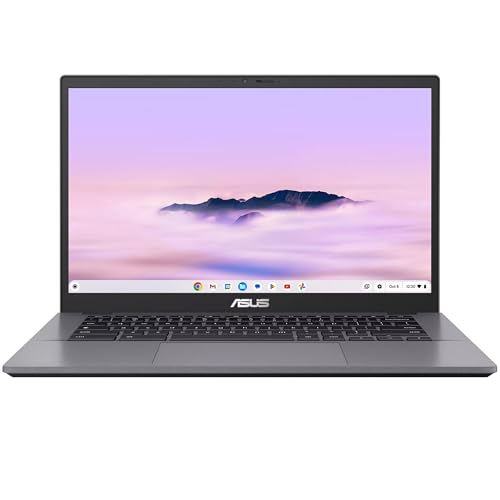
The CX34 is the straightforward answer to a straightforward question: what is the least complicated way to own the full Chromebook Plus experience? Its Intel Core i5-1335U is a proven, brisk performer for browser-centred work, the Plus badge brings Gemini AI features and the stronger hardware baseline, and the 14-inch touchscreen wears an anti-glare finish that library lighting will test daily and that glossy rivals fail. A 1080p webcam sits above it — a specification worth naming in a category where dim cameras are still common, and one that flatters students in tutor calls and recorded presentations.
ASUS quotes a ten-hour battery figure in the listing for this model; treat that as the manufacturer’s own measurement rather than a guarantee, but the underlying story is sound — an efficient processor, a sensible screen and ChromeOS’s light footprint make a teaching day on one charge an ordinary expectation. Eight gigabytes of memory matches the Plus baseline and keeps research sessions fluid. Storage, at 128GB, is the one figure that asks for mild cloud discipline from heavy downloaders, though it doubles the budget floor elsewhere in this guide.
The CX34 does not fold flat, does not chase the Spin 714’s colour accuracy, and does not pretend to be anything other than a well-judged clamshell. That focus is its virtue. For the student who types more than they annotate and wants Plus features without the flagship’s price of admission, this is the centre of the category — and for many buyers, the search can honestly end here.
- Processor: Intel Core i5-1335U
- Display: 14-inch FHD touchscreen, anti-glare
- Memory and storage: 8GB RAM, 128GB storage
- Plus status: Chromebook Plus, with Gemini AI
- Camera and battery: 1080p webcam; listing advertises a 10-hour battery figure
Strengths
- Full Plus package at the badge’s friendliest tier here
- Anti-glare screen suits bright libraries and lecture halls
- 1080p webcam outperforms the category’s dim average
Trade-offs
- Fixed clamshell — no tablet or tent modes
- 128GB asks for some cloud discipline
- Design is businesslike rather than beautiful
Best for: students who type constantly and want Plus features without flagship pricing.
Not suited for: annotators who live with a pen in hand — the convertibles serve them better.

Lenovo Flex 5i Chromebook Plus — Best 2-in-1 value
The Flex 5i is the convertible for students who counted the Spin 714’s virtues and then counted their money. Its 14-inch touchscreen runs at 1920×1200 — the taller 16:10 shape that shows more of a document per scroll — and folds through tent and tablet modes for reading, presenting and annotating. The Plus badge is present, with the AI feature set and hardware baseline it guarantees. Storage matches the flagship at 256GB, the keyboard is backlit, and Wi-Fi 6E keeps campus networking as fast as the campus allows.
The processor is where the saving lives, and it deserves a straight explanation. The linked configuration uses Intel’s Core i3-1315U. A Core i5 version of this machine also exists in the wild, but the listing found for it in this check was a renewed unit, so the i3 build is the one this guide stands behind. In ChromeOS terms the difference is smaller than the badges suggest: the operating system is light, browser work is the workload, and the i3 handles documents, research tabs, video calls and classroom apps without drama. What you give up against the i5 is headroom for the heaviest multitasking and some future margin — a real trade, honestly stated, and one most students will never feel.
Considered as a whole, the Flex 5i may be the best-balanced student Chromebook in this guide: convertible flexibility, flagship-sized storage, Plus features and a backlit keyboard, at a tier below the Spin. Only the processor separates it from the top pick, and only heavy users will notice the separation.
- Processor: Intel Core i3-1315U (the linked configuration — see review)
- Display: 14-inch touchscreen, 1920×1200, convertible
- Memory and storage: 8GB RAM, 256GB SSD
- Plus status: Chromebook Plus, with Google AI features
- Connectivity: Wi-Fi 6E, Bluetooth 5.3, backlit keyboard
Strengths
- 256GB storage at a mid-tier price
- Taller screen shape suits documents and reading
- Convertible hinge plus backlit keyboard covers student life completely
Trade-offs
- Core i3 leaves less headroom than the i5 sibling
- The i5 listing circulating elsewhere was renewed stock — buy the linked build
- Not the lightest fourteen-incher for all-day carrying
Best for: students who want convertible flexibility and big storage without flagship money.
Not suited for: power multitaskers running the heaviest tab loads ChromeOS ever sees.

Acer Chromebook Plus 515 — Best big screen
Some study sessions are two documents wide. The Acer 515 exists for those sessions: a 15.6-inch FHD IPS touchscreen that lets a source article and a draft sit side by side at readable sizes, or a lecture video share the panel with live notes. It carries the Chromebook Plus badge and its Gemini AI features, runs Intel’s Core i3-1305U, and pairs eight gigabytes of memory with 256GB of storage — the specification set that means this big screen is not a hollow bargain but a properly equipped machine that happens to be large.
Acer’s listing emphasises long battery life and fast charging, a pairing that suits the machine’s likely habitat: libraries, study halls and kitchen tables, where a quick top-up between sessions keeps the day unbroken. A protective sleeve is included in the box, a small thing that acknowledges how student laptops actually travel. HDMI output is present for presenting to a television or monitor, still the simplest way to rehearse a group presentation in a shared flat.
The cost of the canvas is carriage. A 15.6-inch laptop is a deliberate bag decision — fine for a backpack, awkward for a tote, and heavy enough over a long campus day that smaller students should try the size in person if they can. Desktop-bound students, commuters by car and anyone whose study life happens at one or two regular tables will not care. For them, this is the most comfortable screen in the guide at a price that stays sensible.
- Processor: Intel Core i3-1305U
- Display: 15.6-inch FHD IPS touchscreen
- Memory and storage: 8GB RAM, 256GB storage
- Plus status: Chromebook Plus, with Gemini AI
- In the box: Protective sleeve included; HDMI output; fast charging
Strengths
- Largest screen here makes split-view study genuinely comfortable
- Full Plus specification — no hollow big-screen bargain
- Sleeve included and fast charging suits library routines
Trade-offs
- Size and weight punish long walks across campus
- Core i3 is the sensible tier, not the headroom tier
- Too wide for small lecture-hall desks
Best for: desk-and-library students who study with two windows open at all times.
Not suited for: small bags, long walks and cramped seminar seating.

HP Chromebook x360 14 — Best budget pick
Every category needs an honest floor, and the HP x360 14 is this one’s: a 14-inch convertible with a Full HD IPS touchscreen, an Intel Processor N100, four gigabytes of memory and 64GB of eMMC storage, in a cheerful Sky Blue shell. The specification is modest and the review will not dress it up — but the shape of the offer is exactly right for its audience. A younger student gets a real keyboard, a screen that folds for reading and video, the full ChromeOS classroom ecosystem of Google Classroom and educational web apps, and a machine inexpensive enough that the inevitable bag-drop is a bad day rather than a financial event.
The limits define the buyer. Four gigabytes of memory keeps multitasking to a handful of tabs and apps; sixty-four gigabytes of storage demands cloud-first habits, which school accounts are set up for anyway. There is no Chromebook Plus badge, so the expanded AI features are absent, and the N100 is a efficiency-class processor — entirely adequate for documents, browsing, classroom apps and streaming, and not intended for anything heavier. Within those fences, performance is honest: ChromeOS was designed for exactly this hardware class, and it shows in quick starts and untroubled everyday manners.
Buy it as a school-years machine for a younger student, a household’s homework laptop, or a spare that travels without anxiety. Older students facing a degree should step up to the Plus models above — not because this HP fails at anything it promises, but because a degree asks more than it promises.
- Processor: Intel Processor N100
- Display: 14-inch FHD IPS touchscreen, 2-in-1 convertible
- Memory and storage: 4GB RAM, 64GB eMMC
- Plus status: Standard ChromeOS tier, not Chromebook Plus
- Finish: Sky Blue
Strengths
- Convertible touchscreen at the category’s friendliest tier
- ChromeOS runs exactly as designed on this hardware class
- Inexpensive enough to survive a school bag without anxiety
Trade-offs
- 4GB memory and 64GB storage set real ceilings
- No Plus badge or expanded AI features
- N100 is an efficiency processor — classroom work only
Best for: younger students and homework households working to a strict budget.
Not suited for: a full degree’s worth of research-heavy multitasking.
What Separates the Six Student Chromebooks When They Stand in a Row?
| Pick | Plus badge | Screen | Memory / storage | Defining trait |
|---|---|---|---|---|
| Acer Spin 714 | Yes | 14″ WUXGA touch, convertible | 8GB / 256GB | The complete package, priced like it |
| Lenovo Duet Gen 9 | No | 11″ FHD+ touch, detachable | 4GB / 128GB split | Tablet first, laptop second |
| ASUS CX34 | Yes | 14″ FHD touch, anti-glare | 8GB / 128GB | The uncomplicated Plus clamshell |
| Lenovo Flex 5i | Yes | 14″ 1920×1200 touch, convertible | 8GB / 256GB | Flagship storage, sensible processor |
| Acer 515 | Yes | 15.6″ FHD touch | 8GB / 256GB | The split-screen study canvas |
| HP x360 14 | No | 14″ FHD touch, convertible | 4GB / 64GB | The honest budget floor |
How Does a Student Get Set Up for the First Week of Term?
Day one is accounts, not apps. Sign in with the personal Google account first, then add the school account as a second profile rather than mixing them — coursework, personal files and photos stay separable, and when the degree ends the school account can leave without taking your life with it. Turn on sync, confirm that Google Drive is the default save location, and set the Files app to pin the three folders you will touch daily: current coursework, readings and submissions.
Day two is offline insurance. Campus Wi-Fi fails at the worst moments, so download the week’s readings, the timetable and any lecture recordings while the connection is good; in Google Docs, enable offline access for the documents in progress. Install the Android apps your course actually names — the library app, the referencing tool, the video platform — rather than filling the launcher speculatively. Plus owners should spend ten minutes with the Gemini features at this stage too: the writing-help and summary tools are most useful when they are already familiar before the first essay lands.
Day three is physical. Fit the case or sleeve the machine will actually live in, photograph the serial number, enable Find My Device equivalents and the screen lock, and learn where the update-expiry date lives in settings so future-you can check the runway. Students with the convertibles should also practise the hinge modes — tent for video, tablet for reading — until switching is muscle memory, and Duet owners should set up the SD card as the default home for downloads before the internal storage starts filling.
Where Do Students Most Often Misjudge a Chromebook Purchase?
The commonest error is buying storage by the number that looks familiar from phones. A phone’s 64GB holds apps and photos; a student’s 64GB must also hold offline lecture files, Android apps, Linux containers for the curious and a growing archive of coursework — which is why this guide treats 128GB as the adult minimum and reserves the 64GB HP for younger, cloud-managed school use. The second error is ignoring the update-expiry date on discounted older models elsewhere in the category: a cheap Chromebook with two years of updates left is not cheap for a four-year course.
The third error is assuming every course runs in a browser. Most do — but a minority of subjects still lean on specific desktop software, from certain statistics packages to engineering tools to exam-proctoring clients with platform requirements. Check your syllabus and your institution’s IT guidance before ordering; if one essential tool demands Windows or macOS, that requirement outranks everything in this guide, and the honest move is to buy for that tool instead. The fourth error is subtler: choosing a big screen for desk comfort and then discovering the lecture hall’s flip-up desks were designed in a smaller era. Match the machine to the rooms it will actually sit in.
Can a Chromebook Really Carry a Student Through Four Years?
For the majority of subjects, yes — with the conditions this guide has repeated. The degree workload of documents, research, presentations, data in spreadsheets, video calls and library systems is browser-shaped, and ChromeOS handles it with hardware that Windows would find modest. The Plus models add the memory, storage and feature headroom that four years of accumulating files and habits demand, and the update horizons of current models are designed with exactly this lifespan in mind. The students who outgrow Chromebooks are the ones whose courses change underneath them — a switch into engineering, film production or software development with heavy local tooling — and even they usually keep the Chromebook as the lightweight second machine it is so good at being.
How Do Android Apps and Linux Fit Into a Student’s Chromebook Life?
ChromeOS is three platforms wearing one coat, and students use all three without ever naming them. The web layer carries the degree’s core — documents, learning platforms, research databases, video lectures. The Android layer, through the Play Store, adds the apps student life actually runs on: note-taking favourites, messaging, banking, transit, the library’s own app, offline media for the train. And for the curious, the Linux container opens a door to real desktop tools — code editors for computing students, reference managers, specialist utilities — turning a Chromebook from a browser terminal into a small workstation for those who want it.
Each layer has a hardware appetite the picks above were judged against. Android apps are happiest with a touchscreen, which every pick here has, and with storage to spare, which is where the 256GB machines pull away from the 64GB HP. Linux work rewards memory, which is why the eight-gigabyte Plus models are the honest recommendation for computing-adjacent students. The Duet’s four gigabytes runs the web and Android layers gracefully and the Linux layer politely; the Spin 714 runs all three like it was designed for the trick, because at its tier it was.
The practical advice is sequencing: live in the web layer for the first month, add the Android apps your course and your commute actually name, and open the Linux door only when a real task knocks on it. Students who install everything on day one fill storage and launcher alike with good intentions; students who add by need end the year with a machine organised around their actual life.
What Does a Chromebook Day Actually Look Like, Hour by Hour?
Morning begins with the category’s signature courtesy: the lid opens and the machine is awake before the kettle is, because ChromeOS treats sleep and wake as non-events. The timetable, the day’s readings and the overnight messages are already synced. A lecture follows — notes in a document that saves itself continuously, slides annotated on the convertible’s folded screen, the whole session’s materials filing themselves into the course folder because week-one-you set the defaults. There is no save button anxiety anywhere in this day, and students who have lost an essay to a Windows crash understand what that absence is worth.
Midday is the library, and the Chromebook’s frugality becomes social: while heavier laptops begin their charger negotiations by early afternoon, the machines in this guide are still working from the morning’s charge, and the fast-charging Acer 515 can repair a forgotten overnight charge during a single coffee. Group work happens around the tent-mode screen or the Duet propped on its keyboard, sources shared by link rather than by file, five students editing one document without a single version conflict.
Evening is the part brochures forget: the same machine streams the lecture recording back at increased speed for revision, runs the video call home, and closes the day with entertainment — where the Spin 714’s colour-accurate screen and the big Acer’s canvas earn their keep a second time. It is not a dramatic day. That is the point: the Chromebook’s whole argument is that student computing should be this undramatic, every day, for years.
How Should Families and Schools Think About Managed Versus Personal Machines?
Many students meet Chromebooks first as school-issued devices, and the distinction between those and the machines in this guide matters. A managed Chromebook is enrolled by the school: the institution controls applications, filtering and settings, and the device is a classroom tool on loan. A personal Chromebook — every pick here, bought privately — is the student’s own: full Play Store access, personal accounts, Linux if wanted, and settings that stay where the owner put them. Families buying for a school pupil should check whether the school expects its own issued device for classwork; the personal machine then becomes the homework and home half of the student’s life, which is a role the HP x360 14 and the Duet fill perfectly.
For university students the question dissolves — the machine is personal, the account is personal, and the only management is the discipline of the setup section above. One hybrid deserves a warning: adding a school account to a personal Chromebook is normal and safe, but enrolling a personal device into an institution’s management is a one-way door students should never walk through casually, because it hands control of the whole machine to the institution’s policies. Keep the accounts side by side; keep the ownership clear.
What Accessories Actually Earn Their Place in a Student’s Bag?
Three earn it unconditionally. A case or sleeve — the Acer 515 includes one, the others ask you to add it — because student bags are hostile environments of bottles, keys and gravity. A second USB-C charger that lives where the studying happens, so the first can live in the bag and neither is ever forgotten in the wrong building. And a pair of earbuds with a microphone, because library calls, language labs and recorded lectures all assume them.
Three more earn it conditionally, by course. A stylus for the convertible owners who annotate — check the pen standard for your model and buy the correct one rather than a generic finger-substitute. A compact USB-C hub for the student whose life includes presenting to room displays and borrowing wired networks. And an external drive or a cloud storage tier for the archivist whose course generates large files, the honest pressure valve for the 64GB and 128GB machines. Everything else — the stands, the skins, the novelty mice — can wait until a real Tuesday asks for it by name.
How Do Chromebooks Handle Exams and School Testing?
Well enough that schools built fleets on them, with one distinction students must understand. School-run assessments typically happen on managed devices or in locked-down modes the institution controls, which is the school’s machinery rather than the personal laptop’s. At university level, most coursework submission and testing is web-based and Chromebook-friendly by design. The exceptions are specific proctoring or specialist applications with platform requirements — the same check this guide recommended before purchase — and they are a property of the course, not a defect of the category. A student who confirmed their programme’s requirements before buying will never meet this question in a panic; a student who did not should ask the IT desk in week one rather than week thirty.
What Do the Plus Models’ AI Features Actually Do for Coursework?
Strip the marketing grammar away and the Chromebook Plus AI toolset does four coursework-shaped things. It helps draft and redraft text — the email to a tutor, the first paragraph that will not start, the summary that must shrink — inside the documents students already use. It summarises long pages and PDFs, which is a reading-triage tool for the weeks when the reading list is longer than the week. It assists with images and video calls, cleaning up backgrounds and lighting for the student presenting from a dim room. And it does these things as built-in features of the machine rather than as another subscription tab in the browser.
The honest sizing matters: these tools accelerate the edges of coursework — drafting, summarising, polishing — and do not touch its centre, which remains reading, thinking and writing. A student should choose a Plus model for its hardware baseline first — the memory, storage and camera floor this guide has emphasised — and treat the AI features as the included extra they are. That ordering is why the guide recommends the badge so consistently while refusing to sell it as magic: the badge guarantees a better machine, and the features are the bonus on top of the guarantee.
How Do You Choose Between the Two Acer Models in This Guide?
The Spin 714 and the 515 are both Acer, both Plus, both eight gigabytes with 256GB of storage — and they suit opposite students. The Spin is the portable flagship: fourteen inches, the strongest processor here, a colour-accurate screen, a body built for the daily bag. The 515 is the stationary canvas: fifteen-point-six inches of split-screen room, a sleeve in the box, fast charging for library life, and a Core i3 doing calm, adequate work. Price separates them less than purpose does.
Decide by the map of a week. A student whose laptop moves between home, lectures, library and friends’ floors is buying the Spin’s portability and headroom, and will feel both daily. A student whose laptop lives at two addresses — a desk and a library carrel — and whose study style is two windows wide should take the 515’s screen and spend the saving on the accessories section’s shortlist. The worst outcome is the compromise purchase: the big screen carried everywhere by a student who needed the small one’s legs, or the flagship’s power parked permanently on a desk that hid it. The map decides; let it.
How Should a Student Organise and Protect Four Years of Work?
The Chromebook’s cloud nature is the foundation: work saved to Drive is work that survives the laptop being dropped, lost or sat on, and the first protection is simply the habit of never letting an important file exist only on the device. Build the folder structure by year and module in week one, name files like someone who will search for them in a panic in year three, and let the sync do the rest. The downloads folder is a corridor, not a room — everything that matters gets filed out of it weekly.
The second layer is the account discipline from the setup section: personal and school accounts side by side, so graduation deletes an institution’s access rather than a life’s archive. Before the school account closes — and it will, on a schedule the institution sets — export what is yours: the coursework you wrote, the portfolio pieces, the references. Students learn this in the final month with varying degrees of pain; the ones who read guides learn it now. A Chromebook makes the mechanics effortless, which is precisely why the discipline, not the tooling, is the section’s subject.
What Changes Between a School Pupil’s Chromebook and a University Student’s?
The workload’s centre of gravity moves, and the picks in this guide map onto the move. The pupil’s day is institution-shaped: classroom platforms, set applications, homework documents, a machine that is a window into systems the school controls. Storage and memory demands are modest, supervision is a feature, and the cost of an accident should be low — the HP x360 14’s brief, exactly, with the Duet serving the pupil who reads and annotates heavily. The university student’s day is self-shaped: research at browser scale, a personal archive that grows for years, applications chosen by the student, and no IT department standing behind the machine. That is Plus territory — the memory, storage and camera floors of the badge exist because self-directed work demands them.
Families buying across the boundary should resist both temptations: the flagship bought for a ten-year-old is money parked in headroom a child cannot use, and the budget floor bought for a fresher is a ceiling the degree will find by Christmas. The guide’s tiers are drawn where the workloads change. Buy for the student in front of you, at the stage they are actually entering, and the machine will fit the life it was bought for.
How Do Chromebooks Compare With a Budget Windows Laptop at the Same Tier?
The comparison every family runs deserves a straight answer. At the same tier, the Windows machine offers the full desktop software world and the Chromebook offers the calmer life: faster starts, quieter updates, longer support horizons on current models, and an operating system whose simplicity is a security model as much as a design choice. The Windows machine’s advantage is real exactly where this guide has flagged it — a mandated desktop application settles the question instantly — and shrinks everywhere else, because the student’s actual software diet is the browser either way.
Hardware tells the same story from the other side: at budget tiers, Windows asks more of the machine than the price provides, while ChromeOS was designed for the hardware the price provides, which is why the inexpensive Chromebooks in this guide feel brisk where their Windows contemporaries feel patient. Choose Windows for a named program. Choose the Chromebook for the degree’s daily reality. The picks above are what that second choice looks like when it is made well.
What Does Graduation Day Do to a Chromebook?
It is worth asking what becomes of the machine when the course ends, because a well-bought Chromebook has a second life planned into it. The Plus models — with their memory, storage and long update horizons — graduate into perfectly capable home machines: the family laptop, the kitchen-counter computer, the travel machine that needs no anxiety. The convertibles become reading and media devices of real quality. Even the budget HP, its school career complete, serves as the spare that every household discovers it needed. A Chromebook’s simplicity, which looked like a limitation in the shop, becomes its longevity: there is very little in it to go out of date, and the updates keep arriving on the schedule set at purchase.
The account discipline from the setup sections pays its final dividend here. The student who kept personal and school accounts side by side watches the school account close without losing a photograph, a document or a year of notes; the archive exports cleanly; the machine continues under its owner’s account as though nothing happened. The student who mixed them spends graduation week doing digital archaeology. Four years is long enough for either habit to feel inevitable — choose in week one which graduation you are buying.
What Should a Student Do When the Chromebook Is Lost or Broken Mid-Term?
It happens every term, and the Chromebook’s design makes it the least catastrophic version of the accident in modern computing. Because the work lives in the account rather than the device, the student signs into any borrowed machine — a library loaner, a friend’s laptop, a replacement Chromebook — and the documents, the notes and the half-finished essay are simply there, in the state they were left. The disaster shrinks from “my degree’s work is gone” to “I need a screen for Thursday,” which is the practical meaning of the cloud discipline this guide has repeated since the setup section.
The preparation is three habits, all already described: work saved to Drive by default rather than to local downloads, the account recovery options set while the phone number is current, and the serial number photographed for the insurance or police conversation if the loss is a theft. Families should also know the replacement economics honestly — a mid-tier Chromebook can be replaced for less than many laptops’ repair bills, which is part of why schools standardised on them — and students on the Plus flagships should register the warranty and price the accidental-damage cover in week one, while the option is cheap and the machine is new. The accident cannot be scheduled. Its consequences can.
A Final Check on Screens, Keyboards and the Hands That Use Them
Before the order, one tactile paragraph, because students touch these machines more than any specification. Keyboards divide quietly: the Acers and the Lenovo Flex offer the deeper, more traditional travel that long-essay writers prefer, the ASUS and HP are slightly shallower and entirely serviceable, and the Duet’s detachable board is the compact exception its review already weighed. None is a bad keyboard; the difference appears at hour three of a long writing day, which is why the typing-heavy student should weight it and the reading-heavy student should not.
Screens divide by light rather than quality. The Spin 714’s colour-accurate panel is the one creative coursework will thank; the CX34’s anti-glare finish is the one bright libraries will thank; the big Acer’s size is its own argument; and the Duet’s smaller FHD+ panel is sharp enough that its size, not its clarity, is the compromise. Every screen here is a touchscreen, every one renders text cleanly at study distances, and the student’s eyes — tested at hour ten rather than minute one — will find the field as kind as the category offers. It is a fitting last check: the machines differ, the hands decide.
Final Recommendation
Start at the Acer Chromebook Plus Spin 714 if the budget allows: it is the machine in this guide with no asterisk attached, and over four years its storage, screen and processor headroom will quietly repay the difference. The Lenovo Flex 5i is the value connoisseur’s pick — nearly the same ownership experience, one processor tier down — while the ASUS CX34 serves students who simply want the Plus clamshell done properly. Choose the Acer 515 for screen room, the Duet Gen 9 for a reading life, and the HP x360 14 when the budget is the loudest voice in the room and the student is young.
Whichever arrives, set it up in the first week the way the guide above describes, and the machine will disappear into the background of student life — which, for a tool bought to support an education rather than become one, is the highest compliment available.
Frequently Asked Questions
What does Chromebook Plus actually add for a student?
A guaranteed hardware baseline — faster processors, at least eight gigabytes of memory, more storage and better cameras — plus the fuller set of built-in Google AI features, including Gemini-assisted writing help and editing tools. Four of the six picks here carry the badge; the two that do not trade it for a tablet format or a budget price.
How much storage does a student Chromebook need?
For school pupils working inside a managed Google account, 64GB can suffice. For university students we treat 128GB as the practical minimum and 256GB as the fit-and-forget choice, because Android apps, offline lecture files and coursework archives accumulate faster than anyone predicts.
Can a Chromebook run Microsoft Office and Zoom?
Yes, in the forms students actually use: the web versions of Word, Excel and PowerPoint run fully in Chrome, the Office apps are available for ChromeOS, and Zoom and Meet both handle classes and tutor calls well. What a Chromebook cannot do is install the traditional Windows desktop programs — check any course-specific software before buying.
What is the auto-update expiry date and why does it matter?
It is the date after which a Chromebook stops receiving ChromeOS updates. A machine bought for a multi-year course should have its whole course inside that window. Current models carry long support horizons, but older discounted stock can hide a short one, so check the date in settings or on the manufacturer’s support page before committing.
Is the Core i3 Flex 5i powerful enough for university work?
For the browser-centred reality of most degrees, yes — documents, research tabs, video calls and classroom apps all run comfortably. The Core i5 version offers more multitasking headroom, but note that the i5 listing found in this check was a renewed unit, while the i3 configuration linked here is the verified retail listing.
Do these Chromebooks work offline?
Within limits you control. Google Docs, Sheets and Slides support offline editing once enabled, readings and media can be downloaded in advance, and many Android apps work offline. What a Chromebook cannot do offline is the live web itself — so the setup habit of downloading the week’s materials ahead of time is worth forming in week one.
Related Guides
Shopping the wider student shelf: our guide to the best inexpensive lightweight laptops covers the Windows alternatives at similar tiers, the best laptops for medical school follows students into the most demanding professional courses, and our roundup of the best laptops for remote work is waiting for the first job after graduation.
Related guides
- Best Direct Thermal Printers: Shipping-Label Machines and Professional Label Systems
- Best 4K UHD HDR HDMI Extenders: 4K60, Long-Run and 4K120 Kits Compared
- Best 25–35 Inch Monitors With Lowest Display Lag: An Honest Ranking Without Invented Numbers
- Best Color Product Label Printers: Six Desktop Machines for Short-Run Product Labels


