What's inside
- Key Takeaways
- Quick Picks
- What Does Remote Work Actually Ask of a Laptop?
- Setting the Six Remote-Work Contenders Alongside One Another
- How Do You Build a Home Desk That Makes Any of These Laptops Feel Twice as Good?
- Which Remote-Work Buying Mistakes Cost the Most Over Four Years?
- How Does a Working Day Divide Between These Machines’ Strengths?
- What Security Setup Should a Home Worker Finish in the First Week?
- How Do You Choose Between the Two ThinkPads in This Guide?
- What Peripherals Does Each Pick Quietly Assume You Own?
- How Long Will a Business Laptop Stay Respectable, and What Decides It?
- How Do the Cameras and Microphones Actually Compare Across the Six?
- What Does the Home Network Ask of the Laptop, and Vice Versa?
- What Does a One-Person IT Department’s Maintenance Calendar Look Like?
- How Should an Employer-Issued Budget Change the Way You Read This Guide?
- What Is the Sensible Upgrade Path When One Part of the Setup Ages First?
- How Do You Trial a Remote-Work Laptop in Its First Fortnight?
- What Changes When Remote Work Becomes Hybrid?
- A Note on Buying for a Household Where Two People Work From Home
- One Last Practical Word: the Spare-Part Drawer
- Final Recommendation
- Frequently Asked Questions
- Related Guides
As an Amazon Associate I earn from qualifying purchases. This post may contain affiliate links at no extra cost to you.
gizmoverdict.com is reader-supported. When you buy through links on our site, we may earn an affiliate commission.
Where to buy: Business laptops are configured to order in the real world and sold in fixed builds online, so the listing behind each pick is the contract: confirm memory, storage and operating-system edition there, and note that one respected machine below deliberately carries no link at all — its review explains the renewed-listing reason.
The best laptops for remote work are judged by a jury that never sees a benchmark. Your colleagues judge the webcam and microphone. Your back judges the weight on the commute to the coworking space. Your IT department — or your future self, acting as it — judges the ports, the warranty posture and whether the machine will still be respectable in year four. Processing power matters, but it places fourth. The six laptops below were chosen by that jury’s standards: five carry verified retail listings, and the sixth, Dell’s Latitude 7440, is covered in prose without a purchase link because every listing found for it in this check was a renewed unit — a fact its review states openly rather than dressing up.
Notice what the field is made of. These are business lines — ThinkPad, XPS, EliteBook, ExpertBook, Latitude — because remote work is business work conducted from a kitchen table, and the divisions that build for employers sweat the details home workers feel daily: cameras that flatter under bad lighting, microphones tuned for voices in real rooms, keyboards built for eight-hour days, docks that turn a laptop into a desk with one cable, and next-business-day service cultures behind them. Consumer glamour appears exactly once, in the XPS 14’s screen, and even there it is in service of long document days.
The spread of prices is wide and deliberately unquoted — business tiers move with configurations and sales, so this guide argues in roles instead. There is a flagship all-rounder, a display-first premium, a fleet-featured workhorse, an ultralight for the truly mobile, a value standard, and the prose-only Latitude as the used-market lesson. Somewhere in those six roles is the machine your working life is actually shaped like.
Key Takeaways
- Remote work is judged on camera, microphone, weight and docking — in that order — long before raw speed enters the conversation.
- The ThinkPad X1 Carbon Gen 13 leads with the complete package: a 1080p IR webcam, a 2.8K OLED, flagship memory and the lightest full-featured chassis in its class.
- The Latitude 7440 appears without a link because every listing found for it was renewed stock; its review explains how to buy that route safely if you choose it.
- Thunderbolt docking is the remote-work superpower — a single cable to monitors, power and peripherals turns any table into the office.
- The ExpertBook B9 is the mobility extremist, an OLED business laptop built for people whose office changes daily.
- Windows 11 Pro runs through this field for a reason: remote management, encryption and sign-in security are work features, not upsells.
Quick Picks
| Pick | Badge | Why it is here |
|---|---|---|
| Lenovo ThinkPad X1 Carbon Gen 13 | Best overall | The Aura Edition flagship: 2.8K OLED, 1080p IR camera, 32GB of memory and ThinkPad keyboard manners at the class’s lightest full-featured weight. |
| Dell XPS 14 | Best display | A 3.2K OLED touchscreen with a variable 48–120Hz refresh — the screen for people who read and write for a living. |
| HP EliteBook 840 | Best fleet features | The IT department’s friend: touchscreen WUXGA panel, twin Thunderbolt 4, 32GB of memory and business-grade everything. |
| ASUS ExpertBook B9 OLED | Best ultralight business | An OLED screen and vPro-grade posture in one of the lightest business chassis made — the daily traveller’s pick. |
| Lenovo ThinkPad T14 Gen 6 | Best value business | The fleet standard at a sensible tier: Ultra 5 power, fingerprint sign-in and docking bundles that arrive desk-ready. |
| Dell Latitude 7440 | Prose-only: renewed listings | A superb remote-work design that current listings offer only as renewed units — covered honestly, without a link. |
What Does Remote Work Actually Ask of a Laptop?
Start with the camera and microphone, because they are your professional presence. A 1080p camera — stated outright in the X1 Carbon’s listing — resolves the difference between looking present and looking like a witness-protection interview, and infrared adds face sign-in that works in the dim rooms home offices often are. Microphones matter even more and appear in listings even less; the business lines here tune their arrays for voice pickup and noise suppression because their makers sell to call-heavy employers, which is a better predictor than any specification. Speakers complete the triangle: voices rendered clearly at low volume, all day, without fatigue.
Then the desk question. Remote work splits between one permanent desk and everywhere else, and both halves want Thunderbolt: at the desk, a single cable drives monitors, charges the machine and gathers the peripherals, so sitting down to work is a one-gesture act; away from it, USB-C charging means borrowing power from almost anything. Weight decides the everywhere-else half — every pick here is a genuine carry, with the ExpertBook B9 the extremist of the group — and battery manners decide how much of the day the charger can stay in the bag.
Finally, the ownership layer. Windows 11 Pro across this field brings drive encryption, remote management and the sign-in security employers expect. Warranty posture matters more at home than in an office with a spare-pool cupboard: business lines are built around serviceable designs and support cultures that treat a dead laptop as an emergency. And the keyboard — the tool remote workers actually touch for eight hours — is where ThinkPad’s reputation, carried by two picks here, was earned over decades of exactly this use.
Lenovo ThinkPad X1 Carbon Gen 13 — Best overall
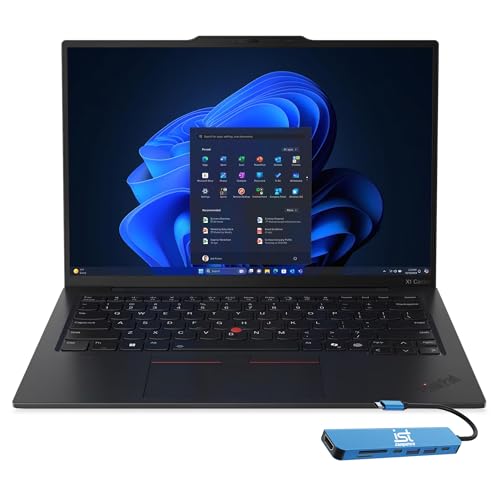
The X1 Carbon has been the executive remote-work default for so many generations that the interesting question is what this one adds — and the answer is the screen and the camera, the two things remote workers actually live through. The 2.8K OLED is the finest panel Lenovo has put in this line, deep and sharp for documents at arm’s length all day, and the webcam is a 1080p infrared unit, which means clear presence on calls and face sign-in in poor light. An Intel Core Ultra 7 258V with thirty-two gigabytes of memory and a terabyte of storage gives the machine flagship headroom, and its Arc 140V integrated graphics handle the visual side of knowledge work without a discrete card’s weight or appetite.
The Carbon part of the name still earns its place: this remains one of the lightest full-featured fourteen-inch business laptops made, a machine that treats a day of meetings across a city as no burden at all. Two Thunderbolt 4 ports anchor the docking story, Wi-Fi 7 the networking, and a fingerprint reader backs up the IR camera for sign-in. Windows 11 Pro and the Copilot+ platform credentials complete a specification that reads like the remote-work brief written out as a checklist and ticked, line by line.
A newer Gen 14 has begun appearing in Lenovo’s line, and early shoppers will see both; the Gen 13 reviewed here is the configuration with the verified listing in this guide, and its OLED-and-memory build is the one to compare against any successor’s price. Between generations, the advice is the same as it ever was with this line: buy the memory you need at purchase, because the Carbon’s slimness is achieved partly by soldering, and thirty-two gigabytes is the figure that makes the question moot for years.
- Processor: Intel Core Ultra 7 258V, 47 TOPS NPU
- Display: 14-inch 2.8K OLED
- Camera and sign-in: 1080p IR webcam, fingerprint reader
- Memory and storage: 32GB, 1TB SSD
- Ports: Two Thunderbolt 4, Wi-Fi 7, Windows 11 Pro
Strengths
- Camera and screen — the two remote-work surfaces — are both best-in-guide class
- Flagship memory and storage end configuration anxiety
- Featherweight chassis with a full business port story
Trade-offs
- Flagship pricing to match the flagship brief
- Soldered memory must be right on day one
- OLED brightness discipline helps on long unplugged days
Best for: executives and consultants whose laptop is their office, their meeting room and their travel companion.
Not suited for: buyers provisioning a whole team’s worth of seats on a fixed budget.
Dell XPS 14 — Best display
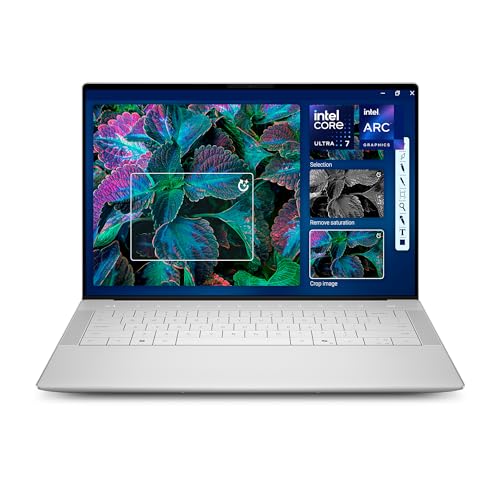
The XPS 14 is the remote-work laptop for people whose work is text and image at close range — writers, designers, analysts, anyone whose day is measured in documents. Its 14.5-inch touchscreen is a 3.2K OLED with a variable refresh that roams between 48 and 120Hz, dropping to save power on static pages and rising for smooth scrolling and video; that combination of resolution, contrast and adaptability is the best screen in this guide, full stop. An Intel Core Ultra 7 255H — the performance branch of the family — drives it, with thirty-two gigabytes of memory and a terabyte of storage behind, and a fingerprint reader integrated into the power button handles sign-in.
Dell’s XPS design language is the consumer-flagship one: machined, minimal, the laptop as a single sculpted object. For the home worker it brings a quieter benefit — the machine looks at home on a kitchen table or a designed desk in a way fleet-grey business boxes do not, which matters more over years of looking at it than any reviewer likes to admit. The touchscreen earns its place for presentation walkthroughs and document markup, and the build quality supports the premium tier it sits in.
The honest trade-offs are the XPS line’s known ones: the port selection leans on Thunderbolt and adapters for legacy peripherals, and the minimalist keyboard deck divides opinion among touch-typists raised on deep-travel keys. Neither matters to the buyer this machine is for — the screen-first professional whose desk is a dock and whose day is reading, writing and presenting through the finest panel here.
- Processor: Intel Core Ultra 7 255H
- Display: 14.5-inch touch 3.2K OLED, 48–120Hz variable refresh
- Memory and storage: 32GB, 1TB SSD
- Graphics: Intel Arc integrated
- Sign-in: Fingerprint reader in power button, backlit keyboard
Strengths
- The finest display in this guide for document and image work
- Performance-branch processor with flagship memory
- Design that belongs in a home, not just an office
Trade-offs
- Port selection assumes a Thunderbolt dock lifestyle
- Minimalist keyboard feel divides lifelong typists
- Premium tier pricing
Best for: writers, designers and analysts who read for a living and present for a promotion.
Not suited for: peripheral collectors with a drawer of legacy USB-A devices and no wish for a dock.

HP EliteBook 840 — Best fleet features
The EliteBook 840 is what companies buy by the hundred, and remote workers buying one at a time inherit all the reasons. Its 14-inch touchscreen is a WUXGA IPS panel — the pragmatic professional choice, matte-friendly and easy on battery — driven by an Intel Core Ultra 7-165H with thirty-two gigabytes of DDR5 memory and a terabyte of PCIe storage. Two Thunderbolt 4 ports, Wi-Fi 6E and Windows 11 Pro cover the connectivity and platform brief, and the whole machine is built to the serviceable, manageable standard that fleet buyers demand: this is a laptop designed to be supported for years, by an organisation, at scale.
For the individual remote worker, that fleet heritage translates into specific comforts. The keyboard is a business keyboard in the best sense — quiet, deep enough, backlit for evening work. The webcam and conferencing tuning benefit from HP’s obsession with the meeting experience across its business range. The chassis shrugs off daily handling. And the configuration itself is the one IT departments converged on — thirty-two gigabytes, a terabyte — which means software, docks and accessories across the industry assume machines exactly like it.
It is not the lightest here, nor the prettiest, nor the owner of the finest screen; the X1 Carbon and XPS divide those honours. The EliteBook’s claim is different: the fewest surprises over the longest ownership, bought once and supported properly. For the remote worker whose employer reimburses a sensible machine, or the freelancer who thinks like an IT department of one, that claim is often the winning one.
- Processor: Intel Core Ultra 7-165H
- Display: 14-inch touchscreen IPS WUXGA
- Memory and storage: 32GB DDR5, 1TB PCIe SSD
- Ports: Two Thunderbolt 4, Wi-Fi 6E
- System: Windows 11 Pro, backlit keyboard, webcam
Strengths
- The fleet-proven configuration: memory, storage and ports all at the professional standard
- Built and supported like the business tool it is
- Touchscreen adds markup and presentation flexibility
Trade-offs
- IPS panel lacks the OLED machines’ contrast drama
- Design is corporate rather than characterful
- Not the lightest carry in the guide
Best for: professionals who buy like IT departments — once, properly, for years.
Not suited for: screen-first creatives who will feel the IPS panel’s limits daily.

ASUS ExpertBook B9 OLED — Best ultralight business
The ExpertBook B9 is ASUS’s argument that a business laptop can chase the weight crown without surrendering the brief. The B9 line is famous in its class for a chassis that sits around the lightest end of fourteen-inch business machines, and this OLED edition pairs that featherweight frame with a screen most business laptops never offer. Intel vPro Essentials and a Core 7 processor cover the management and performance side, sixteen gigabytes of LPDDR5X memory and a 512GB NVMe drive meet the working floors, and Windows 11 Pro with Wi-Fi 6E completes a specification aimed squarely at the person whose office is wherever the day puts them.
Judge it by the life it enables. This is the laptop for the consultant crossing a city between client sites, the manager who works from three locations a week, the frequent flyer for whom the tray table is a desk — owners for whom every hundred grams compounds across a year of carrying. The OLED screen keeps documents and media rich at the end of those journeys, and the B9’s business build — this line is engineered for durability testing well beyond consumer norms — answers the obvious worry that ultralight means fragile.
The compromises are the ultralight class’s usual physics: sixteen gigabytes and half a terabyte are the working floors rather than headroom, and a chassis this light asks its owner to dock for serious peripheral work. Buyers who live at one desk should take the EliteBook’s substance or the X1’s completeness. Buyers who live in motion should take the B9’s grams — they are the feature, and nothing else here matches them with this screen attached.
- Processor: Intel Core 7 with vPro Essentials
- Display: OLED panel (ExpertBook B9 OLED edition)
- Memory and storage: 16GB LPDDR5X, 512GB NVMe PCIe 4.0 SSD
- Weight class: Among the lightest 14-inch business laptops made
- System: Windows 11 Pro, Wi-Fi 6E
Strengths
- Featherweight chassis with a screen far above business-laptop norms
- Durability engineering answers the ultralight fragility worry
- vPro posture suits managed professional environments
Trade-offs
- Memory and storage sit at the floors, not above them
- Serious desk setups will want a dock
- Ultralight engineering carries a premium over fleet standards
Best for: consultants and flyers whose office changes daily and whose bag is always packed.
Not suited for: one-desk workers who would pay for grams they never carry.

Lenovo ThinkPad T14 Gen 6 — Best value business
The T14 is the ThinkPad most of the working world actually uses, and the Gen 6 shows the formula undisturbed: an Intel Core Ultra 5 225U doing efficient, unglamorous work, sixteen gigabytes of DDR5 memory, a 512GB SSD, Windows 11 Pro, a fingerprint reader and a backlit keyboard. The listing for this pick describes a docking-station bundle, which is the most remote-work sentence a listing can contain — the machine arriving desk-ready, one cable between the laptop and the full office — so confirm the bundle contents on the listing before ordering, since bundles are the changeable part of any offer.
What the T series offers that the flagship X1 does not is the fleet virtues at a fleet price: a chassis built for service and longevity, a keyboard with the full ThinkPad travel that writers of long documents swear by, and a port selection shaped by docking reality. Its listing advertises long battery life, and the efficient Ultra 5 platform makes the claim plausible in kind — this is the sensible silicon for a working day, chosen by the same logic IT departments use when the spreadsheet must stretch across hundreds of seats.
For the individual buyer, that spreadsheet logic is a gift: the T14 Gen 6 is the remote-work laptop with the least ego and the most sense in this guide, the one to buy when the budget is real and the work is the point. It will not win a beauty contest against the XPS or a weigh-in against the B9. It will simply work, dock, travel and endure — which is the entire job description, met at the friendliest tier here.
- Processor: Intel Core Ultra 5 225U
- Display: 14-inch business panel
- Memory and storage: 16GB DDR5, 512GB SSD
- Bundle note: Docking-station bundle per listing — confirm contents
- Details: Fingerprint reader, backlit keyboard, Windows 11 Pro
Strengths
- The fleet standard at the guide’s friendliest business tier
- Docking bundle arrives ready for a one-cable desk
- ThinkPad keyboard and serviceable build for the long haul
Trade-offs
- Specification floors rather than flagship headroom
- No OLED screen drama
- Bundle contents must be verified on the day
Best for: freelancers and small teams standardising on one sensible machine.
Not suited for: executives who want the flagship version of everything.
Dell Latitude 7440 — Prose-only: current listings are renewed units
The Latitude 7440 deserves its paragraph, and it gets one without a purchase link — deliberately. When this guide’s pool was verified, every listing found for this model was a renewed unit rather than new retail stock, so the 7440 is presented the honest way: as a design worth knowing and a used-market route worth understanding, not as a click we are willing to send you on dressed as something it is not.
The design itself is easy to praise. The Latitude 7000 series is Dell’s flagship business line, and the 7440 is its fourteen-inch ultralight statement — a slim aluminium machine with a strong keyboard, a good conferencing camera for its generation, Intel vPro options in its original configurations and the docking manners Dell’s business ecosystem is built around. As a remote-work tool it was, at launch, one of the most complete answers in this category, and a well-kept example remains a genuinely pleasant machine to work from.
Buying it today means buying renewed, and renewed can be a rational route — substantial savings on a business-grade machine that was built to be serviced — provided it is done with open eyes. Buy only from a seller who states the renewal programme and warranty plainly, confirm the exact processor, memory and storage in the specific unit, check the battery-health and return terms before ordering, and price the saving against the new machines above rather than against the Latitude’s original launch tier. Readers who want new stock, a manufacturer’s warranty and no detective work should choose one of the five linked picks; readers comfortable with the used market may find the 7440 the smartest money in this guide. What they will not find here is a link pretending otherwise.
- Status: Prose-only — all listings found in this check were Renewed units
- Class: 14-inch flagship business ultralight (Latitude 7000 series)
- Known strengths of the design: Slim aluminium build, business docking ecosystem, vPro configurations existed at launch
- Buying route: Renewed market only — verify seller, warranty, battery and exact configuration
- Link: None, by policy stated above
Strengths
- Flagship business design with an excellent original reputation
- Renewed pricing can undercut every new machine here
- Built to be serviced — a virtue that ages well on the used market
Trade-offs
- No new retail listing to link at the time of checking
- Warranty and battery condition vary by seller and unit
- Configuration detective work is the buyer’s responsibility
Best for: confident used-market buyers who verify sellers and specifications carefully.
Not suited for: anyone who needs a manufacturer’s warranty and a sealed box.
Setting the Six Remote-Work Contenders Alongside One Another
| Pick | Screen | Camera / sign-in | Defining virtue |
|---|---|---|---|
| ThinkPad X1 Carbon Gen 13 | 14″ 2.8K OLED | 1080p IR + fingerprint | The complete flagship package |
| Dell XPS 14 | 14.5″ 3.2K OLED touch | Fingerprint | The reader’s and writer’s screen |
| HP EliteBook 840 | 14″ WUXGA IPS touch | Business webcam | Fleet-proven, support-rich |
| ExpertBook B9 OLED | OLED | Business standard | Lightest serious carry |
| ThinkPad T14 Gen 6 | 14″ business panel | Fingerprint | Value with a docking bundle |
| Dell Latitude 7440 | 14″ business panel | Business camera | Renewed-market route only |
How Do You Build a Home Desk That Makes Any of These Laptops Feel Twice as Good?
The dock is the foundation: a Thunderbolt dock matched to your monitor count turns every pick in this guide into a one-cable desktop, and it is the single purchase that most changes remote-work life. On it, hang the external monitor at eye level — laptop screens invite hunching that a year of home work turns into a posture — and a keyboard and mouse you chose for your hands rather than accepting by default. The laptop’s own keyboard is for travel days; the desk deserves its own.
Then light and sound, the two halves of professional presence. A window to the side beats a window behind; a small soft light beats a ceiling bulb; and the laptop raised so its camera meets your eyes beats every camera upgrade in this guide. For sound, the room is the equipment — soft furnishings, a closed door, distance from the kitchen — and a decent headset is the insurance policy for the days the room cannot cooperate. None of this is expensive relative to the laptop, and all of it shows up in every meeting you will ever take from that desk.
Finish with the unglamorous resilience layer: a surge-protected power strip, a backup of the work folders that syncs without being asked, and a spare charging cable that lives at the desk so the travel cable can live in the bag. Remote work fails at the edges — the forgotten charger, the unsynced file, the dead socket — far more often than it fails at the processor.
Which Remote-Work Buying Mistakes Cost the Most Over Four Years?
The expensive mistake is buying the screen last. Remote workers stare at their laptop more than any other object they own, yet buyers routinely spend on processor tiers they will never feel while accepting a dim panel they will feel hourly — the XPS and the OLED picks exist in this guide as the correction. The second mistake is memory skimping: sixteen gigabytes is today’s floor and thirty-two is the four-year comfort, and because most of these machines cannot be upgraded later, the saving made at purchase is repaid in year-three frustration at punitive rates.
The third mistake is ignoring the ownership layer entirely — buying a consumer machine for business life and discovering the warranty, the support culture and the security features are all a tier below when something breaks mid-quarter. The fourth is subtler and this guide embodies its answer: chasing a beloved model onto the renewed market without doing the renewed diligence. The Latitude 7440 is a fine machine; the discipline is in the buying, not the model. Verify the seller, the warranty, the battery terms and the exact unit, or buy new from the linked picks and let the question go.
How Does a Working Day Divide Between These Machines’ Strengths?
Picture the same Tuesday lived six ways. It opens with calls, and the X1 Carbon’s infrared camera signs its owner in half-asleep while the EliteBook’s fleet-tuned conferencing makes a whole project team sound civilised. Late morning is deep work — documents, analysis, writing — and here the XPS 14’s screen quietly wins the day for its owner while the gram-sized ExpertBook B9 is already in a bag, because its owner’s Tuesday has a second location in it. The T14 sits docked through all of this, driving its desk with the bundle it arrived with, asking nothing.
Afternoon is movement: the coworking space, the client site, the train. The B9’s grams stop being a specification and become the difference between taking the laptop and leaving it. The X1 Carbon splits the difference — light enough to take everywhere, complete enough to need nothing when it arrives. Evening is the catch-up hour, and the machine that serves it best is whichever one its owner stopped noticing by Wednesday of the first week. That invisibility is the real product this category sells, and every pick here achieves it by a different route — which is why the guide judges fit rather than crowning a single specification.
What Security Setup Should a Home Worker Finish in the First Week?
Remote work moved the office perimeter into spare bedrooms, and the business machines in this guide ship with the tools to rebuild it — provided someone switches them on. Day one: confirm drive encryption is active, set the sign-in to the fingerprint or infrared camera the machine offers rather than a typed password, and enable the screen to lock quickly, because a home has visitors, children and delivery drivers in a way an office never did. The password manager goes on before the second work account is signed into, and multi-factor authentication follows it everywhere it is offered.
Day two is the network and the backup. The home router’s firmware and password are part of your employer’s security posture now, like it or not; update both. Work files should sync to the employer’s cloud or a backup that runs without being remembered, and the test of any backup is restoring one file from it, once, while nothing is wrong. Week one ends with the update settings verified — operating system and applications patching automatically — because the remote worker is their own IT department, and the department’s whole job is making these systems boring enough to forget.
How Do You Choose Between the Two ThinkPads in This Guide?
The X1 Carbon Gen 13 and the T14 Gen 6 share a badge, a keyboard philosophy and an operating system, and differ in almost everything else — which makes the choice between them a clean statement of priorities. The Carbon is the flagship interpretation: OLED screen, infrared camera, thirty-two gigabytes, the lightest full-featured chassis, and a price that assumes an executive expense line. The T14 is the fleet interpretation: efficient Ultra 5 silicon, sixteen gigabytes, a docking bundle in its listing, and a specification chosen the way IT departments choose — by the spreadsheet of a hundred seats rather than the desires of one.
Individual buyers should borrow the fleet logic and then check it against their vanity. If the machine will be carried daily, presented from, and lived with for four years, the Carbon’s screen, camera and memory are felt hourly and its premium amortises into pennies a day. If the machine will sit docked at one desk with an external monitor doing the displaying, the Carbon’s finest parts are literally hidden behind a bigger screen, and the T14’s sense wins outright. The keyboard, notably, does not decide it — both are ThinkPads, and both type like it.
What Peripherals Does Each Pick Quietly Assume You Own?
Every laptop review is secretly a peripherals budget, and honesty requires pricing the assumptions. All six picks assume a dock or at least a USB-C hub for a serious desk — the T14’s bundle is merely the only one that admits it in the listing. The XPS 14 assumes it most completely, its minimalist ports expecting the Thunderbolt desk as a way of life. The OLED machines assume nothing extra but reward a colour-accurate external monitor less than the EliteBook does, since their own panels are already the good screen in the room.
The traveller picks — the B9 above all, the X1 Carbon behind it — assume a compact USB-C travel charger and a mouse that fits the bag, because their whole design brief is the day away from the desk. The Latitude’s renewed route assumes a different accessory entirely: the buyer’s own diligence, plus possibly a fresh battery or an extended third-party warranty priced into the comparison against the new machines. Count these assumptions when comparing prices across the six; the laptop is the largest line in the budget, but it is never the only one.
How Long Will a Business Laptop Stay Respectable, and What Decides It?
Longer than consumer machines, for structural reasons: business lines are specified conservatively, supported with parts and updates for extended spans, and bought by organisations that plan replacement in cycles rather than moods. The deciders are the ones this guide has repeated — memory above all, since it cannot grow later in most of these designs; storage second, since it sometimes can; and the battery, which fades on its own schedule and is replaceable in the serviceable designs. A thirty-two-gigabyte machine bought today has no obvious expiry in mainstream work; a sixteen-gigabyte one has a longer horizon than its price suggests, provided the workload stays mainstream.
The software horizon is equally kind: Windows 11 Pro’s support posture and the business platforms’ update records mean the operating system will not be what retires these machines. What retires them, eventually, is the accumulation of small things — a tired hinge, a keyboard worn smooth, a battery on its second replacement — at which point the fleet logic applies to one person: replace on the cycle, hand the old machine down, and let a ThinkPad or an EliteBook begin its second life in a student’s bag, which is where a remarkable number of them end up.
How Do the Cameras and Microphones Actually Compare Across the Six?
Only one listing in this field states its camera outright — the X1 Carbon’s 1080p infrared unit — and the honest comparison starts by admitting that listings are where camera information goes to hide. What can be compared is lineage and intent. The business lines represented here — ThinkPad, EliteBook, Latitude, ExpertBook — sell conferencing as a headline feature to employers who test it, and their current generations build in the wider apertures, better low-light behaviour and voice-tuned microphone arrays that the meeting era demanded. The XPS, a consumer flagship, counters with the polish of a machine designed for creators as much as callers. Treat any single-number claim from any brand with suspicion; treat the class behaviour as the evidence it is.
The owner’s half of the equation outweighs the hardware’s. Every camera in this guide looks dramatically better raised to eye level and lit from the front than it does hunched under a ceiling bulb, and every microphone sounds better in a soft-furnished room than in a tiled kitchen. Buy the machine whose other virtues fit your life, then spend the small money and smaller effort the desk section describes — the light, the stand, the room — and the presence gap between the best and worst camera here shrinks below the threshold colleagues can perceive.
What Does the Home Network Ask of the Laptop, and Vice Versa?
Remote work’s invisible infrastructure is the home network, and these machines meet it well: Wi-Fi 7 in the X1 Carbon and XPS, Wi-Fi 6E in the EliteBook and ExpertBook, current standards across the field, each ready for the routers employers and ISPs now ship. The laptop’s half of the bargain is simply being modern; the household’s half is placement and honesty — a router in the open rather than in a cupboard, a mesh node for the far rooms, and the wired option remembered on the days the airwaves fail, which is where the docks and the EliteBook’s business port thinking quietly earn their keep.
Bandwidth arithmetic comforts most households: video calls are modest consumers, and the remote-work day starves not on speed but on stability — the dropped packet in the sentence that mattered. A laptop cannot fix a fragile network, but the picks here remove the laptop from the list of suspects, and the worker who has verified that can troubleshoot outward with confidence: router, then provider, then the weather between the house and the exchange, in that order, rarely reaching the machine at all.
What Does a One-Person IT Department’s Maintenance Calendar Look Like?
Monthly, ten minutes: confirm the updates applied, glance at the storage, clear the downloads folder into the filing system, and verify the backup by opening one restored file. Quarterly, half an hour: review the startup programs that crept in, check the battery’s reported health against its youth, clean the vents and the screen, and re-run the security scan the operating system keeps offering. Annually, one honest hour: reassess the configuration against the workload — is memory still comfortable, is the archive outgrowing the drive, is the warranty where you think it is — and price the answers calmly, in a season when nothing is broken.
The calendar’s real product is the absence of emergencies. Business laptops reward this rhythm disproportionately, because their makers publish the drivers, manuals and parts information the rhythm depends on — another fleet virtue the individual buyer inherits free. The remote worker who keeps it will meet year four with a machine that feels maintained rather than aged, and will understand why organisations standardise on exactly these lines: not because they never fail, but because they are built to be kept.
How Should an Employer-Issued Budget Change the Way You Read This Guide?
Many remote workers shop with someone else’s money and a reimbursement ceiling, and the guide reads differently through that lens. The ceiling usually lands in the field’s middle, which is EliteBook and T14 territory — the fleet machines — and that is no hardship: those picks exist precisely because organisations standardising on them keep thousands of workers productive. The worker whose employer reimburses should spend the allowance on the configuration rather than the badge: the thirty-two-gigabyte EliteBook over the sixteen-gigabyte flagship, every time, because the memory is felt daily and the badge is felt never.
Self-funded workers face the mirror-image logic: the machine is a business expense in spirit whatever the tax treatment, and its cost should be divided by the working days it will serve, which makes even the X1 Carbon’s flagship tier a modest daily figure across four years. Both readers should keep the same discipline about the unglamorous lines — the dock, the warranty, the second charger — because reimbursements and budgets alike have a way of covering the laptop and forgetting the system that makes it a workplace.
What Is the Sensible Upgrade Path When One Part of the Setup Ages First?
It will not be the processor. In the realistic biography of these machines, the battery fades first and is replaceable in the serviceable designs; the storage fills second and answers to an external drive, a cloud tier or, in the friendlier chassis, a larger internal drive; the screen and keyboard simply persist. The upgrade path that matters is therefore the peripheral one — the better monitor in year two, the proper chair and keyboard when the budget breathes, the dock upgraded when a second display arrives — because the laptop at the centre was specified, if this guide did its work, with the headroom to absorb all of it.
The one upgrade that cannot be bought later is the one soldered at purchase, which is why the memory refrain runs through every review above. Choose the memory for the fourth year now; let everything else age in the order it wants to, replacing parts rather than machines. That is the fleet philosophy applied to a household of one, and it is the cheapest long-term relationship with technology on offer anywhere in this guide.
How Do You Trial a Remote-Work Laptop in Its First Fortnight?
The return window is a testing instrument, and the remote worker should use it like one. Week one, run the real gauntlet: the longest call day on the actual camera and microphone, judged by asking a trusted colleague how you looked and sounded rather than by admiring the self-view. The full commute, bag packed as it will really be packed, weighed by the shoulder at the end rather than by the specification at the start. The docked evening, monitors and peripherals attached, watching for the handshake failures and sleep quirks that only a real desk reveals.
Week two, test the edges: the battery through the longest plausible unplugged stretch, the keyboard through the longest document of the month, the screen through a full day in the brightest room. And test the support story once — find the serial number, locate the warranty terms, know where the service door is — while nothing is wrong. A machine that passes the fortnight has earned its years; a machine that fails it has failed cheaply, inside the window, which is exactly what the window is for. The picks in this guide were chosen to pass — but the trial is yours, and it is the last verification no review can perform on your behalf.
What Changes When Remote Work Becomes Hybrid?
The two-or-three-office-days pattern rewrites the priorities one more time, and the field here was clearly designed by people who saw it coming. Weight matters again, but differently: the hybrid worker carries the machine on a schedule rather than on spec, and the bag becomes a permanent kit — laptop, travel charger, mouse, the notebook — packed once and never fully unpacked. The B9 and the X1 Carbon serve that rhythm best, light enough that the carry stops being a decision. Docking matters twice over, because the hybrid worker maintains two desks and wants both to be one-cable affairs; the wise purchase is two modest docks rather than one splendid one, at home and at the office, with the laptop the only thing that travels between them.
The subtler change is psychological: the hybrid machine is judged at two desks and in the commute between them, and its owner’s tolerance for small frictions — a slow wake, a fussy dock handshake, a camera that flatters nobody — halves when the frictions repeat in two places. That is the deepest argument for the business lines in this guide. They were built for fleets whose users complain professionally, and their polish is precisely the absence of the small repeated annoyance. Hybrid work did not create that virtue; it made everyone else notice it.
A Note on Buying for a Household Where Two People Work From Home
Two remote workers under one roof double every variable in this guide, and the doubled household shops differently. Standardising on one model — two EliteBooks, two T14s — buys shared docks, shared chargers, shared troubleshooting knowledge and a spare machine’s worth of resilience when one unit is away for service; the fleet logic that governs companies governs the two-person household with surprising fidelity. Differentiating — one flagship, one value pick — suits households whose work genuinely differs, the presenter and the analyst, the traveller and the desk anchor.
The shared infrastructure deserves the doubled attention: the network first, since two video-heavy days share one connection; the desk geography second, because two permanent workstations in one home is a furniture problem before it is a technology one; and the acoustic treaty third — who takes the call-heavy room, whose machine’s fans matter — which the quiet profiles of every pick here make easier to negotiate. Buy the pair as a system, the way this guide has taught you to buy the single machine as one, and the household’s working life inherits the same calm.
One Last Practical Word: the Spare-Part Drawer
Every experienced remote worker keeps a small drawer the job quietly depends on: the spare charging cable, the presentation adapter, the earbuds that live at home because the travelling pair lives in the bag, the printed warranty details. Building the drawer in the first month — while the machine is new, the boxes are open and the adapters are being discovered anyway — converts future emergencies into errands. It is the least technological advice in this guide and, on the morning of the important call, frequently the most valuable.
Final Recommendation
The ThinkPad X1 Carbon Gen 13 is the remote-work laptop against which the others are measured here — camera, screen, memory, weight and docking all at flagship standard in one light chassis — and it is the default recommendation for anyone whose budget reaches it. The XPS 14 wins the screen-first professionals, the EliteBook 840 the fleet-minded, the ExpertBook B9 the perpetually mobile, and the T14 Gen 6 everyone provisioning sensibly, including teams. The Latitude 7440 remains the connoisseur’s renewed route for buyers willing to do the verification work its prose-only status demands.
Pick by the jury’s order — how you will look and sound, what you will carry, how you will dock — and the processor will take care of itself, because at this level of the market it always does.
Frequently Asked Questions
How much memory does a remote-work laptop really need?
Sixteen gigabytes is the working floor for a browser-heavy, call-heavy day. Thirty-two — fitted to the X1 Carbon, XPS 14 and EliteBook 840 here — is the comfortable four-year figure for anyone who keeps many applications resident, and it cannot usually be added later, which makes it the configuration decision to get right at purchase.
Why is the Dell Latitude 7440 not linked?
Because every listing found for it when this guide’s pool was verified was a renewed unit rather than new retail stock. Rather than dress a renewed listing up as a normal recommendation, the guide covers the model in prose, explains the renewed route’s real advantages, and lists the checks — seller, warranty, battery terms, exact configuration — that route demands.
Is a docking station worth it for one person working from home?
Yes — it is the purchase that converts a laptop into a workplace. One cable to monitors, power and peripherals means sitting down to work takes seconds, the ergonomic monitor and keyboard stay permanently arranged, and the laptop leaves for travel days without a cable ritual. The T14 Gen 6’s listing even bundles the dock; for the other picks, a Thunderbolt dock is the first accessory to budget.
OLED or IPS for all-day document work?
Both serve, differently. OLED — the X1 Carbon, XPS 14 and ExpertBook B9 — brings contrast and colour that make long reading days easier on the eyes and media genuinely beautiful, with brightness discipline as the only habit required. The EliteBook’s IPS panel counters with a matte-friendly, battery-kind professional surface. Screen-first buyers should try OLED once; it tends to settle the argument.
Can these laptops handle a full day away from the office?
That is the life they were specified for: efficient Core Ultra platforms, business-tuned power management and USB-C charging that can borrow power almost anywhere. Exact endurance varies with screen brightness and call load, which is why this guide argues from platform and battery class rather than printing hour figures no two owners would reproduce.
Windows 11 Pro or Home for remote work?
Pro, for the reasons this whole field ships with it: drive encryption, remote-management readiness and the sign-in and security features employers expect — several of them requirements if your organisation manages devices or handles regulated data. Every pick in this guide includes it, so the question only arises with machines outside this business class.
Related Guides
Related reading for the home-office shelf: our roundup of the best inexpensive lightweight laptops covers the carry-first machines at friendlier tiers, the best gaming laptops with long battery life follows the unplugged theme to its powerful extreme, and our guide to the best laptops for medical school applies the same reliability logic to the longest student days.
Related guides
- Best 1440p 165Hz Monitors: One Native 165Hz Pick, Three 180Hz Upgrades, an Overclock Headline and a 160Hz Ultrawide
- Best 13×19 Professional Printers
- Best 3rd Party MacBook Chargers: 96W-Class Alternatives, the 100W Cable Rule, and the Apple Benchmark
- Best Built PC: Six Prebuilt Gaming PCs Judged on Parts, Power and Upgrades



[…] guide to the best inexpensive lightweight laptops covers the Windows alternatives at similar tiers, the best laptops for medical school follows students into the most demanding professional courses, and our roundup of the best laptops […]