What's inside
- Key Takeaways
- Quick Picks
- How Did We Weigh Screen Count Against Workstation Substance?
- Why Do Multi-Monitor Desks Fail on Cards That Look Capable?
- What Separates a Display Card From a Workstation Card?
- What Does a Driver Have to Do With a Wall of Monitors?
- How Many Monitors Does a Workstation Desk Actually Need?
- Why Do Fleets Buy Differently From Single Desks?
- The Six Workstation Multi-Monitor Picks in Detail
- From Six HDMI Ports to a Workstation Engine: the Spectrum on One Table
- Why Do Control Rooms and Signage Walls Read This Category Differently?
- How Do You Plan a Multi-Monitor Workstation Around One Card?
- What Mistakes Turn a Multi-Screen Desk Into a Daily Annoyance?
- Final Recommendation
- Frequently Asked Questions
- Related Guides
As an Amazon Associate I earn from qualifying purchases. This post may contain affiliate links at no extra cost to you.
gizmoverdict.com is reader-supported. When you buy through links on our site, we may earn an affiliate commission.
Where to buy: Every card below carries its Amazon link in the Quick Picks table and in its own section. Two of the professional listings carry very short titles, and their sections say exactly which figures those titles leave to the manufacturer’s documentation — check those figures there before a multi-screen deployment depends on them.
The best workstation multi monitor graphics cards are bought for a desk that has outgrown two screens. Traders watch markets across four panels, developers keep code, preview, documentation and communication open at once, control rooms tile camera feeds into walls, and design workstations drive reference monitors beside the canvas. Each of those desks runs on one unglamorous requirement: a single card that lights every panel, every morning, without negotiation. This guide gathers six ways to meet that requirement, and they are not interchangeable — they divide into inexpensive multi-display cards built purely to multiply screens, established professional display cards from NVIDIA’s NVS line, and one true workstation GPU whose multi-monitor ability is almost incidental to its real power.
The axis of judgement here is therefore double. The first half is arithmetic: how many displays, through which connectors, at what stated resolution. The second half is temperament: driver stability across years of daily multi-screen work, because a card that lights six panels but resets its arrangement weekly is worse than a card that lights four and never thinks about it again. Where a listing title prints its display count and connectors, this guide builds on them directly. Where a professional listing prints almost nothing beyond the model name — two picks here are guilty — the spec box records the silence and sends the reader to the maker’s documentation, because deployment decisions deserve printed figures, not folklore.
A third consideration runs beneath both halves: time. A multi-monitor card is infrastructure in a way a gaming card is not, because the desk’s layout, the fleet’s standard image and the wall’s behaviour all come to depend on its exact habits. Cards in this category are therefore judged partly on how boring their fifth year promises to be — a criterion that flatters the professional lines, forgives the value cards their youth, and explains several of the verdicts below better than any specification could.
Key Takeaways
- The display-count ladder here runs from professional dual-purpose cards up to a six-HDMI card driving six panels from one slot position.
- Four picks state their monitor counts and connector types in the title; the two NVS listings and the RTX A4000 leave figures to documentation.
- Cheap multi-display cards and true workstation cards solve different problems — screen count versus compute with screens attached.
- HDMI dominates the value picks, which suits consumer and trading monitors; the professional lines speak DisplayPort.
- Driver stability is the hidden specification of multi-monitor work, and it is where the professional names earn their keep.
- One pick states a 4K ceiling of 3840×2160 at 60Hz, the only resolution figure printed in any of these titles.
Quick Picks
| Pick | Badge | Why it earns its place |
|---|---|---|
| Radeon R7 350 Graphics Card, 2GB GDDR5, 6 HDMI | Six HDMI screens from one card | Six HDMI outputs supporting up to six displays for office, trading, workstation and signage duty, as its title states. |
| RX560 4GB GDDR5 4 HDMI Multi Monitor Graphics Card | Four screens with a stated 4K ceiling | Four HDMI outputs, 4GB of GDDR5 and support up to 3840×2160 at 60Hz for office multi-screen and trading work. |
| VisionTek AMD Radeon RX 550 4GB GDDR5 4x HDMI Graphics Card | Single-slot four-HDMI professional | Four-monitor support in a full-height single-slot frame, 50W bus powered, aimed at productivity, trading and signage. |
| PNY VCNVS310DP-PB Professional NVIDIA NVS 310 Graphics Card | The established professional name | PNY’s NVS 310 professional display card with DisplayPort in its name; its short title leaves counts to documentation. |
| NVIDIA NVS 510 Graphics Card 0B47077 | Step-up NVS for denser desks | The higher NVS tier for professional multi-display work, sold under a bare title that requires a documentation check. |
| PNY NVIDIA RTX A4000 | The true workstation in the lineup | A genuine RTX professional GPU whose design and compute power tower over the display cards, with screens as a side benefit. |
How Did We Weigh Screen Count Against Workstation Substance?
The first filter was the category’s literal promise: a card had to serve multi-monitor workstation life, by stated display count, by professional multi-display lineage, or by workstation standing. Cards whose titles print their counts — six HDMI, four HDMI — passed on arithmetic. The NVS cards passed on lineage: NVIDIA’s NVS line exists for professional multi-display deployment, and its name on a listing is a meaningful claim even when the listing is terse. The RTX A4000 passed on the opposite logic — it is a workstation card first, and multi-monitor support is part of what that class means.
The second filter separated the two buying questions this category confuses. One question is “how many screens can one card light?” and the value picks answer it brilliantly and cheaply in spirit. The other is “what will this card compute while it lights them?” and only the professional tiers answer it at all. A guide that blended the answers would mislead both audiences: the trader overbuying compute, the designer underbuying it. Each pick below is therefore placed explicitly on the spectrum between display multiplier and workstation engine.
The third filter was documentary honesty, applied hardest to the famous names. The NVS and RTX listings in this roundup print almost no figures, and this guide declines to fill the gaps from general knowledge, however well-founded. Their spec boxes flag every unstated figure, and their prose argues from what the names legitimately mean — professional driver programmes, deployment history, product-line purpose — rather than from numbers the listings did not provide. A reader deploying twenty desks deserves that discipline more than a reader buying one card.
A fourth, quieter filter ran through the selection: cable reality. A card’s outputs are only as useful as the cables and adapters a desk can actually assemble around them, and picks whose connector stories were coherent — one standard, end to end, for a defined class of desk — ranked above picks whose outputs would begin life as a compromise. The all-HDMI value cards and the DisplayPort professional line each tell a clean cable story to a different room, and the guide valued the cleanliness as much as the count.
Why Do Multi-Monitor Desks Fail on Cards That Look Capable?
The common failure is not raw power; it is connector arithmetic. A desk’s monitors present a fixed set of inputs, and a card’s outputs either match them natively or begin a life of adapters, each adapter a small negotiation between standards that occasionally flickers, drops a resolution, or refuses a refresh rate. The value picks in this guide lean entirely on HDMI because the desks they serve — trading stations built from consumer monitors, signage walls, office arrays — speak HDMI natively. The professional lines lean on DisplayPort for the same reason in the opposite direction. Trouble starts when the two worlds are crossed without planning.
The second failure is memory and desktop composition at scale. Six panels of spreadsheets sound weightless until the operating system composes six large framebuffers, the browser opens forty tabs across them, and a video plays on one while a charting package redraws on another. Two gigabytes spread across six displays is the tightest budget in this guide, and the R7 350 pick’s section treats that arithmetic honestly. Screen count is a headline; the memory behind the screens is the working reality.
The third failure is the slowest: driver temperament. Multi-monitor arrangements are state — positions, resolutions, rotations, the primary display’s identity — and that state must survive sleep, updates, and the occasional unplugged cable. Professional display lines built their reputations on remembering. Value cards have improved enormously, yet the desk that cannot tolerate a rearranged morning is the desk the professional names were invented for, and this guide keeps that distinction visible in every verdict.
A fourth failure hides in the operating system’s limits and the card’s fine print alike: the difference between outputs present and displays simultaneously active. A bracket can carry more connectors than the GPU can light at once, a distinction that has ambushed many multi-screen plans at the final cable. The picks here that state a display count in the title — six, four, four — make that promise in the open, and the picks that stay silent are precisely the ones this guide sends to a datasheet. The habit generalises beyond this roundup: in multi-monitor shopping, the simultaneously-active figure is the only count that counts.
What Separates a Display Card From a Workstation Card?
Silicon intent. A display card’s GPU is chosen to composite desktops, decode video and drive its outputs — work measured in screens, not in floating-point throughput. A workstation card’s GPU is chosen to compute: to render, simulate, encode and accelerate professional applications, with display outputs attached because the work must be watched. The RTX A4000 in this guide belongs wholly to the second species. Its presence in a multi-monitor roundup is justified by the desks that need both — a design desk with four monitors around a rendering workload, an engineering desk with simulation previews across a wall — and its section prices the difference honestly.
Drivers draw the second line. Workstation cards run on professional driver branches, certified against the applications studios and engineering firms depend on, with support channels that treat a display fault as a business incident. Display cards run on standard branches, which are excellent until the workload becomes a certified-application workload. The NVS line occupies the deliberate middle: display-card silicon duties with professional driver manners, built for fleets of desks that must behave identically for years.
Price follows intent, which is why this category’s shelf looks so strange — display multipliers at one end, a professional engine at the other, and the reader’s real task is locating the desk’s actual need on that spectrum before comparing anything else. Every section below states its pick’s position in its first paragraph, so the spectrum stays visible from start to finish.
What Does a Driver Have to Do With a Wall of Monitors?
More than any benchmark will ever show. A multi-monitor driver maintains the desk’s geography: which panel is primary, how the array is arranged, what resolution and rotation each screen carries, and how that map survives sleep, wake, updates and the occasional cable disturbed by a cleaner’s elbow. Consumer drivers do this well on ordinary desks. Professional branches are engineered for the desks where a rearranged morning is a business problem — fleets standardised on one layout, control rooms whose wall is a single logical surface, trading floors where a screen waking in the wrong position costs attention at the worst moment.
That is the substance behind the NVS line’s long corporate life, and it cannot be read off a specification’s first page. It accumulates in release discipline, in certification programmes, in support desks that have seen the failure before. A buyer comparing the value shelf against the professional shelf is therefore not comparing like with like on any single axis: the value cards win the printed arithmetic, the professional cards win the unprinted years. This guide’s verdicts keep both ledgers open, because different desks are genuinely bankrupt in different currencies.
How Many Monitors Does a Workstation Desk Actually Need?
Experience gives a rough census. Two screens remain the professional default, and every pick here covers that desk without effort. Three to four is the power configuration — trading, development, design, operations — where the marginal screen still earns its bezel. Six is the specialist wall: market dashboards, signage arrays, monitoring stations, trading setups organised by asset class. Beyond the count, the shape matters — a wall of identical panels behaves differently from a mixed desk of one large centre screen and satellites, and cards differ in how gracefully they handle mixed resolutions.
The honest way to size a purchase is by the desk’s second year, not its first month. Monitor counts grow; a card bought exactly at today’s count becomes next year’s constraint, while a card bought one tier up becomes invisible infrastructure. That logic favours the six-output pick for desks already at four and dreaming, and the four-output picks for desks at two or three with ambitions. It does not favour compute overbuying: a six-screen spreadsheet wall gains nothing from a workstation engine, and the money saved belongs in the monitors themselves.
Why Do Fleets Buy Differently From Single Desks?
A fleet buyer is purchasing sameness at scale. Twenty desks must light identically, fail identically rarely, and be serviced from one mental model and one spares shelf. That is why fleet-oriented picks in this guide are judged on documentation completeness and part-number precision as heavily as on silicon: the VisionTek card’s fully stated title and the NVS cards’ exact part strings are fleet features, because a specification that can be written into a purchase order without a follow-up question saves more money than a benchmark point. Uniform driver behaviour across the fleet is the other half of the same virtue — one desk’s troubleshooting becomes every desk’s documentation.
A single-desk buyer optimises the opposite way, around one room’s exact panels and one workload’s exact shape, and can exploit the value shelf’s arithmetic freely. Neither buyer is wrong; they are solving different problems with superficially similar hardware. The guide’s spectrum serves both by naming, for every pick, whether its strengths compound across a fleet or concentrate in a single well-matched desk.
The Six Workstation Multi-Monitor Picks in Detail

Radeon R7 350 Graphics Card, 2GB GDDR5, 6 HDMI — Six HDMI screens from one card
Six. That is the whole pitch, and the title makes it without decoration: a Radeon R7 350 with 2GB of GDDR5 and six HDMI outputs, supporting up to six displays for office, trading, workstation and digital signage work. No other pick in this guide — and few cards anywhere at its level — offers six native outputs of a single consumer standard from one card. For the desk or wall that needs six HDMI panels lit by one device, with one driver and one slot, the shortlist begins and nearly ends here.
The arithmetic behind the headline deserves its honest paragraph. Two gigabytes across six displays is a ration, and the R7 350’s generation is an older one; the card’s fluent territory is the desktop itself at scale — dashboards, charts, documents, signage loops, browser walls — rather than heavy per-screen content. Six panels of trading windows is precisely the assignment the title names, and for that assignment the memory serves, because charts and documents are light per pixel. Ask each screen to play demanding video simultaneously and the ration shows. The guide’s placement is therefore exact: this is a display multiplier of unusual reach, not a workstation engine, and priced in spirit accordingly.
Deployment practicalities favour it more than benchmarks would. Six identical HDMI cables, six matched consumer panels, one card: the bill of materials for a monitoring wall or a market dashboard stays short, and spares stay interchangeable. In signage, where the card’s named duties include public displays, that uniformity is worth more than silicon pedigree. The R7 350’s proposition is coherence at scale, and within the desktop workloads it names, it delivers the largest screen count in this roundup from a single card.
A final note belongs to the host machine. A card lighting six displays asks the rest of the system for proportionate courtesy — enough system memory for the applications spread across those panels, and a processor that can feed six windows of live data. The card multiplies screens; the machine must still furnish what the screens show. Planned as a system, a six-panel desk on this pick is a coherent and economical build.
Cable dressing, unglamorous as it sounds, is the difference between a six-screen installation that stays installed and one that sheds a panel whenever the desk is cleaned. Six HDMI leads leaving one bracket should be bundled, labelled at both ends, and given slack at the card so their weight hangs from the bundle rather than from the outermost port. Ten minutes of that discipline at installation is repaid every time a monitor is swapped without a detective story.
- Memory: 2GB GDDR5
- Outputs: 6x HDMI, supports up to 6 displays, as stated in the listing title
- Named duties: office, trading, workstation and digital signage
- Resolution per display: Not stated in the listing title — verify with the seller’s documentation
Strengths:
- Six native HDMI outputs is the largest display count in this roundup.
- One card, one driver and one slot run an entire wall or dashboard desk.
- The title names its intended duties, and they match its design exactly.
Trade-offs:
- 2GB spread across six displays leaves no headroom for heavy per-screen content.
- The R7 generation’s age bounds its video and driver future.
- Per-display resolution goes unstated in the title and needs verification.
Best for: a buyer seeking six HDMI panels for trading dashboards, monitoring or signage from one card. Not suited for: a desk where each screen carries demanding graphical workloads.

RX560 4GB GDDR5 4 HDMI Multi Monitor Graphics Card — Four screens with a stated 4K ceiling
The RX560 pick makes the four-screen case with the roundup’s only printed resolution figure: four HDMI outputs, 4GB of GDDR5, and support up to 3840×2160 at 60Hz, for office multi-screen and stock trading work. That resolution line matters more than it might appear. A four-monitor desk built from 4K panels is a different machine from one built from 1080p panels — four times the pixels in total — and this is the one value pick whose title addresses the question directly. The RX 560 silicon is also a genuine step above the display-only tier: a Polaris-generation GPU with real, if modest, 3D capability, so the desk’s occasional graphical work meets a card with something in reserve.
Trading is the title’s named parish, and the fit is natural. A trading desk wants several large, sharp panels, live charts redrawing constantly, and a card that treats that load as its ordinary day. Four 4K-capable HDMI outputs answer the panel question; 4GB answers the composition question with more comfort than the six-output pick can offer its six; and the single-card simplicity keeps the machine’s interior and driver story uncomplicated. Office multi-screen work — the title’s other named duty — is the same desk with quieter data.
The honest boundary is the word “support” in the resolution claim: the title states the ceiling the card can drive, and a buyer planning four simultaneous 4K panels should confirm the arrangement’s specifics in the seller’s documentation, since multi-display ceilings sometimes describe one screen’s maximum rather than every screen’s at once. That single check made, this pick stands as the value shelf’s most complete four-screen answer — the one that brought its resolution figure to the table without being asked.
Its generation sits in a useful middle: new enough for a current driver relationship in spirit, old enough to be priced as a utility rather than a gaming card. For a desk being built or rebuilt around four substantial monitors, that middle is often exactly where the sensible money lands.
- Memory: 4GB GDDR5
- Outputs: 4x HDMI, multi-monitor design
- Resolution: supports up to 3840×2160 at 60Hz, as stated in the listing title
- Named duties: office multi-screen and stock trading
Strengths:
- The only value pick stating a 4K-per-display ceiling in its title.
- 4GB gives four large desktops more composition headroom than the six-output card’s ration.
- RX 560 silicon carries modest real 3D ability beyond pure display duty.
Trade-offs:
- Simultaneous four-panel 4K arrangements should be confirmed in documentation.
- Four outputs is the ceiling; a fifth screen means a different card or a second one.
- Unbranded listing channels make the seller’s documentation the specification of record.
Best for: a buyer seeking four HDMI monitors with a stated 4K ceiling for trading or office work. Not suited for: a desk planning to grow past four screens.

VisionTek AMD Radeon RX 550 4GB GDDR5 4x HDMI Graphics Card — Single-slot four-HDMI professional
VisionTek’s RX 550 is the value shelf wearing professional tailoring. The title states four-monitor support through four HDMI outputs, a full-height single-slot frame, a 50W bus-powered design, and the intended work — multi-display productivity, financial trading, digital signage — in the maker’s own words. Every element of that list answers a deployment question. Single slot preserves the neighbouring expansion position; bus power at a stated 50W removes the auxiliary-cable question from ageing office towers; and the named duties tell the buyer exactly which desks VisionTek built and supports this card for.
The comparison with its DisplayPort sibling elsewhere in this programme is instructive and worth stating in this article’s own terms: the same productivity philosophy, expressed in HDMI because the desks differ. Trading floors and signage networks built from consumer and commercial HDMI panels get native connections end to end, no adapters accumulating behind the monitors. VisionTek’s long specialisation in multi-display productivity is the pick’s deeper credential — this is a maker whose catalogue is organised around desks like the ones this guide describes, and whose support organisation expects multi-monitor questions.
The RX 550 silicon keeps the card in display territory, as its maker’s framing concedes: four desktops of charts, documents and dashboards are its fluent work, and 3D ambition belongs to other shelves. Within that territory the package is unusually complete — count, connectors, slot width, power and purpose all printed on the title. A deployment-minded buyer can specify this card into a fleet plan from its listing alone, and that completeness is rarer in this category than any benchmark.
For a single desk the same completeness simplifies the purchase to a measurement: full-height bracket, one slot, four HDMI cables. For a fleet it simplifies further, into uniformity — one card, one driver, one cable type across every desk. Uniformity is the unglamorous virtue that decides real deployments, and this pick is built from it.
- Memory: 4GB GDDR5
- Outputs: 4x HDMI, four-monitor support
- Slot design: single slot, full height, as stated in the listing title
- Power: 50W bus powered, as stated in the listing title
- Named duties: financial trading, digital signage and multi-display productivity
Strengths:
- Every deployment fact — count, connectors, slot, power — is stated in the title.
- Single-slot, bus-powered design installs into ageing office towers without modification.
- VisionTek’s multi-display specialisation stands behind the card’s purpose.
Trade-offs:
- Display-class silicon excludes meaningful 3D or compute work.
- The full-height bracket excludes half-height slim cases.
- Four HDMI outputs serve HDMI desks; DisplayPort monitors need adapters.
Best for: a buyer seeking a deployment-ready four-HDMI card for trading or productivity fleets. Not suited for: a half-height case or a desk with graphical workloads.
PNY VCNVS310DP-PB Professional NVIDIA NVS 310 Graphics Card — The established professional name
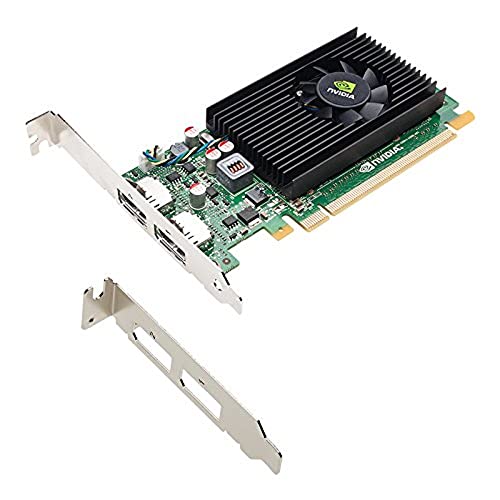
The NVS 310’s listing title is the shortest in this roundup — PNY’s part number, the words “Professional NVIDIA NVS 310”, “Display Port”, and not much else — and this guide treats that terseness as a fact to report rather than a gap to wallpaper. What the name itself legitimately conveys is lineage. NVIDIA’s NVS line was built for one purpose: professional multi-display computing, sold into financial, corporate and control-room fleets where the buying criteria are driver stability, identical behaviour across hundreds of desks, and support that answers. PNY, as NVIDIA’s professional channel partner, is the name through which that line reached most buyers, and the VCNVS310DP-PB string is the exact artefact a fleet manager would specify.
Everything numeric, however, lives outside the title: the display count, the memory, the precise output arrangement beyond the DisplayPort named in the part’s description. The spec box below flags each of those as unstated, and the correct pre-purchase step is PNY’s datasheet for this exact part, a document that exists and settles the figures in a page. That step matters because NVS cards were deployed in specific, known configurations, and a buyer matching an existing fleet — the most common reason these cards are purchased today — needs the exact figure, not the family average.
Placed on the guide’s spectrum, the NVS 310 is the professional-manners option for modest desks: fewer ambitions than the workstation tier, more deployment pedigree than the value shelf. Its era is mature, its drivers are of the professional branch and finished in character, and its natural purchase is the standardised desk that values a known quantity. Buyers outfitting a single creative workstation should look at the A4000’s end of the guide; buyers keeping a professional fleet coherent will understand this pick immediately.
There is also a longevity argument embedded in the installed base. A card deployed by the thousand in corporate fleets leaves behind documentation, forum knowledge and spare circulation that obscure cards never accumulate. For an older professional desk being maintained rather than redesigned, that ecosystem is a practical asset, and it is part of what the established name on this listing actually buys.
- Line: NVIDIA NVS professional multi-display family
- Channel: PNY, part VCNVS310DP-PB (see the listing title)
- Outputs: DisplayPort named in the title; count not stated — verify with PNY documentation
- Memory: Not stated in the listing title — verify with PNY documentation
- Display count: Not stated in the listing title — verify with PNY documentation
Strengths:
- The NVS line’s professional driver and fleet pedigree is the pick’s core value.
- PNY’s exact part number gives documentation a precise target.
- A known quantity for maintaining standardised professional desks.
Trade-offs:
- The title states almost no figures, so datasheet homework is mandatory.
- Its generation is mature, with support in its finished rather than evolving phase.
- Display-class intent excludes compute or 3D workloads entirely.
Best for: a buyer seeking to match or maintain a professional NVS fleet desk. Not suited for: a new creative workstation that requires current performance.
NVIDIA NVS 510 Graphics Card 0B47077 — Step-up NVS for denser desks
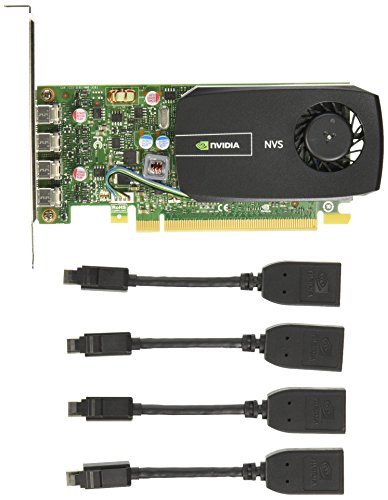
The NVS 510 listing is terser still — a name, a part number, and nothing else — so this section follows the same documentary discipline as its sibling’s, beginning with what the name means. Within NVIDIA’s professional display line, the 510 tier sat above the 310, aimed at denser multi-display desks: the step a fleet took when two screens per desk stopped being enough and the wall of panels became the working environment. That positioning is the legitimate content of the name, and it is how this guide presents the pick — as the NVS family’s answer to the four-screen professional desk, with every specific figure referred to documentation where it belongs.
The referral is not a formality. Display count, connector arrangement and memory for this card are exactly the figures a deployment is planned around, and the title states none of them; the spec box flags all three. NVIDIA’s and the channel partners’ datasheets for the NVS 510 are the specification of record, and a buyer should read the figures there — particularly the output arrangement, since professional cards of this family used compact connector formats that pair with specific cables or adapters, a detail that decides whether a desk’s existing monitors plug straight in.
Against the value shelf’s four-HDMI cards, the NVS 510’s argument is temperament and pedigree rather than arithmetic: professional drivers, fleet behaviour, and a design brief written for desks that run all day, every day, in businesses. Against its own sibling, its argument is headroom within the same manners. The buyer choosing between them is really choosing the desk’s density, and should make that choice from the datasheets side by side — the guide’s role is to insist on the comparison, not to pre-empt it with figures the listings withheld.
As with the 310, the installed-base effect applies with interest: the 510 tier was a corporate standard in its day, and the knowledge, spares and documentation surrounding it remain unusually accessible for a card of its age. A facilities or IT buyer maintaining a floor of multi-screen desks will find that ecosystem as valuable as the silicon.
- Line: NVIDIA NVS professional multi-display family, upper tier
- Part number: 0B47077 (see the listing title)
- Outputs: Not stated in the listing title — verify with NVIDIA documentation
- Memory: Not stated in the listing title — verify with NVIDIA documentation
- Display count: Not stated in the listing title — verify with NVIDIA documentation
Strengths:
- The NVS family’s upper tier, aimed at denser professional multi-screen desks.
- Professional driver branch and fleet deployment pedigree.
- A corporate-standard installed base keeps documentation and spares accessible.
Trade-offs:
- The bare title makes datasheet verification unavoidable before any deployment.
- Connector arrangements of its era may require specific cables for current monitors.
- Its support story is mature and finished rather than actively evolving.
Best for: a buyer seeking the denser-desk tier of a professional NVS deployment. Not suited for: a purchase planned from a listing alone, without a datasheet read.
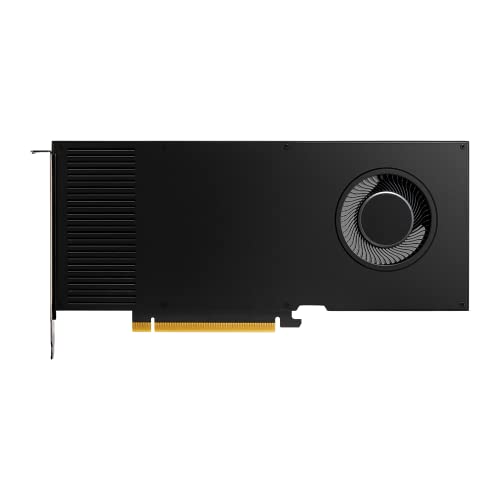
PNY NVIDIA RTX A4000 — The true workstation in the lineup
The RTX A4000’s title is three words and a brand, and for once the brevity is confidence rather than omission: the model name is one of the best-documented artefacts in professional graphics. This is a true workstation GPU from NVIDIA’s RTX professional line, sold through PNY’s channel — silicon built for rendering, simulation, CAD and content creation, running the certified professional driver branch, in a different economic and engineering universe from the display cards above. Its multi-monitor capability is real but almost beside the point; the desks that buy this card need the screens to watch serious computation happen.
Documentary discipline still applies, and the spec box enforces it: the title states no memory figure, no output count, no connector list, so none is printed here as fact. PNY’s datasheet for the RTX A4000 is the specification of record, and any deployment — multi-monitor arrangements included — should be planned from it. What can be said from the name alone is the class behaviour: professional drivers certified against the major design and engineering applications, a support organisation that treats fleets seriously, and performance headroom that turns the other picks’ ceilings into this card’s floor.
The buying question this pick poses is therefore inverted. The display cards ask whether their screens suffice; the A4000 asks whether the workload justifies a workstation engine, with the screens following as a detail to confirm in documentation. A rendering artist driving three monitors, an engineer running simulation previews across a desk, a video desk with timelines spanning panels — those desks are this card’s parish, and for them the rest of the roundup is underpowered in kind, not merely in degree.
It also future-proofs the desk differently. Display cards age by connector fashion; workstation engines age by application demands, and a card of this tier stays inside professional software’s comfort for years. Bought for a genuine compute workload, it is the one pick here that can anchor a workstation through a full hardware cycle — with its multi-monitor duties performed, characteristically, without ever being the limiting factor.
- Line: NVIDIA RTX professional workstation family
- Channel: PNY (see the listing title)
- Memory: Not stated in the listing title — verify with PNY documentation
- Outputs: Not stated in the listing title — verify with PNY documentation
- Display count: Not stated in the listing title — verify with PNY documentation
Strengths:
- Genuine workstation compute, in a category otherwise made of display cards.
- Certified professional drivers for design, engineering and content applications.
- The tier’s headroom keeps it relevant across a full workstation lifecycle.
Trade-offs:
- Its title states no figures at all, so every specification comes from the datasheet.
- Workstation pricing is wasted on desks that only needed more screens.
- Its power and cooling expectations exceed the display cards’ modest demands.
Best for: a buyer seeking a real workstation GPU whose monitors serve rendering, CAD or simulation work. Not suited for: a desk whose only problem was screen count.
From Six HDMI Ports to a Workstation Engine: the Spectrum on One Table
| Pick | Memory | Outputs stated in title | Character | Figures left to documentation |
|---|---|---|---|---|
| Radeon R7 350 | 2GB GDDR5 | 6x HDMI, up to 6 displays | Display multiplier | Per-display resolution |
| RX560 | 4GB GDDR5 | 4x HDMI, up to 3840×2160 60Hz | Display card with 3D reserve | Simultaneous-ceiling specifics |
| VisionTek RX 550 | 4GB GDDR5 | 4x HDMI, four-monitor support | Deployment-ready display card | None of consequence |
| PNY NVS 310 | Not stated in the listing title | DisplayPort named; count unstated | Professional fleet display card | Count, memory, arrangement |
| NVIDIA NVS 510 | Not stated in the listing title | Not stated in the listing title | Professional fleet card, upper tier | Count, memory, arrangement |
| PNY RTX A4000 | Not stated in the listing title | Not stated in the listing title | True workstation GPU | Memory, outputs, count |
The table’s shape tells the category’s story at a glance: the value end prints everything and computes little; the professional end prints almost nothing and computes, in the A4000’s case, enormously. Neither end is dishonest — they simply sell to different readers, one by specification and one by specification sheet. The buyer’s task is knowing which reader the desk requires.
Why Do Control Rooms and Signage Walls Read This Category Differently?
A control room does not experience its screens as a desk. The wall is shared, always on, and read at a distance by several people at once, which shifts the buying criteria toward uniformity, uptime and the ability to replace one panel or one card without changing the wall’s behaviour. Signage pushes the same logic further into public: the display is the business’s face, the player machine is hidden, and service happens on a schedule rather than on demand. Both settings explain the afterlife of the professional display lines in this guide — cards bought for fleets of walls behave like infrastructure, and infrastructure is replaced by its own kind.
For those settings the value picks make a different but legitimate case. A six-HDMI card behind a signage wall offers a spare-part simplicity that a small business can hold in a drawer, and its named signage duty in the title is the maker acknowledging the assignment. The choice between the professional line and the value card, in a wall context, is a choice about the wall’s maintenance model — an IT organisation with standards, or a proprietor with a ladder. This guide’s spectrum serves both, provided the choice is made with the maintenance model in view rather than the purchase price alone.
How Do You Plan a Multi-Monitor Workstation Around One Card?
Start with the panels, because they outlive the card. Inventory each monitor’s inputs, native resolution and refresh rate, and total the pixel load honestly; a wall of 4K panels is a heavier composition job than the same count at 1080p, and the card’s memory should be chosen against the total, not the count. Match the card’s stated outputs to the panels’ inputs natively wherever possible, and budget adapters only where the match fails, testing any adapter at the target resolution before the fleet order rather than after.
Then plan the state, not just the screens. Decide the primary display, the arrangement geometry, and which applications live where, and confirm the card’s driver environment supports saving and restoring that arrangement. Professional desks standardise this layout across machines so any desk feels like any other; home workstations benefit from the same discipline in miniature, because a layout that survives sleep and updates is worth more than a marginally faster card.
Finish with the machine around the card: system memory sized for the applications those screens will hold, a processor that feeds them live data, and cable runs dressed so a monitor can be swapped without dismantling the desk. Multi-monitor workstations fail at their edges — a starved system, a strained cable, an unlabelled adapter — far more often than at their GPUs. Plan the edges, and the card’s job becomes the easy part it was purchased to be.
Ergonomics deserves its paragraph in any honest planning section, because the card enables arrangements the neck must then live with. A six-panel wall invites a viewing distance and a mounting geometry that should be decided before the panels are hung, not discovered across the first month of headaches. The centre of the array should sit at the working eye line, the outer panels angled inward, and the primary display — the one the card’s driver treats as home — should be the panel directly ahead. Hardware planning and furniture planning are the same meeting for a multi-monitor desk, and holding them together is what separates a workstation from a pile of screens.
What Mistakes Turn a Multi-Screen Desk Into a Daily Annoyance?
The first is buying compute for a counting problem, or count for a computing problem — the category’s founding confusion, which this guide’s spectrum exists to prevent. A six-screen dashboard on a workstation engine wastes money; a rendering desk on a display multiplier wastes months. The second mistake is adapter optimism: assuming any output can become any input at full resolution through a cheap dongle, then discovering the ceiling at the worst moment. Native matches first, tested adapters second, hopes never.
The third mistake is planning from a famous name without reading its figures. Two picks in this very guide print almost nothing in their titles, and a deployment ordered on lineage alone can arrive with the wrong connector arrangement for the desk’s monitors. Datasheets are short; read them. The fourth is ignoring the desk’s second year — buying exactly today’s screen count, then facing a fifth panel with no output for it. One tier of headroom, in count or in class, is the cheapest insurance in the whole build.
The fifth mistake is mixing panel generations carelessly. A wall combining an old 1080p screen, a 1440p centre and a 4K satellite asks the driver to compose three pixel densities into one desktop, and text scaling across such a wall is a daily irritant rather than a one-time setup. Matched panels — or at least matched resolutions per pair — age far more gracefully. The sixth mistake is power and heat amnesia: a workstation card of the A4000’s class expects a power supply and airflow sized for it, unlike the bus-powered display cards elsewhere in this guide, and a tower specified around the display cards’ modesty will object to the engine’s appetite.
Final Recommendation
Let the desk’s real question choose the card. A wall of screens showing data belongs to the R7 350’s six HDMI outputs; a four-panel trading desk with 4K ambitions belongs to the RX560 and its stated ceiling; a deployable four-HDMI fleet belongs to the VisionTek RX 550, the most completely specified card here. The NVS 310 and 510 serve professional fleets that value pedigree and can read a datasheet, in that order of density. The RTX A4000 serves the desk whose monitors exist to watch computation — and for that desk, nothing else in this guide is a substitute at any screen count.
One pattern unites the six verdicts: each card is the correct answer to a precisely stated desk and a poor answer to the neighbouring one. That is not a weakness of the lineup; it is the shape of a mature category, where the products have specialised around real deployments. The buyer’s craft is stating the desk precisely — panels, workload, growth, fleet or single — and letting that statement, rather than a headline figure, make the choice.
Count the panels, price the compute honestly, read the one datasheet the famous names require, and the desk will light up the same way every morning — which, in the end, is the entire product being bought. Screens are a promise a workstation makes daily; the right card is simply the one whose promise matches the desk that relies on it, kept without drama for years.
Frequently Asked Questions
How many monitors can a single workstation card drive?
In this roundup, the stated ceiling is six, from the R7 350’s six HDMI outputs. Four is the most common professional configuration and three picks here address it directly. The professional listings that leave counts unstated should have those counts confirmed in their datasheets, since deployment planning needs the printed figure rather than the family reputation.
Is a cheap multi-display card enough for trading?
For the classic trading desk — charts, news, order windows across several panels — yes, and the value picks here name trading in their own titles. The requirements are screen count, resolution and all-day stability rather than 3D power. Desks adding heavy charting analytics or simulation should step toward the professional tiers, where driver pedigree and headroom begin to matter.
Why do the NVS and RTX listings state so few specifications?
Professional channel listings often assume a buyer working from a specification sheet or an existing fleet standard, so the title carries the part identity rather than a consumer-style feature list. The figures exist and are authoritative in the makers’ datasheets; this guide flags every figure the title omits instead of repeating numbers from general knowledge, and a two-minute datasheet read closes each gap.
HDMI or DisplayPort for a multi-monitor desk?
Match the monitors. Desks built from consumer and commercial panels speak HDMI, and the value picks here are all-HDMI for that reason. Professional monitor fleets speak DisplayPort, which is the NVS line’s native language. Adapters can bridge the two worlds, but each bridge should be tested at the target resolution before it becomes part of a deployment.
Does more video memory matter for many screens?
Yes, in proportion to total pixels rather than panel count. Six 1080p desktops and four 4K desktops are comparable composition loads, and both draw on the card’s memory for framebuffers before any application data arrives. The 2GB six-output pick is rationed tightest; the 4GB picks breathe easier; and the workstation tier’s capacity — confirmed in its datasheet — exists for workloads where the screens are the smallest part of the memory story. A useful rule is to size memory for the array’s second year, when an extra panel or a resolution step tends to arrive.
When is the RTX A4000 the right answer in a multi-monitor guide?
When the monitors are windows onto computation: rendering, CAD, simulation, video production. For those desks the card’s professional silicon and certified drivers are the purchase, and its multi-display support is the necessary companion feature. When the desk’s work is the displays themselves — data, dashboards, documents — the display cards in this guide deliver the same lit screens without the workstation premium.
Can one card run monitors of different sizes and resolutions?
Generally yes — modern drivers compose mixed panels into one desktop, and the cards here operate in that world. The practical cautions are scaling and symmetry: text rendered across panels of different pixel densities changes size at the bezel, which some desks tolerate and some find maddening, and a card’s total pixel budget is shared across the array. Matched panels remain the arrangement that ages most gracefully, with mixed arrays best reserved for a deliberate centre-and-satellites design. When a mixed array is the plan, set the scaling per panel at installation and screenshot the working configuration; the picture becomes the desk’s own documentation when an update rearranges things a year later.
Related Guides
Multi-monitor planning touches the neighbouring constraints of width, power and raw performance. Continue with our guides to the best single slot graphics cards, the best graphics cards that take board power and the best graphics cards for machine learning for the companion decisions. The machine-learning shelf in particular continues this article’s deepest question — how much computation a desk actually needs — at the scale where the monitors become the smallest part of the build.