What's inside
- Where to buy
- Key Takeaways
- Quick Picks
- How did we choose these calibrated monitors?
- Which calibrated monitors lead on evidence?
- Which calibrated screens serve smaller or broader briefs?
- How do the six calibrated monitors compare?
- How do you read a calibration claim like an auditor?
- What working habits protect colour accuracy day to day?
- How do uniformity and viewing angle quietly decide real-world accuracy?
- What does a hardware calibrator actually do — and do you still need one?
- Which colour space should your workflow actually live in?
- How do you keep a calibrated monitor accurate month after month?
- What mistakes do buyers make with calibrated monitors?
- What changes when the calibrated screen is also your everyday screen?
- Final Recommendation
- Frequently Asked Questions
- Related Guides
As an Amazon Associate I earn from qualifying purchases. This post may contain affiliate links at no extra cost to you.
gizmoverdict.com is reader-supported. When you buy through links on our site, we may earn an affiliate commission.
Where to buy
Each of the six monitors reviewed here has an Amazon listing behind its name, and in this category the listing’s fine print is the product: look for a stated Delta E figure, the gamut percentages with the colour space named beside them, and the words “factory calibrated” attached to a calibration report rather than floating as decoration. The best color calibrated monitors are sold on evidence, and the evidence lives in those lines. A quick warning before the names begin, because it shapes the whole category: search for this phrase and half of what you find will be calibrators — puck-shaped sensors from lines like Spyder and Calibrite that measure and correct a monitor. Those are accessories, discussed properly later in this guide, and they are never picks here. The picks are monitors that arrive calibrated, with the paperwork to prove it.
Now the honest complication that separates this guide from a sales brochure: factory calibration is a photograph, not a promise. A panel leaves the factory measured and adjusted, with its Delta E — the average distance between the colours it shows and the colours it was asked to show — certified at a point in time. Then backlights age, panels drift, and a year or two later the certificate describes a monitor that has quietly wandered. Professionals know this, which is why the professional endgame is a hardware calibrator used on a schedule, re-measuring and re-correcting the panel as it changes. None of that makes factory calibration worthless — it is the difference between starting accurate and starting approximate — but this guide will keep reminding you that buying a calibrated monitor is buying a head start, not a lifetime guarantee.
With that framing, the six picks sort by the work they serve. Two BenQ PD models anchor the designer end, ViewSonic’s ColorPro and Acer’s ProDesigner bring certification pedigrees of their own — Pantone on one side, Calman on the other — HP’s small Series 7 Pro covers the desk-bound proofing niche, and Samsung’s ViewFinity S7 gives the 32-inch 4K canvas a calibrated-leaning option for buyers whose colour needs are real but not forensic. Read the Delta E and gamut lines the way auditors read accounts: the numbers are the story.
Key Takeaways
- Delta E is the headline honesty metric: ≤3 is professional-grade for most work, below 2 is excellent, and the Acer here claims under 1 with Calman verification.
- Gamut claims mean nothing without the colour space named — 99% Adobe RGB (the Acer) and 100% sRGB are different promises for different workflows.
- Calibrators such as Spyder and Calibrite devices are accessories that keep a monitor honest over time; they are discussed in this guide and never listed as picks.
- Factory calibration drifts as backlights age, so the professional endgame is scheduled hardware recalibration — a calibrated monitor is a head start, not a lifetime state.
- Uniformity matters as much as average accuracy: a panel can be accurate in the centre and wander at the edges, which is why BenQ’s uniformity technology earns its mention.
- Match the monitor to the deliverable — sRGB for web and video, Adobe RGB for print, P3 for Apple-centric and cinema-leaning work.
Quick Picks
| Pick | Badge | Why it earns its place |
|---|---|---|
| ViewSonic VP2768A 27-Inch ColorPro | Best all-round calibrated value | Pantone Validated 1440p colour with 90W USB-C and daisy chaining — the sensible centre of the calibrated market. |
| BenQ PD3205UA 32-Inch 4K AQCOLOR | Best for designers at 32 inches | AQCOLOR accuracy, uniformity technology and an ergo arm, wrapped around a big 4K canvas for professional design work. |
| Acer ProDesigner PE270K 27-Inch 4K | Tightest stated accuracy | Delta E under 1, Calman Verified, 99% Adobe RGB — the specification print and photography buyers dream about, at up to 144Hz. |
| HP Series 7 Pro 724pf 23.8-Inch | Best compact proofing screen | A small, factory-calibrated IPS Black panel with deep contrast for desks where the calibrated screen is a tool, not the whole desk. |
| Samsung 32-Inch ViewFinity S7 | Best big-canvas generalist | Thirty-two inches of 4K with HDR10 from Samsung’s creator-leaning ViewFinity line, for colour-aware work beyond strict proofing. |
| BenQ PD2725U 27-Inch 4K Thunderbolt | Best for Mac-based studios | 95% P3, Delta E ≤3 and Thunderbolt docking — the calibrated monitor that also runs a MacBook desk. |
How did we choose these calibrated monitors?
We started with evidence and worked outward. A pick needed a stated accuracy claim from its own listing — a Delta E figure, a named gamut with percentages, a validation or verification from a recognised colour authority — because a monitor that will not state its accuracy is asking to be trusted on vibes, and this category runs on measurement. Factory calibration had to be part of the product, not an accessory’s promise. From that evidence base we weighed the working factors: panel uniformity provisions, colour-space breadth matched to real workflows, connectivity for the machines creative work actually runs on, and ergonomics fit for people who stare critically for hours.
We also policed the category’s borders. Calibrator hardware was excluded from picks no matter how often search results promoted it, because a sensor is a tool for maintaining a monitor, not a monitor. Gaming panels with a wide gamut but no accuracy claim were excluded too — covering a colour space and hitting its targets are different achievements, and only the second one is calibration. What survived is a list where every monitor can say, in numbers, how truthful it is.
A final judgement call deserves disclosure: we valued stated, checkable claims over reputation. A famous name with no Delta E in its listing ranked below a quieter model that published its figures. If you remember that principle, you can audit any future addition to this category yourself — demand the number, name the colour space, and ask who verified it.
We also considered the buyer’s whole first year, not just delivery day. A monitor whose ecosystem includes sensible colour software, a hub that removes a dock from the desk, or a stand that sets the panel at true proofing distance will still be serving its accuracy in month twelve, when a bare panel with a slightly tighter certificate may have been undermined by its own ergonomics. Accuracy is a system property, and the shortlist reflects that.
Which calibrated monitors lead on evidence?
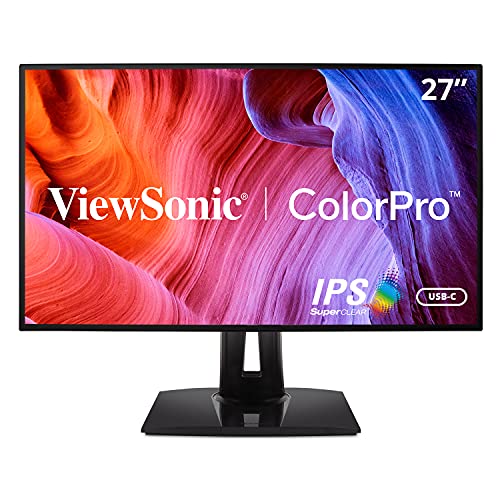
ViewSonic VP2768A 27-Inch ColorPro — Best all-round calibrated value
The VP2768A is what the sensible centre of this market looks like. Its panel is 1440p rather than 4K, and that choice deserves a defence before the colour case begins: for a great deal of professional work — web design, photography at screen sizes, video for online delivery — 27-inch 1440p is a fully professional canvas, and the money not spent on pixels is spent here on colour integrity instead. That integrity carries names: 100% sRGB coverage and Pantone Validation, ViewSonic’s ColorPro line having built its reputation on exactly this combination of stated coverage and external checking.
The working details around the panel are unusually complete. USB-C delivers 90W — enough to dock and charge a serious laptop from the monitor — and the panel supports daisy chaining, so a two-screen colour desk can grow from one cable. For photographers and designers running a main proofing screen plus a palette-and-tools companion, that chain is the difference between a tidy desk and a dock purchase. The ColorPro line also treats uniformity and colour consistency as selling points rather than secrets, which matters at 1440p sizes where a photograph fills the whole frame and any corner wander shows.
Position it against the 4K picks honestly: if your deliverables are pixel-dense — print at large sizes, 4K video masters, interface design at Retina densities — the BenQ and Acer below serve you better. If your deliverables live on screens and your colour must simply be right, every day, without ceremony, the VP2768A is the calibrated monitor as appliance: accurate, dockable, chainable, and priced in the tier where buying two is a plan rather than a fantasy.
There is a temperament this monitor suits particularly: the professional who proofs in the morning and produces all afternoon. Its colour holds the morning honest, while the hub and chain support turn it into infrastructure for the rest of the day — laptop docked, second screen fed, no ceremony in either direction. Calibrated monitors are sometimes precious instruments that resent ordinary work; the VP2768A is the opposite, a working tool that happens to tell the truth.
- Panel: 27-inch 1440p IPS
- Colour: 100% sRGB, Pantone Validated
- USB-C: 90W power delivery; daisy chain support
- Line: ColorPro professional series
- Best suited role: main proofing screen in a screen-delivery workflow
Strengths
- Pantone Validation plus full sRGB coverage covers the web, photo and brand workflows most desks run.
- 90W USB-C and daisy chaining make it the hub of a growing multi-screen colour desk.
- 1440p pricing leaves budget for the calibrator that keeps it honest in year two.
Trade-offs
- 1440p density is a step below the 4K picks for print-proofing and pixel-level work.
- sRGB is its gamut story; Adobe RGB print specialists should take the Acer.
- Its virtues are quiet ones — no single headline number shouts.
Best for: photographers, web designers and brand workers who need verified sRGB accuracy with docking. Not suited for: Adobe RGB print workflows or 4K video finishing, which are served below.

BenQ PD3205UA 32-Inch 4K AQCOLOR — Best for designers at 32 inches
BenQ’s PD line speaks a dialect of colour that this guide respects: AQCOLOR is the brand’s umbrella for factory calibration, gamut discipline and the unglamorous technologies that keep a big panel honest across its whole surface. On the PD3205UA that means a 32-inch 4K IPS panel specified at 99% Rec.709 and sRGB, factory calibrated to Delta E ≤3, with uniformity technology addressing the failure mode averages hide — a screen can measure beautifully at its centre and drift toward its corners, and on a 32-inch canvas your work lives in those corners. Uniformity is the difference between a calibration certificate and a calibrated experience.
The supporting cast is built for professional days. The ergo arm mount frees the desk and puts the big panel at exact working height and distance, which at 32 inches is a colour issue as much as a comfort one — viewing angle shifts are colour shifts. ICCsync and BenQ’s software ecosystem help keep the monitor’s profile and the computer’s colour management in agreement, the quiet plumbing that separates studios from hobby desks. Mac-readiness is claimed in the listing and the design language agrees: this is a monitor built to sit in front of a designer and be believed.
Its honest boundary is gamut breadth: this is an sRGB and Rec.709 instrument, superb for web, interface, video and general design, and not the Adobe RGB print specialist the Acer below claims to be. Within its brief it is arguably the most complete package here — size, uniformity, ergonomics, ecosystem — and for the large population of designers whose deliverables are screens, that completeness is exactly the right shape of excellence.
Designers who present work in the room will feel another benefit of the big BenQ: clients read confidence from a large, even, calm image. A 32-inch panel at a proper arm’s-length distance fills the presentation moment without the colour surprises that make designers apologise for their own screens. That is not a specification, and this guide does not score it as one — but studios buy with their whole practice in mind, and the PD3205UA’s presence in a client session is part of its professional return.
- Panel: 32-inch 4K UHD IPS
- Colour: 99% Rec.709 and sRGB, Delta E ≤3 factory calibrated
- Technology: AQCOLOR, uniformity, ICCSync
- Mount: built-in ergo arm
- Best suited role: primary design canvas
Strengths
- Uniformity technology keeps the whole 32-inch surface honest, not just its centre.
- The ergo arm sets viewing distance precisely, which protects both posture and perceived colour.
- BenQ’s colour software ecosystem keeps profiles and machines in agreement.
Trade-offs
- Its gamut story is sRGB/Rec.709; print buyers needing Adobe RGB should look at the Acer.
- Delta E ≤3 is professional, though the Acer’s sub-1 claim is tighter on paper.
- A 32-inch ergo-arm setup wants a sturdy desk and a deliberate installation hour.
Best for: professional designers and video editors working in sRGB and Rec.709 at a serious size. Not suited for: Adobe RGB print proofing, or small desks that cannot host a 32-inch arm-mounted panel.

Acer ProDesigner PE270K 27-Inch 4K — Tightest stated accuracy
Read this listing the way this guide taught you to, and it reads like a challenge to the whole category: Delta E under 1, factory calibrated, Calman Verified, 99% Adobe RGB and 96% DCI-P3, on a 27-inch 4K panel that also runs up to 144Hz. Each of those claims addresses a different professional anxiety. Delta E under 1 is accuracy at the edge of human perceptibility — the average colour error smaller than most viewers can detect. Calman verification means the claim passed through the industry’s standard measurement software ecosystem rather than the manufacturer’s say-so alone. And 99% Adobe RGB is the print world’s colour space, the one that decides whether a photograph proofed on screen survives contact with a press.
The 144Hz ceiling is the surprise guest, and it deserves a fair hearing rather than a smirk. Video editors scrubbing timelines, motion designers previewing animation, and anyone whose work moves benefits from a panel that refreshes like a gaming screen while measuring like a proofing one; historically those two panels were different purchases. If Acer’s claims hold in your room — and the verification pedigree says they were earned under measurement — the PE270K collapses that divide more completely than anything else in this guide.
The professional caveats are about workflow, not the panel. Adobe RGB only pays if your pipeline is Adobe RGB end to end — camera, software, output — because a wide-gamut monitor fed an unmanaged workflow produces expensive confusion instead of accuracy. And like every factory calibration here, Acer’s will drift with time; the difference is that a buyer this measurement-conscious is exactly the buyer who will own the calibrator to maintain it. For print photographers and colour absolutists, this is the specification sheet to beat.
One more audience should recognise itself here: the photographer who has been proofing on a gaming monitor and blaming the lab. Prints coming back shifted, screens that flatter saturation, clients approving colours that the press then cannot find — that whole weary cycle usually ends at a panel like this one, where the screen’s claims are measured rather than marketed. The Acer will not fix an unmanaged workflow, but for the photographer ready to run one, it is the most credible surface in this guide to build it on.
- Panel: 27-inch 4K UHD, up to 144Hz
- Accuracy: Delta E <1 factory calibrated, Calman Verified
- Colour: 99% Adobe RGB, 96% DCI-P3
- Best suited role: print and photography proofing
- Workflow note: rewards a colour-managed pipeline
Strengths
- The tightest stated accuracy in this guide, backed by Calman verification.
- 99% Adobe RGB serves print photography the way few monitors at any tier do.
- High refresh makes motion work and editing feel like a gaming panel — without the gaming panel’s colour compromises.
Trade-offs
- Wide gamut is wasted — even confusing — in an unmanaged sRGB-only workflow.
- Its excellence is specialised; generalists pay for print credentials they may never use.
- Factory calibration still drifts; budget the calibrator as its long-term partner.
Best for: print photographers, prepress-minded designers and colour absolutists with managed workflows. Not suited for: casual creators whose work lives entirely in sRGB and would never feel the difference.
Which calibrated screens serve smaller or broader briefs?
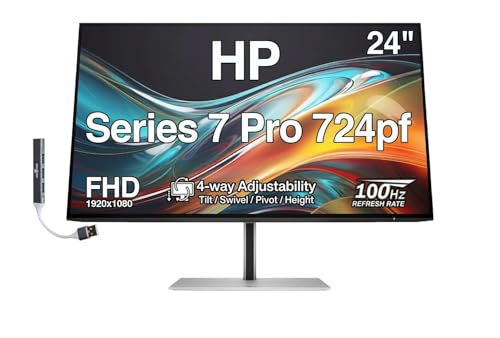
HP Series 7 Pro 724pf 23.8-Inch — Best compact proofing screen
Not every calibrated screen is the desk’s centrepiece. HP’s Series 7 Pro 724pf is a 23.8-inch Full HD panel, and its case rests on a specific professional pattern: the small, truthful screen that sits beside a larger working canvas, dedicated to proofing, reference images and the final check before work leaves the building. Its credentials are sized to that role and stated with unusual completeness in the listing — IPS Black panel technology with 1500:1 contrast, 100Hz refresh, 99% sRGB with 85% P3 reach, and factory calibration, all behind a 150mm four-way adjustable stand that small cheap monitors never offer.
The IPS Black detail matters more than the diagonal suggests. Deeper blacks than standard IPS gives photographs and video a more honest shadow range, and shadow detail is precisely where proofing judgements live. The connectivity is desk-serious too: DisplayPort out for daisy chaining and four USB-A ports turn this modest panel into a small hub, so the proofing screen earns its desk space in infrastructure as well as accuracy.
Its limits are written in its dimensions. Full HD at 23.8 inches is a reference density, not a working-canvas density, and nobody should buy it as their only design screen in a world containing the other five picks. Bought as what it is — the calibrated second opinion, the client-preview screen, the compact professional tool for a small desk — it is one of the most honestly specified products in this guide, and HP’s business-line seriousness about stands and ports shows in every line of its listing.
Small studios and print-adjacent freelancers will also appreciate what the HP says about their seriousness in a client call. A dedicated reference screen — small, calibrated, on a proper stand — reads as process. It says the work was checked on an instrument, not eyeballed on the big fun screen. For a modest outlay relative to the main canvas, that signal plus the genuine proofing utility makes the 724pf an unusually efficient purchase for desks that sell trust.
- Panel: 23.8-inch FHD IPS Black, 100Hz
- Contrast: 1500:1
- Colour: 99% sRGB, 85% P3, factory calibrated
- Stand: 150mm height, four-way adjust
- Ports: DisplayPort out, 4× USB-A
Strengths
- IPS Black contrast gives proofing work honest shadow detail at a compact size.
- A genuinely adjustable stand and daisy-chain output belie its modest dimensions.
- Factory calibration at this size makes a dedicated reference screen affordable to add.
Trade-offs
- Full HD resolution suits reference duty, not primary design work.
- 23.8 inches will feel small as a desk’s only screen.
- 85% P3 is a reach, not full P3 coverage, for Apple-centric colour work.
Best for: studios and solo professionals adding a calibrated reference screen beside a main canvas. Not suited for: anyone buying their one and only design monitor — choose a 27-inch 4K pick instead.

Samsung 32-Inch ViewFinity S7 — Best big-canvas generalist
Samsung’s ViewFinity line is the company’s creator-facing family, and the S7 is its big, calm generalist: 32 inches of 4K IPS with HDR10, in the series Samsung aims at people who make things for screens. This guide places it with a precise label — it is the colour-aware option rather than the colour-certified one. Its listing leads with resolution, size and HDR rather than a Delta E figure, and in keeping with this guide’s evidence rule, we rank its accuracy claims accordingly: a very good creator panel from a serious line, recommended for work where colour should be pleasing and broadly right, rather than contractually exact.
That positioning is a strength for a large real audience. Content creators, YouTubers, social designers, presentation builders and photographers working for screens rather than presses need a big 4K canvas whose colour behaves — and the ViewFinity’s creator tuning, size and HDR10 support serve exactly that day. Paired with a laptop over its modern connections, it is also the simplest desk in this guide to live with: one large screen, no ceremony, work that looks the way you intended when it reaches other screens.
Buy it with eyes open about the endgame, though. If your work graduates to client-proofing or print, this panel becomes the spacious preview screen beside a certified pick — a role it will fill beautifully for years. If your work stays on screens, as most modern creative work does, the S7 may be the only monitor in this guide you ever need, and its honesty about that is worth more than a borrowed Delta E claim would be.
There is a household version of the ViewFinity’s case, too. A family desk where one person edits the holiday photographs, another builds presentations and a third cuts video for a channel does not need three standards of truth — it needs one big screen everyone trusts approximately, all the time. The S7’s creator tuning and size make it the shared instrument for that desk, and its lack of certification stops mattering the moment nobody’s contract depends on a Delta E.
- Panel: 32-inch 4K UHD IPS
- HDR: HDR10
- Line: ViewFinity creator series (S71H)
- Best suited role: large creator canvas for screen delivery
- Accuracy note: creator-tuned; no Delta E headline in listing
Strengths
- A big, composed 4K canvas tuned for creators whose work lives on screens.
- HDR10 support flatters video work and previewing.
- The simplest ownership story in this guide — size and sanity over certification.
Trade-offs
- No stated Delta E pedigree; proofing professionals should choose a certified pick.
- Creator tuning is not a calibration report, and this guide scores it accordingly.
- Its generality is the point — specialists will find their specialist above.
Best for: content creators and screen-first designers who want a large, colour-aware 4K canvas. Not suited for: print proofing or any workflow where a client can demand your Delta E.

BenQ PD2725U 27-Inch 4K Thunderbolt — Best for Mac-based studios
The PD2725U returns in this guide wearing its colour credentials foremost, and they are substantial: a 27-inch 4K IPS panel with 100% sRGB and Rec.709, 95% P3, and factory calibration to Delta E ≤3. The P3 figure is its headline in a Mac-centred world, because P3 is the native language of Apple’s displays — work graded on this BenQ sits consistently beside the same work on a MacBook’s own screen, which is the daily reality of Mac-based studios and the quiet failure of sRGB-only panels in them. BenQ’s Mac-oriented modes exist to close exactly that gap.
Thunderbolt 3 docking completes the studio picture: one cable gives the MacBook its picture, its charge at 65W, and its peripherals through the monitor’s hub, so the calibrated screen is also the desk’s infrastructure. In a small studio where the same desk hosts client sessions, that tidiness is professional in itself — clients judge with their eyes, and a calibrated panel on a clean desk is a quiet argument for your rates.
Against its larger sibling above, the trade is size for density and P3: the PD3205UA gives you 32 inches and uniformity technology in sRGB; this PD2725U gives you 27 inches at sharper density, the wider P3 gamut, and Thunderbolt. Mac-led studios doing video, interface and Apple-ecosystem design will take the P3 and the dock. Print-leaning buyers should be looking at the Acer. The BenQ pair between them cover the professional centre of this category from both directions, which is why this guide is comfortable recommending either with its brief attached.
Freelancers who carry their studio between home and client sites will find a specific relief in this BenQ: the laptop docks, the panel’s colour matches the machine’s own screen language, and the work looks the same in both places. Colour consistency across locations is the unglamorous foundation of a portable practice, and a P3-calibrated Thunderbolt panel is the closest thing to packing your studio’s truth in a single box.
- Panel: 27-inch 4K IPS
- Colour: 100% sRGB / Rec.709, 95% P3, Delta E ≤3 factory calibrated
- Connection: Thunderbolt 3, 65W power delivery, USB hub
- Best suited role: Mac-based studio desk
- Modes: Mac-oriented colour modes in the PD line
Strengths
- 95% P3 matches Apple’s display language for consistent cross-screen work.
- Thunderbolt docking makes the calibrated screen the studio desk’s hub.
- Factory calibration to a stated Delta E keeps it inside this guide’s evidence rule.
Trade-offs
- 27 inches is the smaller canvas beside its 32-inch sibling.
- Adobe RGB print work is the Acer’s territory, not this panel’s.
- 65W charging is ample for most MacBooks but not the maximum the largest can draw.
Best for: Mac-based designers and studios working in P3 and sRGB with client-facing standards. Not suited for: print proofers needing Adobe RGB, or buyers wanting the largest canvas above all.
How do the six calibrated monitors compare?
| Monitor | Panel | Stated accuracy | Gamut headline | Defining strength |
|---|---|---|---|---|
| ViewSonic VP2768A | 27-inch 1440p | Pantone Validated | 100% sRGB | Docking, daisy chain, all-round value |
| BenQ PD3205UA | 32-inch 4K | Delta E ≤3 | 99% sRGB / Rec.709 | Uniformity and ergo arm at size |
| Acer ProDesigner PE270K | 27-inch 4K, 144Hz | Delta E <1, Calman Verified | 99% Adobe RGB | Print-grade accuracy claims |
| HP Series 7 Pro 724pf | 23.8-inch FHD IPS Black | Factory calibrated | 99% sRGB, 85% P3 | Compact reference screen |
| Samsung ViewFinity S7 | 32-inch 4K | Creator-tuned | HDR10 canvas | Big generalist for screen work |
| BenQ PD2725U | 27-inch 4K | Delta E ≤3 | 95% P3 | Mac-studio docking and colour |
How do you read a calibration claim like an auditor?
Bring three questions to any listing in this category, including the ones in this guide. First: what is the Delta E, and is it an average or a maximum? Averages flatter; a stated average of ≤3 with good uniformity is honest professional evidence, while a lone maximum figure with no average is a different, rarer kind of candour. Second: coverage of what, measured how? “99%” is meaningless until the colour space is named beside it, and the space must match your deliverable — Adobe RGB for print, sRGB for web, P3 for Apple and cinema-leaning pipelines. Third: who checked? A validation or verification from an outside authority — Pantone’s validation programme, Calman’s measurement ecosystem — is worth more than any adjective a marketing department can mint.
Apply the same audit to the calibration report in the box. Better monitors ship with an individual report for your unit, not a generic promise for the model line, and the report’s date is the start of your recalibration clock. Keep it. When a client or a lab questions a colour decision eighteen months from now, that sheet plus your recalibration log is the difference between a professional answer and an awkward silence.
And keep the audit running after purchase. The first time a print returns wrong, resist blaming the lab or the panel by instinct — measure. A quick sensor pass tells you whether the monitor drifted, the profile was bypassed by an application, or the file left your desk in the wrong space. Professionals are not people whose colour never goes wrong; they are people who can find out where it went wrong, in numbers, within the hour.
What working habits protect colour accuracy day to day?
Accuracy is perishable in small ways that never make listings. Viewing angle is one: even good IPS panels shift slightly off-axis, so proof at your real working position, centred, rather than leaning in from the side. Brightness discipline is another — fix your proofing brightness at a level matched to your room and resist the evening urge to crank it for a film and forget to return; several picks here make mode-switching easy precisely so the proofing mode can stay untouched. And keep the panel clean with a microfibre cloth and nothing harsher; a smeared screen is an uncalibrated screen wearing a fingerprint filter.
Software habits matter equally. Work in applications that are colour-managed, keep your files’ embedded profiles intact when handing work along, and export in the space the destination expects rather than the space your monitor enjoys. The most common “monitor problem” in professional forums is actually a profile problem in the file’s journey — one more reason this guide keeps insisting that calibration is a workflow, and the monitor is simply its most visible instrument.
One habit separates studios from talented individuals: the reference print. Keep one physical print whose colours you know intimately — a test image with skin tones, deep shadows and a saturated red — and compare it against its file on screen whenever doubt creeps in. Screens and sensors speak in numbers; the reference print speaks in the destination’s own language, and the day all three agree is the day your colour process is genuinely closed-loop.
How do uniformity and viewing angle quietly decide real-world accuracy?
Calibration certificates describe a measurement taken at the panel’s centre, under laboratory patience. Your work happens across the whole surface, from a chair that moves. Uniformity technology — BenQ names it outright on the PD3205UA — exists to hold brightness and colour consistent from centre to corner, so the photograph’s sky does not change its mind between the middle of the frame and its edge. When you evaluate any monitor in this category, scroll a flat mid-grey and a flat white across the full screen in a dim room: blotches and corner tinting are the panel telling you its limits before your clients do.
Viewing angle is uniformity’s partner. IPS panels, which fill this list, hold their colour far better off-axis than older technologies, but “better” is not “perfectly” — a designer leaning far to one side to reach a tablet is proofing through a slight shift and should return to centre for verdicts. Large panels intensify this: the corners of a 32-inch screen are always viewed at an angle from a centred chair. None of it invalidates the category; all of it argues for the unglamorous virtues this guide keeps rewarding — good stands, proper distance, and uniformity engineering over headline gamut.
What does a hardware calibrator actually do — and do you still need one?
A calibrator is a small sensor that hangs against your screen while software displays a sequence of colour patches. The sensor measures what the panel actually produces, compares it with what it should produce, and builds a correction profile your computer applies thereafter. Devices in the Spyder and Calibrite families are the familiar names, and they exist because panels change: backlights dim and shift with age and hours, so the calibration a monitor shipped with describes it less accurately every season. Recalibrating on a schedule — monthly in busy studios, a few times a year at most desks — restores the truth the factory certificate once described.
So the honest answer to “do I still need one” is: eventually, if colour is your profession. A factory-calibrated monitor from this guide gives you an accurate start and, just as importantly, a panel uniform and well-behaved enough to be worth recalibrating — cheap panels drift unevenly in ways no profile fully repairs. Think of the monitor and the calibrator as a saw and its sharpening steel: the purchase of one does not abolish the other, and professionals budget for both across the panel’s life. What you should never do is buy a calibrator instead of a decent monitor and expect it to perform miracles on a panel with poor uniformity or a narrow gamut. Correction cannot invent colours the panel cannot show.
Buying order matters for readers assembling a colour desk from nothing. Monitor first, from this list, sized and spaced for your deliverable. Calibrator second, in the same season if the budget allows, so its first profile is written while the factory certificate is still fresh enough to agree with. Software discipline throughout — colour-managed applications, tagged exports, consistent room light. Follow that order and each purchase makes the others more valuable, which is more than can be said for most equipment categories.
One more border deserves policing, because search results blur it deliberately: calibration software alone, without a sensor, is guesswork dressed as process. Your eyes adapt to your room’s light within minutes, which makes them wonderful organs and terrible instruments. If a listing or a video suggests eyeballing your way to accuracy, it is selling confidence, not colour.
Which colour space should your workflow actually live in?
Decide by destination, not by ambition. If your work ships to browsers, phones and social platforms, it lives in sRGB no matter how wide your monitor’s gamut is — and a superb sRGB instrument like the BenQ PD3205UA or the ViewSonic will serve you better than a wide-gamut panel you must constantly fence in. If your work ships to print, it lives in Adobe RGB on screen and CMYK at the press, and the Acer’s coverage becomes a working necessity rather than a trophy. If your work ships into Apple’s ecosystem or toward cinema deliverables, P3 is the native tongue, and the PD2725U speaks it at 95%.
Video deserves its own sentence in this decision, because Rec.709 — the broadcast and streaming standard — is a close relative of sRGB with its own transfer behaviour, and both BenQ picks here state Rec.709 coverage explicitly. Editors cutting for YouTube, broadcast or client review should read those Rec.709 lines as addressed to them personally; a monitor accurate in the delivery space is worth more than a wider space worn as a badge.
The trap is mixing the map and the territory: editing an sRGB deliverable on an Adobe RGB panel without colour management makes everything look gloriously saturated on your desk and disappointingly flat everywhere else. Colour management — applications that respect profiles, exports tagged with their space — is the toll every wide-gamut road charges. Pay it gladly if your destination needs the breadth; decline the whole road if it does not. The most professional sentence in this category is not “my monitor covers 99% of Adobe RGB”. It is “my monitor is accurate in the space my work is delivered in.”
How do you keep a calibrated monitor accurate month after month?
Stability is a routine, not an event. Keep the monitor in the same picture mode you calibrated — hopping between vivid entertainment modes and your proofing mode undoes the profile’s assumptions — and let the panel warm up before critical work, since backlights settle as they reach operating temperature. Control the room where you can: consistent, dim-ish ambient light, no coloured walls reflecting into your judgement, and no window light raking the screen during proofing sessions. These habits cost nothing and protect more accuracy than most purchases.
Then schedule the measurement. Put recalibration on the same calendar rhythm as other studio maintenance, note the date on the calibration report you keep, and treat a sudden disagreement between screen and print as a measurement appointment rather than an argument. When you recalibrate, save profiles with dates so a bad profile can be rolled back. Studios that do this unglamorous loop are the ones whose colour clients never have to think about — which is, of course, the entire commercial point of calibration.
Two-monitor desks need one extra habit: calibrate both panels, to the same target, on the same day. A main canvas and a reference screen that were each accurate in different months will disagree with each other in ways that erode trust in both. The HP pick in this guide exists for exactly that second chair at the table — keep its truth synchronised with the main panel’s, and the pair becomes a single instrument with two faces.
What mistakes do buyers make with calibrated monitors?
The founding mistake is treating “wide gamut” as a synonym for “accurate”. Coverage describes the fence; calibration describes whether the colours inside it stand where they should. A gaming panel can cover a space it renders carelessly. Second: buying Adobe RGB hardware for an sRGB life and then working unmanaged, which produces oversaturated confusion that gets blamed on clients’ screens. Third: calibrating once — at the factory or at setup — and believing the certificate is immortal, while the backlight ages on schedule. Fourth: judging proofs under whatever light the room happens to have, including the warm lamp that makes every screen look golden and every print look wrong. Fifth: expecting a calibrator accessory to rescue a poor panel. Each mistake is a process failure wearing a hardware costume, and each is cheaper to avoid than to fix.
A sixth mistake belongs to teams: letting every desk calibrate to its own habits until the same file is a different colour at every chair. Studios exist in a shared reality only when their instruments share a target and a schedule. One person’s calibrated monitor is a preference; a studio’s synchronised set is a standard — and clients can tell the difference in the first review meeting.
What changes when the calibrated screen is also your everyday screen?
Most buyers in this category will not keep a separate entertainment monitor, so the calibrated panel will host films, games, browsing and family duty between proofing sessions. That dual life is manageable with one discipline: protect the calibrated mode. Use the monitor’s other picture modes for entertainment — they exist precisely as a playground — and return to the calibrated profile for work without fiddling with its individual settings. The moment you “just warm up” the proofing mode for a film and forget, your next client proof is graded on a memory.
The good news is that these panels are pleasant everyday screens in their own right. The Acer refreshes like a gaming monitor; the BenQ and ViewSonic models dock laptops and run a household’s computing gracefully; the Samsung is a big, friendly canvas for everything. Calibration no longer means a beige instrument you tolerate for work and avoid for pleasure. It means the screen you live with happens to tell the truth when truth is the assignment — and that is a genuinely modern piece of progress worth acknowledging.
There is one household negotiation to have early: other people will want to adjust the nice screen. A partner brightening it for a spreadsheet, a child discovering the vivid mode — these are not crimes, but they are profile events. Agree as a household that the calibrated mode is load-bearing and returns after borrowing, the way a good kitchen knife returns to its block. Shared instruments survive on shared manners.
Final Recommendation
Step back and notice the shape of this shortlist: five of its six monitors publish their accuracy in numbers you can check, and the sixth is labelled, by this guide itself, as the honest generalist rather than a certified instrument. That transparency is the real product being sold in this category — not colour, which every monitor claims, but evidence about colour. Buy from the evidence end of the market and the rest of your workflow gets easier to trust, because the screen at its centre has stopped being a matter of opinion.
Let your deliverable choose. Print and photography with a managed pipeline point to the Acer ProDesigner and its Calman-verified, sub-1 Delta E claims — the tightest evidence in this guide. Screen-first professional design at a serious size points to the BenQ PD3205UA and its uniformity discipline; Mac-based studios should take its PD2725U sibling for the P3 colour and Thunderbolt desk. The ViewSonic VP2768A is the all-round calibrated value with docking to grow into, the HP is the reference screen to add beside any of them, and the Samsung ViewFinity S7 serves creators whose colour must be good rather than sworn. Whichever you choose, write the recalibration date in your calendar the day it arrives — a calibrated monitor is a promise you keep, not a label you buy.
Frequently Asked Questions
What Delta E is good enough for professional work?
As a working rule: an average Delta E of 3 or below is professional for most design, photo and video work; below 2 is excellent; below 1, as the Acer here claims, approaches the limit of what viewers can perceive. Just as important is the maximum error and the panel’s uniformity — an honest average on a wandering panel still wanders.
What is the difference between sRGB, Adobe RGB and P3?
They are colour spaces of increasing breadth. sRGB is the standard for web and most screens. Adobe RGB extends into cyans and greens that printing presses can reproduce, which is why print workflows use it. DCI-P3 extends into reds and greens favoured by cinema and Apple’s displays. A monitor should cover the space your deliverable lives in; extra breadth without colour management is not extra accuracy.
Does factory calibration mean I never need a calibrator?
No. Factory calibration certifies the panel as it left the factory; backlights age and output drifts, so the certificate fades in authority over time. A hardware calibrator — the Spyder and Calibrite class of sensor — re-measures and re-corrects the panel on a schedule. Professionals treat the two as partners, not substitutes.
Can calibration fix a cheap monitor?
Only within the panel’s limits. A profile can correct colour points the panel can actually produce, but it cannot widen a narrow gamut, repair poor uniformity, or deepen weak contrast. That is why this guide starts from panels with good hardware and stated accuracy, and treats calibration as maintenance for them.
How often should I recalibrate?
Busy studios often measure monthly; most professional desks are well served a few times a year, and whenever the work’s output starts disagreeing with the screen. The right rhythm is the one you will actually keep — put it on a calendar rather than relying on noticing drift, because your eyes adapt to drift and hide it from you.
Does HDR help or hurt colour accuracy?
HDR modes prioritise impact over fidelity and should be off while you proof — they remap tones for drama, which is the opposite of measurement. Several picks here support HDR for entertainment and video previewing; treat it as a separate mode with a separate job, and let your calibrated SDR profile remain the courtroom where colour verdicts are given.
Will a calibrated monitor make my old uncalibrated photos look wrong?
It may reveal them. Edits made on an inaccurate screen often compensate for that screen’s errors, so opening the same files on a truthful panel can show casts or saturation you never intended. That is the monitor doing its job — the fix is a light re-edit of the important files on the accurate screen, after which they will travel correctly to every other display and to print.
Can two different calibrated monitors show the same file identically?
Very closely, if both are calibrated to the same target — same white point, same brightness, same colour space — and both have the uniformity and gamut to hold it. Perfect identity is a laboratory fantasy, but professional agreement within a Delta E or so is achievable, and it is exactly what studios buy when they standardise on models like the ones in this guide.
What should I do on the first day with a calibrated monitor?
Let it warm up, select its calibrated or custom colour mode, set brightness for your room, and save a photograph of a known reference image — ideally one you also own in print — for future drift checks. File the factory calibration report, and put the first recalibration date in your calendar before the box leaves the room.
Do I need a special room to benefit from a calibrated monitor?
No — you need a consistent room more than a perfect one. Dim, even light that does not change between your proofing sessions, no bright window behind the screen, and neutral surroundings near the desk will carry most professional work. Dedicated proofing booths are for print-critical shops; everyone else gains most of the benefit from consistency alone.
Is a 1440p monitor acceptable for colour work?
Yes, when its colour credentials are real — the ViewSonic in this guide is the proof case. Resolution governs how much you see at once and how fine your detail is; calibration governs whether the colours are true. For screen-delivered work, a truthful 1440p panel serves better than an unmeasured 4K one.
Related Guides
Colour work rarely lives alone on a desk, so finish the cluster properly before you settle the rest of the setup around your new instrument: the best monitors for fast trading for canvas-first setups, the best monitors for gaming and programming when the same screen must play after hours, the best monitors for macbook pro and pc for dual-platform desks, the best 32 inch 4k monitors for the wider big-screen field, and the best 49 inch monitors for ultrawide working space.
Related guides
- Best 1440p 165Hz Monitors: One Native 165Hz Pick, Three 180Hz Upgrades, an Overclock Headline and a 160Hz Ultrawide
- Best 13×19 Professional Printers
- Best 3rd Party MacBook Chargers: 96W-Class Alternatives, the 100W Cable Rule, and the Apple Benchmark
- Best Built PC: Six Prebuilt Gaming PCs Judged on Parts, Power and Upgrades


