What's inside
- Where to buy
- Key Takeaways
- Quick Picks
- What did we require before a monitor could claim a comfort brief?
- Which comfort features do the real work, and which are garnish?
- How should you arrange light, distance and brightness around any of these screens?
- How do you choose between the QHD trio and the Full HD trio in this guide?
- What do comfort-monitor shoppers most often get wrong?
- What changes across the first month with a genuinely comfortable screen?
- What should the first evening’s setup routine include?
- What if your desk pairs the monitor with a laptop screen all day?
- How do you keep a comfort setup comfortable as seasons and rooms change?
- Final Recommendation
- Frequently Asked Questions
- Related Guides
As an Amazon Associate I earn from qualifying purchases. This post may contain affiliate links at no extra cost to you.
gizmoverdict.com is reader-supported. When you buy through links on our site, we may earn an affiliate commission.
Where to buy
A note on what this guide promises, stated before any product is named: the best 27 monitors for eye strain are monitors designed for visual comfort — low-blue-light modes, flicker-free backlights, matte anti-glare surfaces and stands that lift the screen to the height your posture actually needs. Comfort features are real and worth buying. What no monitor can honestly promise is to treat, cure or prevent any eye condition, and this guide makes no such claim anywhere in its pages. Readers whose eyes hurt, blur or tire persistently deserve an eye professional’s examination, not a shopping page’s reassurance — the monitor is the environment, never the medicine, and the six picks below were chosen as the most considerate environments in the 27-inch class.
Within that honest frame, the differences between monitors are larger than most buyers realise. A flicker-free backlight removes the rapid pulsing that some screens use to dim themselves, a subtle behaviour many people never see directly yet sit inside for eight hours a day. A proper low-blue-light mode reduces the most stimulating part of the spectrum for evening work without the mustard tint of crude software filters. A matte coating scatters the window reflection that forces your eyes to choose, hundreds of times an hour, between the document and the room mirrored on top of it. And a height-adjustable stand — the least glamorous feature in this guide — may matter most of all, because a screen at the wrong height taxes the neck and shoulders that share the body’s long day with the eyes.
The six verified picks divide by temperament within the comfort brief. BenQ, the brand that built its identity on eye-care engineering, leads with a QHD productivity flagship carrying its Brightness Intelligence technology. ASUS fields the value champion whose very name is Eye Care. Dell and HP bring the office-fleet classics, built for organisations that buy comfort by the hundred. Lenovo’s ThinkVision brings the ergonomic stand as its headline. And ViewSonic closes the list with a QHD value pick whose anti-glare, eye-care brief undercuts the field. Every one was verified against its live listing — including, for the HP, the specific listing this guide names, because another listing for the same model name was excluded from consideration and readers should order the exact one linked here.
One more piece of framing before the picks. Comfort is a system, and the monitor is one component: room lighting that does not fight the screen, a brightness setting matched to that room, regular breaks that let your focus relax to a distance, and a chair and desk that put the screen where the stand intends. The buying guide sections after the reviews cover that system in practical detail, because the most considerate monitor in this guide will still lose to a bright window behind you and a screen run at showroom intensity. Buy the environment, then build the habits, and the combination is what owners actually feel.
How to read the reviews that follow: each pick is judged first on its named comfort engineering, then on the ordinary virtues that decide whether a kind screen is also a good screen — text clarity, connections, stand, support — because a monitor that is gentle but dim, soft or awkward will be replaced, and replacement is the least comfortable outcome of all. The verdict lines name the reader each model fits and the reader it will frustrate, and the guide’s honesty rule applies throughout: features are described as mechanisms, experiences as experiences, and health as a subject this page respectfully leaves to professionals.
Key Takeaways
- BenQ’s GW2790QT is the comfort flagship: a QHD IPS panel with Eye-Care technology, Brightness Intelligence Gen2, USB-C docking and a full ergonomic stand.
- ASUS’s VZ27EHF is the value route to the same brief, a Full HD IPS panel whose name is literally Eye Care, with low blue light and flicker-free behaviour at 100Hz.
- Dell’s P2723DE suits office fleets, a QHD panel from the business line organisations standardise on for long-day desks.
- HP’s E27 G5 is the simple office classic — and this guide links one specific verified listing for it, named in its review.
- Lenovo’s ThinkVision T27i-30 makes ergonomics the headline, the stand and posture story leading its Full HD brief.
- ViewSonic’s VA2715-2K-MHD is the QHD value pick, anti-glare and eye-care features with 1440p detail at a gentle position.
Quick Picks
| Pick | Badge | Why it earns its place |
|---|---|---|
| BenQ GW2790QT | Best overall | QHD detail, adaptive brightness intelligence, USB-C docking and BenQ’s eye-care depth in one white, ergonomic package. |
| ASUS VZ27EHF Eye Care | Best value | Low blue light, flicker-free IPS viewing and a frameless design at the class’s gentlest position. |
| Dell P2723DE | Best for office fleets | QHD clarity in Dell’s professional P-series, built for standardised long-day deployments. |
| HP E27 G5 | Best simple office | The fleet classic in its verified listing — a calm Full HD panel for desks that value simplicity. |
| Lenovo ThinkVision T27i-30 | Best ergonomics | A posture-first ThinkVision with the stand adjustability long workdays are built on. |
| ViewSonic VA2715-2K-MHD | Best QHD value | 1440p detail, anti-glare coating and eye-care features with dual speakers included. |
What did we require before a monitor could claim a comfort brief?
Evidence in the listing, not adjectives in the headline. A pick needed named comfort engineering — a low-blue-light mode, a flicker-free backlight claim, an anti-glare surface, an ambient-aware brightness system — stated by its maker in the verified listing or in the model’s established specification. It needed, or its line needed, the ergonomic seriousness that posture demands, with height adjustment prized and its absence noted honestly where it occurs. And it needed to be a monitor a person could work at for a full day in every other respect: adequate resolution for its size, sane colour, and the connectivity a modern desk expects.
Reader experience shaped one further criterion: the evening test. Comfort monitors are bought disproportionately by people whose workdays end at a desk in a dim room, so each pick was considered specifically at low brightness in low light — the regime where backlight behaviour, minimum brightness floors and mode quality separate the genuinely considerate panels from those whose comfort story was written for a bright showroom. The picks that survived are the ones whose manners hold at both ends of the day.
Claims discipline governed the writing as strictly as the choosing. This guide describes what comfort features do mechanically — how a backlight behaves, what a mode filters, how a coating scatters light — and never converts those mechanisms into health outcomes. Where a feature’s benefit is a matter of widely reported user comfort rather than measurement, the reviews say so in those terms. Readers deserve a page that respects both their intelligence and their eyes, and the line between a considerate product and a medical promise is exactly where that respect lives.
Finally, each pick had to serve a recognisable desk: the solo professional, the value buyer, the fleet manager, the simplicity seeker, the posture sufferer, the detail hunter on a budget. Six interchangeable comfort monitors would have made a catalogue; six temperaments make a guide, and the verdict under each review names its reader as plainly as the comfort features themselves.

BenQ GW2790QT — Best overall
BenQ has spent longer thinking about eyes than any other maker in this guide, and the GW2790QT is where that thinking concentrates. The 27-inch IPS panel runs at 1440p — the density that makes text feel printed at this size — with 99% sRGB colour, the company’s Eye-Care technology suite and Brightness Intelligence Gen2, a system that reads the room’s light and adapts the panel’s output to match, so the screen stops competing with a bright afternoon or glowing into a dim evening. Around that panel sits a complete professional desk story: USB-C with 65W power delivery, a USB hub, daisy-chain support for a second screen, a noise-cancelling microphone and speakers for calls, and an ergonomic stand, all in a white finish that brightens a room instead of anchoring it in black.
The intelligence system deserves a careful description, because it is the feature owners feel without noticing. Most monitors hold one brightness until told otherwise, which means the correct setting at noon is wrong by seven in the evening, and most people never adjust it — they simply sit inside a screen that is too bright for the room and call the resulting tiredness normal. A panel that senses ambient light and composes itself accordingly removes that silent mismatch hundreds of times a week. Combined with BenQ’s low-blue-light and flicker-conscious engineering, the effect is a screen whose presence in the room feels considered rather than insistent.
The rest of the specification serves the same reader. QHD density keeps documents crisp at the closer distances comfort encourages, the daisy-chain and hub turn the monitor into the desk’s docking heart, and the call hardware acknowledges that the modern workday is half conversation. The compromises are few and honest: this is a productivity instrument, not a gaming panel, and its price position reflects the flagship brief. For the reader who asked this guide’s question in its purest form — which 27-inch monitor is kindest to live in front of — the GW2790QT is the answer with the fewest footnotes.
Long ownership flatters it further. BenQ’s eye-care line is its identity rather than a marketing season, the firmware and support culture reflect that, and the white, height-adjustable, hub-equipped whole is built to anchor a desk through several laptop generations. Comfort bought once, properly, is the cheapest kind there is.
Call behaviour deserves a sentence of its own, because the modern desk’s second job is conversation. The noise-cancelling microphone keeps your voice clear without a headset for routine meetings, the speakers are voiced for speech rather than spectacle, and the daisy-chain support means a second screen can join the setup without a dock multiplying on the desk. A monitor that hosts the whole working day — documents, calls, reference screen and all — without asking its owner to think about it is practising comfort in its broadest sense, and that breadth is this flagship’s real specification.
- Panel: 27-inch 1440p IPS, 99% sRGB
- Comfort: Eye-Care Tech, Brightness Intelligence Gen2
- USB-C: 65W power delivery, USB hub
- Extras: daisy chain, noise-cancelling mic, speakers
- Stand: ergonomic adjustment
- Finish: white
Strengths
- Ambient-aware brightness removes the screen-versus-room mismatch automatically
- QHD text clarity with the class’s deepest comfort engineering
- Docking, hub and call hardware complete a professional desk
Trade-offs
- Productivity brief, not a gaming specification
- Flagship position within this comfort class
- White finish will not suit every room’s palette
Best for: full-time desk professionals who want the most considerate 27-inch environment available.
Not suited for: gamers, or anyone whose comfort needs are already met by the simpler picks below.

ASUS VZ27EHF Eye Care — Best value
ASUS named this monitor’s brief in its title and then delivered it at the class’s gentlest position. The VZ27EHF is a 27-inch viewable Full HD IPS panel — 1920 by 1080 — running at 100Hz with a 1ms response claim, a frameless design, Adaptive-Sync, HDMI connection, and the two comfort credentials this guide cares most about printed plainly in its name and listing: Low Blue Light and Flicker Free. An ultra-slim profile and a three-year warranty complete a package aimed at the reader who wants the comfort essentials without the flagship’s docking theatre.
The IPS panel matters to the comfort case in a way the specification understates. Viewing angles stay honest when you shift in your chair, lean back for a call or share the screen with someone standing beside the desk, so the picture your eyes are working with does not change its contrast every time your posture does. The 100Hz refresh, modest beside gaming panels, lends scrolling and window movement a calm that 60Hz screens lack, and calm motion is a comfort feature in its own right across a day of documents. The frameless, slim design keeps a small desk feeling uncluttered, which is its own contribution to a restful workspace.
Honesty about the camp applies here too. Full HD at 27 inches renders text more softly than the QHD picks in this guide, and readers whose days are dense documents should weigh the BenQ or the Dell. There is no USB-C docking story and no height ceremony in the stand’s brief. What the VZ27EHF offers instead is focus: the named comfort technologies, a pleasant panel, a modern refresh and a maker’s warranty, at the position where this guide’s question becomes affordable to answer well.
For a second desk, a family computer, a student’s first proper monitor or a home office assembled on a disciplined budget, that focus is exactly right. Comfort is not a luxury tier of computing; it is the baseline a screen owes the person in front of it, and this ASUS is the pick that proves the baseline can be bought gently.
Evening behaviour is where this ASUS quietly shines. The low-blue-light modes are graded rather than binary, so a reader can soften the panel’s output for late work without surrendering the screen to an amber fog, and the flicker-free backlight holds that gentleness at the low brightness settings evening work prefers — precisely the settings where lesser panels’ pulsing is most pronounced. Students and home workers whose desks run latest will feel this pick’s brief most directly, and at its position that is a great deal of consideration for the money position it occupies.
- Panel: 27-inch Full HD IPS, 1920 x 1080
- Refresh: 100Hz, 1ms class, Adaptive-Sync
- Comfort: Low Blue Light, Flicker Free — in the model’s name
- Design: frameless, ultra-slim profile
- Input: HDMI
- Warranty: three-year cover
Strengths
- Named comfort technologies at the class’s gentlest position
- IPS viewing honesty suits shifting postures and shared glances
- 100Hz calm for everyday motion and scrolling
Trade-offs
- Full HD text softness beside the QHD picks
- No USB-C docking for laptop desks
- Stand ceremony is minimal
Best for: value-minded readers who want the comfort essentials done properly.
Not suited for: dense-document professionals who will audit text density daily.

Dell P2723DE — Best for office fleets
Dell’s P-series is the monitor line that professional IT departments buy by the pallet, and the P2723DE shows why in 27 inches of QHD. The WLED LCD panel delivers 2560 by 1440 in the 16:9 frame, in a black and silver design built for standardisation: the same screen on every desk, the same colour character in every meeting room, the same support experience when one of a hundred units needs attention. For the individual buyer, that fleet logic translates into a mature, predictable product whose behaviour has been validated by more working days than any consumer panel can claim.
Comfort in the fleet sense is a discipline rather than a feature list. A panel deployed for eight-hour days across an organisation is specified for consistent, calm output — the anti-glare, flicker-conscious, brightness-sane presentation that Dell’s business lines engineer by default — because an employer buying screens is buying the working environment of everyone who will sit before them. The QHD density keeps shared documents legible for every eyesight at the table, and the P-series’ stands and connectivity are designed for desks that get rearranged by facilities teams rather than cherished by enthusiasts.
The individual trade-offs mirror the fleet virtues. Design flair is corporate, gaming pace is not the brief, and the premium here buys predictability rather than spectacle. Home professionals who work for organisations, or who simply think like them, will find that trade entirely congenial. The P2723DE is the pick for the reader who wants their comfort monitor to be a solved problem — installed, adjusted once, and then forgotten for years while it quietly does its job.
There is a resale and spares dividend to standardisation, too: a model this widely deployed has parts, documentation and community knowledge in permanent circulation. In a category where a monitor’s tour of duty is measured in years, that ecosystem is a comfort feature of a different and very practical kind.
Procurement officers have a phrase for what this monitor offers — total cost of ownership — and the individual buyer can borrow the thinking. A screen that arrives consistent, stays consistent, is documented exhaustively and can be serviced through a business channel accumulates fewer expensive surprises across its life than a cheaper panel with a thinner story. Comfort, in the fleet sense, includes the absence of administrative friction, and readers who manage even a two-desk household operation will recognise the virtue immediately.
- Panel: 27-inch QHD WLED LCD, 2560 x 1440
- Design: 16:9, black and silver professional finish
- Line: Dell P-series business monitors
- Character: fleet-standardised, calm presentation
- Role: organisational deployment and pro home desks
- Support: business-line service culture
Strengths
- QHD clarity in the market’s most deployment-proven line
- Calm, consistent presentation engineered for eight-hour days
- Standardisation brings parts, knowledge and support depth
Trade-offs
- Corporate design language, minimal flair
- Gaming pace is not part of the brief
- Premium buys predictability rather than features
Best for: professionals and organisations standardising desks for long, calm days.
Not suited for: gamers or design-led desks that want the screen to make a statement.

HP E27 G5 — Best simple office
A precision note before the praise, because this model requires one: the E27 G5 name covers more than one listing in the wild, and this guide’s recommendation attaches to the specific verified listing linked here and in the Quick Picks table — a 27-inch class Full HD LCD monitor in the 16:9 frame, finished in black and silver. A different listing carrying the same model name was excluded during verification, so readers should order through this guide’s link or match the listing exactly, rather than assuming every page with E27 G5 in its title is the product reviewed below.
With that said, the E-series is HP’s office standard for a reason, and the G5 generation’s virtues are the virtues of simplicity. A calm Full HD panel sized for documents and calls, a design that disappears into an office, and the accumulated manners of a line that has sat on more desks than almost any other in this guide. HP’s business monitors are engineered around the long day as a default condition — sensible brightness behaviour, anti-glare presentation, stands and connections that facilities teams can deploy without a manual — and the individual buyer inherits all of that institutional discipline in a single box.
The compromises are the simple office’s own. Full HD density is the gentlest in this guide alongside the ASUS and Lenovo picks, there is no QHD crispness for the document devotee, and the feature set values reliability over novelty in every column. For the enormous constituency whose brief is a screen that works, calmly, for years — the home office that is really an office, the family desk, the second location — the E27 G5 in its verified listing is the class’s most familiar answer.
Support familiarity completes the case. HP’s business service channels, documentation and spare-part ecosystems for the E-series are as established as the category offers, and a monitor bought for a decade of unremarkable service should be bought from the line that specialises in exactly that. Simplicity, in this pick, is not the absence of engineering; it is the engineering’s conclusion.
Deployment stories tell the E-series’ truth better than specifications can. This is the monitor that appears in the background of a million video calls, on reception desks and trading floors and home-office corners, usually unnoticed — and unnoticed is the highest praise a working screen can earn. Its owner set it up once, adjusted it once, and has thought about other things ever since. For the reader whose comfort brief includes never thinking about their monitor again, that invisibility is the feature, and the verified listing above is the way to buy it.
- Panel: 27-inch class Full HD LCD, 16:9
- Listing: the specific verified listing linked in this guide
- Finish: black and silver
- Line: HP E-series office standard
- Character: calm, deployment-grade presentation
- Role: simple, dependable office screen
Strengths
- Office-standard line with institutional discipline behind it
- Calm presentation suited to documents and calls all day
- Established service and parts ecosystem for long ownership
Trade-offs
- Full HD density trails the QHD picks for fine text
- Feature set prizes reliability over novelty
- Model name covers multiple listings — order the verified one
Best for: readers who want the familiar office standard, bought through its verified listing.
Not suited for: detail hunters or anyone unwilling to check the listing matches this guide’s.

Lenovo ThinkVision T27i-30 — Best ergonomics
ThinkVision is the monitor line of the ThinkPad world, and the T27i-30 carries that lineage’s defining obsession: the physical relationship between the person and the screen. The 27-inch Full HD WLED panel — 1920 by 1080 in the 16:9 frame, finished in ThinkVision black — is competent and calm, but the headline here is ergonomic: a stand and posture story engineered for the reader whose discomfort lives as much in the neck, shoulders and back as in the eyes themselves. Anyone who has finished a working day feeling folded will recognise the brief instantly.
That focus deserves respect rather than a bullet point, because posture and visual comfort are one system. A screen that sits too low pulls the head forward and down; the eyes then work at an angle they were not arranged for, across a day that compounds both strains. A monitor whose stand lifts, tilts and turns the panel into the position a body actually wants removes the root of that compound problem rather than decorating its symptoms. Lenovo’s business line has refined that furniture-grade thinking across generations of ThinkVision models, and the T27i-30 is its current expression at this size.
The panel’s own manners suit the long day: business-grade anti-glare presentation, sane brightness behaviour and the connectivity a docked ThinkPad desk expects. The trade-offs are the line’s usual ones — Full HD density rather than QHD, design that serves the office rather than the studio, and no gaming ambitions worth the name. For the reader whose comfort question is really a posture question wearing an eye-strain keyword, this is the guide’s most direct answer.
There is also an ecosystem courtesy for the ThinkPad faithful: a desk where the laptop, the dock and the screen share one design language and one support culture is a desk with fewer small frictions, and small frictions, multiplied by every working day of a year, are what comfort actually consists of.
A practical test separates this pick from its rivals in the showroom of the mind: imagine the 4 p.m. version of yourself. Shoulders risen, head drifted forward, the day’s posture debt fully accrued. The ThinkVision is the monitor designed for that person — its stand range exists to pull the screen up and back into the position that lets a body reset, and its calm panel gives the eyes a surface that does not add glare or flicker to the hour’s accumulated load. Comfort equipment should be judged at the day’s worst moment, not its freshest, and at that moment this Lenovo’s priorities look exactly right.
- Panel: 27-inch Full HD WLED LCD, 16:9
- Finish: ThinkVision black
- Headline: ergonomic stand and posture engineering
- Line: Lenovo ThinkVision business series
- Character: calm anti-glare presentation
- Role: posture-first professional desk
Strengths
- Stand engineering treats posture as the comfort feature it is
- ThinkPad-ecosystem coherence for Lenovo desks
- Business-grade calm in presentation and support
Trade-offs
- Full HD density beside QHD rivals
- Office design language throughout
- No gaming brief to speak of
Best for: readers whose long days end in neck and shoulder complaints as much as tired eyes.
Not suited for: detail-first document workers or anyone shopping for play.
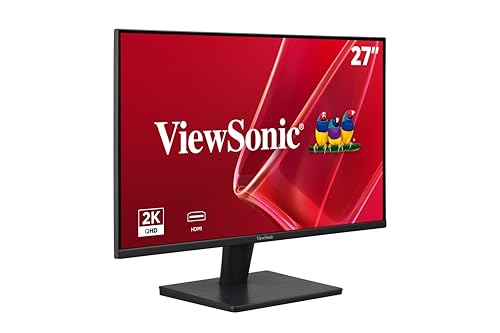
ViewSonic VA2715-2K-MHD — Best QHD value
ViewSonic closes the list with the combination value hunters ask for first: QHD detail without the flagship’s docking bill. The VA2715-2K-MHD is a 27-inch 1440p monitor with Adaptive Sync, HDR10 support, dual HDMI and DisplayPort inputs, dual built-in speakers, thin bezels, an anti-glare surface and Eye Care features named in its listing, presenting over a billion colours in a home-office brief that covers PC and Mac alike. For the reader whose comfort concern is real but whose budget is the binding constraint, this is the pick that refuses to make them choose between sharp text and a gentle screen.
The anti-glare point deserves its moment, because it is the comfort feature readers can verify with their own room. A matte-class surface scatters the reflection of the window behind you into a soft wash instead of a mirror image, so the eyes stop performing the constant, unconscious arbitration between the document and the room. Paired with the eye-care modes and the QHD panel’s crispness — which lets text be read at smaller effort rather than larger sizes — the ViewSonic’s comfort case is practical, physical and honestly priced.
Compromises arrive in the furniture and the fine print. The stand’s ceremony is modest beside the BenQ and Lenovo, the speakers are for calls and casual media, and HDR10 here is a presentation mode on a value panel rather than hardware theatre. None of that touches the central bargain: 1440p detail, a glare-tamed surface and named eye-care features at the QHD camp’s gentlest position in this guide.
ViewSonic’s longevity in the display market is the quiet final argument. This is a maker that has sold monitors across every era of the technology, whose support and documentation practices are seasoned, and whose value lines are bought repeatedly by schools and small offices that cannot afford experiments. A comfort purchase is a long purchase, and this one’s maker has been keeping such promises for decades.
Home-office realism completes this pick’s portrait. Dual HDMI and DisplayPort inputs let a work laptop and a personal machine share the screen without a cable ritual, the built-in speakers clear the desk of one more accessory, and the thin bezels keep a 27-inch panel from visually annexing a modest room. Comfort is partly optical and partly domestic — a workspace that feels calm is easier on its occupant in ways that compound quietly — and the ViewSonic’s tidy, glare-tamed presence serves both halves of that equation at once.
- Panel: 27-inch 1440p QHD
- Comfort: Eye Care features, anti-glare surface
- HDR: HDR10 support
- Sync: Adaptive Sync
- Inputs: dual HDMI, DisplayPort; dual speakers
- Colour: 1.07B colours, thin bezels
Strengths
- QHD detail and anti-glare comfort at the value position
- Dual inputs and speakers suit a home-office desk completely
- Seasoned maker’s support behind a long purchase
Trade-offs
- Stand adjustment is modest beside the ergonomic picks
- HDR10 is a presentation mode at this tier
- No USB-C docking story for laptop desks
Best for: budget-conscious readers who refuse to trade text sharpness for comfort.
Not suited for: one-cable laptop minimalists or posture-first buyers needing a full stand.
Which comfort features do the real work, and which are garnish?
Ranked by what owners actually feel across a working week, the stand comes first: a screen at the right height and distance improves every hour, including the hours when the panel’s electronics are irrelevant. The matte, anti-glare surface comes second, because it negotiates peace between the screen and the room’s light all day. Flicker-free backlight behaviour and a genuine low-blue-light mode share third place — quieter virtues, felt cumulatively and most appreciated in the evening hours. Ambient-aware brightness, the BenQ’s speciality, is the refinement that automates the discipline most people never perform manually.
| Pick | Resolution | Comfort headline | Defining trait |
|---|---|---|---|
| BenQ GW2790QT | 1440p QHD | Brightness Intelligence Gen2 | Flagship comfort plus docking |
| ASUS VZ27EHF | 1080p FHD | Low Blue Light, Flicker Free | Value route, named for eye care |
| Dell P2723DE | 1440p QHD | Fleet-calm presentation | Office standardisation |
| HP E27 G5 | 1080p FHD | Deployment-grade calm | Simple office classic |
| Lenovo T27i-30 | 1080p FHD | Ergonomic stand first | Posture-led comfort |
| ViewSonic VA2715-2K-MHD | 1440p QHD | Anti-glare, Eye Care | QHD value with speakers |
There is a measurement readers can perform at home that cuts through the vocabulary entirely. Work at your current screen for an hour at your usual brightness, then lower the brightness by a third and work another hour in the same light. If the second hour feels calmer, your old setup was overdriven for its room — the single most common comfort fault this guide encounters — and any pick here, properly set, will feel like an upgrade before its named features are even considered. If the hours feel identical, your room and habits were already sound, and the stand and surface upgrades in this list are where your money will work hardest.
Garnish exists and should be recognised politely: colour modes with therapeutic names, software timers that scold, and any language that drifts toward promising outcomes for your health. The features in the first paragraph are engineering; the second list is marketing wearing engineering’s coat. This guide’s picks were chosen for the first list, and its descriptions stay there deliberately.
How should you arrange light, distance and brightness around any of these screens?
One environmental factor outranks every other and costs nothing: the wall behind the monitor. A dark room with a bright screen floating in blackness forces the eyes to hold two light levels at once, and a modest lamp washing the wall behind the panel softens that contrast for the price of a bulb. Owners who make this single change often report it did as much as the new monitor itself, which is why this guide mentions a lamp in a screen review without embarrassment.
Begin with the room, because the monitor inherits it. Place the desk so daylight arrives from the side rather than from behind you or behind the screen, and give the room a light source you can soften in the evening — a lamp behind the monitor, aimed at the wall, evens the contrast between the bright rectangle and the dark room in a way owners consistently describe as restful. Set the screen’s brightness to match the room rather than to impress it; in a typical home office that means well below the panel’s maximum, and the correct setting is the one where white on the screen resembles a sheet of paper under the same light.
Distance and height follow the stand’s intention: the screen centred on your chair, its top near eye level, at roughly an arm’s length for a 27-inch panel, tilted slightly back. Then build the habit that no purchase can substitute for — look away regularly to something distant, across the room or out of the window, letting your focus change its geometry for a moment. Comfortable hardware and humane habits are partners; this guide sells neither as a replacement for the other.
How do you choose between the QHD trio and the Full HD trio in this guide?
By the density of your documents. The QHD picks — BenQ, Dell, ViewSonic — render text at a crispness that rewards readers whose days are prose, code, spreadsheets and design, and they future-proof a desk against the software industry’s steady drift toward finer interfaces. The Full HD picks — ASUS, HP, Lenovo — answer with value, simplicity and, in the Lenovo’s case, the guide’s best stand, and their text is entirely serviceable for the mixed diet of calls, browsing and ordinary documents that most desks actually serve.
Budget and ecosystem cast the remaining votes. A laptop desk that wants docking should climb to the BenQ regardless of resolution debates, because its USB-C system reorganises the whole setup. A ThinkPad desk has its answer in the ThinkVision. A fleet has its answer in the Dell or the HP. Resolution is the axis this section is named for, but it is rarely the axis that should decide alone.
What do comfort-monitor shoppers most often get wrong?
A fourth mistake is subtler: shopping for comfort by specification while ignoring the return window’s real purpose. Comfort is personal in ways no listing can fully predict — a matte finish one reader finds restful, another finds dull — and the honest way to buy in this category is to choose the engineering carefully, then give the panel a genuine week of your real work inside the retailer’s easiest return period. A week of evenings will tell you more about a screen’s kindness than a month of reviews, including this one.
The deepest mistake is expecting a product to do a professional’s job: persistent pain, blurring or double vision are reasons to book an eye examination, and no monitor in this guide — or any guide — should be bought as a substitute for one. The second mistake is buying the comfort panel and defeating it with the setup: maximum brightness in a dark room, a window mirrored in the screen, a stand left at its shipping height. The third is overvaluing the named modes and undervaluing the furniture, when the stand and the surface will shape more of the experience than any menu item. Buy the engineering, arrange the room, keep the habits, and let each third do its own work.
What changes across the first month with a genuinely comfortable screen?
Owners describe a sequence so consistent it deserves recording. The first days are comparative: the new panel beside the memory of the old one, the matte surface and steady backlight registering as a general calm rather than as identifiable features. The second week is behavioural — brightness gets set once and forgotten, the stand’s height stops being adjusted because it was finally right, and the end of the working day arrives with a little less of the familiar facial tiredness that sent the reader shopping in the first place. By the end of the month the monitor has disappeared into the category of things that are simply not a problem, which is the destination every comfort purchase is actually travelling toward.
That disappearance is worth more than any single specification in this guide, and it explains the class’s economics: readers who buy the engineering properly the first time rarely shop this category again for years, while readers who buy a badge and a promise tend to return within the season. The six picks above were chosen so that a reader can buy once, arrange the room once, and then think about their work instead of their screen for a very long time.
What should the first evening’s setup routine include?
Thirty unhurried minutes, in a deliberate order. Set the stand first — height, tilt, distance — before any cable is connected, because ergonomics decided in haste get lived with for years. Connect over the strongest route the pick offers, USB-C where the BenQ’s docking is the point, and confirm the operating system is running the panel at its native resolution. Then dim the room to its ordinary evening state and set brightness against a sheet of paper held beside the screen; when the two whites agree, the panel is calibrated to your life rather than to a showroom.
Finish with the modes. Enable the low-blue-light setting on a schedule or a gentle permanent grade if your evenings are long, confirm the flicker-free behaviour needs no menu pilgrimage on your model, and choose the standard colour mode for work. Write down nothing; simply sit for ten minutes with a familiar document and notice whether anything asks for attention. On a well-chosen comfort panel, nothing should — and that quiet is the product you bought, arriving on schedule.
What if your desk pairs the monitor with a laptop screen all day?
Then brightness matching becomes the comfort skill that matters most. Two screens at different brightness force the eyes to readjust at every glance between them, hundreds of times a day, and the mismatch — not either screen alone — is what many laptop-plus-monitor workers are actually feeling by evening. Set the external panel and the laptop to comparable brightness, raise the laptop on a stand so its screen sits nearer the monitor’s height, and let the larger, kinder panel carry the primary work while the laptop holds communication and reference. The picks with ambient-aware or easily graded brightness, the BenQ above all, make this pairing measurably easier to live with.
Posture completes the pairing’s logic. A laptop screen anchors its user low and forward; an external monitor on a proper stand exists precisely to break that anchor. Readers who buy a comfort monitor and then continue working primarily on the laptop’s own display have purchased the cure and left it in the box — the external screen must become the main stage, with keyboard and mouse arranged around it, for the ergonomic half of this guide to mean anything.
How do you keep a comfort setup comfortable as seasons and rooms change?
Treat the setup as a living arrangement rather than an installation. When the season turns and the daylight through your window changes its angle and hours, revisit the two settings that interact with light — brightness and the low-blue-light schedule — because the configuration that was perfect in June can glare in December. When furniture moves, re-run the height and distance ritual rather than assuming the stand remembers. And when a new laptop arrives, confirm the connection carries the panel’s full resolution and refresh, since a comfort screen defaulted to a lesser signal is a common and silent downgrade.
Small audits, twice a year, are the whole maintenance regime. The panels in this guide ask for nothing more exotic: no consumables, no calibration rituals for ordinary work, no software subscriptions hiding in the menus. Comfort, properly bought, is a low-maintenance tenant — and that, in the end, is the quality that separates the picks above from the wider shelf of screens that merely use the vocabulary.
Final Recommendation
A last word on sequencing for readers assembling a kinder desk in stages. Buy the monitor first among the comfort components, because it is the one the other decisions hang from — the chair height, the desk depth, the lamp’s position all take their measurements from the screen. Then arrange the room around it in the order this guide’s setup sections describe. A staged approach done in that order converges on the same environment as a single grand purchase, without requiring the grand purchase’s single grand day.
The BenQ GW2790QT is this guide’s answer in its fullest form — QHD clarity, adaptive brightness intelligence, docking and the deepest comfort engineering in the class — and the reader who can take it should. The ASUS VZ27EHF proves the same brief can be answered gently, the Dell P2723DE and HP E27 G5 bring the fleet classics in QHD and Full HD respectively, the Lenovo ThinkVision T27i-30 leads for any reader whose comfort begins in the chair, and the ViewSonic VA2715-2K-MHD guards the QHD value flank. None of them will treat your eyes, and this page has never claimed otherwise; all of them will give your eyes a kinder room to work in, which is the honest promise a monitor can keep.
Frequently Asked Questions
Can a monitor actually reduce eye strain?
A monitor can remove several common sources of visual discomfort — a flickering backlight, a mirrored window, a screen far brighter than its room, a panel fixed at the wrong height — and the picks in this guide are engineered around exactly those removals. That is a claim about comfort and environment, not about health outcomes: no display treats or prevents eye conditions, and persistent symptoms deserve a professional examination rather than a product upgrade.
What does flicker-free actually mean?
Many screens dim their backlight by pulsing it rapidly, a technique called pulse-width modulation. At low brightness the pulses can become slow enough for some people to find tiring across long sessions, even when they never consciously see them. A flicker-free design dims the backlight without that pulsing, so the light is steady at every brightness. It is one of the least visible and most widely appreciated comfort features in this guide.
Is a low-blue-light mode the same as a software night filter?
They aim at a similar evening comfort but work differently. A hardware low-blue-light mode adjusts the panel’s own output, typically with less colour distortion than a software overlay that simply tints everything amber. Several picks here carry the hardware approach in their listings. Either can make evening work feel gentler; the panel-level version is the one worth paying for, because it preserves the colour judgement daytime work depends on.
Does screen size itself matter for comfort at 27 inches?
This size is the comfort class’s centre for practical reasons: large enough that text can be run at comfortable sizes without surrendering the whole screen to one window, small enough to sit at an ordinary desk distance without head-turning. Readers who sit further away, or who run text large by preference, may find the same features at larger sizes kinder still; readers at compact desks will find 27 inches the largest size that asks nothing of the room. Every pick here was chosen at this size because the balance is proven daily in a million offices.
Are comfort features worth paying for over a basic monitor?
Measured across the years a monitor serves, almost always. The features that matter — a flicker-free backlight, a matte surface, a height-adjustable stand — are precisely the ones a basic panel omits, and they shape every hour the screen is used, while the price difference between a basic screen and the value picks here is repaid in the first season of full-time work. The flagship end of this guide is a choice; the comfort essentials are not, and the ASUS and ViewSonic picks exist to prove they need not be expensive.
QHD or Full HD for a comfort-first desk?
QHD if your days are dense with text, because crisper letters are read with less effort at the same size, and the guide’s QHD trio covers flagship, fleet and value positions. Full HD if your days are calls, browsing and mixed documents, where the ASUS, HP and Lenovo picks deliver the comfort essentials — flicker-free behaviour, anti-glare surfaces, proper stands — without charging for density you will not use.
Should I enable low-blue-light mode all day or only in the evening?
Most readers settle on a gentle grade permanently or a stronger one scheduled for the evening, and both patterns are reasonable. Daytime work that judges colour — design, photography, presentations for clients — should use the mildest setting or none, because the mode’s warmth shifts colour perception. Document and communication work can live in a soft grade around the clock without consequence. Treat the mode as lighting, not as medicine: set it for the hour and the task, the way you would a lamp.
How much of comfort is the monitor, and how much is my room?
Roughly half each, and the halves multiply rather than add. The most considerate panel in this guide will still lose to a mirrored window and a showroom brightness setting, while the best-arranged room cannot give a flickering, fixed-height screen the manners it lacks. Buy from the engineering end of this list, then spend one evening on light, distance and brightness, and the combination will feel like a single, deliberate environment.
Related Guides
Whichever name earns the desk, the measure of success in this category is unusually simple: a month from now, count how often you thought about your eyes during a working day. On the right panel, in a properly arranged room, the honest answer trends toward rarely — not because anything was cured, but because nothing was provoking. That unremarkable month is the finest review a comfort monitor can earn, and each pick above has earned it in the only laboratory that matters, which is other people’s working lives.
Readers arranging the rest of a kinder desk can continue with: best 34 inch ultrawide monitors for spacious work best 4k curved monitors for immersive evenings best affordable ultrawide monitors for careful budgets


