What's inside
- Key Takeaways
- Quick Picks
- How Did We Choose Printers for a Cutting Machine’s Partner?
- What Actually Goes Wrong Between Printing and Cutting?
- Which Sticker Media Should You Actually Buy?
- How Do You Calibrate the Print-and-Cut Partnership?
- What Mistakes Do Cricut Crafters Make With Their Printers?
- How Should a Sticker Seller Organise a Production Day?
- What About Iron-Ons, Labels and the Other Printables?
- How Do You Troubleshoot a Sheet the Cricut Refuses to Read?
- How Does Print Then Cut Compare With Cutting Coloured Vinyl Directly?
- What Should a Crafter’s Spare-and-Consumables Shelf Hold?
- How Should You Store Printable Media So It Feeds Well for Months?
- Can a Print Then Cut Setup Share a Desk With Ordinary Life?
- What Does a Sensible Upgrade Path Look Like for a Growing Sticker Business?
- How Do You Keep Colours Consistent From Screen to Sticker?
- Final Recommendation
- Frequently Asked Questions
- Related Guides
As an Amazon Associate I earn from qualifying purchases. This post may contain affiliate links at no extra cost to you.
gizmoverdict.com is reader-supported. When you buy through links on our site, we may earn an affiliate commission.
Where to buy: Every printer in this guide links to a listing verified in this site’s product pool. Craft-room printers sell in waves around the holidays and the back-to-school season, so a listing that looks thin in November may simply be the season talking; the model advice below holds whenever you buy.
The best printers for Cricut print then cut are not chosen the way other printers are chosen, because in this workflow the printer is only half of a two-machine act. Print then cut asks the printer to produce a sheet of stickers, labels, iron-on designs or planner art with a black registration frame around it; the Cricut then reads that frame with its sensor, works out exactly where the printed images sit on the sheet, and cuts around each one. When the partnership works, the result looks like magic — a page of die-cut stickers with borders measured in fractions of a millimetre. When it fails, it fails in specific, diagnosable ways, and nearly all of them trace back to the printer’s side of the bargain.
That bargain has three clauses. First, colour: the printed design must look like the design, saturated and accurate, because a sticker is judged at arm’s length by someone holding the finished object. Second, media manners: the printer must swallow sticker paper, printable vinyl, matte label stock and the occasional sheet of card without chewing, smearing or misfeeding, because craft media is thicker, slicker and stranger than office paper. Third, geometry: the printer must place the image on the sheet consistently and print the registration marks dark and crisp, because the Cricut’s sensor can only cut what it can see. Speed, the specification printer marketing shouts about, matters barely at all — a sticker sheet takes the time it takes, and nobody’s craft business failed because a sheet took forty seconds instead of thirty.
The six printers below are all colour inkjet all-in-ones from Epson and Canon, the two families craft rooms have standardised on, and they divide by ink economics and media appetite rather than by raw quality. All of them can do this job. The differences that matter are how much each printed sheet costs you, how happily each machine eats thick matte sticker stock, and how large a sheet each can handle — including one Canon built for the 12 by 12 inch scrapbook format that Cricut crafters so often wish for.
Key Takeaways
- Print then cut quality is decided by colour pop, media handling and crisp registration marks — not by print speed.
- The EcoTank ET-2800 changes the economics of sticker making: tank ink makes test sheets and full-colour designs cheap to iterate.
- Matte sticker paper is the friendliest medium for the Cricut sensor; glossy stock can reflect light and confuse registration on any printer.
- The Canon PIXMA TS9521Ca is the list’s wide specialist, built around 12 by 12 inch craft media.
- Borderless printing matters for full-bleed designs, and four of these six offer it as a stated feature.
- Leave the printer’s scaling at actual size, always: a sheet scaled even slightly will cut wrong everywhere.
Quick Picks
| Pick | Badge | Why it earns its place |
|---|---|---|
| Epson Expression Premium XP-7100 | Best overall | Five-colour printing with an auto document feeder and borderless photo output — the craft desk’s complete package. |
| Canon PIXMA TS9521Ca | Best for 12×12 media | Canon’s craft-format PIXMA, sized for the 12 by 12 inch papers scrapbookers and Cricut users actually buy. |
| Epson EcoTank ET-2800 | Best ink economy | Cartridge-free tank printing with borderless photo output for sticker sellers who print by the hundred. |
| Canon PIXMA TS6420a | Best budget pick | A compact Canon with a small OLED display and honest resolution for crafters starting their first sticker line. |
| Epson Expression Home XP-4205 | Best compact pick | Borderless photo printing and auto two-sided in a small footprint for craft corners rather than craft rooms. |
| Canon PIXMA TR4720 | Best with ADF | An auto document feeder and built-in fax alongside its craft printing, for the desk that also runs a household. |
How Did We Choose Printers for a Cutting Machine’s Partner?
We judged these printers as the Cricut experiences them, which is a different examination from the one a photographer would set. The sensor that reads registration marks cares about contrast and consistency: black marks printed with a composite, washed-out black, or marks placed a millimetre differently from where the software expects, produce the wandering cuts that crafters blame on the cutter. So we weighted printers with a record of accurate, repeatable paper transport and strong black rendering, and we treated every manufacturer’s borderless claims carefully, crediting only the sizes and modes the listings themselves support rather than promising borderless behaviour everywhere.
Media handling came second, and it is where craft printing diverges from office printing entirely. Sticker paper has a peelable backing that changes its stiffness; printable vinyl is slick; matte label stock is thick. A printer whose paper path bends media sharply, or whose feed rollers grip weakly, will misfeed the very sheets a crafter cares most about. Rear feeds and straight-ish paths earn their keep here, as does a driver that lets the user declare thick or matte media honestly so the machine adjusts its manners.
Ink economics came third, because print then cut is an iterative craft. The first sheet of a new sticker design is rarely the final one: colours get nudged, sizes change, a word is respelled. A printer whose ink makes each iteration cheap produces better final designs than a printer whose ink makes the crafter accept the second draft. That single insight explains the EcoTank’s presence in this list and its high placement in the affections of sticker sellers everywhere.
What Actually Goes Wrong Between Printing and Cutting?
The classic failure is the offset cut: the Cricut slices a neat white crescent off one side of every sticker and bites into the design on the other. Causes live on both sides of the partnership, but the printer-side causes are the ones this guide can arm you against. Scaling is the first: any fit-to-page setting, in any dialog, anywhere between the design software and the sheet, resizes the printed image relative to the cut file, and the error grows toward the sheet’s edges. Print at actual size, at one hundred percent, with scaling off, and confirm it in the final print dialog rather than trusting a setting chosen last month for a different job.
The second failure is the unread mark. The Cricut’s sensor reads the black frame by contrast against the paper, and anything that dims that contrast sabotages it: glossy and metallic media reflecting the sensor’s light, a room lit by a bright lamp directly over the machine, registration marks printed in a draft mode that lays down grey instead of black. The fixes are correspondingly plain — matte media for print then cut work, ordinary room lighting rather than a spotlight, and a quality setting that prints a true black frame. None of the printers here will save a job from a glossy sheet under a desk lamp; all of them will read cleanly off matte stock in a normally lit room.
The third failure is the smeared sheet. Inkjet ink on slick printable vinyl needs drying time that office paper never asks for, and a sheet carried straight from the printer to the cutting mat can transfer ink to fingers, to the mat and to the design itself. Give printed media the rest its maker recommends, handle sheets by their edges, and let the stack of finished sheets dry flat rather than piled. Crafters who build that pause into the workflow stop losing finished sheets, which matters more to a small sticker business than any specification in this guide.
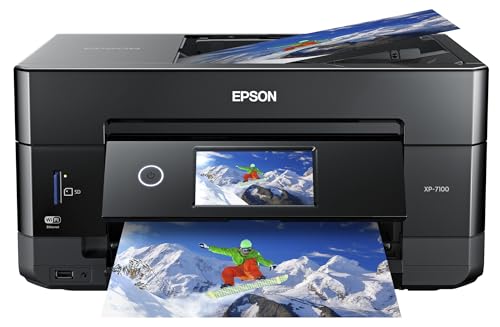
Epson Expression Premium XP-7100 — Best overall
The XP-7100 is the most complete craft-desk machine in this list: a wireless colour all-in-one with five-colour printing, scanning and copying, an auto document feeder on top, borderless photo printing among its stated talents, and speeds up to 15.8 pages per minute for the ordinary documents that share a desk with the craft work. The fifth ink is the detail to notice. Where four-colour machines mix their blacks from colours and can render a registration frame or a deep shadow with a colour cast, a five-colour system with a dedicated black produces the dense, neutral blacks that both photographs and Cricut sensors appreciate.
Borderless photo printing earns its mention for a specific craft reason: full-bleed designs. A sticker or card design that runs colour to the very edge of its shape looks intentional; one with an accidental white hairline looks homemade in the bad sense. Borderless capability, used within the sizes the machine supports, removes that hairline at the printing stage rather than asking the cutter to chase it. Combined with the ADF — which sounds like office equipment until the day you scan thirty pages of a pattern book — the XP-7100 covers the whole of a serious craft desk’s paper life, not just its sticker sheets.
The counterweight is cartridge economics, the recurring theme of this list. Five colours means five cartridges, and a crafter printing full-colour sticker sheets daily will meet the replacement rhythm quickly. The XP-7100 suits the crafter whose work is varied — stickers this week, photo prints and documents the next — and who values the fifth ink’s quality over the tank’s economy. High-volume sticker sellers should read the EcoTank review below before deciding, because at volume the arithmetic changes its mind.
- Functions: Print, scan, copy with auto document feeder
- Ink: Five-colour cartridge system
- Speed: Up to 15.8 ppm in standard modes
- Photo printing: Borderless, within supported sizes
- Desk role: Complete craft and household all-in-one
Strengths
- A dedicated black among five inks gives registration marks and shadows real density.
- Borderless photo output removes the white hairline from full-bleed sticker designs.
- The ADF makes it the desk’s scanner of record for patterns, books and paperwork alike.
Trade-offs
- Five cartridges set a running-cost rhythm that heavy sticker volume will feel.
- Its talents are broad rather than specialised; pure sticker factories get more from the tank.
- Like all cartridge machines here, it rewards a spare set kept on the shelf.
Best for: the varied craft desk — stickers, photos, patterns and paperwork — wanting one complete machine. Not suited for: production sticker sellers printing full-colour sheets by the hundred each week.

Canon PIXMA TS9521Ca — Best for 12×12 media
Most printers think in office sizes, and crafters have spent years folding their ambitions into letter and A4. The TS9521Ca is Canon’s answer built the other way: a wireless home all-in-one inkjet in the PIXMA craft line, designed around the 12 by 12 inch format that scrapbookers buy by the stack and that Cricut crafters covet for larger designs, batch layouts and party-scale projects. A sheet that size lets a sticker layout breathe — more designs per print, fewer sheets per batch, and room for the oversized planner stickers and classroom decorations that smaller trays simply refuse.
The honest framing matters here: print then cut itself works within the Cricut software’s own printable area, which is smaller than a full sheet, so the 12 by 12 talent pays its dividend across the whole craft practice rather than inside a single cut job — scrapbook pages printed complete, large iron-on designs, posters and proofs of layouts at true size. Crafters who live in the 12-inch world know exactly how often a standard printer says no; this machine’s reason to exist is saying yes, in a home all-in-one that also scans and copies for the rest of the household’s paper.
Canon’s PIXMA colour is the other half of its appeal: the family has a long record of saturated, cheerful output that suits craft work’s palette — birthday bright, classroom bold, planner pastel — and renders it consistently sheet after sheet, which is the unglamorous virtue batch production actually runs on. If your craft practice is built around the 12-inch square, this is the list’s natural centre of gravity.
- Functions: Print, scan, copy — home all-in-one
- Format speciality: 12 x 12 inch craft media
- Connectivity: Wireless
- Family: Canon PIXMA craft-oriented line
- Desk role: Scrapbook and large-format craft centre
Strengths
- Handles the 12 by 12 papers that define scrapbooking and large craft layouts.
- Canon PIXMA colour consistency across a batch of identical sheets.
- A full household all-in-one around the craft speciality, not a single-purpose oddity.
Trade-offs
- Its headline size talent matters little to crafters who never leave letter-sized media.
- Cartridge running costs apply, as with every non-tank machine here.
- A larger appetite for desk space than the compact picks below.
Best for: scrapbookers and 12-inch-format crafters whose projects regularly outgrow ordinary trays. Not suited for: minimal desks printing the occasional letter-sized sticker sheet.

Epson EcoTank ET-2800 — Best ink economy
The ET-2800 is the printer sticker sellers graduate to, and the reason is a single word: iteration. It is a cartridge-free supertank all-in-one — print, scan, copy — with borderless photo printing among its stated features, speeds up to 10 pages per minute in standard work, and ink that arrives in bottles and lives in tanks. A full-colour sticker sheet from a tank machine costs a fraction of the same sheet from a cartridge machine, and that fraction changes behaviour: designs get tested, colours get corrected, a misspelled word costs a shrug instead of a wince, and the final product gets better in direct proportion.
For an Etsy-scale sticker or label operation, the arithmetic compounds. Hundreds of sheets a month at cartridge prices is a business expense that shapes pricing; the same volume at tank prices becomes a rounding error, and the margin difference is the business. The ET-2800’s white, compact chassis also suits the craft corner that shares space with the rest of a home, and its borderless photo capability keeps full-bleed sticker designs on the menu within supported sizes.
The trade-offs are the tank family’s usual ones, honestly stated. Ten pages per minute is unhurried; a batch day is a day of steady printing rather than a quick blast. The colour system is a four-colour arrangement, so the deepest blacks and subtlest photo gradients sit a step below the five-colour XP-7100’s work — a difference that matters to photo printing and barely at all to the bold, flat colours of most sticker art. And tank machines ask for the small discipline of keeping ink levels watched and bottles stored upright. For volume craft printing, those are easy prices. For occasional printing, the cartridge machines’ simplicity may argue back.
- Functions: Print, scan, copy — supertank all-in-one
- Ink: Cartridge-free refillable tanks
- Speed: Up to 10 ppm in standard modes
- Photo printing: Borderless, within supported sizes
- Desk role: Volume sticker and label production
Strengths
- Tank ink makes test sheets and full-colour batches cheap enough to iterate freely.
- Borderless output keeps full-bleed sticker designs clean at the edges.
- The natural economics for anyone selling stickers, labels or printable designs.
Trade-offs
- Unhurried print speeds make batch day a marathon rather than a sprint.
- Four-colour rendering trails the five-ink machine on photographic blacks.
- Tank care — watching levels, storing bottles — is a small ongoing duty.
Best for: sticker and label sellers, and any crafter whose test sheets outnumber their final sheets. Not suited for: crafters who print twice a month and prize photo-grade blacks over economy.
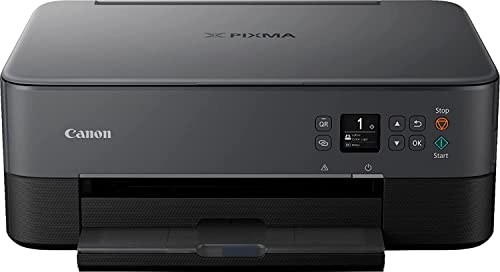
Canon PIXMA TS6420a — Best budget pick
The TS6420a is the sensible first Canon for a new crafter: a wireless colour inkjet all-in-one — print, copy, scan — with a 1.44-inch OLED display, printing at 13.0 ipm with resolution up to 4800 by 1200 dpi and automatic two-sided printing for its document duties. Nothing in that list is exotic, and that is the point. Print then cut does not need exotic; it needs accurate paper transport, honest colour and a driver that behaves, and this compact Canon supplies all three at the price where a craft hobby can justify its own printer instead of borrowing the household’s.
The little OLED display deserves more credit than its size suggests. Printer setup and troubleshooting usually happen in a thicket of blinking lights and guesswork; a screen that says what the machine wants, in words, shortens every one of those episodes. For a first printer — often a first experience of owning the printing half of the craft — that clarity is worth real money, because the alternative is the forum post at midnight. Automatic duplex, meanwhile, quietly serves the planner and pattern side of craft life, where double-sided pages are the norm.
Resolution figures in this class are best read as reassurance rather than ranking: 4800 by 1200 dpi is ample for sticker art, whose bold shapes and text are decided by colour and media far more than by microscopic dot counts. Buy this Canon for its price, its display and its compact good manners; keep a spare cartridge set in the drawer, because a two-cartridge-class machine that runs dry mid-batch stops the whole production line, and enjoy the fact that the entry ticket to print then cut, bought wisely, need not be large.
- Functions: Print, copy, scan — compact all-in-one
- Display: 1.44-inch OLED
- Speed: 13.0 ipm class
- Resolution: Up to 4800 x 1200 dpi
- Two-sided printing: Automatic for documents
Strengths
- A word-based OLED display that makes setup and errors legible to beginners.
- Compact, well-mannered and priced for a hobby’s first dedicated printer.
- Automatic duplex serves the planner and pattern-printing side of craft life.
Trade-offs
- Cartridge costs will outgrow it if sticker volume turns into a business.
- No borderless headline feature, so full-bleed designs need a small margin of care.
- A starter-class paper capacity that batch days will refill often.
Best for: new Cricut owners buying their first craft printer on a sensible budget. Not suited for: established sellers whose weekly sheet count belongs on a tank.

Epson Expression Home XP-4205 — Best compact pick
The XP-4205 is Epson’s small-footprint answer for the crafter without a craft room: a wireless colour all-in-one — print, scan, copy — with speeds up to 10 pages per minute, automatic two-sided printing and borderless photo printing among its listed abilities, sized for a corner of a bedroom desk or a kitchen counter that hosts craft on Sundays. Its inclusion in a print then cut guide rests on that borderless line and on Epson’s colour: within the sizes it supports, full-bleed sticker and photo designs come out clean-edged, and the colour has the bright, friendly character craft work wants.
Compactness in a printer is never free, and the honest accounting is the usual one: smaller trays, a cartridge system sized for home volumes, and an engine tuned for the household’s rhythm rather than a production line’s. The XP-4205’s crafter is the one whose print then cut work is personal — planner stickers for their own diary, labels for their own jars, decorations for their own parties — and whose machine must earn a small footprint by also being the household printer, scanner and copier without dominating the room it lives in.
Judged on those terms it is a well-aimed machine. Wireless printing from the phone covers the quick jobs; the scanner handles the pattern, the recipe card and the child’s drawing with equal indifference; and when craft day arrives, the same box prints the sticker sheets. Crafters who later find their hobby becoming a shop will outgrow it, as the EcoTank review above explains, but they will outgrow it fondly, which is more than most first printers earn.
- Functions: Print, scan, copy — compact all-in-one
- Speed: Up to 10 ppm in standard modes
- Photo printing: Borderless, within supported sizes
- Two-sided printing: Automatic for documents
- Desk role: Small-space craft and household duty
Strengths
- Borderless photo printing in a genuinely compact, room-friendly body.
- Covers craft, scanning and household printing without claiming a craft room.
- Epson’s bright colour character suits stickers, labels and party printables.
Trade-offs
- Home-volume cartridges and trays cap how far a growing sticker shop can ride it.
- Engine pace is household, not production.
- Its borderless talent lives within its supported sizes, like every machine here.
Best for: personal crafters in small spaces whose printer must also be the household’s. Not suited for: batch production, where its trays and cartridges become the bottleneck.

Canon PIXMA TR4720 — Best with ADF
The TR4720 is the workhorse entry in Canon’s PIXMA line for this guide: a wireless all-in-one for home use with an auto document feeder, mobile printing and a built-in fax, in black. The fax will make crafters smile — it belongs to the machine’s other life as a home-office hub — but the ADF is a genuine craft asset, and it is worth explaining why a sticker printer review praises a document feeder. Craft desks accumulate paper that needs digitising: vintage patterns, class handouts, a child’s artwork bound for a printable design, multi-page instructions. An ADF turns that pile into scans at the pace of a coffee, not an afternoon, and a crafter who also sells digitised vintage designs will use it weekly.
As a printer for print then cut, the TR4720 brings Canon’s reliable transport and colour at a home-use price, with mobile printing covering the phone-driven jobs that start so much craft work — the screenshot, the downloaded printable, the photo that wants to become a sticker. It lacks a borderless headline among its listed features, so full-bleed designs should be planned with a margin, letting the cutter’s precision define the edge rather than asking the print to reach it. That is a planning habit, not a hardship, and generations of crafters have worked exactly that way.
The TR4720’s buyer is the household whose single printer must be everything: the craft engine on Saturday, the homework and forms machine all week, the scanner of record for a small home business. In that mixed life, an ADF and even the fax stop being jokes and become the reasons this Canon, rather than a craft-purer sibling, is the one still on the desk in three years’ time.
- Functions: Print, scan, copy, fax
- Feeder: Auto document feeder for multi-page scans
- Connectivity: Wireless, mobile printing
- Desk role: Home-office and craft dual duty
- Colour: Black chassis
Strengths
- An ADF that digitises pattern piles and paperwork at production pace.
- The most complete household feature set here, fax included, around solid craft printing.
- Mobile printing suits the phone-first way craft projects actually begin.
Trade-offs
- Full-bleed designs need a planned margin rather than borderless printing.
- Home-office breadth means less craft specialisation than the 12-inch PIXMA.
- Cartridge economics, as ever, tax the heaviest sticker volumes.
Best for: households where one printer must serve craft, homework and a home office together. Not suited for: dedicated sticker production, where a tank’s ink bill wins the argument.
Which Sticker Media Should You Actually Buy?
Start with matte. Matte sticker paper and matte printable vinyl are the media the print then cut partnership was born for: the sensor reads their registration frames without reflections, ink sits on them predictably, and the finished stickers have the flat, professional look that photographs well in a shop listing. Glossy media has its place — photo stickers, shiny labels for jars that will be washed — but it should be adopted knowingly, with the room light kept off the sheet’s surface during cutting and a test sheet sacrificed before a batch is committed.
Thickness is the second decision, and it is a conversation between the media, the printer and the cutter. Heavy, rigid sticker stock feeds reluctantly through compact printers and asks the Cricut for a deeper cut setting; standard-weight sticker paper is the forgiving middle where beginners should live for their first months. Whatever you buy, buy one pack before you buy ten: run it through your printer, cut it on your machine, weed it, stick it, and live with the result for a week. Media is a marriage, and the trial pack is the courtship.
Finally, match the media to the sticker’s destination. Indoor planner stickers live an easy life and almost any matte stock flatters them. Water-bottle and laptop stickers meet water, sun and abrasion, and want printable vinyl and, for the serious seller, a laminate overlay — at which point the printer’s job is unchanged but the product’s honesty improves: a sticker sold for a bottle should survive the bottle’s life, and the extra production step is what separates a shop with repeat buyers from a shop with reviews that begin with the word peeling.
How Do You Calibrate the Print-and-Cut Partnership?
Calibration is a conversation the two machines have through a test sheet, and it should happen on the media you actually use, because thickness and surface change how a sheet sits and reads. Run the Cricut’s own calibration routine with a plain sheet first, then print a simple test design — a grid of shapes with fine outlines — on your real sticker stock, cut it, and inspect the borders under good light. A consistent offset in one direction is a calibration matter; an offset that grows across the sheet is a scaling or feed matter, and the distinction saves hours, because the two faults have entirely different cures.
Keep the calibration sheet. Months later, when cuts drift after a move, a new media brand or a software update, that sheet is the evidence of what correct looked like, and re-running the comparison takes minutes. Crafters who treat calibration as a one-time birth ritual suffer mysteriously in month four; crafters who treat it as a periodic health check, like the nozzle checks of the artist printers elsewhere in this batch, find the partnership boringly reliable — and boring reliability is the highest praise production equipment can earn.
What Mistakes Do Cricut Crafters Make With Their Printers?
The first is scaling, already named in this guide and worth the repetition: a single fit-to-page checkbox, forgotten from a document job, silently ruins a whole batch of sticker sheets, and the ruined sheets are usually discovered at the cutting stage, after the ink is spent. Build the habit of reading the final print dialog the way pilots read a checklist — size at actual, quality deliberate, paper type honest — every time, without exception, especially when in a hurry.
The second mistake is feeding craft media on the plain-paper setting. The paper-type setting is not a label; it changes how much ink is laid down and how the machine handles the sheet. Sticker paper printed as plain paper gets too little ink and pale colours, or the sheet is hurried through a path setting meant for thinner stock. The third mistake is impatience with drying: a sheet cut, weeded and stuck within minutes of printing is a sheet whose ink was never given its chance, and smears at the weeding stage get blamed on the cutter that merely touched them.
The fourth mistake is buying ink by panic. A cartridge that dies mid-batch costs the batch; a spare set on the shelf costs a little money sitting still. Every crafter in production, on any machine in this guide except the tank — which merely moves the same advice to bottles — should run a shelf stock of at least one full set, reordered when the spare is opened. It is the cheapest insurance in the entire craft room.
How Should a Sticker Seller Organise a Production Day?
Production printing rewards batching by stage rather than by order. Print every sheet for the day’s orders in one session, while the printer’s settings, media and your own attention are all aligned on a single task; then let the whole stack dry together while you do the same for the cutting stage, mat after mat, with the weeding and packing as a third stage at the end. Interleaving the stages — print one, cut one, pack one — feels responsive and is quietly ruinous: settings get changed and changed back, drying time gets borrowed against, and the error rate climbs in exact proportion to the number of context switches.
The printer’s place in that rhythm deserves thought. A tank machine like the ET-2800 can be loaded and left to work steadily through a long queue, which suits a print-everything-first morning. A cartridge machine rewards a mid-session ink check written into the routine — glance at the levels after every set number of sheets, the way a driver checks fuel on a long road rather than when the light comes on. Sellers who build that glance into the batch stop losing the last sheet of a run to a fading colour, and a faded final sheet is a special misery: it consumes media, time and a cut cycle before it announces itself.
Keep a production log, however humble. A notebook line per batch — date, design, media brand, printer settings that mattered, sheets spoiled and why — becomes, within a season, the most valuable document in the craft room. It converts every mistake into a paid-for lesson recorded once, and it lets a design from six months ago be reprinted to match its original exactly when a repeat customer orders its companion set.
What About Iron-Ons, Labels and the Other Printables?
Print then cut is a family, not a single product, and the printer’s duties change slightly across it. Iron-on and heat-transfer designs print in reverse and transfer under heat, which makes colour accuracy more forgiving — the transfer process softens everything — but makes media feeding less so, because transfer papers are among the most temperamental sheets a home printer is asked to swallow. Feed them one at a time, on the media setting their maker specifies, and accept the slower pace as the price of a clean transfer.
Labels for jars, bottles and packaging sit at the other extreme: simple feeding, demanding finish. A label is read at close range by a customer holding the product, so colour consistency across a batch — sheet one matching sheet fifty — matters more than for any other printable, and it is here that a printer’s steady transport and honest ink delivery earn their keep. Print the whole batch in one session on one media pack if you can; paper batches vary subtly, and a label run split across two packs can show the seam.
Planner stickers, the third great family, are the most forgiving of all and therefore the best training ground: small designs, matte paper, personal use. A new crafter with any machine in this guide should spend their first month here, learning the partnership’s manners on work where a spoiled sheet costs pennies and teaches dollars’ worth of lessons, before graduating to the vinyl and transfer media where mistakes are priced properly.
How Do You Troubleshoot a Sheet the Cricut Refuses to Read?
Work the problem in the order of likelihood, not in the order of frustration. First, the sheet itself: is it loaded on the mat straight, in the corner the machine expects, with the printed side oriented as the software assumes? A surprising share of unreadable sheets are simply crooked or reversed. Second, the light: close the curtain against direct sun, move the desk lamp out of the machine’s face, and let ordinary ceiling light do the work — the sensor is a small eye, and it squints like one. Third, the marks: hold the sheet up and judge the registration frame honestly. If it is grey, broken or glossy-reflective, no adjustment on the cutting side will save it, and the reprint — at a proper quality setting, on matte stock — is the fix, not a defeat.
Fourth, the partnership’s memory: after a software update, a house move or a change of media brand, re-run calibration before blaming hardware. Fifth, the printer’s own health: a nozzle check takes a minute and can reveal that the black channel — the one printing your registration frame — is firing weakly, which produces exactly the washed-out marks that sensors reject. That last fault is the one crafters chase longest in the wrong direction, adjusting the cutter for an hour when the printer was asking for a cleaning cycle all along. The order above exists to find it in five minutes instead.
How Does Print Then Cut Compare With Cutting Coloured Vinyl Directly?
New crafters often ask why they should print at all when the Cricut can cut coloured vinyl straight from the roll. The answer is gradients, photographs and complexity. Cut vinyl gives one flat colour per layer, which suits lettering, silhouettes and bold graphic shapes beautifully and weeding-intensive multicolour designs painfully. Print then cut puts the entire image — every gradient, every tiny detail, a photograph’s whole face — onto one sheet in one pass, and asks the cutter only for the outline. A design with forty colours is forty layers by the first method and one sheet by the second, which is why sticker culture belongs to print then cut and signage culture belongs to cut vinyl.
The printer’s existence in the craft room follows from that division. A crafter whose work is lettering and layered graphics may never need more than the household printer for the occasional printable, and for them the budget Canon or the compact Epson in this guide is honestly sufficient. A crafter whose work is illustrated stickers, photo products and printed planner art is running a print business with a cutting department attached, and should buy the printer with that self-knowledge: the tank for volume, the five-ink machine for richness, the 12-inch Canon for format. Naming your own category correctly is worth more than any single feature comparison in this guide.
What Should a Crafter’s Spare-and-Consumables Shelf Hold?
One full set of ink, always, as earlier sections insisted — cartridges for the cartridge machines, bottles for the tank. One unopened pack of your proven sticker media, because media stockouts strike on the same weekend as a market, with a reliability that suggests malice. A spare cutting mat in its wrapper, since mats lose their grip on their own schedule and a fresh mat rescues more batches than any setting. And a small stock of the packaging your products ship in, because the finest sticker ever printed still fails its buyer if it arrives bent.
That shelf, modest as it sounds, is the difference between a craft practice and a craft scramble. Every item on it is cheap on the day it is bought calmly and expensive on the day it is needed urgently, and the printers in this guide — all of them honest machines — perform at their best inside a room organised with that calm. Buy the printer for its printing; keep the shelf for everything else.
How Should You Store Printable Media So It Feeds Well for Months?
Printable media ages in the packet. Sticker paper left open in a humid room takes on moisture at its edges first, and a sheet whose edges have curled will feed crookedly, print unevenly and read badly at the sensor — three faults from one storage sin. Keep opened packs flat, weighted lightly, inside a closed drawer or a sealed bag, and keep the whole stock away from the craft room’s kettle, its sunny windowsill and the radiator that dries the winter air into static. Vinyl, for its part, dislikes being stored rolled tightly after opening; flat is its preference too, and a sheet that has taken a curl will fight the mat as well as the printer.
Rotation is the other half of storage wisdom. New packs go to the back of the drawer, old packs come forward, and a pack that has been open for a season gets used for test sheets and personal projects rather than for a customer’s order. None of this is preciousness; media is the cheapest component in the whole print then cut chain and the one most capable of ruining an expensive afternoon. The printers in this guide will treat well-kept media well. They cannot redeem a sheet that spent August on a windowsill, and neither can the cutter waiting downstream of it.
Can a Print Then Cut Setup Share a Desk With Ordinary Life?
For most crafters the answer must be yes, because the craft desk is also the homework desk, the work-from-home desk and the household’s paper headquarters. That reality argues for the all-in-one shape every machine in this guide takes: printing, scanning and copying in one footprint, wireless so the printer can live on a shelf rather than tethered beside the laptop, and quiet enough in its ordinary modes to share a room with a sleeping child or a partner on a call. The XP-4205 and TS6420a were designed for exactly this blended life, and the larger machines earn their extra inches only when the craft side of the blend has grown heavy enough to justify them.
The blended desk also imposes one discipline the dedicated craft room escapes: settings hygiene across users. A printer shared with a household gets its defaults changed by other people’s jobs — a parent’s draft mode, a teenager’s fit-to-page essay — and the crafter who returns on Saturday inherits those settings silently. The checklist habit recommended earlier in this guide is, for the shared-desk crafter, not perfectionism but self-defence. Read the dialog, every time. The two minutes it costs are the cheapest quality control in the entire workflow.
What Does a Sensible Upgrade Path Look Like for a Growing Sticker Business?
Most sticker businesses in this guide’s readership follow the same arc, and naming it helps a crafter buy once per stage rather than twice. Stage one is learning: any honest machine — the budget Canon, the compact Epson — teaches the workflow while the designs find their audience. Stage two is volume: the audience exists, the test sheets multiply, and the tank machine arrives to make iteration and production affordable; the stage-one printer retires to household duty or serves as the backup that every production business eventually blesses. Stage three is specialisation: a format the standard tray refuses, photo-grade blacks for a new product line, a second machine dedicated to one media type — and by then the crafter is buying from production data, not from hope.
The mistake is buying stage three first. A new crafter with the most capable machine in this list still has to learn calibration, media manners and drying discipline, and will spoil the same first hundred sheets every beginner spoils — on more expensive ink. Buy for the stage you are in, keep the log this guide recommends, and let the business’s own numbers tell you when the next stage has genuinely arrived. They will, clearly, in the month the current machine’s limits start costing more than its replacement.
How Do You Keep Colours Consistent From Screen to Sticker?
A sticker’s colour is judged in the hand, under kitchen light, against the memory of the screen where it was designed — and screens glow while stickers merely reflect, so a design that sings on a monitor can arrive on paper slightly muted unless the crafter compensates. The working habits are simple: design in the colour mode your software recommends for print, keep the screen brightness moderate and fixed, and proof on the actual media, because matte sticker paper drinks colour differently from the glossy photo paper a test print might casually be run on. One proof on the real stock teaches more than five on the wrong paper.
Consistency across a product line is the deeper discipline. A shop’s flagship sticker should look identical in January and in June, which means the same media, the same printer settings, the same quality mode, recorded in the production log and repeated without improvisation. The printers in this guide are all capable of that repeatability; what they cannot supply is the record-keeping. That part is the crafter’s, and it is unglamorous, and it is most of what separates a shop from a hobby with a payment account.
Final Recommendation
For the complete craft desk, the Epson Expression Premium XP-7100 is this guide’s answer: five inks for dense blacks and rich colour, borderless output for full-bleed designs, and an ADF for the rest of paper life. Sticker sellers and heavy iterators should choose the EcoTank ET-2800 and let tank ink quietly transform their margins and their willingness to test. Scrapbookers living in the 12-inch square take the Canon TS9521Ca; beginners take the TS6420a and its legible little screen; small spaces take the XP-4205; and the household that needs one machine for everything takes the TR4720. Whichever you bring home, print at actual size, feed it matte stock, let the sheets dry — and the two machines on your desk will stop feeling like a negotiation and start feeling like a band.
Frequently Asked Questions
Why do my cuts drift to one side of the printed design?
A consistent drift is usually calibration; run the Cricut’s calibration routine. A drift that grows across the sheet usually means the print was scaled — check that the print dialog is set to actual size with no fit-to-page option active — or that the sheet fed slightly skewed, which matte, standard-weight media helps prevent.
Does the printer need special ink for print then cut?
No special ink is required. The standard inks for any machine in this guide print registration marks and designs the Cricut sensor reads happily, provided the marks are printed at a decent quality setting on matte media. The choice between cartridge and tank ink is an economics decision, not a compatibility one.
Matte or glossy sticker paper — which cuts more reliably?
Matte, on every printer here. Its surface does not reflect the cutting machine’s sensor light, so registration marks read cleanly. Glossy and metallic media can work, with careful lighting and a test sheet first, but matte is the reliable default for production.
Can I print borderless sticker sheets?
Four picks here — the XP-7100, ET-2800 and XP-4205 among the Epsons, within their supported sizes — offer borderless photo printing, which suits full-bleed designs. Where borderless is unavailable, as with the TR4720, design with a small margin and let the cut define the edge.
How long should printed sticker sheets dry before cutting?
Follow the media maker’s guidance; as a working habit, give sheets several minutes at minimum, and longer for slick printable vinyl, handling them by the edges meanwhile. A sheet that feels dry can still transfer ink under the pressure of a cutting mat if it is rushed.
Is a tank printer worth it for a hobby crafter?
If your hobby produces test sheets and full-colour designs weekly, yes — the ink savings arrive quickly and the freedom to iterate improves the work. If you print a sheet or two a month, a cartridge machine’s lower entry price and simplicity may serve you better for years.
Related Guides
Crafters setting up the full desk may also enjoy our roundup of compact all-in-one printers for home craft rooms, the companion guide to tank printers for small Etsy shops, and our walkthrough of choosing sticker paper and printable vinyl.
Related guides
- Best 1440p 165Hz Monitors: One Native 165Hz Pick, Three 180Hz Upgrades, an Overclock Headline and a 160Hz Ultrawide
- Best 13×19 Professional Printers
- Best 3rd Party MacBook Chargers: 96W-Class Alternatives, the 100W Cable Rule, and the Apple Benchmark
- Best Built PC: Six Prebuilt Gaming PCs Judged on Parts, Power and Upgrades



[…] building out a studio may also want our survey of flatbed scanners for digitising artwork, the companion piece on wide-format photo printers for photographers, and the practical walkthrough […]