What's inside
- Where to buy
- Key Takeaways
- Quick Picks
- How did we choose the best laptops for accountants?
- Which accounting laptop fits the way you work?
- How do the six picks compare side by side?
- Why does screen size matter more than processor speed for accounting work?
- How much memory and storage does a practice laptop really need?
- What should you check in the first week of ownership?
- How do you migrate a practice to a new laptop without losing a beat?
- What mistakes do firms make when buying accounting laptops?
- What does a working week actually look like on these machines?
- How should a firm think about docks, monitors and second screens?
- What about security duties that come with client financial data?
- How do you spec laptops differently for partners, preparers and bookkeepers?
- When is the right time of year to replace a practice laptop?
- What should you do with the old laptop once the new one lands?
- How do keyboards, hinges and ports hold up across years of daily entry?
- What changes when the firm grows from one laptop to five?
- Final Recommendation
- Frequently Asked Questions
- Related Guides
As an Amazon Associate I earn from qualifying purchases. This post may contain affiliate links at no extra cost to you.
gizmoverdict.com is reader-supported. When you buy through links on our site, we may earn an affiliate commission.
Where to buy
Where to buy: the six machines below are business laptops sold through Amazon’s US store, and every linked pick here carries a verified listing from our pool. Check the configuration on the listing page before ordering, because sellers bundle different memory and storage amounts under near-identical model names, and an accounting workload notices the difference between a cramped drive and a roomy one every single day of tax season.
Ask a room of accountants what the best laptops for accountants actually need to do and nobody starts with graphics cards. They start with the numeric keypad. Ten-key entry is the heartbeat of bookkeeping work: journal entries, reconciliations, invoice batches and payroll figures all flow through those right-hand keys, and a laptop without a real, integrated numeric pad slows that flow to a hunt-and-peck crawl. That single requirement explains the shape of this entire list. Full-size keypads need wide chassis, wide chassis allow large screens, and so this guide skews deliberately toward seventeen-inch machines, with a sixteen-inch ThinkPad as the compact exception. The pattern is not an accident of stock; it is the honest shape of the job.
A big bright panel matters for a second reason that only becomes obvious in February. Spreadsheet work is column work. On a seventeen-inch full-HD screen you can keep a general ledger open beside a bank feed, read both without squinting, and still have room for the calculator overlay or the client email you are answering. Pinch that down to a small display and the same task becomes a sequence of window shuffles, each one a small tax on attention during the weeks when attention is the scarcest resource in the office. Screen size, in this trade, is not luxury. It is throughput.
The third pillar is memory, not processing glamour. Excel models with thousands of rows, QuickBooks company files, a browser carrying the firm’s cloud accounting tabs, Outlook, Teams and a PDF reader full of scanned statements — that stack eats RAM long before it troubles a modern processor. Every pick here starts at sixteen gigabytes, and several carry far more, because the cheapest time to buy memory is the day you buy the laptop. Storage follows the same logic: client files accumulate for years under retention rules, so a half-terabyte is the sensible floor and a terabyte is comfortable.
Finally, reliability deserves more weight than it usually gets in buying guides aimed at everyone else. A consumer laptop that fails in July is an inconvenience; the same failure in the second week of April is a professional emergency. Business lines earn their place here through sturdier hinges, spill-resistant keyboards, serviceable designs and support channels that treat downtime as a problem to solve rather than a script to read. Nothing in this guide promises uptime — no laptop can — but the picks favour the product families built and supported with working firms in mind.
Key Takeaways
- A genuine integrated numeric keypad is the non-negotiable feature; five of the six picks are seventeen-inch machines largely because that is where full keypads live.
- Sixteen gigabytes of memory is the floor for ledger software plus browser-based accounting tools, and the thirty-two and forty gigabyte configurations here remove the worry entirely.
- Spreadsheet work rewards screen width more than raw processor speed, so a large full-HD panel beats a small premium display for this job.
- Business product lines bring the hinges, keyboards and support posture that tax season demands; glossy consumer shells are the false economy.
- Wired Ethernet still appears on several picks, which matters when the office network carries large client backups and the Wi-Fi is shared with everyone.
Quick Picks
| Pick | Badge | Why it earns its place |
|---|---|---|
| Lenovo V15 Ryzen 7 Business Laptop | Most memory headroom | Forty gigabytes of RAM for the accountant who never closes anything. |
| HP 17-Inch Business Laptop Ryzen 5 | Balanced all-rounder | The seventeen-inch default spec most seats in a practice actually need. |
| HP OmniBook 3 17.3-Inch Touchscreen | Reviewer flagship | Two terabytes and a touchscreen for partners who live in annotated PDFs. |
| HP 17.3-Inch Premium AI Business Laptop | Premium alternative | DDR5 memory and twelve cores behind the same wide touch canvas. |
| HP 17-Inch Business Laptop | Budget seat | Seventeen inches and a full deck at the lowest commitment, compromises stated. |
| Lenovo ThinkPad E16 Gen 3 | Travelling ThinkPad | The keypad pattern in a sixteen-inch chassis that visits client sites. |
How did we choose the best laptops for accountants?
Selection began with the keypad and worked outward. Any machine without a full numeric deck was set aside unless its other virtues were overwhelming, which is why familiar ultraportables you will see recommended everywhere else do not appear here. From the survivors we weighed memory ceilings, storage size, screen dimensions and resolution, the presence of an RJ45 Ethernet socket for offices that still wire their desks, and whether the model belongs to a business range with a track record inside small firms.
We also read the listings the way a practice manager would. Bundled office software, external storage add-ons and cloud allowances are described as they are, not mistaken for hardware. Where a listing pairs a modest internal drive with an external unit to reach its headline capacity, the pick section says so plainly, because an accountant planning local backups needs to know exactly which bytes live inside the machine and which live in a drawer.
Which accounting laptop fits the way you work?

Lenovo V15 Ryzen 7 Business Laptop — Most memory headroom
The headline configuration pairs an AMD Ryzen 7 processor with forty gigabytes of RAM and a one-terabyte solid-state drive, and for accounting work that memory figure is the story. Forty gigabytes is far beyond what a single ledger demands, which is precisely the point: the machine can hold QuickBooks, a sprawling Excel workbook, a tax preparation suite, a browser full of banking portals and a video call at once, in the middle of March, without the disk-swapping stutter that makes older laptops feel tired exactly when their owners cannot afford tired.
The fifteen-point-six-inch full-HD display is the one place this pick asks for a compromise, because the rest of the list mostly offers seventeen inches. In exchange you get a chassis that still fits a normal desk drawer and a standard laptop bag, plus the full numeric keypad that defines this category — the listing confirms the keypad, an HDMI port for a second monitor, an RJ45 Ethernet socket for wired office networks, a webcam for client calls and Wi-Fi for everywhere else. For a solo practitioner whose office is one desk, that bundle covers the whole working week.
Think of this as the pick for the accountant who keeps everything open. If your habit is to close applications between tasks, its memory advantage shrinks; if your habit is a desktop that looks like a departures board, this is the machine that finally stops punishing you for it.
At a glance:
- 15.6-inch full-HD display with anti-glare finish
- AMD Ryzen 7 processor
- 40GB RAM and 1TB SSD in the listed configuration
- Full numeric keypad, HDMI and RJ45 Ethernet
- Webcam and Wi-Fi for office and home days
Strengths
- Memory capacity that swallows a whole tax-season workload at once
- Wired Ethernet for dependable desk networking and large backups
- Keypad, camera and ports cover a one-desk practice completely
Trade-offs
- Smaller screen than the seventeen-inch rivals in this guide
- The V-series shell is practical rather than premium in feel
- Forty gigabytes is wasted on anyone who works one file at a time
Ownership of the V15 settles into a routine quickly. The charger lives at the desk, the Ethernet cable stays plugged in through the week, and the machine’s party trick — never once making you close something to open something else — stops registering as a trick and becomes the baseline you will judge every future laptop against. Firms that buy one for the heaviest multitasker on staff tend to buy a second for whoever sits nearest, because the difference in afternoon temperament is audible across an open office. It is not glamorous hardware. It is hardware that removes a daily irritation so completely that you only notice it again when you sit down at somebody else’s computer.
Best for: Bookkeepers and solo CPAs who run ledger software, spreadsheets and browser tools side by side all day.
Not suited for: Firms that specifically want the widest possible screen for split-view ledger work.

HP 17-Inch Business Laptop Ryzen 5 — Balanced seventeen-inch all-rounder
HP’s seventeen-inch business configuration is the straightforward centre of this guide: a seventeen-point-three-inch full-HD display, a recent AMD Ryzen 5 processor, sixteen gigabytes of RAM and a five-hundred-twelve-gigabyte SSD. Nothing in that list is exotic, and that is its appeal. It matches, almost item for item, the machine an office manager would spec after asking the staff what they actually open in the morning — which is a spreadsheet, a browser, an email client and the firm’s accounting package, in some order, all day.
The wide chassis gives the keyboard room to breathe. The numeric pad sits where your right hand expects it, the main keys are full size, and data entry stops feeling like a compromise made for portability you may never use. HP also advertises long battery life for this edition, which suits the accountant who starts the day at a client site, works through a review meeting on battery, and finishes the afternoon back at the home desk without hunting for the charger between stops.
Choose this one when the brief is simply a dependable big-screen accounting laptop with current parts and no odd trade-offs to explain to a partner. It is the pick least likely to generate a follow-up question, and in a busy practice that quietness has real value.
At a glance:
- 17.3-inch full-HD display
- AMD Ryzen 5 processor, 2026 edition listing
- 16GB RAM and 512GB SSD
- Full numeric keypad
- Positioned for long battery life between charges
Strengths
- Screen width that makes split-view ledger work genuinely comfortable
- Current-generation parts in a sensible, unflashy balance
- Battery posture suits client-site mornings and office afternoons
Trade-offs
- Sixteen gigabytes is adequate rather than generous for heavy multitaskers
- No Ethernet port is highlighted in the listing details
- The big chassis is a desk machine first, a travel machine second
Living with the big HP means accepting its geography. It owns a desk rather than visiting one, and in return the desk becomes a proper workstation: document stand to the left, ledger across the wide panel, coffee safely beyond the hinge’s swing. Colleagues borrowing it for a review meeting comment on the screen the way visitors comment on a good office chair — briefly, and then by sitting down and getting on with things. Across a season it asks for nothing unusual: updates when prompted, a battery that gets exercised on client days, and a bag with a wide enough mouth on the rare occasions it travels. That predictability is the product.
Best for: Staff accountants and office managers who want one sensible big-screen spec to standardise on.
Not suited for: Power users who already know they need thirty-two gigabytes or more.

HP OmniBook 3 17.3-Inch Touchscreen — Touchscreen flagship for reviewers
The OmniBook 3 is the most ambitious machine here: an Intel Core Ultra 7 355 processor with a dedicated neural processing unit rated at forty-nine TOPS, thirty-two gigabytes of RAM, a two-terabyte SSD and a seventeen-point-three-inch full-HD IPS touchscreen with a backlit keyboard. Read that storage figure again. Two terabytes inside the laptop changes how a practice archives: years of client folders, scanned returns and working papers can live locally, indexed and searchable, instead of sprawling across external drives with names nobody remembers by April.
Touch sounds like a gimmick until review work starts. Marking up a PDF return, circling a figure in a scanned statement, scrolling a long ledger with a finger while the other hand holds a phone to the bank — these are small moments, but review season is made of small moments. The backlit keyboard earns its keep in the same unglamorous way during the early starts and late finishes that define the first quarter, when the office lights are low and the deadlines are not.
This is the pick for the reviewer and the partner: the person whose day is checking, annotating and approving rather than raw entry. The processor’s AI acceleration is forward-looking rather than essential today, but the memory, storage and screen are useful from the first morning.
At a glance:
- 17.3-inch full-HD IPS touchscreen
- Intel Core Ultra 7 355 with 49 TOPS NPU
- 32GB RAM and a very large 2TB SSD
- Backlit keyboard for low-light hours
- Windows business configuration as listed
Strengths
- Two terabytes of internal storage transforms local archiving
- Touch input genuinely speeds PDF review and annotation
- Thirty-two gigabytes keeps every work stream open at once
Trade-offs
- You pay for capability that pure data-entry roles will never touch
- Touchscreens show fingerprints and need a cloth nearby
- The largest and heaviest style of machine in this guide
The OmniBook’s ownership story is written in its archive. By the second year the two-terabyte drive holds the firm’s recent history in a way that changes behaviour: nobody deletes last year’s workpapers to make room, nobody keeps a personal folder of client scans because the shared drive felt slow. Search becomes the filing system. The touchscreen, meanwhile, follows the arc of most genuinely useful features — scepticism in week one, habit by week six, and quiet irritation when a non-touch machine asks you to mouse through a signature box. Budget holders should know the screen’s glossy finish rewards a desk away from a bright window.
Best for: Partners and reviewers who annotate returns and carry deep local archives.
Not suited for: Entry-focused bookkeepers who would rather spend the difference elsewhere.

HP 17.3-Inch Premium AI Business Laptop — High-spec touchscreen alternative
A second seventeen-inch touchscreen option might look like duplication until you read the specifications side by side. This HP pairs an Intel Core Ultra 7 255U processor — a twelve-core part — with thirty-two gigabytes of DDR5 memory and a one-terabyte PCIe solid-state drive behind its seventeen-point-three-inch touchscreen. Against the OmniBook above, it trades half the storage for a different processor generation and DDR5 memory, which is exactly the kind of fork real buyers face when two listings sit a few rows apart on the same page.
The working experience the spec sheet promises is familiar in the best way: a wide, touchable canvas for statements and schedules, enough memory that the machine never becomes the bottleneck in a conversation with a client, and fast PCIe storage that makes opening a five-year-old company file feel instant rather than archaeological. The backlit keyboard again matters more than its bullet point suggests, because accounting hours bend around daylight for a third of the year.
Pick this configuration if the two-terabyte drive of its sibling is more archive than you need and you prefer to put the money into the newer memory standard and core count. Either way you end up with a machine that treats tax season as a workload it was designed around, not an ambush.
At a glance:
- 17.3-inch touchscreen display
- Intel Core Ultra 7 255U, twelve-core processor
- 32GB DDR5 RAM and 1TB PCIe SSD
- Backlit keyboard
- Premium business positioning in the HP range
Strengths
- DDR5 memory and a twelve-core processor for heavy multitasking
- A terabyte of fast storage covers most practice archives
- Touch review workflow matches partner-level checking work
Trade-offs
- Half the internal storage of the OmniBook alternative
- Touch and premium tiers cost more than entry-focused roles require
- Large chassis demands a proper desk and a roomy bag
With the Premium AI configuration, the detail owners mention is responsiveness under pile-up: the morning when the tax suite, two company files, a screen-share and a spreadsheet recalculation all land at once, and the machine simply continues. DDR5 memory and the twelve-core processor do not make any single task theatrical; they make simultaneity boring, which is the highest praise business hardware can earn. Its terabyte fills more slowly than feared once the firm keeps scans on the server, and the touchscreen earns its place during review weeks while sitting politely unused, and unmissed, during pure entry weeks in between.
Best for: Firms choosing between premium HP configurations who value memory speed and cores over maximum storage.
Not suited for: Anyone whose archive already exceeds a terabyte locally.
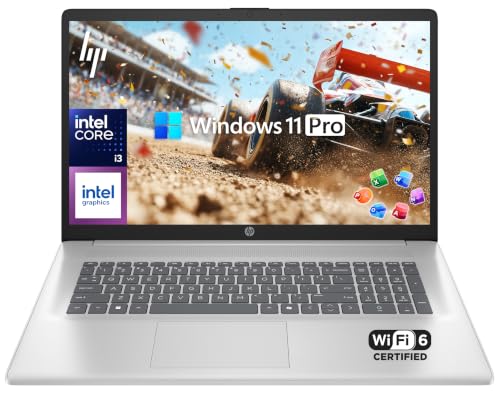
HP 17-Inch Business Laptop — Budget seventeen-incher with bundled storage
Honesty first, because this listing needs it: the headline one terabyte of storage is split between a five-hundred-gigabyte internal SSD and a five-hundred-gigabyte external unit, and the processor is an eight-core Intel i3 working behind a seventeen-point-three-inch HD+ panel rather than a full-HD one. None of that disqualifies it. It repositions it. This is the entry-priced route to the two things this category cares about most — a big screen and a full keyboard deck — for roles where the workload is steady rather than huge.
The bundled Microsoft Office suite in the listing suits a small practice that wants the laptop to arrive ready for invoices and workpapers without a separate software errand, and Wi-Fi 6 covers modern office wireless. The HD+ resolution is the compromise to weigh with open eyes: on seventeen inches it shows less spreadsheet at once and renders text less crisply than the full-HD panels above, so staff who stare at dense schedules eight hours a day will feel the difference by Friday.
Buy it for the receptionist-bookkeeper, the seasonal hire, the second desk — the seats where a real keypad and a wide screen matter daily but the heaviest file is a shared workbook. Buy something above it for the person who signs the returns.
At a glance:
- 17.3-inch HD+ display
- Eight-core Intel i3 processor
- 16GB RAM
- Storage split: 500GB internal SSD plus 500GB external
- Wi-Fi 6 and bundled Office suite per the listing
Strengths
- Lowest-cost route here to a seventeen-inch screen and full deck
- Sixteen gigabytes of memory matches the guide floor
- External drive in the bundle doubles as a simple backup device
Trade-offs
- HD+ resolution is visibly softer than full-HD on this size
- Headline storage is not all inside the machine
- The i3 tier is for steady workloads, not heavy models
Nobody writes love letters to the budget HP, and that misunderstands its job. It is the machine that lets a small firm put a proper wide screen and a proper keypad in front of a part-time bookkeeper without a capital conversation. Its owners learn its two compromises in the first week — text is a touch softer, and the external drive needs a home on the desk rather than in a bag — and then mostly forget them, because the work it was bought for flows fine. The correct standard for judging it is not the flagships above; it is the secondhand consumer laptop it replaces, against which it wins on every working dimension that matters.
Best for: Seasonal staff, second desks and small practices equipping several seats at once.
Not suited for: Lead preparers running large models and dense multi-window reviews.

Lenovo ThinkPad E16 Gen 3 — Compact ThinkPad with the full deck
The ThinkPad E16 Gen 3 is the answer to an obvious objection: what if I want the keypad without the seventeen-inch suitcase? Lenovo fits a numeric pad, a backlit keyboard and a fingerprint reader into a sixteen-inch chassis with a full-HD-plus touchscreen, an Intel Core 5 210H processor, sixteen gigabytes of RAM and a five-hundred-twelve-gigabyte drive. The extra vertical pixels of the FHD+ panel are quietly perfect for spreadsheets, because rows are the currency of this profession and the taller aspect shows more of them before scrolling.
ThinkPad ownership carries a second, practical argument. These machines are bought by IT departments in fleets, which means parts, docks, chargers and repair knowledge are everywhere, and the keyboard itself — the tool an accountant touches ten thousand times a week — comes from the line that built its reputation on keyboards. Ethernet is built in for the wired desk, and the fingerprint reader turns the morning sign-in into a touch instead of a password typed before coffee.
Choose the E16 when the laptop must travel to client sites weekly yet still behave like a proper accounting desk when it lands. It gives up some screen width to the seventeen-inch picks and gains a working life outside the office in return.
At a glance:
- 16-inch FHD+ touchscreen with taller aspect
- Intel Core 5 210H processor
- 16GB RAM and 512GB SSD
- Numeric keypad, backlit keys and fingerprint reader
- Built-in Ethernet in a travel-friendlier chassis
Strengths
- Real keypad in a machine that still travels well
- Taller screen shows more spreadsheet rows per view
- ThinkPad serviceability and parts availability are excellent
Trade-offs
- Sixteen gigabytes is the ceiling of this listed configuration
- Screen is wide enough, but not the widest here
- Touch adds cost some entry-only roles will not use
The ThinkPad’s week looks different from the others because it moves. Monday at a client’s boardroom table, Wednesday at the home desk with Ethernet clicked in, Friday back at the firm — and the keyboard, the one component every one of those places shares, never becomes the story. Owners of E-series machines tend to keep them through a second battery and a memory-era longer than fashion suggests, partly from the serviceability, partly because a tool that fits the hand discourages replacement. If your practice’s geography is a route rather than a room, this is the pick whose compromises were chosen with your map in mind.
Best for: Accountants who split the week between client sites and a home desk.
Not suited for: Desk-bound staff who would use every inch of a seventeen-inch panel.
How do the six picks compare side by side?
| Pick | Screen | Memory and storage | Numeric keypad |
|---|---|---|---|
| Lenovo V15 Ryzen 7 | 15.6-inch FHD | 40GB / 1TB SSD | Yes |
| HP 17 Ryzen 5 | 17.3-inch FHD | 16GB / 512GB SSD | Yes |
| HP OmniBook 3 | 17.3-inch FHD touch | 32GB / 2TB SSD | Yes |
| HP Premium AI 17 | 17.3-inch touch | 32GB DDR5 / 1TB SSD | Yes |
| HP 17 Business | 17.3-inch HD+ | 16GB / 500GB SSD + 500GB external | Yes |
| ThinkPad E16 Gen 3 | 16-inch FHD+ touch | 16GB / 512GB SSD | Yes |
Why does screen size matter more than processor speed for accounting work?
Open a real general ledger and count what the processor does: almost nothing, almost all of the time. Accounting software spends its life waiting for you — waiting for the next entry, the next reconciliation decision, the next document. The bottleneck in that loop is never the chip. It is how much of the work you can see at once, because every hidden window is a context switch and every context switch is a chance to post to the wrong account. A wide screen keeps the ledger, the source document and the communication thread in one glance, and that is why this guide ranks panels ahead of processors without apology.
There is a fatigue argument underneath the productivity one. Text rendered large enough to read without leaning in lets your posture stay neutral for the ten-hour days that arrive every spring. Staff rarely attribute their end-of-day headaches to a small laptop screen, but anyone who has moved a team from fourteen-inch machines to seventeen-inch ones has watched the complaints evaporate. Buy the screen your people will thank you for in March, not the benchmark number that impresses in a review.
How much memory and storage does a practice laptop really need?
Work it out from the workload, not from marketing tiers. The operating system and browser together claim several gigabytes before you open a single client file. Add a desktop accounting package with a large company file, a tax suite, a spreadsheet with a heavy model, a mail client and a calling app, and a machine with eight gigabytes is already borrowing from the disk — which feels like random freezing, because that is effectively what it is. Sixteen gigabytes is the point where the stack fits; thirty-two is where it fits with room for the unexpected second tax suite your firm adopts mid-season.
Storage planning runs on retention rules. Returns, workpapers and correspondence must be kept for years, and scanned documents are not small. A five-hundred-twelve-gigabyte drive serves a staffer whose archive lives on the firm’s server or cloud. A terabyte serves the practitioner who is the server. Either way, agree the backup story the day the laptop arrives — the external drive bundled with one pick above makes a fine first backup target, provided somebody owns the routine of actually running it.
What should you check in the first week of ownership?
Set up the machine like a professional tool, not a new gadget. Install the firm’s accounting and tax software first and open the largest real company file you have, because that test finds memory and storage problems while returns are still easy. Configure the backup — local, cloud or both — and run one restore of a single folder to prove it works. Save the recovery key somewhere that is not the laptop itself, set the fingerprint or PIN sign-in, and record the serial number in the firm’s asset list.
Then do the boring ergonomic work. Raise the screen so its top sits near eye level when the laptop is docked, pair it with the office monitor if you use one, and check that the keypad work does not twist your wrist for hours. Accountants keep laptops longer than most buyers, often five years or more, so an hour of setup discipline in week one pays out across thousands of entries.
How do you migrate a practice to a new laptop without losing a beat?
Moving a practice onto a new laptop goes smoothly when the order of operations respects the data. Start by exporting or backing up every company file, return archive and template folder from the old machine, and verify the backup by opening one file from it on the new hardware before the old laptop is wiped or reassigned. Install the accounting packages next, apply their updates, and only then copy the live data across, so the first open happens in a fully patched environment.
Licences deserve their own checklist line. Tax and accounting suites often activate per machine, and deactivating the old installation before activating the new one prevents the support call nobody wants in filing season. Do the same for PDF tools, e-signature apps and the password manager the firm uses. Finish by printing one return and scanning one document through the new setup end to end; printing and scanning are where driver problems hide, and a quiet Tuesday is the right time to find them.
Keep the old laptop, wiped of nothing yet, in a cupboard for one full filing cycle. Drives fail and files hide in forgotten folders, and the cheapest insurance in the whole migration is a machine you can still switch on in October when a client asks for the one schedule nobody can find.
What mistakes do firms make when buying accounting laptops?
The classic mistake is buying the screen you carry instead of the screen you work on. A featherweight fourteen-inch laptop is delightful in an airport and miserable across a four-hundred-row reconciliation, and accountants spend immeasurably more hours reconciling than flying. If the machine must travel constantly, the ThinkPad in this guide is the compromise; otherwise, let the desk win the argument.
The second mistake is treating a plug-in or wireless numeric pad as equivalent to an integrated one. Accessories slide, disconnect, drain batteries and vanish into drawers; the keypad built into the deck is simply there, aligned with the keyboard, every time. Firms buy the accessory to rescue a too-small laptop and end up funding both the compromise and its workaround.
Third, do not let bundled headline numbers do your thinking. Storage split between internal and external drives, cloud allowances counted as capacity, and office trials presented as suites all appear in real listings — including, transparently described, in this guide. Read what is inside the machine, because that is what will be there at midnight in April.
Finally, skipping the backup setup is the mistake that converts every other problem into a disaster. Hardware can be replaced in a day. An unbacked-up client archive cannot be replaced at all.
What does a working week actually look like on these machines?
Picture the second Tuesday of February, because that is the day these specifications stop being abstract. The preparer arrives to forty-one client emails, a bank feed that failed to sync overnight, and a partner asking for a revised estimate before lunch. On a seventeen-inch screen the morning arranges itself: ledger on the left, bank portal on the right, mail visible enough to triage without surrendering the whole display. The keypad handles the estimate revision in one pass of the right hand while the left turns pages of the client’s folder. Nothing about that scene needs a fast processor. Everything about it needs width, memory and keys.
Now picture the same Tuesday on a small, under-specified laptop, because the contrast is the buying argument. Windows stack and hide. The spreadsheet scrolls sideways for the debit column. The external keypad, bought in January as a rescue, sits slightly crooked and occasionally double-registers a zero — a small error with large consequences in this profession. By six in the evening the preparer is not behind because the work was hard; they are behind because the tool inserted friction into every transaction of the day. Multiply that friction by a team and a season and the price difference between the right laptop and the wrong one becomes the cheapest line in the story.
How should a firm think about docks, monitors and second screens?
A large laptop screen does not end the display conversation; for many practices it starts a calmer one. The natural desk setup pairs the laptop with a single external monitor, giving the accountant a document screen and a ledger screen, with the laptop’s own panel holding mail or the calculator. Every pick here can drive that arrangement through HDMI, and the discipline that matters is consistency: the same dock and cable arrangement at every desk means any staffer can sit anywhere during the season’s reshuffles, plug in one cable, and be working inside a minute.
Resist the temptation to build monitor cathedrals. Three and four screen arrays photograph well and help almost nobody reconcile faster, because the human bottleneck is attention, not pixels. Two well-chosen surfaces — one for source, one for entry — match how accounting cognition actually flows. Spend the savings on the second item firms chronically underbuy: a genuinely comfortable chair, which will be sat in for more hours than any screen will be stared at, though that is an argument for a different guide entirely.
What about security duties that come with client financial data?
An accountant’s laptop is a vault that happens to have a keyboard. It holds tax returns, bank credentials in the password manager, payroll records and identity documents — a concentration of sensitive data that obliges more than a login password. Disk encryption should be on from day one, the fingerprint readers fitted to several picks here should be enrolled rather than admired, and automatic locking after a few idle minutes should be treated as professional hygiene rather than paranoia. When a laptop travels to a client site, it travels in a bag that closes, in a car boot rather than on a seat, and it is never the device left logged in at a shared office.
Software discipline matters as much as the hardware choices. Keep the operating system and the accounting suites patched, because preparer software is a known target during filing season precisely when firms are busiest. Use a password manager so that client portal credentials are unique rather than variations on a theme. And agree, in writing, what happens when a machine is lost: who is called, what is revoked, and how clients are informed. The picks in this guide give you the hardware hooks — encryption support, biometric sign-in, business support channels. The procedures remain, as they should, the firm’s own responsibility.
How do you spec laptops differently for partners, preparers and bookkeepers?
One firm, three jobs, three sensible specifications. Partners review more than they enter: their hours go to annotated PDFs, client calls and judgement, so the touchscreen flagships in this guide fit them — the wide touch panel is a review instrument, and the deep storage holds the archive they are forever being asked to consult. Preparers are the throughput engine: for them the priorities are the keypad, the full-HD width and enough memory that the tax suite and the model and the research tabs never queue for resources. The balanced HP and the forty-gigabyte Lenovo divide that role between them depending on how heavy the multitasking habit runs.
Bookkeepers, especially those splitting time between data entry and front-desk duties, are honestly served by the budget seventeen-incher, provided someone reads its compromises aloud first: the softer HD+ text and the split storage are acceptable exactly because the workload is steady and the files live on the firm’s systems. What no role should receive is a small-screen machine rescued by accessories, or a hand-me-down consumer laptop in its fourth year asked to survive a fifth tax season. Role-based buying is not favouritism; it is matching the tool to the hours it will actually work.
When is the right time of year to replace a practice laptop?
Timing a replacement is a professional decision disguised as a shopping one. The worst moment is during filing season, when a migration hiccup costs billable days and tempers; the second worst is the week before it, when new-machine quirks meet old-season pressure. The sweet spot is late spring and summer, when workloads breathe, the new machine can be loaded, tested against real files and lived with through a quiet quarter before it ever sees a deadline. Firms that replace on a rolling summer cycle — a third of the fleet each year, say — never face a season where every laptop is simultaneously old, and never face a capital year where every laptop is simultaneously new and expensive.
There is a data argument for the same calendar. Migrations go best when the person migrating has time to verify: opening archived returns from the backup, confirming the scanner works, checking that the firm’s templates survived the move. Verification is exactly what deadline season crowds out. Buy when you can afford to check, and the checking will repay you the first time a client requests a three-year-old schedule and it simply appears. The listings in this guide will change configurations over time, as listings do, but the calendar advice will not: accountants should shop like they file — early, methodically, and never in a panic.
What should you do with the old laptop once the new one lands?
Retirement is part of the purchase, because the old machine holds the same sensitive archive as the new one. Once the migration is verified and one full cycle has passed, wipe the drive using the operating system’s reset-with-cleaning option or a dedicated erasure tool, and record the wipe alongside the asset record. Machines leaving the firm — donated, sold, recycled — should never leave with a drive that merely had its files deleted, since deletion and erasure are very different things where client data is concerned.
Before the wipe, consider a gentler second life inside the firm. A retired preparer laptop with a fresh battery can serve as the dedicated scanning station, the training machine for seasonal hires, or the spare that saves a season when a primary machine goes in for repair. Label it with its role and its limits so nobody mistakes it for a front-line seat in February. When it finally leaves, choose a recycler that certifies data destruction; the certificate joins the same file as the purchase invoice, closing the machine’s story the way the firm closes a client’s year — completely, and on paper.
How do keyboards, hinges and ports hold up across years of daily entry?
Durability in an accounting laptop is not about surviving drops from scaffolding; it is about surviving Tuesday, four thousand times. The keyboard is the highest-wear component by an enormous margin — a busy preparer’s keypad alone absorbs more actuations in a season than a casual user’s whole keyboard sees in a year — and this is where business decks quietly justify themselves. Keys with stable travel and legends that do not polish away keep entry accurate in year three, when a worn consumer deck starts producing the missed digits and doubled zeros that reconciliation then has to hunt down. When you test a machine in the first week, do not just type a sentence; enter a column of figures at working speed and listen for the deck flexing, because flex under the keypad is the earliest symptom of a keyboard that will feel tired long before the processor does.
Hinges run a close second in the wear league. A laptop that lives on one desk and opens once a day asks little of them, but the machines in this guide often live a double life — desk by day, kitchen table for the evening’s overflow in season — and every relocation is a hinge cycle plus a chance for the cable shuffle that loosens ports. Business chassis are built with that arithmetic in mind: hinge barrels rated for tens of thousands of cycles, port reinforcement that tolerates the daily Ethernet and HDMI plug ritual, and cases that can be opened for cleaning and memory or drive service instead of being treated as sealed disposable units. None of this appears in a headline specification, yet it decides whether the laptop you buy this summer is still the laptop you trust three filing seasons from now, or a source of small daily negotiations with loose lids and temperamental sockets.
The practical habits that extend all of this cost nothing. Blow the vents clear twice a year, because a season of office dust quietly raises temperatures and fan noise. Keep liquids behind the screen line rather than beside the keypad, since the most common accountant-laptop death is not electronic at all but a coffee incident during a deadline. Use the battery rather than worshipping it: a machine that lives permanently at full charge ages its cells faster than one allowed to cycle on client days. And keep the original charger with the machine it came with, labelled if the firm owns several, because the wrong adapter is a small mystery that always chooses deadline week to present itself. Buy business hardware, treat it like the firm’s other instruments, and the picks in this guide should give you the uneventful service that good tools are supposed to give.
What changes when the firm grows from one laptop to five?
Growth turns laptop buying from a personal choice into a small system, and the firms that handle it well make three decisions early. They pick one standard configuration — the balanced seventeen-inch pattern in this guide exists for exactly that moment — so that chargers, docks and spare machines interchange without thought. They write down the setup: which accounts, which software order, which backup routine, so the fifth laptop is configured in an afternoon by whoever is free rather than in a week by whoever remembers. And they keep one spare, even an older retired unit, because a growing firm discovers that the cost of a dead laptop in February is never the laptop; it is the desk standing empty while a replacement ships. Standardise early, while the fleet is small enough that standardising is still easy, and growth stays an occasion for new chairs rather than new chaos.
One last piece of arithmetic for the partner signing the purchase order: divide the price difference between the adequate machine and the right machine by the number of working days in four years, and the argument usually ends itself. The gap comes out at less than the cost of the coffee the preparer drinks while waiting for an undersized laptop to finish thinking, and unlike the coffee, the laptop is still there, working, on the thousandth day.
Final Recommendation
If the whole firm asked for one answer, it would be this: pick the screen and keypad first, memory second, and everything else third. The HP seventeen-inch Ryzen 5 configuration is the sensible default for most seats, the Lenovo V15 with forty gigabytes is the multitasker’s release valve, the two HP touchscreens serve reviewers who live in PDFs, the budget HP equips extra desks honestly, and the ThinkPad E16 carries the whole pattern to client sites.
A practice runs on trust accumulated over years and entries posted correctly one at a time. The right laptop does not create that trust, but the wrong one quietly taxes it every single day. Choose the machine that respects the ten-key, and the ten-key will repay you every season. That is the whole secret of this category, and it was never really about the processor at all.
Frequently Asked Questions
Do accountants actually need a dedicated graphics card?
No. Ledger software, tax suites and spreadsheets are two-dimensional workloads that integrated graphics handle without effort. Money aimed at a gaming graphics chip is money not spent on the screen size, memory and storage that accounting work feels every hour. The only common exception is a firm that also produces video content, and that is a different laptop for a different desk.
Is a touchscreen useful for accounting, or a gimmick?
It depends on the seat. For pure data entry it adds little, because hands belong on the keypad. For review work — marking up PDF returns, annotating scanned statements, signing off schedules — touch removes friction from tasks that otherwise mean printing or mouse-dragging through annotation tools. That is why the touchscreen picks in this guide are framed for reviewers and partners rather than for entry roles.
How long should a practice laptop last?
Plan on four to five years for a business-line machine used at a desk, with the battery the most likely mid-life expense. The configurations here are specified with that horizon in mind: memory and storage bought generously on day one are what allow a laptop to feel adequate in year four. Keep the vents dust-free, let the battery cycle occasionally even on a desk machine, and the chassis in this class generally outlast the software cycle.
Should the firm standardise on one model?
Where headcount allows, yes. A single standard build means one charger type, one dock, one spare machine that can cover any desk, and an IT conversation that stays simple. The seventeen-inch HP in this guide is shaped for that role. Mixed fleets make sense only when roles genuinely differ — a travelling auditor and a desk-bound preparer really do need different machines.
What about working on client data over café Wi-Fi?
Treat any network you do not control as hostile. Use the firm’s VPN for every client system, keep disk encryption on, and prefer your phone’s hotspot for sensitive sessions. The wired Ethernet several picks include is not nostalgia; at your own desk it remains the fastest, most predictable connection for moving large client backups.
Related Guides
If your shortlist is widening beyond the accounting desk, these companion guides cover the neighbouring questions our readers ask most often: the best laptops for church · the best laptops for kids · the best laptops for truck drivers · the best laptops with ethernet port · the best laptops for linux use.


