What's inside
- Key Takeaways
- Quick Picks
- Chromebook or Windows: The Only First Question That Matters
- Where Cheap Laptops Cut Corners — and Which Cuts You Can Live With
- The Six Cheap Picks, Sorted by the Student They Suit
- How Do You Set Up a Cheap Laptop So It Stays Fast for Years?
- Which Cheap-Laptop Mistakes Cost Families the Most?
- How Do You Choose Between Two Cheap Laptops That Look Identical?
- What Happens in Year Two — the Honest Sequel to a Cheap Purchase
- Should You Buy Last Year’s Model, a Bundle, or During a Sale?
- What Does Each Kind of Student Actually Need? Four Portraits
- How Can Parents Sanity-Check a Listing in Five Minutes?
- What About Sharing One Cheap Laptop Between Siblings?
- Final Recommendation
- Frequently Asked Questions
- Related Guides
As an Amazon Associate I earn from qualifying purchases. This post may contain affiliate links at no extra cost to you.
gizmoverdict.com is reader-supported. When you buy through links on our site, we may earn an affiliate commission.
Every autumn, the same negotiation happens in kitchens everywhere: a student needs a laptop, the family budget has a hard edge, and the internet offers machines at prices that seem too good to be functional alongside machines whose prices seem designed to frighten. The truth about the best cheapest student laptops lives between those poles. There is a floor below which a laptop stops being a bargain and becomes a recurring problem — too little memory to keep tabs open, storage that fills by Christmas, a build that surrenders to a school bag by spring. Above that floor, though, sits a genuinely happy territory of machines that handle essays, research, video calls, streaming and light creative work without drama, and that is the territory this guide maps. No prices are printed here, because prices move; the positions are described in relative terms, cheapest first in spirit, so you can match them against today’s listings.
The six picks divide into two families that a cheap-laptop buyer must learn to tell apart. Three are Chromebooks, running ChromeOS: light, quick to wake, nearly immune to the malware anxieties of family computing, and entirely dependent on the web and Android apps for their software. Three are Windows machines, including one Renewed business laptop, which run the full desktop world — Microsoft Office proper, specialised course software, printers that only speak Windows — at the cost of more maintenance and, usually, less battery elegance. Neither family is better. They answer different students, and the most expensive mistake in this category is buying the wrong family cheaply.
So read this guide as two questions. First: does your student’s life happen in a browser, or does it need desktop software? Second: which corners are you willing to see cut, and which — memory, storage, screen, build — will you refuse to compromise? The picks below are arranged to make both answers easy, and the honesty is deliberate throughout: every machine here has something it cannot do, and each section names it before you spend anything.
Key Takeaways
- Decide the family first: Chromebooks for browser-based school life, Windows for desktop software and odd printers.
- 8GB of memory is the sensible floor for a new purchase; 4GB machines survive only the lightest, most patient use.
- Storage fills faster than families expect — 256GB is comfortable, 64GB demands a cloud habit from day one.
- A Renewed business laptop can out-build every new budget machine at similar money; read its condition terms carefully.
- The cheapest laptop that does the job beats the cheapest laptop, full stop: one returned bargain costs more than one right purchase.
- Keep some budget for a case, a mouse and cloud storage; the laptop is not the whole cost of student computing.
Quick Picks
| Pick | Badge | Why it earns its place |
|---|---|---|
| Acer Chromebook Plus 515 | The Chromebook to beat | A proper Core i3, 8GB and 256GB in a 15.6-inch Chromebook Plus — the least compromised cheap option here. |
| HP Chromebook x360 14 | The flexible convertible | A 2-in-1 touchscreen for notes and reading, with 4GB/64GB limits stated plainly. |
| Lenovo IdeaPad Slim 3 (Ryzen 7 5825U) | The Windows value ceiling | Eight cores, 16GB and 512GB — the most Windows laptop this guide can call cheap with a straight face. |
| Acer Chromebook 315 | The absolute floor | The cheapest defensible new laptop here, for browser-only school life and patient owners. |
| Acer Aspire 5 (i7-1165G7) | The Windows all-rounder | 16GB and 512GB with an i7 heart, for students who need real Windows without flagship money. |
| Lenovo ThinkPad L480 (Renewed) | The sturdy second life | Business build and 16GB at bargain money, if you accept Renewed terms with your eyes open. |
Chromebook or Windows: The Only First Question That Matters
ChromeOS is a browser with a laptop wrapped around it, and for a large share of students that is not a limitation but a description of their actual day. School platforms, documents, slides, research, email, video lessons and streaming all live in the web, and a Chromebook does them with a lightness Windows at this price rarely matches: it wakes instantly, updates itself silently, shrugs off most malware by design, and stretches its battery across a school day and the bus ride home. The Chromebook Plus tier, represented here by the Acer 515, adds a stronger processor, more memory and better screens to that formula, closing much of the gap that gave early Chromebooks their toy reputation.
The boundary is software that refuses to live in a browser. Full desktop Microsoft Office with its advanced features, certain exam and proctoring tools, specialised course applications for engineering, design, music production or statistics, some printer ecosystems, and most PC games simply do not exist on ChromeOS. Android apps fill some gaps unevenly. The test is empirical, not theoretical: list the five things the student must do weekly, and check each against the platform. If all five live happily in Chrome or Google Workspace, a Chromebook is not the cheap compromise — it is the correct machine, and its savings are pure profit.
Windows at the cheap end asks more of its owner: updates that arrive on their own schedule, security software to keep in order, a little more patience with everything. In exchange it runs the whole desktop world, including the odd course application a syllabus springs in the second year. The Windows picks here were chosen to minimise the traditional budget-Windows miseries — adequate memory above all, real SSD storage, processors with enough cores to age gracefully — because a cheap Windows laptop with 8GB and a spinning drive is the one purchase this guide exists to talk you out of.
Where Cheap Laptops Cut Corners — and Which Cuts You Can Live With
Every machine in this guide is inexpensive because something was traded away, and shopping well means choosing your trades consciously. Screens are the most visible cut: budget panels are dimmer and less colourful than premium ones, which matters for film students and matters barely at all for essays. Build materials follow: plastic where flagships use metal, flex where they feel carved. These cuts are survivable. A student can watch lectures on a modest screen for years without the panel once becoming the reason an assignment failed.
Memory and storage are the cuts that bite, because they compound daily. A 4GB machine — the HP x360 and Acer 315 in this guide carry exactly that — keeps a handful of tabs and applications comfortable and begins swapping beyond it, which the owner experiences as mysterious slowness by the second term. A 64GB drive fills with the operating system, a few applications and one enthusiastic photo sync, after which the machine nags. Neither is unusable; both demand habits — cloud storage, tab discipline, streaming rather than downloading — that the buyer should accept knowingly at purchase rather than discover resentfully later. This guide’s position is simple: if the budget can reach 8GB and 128GB or better, reach; if it cannot, buy the 4GB machine with clear eyes and teach the habits on day one.
The third corner is time. Processors in the cheapest tier, like the Celeron and N100 chips below, are built for efficiency rather than speed, and they age in dog years as websites grow heavier. A machine that feels fine in the first September can feel tired by the third. That is why the guide’s Windows picks and the Chromebook Plus carry stronger processors than the floor models: at the cheap end, the processor is where a little more money buys the most additional years.

Acer Chromebook Plus 515 — The Chromebook to beat
If a Chromebook is the right family, this is the one to measure the rest against. The Chromebook Plus badge is Google’s way of marking machines that clear a higher hardware bar, and the 515 clears it with the specification this guide wishes every cheap laptop had: a Core i3 processor with genuine headroom, 8GB of memory, and 256GB of storage in a 15.6-inch body. In daily school life that translates to dozens of tabs without pleading, documents and slides that open instantly, video calls that do not turn the machine into a hairdryer, and a drive that will not be full before the first half-term.
The big screen deserves its sentence, because at this price it is a luxury: essays and research sit side by side, a video lesson shares the display with the notes being taken on it, and a student without a second monitor — which is to say, nearly every student — gets a workable two-window life. Battery endurance in this class routinely spans the school day, and ChromeOS’s silent self-maintenance means the machine a parent configures in August is still behaving in June without a single evening of tech support.
The limits are the platform’s, and they are stated here as plainly as in the family section: no desktop Office, no specialised Windows courseware, no PC gaming library. For the student whose school runs on Google Workspace — a great many now do — those limits may never once be encountered in four years of use. Among cheap laptops of any family, the Chromebook Plus 515 is the purchase least likely to be regretted, and it leads this guide on exactly that basis.
- Processor / memory: Intel Core i3-1305U, 8GB RAM
- Storage: 256GB
- Display: 15.6-inch Full HD
- Platform: ChromeOS (Chromebook Plus tier)
- Sweet spot: Google-Workspace schools and browser-based degrees
Strengths
- The strongest all-round specification in this guide’s Chromebook family.
- 256GB ends the storage anxiety that haunts cheaper Chromebooks.
- A big screen and all-day battery suit real school life.
Trade-offs
- ChromeOS cannot run desktop Windows or Mac software.
- A 15.6-inch machine is a fuller backpack than the 14-inch picks.
- Costs more than the floor Chromebooks — the premium is the point.
Best for: students whose school life lives in the browser and Google Workspace. Not suited for: courses with named Windows software requirements.

HP Chromebook x360 14 — The flexible convertible
The x360’s party trick is its hinge: the 14-inch touchscreen folds through a full circle, turning the laptop into a presentation stand, a tent for watching lessons, or a thick tablet for reading and annotating. For younger students especially, that flexibility maps onto how schoolwork actually happens — typing the essay at a desk, then folding the machine back to read on the sofa, then tenting it for a video call with a study group. HP builds the trick into a compact, friendly machine that survives being the most-handled computer in the house.
Now the clear-eyed part, because this pick carries the guide’s tightest specification: an Intel N100 processor, 4GB of memory and 64GB of storage. Each figure is workable and none is generous. The N100 is an efficiency chip that handles browser schoolwork willingly and asks patience of anything heavier. The 4GB keeps a modest set of tabs in order. The 64GB is best understood as a loading bay rather than a warehouse: the student’s real archive must live in Google Drive, which for a Google-Workspace school is a natural arrangement anyway. Buy this machine as a cloud terminal with a clever hinge, and it will delight; buy it expecting a self-contained computer, and it will negotiate.
Its place in the guide is the flexible middle: cheaper than the Chromebook Plus, more versatile than the floor model, and sized for students whose work is reading-heavy and cloud-native. For a secondary school student in a Google school, it may be the single most appropriate purchase here. For a university student with a dissertation’s worth of tabs, step up to the 515.
- Processor / memory: Intel N100, 4GB RAM
- Storage: 64GB — cloud storage is part of the deal
- Display: 14-inch touchscreen, 360-degree hinge
- Platform: ChromeOS
- Sweet spot: younger students and reading-heavy, cloud-based schoolwork
Strengths
- The convertible hinge genuinely suits mixed school life.
- Compact and light for daily carrying between classes.
- ChromeOS simplicity keeps maintenance near zero.
Trade-offs
- 4GB memory rewards tab discipline.
- 64GB storage assumes a cloud-first habit.
- The N100 is an efficiency processor, not a sprinter.
Best for: cloud-native students who will use the convertible modes daily. Not suited for: heavy multitaskers or anyone storing a media library locally.
Lenovo IdeaPad Slim 3 (Ryzen 7 5825U) — The Windows value ceiling
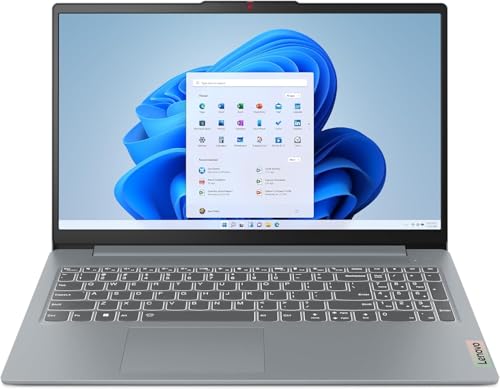
Every cheap-laptop guide needs a line that marks where cheap stops, and in this one the IdeaPad Slim 3 draws it. Its specification — an eight-core Ryzen 7, 16GB of memory, 512GB of SSD storage, a 15.6-inch touchscreen running full Windows — is not a budget specification at all; it is a mainstream one that happens to be priced within a determined student’s reach. If the budget can stretch to exactly one machine in this guide and the student needs Windows, the argument for stretching to this one is that it removes the category’s usual anxieties in a single purchase: memory enough for years of tabs, storage enough for a degree’s documents, cores enough that the processor will not be the reason the machine retires.
That headroom buys behaviours the cheaper picks cannot promise. Desktop Office runs properly. The odd course application — statistics packages, light CAD viewers, music software, an IDE for a computing module — installs without a platform argument. Light creative work and older games are on the table. The machine is, in short, the answer to the parent who asks “what if the course needs something we haven’t thought of?” — a hedge against the unknown syllabus, bought once.
The counterweight is simply that it costs the most of the guide’s Windows newcomers, and for a student whose life is provably browser-shaped, the Chromebook Plus delivers the daily experience for less while adding battery elegance. The IdeaPad is not the cheapest laptop here; it is the cheapest laptop here about which almost nothing needs excusing, and for many families that is the bargain that matters.
- Chip: AMD’s eight-core Ryzen 7 5825U with built-in Radeon graphics
- RAM and drive: 16GB of memory alongside a 512GB solid-state drive
- Screen: a 15.6-inch Full HD panel that accepts touch
- System: Windows 11 Home
- Sweet spot: the one-laptop hedge for unknown course requirements
Strengths
- Memory, storage and cores all clear the guide’s floors with room.
- Full Windows for any software the syllabus produces.
- A touchscreen and big display at a student-defensible cost.
Trade-offs
- The priciest of the guide’s new Windows picks.
- Integrated graphics keep gaming and 3D modest.
- Windows asks more upkeep than ChromeOS.
Best for: students who need Windows and can buy once, properly. Not suited for: browser-only students, who would overpay for insurance they never claim.

Acer Chromebook 315 — The absolute floor
This is the cheapest machine this guide is willing to recommend, and the willingness is genuine but conditional. The Chromebook 315 gives a student a full-size 15.6-inch screen, a numeric keypad that homework spreadsheets quietly appreciate, and ChromeOS’s frictionless daily manners, at the lowest cost of any pick here. For a household where the alternative to this laptop is no laptop — a real and common situation — it is not a compromise at all. It is access: to the school platform, the homework portal, the library’s resources, the video lessons. A student with this machine is equipped; a student without one is borrowing.
The conditions deserve the same directness. The Celeron N4500 processor is the slowest in this guide, the 4GB of memory enforces a modest number of open tabs, and the storage arrangement — modest internal memory supplemented in this listing by an SD card — assumes the student’s real files live in the cloud. Web pages will load a beat slower than on the Chromebook Plus; a dozen tabs will test its patience; anything beyond browser work is outside its charter entirely. None of this prevents it from doing school, and all of it should be understood before the money moves.
Buy the 315 for the browser-shaped student on the hardest budget, or as a household’s second machine for homework overflow, and its value is unarguable. Buy it for a student heading into media studies or computing, and you have purchased next year’s replacement as well. The floor of a category is a respectable place to stand, as long as you know it is the floor.
- Processor / memory: Intel Celeron N4500, 4GB RAM
- Storage: 128GB total in this listing (eMMC plus SD card)
- Display: 15.6-inch Full HD, numeric keypad
- Platform: ChromeOS
- Sweet spot: browser-only schoolwork on the tightest budget
Strengths
- The lowest-cost defensible route to a full-size student laptop.
- A big screen and proper keypad for homework comfort.
- ChromeOS keeps it simple, updated and secure by default.
Trade-offs
- The slowest processor in this guide; patience is part of the spec.
- 4GB memory and split storage demand cloud habits.
- No headroom for heavier software later in the course.
Best for: browser-only schoolwork where the budget is the whole conversation. Not suited for: computing, media or any course with desktop software.
Acer Aspire 5 (i7-1165G7) — The Windows all-rounder
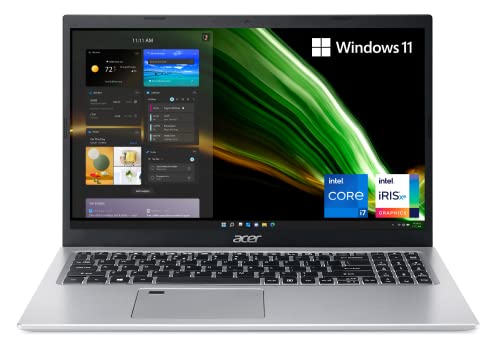
The Aspire 5 has been the budget-Windows recommendation of a thousand households for a reason that survives its processor’s age: Acer specced the things students feel. Sixteen gigabytes of memory, a 512GB SSD, a backlit keyboard for evening work, a fingerprint reader that makes a shared family machine feel personal, and a 15.6-inch IPS screen that is kinder to eyes than the panels usually fitted at this tier. The Core i7-1165G7 inside is a few generations old, and it remains a four-core processor with strong single-core manners — which is to say, entirely adequate for the Office-and-browser core of student life, with Iris Xe graphics that handle light photo work and older games gracefully.
Against the IdeaPad, the comparison is generational: the Lenovo’s eight-core Ryzen is the stronger long-term bet for heavy multitasking and anything core-hungry, while the Aspire counters with its screen, its keyboard and a specification with no weak line for ordinary work. Against the Renewed ThinkPad below, it offers the peace of a new machine’s warranty and battery. It is, deliberately, the unexciting pick: the Windows laptop a family buys when nobody wants to think about laptops again until graduation approaches.
One caution belongs to its age rather than its quality. An older-generation model at a keen price is a fine purchase, but confirm the listing’s exact configuration — memory and storage are the lines to verify, because the Aspire name spans many variants and the 16GB/512GB arrangement is the one this recommendation is built on. Check those two numbers, and the Aspire 5 remains what it has been for years: budget Windows, done properly.
- Chip: Intel’s Core i7-1165G7 with Iris Xe graphics built in
- RAM and drive: a 16GB memory pairing with a 512GB SSD
- Display: 15.6-inch Full HD IPS
- Platform: Windows 11
- Sweet spot: families wanting new-machine Windows without drama
Strengths
- 16GB and 512GB remove the classic budget-Windows bottlenecks.
- Backlit keyboard, fingerprint reader and a decent IPS screen.
- A new machine’s full warranty and fresh battery.
Trade-offs
- An older processor generation than the IdeaPad’s.
- Verify the exact variant’s memory and storage before ordering.
- Integrated graphics keep ambitions modest.
Best for: mainstream student Windows duty with no appetite for surprises. Not suited for: heavy multitaskers who would use the IdeaPad’s extra cores.

Lenovo ThinkPad L480 (Renewed) — The sturdy second life
Here is the cheap-laptop world’s best-kept open secret: corporations retire fleets of business laptops on a schedule, those machines enter the Renewed market at a fraction of their original cost, and a student who buys one gets build quality, a keyboard and a serviceability that no new budget laptop can touch. The ThinkPad L480 is this guide’s example: 16GB of memory — double what most new machines at its money offer — a 256GB SSD, Windows 11 Pro, and a chassis designed to be opened, repaired and carried daily by people whose employers billed for their time.
The terms of the secret must be stated as plainly as its benefits. Renewed means previously owned: professionally inspected, cleaned and tested, sold with a warranty shorter than a new machine’s, and possibly carrying cosmetic marks that do not affect its work. Its battery will not be new, whatever its tested health. Its processor is an eighth-generation Intel chip, which handles student Windows duty capably and will not win any races. The purchase rewards a buyer who reads the specific listing’s condition grade and returns policy, inspects the machine on arrival, and uses the returns window without hesitation if the unit is below its description.
For the right student — older, careful, valuing a superb keyboard and a machine that can be repaired rather than replaced — the L480 is not the cheap option. It is the clever one, the purchase that gets talked about at parents’ evenings. For a younger student whose family wants a sealed box and a long warranty, the new machines above are the wiser spend. Both judgements are correct; they are simply about different households.
- Processor / memory: Intel Core i5 (8th gen), 16GB RAM
- Storage: 256GB SSD
- Display: 14-inch
- Condition: Renewed — read the condition grade and warranty carefully
- Sweet spot: careful students who value build and keyboard over newness
Strengths
- Business build and keyboard far beyond new-budget standards.
- 16GB of memory at bargain-tier money.
- Repairable design extends its useful life further.
Trade-offs
- Previously owned: condition and battery health vary by unit.
- An older processor generation with modest speed.
- A shorter warranty than any new pick here.
Best for: value hunters who will inspect what arrives and prize durability. Not suited for: buyers who need a sealed box, a fresh battery and a long warranty.
The Six Cheap Picks, Sorted by the Student They Suit
| Machine | Family | Memory / storage | Buy it if… |
|---|---|---|---|
| Acer Chromebook Plus 515 | ChromeOS | 8GB / 256GB | School life is browser-based and you want the least compromise |
| HP Chromebook x360 | ChromeOS | 4GB / 64GB | Reading, notes and cloud work in a folding body appeal |
| Lenovo IdeaPad Slim 3 | Windows | 16GB / 512GB | You can buy once and insure against unknown course needs |
| Acer Chromebook 315 | ChromeOS | 4GB / 128GB total | The budget is absolute and the work is browser-only |
| Acer Aspire 5 | Windows | 16GB / 512GB | You want new Windows with no weak specification line |
| ThinkPad L480 (Renewed) | Windows | 16GB / 256GB | Build quality matters more than newness |
The table’s pattern is the guide in miniature: memory is the column that predicts happiness, family is the column that predicts compatibility, and price — deliberately absent — should be the last column consulted, not the first.
How Do You Set Up a Cheap Laptop So It Stays Fast for Years?
Cheap laptops stay fast by habit rather than by hardware, and the habits are set in the first week. On a Chromebook, the setup is nearly nothing: sign in, let it update, and teach the student that files live in Drive rather than Downloads, because the local storage on the cheaper picks is a waystation, not a warehouse. On Windows, spend twenty minutes removing the preinstalled trials and duplicate utilities that budget machines arrive carrying, set the browser as the centre of the desktop, and confirm that updates are scheduled for evenings rather than the middle of a school morning.
Three practices then protect the machine across its life. Keep the storage below roughly four-fifths full, because both platforms slow as their drives brim, and the small-storage picks feel it first. Keep the tab count honest on 4GB machines — bookmarks and reading lists exist precisely so that twenty pages can be kept without being open. And keep a backup of anything irreplaceable somewhere that is not the laptop, because a cheap machine’s most likely failure is not slowness but loss, theft or a school-bag accident, and coursework deserves better insurance than hope.
Physically, a padded sleeve is the highest-value accessory in student computing, ahead of every specification upgrade at this tier. Screens and hinges die by impact, not by age. A sleeve, a habit of carrying the charger in a separate pocket so its prongs cannot scar the lid, and a rule about drinks near the keyboard will do more for a cheap laptop’s lifespan than any setting in its control panel.
Which Cheap-Laptop Mistakes Cost Families the Most?
The costliest mistake is buying below the floor: the unbranded machine with a tiny drive, 4GB of memory and a processor from a tablet, sold at a price that seems to refute this guide. It will run the school platform badly by the second term, and its replacement — bought in a hurry, mid-year — erases the saving entirely. The second mistake is the family mismatch described throughout: a Chromebook bought for a course that needs Windows software, or a Windows machine bought for a Google school whose IT support assumes Chromebooks. Both machines are fine; both purchases are wrong, and the syllabus or school handbook settles the question in advance for free.
Third is spending the whole budget on the laptop and nothing on its ecosystem: no sleeve, no mouse for long writing sessions, no cloud storage for the 64GB machine that plainly needs it. Fourth is ignoring the Renewed option entirely — or, symmetrically, buying Renewed without reading its terms, then feeling deceived by conditions that were printed all along. Fifth is buying for the student’s current year alone. A machine bought for a twelve-year-old should ideally survive to fifteen; the memory and processor headroom in the stronger picks is what that survival is made of. Cheap is a strategy, not a price, and the strategy is to spend once, at the floor of adequacy, rather than twice below it.
How Do You Choose Between Two Cheap Laptops That Look Identical?
Shelf after shelf of budget machines share processors, screens and shells, and families reasonably ask what separates them. Four checks cut through the sameness. First, memory that can be seen in the specification, not the marketing: find the RAM figure in the technical table and treat any listing that hides it as answering the question. Second, storage type: an SSD, even a small one, transforms a cheap machine’s manners, while old-style eMMC storage in larger Windows laptops is a warning sign worth walking away from. Third, the keyboard and trackpad, which no specification conveys — if you can touch the machine or its sibling in a shop, type a paragraph; the student will type ten thousand. Fourth, the maker’s support footprint: firmware updates, spare chargers that exist, a warranty process with a physical address. Acer, HP and Lenovo, who supply every new pick in this guide, clear that bar by existing at scale.
There is also a fifth check that costs nothing and saves the most: read the school’s or university’s own device guidance before comparing anything. Institutions increasingly publish minimum specifications and sometimes platform requirements, and a machine that meets the institution’s list will be supported by its IT desk, while a cleverer off-list purchase can leave a student alone with a compatibility problem in the first week. The guidance is written by the people who will be asked for help. Believe it first, and let this guide arbitrate only what it leaves open.
What Happens in Year Two — the Honest Sequel to a Cheap Purchase
Year one flatters every laptop in this guide; year two is where their characters separate. The Chromebook Plus and the two 16GB Windows machines will feel, in year two, much as they did at purchase, because their headroom absorbs the software’s slow growth. The 4GB Chromebooks will ask for visible discipline: fewer simultaneous tabs, a tidier Downloads folder, streaming habits instead of downloads. The Renewed ThinkPad’s year two depends on the battery it arrived with, which is why its section insisted on the arrival inspection — a healthy unit settles in like a colleague; a tired battery announces itself early enough to use the returns window, if the buyer was paying attention.
None of these year-two stories is a failure. They are the known prices of the savings, itemised in advance, which is the difference between a cheap laptop and a disappointing one. The families who stay happy with budget machines are the ones who bought the limits knowingly and matched them to the student; the unhappy ones were promised, or promised themselves, that the limits were not there. This guide has tried to keep every limit on the page, in the pick’s own section, before the price is ever consulted — because at this end of the market, honesty is not a courtesy. It is the product.
Should You Buy Last Year’s Model, a Bundle, or During a Sale?
Student laptops are among the most reliably discounted products in retail, and timing is a legitimate part of buying cheap. Back-to-school periods and the major sale events routinely cut the mainstream picks in this guide — the Aspire and IdeaPad class — by margins that can move a family up a tier for the same money. Last year’s configuration of a continuing model is often the sweetest spot in the whole category: identical screen and build, a processor one generation older, and a discount that reflects retail’s calendar rather than the machine’s worth. The Aspire 5 in this guide is recommended in exactly that spirit.
Bundles deserve a colder eye. A cheap laptop offered with a case, a mouse and a software subscription can be good value when the extras are things the student needs — the case and mouse genuinely are — and poor value when the bundle exists to move accessories nobody chose. Add the bundle’s components at their separate prices, in your head, before admiring the combined figure. And a rule that protects every sale purchase: the discount does not change the specification. A 4GB machine on sale is still a 4GB machine in February. Buy the right laptop at a reduced price, never the wrong one at a remarkable one.
What Does Each Kind of Student Actually Need? Four Portraits
Advice sharpens when it names its reader, so here are the four students this guide is really for. The secondary-school student in a Google-Workspace school needs the Chromebook family and nothing more: the Plus 515 if the budget breathes, the x360 if they read and annotate constantly, the 315 if money is the binding constraint. Every pound saved there belongs in a sleeve and a spare charger, because that student’s risks are physical, not computational. The sixth-former or college student writing essays and researching across a dozen sources needs memory above all — the Chromebook Plus as a floor, the Windows 16GB machines if any desktop software looms — because their bottleneck is the browser’s appetite, and it grows every term.
The university student on a general degree — humanities, social sciences, business — is the IdeaPad and Aspire’s natural owner: Windows for the odd departmental application and the placement-year employer’s expectations, 16GB for a dissertation’s research sprawl, and enough storage for four years of documents that somehow become precious. The student on a vocational or technical course is the one to interrogate hardest before buying anything cheap, because their software list is where desktop requirements hide: check it, and if it names Windows applications, the Chromebook conversation ends and the Windows picks compete on the course’s actual demands. Four portraits, four different right answers, one shared rule: the syllabus outranks the sale.
How Can Parents Sanity-Check a Listing in Five Minutes?
Marketplace listings for budget laptops are written to be skimmed, and five deliberate minutes defeat most of their tricks. Confirm the memory figure in the technical specifications, not the headline — variants of the same model name ship with different RAM, and the headline price usually belongs to the smallest. Confirm the storage figure and its type the same way. Check whether the operating system is full Windows or a restricted mode that needs switching out of, and whether a Chromebook listing is a current model with years of updates remaining — ChromeOS devices carry an update expiry date, published by Google, and a very cheap old Chromebook can be a machine whose updates end next year. That single check, the update horizon, is the one most often missed and the one that most changes what a bargain is worth.
Finally, read the condition language on anything Renewed or refurbished with a lawyer’s squint: what grade, what warranty, what returns window, what battery promise. The L480 in this guide is recommended on the assumption that its buyer performs exactly that reading. Five minutes of it converts a gamble into a decision, which is the whole art of buying at this end of the market.
What About Sharing One Cheap Laptop Between Siblings?
Many households quietly intend the student laptop to serve two children, and the picks differ in how gracefully they share. Chromebooks are the natural sharers: each child signs in with their own account and meets their own desktop, files and bookmarks in seconds, with nothing of a sibling’s homework visible or deletable — a separation that has prevented more domestic incidents than any specification in this guide. The Chromebook Plus 515, with its storage headroom, shares best of all. Windows supports multiple accounts too, perfectly well, though sign-in is slower and the family’s administrative discipline — who installs what, whose files live where — has to be supplied by the household rather than the platform.
The honest limit is simultaneity, not software: one laptop cannot be in two bedrooms during the same homework hour, and exam seasons will expose the arrangement. If sharing is the plan, buy the machine with the larger screen and the stronger battery, schedule like a library, and treat the arrangement as a bridge to a second machine — quite possibly a Renewed pick like the L480 — when the elder child’s coursework intensifies. A shared cheap laptop that starts two students well is a better purchase than a premium machine whose price postpones the second student’s start indefinitely.
Final Recommendation
Start with the family, and the rest of this decision is almost clerical. If the school or course lives in the browser, the Acer Chromebook Plus 515 is the cheap laptop we would buy our own family — the x360 if folding and reading matter more than memory, the 315 if the budget admits nothing else and the work is truly browser-only. If desktop software is in the student’s life now or plausibly soon, the IdeaPad Slim 3 is the Windows machine to stretch for, the Aspire 5 its calmer new alternative, and the Renewed ThinkPad L480 the clever buy for a household comfortable with its terms. Every one of these machines will do school honestly. Choose the one whose stated limits your student will never meet, and the cheapest laptop becomes simply the laptop — which is the entire ambition of buying well at this end of the market, and the quiet victory every family in this negotiation actually wants.
Frequently Asked Questions
Is a Chromebook really enough for school?
For the many schools and courses that run on Google Workspace or web platforms, yes, entirely — documents, research, lessons and submissions all live in the browser. The exceptions are named desktop applications: full Office features, some exam tools, and specialised course software. Check the school’s own guidance; if it issues or recommends Chromebooks, the question is already answered.
How long will a cheap laptop last a student?
Realistically three to four years for the stronger picks here, fewer for the floor models as websites grow heavier. Memory is the best predictor: 8GB and 16GB machines age gracefully, 4GB machines ask more patience each year. A sleeve and a battery treated kindly matter as much as any specification.
Is 64GB of storage usable at all?
Yes, as a cloud terminal. The HP x360’s 64GB holds the system and working files while the student’s archive lives in Google Drive, which suits Google-based schools naturally. It becomes a problem only when treated as a warehouse for downloads, photos and games — habits the buyer should retire on day one.
Should I buy the extended warranty on a cheap laptop?
Usually the maths favours self-insuring at this tier: the premium is a significant fraction of the machine’s value, and a sleeve prevents the commonest disaster. The exception is a young student with a documented history of destroying hardware, where accidental-damage cover can be the cheapest line in the whole purchase. For Renewed machines, understand the included warranty first.
Can these laptops handle video calls and streaming for remote lessons?
All six can. Video calling is squarely inside even the floor Chromebook’s abilities, and streaming video is the least demanding task in student life. If remote lessons are a large share of the week, value the screen and webcam position — the bigger Chromebook Plus and the convertible x360 both serve long calls comfortably.
What about gaming?
Set expectations by family. Chromebooks play Android and cloud-streamed games; the Windows picks play older and lighter PC titles on their integrated graphics. None of these machines is a gaming laptop, and a student for whom gaming is central needs a different guide and a different budget — a fact worth establishing before the purchase, not after.
Can a cheap laptop run Microsoft Office properly?
On the Windows picks, yes — the full desktop Office is exactly what they are for, and the 16GB machines run it without strain. On Chromebooks, Office exists as web and Android versions that handle everyday documents well but omit advanced features and occasionally fumble complex formatting. If a course marks work submitted in precise Office formats, that detail alone can settle the family question in Windows’ favour.
What is ChromeOS’s update expiry, and why does it matter?
Every Chromebook model has a published date until which Google guarantees ChromeOS updates; after it, the machine stops receiving security and feature updates even if the hardware still works. Current models carry long horizons, but very old, very cheap Chromebooks can be near their date at purchase. Check the model against Google’s published list before buying any Chromebook that seems suspiciously inexpensive.
Is it worth paying more for a touchscreen at this level?
Only if the student will use the modes it enables — annotating, reading folded back, presenting. The x360 and the Windows touchscreen picks earn their flexibility in specific habits; a student who types at desks all day gains nothing from the hinge and should let the money buy memory instead. Touch is a feature to match to a routine, not a tier to climb.
My student is starting a computing course. Are any of these enough?
The Windows machines with 16GB — the IdeaPad above all — can carry an introductory programming course comfortably: editors, compilers and modest virtual environments all run. The Chromebooks are the wrong family for a computing degree beyond the lightest web-based introductions. As courses specialise, requirements sharpen, and the department’s own specification should be consulted before the second year.
Should the laptop be bought by the student or the school?
Where a school runs a device scheme, its terms often include insurance, management and on-site support that a retail purchase cannot match, and the scheme’s machine is guaranteed compatible with the school’s systems. Compare the scheme’s total cost against a retail pick from this guide over the same years, including the insurance the scheme bundles, before deciding — either can win, and the school’s IT compatibility is worth real money in avoided friction.
How much should be kept aside for repairs and replacements?
A small reserve — enough for a charger, a battery in year three, or a screen in the worst case — converts accidents from crises into errands. Chargers are the most replaced item in student computing and the least discussed; a genuine spare, bought calmly in advance, is cheaper than an emergency purchase of whatever the nearest shop stocks during term.
Do these laptops work with school printers and projectors?
Chromebooks print happily to modern network printers and present over HDMI or casting where schools support it; older printer fleets are the classic Windows advantage, one more reason the family question comes first. If the school issues guidance on printing from student devices, it will name the platform it has tested, and that sentence in the handbook is worth more than any review.
Is a tablet with a keyboard a cheaper alternative worth considering?
For reading, annotating and light writing, sometimes — and the keyboard guide elsewhere on this site exists because the combination is genuinely useful. As a student’s only computer it usually fails on the same software question as Chromebooks, with smaller screens and fussier file handling besides. Treat a tablet as a companion to a laptop from this guide, not a substitute for one, unless the school itself issues and supports tablets as its platform.
What should be uninstalled or set up first on a Windows budget laptop?
Remove the trial antivirus and bundled utilities that duplicate what Windows already provides, since budget machines feel their weight most; then set the default browser, pin the school platforms, and schedule updates for the evening. Twenty minutes of this on day one is the difference between a budget laptop that feels cheap and one that merely is.
Can a cheap laptop be upgraded later?
Sometimes, and it is worth checking before buying: some mainstream Windows models allow memory or storage upgrades, while Chromebooks and slim modern designs are sealed. The Aspire class has historically been kinder to upgraders than most. If an upgrade path exists, a cheap machine can grow with the student; if it does not, buy the memory you need at purchase, because it is the machine’s lifetime allocation.
Why do some cheap laptops feel fast in the shop and slow at home?
Because the shop demo is an empty machine on a fresh sign-in, while home adds the student’s real life: cloud sync indexing a photo library, updates applying, a dozen tabs restoring, security software scanning. Headroom is what survives that transition, which is why this guide keeps ranking memory above screen size and processor badges. Judge a cheap laptop by its specification’s margin, not by the demo’s sparkle.
Should I wait for my student to choose, or buy to the specification?
Buy to the specification, and let the student choose among machines that meet it — colour, keyboard feel, the convertible hinge. That division respects both the budget and the student’s ownership of a machine they will carry daily, and it prevents the two classic failures: a parent buying a trap with a pretty lid, and a student choosing a trap with a pretty lid.
What is the single best upgrade to make a cheap laptop feel new again?
If it has a mechanical hard drive, an SSD — though every pick in this guide already has solid-state storage, which is precisely why they were picked. Otherwise, the honest answer is usually a fresh battery in year three and a storage tidy, in that order. Cheap laptops rarely die of slowness; they die of power and accidents, and both are cheaper to fix than to replace.
Related Guides
Budgets and degrees pull in different directions, so browse the neighbouring shelves before deciding: our architecture student laptop guide shows what a demanding degree requires when cheap stops being an option, our Chromebook buying guide for families goes deeper on the Google platform’s tiers, and our guide to Renewed and refurbished laptops explains condition grades and warranties in full.


