What's inside
- Key Takeaways
- Quick Picks
- How Were These Cameras Judged for a House Rather Than a Classroom?
- What Do Megapixels Mean When the Subject Is a Page?
- How Do You Set Up a Document Camera So a Page Reads Perfectly?
- What Can a Household Actually Do With One of These?
- How Does a Document Camera Change Homework, Specifically?
- What Does a Family Archive Project Actually Involve?
- How Do You Present a Hobby Demonstration So People Can Actually Follow?
- What About Privacy and Safety When a Camera Points at Your Desk?
- How Long Will a Home Document Camera Last, and What Breaks First?
- What Should You Check in the First Week Before the Returns Window Closes?
- Which Accessories and Habits Complete a Home Setup?
- How Do You Run a Shared-Household Camera Without Arguments?
- Capture Areas, Lights and Connections: The Practical Grid
- Which Home Buying Mistakes Show Up in the Returns?
- Final Recommendation
- Frequently Asked Questions
- Related Guides
As an Amazon Associate I earn from qualifying purchases. This post may contain affiliate links at no extra cost to you.
gizmoverdict.com is reader-supported. When you buy through links on our site, we may earn an affiliate commission.
Where to buy: Document cameras are simple machines with honest listings, but one detail separates a bargain from a frustration: whether the camera connects by USB alone or can also feed a screen directly over HDMI. That distinction is flagged in every review below, because it decides whether the camera works when the family computer is busy, broken or simply in another room.
A document camera is the least glamorous device in this batch of guides and possibly the most useful one per square inch of desk. The best document cameras for home use point down at the physical world — a child’s maths worksheet, a watercolour in progress, a grandparent’s photograph that exists exactly once, the small print on a form — and put it on a screen, enlarged, lit and shareable. Homework help over a video call stops being a parent spelling instructions into the void. A recipe card from 1974 becomes a file the whole family owns. A hobbyist’s hands demonstrating a knot, a stitch or a solder joint become a tutorial anyone can follow.
The home brief is different from the classroom brief these devices are usually sold against, and this guide judges accordingly. A teacher needs to survive thirty students and a trolley ride; a household needs a camera that sets up in a minute at the kitchen table, focuses without being argued with, lights a page evenly under ordinary ceiling bulbs, works with the video-call software the family already uses, and folds away into a drawer when dinner needs the table back. Resolution matters — small print is the whole point — but it ranks behind autofocus behaviour, lighting and sheer domestic convenience.
Software is the quiet half of the product. Every camera here ships with or supports a companion app for capturing stills, recording demonstrations and scanning multi-page documents into files, and the differences between those apps decide how the camera feels after the first week. This guide notes them where they matter, and treats the camera-plus-app as the real purchase throughout.
Key Takeaways
- Autofocus behaviour and even lighting decide home usefulness more than the megapixel count on the box.
- The VZ-R’s HDMI mode frees it from the computer entirely — it can feed a TV or monitor directly, which no other pick here matches.
- Capture area matters for real documents: the INS-2 covers A3, which means open textbooks and large artwork in one frame.
- For homework calls and hobby demos, a camera that works as a standard webcam with no special software is worth more than extra resolution.
- The INS-1 is the budget door into the category; the Solo 8 Plus is the premium instrument for households digitising archives seriously.
- Fold-flat size is a home feature, not a luxury: the best home document camera lives in a drawer, not on the desk.
Quick Picks
| Pick | Badge | Why it earns its place |
|---|---|---|
| IPEVO VZ-R | Best overall | HDMI and USB in one camera, with a built-in light and the build quality to live at a family desk for years. |
| IPEVO V4K | Best value | The category’s benchmark bargain: an 8MP sensor, honest autofocus and a price that makes it an easy first purchase. |
| INSWAN INS-2 4K | Best resolution | A 13MP sensor over an A3 capture area, with dual autofocus and a light — the digitiser’s choice in this list. |
| OKIOLABS OKIOCAM T-4K | Best for video calls | Small, quick and call-friendly, from a maker that designs for the meeting screen first. |
| HoverCam Solo 8 Plus | Premium pick | A 13MP camera with fast, polished software for households scanning documents and archives in volume. |
| INSWAN INS-1 | Best budget pick | The lowest-cost complete answer here, with light, microphone and autofocus all present. |
How Were These Cameras Judged for a House Rather Than a Classroom?
The judging started from the four jobs a home actually gives these devices. Homework and tutoring came first: a child or a grandparent on a call needs to see a worksheet instantly, read handwriting clearly, and never watch the camera hunt for focus while a sentence is being explained. Digitising came second — documents, photographs, artwork, the contents of the family archive box — where resolution, capture area and even lighting decide whether the file is a keepsake or a disappointment. Hobby demonstration came third: hands, tools and small objects, where autofocus that tracks movement politely and a head that angles without a fight matter more than stills resolution. Video calls as a webcam substitute ran through all three, because half these cameras will spend their lives making a desk look good on screen.
Against those jobs, the scoring weighted autofocus manners, built-in lighting, capture area, connection flexibility and fold-away size. Classroom virtues — trolley-proof metal, network administration, warranty fleets — were ignored entirely. So was the education marketing wrapped around most of these products: a camera does not become worse at showing a sourdough starter to a cooking group because its box mentions teachers, and this guide reads past the box to the device.
One more judging note, because it shapes the ranking: every camera here is a USB webcam at heart, recognised by standard video software without exotic drivers. That universality is the category’s great domestic virtue, and the picks differentiate on the layers above it — HDMI independence, capture size, software polish — rather than on basic compatibility, which a household can take for granted.
What Do Megapixels Mean When the Subject Is a Page?
A document camera’s resolution is best understood as reading distance. An 8-megapixel sensor spread over an A4 or letter page resolves handwriting, textbook type and photograph detail comfortably on a screen; the same sensor stretched over an A3 area — an open textbook, a broadsheet, a large sketch — spreads those pixels thinner, which is why the A3-capable pick in this list pairs its big capture area with a 13-megapixel sensor. For video calls, all six cameras are effectively extravagant: the call itself will compress the image to a fraction of what any of them capture, so call quality is decided by focus, light and frame rate rather than by the sensor’s ceiling.
Frame rate is the specification home users actually feel and rarely read. A camera that refreshes slowly makes handwriting appear to stutter as the pen moves and turns a live demonstration into a slideshow; at full resolution several USB cameras trade frame rate for pixels, which is why the sensible home habit is to capture stills at maximum resolution and present live at a lower one. The reviews below note where each model sits on that trade, because for the homework-and-demos core of home use, smooth motion at good resolution beats a jerky maximum every time.
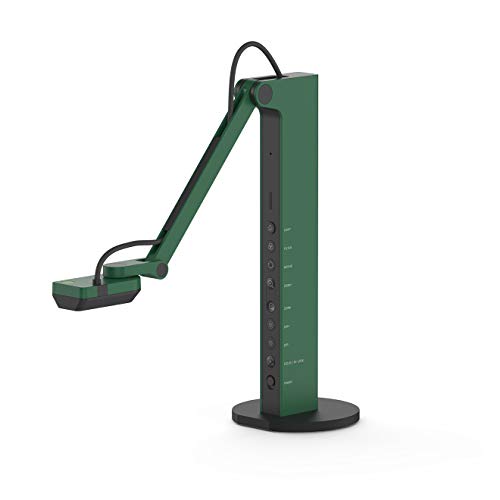
IPEVO VZ-R — Best overall
The VZ-R earns the top of this list with a single structural advantage nothing else here offers: it is two devices in one body. Connect it by USB and it behaves as a high-quality document camera and webcam for the computer. Connect it by HDMI and it stops needing the computer at all, feeding a television, monitor or projector directly — a worksheet on the family TV for a homework session, a cookbook page enlarged beside the stove-side screen, a grandparent’s photograph filling the living-room display for a story. In a house, where the computer is one contested resource among many, that independence is not a feature. It is the product.
The hardware supports the idea properly. The 8-megapixel sensor sits in a multi-jointed arm on a weighted base, so the camera holds awkward angles over books and objects without creeping; a built-in LED light handles the shadow the camera head itself casts; physical buttons on the head adjust focus, brightness and image flip without opening software, which grandparents and children alike appreciate. In USB mode it works with the standard call and capture software, and IPEVO’s own visualiser app adds recording and scanning for households that want it.
The costs are the predictable ones: it is the second-dearest pick here, it draws its versatility from cables a household must keep track of, and at full resolution over USB its frame rate steps down like its rivals’. None of that dents the recommendation for the typical reader of this guide — a household that will use the camera for homework, calls, digitising and demos interchangeably, and values the one that never has to ask where the laptop is.
- Sensor: 8-megapixel CMOS
- Connections: HDMI and USB dual mode — works with or without a computer
- Light: Built-in LED at the camera head
- Controls: Physical buttons on the head for focus, exposure and flip
- Build: Multi-jointed arm on a weighted base; the sturdiest feel here
Strengths
- HDMI independence makes it a household appliance rather than a computer accessory
- On-head physical controls suit children and grandparents alike
- Arm and base hold position over books, objects and artwork
Trade-offs
- Second-highest price in the guide
- Full-resolution USB frame rate steps down, as with all USB rivals
- Larger desk footprint than the folding picks
Best for: households that will use one camera for homework, calls, digitising and screen-sharing everywhere in the house
Not suited for: a single-desk setup where the computer is always present and the budget is tight
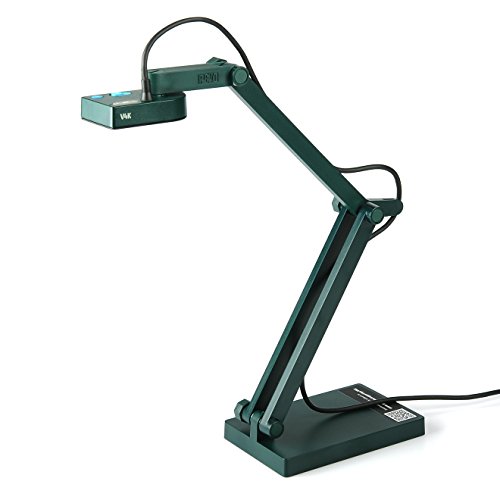
IPEVO V4K — Best value
The V4K is the document camera that defined the home category, and its proposition remains disarmingly simple: an 8-megapixel sensor on a folding, multi-jointed arm, connecting by USB, at a price that undercuts nearly everything with a brand name. It captures stills at up to 3264 by 2448, presents live at frame rates that stay smooth when you choose sensible resolutions, and its autofocus handles the page-to-handwriting-to-object rhythm of a homework session without drama. For the household buying its first document camera to solve a known problem — tutoring calls, a child’s schoolwork, a parent’s paperwork — it is the value benchmark against which the rest of this list must justify itself.
Its domestic virtues are the unglamorous ones. It folds flat enough for a drawer or a laptop bag, sets up in seconds, works as a standard webcam across the usual call platforms and Chromebooks as happily as with Windows and Mac machines, and its companion software covers capturing, recording and basic scanning without a learning curve. Generations of teachers made it a classroom staple, which has a home dividend: help, tutorials and second-hand availability are everywhere.
What the saving costs is light and independence. There is no built-in LED, so the camera leans on room lighting — fine at a lit desk, less kind in a dim corner — and no HDMI mode, so the computer is mandatory. The frame rate at maximum resolution is modest, following the USB pattern described earlier. Judge it as what it is: the complete core experience of the category at its friendliest price, and the correct first purchase for most homes that do not need the VZ-R’s television trick.
- Sensor: 8-megapixel CMOS, stills to 3264 x 2448
- Connection: USB, plug-and-play across Windows, Mac and Chromebook
- Light: None built in — relies on room lighting
- Form: Folding multi-jointed arm; packs flat for a drawer or bag
- Software: IPEVO visualiser app for capture, recording and scanning
Strengths
- The category’s value benchmark, with a huge base of help and tutorials
- Folds flat and sets up in seconds at any table
- Autofocus manners suit the homework rhythm of page, hand and object
Trade-offs
- No built-in light for dim rooms
- USB only — no direct-to-screen mode
- Maximum-resolution live frame rate is modest
Best for: a first document camera for homework help and calls at a normally lit desk
Not suited for: dim rooms, or households wanting to present straight to a television

INSWAN INS-2 4K — Best resolution
The INS-2 is the pick for the household whose document camera is really a digitising station. Its 13-megapixel sensor captures in 4K-class detail over an A3 area — large enough for an open textbook, a double-page spread, a child’s A3 artwork or a broadsheet newspaper — and that combination of area and resolution is unique in this list. Where the 8-megapixel cameras ask you to scan a big page in two passes and stitch, the INS-2 takes it in one frame with pixels to spare, which is the difference between an archive project that gets finished and one that stalls at the second box of photographs.
INSWAN sweated the supporting details. A dual autofocus system handles both still pages and moving hands without the hunting that plagues lesser cameras; a built-in LED light and microphone are both present, so demonstrations record with sound from the same device; and the arm’s capture geometry suits flat documents particularly well. The companion software leans into the scanning use case, with document modes that straighten, clean and batch pages toward PDF — the workflow a household digitising records, recipes and school reports actually needs.
The trade-offs are size and focus of purpose. It is a bigger, more deliberate instrument than the folding IPEVO and OKIOCAM picks, happier semi-permanently stationed at a desk than ferried between rooms, and its resolution advantage is wasted on video calls, where the platform compresses everything anyway. Buy it when the archive project is real — when there are boxes, albums and a scanner-shaped gap in the household — and it will earn its place in a way a smaller camera cannot.
- Sensor: 13-megapixel, 4K-class capture
- Capture area: Up to A3 — open textbooks and large artwork in one frame
- Focus: Dual autofocus for pages and moving subjects
- Extras: Built-in LED light and microphone
- Software: Document-oriented scanning toward PDF and image files
Strengths
- Largest capture area here, paired with the resolution to use it
- Dual autofocus keeps demos and pages equally calm
- Scanning workflow suits household archive projects end to end
Trade-offs
- Bulkiest pick; a desk station rather than a drawer camera
- Resolution advantage disappears inside compressed video calls
- More camera than homework-only households will ever use
Best for: households digitising documents, photographs and large artwork as an ongoing project
Not suited for: small desks and rooms where the camera must vanish between uses

OKIOLABS OKIOCAM T-4K — Best for video calls
OKIOLABS designs from the call outward, and the T-4K shows it: an 8-megapixel camera in a compact, folding body that was shaped for the homework call, the remote lesson and the family video chat where something physical needs showing. Setup is a single USB cable and nothing to install for standard use — it presents itself as a webcam to the usual platforms — and the maker’s own software adds snapshot and recording tools tuned for teaching and presenting rather than for archival scanning. For the household whose document camera exists mainly to be seen through, that focus is exactly right.
The physical design serves the same master. The arm folds the camera down to a pocketable stick for travel between home, grandparents’ houses and holiday homework; the head angles for both page-down presenting and the occasional face-level use; and the whole device has the unthreatening, gadget-like presence that suits a child’s desk better than a piece of laboratory equipment would. Its stills resolution matches the V4K’s class, and its live image is tuned for clarity at the resolutions calls actually transmit.
Where it concedes: no HDMI independence, no A3 ambitions, and a built-in light and capture area that serve presenting rather than archiving. The premium over the V4K buys design, portability and call-first software rather than raw specification, which is a trade this guide endorses for call-led households and questions for digitising-led ones. Know which household you are, and the T-4K either makes complete sense or politely steps aside for the INS-2.
- Sensor: 8-megapixel CMOS
- Connection: USB, driver-free as a standard webcam
- Form: Folds to a compact stick for travel between homes
- Software: Call-and-present oriented capture tools from OKIOLABS
- Capture area: Letter/A4 class, sized for presenting
Strengths
- Call-first design: instant webcam behaviour on the usual platforms
- Genuinely portable between desks, houses and trips
- Approachable presence and setup for children and grandparents
Trade-offs
- No HDMI mode for computer-free presenting
- Capture area and light serve calls, not archive scanning
- Costs more than the V4K for design rather than specification
Best for: families whose main use is homework calls, remote lessons and showing things on video chat
Not suited for: archive digitising or large-format pages

HoverCam Solo 8 Plus — Premium pick
The Solo 8 Plus is the connoisseur’s document camera, and its premium buys two things: a 13-megapixel sensor with genuinely fast capture behaviour, and the most polished software in this guide. HoverCam’s application suite handles scanning, recording and lesson-style presenting with a fluency the bundled tools of rivals only approach, including rapid multi-page capture that makes short work of a document stack. For the household running a serious digitising programme — a family archive, a home business’s paperwork, a collector’s catalogue — the software difference is not decoration; it is hours.
The hardware keeps pace. The articulated arm positions the camera over pages and objects with a mechanical confidence the lighter picks do not match, autofocus is swift, and the camera records video at 4K-class resolution for demonstrations that deserve keeping rather than merely transmitting. It is also the pick most at home in a permanent installation: a desk where the camera lives, plugged in and ready, rather than a drawer it visits.
Honesty about the premium is required. For homework calls and occasional scanning, the Solo 8 Plus’s advantages compress to very little — the call platform cannot show its resolution, and the V4K answers the same worksheet for a fraction of the cost. Its size and price both argue for commitment. This is the pick for the household that has already discovered, with a lesser camera, that document imaging is a weekly practice rather than a monthly event — and wants the instrument that removes the friction from it.
- Sensor: 13-megapixel CMOS with fast capture
- Video: 4K-class recording for kept demonstrations
- Software: The most complete suite here for scanning and presenting
- Build: Substantial articulated arm for a permanent desk station
- Connection: USB
Strengths
- Software polish that turns volume scanning into a routine
- Fast, high-resolution capture for archives and records
- Build quality suited to daily, permanent use
Trade-offs
- Highest price here, unjustifiable for calls alone
- Least portable pick; designed to stay on its desk
- Capability far beyond what occasional users will touch
Best for: households and home businesses digitising in volume, every week
Not suited for: occasional homework use where the value picks answer everything

INSWAN INS-1 — Best budget pick
The INS-1 closes the list by refusing to omit anything essential at the lowest price here. An 8-megapixel sensor, autofocus, a built-in LED light, a built-in microphone, plug-and-play USB behaviour across the usual operating systems — the full checklist of the category, present and correct, in a compact body that folds away when the table is needed. For the household that wants the document-camera capability without a deliberation — a term of homework calls, a season of form-filling, a grandparent’s letters to share — it is the rational minimum, and a surprisingly complete one.
In daily use its manners are good. The light handles the shadow problem that the V4K leaves to the room; the microphone means a demonstration or a call can be recorded with sound from the same device; and the software covers capture and scanning at the level a home needs. Its white finish and small footprint suit kitchen-table deployment, and its price forgives the experiment if the household’s document-camera phase turns out to be brief.
The compromises live where you would expect: build feel is lighter than the IPEVO and HoverCam hardware, the arm’s positions are less finely engineered, and the companion software is functional rather than delightful. None of these touches the images it makes of a page under decent conditions, which are squarely in the class standard. Buy the INS-1 when the budget is the argument; upgrade later only if the household discovers it is using the camera weekly, at which point the VZ-R conversation can begin with experience behind it.
- Sensor: 8-megapixel CMOS with autofocus
- Extras: Built-in LED light and microphone included
- Connection: USB plug-and-play for Windows, Mac and Chromebook
- Form: Compact folding body in white
- Software: Functional capture and scanning tools
Strengths
- Complete feature checklist at the lowest cost in the guide
- Built-in light solves the page-shadow problem the V4K leaves open
- Microphone included for narrated demos and calls
Trade-offs
- Lighter build and arm feel than the premium hardware
- Software is serviceable rather than polished
- No HDMI or large-format ambitions
Best for: budget-first households that want the full capability without the deliberation
Not suited for: heavy daily use where build quality and software polish repay their premium
How Do You Set Up a Document Camera So a Page Reads Perfectly?
Three physical habits decide most of the image quality any of these cameras delivers. First, light the page from the side rather than from directly above the camera, so the page is bright without a hotspot and the camera head’s own shadow falls out of frame — or use the built-in LED the picks mostly carry, accepting its smaller pool of light for smaller pages. Second, square the document to the camera: a page rotated five degrees looks careless on a call and defeats scanning software’s straightening more often than brochures admit. Third, fill the frame with the document and nothing else; resolution spent on desk is resolution stolen from handwriting.
Software habits finish the job. Choose the capture resolution for the purpose — maximum for keepsake scans, a mid setting for live presenting where frame rate matters — and learn your app’s document mode, which typically boosts contrast and flattens the page’s lighting into something that prints cleanly. For calls, position the camera before the call starts and test the view in the app’s preview rather than debuting your worksheet arrangement live. None of this is talent; it is the same five minutes of setup, repeated until it is reflex, and it separates the households that love these devices from the ones that return them.
What Can a Household Actually Do With One of These?
The use cases compound once the device is in the house, which is the category’s quiet sales pitch. Homework is the doorway: a parent across town, a tutor across the internet, a grandparent who was always good at maths — all of them suddenly looking at the same worksheet as the child. Digitising is the long project: the photograph box, the recipe cards, the certificates and letters, converted at the kitchen table over a winter into an archive the whole family can hold. Hobby life is the surprise: the model-maker showing a joint, the knitter demonstrating a stitch, the aquarium keeper identifying a plant, the board-game group reading a rulebook page together across three houses.
Two further uses deserve naming because owners discover them late. A document camera is the best “look at this with me” tool for the small print of adult life — the form, the contract clause, the appliance manual’s diagram — shared with a partner or an adviser on a call, enlarged past the point where eyesight argues. And for children who read aloud, present projects or learn an instrument remotely, it converts performance anxiety into a stage: the page or the hands are the picture, and the child is a voice, which for many is exactly the right amount of being on camera.
How Does a Document Camera Change Homework, Specifically?
Homework’s friction is mostly a communication problem wearing a school uniform. A parent helping from another room — or another city — cannot see where the child’s method went wrong; a tutor on a call hears answers without seeing workings; a teacher checking a photograph of a worksheet squints at a skewed, shadowed snapshot taken on a phone. The document camera removes the translation layer. The page sits under the lens exactly as it sits under the child’s hand, the helper watches the working happen in real time, and the correction lands at the step where it belongs rather than at the answer, three steps too late.
The arrangement generalises beyond maths worksheets. Reading practice becomes a shared page instead of a held-up book waggling in a webcam’s face. Art homework, science diagrams, the recorder fingering in a music lesson, the chess position in a club call — each is a flat or tabletop thing that a downward camera presents better than any face camera can. Households that bought these devices for lockdown schooling kept them for exactly this reason: the homework call became a format, not an emergency measure, and the camera that serves it earns a permanent drawer near the kitchen table.
What Does a Family Archive Project Actually Involve?
Since two picks in this guide are aimed at it, the archive project deserves an honest description. A household archive — photographs, letters, certificates, recipe cards, the children’s artwork worth keeping — digitises well at a pace of an album or a box per session, with the camera on its arm, a plain dark or light backing sheet chosen for contrast, and a naming habit decided before the first capture: date, people, place, in the filename, because a scan named by its scanner’s counter is a mystery within a year. The 13-megapixel picks earn their premium here not in any single image but across hundreds, where their capture speed and area remove the fiddling that makes projects stall.
Handling is the other half of the craft. Fragile items stay flat and untouched by feed rollers — the camera’s founding advantage over a scanner — and gloves, patience and a soft brush for dust are the professional’s whole toolkit. Decide the destination before you start: a shared family folder with a backup, at a resolution that will still look right on the screens of a decade from now. The project is a winter’s worth of evenings, and it is the single most praised use these cameras get in real households — the homework ends, the archive is forever.
How Do You Present a Hobby Demonstration So People Can Actually Follow?
The hobby demo is the document camera’s third career, and it has its own technique. Frame tighter than feels natural: the learner needs the hands and the work to fill the screen, not the workbench around them. Light from the side, as with a page, but check for the shadow of your own hands — in a demo, hands are both the subject and the lighting hazard, and a lamp repositioned once at the start saves an hour of apologies. Narrate the step before you perform it, because the camera’s view is the learner’s only view, and a silent pair of hands is a riddle rather than a lesson.
Focus behaviour is where the picks divide for this job. A demonstration moves — hands enter, tools turn, the work rotates — and the cameras with calm, continuous autofocus (the INS-2’s dual system, the IPEVO pair’s manners) keep the image settled while lesser systems pulse in and out as they re-hunt. If your household’s camera will demonstrate weekly — a craft channel, a remote class, a grandparent teaching a stitch across a call — weight that behaviour heavily in the reviews above; it is the difference between a demo people follow and a demo people endure.
What About Privacy and Safety When a Camera Points at Your Desk?
A document camera is among the most privacy-forgiving cameras a household can own, for a structural reason: it points at a table. It has no reason to be left facing a room, most designs fold face-down or lens-down by nature, and several picks carry physical controls that make its state obvious. The sensible household habits are still worth stating. Know what your desk shows before a call — the camera that enlarges a worksheet will enlarge a bank letter with the same fidelity — and keep a plain mat or backing sheet as the stage, so the frame’s contents are always a decision rather than an accident.
For children, the arrangement has the virtue discussed in the questions below: the camera presents work, not the child, which many families prefer for tutoring and classes. For the archive project, the privacy question inverts — you are creating permanent copies of family documents, and they deserve the same care as the originals: a backed-up folder with sensible sharing settings, not a scatter across devices. None of this requires expertise; it requires the same five minutes of intention as the lighting setup, and for the same reason — the camera amplifies whatever it is pointed at, in every sense.
How Long Will a Home Document Camera Last, and What Breaks First?
These are simple machines — a sensor, an arm, a cable — and their failure modes are correspondingly humble. The arm’s joints loosen over years of repositioning, which is why the weighted, well-engineered arms of the VZ-R and Solo 8 Plus are a longevity feature rather than a luxury. USB cables fray at the connector where they bend daily; a camera whose cable can be replaced rather than being captive has a longer honest life, and a spare cable in the drawer is the cheapest insurance in this entire guide. The sensor itself effectively never wears out, and the software risk runs the other way: companion apps depend on their makers’ continued support, which is one more argument for cameras that behave as standard webcams with no app at all — every pick here does, so the core function survives any company’s roadmap.
Expect, realistically, the better part of a decade from the well-built picks in household duty, and plan the purchase accordingly: the difference between the budget INS-1 and the premium HoverCam, spread across ten years of homework and archives, is a trivial monthly figure, while the difference between either of them and a phone held over a page is paid back in the first month. Longevity thinking also favours buying the camera whose feature you will grow into — the HDMI mode, the A3 area — over the one that merely fits this term’s problem, because these devices are replaced by changing needs far more often than by failure.
What Should You Check in the First Week Before the Returns Window Closes?
Run the camera through your household’s actual jobs, in your actual light, in the first days. Put the hardest page you own under it — the glossy textbook, the faint pencil workings, the dark photograph — and judge the result on the screen your audience uses, including a real video call to a real relative, because compression is the final editor of every call image. Test the arm at the angles your table demands and leave it overnight in position to see whether it creeps. Record a two-minute demonstration with sound and listen to all of it. Scan ten pages in a row through the companion app and time the workflow honestly, because a digitising habit lives or dies on whether ten pages feel like five minutes or twenty.
Then check the two futures. Confirm the camera still pleases you with the companion software uninstalled — plain webcam mode is your insurance policy — and confirm the household’s second computer, the Chromebook or the ageing laptop, recognises it without a fight. A document camera that passes a week like that is not a gadget purchase any more; it is furniture, in the best sense, and every pick in this guide has passed exactly that week in somebody’s house.
Which Accessories and Habits Complete a Home Setup?
Very few, and mostly habits wearing the disguise of accessories. A plain matte backing mat in a neutral tone is the single best purchase after the camera: it gives every page a consistent stage, hides the desk’s clutter from the frame, and gives scanning software a clean edge to find. A small side lamp, if your pick lacks a light or your room lacks windows, is the second. A cable long enough to reach the computer without crossing the workspace is the third and last of the hardware; everything else is arrangement. Keep the camera’s drawer or shelf within reach of the table where it works, because a document camera stored in another room is a document camera used monthly instead of weekly — proximity is a feature no manufacturer can sell you.
The habits are the ones threaded through this guide: square the page, fill the frame, test before the call, name the scan at the moment of capture. Add one more for shared households — a small card taped inside the drawer listing the camera’s settings for its three main jobs, so the second adult and the visiting grandparent inherit a working setup rather than a riddle. These devices reward households that routinise them; the difference between the families who swear by a document camera and the families who forgot theirs in a cupboard is almost never the camera.
How Do You Run a Shared-Household Camera Without Arguments?
One camera, several users, competing tables: the domestic politics of a shared device are solved by boring systems rather than by buying three cameras. Give it a home — one drawer or shelf, with its cable coiled beside it — and a norm that it returns there the same day. Keep a shared capture folder on the family computer with subfolders per person, so a term of homework, a season of forms and the archive project coexist without overwriting each other’s filenames. If two households share the device — grandparents across town are the classic case — the folding picks travel in a laptop bag without ceremony, and the camera that arrives is the camera that works, because every pick here is driver-free on any modern computer.
The deeper point is that these devices succeed socially in a way most gadgets do not. They are single-purpose, instantly understood by every generation, and they make their user look competent on calls rather than merely equipped. A household that standardises on one — usually the VZ-R or V4K in practice — finds it becoming the default answer to a dozen small problems a month, from a tutor’s worksheet to a plumber’s photograph of a part. That quiet accumulation of small rescues, more than any single specification, is what the purchase price buys.
Capture Areas, Lights and Connections: The Practical Grid
| Pick | Sensor | Capture area | Built-in light | Connections |
|---|---|---|---|---|
| IPEVO VZ-R | 8MP | A3-class at full extension | Yes | HDMI + USB |
| IPEVO V4K | 8MP | A3-class at full extension | No | USB |
| INSWAN INS-2 4K | 13MP | A3 | Yes | USB |
| OKIOLABS OKIOCAM T-4K | 8MP | Letter/A4 class | Yes | USB |
| HoverCam Solo 8 Plus | 13MP | A3-class | No | USB |
| INSWAN INS-1 | 8MP | Letter/A4 class | Yes | USB |
Read the grid by your dominant job. Archivists should shop the sensor and capture-area columns, where the INS-2 and Solo 8 Plus stand apart. Call-led households should shop the rows for light and connection simplicity, where the INS-1’s completeness at its price and the T-4K’s call-first design argue loudest. And the VZ-R’s row contains the grid’s only HDMI entry — if presenting to a television or monitor without a computer is even a monthly event in your house, that single cell can outweigh every other column.
Which Home Buying Mistakes Show Up in the Returns?
Buying for the classroom instead of the kitchen is the first: a rugged, expensive education model whose virtues — fleet warranties, trolley-proofing — a household never uses, while the features it needed, like HDMI to the family TV, were spent elsewhere. The second is ignoring the light: choosing the one camera without an LED for a desk in a dim corner, then blaming resolution for murky pages. Third is its mirror image — buying maximum resolution for a life lived inside video calls, where the platform discards the extra pixels before anyone sees them.
Two smaller errors complete the pattern. Forgetting capture area until the first open textbook arrives, and discovering the frame cannot hold it, is the INS-2’s whole reason for existing. And treating the companion software as an afterthought, when the household’s real weekly experience is the scanning app’s manners, undervalues the Solo 8 Plus and VZ-R in exactly the way their owners would warn you about. Match the camera to the dominant job, as this guide keeps insisting, and the returns stay someone else’s story.
Final Recommendation
Most households should start with the IPEVO VZ-R if the budget allows, because its HDMI independence makes it the only pick that behaves like a household appliance rather than a computer peripheral — or with the V4K if it does not, since that camera remains the value definition of the category. Choose the INS-2 when an archive project with big pages is genuinely on the calendar, the T-4K when the camera’s life is video calls and travel between desks, the Solo 8 Plus when scanning becomes a weekly practice that deserves professional software, and the INS-1 when the honest requirement is the complete capability at the lowest cost. Set it up square, lit and close, and the humble document camera will quietly become the most borrowed device in the house.
A closing thought on value, because this category inverts the usual technology logic: the cheapest complete pick here will still be doing its job, unchanged, when several generations of phones have passed through the same household. Document cameras improve slowly because the job — a page, lit, in focus, on a screen — was solved well years ago, and the makers have spent the time since on arms, lights and software rather than on revolutions. Buy for the job your household actually has, keep the camera within reach of the table it serves, and expect it to become invisible infrastructure: noticed only on the day it shows a grandparent’s handwriting to three generations at once, at which point nobody will ask what it cost.
Frequently Asked Questions
Can a document camera replace a scanner at home?
For most household purposes, yes — and for some, it is better. Multi-page documents, bound books, oversized pages and fragile photographs all suit a camera, which never asks an item to bend through a feed mechanism. A flatbed scanner still wins on absolute flatness and colour precision for photographic prints you intend to enlarge. Households digitising records and memories will find the cameras here — especially the INS-2 and Solo 8 Plus with their scanning software — entirely sufficient.
Will these cameras work with Zoom, Teams and Google Meet?
Yes. All six present themselves as standard USB cameras, so the call platforms treat them like any webcam; you select the document camera as the video source and share your page instead of your face, or switch between the two. The VZ-R additionally bypasses the computer entirely over HDMI when the audience is in the room rather than on a call.
What resolution do I need to read handwriting and small print?
An 8-megapixel camera over a letter or A4 page resolves ordinary handwriting and textbook print comfortably on screen, which is why five of the six picks cluster there. Step up to the 13-megapixel models when the pages grow to A3, when you crop into details, or when the captures are keepsakes rather than call images — resolution buys area and permanence, not call quality.
Do I need the companion software, or can I just use the camera?
You can use every camera here without its app, as a plain webcam and capture device, and many households do exactly that for calls. The apps earn their installation for scanning workflows — straightening, batching, saving to PDF — and for recording demonstrations. Install the software when the digitising starts; skip it while the camera is only visiting video calls.
Can a document camera help a child who is camera-shy on calls?
It is one of the kindest uses in this guide. Pointed at the worksheet or the instrument, the camera makes the work the picture and the child a voice off-screen, which removes the self-consciousness of a face camera entirely. Teachers and tutors use exactly this arrangement for reluctant presenters, and the folding, friendly picks — the T-4K and INS-1 especially — suit a child’s desk without intimidating it.
Do document cameras work with Chromebooks used for school?
Yes — every pick here is a standard USB camera, and Chromebooks recognise them without installation, which is why several of these models became school staples. In the usual classroom apps and video calls the document camera simply appears as a camera choice. For a household whose child’s school life runs through a Chromebook, that compatibility is not a detail; check it before anything else, and rest assured it is satisfied by all six picks.
Which of these suits a grandparent least comfortable with technology?
The VZ-R, for one design decision: its controls are physical buttons on the camera head, so focusing, brightening and flipping the image never require opening an application or finding a setting. Paired with its HDMI mode into a television, it becomes an appliance a grandparent can run with the remote they already understand. The INS-1 is the budget alternative with the same plug-and-play spirit; in both cases, set the camera up once, label nothing, and let the worksheet do the rest.
Can a document camera show three-dimensional objects, not just pages?
Yes — the arms on every pick here angle and extend to frame objects, models, specimens and craft work, and the autofocus systems handle the depth a page never asks of them. Small objects are a genuine strength of the category: a coin, a fossil, a circuit board or a seed head, enlarged on a screen, shows a whole room or a whole call what one pair of hands holding it never could. For objects, light from two sides if you can, and slow down — the camera rewards a steady presenter.
What is the difference between a document camera and a phone on a stand?
A phone on a stand is the honest competition, and for a one-off page it is fine. The dedicated camera wins on the accumulated frictions: it is always in position and focused on the page rather than being borrowed back mid-call, it does not interrupt the session with notifications or a dying battery, its arm holds angles a stand cannot, and its software is built for scanning rather than photography. Households that present or digitise weekly feel the difference within a fortnight; households with a monthly need may rationally never feel it at all.
How should I light a page if my camera has no built-in LED?
That is the V4K’s situation, and the answer is a desk lamp placed to the side, angled across the page rather than straight down it, so the sheet is bright and even without a glare spot for glossy paper. Daylight from a side window works beautifully in the daytime. Avoid relying on a single overhead bulb, which puts the camera head’s shadow in the middle of your page.
Related Guides
Complete the homework station with our guide to desk lamps with adjustable colour temperature, keep the archive safe using our roundup of external drives for family photo and document backups, and improve every call with our selection of USB microphones for clear speech at a desk.


