What's inside
- Key Takeaways
- Quick Picks
- What Does Architecture Software Really Ask of a Laptop?
- Why Is There No Chromebook — and No True Gaming Laptop — in This Guide?
- Placing the Six Against a Degree, Year by Year
- How Should You Set Up a New Laptop for Architecture Coursework?
- What Do Architecture Students Most Often Get Wrong When Buying?
- Mac or Windows: How Should an Architecture Student Actually Decide?
- What Will a Studio Day Actually Feel Like on These Machines?
- How Much Should You Budget Beyond the Laptop Itself?
- What About Weight, Battery and the Commute Nobody Mentions?
- Can a Laptop Like These Last the Whole Degree — and Into Practice?
- What Should You Check in the First Week of Term?
- Final Recommendation
- Frequently Asked Questions
- Related Guides
As an Amazon Associate I earn from qualifying purchases. This post may contain affiliate links at no extra cost to you.
gizmoverdict.com is reader-supported. When you buy through links on our site, we may earn an affiliate commission.
Architecture school has a way of introducing itself to a laptop. The first semester is gentle — essays, slides, a drawing or two — and then the second year arrives with CAD coursework, 3D modelling, rendering deadlines and studio nights that end when the library closes, and the cheerful little notebook bought for enrollment day begins to plead for mercy. Students searching for the best architecture student laptops are usually standing at exactly that moment, and this guide is written for it honestly. The honest part matters, so here it is early: serious architecture software — AutoCAD, Revit, Rhino, SketchUp with rendering extensions, ArchiCAD — is desktop software built for Windows and macOS. It does not run on Chromebooks. A Chromebook can handle your essays, your email and your research beautifully, and it cannot open your studio project, which is why no Chromebook appears among the picks below.
What the software actually demands is worth understanding before any names are named. Two-dimensional CAD is forgiving: almost any modern processor draws lines happily. The demands escalate with 3D modelling, where the graphics processor carries the viewport, and with rendering, where every core you own works at full stretch for minutes or hours. Memory is the third pressure: a detailed model, a browser full of reference images, a PDF of the brief and a messaging app together will consume RAM in a way that makes 8GB machines swap and stutter, and 16GB the sensible floor for this degree. The six picks below are the strongest fits our verified pool offers for that reality, led by a machine with genuinely powerful graphics, and the guide will tell you plainly where each one stops being enough.
One more piece of honesty about the pool itself. This guide draws from laptops verified for this site, and that selection leans toward creator and business machines rather than the heavy gaming laptops that architecture forums often recommend. Where a pick’s graphics are integrated rather than a dedicated GPU, the text says so and explains what that means for your coursework, because a student who buys on a misunderstanding loses a semester to it. Read the verdicts as a map of sufficiency: enough for 2D and light 3D, enough for a full degree’s modelling, or the one machine here that shrugs at rendering.
Key Takeaways
- Architecture software is Windows/macOS desktop software — Chromebooks cannot run AutoCAD, Revit or Rhino, full stop.
- 16GB of RAM is the realistic floor for a degree’s worth of modelling; 32GB is a luxury that large models will thank you for.
- Graphics power decides how 3D viewports feel: the MacBook Pro’s M3 Pro leads this pool by a distance, integrated graphics handle light 3D only.
- Check your university’s software list before buying — Revit is Windows-only, which can settle the Mac question for you.
- A Renewed business-grade machine can be a shrewd student purchase, provided its condition and warranty are understood.
- Budget for the unglamorous extras: a mouse for CAD work, an external drive for project backups, and cloud storage for submissions.
Quick Picks
| Pick | Badge | Why it earns its place |
|---|---|---|
| Apple MacBook Pro 14 M3 Pro (Renewed) | The rendering pick | The strongest graphics and memory in this pool — 18GB RAM and a GPU that treats 3D viewports seriously. |
| Acer Swift Go 14 | The portable all-rounder | Intel’s Arc integrated graphics are the strongest of the Windows integrated options here, in a light chassis. |
| HP Pavilion 15 (i7-1255U, 32GB/1TB) | The memory pick | 32GB of RAM and a terabyte of storage forgive a multitude of huge project files. |
| Lenovo IdeaPad Slim 3 (Ryzen 7 5825U) | The value workhorse | An eight-core Ryzen and 16GB RAM at student money; fine for 2D and moderate 3D. |
| Dell Inspiron 15 3530 (i7-1355U) | The big-screen mainstream | A 15.6-inch touchscreen with 16GB and 1TB for students who live in 2D CAD and documents. |
| Lenovo ThinkPad T14 Gen 4 (Renewed) | The durable survivor | Business-grade build and keyboard for a degree’s worth of studio abuse, with light-3D graphics. |
What Does Architecture Software Really Ask of a Laptop?
Take the degree’s software in ascending order of appetite. AutoCAD in 2D, the first-year staple, asks mainly for a competent processor and enough memory to hold the drawing and your reference material at once; every pick in this guide clears that bar with room to spare. SketchUp and Rhino raise the stakes by moving the work into a 3D viewport, where the graphics processor redraws your model as you orbit it. Integrated graphics can do this for modest models — a house, a pavilion, a small site — and begin to labour as models accumulate detail, entourage and materials. Dedicated-class graphics, which in this pool means the M3 Pro’s GPU, keep the viewport fluid far longer into a model’s growth.
Revit deserves its own paragraph because it is the pickiest guest at the party. It is Windows-only, which eliminates Macs for students whose course mandates it unless they are willing to live in the university’s labs for Revit work. It is also famously hungry for single-core processor speed in modelling and for memory in large projects, and its realistic floor is the 16GB every serious pick here carries. Rendering, whether in Enscape, V-Ray, Twinmotion or a built-in engine, is the final escalation: it will use every core and, where supported, the graphics processor, for as long as the image takes. Students render overnight in labs for a reason, but a laptop that can produce a respectable test render in minutes changes how you iterate, and iteration is where design quality actually comes from.
Storage and screen close the specification. Project files, texture libraries and a portfolio in progress grow past 256GB with embarrassing ease, so 512GB is the sensible minimum and 1TB a comfort. The screen is your drawing board for four years: 15.6 inches suits studio desks, 14 inches suits backpacks and crowded lecture seats, and in both cases a matte, reasonably bright panel will treat your eyes better across a long studio night than a glossy bargain. Keep those demands in view and the picks below sort themselves by your course’s actual software list, which should always be consulted before money moves.
Why Is There No Chromebook — and No True Gaming Laptop — in This Guide?
The Chromebook absence is a matter of software fact, not snobbery. ChromeOS runs web applications and Android apps; the architecture industry’s core tools are desktop applications for Windows and macOS, and no compatibility layer a student should rely on will carry Revit through a crit week. Universities sometimes issue Chromebooks for general study, and they are lovely machines for essays, but the studio software list is the degree’s centre of gravity. Any guide that places a Chromebook in an architecture shortlist without that warning is selling you a second laptop purchase in your second year.
The gaming laptop question is subtler. A dedicated gaming GPU is genuinely excellent for architecture work — the same silicon that renders game worlds renders your Rhino viewport and accelerates several rendering engines — and if your budget reaches a well-reviewed gaming or creator laptop with a discrete GPU and 16GB or more of memory, it is a legitimate first choice. This guide’s pool, however, is the set of machines verified for this site, and it does not include such a model; rather than invent one, the guide leads with the MacBook Pro’s M3 Pro, whose integrated-but-mighty graphics are the strongest verified option here, and labels every other pick’s graphics honestly as integrated. Treat the pool as a floor of verified choices, not a claim that nothing stronger exists anywhere.

Apple MacBook Pro 14 M3 Pro (Renewed) — The rendering pick
The M3 Pro MacBook Pro is the one machine in this pool that an architecture student can buy without a mental asterisk. Its graphics are integrated in the technical sense — part of Apple’s own silicon — but they belong to a different performance class from the Windows integrated options below: 3D viewports stay fluid through models that make lesser machines hesitate, rendering engines that support Apple’s architecture work it hard and willingly, and the 18GB of unified memory gives models, textures and a browser’s worth of references room to coexist. Add the 14-inch display, which is genuinely excellent for reviewing drawings, and a chassis built for professional daily carry, and this is the pool’s ceiling by a comfortable margin.
Two qualifications must travel with the recommendation, and both are stated here rather than discovered later. First, the listing is a Renewed unit: professionally inspected and resold rather than factory-new, which is how the price becomes student-reachable at all. Buy with your eyes open — check the stated condition, the warranty terms and the returns window, and expect the possibility of light cosmetic wear that has no bearing on the machine’s work. Second, the macOS question: Rhino, SketchUp, ArchiCAD and the Adobe suite run natively and beautifully, but Revit does not run on macOS at all. If your course teaches Revit, your choices are this machine plus the university’s Windows labs for Revit modules, or a Windows pick below. That is a timetable decision to make before purchase, not after.
For the student whose software list is Mac-friendly, this is the degree-proof choice: powerful enough for final-year modelling and portfolio rendering, portable enough for the studio commute, and durable enough that its Renewed discount reads as shrewd rather than risky. It is the pick we would defend in the studio at 2 a.m., which is where architecture laptops earn their reputations.
- Processor / graphics: Apple M3 Pro with integrated Pro-class GPU
- Memory / storage: 18GB unified memory, 512GB SSD
- Display: 14-inch Liquid Retina XDR class panel
- Condition: Renewed listing — inspect condition and warranty terms
- Sweet spot: 3D modelling and rendering across a full degree, on Mac-friendly courses
Strengths
- By far the strongest graphics in this pool for viewports and GPU rendering.
- 18GB of memory clears the degree’s floor with headroom.
- A superb screen for drawings, and a chassis built for daily professional carry.
Trade-offs
- Revit does not exist on macOS; Revit-mandated courses need a plan B.
- Renewed condition varies; the returns window is part of the purchase.
- Even discounted by renewal, it is the pool’s premium option.
Best for: architecture students on Mac-friendly software lists who model and render seriously. Not suited for: students whose course mandates Revit on their own machine.

Acer Swift Go 14 — The portable all-rounder
The Swift Go 14 makes its case on a single specification that matters more to architecture students than to almost anyone else: its Intel Core Ultra 7 processor carries Arc integrated graphics, the strongest integrated graphics in the Windows mainstream, a clear step above the Iris Xe and Radeon options elsewhere in this guide. A 3D viewport is precisely where that step shows. SketchUp and Rhino models of student scale — buildings, interiors, site studies — orbit and shade more smoothly here than on any other Windows pick in the pool, and the machine does it inside a thin 14-inch chassis that disappears into a backpack already carrying a sketchbook, a models folder and a day’s worth of studio supplies.
The supporting cast is degree-appropriate: 16GB of memory meets the floor this guide insists on, 512GB of storage meets the minimum with the usual advice to archive finished projects externally, and the 1920×1200 touchscreen gives drawings a little more vertical room than a standard panel while letting you annotate a PDF brief with a fingertip or stylus. Battery life in this class of machine is a genuine studio asset, because the seat near a power outlet is the most contested real estate in any architecture building.
Set expectations at the boundary all integrated graphics share. A final-year model swollen with high-polygon entourage, dense materials and a rendering extension running live will push the Arc graphics past fluidity, and long final renders will take the time they take. The Swift Go’s answer is that it handles the first eighty percent of a degree beautifully and the last twenty percent patiently — and for many students, especially those whose universities provide rendering labs for final production, patient is a perfectly acceptable trade for a machine this portable at this cost.
- Processor / graphics: Intel Core Ultra 7 155H with Intel Arc integrated graphics
- Memory / storage: 16GB LPDDR5X, 512GB SSD
- Display: 14-inch 1920×1200 touchscreen
- Condition: new listing
- Sweet spot: portable 2D/3D coursework with the best integrated viewport in the pool
Strengths
- Arc graphics lead the Windows integrated field for 3D viewports.
- Light, compact and easy on the studio commute.
- 16GB memory and a taller touchscreen suit the degree’s daily mix.
Trade-offs
- Very large models and live rendering extensions will test its limits.
- 512GB fills with project archives unless you offload finished work.
- The 14-inch screen is a desk compromise for detailed drawing review.
Best for: students who carry their laptop everywhere and model at student scale. Not suited for: final-year rendering marathons as the only machine.

HP Pavilion 15 (i7-1255U, 32GB/1TB) — The memory pick
Every cohort has a student whose laptop dies not in the viewport but in the multitasking: the model open beside a dozen browser tabs of precedents, the brief in a PDF, a spreadsheet of materials, a video call with a group-project partner, and a machine with 16GB quietly drowning. The Pavilion 15 in this configuration is the answer to that specific death. Its 32GB of memory — double the floor this guide sets — and its full terabyte of storage remove the two most common non-graphics bottlenecks in student architecture work, and its 15.6-inch screen gives drawings the room that studio work appreciates.
The honesty paragraph concerns its graphics, which are integrated Intel Iris Xe: entirely capable for AutoCAD’s 2D world and for SketchUp or Rhino at modest scales, and not the tool for fluid work in heavy 3D scenes or GPU rendering. Read the pick correctly and that is no scandal. A large share of architecture coursework — plans, sections, elevations, documentation sets, layouts, essays, portfolios assembled in publishing software — lives in the 2D and light-3D world where this machine’s memory and storage shine and its graphics never become the story. Students whose courses lean toward documentation and construction drawing will feel this laptop’s strengths daily and its limits rarely.
There is also a longevity argument. Memory is the specification that ages fastest in a student’s life, because models, libraries and software all inflate across a degree. A machine bought with 32GB in the first year is a machine not begging for an upgrade — often an impossible one in modern laptops — in the third. If your course’s 3D ambitions are moderate and your project files are enormous, the Pavilion’s priorities may match yours better than any other pick here.
- Processor / graphics: Intel Core i7-1255U with Iris Xe integrated graphics
- Memory / storage: 32GB RAM, 1TB SSD
- Display: 15.6-inch Full HD
- Condition: new listing
- Sweet spot: documentation-heavy coursework and heavy multitasking
Strengths
- 32GB of memory swallows the degree’s multitasking whole.
- A terabyte of storage ends project-file rationing.
- The big screen suits drawing review and split-screen research.
Trade-offs
- Integrated graphics cap serious 3D and GPU rendering ambitions.
- A 15.6-inch mainstream chassis is a heavier daily carry.
- Memory cannot be added later if your needs outgrow even this.
Best for: students whose work is documentation-heavy and whose multitasking is relentless. Not suited for: 3D-first courses where the viewport is the whole degree.
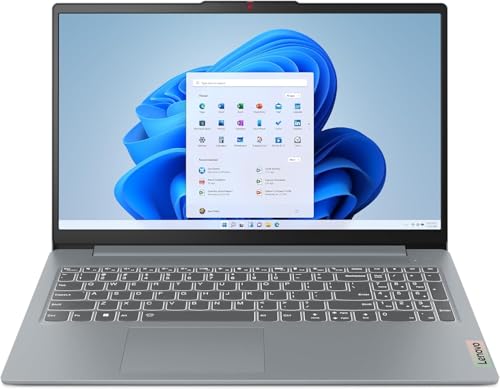
Lenovo IdeaPad Slim 3 (Ryzen 7 5825U) — The value workhorse
The IdeaPad Slim 3 is the pick that respects a student budget without insulting the degree. Its Ryzen 7 5825U is a genuine eight-core processor, which matters more than its age suggests: rendering engines and CAD alike feed on cores during exports and calculations, and eight of them at student money is a configuration this guide is glad to recommend. The 16GB of memory meets the floor, the 512GB SSD meets the minimum, and the 15.6-inch touchscreen gives a full-size canvas for drawings at a price tier where compromises usually start with the screen.
Its graphics are integrated Radeon, and the by-now familiar boundary applies: AutoCAD’s 2D world is effortless, SketchUp and Rhino behave well at the scale of coursework models, and the machine’s patience is tested by very large scenes and ambitious live rendering. What distinguishes the IdeaPad within that boundary is balance. Nothing in its specification is a trap — no 8GB memory configuration masquerading as value, no tiny drive, no dim novelty screen — and that absence of traps is precisely what a first-year buyer, who cannot yet know which specification their second year will stress, should purchase.
Think of it as the degree’s sensible default on the Windows side. Students who discover a passion for heavy rendering can lean on university labs for final production while this machine carries every other hour of the course; students whose work stays in 2D and moderate 3D may never meet its limits at all. At its price, that is not a compromise to apologise for. It is the correct shape of a student purchase.
- Processor / graphics: AMD Ryzen 7 5825U (8 cores) with Radeon integrated graphics
- Memory / storage: 16GB DDR4, 512GB SSD
- Display: 15.6-inch Full HD touchscreen
- Condition: new listing
- Sweet spot: the balanced Windows default for a student budget
Strengths
- Eight processor cores at a price tier that usually offers fewer.
- No specification traps: memory, storage and screen all meet the degree’s floors.
- A full-size touchscreen canvas for drawing review and annotation.
Trade-offs
- Integrated graphics set the ceiling for heavy 3D work.
- An older processor generation than the Swift Go’s.
- Plastic mainstream build asks for a decent bag and some care.
Best for: most architecture students on a real budget, especially in the degree’s first half. Not suited for: rendering-led final years as the sole machine.

Dell Inspiron 15 3530 (i7-1355U) — The big-screen mainstream
The Inspiron 15 3530 enters this guide as the mainstream machine with the right vital statistics: a current-generation Core i7, 16GB of memory, a full terabyte of storage and a 15.6-inch touchscreen, from the brand whose service network many families already know. For the architecture student whose course is weighted toward 2D CAD, documentation, structures coursework and the written half of the degree, those statistics describe a machine that will simply keep up, semester after semester, without a single specification becoming a weekly irritation.
Its graphics are integrated, and by this point in the guide the translation should be fluent: light 3D at coursework scale, yes; fluid manipulation of a huge final model or GPU-accelerated rendering, no. Where the Inspiron earns its place over the IdeaPad is storage and screen experience — the terabyte doubles the room for project archives and a growing texture library, and Dell’s mainstream polish shows in the keyboard and trackpad that a documentation-heavy student uses for thousands of hours. Group-project life also suits it: ports and wireless are unremarkable in the best way, and nothing about the machine needs explaining to an IT help desk.
Consider it the choice for the student who knows their course. If the syllabus in front of you is plans, sections, construction technology and a moderate modelling module — rather than a parametric-design specialism — the Inspiron’s allocation of money toward memory, storage and screen is the allocation your actual weeks will reward. Buy the machine for the degree you are taking, not the one in the brochure, and this pick makes eminent sense.
- Processor / graphics: Intel Core i7-1355U with integrated graphics
- Memory / storage: 16GB RAM, 1TB SSD
- Display: 15.6-inch Full HD touchscreen
- Condition: new listing
- Sweet spot: 2D-led courses wanting storage and screen room
Strengths
- A terabyte of storage for archives, textures and portfolio work.
- 16GB memory and a current i7 keep multitasking painless.
- Mainstream Dell ownership: familiar support, no quirks.
Trade-offs
- Integrated graphics limit serious 3D ambitions.
- Less portable than the 14-inch picks for a long commute.
- Its strengths are quiet ones; specification shoppers may overlook it.
Best for: documentation-led architecture courses and students who value storage. Not suited for: 3D-heavy specialisms or rendering-led electives.

Lenovo ThinkPad T14 Gen 4 (Renewed) — The durable survivor
Architecture school is physically hard on laptops. They are carried daily, opened on site visits, balanced on studio desks beside coffee and cutting mats, and asked to survive four years of it. The ThinkPad T14 is the machine in this pool designed by people who think about exactly that abuse: a business-grade chassis, one of the best keyboards fitted to any laptop at any price — a genuine asset across thousands of hours of CAD commands and essays — and a serviceability culture that treats a worn battery or a tired fan as a repair rather than a funeral. In Renewed form, it brings that durability within a student budget.
The specification is honest midfield: a Core i5-1345U, 16GB of memory, 512GB of storage, integrated graphics. In coursework terms that means confident 2D, serviceable light 3D, and no pretensions about rendering — the same boundary as the other integrated Windows picks, drawn around a tougher box. The Renewed label deserves the same clear-eyed treatment as the MacBook’s: inspect the stated condition, understand the warranty, and use the returns window without sentimentality if the unit disappoints. A good Renewed ThinkPad is one of the smartest purchases in student computing; the adjective “good” is doing work in that sentence, and the checks are how you earn it.
Choose the T14 if your priorities run to survival and typing rather than viewport fluidity — the student cycling to studio in all weathers, the one whose previous laptop died by hinge, the one who writes as much as they draw. It will not be the fastest machine in the crit room. It may well be the one still working, uncomplaining, at the final review.
- Processor / graphics: Intel Core i5-1345U with integrated graphics
- Memory / storage: 16GB RAM, 512GB SSD
- Display: 14-inch 1920×1200
- Condition: Renewed listing — verify condition grade and warranty
- Sweet spot: durability and keyboard quality on a student budget
Strengths
- Business-grade build that shrugs at studio life.
- A keyboard CAD and essay marathons will quietly thank you for.
- Renewed pricing makes professional durability student-affordable.
Trade-offs
- Integrated graphics and a midrange processor cap 3D ambition.
- Renewed units vary; inspection on arrival is part of the deal.
- 512GB storage asks for an archiving habit from day one.
Best for: hard-carried daily use, heavy typists, and budget buyers who value build. Not suited for: students whose course is a rendering course in disguise.
Placing the Six Against a Degree, Year by Year
| Machine | 2D CAD | 3D viewport | Rendering | Degree verdict |
|---|---|---|---|---|
| MacBook Pro 14 M3 Pro | Effortless | Strongest here | Capable | Full degree, Mac-friendly courses |
| Acer Swift Go 14 | Effortless | Best Windows integrated | Patient | Most of a degree, labs for finals |
| HP Pavilion 15 32GB | Effortless | Light models | Slow lane | Documentation-led degrees |
| IdeaPad Slim 3 | Effortless | Coursework scale | Patient | Balanced budget default |
| Dell Inspiron 15 | Effortless | Light models | Slow lane | 2D-led courses, big storage |
| ThinkPad T14 Gen 4 | Effortless | Light models | Slow lane | Durability-first degrees |
Read the rendering column with a student’s realism: almost nobody’s laptop is their faculty’s rendering farm, and universities maintain labs precisely because final production outgrows personal machines. The question is whether your laptop handles the daily ninety percent — modelling, documenting, iterating — and every pick here does, with the MacBook Pro extending the boundary furthest.
How Should You Set Up a New Laptop for Architecture Coursework?
Begin before the software, with the safety net. Create your backup habit on day one: project files living in a cloud-synced folder, an external drive taking a weekly copy, or both. Architecture students lose work to dead drives and stolen bags with a regularity that studios treat as weather, and the only version of that story with a happy ending involves a backup that already existed. Then install in dependency order — the CAD and modelling tools your course specifies, in the versions your tutors specify, because a cohort shares files and a version mismatch during group work is a special kind of misery. University licences usually cover the major packages free; never pay retail for what your enrollment already includes.
Two peripherals transform the experience out of proportion to their cost. A proper mouse — not a trackpad — is close to mandatory for CAD, where middle-button orbiting and precise selection are the grammar of the work; even an inexpensive one changes your speed within a week. A second screen, where your accommodation allows it, is the other multiplier: model on the laptop, brief and references on the monitor, and the constant window-shuffling that eats studio evenings simply ends. Neither peripheral appears in this guide’s picks because both deserve their own shortlists, but no architecture setup is complete without the mouse at minimum.
Finally, organise like a professional from the first project: one folder per module, dated subfolders for iterations, exported PDFs of every submission kept separately from the working files. The student who can produce last month’s version during a crit discussion looks like a genius and is merely tidy. Your future self, assembling a portfolio in the final year from four years of files, will be grateful in direct proportion to the tidiness you start now.
What Do Architecture Students Most Often Get Wrong When Buying?
The expensive error is buying for the first semester. A light, cheap machine breezes through induction coursework and then meets second-year 3D with 8GB of memory and integrated graphics from the bargain shelf, and its owner spends the degree’s hardest years fighting their own computer. Buy for the third year, not the first month — which is why this guide sets its floors at 16GB and treats graphics as a headline rather than a footnote. The second error is the mirror image: overspending on a flagship for a course whose software list is mostly 2D, leaving nothing for the mouse, monitor, printing and model-making materials that architecture degrees consume relentlessly. The syllabus, read carefully, arbitrates between these errors.
Third is ignoring the operating system question until it is too late. Revit’s Windows-only status is the famous case, but individual universities standardise on particular packages and sometimes particular platforms; the course handbook and the IT pages will tell you, and ten minutes there outweighs ten reviews here. Fourth is forgetting that Renewed and refurbished machines, including two picks in this guide, reward a buyer who reads condition grades and warranty terms — the discount is real, and so is the homework. Fifth, and most human, is buying the laptop a friend in a different subject loves. A law student’s perfect machine is an architecture student’s paperweight with a nice keyboard. Your degree’s software is your specification.
Mac or Windows: How Should an Architecture Student Actually Decide?
Strip away the tribalism and three questions remain. First, software: does your course mandate anything Windows-only, above all Revit? A yes ends the debate in Windows’ favour unless you are content to do that module’s work in a lab. A no opens both doors, and the second question — graphics per money — starts to favour the MacBook Pro in this pool, because nothing on the Windows side here matches the M3 Pro’s viewport and rendering strength, especially at its Renewed price. Third, ecosystem honesty: if your phone, tablet and habits already live in one world, the friction of switching is real but small, and it should rank below software and graphics rather than above them.
There is a fourth, quieter consideration: longevity of support. A degree lasts three to five years, and both platforms in this guide will be comfortably supported across that span. The Mac’s unified memory cannot be upgraded later — 18GB is the machine’s lifetime allocation — while some Windows business machines, the ThinkPad tradition especially, tolerate more servicing over their lives. None of this overturns the software question’s primacy. Decide the operating system by the applications you must run; decide the machine by the viewport you must feed; and let brand loyalty watch from the stands, where it belongs.
What Will a Studio Day Actually Feel Like on These Machines?
Abstract specifications become concrete around 9 a.m. in a studio. You arrive, wake the machine, and open yesterday’s model while a tutor circulates. On the MacBook Pro and the Swift Go, the model orbits as fast as your mouse moves, and the crit conversation stays about the building. On the integrated mainstream picks, the same model at the same scale behaves — the difference appears when a group project merges everyone’s work into one swollen file for the interim review, and the mainstream machines begin to think between movements while the stronger graphics keep pace. That merged-file day arrives every semester, which is why this guide weights viewport strength as heavily as it does, while still insisting that patient is not the same as impossible.
The afternoon belongs to documentation, and there the hierarchy flattens completely: layouts, schedules and drawing sheets are 2D work where the Pavilion’s memory and the Inspiron’s terabyte feel like the premium features and graphics sit idle. The evening, in deadline weeks, belongs to rendering, and there honesty returns — every laptop here will queue test renders happily and final renders slowly, and the wise student renders finals in the lab or overnight regardless of machine. A laptop for this degree is a ninety-percent tool with a ten-percent workaround, on every row of the table. Choose the row whose ninety percent matches your course, and the workaround will never feel like a defeat.
How Much Should You Budget Beyond the Laptop Itself?
Architecture degrees are quietly expensive in peripherals and consumables, and a laptop budget that ignores them collapses in the first term. Reserve something for the mouse, which this guide has already promoted to near-mandatory. Reserve something for storage: an external drive for backups and project archives, because 512GB machines — half this guide’s picks — will meet their limits in the second year otherwise. Expect printing costs for crits, model-making materials that appear on no kit list until they are suddenly due, and possibly a graphics tablet once digital sketching enters your workflow.
The practical consequence for the laptop decision itself is that the cheapest adequate pick often beats the dearest possible one. An IdeaPad Slim 3 plus a mouse, a drive and a term’s materials serves a student better than a flagship and an empty wallet, because the degree grades the work, not the equipment. Read the picks in this guide with a whole-degree budget in view, and let the money you do not spend on silicon work where it will actually be marked.
What About Weight, Battery and the Commute Nobody Mentions?
Specifications end at the studio door; the commute does not. Architecture students carry their laptops further and more often than almost any other cohort — between halls, studios, site visits and home — alongside physical coursework that competes for the same bag. The 14-inch picks in this guide, the MacBook Pro, Swift Go and ThinkPad, are the commuter’s friends: lighter, smaller, and content in a crowded lecture seat. The 15.6-inch machines answer with screen room that drawing review genuinely uses, at the price of a heavier, wider daily carry. Neither is wrong; the right answer is measured in your actual journey, and a student with a forty-minute walk should weigh grams as seriously as gigahertz.
Battery life interacts with studio culture in a way spec sheets miss. Studio desks with free outlets are scarce and socially allocated, and a machine that lasts a full teaching day untethered owns a freedom its owner feels every afternoon. Apple’s silicon and the Swift Go’s efficient platform are the strongest untethered performers in this pool; the larger mainstream machines are respectable rather than remarkable. Whichever you choose, develop the charger habit anyway — deadline week recognises no battery claims — and consider that a second charger, one for the bag and one for the desk, is among the highest-quality-of-life purchases a student can make.
Can a Laptop Like These Last the Whole Degree — and Into Practice?
Mostly, yes, and the picks were chosen with that horizon in view. The failure modes of a student laptop are rarely raw speed; they are a battery that fades in year three, a hinge loosened by four years of bags, storage filled by an unarchived portfolio. The machines here resist those modes in proportion to their build and their headroom: the ThinkPad and MacBook Pro by construction, the Pavilion by memory, the Inspiron by storage. Your part is housekeeping — archive finished projects off the machine, treat the battery kindly, keep the backup running — and a laptop bought in the first year can plausibly carry its owner into a first job, where an employer’s workstation takes over the heavy rendering anyway.
The exception is the student who falls for the computational end of the discipline — parametric design, simulation, visualisation specialisms — where final-year work can outgrow any laptop in this pool and lean on faculty workstations by design. That is not a purchasing failure to insure against at eighteen; it is a specialisation to discover, and the labs exist for it. Buy for the degree’s broad middle, serve it well, and let the extremes be the university’s hardware problem, as they were always intended to be.
What Should You Check in the First Week of Term?
The first week is for discovering problems while returns windows and IT help desks are still calm. Install the course’s core software immediately — not in week five, when the first graded project will discover the missing licence for you — and open a sample file of realistic size in each application. If your university provides model files from previous years, use the largest one as your personal benchmark: orbit it, section it, export a PDF from it. Every pick in this guide should handle that exercise, and the manner in which yours does tells you more than any review, including this one.
Then set the machine’s unglamorous scaffolding while motivation is high. Enable the cloud sync for your project folders and confirm a file restored from it opens properly. Check the backup drive is actually receiving copies. Register the warranty, photograph the serial number, and note the Renewed listing’s return deadline in your calendar if yours is a renewed pick. Finally, learn your machine’s keyboard shortcuts for the two applications you will live in; the students who look fluent by Christmas are not more talented, they are simply the ones who started the shortcuts in September, and who treated setup as the first assignment of the degree rather than an errand to postpone until the software started complaining. Hardware gets you to the studio door. Habits decide what happens inside.
Final Recommendation
Let your course’s software list cast the deciding vote, and the rest follows. If the list is Mac-friendly and the budget can stretch — especially at the Renewed discount — the MacBook Pro 14 M3 Pro is the one machine here that will never be the reason a deadline felt dangerous. Windows students who model seriously should look first at the Swift Go 14’s Arc graphics; those on firm budgets should take the IdeaPad Slim 3 without a flicker of shame; documentation-heavy courses split between the Pavilion’s memory and the Inspiron’s storage; and the student who breaks laptops should let the ThinkPad’s build quality make the decision. Whichever you choose, add a mouse, start the backup habit on day one, and spend the saved anxiety on the buildings — they are, after all, the point of the degree.
Frequently Asked Questions
Can I really not use a Chromebook for architecture?
For the studio core of the degree, really not. AutoCAD, Revit, Rhino and ArchiCAD are Windows and macOS applications; ChromeOS cannot run them, and browser-based viewers are for looking at models, not producing coursework. A Chromebook can be a fine second machine for writing, but the laptop you buy for this degree must run the desktop software.
Is 16GB of RAM enough, or should I insist on 32GB?
16GB is enough for the great majority of coursework, including modelling at student scale with reference material open. 32GB, as in the Pavilion pick, becomes valuable with very large models, heavy multitasking, or a determination to keep the machine for a long degree plus a year of practice. It is a comfort and a longevity play, not a pass-fail line.
My course uses Revit. Which of these should I buy?
A Windows machine, since Revit has no macOS version. Among the picks, the Swift Go 14 offers the strongest viewport graphics for Revit’s 3D views, while the Pavilion’s 32GB of memory suits Revit’s appetite for large projects. Read your course’s emphasis — modelling or documentation — and choose between those two accordingly.
Are Renewed laptops a risky student purchase?
They are a calculated one. A Renewed business or pro machine from a reputable programme has been inspected and carries a warranty and a returns window; the risks are cosmetic wear and a shorter warranty than new. For the MacBook Pro and ThinkPad in this guide, the discount buys a class of machine a student budget could not otherwise reach — provided you check the specific listing’s terms before ordering.
Do I need a touchscreen or stylus for architecture work?
Useful, not necessary. A touchscreen helps with annotating briefs and reviewing drawings, and several picks include one, but the precision tool of CAD is a mouse, and sketching is usually better served by a graphics tablet bought later if your workflow wants one. Do not let a touchscreen outrank memory or graphics in your decision.
When should I buy — before the course starts, or after?
Before, if you can, so the machine is set up, licensed and backed up before the first studio week ambushes you. The one exception is a course whose handbook you have not yet seen: wait for the software list rather than guess at it, because the Revit question alone can reverse the Mac-versus-Windows decision.
Should I buy a laptop with a dedicated gaming GPU instead?
If your budget reaches a reputable gaming or creator laptop with a discrete GPU and at least 16GB of memory, it is a genuinely strong architecture choice — the same graphics power serves viewports and several rendering engines. This guide’s picks are the verified pool available here, led by the M3 Pro MacBook; treat them as the dependable floor, and a well-specced discrete-GPU machine as a legitimate step beyond it rather than a contradiction of it.
What if my university provides lab computers — can I buy something lighter?
You can, and many students do: if your course guarantees lab access for heavy work, a portable pick like the Swift Go 14 or the IdeaPad can carry your daily modelling and documentation while the labs absorb rendering. Just be honest about lab reality in deadline weeks, when every student in the cohort wants the same machines at the same hours, and keep enough power at home to iterate without queueing.
Is a 14-inch screen too small for CAD?
It is workable and widely used, especially paired with a monitor at your main desk. The 15.6-inch picks are kinder for long drawing sessions without a second screen. If your accommodation has room for even an inexpensive external monitor, the 14-inch machines’ portability usually wins the trade; if the laptop screen is your only canvas for four years, lean larger.
How important is the processor brand for architecture software?
Less than its generation and core count. CAD modelling leans on single-core speed, rendering leans on core count, and both Apple silicon and current Intel and AMD processors in this guide deliver workable versions of each. Memory capacity and graphics class will shape your daily experience far more than the badge on the processor, which is why the picks are organised around those instead.
My budget only stretches to the IdeaPad. Will I regret it in third year?
Probably not, provided your expectations travel with the purchase. The IdeaPad’s eight cores and 16GB will still be modelling and documenting competently in third year; what changes is that final renders and the largest merged models will lean on lab machines, which is a timetable adjustment rather than a crisis. Students regret underpowered purchases when the specification was a trap — too little memory above all — and the IdeaPad’s specification contains no traps.
Should I insure the laptop or buy an extended warranty?
For a machine carried daily through a physically messy degree, accidental-damage cover is one of the few extras with a real expected value, and student insurance bundles often include it cheaply alongside contents cover. Read what the Renewed picks’ included warranties already provide before doubling up, and remember that no policy covers the deadline itself — the backup habit remains the only insurance for your files.
Can I use these laptops for gaming and film editing too?
Yes, within the same graphics boundaries described throughout. The MacBook Pro and Swift Go handle creative applications and lighter gaming happily; the mainstream integrated picks manage older and less demanding titles and straightforward video edits. A degree machine that also entertains is a reasonable expectation — just let the coursework specification lead the purchase, since the degree is the stricter master.
What second-hand accessories are worth buying to save money?
Monitors, docks and mice are the safe second-hand buys — they carry no data, wear visibly and fail obviously — while storage and batteries are the risky ones, for the reasons this guide has given about drives with unknown pasts. A used 24-inch monitor from a graduating student is practically a rite of passage in architecture schools, and it will improve your daily work more than any specification upgrade within these picks. Spend new money on the machine and its backup; spend used money on the glass it displays on.
Do architecture students need a colour-accurate screen?
Less than photography students, more than most. Drawings are line work, where contrast and resolution matter more than gamut, but portfolio printing will expose a wildly inaccurate screen when the physical print disagrees with it. The MacBook Pro’s display leads this pool comfortably; Windows users working toward print-heavy portfolios can calibrate later or proof on the faculty’s machines, and should not let colour anxiety outrank memory and graphics at purchase.
Is it smarter to buy mid-range now and replace sooner, or premium now for the whole degree?
For most students, premium-once wins on both cost and sanity, because a degree’s hardest work arrives in its later years, exactly when a mid-range machine bought at eighteen is oldest. The Renewed MacBook Pro in this guide exists to make premium-once affordable. The exception is a genuinely uncertain enrollment — a foundation year before the architecture commitment is final — where the IdeaPad’s balance protects you either way.
Related Guides
Architecture is one of several degrees with real hardware opinions, and the neighbouring shelves cover its cousins: our guide to the cheapest student laptops that still cope handles the tightest budgets honestly, our student laptop setup checklist walks through licences, backups and peripherals in order, and our drawing tablet and pen display roundup covers the sketching hardware many architecture students add in their second year.
Related guides
- Best 1440p 165Hz Monitors: One Native 165Hz Pick, Three 180Hz Upgrades, an Overclock Headline and a 160Hz Ultrawide
- Best 13×19 Professional Printers
- Best 3rd Party MacBook Chargers: 96W-Class Alternatives, the 100W Cable Rule, and the Apple Benchmark
- Best Built PC: Six Prebuilt Gaming PCs Judged on Parts, Power and Upgrades



[…] and degrees pull in different directions, so browse the neighbouring shelves before deciding: our architecture student laptop guide shows what a demanding degree requires when cheap stops being an option, our Chromebook buying […]