What's inside
- Where to buy
- Key Takeaways
- Quick Picks
- How did we choose these 15 inch business laptops?
- Which of the best 15 inch business laptops fits your desk?
- Is a 16-inch screen actually bigger than a 15.6-inch one?
- How much does weight matter if the laptop mostly stays home?
- Which ports turn a big laptop into a real desktop replacement?
- How do the keyboards and number pads compare for data-heavy work?
- What should you check about a big laptop screen beyond its size?
- How long will a 15-inch business laptop stay useful?
- How do you move a big laptop between home and office without hating it?
- What does business support actually buy you?
- One external monitor or two — what pairs best with a 15-inch laptop?
- How do these machines cope with a calendar full of video calls?
- How should you set up a new big-screen business laptop in its first week?
- Can a 15-inch business laptop double as a creative machine after hours?
- What will you spend beyond the laptop itself?
- Comparison table
- What mistakes do big-screen laptop buyers keep making?
- Final Recommendation
- Frequently Asked Questions
- Related Guides
As an Amazon Associate I earn from qualifying purchases. This post may contain affiliate links at no extra cost to you.
gizmoverdict.com is reader-supported. When you buy through links on our site, we may earn an affiliate commission.
Where to buy
Every linked machine here is sold through Amazon’s US store, as listed, and each one ships with Windows 11 Pro rather than the Home edition that rules out some corporate networks. Read the configuration line before you buy: business laptops come in dozens of configurations under one model name, and the difference between a bargain and a mistake is usually hiding in that line.
People hunting for the best 15 inch business laptops usually have a specific working day in mind: a spreadsheet open beside a contract, a video call running while notes get typed, maybe a CAD viewer or a code editor that refuses to share a small screen gracefully. Our companion guide to smaller business machines is built for people who live in departure lounges. This one is built for the opposite life — a laptop that travels from desk to meeting room to kitchen table, and only occasionally to an airport. When a machine spends most of its life plugged in at one spot, screen area stops being a luxury and becomes the tool itself, and carrying weight matters far less than it does in the ultraportable class. None of which means any large laptop will do: this class contains some of the best-value machines in business computing and some of its most over-specified, so the pages below separate the two carefully.
That shift in priorities changes what “best” means. A numeric keypad becomes worth having because expense reports and data entry are real work, not edge cases. A full-size HDMI port and a wired network jack stop being legacy clutter and start being the reason no dongle bag lives in your drawer. And the honest dividing line in this size class is not brand — it is whether the machine is a general office laptop with a big panel, or a mobile workstation wearing the same size shell. Both kinds appear below, labelled plainly, because buying workstation graphics for email wastes money and buying integrated graphics for engineering work wastes something worse: your afternoons.
Key Takeaways
- The ASUS ExpertBook B1 is the straightforward office answer here: a 15.6-inch panel, a wired network port, generous memory and storage on this listing, and no workstation hardware inflating the bill.
- HP’s ZBook Firefly G11 in its 16-inch form is the balanced professional pick — workstation manners and certification in a chassis that still behaves like a laptop rather than luggage.
- Lenovo’s ThinkPad P1 Gen 7 is the premium choice when the screen itself is the job: a high-resolution 16-inch display and RTX 3000 graphics behind one of the best keyboards in the class.
- Dell’s Precision 7680 is a desktop that happens to fold — 64GB of memory and RTX 2000 Ada graphics make it the pick for simulation, rendering and very large models.
- The Precision 3591 undercuts the other workstations by giving a 15.6-inch screen and RTX 1000 graphics to buyers whose 3D work is real but not extreme.
- Dell’s Latitude line in 15.6-inch form remains the fleet standard in many companies; we cover it as a prose-only pick because the exact configuration worth buying varies by employer contract.
Quick Picks
| Pick | Badge | Why it is here |
|---|---|---|
| ASUS ExpertBook B1 15.6″ | Best Office All-Rounder | A big screen, a proper port selection including wired networking, and memory and storage specs that will not need upgrading next year. |
| HP ZBook Firefly G11 16″ | Best Balanced Workstation | Certified workstation behaviour and a roomy 16:10 display in the lightest serious package in this guide. |
| Lenovo ThinkPad P1 Gen 7 | Best Premium 16-Inch | A high-resolution screen, RTX 3000 graphics and the keyboard long-form writers and analysts keep asking for by name. |
| Dell Precision 7680 | Best Desktop Replacement | Memory and graphics headroom for engineering workloads that would bring lesser machines to a standstill. |
| Dell Precision 3591 | Best Workstation Value | Entry workstation graphics and a 15.6-inch panel for CAD users who need certification without the flagship bill. |
| Dell Latitude 5540 (15.6-inch) | Best Fleet Standard | The safe corporate default: widely deployed, easily serviced, and usually bought through employer channels rather than retail listings. |
How did we choose these 15 inch business laptops?
We started with a size rule and enforced it strictly. Every machine in the main list carries a 15.6-inch or 16-inch display, because the entire point of this category is working area. Smaller 14-inch business laptops are excellent — several appear in our other guides — but recommending one here would dodge the question the keyword asks. Within the size class we then split the field into two honest halves: general business laptops, judged on screen quality, keyboard, ports, memory and value; and mobile workstations, judged additionally on graphics hardware and the independent software vendor certifications that engineering firms actually check before approving a purchase.
Memory and storage floors came next. For a machine bought in this class today, 16GB of memory is the minimum that survives a browser-heavy working day, and we favoured listings configured with 32GB because big-screen buyers tend to keep machines longer and run heavier multitasking loads. Storage below 512GB was treated as a mark against a listing rather than a disqualifier, since cloud-synced office work can live within it, but every pick below meets or beats that line. We also weighed the unglamorous details that decide whether a desk laptop is pleasant in year three: whether the memory can be upgraded, whether the ports include wired networking for a fixed desk, and whether the manufacturer sells the model through business support channels with next-day service options.
Finally, we were honest about graphics. Integrated graphics run office suites, browsers, video calls and even light photo work perfectly well, and most buyers in this category should not pay for more. A workstation GPU earns its cost only when the software is named — SolidWorks, AutoCAD, Revit, Premiere Pro with heavy effects, local AI workloads — so each workstation pick below states the kind of work that justifies it, and each general pick states plainly that it is not built for that work.
Which of the best 15 inch business laptops fits your desk?

ASUS ExpertBook B1 15.6″ — Best Office All-Rounder
The ExpertBook B1 is what happens when a manufacturer designs for the person who actually signs expense reports. Its 15.6-inch full HD screen is the classic 16:9 shape, which suits side-by-side document work better than taller panels suit it: two windows at comfortable widths, a spreadsheet with its columns visible without horizontal scrolling, a video call that can shrink to a corner without swallowing the notes beside it. The configuration on this listing is the generous one — memory and storage both sized so that the machine will not feel cramped in its third year — and the port selection reads like a checklist written by an office manager: HDMI for the meeting-room screen, a wired RJ45 jack for a fixed desk, USB-C alongside the older USB-A ports that still run half the peripherals in any real office.
ASUS builds this line for small and mid-sized businesses rather than giant fleets, and that shows in the details a home-office buyer benefits from: an IR camera for face sign-in, a physical privacy mindset, and a chassis that is plain in the way good office equipment is plain. The integrated graphics are the honest limitation, and for the work this machine is aimed at — documents, browsers, accounting software, video calls, light photo sorting — they are not a limitation at all. Buy the B1 if your bottleneck is screen space and open windows. Look further down this list only if your software names a graphics card in its requirements.
- Display: 15.6-inch Full HD (1920×1080), 16:9
- Processor: Intel Core 7 150U
- Memory and storage on this listing: 32GB RAM, 1TB SSD
- Ports: HDMI, RJ45 wired Ethernet, USB-C and USB-A, Wi-Fi 6
- Sign-in: IR camera for face recognition, Windows 11 Pro
Strengths
- Port selection that lets a fixed desk run without a single dongle, including wired networking.
- Memory and storage on this configuration are sized for a long service life, not a low headline price.
- The 16:9 panel suits paired documents and wide spreadsheets in a way taller screens do not.
Trade-offs
- Integrated graphics rule it out for CAD, 3D or heavy video work.
- The 60Hz standard panel is fine for office work but unremarkable next to the 16-inch displays below.
- It is a desk-first machine; frequent flyers will feel its size in a carry-on.
Best for: home-office and small-business buyers who want one big screen, plenty of ports and no workstation surcharge. Not suited for: engineers, 3D artists, or anyone whose laptop lives in a backpack five days a week.

HP ZBook Firefly G11 16″ — Best Balanced Workstation
The Firefly line exists for a specific professional: the engineer, analyst or designer who needs workstation certification and dependable graphics, but who still carries the machine between home, office and client sites and refuses to haul a desktop replacement. This G11 in 16-inch form is the sweet spot of that idea. The display is a 16:10 WUXGA panel, which means meaningfully more vertical room than a 15.6-inch 16:9 screen — more rows of a model, more lines of code, more of a drawing visible before scrolling — inside a footprint that does not feel dramatically larger on the desk. Underneath, the Core Ultra 7 processor with vPro management and a 1TB drive on this listing mark it as a machine an IT department can deploy and support properly.
What separates a Firefly from a consumer laptop with similar headline specs is the certification layer: HP tests and certifies ZBooks against the professional applications firms standardise on, and the driver support follows that professional track rather than the gaming one. In daily terms that means fewer surprises after software updates, and a support conversation that starts from “workstation” rather than “laptop”. The graphics here are the integrated-to-entry professional tier rather than a heavy discrete card, so treat this as the machine for CAD viewing, moderate modelling, data work and design — not for pushing enormous assemblies or GPU rendering queues. Within that honest boundary, it is the most liveable workstation in this guide.
- Display: 16-inch WUXGA (1920×1200), 16:10
- Processor: Intel Core Ultra 7 165H with vPro
- Memory and storage on this listing: 32GB RAM, 1TB SSD
- Graphics: professional-track integrated graphics with ISV certification
- Operating system: Windows 11 Pro
Strengths
- The 16:10 screen gives genuine extra working height without desktop-replacement bulk.
- Workstation certification and business support suit professional software environments.
- Carries like a laptop — the one workstation here that suits regular commuting.
Trade-offs
- Graphics sit at the entry end of the workstation scale; heavy 3D belongs on the Precision 7680 below.
- No numeric keypad despite the size, which data-entry users will notice.
- Premium pricing over general business laptops buys certification many offices never use.
Best for: engineers, designers and analysts who need a certified machine they can still carry daily. Not suited for: GPU rendering, very large assemblies, or buyers who only run office software.

Lenovo ThinkPad P1 Gen 7 — Best Premium 16-Inch
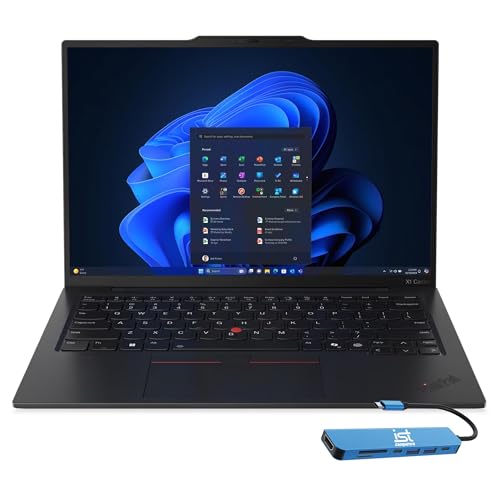
The ThinkPad P1 is the machine people describe with unusual affection for a workstation, and the Gen 7 explains why in the first ten minutes: the keyboard. Lenovo’s ThinkPad keyboards remain the reference for long-form typing — deep, quiet, precisely spaced — and pairing that keyboard with a 16-inch 2.8K display makes this the pick for people whose workday is measured in documents drafted, code written and models reviewed on screen for hours at a stretch. The panel’s resolution is not a vanity spec here; at 16 inches it renders text with a smoothness that reduces the low-grade eye fatigue of a long editing day, and it gives design work honest detail at 100 percent zoom.
The RTX 3000 graphics under the keyboard move the P1 beyond the Firefly’s remit into real 3D and GPU-accelerated territory: complex assemblies, visualisation work, video timelines with effects, and local AI tasks all have hardware to lean on. Lenovo packages that power in a chassis slimmer than the traditional workstation brick, though nobody should mistake it for an ultraportable — the cooling that RTX hardware requires has physical consequences, and under sustained load the fans will make themselves known in a quiet room. The 5MP camera with infrared sign-in is a small, telling detail: Lenovo understands this machine lives on video calls between the heavy work, and equips it accordingly.
- Display: 16-inch 2.8K (2560×1600 class) IPS, 16:10
- Processor: Intel Core Ultra 7 165H
- Graphics: NVIDIA RTX 3000 professional GPU
- Memory and storage on this listing: 32GB RAM, 1TB SSD
- Camera: 5MP with IR sign-in; Windows 11 Pro
Strengths
- The best keyboard in this guide, paired with the sharpest display — a combination heavy writers feel daily.
- RTX 3000 graphics handle serious 3D, visualisation and GPU-accelerated creative work.
- Slim for its class, with a camera and sign-in setup that suits a video-call-heavy calendar.
Trade-offs
- The most expensive general shape here; office-only buyers are paying for graphics they will never wake.
- Fans are audible under sustained GPU load — a quiet-room consideration.
- No numeric keypad, despite the wide chassis.
Best for: senior engineers, designers and writer-analysts who want one premium machine for both words and 3D. Not suited for: budget buyers, or anyone whose heaviest application is a browser.

Dell Precision 7680 — Best Desktop Replacement
Some laptops are portable computers. The Precision 7680 is a workstation that folds for transport between the places it will sit and work for months. The specification on this listing tells the story without embellishment: 64GB of memory, a terabyte of storage, a high-performance HX-class processor with twenty cores, and RTX 2000 Ada professional graphics. That combination is aimed at workloads with names and deadlines — finite-element simulation, large BIM models, point-cloud processing, multi-stream video, datasets that open slowly on ordinary machines and not at all on lesser ones. If your current computer makes you plan coffee breaks around file loads, this is the category of machine that ends that planning.
The compromises are equally clear-eyed. A 16-inch HX workstation is heavy, its power adapter is a substantial object in its own right, and battery life is measured in “long enough to move rooms” rather than “long enough to work untethered”. Dell’s engineering answer is thermal headroom: the chassis has the volume to cool its components properly, so the performance you benchmark on day one is the performance still available in hour six of a render, which is precisely where slimmer workstations quietly slow down. Buy the 7680 as fixed infrastructure that occasionally relocates — a primary machine for a home office or a lab bench — and it is superb. Buy it as a travel companion and it will punish the decision daily.
- Display: 16-inch FHD+ (1920×1200), 16:10
- Processor: Intel Core i7-13850HX, 20 cores
- Graphics: NVIDIA RTX 2000 Ada, 8GB
- Memory and storage on this listing: 64GB DDR5, 1TB SSD
- Operating system: Windows 11 Pro
Strengths
- Memory capacity and graphics power that remove whole categories of waiting from engineering work.
- Thermal design sustains performance through long renders and simulations instead of throttling.
- Built and supported as professional infrastructure, with the service options that implies.
Trade-offs
- Weight and adapter size make it a relocation machine, not a travel machine.
- Battery life is a minor feature; plan to work plugged in.
- Serious overkill — and serious money — for office software and browsing.
Best for: engineers, architects and data specialists whose models and datasets have outgrown ordinary laptops. Not suited for: commuters, frequent flyers, or anyone counting battery hours.

Dell Precision 3591 — Best Workstation Value
The Precision 3591 answers a question purchasing departments ask constantly: what is the least expensive machine that still counts as a workstation? Its answer is a 15.6-inch full HD screen, an H-series Core Ultra processor, 32GB of memory on this listing, and NVIDIA RTX 1000 graphics — the entry tier of professional GPU, but a genuine professional GPU, with the driver certification that engineering software vendors test against. For 2D CAD, moderate 3D modelling, GIS work and photo-heavy technical documentation, that specification is not a compromise at all; it is simply the right size of tool. The 3591’s savings come from knowing exactly which workloads do not need the 7680’s muscle.
It also keeps the traditional 15.6-inch form that many organisations already own docks, bags and spare parts for, which matters more in real deployments than reviewers usually admit. The chassis is unmistakably a working tool — nobody will compliment its looks in a café — but the keyboard is full-sized with a numeric pad, the ports cover desk duty, and Dell’s business support stands behind it. Students in engineering programmes and small firms buying their first certified machines are the natural audience: the 3591 runs the software the course or the client demands, carries a professional badge when bids ask about equipment, and leaves budget room for the second monitor the desk actually needs.
- Display: 15.6-inch Full HD
- Processor: Intel Core Ultra 7 165H, 16 cores
- Graphics: NVIDIA RTX 1000 professional GPU
- Memory and storage on this listing: 32GB RAM, 512GB SSD
- Operating system: Windows 11 Pro
Strengths
- Genuine certified workstation graphics at the lowest price point in this guide.
- Full-size keyboard with numeric pad suits technical and financial entry work.
- Conventional 15.6-inch form fits existing docks, bags and fleet accessories.
Trade-offs
- RTX 1000 is the entry tier — large assemblies and GPU rendering belong on stronger picks.
- Storage on this listing is the minimum we would accept; heavy local datasets may need an upgrade.
- Utilitarian build and screen; the panel is a tool, not a showcase.
Best for: CAD users, engineering students and small firms needing certified graphics without flagship pricing. Not suited for: simulation specialists, render farms of one, or buyers wanting a premium display.
Dell Latitude 5540 (15.6-inch) — Best Fleet Standard
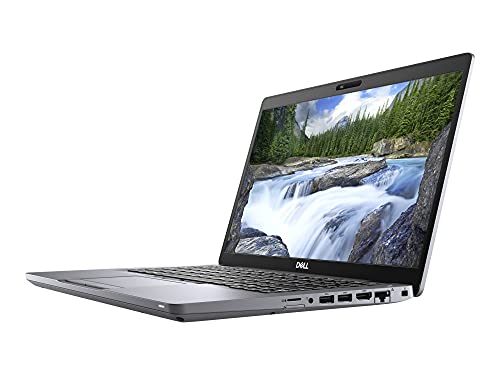
Ask the IT department of almost any large company which 15-inch business laptop they deploy, and the Latitude 5000 series is the answer often enough that it deserves a place in this guide even though the sensible way to buy one is rarely a retail listing. The 5540 pairs a 15.6-inch screen with mainstream Intel processors, a full port selection including wired networking, and a chassis designed around a service manual: batteries, memory and storage are all reachable by a technician with a screwdriver and ten minutes. Multiply that serviceability by five hundred deployed units and you understand the model’s entire appeal — it is not the most exciting machine here, it is the most ownable one at scale.
We list it prose-only for a practical reason: Latitude pricing and configuration run through employer contracts and Dell’s business channel, and the retail listings that surface tend to be single configurations at prices that make little sense next to a negotiated fleet deal. If your employer offers you a Latitude, take it with confidence — the keyboard is good, the support network is global, and parts will exist for years. If you are buying your own machine with your own money, the ExpertBook B1 above delivers a similar working day in a configuration you can actually choose, which is why the linked picks lead this guide.
- Display: 15.6-inch Full HD class
- Processor: mainstream Intel Core business configurations
- Ports: HDMI, RJ45 wired Ethernet, USB-C with docking support
- Design priority: serviceability and fleet management
- Channel note: typically purchased via employer or Dell business contracts
Strengths
- Serviceable design and global support network make it the lowest-risk fleet deployment here.
- Full-size keyboard with numeric pad and a complete desk port selection.
- Long parts availability — a machine an organisation can standardise on for years.
Trade-offs
- Retail pricing for single units is rarely competitive with the linked picks.
- Screen and materials are specified for durability, not delight.
- No workstation graphics option at this tier for engineering work.
Best for: employees choosing from an employer catalogue and IT teams standardising a fleet. Not suited for: individual buyers paying retail, who get more machine per pound from the picks above.
Is a 16-inch screen actually bigger than a 15.6-inch one?
Yes — and by more than the diagonal suggests, because the shape changed along with the size. A 15.6-inch 16:9 panel and a 16-inch 16:10 panel differ in two ways at once: the 16-inch screen is slightly wider, and noticeably taller. That height is what you feel in documents and code, where vertical space is the scarce resource: several extra lines of a contract, a spreadsheet that shows its totals row without scrolling, a drawing that fits its title block. For paired side-by-side windows, the older 16:9 shape remains perfectly good — the ExpertBook B1’s screen is not a compromise, it is a different specialisation.
The practical test is your own work. If your day is two documents side by side, either shape serves you and price should decide. If your day is one tall thing — a document, a codebase, a model tree — the 16:10 machines in this guide will feel larger than their spec sheets claim. What you should not do is pay a premium for resolution you cannot use: at these sizes, a sharp 1920×1200 panel already renders text cleanly at normal desk distance, and the P1’s 2.8K display earns its money mainly for design work and for people who run small interface scaling all day.
How much does weight matter if the laptop mostly stays home?
Less than reviewers pretend, but not zero — and the honest threshold is about how the machine moves through your house rather than through airports. Anything in this guide can be carried from desk to sofa one-handed for an evening. The differences appear in the margins: the Firefly can live in a tote bag for a twice-weekly office day without complaint, the ExpertBook and Precision 3591 make that commute noticeable, and the Precision 7680 turns it into a decision. Consider also the power adapter, which marketing weights exclude and shoulder bags do not: workstation adapters can add the weight of a paperback novel to the total you actually carry.
Our working rule: if the laptop leaves the house weekly or more, cap your ambitions at the Firefly class. If it leaves monthly, everything here is fair game. If it leaves twice a year, buy the machine your desk deserves — the 7680’s performance will repay you every working day, and its two annual journeys are a small tax on that.
Which ports turn a big laptop into a real desktop replacement?
A desktop replacement is defined less by its processor than by what stays plugged into it. The fixed desk wants: a wired Ethernet connection that never negotiates with flaky Wi-Fi during a large upload; an HDMI or DisplayPort path to one or two external monitors; enough USB-A ports for the keyboard, headset dongle and that one printer that refuses to die; and a USB-C or Thunderbolt connection for the dock that ties it together. Every pick in this guide covers most of that list natively, which is the quiet advantage of the 15-inch class — the chassis has room for ports that ultraportables now reach only through adapters.
Set the desk up once, properly: laptop on a stand at monitor height if it is your only screen, or closed in a vertical dock if externals do the displaying; the machine’s own keyboard retired in favour of a full-size external one only if you type all day — several keyboards in this guide, the ThinkPad’s especially, are good enough that the external keyboard is optional. Cable the Ethernet. A big laptop set up this way stops feeling like a compromise desktop and starts feeling like the tidier version of one.
How do the keyboards and number pads compare for data-heavy work?
Screen size gets the headlines in this category, but the keyboard decides whether the machine is pleasant in month six, and the 15-inch class splits into two camps. The ExpertBook B1, Precision 3591 and Latitude carry full layouts with numeric pads — the traditional business arrangement, and still the fastest way to enter figures, dates and codes without looking down. The 16-inch machines mostly drop the pad in favour of centred keyboards and larger speakers or cooling, a trade the Firefly and P1 both make. Neither camp is wrong; they serve different hands. If your work involves a spreadsheet and a phone call at the same time, the pad earns its width every single day. If your work is prose and code, the centred layout keeps your hands square to the screen and your wrists straighter.
Key feel matters as much as layout. The ThinkPad P1’s keyboard is the benchmark here — sculpted caps, a decisive bottom-out, and a pointing stick for those who use it — while the Dell and HP boards are firm and accurate without quite the same travel. Backlighting is standard across this guide, which matters more than it sounds for evening work in a dim room. Our advice is unglamorous: if you type for a living, weight this section as heavily as the processor. You will notice a mediocre keyboard four thousand times before a benchmark notices a mediocre chip, and in this size class there is no excuse for a bad one — the chassis has room to do it properly, and the best picks here prove it.
What should you check about a big laptop screen beyond its size?
Brightness and finish, in that order. A 15.6 or 16-inch panel spends its life under office lighting and home lamps, and a matte anti-glare finish — fitted across this guide — is worth more than a glossy screen’s punchier colours in any room with a window. Brightness around the class norm is fine at a desk; if your desk faces south or you work in bright conservatories and cafés, favour the brighter panels and check the specific configuration’s rating before ordering, because manufacturers sell the same model with more than one screen option and listings do not always say which one is fitted.
Scaling is the quiet setting that decides whether a high-resolution screen helps or hinders. The P1’s 2.8K panel at its default scaling shows roughly the same working area as a 1920×1200 screen, only smoother — you are buying text quality, not extra room. If you want more room, reduce the scaling and accept smaller text, which younger eyes tolerate and older eyes invoice you for by evening. Colour accuracy, finally, matters to exactly the buyers who already know they need it: design and photo work should look at the Firefly and P1 class and verify the specific panel’s gamut, while office buyers can safely spend nothing on it at all.
How long will a 15-inch business laptop stay useful?
Longer than smaller machines, usually — and the reasons are physical. Bigger chassis cool better, and components that run cooler age slower. Batteries in desk-first machines live gentler lives when the laptop is mostly plugged in, especially with the charge-limit settings every business line here offers; set an 80 percent cap for a machine that rarely unplugs and the battery will thank you in year four. The specifications that decide lifespan are memory and storage, which is why this guide favours 32GB configurations: processors from the last several generations all run office software well, but a memory-starved machine feels old while its chip is still willing.
Plan on four to six years of front-line service for the general picks, and longer for the workstations, whose professional graphics tend to stay certified for software versions beyond the life of consumer cards. The Latitude’s serviceability stretches the tail further — a fleet machine can take a new battery and a larger drive in its fifth year and work a sixth. What actually retires these laptops is rarely failure; it is the slow accumulation of software demands, which is one more argument for buying the generous configuration once rather than the cheap one twice.
How do you move a big laptop between home and office without hating it?
The hybrid pattern — three days at a desk at home, two in an office — is where this size class earns or loses its reputation, and the difference is almost entirely about duplicated infrastructure. Leave a charger at each location. Leave a dock or at least a cable set at each location. The laptop should be the only object that travels, slipped into a bag with sleeves sized for a 16-inch machine, and the whole routine should take ninety seconds at either end. The moment you are wrapping adapters and hunting for an HDMI cable twice a week, the big screen’s daily pleasure starts paying a commuting tax.
Bag choice matters more than brand loyalty here: a structured sleeve or a backpack with a suspended laptop compartment protects corners, which is where big chassis take their damage. And set up the software side of hybrid life properly — cloud-synced documents, a browser profile that follows you, and sign-in methods like the IR cameras fitted to several picks here, so that opening the lid at either desk is the whole of the commute ritual. Do that, and a 15-inch machine is not a burden you transport; it is simply where your office happens to be today.
What does business support actually buy you?
It buys time, which is the only thing a broken work laptop really costs. Consumer support means posting a machine away and measuring the repair in weeks. The business channels behind the ThinkPad, Latitude, ZBook and Precision names offer next-business-day on-site options in most regions — a technician at your desk with the part, while you work on a borrowed machine or a phone. For a sole trader, that difference is a lost week versus a lost morning. For a company, it is the entire reason fleet standards like the Latitude exist.
Two practical notes. First, the support tier is a configuration choice at purchase, not a property of the badge: check what the specific listing includes, because a retail-bought workstation with a basic warranty is not the same product as the same machine with ProSupport attached. Second, keep the machine’s service tag and purchase records somewhere other than the machine. Support organisations run on those numbers, and the middle of a deadline is the wrong time to discover yours was on a sticker you peeled off in 2026.
One external monitor or two — what pairs best with a 15-inch laptop?
A big laptop screen changes the external monitor question. With a 13-inch machine, two external displays feel like rescue; with a 16-inch panel already on the desk, one good external monitor plus the laptop’s own screen usually gives you the better arrangement — two working areas at slightly different heights, the laptop’s display holding the call or the reference document while the monitor carries the main task. A single 27-inch monitor is the sweet spot for most desks in this guide’s world: large enough that the laptop screen feels like a genuine second display rather than a duplicate, modest enough that the whole setup runs from one cable through a dock.
Two external monitors still win for specific work: financial modelling with a workbook, its source data and a presentation all visible; support desks juggling queues; anyone whose job is fundamentally comparison. Every workstation here drives that setup comfortably, and the general picks handle it through their USB-C docking support. Whichever you choose, match resolutions sensibly — a low-resolution second screen beside a sharp laptop panel makes your eyes refocus at every glance across, a small daily friction that adds up over a working year. And keep the laptop’s own screen in the arrangement even with two externals if you can; a display you already own and never use is the most expensive kind.
How do these machines cope with a calendar full of video calls?
Better than the ultraportables do, mostly because size buys microphones and speakers room to work. The larger chassis in this guide carry multi-microphone arrays that separate your voice from a room’s echo more convincingly, and speakers that make a two-hour workshop audible without a headset — a mercy by the fourth call of the day. Cameras vary more than buyers expect: the P1’s 5MP camera is visibly sharper than the 1080p units elsewhere here, and the IR sign-in cameras fitted to the ExpertBook and several others make joining the call a glance rather than a password typed on camera.
The working habits matter as much as the hardware. Raise the laptop so the camera sits near eye level — a stack of the stand you bought after reading the mistakes section — and calls stop being a view up your nose. Use the wired Ethernet connection these machines still provide when the call is the kind that cannot drop; a frozen frame in a client presentation is a small thing that people remember disproportionately. And if your calendar truly is wall-to-wall calls, spend on a headset before you spend on any laptop upgrade in this guide: the best microphone array here still loses to a decent headset in a noisy house.
How should you set up a new big-screen business laptop in its first week?
Start with the unglamorous foundations. Run every system update before you install your working software, so the machine’s first impression of your accounts is its patched self. Turn on device encryption — Windows 11 Pro includes it — and record the recovery key somewhere that is not the laptop. Set the battery charge limit if the machine will live plugged in, enable face or fingerprint sign-in, and then arrange the screen: choose your scaling deliberately rather than accepting the default, pin your daily applications, and set up virtual desktops or window layouts while your patience is fresh, because you will never do it later.
Then do the two things almost nobody does and everybody wishes they had. First, make a recovery image or at least confirm the manufacturer’s recovery path works, while the machine is clean and the stakes are zero. Second, photograph the configuration: the service tag, the exact memory and storage fitted, the warranty tier. Business machines are long-lived and heavily reconfigured over their lives; the person who will thank you for that photograph is you, in year three, on a support call. After that, the machine disappears into your work — which is the entire point of buying this class properly.
Can a 15-inch business laptop double as a creative machine after hours?
For photography and video at the enthusiastic level, yes — with the right pick. Photo editing is mostly a screen and memory question, and the 16-inch machines here answer both: the P1’s high-resolution panel is genuinely suitable for careful Lightroom work, and 32GB of memory keeps a catalogue and an editor open together without complaint. The Firefly handles the same load with a slightly less ambitious display. Video editing splits the field harder: timelines of 4K footage with colour work and effects want a discrete GPU, which means the P1 or the Precisions, while simple cuts and captions run acceptably on anything in this guide if your patience is calibrated for export times measured in minutes rather than seconds.
Gaming deserves one honest paragraph, because buyers ask and listings will not tell them. The workstation GPUs in the P1 and Precisions are tuned and certified for professional software; they can run games, but their drivers prioritise stability in CAD over frame rates, and you pay a premium for certification that play never uses. The general business picks are not gaming machines at all beyond older or lightweight titles. If evenings matter as much as workdays, the correct move is a gaming laptop used for business, not a business workstation pressed into gaming — a distinction that will save you money in one direction and disappointment in the other.
What will you spend beyond the laptop itself?
Budget honestly for the ecosystem, because a desk-first laptop invites accessories the way a house invites furniture. The realistic list: a stand or monitor arm, a dock if you run external screens, a second charger for hybrid workers, a bag actually sized for the machine, and possibly the extended support tier discussed earlier. Together these commonly add a fifth to a quarter on top of the laptop’s price — a figure worth knowing before you stretch for the premium pick and then perch it on a pile of books for a year. The ExpertBook plus the full desk setup is, for most office workers, a better purchase than the P1 alone on a bare table.
One cost that should be zero: software surprises. Every machine here runs Windows 11 Pro, which covers the networking, encryption and remote-desktop features business buyers actually need, so there is no edition upgrade lurking in your first week. And a cost that should stay zero for years: repairs covered by planning. Business lines publish service manuals and sell parts; a fan or a battery in year four is a maintenance event on these machines, not a replacement decision. That long, boring ownability is precisely what the 15-inch business class is for, and it is why the category survives every prediction of its death at the hands of slimmer, prettier machines.
Comparison table
| Pick | Screen | Graphics | Memory / storage (listing) | Choose it if… |
|---|---|---|---|---|
| ASUS ExpertBook B1 | 15.6″ FHD 16:9 | Integrated | 32GB / 1TB | Your work is documents, data and calls, and you want ports and room. |
| HP ZBook Firefly G11 | 16″ WUXGA 16:10 | Professional integrated | 32GB / 1TB | You need certification and still commute with the machine. |
| Lenovo ThinkPad P1 Gen 7 | 16″ 2.8K 16:10 | RTX 3000 | 32GB / 1TB | Typing feel, screen quality and real 3D all matter equally. |
| Dell Precision 7680 | 16″ FHD+ 16:10 | RTX 2000 Ada | 64GB / 1TB | Your models and datasets punish ordinary hardware. |
| Dell Precision 3591 | 15.6″ FHD | RTX 1000 | 32GB / 512GB | You need certified graphics at the gentlest price. |
| Dell Latitude 5540 | 15.6″ FHD | Integrated | Varies by contract | Your employer deploys it and supports it globally. |
What mistakes do big-screen laptop buyers keep making?
The first is buying a workstation for status rather than software. RTX graphics you never invoke are not future-proofing; they are a fan, a weight penalty and several hundred pounds spent on silence. Name the application that needs the GPU before paying for one — if the honest answer is “spreadsheets, but big ones”, the ExpertBook class is your machine and a second monitor is your upgrade.
The second mistake is the opposite: saving money on memory. Big-screen buyers keep machines for four to six years, and memory is the specification that ages first. The 32GB configurations favoured in this guide cost less now than a mid-life upgrade plus the technician’s hour — and on models with soldered memory, the mid-life upgrade does not exist at any price. Check whether the specific model you are buying allows memory upgrades before assuming you can fix a cheap configuration later.
Third, buyers forget the desk around the laptop. A 16-inch machine on a kitchen table with its screen at chin height is an ergonomic injury on an instalment plan. Budget for a stand or a monitor arm from day one, keep the top of the screen near eye level, and let the big display do its work at a distance your neck approves of. And fourth: check the return policy on weight. If you have never carried a workstation, the 7680 class can surprise you — buy from a listing whose returns you understand, and do the bag test in the first week, not the fifth.
Final Recommendation
Start with the working day you actually have, not the one the brochures imagine. Count your open windows at the busiest hour, name the heaviest program you run, and be honest about how many days a month the machine leaves your desk. Those three answers select the pick almost by themselves. Most readers of this guide should buy the ASUS ExpertBook B1 and spend the savings on a monitor arm and a good chair: it covers the office working day completely, with the screen and ports that day actually uses. Step up to the ZBook Firefly G11 16-inch if professional certification is a line in your job description, and to the ThinkPad P1 Gen 7 if you want the finest screen-and-keyboard combination and have real graphics work to justify it. The Precision 3591 is the value door into certified CAD, the Precision 7680 is the machine for workloads that break other laptops, and the Latitude remains the right answer whenever an employer’s support machine stands behind it. Choose by the software you run and the desk you sit at — in this size class, honesty about both is worth more than any single specification.
Frequently Asked Questions
Is 15.6 inches or 16 inches better for office work?
For tall documents and code, the 16-inch 16:10 screens show more at once and feel larger in daily use. For two documents side by side, a 15.6-inch 16:9 screen is equally comfortable and often cheaper. Match the shape to the shape of your work rather than chasing the bigger number.
Do I need a workstation GPU in a business laptop?
Only if your software names one. CAD, 3D modelling, simulation, heavy video effects and local AI workloads benefit directly. Office suites, browsers, accounting tools and video calls gain nothing from a professional GPU — integrated graphics handle them fully, and the money is better spent on memory.
How much memory should a 15-inch business laptop have?
Sixteen gigabytes is today’s working minimum for a browser-heavy office day, and 32GB is the sensible buy for a machine you intend to keep four years or more. Big-screen buyers multitask heavily by definition; memory is where that multitasking lives.
Can a 15-inch laptop replace a desktop entirely?
Yes, with a stand or dock, an external monitor if you want one, and wired networking for the desk — all of which this size class supports natively through its ports. The only true desktop advantages left are extreme graphics upgrades and absolute silence under load.
Should I choose a numeric keypad or a centred keyboard?
Choose the pad if numbers are your raw material — finance, data entry, inventory and engineering input all move faster with one, and the 15.6-inch picks here include it. Choose the centred layouts of the 16-inch machines if your work is prose, code and calls; your hands sit square to the display and long typing days feel straighter. Neither choice is a compromise when it matches the work; both feel wrong when it does not, which is why this is worth deciding before the screen seduces you.
Why is the Latitude listed without a buying link?
Because Latitudes are normally bought through employer contracts at negotiated prices, and single retail listings rarely represent good value. The model is included because it is the fleet standard many readers will be offered at work — and in that context it is an easy yes.
How much memory should a 15-inch business laptop have in 2026?
Sixteen gigabytes is the working floor for this class and every linked pick here meets it; step to 32GB if your day involves virtual machines, large local datasets or a dozen browser profiles held open at once, because memory is the one specification you will feel every single day rather than once a month. Storage follows the same logic: 512GB suits document-and-cloud work, while anyone keeping local media libraries, mail archives or engineering files should start at a terabyte and treat smaller drives as a false economy that surfaces within the first year.
Related Guides
Still deciding on size? Our best 13 inch business laptops guide covers the travel-first end of the business market, the best affordable business laptops roundup keeps the same standards on a tighter budget, and if your desk has room for even more screen, the best 17 inch windows business laptops guide looks at the largest class of all.
Related guides
- Best 13 Inch Business Laptops: The Honest 13–14 Inch Ultraportable Shortlist
- Best 5 Windows 10 Business Laptops: Professional Machines From the Windows 10 Era, Judged for Buyers Who Still Run It
- Best Affordable Business Laptops Quadro Buyers Can Still Justify: Mobile Workstations With Professional Graphics on a Sensible Budget
- Best 17 Inch Windows Business Laptops: The Workstation Class That Replaced Them