What's inside
- Key Takeaways
- Quick Picks
- What Should You Actually Look For in a 2.5-Inch SSD in 2026?
- DRAM or DRAM-Less: Does the Cache Question Deserve Your Attention?
- Comparing the Six: Capacity, Cache and Character
- How Do You Clone Your Old Drive Onto the New One, Step by Step?
- What Goes Wrong Most Often With a 2.5-Inch SSD Upgrade?
- When Should You Skip SATA Entirely?
- How Long Will a Revived Laptop Actually Stay Revived?
- What About Heat, Power and Battery Life After the Swap?
- Should You Consider a Used or Refurbished SSD Instead?
- How Do You Keep an SSD Healthy Without Becoming Its Gardener?
- Which Pick Suits Which Kind of Owner?
- What Will You Notice in the First Hour, and What Takes a Month?
- Final Recommendation
- Frequently Asked Questions
- Related Guides
As an Amazon Associate I earn from qualifying purchases. This post may contain affiliate links at no extra cost to you.
gizmoverdict.com is reader-supported. When you buy through links on our site, we may earn an affiliate commission.
There is a particular sound an old laptop makes when its hard drive is thinking, a faint clicking whir that used to be background noise and now feels like a countdown. If that sound is why you are searching for the best 2.5 ssds, the good news is that this remains the single most satisfying upgrade in all of home computing. The six drives below all slide into the standard 2.5-inch SATA bay that millions of laptops and desktops still carry, and they span the capacities and budgets that real upgrade decisions involve — from a 960GB budget drive that costs little more than a family takeaway, through the 1TB class favourite, up to a trio of full 2TB options for owners who intend to do this job once and never think about it again.
Notice what this guide is not doing: it is not pretending every buyer needs the largest drive, and it is not ranking these six from best to worst as if your machine were a test bench. A 2.5-inch SSD purchase is really three questions wearing a trench coat. How much capacity does this particular computer genuinely need? How much longer will it live? And does its workload care about the refinements — a DRAM cache, TLC rather than simpler flash arrangements — that separate a flagship from a workhorse? The picks are organised to answer those questions in order, and the sections between them explain the reasoning plainly enough that you could defend your choice to a sceptical teenager, which is the correct standard for upgrade advice.
One framing note before the picks. Every drive here is limited by the SATA III interface to roughly the same top speed, and every one of them will feel like a teleport compared with the spinning disk it replaces. The differences that follow are real but second-order: how a drive behaves when nearly full, how it handles an afternoon of heavy copying, how much endurance it promises. In a brand-new machine those differences might headline a review. In the five-to-ten-year-old machines these drives actually serve, they are footnotes — worth knowing, priced accordingly, and never worth losing sleep over.
Key Takeaways
- Capacity is a decision, not a default: 960GB–1TB revives most old laptops, while 2TB suits media hoarders and anyone cloning a large old drive.
- A DRAM cache (MX500, 870 EVO) buys composure on a full, ageing drive; DRAM-less drives (BX500, A400, A55) hide the compromise well in light duty.
- The interface, not the drive, sets the speed ceiling — judge these picks on behaviour and value, not box numbers.
- Match the spend to the machine’s remaining life; a flagship drive in a dying laptop is money parked in the wrong place.
- Every pick here is a standard 7mm SATA drive, so all of them fit the bays and enclosures this upgrade usually involves.
Quick Picks
| Pick | Badge | Why it earns its place |
|---|---|---|
| Crucial MX500 1TB | The balanced classic | DRAM, TLC and a decade of goodwill make this the default 1TB answer for a keeper laptop. |
| Samsung 870 EVO 2TB | Do it once, do it right | The steadiest 2TB SATA drive here, for machines with years of service still in them. |
| Crucial BX500 2TB | Maximum space, minimum fuss | Full 2TB capacity at a rescue-mission price, DRAM-less compromises and all. |
| WD Blue SA510 2TB (2.5-inch) | The familiar badge | Western Digital’s mainstream 2.5-inch drive — check you are not looking at its M.2 sibling. |
| Kingston A400 960GB | The shoestring revival | Near-a-terabyte for very little, sized for laptops whose needs are documents and browsing. |
| Silicon Power A55 2TB | The quiet underbidder | A plain 2TB value drive from a memory specialist, for secondary bays and spare machines. |
What Should You Actually Look For in a 2.5-Inch SSD in 2026?
Begin with the bay, because it eliminates more wrong purchases than any specification. Your machine needs a 2.5-inch SATA bay, and an increasing number of slim modern laptops simply do not have one — their storage is an M.2 card or soldered to the board. If your laptop was built in the last few years and feels impossibly thin, verify the bay exists before falling in love with any pick here. Assuming it does, the drive you want is 7mm tall, which all six of these are; older 9.5mm bays accept them with a spacer, and nothing in this guide requires the thicker shell.
Capacity comes next, and it deserves honesty rather than appetite. Audit your current drive before shopping: most ageing laptops hold far less than their owners fear, because the operating system and applications rarely exceed a couple of hundred gigabytes and personal files are often smaller than memory suggests. If your old drive is a 500GB unit sitting half full, a 960GB or 1TB pick doubles your world and leaves the budget healthier. If you are cloning a 1TB drive that is nearly full, or your machine doubles as the family photo vault, the 2TB tier stops being indulgence and becomes arithmetic. Buy for the drive you actually have, not the hoarder you might theoretically become.
Then, and only then, the internals. DRAM and flash arrangement matter at the margins described throughout this guide: they shape how the drive ages and how it copes with heavy writing, not whether your laptop feels fast, because it will, immediately, with any of them. A useful rule of thumb runs through all six picks — the more years and the heavier the work you expect, the further up the refinement ladder you should climb; the shorter the machine’s remaining life, the more rational the budget end becomes. Neither end of that ladder is a mistake. The only true mistake in this category is buying a drive shaped for a slot your machine does not have.
DRAM or DRAM-Less: Does the Cache Question Deserve Your Attention?
Few topics in storage generate more heat per unit of real-world consequence than the DRAM debate, so let us settle it at the temperature it deserves. A DRAM chip on an SSD stores the map between the addresses your computer requests and the physical cells holding the data. With the map in fast DRAM, the drive answers scattered requests crisply and keeps its composure as it fills. Without it, the drive keeps the map in slower flash or borrows a small slice of your computer’s memory, and the cost shows up in specific corners: a nearly full drive, heavy multitasking with lots of small writes, sustained copying late in a long session.
Now place that against the life of the machines in question. A revived laptop spends its days in a browser, a word processor, email and video. Its drive is rarely brim-full if you sized the capacity honestly, and its owner is comparing every moment against a hard drive that took eleven seconds to find a photograph. In that life, the DRAM-less picks in this guide — the BX500, A400 and A55 — are not secretly bad drives awaiting exposure. They are appropriately engineered for the work they will actually do, and their lower prices are the honest reflection of a component omitted where it matters least.
Where the DRAM picks earn their premium is equally specific. The MX500 and 870 EVO are for the machine that will be kept, filled and worked for years: the photo editor’s laptop, the small-business desktop, the computer whose drive will hover near capacity because its owner’s life is on it. There, the cache buys a drive that feels the same in year four as in week one. So the question is never “is DRAM better?” — it is, narrowly — but “will this machine ever visit the corners where DRAM matters?” Answer that honestly and the shortlist usually picks itself.

Crucial MX500 1TB — The balanced classic
If a single drive defines what a sensible 2.5-inch upgrade looks like, it is the MX500. Crucial’s long-running design pairs TLC flash with a proper DRAM cache, the combination budget drives omit, and wraps it in years of accumulated firmware maturity. At 1TB it lands on the capacity that suits the largest number of real machines: big enough to clone the typical ageing laptop drive with room to spare, small enough that the bill stays in revival territory rather than investment territory. This is the pick we would name if a neighbour knocked on the door, laptop in hand, and asked for one answer.
Its virtues are the quiet kind. Because the DRAM cache keeps its mapping brisk, the MX500 stays responsive as it fills in a way the DRAM-less picks only approximate, and because Crucial has sold the design for years, the internet’s collective knowledge about it — cloning quirks, firmware notes, enclosure compatibility — is deep and reassuring. In a machine that hosts a family’s documents or a freelancer’s livelihood, that depth is a feature as real as any specification. It is also worth noting what the MX500 is not: a 2TB version exists in the wider market, but the cleanly verified listing for this guide is the 1TB model, and the link here reflects that. Owners needing the full two terabytes should look at the EVO or BX500 below rather than hunting a variant we could not verify.
Choose the MX500 when the laptop in question has a future. It is the drive for the machine whose screen is still bright, whose keyboard still feels right, whose only crime is a hard drive from another era. Fit it, and the topic of storage simply leaves your life for several years, which is the highest achievement a component can manage.
- Form factor: 2.5-inch, 7mm, SATA III
- Capacity: 1TB (the verified listing for this guide)
- Flash: TLC
- Cache: DRAM-equipped
- Sweet spot: the keeper laptop’s one-and-done upgrade
Strengths
- DRAM composure that survives years of filling up.
- A mature, deeply documented design with few surprises left in it.
- 1TB is the honest capacity for the majority of revivals.
Trade-offs
- Owners with large media libraries will outgrow 1TB.
- Costs more than the DRAM-less tier, as it should.
- No verified 2TB listing in this guide’s pool, despite the name’s wider range.
Best for: the main drive of a laptop or desktop you intend to keep and use daily. Not suited for: anyone whose current drive already overflows a terabyte.

Samsung 870 EVO 2TB — Do it once, do it right
Some upgrades are rescues and some are renewals, and the 870 EVO at 2TB belongs firmly to the second kind. Samsung builds the whole stack here — its own TLC flash, its own controller, a DRAM cache — and the result is the most even-tempered SATA drive in this roundup, the one whose behaviour on a nearly full drive in its fourth year most closely resembles its behaviour out of the box. In the companion guide to 2TB drives it headlines the class; here, among mixed capacities, it plays a different role: the ceiling option, the drive you choose when the machine matters and the budget conversation has already been settled in the machine’s favour.
What does that steadiness buy in an old laptop, concretely? It buys a day-one clone that proceeds at a consistent pace instead of sagging in the final third. It buys photo libraries that open without a pause for thought, large exports that proceed evenly, and a drive that does not need its owner to maintain a discipline of free space to feel quick — though the habit still helps. It also buys Samsung’s Magician software, the most polished health-and-firmware companion in this group, for owners who like a dashboard that speaks plainly.
The counterargument is purely financial and entirely legitimate: in a machine with a cracked hinge and one foot in the recycling pile, the EVO’s premium purchases virtues the machine will not live to use, and the BX500 or A400 would serve the same remaining months nearly as well. The EVO is not the right drive for every bay. It is the right drive for the bay attached to a computer you would genuinely miss, and in that specific situation it has no equal on this page.
- Form factor: 2.5-inch, 7mm, SATA III
- Capacity: 2TB
- Flash: TLC (Samsung V-NAND)
- Cache: DRAM-equipped
- Sweet spot: the primary drive in a machine with years left
Strengths
- The class’s most consistent long-term and long-write behaviour.
- Polished companion software for health checks and firmware.
- Full 2TB with no capacity anxiety for the machine’s remaining life.
Trade-offs
- The premium only makes sense if the machine outlives it.
- Overkill for a spare or a child’s hand-me-down.
- SATA’s ceiling applies to it exactly as to the cheapest pick here.
Best for: a renewal-grade upgrade to a valued laptop or desktop. Not suited for: stopgap machines, where its price buys unneeded headroom.

Crucial BX500 2TB — Maximum space, minimum fuss
The BX500 at 2TB makes an argument none of the other picks can: the full two terabytes, from a first-rank maker, at the kind of cost usually associated with half the capacity. It achieves this by leaving out the DRAM cache and keeping the design deliberately simple, and the interesting question is not whether that compromise exists — it does — but who will ever meet it. The answer, for the machines this drive will serve, is almost nobody. A DRAM-less drive in an eight-year-old laptop spends its life so far ahead of the hard drive it replaced that its theoretical soft spots never enter the owner’s experience.
Picture the actual deployment. A desktop in a spare room, pressed into service as a home server and homework machine. A teenager’s first laptop, inherited from a parent. A workshop computer that catalogues parts and plays music. Each needs space more than it needs finesse: room for the operating system, the applications, the accumulated digital sediment of a household. The BX500 provides that room with Crucial’s backing — proper support pages, cloning guidance, firmware that behaves — which separates it from the anonymous end of the budget market where a failed drive becomes a detective story.
Two habits keep a BX500 happy, and both are free. Leave it a margin of empty space rather than filling it to the last gigabyte, and avoid designating it as the household’s heavy-writing scratch disk. Observe those, and the drive’s simplicity becomes its charm: nothing to configure, nothing to monitor, just two terabytes of quiet competence where a noisy platter used to be. Among budget 2TB options, this is the one with the fewest asterisks attached.
- Form factor: 2.5-inch, 7mm, SATA III
- Capacity: 2TB
- Flash: TLC
- Cache: DRAM-less
- Sweet spot: capacious revivals on a firm budget
Strengths
- Full 2TB from Crucial at a genuinely modest cost.
- Everyday responsiveness indistinguishable from pricier picks in older machines.
- Maker support and documentation a no-name drive cannot match.
Trade-offs
- Sustained heavy writes are its least impressive party piece.
- Rewards owners who leave it some breathing room.
- Refinement seekers should step up to the MX500 or EVO.
Best for: big-capacity revivals where the budget is a hard fact, not a preference. Not suited for: constant heavy-writing duty as a scratch or recording drive.

WD Blue SA510 2TB (2.5-inch) — The familiar badge
Western Digital has been selling storage to ordinary households for longer than most of its rivals have existed, and the SA510 trades on that familiarity honestly. As a drive it is a mainstream TLC design with mainstream manners: nothing in its behaviour will startle or delight, and that is precisely the point for the buyer who wants the upgrade to be a non-event. The one moment of attention the SA510 demands comes before purchase, not after. The family also includes an M.2 stick under the same name, and the listing linked here is specifically the 2.5-inch, 7mm model that belongs in this guide. Learn to spot the difference once, and the SA510 becomes the lowest-effort purchase on this page.
In the mixed company of this roundup, the SA510’s role is the reassurance pick at full capacity. The MX500 is the connoisseur’s 1TB; the EVO is the flagship; the BX500 is the bargain. The SA510 is for the owner who wants 2TB, a name the household already trusts from its external drives and set-top boxes, and a dashboard utility that reports the drive’s health in language a non-enthusiast can parse. There are more households matching that description than any other, which is why this unglamorous drive earns its place without apology.
Performance expectations should be set at “exactly like a good SATA SSD,” because that is what it is: quick boots, silent running, application launches that feel instant against the memory of a hard drive. Its long-write behaviour sits mid-pack, its endurance suits mainstream use, and its warranty and support trail are those of a giant. Not every recommendation needs a superlative. Some need a shrug and the words “this one is simply fine,” and for a great many bays, fine at 2TB from a familiar badge is the correct answer.
- Form factor: 2.5-inch, 7mm, SATA III — not the M.2 variant of the same name
- Capacity: 2TB
- Flash: TLC
- Cache: mainstream design
- Sweet spot: the household’s main computer, upgraded without drama
Strengths
- A name and support structure mainstream buyers already know.
- Balanced behaviour with no weak scenario in ordinary use.
- Clear health reporting through Western Digital’s dashboard.
Trade-offs
- The M.2 namesake makes careless ordering a real hazard.
- It is nobody’s specialist pick — steady rather than standout.
- Value hunters will find the BX500 undercuts it at the same capacity.
Best for: a calm, mainstream 2TB upgrade from a familiar maker. Not suited for: buyers who actually need M.2 — same name, different product, different guide.

Kingston A400 960GB — The shoestring revival
The A400 is the drive that proves how little money the SSD transformation actually requires. Kingston’s entry-level design, in its 960GB capacity, has been the budget recommendation of a thousand forum threads for years, and its longevity in the market is itself evidence: a genuinely bad drive does not survive this long at this visibility. What you get is a DRAM-less SATA SSD that does the one job its buyers care about — it makes an old laptop feel years younger — at a cost low enough that the decision barely needs a meeting.
Be clear-eyed about the shape of the bargain. The A400’s sustained-write pace is modest, its design is as simple as the category gets, and 960GB, while generous for a documents-and-browsing machine, is not the vault that 2TB is. None of that touches its intended deployment: the laptop that runs a browser, an office suite and a video call, whose old 500GB hard drive is half empty and fully exhausted. In that machine the A400 is not a compromise at all. It is the exact size of the problem, solved at the exact scale of the budget, and the money saved can go toward the RAM upgrade or the replacement battery the same laptop probably also wants.
Kingston’s presence matters here too. This is one of the largest memory companies on earth, and the A400’s firmware, support pages and warranty process are those of a giant rather than a marketplace ghost. For a school laptop, a grandparent’s desktop, a spare machine for guests, or any computer whose storage needs are modest and whose budget is real, the A400 remains the floor of sensible spending — below it lies false economy, above it lies choice.
- Form factor: 2.5-inch, 7mm, SATA III
- Capacity: 960GB
- Flash: value-tier TLC-class configuration
- Cache: DRAM-less
- Sweet spot: light-duty laptops on the tightest sensible budget
Strengths
- The lowest-cost route to a genuinely transformed old machine.
- A long market history and a giant maker behind it.
- 960GB is ample for documents, browsing and everyday applications.
Trade-offs
- Modest sustained writes; big clones take their time.
- Capacity fills quickly if media hoarding enters the picture.
- Simplicity is the whole specification — no refinements aboard.
Best for: light-duty revivals where every saved pound or dollar has another job waiting. Not suited for: media libraries or any machine already straining a terabyte.
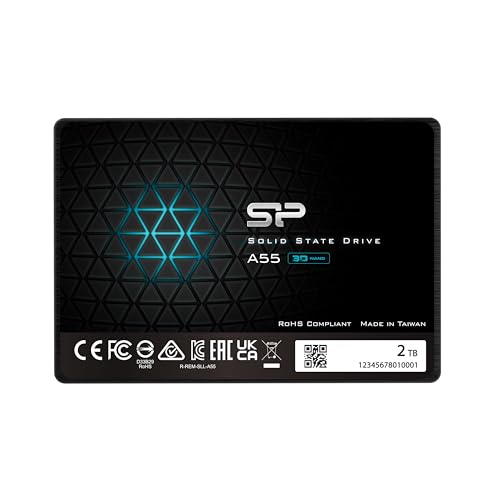
Silicon Power A55 2TB — The quiet underbidder
Silicon Power does not advertise its way into many shortlists, which is a shame, because the A55 is the kind of product that makes budget categories honest: a straightforward 2TB SATA drive from a company whose entire business is memory and storage, priced to undercut the famous names while delivering the same fundamental transformation. It carries no DRAM cache and no flagship pretensions. What it carries is two terabytes of flash in the standard shell, and for a long list of second-bay and second-machine jobs, that is the entire requirement.
Consider where an A55 ends up. It is the drive that turns a retired laptop into a media box under the television. It fills the spare bay of a desktop as a downloads-and-archive disk, freeing the boot drive to stay lean. It revives the family computer that nobody wants to spend real money on but everybody still uses. In each case the workload is gentle, the expectations are modest, and the A55 meets them without a murmur — boots that feel instant compared with what came before, silence where there was clicking, and capacity that ends the weekly deletion ritual.
The honest cautions mirror the other DRAM-less picks: do not make it a scratch disk, do not brim it, and do not expect the deep software ecosystem of a Samsung. Silicon Power’s support is functional rather than famous. But judged as what it is — the quiet underbidder that makes 2TB accessible where the budget conversation would otherwise end at 1TB — the A55 earns the final slot in this guide on merit, and owners who choose it with clear eyes tend to stay pleased with it.
- Form factor: 2.5-inch, 7mm, SATA III
- Capacity: 2TB
- Flash: value-tier configuration
- Cache: DRAM-less
- Sweet spot: second bays, spare machines and media boxes
Strengths
- 2TB at a price that challenges drives half its size.
- From a specialist memory maker rather than a marketplace unknown.
- Undemanding, quiet and entirely adequate for gentle duty.
Trade-offs
- Heavy sustained writes expose its budget design quickly.
- Support and software are serviceable, not polished.
- Brand recognition lags the giants, fairly or not.
Best for: a secondary drive or a spare machine that needs space more than pedigree. Not suited for: a primary drive in a machine its owner depends on daily for heavy work.
Comparing the Six: Capacity, Cache and Character
| Drive | Capacity | DRAM | One-line character |
|---|---|---|---|
| Crucial MX500 | 1TB | Yes | The balanced default for a keeper laptop |
| Samsung 870 EVO | 2TB | Yes | The flagship renewal, steady for years |
| Crucial BX500 | 2TB | No | Full capacity at a rescue price |
| WD Blue SA510 | 2TB | Mainstream | The familiar badge, calmly competent |
| Kingston A400 | 960GB | No | The shoestring revival for light duty |
| Silicon Power A55 | 2TB | No | The underbidder for second bays |
Two patterns hide in that table. First, capacity and refinement are independent choices: the cheapest way to 2TB and the most refined way to 1TB sit side by side, and neither shames the other. Second, every DRAM-less row is a deliberate, defensible design for gentle work. Choose the row whose capacity matches your audit and whose refinement matches your machine’s remaining years, and the table has done its job.
How Do You Clone Your Old Drive Onto the New One, Step by Step?
The swap itself takes ten minutes; the clone deserves an unhurried hour of setup and then mostly unattended time. Start with a backup of anything irreplaceable held somewhere outside the machine, because no procedure is improved by having a single copy of family photographs riding on it. Then attach the new SSD externally with a USB-to-SATA adapter while the old drive still runs the computer, and use the maker’s free migration tool — Crucial, Samsung, Kingston and Western Digital all publish one — to copy the system across. The software handles partitions and boot details that a manual file copy would miss, and it will tell you plainly when it is finished.
Power down, swap the drives physically, and keep the old one untouched for at least a fortnight of successful boots. That old drive is now your most honest backup: if anything about the new setup misbehaves, you can refit it and be back in yesterday within minutes. Only when the new drive has earned a couple of weeks of trust should you wipe the old one and, ideally, repurpose it in a USB enclosure as the backup drive this process taught you to want. Two settings finish the job: confirm TRIM is enabled in your operating system, and leave roughly a tenth of the new drive empty as working room, a habit the DRAM-less picks in particular will thank you for.
If the clone refuses to boot, do not panic and do not format anything. Refit the old drive, confirm the machine is healthy, and repeat the clone with the other maker’s tool or a fresh adapter cable; in practice, cloning failures are usually a tired adapter or an interrupted copy, not a defective SSD. Patience is the entire skill this upgrade requires, and it is amply repaid the first morning the machine boots before you have settled into your chair.
What Goes Wrong Most Often With a 2.5-Inch SSD Upgrade?
The most expensive mistake is buying for a bay that does not exist. Slim laptops increasingly ship with storage soldered down or on an M.2 card, and no 2.5-inch drive, however excellent, fits a machine with no bay. Five minutes with the service manual prevents the entire genre of disappointment. The second mistake is the opposite nostalgia: assuming an ancient laptop’s problems are all storage. If the machine also has a failing battery, 4GB of memory and a processor from the netbook era, an SSD will make it boot quickly into the same limitations. Sometimes the honest upgrade is a replacement machine, and this guide would rather tell you that than sell you a drive for a computer that needs retirement.
Third comes the capacity misjudgement in both directions — the 960GB drive bought for a 900GB photo library, or the flagship 2TB bought for a laptop holding 140GB of documents. Audit first; the number is knowable and it decides the shortlist. Fourth, owners fill a new drive to the brim within a month because the space feels infinite, then wonder why it feels less sprightly; flash likes headroom, so keep some. Finally, a quiet one: throwing the old drive away immediately. Keep it until the new drive has a track record. Storage is cheap; regret is oddly expensive.
When Should You Skip SATA Entirely?
Honesty requires a section this guide could have omitted. If your machine has a free M.2 slot that supports NVMe, and you are comfortable opening the machine anyway, an NVMe drive in that slot will outperform every pick here on paper and cost a comparable amount. The 2.5-inch bay then becomes the perfect home for a capacious, inexpensive SATA drive as secondary storage — a BX500 or A55 doing exactly the job they are best at. Many of the happiest upgrade stories end in that two-drive arrangement, and nothing in this guide should talk you out of it.
Likewise, if you are buying a new computer rather than reviving one, this entire category steps aside: choose the new machine’s internal NVMe storage generously at purchase, because modern laptops increasingly make later upgrades impossible. The 2.5-inch SSD’s kingdom is the installed base — the hundreds of millions of bay-equipped machines still working for a living — and within that kingdom these six drives rule perfectly well. Knowing the borders of the kingdom is part of choosing wisely inside it.
How Long Will a Revived Laptop Actually Stay Revived?
Longer than cynics expect, provided storage was the real bottleneck. A laptop whose processor and memory were adequate but whose hard drive had become the slowest thing in the building can gain several genuinely pleasant years from an SSD, because the daily irritations — boot, wake, launch, search — were storage irritations all along. The MX500 and EVO picks in particular tend to disappear into machines that then run until something else entirely gives up: a battery, a hinge, a screen. That is the correct way for a computer to end, with the drive still willing.
What an SSD cannot do is stop software’s slow inflation. Browsers grow heavier, operating systems assume faster storage baselines, and eventually a revived machine meets a workload its processor cannot charm. Plan on the SSD buying time measured in years, not in perpetuity, and spend accordingly — which is, of course, the same advice this guide opened with, now arrived at from the other direction. The budget picks exist for short horizons; the refined picks exist for long ones; the machine in front of you knows which it is.
What About Heat, Power and Battery Life After the Swap?
An under-sold pleasure of this upgrade is what leaves the machine along with the hard drive. A spinning disk is a small motor that runs whenever the computer works, drawing power to keep platters turning and generating warmth a laptop’s fan must then remove. Every SSD in this guide sips by comparison, idling at a trickle and peaking modestly, and the practical consequences arrive quietly: the fan spins up less often, the base of the laptop runs cooler on your legs, and battery life stretches — not by hours, but by a margin you can notice across a long afternoon away from the charger. For a machine whose battery is ageing, that margin is sometimes the difference between finishing the journey and rationing the screen brightness.
Shock resistance is the other silent gain. A hard drive reading data is a needle balanced over a spinning plate, and a knock at the wrong moment can scar it. Flash has no moving parts at all, which is why an SSD-equipped laptop shrugs off the bumps of train tables, school bags and café counters that accumulate in a hard drive’s memory as bad sectors and bad days. Nobody buys an SSD for this reason, and many owners are eventually grateful for it anyway. If the laptop being revived belongs to a student or travels for work, count durability among the upgrade’s returns, somewhere between the boot time and the silence.
One caution belongs in this section for balance: a budget DRAM-less drive under a long, heavy copy can run warm inside a poorly ventilated bay, and a handful of very old laptops have bays tucked against other hot components. In practice this throttles nothing in ordinary use, and the fix, if a marathon clone ever feels sluggish, is simply airflow — do the big copy on a hard surface rather than a bed. Everyday computing will never introduce you to the issue.
Should You Consider a Used or Refurbished SSD Instead?
The question arises naturally in a guide about reviving old machines, so it deserves a direct answer: for the drive that will hold your only copy of anything, buy new from this list. Storage is the one component whose past life is written into its body — every previous owner’s writes are spent endurance you cannot see — and the price gap between a used SSD and the A400 or BX500 has narrowed to the point where the gamble buys almost nothing. A second-hand drive of unknown history is a fine scratch disk for replaceable data. It is a poor home for a family’s photographs.
There is a narrower exception worth naming. Manufacturer-refurbished drives sold by the maker itself, with a stated warranty and a health report, are a different proposition from a marketplace pull-out of unknown provenance, and for a genuinely spare machine they can make sense. But notice how many conditions that sentence needed. The new budget picks in this guide exist precisely to make the exception unnecessary for most people: when a warranted, fresh A400 costs what it costs, the used market’s remaining appeal is mostly nostalgia for bargaining. Spend the small difference, keep the receipt, and let the drive’s whole life be yours.
How Do You Keep an SSD Healthy Without Becoming Its Gardener?
Mostly by leaving it alone, which is the correct relationship between a person and a storage device. Modern drives manage their own wear, garbage collection and housekeeping internally, and the defragmentation rituals of the hard-drive era are not merely unnecessary on flash — running a traditional defrag on an SSD is wasted work that the operating system already knows to avoid. Your entire maintenance regime reduces to three habits, each mentioned elsewhere in this guide because each earns its repetition. Keep a margin of free space. Keep a backup somewhere else. Glance at the maker’s health utility perhaps twice a year, the way you might check a tyre’s tread while washing the car.
Beyond that, resist the tweak culture. The internet overflows with registry edits, service disabling and exotic settings promising to extend an SSD’s life, nearly all of them obsolete advice from the technology’s infancy, when drives were small and fragile and operating systems were naive about them. A current operating system already issues TRIM, already aligns partitions, already treats flash as flash. The MX500 in a well-kept laptop will not be saved by your vigilance; it will simply work, year after year, and the highest compliment you can pay it is to forget which bay it lives in. That forgetting is, in the end, the product all six of these drives are selling.
Which Pick Suits Which Kind of Owner?
Advice lands better when it names people, so here are the six picks matched to the owners who write to guides like this one. The parent reviving a child’s school laptop wants the transformation cheap and total: that is the A400 if the child’s needs are browsing and documents, or the BX500 if the same machine also stores the family’s media. The freelancer whose laptop is the business wants the opposite weighting — the MX500 at minimum, the EVO if the archive is large — because a drive failure there is not an inconvenience but an event, and refinement plus capacity is cheap insurance relative to a lost week.
The tinkerer with a desktop full of bays wants the A55 or BX500 as capacious secondary disks and should save the flagship money for the NVMe boot drive the motherboard is waiting for. The cautious upgrader, the one who reads every review twice and keeps receipts in a folder, is the SA510’s natural owner and will be quietly satisfied for years. The photographer with a keeper laptop and a growing library should hear the EVO recommendation as addressed to them personally, with the MX500 as the acceptable economy if the lens fund objects. And the owner of a genuinely dying machine should buy the A400, enjoy the farewell tour, and put the difference toward the replacement — a decision this guide endorses as warmly as any purchase on the page.
Notice that none of these portraits required a benchmark chart. That is the real lesson of the 2.5-inch category in 2026: the technology has matured to the point where ownership questions — how long, how full, how heavy, how precious — decide the purchase, and specification sheets merely confirm it. Answer the ownership questions honestly and any of the six drives above will feel, in daily use, like exactly the right one.
What Will You Notice in the First Hour, and What Takes a Month?
The first hour is theatre: a boot that finishes while the kettle is still deciding, applications that open on the click rather than after it, a desktop that is ready when you are. Enjoy it; it is real. But the deeper changes arrive on a slower schedule. Within a week you will notice that you have stopped rationing — stopped closing applications defensively, stopped planning your morning around a machine warming up, stopped hearing the fan during video calls. Within a month the old habits of scarcity around storage and patience quietly dissolve, and the laptop simply rejoins the present tense of your life.
There is one more slow change worth predicting, because it affects which pick you should buy. Owners of revived machines reliably use them more, and use them for more: the photo library gets organised at last, the downloads folder gets a system, the spare laptop becomes the media server. Capacity that looked generous at purchase fills faster than the audit predicted, not because the audit was wrong but because the machine became worth using. That is the strongest argument for stepping up a capacity tier when the price difference is survivable — the 2TB picks in this guide are, among other things, insurance against your own renewed enthusiasm.
Final Recommendation
Here is the whole guide in one breath: audit your old drive, count your machine’s remaining years, and then pick without angst. Most revivals should land on the Crucial MX500 1TB, the balanced classic that asks nothing and delivers for years. Keepers with big libraries graduate to the 870 EVO; hard budgets divide between the BX500’s full 2TB and the A400’s shoestring 960GB depending on whether space or savings matter more; the SA510 calms the brand-loyal; the A55 fills second bays quietly. Whichever row you choose, an old laptop is about to stop sounding like it is thinking and start feeling like it is answering — and that, not any specification, is what you are actually buying.
Frequently Asked Questions
Is 1TB enough, or will I regret not buying 2TB?
Look at your current drive rather than your imagination. If it holds under 600GB after years of use, 1TB gives you years of headroom and the MX500’s refinement with it. If it already presses against a terabyte, or the machine stores the family’s photos and video, buy the 2TB tier now; migrating twice is the expensive option.
Does a DRAM-less SSD wear out faster?
Not meaningfully in home use. DRAM affects performance composure, not flash lifespan in any way a household will measure. Endurance is governed by the flash and your writing habits, and all six picks are rated for far more writing than ordinary ownership involves.
Can I fit one of these in a desktop that only has 3.5-inch bays?
Yes, with an inexpensive 2.5-to-3.5-inch mounting bracket, or by using the dedicated SSD mounts many cases hide behind the motherboard tray. You will also need a spare SATA data cable and power connector, both standard. The drive itself does not care which machine feeds it.
Will an SSD fix a laptop that is slow because of low memory?
Only partly, and it is worth diagnosing before spending. If the machine constantly swaps to disk because its RAM is full, an SSD makes that swapping faster, which helps, but adding memory attacks the cause. Many ageing laptops deserve both upgrades; if only one is affordable, watch your memory usage during your slowest task and let the evidence decide.
What does 960GB mean — why not a round 1TB?
Some budget designs reserve a slice of their flash for internal management and market the remainder honestly, which is how capacities like 960GB arise. The practical difference against a 1TB drive is a few dozen gigabytes — noticeable on a spreadsheet, invisible in a documents-and-browsing life.
Should I buy the extended warranty or a premium brand for a spare machine?
Almost never. For a spare or secondary machine, the budget picks’ standard warranties are proportionate to the risk, and the money is better spent on the backup drive that protects the data itself. Spend on refinement for the machine you depend on; spend on capacity and backups for the rest.
Can I move my old laptop’s SSD into a new machine later?
Sometimes, and it is a pleasant thought while buying. If the next machine has a 2.5-inch bay or you use a USB enclosure, the drive travels with your files on it, which is one more argument for buying a capacity you respect. Many newer laptops lack the bay, though, so treat portability as a possible bonus rather than a plan, and keep the cloud or external backup as the real migration route.
Does the brand of SATA cable or enclosure matter?
For cables, barely — any intact SATA III cable performs identically, and problems blamed on cables are usually problems of seating. For enclosures, the chipset matters a little: choose one that advertises UASP support so the drive’s speed survives the trip over USB. Beyond that, spend on the drive, not the accessories.
My laptop has both a bay and an M.2 slot. Which should get the new drive?
If the M.2 slot supports NVMe, put the fast boot drive there and let a capacious SATA pick from this guide — the BX500 or A55 — take the bay as the library disk. If the M.2 slot is SATA-only or already occupied, the bay becomes the main event and the MX500 or EVO should take it. Either arrangement is respectable; the mistake is leaving one of the two slots empty out of indecision.
Is it worth replacing a working 1TB SSD with a 2TB one?
Only when space, not speed, is the pain. A healthy 1TB drive of MX500 calibre performs on par with anything here, so the upgrade buys room and nothing else — which is sometimes exactly what a photo library needs and often what a documents machine does not. If you do make the swap, the old drive in a USB enclosure becomes an excellent backup disk, and the purchase justifies itself twice.
Why does my revived laptop still feel slow on the internet?
Because storage was only one of its bottlenecks, and the web exposes the others: an elderly processor rendering modern pages, limited memory juggling tabs, or a Wi-Fi card from an older standard. The SSD has done its part — notice that everything local is now quick — and the honest next steps are memory, if the machine accepts it, or accepting that this revival has a ceiling and enjoying it within one.
How do I know my laptop even has a 2.5-inch bay?
Search for your exact model’s service or maintenance manual — every major maker publishes one — and look at the storage chapter; it will show the bay, the caddy and the screws, or reveal that storage lives on an M.2 card instead. The underside of the machine offers a clue as well: a rectangular access hatch roughly the size of a playing card usually guards a 2.5-inch bay. Five minutes of reading beats a returned parcel every time.
Should the kids’ laptop get the same drive I would buy myself?
Rarely, and that is fine. A child’s school machine lives in documents and browsers, where the A400’s simplicity is invisible and its savings can fund a sturdier bag or a spare charger — items a school laptop genuinely needs more than a DRAM cache. Buy refinement where dependence lives; buy adequacy where it does not.
Related Guides
If your shortlist has narrowed to the biggest bay-fillers, the companion shelves will help you finish the decision: our dedicated guide to 2.5 inch 2 tb internal ssds compares the full-capacity SATA class on its own, the best 2 tb ssds roundup brings the NVMe alternatives into the same room, and our step-by-step cloning walkthrough covers the migration in more depth than this page could. See also android 10 tablet keyboards.


