What's inside
- Where to Buy, and What Academic Work Actually Asks of a Laptop
- Key Takeaways
- Quick Picks
- How Did We Choose These Picks?
- Which Laptop Should Carry a Research Career?
- How Do the Best Academic Laptops Compare Side by Side?
- What Should Academics Check Before Spending Grant Money?
- How Do You Set Up a Laptop for Research Work?
- Which Buying Mistakes Do Scholars Keep Making?
- Final Recommendation
- How Long Should an Academic Laptop Last, and When Is Replacement Due?
- Which Details Separate a Reading Machine from a Merely Adequate One?
- How Do You Migrate a Research Life to a New Machine Without Losing a Week?
- How Should an Academic Desk Setup Grow Around the Laptop?
- What About Security, Privacy and University IT Policies?
- How Do You Vet a Renewed Listing Before Trusting It With a Thesis?
- Which Pick Fits Which Discipline?
- Frequently Asked Questions
- Related Guides
As an Amazon Associate I earn from qualifying purchases. This post may contain affiliate links at no extra cost to you.
gizmoverdict.com is reader-supported. When you buy through links on our site, we may earn an affiliate commission.
Where to Buy, and What Academic Work Actually Asks of a Laptop
The best academic laptops are not the fastest machines in the shop window, and they are rarely the prettiest. They are the ones that survive a decade of drafts. Academic work has a peculiar shape: a doctoral candidate might spend six hours inside a single PDF, cross-checking footnotes against a scanned archive; a lecturer builds slides at midnight, teaches from them at nine, then marks essays on a train at six. The machine underneath all of that needs a keyboard that never becomes the reason you stop writing, a battery that treats a full teaching day as a warm-up, and a warranty story you can explain to a university IT desk without embarrassment.
All six laptops below are sold through Amazon and mainstream retailers, and several circulate as renewed listings, which matters more in academia than in most professions. Grant budgets are real, departmental purchase orders are slow, and a renewed business-class machine with a fresh battery check behind it is often the most defensible line item a researcher can submit. Where a pick commonly appears renewed, we say so plainly and judge it on the hardware, not on the fiction that every box is factory-sealed.
One more thing before the shortlist: academic buyers should weight repairability and ports more heavily than raw benchmark charts suggest. Your laptop will meet library projectors with VGA-era ancestry, conference-room HDMI cables of unknown provenance, and at least one external drive containing the only copy of something irreplaceable. The six machines here were chosen because they handle that unglamorous reality gracefully, while still being pleasant enough that you will not resent opening them for the four-thousandth morning in a row.
Key Takeaways
- The ThinkPad T14 Gen 4 is the default recommendation for researchers who type for a living: the keyboard, the port spread and the serviceability all point the same way.
- Apple’s MacBook Air M2 wins the battery argument outright and suits scholars whose departments already live inside the Apple ecosystem.
- The LG gram 14 is the pick for academics who genuinely carry their office between campuses, libraries and conferences every single week.
- Lenovo’s IdeaPad Slim 3 delivers a fast eight-core processor and a large screen at the friendliest cost in this group, touchscreen included.
- The HP Pavilion 15 is the memory heavyweight here, comfortable with sprawling reference managers, virtual machines and forty open browser tabs.
- Microsoft’s Surface Laptop 5 earns its place through its tall 3:2 screen, which shows more of a manuscript page than any widescreen rival here.
Quick Picks
| Laptop | Award | The case for it |
|---|---|---|
| Lenovo ThinkPad T14 Gen 4 | Best Overall for Academia | The scholar’s workhorse: a superb keyboard, business-grade build and ports for every ageing lecture-hall projector. |
| Apple MacBook Air M2 | Best Battery Life | Silent, fanless and capable of spanning a full day of seminars on a single charge. |
| LG gram 14 | Best for Carrying Everywhere | A 14-inch laptop that weighs about as much as a hardback monograph, with modern internals inside. |
| Microsoft Surface Laptop 5 | Best Screen for Documents | The tall 3:2 PixelSense display shows noticeably more lines of a paper than a 16:9 panel. |
| Lenovo IdeaPad Slim 3 | Best Value | An eight-core Ryzen processor, 16GB of memory and a touchscreen at a price a grant can absorb. |
| HP Pavilion 15 | Best for Heavy Multitasking | Generous memory and storage headroom for reference libraries, datasets and too many tabs. |
How Did We Choose These Picks?
We started from the working day, not the spec sheet. An academic laptop must first be a writing instrument, so keyboard travel, key spacing and palm-rest comfort were treated as primary criteria rather than footnotes. Machines known for shallow, fatiguing keyboards were set aside even when their processors benchmarked well, because nobody ever abandoned a dissertation over a slow compile, but plenty of people have dreaded opening a laptop whose keys punish long sessions.
Battery endurance came second, measured against the rhythm of teaching: back-to-back seminars, a library afternoon, an evening of marking. Every pick here can plausibly cover that span, though they do it differently — the MacBook Air through sheer efficiency, the gram through a large battery in a featherweight shell, the ThinkPads through honest capacity and fast top-ups between classes.
We also interrogated the ownership experience beyond the first month. How does the machine behave in a cold lecture hall at 8 a.m., on a train table barely wider than its own base, in a video call where the other party is a nervous undergraduate? Those situations cannot be benchmarked, but they can be reasoned about from design choices: hinge stiffness, webcam placement, the size of the power brick, whether the charger is a standard USB-C unit you can borrow from a colleague in an emergency. Several otherwise impressive laptops were dropped at this stage for failing ordinary life in small, compounding ways.
Third, we looked at institutional fit. Does the machine offer the ports a lecturer actually encounters? Can a campus IT department service it, extend its warranty, or replace its battery without drama? Business lines such as ThinkPad and the renewed listings of premium consumer models score well here, and we weighted that deliberately. Finally, we balanced the six across operating systems, screen sizes and budgets, so that a macOS-committed historian and a Windows-native statistician both find a serious option rather than a token mention.
Which Laptop Should Carry a Research Career?

Lenovo ThinkPad T14 Gen 4 — Best Overall for Academia
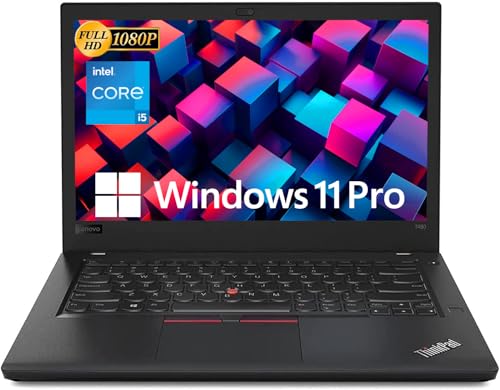
There is a reason the ThinkPad silhouette appears in so many faculty offices that it has become visual shorthand for serious work. The T14 Gen 4 continues that lineage with a 14-inch 1920×1200 display — the extra vertical pixels over older 1080p panels are not a luxury when your day is spent inside PDFs, because they translate directly into more visible lines of text before you scroll. The Core i5-1345U inside this configuration is a ten-core part that handles statistical packages, reference managers and a browser groaning under sixty tabs without the fans becoming a presence in a quiet reading room.
The keyboard remains the headline. ThinkPad key switches have a depth and tactility that make eight-hour writing days measurably less wearing, and the TrackPoint still earns its keep for scholars who annotate documents with the cursor parked between their hands. Around the edges you will find the port selection academia quietly depends on: USB-C with docking support, full-size HDMI for the seminar-room screen, USB-A for the clicker receiver and the encrypted drive your ethics board insists on, plus Ethernet on many configurations for the wired networks some departments still mandate.
Serviceability seals the recommendation. The T14 line is built to be opened, upgraded and repaired; memory and storage are not treated as sealed mysteries, and Lenovo’s business support channels understand institutional purchasing in a way consumer helplines rarely do. This listing is a renewed unit, which suits the academic market well — the model is recent enough that renewed stock typically means ex-corporate machines with gentle histories rather than tired hardware. For a PhD candidate buying once and expecting the machine to outlast the doctorate, this is the safest pair of hands in the guide.
- Display: 14-inch, 1920×1200
- Processor: Intel Core i5-1345U, 10 cores
- Memory and storage: 16GB RAM, 512GB SSD
- Operating system: Windows 11 Pro
- Condition note: commonly sold as a renewed listing
Strengths
- Keyboard feel that rewards long writing sessions day after day
- Port selection matched to real lecture halls and libraries
- Business-grade construction designed to be serviced, not discarded
Trade-offs
- The design is deliberately plain beside sleeker consumer rivals
- Renewed listings vary, so inspect battery health on arrival
- Speakers are adequate for calls, unremarkable for films
Best for: Researchers, lecturers and graduate students who write thousands of words weekly and want one machine for the whole degree or contract. Not suited for: Buyers who want a touchscreen-first device or the lightest possible bag.

Apple MacBook Air M2 — Best Battery Life
The MacBook Air M2 answers the academic day differently: by disappearing. It has no fan, so a library carrel stays silent; it wakes instantly when you open it between meetings; and its battery endurance is the benchmark the rest of this guide is quietly measured against. A scholar can teach a morning block, annotate readings through the afternoon and draft into the evening without performing the mental arithmetic of where the nearest socket is. For fieldwork and conference travel, that freedom compounds — one less charger ritual at airport gates and borrowed desks.
The 13-inch Liquid Retina display is bright and colour-accurate, which flatters scanned manuscripts and archival photographs, and the keyboard, while shallower than the ThinkPad’s, is precise and consistent across the deck. The M2 chip in this renewed configuration pairs with 8GB of memory and a 256GB SSD; that is enough for document-centred work, reference software and moderate data tasks, though scholars who run virtual machines or very large local datasets should think carefully about the ceiling, because nothing inside an Air can be upgraded later.
Two Thunderbolt ports are the honest limitation, and most academics will end up with a small hub in the bag — a modest tax. In exchange you get macOS, which many humanities departments treat as the default, tight integration with iPads used for handwritten annotation, and a machine whose resale and longevity record is well established. As a renewed purchase it is also one of the more rational ways into Apple hardware on a research budget: the design has no moving parts to wear, and the aluminium shell shrugs off the daily commute between office, archive and home.
- Display: 13.6-inch Liquid Retina
- Processor: Apple M2 chip
- Memory and storage: 8GB RAM, 256GB SSD
- Design: fanless, silent under document workloads
- Condition note: this listing is renewed
Strengths
- Endurance that comfortably spans a full teaching day
- Completely silent operation in libraries and seminars
- Excellent screen for reading scans and images closely
Trade-offs
- Only two ports, so a hub becomes near-mandatory
- Memory and storage are fixed at purchase forever
- Some specialist Windows-only research tools need workarounds
Best for: Scholars in Apple-friendly departments, heavy travellers, and anyone whose writing happens in quiet shared spaces. Not suited for: Users who need internal upgrades later or who rely on Windows-only laboratory software.

LG gram 14 — Best for Carrying Everywhere
Ask academics what their laptop weighs and many will answer with a sigh before a number. The gram 14 exists for them. At roughly a kilogram, it is the machine you forget is in the tote bag, which changes behaviour: you bring it to the archive instead of photographing pages on your phone, you carry it to the café between lectures, you take it home every night because there is no reason not to. For scholars split across campuses or commuting by train, that behavioural shift is worth more than any benchmark.
Remarkably, the lightness is not bought with fragility theatre. The gram line uses a magnesium alloy chassis that has passed military-grade durability testing, and LG fits a battery sized for long days rather than shrinking it to chase the weight figure. This configuration runs an Intel Core Ultra 5 (Series 2) processor with 16GB of memory and a 512GB SSD, which is modern, efficient hardware — more than sufficient for writing, slides, video calls and the moderate statistical work most disciplines involve, with AI-accelerated features available for the transcription and summarisation tools now creeping into research workflows.
The keyboard is the compromise to examine: key travel is shallower than the ThinkPad’s, and writers with heavy hands should try to test one before committing. The 14-inch display is sharp and bright, the webcam and microphones handle hybrid seminars gracefully, and the port selection is generous for something this thin, including full-size HDMI and USB-A alongside USB-C. If your academic life is measured in corridors walked rather than desks occupied, the gram is the pick that respects that reality.
- Display: 14-inch high-resolution panel
- Processor: Intel Core Ultra 5 (Series 2) 225H
- Memory and storage: 16GB RAM, 512GB SSD
- Weight: around one kilogram class
- Operating system: Windows 11 Home
Strengths
- Genuinely effortless to carry all day, every day
- Strong battery capacity despite the featherweight build
- Modern processor with headroom for new research tools
Trade-offs
- Keyboard travel will feel shallow to ThinkPad loyalists
- The chassis flexes more than business-class rivals
- Windows Home rather than Pro in this configuration
Best for: Commuting lecturers, conference regulars and multi-campus researchers who feel every gram by Friday. Not suited for: Writers who prioritise deep, mechanical-feeling key travel above all else.

Microsoft Surface Laptop 5 — Best Screen for Documents
The Surface Laptop 5 makes its academic case with geometry. Its 13.5-inch PixelSense touchscreen uses a 3:2 aspect ratio, taller than the widescreen panels elsewhere in this guide, and for document work that shape is quietly transformative: more of the journal article is visible at once, split-screen reading with notes beside the source feels less cramped, and marking up a PDF with a pen feels closer to paper proportions. Scholars who live in the read-annotate-draft loop will notice the difference within an hour.
Underneath, the 12th-generation Intel i5 configuration with 16GB of memory and a 512GB SSD covers the standard academic workload with room to spare, and the build quality is the most polished of the Windows machines here — a clean aluminium design that looks at home in a dean’s meeting. The keyboard is comfortable and quiet, the trackpad is excellent, and the touchscreen earns its place for anyone who signs forms, annotates slides or sketches diagrams during supervision meetings.
The compromises are port count and price history: you get USB-C and a single USB-A plus Microsoft’s proprietary charging connector, so presenters should keep an adapter in the bag. This renewed listing softens the cost argument considerably, bringing a premium-feeling machine into departmental-budget territory. For academics whose work is fundamentally about reading long documents carefully — law, literature, history, theology — the tall screen is not a gimmick but the feature, and the Surface is the most elegant way to get it.
- Display: 13.5-inch PixelSense touchscreen, 3:2 aspect ratio
- Processor: 12th-generation Intel Core i5
- Memory and storage: 16GB RAM, 512GB SSD
- Input: touchscreen with pen support
- Condition note: this listing is renewed
Strengths
- Tall screen shows more of every document you read
- Refined build and an excellent, quiet keyboard
- Touch and pen input suit annotation-heavy workflows
Trade-offs
- Slim port selection means adapters for older rooms
- Proprietary charger is one more cable to keep track of
- Glossy screen can reflect bright library lighting
Best for: Document-heavy disciplines and academics who annotate by hand on screen. Not suited for: Presenters who need every legacy connector built in, or buyers wanting a 15-inch canvas.
Lenovo IdeaPad Slim 3 — Best Value
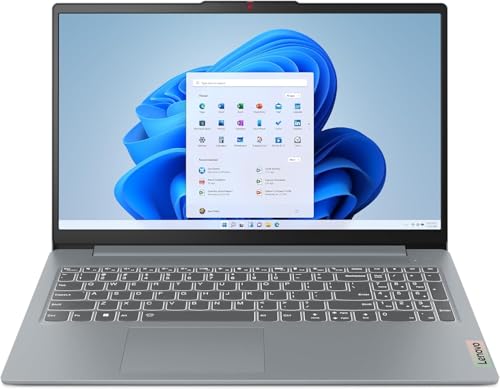
Not every academic purchase is funded like a flagship. The IdeaPad Slim 3 is the pick for the self-funded master’s student, the adjunct assembling a workable setup from several small budgets, or the department buying in quantity for a teaching lab. Its centrepiece is the AMD Ryzen 7 5825U, an eight-core processor that was a premium part not long ago and still chews through research workloads — data cleaning in R or Python, heavy spreadsheets, simultaneous documents and calls — with an ease that belies the machine’s modest positioning.
The 15.6-inch Full HD touchscreen gives you room to work with a source on one side and a draft on the other, a layout that smaller screens make painful. Sixteen gigabytes of memory and a 512GB SSD are the specifications that matter most for longevity, and both are present and correct here, which is not always true at this end of the market where manufacturers love to shave memory to hit a headline. The webcam is a basic 720p unit — fine for supervision calls, unflattering in poor light — and the chassis is plastic rather than aluminium, though it keeps the weight reasonable for a machine of this size.
Judged as a tool rather than an object of desire, the Slim 3 is easy to defend in a purchase justification: the money goes to processor, memory and storage, the three things that determine whether a laptop still feels adequate in year three. For academics whose alternative is an ageing hand-me-down from the department cupboard, it is a revelation; for those cross-shopping premium ultrabooks, it is the reminder that competence costs less than polish.
- Display: 15.6-inch Full HD touchscreen
- Processor: AMD Ryzen 7 5825U, 8 cores
- Memory and storage: 16GB RAM, 512GB SSD
- Connectivity: Wi-Fi 6, Bluetooth 5.2
- Operating system: Windows 11 Home
Strengths
- Eight-core performance that outlasts its price class
- Large touchscreen suits side-by-side reading and writing
- Memory and storage are properly sized from day one
Trade-offs
- Plastic build lacks the premium feel of rivals here
- 720p webcam is merely serviceable for video calls
- Battery life is good rather than class-leading
Best for: Budget-conscious graduate students and departments buying capable machines in number. Not suited for: Buyers who want aluminium construction or all-day battery away from sockets.

HP Pavilion 15 — Best for Heavy Multitasking
Some academic workloads are not about elegance at all; they are about sprawl. The systematic reviewer screening two thousand abstracts, the computational linguist with a corpus open beside three dictionaries, the economist whose spreadsheet references six others — these people need memory headroom and screen space, and this Pavilion 15 configuration supplies both in unusual abundance. With 32GB of RAM and a 1TB SSD in this listing, it carries the largest working set of any machine in the guide, which means fewer moments of the whole system pausing while it shuffles data to disk.
The Intel Core i7-1255U is an efficiency-minded processor, so the Pavilion is not a gaming or rendering machine wearing a business suit; its talent is breadth rather than peak speed. It will hold a reference manager with a decade of entries, a browser forest of tabs, a video call and a statistics package simultaneously without complaint — precisely the unglamorous multitasking that defines administrative and research-heavy academic roles. The 15.6-inch Full HD display, backlit keyboard and fingerprint reader round out a specification that reads like it was assembled by someone who has actually done committee work.
The trade-offs are the familiar Pavilion ones: the chassis is a consumer design rather than a business tank, and the machine is a desk-anchored 15-incher rather than a featherweight traveller. Battery life is respectable but not in the MacBook’s league. Treat it as the departmental desktop-replacement — the machine that lives on your office desk, drives an external monitor, and absorbs whatever administrative chaos the semester invents — and it is arguably the most practical purchase in this entire list.
- Display: 15.6-inch Full HD
- Processor: Intel Core i7-1255U
- Memory and storage: 32GB RAM, 1TB SSD
- Extras: fingerprint reader, backlit keyboard
- Operating system: Windows 11 Pro
Strengths
- Memory and storage headroom beyond anything else here
- Big screen suits sprawling, multi-window research work
- Windows Pro and a fingerprint reader fit institutional life
Trade-offs
- Consumer chassis rather than business-grade construction
- Too bulky to be an effortless daily carry
- Processor favours efficiency over peak burst speed
Best for: Researchers and administrators juggling huge reference libraries, datasets and document sprawl. Not suited for: Daily commuters who want the lightest bag, or anyone needing discrete graphics.
How Do the Best Academic Laptops Compare Side by Side?
| Laptop | Screen | Processor | Memory / Storage | Defining strength |
|---|---|---|---|---|
| Lenovo ThinkPad T14 Gen 4 | 14″ 1920×1200 | Core i5-1345U | 16GB / 512GB | Keyboard, ports, serviceability |
| Apple MacBook Air M2 | 13.6″ Liquid Retina | Apple M2 | 8GB / 256GB | Battery life and silence |
| LG gram 14 | 14″ high-resolution | Core Ultra 5 225H | 16GB / 512GB | Featherweight carry |
| Microsoft Surface Laptop 5 | 13.5″ 3:2 touchscreen | Core i5 (12th gen) | 16GB / 512GB | Tall document-friendly display |
| Lenovo IdeaPad Slim 3 | 15.6″ FHD touchscreen | Ryzen 7 5825U | 16GB / 512GB | Value and core count |
| HP Pavilion 15 | 15.6″ FHD | Core i7-1255U | 32GB / 1TB | Multitasking headroom |
What Should Academics Check Before Spending Grant Money?
Start with the warranty, because in academia the buyer and the user are often different people and the paperwork matters. A machine bought on a grant may need to be registered to the institution, insured under a university policy, or serviced through a specific channel. Business lines make this easy; consumer lines purchased renewed require a little more diligence — confirm the remaining coverage, register the serial number in your name or your department’s, and keep the invoice somewhere your future self can find during an audit.
Next, audit your software before your hardware. Does your discipline depend on a package that only runs on Windows — a statistics suite, an engineering tool, a laboratory driver? Does your university’s VPN or exam software support Apple silicon natively? These questions eliminate options faster than any benchmark, and they are free to answer. Similarly, check your institution’s minimum specifications if it publishes them; some IT departments require Windows Pro for domain and encryption policies, which quietly rules out otherwise attractive Home-edition machines for office use.
Then think about the three-year view. Memory is the specification that ages worst when skimped: 16GB is the sensible floor for research multitasking, and machines that cannot be upgraded should be bought with the memory your future workload needs, not your current one. Storage fills with scanned sources, datasets and recorded lectures faster than anyone predicts, so treat 512GB as the working minimum and plan an external drive or institutional cloud storage for archives. Finally, buy the keyboard, not the badge: if you can, spend ten minutes typing on a display model, because you will repeat that physical experience ten thousand times before the laptop retires.
How Do You Set Up a Laptop for Research Work?
Begin with accounts and encryption before installing anything enjoyable. Enable full-disk encryption, set up your institution’s backup system — not just a consumer cloud folder, but whatever your university actually restores from — and confirm that your reference manager’s library syncs to a location that is backed up. The single most common academic technology disaster is not a failed hard drive; it is a thesis that existed in exactly one place. Two independent copies, one of them off the machine, is the minimum standard your future self deserves.
Then build the reading environment. Calibrate your PDF workflow: a reader that supports annotation export, a reference manager whose cite-while-you-write plugin is properly linked to your word processor, and a folder convention you will still understand in eighteen months. Set up your video-call profile for teaching — camera at eye level on a stack of books if needed, a headset within reach, and your institution’s meeting software signed in before the first seminar, not during it. Finally, configure the unglamorous resilience settings: autosave intervals shortened in your writing software, version history enabled on your document folders, and a weekly reminder to export anything that lives only inside a proprietary app. An hour of setup in September prevents the worst week of your academic year.
Which Buying Mistakes Do Scholars Keep Making?
The classic error is buying for the workload you wish you had. A historian does not need a gaming GPU; a statistician does not need a colour-calibrated creator screen; and almost nobody needs the thinnest machine if it spends its life on one desk. Money spent on irrelevant spectacle is money not spent on memory, warranty or the external monitor that would actually change your working day. Write down the five programs you open daily and buy for those.
A second mistake is ignoring the return window on renewed purchases. Renewed machines are excellent value, but the sensible routine is to test everything in the first fortnight: run the battery down once, check every port, look for dead pixels, confirm the keyboard under real typing. Discovering a fault in week one is an exchange; discovering it in month four is an argument. Third, do not forget the ecosystem costs — the hub, the case, the second charger for the office — which can quietly add a fifth to the real price of port-poor ultrabooks. And finally, avoid buying at the semester’s start in a panic: the academics who pay most are those whose old laptop died the night before teaching began, which is an argument for replacing machines on your schedule, not theirs.
Final Recommendation
For most scholars, the ThinkPad T14 Gen 4 is the recommendation we would defend in a departmental meeting: it types beautifully, connects to everything, can be serviced by any competent IT desk, and asks for no compromises that matter to research work. Choose the MacBook Air M2 if battery freedom and silence define your days, the LG gram 14 if your campus is measured in miles, and the Surface Laptop 5 if your scholarship is fundamentally an act of close reading. The IdeaPad Slim 3 and Pavilion 15 cover the two honest budget shapes — value portability and maximum multitasking room — without pretending to be what they are not.
Whichever you choose, remember that an academic laptop is a long relationship, not a gadget cycle: pick the machine whose keyboard you can imagine trusting at 2 a.m. in the final week of a manuscript, because that is precisely when it will matter most. Set it up properly in its first week, back it up like you mean it, and it will repay you in the only currency academia truly trades in — uninterrupted hours of thought, term after term.
How Long Should an Academic Laptop Last, and When Is Replacement Due?
Plan on five years as the honest service life of a well-bought academic laptop, with a possible sixth if the battery is replaced and the workload stays document-centred. That horizon should shape the purchase: a machine bought at the start of a doctorate should still be credible at the viva, and a lecturer’s laptop should survive at least two full curriculum cycles. The six picks here were filtered with that lifespan in mind, which is why business construction and 16GB of memory recur throughout the list — those are the two attributes that most reliably predict a machine still feeling adequate in year four.
The warning signs that replacement is due are rarely dramatic. A battery that no longer covers a morning of teaching changes how you work long before it fails outright. A fan that runs constantly during ordinary writing signals cooling or software bloat worth investigating once, then accepting as age if it persists. Security support is the hard deadline: when a machine can no longer receive operating-system updates, it becomes a liability on a university network regardless of how well it still types, and institutional IT may disconnect it. Renewed purchases compress this timeline — a renewed machine’s support clock started at its original launch, not at your purchase — so factor the model’s age into the value calculation rather than treating the discount as free money.
There is also a budgeting rhythm worth adopting. Departments and self-funded scholars alike do better replacing laptops on a planned cycle, funded gradually, than in emergencies. An emergency purchase is always the worst purchase: no time to compare, no leverage on timing, and the old machine’s data migration done in a panic. If your current laptop is in year four and the battery is swelling, the fan is loud or the hinge is loose, the correct moment to buy its successor is this term, while the transfer can still be a calm afternoon’s work.
Which Details Separate a Reading Machine from a Merely Adequate One?
Academics underestimate how much of their working life is spent simply looking at text, and the display details that matter for that are not the ones gaming reviews celebrate. Brightness in the 300-nit class or above keeps documents legible in sunlit libraries and glass-walled seminar rooms. A matte or low-reflection finish matters more than glossy punch when your screen faces windows for eight hours. Resolution should be high enough that small footnotes render crisply without zooming — every pick here clears that bar, and the 16:10 and 3:2 panels clear it with extra vertical room to spare.
Eye comfort over long sessions is a system, not a single feature: a screen that dims smoothly for evening work, a keyboard backlight you can lower rather than merely switch off, and a hinge that holds the display at the angle your neck prefers. Pair the laptop with your chair and desk honestly — if you read at a library carrel with the machine flat, a taller panel helps; if you mostly work docked at an external monitor, the internal screen matters less and the port selection matters more. Several scholars also benefit from text-scaling settings being raised a notch: modern displays have pixels to spare, and trading a little density for larger, calmer type is a legitimate ergonomic choice rather than an admission of defeat.
Audio deserves one honest paragraph, because hybrid teaching made it a working tool. Built-in speakers on most laptops are tuned for intelligibility, not pleasure, and that is acceptable; what matters is microphone quality and noise handling on calls with students and collaborators. Every pick here handles video meetings competently, but if you record lectures or podcast-style material, budget for a USB microphone rather than expecting any laptop’s array to flatter your voice. It is the single cheapest upgrade to how professional you sound to your students.
How Do You Migrate a Research Life to a New Machine Without Losing a Week?
Migration done well takes an afternoon; done badly it haunts a semester. Start a week before the switch by inventorying what actually lives on the old machine: the documents folder, yes, but also the reference library database, browser bookmarks and saved logins, the email archive, any local datasets, and the licence keys or institutional installers for specialist software. Scholars routinely discover that a beloved tool was installed from a disc image emailed by a colleague in 2019; find those installers while the old machine still runs.
Move the data by copy, never by cut, and keep the old laptop intact and powered for at least a fortnight after the switch. Cloud sync handles documents gracefully, but verify the reference manager specifically: open the library on the new machine, confirm the attachment count matches, and test a cite-while-you-write insertion in a dummy document before trusting it in a real chapter. Re-authenticate your institutional accounts early, because university single-sign-on systems have a talent for demanding verification at the exact moment you are presenting. Finally, resist installing everything you ever used; a new machine is a rare chance to shed the accumulated software archaeology of the old one. Install what the current project needs, and let the rest wait until genuinely missed — most of it never will be.
How Should an Academic Desk Setup Grow Around the Laptop?
The laptop is the centre of the academic desk, but rarely the whole of it, and planning the surrounding setup at purchase time saves the familiar drawer of incompatible adapters. The highest-value addition for most scholars is a single external monitor in the 24-to-27-inch range, positioned so the laptop becomes the secondary screen for email and reference material while the monitor carries the main document. Every pick in this guide can drive such a display, though the route differs: the Windows business machines do it over HDMI or USB-C without fuss, the MacBook Air over one of its Thunderbolt ports, and the Surface through its USB-C port or Microsoft’s dock connector. If your office already has a monitor, check its inputs before ordering cables, because the difference between a five-minute setup and a week of returns is usually one connector nobody verified.
A USB-C dock is the second addition worth considering, particularly for scholars who move between office and home with the same machine. One cable on arrival gives you the monitor, a wired network connection, your backup drive and charging; one cable on departure takes it all away. That ritual matters more than it sounds, because the friction of reconnecting four cables twice a day quietly trains people to leave the laptop in one place, defeating the point of owning a portable machine. The business-oriented picks here — the ThinkPad above all — were designed with exactly this docking life in mind, and their USB-C ports support the full arrangement without adapters stacked on adapters.
Storage discipline completes the desk. An external drive dedicated to backup, large enough to hold the laptop’s entire contents twice over, should live permanently connected at the desk you use most, so backups happen by default rather than by intention. Interview recordings, scanned archives and dataset versions belong there or in institutional storage, not accumulating on the internal drive until it chokes. Scholars handling sensitive material — oral histories, patient-adjacent data, embargoed manuscripts — should keep that material encrypted at rest, a setting both Windows Pro machines and macOS make straightforward, and another quiet argument for the Pro-edition picks when the research involves other people’s confidences.
Finally, consider the humble peripherals that decide daily comfort: an external keyboard and mouse for desk work if your posture suffers, a laptop stand that raises the screen toward eye level, and a second charger that lives in the office so the one in your bag stays in your bag. None of these is glamorous, and together they cost less than the difference between two laptop tiers, yet they shape your working comfort more than any processor upgrade. Buy the laptop for the work; furnish the desk for the worker.
What About Security, Privacy and University IT Policies?
Academic laptops hold an unusual concentration of other people’s information: student records and grades, peer reviews written in confidence, examination questions before their time, interview transcripts promised anonymity. That makes security a professional obligation rather than a personal preference, and it should influence both the purchase and the setup. Full-disk encryption is the non-negotiable baseline — BitLocker on the Windows Pro machines in this guide, FileVault on the MacBook — because a laptop left in a taxi should be an inconvenience, not a reportable data breach.
Biometric sign-in, offered in some form by most of these picks through fingerprint readers or camera-based recognition, is worth enabling for a mundane reason: it makes the secure behaviour the easy behaviour. A scholar who unlocks with a finger fifty times a day keeps the machine locked the rest of the time; one who types a long password learns to set the lock timer to an hour and walk away from an open screen in a shared office. The same logic applies to keeping the operating system and browser updated promptly, since university networks are densely populated, mutually trusting environments — exactly the networks where one compromised machine can wander furthest.
Institutional policy adds a second layer. Many universities require endpoint management or specific VPN software for access to library resources and administrative systems, and a personally purchased machine that cannot run the required stack becomes a very elegant paperweight for work purposes. Before buying, a five-minute check of your IT department’s guidance for personal devices — minimum operating-system versions, required editions, supported platforms — prevents the most avoidable disappointment in academic computing. Renewed business machines often shine here precisely because they were built for managed fleets: Windows Pro, standard ports, predictable drivers and none of the consumer bloat that makes IT staff sigh when you describe your laptop over the phone.
Backups close the security picture, because ransomware and theft converge on the same defence: a current copy of your work that the incident cannot touch. Keep one backup physically separate from the laptop — the desk drive described above, institutional cloud storage, or both — and rehearse restoring a single file from it once, calmly, before the day you need to restore everything urgently. Scholars insure their houses and their health without thinking; the manuscript, the dataset and the gradebook deserve the same unglamorous prudence.
How Do You Vet a Renewed Listing Before Trusting It With a Thesis?
Several picks in this guide commonly sell renewed, and the category deserves a calm checklist rather than either fear or blind faith. Begin with the seller’s grading language: reputable renewed programmes describe cosmetic condition in tiers and, more importantly, describe functional testing — battery health thresholds, keyboard and port checks, a wiped and reimaged drive. A listing that cannot say what was tested has told you something. Prefer sellers who state a minimum battery capacity and a return window long enough to test the machine under your real workload, because a laptop can pass a benchmark and still misbehave under your particular combination of reference software and peripherals.
When the machine arrives, run a deliberate first-day inspection. Charge it fully, then use it on battery through a normal working morning and note where the gauge lands; a healthy renewed business laptop should behave predictably, not plummet. Open a blank document and type a paragraph on every row of the keyboard. Plug something into every port, connect to Wi-Fi and Bluetooth, join a short video call to test camera and microphones, and examine the screen against both a white and a black background for dead pixels and pressure marks. Check the serial number against the manufacturer’s warranty lookup so you know exactly what coverage, if any, remains and when the machine originally shipped.
None of this takes more than an hour, and it converts the renewed gamble into a renewed routine. The academic case for renewed hardware is strong — business laptops are built for fleets, serviced with available parts, and depreciated brutally by corporate replacement cycles that have nothing to do with remaining usefulness. A three-year-old ThinkPad discarded by a bank’s refresh policy may be a better thesis machine than a brand-new consumer laptop built to a price. The checklist above is simply how you make sure the specific unit in the box is one of the good ones, while the exchange window is still wide open.
Which Pick Fits Which Discipline?
Humanities scholars — historians, literary researchers, philosophers — live in text and archives. Their defining tools are the PDF, the scanned manuscript and the word processor, and their scarcest resource is undistracted reading time. The Surface Laptop 5’s tall screen and the MacBook Air’s silence and endurance serve this life best, and either will still be pleasant in the fifth year of a monograph. What humanists should not buy is processing spectacle; spend the difference on the larger storage tier or a genuinely good external monitor for the archive room.
Social scientists split two ways. Qualitative researchers — interviewers, ethnographers, case-study writers — resemble humanists with recording equipment attached, and should weight battery life, microphone-friendly quiet and storage for audio. Quantitative researchers live in datasets and statistical environments; for them the Pavilion’s memory headroom or the IdeaPad’s eight cores turn waiting into working, and a machine that holds a large dataset in memory without swapping is worth more than a slimmer silhouette. Both halves of the social sciences should confirm their statistics package’s platform support before choosing an operating system, because that single answer settles the Mac-versus-Windows question more honestly than any preference.
STEM researchers and engineers face the only genuinely hardware-led decision in this guide. If your work involves compiled code, simulation or instrument control, ask senior lab members what the group’s existing machines run, because compatibility with shared codebases and laboratory hardware outweighs individual taste. Many such groups standardise on Windows or Linux business machines, which points squarely at the ThinkPad, whose docking, ports and serviceability were designed for exactly those environments. If your computation happens on a cluster or in the cloud — increasingly the norm — the laptop becomes a terminal and a writing tool again, and the lighter picks return to contention.
Professional and clinical academics — law, medicine-adjacent fields, education, business — should weight institutional fit above everything. These are the fields where the laptop meets hospital-grade privacy expectations, court or client confidentiality, school safeguarding systems and strict IT policies. Windows Pro, encryption, a fingerprint reader and a warranty an institution recognises are the features that matter; the Pavilion and ThinkPad speak that language natively. And for teaching-focused academics whose classroom is the main stage, the humble virtues dominate: HDMI that works with the room’s projector first time, a battery that survives a double lecture, and a keyboard that can draft feedback at speed — which is to say, once again, buy for the Tuesday you actually have, not the sabbatical you imagine.
Frequently Asked Questions
Is 16GB of memory enough for doctoral research?
For the great majority of doctoral work — writing, reference management, web research, moderate statistics — yes, 16GB is comfortable and will remain so for years. The exceptions are scholars running virtual machines, very large in-memory datasets or heavy computational modelling, who should look at the Pavilion’s 32GB configuration or a workstation-class machine instead.
Are renewed laptops a sensible buy for academics?
They are often the most sensible buy of all, particularly business models like the ThinkPad, which were built for corporate fleets and serviced accordingly. The discipline is to buy from listings with clear grading and return terms, then test the machine thoroughly in the first two weeks — battery, ports, screen and keyboard — while an exchange is still painless.
Mac or Windows for university work?
Let your discipline’s software decide. Humanities and social sciences are well served by both; fields tied to Windows-only instruments, engineering packages or specific exam and VPN systems should default to Windows. Also check what your department’s IT support knows best — local expertise is a feature no spec sheet lists.
How much storage does a researcher really need?
Treat 512GB as the working floor. Scanned archives, recorded lectures and datasets accumulate silently, and a full drive slows everything. Pair the internal drive with institutional cloud storage or an external drive for completed projects, and reserve the internal space for what you are actively writing and analysing.
Does screen size or screen shape matter more for reading?
Shape, surprisingly often. A taller 3:2 or 16:10 display shows more lines of a document than a wider panel of similar diagonal size, which reduces scrolling through long papers. If you read PDFs for hours daily, prioritise vertical pixels and a matte or low-reflection finish over raw diagonal inches.
Should teaching staff prioritise a touchscreen?
Only if your teaching style uses one. Lecturers who annotate slides live, mark up student work on screen or demonstrate diagrams benefit genuinely from touch and pen input, which the Surface and the IdeaPad both provide. If your teaching is slides-and-speech, a touchscreen adds cost and a glossy screen without changing your classroom, and the money serves you better spent on battery capacity or warranty length.
What warranty should a grant-funded laptop have?
Aim for coverage that spans the funded period of the project, with accidental-damage protection if the machine travels. Confirm whether the warranty is registered to you or your institution, and whether your university’s own insurance already covers the device — paying twice for the same protection is a common and avoidable waste of grant funds.
Related Guides
Keep exploring the laptop shelf with our companion reading: best laptops for long battery life for scholars who measure days in seminars rather than sockets, best accessories for laptops to round out a research desk, and best lightweight laptops for travel if conference season dominates your calendar.
Related guides
- Best Acer Chromebook Laptops: 6 Picks for School, Work and Home
- Best 8th Generation Laptops: Renewed Business Machines That Still Earn Their Desk Space
- Best Acer Laptops: Aspire, Swift and Chromebook Picks for Work, Study and Travel
- Best Accessible Laptops: Easy-to-Read Screens, Forgiving Keyboards and Built-In Assistive Tools