What's inside
- Where to buy
- Key Takeaways
- Quick Picks
- How did we choose these 24-inch 1ms 144Hz monitors?
- Which 24-inch 1ms 144Hz monitors should you actually buy?
- How do the six picks stack up against the brief?
- What does “1ms” actually promise you?
- Why does the 24-inch size refuse to die?
- How do you get 144Hz running properly after unboxing?
- Which buying mistakes haunt this exact search?
- How much do cables and ports matter at 144Hz?
- Should your second screen match the first?
- What will you notice after a month that reviews never mention?
- How do you choose between meeting the brief and exceeding it?
- Is this class still worth buying as faster panels get cheaper?
- What about eye strain on long gaming days?
- Final Recommendation
- Frequently Asked Questions
- Related Guides
As an Amazon Associate I earn from qualifying purchases. This post may contain affiliate links at no extra cost to you.
gizmoverdict.com is reader-supported. When you buy through links on our site, we may earn an affiliate commission.
Where to buy
Few searches in the monitor world are as precise as the hunt for the best 24 1ms 144hz monitors, and that precision is exactly what makes the shopping treacherous. The buyer typing those words wants three things at once: a screen in the 24-inch class, a claimed one-millisecond response, and at least 144 refreshes per second. Each of those numbers hides a dialect. “24 inch” usually means a 23.8-inch panel wearing a rounded-up name. “1ms” can describe grey-to-grey transitions, a motion-blur measurement with backlight strobing, or a vendor’s most optimistic laboratory figure. And “144Hz” is sometimes the native rate, sometimes an overclock from 120Hz, and sometimes merely the floor that faster 180Hz panels pass on their way up. The best 24 1ms 144hz monitors are the ones whose paperwork survives being read closely, and this guide reads it closely for you: every pick states its real size class, its true native rate, and the method behind its response claim, so the monitor that arrives is the monitor you thought you ordered.
The six picks divide honestly into two families. Two are genuine 144Hz natives — one a modern IPS all-rounder, one the TN panel that defined competitive gaming for a generation. One reaches 144Hz only through a documented overclock from a 120Hz base, and we label it that way rather than letting the bigger number pose as the whole truth. The remaining three run at 180Hz natively and clear the 144Hz bar with room to breathe, included because a buyer asking for “at least this fast, this responsive, this size” deserves to see the panels that exceed the brief, priced against the ones that merely meet it.
Key Takeaways
- Read “1ms” as a family of measurements, not a single fact: GTG and MBR figures describe different tests and feel different in play.
- Two picks are true 144Hz natives, one reaches 144Hz by overclocking a 120Hz panel, and three overshoot to 180Hz natively.
- Nearly every “24-inch” monitor is really 23.8 inches of panel, which is the size competitive players actually prefer.
- TN survives in exactly one pick here, kept because its motion discipline at 144Hz remains a benchmark for pure esports use.
- At 1080p, holding 144 frames per second is within reach of modest graphics cards, which is why this class stays so popular.
- Stand quality varies more than panel quality in this tier; check height adjustment before assuming your neck will be fine.
Quick Picks
| Pick | Badge | Why it earns its place |
|---|---|---|
| LG UltraGear 24G414B | The brief, exactly met | A 24-inch IPS panel at a native 144Hz with a 1ms claim, HDR10 and both sync families in one tidy package. |
| BenQ ZOWIE XL2411P | The esports elder | The classic 24-inch TN 144Hz 1ms panel with Black eQualizer, still the reference point for disciplined competitive play. |
| LG UltraGear 24G411A | 144Hz by overclock | A 120Hz native IPS panel that overclocks to 144Hz, with a 1ms MBR mode — honest paperwork, lower entry cost. |
| Samsung Odyssey G3 24-inch | 180Hz with gaming tools | Overshoots to 180Hz with a 1ms claim, an adjustable stand, and Samsung’s Black Equalizer and Virtual Aim Point features. |
| AOC 24G4 | 180Hz value with warranty | Fast IPS at 180Hz and 1ms with HDR, modern ports, and a three-year warranty stated right in the listing. |
| Acer Nitro KG241Y | 180Hz, dual HDMI | A 23.8-inch 180Hz 1ms panel with FreeSync Premium and two HDMI ports for a PC-and-console corner. |
How did we choose these 24-inch 1ms 144Hz monitors?
We treated the keyword as a contract and audited every candidate against its three clauses separately. Size first: the panel had to sit in the 24-inch class, which in practice means 23.8 to 24.5 inches of actual screen; 27-inch panels that borrow the search term were excluded no matter how good they are. Response second: the listing itself had to carry a 1ms claim, and we noted which kind — GTG figures describe pixel transitions under test conditions, MBR figures describe a strobing mode that trades brightness for clarity, and confusing the two is how buyers end up disappointed by a monitor that did exactly what it promised. Refresh third: the panel had to reach 144Hz by a route we could state in one honest sentence, whether that sentence was “natively,” “by factory overclock,” or “it runs faster than that.”
Then we weighted the things the contract does not mention but ownership punishes. Adaptive sync had to be present, because a 144Hz panel without it tears visibly whenever a game cannot hold the rate. The stand had to at least tilt, with height adjustment earning real preference, since this size class is notorious for fixed furniture-grade stands. Ports were checked for the ability to carry the full rate — an older HDMI implementation can quietly become the ceiling — and panel type was treated as a genuine choice rather than a default: IPS for colour and angles, TN for the one pick where competitive tradition still justifies it. What survived is a list where every monitor can look the keyword in the eye, even if three of them answer it by exceeding it.
Which 24-inch 1ms 144Hz monitors should you actually buy?

LG UltraGear 24G414B — The brief, exactly met
If a friend described this search to a shopkeeper, the 24G414B is the monitor the shopkeeper should hand over. LG’s listing states the whole contract without decoration: a 24-inch UltraGear IPS panel at Full HD, a native 144Hz refresh, a 1ms response claim, G-Sync compatibility alongside FreeSync, and HDR10 support for the games and video that carry it. Nothing is overclocked, nothing is rounded into a neighbouring truth. In a category built on asterisks, a monitor that simply is what the search asked for has a quiet authority, and LG’s UltraGear tuning — motion handling that has been refined across several generations of exactly this panel class — backs the paperwork with behaviour.
The ownership details hold up under the same scrutiny. The stand adjusts for tilt and height, which sounds mundane until you have spent a month stacking books under a fixed monitor; here the screen meets your eyes where they are. A built-in speaker covers voice chat and video without a desk accessory, Reader Mode warms the picture for the document hours, and LG Switch software lets you adjust settings from the desktop instead of fencing with a joystick nub behind the bezel. HDR10 at this tier is a garnish rather than a main course, improving tone mapping without local dimming, but it costs you nothing and the games that flag HDR support look subtly richer for it.
Who should walk past it? Players who already know they want 180Hz and see no reason to stop at the brief, and buyers whose desk is really a workstation that games occasionally — the creator-leaning 24-inch panels elsewhere in our wider coverage serve that life better. For the search as typed, though, this is the answer with the fewest footnotes: native rate, claimed response, correct size, both sync families, and a stand that respects your posture. It is the pick we would buy for a first serious gaming desk without scheduling a follow-up purchase to fix it.
One more consideration works in this LG’s favour: resale and hand-me-down gravity. A monitor that matches the most-searched specification in its class is the easiest screen in the world to pass on, sell, or promote to second-screen duty when your ambitions grow, because the next buyer’s search is the same sentence you typed. Panels bought at the exotic edges of the market — odd sizes, unusual resolutions, proprietary quirks — tend to become e-waste with good specifications. The 24G414B will instead live three lives: your main screen, your second screen, and someone else’s first good monitor. Buying the canonical version of a thing is rarely the exciting choice, but in a class defined by a three-part contract, canonical is another word for correct.
- Panel: 24-inch IPS, 1920×1080
- Refresh: 144Hz native
- Response claim: 1ms
- Sync: G-Sync Compatible and FreeSync
- Extras: HDR10, built-in speaker, Reader Mode, tilt/height stand
Strengths
- Meets every clause of the brief natively, with no overclock required.
- Height adjustment included, sparing you the book-stack or an immediate arm purchase.
- Software-based settings control is a daily convenience most rivals skip.
Trade-offs
- Three rivals here run 180Hz for buyers who want headroom instead of exactness.
- HDR10 without local dimming is a modest effect, not showcase HDR.
- No USB hub, so laptop docks remain your own problem to solve.
Best for: players who want the search answered precisely, in one purchase, with nothing left to fix. Not suited for: players who have already decided 144Hz is their floor rather than their target.

BenQ ZOWIE XL2411P — The esports elder
The XL2411P is old enough to have a biography. BenQ’s ZOWIE line built its name on panels like this one — 24 inches of TN at 144Hz with a 1ms claim — at a time when that specification was the uniform of professional play, and the model’s longevity is itself a review: tournament desks kept choosing it long after prettier panels arrived. The TN technology is the reason and the compromise in one. Its pixel transitions are disciplined in a way that made fast IPS work hard to catch up, its Black eQualizer lifts shadow detail so opponents stop hiding in dark corners, and its colour and viewing angles are, by modern IPS standards, plainly from another era.
Living with that trade is a question of what your screen time looks like. If the monitor’s life is ninety percent competitive titles viewed straight-on from a gaming chair, the TN penalties barely exist — you are centred, the game is the picture, and the panel’s motion manners are impeccable. If the same desk hosts films watched from a bed, colour-sensitive hobbies, or a partner viewing from an angle, the panel’s narrow cone of happiness becomes a daily negotiation. ZOWIE’s design language doubles down on the focus: the styling is utilitarian, the feature set is pruned to what a player touches, and nothing about it pretends to be a lifestyle object.
We keep it in this guide deliberately, as the control sample. Every IPS pick here is, in part, a claim that the modern panel can match this elder’s discipline while beating its colour — and holding them against a known benchmark makes the guide honest. It is also genuinely the right buy for a certain reader: the purist whose favourite game is a decade old, whose settings are already tuned around Black eQualizer, and who views a monitor as sporting equipment rather than furniture. For that reader, newer is not better; proven is better, and nothing in this size class is more proven.
Its continued presence in our verified pool says something about the model’s supply chain as well as its reputation: listings for the XL2411P have persisted through several generations of successors, which means replacement units, community knowledge, and second-hand examples all remain easy to find. For a player whose settings, muscle memory, and even monitor-arm position are calibrated around this exact panel, that continuity is worth money — a forced change of screen mid-season is a competitive cost no specification sheet captures. Newer ZOWIE models exist with faster panels and extra features, and we make no claim that this elder outruns them; the claim is narrower. At 144Hz, in this size, with this shadow tool, the XL2411P remains a known quantity in a market full of confident strangers, and known quantities have kept winning tournaments for a decade.
- Panel: 24-inch TN, 1920×1080
- Refresh: 144Hz native
- Response claim: 1ms
- Signature feature: Black eQualizer shadow enhancement
- Class: long-running ZOWIE esports design
Strengths
- A competitive track record no newer panel can argue with.
- Black eQualizer remains a genuinely useful tool in dark game scenes.
- TN transitions at 144Hz set the discipline benchmark for the class.
Trade-offs
- Viewing angles and colour are visibly behind every IPS pick here.
- The design and feature set are from an earlier, more austere era.
- Buyers wanting HDR or modern creature comforts will find none.
Best for: competitive purists who treat the monitor as equipment and play straight-on. Not suited for: shared screens, film watching from angles, or colour-led hobbies.

LG UltraGear 24G411A — 144Hz by overclock
Here is the pick that tests whether you read listings or just numbers. LG’s title for the 24G411A states a 120Hz panel with a 1ms MBR claim, G-Sync compatibility, and — in plain text — “O/C 144Hz.” The monitor you unbox runs at 120Hz, and the 144Hz this search demands is a factory overclock you enable in the menu. We include it because that arrangement is legitimate, manufacturer-documented, and common at the affordable end of this class; we label it in the badge, the table, and this paragraph because a buyer who discovers the arrangement after delivery feels deceived even when the monitor performs exactly as specified. Forewarned, the same buyer gets a modern IPS gaming panel at the friendliest entry point in the guide.
The rest of the specification is thoroughly current. The IPS panel keeps colours and angles honest, HDR10 support is present, and the 1ms figure is an MBR — motion blur reduction — number, which describes the panel’s backlight-strobing clarity mode rather than a grey-to-grey transition. Strobing modes earn their keep in fast games, where they sharpen moving objects noticeably, at the cost of some brightness and an inability to run alongside variable refresh at the same time. Knowing that, you can use the monitor intelligently: strobing on for the competitive titles where you hold high frame rates, sync on for the variable ones. LG Switch software and a tilt stand complete a package aimed at buyers entering the class for the first time.
Judge it, then, as a doorway rather than a destination. A first gaming monitor that reaches 144Hz, wears IPS colour, and costs entry-level money is a rational purchase, and the overclock — being a documented mode rather than a hack — carries the manufacturer’s confidence with it. The readers who should skip it are those who know the menu toggle would annoy them every time a driver update resets it, and those whose budget already reaches the native-144Hz pick above. Everyone else can buy it with open eyes and get precisely, if a little procedurally, what the search promised.
There is a budget logic here that deserves to be stated kindly rather than as a warning. The money the 24G411A saves against its native-144Hz sibling is roughly the money that buys the monitor arm this class eventually wants, or the second-hand GPU upgrade that lifts a whole system into comfortable 144-frame territory. Spending the saving there, and accepting a menu toggle here, is not settling — it is allocating. The panel itself gives up nothing in colour, sync breadth, or build to earn its price; the compromise is concentrated entirely in that one procedural step between you and the top rate. Buyers who keep their setups for years and rarely touch settings after the first week will perform that step a handful of times in the monitor’s life. Priced per use, it may be the cheapest 144Hz in this guide.
- Panel: 24-inch IPS, 1920×1080
- Refresh: 120Hz native, 144Hz factory overclock
- Response claim: 1ms MBR (strobing mode)
- Sync: G-Sync Compatible and FreeSync
- Extras: HDR10, LG Switch software, tilt stand
Strengths
- The most accessible entry point to a current IPS panel in this class.
- The overclock is documented in the listing itself, not buried in a forum post.
- Strobing clarity mode is a real tool for fast, high-frame-rate titles.
Trade-offs
- 144Hz requires enabling the overclock; out of the box it is a 120Hz monitor.
- MBR strobing cannot run together with variable-refresh sync.
- The stand tilts only, so height adjustment means a mount later.
Best for: first-time buyers entering the class who accept a menu toggle as the price of admission. Not suited for: anyone who wants 144Hz to simply be the monitor’s resting state.

Samsung Odyssey G3 24-inch (G30D) — 180Hz with gaming tools
Samsung’s Odyssey G3 in its 24-inch form answers the search by walking past it: 180Hz native, a 1ms claim, and a suite of gaming features that read like a checklist written by someone who plays. Black Equalizer — Samsung’s spelling of the shadow-lifting idea — brightens dark scenes so campers lose their favourite corners. Virtual Aim Point overlays a crosshair at the panel level, useful in titles whose hardcore modes hide your reticle. Eye Saver Mode and flicker-free operation look after the other end of the session, the fourth hour when your eyes start paying for the first three. The stand adjusts properly, which in this class is never guaranteed, and AMD FreeSync keeps the picture composed when frame rates wander.
The panel technology deserves a word, because Odyssey G3 models in this generation use VA-family technology in many configurations, and VA has a personality: contrast is its gift, with blacks that IPS picks cannot match, while its response behaviour in the darkest transitions is its traditional weakness. Samsung’s gaming tuning has spent years sanding that weakness down, and for the mixed diet of games most people actually play — shooters one night, a moody RPG the next — the contrast dividend is visible every evening in a way spec sheets undersell. A dark game on this screen looks expensive. Buyers who play nothing but the fastest competitive titles at the highest level may still prefer the IPS discipline of the AOC or Acer below; buyers whose library has range will feel the G3’s strengths nightly.
Size is the final part of its pitch. At 24 inches it keeps a dual-monitor future open, fits the desks that 27-inch panels evict, and holds 1080p at a density where text stays respectable for the workday. It is, in short, the overshoot pick with the most personality: not merely faster than the brief, but equipped like it intends to be used hard, in the dark, for years.
Samsung’s ecosystem touches are worth a sentence for households already living in it: the Odyssey styling matches the company’s other gaming gear, and the on-screen menus will feel familiar to anyone who has driven a Samsung television. More substantively, the G3’s adjustable stand and its eye-comfort features make it the overshoot pick most likely to be forgiven by a parent, partner, or employer sharing the room — it can present itself as a sensible screen that happens to be very fast, rather than a piece of esports theatre. That dual citizenship matters at 24 inches, the size most likely to be bought for a teenager’s bedroom desk or a first flat, where the monitor must survive negotiations no specification can win. It games like a specialist and explains itself like a generalist, and that combination sells more monitors than any refresh figure.
- Panel: 24-inch class, 1920×1080
- Refresh: 180Hz native
- Response claim: 1ms
- Sync: AMD FreeSync
- Extras: Black Equalizer, Virtual Aim Point, Eye Saver Mode, adjustable stand
Strengths
- Contrast-rich picture that flatters dark games and films alike.
- Panel-level gaming tools that solve real annoyances, not brochure ones.
- A properly adjustable stand, still rarer than it should be here.
Trade-offs
- Dark-transition response is the class trait to test in your first week.
- Sync support headlines one family; check your GPU camp before ordering.
- Its gaming styling will not blend into a minimalist office desk.
Best for: players with a varied library who game in dim rooms and value contrast. Not suited for: single-game competitive specialists chasing the last word in transition speed.

AOC 24G4 — 180Hz value with warranty
AOC has built a quiet empire by reading the same contract this guide started with and simply honouring it at prices the big brands make you climb for. The 24G4 is a 24-inch Fast IPS panel at 180Hz with a 1ms claim and HDR support, connected by DisplayPort 1.4 and HDMI 2.0 — current standards, both of them, so the full rate is available over either cable you are likely to grab. Adaptive-Sync covers the variable-refresh requirement without tying you to one GPU family’s branding. And then the listing does something almost no rival bothers with: it states a three-year warranty in the title itself, which tells you how AOC expects this monitor’s life to go.
Fast IPS is the right technology story here. The “Fast” designation marks panels whose liquid-crystal formulation was tuned for transition speed, closing most of the historical gap to TN while keeping the colour and viewing angles that make a screen pleasant for everything else. On the 24G4 that translates to a monitor with no obvious weak hour in its day: ranked matches at night, documents in the morning, a film on Sunday, all from the same chair at the same settings. VESA mounting is present for the arm upgrade, an earphone output handles the wired-audio crowd, and the whole package has the unglamorous completeness of a product designed by people who answer support tickets.
If the LG 24G414B is the brief met exactly, the 24G4 is the brief met generously — a third more refresh than requested, modern ports, a warranty in writing — at the value end of the shelf where AOC lives. The compromises are the expected ones for the tier: no USB hub, a stand that covers the basics rather than delighting, and HDR that should be read as compatibility rather than spectacle. None of them touch the panel, and the panel is what you will look at for years. Value picks earn suspicion in most categories; this one earns it back with paperwork.
AOC’s support reputation is the unglamorous engine under this pick. A stated three-year warranty changes the relationship between a value brand and its buyer: the company is financially motivated for the panel to survive, and the buyer can skip the extended-warranty upsell that eats the saving at checkout. The 24G4 also benefits from being a global model sold under the same name in many markets, which means firmware, drivers, and troubleshooting threads are easy to find in the middle of the night — an underrated feature in every product category and doubly so in one where a settings question can look exactly like a hardware fault. Add the modern port selection and the Fast IPS panel, and the 24G4 becomes the pick we would recommend to a friend who asked for one monitor, no drama, and a receipt they could defend. It is the adult in a room full of extroverts.
- Panel: 24-inch Fast IPS, 1920×1080
- Refresh: 180Hz native
- Response claim: 1ms
- Sync: Adaptive-Sync
- Extras: HDR support, DP 1.4 and HDMI 2.0, VESA mount, 3-year warranty per listing
Strengths
- Current-standard ports on both inputs, so the full rate is never cable-gated.
- A stated three-year warranty is rare confidence at the value end.
- Fast IPS gives the day no weak hours, from matches to documents.
Trade-offs
- Stand and hub provision are basic; the budget went to the panel.
- HDR here means signal compatibility more than visual drama.
- Brand software ecosystems are thinner than LG’s or Samsung’s.
Best for: value hunters who still want the paperwork — ports, sync, warranty — to be complete. Not suited for: buyers who want a rich software suite and premium stand included.
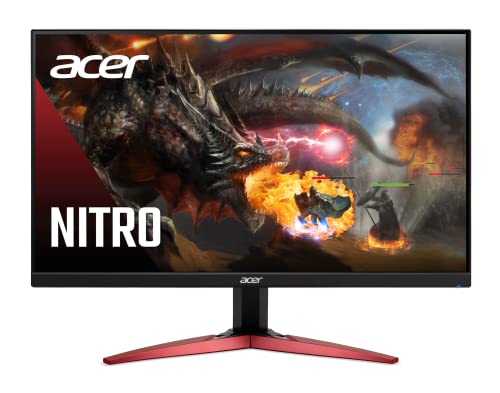
Acer Nitro KG241Y — 180Hz, dual HDMI
Acer’s KG241Y is the monitor for the corner of the room where a PC and a console share custody of one screen. Its headline numbers clear the brief comfortably — 23.8 inches of Full HD at 180Hz with a 1ms claim and FreeSync Premium — but the detail that organises its whole life is on the back: two HDMI ports alongside DisplayPort. The PC takes the DisplayPort, the console takes an HDMI and stays plugged in forever, and switching between them becomes a button press instead of a cable ritual performed behind a desk in the dark. Anyone who has shared a screen between machines knows that this unglamorous specification decides whether the sharing arrangement survives the month.
The panel itself is a straightforwardly capable Nitro: the 180Hz rate gives competitive titles their smoothness, FreeSync Premium adds low-framerate compensation so dips below the sync range stay graceful, and Acer’s flicker-less and blue-light filtering cover the long-session basics. VESA mounting is present for when the desk graduates to an arm. Colour and features are tuned for the tier — honest, game-first, without the creator pretensions or the flagship HDR claims that would inflate the price into a different conversation. It knows its job, which is to be the fast screen in a two-machine life.
Set against the AOC above it, the choice is about your inputs rather than your panel preferences: the 24G4 counters with newer port standards and the longer warranty, the KG241Y with the extra HDMI and Acer’s sync tier. Set against the brief itself, both overshoot to 180Hz, and the KG241Y is the one we’d install where a console lives. In a class where monitors are often bought twice — once for the spec, once for the desk reality — this one starts with the desk reality and still brings the spec.
The KG241Y also quietly solves the laptop problem that haunts this class. A work or school laptop that visits the desk can drive it over HDMI at respectable rates for desktop use, freeing the DisplayPort for the gaming machine permanently, so the daily docking ritual shrinks to one cable for power and one for picture. Students in shared houses, where the monitor is simultaneously a study screen, a gaming screen, and the room’s film screen via the console, get the most from this arrangement — three jobs, two cables, zero re-plugging. Acer’s Nitro line has always understood the multi-device reality of its buyers better than its gaming-first marketing admits. If your desk is a small country’s worth of competing machines, this is the pick designed by people who counted your inputs before they counted your frames.
- Panel: 23.8-inch, 1920×1080
- Refresh: 180Hz native
- Response claim: 1ms
- Sync: AMD FreeSync Premium
- Extras: 2× HDMI plus DisplayPort, VESA mountable, flicker-less design
Strengths
- Two HDMI ports make PC-and-console sharing a button press, not a chore.
- FreeSync Premium’s low-framerate compensation smooths the dips other panels show.
- 180Hz native clears the brief with headroom for future GPU upgrades.
Trade-offs
- No USB hub and a basics-first stand, as expected at this level.
- Console output caps at 120Hz, so the panel’s full rate is PC-only territory.
- Design is gamer-styled rather than office-neutral.
Best for: shared PC-and-console corners where both machines deserve a permanent cable. Not suited for: buyers who need a hub and height ceremony in one package.
How do the six picks stack up against the brief?
| Pick | Size class | Refresh truth | 1ms type | Panel |
|---|---|---|---|---|
| LG 24G414B | 24in | 144Hz native | 1ms claim | IPS |
| BenQ ZOWIE XL2411P | 24in | 144Hz native | 1ms claim | TN |
| LG 24G411A | 24in | 120Hz native, OC 144Hz | 1ms MBR | IPS |
| Samsung Odyssey G3 24in | 24in | 180Hz native | 1ms claim | Gaming VA-class |
| AOC 24G4 | 24in | 180Hz native | 1ms claim | Fast IPS |
| Acer Nitro KG241Y | 23.8in | 180Hz native | 1ms claim | IPS-class |
What does “1ms” actually promise you?
Less than the marketing hopes and more than the cynics admit. A response-time figure describes how quickly pixels change between shades under a specific test, and the two dialects in this guide measure different things. GTG — grey to grey — times transitions between mid-tones, which is most of what a moving image is. MBR — motion blur reduction — is not a transition time at all but a clarity mode that strobes the backlight so each frame is visible for a shorter slice of time, making motion look sharper while usually disabling variable refresh and trimming brightness. Neither number is a lie, but they are answers to different questions, and a buyer comparing a GTG claim against an MBR claim is comparing a sprinter’s time with a photographer’s shutter speed.
The practical translation is simpler than the metrology. At 144Hz each frame lasts about seven milliseconds, so a panel whose transitions genuinely complete in the low single digits keeps consecutive frames from bleeding into each other — that is the entire physical basis of motion clarity. Every pick here claims figures in that territory, and in play the differences between them are smaller than the differences made by refresh rate, sync behaviour, and your own settings. Treat 1ms as an entry ticket that this whole class legitimately holds, then choose on the honest variables: native rate, panel character, stand, ports, and price.
Why does the 24-inch size refuse to die?
Because it is the size the geometry of competitive play keeps choosing. At a normal desk distance a 24-inch 1080p screen places the whole scene — minimap, health, crosshair, corners — inside the part of your vision that reads detail without eye movement, while a 27-inch screen pushes the corners into territory your eyes must travel to check. The pixel density at 23.8 inches also keeps 1080p respectable, which matters for the hybrid desks where this monitor will spend its mornings. Add the practicalities — it fits small rooms, leaves space for a second screen later, and asks less of your graphics card than any larger, sharper alternative — and the class’s survival stops looking like nostalgia. It is not that players have failed to move on; it is that the target stopped moving.
The size has one more virtue that rarely makes the brochures: it is the easiest monitor to replace, match, or hand down. A 24-inch panel becomes a second screen the day its successor arrives, fits a sibling’s desk or a spare room without negotiation, and its VESA pattern and weight suit every arm ever made. Buying in this class is buying into the most liquid, best-understood corner of the entire monitor market, and there is a real comfort in owning the thing everyone else owns when something goes wrong at midnight before a tournament.
How do you get 144Hz running properly after unboxing?
The ritual is short and non-negotiable. Connect with the cable in the box to the port your manual blesses for full bandwidth — DisplayPort is the safe default for a gaming PC. Open your operating system’s display settings and select the refresh rate explicitly, because the default is rarely the maximum and a fast monitor at 60Hz is just an expensive rumour. Enable variable refresh in the GPU control panel, then open the monitor’s own menu and confirm the rate it reports receiving; the screen’s word outranks the computer’s optimism. If your pick is the overclocked LG, this is also when you enable the OC mode — and when you re-check it after any driver update, because mode resets are the tax this design charges.
In games, cap your frame rate a few frames under the panel’s ceiling when using variable refresh, turn off the game’s own vertical sync so the systems stop duelling, and spend one session in your most familiar title before judging anything. Motion clarity is a skill your eyes relearn; the second evening tells you more than the first hour. Finally, set the stand — or the books, or the arm — so the top of the screen sits near eye level. At this size class, more picture quality is lost to bad posture angles than to any specification on this page.
Which buying mistakes haunt this exact search?
The first is buying the number instead of the route: ordering a monitor whose 144Hz is an overclock or whose 1ms is a strobing mode, then feeling misled by facts that were printed in the listing all along. You are now vaccinated against that one. The second is port betrayal — connecting a capable panel through an elderly HDMI port or a mystery cable and never seeing the rate you paid for, a failure that masquerades as a mediocre monitor. The third is stand surprise: discovering at midnight that the screen does not adjust for height, in a class where that omission is common enough to be a genre convention. The fourth is panel mismatch with your life — a TN bought for a shared film-watching desk, or a contrast-rich VA bought for a single-minded esports grind — where the monitor is excellent and the marriage is wrong.
The fifth mistake is subtler: assuming 180Hz picks make the 144Hz natives obsolete. They do not. A native 144Hz panel with the right stand, ports, and sync for your desk beats a faster panel missing the feature you touch daily, every single week of ownership. Refresh rate is the specification you notice in the first hour of a game; ergonomics and connectivity are the specifications you notice for the next four years.
How much do cables and ports matter at 144Hz?
More than any other single accessory decision. A 144Hz 1080p signal is not exotic, but it does exceed what the oldest HDMI implementations were designed to carry, and a port or cable from the wrong era will cap the panel silently — no error message, no warning, just a monitor living at 60 or 75Hz while its owner praises its colour. The defence is procedural: use the cable supplied in the box, prefer DisplayPort for the gaming PC, and verify the received rate in the monitor’s own information screen after setup and after any hardware change. Every pick in this guide can carry its full rate over at least one of its inputs with an appropriate cable; the failures we hear about are almost never the monitor’s.
Consoles add one wrinkle worth knowing. Current consoles output up to 120Hz, and they negotiate with the monitor rather than demanding — a 144Hz or 180Hz panel simply runs at the console’s rate, with the headroom idle. That is why the dual-HDMI Acer earns its place despite the console never touching its ceiling: the convenience is in the permanent connection, not the rate. Buy cables for the machines you own, verify rates on the screen itself, and this entire category of disappointment closes.
Should your second screen match the first?
Most buyers of this class eventually add a second monitor, and the decision they make then is easier if the first purchase was made with it in mind. A matched pair — same model, same size — gives you identical colour, identical height, and a bezel seam that disappears from attention within a week, which is why our dual-monitor coverage recommends matched models so insistently. Choosing a 24-inch 144Hz panel today from a major line keeps that door open, because the same model tends to remain available long enough to buy its twin. Choosing an obscure or end-of-line panel closes the door quietly; the second screen will always be a near-match, and near-matches are the ones your eyes compare forever.
If a pair is already your plan, consider buying both while your chosen model is current, even if the second waits in its box for a desk upgrade — panel revisions drift over a model’s life, and twins bought together are the only guaranteed identical twins. The picks here, all from high-volume lines, are as safe as this strategy gets. It is one more reason the unglamorous centre of this market keeps winning: the ecosystem around a popular monitor is a feature, and it compounds.
What will you notice after a month that reviews never mention?
The desktop. Reviews test games, but owners live on desktops, and at 144Hz the ordinary computer becomes a different object: windows glide instead of hopping, scrolling text stays readable while it moves, and the mouse pointer stops feeling like it is being dragged through syrup. People who swore the upgrade was “for gaming” routinely report that going back to a 60Hz office screen is the moment they truly notice what they bought. The second unmentioned change is session length — eye comfort features and flicker-free backlights do not demo well, but they decide whether hour three of a session feels like hour one, and every pick here takes that engineering seriously.
The third change is subtler: your standards migrate. Footage, streams, and other people’s screens start to look like the past. That is the real cost of this class, and it is worth naming in a buying guide — once 144Hz is normal, every slower screen in your life becomes slightly annoying, including ones you do not own and cannot upgrade. Most owners consider it a bargain. All of them were warned here first.
How do you choose between meeting the brief and exceeding it?
Strip the badges away and the decision is about where your next upgrade dollar does the most work. If your graphics card is the weak organ in your system, the native-144Hz picks are the honest match: they ask for frames your card can already produce, and the money you do not spend overshooting the brief can go where frames are manufactured. If your card is strong and your monitor is the bottleneck — the common case for anyone who upgraded a GPU into an old 60Hz screen — the 180Hz picks convert that surplus into smoothness today and keep converting it when the next card arrives. Neither answer is the “smart” one in the abstract; each is smart for a specific desk, which is why this guide keeps both families on the same page and labels them plainly.
One tiebreaker settles most real arguments: count your hours. A screen used thirty hours a week repays small daily comforts — the height-adjustable stand, the extra HDMI, the software controls — far more reliably than it repays a refresh figure you reach only in your lightest games. Choose the pick whose advantages occur daily over the pick whose advantages occur at peak, and a month from now you will not remember this paragraph, because nothing about your desk will be reminding you of it.
Is this class still worth buying as faster panels get cheaper?
Yes, and the reason is the frame-rate economy rather than the sticker. A 240Hz panel is only as fast as the frames it is fed, and at 1080p the games and cards most people own cluster exactly around the rates this class serves. Buying far past your GPU’s output buys a ceiling you visit in menus; buying at the rate you sustain buys a floor you live on. The 144Hz class also benefits from a decade of manufacturing maturity — yields are high, prices are honest, and every brand’s best-understood engineering lives here. When the day comes that mid-range cards idle at 240 frames in new releases, this class will finally retire. That day is not today, and the monitors in this guide will still be serving as second screens when it arrives.
What about eye strain on long gaming days?
Refresh rate gets the glory, but the features that decide whether a long session ends comfortably are the quiet ones: flicker-free backlights, low-blue-light modes you can actually tolerate the colour of, and brightness that adjusts low enough for a dark room without crushing the picture. Every pick in this guide addresses the first two in its listing, and the honest test is personal — spend one long session in your real lighting, and if your eyes are fresher than they were on your old screen, the engineering is working. No monitor feature replaces breaks, distance, and a room light that is not a cave, but a panel that stops fighting your eyes is the difference between a hobby that tires you and one that restores you.
Final Recommendation
Buy the LG 24G414B if you want the search answered exactly as typed — native 144Hz, modern IPS, a stand that adjusts, nothing procedural. Buy the ZOWIE XL2411P if your desk is a sporting venue and its austere, proven discipline speaks your language. Buy the LG 24G411A to enter the class for the least money, eyes open about its overclock. Buy the Samsung G3 for dark games and contrast, the AOC 24G4 for the complete paperwork at a value price, and the Acer KG241Y where a console shares the screen. Whichever you choose, choose it for the route its numbers take — because in this class the monitors are all fast, and only the honest ones are fast in the way you expected.
Frequently Asked Questions
Is 144Hz noticeably better than 120Hz or 75Hz?
Against 75Hz, dramatically — motion gains a solidity that is visible within a minute of play. Against 120Hz the step is smaller but real, most apparent in fast camera movement and tracking. The larger truth is that each step matters less than the one before it, which is why this class at 144Hz remains the value sweet spot of high-refresh gaming years after faster panels arrived.
Can a budget graphics card hold 144 frames per second at 1080p?
In the competitive titles this class is bought for, generally yes, especially with sensible settings; those games are engineered to run on almost anything. In the newest cinematic releases, a budget card will land lower — and that is exactly what the variable-refresh sync on every pick here exists to smooth over, so the experience degrades gracefully instead of tearing.
Should I choose the TN panel or an IPS panel?
Choose TN only if your screen life is competitive gaming viewed straight-on and you value its proven transition discipline and shadow tools above colour. For everyone else — mixed gaming, media, work, shared viewing — IPS is the better ownership experience, and modern Fast IPS has narrowed the motion gap to a sliver. The XL2411P stays in this guide as a benchmark and a purist’s option, not the default.
Does the overclock on the LG 24G411A wear the panel out?
It is a manufacturer-documented mode printed in the product’s own title, designed and warrantied by LG as part of the product. Using a documented mode as directed is not comparable to forcing a panel beyond its specifications with third-party tools. If the toggle itself bothers you more than the saving pleases you, the native-144Hz pick exists precisely for that temperament.
Will a 24-inch monitor work as my only screen for work and play?
Comfortably, for most people. At 23.8 to 24 inches, 1080p text is tight enough for documents and code at a normal viewing distance, and the size keeps a second screen or a laptop beside it feasible on an ordinary desk. If your work is dominated by huge spreadsheets or multi-window research, a larger or sharper screen earns its keep — but that is a different search, and this class never claimed otherwise.
Why do three picks run at 180Hz in a 144Hz guide?
Because the honest answer to “at least 144Hz, 1ms, 24 inches” includes the panels that exceed it, and pretending otherwise would hide the market’s centre of gravity. The 180Hz models are labelled as overshoots everywhere they appear, their extra rate costs little in this tier, and variable refresh means the surplus is never wasted — it simply waits for your next graphics card.
A final practical note on brightness in this class: gaming panels are tuned for rooms, not cinemas, and their headline brightness figures assume a lit space. In a darkened room you will run any of these picks well below maximum, which is also where their contrast and colour behave best — one more reason the in-room test beats the spec sheet.
Related Guides
Continue around the fast, compact corner of the catalogue with our guides to the best 200Hz monitors and how they reach that rate, the best 24-inch monitors for mixed work and play, and the best 144Hz dual monitor pairs for a matched two-screen desk.


[…] exploring the fast end of the monitor shelf with our guides to the best 240Hz monitors for pure native speed, 1440p 144Hz monitors that balance sharpness and value, and the best 24-inch 1ms 144Hz monitors for […]