What's inside
- Where to buy
- Key Takeaways
- Quick Picks
- How did we choose screens for arms, walls and arrays?
- What does VESA actually standardise, and what does it leave to chance?
- Which mount type suits which room?
- How do you install a VESA-mounted monitor without regretting the holes?
- What mistakes do first-time mounters make?
- When does a mounted 23.8-inch screen belong in portrait?
- How do you plan a two- or three-screen mounted array from this size class?
- What do mounted screens do in kitchens, workshops and studios?
- How do you choose an arm or bracket without overbuying?
- What does a mounted screen change about everyday habits?
- How should renters and the drill-shy approach mounting?
- Final Recommendation
- Frequently Asked Questions
- Related Guides
As an Amazon Associate I earn from qualifying purchases. This post may contain affiliate links at no extra cost to you.
gizmoverdict.com is reader-supported. When you buy through links on our site, we may earn an affiliate commission.
Where to buy
Every linked name here opens an Amazon listing, letting you confirm the mounting pattern against the product photographs before you order. The best 23 inch monitors with vesa mounts are bought for what happens behind the panel rather than in front of it. Four threaded holes in a standard pattern turn a monitor from furniture into equipment: it can ride a desk arm above a clear surface, hang on a wall in a kitchen or workshop, join a multi-screen trading or coding array, or tilt in a kiosk corner. Without those holes, none of that future exists, and no adapter purchased later fully forgives their absence.
One piece of honest labelling must come first, because the whole category trades on it. Almost no current monitor measures exactly 23.0 inches. The screens sold into this class carry 23.8-inch panels — marketed variously as 23.8, as 24-inch class, or simply as 24 — and every pick in this guide is one of those 23.8-inch panels, stated openly in each entry. A true 23.0-inch monitor is now a legacy object; the living class, the one with current panels and current prices, is 23.8 inches wearing a 24-inch badge. Buyers who understand that sentence will read every listing in this category more accurately than the listings read themselves.
All six picks carry links because each one’s verified listing states its mounting provision in words — VESA mountable, VESA mounting, VESA mount, or VESA wall mount — rather than leaving the holes to be guessed from a silhouette. They divide into three gaming screens and three everyday screens, all Full HD IPS-class panels, which suits the mounted-monitor use cases well: arrays, arms and walls are overwhelmingly built at this size and resolution, and the mounting hardware ecosystem is deepest exactly here.
Key Takeaways
- Every pick is a 23.8-inch panel sold in the 24-inch class; that is the real size of this category today, and each entry says so.
- All six listings state VESA mounting explicitly, so none of these choices asks you to trust a photograph alone.
- Expect the 100×100mm pattern at this size, but confirm it and the screw depth before the arm or bracket arrives.
- Gaming picks from Acer and AOC bring 180–240Hz to mounted esports and sim-rig desks; BenQ, HP and ASUS picks serve mounted workspaces.
- Budget for the mount itself and check its weight rating against the panel without its stand.
Quick Picks
| Pick | Badge | Why it earns its place |
|---|---|---|
| Acer Nitro KG240Y 240Hz | Fastest on the wall | A 240Hz IPS panel with VESA mounting declared, ready for an arm-mounted competitive desk. |
| Acer Nitro KG241Y 180Hz | The mounted all-rounder | 180Hz, twin HDMI and a stated VESA pattern for gaming arrays that also do homework. |
| HP 24mh 23.8in IPS | The ergonomic mount candidate | Height adjustment on its own stand plus VESA mounting and speakers, for desks that may go either way. |
| BenQ GW2490 100Hz | The eye-care wall screen | Adaptive brightness and low-blue-light tuning in a thin-bezel panel that mounts cleanly for long shifts. |
| ASUS VA249QG 120Hz Eye Care | The frameless array member | Thin borders and a stated VESA wall mount make it a natural brick in a multi-screen wall. |
| AOC 24G4 180Hz | The warranty-backed gamer | Fast IPS at 180Hz with VESA mounting and a three-year warranty stated in its listing. |
How did we choose screens for arms, walls and arrays?
The first test was documentary, as it must be in a category defined by a physical feature. A pick needed its listing to state VESA mounting in plain terms — mountable, mounting, mount — because the entire purchase collapses if the holes are absent, and because monitor lines routinely include near-identical siblings that differ exactly there. Screens whose mounting provision could only be inferred from a rear photograph were excluded from the linked list, however attractive their panels. In this category, the sentence in the listing is the product.
Size honesty formed the second test. The guide names the real diagonal — 23.8 inches — wherever it matters, including the entries whose badges round upward. This is not pedantry about two-tenths of an inch; it is about the buyer’s mental model. A reader planning a three-screen array across a 120-centimetre desk needs true widths, and a reader replacing an old genuine 23-inch screen deserves to know the newcomer is slightly larger. Marketing rounds; guides should not.
The third lens was the mounted life itself. A screen destined for an arm or wall lives differently: its own stand becomes irrelevant or even a storage problem, its port placement decides whether cables can be reached after installation, and its bezel width decides how tight an array can pack. Thin-bezel designs earned credit for array work, downward- or rear-facing ports were weighed for wall installations, and built-in speakers gained value in kitchens and workshops where a mounted screen often works alone.
Finally, the list balances the two great mounted use cases. Gaming rigs — especially multi-screen and simulation setups — need refresh rate above all, and three picks serve them at 180Hz and 240Hz. Workspaces need comfort across long hours, and three picks serve them with eye-care tuning, speakers and calmer panels. A mounted monitor is a commitment measured in years and in holes drilled; the list respects both halves of that commitment.
What does VESA actually standardise, and what does it leave to chance?
VESA’s mounting interface standard specifies the pattern of four screw holes on the back of the display — at this size, almost always 100×100 millimetres, with 75×75 appearing on some smaller or older designs — plus the screw thread the bracket must use. That is genuinely all it guarantees, and knowing the boundary prevents the common disappointments. The standard does not promise that the pattern sits at the panel’s centre of gravity, that the holes are free of a decorative cover, that the stand detaches without tools, or that cables will clear the bracket once mounted.
Screw length is the detail that bites first-time mounters. The screws supplied with an arm or wall bracket must thread deeply enough to hold, yet a screw that is too long can damage components inside a thin panel. The professional habit is unglamorous: hand-thread each screw with the bracket off the wall, confirm it seats firmly without force, and only then commit the screen. Washers and spacers, often included with mounts, exist to tune exactly this fit around recessed mounting wells.
Weight is the second boundary. Mounts are rated for a load, and the figure that matters is the panel’s weight without its stand — usually listed in the full specifications rather than the marketing summary. A 23.8-inch panel is a light object by mounting standards, and almost any rated arm carries one easily, but dual- and triple-arm assemblies multiply the arithmetic, and the desk clamp at the bottom of the stack feels every gram. Add the weights before the array goes up, not after it begins to lean.
Finally, the standard says nothing about the screen’s own controls and ports after mounting. A wall-flush installation can entomb a rear joystick and the power socket behind drywall-adjacent darkness. Before choosing the flattest bracket in the shop, rehearse the reach: you will want the input button during the first week, the brightness control during the first sunny morning, and the cable well during the first device change. Mounts that tilt or extend a few centimetres buy that access back at trivial cost.
Which mount type suits which room?
The desk arm is the default answer for a single screen at a working desk. It returns the footprint of the stand to the desk surface, floats the panel at exactly your eye height, and lets the screen swing aside when the desk moonlights as a drawing board or a repair bench. Gas-spring arms make that movement one-handed; simpler pole arms ask for tools and patience but hold a fixed position with total indifference. For a 23.8-inch panel, either mechanism is comfortably within its strength, so choose by how often you truly move the screen — daily movers need the spring, yearly movers do not.
Wall mounts divide into flat, tilting and full-motion families. Flat brackets suit screens viewed from one fixed position — a kitchen recipe display, a workshop manual screen, a hallway information panel. Tilting brackets earn their keep wherever the screen sits above eye level, angling the face down toward its audience and cutting ceiling-light reflections. Full-motion arms, which extend and swivel, belong in rooms where the screen serves two seating positions in turn: a bed and a desk, a sofa and a dining table. Each added joint adds leverage against the wall fixing, so full-motion installations deserve the most careful stud-finding and bolt work of the three.
Multi-monitor stands and array brackets form the third family. A dual or triple mount imposes one geometry on all its screens, which is precisely what trading desks, coding arrays and simulation rigs want: matched heights, tight bezel gaps, a single clamp or grommet holding the whole assembly. The trade is independence — one screen cannot wander without its siblings’ consent — and a heavier negotiation with the desk’s thickness and material. Glass desks and array mounts should never meet; a solid top or a wall rail is the honest foundation.
Acer Nitro KG240Y 240Hz — Fastest on the wall
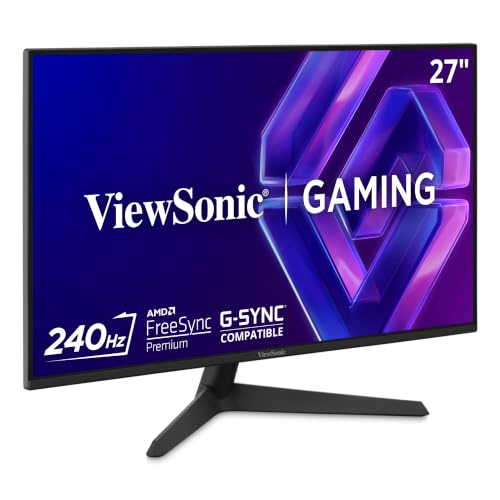
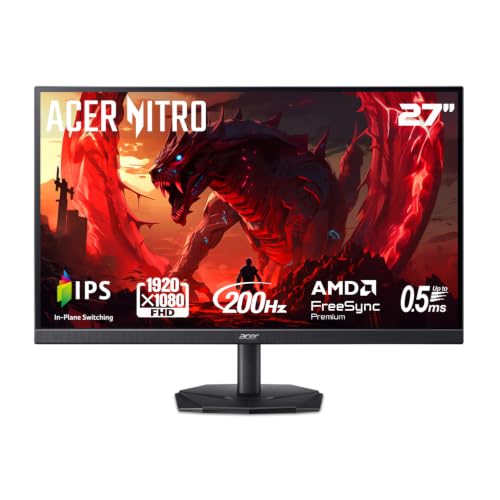
Competitive players mount their screens for a reason outsiders underestimate: the arm places the panel at the exact distance their aim was trained at, and removes the stand’s footprint from the mousepad’s territory. The KG240Y is the natural candidate for that treatment in this list. Its listing states VESA mounting alongside a 240Hz IPS panel, FreeSync Premium and two HDMI inputs plus DisplayPort, so the mounted screen loses nothing in translation — the PC rides DisplayPort at full pace while a console keeps an HDMI seat for the evenings.
On the arm, the panel’s character is all speed. A 23.8-inch 1080p IPS at 240Hz is the current competitive formula because motion clarity, not pixel count, is what tracking targets consumes, and mounting it at a repeatable distance turns a good panel into a consistent training instrument. The blue-light filtering and flicker-free backlighting named in the listing matter more than they appear to in this context: mounted tournament-style desks are used for long practice blocks, and comfort features decide whether hour four feels like hour one.
The caveats are the mounting life’s usual ones, sharpened by the gaming context. The stand you discard was tilt-only, so the arm is not an upgrade to an already ergonomic setup but the entire ergonomic plan — buy one with genuine height range. At 240Hz the cable run matters: route a quality DisplayPort lead with slack for the arm’s travel, because a cable at full stretch inside a moving arm is a fault scheduled for next month. Grant those two provisions and this is the mounted gaming pick with no ceiling in sight.
- Panel: 23.8-inch IPS, 1920×1080, 240Hz
- Mounting: VESA mountable, stated in listing
- Inputs: 2×HDMI and DisplayPort
- Sync and comfort: FreeSync Premium, flicker-free, blue-light filter
Strengths
- The highest refresh here, on a panel whose mounting is stated rather than implied.
- Dual HDMI keeps a console resident beside the mounted PC setup.
- IPS angles tolerate the slight off-axis positions arms sometimes settle into.
Trade-offs
- The discarded stand offered little, so the arm budget is effectively compulsory.
- 240Hz punishes long or poor-quality cable runs inside moving arms.
- Its pace is wasted on buyers whose games or hardware cannot feed it.
Best for: competitive players building an arm-mounted desk around one fast screen. Not suited for: quiet offices that would rather have speakers and eye-care than frames.
Acer Nitro KG241Y 180Hz — The mounted all-rounder
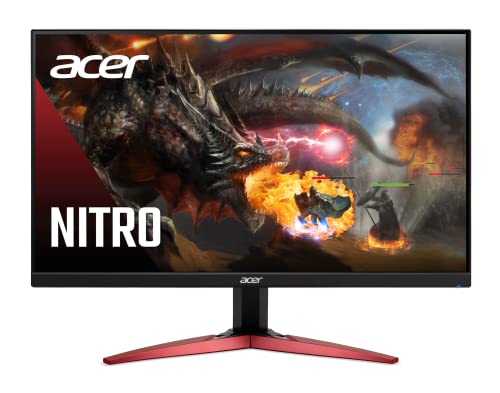
The KG241Y makes the same mounted argument at a calmer tempo, and for dual-purpose desks it may be the smarter purchase. The listing again declares VESA mounting, two HDMI inputs and DisplayPort, behind a 23.8-inch IPS panel at 180Hz with FreeSync Premium. Mounted on an arm, that combination covers the two lives of a bedroom desk — coursework and documents by day at a sensible eye height, fast games by night at the same height, because the arm does not care which master the screen is serving.
Arrays are where this model quietly excels. Two or three identical 180Hz panels on a shared mount produce a simulation or multitasking rig whose members match in colour, bezel and geometry — a consistency mixed panels never quite achieve — and the per-screen cost of that uniformity stays sane at this tier. The twin HDMI inputs even give each panel a spare seat for a shared console or a laptop that visits the array, turning the whole installation into a small switching hub rather than a fixed exhibit.
Its compromises echo its sibling’s at lower volume. The stock stand is a tilt design you will not miss, speakers are not the headline, and 180Hz, while brisk, concedes the last competitive increment to the 240Hz model above. For a mounted screen expected to work as hard as it plays, those are acceptable trades, and the money saved against the faster panel buys the better arm — which, in a mounted setup, is where money visibly improves every single day.
- Panel: 23.8-inch IPS, 1920×1080, 180Hz
- Mounting: VESA mountable, stated in listing
- Inputs: 2×HDMI and DisplayPort
- Sync and comfort: FreeSync Premium, flicker-free, blue-light filter
Strengths
- Uniform panels make matched dual and triple arrays affordable.
- 180Hz covers console high-frame modes and fast PC play alike.
- Mounting and dual HDMI are both declared in the listing text.
Trade-offs
- Not the ceiling for players who specifically train at 240Hz.
- Arm or bracket is a required companion purchase.
- Gaming styling follows it onto the wall.
Best for: arm-mounted dual-purpose desks and matched multi-screen gaming arrays. Not suited for: buyers wanting a complete out-of-box ergonomic stand instead of a mount.
HP 24mh 23.8in IPS — The ergonomic mount candidate
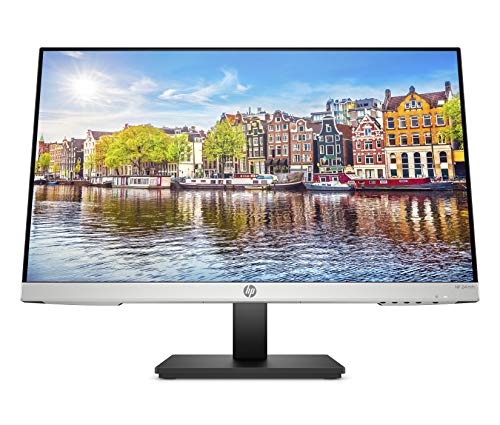
The HP 24mh occupies a position none of the other picks can: it is the screen to buy when you have not yet decided whether to mount at all. Its own stand already provides height and tilt adjustment — the ergonomic essentials most monitors in this class omit — and its listing separately confirms VESA mounting, built-in speakers, and HDMI plus DisplayPort inputs. Start it on the desk like a normal monitor; move it to an arm or a wall bracket the month the desk rearranges, without replacing the screen. That optionality is a genuine feature, and households whose rooms change often will use it.
As a mounted screen, the 24mh’s personality is domestic competence. The IPS panel’s angles suit kitchen and family-room walls where viewers stand off-axis, the speakers free a mounted installation from extra audio hardware, and the 75Hz-class everyday performance matches the documents, browsing and video that dominate mounted utility screens. In a workshop it shows the manual; in a kitchen it shows the recipe and the timer; in a spare room it becomes the tidy wall television for a streaming stick. None of these roles needs a gaming panel, and all of them need exactly the reliability this HP was built for.
The limits are refresh and flash. Players will find its pace ordinary, and its design language is office-calm rather than desk-jewellery. It is also the pick whose stand you might keep — which sounds like praise until the storage cupboard inherits a bulky stand the mounted screens’ owners discarded without regret. None of that dents the brief: this is the safest pair of hands in the list, mounted or not.
- Panel: 23.8-inch IPS, 1920×1080
- Mounting: VESA mounting confirmed in listing; height/tilt stand included
- Inputs: HDMI and DisplayPort
- Audio: built-in speakers
Strengths
- Height-adjustable stand and VESA holes together keep every future open.
- Speakers make solo wall installations in kitchens and workshops complete.
- Wide IPS angles suit standing, off-axis viewing.
Trade-offs
- Refresh performance is everyday-grade, not gaming-grade.
- Office styling will not excite a battlestation builder.
- A retained stand needs a storage home if you mount later.
Best for: undecided buyers and utility wall screens in kitchens, workshops and spare rooms. Not suited for: fast-paced gaming, mounted or otherwise.

BenQ GW2490 100Hz — The eye-care wall screen
Mounted screens often work the longest shifts of any in the house — the trading wall, the dispatch desk, the studio reference — and the GW2490 is built for exactly that endurance. BenQ’s listing pairs its VESA mount and thin bezels with the brand’s eye-care repertoire: low-blue-light tuning, adaptive brightness that follows the room, and a 100Hz IPS panel that keeps scrolling calm across a long document day. Hung on a wall or floated on an arm, it behaves like workplace infrastructure rather than a gadget, which is the highest praise a utility screen can earn.
Adaptive brightness deserves its paragraph, because mounted screens cannot be casually nudged away from reflections the way a desk monitor can. A wall screen near a window faces a daily light cycle it must survive unaided, and a panel that adjusts its own output across that cycle spares its owner the twice-daily brightness negotiation. Combined with the thin bezels — which let two or three GW2490s tile into a near-continuous information wall — the design reads as if BenQ anticipated the mount from the first sketch.
The gaming ceiling is the honest cost: 100Hz with no sync branding will serve casual play but not competitive ambition, and the speakers are tuned for voices and calls rather than cinema. Buyers whose mounted screen is a games display should take an Acer. Buyers whose mounted screen must be stared at for eight working hours should take this BenQ and never think about it again, which is exactly the relationship infrastructure should offer.
- Panel: 24-inch-class (23.8-inch) IPS, 1920×1080, 100Hz
- Mounting: VESA mount stated in listing; thin bezels for tiling
- Inputs: two HDMI ports and DisplayPort
- Comfort: eye-care technology, low blue light, adaptive brightness, speakers
Strengths
- Adaptive brightness suits wall positions exposed to changing daylight.
- Thin bezels tile into clean multi-screen information walls.
- Dual HDMI lets a mounted work screen host a second machine permanently.
Trade-offs
- No gaming sync provisions beyond its 100Hz pace.
- Speakers serve speech better than entertainment.
- Calm design offers little visual drama on a feature wall.
Best for: mounted workstations, information walls and long-shift desks. Not suited for: competitive players or film-led wall installations.

ASUS VA249QG 120Hz Eye Care — The frameless array member
ASUS describes this panel as frameless, and in the mounted context that word does real work. Three VA249QGs on a triple mount present an almost unbroken field of pixels, because the borders that would otherwise stripe the array have been designed down to slivers. The listing backs the array ambition with a stated VESA wall mount, a 120Hz IPS panel, Adaptive-Sync, speakers and ASUS’s eye-care suite — a specification that seems drawn up by someone who had seen a trading desk or a sim rig and taken notes.
The 120Hz rate is the interesting middle path of this list. It doubles the office standard, flatters everyday motion and casual gaming noticeably, and stops short of esports pricing — a balance that suits arrays, where every per-screen extravagance is multiplied by three. Eye-care features scale the same way: low blue light and flicker-free operation matter most to the people who sit before a wall of these screens for entire working days, and ASUS has been refining that suite across many generations of office panels.
Reservations are modest and specific. The single HDMI-plus-DisplayPort-plus-VGA input set is adequate per screen but less generous than the Acer twins’ arrangement when a laptop wants a seat at the array. The frameless design also demands gentle handling during installation — thin-bezel panels should be lifted by their backs, never squeezed by their faces, while the mount is aligned. Treat it carefully for one afternoon and it will hold an array’s geometry for years.
- Panel: 24-inch-class (23.8-inch) IPS, 1920×1080, 120Hz
- Mounting: VESA wall mount stated in listing; frameless design
- Inputs: HDMI, DisplayPort and VGA
- Comfort: eye care, low blue light, flicker-free, speakers, Adaptive-Sync
Strengths
- Frameless borders make the tightest multi-screen arrays in this list.
- 120Hz lifts motion above office standard without esports pricing.
- Eye-care suite suits full-day array work.
Trade-offs
- One HDMI per screen limits guest devices at the array.
- Thin-bezel construction needs careful handling while mounting.
- Speakers are per-screen conveniences, not an audio plan.
Best for: triple-screen arrays for trading, coding and simulation on a sane budget. Not suited for: a single-screen buyer who needs multiple HDMI seats.

AOC 24G4 180Hz — The warranty-backed gamer
AOC’s 24G4 brings a fast-IPS 180Hz panel to the mounted gaming desk with an unusually reassuring footnote: its listing states a three-year warranty alongside the VESA mount. Warranty length rarely decides a monitor purchase, but a mounted installation changes the calculus — the screen will be handled, bolted and cabled into a rig you intend to keep — and a manufacturer willing to stand behind the panel for three years is telling you something about its expected service life inside exactly such rigs.
The rest of the specification is the modern fast-1080p recipe executed completely: Fast IPS for motion clarity with viewing angles intact, HDR support, DisplayPort 1.4 and HDMI 2.0 inputs, an earphone output for the headset that gaming desks accumulate. Mounted on an arm above a racing wheel or floated beside a main display as the dedicated competitive screen, the 24G4 has the pace and the port set to justify its place permanently rather than as a placeholder.
Its compromises are concentration rather than breadth: a single HDMI input means the console competes with the laptop for one seat, and the design speaks fluent gaming-monitor, with angles and accents that a minimalist office wall may not welcome. Buyers choosing between this and the KG241Y are really choosing between AOC’s warranty-and-DisplayPort emphasis and Acer’s extra HDMI seat. Both answers are defensible; the mounted gamer who values the longer guarantee will not regret this one.
- Panel: 24-inch-class (23.8-inch) Fast IPS, 1920×1080, 180Hz
- Mounting: VESA mount stated in listing
- Inputs: DisplayPort 1.4, HDMI 2.0, earphone output
- Assurance: three-year warranty stated in listing
Strengths
- Fast IPS motion with IPS angles, ready for arm or rig mounting.
- Three-year warranty suits a permanent installation.
- DisplayPort 1.4 gives the PC input full headroom.
Trade-offs
- A single HDMI seat limits console-plus-laptop sharing.
- Gaming design language is assertive for calm rooms.
- No speakers mentioned, so audio needs its own plan.
Best for: mounted gaming rigs and sim setups planning a long service life. Not suited for: shared desks needing two HDMI seats, or silent-office aesthetics.
How do you install a VESA-mounted monitor without regretting the holes?
Measure twice with the screen’s real dimensions, not its class name. A 23.8-inch panel’s width is a physical fact around 54 centimetres for most of these designs, and arrays multiply it; mark the full footprint on the wall or desk with painter’s tape and live with the tape for a day before drilling anything. Tape reveals the sight-line problems — the screen edge that catches the door swing, the corner that swallows the window light — while the cost of discovery is still zero.
Find the structure before you find the bracket. Wall studs, a solid desk core, or masonry with proper anchors are the foundation every mount assumes; plasterboard alone, or a hollow-core desk top, will eventually present the bill. If the wall cannot be trusted, a desk-clamp arm on a solid top or a floor-standing mount relocates the problem to furniture you can verify. The bracket’s own rating is the second half of the foundation: choose one rated comfortably above the panel’s stand-free weight, and for arms, confirm the tilt mechanism holds a screen at the lighter end of its range without drifting downward overnight.
Cable the installation as if it were permanent, because it is. Route power and video leads with enough slack for the mount’s full travel, secure them along the arm or wall channel so their weight never hangs from the connectors, and leave one service loop — a gentle coil of spare length — behind the panel. The service loop is what lets you pull the screen forward in two years to change a cable without dismantling the wall. Every professional installation has one; every regretted installation wishes it did.
Finish with the unglamorous checks. Level the screen with a real level rather than by eye, because a two-degree tilt becomes more visible every day it hangs. Tighten tilt joints a quarter-turn past comfortable, then re-check them after a week of thermal cycles and small vibrations. Photograph the finished cabling before the desk goes back — the photograph becomes the map for every future change, and maps are what separate installations from accumulations.
What mistakes do first-time mounters make?
Assuming the pattern is the whole story leads the list. Buyers order a bracket labelled with the right hole spacing and discover a recessed mounting well their bracket’s plate cannot enter, a stand that needs a specific tool to release, or a cable well that the mounted plate now covers. Read the monitor’s manual section on mounting before ordering the hardware; five minutes there replaces a week of returns.
Discarding the stand and its screws on installation day is the second classic. Circumstances change — desks move, arrays dissolve, screens get sold — and a monitor without its stand is a monitor with a diminished future. Box the stand, tape its screws to it in a labelled bag, and store the pair where you keep such things. The same discipline applies to the VESA hole covers some panels ship with, tiny plastic parts that are free today and mysteriously unobtainable in three years.
Third, mounting before the desk is finished. The arm’s perfect height depends on the chair, the keyboard tray and the final desk surface, and installations done before the furniture settles get drilled twice. Live with the screen on its stand for the first fortnight if the room is still evolving; the holes will keep, and the second measurement is always wiser than the first.
Finally, forgetting the audience geometry of shared rooms. A kitchen screen mounted for a standing cook is too high for seated children; a workshop screen angled for the bench cannot be read from the door. Name the primary viewer and the primary posture before choosing height and tilt, and let secondary viewers accept the compromise knowingly rather than discovering it at eye level — literally — after the bolts are in.
When does a mounted 23.8-inch screen belong in portrait?
Rotate one of these panels ninety degrees and it becomes a document tower: a full page of text at readable size, a code file with its whole function in view, a chat and email column that never competes with the main screen. Portrait is the mounted life’s most underpriced trick, because it costs nothing beyond an arm or mount that allows rotation — yet it changes what the second screen in a setup is for. The candidates here, all IPS-class, hold their colours and contrast when rotated, which is precisely why IPS dominates this list; older panel technologies shifted colour so noticeably in portrait that the orientation stayed a curiosity.
Not every mount permits the turn. Fixed wall brackets obviously forbid it, and some arms rotate only with tools and persuasion. If portrait is even a possibility in your future, choose the mount for it now: a rotating head with a positive stop at both orientations, and enough height range that the tall screen’s centre can sit at eye level rather than towering. Check also that the panel’s cables exit where rotation will not pinch them against the arm through the turn — a rehearsal rotation, cables loose, before final tightening.
Portrait suits a defined constituency: writers and editors living in documents, programmers whose files run long, social and communications workers whose feeds are vertical rivers, and readers of sheet music and technical drawings. It suits nobody whose main content is video or games. The beauty of the mounted life is that the question need not be answered forever — an arm lets the screen spend the writing morning in portrait and the film evening in landscape, and owners of rotating mounts genuinely use both, which is more than can be said for most adjustable features.
How do you plan a two- or three-screen mounted array from this size class?
Start with the desk’s honest width and the chair’s honest position. Three 23.8-inch panels span roughly 165 centimetres before curvature of arrangement, which fits a 180-centimetre desk regally and a 140-centimetre desk not at all. Two panels span about 110 centimetres and fit almost anywhere, which is why dual arrays of this size are the workhorse of home trading and coding desks. Mark the spans in tape, sit in the chair, and check that the outer edges fall inside comfortable head-turn range; an array you must lean to read is a smaller array wearing a costume.
Decide the array’s geometry before its hardware. A flat line of screens suits reference walls and trading rows watched from a slight distance; a gentle arc, with side panels angled inward, suits one seated user who reads all three. The arc is kinder to eyes and neck, the line is kinder to shared viewing and to cameras filming the desk. Mounts enforce the decision — a triple arm arcs naturally, a wall rail lines up naturally — so let the geometry choose the hardware family rather than the reverse.
Match the panels, in model where the budget allows. Identical screens align in height without shims, share colour behaviour closely enough that one calibration session serves all, and present bezels of equal width at every seam. Where budgets force a mix, put the best panel in the centre and the older screens on the wings, and accept a calibration evening as the price. The picks in this guide were partly chosen for array manners: the frameless ASUS for tight seams, the BenQ for matched eye-care rows, the Acers for identical gaming panels across a sim rig.
Power and signal planning finish the job. One quality power strip, mounted under the desk or behind the wall channel, feeding every panel; one cable path per screen, labelled at both ends; and a switching plan for the laptop or second machine that will inevitably want visiting rights to the array. Arrays fail socially when a guest device cannot join without dismantling the geometry, so leave one accessible input on the centre screen free if you can. The array that welcomes a visitor in thirty seconds gets used by the whole household; the sealed array becomes one person’s monument.
What do mounted screens do in kitchens, workshops and studios?
The kitchen screen is the mounted life’s most charming citizen: recipes at eye height above the worktop, timers and video calls with family while hands are floury, a small film for the cook during the long simmer. It wants speakers — the HP’s built-in pair earns its keep here — a tilt mount that angles the face down from its high perch, and a healthy distance from steam and splash, because no consumer panel is sealed against a boiling kettle’s weather. Position it on the wall the cook faces, not the wall behind, and the kitchen gains a citizen rather than a television’s echo.
Workshops ask for durability of arrangement rather than of the panel itself. A screen above the bench showing manuals, measurements and cut lists must survive being ignored for weeks and consulted with dusty hands, so the mount matters more than the specification: a firm tilting bracket, cables armoured in a channel against the bench’s traffic, and a brightness reserve for a bright garage door’s daylight. The BenQ’s adaptive brightness was designed for offices, but it is in workshops that the feature stops sounding like marketing.
Studios and streamers use this size class as the utility fleet: chat screens, teleprompter panels, reference monitors floated beside the main display. Here the mount’s adjustability is the product, because studio geometry changes with every project, and a screen on a good arm redeploys in seconds while a screen on a stand carries its footprint like luggage. The common thread across all three rooms is that the panel’s specification sheet mattered less than its placement — which is, in one sentence, the entire philosophy of buying a monitor for its mounting holes.
How do you choose an arm or bracket without overbuying?
Begin with the two numbers that cannot be negotiated: the panel’s weight without its stand, and the distance the screen must travel from its parked position to your eyes. An arm rated for the weight with headroom, whose reach covers that distance with a few centimetres spare, is ninety percent of the correct purchase. Everything else — cable channels in the arm, quick-release plates, USB pass-through — is convenience priced accordingly, and convenience should be bought only after the two numbers are satisfied.
Mechanism follows habit. Gas-spring arms reward people who move the screen daily — between sitting and standing desks, between work and drawing, between users of different heights sharing one desk. Pole-and-clamp arms reward people who set a position and defend it for a year; they are cheaper, stiffer, and entirely honest about their intentions. Wall brackets reward rooms where the desk itself should not carry the screen at all. The overbuying mistake is purchasing the spring arm’s choreography for a screen that will move twice a year; the underbuying mistake is the reverse, and it is the more expensive one, because a stiff arm on a shared desk gets replaced.
Desk clamps deserve a sceptical minute. The clamp transfers the entire assembly’s leverage into a few square centimetres of desk edge, so the desk’s material and thickness are part of the mount whether the box mentions them or not. Solid wood and quality laminate shrug this off; thin hollow-core tops flex and eventually crack at the clamp. A through-bolt or grommet mount spreads the load for fragile tops, and a wall rail removes the desk from the equation entirely. Match the foundation to the furniture you actually own, not the furniture in the product photograph.
Finally, buy the mount from a maker who sells spare parts. Tilt joints wear, springs age, and a proprietary clamp lost in a house move can orphan an otherwise perfect arm. Makers who list replacement plates, bolts and arms treat the mount as equipment with a service life — the same philosophy that made you choose a monitor with standard holes in its back. Standards and spares are the two halves of buying once.
Can a mounted monitor still work as a normal desk monitor later?
Completely, provided you kept the stand — which is why this guide nags about boxing it with its screws taped in a labelled bag. A VESA-mounted panel is a normal monitor that happens to be travelling; the holes harm nothing, the stand reattaches in minutes, and the screen’s second life on a spare-room desk or a child’s homework table proceeds exactly as if the wall years had never happened. This reversibility is the category’s quiet financial virtue: unlike a built-in or a glued solution, a mounted setup can be unmade without loss, and every component — screen, arm, bracket — can begin again in a different room.
What does a mounted screen change about everyday habits?
The first change is the desk surface itself, which returns to you like a room you forgot you owned. The footprint of a stand — a surprising twenty centimetres of depth on many designs — becomes notebook space, keyboard travel room, or simply emptiness, and emptiness on a desk has a measurable effect on the work done there. Papers spread where the stand forbade them; the keyboard slides forward for drawing and back for typing; the desk stops being a parking arrangement for equipment and becomes a surface again. Owners consistently rank this reclaimed territory alongside the ergonomic gains, and both arrive from the same four holes.
The second change is cleaning and maintenance, the least glamorous benefit ever recorded and among the most real. A floating screen can be swung aside to dust the desk’s back edge — territory that, behind a standing monitor, often goes untouched for the life of the setup — and the wall-mounted screen removes the dust shelf entirely. Cables in a managed channel stop migrating into the footwell. None of this will appear in an advertisement, and all of it compounds quietly across the years a mounted installation typically serves.
The third change is social. A screen on an arm can turn — toward a colleague’s chair for a review, toward the sofa for a photograph slideshow, toward the room for a video call that includes the family. Standing monitors face one direction with furniture’s finality; mounted monitors participate. In shared rooms that participation decides whether the screen is the household’s or merely housed by it, and it is the reason so many first-time mounters, asked a year later, struggle to name a downside beyond the afternoon the drilling took.
How should renters and the drill-shy approach mounting?
Renting does not exile you from the mounted life; it merely promotes the desk arm from an option to the answer. A clamp arm leaves the wall untouched, moves house in the same box as the monitor, and delivers nearly all the ergonomic benefit — the only sacrifice is the true wall-hung look and the floor-to-ceiling freedom of placement. Renters who fall in love with the floating desk lose nothing when the lease ends, which cannot be said of any solution involving a drill and a deposit.
Where drilling is permitted but anxiety is high, the rehearsal is everything. Tape the footprint, live with it, then drill one pilot hole in the least consequential position and fit the bracket loosely before committing the screen’s weight. Landlords’ rules vary and leases govern, so check yours before the drill comes out; a two-minute reading of the alterations clause is the cheapest insurance in this entire article. And keep the wall plugs and screws you remove nothing by — the making-good at the end of a tenancy is a tube of filler and ten minutes, a fact worth knowing before fear makes the decision for you.
The truly immovable situations — listed buildings, glass partitions, dormitory rules — still admit the freestanding floor mount and the heavy-base monitor stand with VESA head, both of which float the screen without touching a wall or clamping a desk edge. They cost more and travel worse, but they complete the proof of this category’s central claim: once a monitor has standard holes in its back, some honest way exists to put it exactly where your eyes want it, in almost any room you will ever rent, borrow or own.
One more habit separates installations that age well from those that age loudly: revisit the tilt tension and cable slack after the first month. Materials settle, springs relax into their working range, and a quarter-turn applied in week five prevents the slow downward drift that owners otherwise discover in month nine and blame on the bracket’s character rather than on physics, patience and an Allen key kept, ideally, taped inside the desk drawer nearest the screen it serves, beside the printed photograph of the finished cabling, the small bag of spare bracket bolts, and the receipt that starts the warranty clock ticking from a date you can prove.
Final Recommendation
Choose by the mounted life you actually intend. The AOC 24G4 and Acer KG241Y are the gaming arm’s best friends here — fast, declared mountable, and priced so the arm budget survives — with the KG240Y above them for players who will truly feed 240Hz. The BenQ GW2490 is the long-shift wall screen, the ASUS VA249QG the array builder’s brick, and the HP 24mh the wise purchase for anyone whose mounting plans are still forming, because it thrives on its stand today and on a bracket tomorrow. Whichever you choose, remember what this category is really selling: not a monitor, but the freedom to place a screen exactly where your eyes want it — and that freedom begins with four honest holes, in a listing that bothered to mention them.
Frequently Asked Questions
Are these monitors really 23 inches?
No — and this guide says so in every entry. The panels measure 23.8 inches diagonally, the size the market sells as the 24-inch class; a true 23.0-inch monitor is now a legacy product. The practical difference against an old 23-inch screen is small but real: slightly more width and height, which matters when you are measuring an alcove or an array, and is irrelevant at ordinary viewing distances.
Which VESA pattern do these monitors use?
Screens of this size overwhelmingly use the 100×100mm pattern, but the pattern is exactly the kind of detail to confirm in the listing’s full specifications or manual before the bracket arrives, because a minority of designs use 75×75mm or require spacers for a recessed well. Many brackets support both patterns; choosing one that does removes the question from your life entirely.
Can I mount a monitor on its own, without help?
A 23.8-inch panel is light enough that a careful solo installation is realistic for a desk arm, and two-person handling remains the wiser choice for wall brackets, where one person holds the screen against the plate while the other drives the screws. Either way, lay the panel face-down on a soft surface to fit the bracket, never rest it on its face on a hard desk, and keep the protective film on until the screen hangs.
Does mounting affect the monitor’s warranty or cooling?
Mounting through the provided VESA holes is an intended use and does not harm the warranty; blocking the panel’s vents with an ultra-flat installation can affect cooling, which is one more reason to favour brackets that hold the screen a few centimetres off the wall. Leave the vents breathing room and the panel will not notice the difference between wall and stand.
What weight should my arm or bracket be rated for?
Compare the mount’s rating with the panel’s weight without its stand, which the full specifications list separately, and keep comfortable headroom rather than buying at the exact limit — headroom is what keeps tilt joints from creeping. For multi-screen mounts, sum every panel plus the bracket hardware itself, and check the desk clamp’s rating with the same care as the arms’.
Should you keep the box the monitor arrived in?
For a mounted screen, yes — longer than instinct suggests. The box is the only container shaped to move the panel safely, and mounted monitors move house more often than their owners predict, precisely because the installation made them feel permanent and life disagreed. Flatten the outer carton if space demands it, but keep the foam inserts and the screen’s protective sleeve in the stand’s storage box, and the next move — across town or across the room — becomes a packing exercise rather than a damage negotiation with a blanket and hope.
Related Guides
Mounted screens pair naturally with our guides to dual-monitor desk setups and arms, 24-inch gaming monitors compared, and eye-care monitors for long working days.