What's inside
- Where to buy
- Key Takeaways
- Quick Picks: Best 144 Hz 27in Monitors
- What did we require before a 27-inch monitor could join this list?
- Is 1080p or 1440p the right call at 27 inches?
- How do you actually get a high-refresh monitor running at its rated speed?
- What does the stand matter at 27 inches, and when should you plan on an arm?
- How much graphics card do these 27-inch panels really need?
- What should you check in the first days with a fast 27-inch monitor?
- Does HDR matter on monitors in this class?
- Would two 24-inch monitors serve you better than one 27?
- How should you read the response-time numbers on these listings?
- What changes if a console lives on the same desk full-time?
- Which picture settings should you change first on a fast 27-inch screen?
- Comparison Table
- Which mistakes do buyers of fast 27-inch monitors keep making?
- Final Recommendation
- Frequently Asked Questions
- Related Guides
As an Amazon Associate I earn from qualifying purchases. This post may contain affiliate links at no extra cost to you.
gizmoverdict.com is reader-supported. When you buy through links on our site, we may earn an affiliate commission.
Where to buy
Twenty-seven inches is where monitor buying gets interesting, because it is the size where two different philosophies collide. One camp stretches 1080p across the larger panel and spends the savings on speed; the other steps up to 1440p and accepts a heavier load on the graphics card in exchange for a sharper picture. The best 144 Hz 27in monitors live on both sides of that argument, and this guide refuses to pretend one side is simply correct. What unites the six picks is the refresh-rate floor in the keyword itself — and here is the first honest finding: at 27 inches, exactly 144Hz has become the entry point rather than the headline. Every verified pick in this guide runs faster than 144Hz natively or by overclock, from 165Hz up to 240Hz, and each listing below states its true figure plainly. Think of 144Hz as the class minimum in 2026, and judge these screens on how far past it they go and what else they bring.
The six divide cleanly. Three are 1080p speed specialists — a 240Hz ViewSonic, a feature-rich 180Hz BenQ and Samsung’s 180Hz Odyssey G3 — built for players who want motion clarity and high frame rates without an expensive graphics card. Three are 1440p all-rounders from LG and Gigabyte running 165Hz to 200Hz, for buyers who split their desk between games and everything else and want the sharper panel to show for it. All six were confirmed against our verified pool with listing titles recorded in the accompanying sources file, and all six are exactly 27 inches, as the keyword demands — no near sizes smuggled in.
A word about how to read the refresh figures in this guide, because the habit will serve you beyond it. Manufacturers print the largest number a panel can be made to reach; owners live at the number it reaches natively, every day, without menus or caveats. Where those two numbers differ — two of our six picks carry overclock headroom — we give you both and tell you which one to plan around. It is a small honesty, but in a category where specification inflation is the native language, it is the difference between a guide and a catalogue.
Key Takeaways
- At 27 inches, 144Hz is now the floor of the class, not the ceiling: the current verified models run 165Hz, 180Hz, 200Hz or 240Hz, and we state each pick’s real figure rather than rounding it down to the keyword.
- The real decision at this size is resolution — 1080p buys frame rate cheaply, 1440p buys sharpness and workspace; neither is wrong, but they suit different graphics cards and different games.
- A 27-inch 1080p panel has visibly softer text than a 24-inch one; if you read all day at the same desk, the 1440p picks in this guide are the safer long-term buy.
- Overclock figures (the LG 27GS75Q-B’s 200Hz mode, the Gigabyte’s 200Hz OC) are real but optional; judge each monitor by its native rate first.
- Stand quality diverges sharply in this class, from tilt-only bases to fully adjustable designs, and at 27 inches the difference is felt in the neck within a week.
Quick Picks: Best 144 Hz 27in Monitors
| Pick | Badge | Why it is here |
|---|---|---|
| ViewSonic VX2726 | Fastest screen in the guide | A 240Hz 1080p IPS panel with HDMI 2.1, for players who want the quickest 27-inch motion money can reasonably buy. |
| BenQ MOBIUZ EX271 | Most complete 1080p package | 180Hz with a USB hub, proper speakers and BenQ’s game colour tools — the 27-inch Full HD screen with the fewest missing features. |
| Samsung Odyssey G3 27in | Best stand and contrast at 1080p | 180Hz, an adjustable stand and the deep blacks of Samsung’s G3 line for evening play in darker rooms. |
| LG 27GP850-B | Best all-round 1440p pick | Nano IPS colour, 165Hz and a mature design — the 27-inch screen we would buy for a desk that does everything. |
| LG 27GS75Q-B | Best value step into fast 1440p | 180Hz natively and 200Hz overclocked at QHD, in LG’s newer, leaner UltraGear design. |
| Gigabyte M27Q2 | Fastest 1440p pick | A SuperSpeed IPS panel rated to 200Hz overclocked with FreeSync Premium, for QHD players chasing esports pace. |
What did we require before a 27-inch monitor could join this list?
Three gates, applied without exceptions. First, size discipline: the panel had to be a true 27-inch class screen, because the keyword promises it and because pixel density, desk footprint and price all pivot on that diagonal. Second, verified refresh honesty: the listing itself had to confirm a refresh rate of at least 144Hz, and where a headline figure depends on an overclock mode, we say so in the review rather than letting the marketing number stand alone. Third, the monitor had to be confirmable in our pool with its full listing title, so that every specification quoted here traces to the manufacturer’s own product page rather than to a reseller’s summary.
Beyond the gates, we weighted the things that separate 27-inch ownership experiences. Panel behaviour at this size matters more than at 24 inches, because flaws are magnified: IPS glow is easier to see, VA smearing covers more of your view, and a soft 1080p image is soft across a bigger canvas. We also weighted the stand, because a 27-inch panel on a wobbly tilt-only base is a daily irritation, and the port selection, because this size class is where consoles, second PCs and streaming devices most often join the desk. Colour quality received more weight than in a purely competitive guide, since 27-inch buyers disproportionately use one screen for games, films and work alike.
We also kept a deliberate mix across the two resolutions rather than filling the guide with whichever class had more stock on the day. A 27-inch buying decision made without seeing both sides of the resolution argument is only half a decision, and several readers will arrive convinced they want speed and leave, correctly, with sharpness — or the reverse. The guide’s job is to make that reversal informed rather than accidental.
What we deliberately did not do is rank by refresh rate alone. A 240Hz badge does not rescue a dim panel or a bad stand, and a 165Hz Nano IPS screen can be the better purchase for nine buyers out of ten. The ordering below reflects the balance we would choose with our own money for the most common reader of this keyword — someone who games seriously, works at the same desk, and keeps a monitor for years.
ViewSonic VX2726 — Fastest screen in the guide
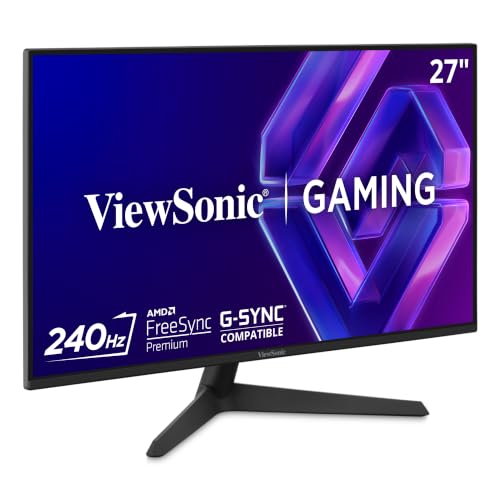
Start with the number that defines this monitor: 240Hz at 1080p on a 27-inch IPS panel. That combination is a statement of priorities. ViewSonic is not asking you to admire pixel density; it is asking you to play fast games on a big canvas without the graphics-card bill that 1440p at 240Hz would demand. A mid-range GPU that struggles to hold 144 frames per second at QHD can feed this panel properly at Full HD, and the result — motion that stays readable during fast turns, targets that smear less as you track them — is the entire point of the product.
The supporting specification is more modern than the resolution suggests. HDMI 2.1 inputs mean current consoles can use their high-refresh modes, and the listing confirms both FreeSync Premium and G-SYNC Compatible operation, so variable refresh works across graphics-card brands. HDR10 support and built-in speakers round out a screen that can serve as the room’s entertainment display as well as its game display. In practice the speakers are, as usual, convenience-grade, and HDR on an IPS panel of this class adds tone rather than transformation. Judge the VX2726 on its motion and its connectivity, which are genuinely strong, rather than on the garnish.
The compromise to accept is the one printed on the spec sheet: 1080p at 27 inches means roughly the pixel density of a much smaller, older monitor, and text shows it. For a games-first desk that is a fine trade — in play, at speed, the softness largely vanishes — but anyone planning to read documents on this screen for six hours a day should look at the 1440p picks below instead. Within its intended job, though, the VX2726 is the fastest honest answer in this guide, and its price class undercuts the QHD speed models considerably.
Who feels the 240Hz difference most? Players of fast, tracking-heavy games — arena shooters, battle royales in their final circles, racing titles — where the scene itself moves quickly under the crosshair. In slower games the VX2726 is merely a very smooth 1080p screen, and its advantage narrows to responsiveness you may or may not consciously register. That honesty cuts both ways: if your catalogue is fast, no other pick in this guide gives you this much motion clarity per unit of GPU effort, because every frame the ViewSonic can show is a frame your existing card can plausibly render at Full HD.
- Panel: 27-inch IPS, 1920 × 1080, 240Hz
- Sync: FreeSync Premium, G-SYNC Compatible
- Inputs: HDMI 2.1 and DisplayPort
- Extras: HDR10 support, built-in speakers
Strengths
- 240Hz motion at a resolution ordinary graphics cards can actually feed.
- HDMI 2.1 makes it a genuine dual-purpose screen for PC and current consoles.
- Variable refresh certified for both GPU families, so no lock-in.
Trade-offs
- 1080p text at 27 inches is visibly soft for long reading sessions.
- HDR is a checkbox feature on this panel class, not a showcase.
- Speakers are adequate for calls and casual video, no more.
Best for: competitive and fast-action players who want 240Hz on a big screen without a flagship GPU. Not suited for: text-heavy work or anyone bothered by visible pixel structure at desk distance.

BenQ MOBIUZ EX271 — Most complete 1080p package
BenQ’s MOBIUZ line exists for buyers who play games but refuse to accept gaming-monitor austerity, and the EX271 is the fullest expression of that idea at 27-inch 1080p. The panel runs at 180Hz with AMD FreeSync, which is beyond the keyword’s requirement and enough speed for all but the most committed esports players. Around that panel BenQ builds the things rivals omit: a USB hub so peripherals land on the monitor rather than under the desk, built-in 2.5W speakers that are a cut above the class average for clarity, and colour tools drawn from BenQ’s gaming database, including modes tuned per game genre and an AI-assisted colour adjustment.
The colour story deserves a sentence of its own, because it is where the EX271 separates itself from the Samsung below. Its listing claims 95 percent coverage of the DCI-P3 gamut, which is wide for a Full HD gaming panel, and in practice MOBIUZ screens render game worlds with a richness that makes films and streamed video look better than they have any right to on a 1080p display. If the desk doubles as the room’s movie screen, that matters more than another 60Hz would. Connectivity is complete for the class: DisplayPort 1.2 and HDMI 2.0 cover PC and console duties without drama.
Where does it lose ground? On raw speed, to the ViewSonic — 180Hz is fast, but it is not 240Hz, and a player who can feel that difference should follow it. On price positioning, it asks more than bare-bones rivals because it includes more. And like every 27-inch 1080p screen, its text rendering is a compromise a full-time reader will notice. But as a single purchase that asks its owner to forgive the least, the EX271 is the most complete Full HD answer at this size.
The EX271 also suits the increasingly common pattern of the shared gaming desk, where one screen serves a PC, a console and perhaps a streaming box in rotation. The USB hub reduces the peripheral shuffle when machines change, the speakers remove the headphone requirement for casual viewing, and the colour modes let different users — or different games — live behind different presets rather than one compromise setting. It is the least specialist and most household-friendly monitor in this guide, and for many desks that breadth is worth more than the last 60Hz.
- Panel: 27-inch IPS-class, 1920 × 1080, 180Hz
- Sync: AMD FreeSync
- Inputs: DisplayPort 1.2, HDMI 2.0, USB hub
- Extras: built-in speakers, game colour database modes, wide colour coverage
Strengths
- The most feature-complete 1080p package here: hub, speakers and colour tools included.
- Wide colour gamut makes games and films look richer than the class norm.
- 180Hz is beyond the keyword’s bar with headroom to spare.
Trade-offs
- Costs more than plainer 180Hz rivals because it includes more.
- Not the fastest panel in this guide for pure competitive play.
- Full HD softness at 27 inches applies here as everywhere.
Best for: players who want one polished 27-inch screen for games, films and desk duty without add-ons. Not suited for: esports-first buyers who should take the 240Hz ViewSonic, or readers who should take a 1440p pick.

Samsung Odyssey G3 27in (G30D) — Best stand and contrast at 1080p
Samsung’s Odyssey G3 is the contrarian in this guide: while the other 1080p picks chase IPS colour and viewing angles, the G3 chases contrast and ergonomics. Its 180Hz panel delivers the deep, inky blacks that make evening gaming in a dim room feel cinematic, where IPS panels of this class wash dark scenes towards grey. Night maps, horror games, space sims — the genres that live in shadow — are visibly better on this screen, and Samsung adds its Black Equalizer to lift detail out of darkness when competitive visibility matters more than mood.
The stand is the other headline. The G3 ships with a properly adjustable base — height and tilt, with the pivot flexibility the Odyssey line is known for — in a class where tilt-only stands are common, and at 27 inches that adjustability is not a luxury. Samsung also includes its Eye Saver mode and flicker-free backlighting for the work hours, plus a Virtual Aim Point overlay for players who use it. AMD FreeSync keeps motion tear-free with compatible graphics cards, and the 1ms-class response claims should be read as the usual marketing measure; in real play the panel keeps pace with its refresh rate for the fast-but-not-professional gaming this monitor is bought for.
The trade inherent in the G3’s panel choice is viewing behaviour: sit off to the side, share the screen with someone beside you, or stand while you play, and its picture shifts more than an IPS rival’s would. Colour richness in bright, saturated games also favours the BenQ above. But centred in a chair, in the evening, playing something atmospheric, the G3 makes an argument neither IPS pick can answer — and its stand means your neck will thank you while you listen to it.
There is a budget logic to the G3 as well. Samsung prices the Odyssey G3 line aggressively against IPS rivals, and the money saved against the BenQ can fund the one thing this guide keeps recommending — a better chair position, a lamp, or simply stay in the bank. What you do not get for the saving is any sense of deprivation in the core experience: 180Hz is 180Hz, the stand is better than the pricier pick’s, and the picture in a dark room is the one visitors will comment on. The G3 is the value argument wearing a contrast argument’s clothes.
- Panel: 27-inch, 1920 × 1080, 180Hz
- Sync: AMD FreeSync
- Inputs: HDMI and DisplayPort
- Extras: height-adjustable stand, Black Equalizer, Eye Saver mode, Virtual Aim Point
Strengths
- Deep blacks give dark games and films a richness IPS rivals cannot match here.
- A genuinely adjustable stand, rare at this point in the class.
- 180Hz with FreeSync covers fast play without an exotic GPU.
Trade-offs
- Viewing angles are narrower than the IPS picks; best enjoyed square-on.
- Bright, saturated colour is the BenQ’s game more than this panel’s.
- 1080p at 27 inches means the same soft text as the other Full HD picks.
Best for: evening players, dark-genre fans and anyone who values contrast and a proper stand. Not suited for: shared viewing from wide angles or colour-critical side work.

LG 27GP850-B — Best all-round 1440p pick
If this guide had to collapse to a single recommendation for the typical reader — gaming seriously in the evening, working at the same screen all day — the LG 27GP850-B is where we would land. It pairs a 27-inch Nano IPS panel at 2560 × 1440 with a native 165Hz refresh rate, and that pairing is the modern sweet spot in miniature: text is genuinely sharp, games are genuinely fast, and a mid-range graphics card can drive it without apology. Nano IPS is LG’s wide-colour implementation, and it shows in saturated, confident colour that serves games, films and photo work from the same panel.
The details around the panel are mature rather than flashy. The listing confirms G-Sync Compatible certification, and the panel’s variable-refresh support covers the adaptive-sync ecosystem broadly, so either graphics-card family can drive it tear-free. Response behaviour is the fast IPS kind that made this model line a default recommendation for years: at 165Hz the panel is not the limiting factor for anyone short of professional play. The stand adjusts properly, the bezels are slim, and the design is restrained enough for a desk that hosts video calls with clients in the morning and ranked matches at night.
Its compromises are those of its generation. Newer models in this very guide run faster — the 27GS75Q-B reaches 200Hz overclocked — and buyers who measure worth in hertz alone will look past the GP850. Its contrast is standard IPS fare, which means dark-room blacks are greyish next to the Samsung above. But judged as a whole-life purchase rather than a specification contest, this remains the balanced centre of the 27-inch class: nothing about it is the best in this guide, and the complete package is arguably better than everything else here.
A note on longevity, since the GP850’s generation is no longer the newest: mature designs carry a hidden benefit, which is that their firmware behaviour, their quirks and their pairing with particular GPUs and consoles are thoroughly documented by years of owners. When a question arises at midnight — a sync oddity, a menu setting, a wake-from-sleep hiccup — the answer exists. Newer models will eventually accumulate the same record; the GP850 already has it, and for a screen intended to serve five years without drama, that record is a feature as real as any in its specification.
- Panel: 27-inch Nano IPS, 2560 × 1440, 165Hz
- Sync: G-Sync Compatible, adaptive-sync support
- Inputs: HDMI and DisplayPort
- Extras: wide Nano IPS colour, adjustable stand
Strengths
- The balanced package: sharp QHD text, real gaming speed, strong colour.
- A proven model line with predictable behaviour and broad GPU compatibility.
- Serves work and play from one panel without favouring either badly.
Trade-offs
- Newer rivals in this guide are faster on paper.
- IPS contrast means greyish blacks in a dark room.
- Asking price reflects its all-round polish rather than a single headline spec.
Best for: the mixed desk — work by day, games by night, one screen for years. Not suited for: buyers chasing maximum refresh rate, or dark-room contrast purists.

LG 27GS75Q-B — Best value step into fast 1440p
The 27GS75Q-B is LG’s newer answer to the same brief the GP850 defined, trimmed and sharpened for price. Its 27-inch IPS panel runs 180Hz natively at 2560 × 1440 — already beyond the keyword’s requirement and beyond its older sibling — with an overclock mode reaching 200Hz for players who want it. That native 180Hz figure is the one to buy on; the overclock is a bonus to experiment with, not a promise to build a purchase around, and we say so because overclock modes can vary in stability from unit to unit and system to system.
What the GS75Q gives up against the GP850 is a measure of colour pedigree and finish; what it gains is speed per unit of money and a more current design. For a buyer stepping up from a 1080p screen, the transformation is the resolution as much as the rate: the desktop gains room, text gains edges, and games gain the detail that makes 27 inches feel like an upgrade rather than merely an enlargement. G-Sync Compatible certification is confirmed in the listing, keeping variable refresh available across the mainstream GPU market.
Position it honestly and it is the value spearhead of the QHD trio in this guide: faster than the GP850 where it counts, cheaper in spirit than the Gigabyte’s esports tuning below, and short of both only in refinement. If your graphics card is a current mid-range model and your games are the kind that reward 180Hz at QHD — shooters with settings turned sensibly, racers, action titles — this is the screen that converts that hardware into visible smoothness without requiring a second mortgage on the desk.
Buyers cross-shopping the two LG models should think of the GS75Q as the sprinter and the GP850 as the all-rounder, and choose by the proportion of their week spent in fast games. Above roughly half gaming time, the newer panel’s native 180Hz and sharper pricing logic win; below it, the older model’s colour and maturity repay their premium every working day. Either way, the step from any 1080p screen to this resolution at this size is the upgrade owners describe as the one they should have made a year earlier — the GS75Q simply makes that step at the friendliest terms in the current LG range.
- Panel: 27-inch IPS, 2560 × 1440, 180Hz (200Hz overclock)
- Sync: G-Sync Compatible
- Inputs: HDMI and DisplayPort
- Extras: overclock mode for 200Hz play
Strengths
- Native 180Hz at QHD is the best speed-for-money step in this guide.
- The resolution jump transforms desktop work as much as games.
- Modern, lean design without the older model’s price posture.
Trade-offs
- The 200Hz figure is an overclock; treat it as a bonus, not the baseline.
- Colour and finish sit a step below the GP850’s polish.
- Needs a genuinely capable GPU to shine at QHD high refresh.
Best for: upgraders from 1080p who want fast QHD without flagship pricing. Not suited for: buyers with older GPUs that cannot feed 1440p at speed.

Gigabyte M27Q2 — Fastest 1440p pick
Gigabyte’s M27Q2 takes the QHD formula and pushes its speed to the edge of what the resolution supports at sane prices: a 27-inch SuperSpeed IPS panel rated at 200Hz via overclock, with FreeSync Premium confirmed in the listing. SuperSpeed IPS is Gigabyte’s fast-panel branding, and the intent is clear — this is the 1440p screen for the player who found 165Hz merely adequate and wants esports-flavoured motion without dropping back to 1080p to get it. At QHD, that speed demands a serious graphics card; the monitor is honest hardware for buyers who already own one.
Beyond speed, the M27Q2 benefits from Gigabyte’s habit of equipping its M-series as desk hubs as much as displays, with the connectivity breadth that makes a monitor the centre of a setup rather than an endpoint. FreeSync Premium brings low-framerate compensation to the variable-refresh table, which matters at QHD precisely because frame rates fluctuate more at this resolution: when a demanding scene drags the rate down, the sync stays graceful instead of tearing or juddering at the bottom of the range.
The honest cautions mirror the LG above, sharpened. The 200Hz headline is an overclock figure, so evaluate this monitor as an extremely fast native panel with headroom, not as a guaranteed 200Hz appliance. QHD at 200Hz also sits at the edge of what common display cables and GPU outputs deliver, so the setup section of this guide — cable quality, port choice, driver settings — applies to this pick more than to any other. For the player equipped to feed it, though, the M27Q2 is where this guide’s speed and sharpness curves cross at their highest point.
Context matters for the M27Q2’s value. Against the price of the graphics card required to feed it, the monitor itself is the smaller half of the investment, which inverts the usual advice: if you already own the GPU, overspending slightly on the panel that finally shows what it can do is rational, because every game you own benefits at once. If you do not own the GPU, this monitor is a promise your system cannot yet keep, and the LG 27GS75Q-B will serve the same desk honestly at rates your card can reach. The M27Q2 rewards the equipped and tempts the rest — know which you are before ordering.
- Panel: 27-inch SuperSpeed IPS, 2560 × 1440, 200Hz overclock
- Sync: FreeSync Premium
- Inputs: HDMI and DisplayPort
- Extras: low-framerate compensation via FreeSync Premium
Strengths
- The fastest QHD option here for players with the GPU to feed it.
- FreeSync Premium keeps variable refresh graceful when frame rates dip.
- Sharp 1440p image with esports-grade motion ambitions.
Trade-offs
- Headline speed is an overclock; native behaviour is the safe assumption.
- Demands a high-end graphics card to justify itself.
- Cable and port choices matter at its top rates; budget setup attention.
Best for: QHD players with strong GPUs who want maximum speed at 27 inches. Not suited for: mid-range systems, which will leave its speed unused.
Is 1080p or 1440p the right call at 27 inches?
This is the question the whole guide turns on, so let us answer it in the open. At 27 inches, 1080p gives you about the pixel density of a small laptop screen stretched across a desk: games look fine at speed, but text carries visibly soft edges and a full-screen document shows less of itself than you would like. 1440p at the same size is the density most people describe as crisp — documents gain room, interfaces gain air, and games gain the fine detail that makes environments read at distance. The cost is computational: 1440p asks roughly 78 percent more rendering work per frame than 1080p, so the same graphics card delivers proportionally fewer frames.
The deciding factor is therefore not taste but the rest of your system and your catalogue. If your GPU is a few years old, or your games are competitive titles where frame rate is a gameplay input, the 1080p picks convert your existing hardware into high-refresh play today, with no other purchase required. If your GPU is current and strong, or your desk time is split evenly between work and play, the 1440p picks are the better five-year buy, because the panel will outlive the graphics card and the sharpness benefits apply to every hour, not just game hours. The worst purchase is the mismatch: a 1440p speed monitor fed by a card that can only manage half its rate, or a 240Hz 1080p screen bought by someone who mostly reads. Match the panel to the machine and the hours, and every pick in this guide is defensible.
How do you actually get a high-refresh monitor running at its rated speed?
More high-refresh monitors run at 60Hz in their owners’ homes than anyone in the industry likes to admit, because the last step — configuration — is easy to skip. Out of the box, do these four things. First, connect with the right cable to the right port: DisplayPort is the reliable route to a PC monitor’s full rate, and where HDMI is used, confirm the port version supports your target — the ViewSonic’s HDMI 2.1 exists precisely because older HDMI revisions cap refresh rates below what fast panels can do. Second, set the refresh rate explicitly in your operating system’s display settings; many systems default to 60Hz until told otherwise. Third, enable the monitor’s overclock mode in its own menu if you bought one of the OC picks, and re-check the OS setting afterwards, because the new rate only appears once the panel advertises it. Fourth, turn on variable refresh in your graphics driver and confirm the monitor’s on-screen counter, if it has one, tracks your game’s frame rate. Ten minutes of this turns the specification you paid for into the experience you expected — and skipping it is the most common self-inflicted wound in this entire product category.
What does the stand matter at 27 inches, and when should you plan on an arm?
A 27-inch panel is a sail: bigger, heavier and more prone to wobble than the 24-inch screens many buyers are upgrading from, and its centre of visual mass sits higher above the desk. On a tilt-only stand, the top of the screen often lands below the ideal eye line for taller users, and the correction — hunching — is paid for in neck and shoulder fatigue that gets blamed on the chair. The Samsung G3’s adjustable stand is the honourable exception in the 1080p half of this guide. For the tilt-limited picks, a VESA arm is the standard remedy and all six monitors here accept one; budget it as part of the purchase if your desk or your height is atypical, position the panel so its top third is near eye level, and push it a few centimetres further back than your old 24-inch screen sat — at 27 inches, a viewing distance around 80 centimetres keeps the whole image in comfortable view without constant head-turning.
How much graphics card do these 27-inch panels really need?
Think in frame budgets rather than model names. A 1080p panel at 180 to 240Hz asks the GPU for many frames of modest size; modern mid-range cards deliver that in competitive and mainstream titles, especially with the quality settings competitive players use anyway. A 1440p panel at 165 to 200Hz asks for fewer, larger frames in the LG pair, or both many and large in the Gigabyte’s case, and that is flagship territory for demanding games at high settings. The saving grace of the QHD picks is variable refresh: a game that runs at 110 frames per second on a 165Hz FreeSync or G-Sync Compatible panel still looks smooth and tear-free, because the display follows the card rather than demanding the card follow it. So the practical rule is softer than the specifications imply — a current mid-range card plus a QHD pick is a fine combination for a mixed catalogue, as long as your expectations for the most demanding titles are set to high-refresh rather than maximum-refresh. The pairing that genuinely fails is the oldest cards with the fastest panels, where the monitor spends its life waiting for frames that never arrive.
What should you check in the first days with a fast 27-inch monitor?
Four checks, all cheap. First, verify the rate: open the display settings, check the number the system reports against the number on the box, then open a fast game and confirm the frame counter and the experience agree. Second, test variable refresh with a game whose frame rate fluctuates — a busy open-world title is ideal — and watch for tearing or judder that would suggest sync is not engaged. Third, sit with the panel for a full work session even if you bought it for games; 27-inch ownership is mostly non-gaming hours, and discovering on day two that text softness bothers you is useful, while discovering it in month two is expensive. Fourth, if your pick has an overclock mode, enable it for an evening and confirm stability with your cable and GPU before deciding whether to live there. Every one of these checks fits inside a normal return window, and together they convert a specification gamble into a verified setup.
Does HDR matter on monitors in this class?
Honestly, less than the badges suggest, and this guide will not pretend otherwise. True HDR impact needs high peak brightness and local dimming that can make one part of the screen blaze while another stays black; most 27-inch gaming panels, including the HDR10-supporting picks here, offer the signal acceptance without the backlight hardware to do it full justice. What you get is wider colour and tone mapping that can look richer in supported games and films — the BenQ’s wide gamut and the ViewSonic’s HDR10 support both earn modest, real improvements — but not the dramatic highlights of a good HDR television. The buying implication is simple: never let HDR be the reason you choose one of these monitors over another. Refresh honesty, panel behaviour, stand and ports decide ownership satisfaction; HDR in this class is a garnish, and the picks above were ordered without it. If HDR gaming is a primary goal rather than a bonus, the honest route is a different and more expensive category of display altogether.
Would two 24-inch monitors serve you better than one 27?
It is the standing alternative at this budget, and the answer splits by activity. For work that lives in parallel windows — code beside documentation, spreadsheet beside source data, stream chat beside the game — two 24-inch 1080p screens offer more total pixels and a natural organisational seam, and several of our sister guides cover exactly that arrangement. For gaming, media and any task with one focus, a single 27-inch panel is superior: no bezel crosses your crosshair, films fill one canvas, and the desk stays simpler. The 27-inch size also ages better as a single purchase, because it can later become the main screen in a two-display setup when a second, smaller monitor joins it — a path many of this guide’s readers eventually take. Choose the pair when your work is genuinely parallel all day; choose the single 27 when one canvas, well fed and correctly positioned, matches how you actually spend your hours.
How should you read the response-time numbers on these listings?
Every listing in this guide carries a response-time claim — 1ms here, 0.5ms there — and every one of them should be read as a genre label rather than a measurement. Manufacturers measure pixel transitions under the most favourable conditions their test allows, often with overdrive settings that trade one artefact for another, so the figures cannot be compared across brands and barely within them. What actually matters to a player is whether the panel’s real transitions keep up with its refresh rate without visible smearing or inverse ghosting at the overdrive setting you will actually use, and that is a property of the panel family: the fast IPS designs in the LG, Gigabyte, BenQ and ViewSonic picks have earned their reputations across many models, while the Samsung’s contrast-led panel trades a little motion delicacy for its blacks. The practical test is in the first-week checks described above — play your fastest game, look for trails behind moving objects, and adjust the overdrive one step at a time. Trust that experiment over any number printed on a box, including the numbers quoted in this guide’s source listings.
What changes if a console lives on the same desk full-time?
A permanent console rearranges the priorities in this guide in two specific ways. First, HDMI becomes the critical input rather than DisplayPort, and its version starts to matter: the high-refresh and variable-refresh modes of current consoles assume a modern HDMI implementation, which is why the ViewSonic’s HDMI 2.1 heads the console-ready end of this list and why buyers with a console-first desk should check each pick’s HDMI specification against their console’s display menu before ordering. Second, sound moves from footnote to feature, because console desks are often headphone-optional in a way PC desks are not; the built-in speakers on the ViewSonic and the stronger audio on the BenQ EX271 stop being garnish and become the everyday output for a machine across the room from the television. Neither change overturns the guide’s ordering for PC-first readers, but a console that never leaves the desk promotes the EX271 and VX2726 a step and asks harder questions of picks whose HDMI side is merely adequate. As always in this category, the honest specification is the one in the listing — which is why every pick here was verified against it.
Which picture settings should you change first on a fast 27-inch screen?
Out of the box, gaming monitors are tuned for the showroom: brightness high, colour vivid, sharpening aggressive. An evening of adjustment pays for itself all year. Start with brightness, lowered until white matches your room rather than the retail shelf — most home desks land far below the factory setting. Move to overdrive, the response-time control, and resist the maximum: the highest overdrive step on many panels introduces pale fringing behind moving objects, and the middle setting is usually the one reviewers and long-term owners settle on. Set colour temperature to the standard or sRGB-flavoured preset unless you specifically enjoy a saturated look, because the vivid modes distort skin tones in films and colours in creative work. Turn off dynamic contrast and eco dimming, which pump brightness in ways that distract during dark scenes. Then save the result as your user preset, because firmware updates, input changes and curious visitors all have a way of returning a monitor to its defaults. None of this requires instruments. It requires one unhurried evening with a familiar game and a familiar film, adjusting by eye until both look like themselves — after which the monitor disappears into the experience, which is the entire point of the purchase.
The arm question has a second half that buyers rarely consider until they own one: an arm returns the desk surface the stand’s footprint was occupying, and at 27 inches that footprint is large enough to matter for keyboard position, documents and the general sense of room on a smaller desk. If your desk is under 120 centimetres wide, the arm may be worth its cost for the space alone, with the ergonomic gain as a bonus. Every pick in this guide uses the standard VESA mounting pattern, so the choice of arm can be made on its own merits and budget rather than on compatibility detective work.
Comparison Table
| Monitor | Resolution | Refresh (true figure) | Sync | Stand |
|---|---|---|---|---|
| ViewSonic VX2726 | 1920 × 1080 | 240Hz | FreeSync Premium, G-SYNC Compatible | Tilt class |
| BenQ MOBIUZ EX271 | 1920 × 1080 | 180Hz | FreeSync | Tilt class, USB hub |
| Samsung Odyssey G3 27in | 1920 × 1080 | 180Hz | FreeSync | Height adjustable |
| LG 27GP850-B | 2560 × 1440 | 165Hz | G-Sync Compatible | Adjustable |
| LG 27GS75Q-B | 2560 × 1440 | 180Hz (200Hz OC) | G-Sync Compatible | Tilt class |
| Gigabyte M27Q2 | 2560 × 1440 | 200Hz OC class | FreeSync Premium | Tilt class |
Which mistakes do buyers of fast 27-inch monitors keep making?
The first is buying the refresh rate their ambition wants instead of the one their graphics card can feed, then blaming the monitor when a QHD panel runs at half its rate in the games they play. The second is the opposite mismatch: pairing a flagship GPU with a 1080p panel and discovering that at 27 inches the softness, not the speed, is what they notice every day. Third, buyers forget the cable and port audit — an old HDMI lead or the wrong port can silently cap a fast panel at a fraction of its rate, and the monitor gets the blame for a cable’s limit. Fourth, overclock figures are read as guarantees; they are capabilities, and the stable, honest number to plan around is the native rate. Finally, size itself is misjudged: a 27-inch screen placed at 24-inch distance overwhelms rather than immerses. Every one of these mistakes is a matching error, not a product error — which is why the advice in these pages always starts in the same place: your GPU, your games and your desk, with the monitor as the last decision rather than the first.
Final Recommendation
Choose by the machine you own. With a mid-range graphics card and competitive games at the centre of your life, the ViewSonic VX2726’s 240Hz is the purest speed available at this size, and the BenQ EX271 is the better buy if the desk also hosts films, work and peripherals. If your evenings run dark and atmospheric, the Samsung G3’s contrast and stand make it the connoisseur’s 1080p choice. On the 1440p side, the LG 27GP850-B remains the all-round centre of the class, the 27GS75Q-B is the value step into fast QHD, and the Gigabyte M27Q2 serves the strong-GPU player who wants QHD to run as fast as it currently can. Whichever you choose, set the rate properly on day one, verify it again after the first graphics driver update, and give the panel the distance it deserves — a 27-inch screen at its true speed, at arm’s length and a little more, is one of the great quiet upgrades a desk can get.
Frequently Asked Questions
Is 144Hz still worth buying when these monitors run faster?
Yes — read 144Hz as the class threshold rather than a specific product. Every pick here clears it, most by a wide margin, and the practical difference between 144Hz and 180Hz is smaller than the difference between 60Hz and 144Hz. Buy the monitor whose complete package fits your desk; the rate above 144Hz will take care of itself.
Can my graphics card drive a 1440p monitor at high refresh rates?
On the strength of your graphics card, and on the demands of the title in question. Current mid-range cards handle esports and lighter titles at QHD high refresh comfortably, while demanding games at maximum settings will run lower — which is exactly what FreeSync and G-Sync Compatible modes exist to smooth over. If your card is several generations old, the 1080p picks in this guide will show it in a better light, and there is no shame in that pairing: a well-fed 1080p panel at 180Hz looks better in motion than a starved 1440p panel at half its rate, every single time.
Why does 1080p look softer at 27 inches than at 24?
Because the same 1920 × 1080 pixels are spread over a larger area, so each pixel is physically bigger and the density drops. Games at speed hide it well; static text reveals it. If you split your time evenly between reading and playing, 1440p at 27 inches is the density most people find comfortable for both.
What does an overclocked refresh rate actually mean?
It means the panel can be run beyond its native rate through a menu setting, typically gaining 15 to 35Hz. It usually works, it is not guaranteed identical on every unit, and it can occasionally introduce instability with particular cables or systems. Our advice throughout this guide: buy on the native figure, enjoy the overclock as a bonus.
Do these monitors work with PlayStation and Xbox consoles?
Yes, over HDMI, and current consoles can use high-refresh modes on compatible displays — the ViewSonic’s HDMI 2.1 inputs make it the most console-ready pick here. Variable-refresh support on consoles varies by model and game, so check your console’s display settings after connecting.
Should I choose FreeSync or G-Sync at this size?
Choose the monitor first and the sync label second. Modern panels increasingly support variable refresh across both ecosystems — several picks here are certified for one and compatible with the other — and a monitor outlives a graphics card. Buy the panel that suits your desk; the sync will follow whichever GPU you own now or next. The one exception is a buyer who plays competitively on a single GPU brand and never switches; for them, native certification for their card’s ecosystem is a reasonable tiebreaker between otherwise equal screens, and nothing more than a tiebreaker.
Does 1080p look too soft on a 27-inch screen?
It depends on the distance your chair actually keeps. At a typical desk distance the pixel structure of a 27-inch 1080p panel is visible in fine text and in the edges of interface elements, and readers who split their day between documents and games tend to notice it within the first week. Players who sit a little further back, or whose screens spend most evenings in games and video, usually stop seeing it entirely. The picks in this guide are honest about which side of that line each model serves, and the 1440p names are here precisely for the desks where softness would nag.
Related Guides
Still deciding on the shape of your setup? Our guide to the best 1440p gaming monitors goes deeper on the sharper class, our roundup of the best 1080p high-refresh monitors covers the smaller sizes, and our explainer on refresh rates and response times untangles the numbers behind this guide.
Related guides
- Best 1440p 165Hz Monitors: One Native 165Hz Pick, Three 180Hz Upgrades, an Overclock Headline and a 160Hz Ultrawide
- Best 1440p IPS Monitors
- Best 1080p Monitors 120Hz: Two Native 120Hz Picks, a Labelled 100Hz Comfort Option and Honest Headroom Above the Rate
- Best 100 Dollar Gaming Monitors: Honest Picks and Sensible Stretch Options