What's inside
- Key Takeaways
- Quick Picks
- How We Chose These Picks
- What Should You Look for in a Media Server Drive?
- How Much Speed Does Streaming Actually Demand?
- How Big Is a Library, Really? Planning Capacity in Practice
- Internal Bays or USB Shelf: Reading the Six Against Each Other
- How Do You Set Up a Media Server Drive So It Lasts?
- Which Mistakes Shorten a Media Drive’s Life?
- When Should a Media Server Drive Be Retired?
- Final Recommendation
- Frequently Asked Questions
- Related Guides
As an Amazon Associate I earn from qualifying purchases. This post may contain affiliate links at no extra cost to you.
gizmoverdict.com is reader-supported. When you buy through links on our site, we may earn an affiliate commission.
Where to buy: Every drive below links to its Amazon listing, where capacity options and current stock can be checked before ordering. Internal models need a NAS enclosure or a server case with free 3.5-inch bays; the three desktop externals at the end of the list connect over USB and need no enclosure at all.
A media server fails in a particular way when its storage is wrong. The film library grows quietly for months, then a drive filled with desktop-class hardware starts throwing read errors during a Saturday-night stream, and the household learns the difference between a drive built for eight hours a day and one built to spin around the clock. Choosing the best hard drives for media server storage is really about matching that duty cycle: a Plex, Jellyfin or Emby library sits powered on for years, serves several streams at once, and gets written to in long, heavy bursts whenever new rips or recordings land. The six drives in this guide were picked for exactly that life.
Three of the picks are internal NAS drives from the two product lines built for this job — Seagate’s IronWolf range and Western Digital’s Red Plus range — in capacities from 8TB to a very large 24TB. The other three are desktop external drives, included because plenty of media servers are simply a small PC or a mini computer with a big USB drive attached, and for that arrangement a self-contained external is the honest recommendation. What this guide will not do is pretend an external desktop drive is a NAS drive, or that a single drive of any kind is a backup. Both points get their own sections below.
One more framing note before the picks. A media library is mostly large sequential files read one after another, which is the workload spinning disks handle gracefully. Random-access speed barely matters for streaming a film; sustained throughput, rotational stability inside a multi-bay enclosure, and a recording method that does not collapse during long writes matter far more. Keep that hierarchy in mind and the ranking below will make sense. The guide closes with setup habits, retirement signs and the mistakes that quietly shorten drive life, because in a machine expected to run for years, ownership habits matter almost as much as the hardware chosen on day one.
Key Takeaways
- Media servers run drives around the clock, so NAS-class models with 24/7 ratings are the correct starting point for internal bays.
- Every internal pick here uses CMR recording, the safer choice for RAID rebuilds and long sustained writes.
- The Seagate IronWolf Pro 24TB is the capacity ceiling of this list; the WD Red Plus 12TB is the balanced middle for most multi-bay servers.
- Desktop externals — the WD My Book 12TB, WD Elements Desktop 10TB and Seagate Expansion 20TB — suit single-drive servers and overflow storage, not RAID arrays.
- A media server is not a backup. Whatever drive holds the only copy of a ripped library is one failure away from a very long re-ripping weekend.
- Rotational speed is stated in most of these listings; where a listing stays silent, the spec boxes below say so instead of guessing.
- Cooling, clean power and scheduled SMART tests extend a media drive’s life more than any single specification on its box.
Quick Picks
| Pick | Badge | Why it earns its place |
|---|---|---|
| Seagate IronWolf Pro 24TB | Maximum capacity | A 24TB enterprise NAS drive spinning at 7200 RPM with a 512MB cache, for servers where the library has outgrown every smaller option. |
| WD Red Plus 12TB | Best balance | Twelve terabytes of CMR NAS storage at 7200 RPM — the sensible centre of this list for a four-bay media server. |
| Seagate IronWolf 8TB | Proven workhorse | An 8TB NAS drive rated for a 180TB/year workload, with vibration sensors for multi-bay enclosures and rescue cover in the listing. |
| WD My Book 12TB | External with protection | A 12TB desktop external adding password protection and auto backup software for a server that lives on USB. |
| WD Elements Desktop 10TB | Simple external | Ten terabytes of plug-and-play USB storage with no software layer between the drive and the server. |
| Seagate Expansion 20TB | Biggest external | Twenty terabytes in a single USB enclosure, with rescue data recovery services named in the listing. |
How We Chose These Picks
The first filter was duty cycle. A media server drive idles, streams, records and rebuilds at any hour, so internal picks had to come from NAS product lines rather than desktop lines; that is why the internal half of this list is drawn entirely from IronWolf and Red Plus models. The second filter was recording method. Every internal pick states CMR in its listing, because conventional magnetic recording holds its write speed steady during the long transfers a media ingest involves, and behaves predictably when a RAID array rebuilds onto a replacement drive.
Capacity spread was the third consideration. Libraries differ enormously — a curated collection of favourites can sit happily on 8TB while a household recording broadcast television and archiving 4K rips can chew through that in a year — so the list runs from 8TB to 24TB internally, with externals at 10TB, 12TB and 20TB for single-drive arrangements. Listings also had to state their key specifications plainly: interface, form factor and, where the maker publishes it, rotational speed and cache. One internal listing leaves rotational speed unstated, and its review below flags that rather than filling the gap from memory.
Finally, the externals were chosen as externals, judged on what a USB-attached server actually needs: capacity per enclosure, any bundled backup software or password protection named in the listing, and recovery services where offered. They are not shucked-drive recommendations and they are not RAID candidates; they are the right tool for the many small servers that hold exactly one drive.
What Should You Look for in a Media Server Drive?
Start with the workload rating where a listing states one. The IronWolf 8TB below carries a 180TB/year figure in its listing, which describes how much data the drive is engineered to read and write annually. A media server that mostly streams sits far under such a ceiling; a server that also records multiple television tuners and ingests camera footage all day climbs toward it. Matching the rating to the real workload is the difference between a drive ageing gracefully and one wearing out early.
Recording method comes next. CMR drives write each track independently, so a long copy stays at full pace from the first gigabyte to the last. SMR drives overlap tracks and must periodically stop and reorganise, which shows up during exactly the operations a media server performs most: ingesting a large rip, or rebuilding an array. All three internal picks state CMR in their listings, which removes the guesswork entirely.
Vibration behaviour matters once drives share an enclosure. Several spinning drives in one metal box excite each other, and NAS models counter this with rotational vibration sensors — the IronWolf 8TB’s listing names RV sensors explicitly — that let the drive compensate. A desktop drive in the same box has no such help. This is also why mixing one desktop drive into a NAS array is poor practice even when the capacity matches.
Noise belongs in the buying decision too, because a media server often lives in the room where the media is enjoyed. Larger, faster drives with more platters make more seeking noise, and an enclosure amplifies it like a drum. Owners sensitive to this plan around it: the server goes in a cupboard with ventilation, a hallway closet, or another room entirely, with the television reached by network cable rather than by proximity. Deciding the server’s home before choosing its drives prevents the common outcome where a beautifully specified array is banished to a garage and slowly cooked or frozen by the seasons instead.
Warranty length and support services round out the specification sheet. Two of the internal listings state their cover explicitly — the IronWolf 8TB names a three-year warranty and three-year Rescue, and the IronWolf Pro includes Rescue Services — while the externals vary, with the Seagate Expansion naming its recovery services and the WD models emphasising software features instead. Cover is not a performance figure, but across a five-year service life it is part of what the purchase buys, and comparing it honestly means reading what each listing actually promises rather than assuming the whole class carries identical terms.
Then think about the array maths. In a four-bay server running single-parity RAID, one drive’s worth of capacity is surrendered to parity, so four 12TB drives yield roughly 36TB of usable library space. Buying drives in matched sets of the same model keeps rebuild behaviour predictable. And keep one drive’s worth of budget in reserve: the cheapest time to own a spare is before the array starts beeping at 2 a.m.

Seagate IronWolf Pro 24TB — Maximum capacity
Twenty-four terabytes on a single spindle changes the shape of a media server. A library that needed two enclosures or a parity array of smaller drives can consolidate onto fewer, larger disks, which means fewer spinning drives drawing power, fewer fans working against heat, and a server that stays quiet in the room where people actually watch films. The IronWolf Pro 24TB is Seagate’s enterprise NAS model: its listing states 7200 RPM, a 512MB cache, CMR recording and a SATA 6Gb/s interface in the 3.5-inch form factor, with Rescue Services included and the model number ST24000NT002.
In a media context, the practical effect of that capacity is headroom measured in years. A household archiving full-quality disc rips — the kind of files that run to tens of gigabytes each — can hold a very large collection on a mirrored pair of these and still have room for the recordings, downloads and photo archives that accumulate around a film library. The 7200 RPM rotational speed also keeps scrubbing, parity checks and library scans moving briskly, tasks that run against every byte on the drive and punish slower hardware with day-long runtimes.
The honest cautions are about concentration and rebuilds. One 24TB drive holds a great deal of library, so the backup discipline discussed later in this guide matters more, not less, at this size. And if a drive of this capacity ever has to be rebuilt into an array, the rebuild window is long simply because there is so much data to rewrite; during that window the array works hard and a second failure would be serious. Sensible owners of drives this size run mirrored or dual-parity layouts and keep the server’s firmware and SMART monitoring in good order.
There is also a noise and power angle that owners of smaller drives rarely consider. A 24TB drive replaces what might otherwise be three 8TB drives, and every removed spindle removes a motor, a set of bearings and a share of the enclosure’s vibration and heat. In a living-room server that difference is audible. The trade is that the surviving drives each work a little harder during scans, since the same library is spread across fewer actuators — one more reason the monitoring routine described later in this guide matters at this end of the range.
- Capacity: 24TB
- Form factor: 3.5 inch internal
- Interface: SATA 6Gb/s
- Rotational speed: 7200 RPM (stated in the listing title)
- Cache: 512MB (stated in the listing title)
- Recording method: CMR (stated in the listing title)
- Extras named in the listing: Rescue Services; model ST24000NT002
Strengths
- The largest single-drive capacity here, letting a big library live on fewer drives.
- Enterprise NAS positioning with CMR recording for steady ingest and rebuild behaviour.
- 7200 RPM and a large 512MB cache keep scans and parity checks moving.
Trade-offs
- Concentrating 24TB on one spindle raises the stakes of any single failure.
- Rebuilds at this capacity take a long time, extending the vulnerable window.
- Overkill for a modest library that would sit mostly empty for years.
Best for: a buyer seeking the fewest possible drives for a very large, always-on media library. Not suited for: a small collection that fits comfortably on a fraction of this capacity.

WD Red Plus 12TB — Best balance
If the IronWolf Pro above is the ceiling, this Red Plus is the centre of gravity. Twelve terabytes per bay is the size around which many home media servers are actually built: four of these in a parity array give roughly 36TB of usable space, enough for a serious film and television library with room to grow, without the purchase sting of the largest models. The listing states the essentials plainly — 7200 RPM, SATA 6 Gb/s, CMR recording, a 512 MB cache, 3.5-inch form factor, model WD120EFGX — and Red Plus is Western Digital’s NAS line intended for systems that stay powered continuously.
The 7200 RPM speed distinguishes this capacity point in the Red Plus family and suits a server doing more than streaming: simultaneous transcodes being read from disk, downloads landing, and a scheduled library scan can overlap without the drive becoming the bottleneck. CMR recording keeps those overlapping writes orderly. In practice this is the drive to shortlist when the server is a genuine multi-bay NAS and the library is measured in tens of terabytes rather than a handful.
Balance cuts both ways. Twelve terabytes is neither the cheapest way into NAS storage nor the largest, and a two-bay server built on this drive tops out sooner than its owner might hope if 4K archiving becomes a habit. It also shares the rule of every internal pick here: it is a bare drive, useless until installed in an enclosure or case with power, cooling and a controller, so the total cost of the server is the drive plus the box it lives in.
One practical habit suits this drive particularly well: buy the set together. Arrays behave most predictably when every member is the same model with the same firmware generation, and the Red Plus 12TB is common enough that a matching spare can still be sourced later if one member of the set fails early. Keeping one cold spare on the shelf turns a drive failure from an emergency purchase into a calm Saturday swap, and at this capacity the rebuild that follows is long enough that nobody wants to spend its first hours waiting on a delivery van.
- Capacity: 12TB
- Form factor: 3.5 inch internal
- Interface: SATA 6 Gb/s
- Rotational speed: 7200 RPM (stated in the listing title)
- Cache: 512 MB (stated in the listing title)
- Recording method: CMR (stated in the listing title)
- Model named in the listing: WD120EFGX
Strengths
- A capacity point that builds sensible arrays: mirrored pairs or parity sets with real headroom.
- 7200 RPM pace suits servers juggling streams, ingest and scans at once.
- CMR recording stated outright, removing rebuild-behaviour guesswork.
Trade-offs
- Needs a NAS enclosure or server case; nothing about it works standalone.
- Smaller libraries pay for capacity they may not use for years.
- Like every spinning drive, it wants active SMART monitoring to give warning before failure.
Best for: a buyer seeking the mainstream build — a multi-bay NAS media server with years of growth room. Not suited for: a single-drive USB arrangement, which the externals below serve better.

Seagate IronWolf 8TB — Proven workhorse
The 8TB IronWolf is the veteran of this list, and its listing is the most forthcoming of the six: it names a 180TB/year workload rating, AgileArray firmware, all-CMR recording, RV sensors for multi-bay use, a three-year warranty and three-year Rescue cover, under model ST8000VNZ04. That combination describes a drive aimed squarely at small NAS enclosures — the two-bay and four-bay boxes that run most home media servers — where drives sit centimetres apart and spin for years without a day off.
Eight terabytes is a thoughtful size for a media library that leans toward television and a curated film collection rather than exhaustive archiving. In a mirrored pair it yields 8TB of protected space; in a four-bay parity array, roughly 24TB usable. The RV sensors earn their keep precisely in those multi-bay arrangements, countering the sympathetic vibration that shortens drive life in crowded enclosures. The stated workload rating also gives the owner a yardstick: a streaming-heavy server will live far inside it.
One gap deserves plain statement: this listing does not state rotational speed in its title, so this guide does not claim one. Buyers comparing on that single number should verify it against Seagate’s documentation for the exact model before ordering. The second caution is simpler — 8TB fills faster than new archivists expect, particularly once full-quality rips replace compressed downloads, so size the array for the library of two years from now, not the library of today.
It is worth saying what this drive is like to live with month after month, because that is where NAS-specific firmware shows its value. Error recovery on a NAS drive is tuned to report a bad sector to the array controller quickly rather than retrying stubbornly on its own, which keeps the drive from being dropped from the array during a rebuild — the classic failure mode when desktop drives are pressed into NAS service. Combined with the stated workload rating, that tuning is the real substance behind the NAS label, and it is why this older, well-documented model still earns a place against larger rivals.
- Capacity: 8TB
- Form factor: 3.5 inch internal
- Interface: SATA 6 Gb/s
- Rotational speed: Not stated in the listing title — verify with Seagate documentation
- Workload rating: 180TB/year (stated in the listing title)
- Recording method: All-CMR (stated in the listing title)
- Extras named in the listing: AgileArray, RV sensors, 3-year warranty, 3-year Rescue; model ST8000VNZ04
Strengths
- The most completely specified listing here, including workload rating and vibration sensors.
- Sized for the two-bay and four-bay enclosures most home servers actually use.
- Warranty and rescue cover are stated in the listing itself.
Trade-offs
- Rotational speed is not stated in the listing title and must be checked separately.
- Fast-growing 4K libraries can outgrow an 8TB-based array sooner than planned.
- Best value emerges when bought in matched sets, which raises the upfront total.
Best for: a buyer seeking a transparently specified NAS drive for a small multi-bay media server. Not suited for: an archive-first build where capacity per bay is the whole point.

WD My Book 12TB — External with protection
Not every media server has bays. A large share of home servers are a mini PC, an older laptop or a small-form-factor machine with a desktop external drive plugged into USB, and the My Book 12TB is built for exactly that post. Its listing describes a USB 3.0 desktop external hard drive with password protection and auto backup software, model WDBBGB0120HBK-NESN. Twelve terabytes in one enclosure gives a single-drive server a library capacity that would have seemed extravagant not long ago.
The password protection and bundled backup software are the features that lift it above the plainest externals for this role. A media server drive often ends up holding more than films — the same enclosure accumulates the household’s photo archive and document backups — and hardware-level password protection adds a layer of privacy if the drive is ever borrowed, moved or stolen. The auto backup software gives the small server a simple scheduled routine for copying its most valuable folders elsewhere.
Set expectations correctly, though. This is a desktop external: it sits on a shelf, uses its own power supply, and is a single point of failure for everything on it. It cannot join a RAID array in any meaningful way, and its internal drive is not presented as a NAS-class component. Used as the server’s library drive with a separate backup of anything irreplaceable, it is a clean and simple arrangement; used as the only copy of a lifetime’s ripping work, it is a gamble.
Placement deserves a sentence of its own. A desktop external serving a media library should live somewhere it will not be knocked, unplugged by a cleaner, or baked above a games console; these enclosures are designed to sit still for years, and most premature deaths in this class trace back to a fall or a yanked cable rather than worn mechanics. Give it a stable shelf, route its cables out of foot traffic, and the My Book’s quiet competence has the chance to run for a very long time.
- Capacity: 12TB
- Type: Desktop external hard drive
- Interface: USB 3.0
- Features named in the listing: Password protection, auto backup software
- Model named in the listing: WDBBGB0120HBK-NESN
- Internal drive specifications: Not stated in the listing title — verify with Western Digital documentation
Strengths
- Large single-enclosure capacity for bay-less media servers.
- Password protection and backup software are named in the listing, not assumed.
- Nothing to install: connect USB and power, and the server has its library drive.
Trade-offs
- A single drive with no redundancy; a failure takes the whole library offline.
- Desktop format with its own power supply is not a portable arrangement.
- The listing does not describe the internal drive’s NAS credentials, because that is not its job.
Best for: a buyer seeking one roomy, protected external for a mini-PC media server. Not suited for: an owner planning a multi-bay redundant array.

WD Elements Desktop 10TB — Simple external
The Elements Desktop line is Western Digital’s no-frills range, and the listing for this 10TB model says so in as many words: a USB 3.0 external hard drive for plug-and-play storage, model WDBWLG0100HBK-NESN. There is no bundled software story and no protection feature in the title, and for a media server that plainness can be a virtue. Server software — Plex, Jellyfin, a simple file share — wants a drive that appears as storage and stays out of the way, and that is precisely the Elements proposition.
Ten terabytes holds a substantial library: hundreds of full-quality films, or thousands of television episodes, or a mixed archive of both with space left for the music collection and the photo library that inevitably move in. As an overflow drive it also plays a second role well — when the main array fills, an Elements Desktop becomes the annexe for the overflow collection while a proper expansion is planned, rather than forcing a rushed rebuild of the whole server.
The limits are the mirror of the My Book’s. A single external drive offers no redundancy, the desktop enclosure needs its own power outlet, and the listing makes no claims about the drive inside beyond capacity and interface. Treat it as honest bulk storage with a backup plan for anything that cannot be re-downloaded or re-ripped, and it will serve a media server for years without drama.
The Elements also makes a sensible rotation drive. Because there is no software layer or password system involved, an Elements Desktop can be swapped between machines without ceremony — filled with the library’s overflow at the main server, carried to a second machine, and attached there as local storage. Households running a small server at two addresses often end up standardising on exactly this kind of plain enclosure for the shuttle role, keeping the smarter, protected drive at home base.
- Capacity: 10TB
- Type: Desktop external hard drive
- Interface: USB 3.0
- Positioning stated in the listing: Plug-and-play storage
- Model named in the listing: WDBWLG0100HBK-NESN
- Internal drive specifications: Not stated in the listing title — verify with Western Digital documentation
Strengths
- The simplest possible relationship between server and storage: plug in and share.
- Ten terabytes covers a large mixed library in one enclosure.
- Works equally well as primary library storage or as overflow annexe.
Trade-offs
- No password protection or backup software is named in the listing.
- Single-drive risk applies in full; irreplaceable files need a second home.
- Not a component for a NAS build, despite the tempting capacity.
Best for: a buyer seeking uncomplicated USB bulk storage for a small media server. Not suited for: a setup requiring encryption features or array redundancy from this drive.
Seagate Expansion 20TB — Biggest external
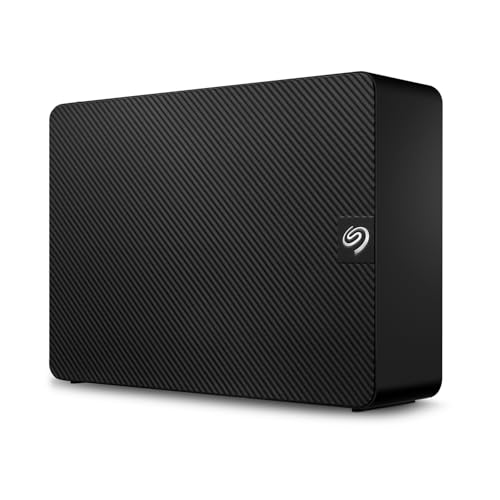
The Seagate Expansion 20TB closes the list by answering a specific question: how much media can one USB cable hold? Twenty terabytes is the answer here, in a desktop external enclosure connecting over USB 3.0, with Rescue Data Recovery Services named in the listing under model STKP20000400. For a media server built on a compact machine with no drive bays — or for the secondary server at a second property that mirrors the main library — a single enclosure of this size removes capacity planning from the conversation for a long while.
The Rescue services deserve a word of explanation, because they are frequently misunderstood. A rescue service is a laboratory recovery attempt after a drive has failed; it is a safety net with no guarantee, not a substitute for a backup, and the weeks a drive spends away being recovered are weeks the library is offline. Its presence in the listing is still genuinely valuable — professional recovery is otherwise very expensive — but the correct reading is “a last resort exists”, not “backups are handled”.
As with the other externals, this is a shelf-sitting desktop unit with its own power supply, and twenty terabytes of library on one spindle concentrates risk in proportion to its convenience. The sensible pattern is to let it serve as the streaming library while a second copy of the irreplaceable portions — home video, personal recordings, out-of-print rips — lives somewhere else entirely.
Consider, too, what twenty terabytes does to backup maths. Copying a full enclosure of this size to another drive takes the better part of a day even at healthy USB speeds, so owners of the Expansion tend to protect it selectively: the films that can be re-ripped sit unprotected by choice, while recordings, home video and the server’s own configuration are mirrored on a schedule. That tiered approach is not laziness; at this capacity it is the only proportionate plan, and the drive’s size is what makes the tiering conversation unavoidable.
- Capacity: 20TB
- Type: Desktop external hard drive
- Interface: USB 3.0
- Extras named in the listing: Rescue Data Recovery Services; model STKP20000400
- Internal drive specifications: Not stated in the listing title — verify with Seagate documentation
Strengths
- The largest external capacity here, in a single enclosure on one USB connection.
- Rescue recovery services are included in the listing as a last-resort safety net.
- Ideal for mirroring a main library to a second location’s server.
Trade-offs
- Twenty terabytes on one drive is twenty terabytes of exposure to a single failure.
- Recovery services take time and promise an attempt, not a result.
- Desktop enclosure with separate power supply; not a carry-around drive.
Best for: a buyer seeking maximum USB-attached library space for a bay-less server. Not suited for: a plan that treats the rescue service as the backup strategy.
How Much Speed Does Streaming Actually Demand?
Less than most buyers fear, and in a different shape than most specifications advertise. A single high-quality video stream pulls data from the drive at a rate that any modern hard drive exceeds many times over; even several simultaneous streams, read from different parts of the platter, sit comfortably within what a 7200 RPM NAS drive delivers while also handling a download landing in the background. The moments that genuinely test a media drive are bulk operations: the initial population of the library, a full parity check, a rebuild after a failure, or a backup run across the whole collection. Those are sequential, whole-drive marathons, and they are why the specifications emphasised in this guide are rotational speed, cache and recording method rather than any burst figure.
There is one workload that does punish spinning disks, and naming it helps owners design around it: dozens of small files requested at random. A photo library being indexed, a music collection being scanned for metadata, or a server generating thumbnails for ten thousand images all ask the drive to seek constantly, and seek time is the hard drive’s oldest weakness. The standard cure is architectural rather than a different drive — keep the server’s operating system, its media database and its thumbnail cache on a small SSD, and let the hard drives do the one job they excel at, which is streaming and storing very large files in order. Every pick in this guide is intended to sit behind exactly that arrangement.
Network speed deserves a mention in the same breath, because it caps everything downstream. A gigabit home network moves roughly a tenth of what these SATA drives can read sequentially, so on a wired gigabit setup the network, not the drive, sets the ceiling for a single stream’s delivery — and several streams share that ceiling. Owners chasing smoother multi-room playback usually gain more from a switch upgrade or a wired connection to the television than from a faster drive, which is a liberating fact: it means the honest, durable drives in this list are not the bottleneck in any realistic living room.
How Big Is a Library, Really? Planning Capacity in Practice
Capacity advice stays abstract until it is tied to the files a household actually keeps, so here is the arithmetic in concrete terms. A film stored at full disc quality commonly occupies somewhere between twenty and fifty gigabytes depending on the release, which means a thousand-film archive at that quality needs twenty to fifty terabytes before a single television episode is added. The same thousand films stored as compressed downloads might occupy three to five terabytes in total. Neither choice is wrong — they are different hobbies wearing the same name — but they lead to entirely different drive purchases, and confusing one for the other is how owners end up with an array that is full in February.
Television is the quiet multiplier. A long-running series stored complete can rival a hundred films, and a recorder attached to the server adds new hours every single day whether anybody watches them or not. Music, by contrast, is nearly free at modern capacities: even a large lossless collection usually fits in the space a handful of full-quality films occupy. Photos and home video sit in between, growing steadily and carrying the highest irreplaceability in the whole library, which is why the backup conversation keeps returning to them specifically.
A workable planning method is to measure the current library, watch its growth across three ordinary months, and multiply that monthly growth by thirty-six. That figure — three years of honest growth — is the usable capacity to buy, after parity has taken its share. Run the same arithmetic against this list and the picks sort themselves: the IronWolf 8TB array for the compressed-download household, the Red Plus 12TB set for the mixed library with full-quality favourites, the IronWolf Pro 24TB or the big externals for the full-scale archivist, with a three-year line pointing at the ceiling of everything smaller.
Internal Bays or USB Shelf: Reading the Six Against Each Other
The comparison that matters in this list is architectural before it is numerical. The three internal drives are components: they assume an enclosure, a controller and an owner comfortable choosing a RAID level. The three externals are appliances: they assume a shelf, a power outlet and a server with a USB port. Neither family is better in the abstract; they answer different server builds.
| Pick | Capacity | Form | Connection | Defining trait |
|---|---|---|---|---|
| Seagate IronWolf Pro 24TB | 24TB | Internal 3.5 inch | SATA 6Gb/s | 7200 RPM, 512MB cache, CMR, enterprise NAS |
| WD Red Plus 12TB | 12TB | Internal 3.5 inch | SATA 6 Gb/s | 7200 RPM, 512 MB cache, CMR |
| Seagate IronWolf 8TB | 8TB | Internal 3.5 inch | SATA 6 Gb/s | 180TB/year rating, RV sensors, AgileArray |
| WD My Book 12TB | 12TB | Desktop external | USB 3.0 | Password protection, auto backup software |
| WD Elements Desktop 10TB | 10TB | Desktop external | USB 3.0 | Plug-and-play simplicity |
| Seagate Expansion 20TB | 20TB | Desktop external | USB 3.0 | Rescue services, largest external here |
Within the internal family, the spread is about array design. The IronWolf 8TB suits the classic small NAS; the Red Plus 12TB is the size to build around when the enclosure has four bays and the library is ambitious; the IronWolf Pro 24TB serves the owner consolidating onto fewer, denser drives. Within the externals, choose by feature: password protection and backup software point to the My Book, deliberate simplicity points to the Elements, and sheer enclosure capacity points to the Expansion.
How Do You Set Up a Media Server Drive So It Lasts?
Begin with placement and cooling. Spinning drives age fastest when hot, so give the enclosure airflow, keep it out of sealed cupboards and away from radiators, and check temperatures after the first week of operation rather than assuming the setup is fine. In a multi-bay NAS, leave the fan profile on a setting that favours the drives over silence; a slightly audible fan is cheaper than a cooked disk.
Next, turn on the monitoring that owners so often skip. Enable SMART scheduled tests in the NAS or server software — a short test weekly and a long test monthly is a common pattern — and make sure alerts actually reach an email address or phone that somebody reads. A drive usually announces its decline through reallocated sectors and pending sectors weeks before it fails outright; the warning only helps if it lands somewhere visible.
Then settle the file-system and array choices deliberately. Use the redundancy level that matches how painful re-ripping would be: mirroring for two bays, single or dual parity for larger enclosures. Schedule scrubs or parity checks on a monthly rhythm so silent corruption is found while another copy still exists to repair it. Finally, keep the server’s media software from abusing the disks: thumbnail generation and chapter-image extraction across a whole library are heavy write workloads, best run once at ingest rather than repeatedly against the entire collection.
Power protection completes the setup. A media server writes at unpredictable moments — a recording finishing, a database updating, a download completing — and a sudden power cut mid-write is one of the classic causes of file-system damage on otherwise healthy drives. An inexpensive uninterruptible power supply that keeps the server alive long enough to shut down cleanly is therefore part of the storage purchase, not an accessory to consider later. NAS platforms and server operating systems can usually signal a shutdown over USB from the UPS automatically; enabling that link, and testing it once by pulling the plug deliberately, converts a theoretical safeguard into a proven one. Drives that never experience an uncontrolled stop age noticeably better than drives that ride every outage in the street.
Which Mistakes Shorten a Media Drive’s Life?
The classic error is installing desktop-class drives in a NAS because the capacity looked cheap. Desktop drives are engineered for intermittent duty, and in a 24/7 enclosure they fail early and can drop out of arrays during the long error-recovery pauses that NAS firmware does not tolerate. Every internal pick in this guide comes from a NAS line for that reason. The second error is treating RAID as a backup: an array survives a dead drive, but it faithfully mirrors accidental deletions, corruption and theft in real time. A library that matters needs a copy outside the array.
Third, owners fill drives to the brim and then wonder why performance and reliability sag; leave meaningful free space so the file system is not fragmenting every new file into the last corners of the platters. Fourth, the enclosure gets tucked somewhere hot and forgotten — heat is the quiet killer in these setups. And fifth, the most human mistake of all: hearing the early clicking or grinding of a failing drive and deciding to deal with it after the weekend’s viewing. That sound is the schedule. Replace the drive while the array can still rebuild from a living member.
When Should a Media Server Drive Be Retired?
Retirement planning sounds pessimistic and is actually the cheapest reliability measure available. Spinning drives rarely die without preamble; they accumulate reallocated sectors, begin reporting pending sectors that cannot be read, run hotter as bearings wear, and start appearing in the server’s logs with retry warnings. Any one of those signs, appearing in the SMART reports the setup section insists on scheduling, is the signal to order the replacement while the old drive can still be copied or rebuilt from at leisure. The expensive failures are the ones where the warning was visible for a month and the replacement was ordered after the drive stopped responding entirely.
Age alone is a weaker signal than health data, but it is not nothing. A drive that has spun continuously for five or more years has delivered the service its price promised, and many careful owners rotate such drives out of the primary array into backup duty — a role where they hold a second copy, are spun up less often, and can fail without taking anything unique with them. The externals in this guide often end their lives in that rotation role too, which is a graceful way to extract full value from hardware that has already earned its keep. What no drive should do is move in the opposite direction, from backup shelf into the primary array, late in its life.
Keep a simple written log while all of this happens: purchase date, model, serial, the bay or enclosure each drive occupies, and any SMART milestone worth noting. It sounds like bureaucracy until the night an array reports a failing member identified only by serial number, at which point the log is the difference between pulling the correct drive in thirty seconds and playing a guessing game with a library’s worth of data riding on the answer.
Final Recommendation
A word on sequencing the purchase, because it saves real money and real grief. Buy the enclosure and the drives as one plan, not as separate impulses: decide the library’s three-year size, choose the array level, and only then pick the drive capacity that fills the bays correctly. Owners who buy a single large drive first and an enclosure later routinely discover that the array they actually want needs matched drives in a size they did not buy. The picks above are deliberately spread across capacities so that whichever plan emerges — compact and mirrored, mid-sized and parity-protected, or consolidated onto a few very large spindles — there is a drive in this list specified for it, with its key figures stated in its own listing rather than borrowed from a sibling model.
Build around the WD Red Plus 12TB if a new multi-bay media server is being planned from scratch: it is the balanced centre of this list, with CMR recording and 7200 RPM pace stated plainly, and it scales into sensible mirrored or parity arrays. Choose the Seagate IronWolf 8TB for a smaller enclosure where its detailed specification — workload rating, vibration sensors, rescue cover — gives the most information per drive, and step up to the IronWolf Pro 24TB when the library’s growth makes capacity per bay the deciding factor. For a server without bays, the My Book 12TB is the most complete external here, the Elements Desktop 10TB the simplest, and the Expansion 20TB the answer when one enclosure must hold everything. Whichever drive ends up holding the library, give it cool air, working alerts and a backup of the files that cannot be replaced — the drive is the library’s home, and a well-kept home is what lets a collection grow old gracefully instead of ending in a recovery lab.
Frequently Asked Questions
Can a media server run on a single drive with no RAID?
Yes, and many do, particularly small servers built on a mini PC with one of the external drives above. The trade is that a drive failure takes the library offline until it is restored from backup, so the backup stops being optional. If the collection is easily re-downloaded, a single drive is a reasonable economy; if it represents years of ripping work, mirror it or back it up properly.
Why does CMR matter for a media server?
Media work involves long, sustained writes — ingesting rips, recording streams, rebuilding arrays. CMR drives maintain steady speed through those writes, while SMR drives can slow sharply when their overlapped tracks need reorganising. All three internal picks state CMR in their listings, which is why they anchor this guide.
How much capacity does a media library really need?
It depends entirely on quality choices. Compressed downloads can run to a few gigabytes per film, while full-quality disc rips are many times larger; a television archive grows by the season. Estimate the current library, double it for two years of growth, then add the recordings and photos that will inevitably move in — and size the array for that figure.
Are the external drives here suitable as NAS drives if removed from their enclosures?
That practice voids warranties and gambles on the internal drive being suitable for 24/7 array duty, which the listings do not claim. The externals in this guide are recommended as externals. For enclosure bays, the IronWolf and Red Plus models are the picks designed and specified for the job.
Should all the drives in one NAS be the same model?
Matched models are the safer default. Identical drives share rotational behaviour, firmware responses and sector layouts, which keeps array performance even and rebuilds predictable. Mixing models of the same capacity usually works, and arrays tolerate it, but a slower or differently tuned member can set the pace for the whole set — one more argument for buying the set together and keeping a matching spare.
How long should a media server drive be expected to last?
Plan around health data rather than a fixed birthday. A NAS-class drive in a cool, monitored enclosure commonly serves for years of continuous operation, and the listings here include warranty and workload figures that hint at the intended service envelope. The practical approach is to watch the SMART trends, keep a spare or a backup ready once a drive is well into its life, and retire drives on evidence — rising sector counts, new noises, growing temperatures — instead of on hope.
Do these drives need to be formatted in a special way for a media server?
The NAS enclosure or server operating system handles formatting when the drive is initialised, and the modern file systems offered by NAS platforms are designed for large media files and long uptimes. The decisions that matter are the array level and the share layout, not exotic format choices. For the USB externals, leave the factory formatting alone unless the server’s operating system requires otherwise.
What is the difference between the IronWolf and the IronWolf Pro?
Within this list, the Pro model is the enterprise-tier 24TB drive with 7200 RPM and a 512MB cache stated in its listing, aimed at larger and more demanding NAS deployments. The standard IronWolf 8TB counters with a fully stated workload rating, vibration sensors and rescue cover for smaller enclosures. Both are NAS drives; the choice is about scale and which specifications matter most to the build.
Related Guides
Storage for a media server connects to several neighbouring topics on this site. Readers planning the enclosure side of the build should see our guide to the best NAS enclosures for home use, while those weighing spinning disks against solid-state speed for the server’s system drive can compare the best SSDs for a home server. And because no library drive should stand alone, our roundup of the best external drives for backup covers the second copy every collection deserves.