What's inside
- Where to buy
- Key Takeaways
- Quick Picks
- How did we choose these upgradeable laptops?
- Why does soldered memory end so many laptops early?
- The six machines, examined one by one
- How does the comparison table separate these six?
- What should you check before buying memory modules?
- How do you actually perform the upgrade?
- When is an upgrade not worth doing?
- What mistakes do buyers of upgradeable laptops make?
- Final Recommendation
- Frequently Asked Questions
- Related Guides
As an Amazon Associate I earn from qualifying purchases. This post may contain affiliate links at no extra cost to you.
gizmoverdict.com is reader-supported. When you buy through links on our site, we may earn an affiliate commission.
Where to buy
All six machines in this guide are bought through Amazon’s US store, using the listings we verified for this roundup. Every pick below carries a link to its listing in the quick picks table and again under its detailed heading, so you can check the exact configuration on offer before you commit. If you are shopping for the best laptops with upgradeable ram, that configuration check matters more than usual, because two laptops sharing one model name can leave the factory with different memory arrangements, and the listing page — not the badge on the box — is where your particular unit is described.
Start with the uncomfortable truth that shapes this entire shortlist. Most thin laptops sold today have their memory soldered permanently to the motherboard. The chips are welded down during manufacturing, the case is glued or clipped shut, and the amount of RAM you choose at checkout is the amount you will own for the life of the machine. That design makes laptops slimmer and slightly cheaper to build, but it turns a routine upgrade into an impossibility and forces buyers to pay steep factory prices for memory they might not need for another three years. The machines that resist this trend come from two families: gaming laptops, where bulky cooling and serviceable interiors are part of the culture, and a shrinking number of business laptops built for fleet maintenance. Five of our six picks are gaming machines and the sixth is a business laptop, and that split is not an editorial preference. It is simply where socketed memory still lives.
Why does socketed memory matter enough to build a purchase around? Because RAM is the one component whose demands reliably grow during a laptop’s working life. A browser that idled happily with a dozen tabs becomes a memory hog once you add video calls, cloud documents, and a couple of creative applications running alongside. Games grow heavier with each generation. Photo libraries swell. A machine bought with sixteen gigabytes can feel cramped in year three, yet the processor inside it may still have years of useful speed left. With a SO-DIMM machine — the small removable memory modules laptops have used for decades — that moment is a minor expense and twenty minutes with a screwdriver. With a soldered machine, that same moment is a new laptop purchase. Upgradeable memory is therefore not a hobbyist obsession. It is the difference between a computer that ages gracefully and one that expires on a schedule set by its memory ceiling.
One honesty note before the picks, because it governs every spec box in this article. The listing titles for these six machines state DDR5 memory and a capacity, but they do not state how many slots sit inside or how those slots are populated. A laptop described as having thirty-two gigabytes might carry two sixteen-gigabyte modules, leaving no empty slot, or a single thirty-two-gigabyte module with a welcoming empty bay beside it. Those are very different upgrade stories, and no honest guide can tell them apart from a title alone. So every spec box below carries the same instruction on its slots line, and the how-to section later in this article teaches you exactly how to confirm the layout for the precise configuration you are buying before any money moves.
Key Takeaways
- Socketed SO-DIMM memory survives mainly in gaming laptops and a few service-minded business machines, which is why this shortlist leans heavily toward Legion, ROG, and TUF badges plus one ThinkPad.
- None of the six listing titles states a slot count, so the layout inside your exact configuration must be confirmed in the maker’s own service documentation before you buy upgrade modules.
- Buying the lower memory configuration and upgrading later usually beats paying factory prices for the top tier, provided you confirm the fitted modules leave you a workable path.
- Matched pairs matter: two identical modules let the memory controller run in dual-channel mode, which integrated graphics and many games reward with visibly smoother performance.
- The ThinkPad E16 Gen 3 is the pick for buyers who want an upgrade path without gaming styling, RGB lighting, or a power brick the size of a house brick.
- An upgrade is only complete when the machine recognises the new capacity in its firmware setup screen and passes a memory test, so plan the verification step as part of the job, not an afterthought.
Quick Picks
| Pick | Badge | Why it earns its place |
|---|---|---|
| Lenovo Legion 5a RTX 5060 | Best OLED gaming upgrade platform | A current-generation Legion with a fast OLED panel and thirty-two gigabytes already fitted, for players who want headroom now and sockets later. |
| Lenovo Legion 5 Ultra 9 RTX 5060 | Best processor muscle | Intel’s flagship HX silicon in a sixteen-inch Legion shell, aimed at buyers whose workloads punish the CPU as hard as the graphics card. |
| ASUS ROG Strix G16 RTX 5060 | Best sixteen-inch esports frame | A high-refresh Strix with sixteen gigabytes fitted, leaving the clearest financial case for a later matched-pair upgrade. |
| ASUS TUF Gaming F16 RTX 5050 | Best value entry point | The most affordable route into a socketed gaming laptop here, built in the TUF line’s deliberately serviceable style. |
| ASUS TUF Gaming A16 RX 7700S | Best AMD graphics alternative | An all-AMD TUF with a colour-accurate panel and USB4 on board, for buyers who prefer Radeon graphics and a Pro operating system licence. |
| Lenovo ThinkPad E16 Gen 3 Ryzen 7 | Best non-gaming choice | A sober sixteen-inch business machine with wired Ethernet and a fingerprint reader, for offices that service their own fleets. |
How did we choose these upgradeable laptops?
We began by excluding the entire soldered majority. Any thin-and-light machine whose memory is fixed at the factory — however lovely its screen or keyboard — cannot answer this keyword honestly, so ultrabooks with welded LPDDR memory never entered the candidate list. What remained were lines with a documented service tradition: Lenovo’s Legion gaming range, ASUS’s ROG Strix and TUF Gaming families, and Lenovo’s ThinkPad E series, which enterprise buyers still order partly because parts can be swapped by an in-house technician. Readers comparing the wider gaming field may also want our guide to the best 15 6 inch gaming laptops, where screen size rather than serviceability drives the selection.
Within those families we favoured current listings with DDR5 memory stated in the title, a discrete graphics card where gaming is the purpose, and enough storage that memory would be the first upgrade rather than the fifth. We deliberately mixed starting capacities: some picks arrive with thirty-two gigabytes fitted, which suits buyers who want the upgrade option held in reserve, while others arrive with sixteen, which suits buyers who would rather pay for modules themselves than fund a factory configuration. Neither approach is wrong. They serve different wallets and different timelines, and the detailed sections below are honest about which is which.
We also refused to invent the one fact this keyword most wants stated. Reviewers elsewhere print confident slot counts and maximum capacities for machines they have never opened. We will not. Where a number is a class norm rather than a verified fact about a specific configuration, the text says so and tells you where the verified fact lives — the manufacturer’s service manual for your exact model number, and the compatibility databases maintained by memory makers. That discipline costs this article some swagger and buys it something better: nothing in it will send you shopping for modules your machine cannot use.
Why does soldered memory end so many laptops early?
Picture a capable laptop in its fourth year. The processor still handles office work, browsing, and light creative tasks without complaint. The screen is fine, the keyboard is fine, the battery has lost some stamina but survives a morning unplugged. Yet the machine stutters through every working day because its eight or sixteen soldered gigabytes are permanently overwhelmed by software that grew hungrier around it. There is no repair for this condition and no upgrade path around it. The owner faces a replacement purchase triggered not by anything breaking, but by a design decision made in a factory years earlier. Multiply that story across millions of machines and soldered memory becomes an environmental problem as well as a personal finance problem.
Socketed machines write a different ending. The same fourth-year slowdown becomes a diagnostic question — is memory the bottleneck? — followed, if the answer is yes, by a modest purchase and a short, satisfying job at the kitchen table. The laptop returns to service with its files, settings, and familiar keyboard intact. Owners of older upgradeable machines routinely stretch them to seven, eight, or nine years this way, adding memory once and perhaps a larger solid-state drive later. If longevity is your real goal, you may also find our roundup of the best 200 dollar laptops upgradable instructive: even at the very bottom of the market, buyers hunt for sockets because sockets are what keep cheap machines alive.
There is a subtler benefit too. A laptop you can open is a laptop you can clean, repaste, and inspect. Dust-choked fans are the silent killer of gaming machines, and the same bottom panel that reveals the memory slots usually reveals the cooling system. Manufacturers who design for memory access tend to design for maintenance generally — captive screws, labelled connectors, published service manuals. Choosing an upgradeable laptop quietly chooses that whole philosophy.
The six machines, examined one by one
Each pick below gets the same honest treatment: what it is, who it serves, what its listing actually states, and where you must verify before buying. Read the slot line in every spec box as a genuine instruction, not boilerplate — it is the single most important sentence in this article, repeated because each configuration really does need its own check.
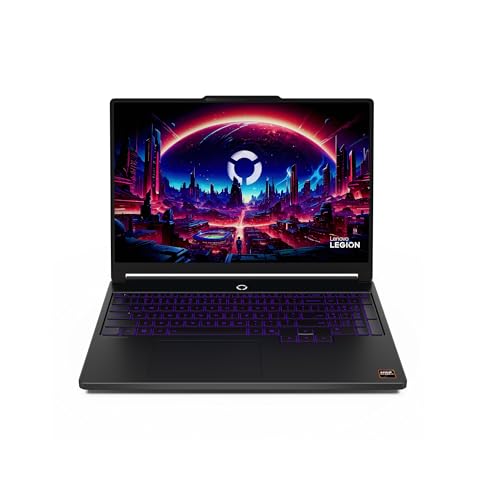
Lenovo Legion 5a RTX 5060 — Best OLED gaming upgrade platform
The Legion 5a is the machine for a player who wants the upgrade story to begin from strength. Its listing describes a 15.3-inch OLED display with a WQXGA resolution and a 165Hz refresh rate, an AMD Ryzen 7 250 processor, an NVIDIA GeForce RTX 5060 graphics card, thirty-two gigabytes of memory, and a terabyte of storage, finished in Eclipse Black. That fitted memory figure matters: you are not buying this laptop in order to rescue it next month. You are buying it because it runs everything well today while keeping the socketed door open for the day a future game generation or a heavier creative workload asks for more.
The OLED panel deserves its own paragraph because it changes the character of the machine. OLED pixels light individually, so dark game scenes show genuine black rather than washed grey, and colours carry a saturation that conventional panels chase but rarely match. For a player whose evenings mix competitive titles with story-driven games and streamed film, that screen is the feature they will notice every single day, long after benchmark numbers blur together. The 165Hz refresh rate keeps motion fluid without chasing the extreme figures that mainly serve professional esports players, and the slightly unusual 15.3-inch size keeps the chassis portable enough to move between desk and sofa without ceremony.
On the upgrade question specifically, the Legion line’s service culture is the argument. Legion machines are built to be opened by their owners — Lenovo publishes maintenance documentation for the range and the gaming community treats memory and storage swaps on these chassis as routine weekend work. The fitted thirty-two gigabytes will most plausibly be arranged as a matched pair, which means a future upgrade likely means replacing both modules rather than adding one; that is a class expectation to verify in the service manual for your exact configuration, not a promise printed here. Budget for that shape of upgrade and the machine’s economics still work beautifully, because you will be making the decision years from now, at future module prices, only if your workload actually demands it.
- Display: 15.3-inch OLED, WQXGA resolution, 165Hz refresh rate, per the listing title
- Processor and graphics: AMD Ryzen 7 250 with NVIDIA GeForce RTX 5060
- Memory fitted: 32GB DDR5, as the title records it
- Memory slots: Not stated in the listing title — verify the slot layout for the exact configuration in the manufacturer service manual
- Storage: 1TB
- Operating system and finish: Windows, Eclipse Black chassis
Strengths
- The OLED screen delivers contrast and colour that make both games and films feel a class above ordinary gaming panels.
- Thirty-two gigabytes fitted from day one means the upgrade question can wait years instead of arriving with the first demanding title.
- Legion ownership culture treats opening the machine as normal, so guides, manuals, and community experience are easy to find.
Trade-offs
- OLED panels ask for sensible habits around static screen elements, and they typically draw more power than plain panels at high brightness.
- If the fitted memory is a matched pair, a future upgrade replaces both modules rather than filling an empty slot.
- The RTX 5060 is a strong midrange card, not a flagship, so 4K external-monitor gaming will involve settings compromises.
Best for: players who want a beautiful screen and generous memory today, with a serviceable chassis held in reserve for tomorrow. Not suited for: buyers who specifically want to buy cheap now and add one inexpensive module within the first year.

Lenovo Legion 5 Ultra 9 RTX 5060 — Best processor muscle
Where the Legion 5a leads with its screen, this sixteen-inch Legion 5 leads with its processor. The listing pairs an Intel Core Ultra 9 275HX — the HX suffix marks Intel’s high-wattage mobile silicon, the kind usually found in desktop-replacement machines — with the same RTX 5060 graphics tier, thirty-two gigabytes of DDR5 memory, and a terabyte NVMe solid-state drive. The display is a 16-inch WQXGA panel running at 240Hz, and the networking runs to Gigabit Ethernet plus Wi-Fi 7. This is the pick for the buyer whose bottleneck is rarely the graphics card: the video editor rendering timelines between gaming sessions, the engineering student compiling and simulating, the streamer encoding on the same machine that runs the game.
That workload mix is precisely where an upgrade path earns its keep in a less obvious way. Memory pressure in a mixed creative-and-gaming life does not arrive gradually; it arrives the day you keep a game, a capture application, a browser full of research tabs, and an editing timeline open simultaneously. Thirty-two gigabytes handles that day comfortably. When a future version of your editing software or a larger project file pushes past it, the socketed design lets you respond with modules instead of a new HX-class machine — and HX-class machines are exactly the purchases you least want to repeat early, because their processors hold value for years.
The 240Hz panel also deserves a clear-eyed word. Competitive players in fast shooters can genuinely perceive the difference between 165Hz and 240Hz once their frame rates climb that high, and this machine’s pairing is aimed at them. If your gaming is slower-paced, treat the refresh rate as harmless surplus rather than a reason to buy; the reason to buy is the processor and the serviceable memory. Physical practicality rounds out the picture: a sixteen-inch HX machine is a desk anchor that occasionally travels, not a daily commuter, and its power supply will remind you of that every time you pack it.
- Display: 16-inch WQXGA, 240Hz refresh rate, per its title
- Processor and graphics: Intel Core Ultra 9 275HX with NVIDIA GeForce RTX 5060, 8GB GDDR7 graphics memory
- Memory fitted: 32GB DDR5 RAM
- Memory slots: Not stated in the listing title — verify the slot layout for the exact configuration in the manufacturer service manual
- Storage: 1TB NVMe M.2 solid-state drive
- Networking: Gigabit LAN and Wi-Fi 7, title figure
Strengths
- The HX processor gives this machine a working life measured in many years, which is exactly the lifespan an upgrade path exists to protect.
- A 240Hz WQXGA panel serves competitive players without forcing them into a separate esports-branded model.
- Wired Gigabit Ethernet sits alongside the newest Wi-Fi, so docked desk use and tournament-style connections are both covered.
Trade-offs
- Size, weight, and a substantial power brick make this a poor choice for anyone who carries a laptop all day.
- High-wattage silicon drains batteries quickly away from the wall, whatever the brochure class of the machine suggests.
- You pay for processor headroom that purely recreational players may never touch.
Best for: creator-gamers and technical students whose software leans on the CPU and who intend to keep one machine for a long stretch. Not suited for: commuters, or players whose heaviest demand is a single game at a time on the sofa.

ASUS ROG Strix G16 RTX 5060 — Best sixteen-inch esports frame
The Strix G16 makes the purest financial argument in this roundup. It arrives with sixteen gigabytes of DDR5 memory — half the fitted capacity of the two Legions — inside a sixteen-inch gaming chassis carrying an Intel Core i7-14650HX processor, an RTX 5060, a terabyte of Gen 4 storage, Wi-Fi 7, and a 165Hz FHD+ display with a 3ms response claim in its title. Sixteen gigabytes is a perfectly workable amount for gaming today. It is also the capacity most likely to feel tight first, which means this machine’s sockets are not a theoretical benefit. They are the second half of the purchase, planned from the start.
Think of the Strix as a two-stage buy. Stage one gets you a genuinely fast esports-capable laptop at a lower entry cost than its thirty-two-gigabyte rivals. Stage two, executed when your games or your multitasking habits tell you to — perhaps in eighteen months, perhaps in three years — replaces the memory with a matched pair of larger modules that you choose yourself, at street prices, after checking the service manual and a compatibility database for your exact model variant, the G615JMR-AS74 named in the listing. Because you buy the modules later and separately, you also buy exactly the capacity your life requires rather than the capacity a product manager packaged.
As a gaming machine in its own right, the G16’s formula is well judged. The FHD+ resolution at sixteen inches is easier for an RTX 5060 to drive at high frame rates than a QHD panel would be, and high frame rates are what a 165Hz screen exists to display. The 16:10 aspect ratio gives a little extra vertical room that strategy games, documents, and timelines all appreciate. ROG’s cooling and keyboard traditions are strong in this line, and the chassis has the purposeful, angular look that Strix buyers tend to actively want. Readers who are still deciding between gaming-first and work-first sixteen-inchers might compare notes with our coverage of the best 32gb ram laptops non gaming, where the same capacity question is argued from the office side.
- Display: 16-inch FHD+ 16:10, 165Hz refresh rate with 3ms response
- Processor and graphics: Intel Core i7-14650HX with NVIDIA GeForce RTX 5060
- Memory fitted: 16GB DDR5, as listed
- Memory slots: Not stated in the listing title — verify the slot layout for the exact configuration in the manufacturer service manual
- Storage: 1TB PCIe Gen 4 solid-state drive
- Connectivity and system: Wi-Fi 7, Windows 11 Home, model G615JMR-AS74
Strengths
- The lower starting capacity keeps the purchase price down while the sockets preserve the full upgrade story.
- FHD+ resolution is honestly matched to the graphics card, so frame rates stay high instead of being spent on pixels.
- The HX processor is far stronger than the thin-laptop chips many sixteen-inch machines settle for.
Trade-offs
- Sixteen gigabytes will need company sooner than the thirty-two-gigabyte picks, so budget the upgrade as part of ownership.
- Windows 11 Home lacks some Pro management features that small-business buyers occasionally want.
- Strix styling, lighting, and fan character announce themselves; this is not a machine that blends into a boardroom.
Best for: esports-leaning players who like a staged purchase and are comfortable planning one memory upgrade. Not suited for: buyers who want to unbox a finished machine and never think about its internals again.
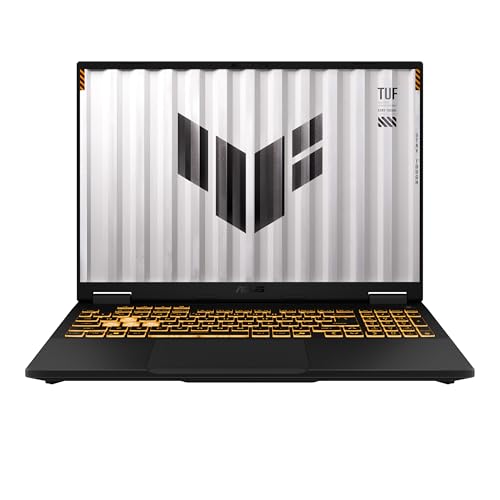
ASUS TUF Gaming F16 RTX 5050 — Best value entry point
The TUF Gaming F16 is where this roundup’s philosophy meets a tight budget. Its listing describes a sixteen-inch FHD+ display at 165Hz, an Intel Core i5-13450HX processor, an NVIDIA GeForce RTX 5050 graphics card, sixteen gigabytes of DDR5 memory, and a 512GB PCIe Gen 4 drive, running Windows 11 Home with Wi-Fi 6E. Every figure there sits one rung below the Strix — and that is the point. The TUF line has always been ASUS’s value gaming brand, built a little plainer and priced a little kinder, and crucially for this article it has kept the serviceable interior that the whole value proposition depends on. A cheap laptop you can upgrade beats a cheap laptop you cannot, every single time, because the upgrade is what converts a two-year compromise into a five-year machine.
Consider who this serves. A student buying a first gaming laptop with money earned over a summer. A parent choosing a machine that must survive schoolwork in the morning and games at night. A returning player who left the hobby a decade ago and wants back in without a flagship invoice. For all of them, the F16’s starting specification is honestly sufficient: the RTX 5050 handles popular titles at this panel’s resolution, the HX-series i5 has more muscle than its badge suggests, and sixteen gigabytes runs today’s games and coursework side by side. The compromises live in storage — 512GB fills quickly with modern game installs — and in the knowledge that memory will want attention eventually. Both compromises are the fixable kind, which is the entire thesis of this guide.
TUF ownership has a particular culture worth knowing about. These machines are bought by people who keep them, and the internet is full of long-lived TUF laptops still working years past their expected retirement, maintained by owners who cleaned fans, swapped drives, and added memory as needed. Buying into that line means buying into a deep pool of shared maintenance knowledge. When you eventually open yours, you will not be pioneering anything; you will be following a well-trodden path, with the service manual for your exact configuration as your map and the slot layout verified before a single module is ordered.
- Display: 16-inch FHD+, 165Hz refresh rate, 16:10 aspect ratio
- Processor and graphics: Intel Core i5-13450HX with NVIDIA GeForce RTX 5050
- Memory fitted: 16GB DDR5, per the listing
- Memory slots: Not stated in the listing title — verify the slot layout for the exact configuration in the manufacturer service manual
- Storage: 512GB PCIe Gen 4 solid-state drive
- Connectivity and system: Wi-Fi 6E, Windows 11 Home
Strengths
- The friendliest entry price in this roundup still buys genuine SO-DIMM serviceability rather than a sealed compromise.
- A 165Hz panel at this tier means motion clarity is not sacrificed to hit the price.
- The TUF line’s long ownership culture means maintenance knowledge and parts discussion are easy to find years later.
Trade-offs
- 512GB of storage will feel small once three or four large games are installed, so a storage upgrade may queue ahead of memory.
- The RTX 5050 is the entry rung of its generation; demanding titles will need settings tuned rather than maxed.
- Fit, finish, and speaker quality reflect the value brief rather than the Strix’s showier standard.
Best for: students and budget-conscious players who want one affordable machine they can grow. Not suited for: buyers chasing high settings at high resolutions, or anyone who knows they will never open a laptop.

ASUS TUF Gaming A16 RX 7700S — Best AMD graphics alternative
Every other gaming pick in this article pairs its processor with an NVIDIA graphics card, so the TUF Gaming A16 earns attention simply by going all-AMD: an eight-core Ryzen 7 7735HS processor working with a Radeon RX 7700S graphics card carrying eight gigabytes of its own memory. The listing adds a sixteen-inch FHD+ display at 165Hz with full sRGB coverage stated in the title, sixteen gigabytes of DDR5, a 512GB solid-state drive, USB-C with USB4, and Windows 11 Pro — an operating system edition the rest of the gaming field here skips. An HDMI cable is bundled, a small touch that hints at this machine’s intended life plugged into desks and televisions.
Why choose the Radeon route? Partly preference, partly workload. AMD’s graphics drivers have their own strengths in certain titles and creative applications, some buyers simply favour the ecosystem, and the all-AMD combination has a reputation for cooperative power behaviour in laptops. The full sRGB coverage claim in the title matters to a specific reader: the player who also edits photographs or produces video for a channel, and who needs the screen to show colours faithfully rather than merely vividly. A gaming panel that doubles as an honest editing surface saves that reader from buying a second machine or an external monitor sooner than planned.
The upgrade story mirrors its F16 sibling with one caution layered on top. The 7735HS platform is a generation older than the newest silicon in this roundup, which makes the memory sockets more valuable, not less: when a processor is merely strong rather than cutting-edge, removing every other bottleneck is how you keep the machine feeling quick, and memory headroom is the classic bottleneck to remove. Sixteen gigabytes today, a verified matched pair tomorrow, and the A16 keeps pace with its owner’s ambitions. Verify the slot arrangement for your exact configuration in the service manual before ordering, exactly as with every pick here — the discipline does not change because the graphics badge did. Buyers weighing this machine against desk-bound alternatives may also appreciate our guide to the best laptops with thunderbolt, since docking behaviour often decides which laptop a hybrid worker actually keeps.
- Display: 16-inch FHD+, 165Hz refresh rate, with full sRGB coverage claimed in its title
- Processor and graphics: AMD Ryzen 7 7735HS, eight cores, with Radeon RX 7700S graphics and 8GB graphics memory
- Memory fitted: 16GB DDR5
- Memory slots: Not stated in the listing title — verify the slot layout for the exact configuration in the manufacturer service manual
- Storage: 512GB solid-state drive
- Ports and system: USB-C with USB4, backlit keyboard, Windows 11 Pro, bundled HDMI cable
Strengths
- The all-AMD pairing gives buyers a genuine alternative in a roundup otherwise dominated by one graphics brand.
- Stated full sRGB coverage makes the screen credible for photo and video work between gaming sessions.
- Windows 11 Pro and USB4 connectivity give it a hybrid work-and-play polish its siblings do not all match.
Trade-offs
- The processor platform is older than the newest chips elsewhere in this article, so raw CPU benchmarks trail the HX picks.
- Radeon mobile graphics have a smaller community knowledge base for niche game issues than the dominant alternative.
- Storage starts at 512GB, the same squeeze the F16 asks its owners to manage.
Best for: AMD loyalists and creator-players who want colour-honest visuals and Pro-edition Windows in a serviceable chassis. Not suited for: buyers who need the newest processor generation, or whose favourite titles are known to favour the rival graphics ecosystem.

Lenovo ThinkPad E16 Gen 3 Ryzen 7 — Best non-gaming choice
After five gaming laptops, the ThinkPad E16 Gen 3 changes the temperature of the room. Its listing describes a sixteen-inch FHD+ business machine built around an eight-core Ryzen 7 250 processor, with sixteen gigabytes of memory and a 512GB drive, a backlit keyboard, a fingerprint reader, Wi-Fi 6, an FHD infrared webcam, wired RJ-45 Ethernet, and Windows 11 Pro. There is no discrete graphics card headline and no refresh-rate bragging. What there is, instead, is the ThinkPad E series’ defining virtue: it is a business tool designed to be deployed, serviced, and kept. For an office manager buying a small fleet, or a professional who games not at all, this is the upgradeable laptop that looks correct in a meeting and opens correctly on a workbench.
The business context changes why memory access matters. A company running twenty of these does not replace a laptop because one employee’s workload outgrew sixteen gigabytes; it sends the machine to whoever handles IT, that person fits verified modules during a lunch break, and the laptop returns to its desk with its data, accounts, and docking setup untouched. Multiply that avoided replacement across a fleet and across years, and the E16’s sockets become a line item a finance department can appreciate. The infrared webcam and fingerprint reader serve that same professional life — face and finger sign-in are the kind of daily convenience that employees actually feel — while RJ-45 Ethernet keeps the machine honest on wired office networks where Wi-Fi is crowded or restricted.
At home, the same machine suits the writer, accountant, researcher, or administrator whose work is browsers, documents, spreadsheets, and calls, and whose definition of performance is a computer that never once makes them wait or think about it. Sixteen gigabytes is ample for that life today. The upgrade path is insurance for the day a new role adds virtual machines, data tools, or heavier multitasking. As with the gaming picks, the listing states memory type and capacity but not the slot arrangement, so the service manual check applies with full force — business buyers, of all people, should appreciate a machine whose documentation is written to be checked.
- Display: 16-inch FHD+, per the listing title
- Processor: AMD Ryzen 7 250, eight cores, as the title records it
- Memory fitted: 16GB DDR5 class memory in a 16GB and 512GB configuration
- Memory slots: Not stated in the listing title — verify the slot layout for the exact configuration in the manufacturer service manual
- Storage: 512GB solid-state drive
- Business features: backlit keyboard, fingerprint reader, FHD infrared webcam, RJ-45 Ethernet, Wi-Fi 6, Windows 11 Pro
Strengths
- Professional appearance and ThinkPad service culture make it the natural fleet and home-office choice in this roundup.
- Face and fingerprint sign-in plus wired Ethernet cover the daily conveniences business users actually notice.
- Windows 11 Pro brings the management and remote features that the Home-edition gaming picks omit.
Trade-offs
- Integrated graphics only, so modern games are off the menu beyond light and older titles.
- The display is a workmanlike FHD+ panel, not the OLED or high-refresh screens the gaming picks parade.
- Sixteen gigabytes is the starting point most likely to be upgraded by heavy multitaskers within a few years.
Best for: professionals, small fleets, and home-office workers who want a serviceable sixteen-inch machine without gaming dress. Not suited for: players, video editors working in earnest, or anyone whose software feeds on a discrete graphics card.
How does the comparison table separate these six?
| Pick | Screen | Memory fitted | Character in one line |
|---|---|---|---|
| Lenovo Legion 5a RTX 5060 | 15.3-inch OLED WQXGA, 165Hz | 32GB DDR5 | The display connoisseur’s Legion, bought strong and kept open. |
| Lenovo Legion 5 Ultra 9 RTX 5060 | 16-inch WQXGA, 240Hz | 32GB DDR5 | HX processor power for people whose work and play share one desk. |
| ASUS ROG Strix G16 RTX 5060 | 16-inch FHD+, 165Hz | 16GB DDR5 | A staged purchase: esports pace now, matched modules when life demands. |
| ASUS TUF Gaming F16 RTX 5050 | 16-inch FHD+, 165Hz | 16GB DDR5 | The budget door into socketed ownership, held by the TUF service tradition. |
| ASUS TUF Gaming A16 RX 7700S | 16-inch FHD+, 165Hz, full sRGB stated | 16GB DDR5 | The all-AMD variant with colour-honest ambitions and Pro Windows. |
| Lenovo ThinkPad E16 Gen 3 Ryzen 7 | 16-inch FHD+ | 16GB | The fleet-minded business machine that treats memory as a service item. |
Read the table by your bottleneck, not by badge. If your evenings are cinematic and your games atmospheric, the Legion 5a’s OLED outranks everything. If your processor does the heavy lifting — compiling, rendering, encoding — the Ultra 9 Legion is the honest answer. If money is the bottleneck, the TUF F16 removes it while keeping the socket story intact, and the Strix splits the difference with stronger silicon and a planned upgrade. The A16 is the ecosystem choice, and the ThinkPad is the profession choice. Notice what the table does not contain: a slot-count column. That absence is deliberate, and the next sections teach you how to fill it in for yourself, properly, before any purchase.
What should you check before buying memory modules?
Begin with the service manual, not the shopping cart. Every manufacturer in this roundup publishes maintenance documentation keyed to exact model numbers, and that document shows the memory bay layout, the module type the board accepts, and any configuration the maker has validated. Find your precise configuration — not a sibling model, not last year’s version — and read its slots line for yourself. This is the step the spec boxes in this article have been pointing at all along, and it takes ten minutes that can save a returned parcel and a wasted month.
Next, cross-check with a memory maker’s compatibility database. The large module manufacturers maintain lookup tools where you enter the laptop model and receive the kits they guarantee for it; the class of tool matters more than the brand, so use whichever database covers your machine. Compatibility is not only about DDR generation. Module voltage, rank organisation, and the speeds the laptop’s firmware will actually run all live in these databases, and a kit that is merely the right physical shape can still misbehave. When the manual and the database agree, you have a purchase you can defend.
Then decide your configuration philosophy. Dual-channel operation — two modules working in parallel — widens the memory pathway, and integrated graphics in particular feed hungrily on that width. A matched pair of identical modules is therefore the safest and usually the fastest arrangement. Adding one larger module beside a smaller original keeps dual-channel behaviour only across part of the capacity in many designs, a compromise called flex mode that is better than too little memory but worse than symmetry. If your machine’s layout turns out to be a single occupied slot plus an empty one, adding a twin of the fitted module is the elegant move. If both slots are occupied, a future upgrade means a full matched pair, and the removed modules can be sold or kept as spares. None of this can be planned until the manual tells you which world you live in — which is, once more, why the manual comes first.
One more practical check concerns the modules themselves rather than the laptop. Buy from a seller whose returns window comfortably covers your fitting date, and keep the packaging until the machine has passed its memory test and worked a week of ordinary life. Reputable module makers warranty their sticks for years, often for the life of the product, but a painless exchange in the first fortnight is worth more than a warranty claim in the second year. Note the kit’s exact part number in the same document where you record your laptop’s serial number and original configuration; if you ever sell the machine, that paper trail lets the next owner upgrade with the same confidence you did, and a well-documented serviceable laptop holds its value noticeably better than an undocumented one.
Finally, respect the maximum question honestly. This article promises no specific ceiling figure for any pick, because ceilings belong to specific configurations and firmware generations. The class norm for modern dual-slot DDR5 machines is generous enough that few owners will ever reach it, but the number that governs your machine is the one printed in its documentation, and a careful buyer reads it there rather than trusting any roundup — including this one — to carry it across models safely.
How do you actually perform the upgrade?
The physical job is gentle work, and thousands of owners do it yearly without incident. Shut the machine down fully, unplug it, and work on a clean, uncluttered surface with room to organise screws in the order they came out. Your model’s service manual shows the bottom panel fasteners and any clips; follow its sequence rather than improvising, and use a screwdriver that truly fits the heads, because small screws punish the wrong tool. Many manufacturers also ask you to disable the internal battery in firmware before opening the case — if your manual says so, do it, and treat that instruction as part of the craft rather than a hoop.
With the panel off, ground yourself by touching a large metal object, then find the memory bay your manual pictured. Modules release by easing two small retaining clips outward at once; the stick rises at an angle and slides free. A new module enters at that same angle, seats with firm, even pressure, and presses down until both clips click over its edges. Symmetry of force is the whole technique — nothing inside a laptop rewards strength, and everything rewards patience. Photograph the original arrangement before you touch anything, so a puzzling moment later has a reference.
Close the machine, reconnect power, and boot into the firmware setup screen before letting the operating system load. The setup screen reports the memory the board can see; confirm the new total matches your intention. Then boot normally and run a memory diagnostic — the operating system’s built-in tool at minimum, a dedicated testing utility overnight if you want certainty — because a module can be recognised yet faulty, and the day you fit it is the easiest day to exchange it. Keep the old modules until the machine has worked a full week under your real workload. That is the whole ritual: manual, clips, firmware check, test. An hour of care buys years of headroom.
When is an upgrade not worth doing?
Honesty cuts both ways, and there are machines — even socketed ones — where new memory is money poured into a closing door. If the processor already struggles with the basic shape of your day, if the screen or keyboard has faults you have been tolerating, or if the battery has swollen or faded to the point of tethering you to a wall, memory will not rescue the experience. An upgrade makes a fundamentally sound laptop roomier. It does not make an unsound laptop sound, and the distinction is worth a sober minute before ordering.
Age matters in a second way: software support. An older machine whose operating system has stopped receiving updates, or whose graphics card has fallen off a game’s minimum list, gains little from capacity it cannot spend on supported software. In that situation the wisest move is the one this article exists to delay, not deny — replacement, ideally with another serviceable design so the cycle restarts on better terms. Several readers cross-shopping longevity in harsher environments end up reading our guide to the best laptops for seniors without computer experience for family members at the same time, which illustrates the real pattern: households rarely buy one laptop philosophy, they buy several, matched to several lives.
There is also a timing judgement. Fitting modules in the final year you realistically expect from a machine returns little value, while fitting them in year two or three — when the rest of the hardware has most of its life ahead — returns years. The sweet spot for most owners of the sixteen-gigabyte picks will arrive when a favourite game, a new job, or a grown hobby first makes the ceiling visible. Buy then, verify first, and the economics sing.
What mistakes do buyers of upgradeable laptops make?
The classic mistake is ordering modules before verifying the layout — buying a single large stick for a machine whose two slots are both occupied, or a pair for a machine with one slot and memory partly soldered beside it. Every version of this error begins with skipping the service manual, and every version ends with a returns label. A close cousin is mixing generations: DDR5 and DDR4 modules share a family name and nothing else; they are keyed differently and electrically incompatible, and no amount of optimism seats one in the other’s slot.
A subtler mistake is assuming the upgrade must happen immediately. Buyers of the sixteen-gigabyte picks sometimes fit new modules in the first week, out of pure enthusiasm, before learning whether their actual workload ever touches the ceiling. The smarter sequence is to live with the machine, watch memory pressure in the task manager during your heaviest real sessions, and upgrade when evidence — not anxiety — says so. Modules do not expire on the shelf of a shop, and prices for mature DDR generations tend to soften over time. Readers at the research stage may enjoy our guide to the best laptops matte screen as a reminder that panel finish, like memory, is a buy-it-right-first-time decision.
The final mistake is neglecting the rest of the machine while celebrating the memory. An opened laptop is an opportunity: clear the fan intakes, check the drive’s health, confirm the battery is not swelling. Owners who treat the upgrade as one act in a general maintenance habit get the longest lives from these machines, which was the point of choosing a serviceable design in the first place.
Final Recommendation
Choose by the life the laptop must lead. The Legion 5a is our first call for most players: a gorgeous OLED screen, thirty-two gigabytes already working, and a chassis that respects its owner’s future. The Ultra 9 Legion serves the smaller group whose processors earn their living. The Strix G16 is the planner’s delight, the TUF F16 the budget’s champion, the TUF A16 the AMD-hearted alternative, and the ThinkPad E16 Gen 3 the professional’s quiet answer. Whichever you choose, perform the manual check before modules are ordered and the firmware check after they are fitted, and the machine will repay the diligence. A laptop bought with room to grow is a laptop that grows old on your schedule, so pick the one whose sockets you will still be glad of when the third year asks its first hard question.
Frequently Asked Questions
Does adding more RAM make a laptop faster?
It makes a memory-starved laptop faster, which is a different and more honest claim. If your current workload regularly fills the fitted memory, the system spends its time shuffling data to the drive, and extra capacity removes that stall dramatically. If your workload never fills what you have, extra modules change little beyond future-proofing. Watch memory usage during your heaviest genuine session; that observation, not a benchmark, tells you whether an upgrade will be felt.
Can I mix a new module with the one already fitted?
Sometimes, and the manual plus a compatibility database decide whether your machine is one of those times. A matched twin of the fitted module is the safest addition when an empty slot exists. Mixing sizes often still works but can limit dual-channel benefits to part of the capacity, and mixing speeds settles everything at the slower module’s pace. When in doubt, a matched pair is the configuration nobody regrets.
Will opening the laptop void my warranty?
Rules vary by manufacturer and region, and this is another question your model’s documentation answers better than any article can. Serviceable lines are generally designed with owner upgrades in mind, and many makers state plainly that fitting memory does not void coverage, provided nothing is damaged in the process. Read the warranty terms for your exact model before you begin, work gently, and keep the original modules so the machine can be returned to its shipped state if it ever needs service.
How much memory do most people actually need?
For browsing, documents, media, and calls, sixteen gigabytes remains comfortable. Gaming alongside streaming or capture, large photo libraries, virtual machines, and serious multitasking all argue for thirty-two. Beyond that lies specialist territory — big datasets, heavy development environments, professional media timelines. The beauty of every pick in this article is that the answer can change later; our wider guide to the best laptops for construction projects shows the same buy-for-longevity thinking applied to machines that work outdoors.
Is DDR5 worth insisting on?
All six picks here use the DDR5 generation, which brings higher bandwidth and better efficiency than its predecessor, and — practically — a longer future as the standard module type you will still be able to buy in five years. The generation also cannot be mixed with DDR4, so knowing which your machine takes, from the manual, is a non-negotiable step before ordering.
What if my laptop turns out to have no empty slot?
Then your upgrade is a replacement rather than an addition: remove the fitted modules and install a larger matched pair. The removed sticks retain resale or spare value, and the total cost is still a fraction of a new laptop. This outcome is common with thirty-two-gigabyte configurations and is exactly why this article refuses to guess layouts — knowing which situation you are in shapes the budget, and the service manual tells you in minutes.
Related Guides
Keep researching with our guide to the best 8gb ram gaming laptops if you are weighing how little memory a gaming machine can start with, and our roundup of the best 13 inch business laptops if the ThinkPad’s service ethic appeals but its sixteen inches do not.
Field crews who service their own kit should compare best laptops for construction projects before buying for a project.
Upgraders keeping older media in the workflow will also want best laptops with a cd dvd drive.


