What's inside
- Key Takeaways
- Quick Picks
- How Did We Rank Extenders by Ease Instead of Speed?
- Why Does a Plain Extender Slow Things Down at the Far End?
- Where Should an Extender Actually Sit in the House?
- Which Band Should Do the Extending, 2.4GHz or 5GHz?
- What Should You Do in the First Week After Installing One?
- What Does Setup Day Actually Look Like, Step by Step?
- When Is an Extender the Wrong Purchase Entirely?
- How Do the Six Easiest Extenders Compare Side by Side?
- How Does an Extender Compare with a Mesh System or Powerline?
- What Mistakes Make an Easy Extender Feel Complicated?
- Does an Extender Change Anything About Security or Updates?
- Final Recommendation
- Frequently Asked Questions
- Related Guides
As an Amazon Associate I earn from qualifying purchases. This post may contain affiliate links at no extra cost to you.
gizmoverdict.com is reader-supported. When you buy through links on our site, we may earn an affiliate commission.
Where to buy: Each extender below links to a listing checked in this site’s verified product pool. One pick is a mesh-style unit that prefers its own app over a WPS button, and that trade is stated plainly where it appears, because an extender bought for painless setup should never demand a networking degree at the last step.
People searching for the best and easiest wifi extenders are rarely asking about speed. They are asking about the twenty minutes after the box opens: whether the thing pairs with a button press or a short app walkthrough, whether it keeps the network name the household already knows, and whether grandma’s tablet reconnects without anyone retyping a password on a ladder. Ease, in this category, is a feature as concrete as any radio, and it is the axis this entire guide is built around.
That framing changes what wins. A technically faster extender that buries its setup in a browser wizard with eleven screens loses here to a slightly slower unit that joins the network from a phone in four taps. It also changes what counts as a flaw: a second network name that devices cling to in the wrong room, a setup app that demands an account before it will scan, a status light nobody can interpret. Those are the failures that send extenders back in their boxes, and they weigh as heavily in these rankings as any coverage figure.
One honesty note before the picks. The coverage and speed numbers in extender listings are the manufacturers’ own figures, gathered in open, ideal test conditions: a square-footage claim describes a best-case radius through friendly walls, and an AX number sums the theoretical maximum rates of both bands together. Your plaster, brick and floor slabs will tax both numbers. What an extender can honestly promise is a stronger, steadier signal in the room that currently drops calls, and the six below were chosen to deliver that with the least possible friction between the box and the result.
Key Takeaways
- Ease means three things here: a short setup path, one network name to rejoin, and lights or app screens a non-technical owner can read.
- Manufacturer coverage figures are ideal-condition marketing numbers, not measurements of your house.
- A traditional single-radio extender spends part of its airtime repeating traffic, so expect less throughput at the far end than beside the router.
- Mesh-style extenders keep one name and roam cleanly, but usually ask for an app and an account.
- Placement halfway to the dead zone matters more than any specification on the carton.
- Every pick here works with any router brand; none of them needs a matching router to function.
Quick Picks
| Pick | Badge | Why it earns its place |
|---|---|---|
| NETGEAR EAX20 | Easiest mesh-style setup | A WiFi 6 mesh extender that keeps your existing network name and sets up through one guided app flow. |
| TP-Link RE615X | Simplest app-guided plug-in | TP-Link’s Tether app walks the placement step by step and grades your chosen spot before you commit. |
| D-Link E30 | Big-house mesh extender | An AX3000 mesh extender with a gigabit port, aimed at larger homes that want one name everywhere. |
| NETGEAR EAX15 | Compact Nighthawk ease | A wall-plug AX1800 unit with the same app routine as its bigger sibling in a smaller body. |
| ASUS RP-AX58 | Best for ASUS households | An AiMesh extender that folds into an existing ASUS setup almost automatically. |
| Linksys RE7310 | Button-first simplicity | A WiFi 6 extender whose spot-finder routine helps you place it without guesswork. |
How Did We Rank Extenders by Ease Instead of Speed?
The scoring started at the unboxing. Each candidate was judged on the shortest honest path from sealed box to a working extended network: a WPS button press where one exists, the number of app screens where an app is the route, and whether the process ever demands a laptop, an Ethernet cable or a password typed twice. Models that forced a web-browser wizard as the only path were marked down, because the browser route is where non-technical owners stall, usually at the step where the extender’s temporary network name looks indistinguishable from a neighbour’s.
The second test was what the household experiences afterwards. An extender that broadcasts a separate network name with an _EXT suffix creates a daily tax: phones cling to the weakening router signal in the hallway instead of switching, and somebody has to teach every device the second name. Mesh-style extenders that clone the existing name and steer devices themselves erase that tax entirely, which is why they dominate the top of this list despite costing more than the simplest repeaters.
Finally, we weighed recovery. Routers get replaced, passwords change, power cuts happen at 2 a.m. The extenders ranked here either reconnect on their own or make the re-pairing path short enough to repeat from memory. An extender that must be factory-reset and reconfigured from zero after every router change is not easy in any sense that survives a year of ownership, however quick its first setup felt.
We also discounted, deliberately, the laboratory virtues. Raw wireless class appears in these rankings only where it changes the ownership experience, because a household extending a modest broadband line will never perceive the difference between AX1800 and AX3000 in the rescued room, while it will perceive a clumsy setup every single time it touches the app. That ordering of priorities is the guide’s thesis, and readers whose priority is genuinely throughput should read the rankings in reverse spirit, weighting the table’s class column above its setup column, with our blessing and a pointer to the Ethernet guide in this series for the wired-backhaul endgame.
Value was the final filter, applied gently. The easiest products here cluster in a middle band: the very cheapest repeaters save money by omitting the placement help and roaming behaviour that make extenders pleasant, while the most expensive add capacity that an ease-first brief cannot spend. Every pick survived a simple interrogation: if this unit vanished from the list, would some recognisable household be worse served? Each of the six answered for a different household, which is why the list holds together despite its internal variety of shapes, brands and setup philosophies.
Why Does a Plain Extender Slow Things Down at the Far End?
The honest mechanics deserve a section of their own, because they explain the gap between the number on the box and the speed test in the back bedroom. A conventional extender uses the same radios to listen to the router and to talk to your devices, taking turns on the same channels. Every packet therefore crosses the air twice, and the airtime available for actual data shrinks accordingly, often to roughly half of what the link could otherwise carry. Engineers call this a single-radio repeating penalty, and no firmware update can repeal it.
Mesh-style extenders soften rather than abolish the problem. Smarter units manage their bands more cleverly, steering the backhaul conversation and the client conversation apart where the hardware allows, and they choose better paths as conditions change. The result is a smaller, less predictable penalty instead of a fixed halving, which in practice means a video call that stays smooth rather than a speed test that wins arguments.
The practical translation is expectation-setting. If the router delivers a strong 400 Mbps in the living room, a traditional extender might give the study a perfectly useful 120 to 180 Mbps, while a mesh-style unit might preserve noticeably more. For browsing, streaming in high definition and calls, either figure is ample. For moving huge files to a desk in the dead zone, neither extender is the real answer; a cable is, and the buying-guide section below says so without embarrassment.
There is a second, quieter tax worth naming: latency. Each repeated hop adds a small delay, invisible to streaming, which buffers ahead, but faintly perceptible in fast online games and in the first syllable of a call on a bad day. Households whose dead zone hosts a competitive gaming desk should hear that plainly and look toward the wired options discussed later in this guide, where an extender’s Ethernet port, fed by a strong wireless link, often beats a purely wireless path on exactly this measure. Everyone else can file latency under things the category handles well enough and stop worrying.
Where Should an Extender Actually Sit in the House?
Placement is the highest-leverage decision in this whole category, and it is free. The extender belongs roughly halfway between the router and the dead zone, in a spot where it still receives a strong router signal to repeat. Plugged into the dead room itself, it faithfully amplifies a weak, error-riddled feed, and the household concludes that extenders do not work. Plugged in too close to the router, it repeats a superb signal to rooms that never needed help.
The better apps in this guide turn placement into a guided exercise rather than a guessing game, grading candidate outlets by the strength of what the extender hears. Use that feedback, and treat it as a floor rather than a verdict: a spot the app calls acceptable but that sits behind a metal-clad appliance or inside a cupboard will underperform its grade. Open air, waist height or higher, away from large metal objects and fish tanks, is the unglamorous recipe that outperforms any specification.
Multi-storey houses add one wrinkle. Signal travels between floors best near stairwells and open landings, where the path crosses one floor slab at an angle instead of punching through layered flooring and underfloor heating mats. An extender on the landing frequently rescues the whole upper floor, while the same unit in the far bedroom rescues only itself. Walk the house with a phone before ordering, note where the signal collapses, and place the extender at the edge of the good territory, not in the middle of the bad.
That survey costs nothing and prevents the most expensive sentence in this category, which is the second extender bought to rescue the first one’s placement. Note, too, the rooms that merely feel slow rather than testing slow: a kitchen where a metal-clad fridge shadows one corner, a garden room whose foil-backed insulation was designed, in effect, to keep radio out. Those rooms have placement answers or wired answers, and telling them apart during the survey is what separates a single successful purchase from a shelf of returned experiments.

NETGEAR EAX20 — Easiest mesh-style setup
The EAX20 tops this guide because it removes the two chores that make extenders feel technical. It joins the home network through NETGEAR’s Nighthawk app in a guided sequence, and once running it operates as a mesh extender: the network name stays the one the household already uses, devices are steered between router and extender by the system rather than by a frustrated human toggling Wi-Fi in a hallway, and the whole arrangement survives a router reboot without a fresh pairing ceremony.
Its listing describes an AX1800 dual-band design with coverage claimed up to 1,500 square feet and support for twenty-plus devices, figures to read as the manufacturer’s ideal-condition framing rather than a survey of your walls. In the role this guide cares about, the relevant facts are behavioural: smart roaming is part of the pitch, the unit works with any router brand, and the app remains the single place to check status, run updates and see which devices are attached. For a household that wants the dead zone fixed and then forgotten, that is the complete product.
The compromises are the mesh family’s usual ones. Setup runs through an app and a NETGEAR account rather than a bare WPS press, which a minority of buyers actively dislike. It is a desktop-style unit rather than a wall plug, so it needs a shelf or surface near the chosen outlet. And its AX1800 class, while plenty for extending a typical broadband connection, is not the ceiling of this list for households determined to squeeze a gigabit fibre tier into every corner.
Consider the household this suits most precisely: two adults whose router lives by the front door because that is where the line enters, and whose main bedroom sits at the far end of the plan collecting the weakest signal in the home. Nothing about their usage is exotic; it is streaming in bed, phones on nightstands, a call from the spare room. The EAX20 fixes that geography without renaming anything, and its app gives the less technical partner a screen they can interpret when the other is away, which is a form of ease that spec sheets never capture.
- Wi-Fi class: AX1800 WiFi 6, dual band
- Maker’s coverage claim: Up to 1,500 sq. ft., ideal conditions
- Network name: Keeps the existing name, mesh-style roaming
- Setup route: Nighthawk app guided flow
- Compatibility: Works with any router brand
Strengths
- One network name ends the hallway toggling problem for good
- App setup reads clearly to someone who has never configured a network
- Reconnects and self-manages after power cuts and router restarts
Trade-offs
- Account-based app setup will not suit button-only purists
- Desktop body needs a surface rather than hugging the wall
- AX1800 ceiling is mid-list rather than maximal
Best for: a household that wants the dead zone gone and the network name untouched
Not suited for: a buyer who refuses app accounts on principle and wants WPS only

TP-Link RE615X — Simplest app-guided plug-in
The RE615X is the plug-in answer to the same brief. It goes straight into a wall outlet, and TP-Link’s Tether app handles the joining process with a placement assistant that reports how well the chosen socket hears the router, turning the most error-prone step in extender ownership into something closer to a parking sensor. Its listing describes an AX1800 WiFi 6 design with an Ethernet port, coverage claimed up to 2,100 square feet and support for dozens of devices, all framed by the manufacturer under favourable conditions.
Two details lift it above generic repeaters for ease. EasyMesh support means it can integrate with a compatible TP-Link router as a true mesh node, keeping one name and roaming properly, while still working as a conventional extender with any other router. And the Ethernet port quietly solves the awkward device: the printer or older television in the rescued room can be wired to the extender and join the network without a Wi-Fi password ever being typed on a clumsy on-screen keyboard.
Set against that, the wall-plug form factor cuts both ways. It is tidy and cable-free, but it occupies a socket, sits low where furniture blocks it, and offers no placement flexibility beyond the reach of an extension lead nobody should use for this. In plain repeater mode with a non-TP-Link router it also creates the familiar second network name unless configured carefully. None of that dents its standing as the easiest plug-in route for most homes; it simply defines the homes where the desktop-style EAX20 above is the better tool.
One more ownership detail works in its favour. Because the Tether app is the same environment TP-Link uses across its range, a household that later replaces its router with a TP-Link model meets familiar screens instead of a new dialect, and the extender’s EasyMesh promotion from repeater to mesh node happens inside that same app. Learning one interface that survives hardware changes is a quiet, compounding kind of easy, and it is a reason this pick holds its ranking even against rivals with bigger numbers on the box.
- Wi-Fi class: AX1800 WiFi 6, dual band
- Maker’s coverage claim: Up to 2,100 sq. ft., ideal conditions
- Setup route: Tether app with placement grading
- Mesh: EasyMesh with compatible TP-Link routers
- Port: Ethernet port for a wired end device
Strengths
- Placement grading removes the biggest beginner mistake
- Wall-plug body needs no shelf, cable or surface
- Ethernet port rescues devices with painful Wi-Fi setup
Trade-offs
- Occupies a wall socket and sits low behind furniture
- Second network name appears in plain repeater mode
- Full mesh behaviour needs a compatible TP-Link router
Best for: a first-time extender buyer who wants the app to grade the outlet for them
Not suited for: a room where every socket is already spoken for and hidden

D-Link E30 — Big-house mesh extender
D-Link’s E30 is the scale option in this line-up: an AX3000 mesh extender whose listing claims coverage up to a very large square footage, a figure that should be read strictly as a manufacturer’s open-plan ideal rather than a promise about a subdivided house. The substance beneath the headline is a dual-band WiFi 6 unit with a gigabit Ethernet port and mesh behaviour, designed to extend an existing network under its existing name and to be managed from D-Link’s app rather than a browser.
Its ease story is aimed at the bigger home where one extender rarely ends the conversation. As a mesh extender it can cooperate with a compatible D-Link mesh system or work as a range extender alongside any router, and the app-led setup keeps the process uniform if a second unit follows later. Households graduating from a single dead bedroom to a whole under-served floor will appreciate that the second installation is the same short routine as the first, not a new discipline.
The cautions are proportionate to the ambition. AX3000 capacity is only useful if the router and the internet service feed it something worth extending; paired with an elderly router it becomes a fast repeater of a slow network. The headline coverage figure invites unrealistic expectations in masonry houses, where two modest extenders placed well will beat one powerful unit placed hopefully. And like its mesh peers, it prefers the app route over the WPS button, which the button loyalists in the audience should note before ordering.
There is also a budgeting honesty to apply here. The E30’s price tier buys capacity and mesh manners, not magic, and in a modest flat it is the wrong kind of generous, like hiring a removals lorry to move a suitcase. Its ranking in this guide is a ranking for the homes described: floor plans where the router sits in a hallway cupboard, the far rooms multiply, and the family would rather extend in considered stages than replace the whole network in one expensive weekend.
- Wi-Fi class: AX3000 WiFi 6, dual band
- Maker’s coverage claim: Very large area figure, ideal conditions; treat cautiously
- Port: Gigabit Ethernet port
- Setup route: D-Link app guided flow
- Role: Mesh extender or conventional range extender
Strengths
- Highest wireless class among this guide’s mesh-style picks
- Uniform app routine makes adding a second unit painless
- Gigabit port gives the rescued room a proper wired option
Trade-offs
- Headline coverage figure flatters real subdivided houses
- Capacity is wasted behind an old, slow router
- App-first setup, like its mesh peers
Best for: a larger home that expects to extend in stages under one network name
Not suited for: a small flat where its capacity and cost buy nothing usable

NETGEAR EAX15 — Compact Nighthawk ease
The EAX15 takes the EAX20’s ownership experience and folds it into a wall-plug body. NETGEAR’s listing describes a Nighthawk AX1800 extender covering up to 1,500 square feet in the manufacturer’s framing, with a gigabit Ethernet port and the same app-led setup as the rest of the Nighthawk extender family. For a hallway socket or a landing with no furniture to host a desktop unit, that combination of mesh behaviour and plug-in tidiness is precisely the point.
In daily life the EAX15 behaves like its bigger sibling: one network name, smart roaming that moves devices as their owners wander, and an app that shows the health of the link back to the router. The wall-plug format does impose the usual physics, a low socket behind a sofa hears the router worse than a shelf at waist height, so the app’s link feedback deserves a few experimental minutes across two or three candidate outlets before the matter is declared settled.
Buyers should also be clear-eyed that the EAX15 and EAX20 are near-twins separated mainly by shape and small specification differences, and choosing between them is a furniture decision more than a performance one. Where a surface exists, the desktop unit’s placement freedom usually wins; where the only candidate spot is a bare hallway socket, the EAX15 is the same easy ownership in the only body that fits. Either way the household gets mesh manners without replacing the router, which is the entire proposition of this guide in miniature.
The gigabit port deserves one more sentence than plug-ins usually get, because on a landing it often ends up feeding the very device that motivated the purchase: a teenager’s console or a small television that streams from a corner the router forgot. Wiring that device to the extender removes it from the wireless scrum entirely, and the room’s phones and tablets inherit cleaner air as a side effect. A port on an extender is never just a port; placed well, it is a second, quieter network for the one machine that matters most in that room.
- Wi-Fi class: AX1800 WiFi 6, dual band
- Maker’s coverage claim: Up to 1,500 sq. ft., ideal conditions
- Form: Wall-plug body
- Port: Gigabit Ethernet port, per listing
- Setup route: Nighthawk app guided flow
Strengths
- Mesh behaviour and one name in a tidy plug-in body
- Same calm app routine as the rest of the family
- Gigabit port within reach of a hallway entertainment corner
Trade-offs
- Low sockets behind furniture tax its reception
- Near-duplicate of the EAX20; the choice is about shape
- Blocks the socket it occupies, as all plug-ins do
Best for: a landing or hallway dead zone with a socket but no shelf
Not suited for: a dead zone whose only socket hides behind heavy furniture

ASUS RP-AX58 — Best for ASUS households
The RP-AX58 earns its place on a conditional that its listing states openly: it is an AiMesh extender. In a home already running a compatible ASUS router, adding it approaches the easiest setup in this entire guide, because the AiMesh system can adopt it as a mesh node with the network’s settings, name and rules inherited rather than re-entered. Its listing describes an AX3000 dual-band WiFi 6 design that also works with any router as a conventional extender, so the door is not closed to other households; it is simply widest for ASUS owners.
That dual citizenship is worth understanding. As an AiMesh node it participates in the system’s roaming and management, administered from the same ASUS app or router interface the household already knows. As a plain extender behind another brand’s router it behaves like a competent AX3000 repeater, with the second-network-name caveats that apply to the breed. The hardware is identical either way; the ease premium lives entirely in the pairing.
For non-ASUS households, then, this pick asks a fair question: is the AX3000 capacity and tidy plug-in design enough on its own merits, or is a rival’s placement assistant and mesh neutrality worth more? Our judgement is that ASUS households should not hesitate, while everyone else should treat it as a strong conventional extender that happens to be outshone on ease by the top two picks. Judged in its intended habitat, though, nothing else here disappears into an existing system quite so completely.
A practical check precedes the purchase, though. AiMesh support varies across ASUS router models and firmware generations, so the household should confirm its exact router appears in ASUS’s compatibility information before ordering, rather than assuming the family resemblance guarantees the marriage. Five minutes with the router’s model number saves a return. Confirmed, the RP-AX58 becomes the rare extender whose setup story is mostly told by equipment the household already owns and already understands.
- Wi-Fi class: AX3000 WiFi 6, dual band
- Mesh system: AiMesh node with compatible ASUS routers
- Fallback role: Conventional extender for any router brand
- Management: ASUS app or router interface in AiMesh mode
- Form: Plug-in extender
Strengths
- Adoption into an AiMesh network is close to automatic
- AX3000 class gives it headroom the AX1800 picks lack
- Still useful as a plain extender if the router brand changes
Trade-offs
- The ease premium mostly evaporates behind other brands
- Plain repeater mode brings the second-name caveat
- AiMesh compatibility depends on the specific ASUS router model
Best for: a home already running an AiMesh-capable ASUS router
Not suited for: a buyer expecting mesh manners behind a non-ASUS router
Linksys RE7310 — Button-first simplicity
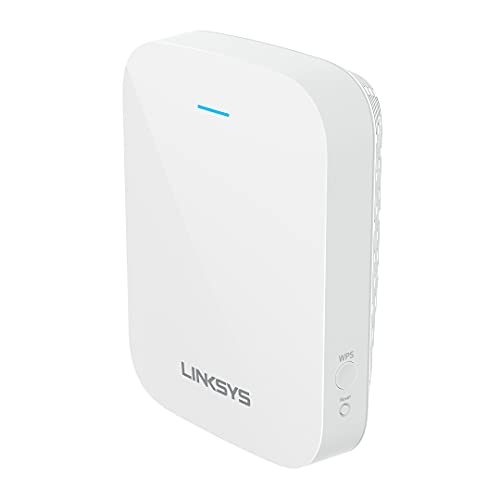
The RE7310 represents the other school of easy: the button school. Linksys’s listing describes a WiFi 6 range extender in the AX1800 class with coverage claimed up to 2,000 square feet under the manufacturer’s conditions, and the ownership pitch centres on a push-button pairing routine and a spot-finder feature that helps judge placement from the unit’s own feedback. For a buyer who has looked at the app-first picks above and felt their enthusiasm drain away, this is the respectable alternative.
Its character in the home is that of a well-mannered repeater. It extends the network, offers a browser or app path for those who want finer control, and its spot-finder guidance addresses the placement mistake that ruins more extender installations than any specification shortfall. What it does not promise is the full mesh behaviour of the NETGEAR pair: households should expect repeater conventions, including attention to network naming, rather than invisible roaming.
A sourcing note belongs with this pick and is stated plainly. In this site’s verified pool, this listing is the one current Linksys extender listing that is not a renewed unit, which is precisely why it appears here while other Linksys models do not. Buyers comparing across the internet should check the condition line of any Linksys extender listing carefully, because renewed stock dominates that shelf. As a new unit with a button-first setup and honest repeater manners, the RE7310 closes this guide as the traditionalist’s easy.
Its limitations should be carried into the decision with equal clarity. Without mesh steering, a phone carried from the router’s room into the extender’s room may hold the original signal longer than it should, and the fix is the manual network switch that mesh owners never perform. Buyers who wander constantly between zones with a call in progress will feel that difference weekly. Buyers whose dead zone is a fixed place, a desk, a bed, a workshop bench, will barely feel it at all, and for them the button’s simplicity is not a compromise but a preference honoured.
- Wi-Fi class: AX1800 WiFi 6, dual band
- Maker’s coverage claim: Up to 2,000 sq. ft., ideal conditions
- Setup route: Push-button pairing, plus spot-finder guidance
- Listing condition: New listing in this site’s pool
- Behaviour: Conventional repeater rather than full mesh
Strengths
- Button pairing suits buyers who avoid app accounts
- Spot-finder feedback tackles the placement problem directly
- The pool’s current new Linksys extender listing
Trade-offs
- Repeater naming conventions need a moment’s attention
- Roaming is less invisible than the mesh-style picks
- Other Linksys listings are mostly renewed; check condition lines
Best for: a traditionalist who wants to press a button and be done
Not suited for: a household expecting seamless mesh roaming from a repeater
Which Band Should Do the Extending, 2.4GHz or 5GHz?
Every pick in this guide is dual-band, and the division of labour between the bands shapes what the rescued room feels like. The 2.4GHz band travels further and penetrates walls more patiently, which makes it the natural bridge between a distant router and the extender; the 5GHz band carries far more data but fades sooner with distance and obstruction. An extender placed at the halfway point typically listens to the router on whichever band arrives healthier and serves the room on both, and the better models make that decision continuously rather than once at setup.
For the household, the visible consequence is a two-speed rescued room. Devices near the extender on 5GHz enjoy the closest thing to router-room performance the physics allows, while devices that drift to 2.4GHz, or the smart plugs and older gadgets that only speak 2.4GHz, get reach and reliability instead of pace. Neither outcome is a defect. A video doorbell needs dependability, a laptop on a call needs steadiness, and only a large download truly needs the 5GHz fast lane. Judging an extender by one speed test on one band is how good installations get unfairly returned.
Band steering, where the system presents one name and nudges each device toward its best band, is the feature that keeps this invisible to the household, and it is another reason the mesh-style picks lead an ease ranking. With a plain repeater exposing separate names per band, somebody has to decide which name the television should learn, and that somebody is usually the one person in the house who reads guides like this one. Ease, once again, turns out to be the absence of decisions, and the products that remove decisions win.
What Should You Do in the First Week After Installing One?
The first week decides whether an extender becomes furniture or becomes a grievance, and a small amount of attention in that week pays for itself. Live with the placement for a day, then deliberately test the worst case: the evening hour when the household’s devices all wake at once, in the rescued room, with the doors closed as they would naturally be. If the call stutters only then, the extender is hearing a router signal that collapses under the same evening load, and moving it one room closer to the router usually cures what no setting can.
Also in that week, rename nothing and change nothing else about the network. Households instinctively tidy while they troubleshoot, changing the router’s channel or the extender’s name in the same afternoon, and afterwards nobody knows which change did what. One variable at a time is slow advice that feels slower than it is; extenders reward it because their behaviour is otherwise hard to read from the outside. Keep the box and receipt until the week is out, since the honest verdict on placement sometimes requires swapping a desktop unit for a plug-in or the reverse, and that swap is painless only while returning is.
Finally, teach the household the one fact that prevents most support calls to relatives: the extender’s light or app status is the first thing to check when the rescued room complains, before rebooting the router and disturbing the whole house. A unit knocked out of its socket by a vacuum cleaner, or orphaned by a router password change, announces itself there. Ease is partly a property of the product and partly a habit the household learns, and the products in this guide were chosen because they make that habit simple to form.
What Does Setup Day Actually Look Like, Step by Step?
Because ease is this guide’s whole argument, the routine deserves describing once in concrete terms, using the app-led picks as the example. You plug the extender into a socket in the same room as the router, not in the dead zone, because the first conversation between the two devices should happen at point-blank range. The app discovers the unit, asks which home network to extend, takes the Wi-Fi password once, and applies it. A firmware update usually offers itself at this point; accept it, since the pairing improvements vendors ship in the first year are real. Only then do you unplug the unit and carry it to the halfway socket the placement assistant graded, where a light or an app screen confirms the quality of its link home.
The WPS routine, represented here by the Linksys pick, compresses the same events into button presses: press the router’s WPS button, press the extender’s, wait for the lights to settle, relocate, and read the unit’s own indicator for placement quality. What disappears is not merely typing; it is also the app’s record of what was configured, which is why button-set households should photograph the final settings screens if a browser interface exists, and note the admin password in the same place the router’s password lives. Ease on day one that becomes archaeology in month nine is only half easy.
Whichever route you take, finish with a walk test rather than a speed test. Carry a phone into the rescued room and do the things that room is for: join a video call, stream a few minutes of video, load the bulky web pages that used to stall. Wander to the boundary between router territory and extender territory and watch whether the connection hands over gracefully or clings and stutters. Ten minutes of this tells you more about your installation than any benchmark, and it is the moment to nudge the extender one socket nearer the router while the experiment is still cheap.
When Is an Extender the Wrong Purchase Entirely?
Honesty about the category’s limits is part of ranking it well. An extender cannot repair a router that is itself failing, underpowered for the household’s device count, or stranded in a cupboard at one end of a long house. It cannot add capacity to an internet connection that is too slow at the wall; it faithfully distributes whatever the service provides, no more. And it cannot defeat construction that blocks radio wholesale, such as foil-backed insulation or a detached annexe across a yard, where a cable, a powerline link or an outdoor access point is the engineering answer rather than a stronger repeater.
The two situations where an extender is unambiguously right are narrower and very common. The first is the single dead zone: one bedroom, study or kitchen corner that the router almost reaches, in a home otherwise satisfied with its network. The second is the renter’s or the temporary fix, where running cable or replacing the provider’s router is not permitted or not worth it for a twelve-month stay. In both cases the extender’s job is surgical, and the picks in this guide were chosen to perform that surgery with the least anaesthetic paperwork.
Households outside those two situations should price the alternatives before ordering. A modern mesh system replaces the argument entirely when dead zones multiply, and a single Ethernet run to a ceiling access point outperforms any repeater ever made while costing less than the top picks here if the cable path is easy. The extender remains the right tool astonishingly often, but it is a tool for a defined job, and defining the job is the buyer’s half of the ease this guide promises.
How Do the Six Easiest Extenders Compare Side by Side?
| Pick | Wi-Fi class | Setup route | Network name | Ethernet port |
|---|---|---|---|---|
| NETGEAR EAX20 | AX1800 | App, guided | Keeps existing name | Yes |
| TP-Link RE615X | AX1800 | App, placement grading | Existing name in EasyMesh mode | Yes |
| D-Link E30 | AX3000 | App, guided | Keeps existing name in mesh mode | Gigabit |
| NETGEAR EAX15 | AX1800 | App, guided | Keeps existing name | Gigabit |
| ASUS RP-AX58 | AX3000 | AiMesh adoption or app | Inherited in AiMesh mode | Yes |
| Linksys RE7310 | AX1800 | WPS button, spot finder | Repeater conventions apply | Check listing variant |
Read the table by setup route first and wireless class second, because that is the order in which these products will actually affect your week. The two AX3000 units earn their class only when the router behind them is equally modern; behind a five-year-old router they behave like polite AX1800 units with headroom to spare. The Ethernet column matters to anyone rescuing a room with a wired-only device, and the name column matters to everyone, every day, which is why it sits in the middle.
How Does an Extender Compare with a Mesh System or Powerline?
Buyers cross-shopping this guide against bigger solutions deserve the honest ladder. A mesh system replaces the router and its coverage problem together, with nodes designed from birth to cooperate, and it is the superior answer when the house has several dead zones or the router is due for replacement anyway. Its costs are money and upheaval: every device rejoins a new network, and the household’s accumulated router settings are rebuilt. An extender, by contrast, is a patch applied to a network the household keeps, which is why it remains the right purchase precisely when the network is otherwise satisfactory.
Powerline adapters, which send networking through the house’s electrical wiring to a distant room, occupy the rung between. Where the wiring cooperates they deliver a stable, cable-like link that no repeater can match for a fixed desk, and some kits add a Wi-Fi hotspot at the far end. Where the wiring crosses circuits, breakers or noisy appliances, performance becomes a lottery drawn by the house’s electrician decades ago. The extender’s wireless path is at least surveyable with a phone before purchase; the powerline path reveals itself only after.
The deciding question is therefore not which technology wins in the abstract, but how many rooms hurt and how permanent the fix must be. One hurting room and a satisfactory router: this guide. Several hurting rooms or an ageing router: a mesh system, with these extenders’ mesh modes as the halfway house. One fixed desk that must never stutter and a house that defeats radio: wire it, by cable if possible and by powerline if the wiring smiles on you. Naming the rung you stand on is most of buying well in this category.
What Mistakes Make an Easy Extender Feel Complicated?
The champion mistake is placing the extender inside the dead zone it was bought to cure, then judging the whole category by the result. The unit repeats what it hears, and what it hears in that room is a battered signal at the edge of usability. Move it halfway back toward the router, into territory where a phone still shows a healthy connection, and the same hardware transforms. Nearly every disappointed review in this category is a placement story wearing a product verdict’s clothes.
The second mistake is skipping the firmware update that the setup app offers in the first ten minutes. Extenders are small computers, and their early firmware is where pairing bugs and roaming quirks live. Accept the update while the setup is fresh in memory, not three months later when a problem forces the issue and the app password has been forgotten. Relatedly, write the admin password somewhere the household can find it; an extender nobody can log into becomes e-waste at the first router change.
Third, resist stacking solutions. An extender placed to serve a room, plus a second extender daisy-chained beyond it, plus the router’s own signal, creates a hall of mirrors in which devices roam badly and throughput collapses under repeated repeating. One extender per dead zone, each within confident earshot of the router, is the architecture that works. If the house defeats that pattern entirely, the honest answer is a mesh system or a cable run, and no extender in this guide will apologise for saying so.
A fourth mistake is quieter: buying the extender before checking what the router is broadcasting. A router still set to an obsolete security mode, a 2.4GHz-only configuration from a decade-old setup screen, or a hidden network name can each make a modern extender appear broken when it is merely obedient. Spend five minutes in the router’s settings, or its app, confirming the basics before the extender arrives, and the easy setup the box promised stands a far better chance of being the setup you actually get.
Does an Extender Change Anything About Security or Updates?
An extender inherits the home network’s password and its security standard, which means the weakest-link conversation deserves thirty seconds. All six picks support modern WPA2 security, and the WiFi 6 models also speak WPA3 where the router offers it; a household still running an ancient router with obsolete security should treat that router, not the extender, as the item to replace first. The extender faithfully extends whatever it is given, including, in that unhappy case, the problem.
Updates are the quieter half of the same story. Routers receive attention because they are visibly the network’s front door, while extenders sit in hallways and are forgotten, firmware and all. The app-managed picks in this guide at least surface their update prompts in the same app the household already opens, and enabling automatic updates where the option exists converts a chore into a non-event. A repeater set up by button and browser deserves a calendar note twice a year, because nobody’s memory volunteers for that job unprompted.
Guest access follows the router’s rules in most of these designs rather than the extender inventing its own, which keeps the household’s policy coherent: visitors get the guest name everywhere, including the rescued room. Where an extender does offer its own access controls or schedules, treat them as supplements rather than replacements, and keep the router as the single place where the household’s rules live. Simplicity of administration is, in the end, just ease measured over years instead of minutes.
Final Recommendation
Start with the NETGEAR EAX20 if a shelf or side table exists anywhere near the halfway point of your home; its single network name and calm app setup deliver the version of easy that survives the first month, not just the first evening. Choose the TP-Link RE615X when a wall socket is the only available real estate and you want the app to grade your placement, and take the D-Link E30 when the house is large enough that a second unit is already a visible possibility. ASUS households should simply adopt the RP-AX58 into AiMesh, hallway-socket homes should take the EAX15, and button loyalists should take the RE7310 and enjoy pressing it. Buy the extender whose setup style matches the person who will be standing in the hallway holding the phone, because that person, not the specification sheet, decides whether this purchase feels easy.
One closing discipline applies whichever of the six comes home: install it on a quiet afternoon, test it with the household’s real evening load, and only then throw the box away. Extenders fail socially before they fail technically, condemned by a family that met them at their worst-configured moment. Given a fair first week, the right unit from this list stops being a gadget anyone discusses and becomes what it was meant to be, the room at the end of the house simply working, which is the highest praise home networking ever earns.
Frequently Asked Questions
Will an extender slow down the rest of my network?
Devices connected through a traditional extender get reduced throughput because the unit repeats traffic on shared radios, but devices connected directly to the router are unaffected. Mesh-style extenders manage the trade more gracefully. The slowdown is confined to the extended corner of the house, which is trading weak and dropping signal for steadier and somewhat slower, a bargain most households gladly accept.
Do I need an extender from the same brand as my router?
No. Every pick in this guide works with any router brand in its standard extender mode. Brand matching only unlocks the integrated mesh modes: EasyMesh with compatible TP-Link routers, AiMesh with ASUS, and each maker’s app conveniences. If you expect to change router brands soon, favour the picks whose ease does not depend on the pairing.
What is the difference between WPS setup and app setup?
WPS pairs the extender and router with button presses and almost no decisions, which is fast but gives you little feedback about placement or link quality. App setup takes a few minutes longer and repays it with placement grading, status visibility and painless firmware updates. For a first extender, the app’s guidance is usually worth more than the button’s speed.
Why does my phone stay connected to the weak router signal?
With a conventional repeater broadcasting a second network name, the phone chooses based on its own stubborn rules and often clings to the original network. Mesh-style extenders solve this by presenting one name and steering devices actively. If you own a repeater, manually switching networks in the rescued room, or setting the phone to forget the weaker option there, is the practical workaround.
Should the extender use the same network name as the router?
Where the product offers it, yes: one name with proper steering is the arrangement that asks least of the household, and it is the default behaviour of this guide’s mesh-style picks. With a plain repeater that appends a suffix, using the same name manually can confuse devices that then cannot tell the two sources apart. Follow the model maker’s own recommendation for its mode rather than improvising, because roaming behaviour is designed around that choice.
Can one extender cover a whole large house?
Manufacturers’ square-footage claims assume open, friendly construction. In a large or masonry house, one extender realistically cures one dead zone well rather than every weak room at once. Plan per dead zone, place each unit within strong earshot of the router, and consider a mesh system when the count of problem rooms passes two.
Related Guides
For the router side of the same problem, read Best Routers for Two-Story Homes and Best Gigabit Routers, and see Best Dual-Band WiFi Routers for the standalone designs these extenders most often support.