What's inside
- Key Takeaways
- Quick Picks: Dual-Band Extenders Compared in Brief
- How Did We Judge Dual-Band Extenders Without Believing the Boxes?
- Why Does an Extender Slow Things Down, and When Does It Not Matter?
- Head to Head: The Six Dual-Band Extenders in One Table
- Where Exactly Should an Extender Be Plugged In?
- When Should You Skip an Extender and Buy Mesh Instead?
- Which Setup Errors Ruin Otherwise Good Extenders?
- What About Renters, Students and Temporary Homes?
- Final Recommendation
- How Do the 2.4 GHz and 5 GHz Bands Behave Differently Indoors?
- How Do You Set Up an Extender Properly, Step by Step?
- What Does an Extender Mean for Working from Home and Smart Homes?
- How Should You Read an Extender’s Specification Sheet Honestly?
- What Should You Do When an Extender Still Disappoints?
- Extender, Second Router or Powerline: Which Fix Suits Your House?
- Frequently Asked Questions
- Related Guides
As an Amazon Associate I earn from qualifying purchases. This post may contain affiliate links at no extra cost to you.
gizmoverdict.com is reader-supported. When you buy through links on our site, we may earn an affiliate commission.
Where to buy: the six extenders reviewed in full are linked to their Amazon listings, where you can verify the exact hardware revision and current stock before ordering.
Anyone hunting for the best 2.4 ghz 5ghz wifi extenders is usually fighting one specific room: the bedroom where video calls freeze, the home office where uploads crawl, the kitchen where a smart speaker keeps dropping off the network. A dual-band extender attacks that dead zone by listening to your router on both the 2.4 GHz and 5 GHz bands and rebroadcasting them into the weak area, and the six models below cover the realistic spread of needs, from a modest AC1200 unit that rescues one room to Wi-Fi 7 hardware that only makes sense alongside a Wi-Fi 7 router.
Two honest warnings frame everything that follows. First, every coverage figure quoted in this category, including the ones on these listings, is a manufacturer’s own claim measured in conditions you do not live in; treat square footage as a rough size class, never a promise. Second, an extender that repeats a signal on the same radio it received it spends part of its airtime talking and part listening, so devices connected through it get less throughput than they would connected to the router directly. Placement, covered in depth further down, decides whether that trade feels invisible or infuriating.
Key Takeaways
- Coverage numbers on extender boxes are claims from the maker, gathered in open test spaces; your walls, floors and plumbing will always shrink them.
- An Ethernet port on the extender is worth more than a headline speed class, because wiring a TV or desktop to it removes that device from the wireless relay entirely.
- Wi-Fi 6 extenders pair best with Wi-Fi 6 routers, and Wi-Fi 7 models only justify themselves when the router and your newest devices speak Wi-Fi 7 too.
- Where you plug the extender in matters more than which model you buy: halfway to the dead zone, where the router signal is still healthy, beats inside the dead zone itself.
- Mesh-compatible extenders such as the EasyMesh TP-Link units can join a coordinated network instead of creating a separate network name to babysit.
Quick Picks: Dual-Band Extenders Compared in Brief
| Pick | Badge | Why it made the cut |
|---|---|---|
| TP-Link AC1200 WiFi Extender (RE315) | Sensible starter extender | EasyMesh support and an Ethernet port give a modest AC1200 box an unusually graceful upgrade path. |
| TP-Link AX3000 WiFi 6 Range Extender | Strongest all-round value | Wi-Fi 6 speeds with room for many devices make it the natural partner for a modern AX router. |
| TP-Link AC1900 WiFi Range Extender (RE550) | Best for older routers | A fast AC design with gigabit Ethernet squeezes more life from a Wi-Fi 5 router you are not replacing yet. |
| TP-Link AX1500 WiFi Extender (RE500X) | Compact Wi-Fi 6 option | Gigabit port and access point mode cover small flats where one weak room is the whole problem. |
| TP-Link BE3200 Wi-Fi 7 Range Extender (RE223BE) | Future-leaning pick | Wi-Fi 7 radios ready for the newest routers, bought for the network you are growing into. |
| NETGEAR Nighthawk WiFi 7 Extender (EXS27) | Premium performance pick | A 2.5G Ethernet port and Nighthawk tuning suit demanding homes that wire their heaviest device. |
How Did We Judge Dual-Band Extenders Without Believing the Boxes?
We began by discarding the numbers that cannot be compared honestly. Combined speed classes such as AC1200 or AX3000 add the theoretical maximum of both bands together, a figure no single device ever experiences, so we treated those labels as size classes only. Coverage claims received the same treatment: one maker’s stated figure and another’s are measured under different roofs, if a roof was involved at all, so we used them to sort models into small, medium and large households and nothing more.
What we weighted instead were the features that change daily life. An Ethernet port, ideally gigabit, lets you cable the greediest device in the weak room straight into the extender, which both speeds that device up and frees wireless airtime for everything else. Access point mode mattered for homes with network cable already run to the weak room, because an extender fed by wire stops repeating and starts broadcasting fresh, full-speed Wi-Fi. Mesh compatibility mattered for anyone tired of devices clinging to a fading router signal instead of switching; EasyMesh models coordinate with a compatible router rather than squatting on a separate network name. Finally we checked band steering and app setup quality in the listings, because an extender you cannot configure confidently is an extender that stays in its box.
We also kept one older name in view as a reference point. The NETGEAR EX6120, an AC1200 extender sold for years, appears in this guide in prose only because its current listing did not enter the verified pool; it remains a reasonable second-hand or already-owned option, and if one is working in your home there is little reason to replace it until you change routers. Everything recommended with a link below, though, is a current model with a verified listing.
Why Does an Extender Slow Things Down, and When Does It Not Matter?
The mechanism is worth understanding before you spend anything. A basic extender receives a frame from your laptop, then retransmits it toward the router, then receives the reply and retransmits that too, all on the same channels. That double handling is why a repeating extender commonly delivers around half the throughput you would measure standing beside the router, and why latency-sensitive uses feel it first. Dual-band designs soften the blow by splitting duties: many can receive on one band and transmit on the other, so a laptop on 5 GHz may be backhauled over 2.4 GHz or the reverse, depending on conditions and configuration.
Whether the penalty matters depends entirely on the job. A bedroom used for streaming video, browsing and video calls will never notice, because those tasks need a fraction of even a halved connection. A home office moving large files to a network drive, or a teenager competing in online games where milliseconds matter, will notice both the throughput cut and the extra hop of latency. For those rooms the better answers are an extender with an Ethernet port used as a wired bridge for the desk machine, access point mode fed by a cable, or a full mesh system, and this guide flags which picks support which escape route.
TP-Link AC1200 WiFi Extender (RE315) — Sensible starter extender
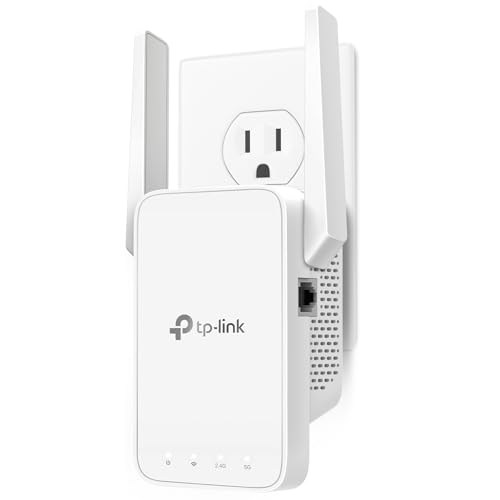
The RE315 is the extender to buy when the problem is small and specific: one bedroom with patchy signal, a hallway smart display that keeps disconnecting, a garden office that needs email and browsing rather than a workstation. Its AC1200 class radios are unremarkable on paper, yet they comfortably exceed what a single weak room actually consumes, and the maker rates the unit for homes up to a claimed 1,600 square feet with around 32 devices, figures to read as a size hint rather than a guarantee. Setup through the TP-Link Tether app or a WPS button press takes minutes, and signal indicator lights help you find the socket where the router’s signal is still strong enough to be worth repeating.
What lifts the RE315 above the anonymous AC1200 crowd is EasyMesh compatibility. Paired with an EasyMesh router, it stops behaving like a separate little network with its own name and starts acting as part of one coordinated system, so phones and laptops roam to whichever source is stronger without your intervention. That single feature gives a cheap extender an upgrade path: buy it now for one room, keep it when you later replace the router with a mesh-ready model. The single Ethernet port, meanwhile, is perfectly placed for wiring a smart TV or an older desktop in the rescued room, quietly removing that device’s traffic from the wireless relay altogether.
- Wireless class: AC1200 dual-band, 2.4 GHz plus 5 GHz
- Maker’s coverage claim: up to 1,600 sq. ft. and 32 devices, stated by TP-Link
- Wired option: one Ethernet port for a TV, console or desktop
- Mesh behaviour: EasyMesh compatible with a suitable TP-Link router
- Setup route: Tether app or WPS button, with signal-strength indicators
Strengths
- EasyMesh support lets a budget box join a coordinated network later.
- The Ethernet port rescues one wired device completely from wireless repeating.
- Indicator lights make the crucial placement decision genuinely easy to test.
Trade-offs
- AC1200 radios cap what busy households can push through a single relay point.
- No access point trickery will make it rival a mesh node in a large house.
- One Ethernet port means choosing which wired device gets the free ride.
Best for: small homes and flats fixing one weak room on a sensible budget. Not suited for: large multi-storey houses or heavy gaming and file-transfer workloads.

TP-Link AX3000 WiFi 6 Range Extender — Strongest all-round value
If your router already speaks Wi-Fi 6, this AX3000 extender is the pairing that makes technical sense. Wi-Fi 6 was designed for crowded airwaves, handling many simultaneous devices with less of the queuing and collision that slows older standards in device-dense homes, and those benefits only appear when both ends of a link support them. TP-Link rates this model for a claimed 2,400 square feet and up to 64 devices, numbers that again describe a size class, in this case a family house full of phones, tablets, consoles, cameras and laptops all contending at once. An Ethernet port handles the wired escape route for the one machine that cannot tolerate relay latency.
The reason this model anchors the guide is balance rather than any single headline. Its radios are fast enough that the extender itself rarely becomes the bottleneck for broadband connections in the few-hundred-megabits range, its device handling suits the modern accumulation of smart home gadgets that sip bandwidth constantly, and it avoids the price premium of Wi-Fi 7 hardware that most routers cannot yet feed properly. Homes with a Wi-Fi 5 router should look at the RE550 below instead, and homes planning to move to the newest router standard within the year might stretch to the RE223BE, but for the large middle ground of Wi-Fi 6 households, this is the extender that asks the fewest apologies.
- Wireless class: AX3000 dual-band Wi-Fi 6
- Maker’s coverage claim: up to 2,400 sq. ft. and 64 devices, per TP-Link
- Wired option: Ethernet port for bridging one device by cable
- Ideal partner: a Wi-Fi 6 router from any major brand
- Household fit: device-dense family homes with several simultaneous users
Strengths
- Wi-Fi 6 efficiency shows most in homes crowded with connected gadgets.
- Generous device handling keeps smart home traffic from crowding out laptops.
- Fast enough radios that broadband, not the extender, sets the speed limit.
Trade-offs
- Paired with an old Wi-Fi 5 router, much of its standard’s advantage evaporates.
- Still a repeater at heart, so the halfway-placement rule applies in full.
- Overkill for a small flat where the RE315 class solves the problem for less.
Best for: Wi-Fi 6 households needing broad, device-heavy coverage in a weak wing. Not suited for: buyers whose router predates Wi-Fi 6 and will stay that way for years.

TP-Link AC1900 WiFi Range Extender (RE550) — Best for older routers
The RE550 exists for the household that is not replacing its router. Plenty of Wi-Fi 5 routers from the last several years still deliver perfectly good service near the box and fade only at distance, and pairing them with a Wi-Fi 6 extender buys features the router cannot use. The RE550 instead spends its budget on strong AC1900-class radios and a gigabit Ethernet port, a combination aimed squarely at extracting the most from an AC router: TP-Link’s claimed reach is up to 2,200 square feet with around 32 devices, and the gigabit port matters because a wired device bridged through this extender can actually receive the full speed the link offers rather than queuing behind a slower port.
Three external antennas give the RE550 a slightly ungainly silhouette and a real purpose, since adjustable antennas genuinely help you shape reception in awkward placements like landing cupboards and hallway sockets. In practice this is the pick for the house where the router lives at one end, the teenagers live at the other, and a wired television or games console in the far room can be cabled to the extender for a stable, low-drama connection. It will not teach an old network mesh tricks or Wi-Fi 6 efficiency, and buyers planning a router upgrade soon should skip ahead to the AX models, but as a life-extension device for a healthy AC network it is the most honest tool in this line-up.
- Wireless class: AC1900 dual-band Wi-Fi 5
- Maker’s coverage claim: up to 2,200 sq. ft. and 32 devices, per TP-Link
- Wired option: gigabit Ethernet port, the fastest wired bridge here under Wi-Fi 6 models
- Antennas: three adjustable external aerials for awkward placements
- Ideal partner: a Wi-Fi 5 router that still performs well nearby
Strengths
- Gigabit port makes it a proper wired bridge for a far-room TV or console.
- Adjustable antennas help pull a usable signal from tricky socket positions.
- Spends money on radios you can use instead of standards your router lacks.
Trade-offs
- No Wi-Fi 6 features, so device-crowded homes feel contention sooner.
- External antennas make it conspicuous in a tidy hallway socket.
- A poor match if a router replacement is already planned this year.
Best for: extending a healthy Wi-Fi 5 network to far rooms with one wired device. Not suited for: Wi-Fi 6 or Wi-Fi 7 households wanting matched-standard performance.

TP-Link AX1500 WiFi Extender (RE500X) — Compact Wi-Fi 6 option
The RE500X trims the Wi-Fi 6 formula down to flat-sized problems. Its AX1500 radios and a maker-claimed 1,500 square feet with up to 25 devices describe a one-or-two-room rescue rather than a whole-house project, and that honesty is refreshing in a category addicted to inflation. What elevates it above the cheapest Wi-Fi 6 boxes is the gigabit Ethernet port combined with access point mode: if your flat or small house has a network cable, or you can run one along a skirting board to the weak room, the RE500X stops repeating and becomes a proper wired-fed access point, delivering full-speed Wi-Fi with none of the relay penalty described earlier.
As a pure repeater it behaves as well as its class allows, and its compact wall-plug form disappears into a hallway socket without trailing cables or shelf space. Consider it the thinking person’s small-space pick: modest as a repeater today, genuinely excellent as an access point if a cable ever reaches it, and matched to Wi-Fi 6 routers so a recent broadband installation loses nothing in translation. Larger homes should step up to the AX3000 model above, whose radios and device handling are built for their scale, but in a flat the bigger unit’s advantages would mostly go unused while its price premium would not.
- Wireless class: AX1500 dual-band Wi-Fi 6
- Maker’s coverage claim: up to 1,500 sq. ft. and 25 devices, per TP-Link
- Wired option: gigabit Ethernet port with access point mode
- Form: compact wall-plug design for hallways and landings
- Ideal partner: Wi-Fi 6 routers in flats and small houses
Strengths
- Access point mode turns a network cable into full-speed coverage.
- Gigabit port is unusually generous at this size and price class.
- Small wall-plug body suits hallways where shelves and cables cannot go.
Trade-offs
- Repeater range is sized for one weak room, not a sprawling floor plan.
- Device ceiling suits flats better than gadget-stuffed family houses.
- Wall-plug format blocks careful antenna positioning by design.
Best for: flats and small homes, especially where a cable can feed access point mode. Not suited for: large houses needing one extender to cover several weak rooms.

TP-Link BE3200 Wi-Fi 7 Range Extender (RE223BE) — Future-leaning pick
Wi-Fi 7 extenders need a disclaimer before a description, so here it is plainly: this hardware only shows its character when the router feeding it also speaks Wi-Fi 7 and the devices connecting support it too. Bolted onto a Wi-Fi 6 network, the RE223BE behaves as a competent dual-band extender and nothing more mystical, because standards negotiate down to whatever both ends share. Bought alongside, or shortly after, a router that speaks Wi-Fi 7, it becomes a different proposition, with the newer standard’s wider channels and multi-link tricks available to the phones and laptops that support them, and TP-Link claims coverage up to 2,400 square feet for the unit.
The sensible buyer for this model is therefore easy to identify: someone whose router upgrade has already happened or is firmly scheduled, who keeps phones and laptops for several years, and who would rather buy the extender once at the new standard than twice across a transition. The Ethernet port preserves the wired bridge option for a desk or television, and in every other respect setup and placement follow the same rules as its Wi-Fi 6 siblings. Everyone else should read the claim on the box as a description of a network they do not own yet, and save the premium by choosing the AX3000 above, which will feel identical on a Wi-Fi 6 router.
- Wireless class: BE3200 dual-band Wi-Fi 7
- Maker’s coverage claim: up to 2,400 sq. ft., per TP-Link
- Wired option: Ethernet port for a bridged desk or TV
- Requirement for full benefit: Wi-Fi 7 router plus Wi-Fi 7 client devices
- Buyer profile: households mid-upgrade to Wi-Fi 7 who buy hardware once
Strengths
- Ready for Wi-Fi 7 routers without a second extender purchase later.
- Strong headline radios give headroom as client devices modernise.
- Still functions perfectly well as a standard extender in the meantime.
Trade-offs
- On a Wi-Fi 6 or older router, the premium buys almost nothing today.
- Wi-Fi 7 client devices remain a minority in most homes for now.
- Dual-band design lacks the extra band some flagship mesh systems use for backhaul.
Best for: homes with a Wi-Fi 7 router already installed or firmly planned. Not suited for: anyone expecting a transformation on an older router.
NETGEAR Nighthawk WiFi 7 Extender (EXS27) — Premium performance pick
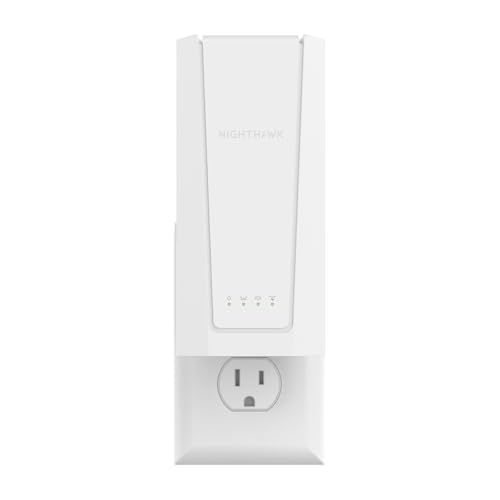
NETGEAR’s Nighthawk extender plays in the same Wi-Fi 7 generation as the RE223BE but aims at a more demanding user, and its distinguishing hardware is around the back: a 2.5-gigabit Ethernet port. That port changes what the wired escape route can carry, suiting a home office desk, a network-attached storage box or a high-end streaming setup in the rescued room, where a gigabit ceiling would genuinely bite. NETGEAR claims coverage up to 1,500 square feet and support for around 45 devices at up to 5 Gbps class wireless speeds, figures that position it as a powerful single-room or open-plan solution rather than a whole-estate blanket.
The same Wi-Fi 7 caveat applies with full force: pair the EXS27 with a router built for Wi-Fi 7 to see its point, ideally within NETGEAR’s own ecosystem where setup and management feel most joined-up, though it works with routers from any brand. Where it earns its premium over the TP-Link Wi-Fi 7 model is the wired side and the tuning aimed at busy, latency-aware households, games consoles cabled to that fast port being the canonical example. If your weak room contains nothing that plugs in and your router is a generation older, the premium is wasted; if your weak room is a working office with a desk full of kit, this is the extender that treats it seriously.
- Wireless class: Wi-Fi 7 dual-band, up to 5 Gbps class per NETGEAR
- Maker’s coverage claim: up to 1,500 sq. ft. and 45 devices, per NETGEAR
- Wired option: 2.5-gigabit Ethernet port, the fastest in this guide
- Brand fit: smoothest setup alongside NETGEAR routers, works with any brand
- Buyer profile: home offices and gaming dens in the weak-signal room
Strengths
- The 2.5G port turns the extender into a serious wired bridge for a desk.
- Nighthawk tuning targets busy homes where latency complaints start fights.
- Strong device handling for a single-room, high-demand deployment.
Trade-offs
- Wi-Fi 7 benefits wait on a router of the same generation, which most homes do not own yet.
- Claimed coverage area is modest for the price; this is power, not sprawl.
- Premium pricing is hard to justify for a streaming-only bedroom fix.
Best for: demanding weak rooms with wired gear, behind a router running the Wi-Fi 7 standard. Not suited for: budget fixes, huge homes, or routers from older generations.
Head to Head: The Six Dual-Band Extenders in One Table
| Pick | Standard | Wired port | Read the claim as |
|---|---|---|---|
| TP-Link RE315 | Wi-Fi 5 AC1200 | Ethernet, one port | A small home or flat, per TP-Link’s own 1,600 sq. ft. claim |
| TP-Link AX3000 Extender | Wi-Fi 6 AX3000 | Ethernet port | A device-heavy family house, per the claimed 2,400 sq. ft. |
| TP-Link RE550 | Wi-Fi 5 AC1900 | Gigabit Ethernet | Far rooms on an older router, per the claimed 2,200 sq. ft. |
| TP-Link RE500X | Wi-Fi 6 AX1500 | Gigabit Ethernet, AP mode | One weak room done properly, per the claimed 1,500 sq. ft. |
| TP-Link RE223BE | Wi-Fi 7 BE3200 | Ethernet port | A Wi-Fi 7 home growing into its router, per the claimed 2,400 sq. ft. |
| NETGEAR EXS27 | Wi-Fi 7 | 2.5-gigabit Ethernet | One demanding room, per NETGEAR’s claimed 1,500 sq. ft. |
One column deserves a final word of caution before you use this table to spend money. Port speed is printed honestly by both makers here, yet the wireless figures beside it remain laboratory sums, so a model can look twice as fast as another on paper while delivering a far smaller real-world gap in the same hallway. Test any extender you buy during its return window, in your own rooms, with your own evening traffic, because that experiment is the only benchmark that describes your house.
The pattern in the table is the real lesson of this category: standard and port matter, square footage mostly decorates. Choose the generation that matches your router, choose the port that matches the greediest device in your weak room, and let placement do the rest.
Where Exactly Should an Extender Be Plugged In?
Placement is a physics problem with a simple rule: the extender can only repeat what it can hear. Plug it into the dead zone itself and it faithfully rebroadcasts a garbled whisper at full volume. The working position is roughly halfway between router and dead zone, at a spot where your phone still shows a solid router signal, ideally line-of-sight down a hallway rather than behind a metal-clad appliance or an aquarium. Every model here includes signal indicators for exactly this experiment, so use them: try three sockets, run a speed test in the weak room from each, and keep the winner rather than the most convenient-looking socket.
Height and obstacles shape the result as much as distance. Extenders work better at waist-to-head height than near the floor, and worse near thick masonry, foil-backed insulation, large mirrors and fish tanks, all of which eat 5 GHz signal greedily. The 2.4 GHz band travels further through obstacles, which is why far rooms often end up served mainly by it; expect lower speeds there and plan accordingly. In multi-storey houses, placing the extender near the stairwell, where signal passes between floors most freely, usually beats any position deep inside the upstairs rooms.
Test like an engineer for ten minutes and you will save yourself a return. Note the speed beside the router, then in the weak room before the extender, then through the extender from each candidate socket. A good outcome roughly doubles or triples weak-room throughput and holds a video call without dropouts; a bad outcome improves the signal bars while barely moving real speed, which means the extender is hearing the router poorly and needs to move closer, whatever the bars claim.
When Should You Skip an Extender and Buy Mesh Instead?
Extenders solve a geometry problem: one router, one weak area, a clear halfway point between them. Mesh solves a topology problem: several weak areas, a large or awkward floor plan, and a household that roams constantly with calls in progress. If you recognise your home in the second description, two extenders stacked in series will disappoint you, since repeating a repeated signal compounds the throughput penalty and roaming between network names stays clumsy. A mesh kit replaces the whole arrangement with coordinated nodes and one network identity, at a higher price that buys genuine simplicity.
The middle path is the mesh-compatible extender. EasyMesh models such as the RE315 can join a compatible router’s coordinated network, and several routers now support building a mesh from extenders of the same ecosystem. That route suits homes that might grow into mesh gradually: fix today’s weak room cheaply, keep the hardware when the router changes, and let the network unify later. Whichever route you take, avoid mixing three brands of repeating gear in one house; the troubleshooting alone will cost more than the savings.
Which Setup Errors Ruin Otherwise Good Extenders?
Socket choice inside the dead zone tops the list, covered above, but it has company. Giving the extender a different network name and then wondering why phones cling to the router is another classic: where the model supports it, use the same name and let band steering and roaming logic work, or accept manual switching as the price of separation. Firmware neglect is a third: extenders are small computers, their makers patch them, and a unit installed and forgotten for four years may carry both bugs and vulnerabilities that one app visit would fix.
Overloading a single extender disappoints many buyers too. One unit asked to serve a far bedroom, a garden and a garage simultaneously will serve all three thinly, because its radios share airtime among every direction of demand. Finally, security settings deserve one minute of attention during setup: confirm the extender joins your network with current encryption, change any default admin password the setup offers you the chance to change, and disable WPS afterwards if the model lets you, since convenience features left open have a history of becoming other people’s convenience.
A last placement nuance for homes with an extender already installed: networks drift. A neighbour installs a powerful new router, a baby monitor arrives, furniture moves, and the socket that won your original tests may quietly stop being the best one. If performance sags months later without any change at your end, rerun the three-socket experiment before replacing hardware, because the airwaves around your home are a shared, shifting resource and your extender’s ideal home can move with them.
What About Renters, Students and Temporary Homes?
Extenders suit temporary living unusually well because they ask nothing of the building. No drilling, no cabling through walls, no landlord permission beyond a spare socket, and the unit leaves with you at the end of the tenancy. Students in shared houses face a particular version of the weak-room problem, one router by the front door serving six bedrooms of competing traffic, and a personal extender in the worst-served room, configured carefully so it helps rather than adds interference, can rescue a dissertation season. Coordinate with housemates before adding any repeating gear, since two extenders installed blindly in adjacent rooms can tangle each other’s airtime.
Short stays argue for the cheaper end of this guide. The RE315 class solves a rental’s weak bedroom for the price of a modest dinner out, travels in a coat pocket, and asks so little commitment that abandoning it in a drawer between homes is no tragedy. Only sign up for the Wi-Fi 7 tier when the home and router are yours for years, because that premium is an investment in a network you control, not a fix for someone else’s floor plan.
Budget a few minutes each season for the extender’s upkeep as well. Check for firmware updates when you change the clocks, glance at the list of connected devices for anything unrecognised, and confirm the unit has not been nudged behind furniture by cleaning or decorating. Network gear rewards this tiny attention out of all proportion, mostly by never becoming the mystery fault you chase on a Sunday night.
Final Recommendation
Match the generation to your router and the port to your greediest device, and this category becomes refreshingly simple. Wi-Fi 6 households should default to the AX3000, small spaces and cable-fed rooms to the RE500X, loyal Wi-Fi 5 homes to the RE550, and the tightest budgets to the RE315 with its EasyMesh future. Wi-Fi 7 buyers split by intent: the RE223BE for broad future-proofing, the EXS27 when a fast wired port anchors a serious desk. Whichever you choose, spend the saved money and effort on placement experiments, because in this category the socket you pick has always mattered more than the logo on the box.
How Do the 2.4 GHz and 5 GHz Bands Behave Differently Indoors?
The two bands in every pick here are not faster and slower versions of the same thing; they are different tools. The 2.4 GHz band travels further, bends around obstacles more forgivingly and passes through walls with less loss, which is why it reaches the garden and the far bedroom at all. Its costs are congestion and ceiling: it shares spectrum with neighbours’ networks, Bluetooth gadgets, baby monitors and microwave ovens, and its channels are few and overlapping, so in a block of flats the band can feel crowded at exactly the evening hours when everyone streams.
The 5 GHz band trades reach for roominess. It offers far more channels and much higher speeds over short distances, then fades quickly through masonry and floors. In extender terms this creates the central placement tension: the extender wants to sit where 5 GHz from the router is still healthy, so it can hand fast local connections to nearby devices, yet the dead zone it serves is often only reachable by the longer arm of 2.4 GHz. Good dual-band designs manage the split dynamically, backhauling on whichever band currently hears the router best, and that quiet intelligence is a large part of what separates the branded picks here from anonymous repeaters.
For your own expectations, map tasks to bands realistically. Video calls, streaming and gaming belong on 5 GHz whenever the signal allows, ideally through the extender’s stronger local bubble or its Ethernet port. Smart plugs, sensors and cameras, which sip data and prize reach, live happily on 2.4 GHz forever. A household that understands this division stops asking one band to do everything and starts placing hardware where each band can do its proper job.
How Do You Set Up an Extender Properly, Step by Step?
Begin beside the router, not in the weak room. Plug the extender in within a few metres of the router for configuration, connect through the maker’s app or the WPS button, and let it learn the network while the signal between them is perfect. Update its firmware at this stage if the app offers one, because doing so later, over a weak repeated link, is slower and occasionally unreliable. Only once setup completes should the extender travel to its working position.
At the working position, use the signal indicators as a negotiation rather than a verdict. Green or full indicators at a socket mean the router link is healthy; now walk to the weak room and test real tasks, a video call, a large download, a stream at the quality you actually watch. If the tasks stutter, move the extender one socket closer to the router and repeat, accepting that the best position often looks counterintuitively near the router. Name the network sensibly during this phase, matching the router name where roaming is supported, and note the extender’s admin details somewhere you will find them in two years.
Finish with a walk-through audit an hour later, when devices have settled onto their preferred sources. Check that the far-room television chose the extender or its cable, that phones roam without dropping a test call as you walk the corridor, and that nothing important has latched onto a neighbour-like open network by mistake. Ten unhurried minutes of this verification is the difference between an extender that quietly works for years and one that generates a low-level family grievance every evening.
What Does an Extender Mean for Working from Home and Smart Homes?
Remote work concentrates a household’s least forgiving traffic into one room: video calls that must not freeze while someone presents, cloud documents saving continuously, a work laptop whose VPN dislikes network hiccups intensely. If that room is your weak room, treat the extender’s Ethernet port as the main feature rather than a bonus. Cabling the laptop’s dock or a small switch to the extender removes the computer from wireless contention entirely, and calls gain the stability that colleagues notice without ever knowing why.
Smart homes stress the opposite end of the design: not speed but count and reach. Dozens of plugs, bulbs, sensors and cameras each hold a faint, permanent connection, often on 2.4 GHz, often at the property’s edges where signal is thinnest. An extender with generous device handling, the AX3000’s claimed 64 being the headline example here, keeps those whispers connected without stealing meaningful airtime from the humans. Place such an extender with the gadgets’ geography in mind, nearer the cluster of outdoor cameras or the far smart meter, rather than by the sofa’s speed test.
Both use cases share one warning: an extender creates a second network source your devices must choose between, and dumb devices occasionally choose badly, clinging to a distant router at one bar. Mesh-compatible setups reduce the problem, fixed devices can often be nudged by restarting them near the extender, and truly stubborn gear may justify giving the extender its own network name so membership is explicit. None of this is difficult, but expecting it in advance turns surprises into routine.
How Should You Read an Extender’s Specification Sheet Honestly?
Start by halving your expectations in the right places. The speed class sums both bands’ theoretical peaks under laboratory conditions with a single perfect client; your real ceiling through the extender is the weaker of your broadband speed and the router-to-extender link, minus repeating overhead. A household on a 300-megabit connection loses nothing with an AC1900 or AX1500 extender in most rooms, which is why this guide refuses to rank purely by headline class. Conversely, gigabit broadband paired with an entry extender makes the extender the bottleneck, a mismatch the AX3000 and Wi-Fi 7 picks exist to prevent.
Coverage claims deserve translation rather than trust. Read them as the maker’s own ranking of its range: a model claiming twice another’s area is the bigger-coverage design within that brand’s worldview, and roughly comparable across brands as a size class. Then discount for your building: stud walls are kind, brick is stern, reinforced concrete is brutal, and each floor between extender and device costs more than any corridor. If your home defeats a router two rooms away, no extender claim survives contact with it unchanged, and placement flexibility will matter more than the printed number ever could.
The specifications worth hunting are the unglamorous ones: port speed, because a slow Ethernet port caps the wired escape route; access point mode, because it doubles the product’s useful life; mesh compatibility, because roaming quality decides daily satisfaction; and the maker’s update record, because network gear lives for years on your most sensitive traffic. The six picks here were filtered on exactly those lines, which is why several louder, cheaper boxes with bigger printed claims did not survive into the recommendations.
What Should You Do When an Extender Still Disappoints?
Troubleshoot in the order the signal travels. Confirm the router itself delivers full speed to a laptop beside it; extenders faithfully amplify upstream problems, and a failing router or a congested broadband line wears an extender disguise in many households. Next, interrogate the router-to-extender link by temporarily moving the extender one room closer and repeating your weak-room tests; a dramatic improvement convicts placement, while no change points at configuration or the device itself.
Then examine the last hop. A single device misbehaving while others thrive usually blames the device: an old laptop with a tired Wi-Fi adapter, a television with its antenna buried behind a metal stand, a console in a closed cabinet. Test the same tasks on a phone in the same spot before condemning the network. Channel congestion deserves a check in flats, where switching the router’s 2.4 GHz channel away from a neighbour’s pile-up can transform extender performance overnight, since the extender repeats whatever environment the router inhabits.
If everything checks out and the room still suffers, accept the verdict the physics is giving you: that room needs a wire. Every pick here with access point mode becomes excellent the day a cable reaches it, a mesh node with wired backhaul does the same job more expensively, and powerline adapters offer a cable-free compromise in suitable wiring. Extenders are the right first attempt for most homes, cheap and reversible, but they are an attempt, and knowing when to escalate is part of buying well.
Extender, Second Router or Powerline: Which Fix Suits Your House?
An old router gathering dust tempts many households into a free fix, and it can work: most routers can be configured as an access point, and some as a repeater, giving you extender-like coverage for nothing. The costs are hidden rather than financial. Old routers stop receiving security updates, their configuration screens assume expertise, and a Wi-Fi 5 unit repeating for a Wi-Fi 6 household drags the whole arrangement down to its level. As a temporary experiment it is excellent; as a permanent resident of your network it deserves the same scepticism as any ageing, unpatched computer.
Powerline adapters, which send networking over your mains wiring, occupy the awkward middle: brilliant in houses whose wiring suits them, mediocre where circuits cross consumer units or noisy appliances intervene. Their best modern role is feeding an access point or an extender’s access point mode in a room Wi-Fi cannot reach, turning an impossible wireless problem into a wired one. If you try them, buy from somewhere with painless returns and test under real evening load, because mains performance at a quiet morning hour flatters the technology.
The extender remains the default recommendation for most readers of this guide because it is cheap, quick, reversible and honest about its limits. It asks for one socket and ten minutes, it can move house with you, and the mesh-compatible and access-point-capable picks here keep their value even if your network later grows into something grander. Choose it first, place it well, and escalate only when measurements, not frustration, tell you the room needs more.
Frequently Asked Questions
Will an extender improve my internet speed everywhere in the house?
No, and it cannot. An extender improves coverage in the weak area it serves, while devices near the router see no change and devices using the extender get at best the speed the extender itself receives, usually less after repeating overhead. Think of it as moving the boundary of good coverage outward, not raising the ceiling.
Should the extender use the same network name as my router?
Usually yes, where the model supports it, because devices then roam between router and extender without your intervention. Mesh-compatible models handle this most gracefully. A separate name gives you manual control over which source a fixed device uses, which some people prefer for a desktop that should never roam.
Why does my extender show full bars but deliver slow speeds?
The bars describe the link between your device and the extender, which is short and strong, while the bottleneck hides in the link between extender and router. Move the extender closer to the router until real speed tests in the weak room improve, even if the bars look slightly less heroic.
Does an extender need a clear view of the router to work?
Not literally, since both bands pass through ordinary stud walls and doors well enough for most layouts, but every obstacle taxes the link and dense materials tax it heavily. Treat line of sight as the ideal you approximate: the fewer walls, appliances and metal objects between router and extender, the stronger the signal being repeated, and the less the final room’s speed depends on luck.
Can I use two extenders in a chain to reach even further?
You can, and it usually disappoints. Each repeating hop spends airtime again, so a twice-repeated signal arrives slowly and with added latency. Reaching a second distant area is better done with a second extender placed within good range of the router itself, an access point on a cable, or a mesh node.
Does a Wi-Fi 7 extender speed up my Wi-Fi 6 laptop?
No. The link negotiates the best standard both ends share, so a Wi-Fi 6 laptop on a Wi-Fi 7 extender performs as a Wi-Fi 6 client. The extender’s newer radios help only Wi-Fi 7 devices, which is why this guide ties those picks to households that already run Wi-Fi 7 routing hardware or firmly plan to buy into that generation.
Do extenders help with a weak signal in the garden?
Often, provided the extender sits inside the house near the garden-facing wall, where it still hears the router clearly and can project a local bubble through the glass toward the patio. Expect the 2.4 GHz band to do most of the outdoor work and speeds to suit music, messaging and smart garden gadgets rather than a full outdoor office. Weatherproofing is not part of any pick here, so keep the unit indoors whatever the temptation, and treat a genuinely distant garden building as a job for a buried cable or a dedicated outdoor access point instead.
How long should a good extender last before I replace it?
Let your router set the timetable. An extender matched to your router’s standard stays sensible until that router is replaced, at which point buying the pair at the new standard together avoids a generation mismatch. Physically these are solid little devices with no moving parts, so obsolescence, not failure, ends most of their careers, commonly after four to six years of invisible service.
My router is in a cupboard. Should I move it before buying an extender?
Yes, always try the free fix first. Routers radiate poorly from inside cupboards, behind televisions and beside metal appliances, and simply relocating yours to an open, central, raised position cures a surprising share of weak-room complaints. If the room still struggles after the router breathes freely, an extender placed from that better starting point will also perform better than one compensating for a suffocated router.
Should I turn my extender off at night to save energy?
You can, and the saving is small but real, yet weigh it against the reconnection shuffle each morning as cameras, plugs and speakers hunt for their network again. Most households leave extenders running continuously and instead save energy on hungrier devices; if you do schedule off-hours, keep them generous enough that early-rising smart gear reconnects before you need it.
Related Guides
Weak signal has more than one cure, so compare the neighbouring approaches too: cell signal boosters for homes with poor mobile coverage, budget extenders for smaller homes and tighter wallets and HDMI extenders for moving video between rooms. You may also want our guide to best 4K HDMI extenders. You may also want our guide to best doorbell cameras and their apps.


