What's inside
- Where to buy
- Key Takeaways
- Quick Picks
- How We Chose These Picks
- How Big Does a Classroom Screen Really Need to Be?
- How Do the Six Perform From the Back Row?
- What Should IT Set Up Before the First Lesson?
- How Do You Run a Fleet of Classroom TVs Without Losing Your Mind?
- What Mistakes Do Schools Make When Buying Classroom TVs?
- How Does a Classroom TV Earn Its Keep Across the Whole School Day?
- What Should the Warranty and Support Conversation Cover?
- How Do You Handle Accessibility on a Shared Screen?
- What Does a Sensible Rollout Look Like Term by Term?
- How Should Teachers Actually Use the Big Screen Well?
- What About Energy, Heat and the School’s Bills?
- How Do These Screens Handle Video Calls and Hybrid Lessons?
- Which Rooms Deserve Which Pick, One by One?
- A Note on Cleaning, Care and the Caretaker’s Round
- What If the Budget Only Covers Half the Rooms This Year?
- One More Consideration: The Screen as the Room’s Clock, Noticeboard and Calm
- Final Recommendation
- Frequently Asked Questions
- Related Guides
As an Amazon Associate I earn from qualifying purchases. This post may contain affiliate links at no extra cost to you.
gizmoverdict.com is reader-supported. When you buy through links on our site, we may earn an affiliate commission.
Where to buy
Schools and training centres usually buy these sets through Amazon’s US storefront, where the listings carry the current model-year details, mounting specifications and warranty terms worth printing for the facilities file. Order one unit first, live with it for a fortnight of real lessons, and only then commit the fleet money.
The best tvs for classroom use are not simply big televisions. A classroom screen is a teaching instrument: it must render a spreadsheet legible from the back row at two in the afternoon with sun coming through the blinds, survive being switched on by six different teachers with six different habits, connect to whatever laptop, tablet or document camera walks through the door, and do all of that for years on a budget that was argued over in a committee meeting. A domestic panel chosen for film night fails that brief in quiet ways — glare, dim corners, a remote nobody can find, a smart platform that demands a personal account before it will show a lesson.
Every pick in this guide is a 65- or 75-inch value panel, because that is where classroom money works hardest. At those sizes, a standard classroom’s back row can read body text without the teacher shrinking the class’s ambitions to fit the screen, and the price per inch has fallen to the point where equipping a whole corridor is a facilities conversation rather than a fundraising campaign. Within the six, the differences that matter are brightness and glare behaviour in lit rooms, the casting and screen-sharing routes each platform offers, the number of HDMI sockets for the parade of devices, and how gracefully each set behaves when it is managed as one of thirty rather than pampered as one of one.
A word about interactive panels, because someone in the meeting will raise it. Dedicated interactive displays are excellent tools, and they cost several times what these televisions cost. Many schools get more teaching per pound of budget from a large, bright, non-touch panel paired with the teacher’s existing tablet or a document camera than from one flagship interactive board in the hall and nothing elsewhere. This guide is for that strategy: excellent shared displays, everywhere, at fleet prices.
Key Takeaways
- The LG UT7000 at 75 inches is the default recommendation: the size back rows need, a straightforward smart platform, and a class of panel schools can standardise on.
- Samsung’s Crystal U8000H is the 65-inch value anchor, with Vision AI features and Alexa built in for rooms where 75 inches overwhelms the wall.
- For sunlit rooms the TCL T7 fights back with a QLED panel and high refresh hardware, while Sony’s BRAVIA 3 II answers glare directly with an anti-glare screen.
- Hisense’s 75-inch E6SR puts Roku — the platform substitute teachers already understand — on the biggest canvas here.
- The VIZIO V-Series 75-inch is the fleet extender: the way to put a genuinely large screen in the rooms the budget almost forgot.
- Whichever set you choose, the mount, the cable plan and a locked-down settings profile will decide whether it still delights in year three.
Quick Picks
| Pick | Badge | Why it is here |
|---|---|---|
| LG UT7000 75″ | Best Overall | The 75-inch standard-bearer: big enough for the back row, sensible enough for the budget meeting. |
| Samsung Crystal U8000H 65″ | Best 65-Inch Value | A current-model Samsung with Vision AI and endless free content for mid-size rooms. |
| TCL T7 65″ | Best for Bright Rooms | QLED colour and a native 144Hz panel that holds its own against classroom daylight. |
| Hisense E6SR 75″ Roku | Best Big Roku Screen | Roku’s dead-simple interface stretched across 75 inches of Hi-QLED. |
| Sony BRAVIA 3 II 65″ | Best Anti-Glare | An anti-glare screen and Sony’s XR processing for the rooms the sun refuses to leave alone. |
| VIZIO V-Series 75″ | Best Budget 75-Inch | The fleet-friendly route to a wall-filling screen in every remaining room. |
How We Chose These Picks
We judged these sets the way a head of department would: from the back row, in daylight, with a lesson to deliver. Screen size came first — below 65 inches, ordinary slide text starts failing the students with the worst seats and the weakest eyesight, and no feature compensates for a class quietly unable to read. Brightness and glare handling came next, because classrooms are lit rooms by design; a panel that only shines in the dark is a cinema product wearing the wrong clothes.
Platform behaviour mattered more than platform prestige. A classroom television should show a teacher’s screen within seconds, whether that arrives over HDMI, AirPlay, casting or a USB stick, and it should do so without demanding that a personal streaming account be signed in on a shared device. We favoured sets whose listings emphasise the sharing routes schools actually use, and we noted voice assistants and free-content channels as conveniences rather than core criteria — nice for a wet-lunch film, irrelevant to a fractions lesson.
Finally, we weighed fleet reality: model consistency, the availability of the same set across a school year of phased purchases, and the sanity of standardising mounts and remotes. All six picks are mainstream value panels from major makers, which is deliberate. A classroom fleet built on an obscure panel is a spare-parts story waiting to be told in the worst week of term.
How Big Does a Classroom Screen Really Need to Be?
The useful rule of thumb is that the farthest viewer should sit no more than about six times the screen’s height away for detailed content — spreadsheets, code, documents — and can sit farther for video and large-type slides. A 75-inch set suits the standard classroom depth comfortably under that rule; a 65-inch set suits shallower rooms, seminar spaces and primary classrooms where the back row is not very far back at all. Measure the room’s depth before ordering, and be honest about whether students work from the screen’s fine detail or merely watch it.
Mounting height is the second half of the geometry. The centre of the screen should sit where seated students can read the lower third without craning, and the bottom edge must clear the heads of the row in front — in practice, a tilt mount angled slightly down toward the class beats a flat mount placed high like a station clock. Check sightlines from the worst seat in the room, which is never the middle: it is the corner seat, at an angle, behind the tall student, at half past two with the sun arriving. If the screen works there, it works everywhere.
Do not forget the teacher’s position. A screen that forces the teacher to stand with their back to the class while writing on a connected whiteboard app, or to cross the room to change a cable, will be quietly resented no matter how fine its picture is. The best installations put the connection point — the HDMI lead, the casting route — where the teacher already stands.
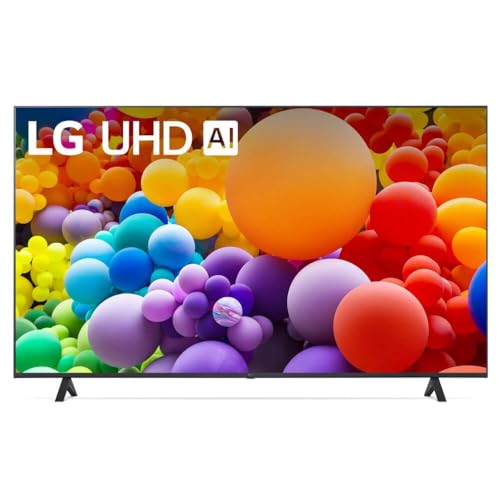
LG UT7000 75″ — Best Overall
The LG is the set we would write into a school’s standard specification, and the reason is balance rather than brilliance in any single department. Seventy-five inches of 4K LED puts genuinely readable text at the back of a standard classroom, LG’s smart platform is mature and widely understood, and the UT70 series sits in the part of the range where schools are paying for panel and size rather than for showroom spectacle. A fleet of these behaves predictably, which is the highest praise a facilities manager ever gives.
In daily teaching, what matters is the first ninety seconds of the lesson: screen on, teacher’s laptop visible, class settled. The LG’s combination of HDMI inputs for the wired route and mainstream casting support covers the ways teachers actually connect, and the picture settings include the kind of straightforward, bright, colour-honest profile a lit classroom wants — set it once, lock it in the profile, and the panel stops being a topic of conversation. That invisibility is the goal. A classroom television should be noticed the way windows are noticed: only when they are dirty.
There are limits to state plainly. This is a value LED panel, so its contrast in a darkened room will not trouble an OLED, and its speakers — like every set here — will thank you for a soundbar in a large or noisy room. Neither matters much to the brief. For the money a school can actually spend, across the number of rooms it actually has, the UT7000 at this size is the centre of gravity of this guide.
- Screen: 75-inch class, 4K LED UHD
- Series: LG UT70 series smart TV
- Role in fleet: the standard specification for full-size classrooms
- Connection posture: HDMI plus mainstream wireless sharing routes
- Audio note: plan a soundbar for large or noisy rooms
Strengths
- Seventy-five inches makes back-row text a solved problem in standard rooms.
- A mainstream platform and model line make fleet standardisation painless.
- Balanced picture behaviour suits lit-room teaching rather than dark-room cinema.
Trade-offs
- Value LED contrast is ordinary when the room is fully darkened for film.
- Built-in sound is adequate, not commanding, in big spaces.
- At 75 inches the wall and mount need to be taken seriously — this is a two-person install.
Best for: schools standardising one large screen across full-size classrooms. Not suited for: small seminar rooms, where its sheer width bullies the wall and the front row alike.
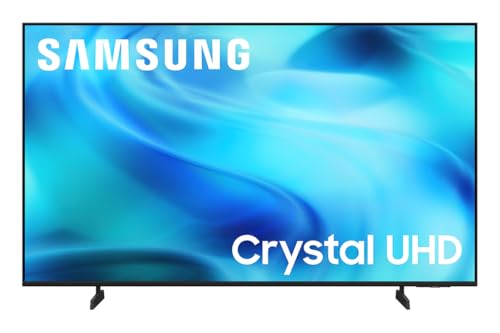
Samsung Crystal U8000H 65″ — Best 65-Inch Value
Where the wall, the room depth or the budget says 65 inches, Samsung’s Crystal U8000H is the natural anchor. It is a current-model Crystal UHD set with Samsung’s Vision AI smart features, a 4K processor, Motion Xcelerator for smoother movement, a Color Booster for punchier slides and diagrams, and Alexa built in. The listing also leans on Samsung’s endless free content — a genuine wet-weather lunchtime asset, and one that arrives without another subscription for the school to administer.
The classroom case rests on consistency. Samsung’s platform is the one many teachers already have at home, so the interface learning curve is close to zero, and the set’s picture processing flatters the mixed diet of a school day — a diagram-heavy presentation in the morning, a documentary after lunch, a video call with a partner school before home time. The Crystal panel will not match a QLED’s colour volume in a bright room, and its review below in the TCL’s section is the honest counterpoint; but as an all-round 65-inch value proposition from the market’s biggest television maker, it is very easy to defend in a budget meeting.
One administrative note: features described as AI and free content evolve with software updates, so a school standardising on this model should pin its expectations to the teaching essentials — size, sharing, legibility — and treat the extras as a bonus that may change its shape over the set’s life.
- Screen: 65-inch class Crystal UHD 4K
- Processor: Samsung 4K processor with Motion Xcelerator
- Platform: Samsung Vision AI smart TV, Alexa built in
- Extras per listing: endless free content, Color Booster
- Model year: listed as a 2026 model
Strengths
- Teachers already know this platform from home, so training time evaporates.
- Free built-in content helps wet lunches without new subscriptions.
- A current model line supports phased buying across the school year.
Trade-offs
- Crystal UHD colour and brightness sit a step below the QLED picks in hard daylight.
- At 65 inches, deep classrooms will still strain the back row on fine text.
- Smart extras shift with updates; do not build policy on any single app.
Best for: mid-size classrooms and staff rooms that want a familiar, current Samsung at a sane fleet price. Not suited for: the deepest lecture-style rooms, where 65 inches simply runs out of canvas.

TCL T7 65″ — Best for Bright Rooms
Some classrooms cannot be darkened: the blinds are decorative, the windows face the afternoon, and the timetable is unsympathetic. The TCL T7 is built for those rooms. Its listing describes a 4K QLED Google TV with Dolby Vision HDR and Atmos, HDR10+, and — unusually at this level — a native 144Hz refresh rate with game-oriented acceleration and variable refresh support. For teaching, the headline act is the QLED panel’s colour and brightness headroom, which keeps diagrams saturated and text contrasty when the room refuses to cooperate.
The high refresh hardware sounds like a gaming specification, and it is, but it has a classroom shadow benefit: motion stays clean when a teacher scrolls a document, pans across a map or plays sports footage for a PE theory lesson, and the set will serve an esports or games club after hours without breaking a sweat. Google TV brings the casting route Android-using schools prefer, and the platform’s account handling suits shared devices better than most when configured by IT rather than by individual teachers.
Balance requires noting that a 65-inch QLED still obeys geometry: in a deep room the back row needs size more than it needs colour. And a feature-rich Google TV set rewards a school that sets it up once, properly, with a managed profile — left to accumulate individual accounts, it becomes as messy as any shared computer. Given that hour of setup, this is the pick that makes south-facing classrooms stop apologising.
- Screen: 65-inch, 4K QLED, native 144Hz
- HDR: Dolby Vision, HDR10+; audio: Dolby Atmos support
- Platform: Google TV with Gemini-era features per listing
- Gaming hardware: Game Accelerator and VRR listed
- Voice: Alexa+ compatibility noted in the listing
Strengths
- QLED brightness and colour hold lessons together in sunlit rooms.
- High-refresh motion keeps scrolling documents and sports footage clean.
- Google TV casting suits Android and Chromebook-heavy schools.
Trade-offs
- Sixty-five inches is the ceiling — deep rooms should step up a size instead.
- The platform needs one proper managed setup to stay tidy as a shared device.
- Its gaming talents are wasted on rooms that never host a club.
Best for: bright, glass-heavy classrooms and schools standardised on Google accounts. Not suited for: very deep rooms, where the extra money belongs in inches rather than refresh rate.

Hisense E6SR 75″ Roku — Best Big Roku Screen
The Hisense E6SR takes the opposite route to the same destination as the LG: instead of the maker’s own elaborate platform, it runs Roku, the interface with the shortest learning curve in television. On a 75-inch Hi-QLED 4K canvas with Dolby Vision, that simplicity becomes a fleet strategy. Any teacher, supply teacher or guest speaker who has ever held a Roku remote — which is to say, most of them — can drive this screen within seconds of picking up the handset, and in schools, that familiarity is worth more than any single picture specification.
The rest of the listing is quietly well aimed at shared spaces. Game Mode Plus with variable refresh and auto low latency covers the after-school club; DTS Virtual:X attempts a bigger sound than the cabinet suggests; Apple AirPlay is built in, which matters enormously in schools where staff laptops and student iPads are Apple-shaped, and Alexa and Google Assistant compatibility covers the voice-control bases. AirPlay in particular is the feature that decides real lessons: a teacher circulating with a tablet, throwing a student’s work onto 75 inches for the class to discuss, is modern pedagogy in one gesture, and this set makes it native.
Hisense’s value positioning means the panel’s refinement — uniformity, motion polish — sits a notch below the Sony in this guide, and Roku’s home screen carries the platform’s own content promotions, which IT may wish to tame in settings. Neither undermines the proposition: the biggest screen here, the simplest interface here, at a fleet-friendly point in the market.
- Screen: 75-inch class Hi-QLED 4K UHD
- Platform: Roku TV with Apple AirPlay built in
- HDR/audio: Dolby Vision; DTS Virtual:X
- Gaming: Game Mode Plus, VRR, ALLM per listing
- Voice: works with Alexa and Google Assistant
Strengths
- Roku’s interface is the one every supply teacher already knows.
- Native AirPlay serves iPad-and-Mac schools without extra boxes.
- Seventy-five inches of QLED at a value badge is a strong fleet equation.
Trade-offs
- Panel polish trails the Sony pick in this line-up.
- Roku’s home screen promotions need a settings pass in a school context.
- Like all 75-inch sets, it wants a proper mount and two installers.
Best for: schools that prize zero-training operation and Apple-device sharing at maximum size. Not suited for: institutions whose IT policy demands the tighter account control of a managed Google or proprietary platform.

Sony BRAVIA 3 II 65″ — Best Anti-Glare
Sony’s entry is the connoisseur’s answer to the classroom’s oldest enemy. The BRAVIA 3 II’s listing leads with an anti-glare screen — a coating that spreads reflected light instead of mirroring the windows back at the class — backed by Sony’s XR processor with AI technology, Dolby Vision and Atmos, a 120Hz refresh rate and four HDMI 2.1 sockets. In a room where the blinds have been broken since spring, the anti-glare finish is not a luxury; it is the difference between a screen the back-left corner can use and one it cannot.
Sony’s processing earns its mention for a specific classroom reason: upscaling and motion handling decide how forgiving the set is of the real diet of school content — an old documentary at low resolution, a shaky video from a school trip, a video call. The XR processor’s reputation rests on making ordinary sources look composed, and ordinary sources are the job. Four HDMI 2.1 ports, meanwhile, is the richest wired provision in this guide: teacher laptop, document camera, classroom PC and a spare for the visiting speaker, all permanently connected, no cable swapping in front of thirty watching faces.
The honest costs are size and positioning. At 65 inches it shares the geometry limits of the other mid-size picks, and Sony polish is rarely the cheapest route to a specification. Buy it where its talents are load-bearing — the glare-cursed rooms, the media studies suite, the space that hosts video calls — rather than as the default for rooms where a value panel would do.
- Screen: 65-inch LED 4K HDR with anti-glare finish
- Processor: Sony XR with AI technology
- Refresh: 120Hz panel per listing
- Connections: 4x HDMI 2.1 — the most in this guide
- Platform: Google TV; Dolby Vision and Atmos supported
Strengths
- The anti-glare screen directly answers the commonest classroom complaint.
- Four HDMI 2.1 ports end the cable-swapping ritual for good.
- XR processing flatters the low-resolution sources schools actually show.
Trade-offs
- Sixty-five inches caps its use in the deepest rooms.
- Sony refinement costs more than the fleet-extender picks.
- Its talents are wasted in a room that darkens perfectly well already.
Best for: glare-troubled rooms, media suites and video-call-heavy spaces. Not suited for: blanket fleet buying on the tightest budget, where its premium buys polish some rooms will never need.

VIZIO V-Series 75″ — Best Budget 75-Inch
Every fleet plan has a second phase: the rooms that get equipped after the showcase spaces, when the money is thinner and the temptation is to drop a size. The VIZIO V-Series exists to resist that temptation. It puts a 75-inch 4K UHD LED screen — with Dolby Vision, HDR10+, a voice remote and Alexa compatibility — at the most accessible point in this guide, so the geography classroom and the intervention room get the same back-row legibility as the science labs.
Expectations should be set with care. This is a 2022-model value panel, and its processing and platform polish belong to that station: perfectly serviceable, occasionally unhurried. In exchange, the fundamentals a classroom actually consumes — size, resolution, HDR support, a voice remote that spares teachers the menu-diving — are all present. VIZIO’s platform handles the mainstream apps and casting routes a school needs, and the set’s simplicity can be a virtue in rooms maintained by goodwill rather than by an IT department.
We would deploy it exactly as its badge suggests: as the fleet extender, bought in the phase where coverage matters more than refinement, and paired with the same standard mount and settings profile as the rest of the estate so support stays uniform. A school is better served by six rooms with this screen than by four rooms with a finer one and two rooms squinting at a relic.
- Screen: 75-inch class 4K UHD LED
- HDR: Dolby Vision and HDR10+ supported
- Remote: voice remote included
- Voice: Alexa compatibility per listing
- Model note: listed as a 2022 model — value positioning
Strengths
- Full 75-inch legibility at the friendliest point in this guide.
- Dolby Vision support keeps film and documentary content looking its best.
- Simple operation suits rooms without dedicated IT support.
Trade-offs
- An older value model — platform responses are calmer than the newest sets.
- Picture polish and uniformity trail the premium picks.
- Schools should confirm ongoing stock before standardising a whole phase on it.
Best for: phase-two rooms and tight budgets that refuse to surrender screen size. Not suited for: flagship spaces like the main hall, where a school shows itself to visitors and should spend accordingly.
How Do the Six Perform From the Back Row?
Legibility is a chain: screen size, brightness, glare control, the teacher’s font sizes and the room’s lighting all pull on it, and the chain breaks at its weakest link. The two 75-inch value sets — the LG and the Hisense — buy the most legibility per lesson because size forgives many sins; the VIZIO matches their inches at a lower polish. Among the 65-inch sets, the Sony’s anti-glare finish and the TCL’s QLED brightness each defend legibility in lit rooms in their own way, while the Samsung relies on processing and familiarity. What no set can survive is a teacher presenting nine-point text: standardise minimum font sizes in slide templates and every screen in this guide suddenly looks bigger.
| Pick | Size | Glare/brightness story | Sharing route to note |
|---|---|---|---|
| LG UT7000 | 75″ | Balanced lit-room LED | HDMI plus mainstream casting |
| Samsung U8000H | 65″ | Color Booster processing | Samsung platform familiarity |
| TCL T7 | 65″ | QLED brightness, 144Hz | Google TV casting |
| Hisense E6SR | 75″ | Hi-QLED canvas | Roku with native AirPlay |
| Sony BRAVIA 3 II | 65″ | Dedicated anti-glare screen | 4x HDMI 2.1 wired depth |
| VIZIO V-Series | 75″ | Value LED, Dolby Vision | Voice remote simplicity |
What Should IT Set Up Before the First Lesson?
An hour of configuration saves a year of interruptions. Rename each set for its room so casting lists make sense — “Room 14” beats a model number when a teacher is choosing where to send a screen. Sign the set into the school’s managed account structure or none at all, disable the app-store free-for-all, set the default input to the one teachers actually use, and program the picture profile for a lit room: brightness honest, colour natural, motion smoothing off for text work so scrolling documents stay crisp rather than smeared.
Then lock the doors politely. Enable the hotel-style or settings-lock features the platform offers so the well-meaning cannot recalibrate the picture into cinema darkness; tape a laminated card beside the screen with the three steps to connect a laptop and the one step to get help; and put the remote on a tether or in a wall dock, because a classroom remote without a home has a life expectancy measured in weeks. Finally, record the asset: serial number, room, mount type and purchase date in the school’s register, so warranty conversations in year two start from facts.
Sound deserves its own line in the setup. Television speakers fire at the wall or the floor and hope; a classroom needs voices at the back. Test the set’s own audio with a spoken documentary at teaching volume from the back row — if it strains, a modest soundbar mounted under the screen transforms comprehension for the students who struggle most, including those learning in a second language. It is the cheapest accessibility upgrade in this entire guide.
How Do You Run a Fleet of Classroom TVs Without Losing Your Mind?
Standardisation is the whole trick. One or two models across the estate, one mount, one remote type, one settings profile, one connection ritual printed on one card. Every deviation — the one different set a department bought with a grant — becomes the room that generates the support tickets, so bring even gifted screens into the standard where you can and document them where you cannot. Buy in phases if the budget demands it, but buy the same model within each phase and keep one spare remote and one spare power lead per corridor.
Plan the replacement rhythm at purchase, not at failure. Value panels in daily school service live hard lives — long hours, many hands, the occasional ball — and a calm estate replaces screens on a rolling cycle before failures choose the timing for you, in exam week, in the rain. A simple register with purchase dates turns that cycle into arithmetic. And keep the boxes question in mind for governors: the measure of this fleet is cost per legible lesson across all rooms, not the specification of the finest single screen.
What Mistakes Do Schools Make When Buying Classroom TVs?
The commonest is buying the screen the salesperson demonstrated in a dark showroom, where every panel looks like cinema, for rooms that are never dark. The second is under-sizing to save money and then spending the saving on repeat explanations to a back row that cannot read the board’s replacement. The third is forgetting the unglamorous hardware — mounts rated for the weight, cables long enough to reach the teacher’s desk, a spare remote — so the shiny set hangs useless for a week awaiting a bracket.
Schools also trip on accounts. A television signed into a teacher’s personal streaming account becomes a small safeguarding and privacy puzzle every time it is switched on in front of a class; shared screens should run school-managed or account-free profiles, full stop. And the final mistake is treating installation as an afterthought to be fitted around the timetable by goodwill: screens this size need proper fixing into proper structure, booked like the facilities work it is, not wedged into a free period by a willing volunteer with a drill.
How Does a Classroom TV Earn Its Keep Across the Whole School Day?
Period one is registration and a news clip; period two is a data-handling lesson built on a spreadsheet the whole class must read together; by period four the screen is hosting a video call with a museum educator, and after school it is the esports club’s arena or the staff meeting’s display. A classroom television is the hardest-worked screen in the building, and its value compounds with every different job it absorbs. That is why this guide weights versatility — inputs, sharing routes, platform breadth — so heavily: the set that only excels at one period of the day is a part-time employee on a full-time salary.
The corollary is that reliability outranks brilliance. A panel that starts instantly, reconnects to the same input it was left on, and never surprises a teacher mid-lesson will be loved by a staffroom in a way a finer but fussier screen never is. When schools in this guide’s spirit standardise and set up properly, they are really buying teacher confidence — the quiet certainty that pressing one button will work — and confidence is what gets a screen used daily rather than avoided by the very people it was bought for.
There is a student side to that confidence too. A class that can always read the screen settles faster, asks better questions and stops treating the back row as exile. Legibility is an equity issue dressed as a specification: the students with weaker vision, the ones still building the language of instruction, the ones stuck in the corner seat — the big, bright, glare-managed screen is bought for them most of all, even if the budget line never says so.
What Should the Warranty and Support Conversation Cover?
Before a fleet order, read the warranty posture the way the listings frame it and ask the questions a school specifically needs answered: how are dead pixels and backlight faults handled, is support business-hours only, and what does a replacement actually involve for a wall-mounted 75-inch set in a working corridor? None of the picks here is a commercial display with a commercial warranty, and honesty requires saying so — these are consumer panels doing institutional work, which is exactly why they are affordable in fleet numbers. The school’s side of the bargain is the register, the spare remote, the standard mount and the rolling replacement budget, which together convert consumer hardware into a managed estate.
Mounts and fixings deserve a line in the same conversation. A 75-inch panel on a mount rated for it, fixed into structure by someone who installs for a living, is a safeguarding matter as much as an AV one. Book the installation as facilities work, keep the paperwork with the asset register, and inspect the fixings when the screens are cleaned — a termly habit that takes minutes and closes the loop between buying a screen and being responsible for it.
How Do You Handle Accessibility on a Shared Screen?
Captions are the first setting to standardise: switched on by default for video content, sized generously, so the students who benefit — deaf students, language learners, anyone in a noisy room — are never the ones who have to ask. The second is contrast discipline in the content itself: slide templates with dark text on pale backgrounds read at the back in a way that fashionable pale-grey text never will, and a school template quietly fixes a thousand lessons. The third is seating honesty: the student with low vision should not be in the corner seat that this guide keeps using as its worst case, and a screen big enough to make the middle seats generous makes that seating plan possible.
Audio accessibility pairs with the soundbar advice above. Clear speech at the back is not a comfort feature; for many students it is the lesson. Rooms with hearing loops or personal listening systems should have the television’s audio output planned into the installation from the start, not retrofitted after a parent meeting. Every pick here can feed external audio; the installation is where the promise is kept or broken.
What Does a Sensible Rollout Look Like Term by Term?
Term one: pilot. One screen, one willing department, one month of honest use, and a short list of what annoyed people — because something always does, and it is far better discovered on one set than on thirty. Adjust the standard profile, the mount height and the connection card from that feedback, and write the result down as the school’s own one-page standard. Term two: the showcase rooms and the deepest classrooms, where the 75-inch sets change the most lessons. Term three: the long tail — intervention rooms, the library corner, the staff room — where the VIZIO-class value sets do their quiet work and where coverage, not spectacle, is the victory.
Across all three terms, keep the purchasing boring: same models, same mounts, same installer where possible, serial numbers into the register the day each screen lands. Boring is the aesthetic of infrastructure that works. The schools that struggle with classroom technology are rarely the ones that bought the wrong panel; they are the ones where every room is a snowflake and every remote is a rumour. A fleet plan like this one exists to make the technology disappear into the teaching, term after term, until nobody remembers the screens being new — only that the back row can read.
How Should Teachers Actually Use the Big Screen Well?
A few habits multiply the value of every set in this guide. Build slides for the room: minimum font sizes, high contrast, one idea per screen. Face the class when the screen changes — the pause while a video loads is a teaching moment, not dead air, if the teacher narrates what is coming. Use the sharing routes to show student work early and often; a piece of writing on 75 inches, discussed kindly by the class, teaches more about writing than a week of worksheets. And end lessons with the screen showing tomorrow’s starting point, so the last thing the class reads is where they are headed.
None of that is technology, and all of it is what the technology is for. The panels in this guide were chosen to make those habits easy: big enough to share work, bright enough to read together, simple enough that the pedagogy stays in charge. Buy the screen that serves the teaching, set it up once with care, and then let the lessons be the interesting part of the room again.
What About Energy, Heat and the School’s Bills?
Thirty large screens running six periods a day is a real line in a school’s energy story, and the value panels here are mercifully modest drinkers by historical standards — but habits still matter. Set the auto-off timers so a screen forgotten at lunch does not glow at an empty room until the caretaker’s round; use the platform’s scheduling where it exists so the estate sleeps when the building does; and resist the corridor temptation of leaving screens on as noticeboards all day, a job a cheap dedicated display or a printed poster does at a fraction of the draw. Heat follows the same logic: a wall of electronics in a small, sunlit classroom adds to the afternoon’s stuffiness, one more reason the anti-glare and brightness-efficient picks earn their place by doing more with the light already in the room.
None of this should be oversold — a television fleet will not decide a school’s energy fate — but a facilities team that can show governors a considered settings profile, timers included, has done the professional thing. Efficiency here is a by-product of the same standardisation that makes the fleet supportable: one profile, set once, applied everywhere, timers and all.
How Do These Screens Handle Video Calls and Hybrid Lessons?
The partner-school call, the virtual field trip and the guest speaker on a screen are now ordinary timetable furniture, and they stress a classroom display differently from a film: faces at conversational size, shared documents from the far end, and audio that must carry children’s questions to a microphone somewhere near the teacher. Every set here will display the call happily through the classroom computer; the variables are the camera and microphone, which live with the computer, and the screen’s ability to render the far end’s shared text — where the 75-inch sets and the anti-glare Sony again pull ahead. Position the camera at the screen, not across the room, so students look toward the faces they are talking to, and test the whole arrangement before the museum educator is watching thirty children wave at a black rectangle.
Which Rooms Deserve Which Pick, One by One?
Walk the corridor and the allocation writes itself. The deep, standard classrooms — thirty students, six rows, a teacher who lives on documents and data — take the LG at 75 inches, because their problem is pure geometry and geometry is what the big LG solves. The corner rooms with the unblindable windows take the Sony or the TCL: the Sony where reflections are the complaint, the TCL where the whole room simply runs bright and colour-rich science content will benefit from the QLED panel. The Apple-heavy departments — the ones where every teacher carries an iPad and half the student devices match — take the Hisense, because AirPlay without a bolt-on box removes a daily friction those teachers will feel in every single lesson.
The mid-size rooms, the staff room and the departmental bases take the Samsung: deep enough catalogue of free content for the wet lunch, familiar enough that nobody needs the card on the wall, sized for rooms where 75 inches would crowd the whiteboard it must coexist with. And the long tail — intervention spaces, the library’s teaching corner, the room that hosts three different small groups a day — takes the VIZIO, whose job is not to impress anyone but to make sure those students also get a screen they can read, at a price that lets the school say yes this year instead of in some future budget.
Notice what that allocation never does: it never leaves a teaching room with the old, small, dim screen because the money ran out at the showcase end of the corridor. The order of spending in this guide — coverage first, refinement where the room demands it — is the whole philosophy. A visitor touring the school sees the flagship rooms; the students live in all of them, and the fleet serves the students.
Keep one flexibility in reserve as the rollout proceeds: rooms change jobs. The classroom that becomes a computer suite, the base that becomes an exam room — a standardised fleet on standard mounts can be reshuffled in a summer holiday week without new drilling or new remotes, and that quiet rearrangeability is worth more over a decade than any single specification on any single listing in this guide.
A Note on Cleaning, Care and the Caretaker’s Round
Classroom screens gather the evidence of their working lives: fingerprints at touchscreen height from students who reasonably assumed, whiteboard-marker ghosts on the bezel, dust along the top edge thick enough to plant in. Clean them the way the makers intend — power off, a dry or barely damp microfibre cloth, no sprays applied directly to the panel, no paper towels — and put the job on the same termly rhythm as the mount inspection. A clean screen is measurably brighter than a filmed one, which means the termly clean is not housekeeping vanity; it is part of the legibility budget this whole guide is built on. Caretakers who know which cloth and which circuit belong to the screens will keep a fleet looking new for years; a laminated care note beside the asset register makes that knowledge survive staff changes, exactly like the connection card beside each screen.
What If the Budget Only Covers Half the Rooms This Year?
Then equip the deepest rooms and the worst-lit rooms first, and say so plainly in the plan, because those are the rooms where students currently lose the most. Resist the urge to spread the money thinly by dropping every room to a smaller screen: a corridor of undersized panels is a permanent compromise, while a phased fleet of right-sized ones is a temporary one. Keep the standard identical across phases so the second year’s screens join the first year’s without a seam, and let the unequipped rooms keep the best of the old screens, consolidated, rather than the worst of them scattered. A phased plan with a written standard is a strategy; a half-price fleet is just a smaller problem repeated everywhere.
One More Consideration: The Screen as the Room’s Clock, Noticeboard and Calm
Schools quietly use their big screens for more than lessons — the exam room’s clock, the assembly slides, the calming video during a stormy indoor break, the photographs from the school trip looping while parents wait on consultation evening. Every set here handles those jobs through its platform or a connected computer, and a school that plans for them gets a second return on the fleet: the same screens that teach all day also steady the room at its anxious moments and show the school’s life back to itself in the evening. It is not a reason to buy one model over another, but it is a reason to buy well and install proudly, at the height and in the rooms where the whole community will see the benefit.
And when the first screens land, gather the staffroom verdict after a fortnight rather than a day. First impressions of a new panel are about novelty; fortnight impressions are about the third lesson on a rainy Thursday, which is the service the fleet was actually bought to perform. Feed what you hear back into the standard before phase two, and the plan improves while it is still cheap to change.
Keep the pilot department’s teacher as the fleet’s informal champion, too — a colleague who can show a nervous department head the casting trick in thirty seconds does more for adoption than any training session the timetable could hold.
Final Recommendation
Standardise on the LG UT7000 at 75 inches for full-size classrooms, and let the exceptions argue their way in: the TCL or the Sony where daylight is the enemy, the Hisense where AirPlay and zero-training operation matter most, the Samsung where 65 inches is the honest size, and the VIZIO to carry the standard into the rooms phase two would otherwise abandon. Set each one up once, properly, with the card on the wall and the profile locked — then forget about televisions for five years, which is exactly what a good classroom screen should let a school do.
Frequently Asked Questions
Is 65 inches enough, or should every room get 75?
It depends on room depth and content. Shallow rooms and seminar spaces are well served by 65 inches; standard classrooms where students read documents and data from the back benefit clearly from 75. Measure the farthest seat, be honest about font sizes, and let that arithmetic — not the showroom — decide.
Do we need interactive touch panels instead?
Only where touch interaction is genuinely the pedagogy — early years, some SEND provision, design work. For display-led teaching, a large bright panel plus the teacher’s tablet or a document camera delivers most of the value at a fraction of the cost, and lets a school equip every room rather than one showcase space.
How do teachers connect their laptops?
Keep both doors open: a wired HDMI lead at the teacher’s position for guaranteed results, and wireless sharing — AirPlay, casting or the platform’s own route — for circulating with a tablet. Label the inputs, print the steps on the card by the screen, and the first ninety seconds of every lesson stay calm.
Should classroom TVs be signed into streaming accounts?
Not personal ones. Use school-managed profiles or the account-free features and built-in free content, so no individual’s recommendations, messages or payment details can surface in front of a class. Treat the screen as shared infrastructure, because that is what it is.
How long should a classroom TV last?
Plan on a rolling replacement cycle rather than a fixed promise: daily multi-period use is harder service than a living room’s evenings. Keep the asset register, budget for phased replacement, and a failure becomes a diary entry rather than a crisis.
What about sound for larger rooms?
Test speech from the back row at teaching volume. If the set’s speakers strain — and in big or echoing rooms they often will — a modest soundbar under the screen is the standard fix, improving comprehension for every student and especially for those who need it most.
Related Guides
Equipping the rest of the building? Our guide to large televisions for offices and meeting rooms covers the boardroom side of the same decision, the roundup of soundbars for clearer speech in big rooms pairs with every set here, and our picks for streaming devices for shared screens help when a room’s television needs a smarter brain.
[…] the rest of the cabin? Our roundup of compact televisions for RVs and small spaces covers the land-based cousins of these sets, the guide to 12-volt appliances for off-grid living […]